

Quick Answer: The best voice typing app for students, professionals, and travelers is JotMe, followed by Wispr Flow, Granola, Handy, Microsoft Dictate, Dragon Professional, and Google Docs Voice Typing.
The best voice typing app turns speech into text you can send without fixing it first. Most voice dictation tools still hand back filler words and missing periods that you end up cleaning by hand.
I ran unscripted speech tests on my MacBook Pro, with my usual "uh" habit and a few restarts left in, and counted what landed on the page. These are workflow observations, not a controlled accuracy benchmark: Granola was tested in live meeting transcription rather than its separate Voice Typing feature, Microsoft Dictate had auto-punctuation off, and Dragon gets a documented review because it runs only on Windows.
This is how each voice typing app did:
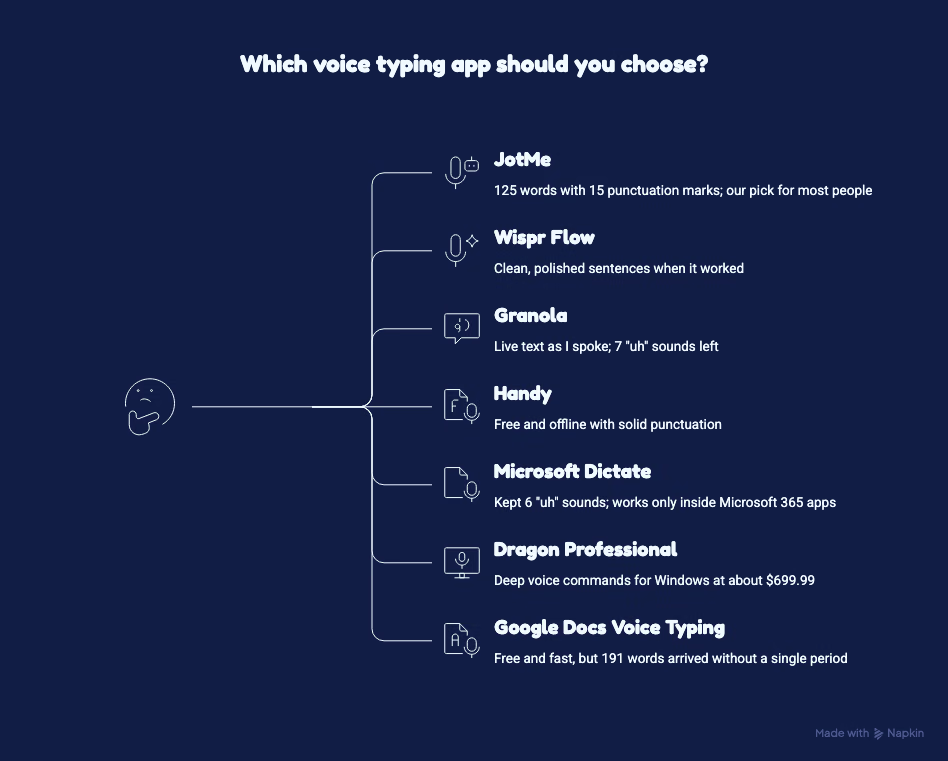
- JotMe: 125 words with 15 punctuation marks and no filler words, plus voice typing translation on Mac and Windows. Its Translate mode turned 51 seconds of spoken English into 120 words of Mexican Spanish. Our pick for most people.
- Wispr Flow: Clean, polished sentences when it worked, though two of my 5 dictations came back empty.
- Granola: Live text as I spoke and correct handling of terms like "H-1B visa," with 7 "uh" sounds left in the note transcript.
- Handy: Free and offline with solid punctuation, but it typed "Option + Space" as "optional space."
- Microsoft Dictate: Kept 6 "uh" sounds and works only inside Microsoft 365 apps.
- Dragon Professional: Deep voice commands for Windows at about $699.99, with no Mac version since 2018.
- Google Docs Voice Typing: Free and fast, but 191 words arrived without a single period.
JotMe provides a dedicated translation keyboard in a single step: speak in a supported input language and choose from 200+ output language and regional options. Wispr Flow can translate text after dictation through Command Mode on Pro. Handy offers model-specific speech translation and optional AI post-processing that can translate too, with coverage and setup depending on the model and provider.
For people who write across apps all day, JotMe is the best voice typing app in 2026. Test notes and pricing for every tool follow below.
Quick Answer
The best voice typing app for most people in 2026 is the JotMe Voice Keyboard. Hold Fn on a Mac or Ctrl + Win on Windows, speak, and JotMe types clean, punctuated text into any app and uses custom vocabulary to help recognize names. Switch to Translate mode, and JotMe types your speech in any of 200+ output language and regional options in a single step.
- Best overall voice typing app: JotMe
- Best for voice typing in another language: JotMe (Translate mode)
- Best for heavy voice dictation on 4 device types: Wispr Flow
- Best free voice typing for Granola users on Mac: Granola
- Best free offline voice keyboard: Handy
- Best inside Word and Outlook: Microsoft Dictate
- Best voice dictation software for Windows: Dragon Professional
- Best free option inside Google Docs: Google Docs Voice Typing
Key Takeaways
- 5 of the 7 voice typing apps type into any app; Google Docs Voice Typing and Microsoft Dictate stay inside their own documents.
- The built-in tools kept every filler: Google Docs typed 191 words with no punctuation, and Microsoft Dictate kept 6 "uh" sounds.
- JotMe returned 125 words with 15 punctuation marks and no fillers, and it translates your voice as you dictate on Mac and Windows.
- JotMe's Translate mode returned 120 words of Mexican Spanish from 51 seconds of spoken English in a single step. Wispr Flow uses a second Command Mode step on Pro. Handy's built-in translation depends on the selected model; optional AI post-processing provides another configurable route.
- Three apps misspelled a product name in my tests, from JotMe's "Jot.me's" to Granola's "WhisperFlow." Custom vocabulary can help reduce these errors, so fill it in first.
- Handy is my free offline voice keyboard pick. Its model picker showed 69 downloadable models during my review, with a Translate option on some of them. The catalog changes over time.
- Dragon Professional costs about $699.99 one-time and has had no Mac version since 2018.
JotMe Voice Keyboard
Type With Your Voice in Any App
Hold Fn on a Mac or Ctrl + Win on Windows, speak in a supported input language, and JotMe types clean text or a translation in 200+ output language and regional options right at your cursor.
Also on Windows. No credit card needed.
Who This Voice Typing Review Helps
Voice typing has moved from an accessibility feature to a daily writing habit, and the right voice typing app depends on where your words end up. This review focuses on people who type for a living and want a voice dictation app that lets them talk instead.
- Managers who write to international teams: Daily replies to suppliers or clients in Japan and Korea go faster with a voice keyboard that types in their language.
- Writers and content teams: Long reports and briefs need voice dictation that keeps up with your thinking and punctuates on its own.
- Heavy AI tool users: Detailed prompts for Claude or ChatGPT take far less effort to speak than to type.
- People with wrist strain or RSI: Voice typing that works in every app turns the keyboard into a backup.
- Teams onboarding or selling in another language: Spanish onboarding notes or Japanese supplier replies come out of a single dictation when your voice keyboard translates as you speak.
- Students and budget users: A free voice typing app can still produce usable text if you pick the right one.
Android users who mainly want voice typing on a phone keyboard can start with our list of voice to text apps for Android.
Why This Voice Typing Review Is Different
Many voice typing roundups grade apps on a read-aloud script, which hides the problems real speech creates. I spoke as I talk on a client call, with fillers and half-finished sentences, and then counted what each voice dictation tool put on the page.
- Shared recording setup for the hands-on checks: the same MacBook Pro, built-in microphone, English (US), and unscripted speech. Feature modes differed: Granola used meeting transcription, Microsoft auto-punctuation was off, and Dragon was not run.
- Raw numbers over star ratings: You get the word count, the filler count, the punctuation count, and every wording error.
- Honest gaps: Dragon Professional runs only on Windows, so I say so and report from Nuance's own product page.
- A translation test: Voice typing reviews rarely test translation, so I also dictated in English with Spanish (Mexico) as the output to see if a voice keyboard can replace a translator tab.
- Same rules for our own app: JotMe publishes this review and appears on the list. Its first voice typing clip misspelled our own product name, and that result stays in.
We followed the same unscripted approach in our speech to text software roundup, which covers file and meeting transcription rather than in-app voice typing.
Best Voice Typing Apps at a Glance
- JotMe: Our top voice keyboard for multilingual work, with Direct, Curate, and Translate modes, custom vocabulary, and voice typing translation into 200+ output language and regional options.
- Wispr Flow: The pick for heavy daily voice dictation on Mac, Windows, iPhone, and Android.
- Granola: Free voice typing for people who already take meeting notes in Granola on a Mac.
- Handy: A free, open-source voice typing app that runs offline.
- Microsoft Dictate: Voice dictation inside Word and Outlook for Microsoft 365 subscribers.
- Dragon Professional: Dictation software for Windows users who need commands and macros.
- Google Docs Voice Typing: The free voice typing option inside a Google Doc.
Voice Typing Apps Compared Side by Side
The biggest split among voice typing apps is reach. 5 of the 7 apps type into any text field on your computer, while Google Docs Voice Typing and Microsoft Dictate stay locked inside their own documents.
| Voice Typing App | Types in Any App | Filler Cleanup and Punctuation | Custom Vocabulary | Voice Typing Translation | Runs On | Free Option |
|---|---|---|---|---|---|---|
| JotMe | ✅ Any app on Mac and Windows | ✅ Clean output in my test, plus Curate mode | ✅ 20 terms (Pro), 50 terms (Premium) | ✅ Translate mode: supported speech inputs; 200+ output language/regional options | Mac and Windows desktop apps | ✅ Freemium: 50 transcription minutes a month |
| Wispr Flow | ✅ | ✅ AI auto-edits, clean in my test | ✅ Dictionary and snippets | Two-step: Command Mode on Pro | Mac, Windows, iPhone, Android | ✅ Weekly desktop soft/hard limits; see pricing |
| Granola | ✅ Mac and Windows; iOS advertised on product page | ✅ In voice typing; the live note transcript kept fillers | ✅ Names and terms | ❌ | Mac and Windows; iOS advertised on product page | ✅ Free on every plan |
| Handy | ✅ | Model punctuation; optional AI post-processing | Undocumented | Model-dependent translation; optional AI post-processing | macOS, Windows, Linux | ✅ Free and open source |
| Microsoft Dictate | ❌ Microsoft 365 apps only | ❌ Kept fillers; auto-punctuation optional | ❌ | None listed | Windows, Mac, web, mobile | ❌ Microsoft 365 plan |
| Dragon Professional | ✅ Windows apps | Spoken punctuation and voice commands | ✅ Custom words and auto-texts | ❌ | Windows 10 and 11 | ❌ |
| Google Docs Voice Typing | ❌ Google Docs only | ❌ Kept fillers; punctuation only when spoken | ❌ | ❌ | Desktop browsers such as Chrome | ✅ Free |
Pricing varies more than features. Handy and Google Docs cost nothing, Granola includes voice typing on its free plan, and Dragon still sells its dictation software as a one-time license at a desktop-software price. The rest run on monthly or yearly subscriptions.
Voice typing app pricing
| Voice Typing App | Free Plan | Paid Plans | Billing Notes |
|---|---|---|---|
| JotMe | Freemium: 50 transcription minutes a month (covers Voice Keyboard dictation), 20 live translation minutes, 5 AI credits | Pro: $10 per user per month, Premium: $15 per user per month (yearly billing) | Monthly billing costs $20 and $30; a $50 prepaid pack adds 500 live translation minutes |
| Wispr Flow | Free: desktop 2,000-word soft cap, 5,000-word hard cap; mobile allowance shown in app | Pro $12/user/month billed yearly ($15 monthly); Growth from $18/user/month billed yearly | Enterprise pricing on request |
| Granola | Voice typing free on every plan | Business $14 per user per month, Enterprise $35 per user per month | Paid plans add meeting history and integrations |
| Handy | Free | None | Open source under the MIT license |
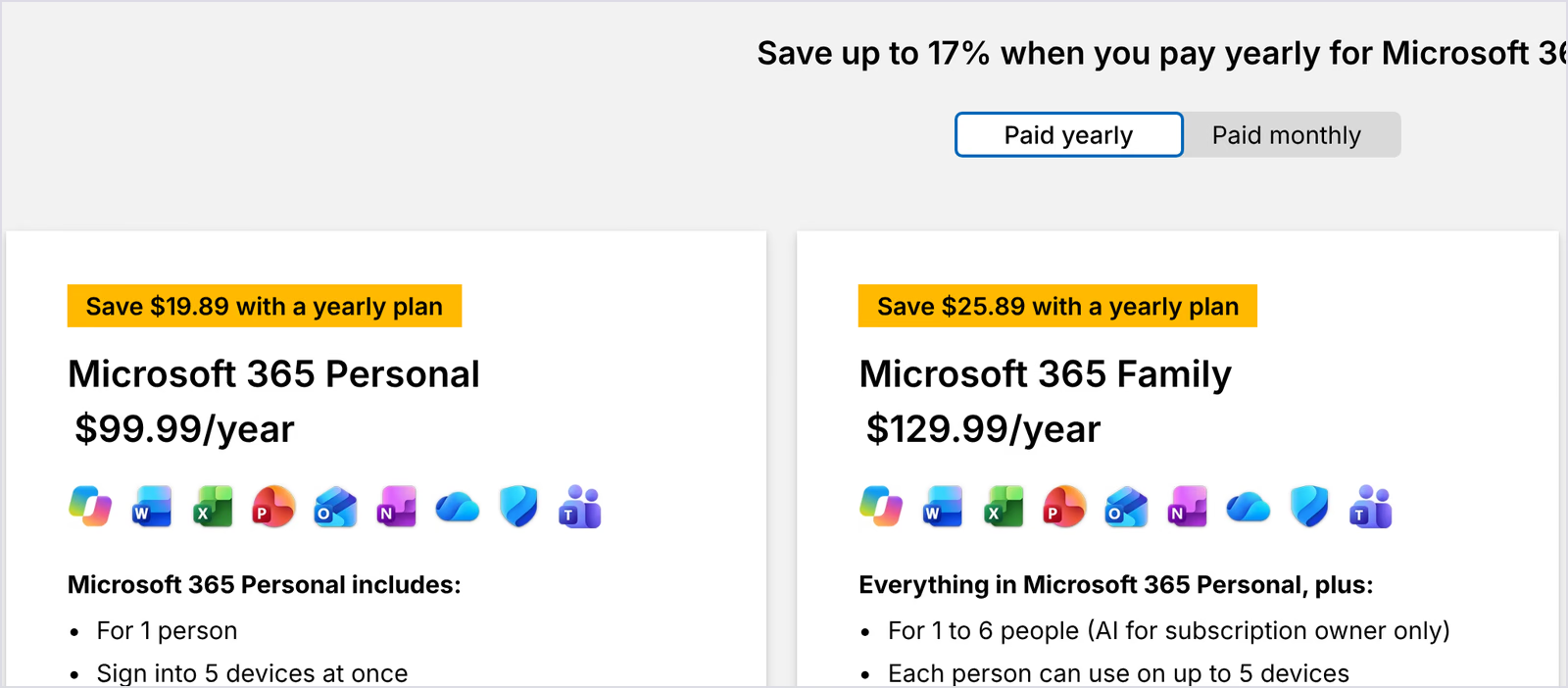
| Microsoft Dictate | None for the desktop apps | Microsoft 365 Personal $99.99 a year or $9.99 a month; Family $129.99 a year | Dictate comes with the subscription |
| Dragon Professional | None | About $699.99 one-time at retail for v16 | Nuance lists no public price; you contact sales |
| Google Docs Voice Typing | Free | None | Needs a Google account and a desktop browser |
Which Voice Typing Apps Translate While You Speak?
A voice-to-text translator inside your keyboard saves a trip to another tab: you speak, and the text lands in your reader's language. JotMe provides a dedicated Translate mode. Wispr Flow offers a second-step command, while Handy supports model-specific translation and configurable AI post-processing. The other apps here do not document this translation workflow.
| Voice Typing App | Translates While You Dictate | Output Languages | Steps to Get a Translation |
|---|---|---|---|
| JotMe | ✅ Dedicated Translate mode | 200+ | One: pick an output language once, then hold the shortcut and speak |
| Wispr Flow | Partial: Command Mode on Pro | Not published | Two: dictate, then select the text and ask Command Mode to translate it |
| Handy | Partial: Translate-tagged models | English with Whisper; 4 languages with Canary Flash, 25 with Canary 1B v2; AI post-processing depends on provider | One dictation workflow after model setup; AI post-processing needs separate configuration |
| Granola | ❌ | None | Keeps each part in the language you spoke |
| Microsoft Dictate | None listed | None | Types in the language you speak |
| Dragon Professional | ❌ | None | Types in the language you speak |
| Google Docs Voice Typing | ❌ | None | Types in the language you pick |
The step count matters more than it looks. With JotMe, you pick an output language once and every dictation after that arrives translated. With Wispr Flow, each translation means dictating, selecting the text, and speaking a second command.
Voice Dictation Test Results
For the hands-on checks, I used my MacBook Pro, its built-in microphone, English (US), and unscripted speech about the app I was using. I kept my "uh" sounds and restarts, then counted what landed on the page and asked whether I could send it without editing. Granola's row measures its live meeting transcript, not Voice Typing; Microsoft auto-punctuation was off; Dragon is untested. The clips also differ in length and wording, so these counts are not comparable accuracy scores.
| Voice Typing App | Words Typed | Filler 'Uh' in Output | Punctuation Marks | Wording Errors I Found | Works Outside Its Own App |
|---|---|---|---|---|---|
| JotMe Voice Keyboard (Direct mode) | 125 (two clips, 28 and 32 seconds) | 0 | 15 | Our own name spelled 'Jot.me's' in clip 1; kept my stumble 'their during their' | ✅ Any app on Mac and Windows |
| JotMe Voice Keyboard (Translate mode, English to Spanish (Mexico)) | 120 Spanish words from 131 spoken English words (51 seconds) | 0 | 14 | "Jot.me" carried over from my English | ✅ Any app on Mac and Windows |
| Wispr Flow | 84 (three entries; two more came back empty) | 0 | 9 | Our name written as 'jot me'; one entry cut off after 4 words | ✅ Any app |
| Handy | 114 (two clips) | 0 | 13 | 'optional space' for 'Option + Space'; no closing period on either clip | ✅ Any app |
| Granola (live note transcript) | 95 | 7 | 26 | 'WhisperFlow' for 'Wispr Flow'; spelled 'H-1B visa' right | ✅ Voice typing on Mac |
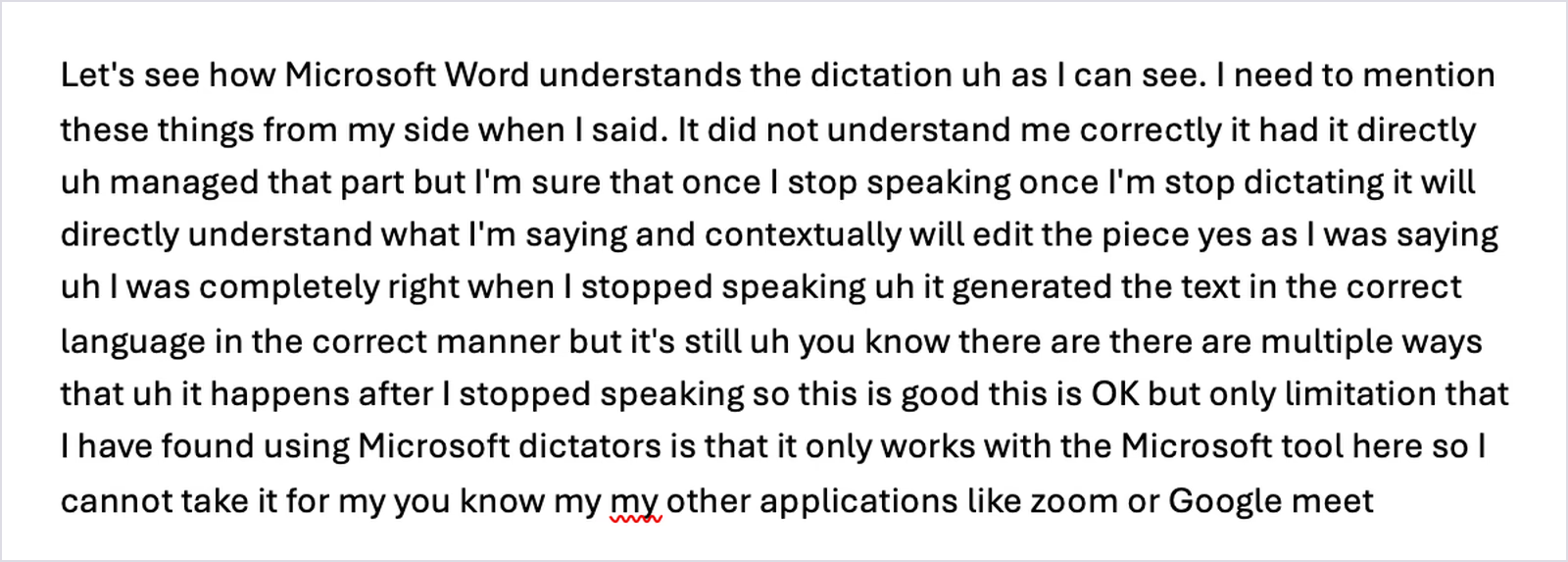
| Microsoft Dictate (auto-punctuation off) | 156 | 6 | two (only where I said 'full stop') | 'dictators' for 'dictation'; kept 'my my' and 'there are there are' | ❌ Microsoft 365 apps only |
| Google Docs Voice Typing | 191 | 4 | 0 | 'how valid understands' for 'how well it understands'; kept 'then then' | ❌ Google Docs only |
| Dragon Professional | Untested | Untested | Untested | Windows only, so it can't run on my MacBook | ✅ Windows apps |
Built-In Voice Typing Kept Every Filler Word
Google Docs Voice Typing and Microsoft Dictate typed my speech word for word, "uh" included. Google Docs added no punctuation across 191 words, and Microsoft Dictate added periods only where I said "full stop." Both work for a rough draft, but neither produced text I would send.
AI Voice Typing Apps Cleaned Up the Text
JotMe and Wispr Flow both returned punctuated voice dictation with no filler words. Handy punctuated well for a free offline tool, though neither of its clips ended with a period. Granola's live note transcript kept my fillers, which suits a meeting record more than a message.
Three Apps Misspelled a Product Name
Names caused more errors than everyday words. JotMe spelled our own name "Jot.me's" in a clip, and Wispr Flow wrote it as "jot me." Granola returned the favor by writing "Wispr Flow" as "WhisperFlow." Where an app offers custom vocabulary, registering brand and people names can help recognition; check the result rather than assuming it is fixed.
The engine behind each app decides how it handles names, and our test of ChatGPT's audio transcription across three methods compares engines on recorded files.
JotMe Translated a 51-Second Dictation Into Mexican Spanish
Translate mode took 51 seconds of spoken English and returned 120 words of Mexican Spanish, with the date phrase rebuilt into natural Spanish and every figure intact. Handy's Canary models can translate too, with coverage varying by model, and its optional AI post-processing offers another route. JotMe makes the choice explicit in its cross-app keyboard with 200+ output language and regional options.
Wispr Flow Dropped Two of 5 Dictations
Wispr Flow's history showed two empty entries and a third that stopped after "Right now I'm using," so I repeated myself to get usable text. The two full clips came out clean, which makes the gaps more frustrating than the errors.
How I Picked These Voice Typing Apps
I started with the voice typing tools people bring up most in 2026, then kept the ones that cover a distinct need: cross-app AI voice typing, free meeting-app add-ons, offline open source, built-in office tools, and professional Windows voice dictation software.
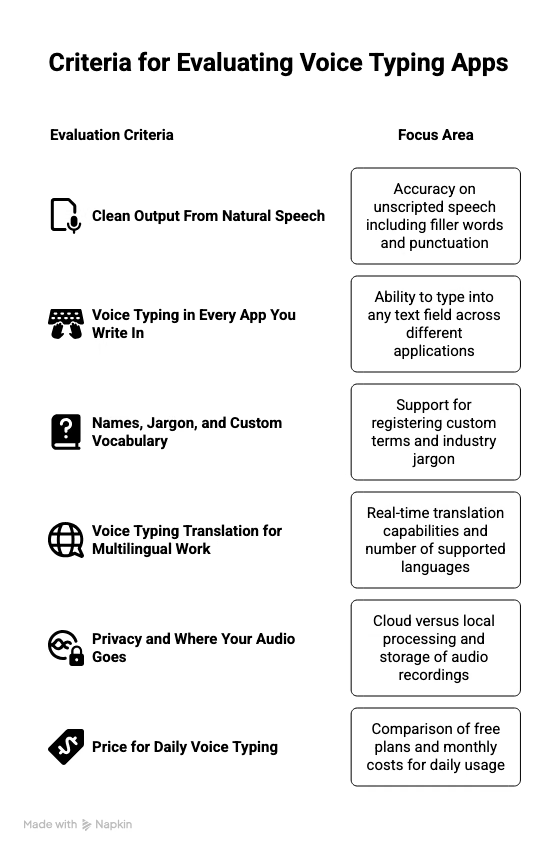
Clean Output From Natural Speech
Accuracy on a read script tells you little. I judged each voice typing app on unscripted speech, counting filler words, punctuation, and wording errors in the final text.
Voice Typing in Every App You Write In
A voice keyboard that works only in a single editor forces you to copy and paste all day. Apps that type into any text field (email, Slack, Notes, a Zoom chat, a Claude prompt) scored higher on daily usefulness.
Names, Jargon, and Custom Vocabulary
Client names and industry terms trip up voice dictation far more often than everyday words. I checked whether each tool lets you register custom terms, how many it allows, and whether the same list carries over to multilingual transcription and meeting notes.
Voice Typing Translation for Multilingual Work
A voice keyboard that types in another language replaces a translator tab. I checked which apps translate while you dictate, how many output languages they cover, and how many steps a translation takes.
Privacy and Where Your Audio Goes
Some voice typing apps process speech in the cloud, and some keep everything on your computer. I noted where audio goes and whether each app keeps a recording afterward.
Price for Daily Voice Typing
A weekly word cap feels generous until you dictate every email. I compared free plans against what a daily voice typing habit costs per month.
Best Voice Typing Apps in 2026 [With Review]
JotMe: Best Voice Typing App With Built-In Translation
Runs on: Mac and Windows desktop apps (hold Fn on Mac, Ctrl + Win on Windows)
Best for: People who write in many apps every day and reply to colleagues or clients in other languages, including languages they don't speak.
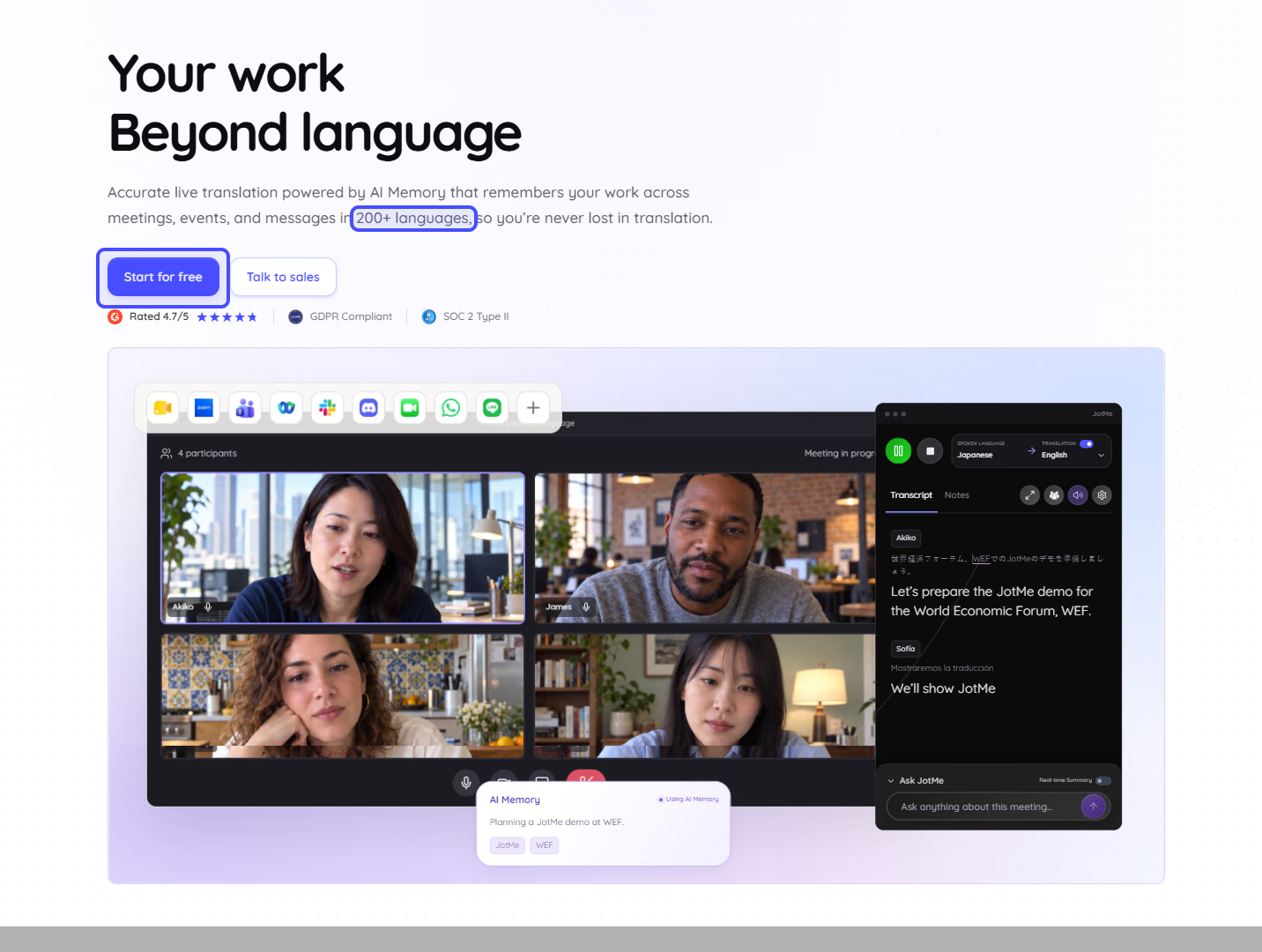
We built JotMe for multilingual meetings first, with live translation for Zoom, Google Meet, and Teams calls, and the Voice Keyboard brings that same language engine to every text field on your computer. On my MacBook, I hold Fn, talk, and let go, and the text appears wherever my cursor is. On Windows, the same voice typing runs on Ctrl + Win.
Our core users are English-speaking managers and operations leads who work with Japanese or Korean suppliers and partners, so voice typing in your own language and sending in another became the feature we cared about most.
With Translate mode now live, the Voice Keyboard doubles as a translation keyboard: you talk in English, and the text lands in Japanese or Spanish wherever your cursor is.
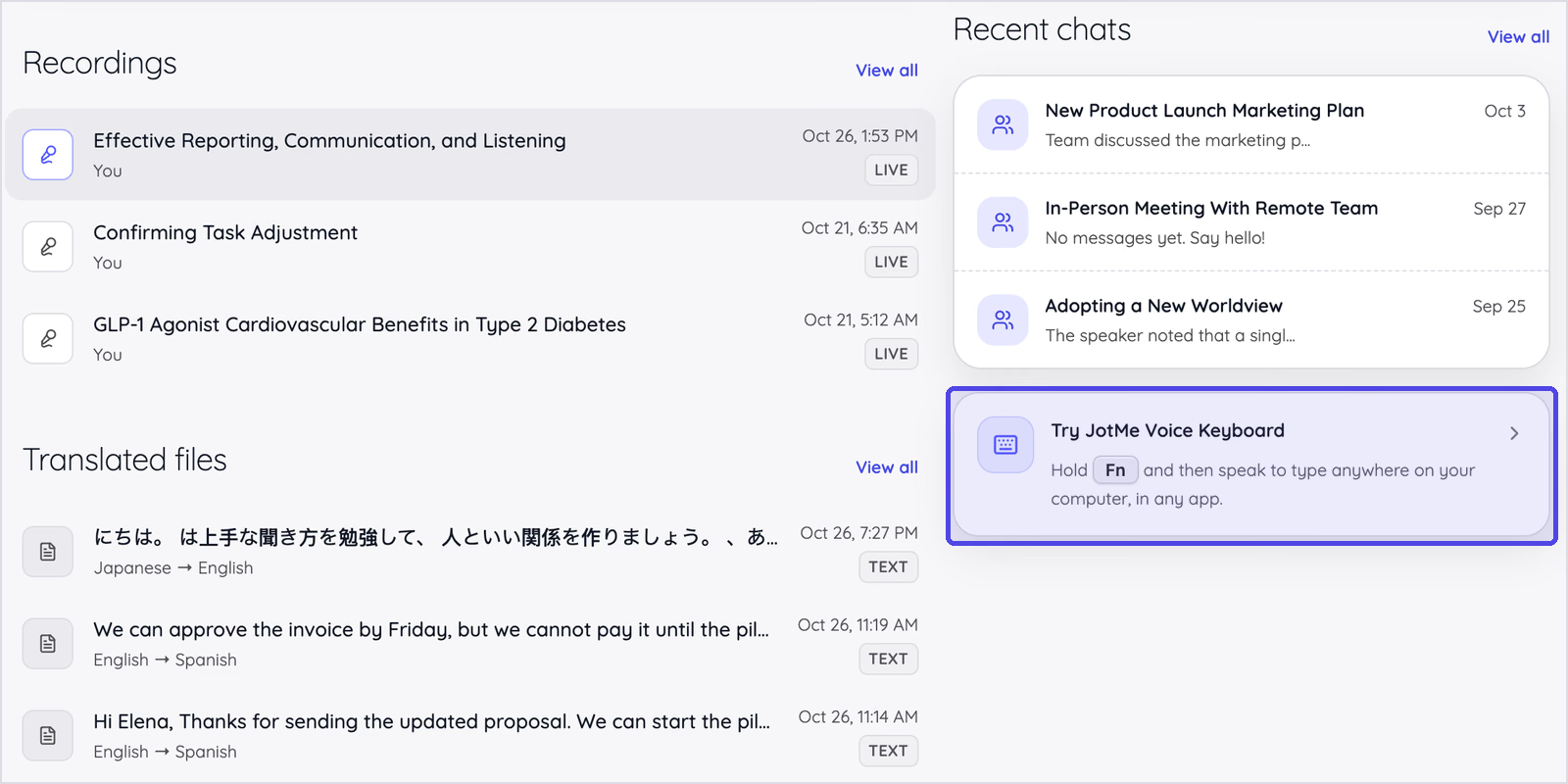
Key Features
Voice Keyboard in any app: Hold the shortcut, speak, and release. JotMe types the text at your cursor in an email, a Slack message, a document, or a form, so voice typing works the same everywhere you write.
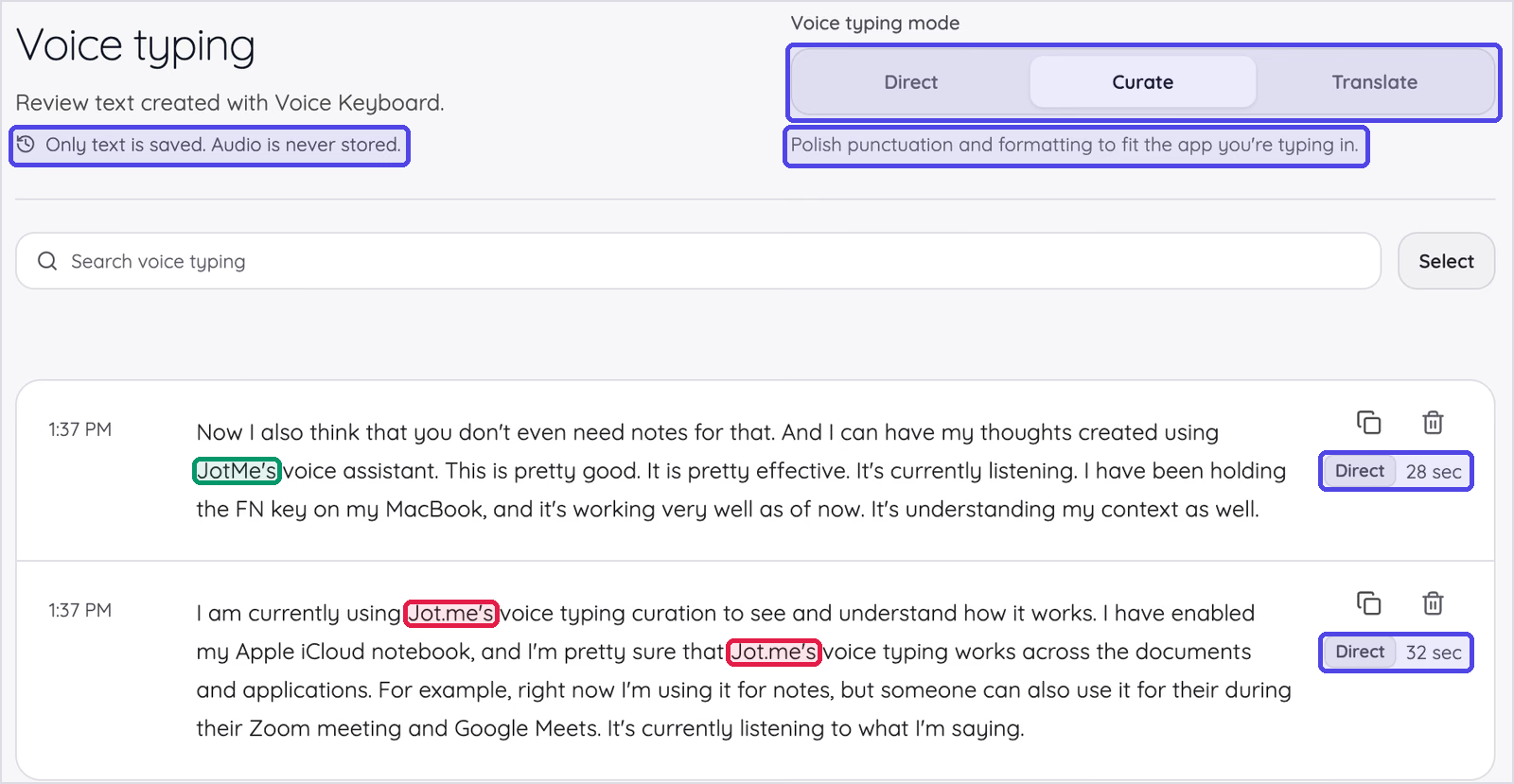
Direct, Curate, and Translate modes: Direct keeps what you said and still adds punctuation and sentence breaks, as my test showed. Curate restructures rambling speech into clean paragraphs and polishes punctuation and formatting to fit the app you're typing in, which is the mode I pick for an email reply or a long Slack update where I think out loud.
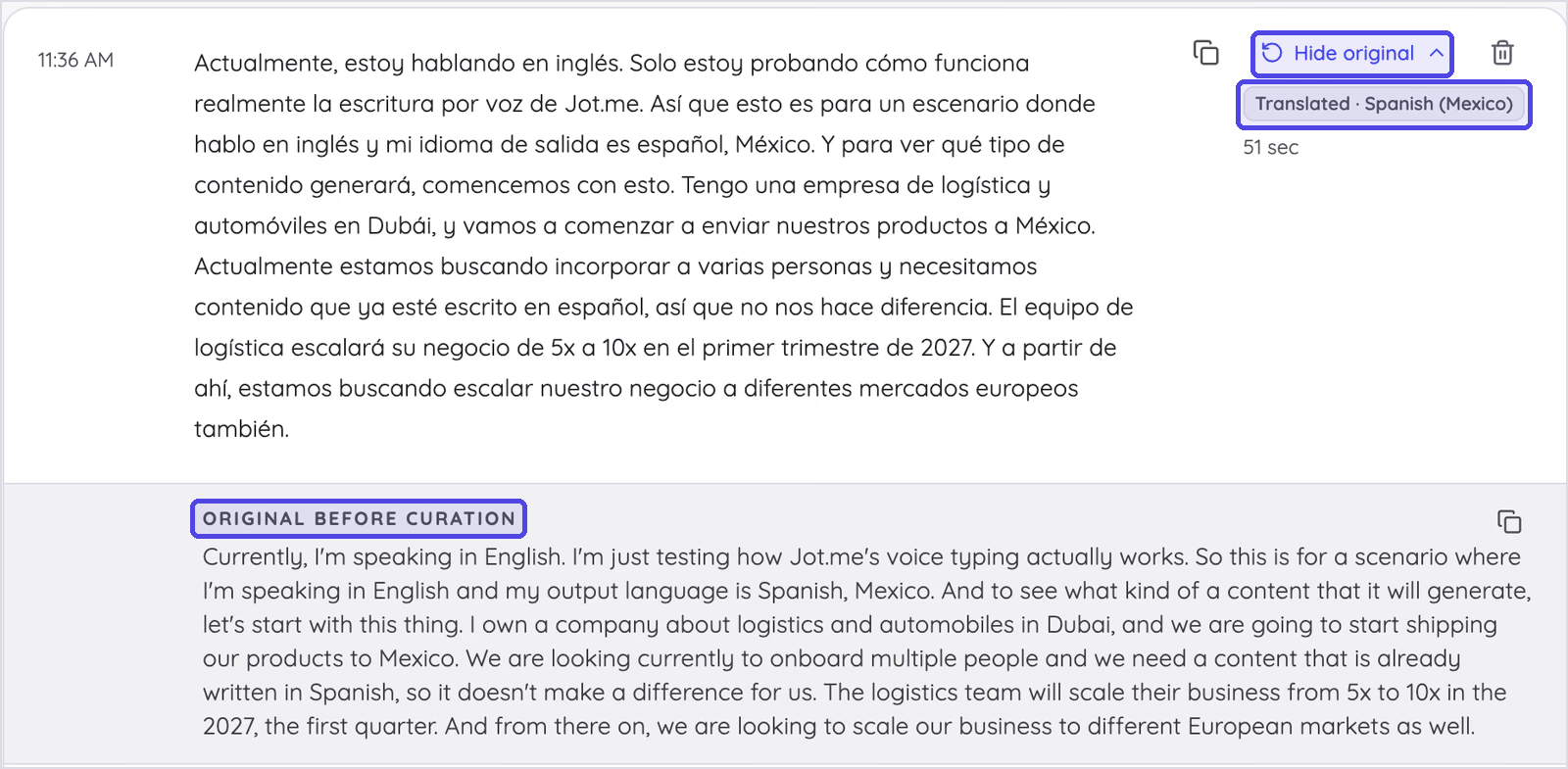
Translate turns speech in a supported input language into text in the output language you choose. View original lets you compare the curated text against your raw dictation, and you can copy or edit either version.
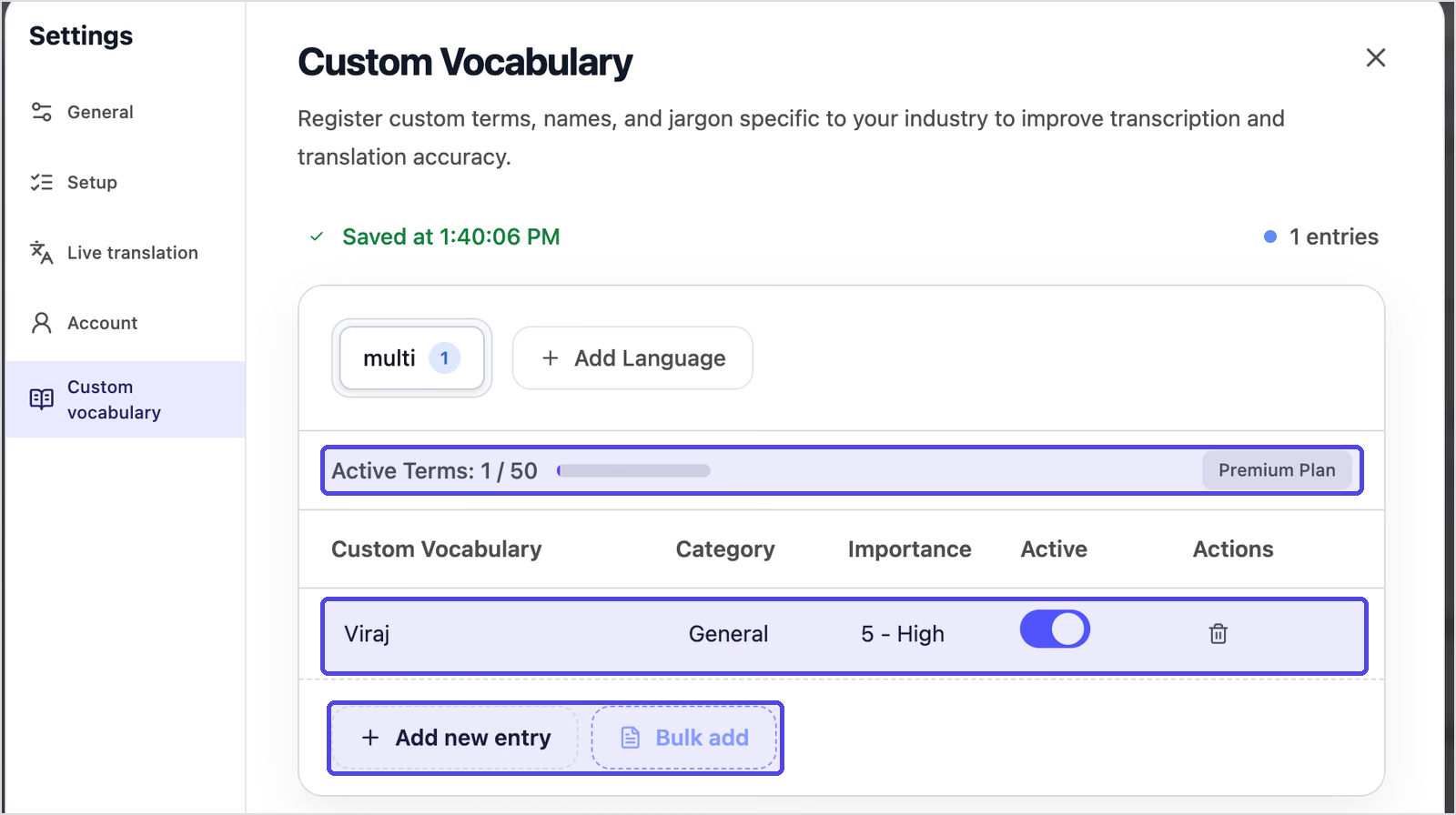
Context and custom terminology: JotMe uses your speech context and active custom vocabulary to help recognize client names and product terms accurately. Review important names before sending. The account-wide list is used across supported voice typing, meeting transcription, and translation features. Each entry holds up to three words, with a category and an importance level from 1 to 5.
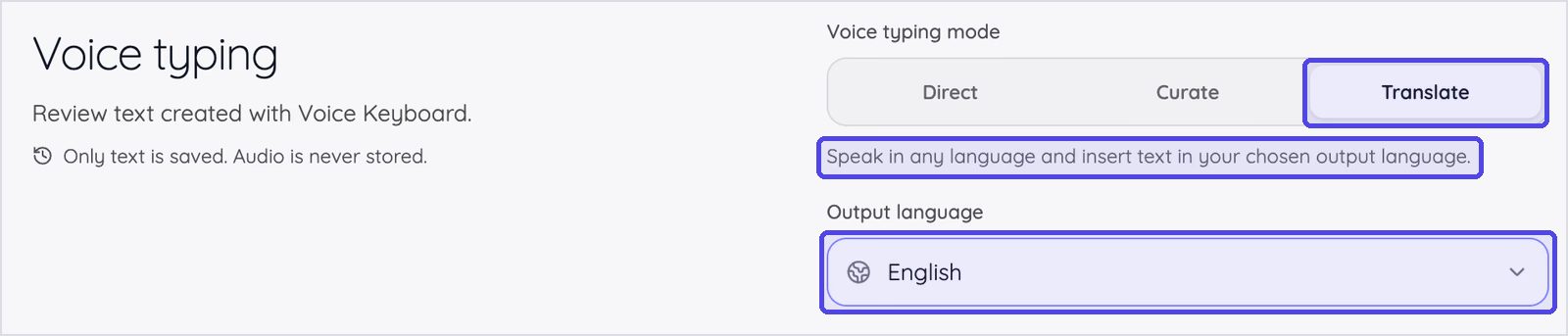
Voice typing translation: Translate is the third voice typing mode next to Direct and Curate: speak in a supported input language, and JotMe inserts the text in your chosen output language. Pick an output language from 200+ options once, and JotMe types every translated dictation at your cursor and remembers the language for next time. Your history labels each translated entry with its output language, and View original puts the words you spoke next to the translation, so you can check names and figures before you send.
An English-speaking procurement manager can answer a supplier's LINE message in Japanese without opening a translator tab, and if you want to know when spoken translation beats typed translation, our guide on voice translation vs. text translation breaks it down.
Private, searchable history: Every voice keyboard dictation lands in a list grouped by day, with its duration, a search bar, and copy and delete buttons. Translated entries show their output language, and View original shows what you said before translation. JotMe saves text history, not audio recordings, for Voice Keyboard dictations.
More than a voice keyboard: The same platform runs real-time transcription, Ask JotMe answers, and AI meeting notes alongside Zoom, Google Meet, Microsoft Teams, and Webex. Basic and Premium Quality meeting caption translation offer 200+ output language and regional options; spoken-language coverage depends on the model. Meeting notes support 21 language options.
How to Use JotMe Voice Typing Translation
- Step 1: Open the JotMe desktop app on your Mac or Windows PC and go to Voice typing.
- Step 2: Set Voice typing mode to Translate and pick an output language, such as Spanish (Mexico) or Japanese.
- Step 3: Click into the app where the text should go, like an email draft or a LINE chat.
- Step 4: Hold Fn on a Mac or Ctrl + Win on Windows and speak in your own language.
- Step 5: Release the shortcut, and JotMe types the translated text at your cursor, with your original words saved in history.
My Test Result
Two Direct-mode clips (28 and 32 seconds) produced 125 words, 15 punctuation marks, and no filler words. The second clip needed no edits at all, down to the capitalized "FN key." The first clip spelled our name "Jot.me's" since my custom vocabulary held only "Viraj," and filling that list is the first setting I would tell any new user to complete.
Direct mode also kept my stumble "their during their," which Curate mode cleans up.
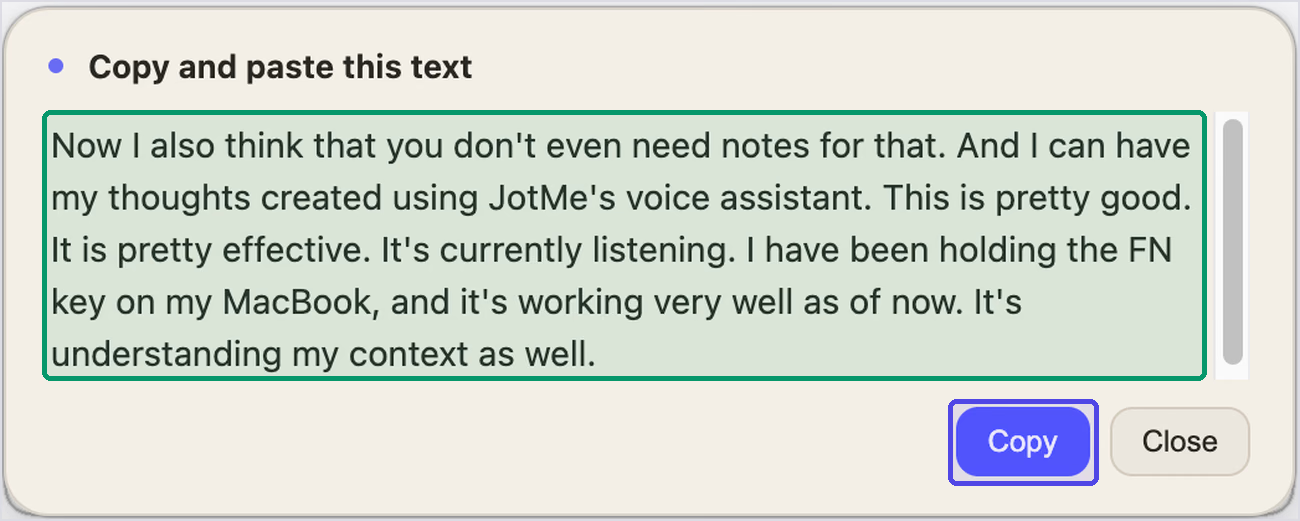
For the translation test, I spoke English for 51 seconds with Spanish (Mexico) as the output language, using a sample scenario: a Dubai logistics and automobile company preparing to ship to Mexico and onboard Spanish-speaking staff. JotMe returned 120 words of Spanish with 14 punctuation marks and no filler words, ready to paste from its copy window.
The translation also cleaned up my speech. My clumsy "in the 2027, the first quarter" came out as "en el primer trimestre de 2027," Dubai picked up its Spanish accent as "Dubái," and figures like "5x a 10x" stayed intact. It did carry our name over as "Jot.me" from my English, the same custom vocabulary gap as before.
Pricing
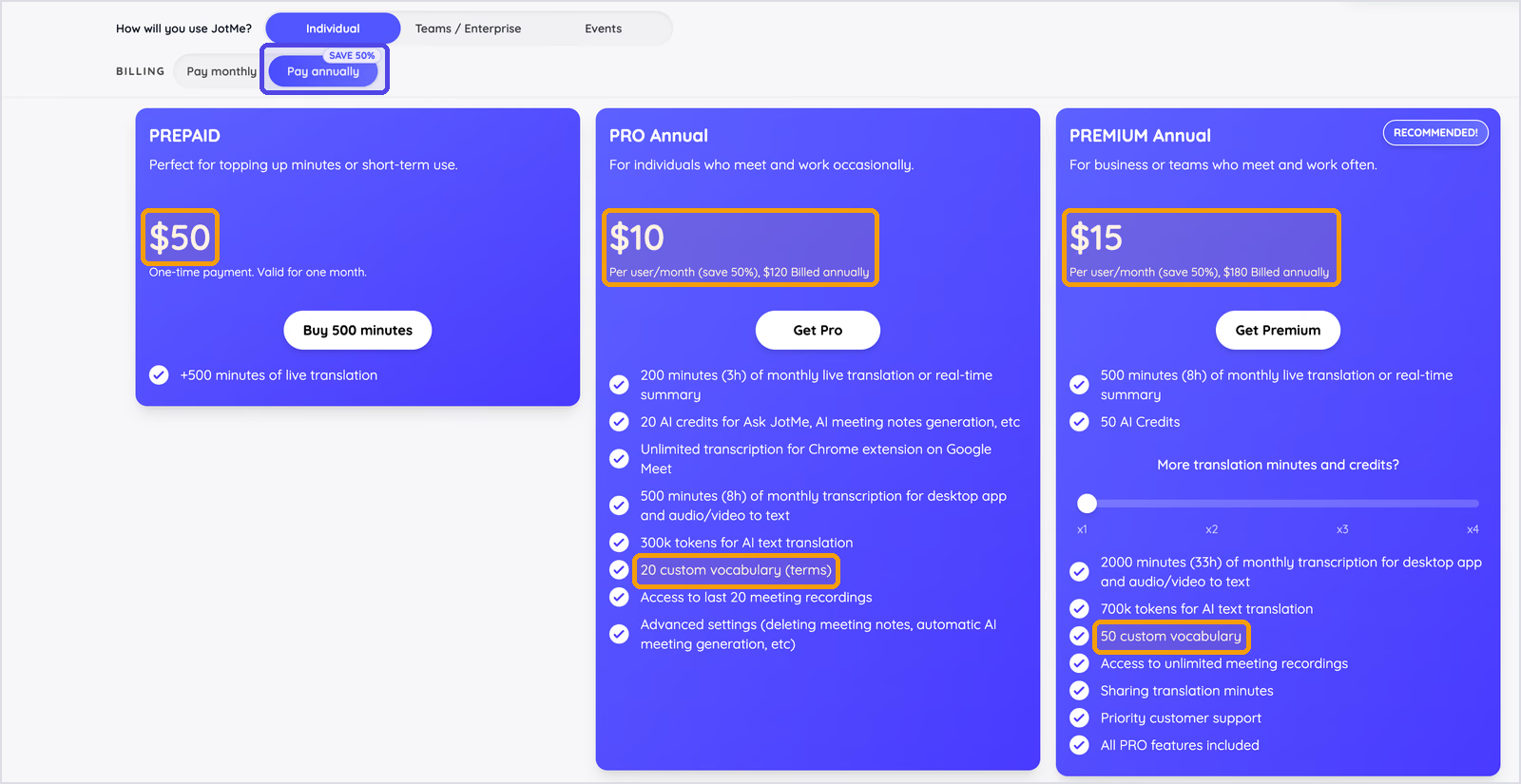
- Freemium: Free, with 50 transcription minutes a month (Voice Keyboard dictation draws from this pool), 20 live translation minutes, and 5 AI credits.
- Prepaid: $50 one-time for 500 live translation minutes, valid for a month.
- Pro: $10 per user per month on yearly billing ($120), with 500 transcription minutes for voice typing and recordings, 200 live translation minutes, 20 AI credits, and 20 custom vocabulary terms.
- Premium: $15 per user per month on yearly billing ($180), with 2,000 transcription minutes, 500 live translation minutes, 50 AI credits, 50 custom vocabulary terms, unlimited recordings, and priority support.
- Monthly billing: The yearly plans save 50%, so monthly billing comes to $20 for Pro and $30 for Premium.
Pros
- Clean, punctuated voice typing with no filler words in my test.
- Works on Mac and Windows with a single hold-to-talk shortcut.
- Three modes for different jobs: Direct for the recognized wording, Curate for structured paragraphs, and Translate for a chosen output language.
- Voice typing translation lets you reply in your reader's language.
- Translate mode turns speech in a supported input language into text in 200+ output language and regional options in a single step.
- A single account-wide vocabulary for voice typing, transcription, and translation.
- For Voice Keyboard history, JotMe saves text rather than audio recordings.
Limitations
- Voice typing runs only in the desktop apps, with no browser or mobile version.
- Dictation draws from transcription minutes, so the Freemium plan's 50 minutes a month suits a trial more than daily use.
- Names and brand terms need a custom vocabulary entry first; my first clip misspelled our own product name.
- Bulk add for custom vocabulary needs a Pro or Premium plan.
Voice Typing Translation
Speak in Your Language, Type in Theirs
Set Translate mode, pick from 200+ output language and regional options, and the Voice Keyboard types the translation wherever your cursor is, in any app.
Also on Windows. No credit card needed.
Wispr Flow: Best for Heavy Daily Voice Dictation Across Devices
Runs on: Mac, Windows, iPhone, and Android
Best for: People who dictate thousands of words a week across a laptop and a phone and want AI cleanup everywhere
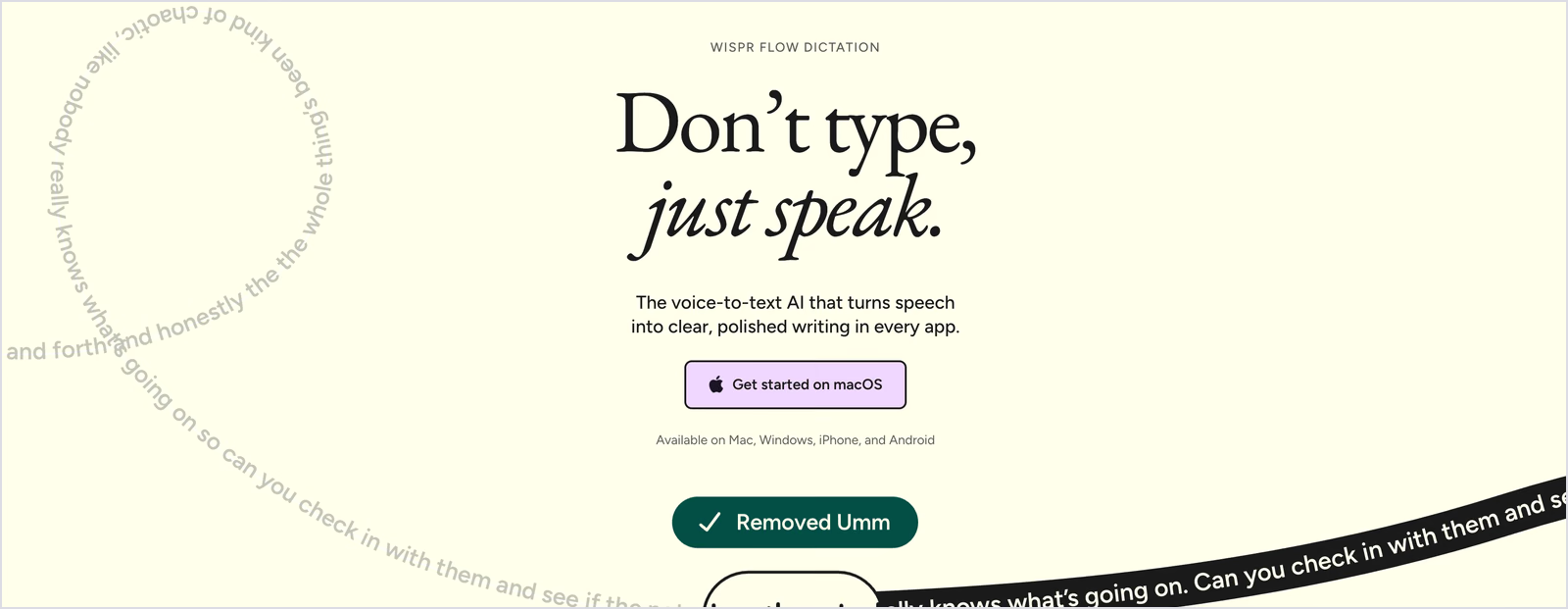
Wispr Flow is the name most people bring up first when voice typing comes up, and it backs that attention with polished AI voice dictation that works in any app. Flow removes filler words as you speak and interprets corrections you make mid-sentence, then formats the result before it lands.
It runs on 4 device types, which makes it the strongest pick if your voice typing habit follows you from a MacBook to a phone. If you're shopping for a Wispr Flow alternative that can type in your reader's language, JotMe is the closest match on this list, and our Wispr Flow vs. JotMe comparison goes feature by feature.
Key Features
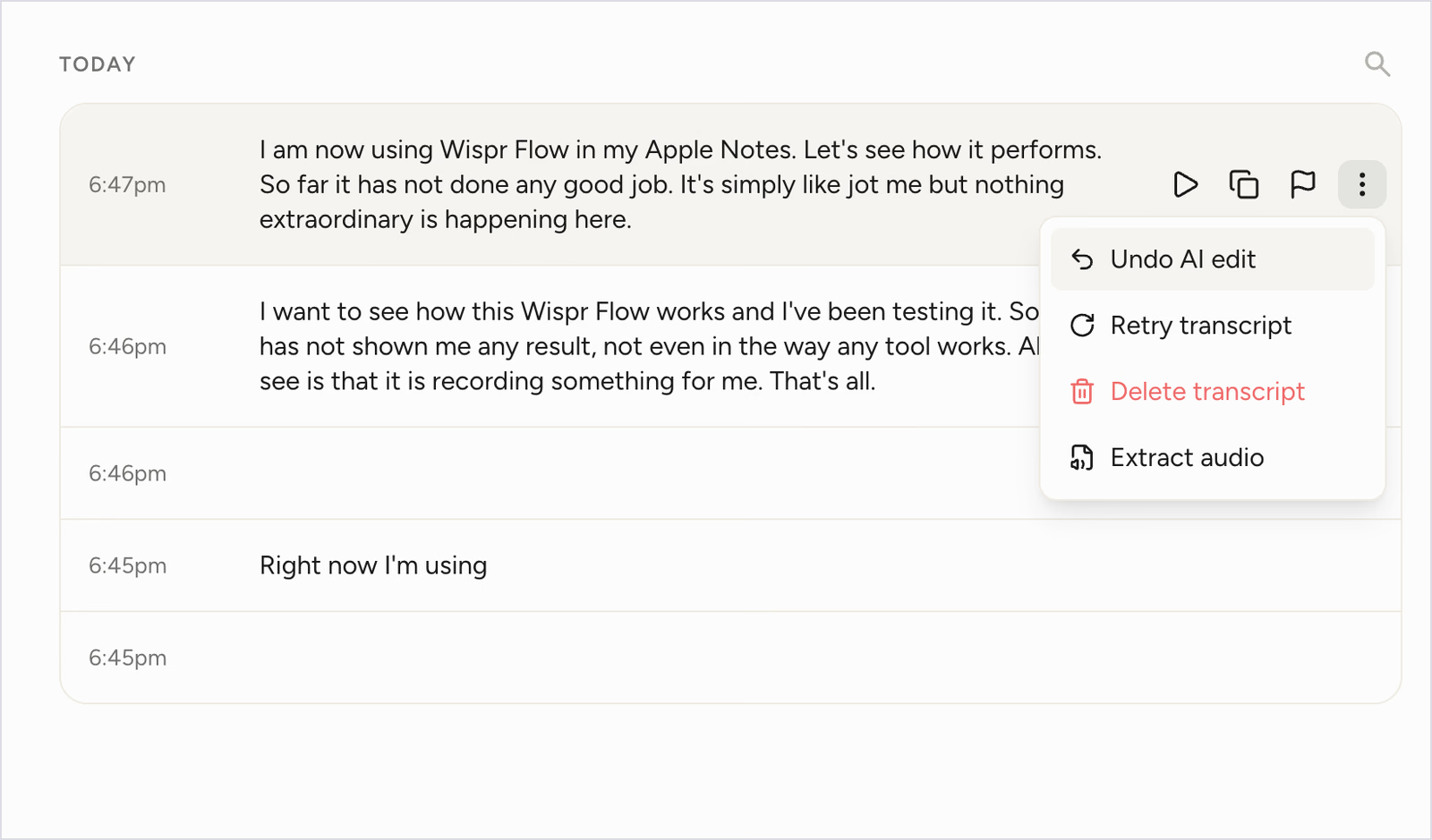
- AI auto-edits: Flow strips "um" and "uh" and handles self-corrections, then adds punctuation and formatting as you talk. Undo AI edit restores your raw words on any entry, and Retry transcript runs it again.
- 100+ languages: Voice typing in more than 100 languages, with automatic detection and a language picker in the Flow bar.
- Styles per app: Choose from Formal, Casual, or Very casual tones, with separate styles for different apps.
- Personal dictionary and snippets: Flow learns names and terms on its own or lets you add them, and snippets insert saved text (an address or a standard reply) when you speak a shortcut.
- Command Mode (Pro): Select text and speak an instruction such as "make this more formal" or "translate this to Spanish," and Flow rewrites it. This is the only route to translation in Flow, and it comes after you dictate.
- Usage insights: The Flow dashboard tracks your total words, speaking speed, and daily streak.
- Notetaker: Flow records meetings on Mac or Windows and produces transcripts with named speakers and next steps.
- Security: Wispr reports a completed SOC 2 Type II audit. Its current security page says ISO 27001 certification is recommended but the certificate is still pending, and HIPAA support requires a signed BAA on Growth or Enterprise. Users can control whether their data helps improve the product. Wispr security details.
My Test Result
I tested Flow's voice keyboard in Apple Notes with fn held down. Flow produced 84 words across three entries with 9 punctuation marks and no filler words, and it spelled "Wispr Flow" correctly while writing our name as "jot me." Two more entries came back empty, and another stopped after "Right now I'm using." Flow shows a recording bar while you talk and drops the text in when you let go, so I only saw the gaps afterward. The dashboard clocked my speaking speed at 118 words per minute.
Pricing
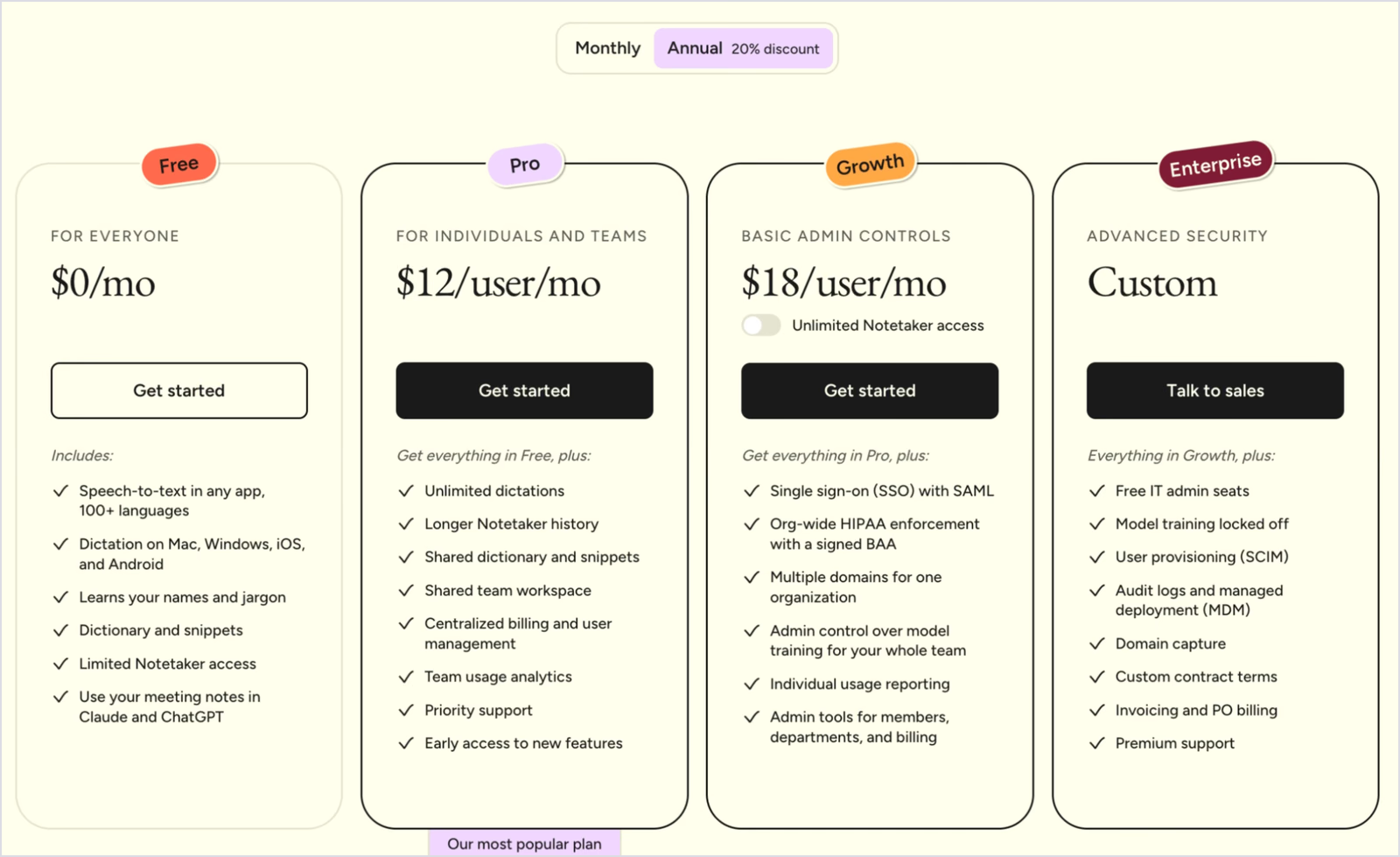
- Free: Desktop limits currently show a 2,000-word weekly soft cap and a 5,000-word hard cap. Mobile allowances are displayed in the app and can vary. Check your account because Wispr can change these limits. Current Wispr weekly limits.
- Pro: $15 per user per month on monthly billing, or $12 per user per month on yearly billing ($144), with unlimited dictation.
- Growth: $18 per user per month on yearly billing, adding SSO with SAML, org-wide HIPAA enforcement with a signed BAA, and admin controls.
- Enterprise: Custom pricing with domain capture, audit logs, and premium support.
Pros
- Polished AI voice typing in any app on 4 device types.
- Undo AI edit gives you the raw transcript back when the cleanup goes too far.
- Tone styles per app keep Slack casual and email formal.
- Strong compliance list for regulated teams.
Limitations
- Two of my 5 dictations came back empty, and another cut off early.
- The desktop Free plan reaches its displayed soft cap at 2,000 words a week—under 300 words a day—but dictation continues until the current hard cap of 5,000 words. A daily voice typing habit can still outgrow the allowance; check the limits shown in your account.
- Transcription runs in the cloud. My test entries offered Extract audio, but retention depends on settings: Wispr lets users turn dictation cloud storage off and control local history separately. Review these controls and processor retention before using sensitive speech.
- Wispr Flow lists no voice typing translation on its plans.
- Translation takes a second step: you dictate first, then select the text and ask Command Mode on the Pro plan to translate it.
Granola: Best Free Voice Typing for Granola Users on Mac
Runs on: Mac and Windows for desktop Voice Typing. Granola's product page also advertises iOS, with Android coming soon; its desktop help page still describes mobile as coming soon. Check the current iOS app for availability. Meeting notes run on macOS, Windows, iOS, and Android. Granola Voice Typing availability.
Best for: People who already take meeting notes in Granola and want voice typing on their Mac at no extra cost
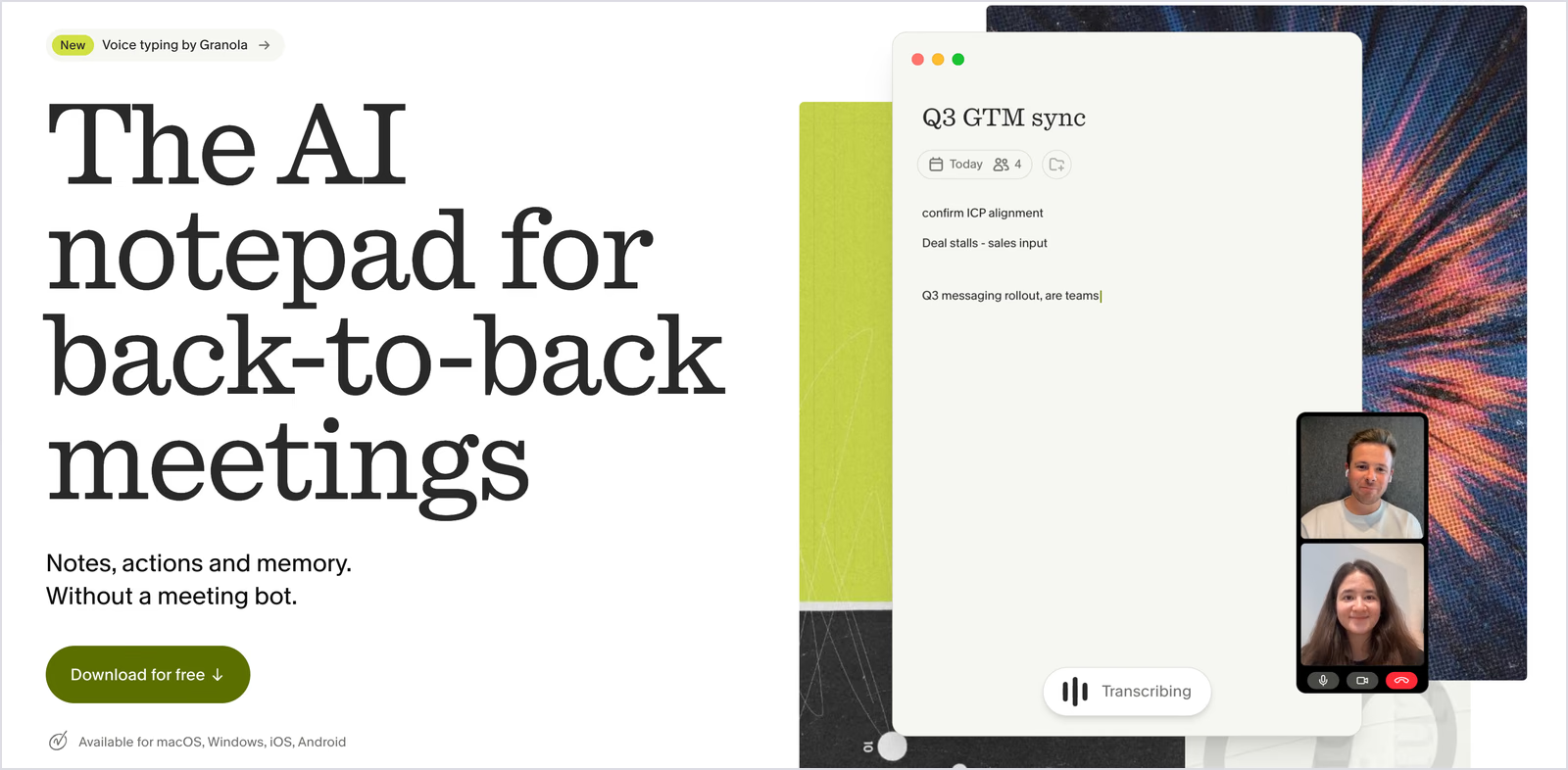
Granola built its name on bot-free AI meeting notes, and it added voice typing as a separate feature that works outside Granola in apps like Gmail and Claude. The announcement drew plenty of attention from people who already live in Granola all day.
Granola now does voice typing. Unlimited words, for free. Granola already writes your meeting notes. Now it can do the typing for you, in any app. https://t.co/et60VtwWA0
— Granola (@meetgranola) October 29, 2026
Granola's voice keyboard works on a hold: press the key, speak, and Granola pastes clean text where your cursor is. Voice typing does not start a meeting or add to an existing one, so your notes stay separate from your dictation. We covered Granola's meeting side in our roundup of in-person meeting software.
Key Features
- Hold or hands-free: Hold fn (the default shortcut) to dictate, or double-tap it for hands-free voice typing. Press Esc at any time to cancel without pasting anything.
- Long dictation: A single dictation can run up to 20 minutes before Granola stops and pastes what you said.
- Cleanup and formatting: Granola's voice typing removes filler words and accidental repeats, adds punctuation, splits thoughts into paragraphs, and formats lists as bullets or numbers.
- App-aware style: Granola adapts to the app you dictate into, so an email gets a greeting and paragraphs while a Slack message stays short.
- Literal by design: Granola never answers or acts on your words. If you dictate a request into ChatGPT, Granola pastes the request itself.
- Mixed languages: Granola uses up to three of your computer's languages, and Auto-detect keeps each part of a mixed-language dictation in the language you spoke. Granola does not translate.
My Test Result
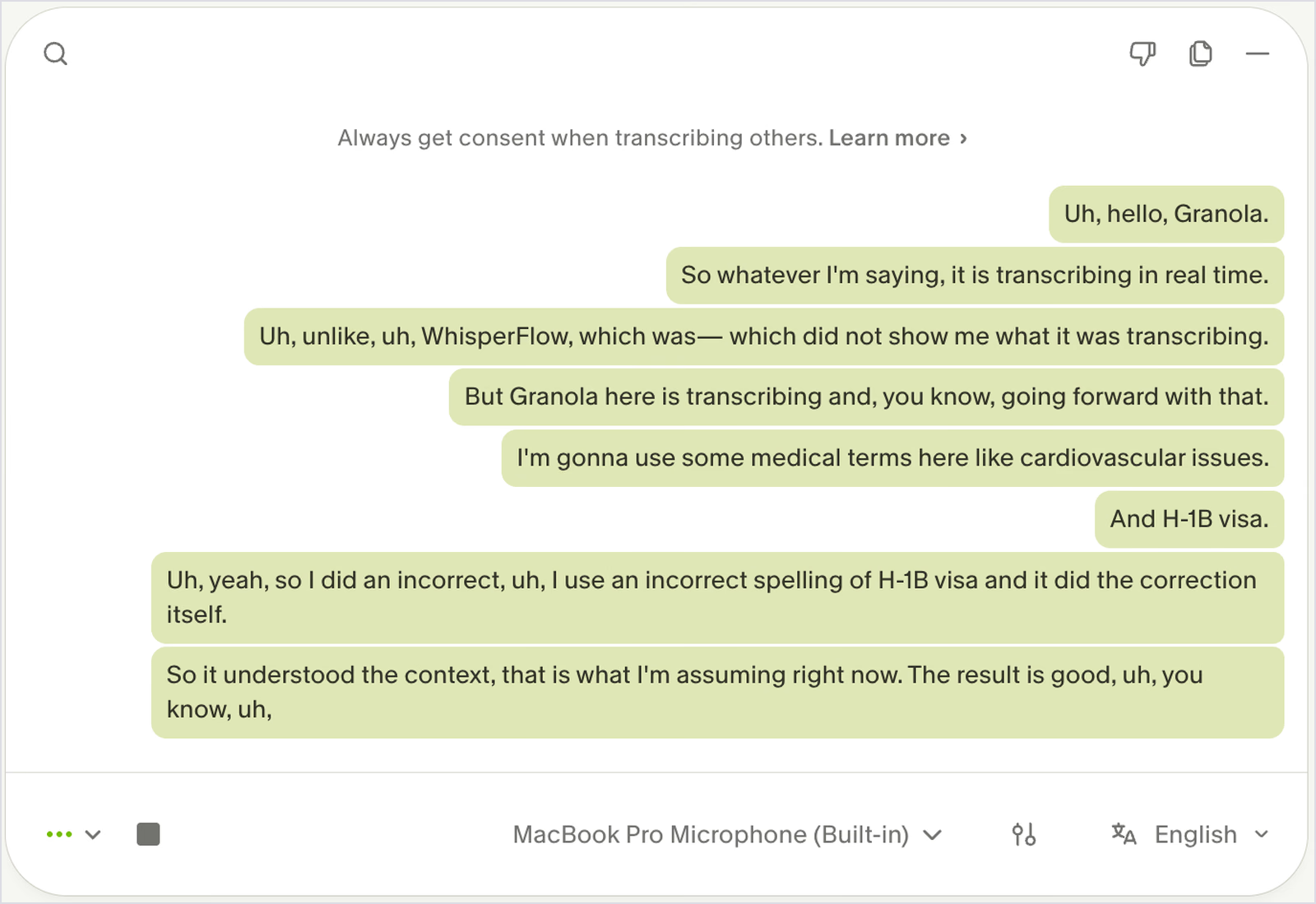
I ran Granola's test in a new note with live transcription on, where the words appear on screen as you speak. It produced 95 words with 26 punctuation marks and kept 7 "uh" sounds, since a meeting transcript records speech as spoken.
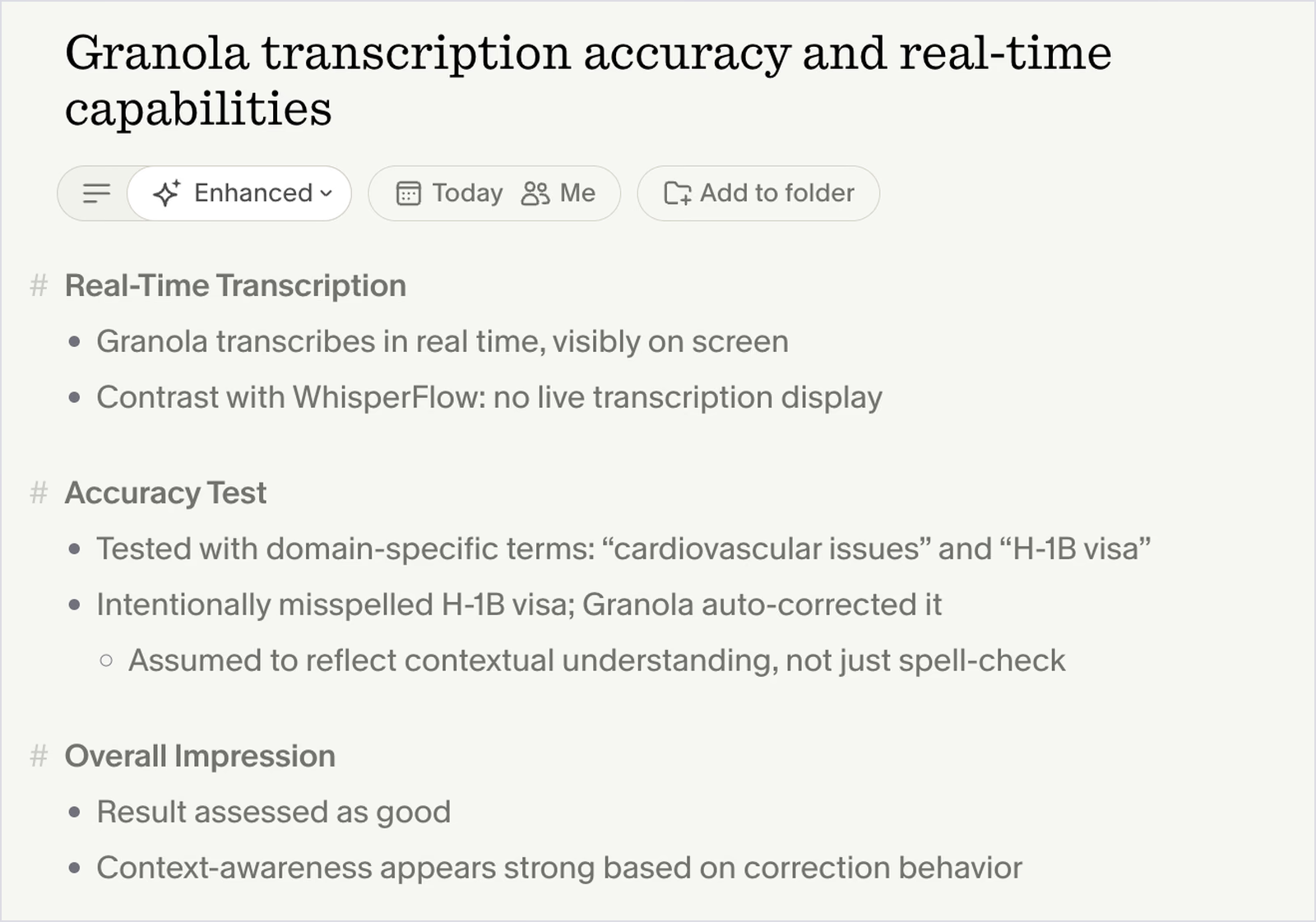
It got "cardiovascular issues" and "H-1B visa" right but wrote "Wispr Flow" as "WhisperFlow." Granola then turned my rambling into a tidy note with its own headings and bullet points, which shows Granola's real strength: meetings. Its separate fn voice typing strips fillers before pasting, according to Granola's own help docs.
Pricing
- Voice typing: Free on every Granola plan.
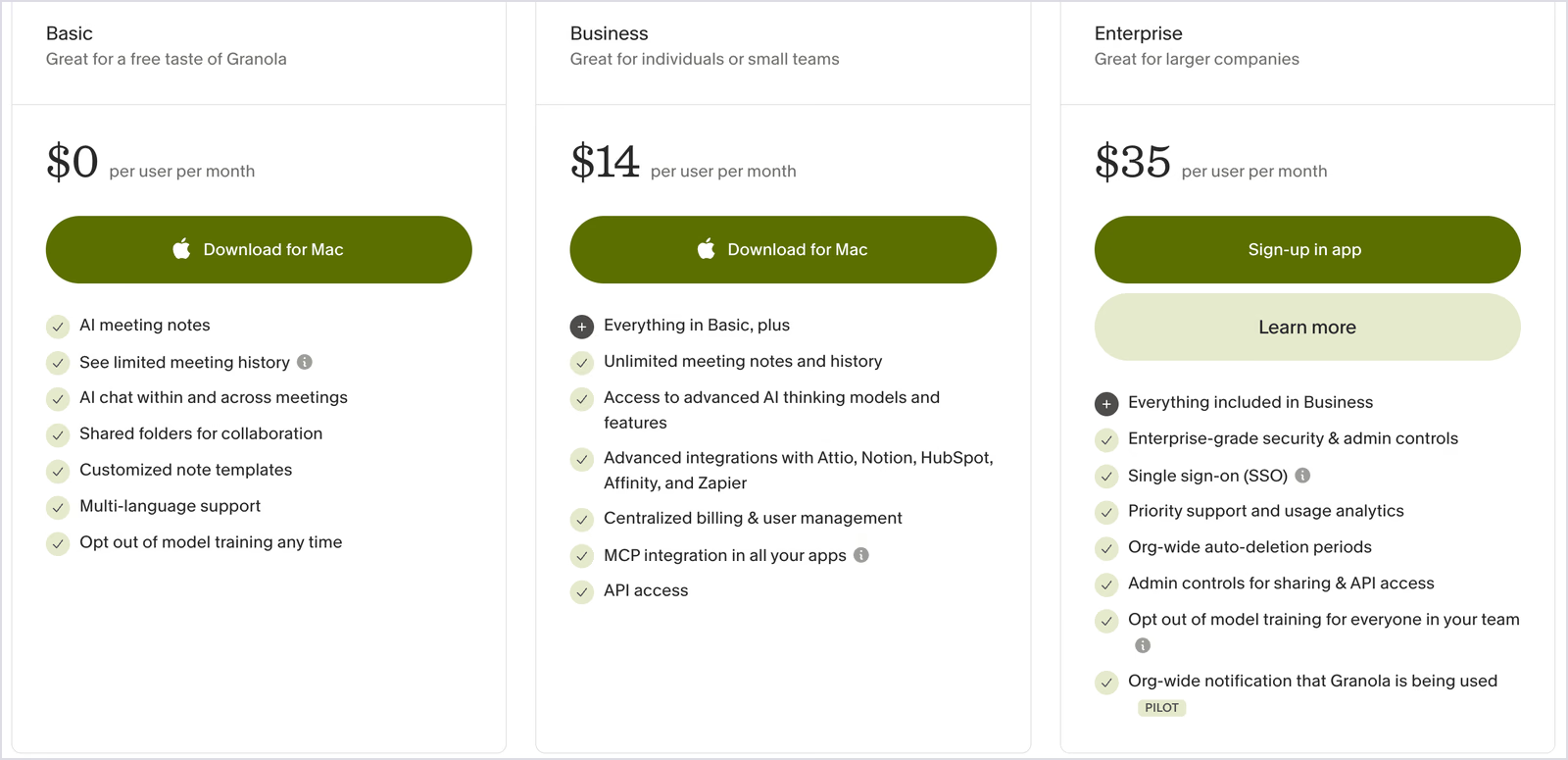
- Basic: $0, with limited meeting history.
- Business: $14 per user per month, with unlimited meeting notes and history plus advanced integrations.
- Enterprise: $35 per user per month, with SSO and enterprise admin controls.
Pros
- Free voice typing for anyone with a Granola account.
- Live transcript shows words as you speak inside a note.
- Hands-free mode and 20-minute dictations suit long drafts.
- App-aware formatting saves edits on emails and chat replies.
Limitations
- Voice Typing is documented on Mac and Windows. Granola's product page now lists iOS too, while its desktop help page still says mobile is coming soon; Android remains listed as coming soon.
- Granola does not translate your voice into another language.
- Granola needs Accessibility permission to read context from the app you dictate into, which some security teams will review first.
- Bluetooth microphones work less reliably, according to Granola's own setup notes.
Handy: Best Free Offline Voice Typing App
Runs on: macOS, Windows, and Linux
Best for: Privacy-first users and developers who want free voice typing that never sends audio to the cloud
Handy takes the opposite approach to the AI voice typing apps on this list. Handy costs nothing and ships as open source under the MIT license.
It runs speech recognition on your own computer, so your voice never leaves the machine. You press a shortcut, speak, and this free dictation app pastes the text into whatever text field you have open. If your audio already exists as a recording, our guide on how to convert audio to text covers the file side.
Key Features
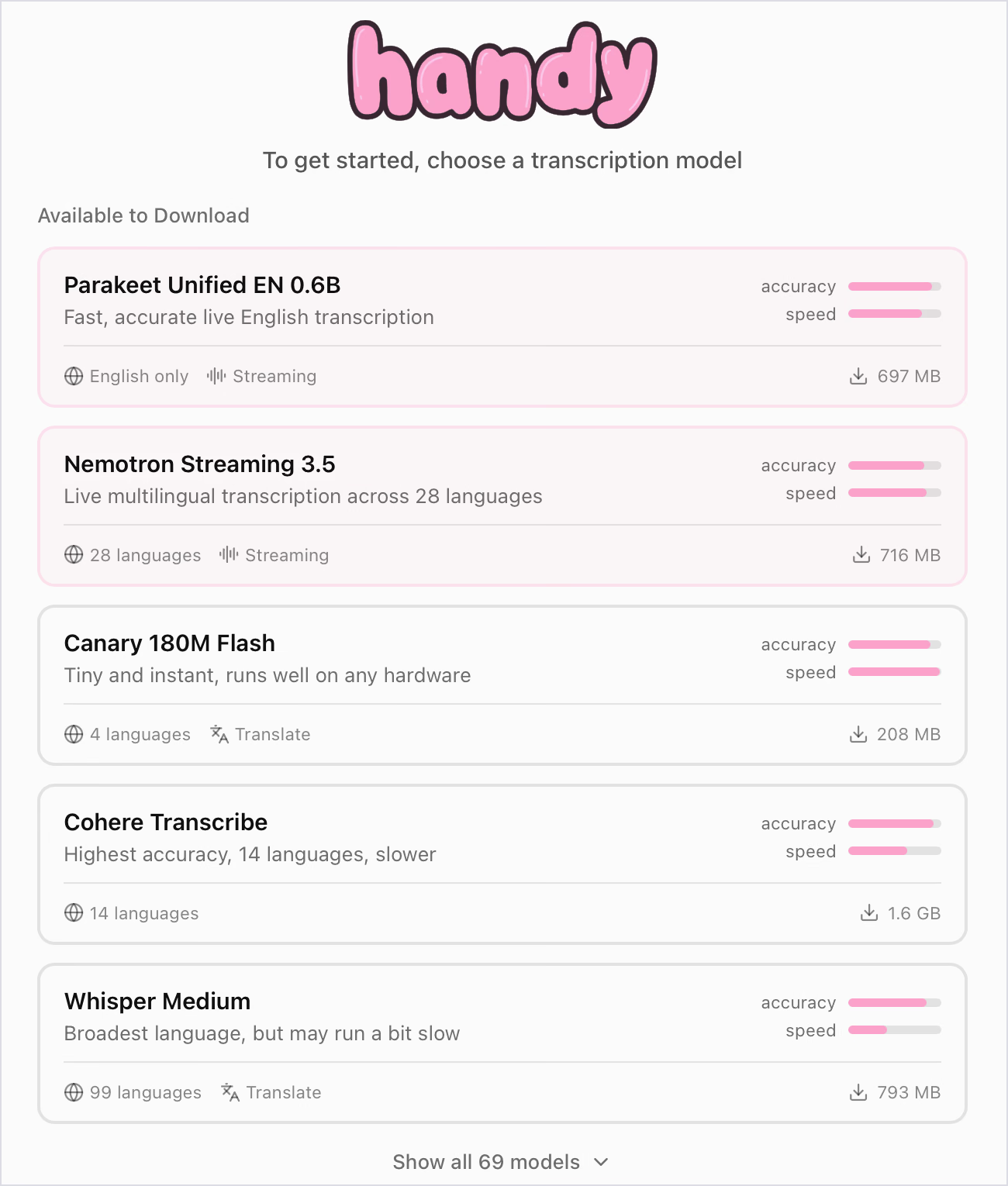
- Model library: The picker in my review showed 69 models, including Canary 180M Flash (shown as 208 MB, 4 languages) and Cohere Transcribe (shown as 1.6 GB, 14 languages, with the highest-accuracy label). It also listed Parakeet Unified EN 0.6B for streaming English, Nemotron Streaming 3.5 with 28 languages, and Whisper Medium with 99 languages. These are the reviewed picker values, not permanent download specifications. Current Handy docs list other sizes and variants, including Canary 1B v2 with 25 languages; check the model you select.
- Translate option: Translate-tagged models can translate speech instead of transcribing it. Whisper translates into English; Canary 180M Flash supports English, German, Spanish, and French, while current Canary 1B v2 documentation lists 25 languages. Handy also offers optional experimental AI post-processing for translation and cleanup, using a configured cloud or local provider. Handy model documentation.
- Push-to-talk or toggle: Handy's voice keyboard shortcut records while you hold it and stops when you release, or you can tap once to start and again to finish.
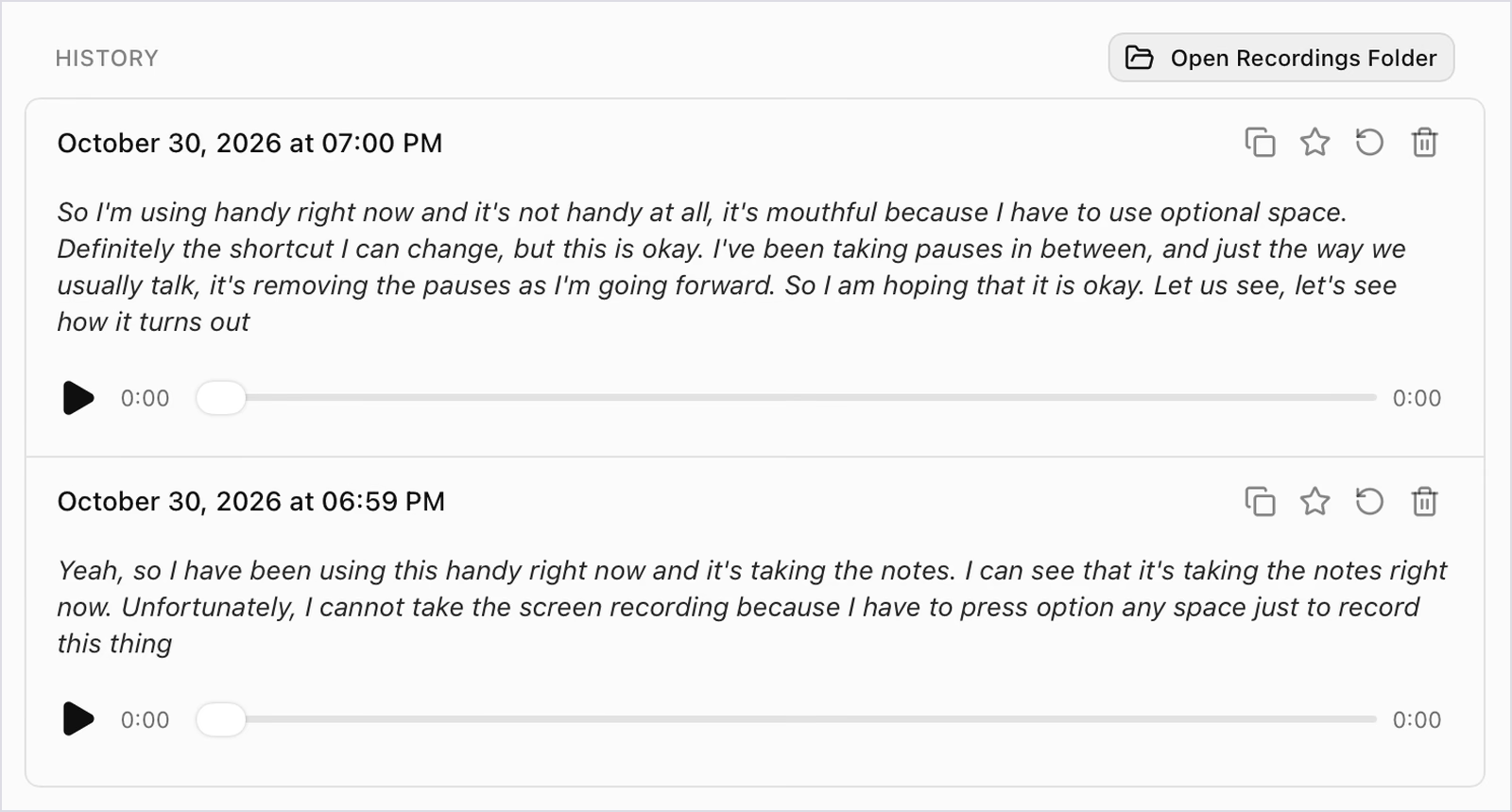
- Local history: Handy keeps each recording on your computer with its transcript, so you can replay it, star it, run it again, or open the recordings folder.
- Silence filtering: Voice activity detection trims your pauses, which keeps gaps out of the text.
My Test Result
Handy's voice dictation produced 114 words across two clips with 13 punctuation marks and no filler words. It heard "Option + Space," the shortcut I used on my Mac, as "optional space" in the first clip and "option any space" in the second, lowercased its own name, and left both clips without a closing period. The shortcut itself felt awkward and blocked my screen recording, though you can change it in settings.
Pricing
- Free: Every feature, with no account and no subscription. The project accepts donations.
Pros
- Free voice typing with no word caps.
- Offline transcription keeps audio on your computer.
- The 69 models shown in my review offered choices between speed, accuracy, and language coverage; the available catalog can change.
- Runs on Linux, which most commercial voice typing apps skip.
Limitations
- My standard-dictation clips missed closing periods. Optional experimental AI post-processing can clean up or reformat text, but requires a configured provider and its separate shortcut. Cloud providers send the transcript out for processing; local options need compatible hardware or a local server. Handy post-processing documentation.
- The reviewed picker showed downloads from 208 MB to 1.6 GB. Other current variants are smaller or larger, so check the selected model's download and hardware requirements.
- Shortcuts that use the fn (Globe) key work only on Apple keyboards.
- A Bluetooth headset microphone can drop playback quality on macOS, and Wayland support on Linux stays limited.
- No mobile app.
Microsoft Dictate: Best Voice Dictation Inside Word and Outlook
Runs on: Word, Outlook, PowerPoint, and OneNote in Microsoft 365 on Windows, Mac, the web, and mobile
Best for: People who write long documents in Word and already pay for Microsoft 365

Microsoft Dictate is the dictation app inside Microsoft 365, so voice dictation in Word costs nothing extra if you already subscribe. It suits long documents well, with spoken punctuation, editing commands, an optional auto-punctuation setting, and a profanity filter. The catch showed up the moment I left Word: Dictate types only inside Microsoft apps, so it can't follow you into a Zoom chat or a browser text box. If your calls run in Teams, JotMe adds live translation in Microsoft Teams without a bot joining the meeting.
Key Features
- Start from the ribbon: The Dictate button lives on Word's Home tab, and Option+F1 starts voice dictation on a Mac.
- Spoken punctuation and commands: Say "period" or "full stop," "comma," or "new line," and use voice commands to edit and format text.
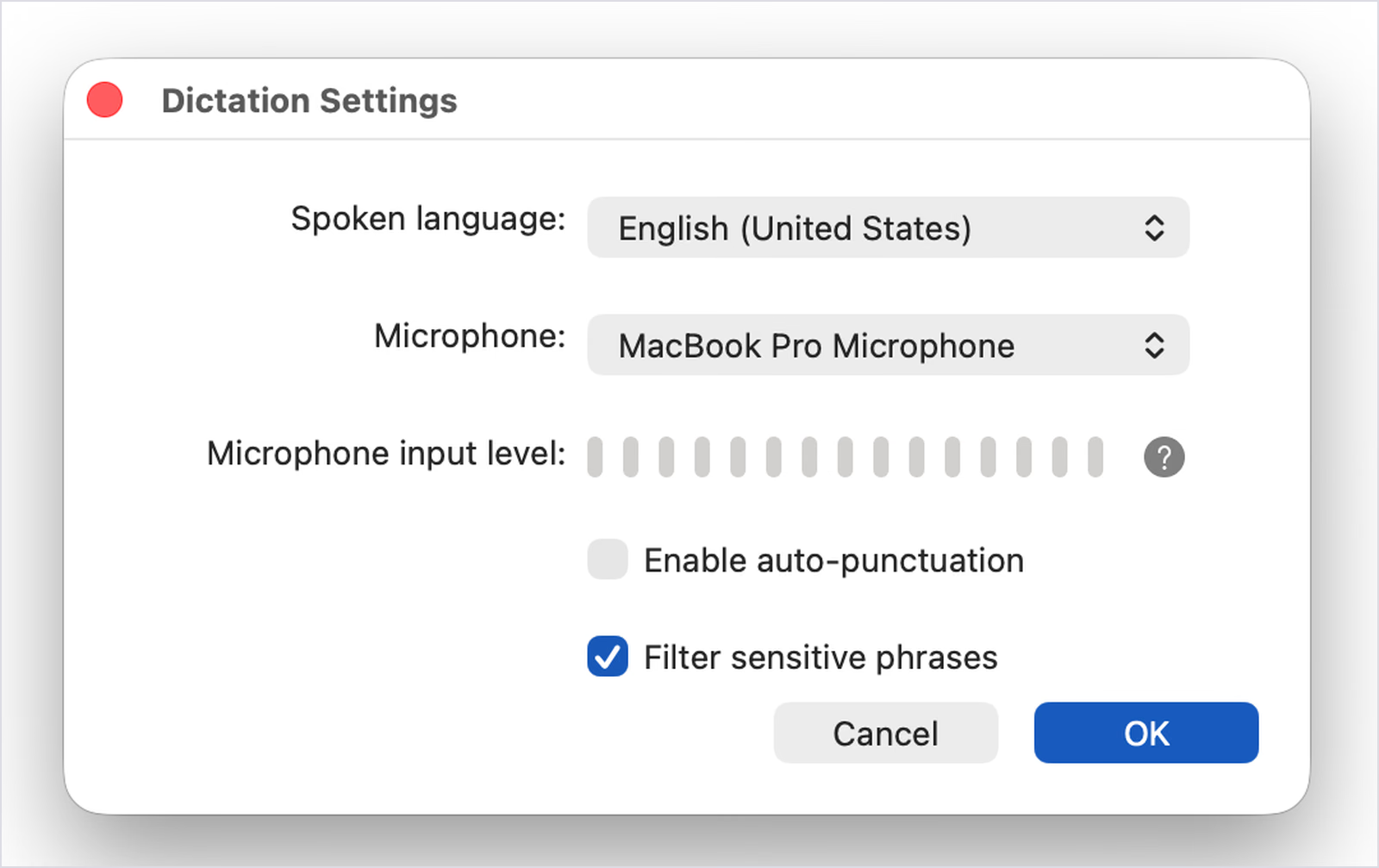
- Auto-punctuation: Turn it on in Dictation Settings and Word adds punctuation based on your pauses, so you don't have to say "period."
- Sensitive-phrase filter: Dictate masks some profanity by default, with a setting to turn the filter off.
- Language choice: Pick your spoken language and microphone from the settings dialog; Microsoft marks some languages as preview with lower accuracy.
My Test Result
Microsoft's voice dictation typed 156 words, kept 6 "uh" sounds, and added two periods, both from my spoken "full stop." I had auto-punctuation off, so Dictate waited for spoken commands. It heard "dictation" as "dictators," kept repeated words like "my my," and showed my words in gray before committing them in black after each pause.

With auto-punctuation on, Microsoft says punctuation follows your pauses, so turn that setting on before you judge it.
Pricing
- Microsoft 365 Personal: $99.99 a year or $9.99 a month for a single person.
- Microsoft 365 Family: $129.99 a year for up to 6 people.
- Microsoft 365 Premium: $199.99 a year with extended Copilot usage.
- Subscription rule: Microsoft lists Dictate as a subscriber-only feature.
Pros
- No extra cost for Microsoft 365 subscribers.
- Spoken commands for punctuation and formatting.
- Auto-punctuation and a profanity filter in a single settings dialog.
- Available in Word, Outlook, PowerPoint, and OneNote.
Limitations
- Voice dictation works only inside Microsoft apps.
- Dictate kept every filler word in my test.
- Words appear in gray first and commit after a pause, which breaks your rhythm on long sentences.
- Needs an internet connection and an active Microsoft 365 subscription.
- Dictate lists no translation option, so it types only in the language you speak.
Dragon Professional: Best Voice Dictation Software for Windows Power Users
Runs on: Windows 10 and Windows 11 only
Best for: Legal and finance teams on Windows, plus accessibility users, who want full voice control and macros

Dragon has the longest history of any voice dictation software here, and Dragon Professional v16 remains the tool of choice for people who run their whole Windows PC by voice. Dragon never made it onto my test bench: Nuance stopped selling Dragon for Mac in 2018, and my voice typing tests run on a MacBook. Everything below comes from Nuance's own product page and current retail listings.
Key Features
- Recognition claims: Nuance says Dragon Professional reaches up to 99% recognition accuracy from first use and lets people dictate documents three times faster than typing.
- Deep learning engine: Nuance credits its Deep Learning speech engine with handling accents and noisy open offices.
- Custom commands and macros: Insert boilerplate text or signatures by voice, and build macros that automate multi-step tasks.
- Audio file transcription: Dragon transcribes recordings of a single speaker, and the Auto Transcribe Folder Agent processes batches of audio files. Meetings with several voices need speaker identification, which Dragon does not offer.
- Group management: The Nuance Management Center lets organizations share custom words, commands, and auto-texts across users.
My Test Result
I did not test Dragon. It runs only on Windows, and my test setup is a MacBook Pro.
Pricing
- Dragon Professional v16: Nuance routes product inquiries to sales without a public price on its product page. Dictationstore lists the license at US$699.99; check the seller, edition, and current checkout price before buying.
- Dragon Professional Anywhere: A cloud subscription for Windows with quote-based pricing.
Pros
- Deep voice command control over Windows apps.
- Custom words, auto-texts, and macros for repetitive documents.
- Transcribes single-speaker audio files in batches.
- One-time license option.
Limitations
- No Mac version since 2018.
- A high upfront price for a single Windows license.
- Audio transcription handles a single speaker only, so meetings and interviews fall outside its scope.
- No voice typing translation.
Google Docs Voice Typing: Best Free Voice Typing Inside Google Docs
Runs on: Google Docs and Google Slides speaker notes in Chrome and other supported desktop browsers
Best for: Students and Google Workspace users who need a free first draft inside a Doc
Google Docs Voice Typing costs nothing and opens with a single click, which makes it the easiest voice dictation app to try. It types quickly and handles a long list of languages and regional accents. It stays inside Google Docs and leaves punctuation to you, so it works best for rough drafts you plan to edit anyway. Workspace teams that also need meeting transcripts can add Google Meet transcription through JotMe.
Key Features
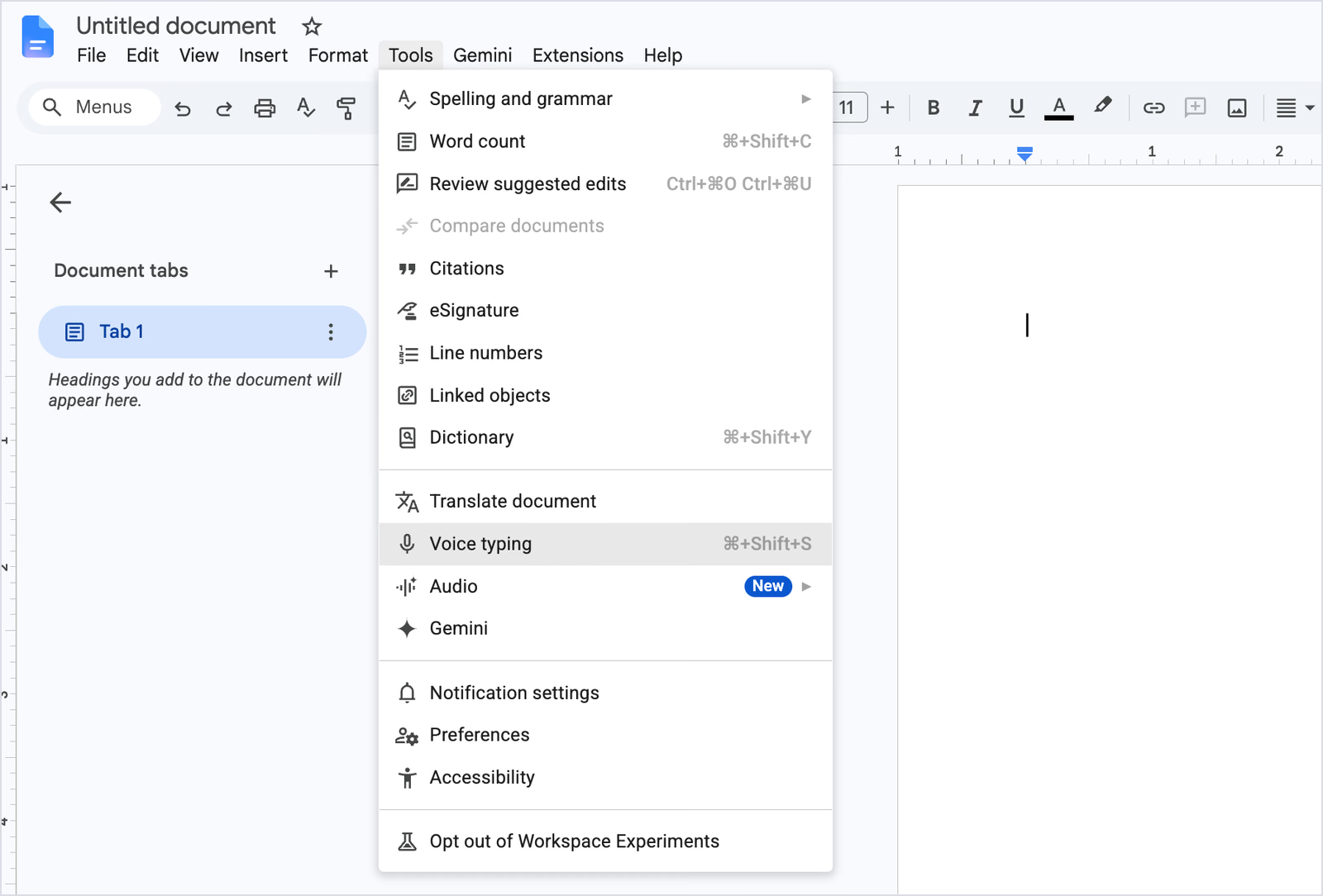
- Quick start: Open Tools, choose Voice typing, or press Cmd+Shift+S on a Mac (Ctrl+Shift+S on Windows).
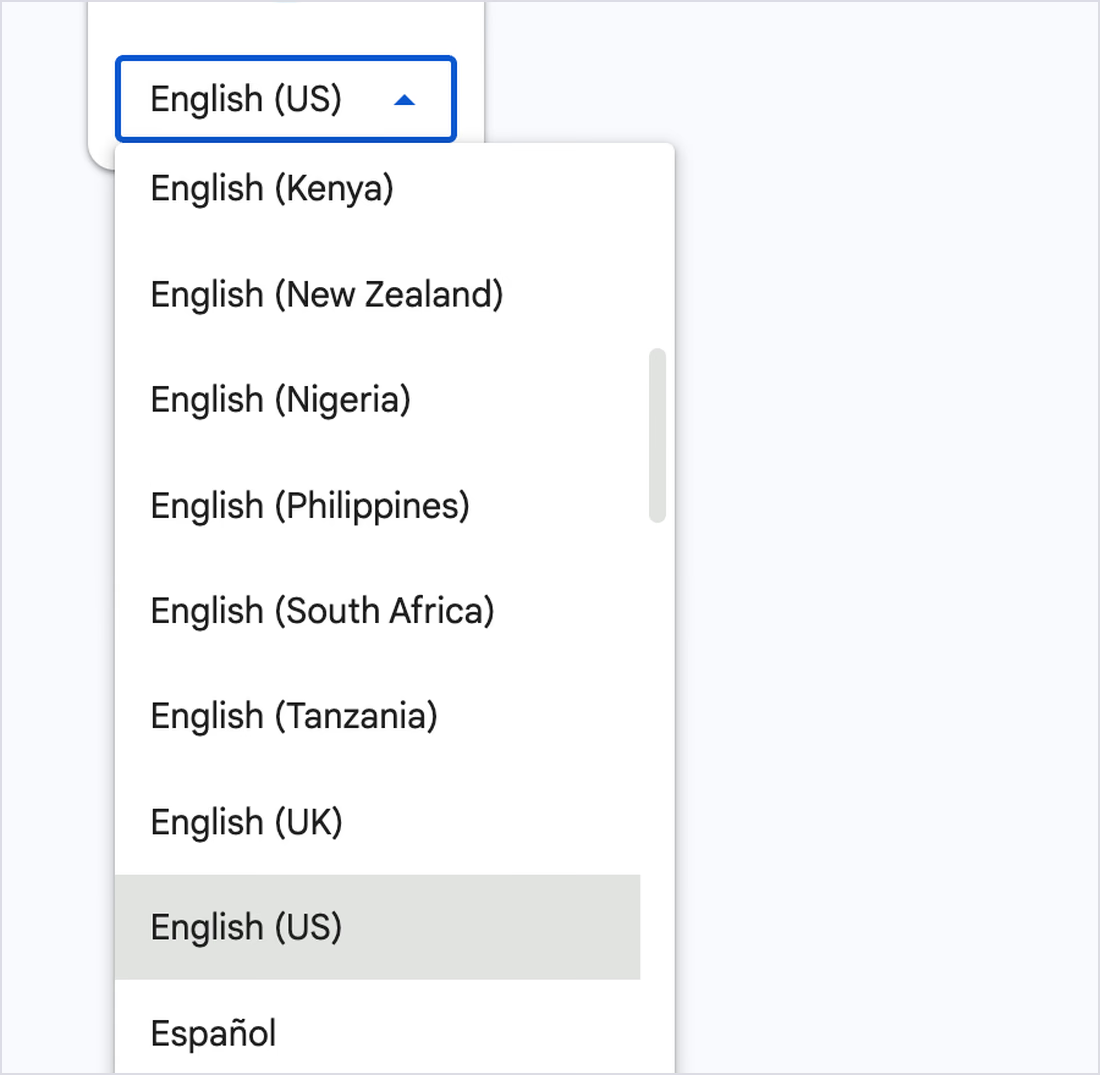
- Wide language list: Voice typing supports more than 100 languages and dialects, with separate entries for regional variants like English (UK) and English (Kenya).
- Spoken punctuation: Say "period," "comma," "new line," or "new paragraph." Google notes that punctuation availability varies by language; editing and formatting voice commands require an English account and document.
- Editing commands: Voice commands for formatting and editing text work only when both your Google account and the document use English.
- Quick fixes: Right-click any word underlined in gray to see suggested alternatives.
My Test Result
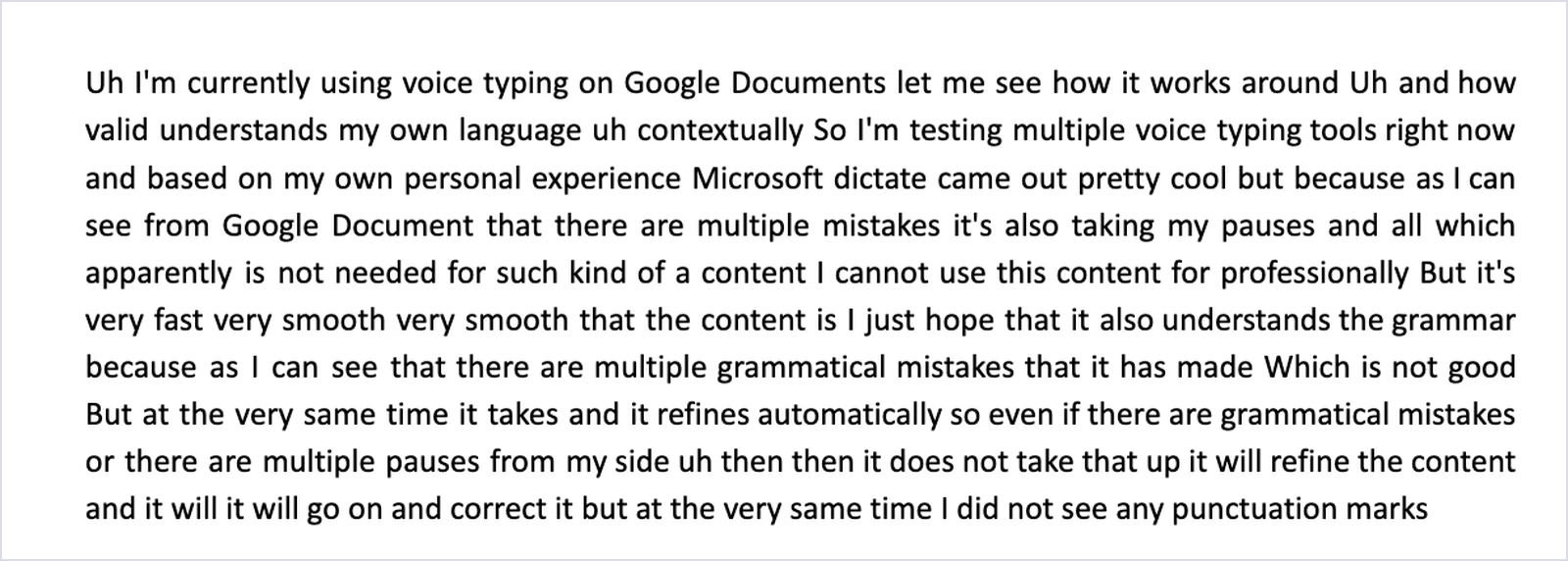
Google Docs typed 191 words as a single unbroken run with no periods or commas. It kept all 4 of my "uh" sounds, kept stutters like "then then" and "it will it will," and heard "how well it understands" as "how valid understands." It corrected "tapping" to "typing" on its own after a moment, so the live text keeps refining while you speak.

Google Docs adds punctuation only when you speak it, and I spoke naturally, as I would on a call.
Pricing
- Free: Comes with any Google account.
Pros
- Free inside every Google account.
- Fast live output with a large language list.
- Spoken punctuation and English voice commands.
Limitations
- Voice typing works only in Google Docs and Slides speaker notes in a desktop browser.
- No punctuation unless you speak it, and no filler cleanup.
- No voice typing in the Google Docs mobile app, and no offline mode.
- No translation: voice typing returns text only in the language you pick.
Which Voice Typing App Should You Choose?
Match the voice typing app to where your words go, then to how much you write each week.
- Typing in a language you don't speak: JotMe's Translate mode, with 200+ output language and regional options on Mac and Windows.
- Multilingual replies across apps: JotMe for voice-typing translation, plus Curate mode for structured paragraphs on Mac and Windows.
- Thousands of words a week on laptop and phone: Wispr Flow on the Pro plan.
- Granola users on a Mac: Turn on Granola's free voice typing.
- Audio that must stay on your computer: Handy's offline voice keyboard, with a local model that fits your languages.
- Writing that lives in Word and Outlook: Microsoft Dictate, with auto-punctuation switched on.
- Full voice control on Windows: Dragon Professional v16.
- A free draft inside a Google Doc today: Google Docs Voice Typing.
Best Voice Typing App by Use Case
Voice Typing Replies to International Clients
A UK procurement manager confirming a delivery window with a packaging supplier in Osaka has two bad options today: type in English and hope the supplier reads it right, or paste every message through a translator tab. With the JotMe Voice Keyboard set to Translate mode with Japanese as the output language, she speaks the reply in English and JotMe types it in Japanese directly into LINE or email. When the conversation needs a call, the same app runs live translation in the meeting, which could replace a long email chain with a short conversation.
Teams weighing a dedicated device against software can start with our guide to choosing a voice translator for meetings.
Voice Typing Translation for Onboarding and Hiring
A logistics company in Dubai expanding into Mexico needs onboarding notes and welcome emails in Spanish before its first hires start. The operations lead can dictate each document in English with Spanish (Mexico) as the output, and JotMe types it in Spanish inside the HR tool or the email draft. That was the exact scenario I used for my translation test, and every date and figure came through intact.
Customer Support Replies in the Customer's Language
A support agent in Manila answering a ticket from a customer in São Paulo can speak the reply in English and send it in Brazilian Portuguese. View original keeps the English version in JotMe's history, so the agent can paste it into internal notes without translating twice.
Voice Dictation for Long Reports and Articles
Long-form writers need voice dictation that punctuates and paragraphs on its own. JotMe's Curate mode reshapes spoken thoughts into clean paragraphs, and Wispr Flow formats as you talk. Inside Word, Microsoft Dictate works well once you turn on auto-punctuation.
Voice typing also speeds up the write-up after a call. Our guide on how to write meeting minutes pairs well with a voice keyboard for the summary section.
Voice Typing Prompts for Claude and ChatGPT
Prompts get better with detail, and speaking a 200-word prompt takes far less effort than typing it. Cross-app voice typing apps like JotMe and Wispr Flow type straight into AI chat boxes, and so does Granola on a Mac. Granola pastes your words literally and never answers them, and JotMe's custom vocabulary helps recognize product and project names inside the prompt.
Voice Typing During Zoom and Google Meet Calls
Replying in a meeting chat while someone presents works better by voice than by keyboard. A cross-app voice keyboard like JotMe types into the Zoom or Google Meet chat box, and JotMe's meeting features add live translation and notes to Zoom calls without a bot joining. Google Docs Voice Typing and Microsoft Dictate cannot type into either chat.
Offline and Privacy-Sensitive Voice Dictation
Handy runs speech recognition locally and can work offline. For confidential work, keep optional post-processing local too; a cloud provider receives the transcript, and professional use still depends on your organization's rules. JotMe voice typing processes speech online and saves text history rather than audio recordings.
Voice Dictation on Windows
Teams that standardize on Windows and need macros, auto-texts, and voice control of every app still reach for Dragon Professional v16. For everyday voice typing in any Windows app, JotMe (Ctrl + Win) and Wispr Flow cost a fraction of Dragon's price.
Free Voice Typing for Students
Google Docs Voice Typing covers essays and notes inside Docs at no cost, and Handy adds free voice typing to every app on your laptop. JotMe's Freemium plan adds 50 transcription minutes a month of Voice Keyboard dictation.
Voice Typing for RSI and Accessibility
Wrist strain makes every keystroke count. Handy's creators argue that accessibility tooling should stay free, and Dragon offers full voice control of Windows. JotMe's hold-to-talk Voice Keyboard lets you write in any Mac or Windows app with a single shortcut held down.
How to Get Cleaner Text From Any Voice Typing App
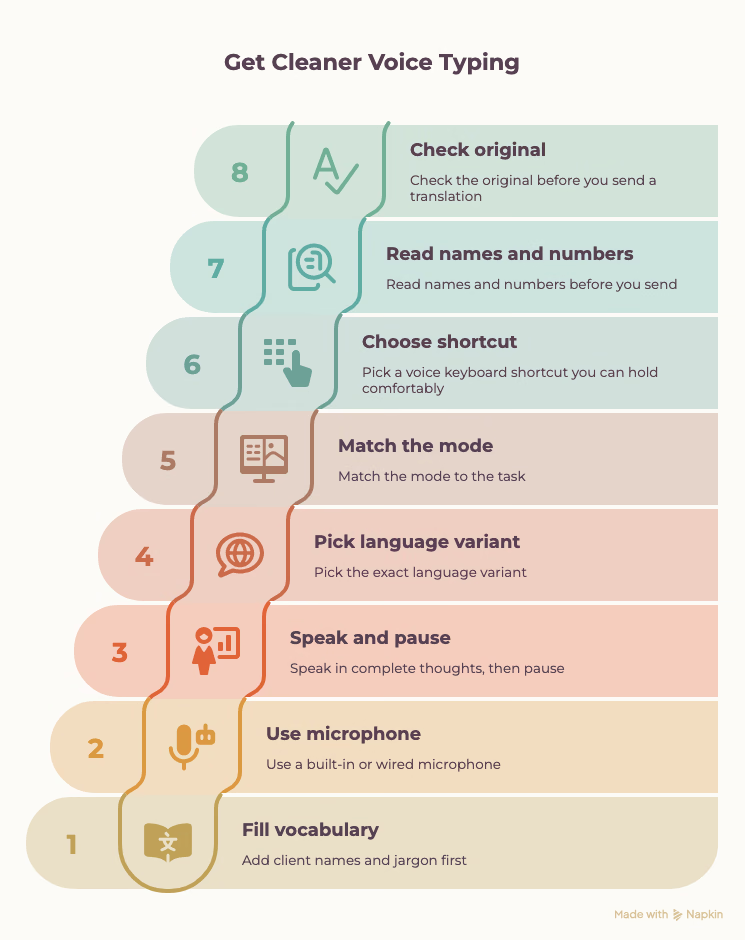
- Fill your custom vocabulary first: Add client names and jargon before you rely on any voice keyboard. Three apps misspelled a product name in my tests.
- Use a built-in or wired microphone: Granola and Handy both warn that Bluetooth headset mics reduce quality.
- Speak in complete thoughts, then pause: Tools that punctuate by pauses, like Microsoft Dictate, place periods better when you finish a sentence before you breathe.
- Pick the exact language variant: Google Docs lists English (US), English (UK), English (India), and more as separate entries, and the right one cuts errors.
- Match the mode to the task: Use exact transcription for quotes and notes, and a curated mode for emails and updates.
- Pick a voice keyboard shortcut you can hold comfortably: Handy's Option + Space felt awkward in my test, while Fn on a Mac and Ctrl + Win on Windows feel natural to hold.
- Read names and numbers before you send: Voice dictation errors cluster in proper nouns and figures.
- Check the original before you send a translation: View original in JotMe's history puts your spoken words next to the translated text, so you can confirm names and figures.
Start Your Own Voice Typing Test With JotMe
The fastest way to choose a voice typing app is to dictate a real reply you owe someone today. Install JotMe on your Mac or Windows PC, add your three most-used names to custom vocabulary, hold the shortcut, and speak the message into the app you would normally type in. Then switch to Translate mode and dictate the same message for a colleague who reads Spanish or Japanese. That second dictation shows what a translation keyboard does that an ordinary voice keyboard can't.
For real-time meetings rather than typed replies, our list of AI live translation tools we tested covers the next step.
One App for Typing and Meetings
Voice Typing and Meeting Translation in One App
Dictate in your apps, then use accurate meeting caption translation with 200+ output language and regional options in Basic or Premium Quality. AI meeting notes support 21 language options; spoken-language coverage varies by model.
Also on Windows. No credit card needed.
Voice Typing App FAQs
What Is the Best Voice Typing App in 2026?
JotMe is the best voice typing app for most people who write across many apps, since its Voice Keyboard types clean, punctuated text anywhere on Mac or Windows and translates your voice into another language. Wispr Flow suits heavy voice dictation on 4 device types, and Handy is the best free offline choice.
What Is the Difference Between Voice Typing and Voice Dictation?
The two terms describe the same act of speaking and getting text, with a small difference in use. People say "voice typing" for quick speech-to-text in a text field, like a chat reply, and "voice dictation" for longer documents with spoken punctuation and commands; the use of Dragon and Microsoft Dictate grew up around.
Is There a Free Voice Typing App That Works in Every App?
Handy is free, open source, and types into text fields on macOS, Windows, or Linux. Granola includes Voice Typing on every plan, with Mac and Windows documented and iOS advertised on its product page. Wispr Free has weekly limits, currently a 2,000-word desktop soft cap and 5,000-word hard cap, with mobile allowances shown in the app. JotMe Freemium includes 50 transcription minutes a month for the Voice Keyboard.
How Do I Translate Voice to Text in Another Language?
Open JotMe's desktop app, set Voice typing mode to Translate, and pick your output language. Then hold Fn on a Mac or Ctrl + Win on Windows, speak in your own language, and release; JotMe types the translated text wherever your cursor is, in any app.
Can a Voice Keyboard Translate While I Speak?
Yes, JotMe's Voice Keyboard types your speech in any of 200+ output language and regional options, so you can speak English and send Japanese or Korean text. Handy's Translate-tagged models can translate speech too; Granola states that its voice typing does not translate, and the built-in tools from Google and Microsoft type only in the language you speak. For spoken output instead of typed text, see our guide to voice to voice translation.
Is JotMe a Good Wispr Flow Alternative?
JotMe works well as a Wispr Flow alternative if you write to people in other languages or want voice typing and meeting translation in a single app. Wispr Flow covers more device types today, while JotMe adds a one-step Translate mode (Flow needs Command Mode on Pro and a second step), Direct and Curate modes, and live meeting features with 200+ caption output language and regional options, depending on the mode.
Does Google Docs Voice Typing Add Punctuation Automatically?
In my test, Google Docs Voice Typing added no punctuation on its own across 191 words. Google documents spoken commands such as "period," "comma," and "new line," and warns that punctuation may not be available in every language. Test punctuation in the language and browser you use.
What Is the Best Voice Dictation App for Mac?
JotMe is the best voice dictation app for Mac if you write across many apps or reply in other languages, since its Voice Keyboard works anywhere you can type. Wispr Flow fits heavy daily voice typing, Granola suits people already using it for meeting notes, and Handy is the free offline pick.
Can I Use Dragon Dictation on a Mac?
Nuance discontinued Dragon for Mac in 2018, and Dragon Professional v16 runs only on Windows 10 and 11. Mac users need a native voice typing app such as JotMe, Wispr Flow, Granola, or Handy.
Is Voice Typing Faster Than Typing?
Voice typing beats the keyboard for most people. My two JotMe clips captured 125 words in 60 seconds, and Wispr Flow clocked my speaking speed at 118 words per minute, both well above a typical typing speed. The real time saving depends on how much cleanup the voice typing app leaves you afterward.
Does Voice Typing Work Offline?
Handy runs speech recognition on your computer and works offline. Google Docs Voice Typing and Microsoft Dictate need an internet connection, and most AI voice typing apps, including Wispr Flow, process speech in the cloud.
Try JotMe
Accurate translation for your meetings, events, and everyday work, with AI Memory that remembers your context.