



Guides
7 Best In-Person Meeting Software for Small & Large Teams

Narmada Kajla
September 26, 2026

Quick Answer: For multilingual conversations, JotMe is the best choice for live translation, transcription, and AI meeting notes. Plaud AI suits dedicated audio capture; Granola suits personal meeting notes. Zoom Workplace and Microsoft Teams fit teams already using those platforms, while TrueConf supports equipped meeting rooms and self-hosted conferencing. Cvent handles event registration and onsite operations.
Do you feel like your AI bot cannot join the in-person meeting where you actually need its help? Everyone is sitting around the same table, someone starts explaining a proposal, and there is no meeting link for the bot to open. Meanwhile, you are trying to follow the conversation, capture decisions, and help colleagues who speak another language.
My first check with in-person meeting software is how it hears the room. Some tools use a phone or laptop microphone. Others need a dedicated recorder, a conference room computer, or equipment for checking attendees into an event. That choice affects almost everything that follows, including transcript quality, setup time, and cost.
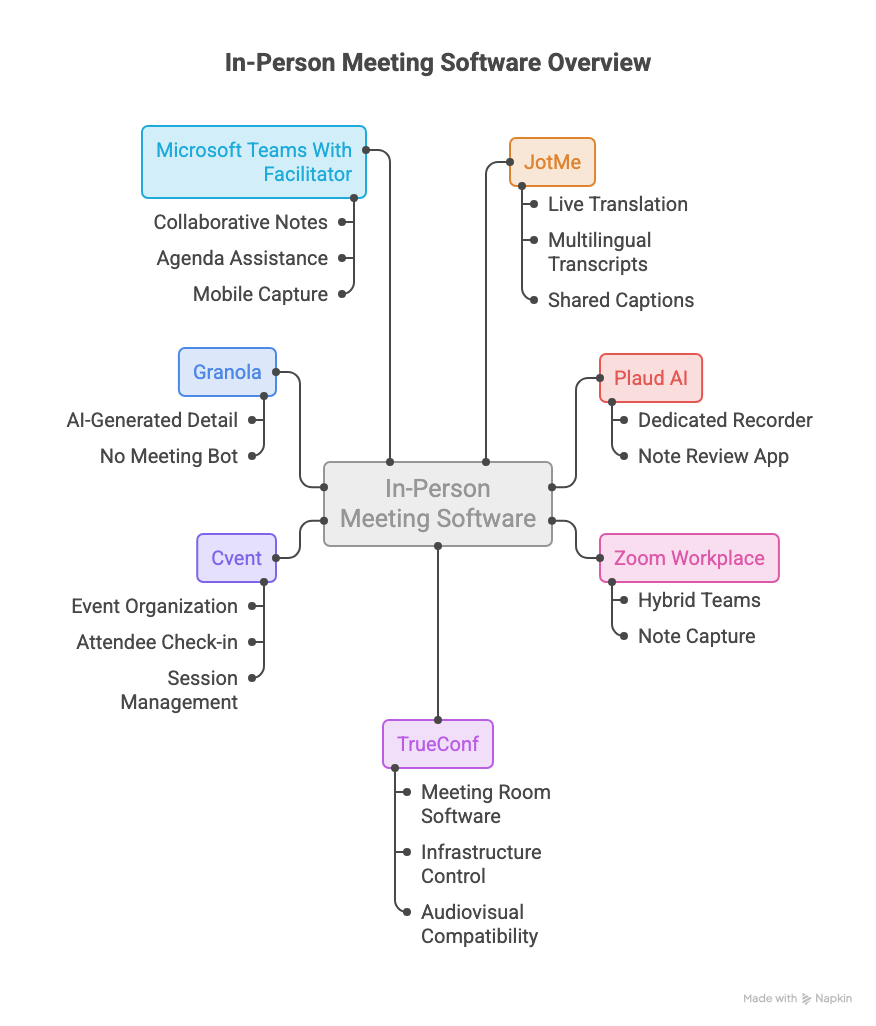
In this guide, I compare seven in-person meeting options: JotMe, Plaud AI, Zoom Workplace, TrueConf, Cvent, Granola, and Microsoft Teams with Facilitator. My focus is the physical meeting experience, from a small client discussion to a multilingual workshop or larger event. I explain where each tool fits, what hardware it needs, and when I would choose JotMe for live translation and meeting records.
Key Takeaways
- JotMe: JotMe is best when participants need live translation, multilingual transcripts, and shared captions alongside meeting notes.
- Plaud AI: A practical option for professionals who want a dedicated recorder for face-to-face conversations and an app for reviewing the resulting notes.
- Zoom Workplace: A familiar choice for hybrid teams, with My Notes available for capturing in-person conversations through supported devices and plans.
- TrueConf: Best suited to organizations that need meeting room software, control over conferencing infrastructure, and compatibility with existing audiovisual equipment.
- Cvent: Ideal fit here for organizing in-person events, including registration, attendee check-in, badges, and session management.
- Granola: An option for people who want to combine their own notes with AI-generated detail from a room conversation, without a meeting bot.
- Microsoft Teams With Facilitator: A useful choice for Microsoft 365 teams that want collaborative notes and assistance with meeting agendas, including supported mobile capture.
Quick Comparison Table: Best In-Person Meeting Software
This table compares in-person meeting software by its main job, equipment needs, and starting cost. These in-person meeting tools cover different parts of a meeting or event, so the hardware column matters as much as the subscription price.
How Did I Evaluate In-Person Meeting Tools for Teams & Events?
To evaluate in-person meeting software, I reviewed official product documentation, pricing, and setup instructions, then compared the tools against three situations: a small discussion around a table, a hybrid meeting with remote colleagues, and an event with multiple participants or languages. These recommendations reflect those workflows and documented capabilities; I have not assigned accuracy percentages or claimed a controlled test across all seven products.
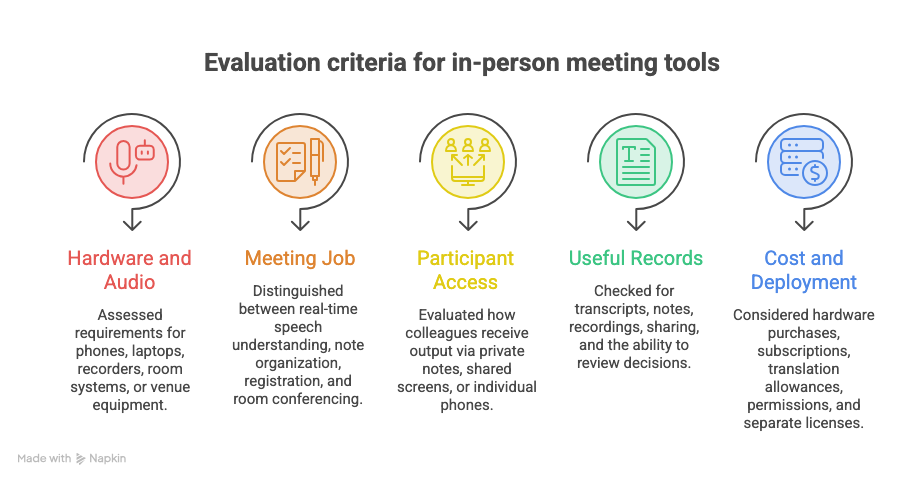
I used five criteria:
- Hardware and Audio Capture: I checked whether these in-person meeting tools need a phone, laptop, dedicated recorder, room system, or venue equipment. A microphone close to one person may miss someone at the opposite end of the table. For events, I recommend checking whether the venue can supply a clean microphone feed to the capture computer.
- The Job During the Meeting: I separated tools that help people understand speech now from tools that organize notes afterward. I also considered registration and room conferencing because an event organizer can need those alongside translation.
- Participant Access: I looked at how colleagues receive the output. A private note on my laptop, captions on a shared screen, and translation on each attendee's phone create different experiences.
- Useful Records Afterward: I checked for transcripts, notes, recordings, sharing, and the ability to review decisions. A polished summary is more useful when I can verify the wording behind it.
- Total Cost and Deployment: I considered hardware purchases, user subscriptions, translation allowances, admin permissions, and separate licenses. My recommendation is to budget for the full setup before selecting software for a recurring workshop or conference.
Best In-Person Meeting Software for Teams and Events
My first question is what the group needs help doing. A bilingual supplier meeting calls for a different setup from a 300-person customer conference. The following reviews explain that distinction and show where the seven tools could fit into the same organization.
JotMe
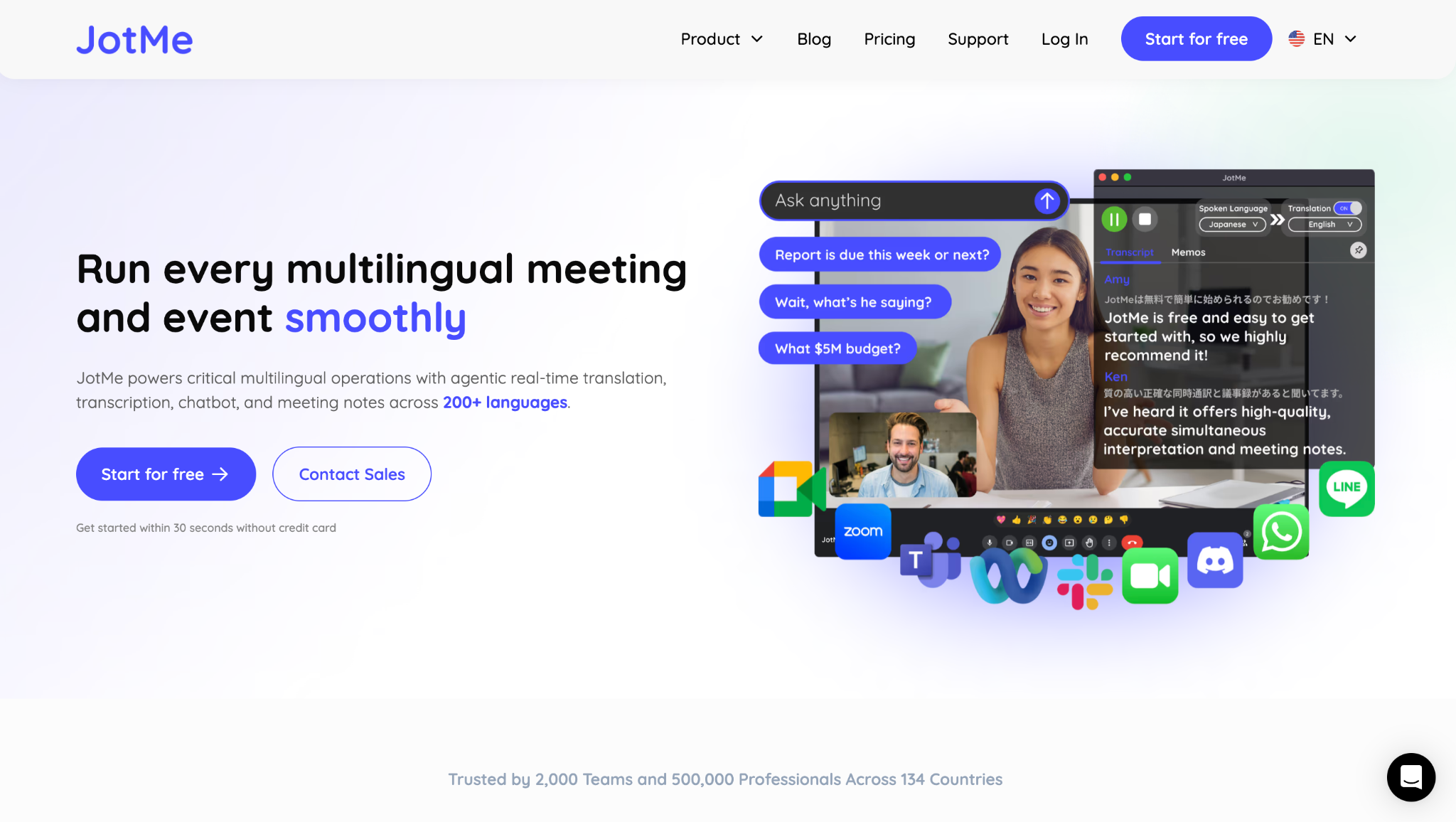
JotMe is my first choice of in-person meeting software when understanding the conversation across languages is the main concern. Its desktop app listens through the audio permissions and inputs you select, so an in-person discussion can run from a room microphone without inviting a bot. Participants can follow translated speech as text, while the session can also produce a transcript and AI meeting notes. That makes it relevant to supplier meetings, international training, workshops, and presentations where people need to respond while the discussion is still happening.
For example, imagine a Spanish-speaking marketing lead explaining a proposal to English-speaking colleagues. The group needs translated captions available during the explanation, then a searchable record for the follow-up. The JotMe desktop setup also gives me a choice between personal viewing and sharing the translation with the audience. For a smaller conversation away from a desk, its mobile app provides another way to follow and respond across languages. My recommendation is to match the microphone and output method to the room before starting.
JotMe Pricing:
Free: $0/month
- 20 live translation or real-time summary minutes/month
- 50 transcription minutes/month
- 5 AI credits
Pro: $10/user/month with annual billing, or $20/user/month billed monthly
- 200 translation minutes/month
- 500 desktop/file transcription minutes/month
- 20 AI credits
Premium: $15/user/month with annual billing, or $30/user/month billed monthly
- 500 translation minutes/month
- 2,000 transcription minutes/month
- 50 AI credits
- Translation minute sharing included
You can see JotMe's current plans and understand in detail.
For an event, I recommend the event usage calculator. Basic captions use a 1× multiplier, Premium captions 2×, and voice-to-voice translation 5×. Delivery to individual attendee devices also multiplies usage by recipient count. A 60-minute Basic caption session delivered to 20 attendee devices therefore represents 1,200 recipient translation minutes, before any additional host usage. A single shared display is calculated differently. This is why audience size belongs in the budget conversation.
Accurate Translation in 200+ Languages
JotMe offers 200+ translation output options, with spoken-language availability depending on the selected recognition mode. I check the actual language picker when assessing a required language combination. The language documentation distinguishes Basic and Premium recognition lists from translation targets, so check both sides of the language pair. For a desktop room session:
1. Open JotMe and grant microphone access.
2. Select the In-person environment and the microphone capturing the group.
3. Choose the spoken language and translation target.
4. Start live transcription and translation, then check that speech from different seats appears.
That short check is more useful than discovering a missing audio input midway through the meeting.
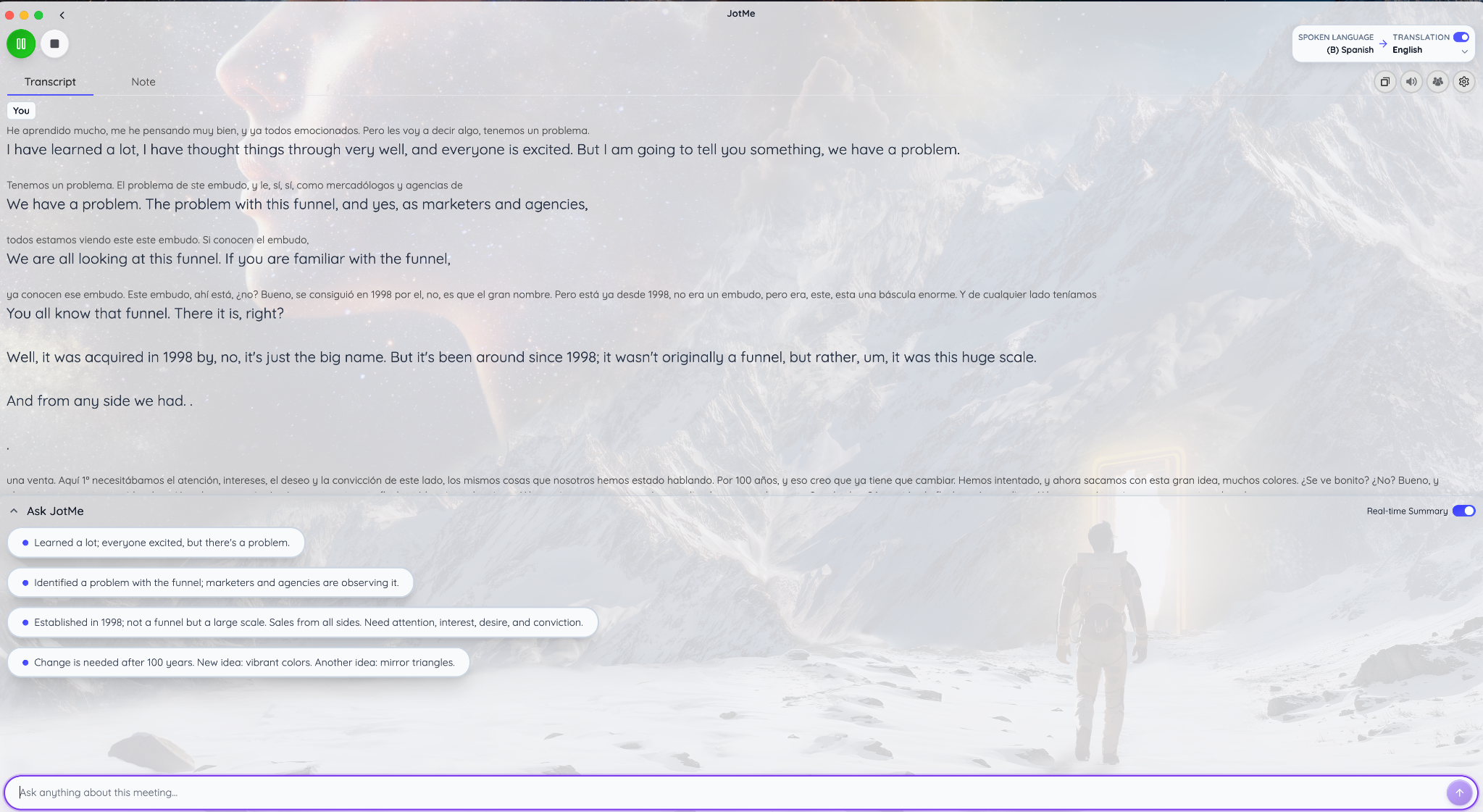
The Spanish-to-English example below makes the benefit concrete. The Spanish text includes “Tenemos un problema,” and the English output reads “We have a problem.” More usefully for this business discussion, “embudo” appears as “funnel,” while “mercadólogos y agencias” is rendered as “marketers and agencies.” Those terms keep the marketing subject recognizable for an English-speaking colleague.
These examples show that translation preserves identifiable phrases and business terminology. The screenshot also contains unfinished phrases, so I recommend reviewing important commitments and unusual terminology before treating the translated text as a final record. A screenshot lets me inspect the output; assessing speech-recognition accuracy across a whole meeting requires the original audio.
For a longer workshop, I also look at how the tool handles pauses and continued speech. Our comparison of continuous translation apps explains that conversational requirement in more detail.
Accurate Transcription for Multilingual Meetings
JotMe's transcription documentation describes live transcription within its 200+ language-and-dialect offering. For transcription without translation, leave Translation off and start the session with the appropriate spoken language selected.
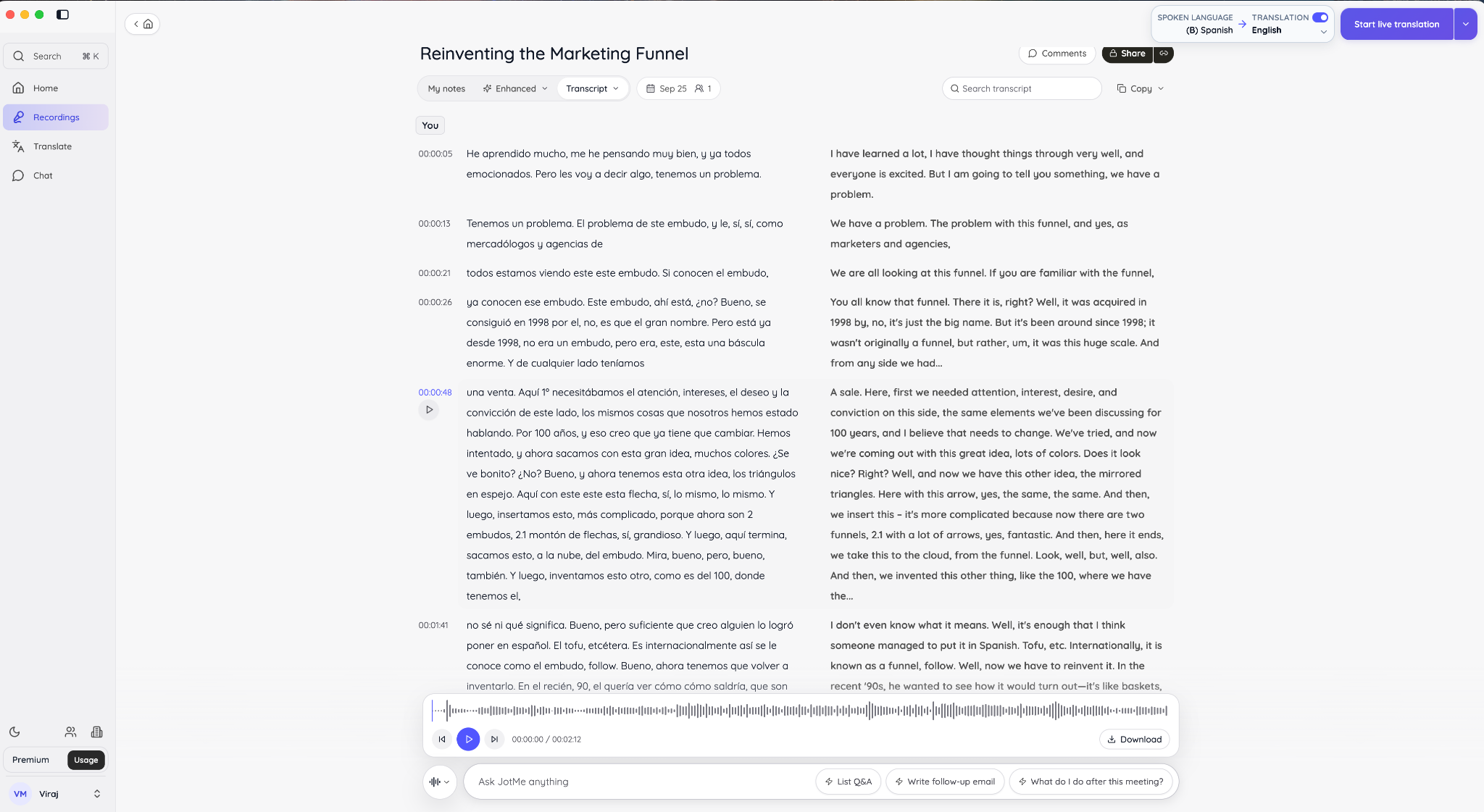
In the saved marketing session below, the Spanish transcript sits beside the English translation with timestamps. At 00:00:21, the Spanish includes “todos estamos viendo este embudo,” alongside “We are all looking at this funnel.” At 00:00:48, the source includes “atención, intereses, el deseo y la convicción,” with an English rendering referring to attention, interest, desire, and conviction. Keeping those business concepts visible in both columns makes review easier.
The recording controls provide a way to return to the audio when a sentence is unclear. For a physical room, select the In-person environment before capture. JotMe documents numbered speaker labels for that mode. The illustrated session is labeled “You,” so it demonstrates the bilingual transcript view rather than proving speaker separation around a shared table.
AI Meeting Notes
I find meeting notes most useful when they turn a long discussion into something colleagues can review quickly. In the marketing example, JotMe's saved notes use sections such as Gist, Summary, Action Items, and Key Points. The Spanish summary identifies the central discussion: the traditional marketing funnel has become complicated, and the group is considering how to rethink it. That gives a colleague a starting point before opening the full transcript.
The notes also include proposed responsibilities and timelines. My next step would be to confirm those against the conversation before sharing them, particularly when an AI-generated action sounds more definite than the speaker's wording. The value is the structured draft and its connection to the recording. It still needs an owner to approve the final follow-up.
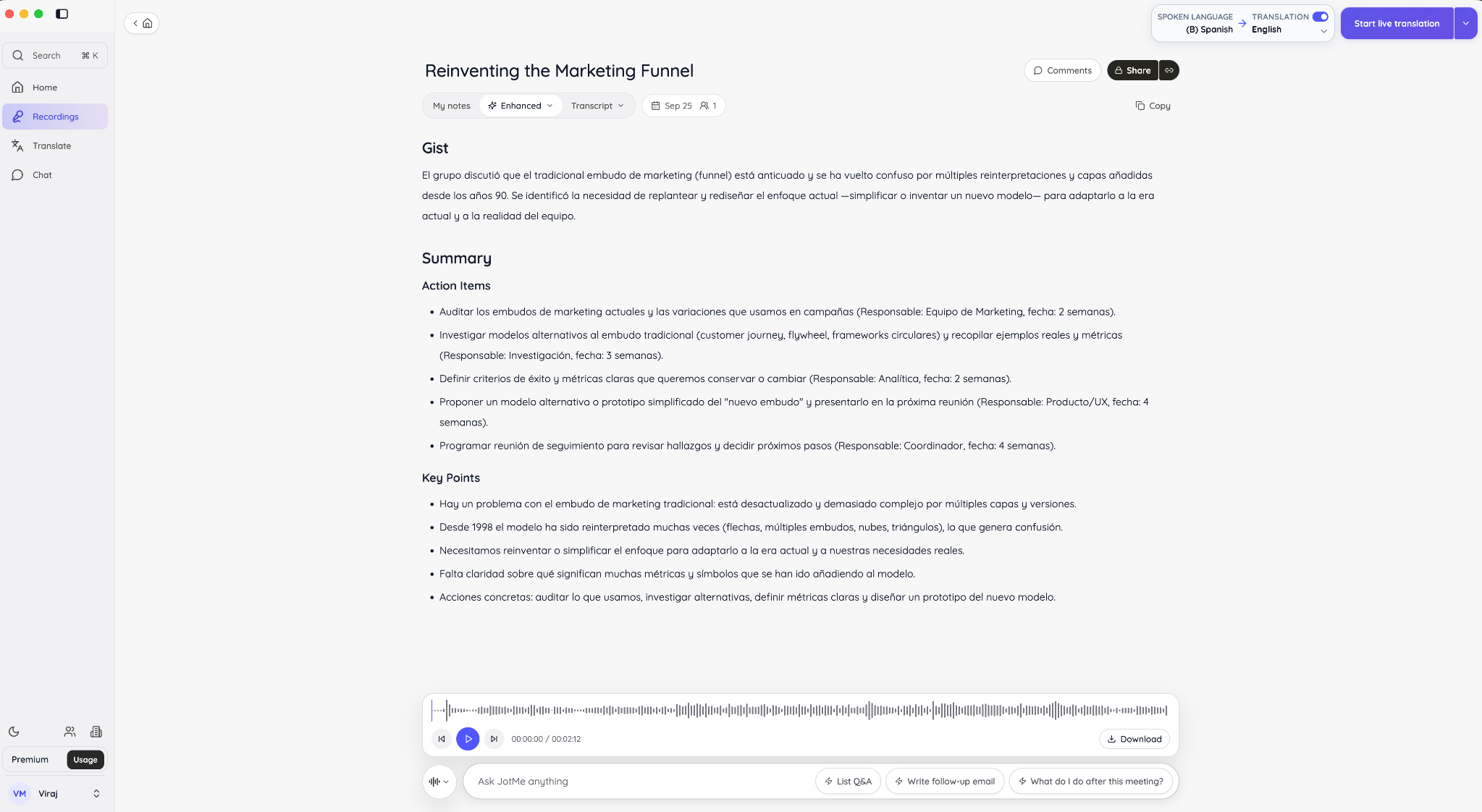
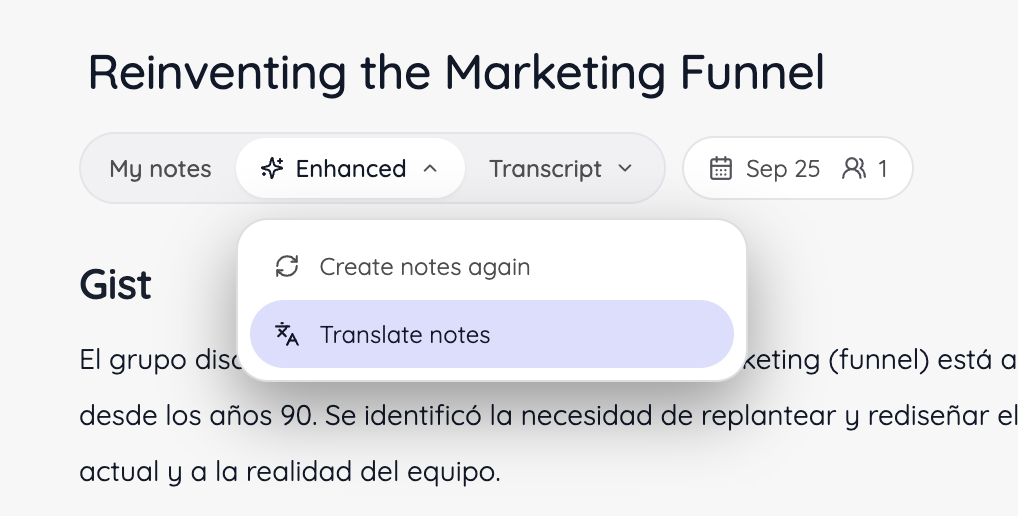
For colleagues who need a different output language, the Enhanced menu includes Translate notes. Open the saved session, choose that option, and select from the available note languages. Notes have their own supported-language list, separate from live translation. The JotMe desktop guide walks through recordings, note generation, and those settings.
JotMe Mobile Application
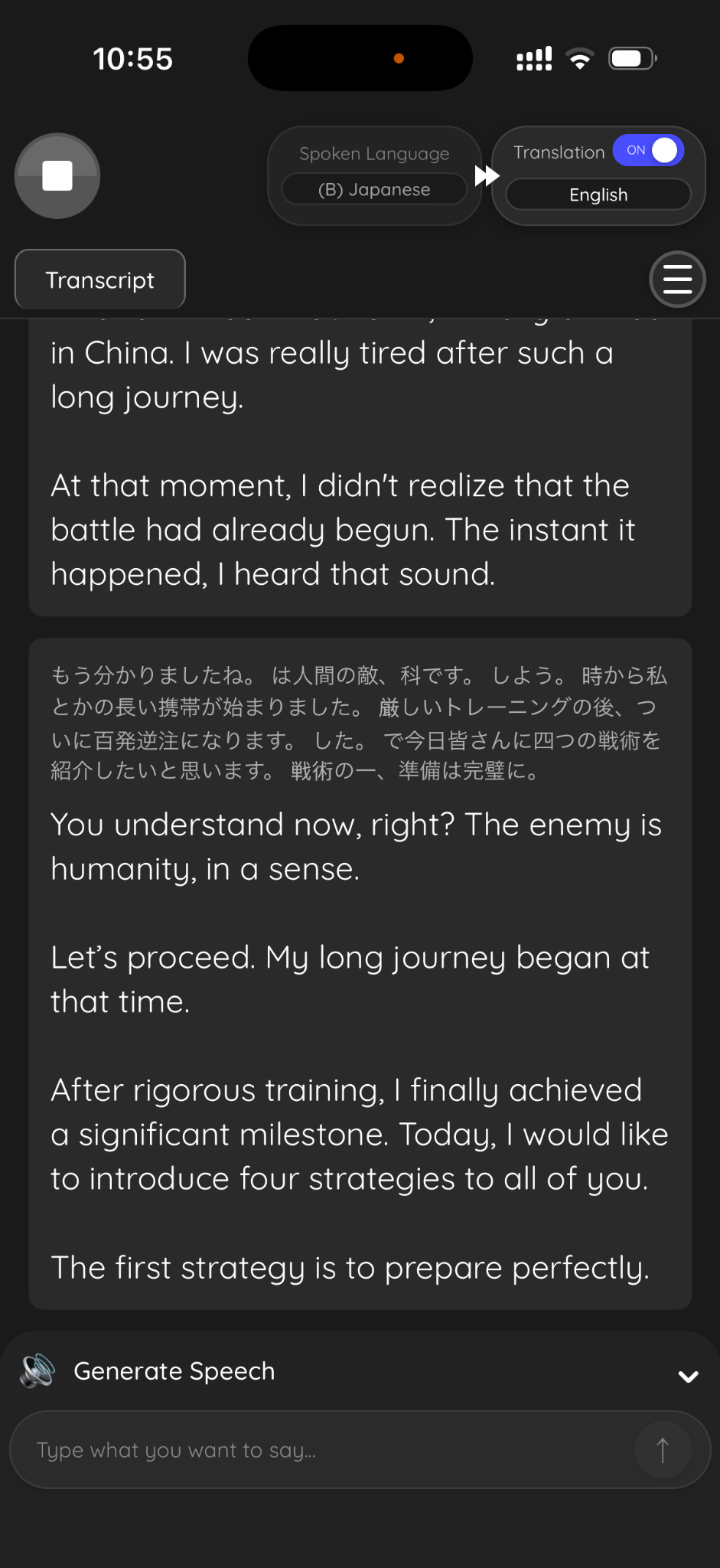
For a conversation at a client's office or between conference sessions, the JotMe translation app is the version I would choose. The mobile format makes it easier to carry the translation display into a discussion without setting up a laptop. To begin, choose the spoken and target languages, grant microphone access, position the phone where it can hear both sides, and start listening.
The Japanese-to-English mobile example shows the original text above the translation. Near the bottom, the Japanese instruction about preparing the first strategy appears in English as “The first strategy is to prepare perfectly.” That short pair shows how a listener can follow an instruction in English while keeping the Japanese text visible. This supports a specific observation about the displayed sentence, rather than a whole-meeting accuracy rate.
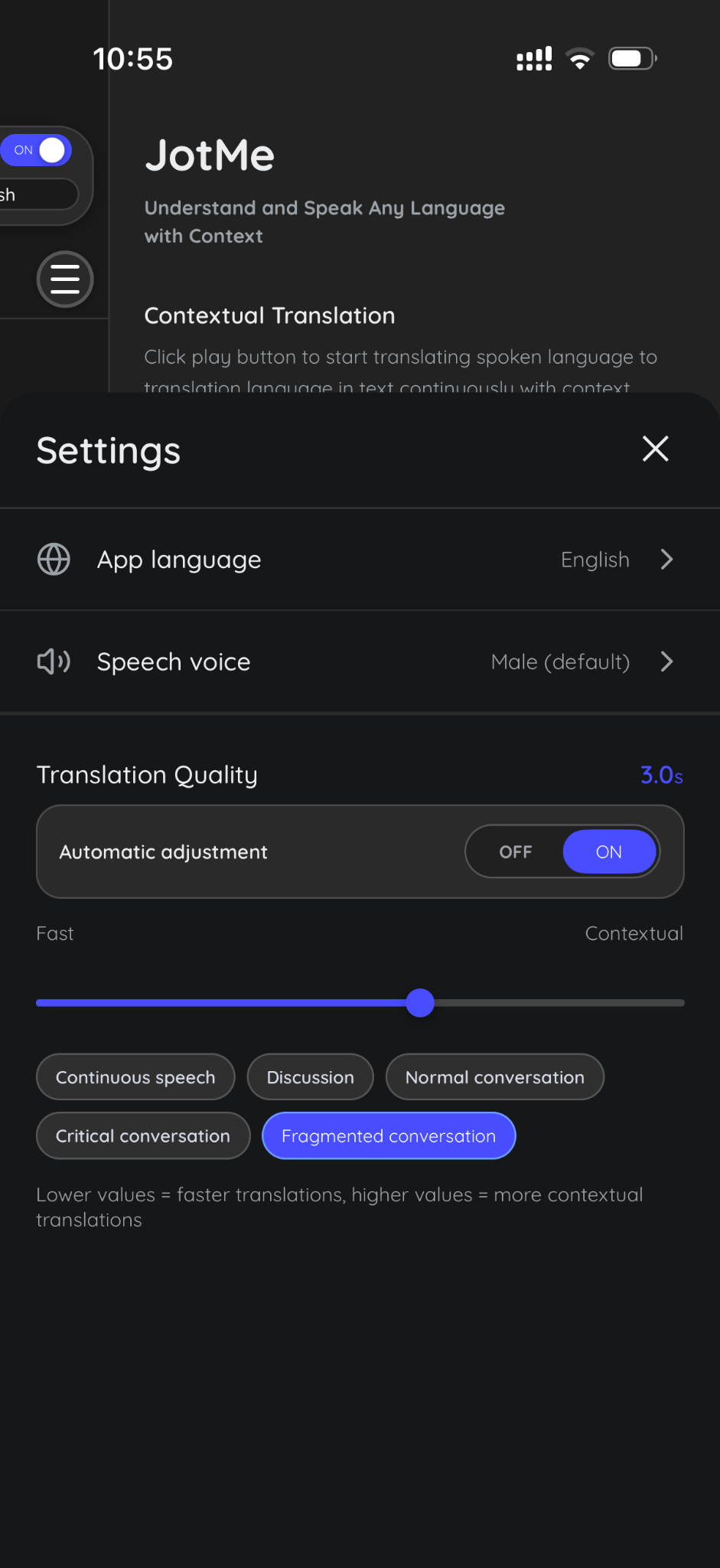
The settings screenshot also shows a Translation Quality slider between Fast and Contextual, Automatic adjustment, and presets for different conversation patterns. My advice is to try the setting with the actual speaker before a workshop. The displayed 3.0s value is a configuration setting, not a measured guarantee that every translation will arrive in exactly three seconds.
Our live translation app setup guide covers the mobile workflow. For spoken responses, explore the voice translator options. In a group, headphones help keep translated audio from being picked up again by the room microphone.
Share Live Translation
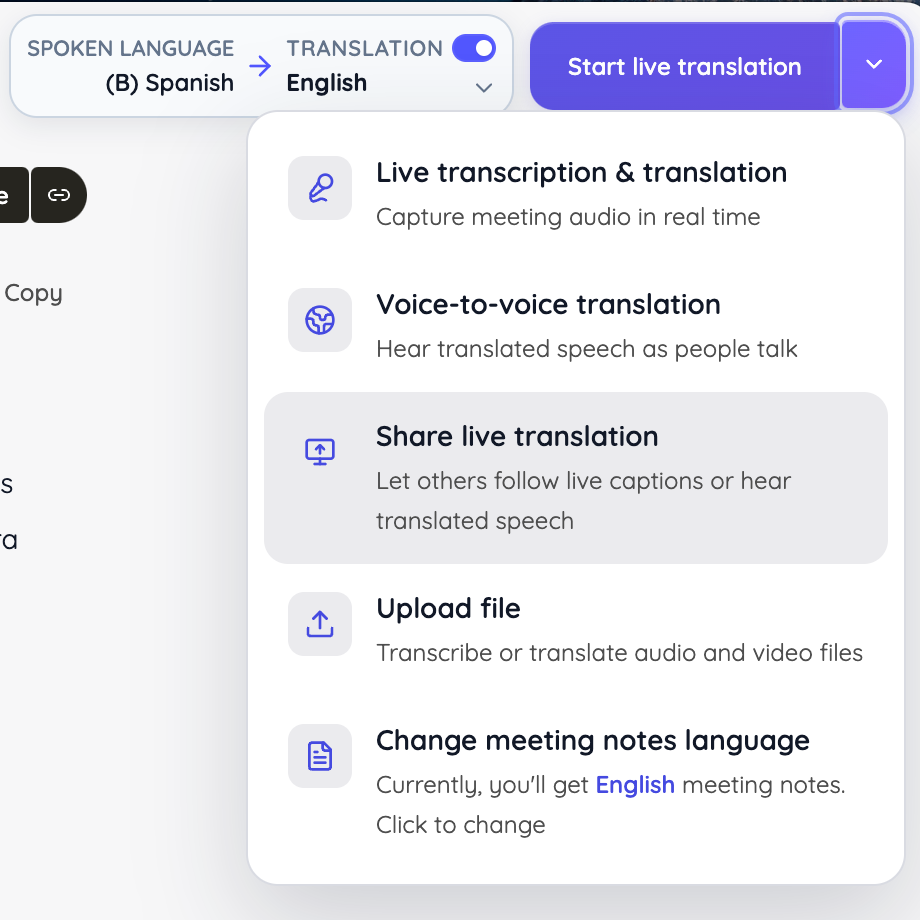
Shared translation is where JotMe becomes especially relevant to teams and events. I can make the output available to participants who need their own reading language, instead of expecting everyone to gather around my laptop. JotMe documents browser access through a link or QR code, plus other sharing methods for desktop users and video captions.
The screenshot below shows Share live translation in the start menu.
1. Open Share Translation and choose With URL.
2. Choose Caption or Voice, generate the link, and set any available language restrictions needed for the session.
3. Share the link or display the QR code for the audience.
4. Start the session so participants can receive the live output.
Recipients can join in a browser without installing JotMe or creating an account. The joining page asks for an email and language choices, and participants use the host's translation allowance. Explain that process at the start of the event and check access from an attendee's phone beforehand.
For larger audiences, I recommend restricting the offered languages to those attendees actually need and estimating recipient minutes in advance. JotMe's sharing documentation explains how extra language choices affect processing and how Caption and Voice delivery differ.
Pros
- Live language access during the discussion
- bilingual records for follow-up
- desktop and mobile options
- browser sharing for attendees
Cons
- Results depend on microphone capture and supported recognition settings
Best For: Multilingual team discussions, international client meetings, training sessions, and events where attendees need help understanding speech as it happens.
Plaud AI
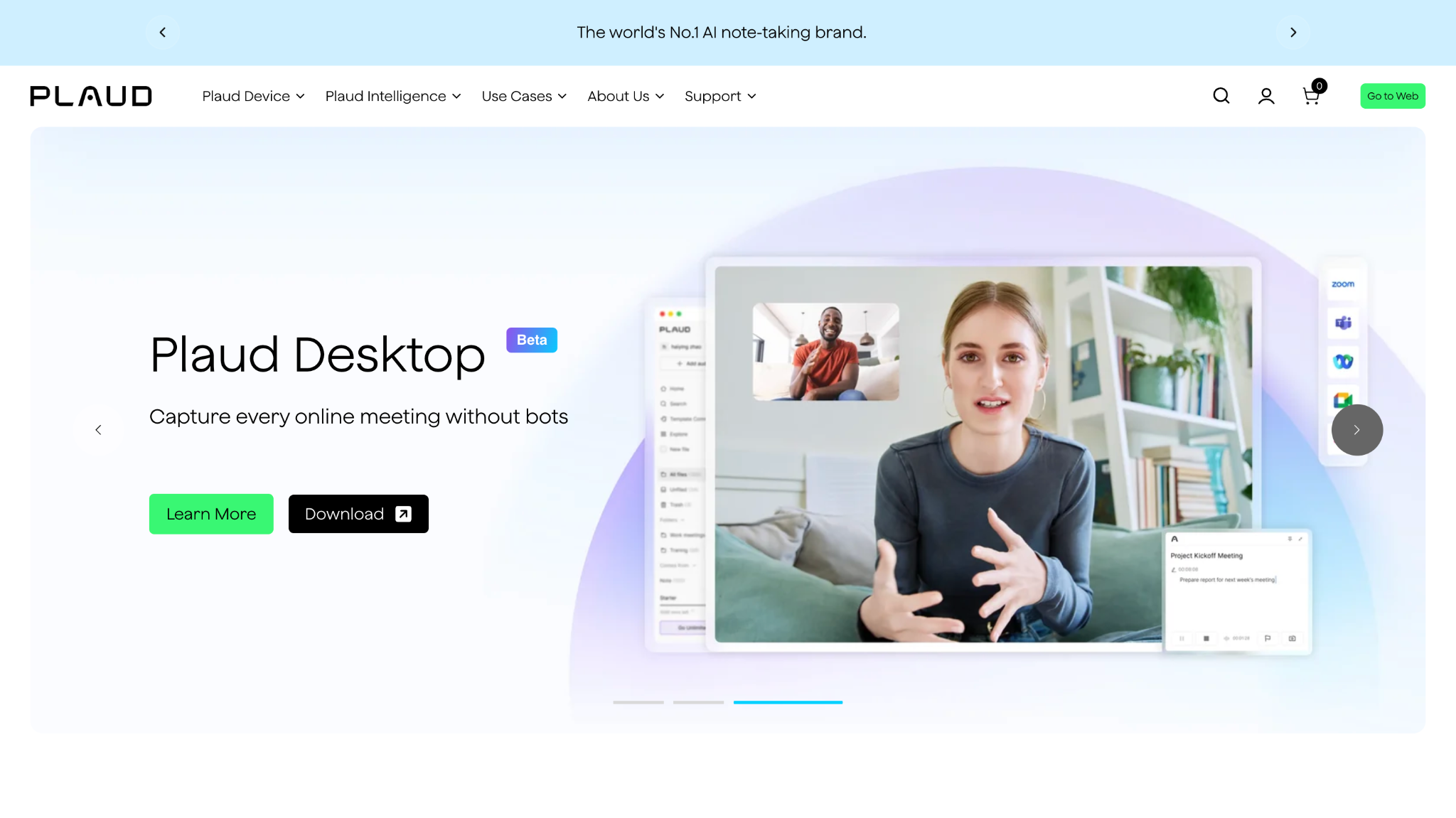
Plaud AI is my shortlist option for in-person meeting software built around a dedicated recorder. For this comparison, I am focusing on the Plaud Note recorder and the accompanying Plaud software. The original Note uses a physical slider to switch between in-person and phone-call recording, stores captured audio on the device, and transfers files to the app for review. That suits interviews, customer visits, and small meetings where someone needs a record afterward.
The hardware is part of the purchase decision: the original Note has its own microphone arrangement and stated pickup range, while Note Pro is a different model with different specifications. JotMe is the option I prefer when the immediate requirement is helping participants understand another language during the conversation; Plaud's recorder-led workflow is most relevant here for capturing and processing the discussion.
Pricing
- Plaud Note: $159 one-time device cost
- Starter: 300 transcription minutes/month
- Pro AI: $8.33/month billed annually, or $17.99/month billed monthly
- Pro AI includes 1,200 transcription minutes/month
- Unlimited: $19.99/month billed annually, or $29.99/month billed monthly
- Unlimited usage is subject to Plaud’s stated usage terms
- Hardware and software costs should be budgeted separately
Pros
- Dedicated physical recording control
- Portable recording without keeping a computer open
- Transcripts available through the Plaud workflow
- AI-generated summaries included in the workflow
Cons
- Requires an upfront hardware purchase
- Adds charging and file-transfer steps to the workflow
- Recording quality and pickup range should be tested in the actual room
- May be less effective when multiple speakers are sitting far from the device
Best For: Consultants, interviewers, and client-facing professionals who prioritize a portable record of face-to-face discussions and are comfortable maintaining a separate device.
Zoom Workplace
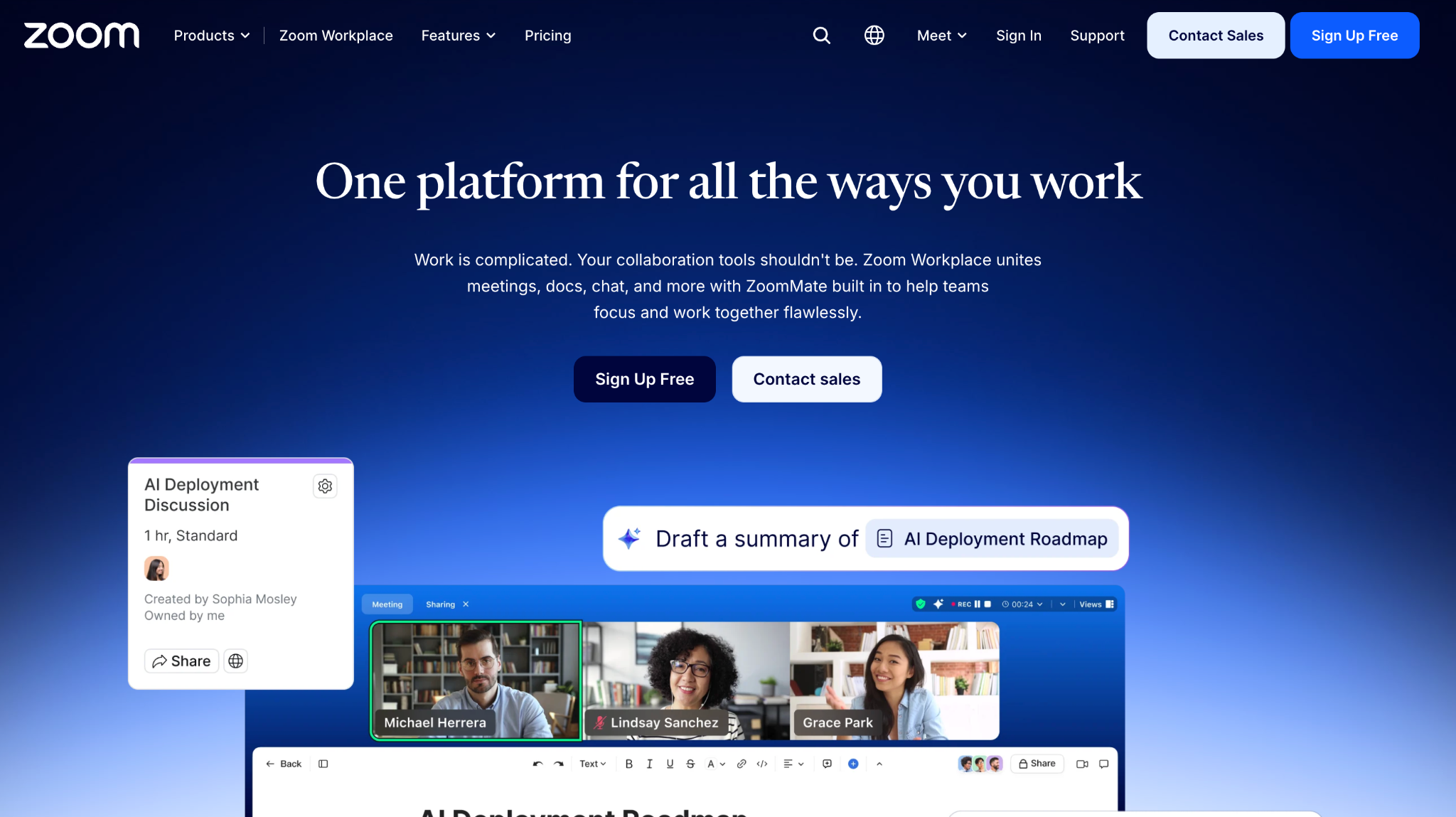
Zoom Workplace deserves a place in an in-person meeting software comparison even when there is no remote participant. I see a good fit for a team that already relies on Zoom and wants room discussions alongside its other meeting records. It also helps to distinguish personal notes from shared outputs: My Notes are not automatically shared with everyone in the meeting.
For a hybrid session, the room still needs a microphone and speaker arrangement that lets remote participants hear clearly. When the main issue is a multilingual audience following the discussion, I compare Zoom's available language features and plan requirements with JotMe's sharing workflow. Our Zoom AI Companion vs. JotMe comparison explores that choice further.
Pricing
Zoom lists Workplace Pro from $14.16 per user per month with annual billing. My Notes requires an eligible Pro, Business, Enterprise, or standalone My Notes account, together with the relevant enabled settings.
Pros
- Familiar workspace for existing Zoom users
- Supports in-person note capture
- Connects room conversations with hybrid collaboration workflows
Cons
- AI access depends on the account plan and admin configuration
- My Notes support varies across desktop, mobile, browsers, and Zoom Rooms
- The intended setup should be checked before choosing equipment
Best For: Small and growing teams already using Zoom that want to capture physical meetings while retaining their usual collaboration platform.
TrueConf
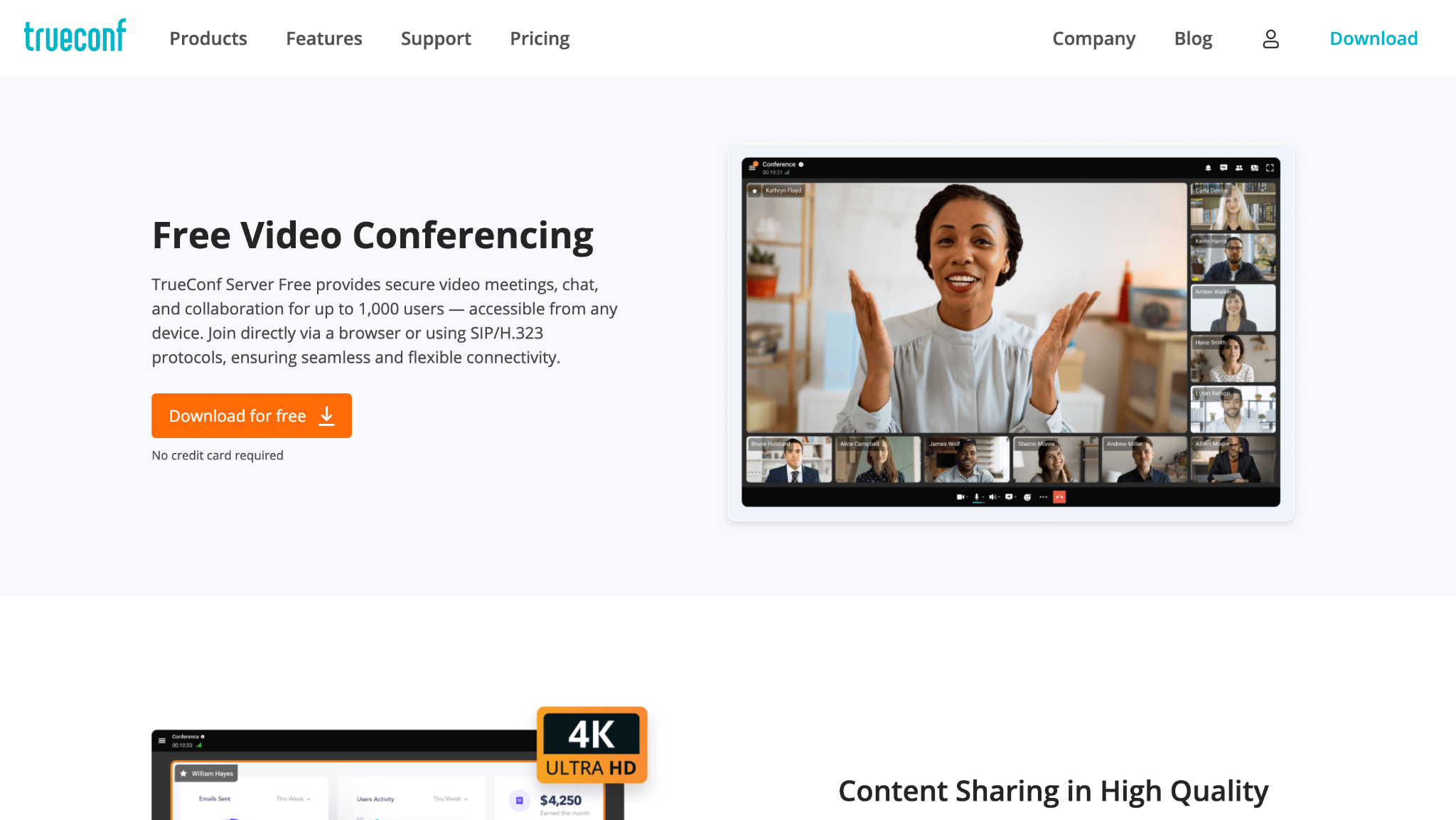
TrueConf is the in-person meeting software I would shortlist for an organization equipping and managing rooms across offices. TrueConf Room runs on a room computer and works with audiovisual peripherals such as a display, camera, microphones, and speakers. TrueConf Server provides the conferencing infrastructure, including an option for operation within an organization's own network.
This makes TrueConf relevant to IT-managed deployments with existing equipment and specific infrastructure requirements. It also means someone must own installation, device compatibility, and ongoing administration. TrueConf lists conference transcription and summarization through TrueConf AI Server, which belongs in the deployment discussion. JotMe would be a separate consideration for live language access where the organization permits it; adding a cloud translation service would require its own data review even if the conferencing system is self-hosted.
Pricing
TrueConf Room has a free edition. The paid room license is $295 per PC per year, or $745 for a lifetime license, according to its room pricing page. Server licensing and hardware are separate. TrueConf Server Free currently lists messaging for up to 1,000 users but video conferences for up to 10 participants, so those two numbers should not be confused.
Pros
- Well suited for permanent meeting rooms
- Gives teams more control over conferencing deployment
- Can connect with compatible existing room equipment
Cons
- Requires more setup than using a phone app
- Needs ongoing IT involvement
- Server, room, AI, support, and equipment costs should be considered together
Best For: Larger teams and organizations with established meeting rooms, technical support, and a reason to manage their conferencing infrastructure directly.
Cvent
Cvent earns its place among these in-person meeting software options through event operations: collecting registrations, managing sessions, checking people in, and understanding attendance. Its OnArrival offering connects the software to the physical venue through check-in devices, badge printing, and related equipment. That makes it useful when the problem is getting hundreds of attendees into the correct sessions and keeping their records organized.
I recommend checking the specific features required on iOS or Android before renting equipment. For a multilingual conference, my preference is to use JotMe for the separate task of delivering translation to participants. Cvent could manage registration while JotMe handles the session's language access, with each workflow prepared independently.
Pricing
Cvent uses custom quotes. Its pricing page separates Registration, Attendee Hub, OnArrival, and other options. Basic OnArrival is available to Event Management customers, while premium onsite capabilities and services can change the package. Ask for a quote that identifies the software, check-in stations, printers, badge stock, staffing, and support needed for the actual event.
Pros
- Handles event logistics beyond basic meeting capture
- Connects registration with onsite attendance
- Supports check-in and badging for larger events
- Suitable for managing attendees at scale
Cons
- Quote-based pricing makes purchasing less straightforward
- Requires more onsite preparation and planning
- May be excessive for small, recurring discussions
- Harder to justify when the main needs are only translation and meeting notes
Best For: Event teams running conferences, customer programs, training events, or multiple onsite sessions where registration and attendee operations are central requirements.
Granola
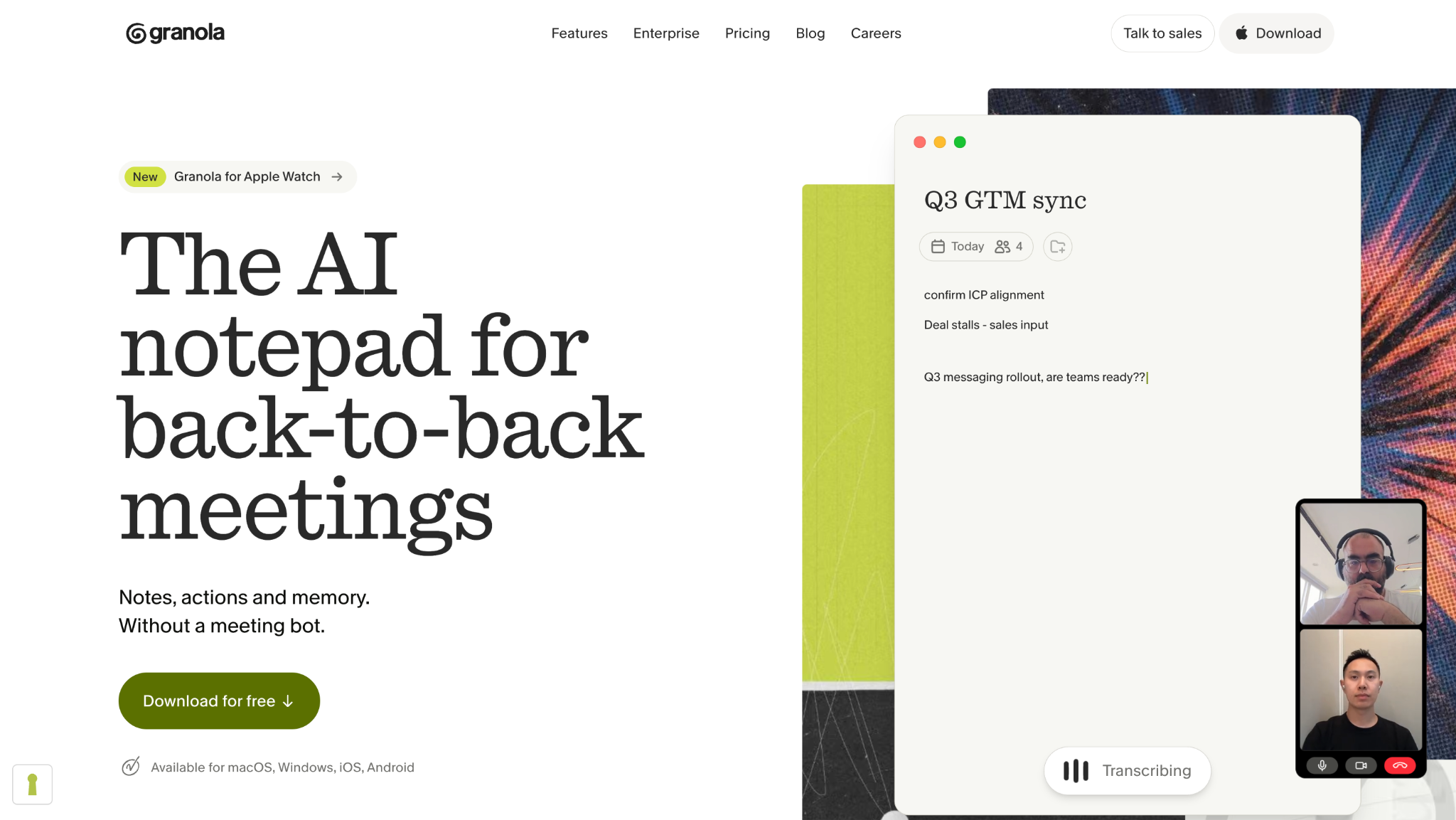
Granola is the in-person meeting software I would examine for someone who likes taking brief personal notes and wants help filling in the conversation around them. Its AI notepad combines the user's notes with meeting context and works without a bot joining the call. For an in-person discussion, the device still needs a microphone positioned to hear the speakers; the absence of a bot does not remove that requirement.
The appeal is a familiar note-taking routine with AI assistance and the ability to revisit meeting information. My comparison with JotMe comes down to whether my main requirement is a useful personal record or live language access for the whole group. Granola makes sense for the first requirement, while JotMe's translated captions and attendee sharing are more directly relevant to the second.
Pricing
- Basic: $0
- Includes 30 days of meeting history
- Business: $14/user/month
- Includes unlimited meeting history
- Enterprise: $35/user/month
- Advanced integrations and organization-wide controls vary by plan
Pros
- Combines personal input with AI-enhanced meeting notes
- Does not require adding a meeting bot
- Provides shared folders for team collaboration
- Offers longer meeting history for teams on higher-tier plans
Cons
- Room coverage depends on the recording or capture device
- Audio is deleted after transcription
- Not ideal for teams that need to retain an audio archive for replaying conversations
Best For: Managers, recruiters, and small teams that want better notes from regular discussions and value a workflow centered on their own written observations.
Microsoft Teams With Facilitator
For a Microsoft 365 team choosing in-person meeting software, Facilitator is an obvious starting point. Microsoft's current documentation covers collaborative live notes, agenda assistance, meeting questions, and mobile capture of in-person discussions. The mobile option matters here because the group can start from a phone instead of requiring every person to join from a laptop. For a room deployment, my recommendation is to have IT verify the particular Teams Rooms capability, device configuration, and release status.
The audio still needs to reach Teams clearly, and a room transcript should not be assumed to identify every person by name. JotMe becomes more relevant when live translation across languages is the main requirement. Facilitator's meeting assistance and JotMe's language workflow serve different needs, even though both can contribute to a useful meeting record.
Pricing
- Requires eligible Microsoft 365, Teams, and Copilot licensing
- Microsoft 365 Copilot add-on: $30/user/month, paid yearly
- Requires a separate qualifying base plan
- Business Standard with Copilot: $23.50/user/month, paid yearly
- Teams entitlement and regional availability should be checked before purchasing
Pros
- Fits well into existing Microsoft 365 workflows
- Supports shared meeting notes
- Provides agenda assistance
- Offers a documented mobile option for in-person discussions
Cons
- Access depends on licensing and administrator settings
- Some capabilities are still in preview
- Task-tracking integration may not yet be fully available
- Teams should verify that the specific required feature is supported before purchasing
Best For: Microsoft 365 organizations that want meeting assistance within Teams and can coordinate licensing, permissions, and room setup with their administrators.
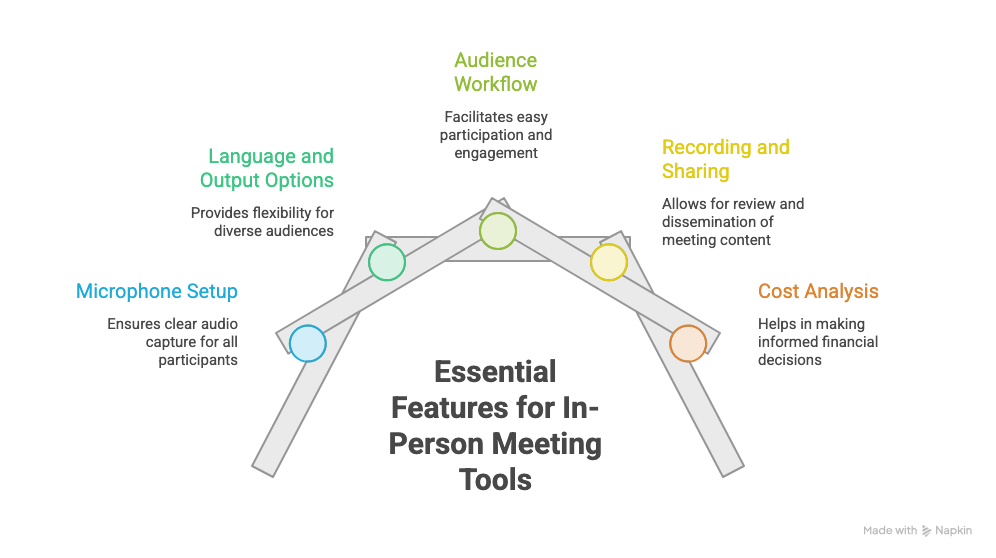
What to Look for in In-Person Meeting Tools
When shortlisting in-person meeting software, I ask how the product supports the exact workflow the team needs. A meeting recorded through one microphone is a different situation from a call where each participant has a separate audio stream.
A Microphone Setup That Covers the Group
For two people at a desk, a suitably positioned phone may be enough. Around a longer table, consider a conference microphone or the room's existing audio system. At an event, ask the audiovisual team about routing the presenter and audience microphones into the capture computer. Software can only process the speech that reaches its selected input.
The Right Language and Output Options
My language checklist covers spoken languages, translation targets, note languages, and whether attendees can choose their own output. Those are separate requirements. A transcript in the original language cannot by itself help someone who needs to understand the speaker during the meeting. Our guide to AI interpreter apps for in-person business meetings is useful when language access is the main buying decision.
An Audience Workflow People Can Follow
A shared display can suit a workshop where everyone reads the same language. Individual browser access can suit a mixed-language audience, provided the venue has usable connectivity, and attendees can open the link. Make the instructions visible at the entrance or on the opening slide, then have someone available to help participants join.
Records the Team Can Review and Share
A key comparison for in-person meeting software is whether the product retains audio, a transcript, notes, or some combination of them. My follow-up questions concern who reviews the output and who receives it. For an internal planning meeting, confirming a decision and its owner matters more than generating a lengthy summary nobody opens.
Costs That Match Real Usage
For subscription software, calculate the number of paid users and any usage allowances. For event translation, add session duration and recipient count. For dedicated recorders or room systems, include devices, charging, replacements, installation, and support. These checks make the comparison useful for both a small team and an organization running multiple events.
Tips for Better In-Person Meetings With AI Tools
I recommend a short rehearsal before relying on any in-person meeting software. The most useful rehearsal includes the same room, microphone, language choices, and attendee viewing method planned for the real session.
Check Every Seat Before the Meeting
Ask someone to speak from the far end of the table and review what the tool captures. Repeat the check with the presenter facing the screen, because turning away can change what reaches the microphone. If a person is consistently missed, adjust the placement or input before spending time changing AI settings.
Keep One Clear Audio Path
For a hybrid meeting, designate the room's main microphone and speaker setup. Multiple nearby laptops playing the same call can create echo and confuse capture. Attendees who need their own screens can join with their audio disconnected. If remote colleagues need another language, our conference call translation guide provides a starting point for that additional workflow.
Make Audience Questions Audible
At an event, the presenter may have a good microphone while an audience question comes from an unamplified seat. I recommend a roaming microphone or asking the presenter to repeat the question into their microphone. This helps the transcription system and everyone who could not hear the original question.
Prepare Names, Terms, and Language Choices
Use the rehearsal to check vocabulary that will appear in the session: product names, customer names, acronyms, and specialist terms. Where the tool supports custom vocabulary, add those terms beforehand. With JotMe, check both the recognition mode and the translation target, then review a short sample with someone who understands the relevant language pair.
Explain Capture and Review Decisions
Before starting, tell participants what is being captured and how the records will be used, following the organization's recording policy. At the end, read back the decisions, owners, and dates. That gives the group a chance to correct the record while the discussion is fresh and helps keep tentative suggestions out of the final task list.
Plan for Connectivity and Power
A full-day event needs more preparation than a short office meeting. My preparation checklist includes power at the capture station, attendee Wi-Fi where needed, and a backup way to preserve the discussion. When evaluating in-person meeting software, remember that a device that can record audio without connectivity does not necessarily perform AI transcription or translation offline. Check each stage separately before deciding the setup can survive a network interruption.
Conclusion
The best in-person meeting software depends on what you actually need help with during and after the meeting. Some tools focus on live translation, while others are better for recording, AI notes, hybrid collaboration, meeting-room infrastructure, or large-event operations. Based on the use cases covered in this guide, here is a simple way to narrow down your choice:
- Choose JotMe for multilingual meetings and events: Best for teams that need live translation, multilingual transcription, AI meeting notes, and translated captions that participants can follow during the conversation.
- Choose Plaud AI for portable meeting recording: Best for consultants, interviewers, and professionals who want a dedicated physical recorder for capturing face-to-face conversations and reviewing AI-generated transcripts and summaries later.
- Choose Zoom Workplace for existing Zoom teams: Best for teams already working in Zoom that want to capture in-person discussions while keeping them connected to their existing hybrid meeting workflow.
- Choose TrueConf for permanent meeting rooms: Best for organizations that need dedicated room conferencing, more control over deployment, and integration with existing audiovisual equipment.
- Choose Cvent for large in-person events: Best for conferences and large events where registration, attendee check-in, badging, and session management are as important as the meetings themselves.
- Choose Granola for personal AI meeting notes: Best for managers, recruiters, and small teams that want AI-enhanced notes without adding a meeting bot and do not require long-term audio storage.
- Choose Microsoft Teams with Facilitator for Microsoft 365 workflows: Best for organizations already using Teams and Microsoft 365 that want collaborative notes, agenda assistance, and supported in-person meeting capture within their existing ecosystem.
For multilingual meetings, workshops, training sessions, and international events, JotMe stands out because it supports participants while the conversation is happening and gives teams useful records afterward. You can use live translation, multilingual transcripts, AI meeting notes, mobile translation, and browser-based translation sharing depending on the meeting setup. Start with JotMe’s free plan, test it in a real meeting with your microphone and language pair, and review the live translation and transcript before rolling it out to a larger team or audience.
FAQs
How do I use Facilitator in Teams as a Meeting AI assistant?
For a scheduled meeting, open the meeting options, go to Copilot and other AI, allow Copilot and Facilitator, and turn Facilitator on. During a supported meeting, organizers or presenters can use More actions > Turn on Facilitator. For an in-person mobile discussion, Microsoft's guide describes Calendar > Meeting > Take notes with Facilitator. You need the required licensing and admin settings.
How do I use Plaud Note?
Pair and set up the recorder with the Plaud app, then use the original Plaud Note's slider to select Note Recording for an in-person meeting. Hold the Record button for one second to start; one vibration confirms capture. Hold it again for one second to stop; two vibrations confirm it has stopped.
Are Zoom and Zoom Workplace the same?
Zoom is the company and broader product brand. Zoom Workplace is its collaboration platform and the name of the desktop and mobile app many people use for Zoom Meetings. Workplace also brings together other collaboration tools, depending on the plan. I recommend comparing the specific features you need: Zoom Meetings, My Notes, and Zoom Rooms have different purposes and requirements.
How do I record on Zoom Workplace?
In a desktop Zoom meeting, the host can select Record and choose Record on this Computer, where available; participants need recording permission. Cloud recording requires an eligible paid account and enabled settings. For an in-person discussion outside a Zoom meeting, use My Notes and check whether the setup retains audio or only the transcript and notes.
Does Granola AI work with Outlook?
Yes, Granola supports Microsoft sign-in and can connect to a cloud-based Microsoft 365 Outlook calendar through Exchange Online. Its documentation says on-premises Exchange servers are not supported. Sign in with Microsoft, grant the calendar permissions, and request administrator approval if the organization requires it. The connection supplies meeting events and context; it does not mean Granola becomes a built-in Outlook feature.
How do I use JotMe with Zoom and Google Meet?
Open JotMe on your Mac or Windows computer, grant the required microphone and system-audio permissions, and select the spoken and target languages. Join Zoom or Google Meet normally, then start JotMe's live transcription and translation. Choose the Online environment for a remote call and verify that both your voice and the other participants appear in the transcript. JotMe runs alongside the meeting without adding a bot.
Last updated on
September 29, 2026
Follow us on social media: