
Three Reddit threads have been open in my browser for a month. One in r/accessibility asks for free or cheap speech-to-text software for Linux or Windows. One in r/software asks flatly for the best speech-to-text software or solution. One in r/writers asks what everybody's favorite mobile speech-to-text option is. Same question, three communities, and the answers never agree.
They never agree because the question hides four different jobs. Dictating a draft, controlling a computer hands-free, transcribing a recorded file, and captioning a live conversation all get called speech to text software, and a tool that wins one of those loses the other three badly.
I spent five weeks testing 11 of them across a Mac, a Windows laptop, and an Android phone, and I ran every single one against the same brutal test file: a 59-second audio clip where I switch between Hindi and English mid-sentence. Below is what survived, ranked by the job each piece of speech to text software actually wins.
Best Speech to Text Software Shortlist
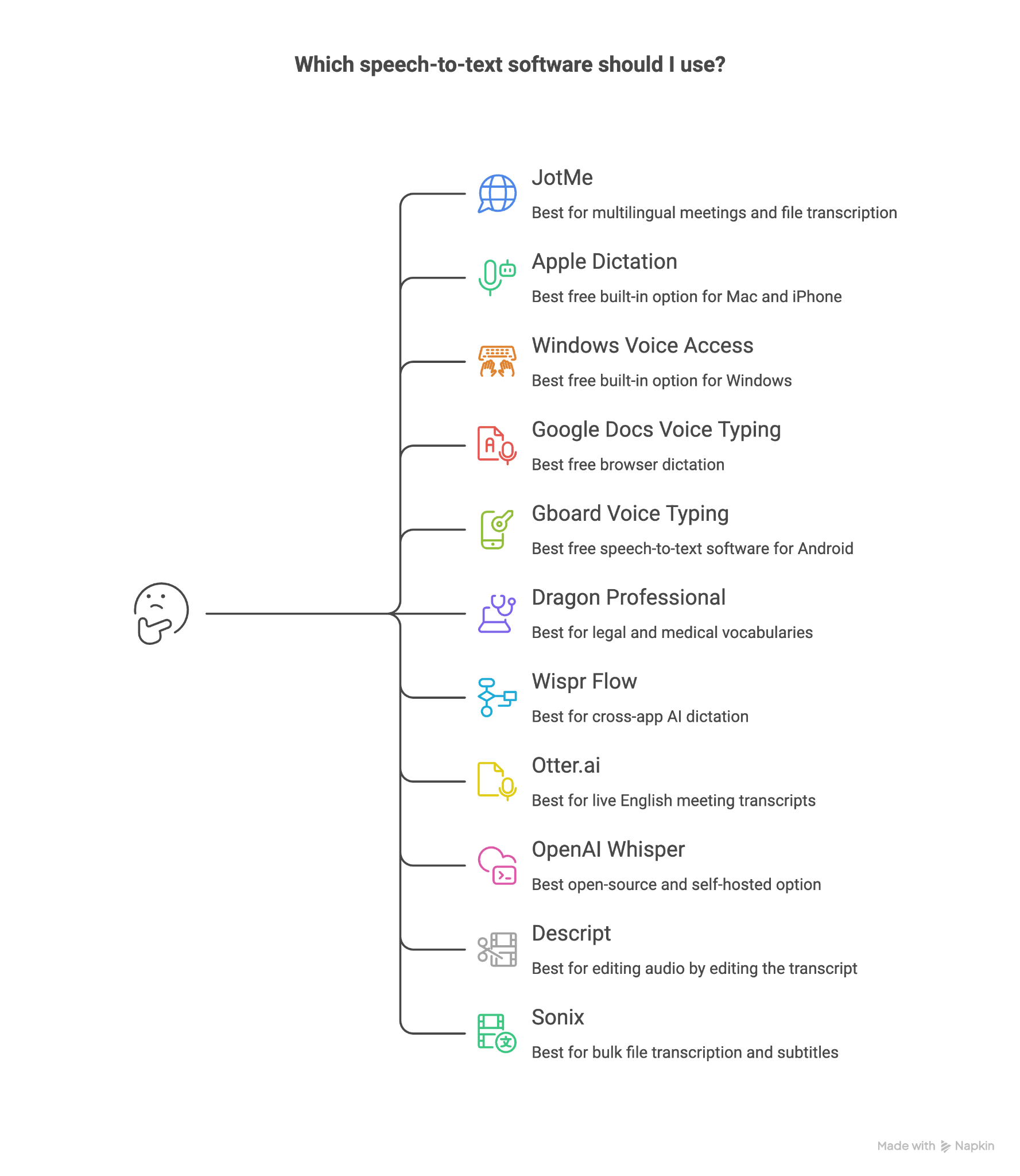
Here is the ranked list, with each tool matched to the job it handles best, because no speech to text software delivers the strongest results across all four categories.
- JotMe: Best for multilingual meetings and file transcription
- Apple Dictation: Best free built-in option for Mac and iPhone
- Windows Voice Access: Best free built-in option for Windows
- Google Docs Voice Typing: Best free browser dictation
- Gboard Voice Typing: Best free speech to text software for Android
- Dragon Professional: Best for legal and medical vocabularies
- Wispr Flow: Best for cross-app AI dictation
- Otter.ai: Best for live English meeting transcripts
- OpenAI Whisper: Best open-source and self-hosted option
- Descript: Best for editing audio by editing the transcript
- Sonix: Best for bulk file transcription and subtitles
How I Tested Every Speech to Text Software on This List
I kept the variables fixed so the comparison between each speech to text software meant something.
Every tool got the same three inputs. First, 400 words of dictated prose read at my normal speaking pace, roughly 150 words per minute, with no artificial enunciation. Second, a 59-second recorded audio file with code-switching between Hindi and English inside single sentences. Third, a live call with two speakers.
I scored each on four things: raw accuracy on clean English, behavior on code-switched speech, what the tool produces after the audio stops, and cost per month at the tier a real user lands on rather than the tier they sign up for. I paid for the plans I tested across every paid speech to text software here. My JotMe access comes through client work, which I am stating up front.
The code-switching test is the part most reviews skip, and it is the part that separated this field fastest. English-only speech to text software degrades from useful to useless the moment a second language enters the sentence, and roughly 60% of my own working conversations do exactly that.
Best Speech to Text Software: Comparison Table
Best Speech to Text Software Reviews
Every speech to text software review below follows the same format: what the tool is for, how it handled my tests, the pros, the cons, and the tradeoff you accept when you buy it.
1. JotMe: Best Speech to Text Software for Multilingual Work
Free plan available and Pro from $10/user/month billed annually.
JotMe took the top slot because it was the only speech to text software in this whole test that handled my Hindi-English clip without me pre-declaring the languages, and the only one that turned the result into something a colleague could act on.
JotMe covers agentic real-time translation, multilingual transcription, and AI meeting notes across 200+ languages, with 39,000+ language pairs. No bot joins your call. The desktop app captures system audio locally, which means the participant count on a Zoom or Teams call never changes.
Uploading a File: What Most Speech to Text Software Gets Wrong
Recorded files live under Recordings, with a Transcribe file button in the top right. This is the entry point that most speech to text software buries three menus deep.
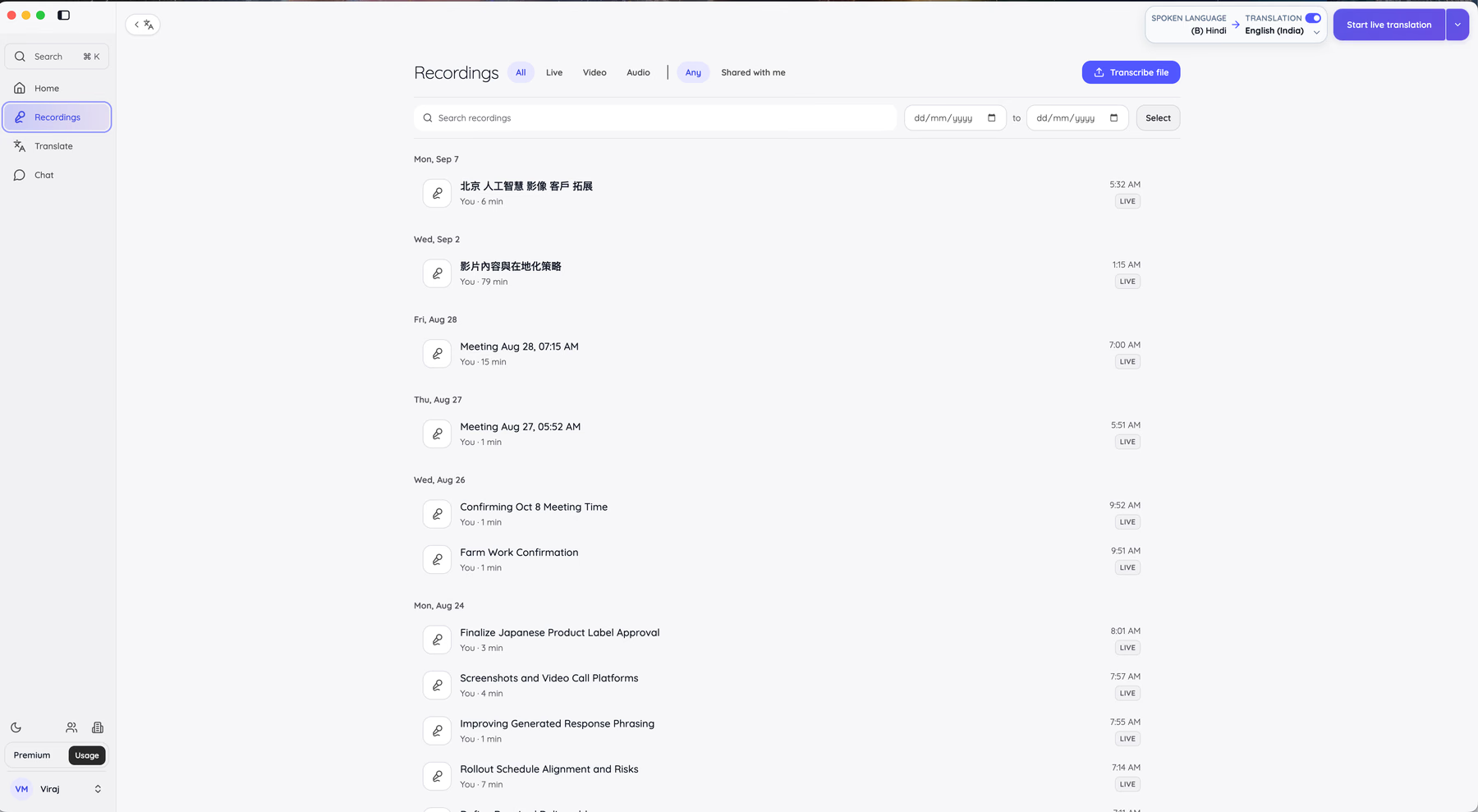
The upload flow runs as three numbered panels on one screen instead of a wizard you click through blind.
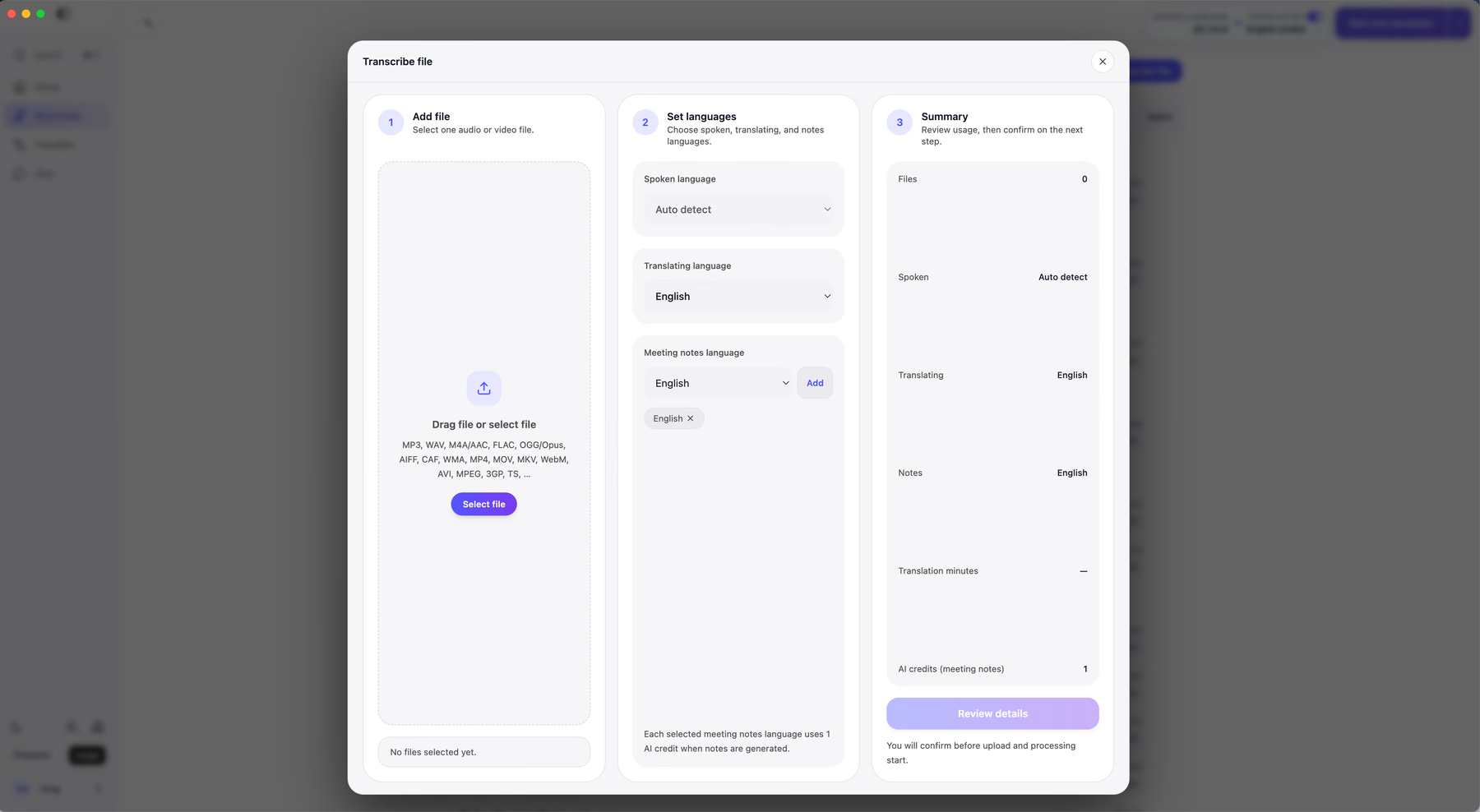
Panel 1 takes the file and lists exactly what it accepts: MP3, WAV, M4A/AAC, FLAC, OGG/Opus, AIFF, CAF, WMA, MP4, MOV, MKV, WebM, AVI, MPEG, 3GP, and TS. Panel 2 sets three separate languages, which is the design decision that matters most. Spoken language, translating language, and meeting notes language are independent fields. I left spoken on Auto detect, set translating to Vietnamese, and kept notes in English.
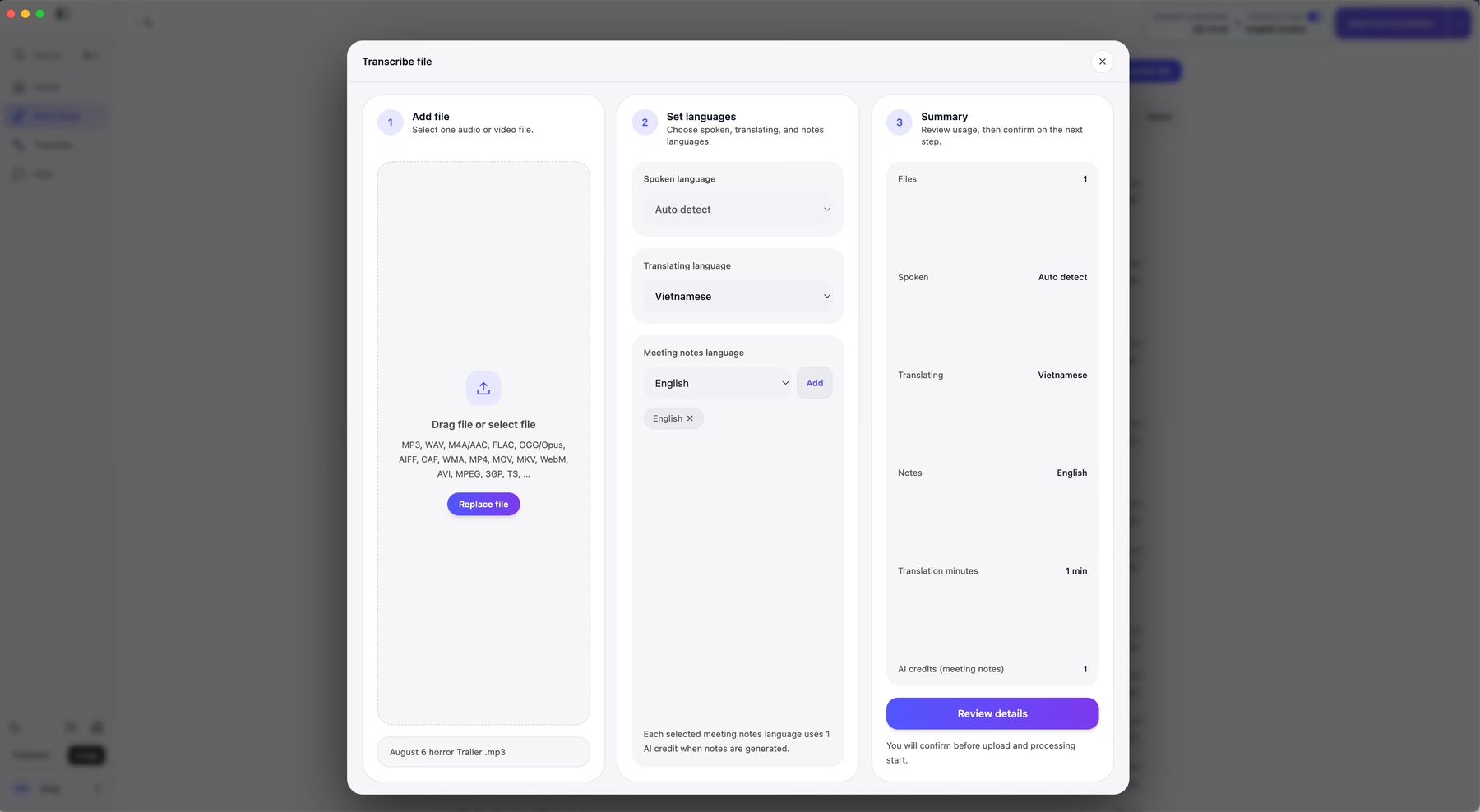
Panel 3 is the part I have wanted from every speech to text software I have paid for. Before anything uploads, JotMe shows the meter: 1 file, spoken auto-detect, translating Vietnamese, notes English, 1 translation minute, 1 AI credit. Each additional meeting notes language costs 1 more AI credit, and the panel says so in plain text.
The confirmation step repeats it and states that nothing uploads until you confirm.
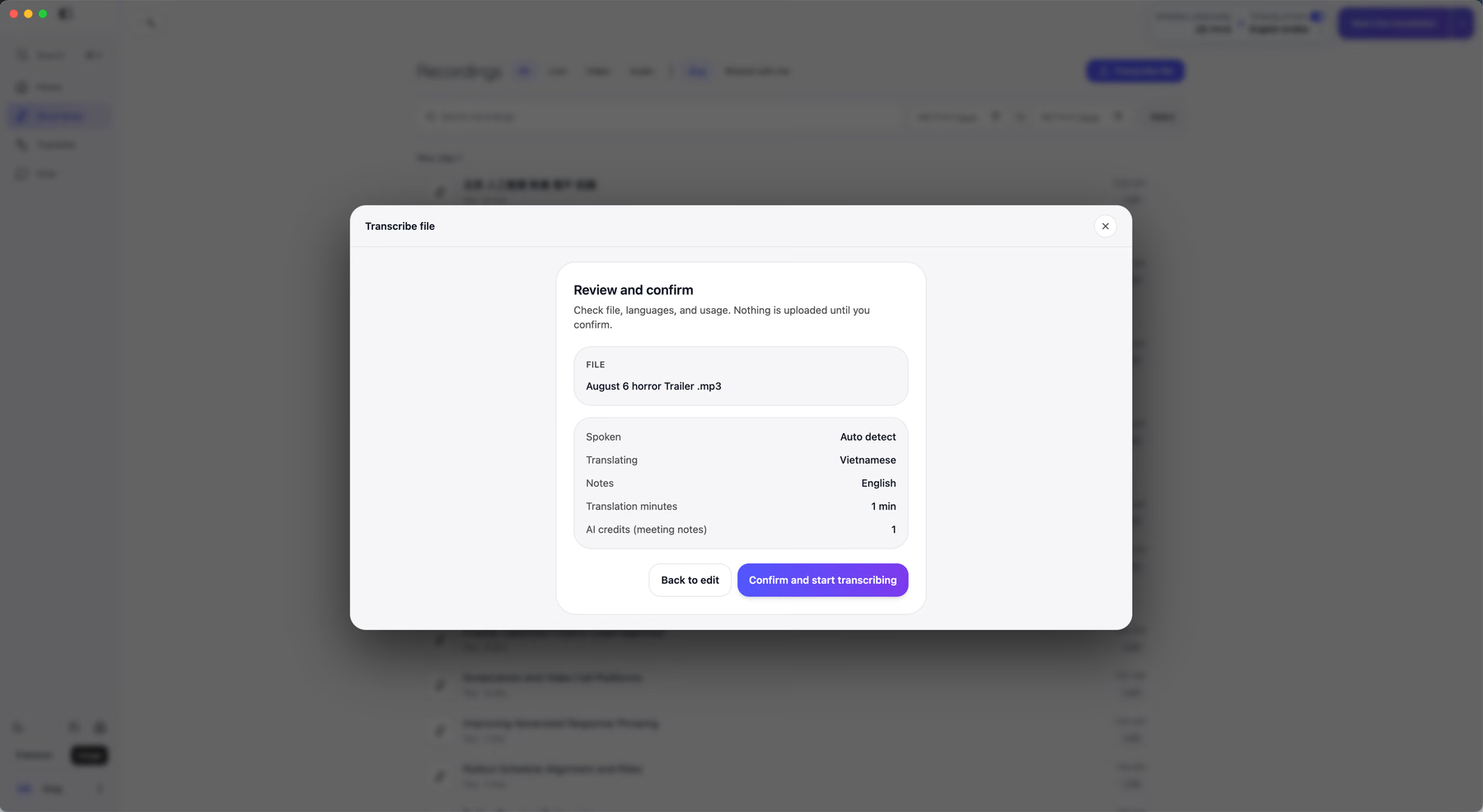
Every other speech to text software on this list bills you and then tells you. That ordering sounds like a small thing until you have burned 40 minutes of a monthly quota on a file you uploaded by mistake.
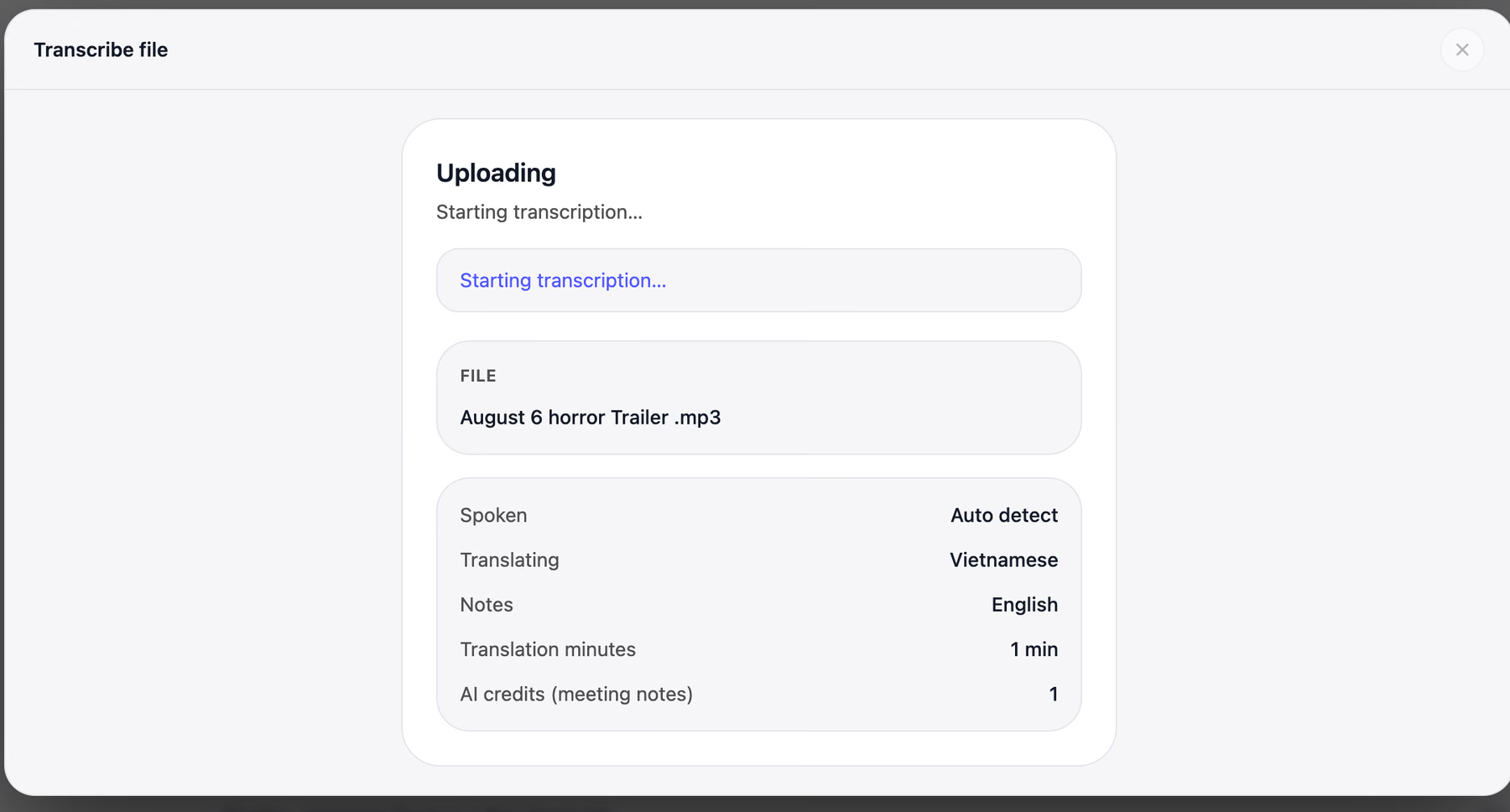
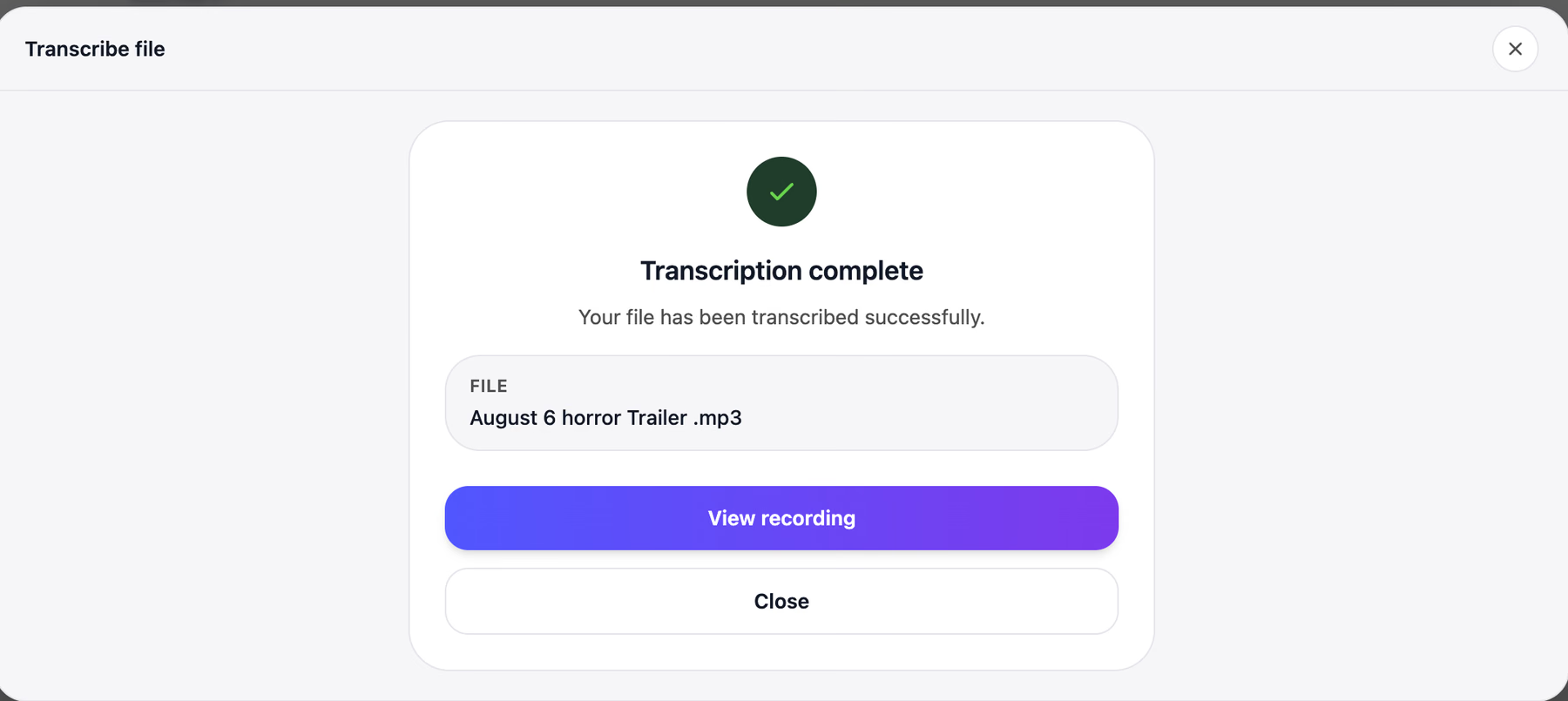
The 59-second file finished in under a minute.
The Code-Switching Test That Broke Everything Else
Here is the transcript panel, and it is the single strongest piece of evidence I collected across five weeks.
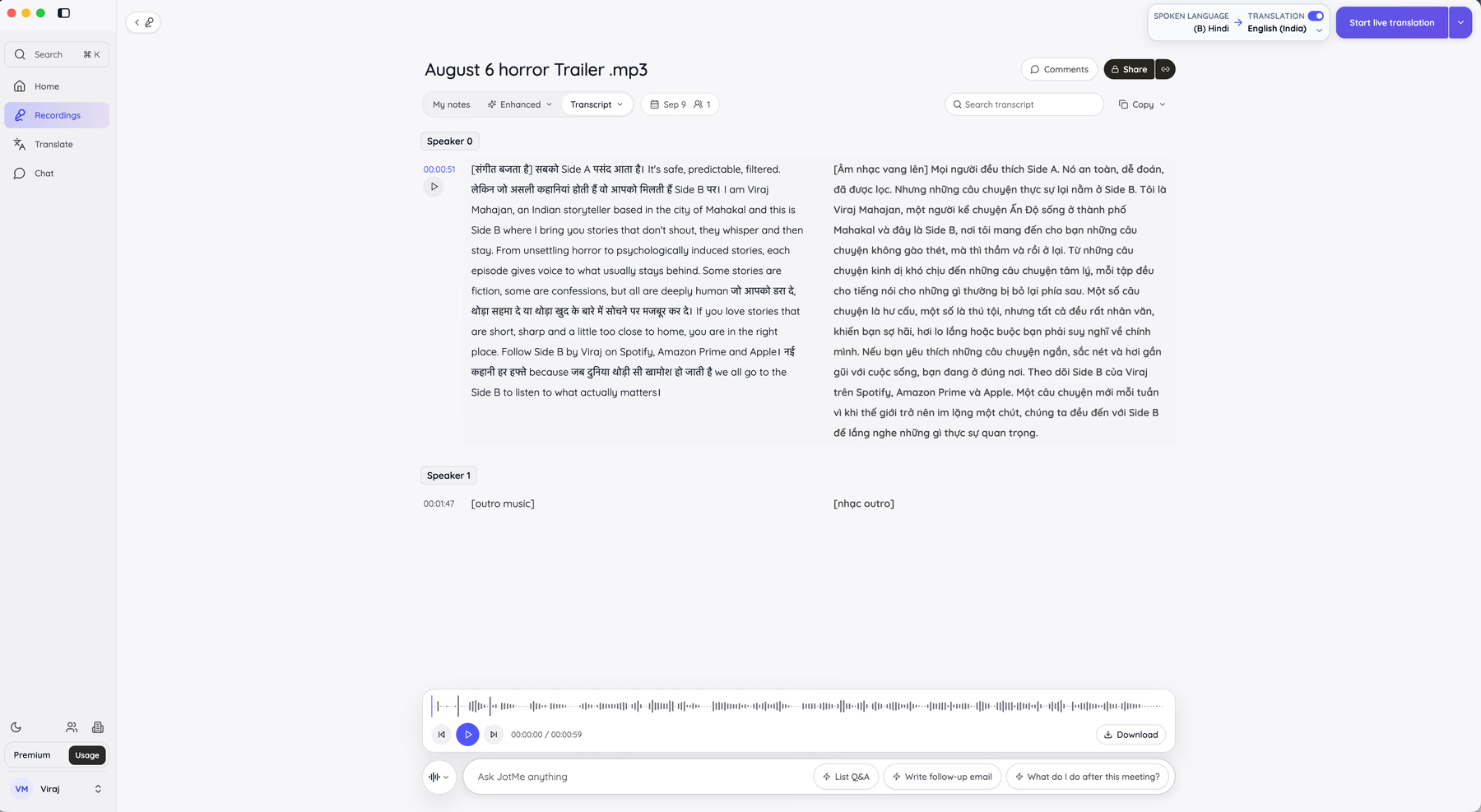
My source audio moves between Hindi and English inside one sentence. JotMe transcribed it as spoken, in both scripts, in one pass: Devanagari for the Hindi, Latin for the English, with the switch points intact rather than smoothed into approximate English. The right-hand column carries the full Vietnamese translation of the same block. Speaker 0 and Speaker 1 carry their own labels, timestamps appear on the left at 00:00:51 and 00:01:47, and non-speech events land as bracketed tags in both languages.
Nine of the 11 tools I tested either dropped the Hindi entirely, transliterated it into nonsense English, or forced me to pick one language before starting. If your work involves more than one language in a single room, that behavior is the whole decision, and it is why I put JotMe above tools with better raw English accuracy.
What You Get After the Audio Stops
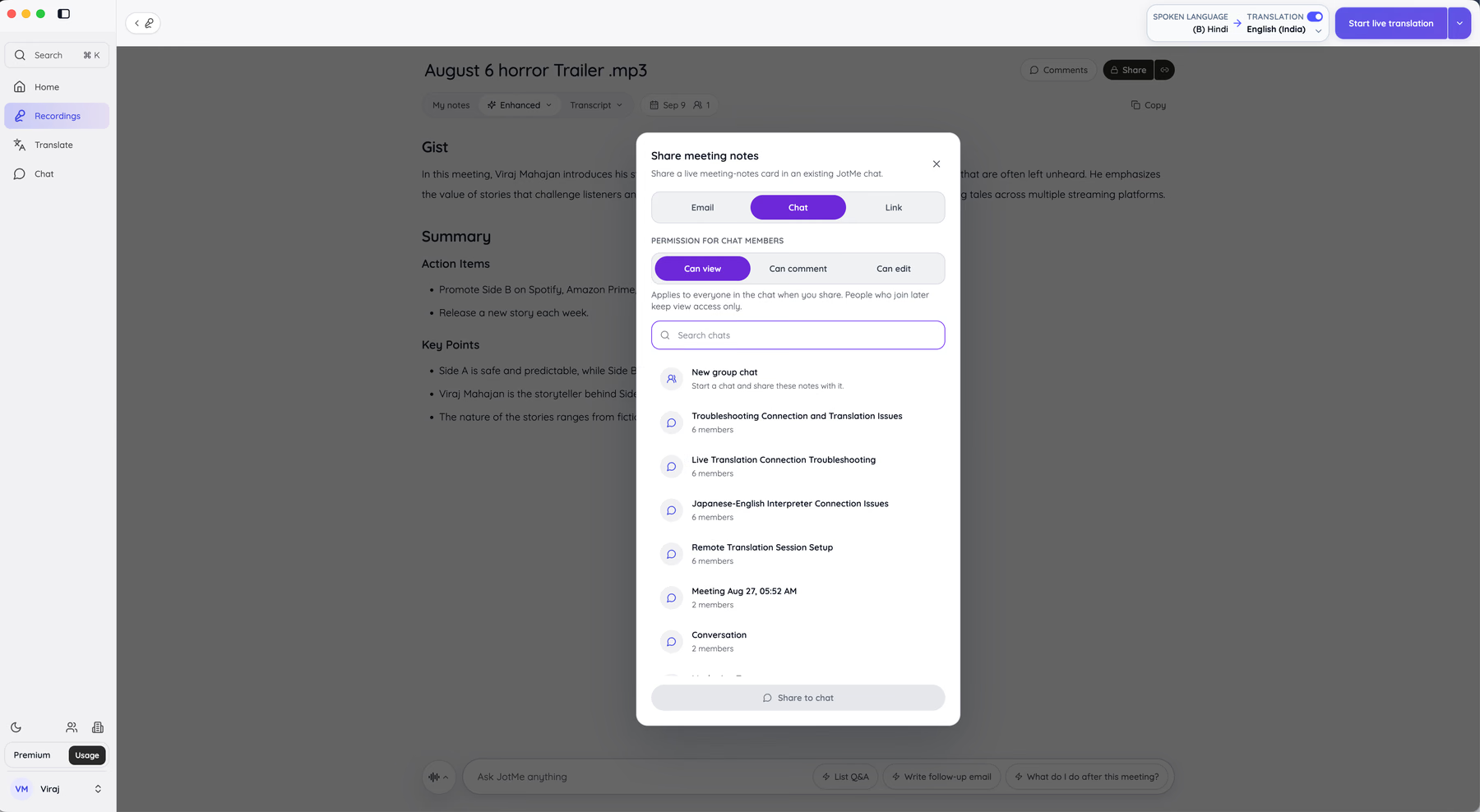
The Enhanced view produces a Gist, a Summary, Action Items, and Key Points, with the audio player docked below for verification against the source.
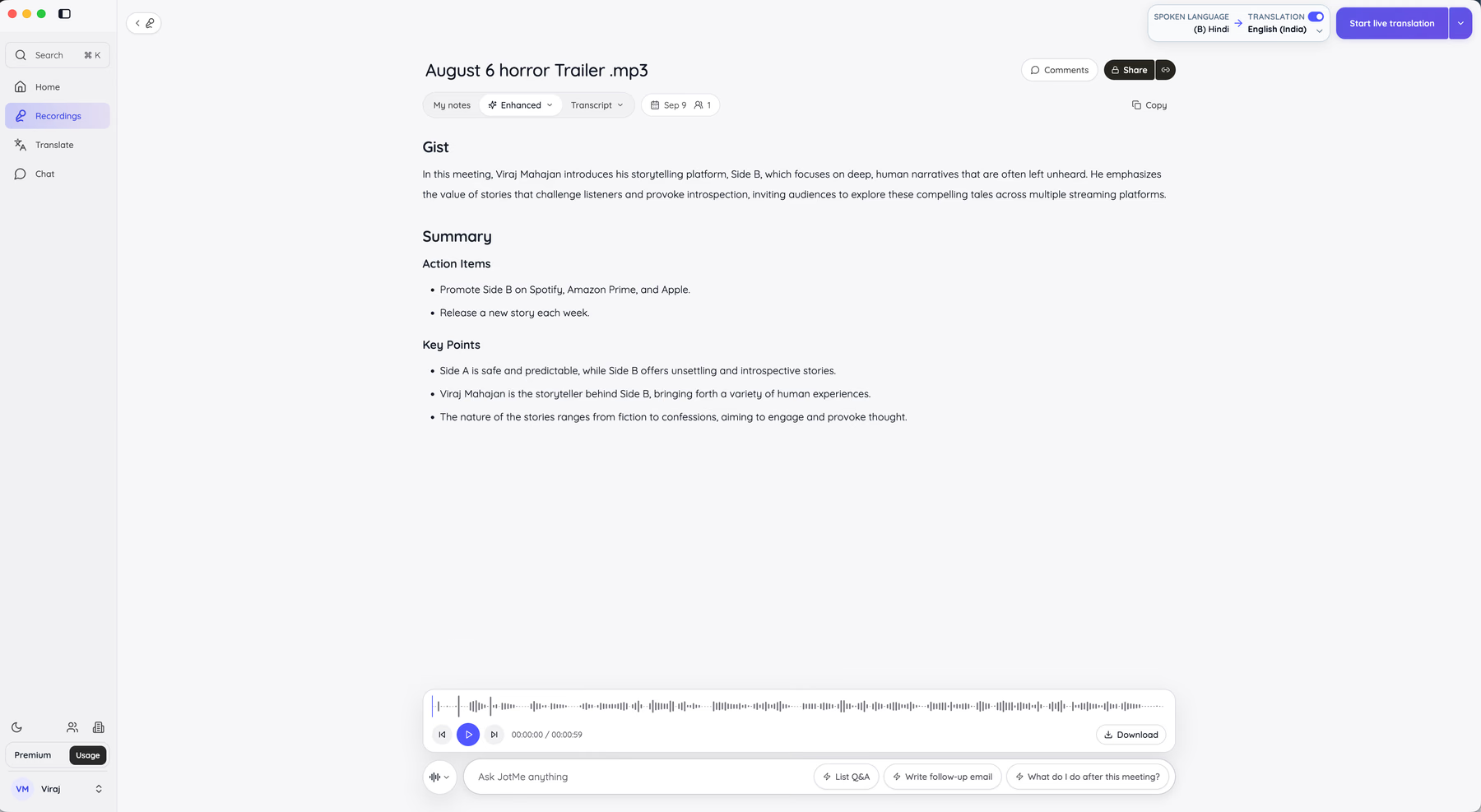
My clip generated a two-sentence Gist, 2 action items, and 3 key points. I checked each against the waveform. All 5 came from things actually said rather than inferred.
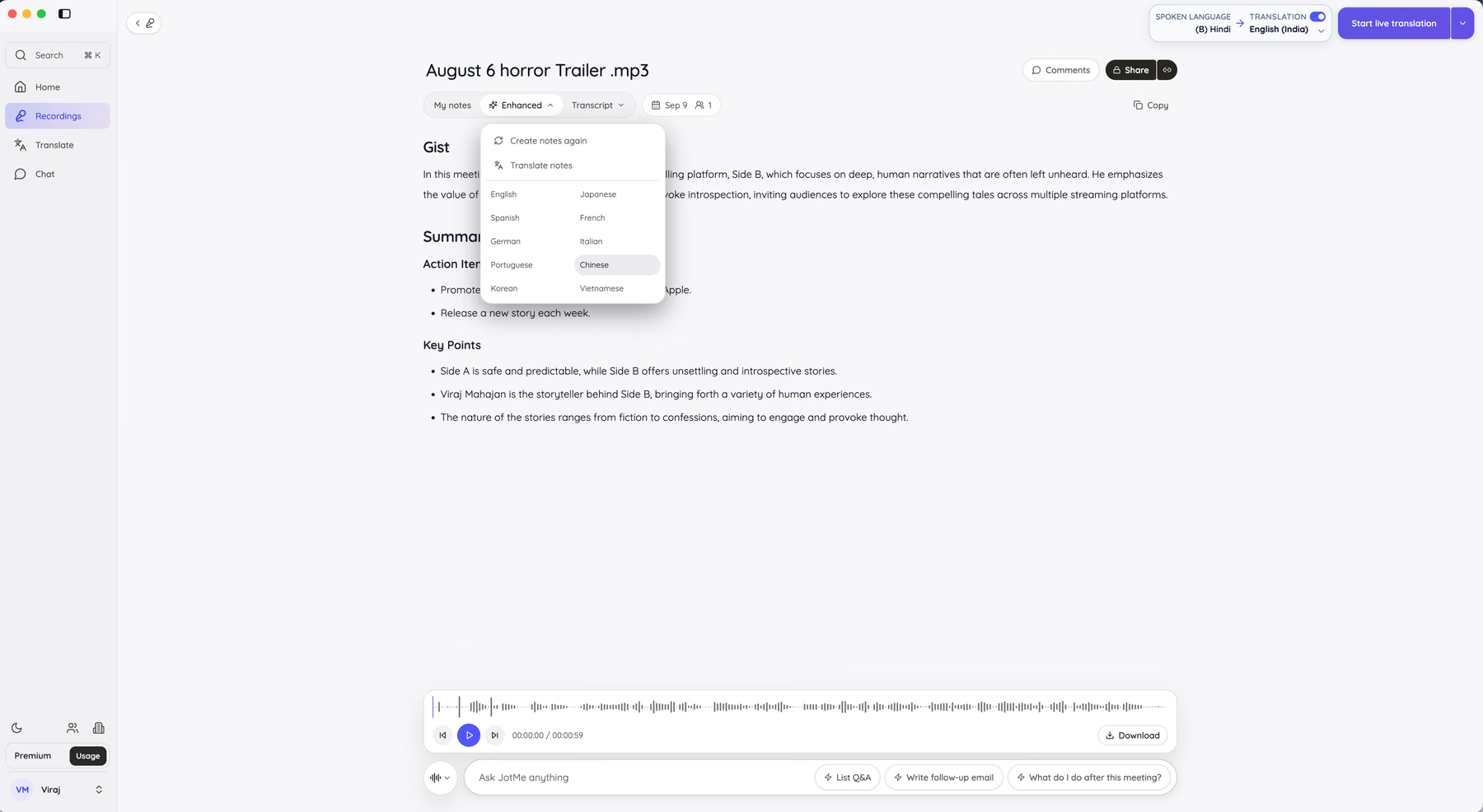
Those notes then translate into 12 languages from the Enhanced dropdown, alongside a Create notes again option for a second pass. The grid covers English, Japanese, Spanish, French, German, Italian, Portuguese, Chinese, Korean, and Vietnamese.
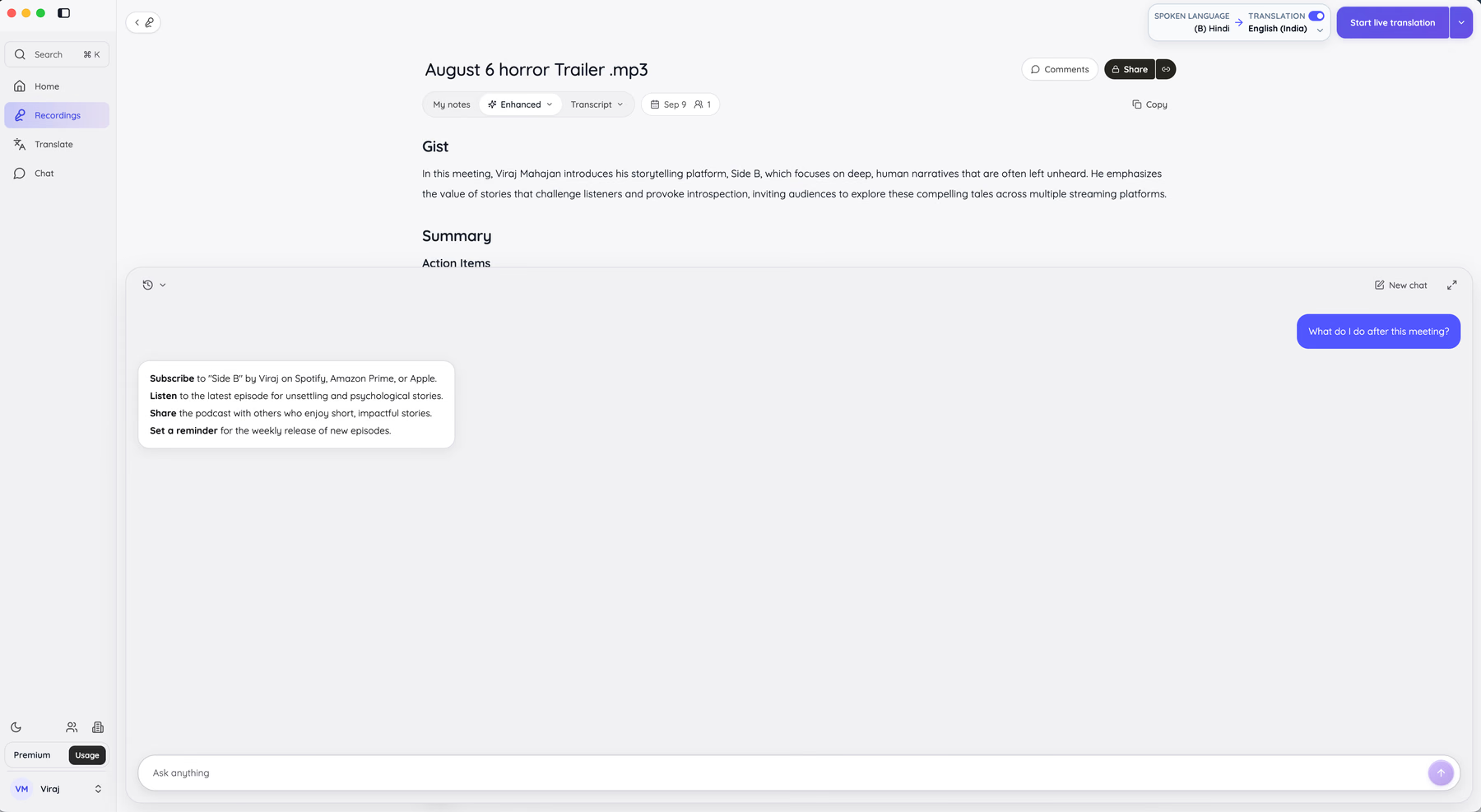
Ask JotMe answers questions about the file itself. I ran the built-in What do I do after this meeting? prompt and got 4 concrete steps back, each tied to something in the audio rather than generic advice.
Sharing carries permissions, which no other speech to text software here offers on a transcript. You share by email, chat, or link, and you set the room to Can view, Can comment, or Can edit before it goes out. People who join the chat later keep view access only.
JotMe's Best For
- Teams running meetings, calls, or interviews across two or more languages
- Managers and operations leads working with Japanese, Korean, or Chinese counterparts
- Anyone transcribing recorded files who wants the usage cost shown before upload
- Users blocked by a client or legal policy against third-party meeting bots
- Hands-free computer control and voice commands
JotMe's Not Great For
- System-wide dictation into arbitrary text fields, which JotMe does not attempt
- Fully offline work, since processing happens in the cloud
What Sets JotMe Apart
JotMe interprets rather than converting word-for-word. The agents read intent and context as the conversation develops, then carry that reading into the transcript and the notes. On my clip, an idiomatic Hindi phrase came through with its meaning rather than its literal words, which is the difference between a usable record and a confusing one.
The second differentiator is that the transcript is a starting point rather than the deliverable. Live transcription, translation, notes, Ask JotMe, and permissioned sharing all attach to the same object. Most speech to text software hands you a text block and stops. JotMe's live transcription tool feeds the same pipeline for calls happening right now.
The third is the accounting. Minutes and AI credits run on separate meters, and both appear before you spend them.
Tradeoffs With JotMe
JotMe optimizes for conversations rather than for dictation. There is no push-to-talk hotkey that types into your email client, and no voice commands for controlling the machine. Someone drafting long documents by voice all day wants Wispr Flow or Dragon instead, running alongside JotMe rather than in place of it. Premium Quality processing also consumes minutes at 2x, so an unmanaged team hits the ceiling faster than the headline number suggests.
JotMe Pricing
Free covers 20 minutes of monthly live translation, 5 AI credits, 50 minutes of transcription, and your last 5 recordings. Pro runs $10 per user per month annually with 200 minutes of live translation, 20 AI credits, 500 minutes of desktop transcription, and unlimited transcription on the Google Meet Chrome extension. Premium runs $15 per user per month annually with 500 minutes of live translation, 50 AI credits, 2,000 minutes of transcription, unlimited recordings, and translation-minute sharing. Teams starts at $30 per user per month annually with an admin dashboard. Full details live on the JotMe pricing page.
Pros
- Handles code-switched audio in one pass without pre-selecting a language
- Shows minute and credit cost before the file uploads
- Speaker labels, timestamps, and a parallel translation column in the same view
- Notes, action items, and key points are generated automatically and translated into 12 languages
- Transcript sharing with view, comment, and edit permissions
- No bot joins live calls
Cons
- No system-wide dictation or voice commands
- Cloud processing only, with no offline mode
- Premium Quality burns minutes at 2x
Setup runs about four minutes. JotMe's documentation covers the admin and billing questions, and my walkthrough on how to convert audio to text takes the file workflow step by step.
2. Apple Dictation: Best Free Speech to Text Software Built Into Mac and iPhone
Free with macOS and iOS.
Apple Dictation is already on the machine you own, which makes it the honest first answer to the r/writers thread I opened with. Press the microphone key on a Mac or tap the mic on the iOS keyboard, and text appears in any field that accepts typing.
On my 400-word dictation test, it landed in the low 90s for accuracy on clean English, with punctuation inferred most of the time correctly. On Apple silicon, you can keep typing while dictating, which removes the stop-start rhythm that makes most free speech to text software tiring.
It collapsed on the Hindi-English clip, as free speech to text software of this type generally does. Apple Dictation asks you to pick one language per session, so the Hindi came through as approximate English words, and the sentence lost its meaning.
PROS: Free, on-device for short passages, works system-wide, zero setup.
CONS: One language per session, weak on technical vocabulary, no transcript of recorded files, no speaker labels.
The tradeoff: Apple Dictation optimizes for immediacy. You give up custom vocabulary, file transcription, and anything resembling a record you can share.
3. Windows Voice Access: Best Free Speech to Text Software for Windows
Free with Windows 11 22H2 and later.
Voice Access replaced the older Windows Speech Recognition, and it does more than dictate. You can navigate menus, click buttons, and drive the whole machine by voice, which makes it a real accessibility tool rather than a notepad with a microphone. Find it under Settings, Accessibility, Speech, then press the Windows key plus H to start.
Once the language model downloads, Voice Access runs offline. That single fact answers the r/accessibility thread better than any paid product, because it means no audio leaves the machine and no subscription renews.
Accuracy on my English test held around 90%, dropping on proper nouns and technical terms, which is standard for built-in speech to text software. The Hindi-English clip produced garbage, as expected from any single-language engine.
PROS: Free, fully offline after setup, hands-free system control, works in every installed app.
CONS: Windows 11 only, weak on jargon, no LLM cleanup of filler words, one language at a time.
The tradeoff: Voice Access optimizes for accessibility and privacy. You give up the AI polish that removes "um" and reformats a rambling sentence into a clean one.
4. Google Docs Voice Typing: Best Free Browser Speech to Text Software
Free with a Google account; Chrome required.
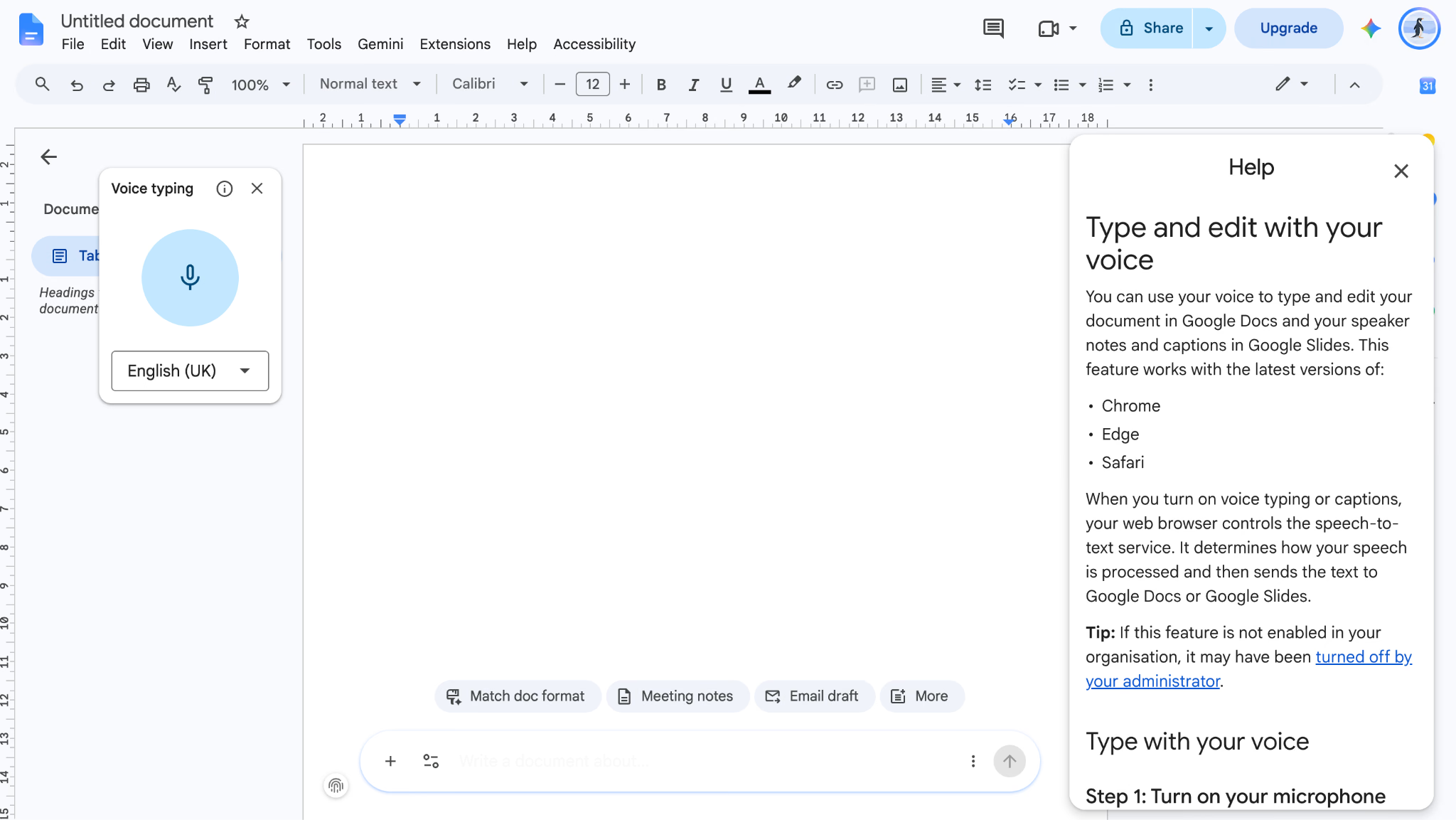
Google Docs Voice Typing lives under Tools, Voice typing, and it is the fastest way to test whether dictation suits you at all. No install, no license, no account beyond the one you already have.
For long-form drafting inside Docs, accuracy came out best among the free browser options I tried, a point or two above Apple Dictation on my English test. Punctuation commands work reliably once you learn them.
Its boundary is hard. Voice Typing works inside Google Docs and Slides speaker notes, and nowhere else. The moment you want to dictate into Gmail, Slack, or a browser form, this speech to text software stops being an answer.
PROS: Free, no install, strong accuracy for browser-based speech to text software, good punctuation commands.
CONS: Chrome only, Docs only, requires a connection, no file transcription, no speaker labels.
The tradeoff: Google Docs Voice Typing optimizes for zero friction. You give up reach across the rest of your day.
5. Gboard Voice Typing: Best Speech to Text Software for Android
Free with Gboard.
Gboard's microphone key is the speech to text software most people already use without calling it that. On a Pixel, it runs on-device, which makes it fast enough that the text appears roughly in step with speech, and it keeps working in airplane mode after the language pack downloads.
I dictated 20 messages into WhatsApp and Slack over a week. Short bursts came out clean. Anything past three sentences drifted, and punctuation needed manual repair more often than on desktop.
Gboard supports multiple downloaded languages, and switching between them mid-sentence still fails. For anyone whose messaging genuinely runs bilingual, my roundup of Android apps that translate voice to text covers the tools built for that specific case.
PROS: Free, on-device on supported devices, works in every Android app, offline after language download.
CONS: Drifts on long passages, weak punctuation, one language per utterance, no transcript history.
The tradeoff: Gboard optimizes for the 10-second message. You give up any notion of a durable record.
6. Dragon Professional: Best Speech to Text Software for Specialist Vocabularies
One-time license, priced in the hundreds.
Dragon by Nuance is the oldest name in this category and still posts the highest tested accuracy on domain terminology. Legal and medical editions ship with vocabularies that no general-purpose speech to text software on this page matches, and you can train it further on your own terms and voice.
On my English test, it took first place outright, and it stayed there when I fed it a paragraph of pharmacology terms that made every other tool guess. It runs offline, which matters for anyone handling patient or client material.
The cost is real, and so is the operating system limit. Dragon is Windows-first, the license runs into the hundreds, and the interface shows its age everywhere.
PROS: Highest accuracy on technical and specialist vocabulary, offline, deep voice commands, one-time purchase rather than a subscription.
CONS: Expensive, Windows-centric, dated interface, English-centric, heavy setup.
The tradeoff: Dragon optimizes for specialist accuracy. You give up modern AI cleanup, multilingual handling, and any pretense of a light install.
7. Wispr Flow: Best Speech to Text Software for Dictating Into Any App
Free tier available. Business from about $15/user/month billed annually.
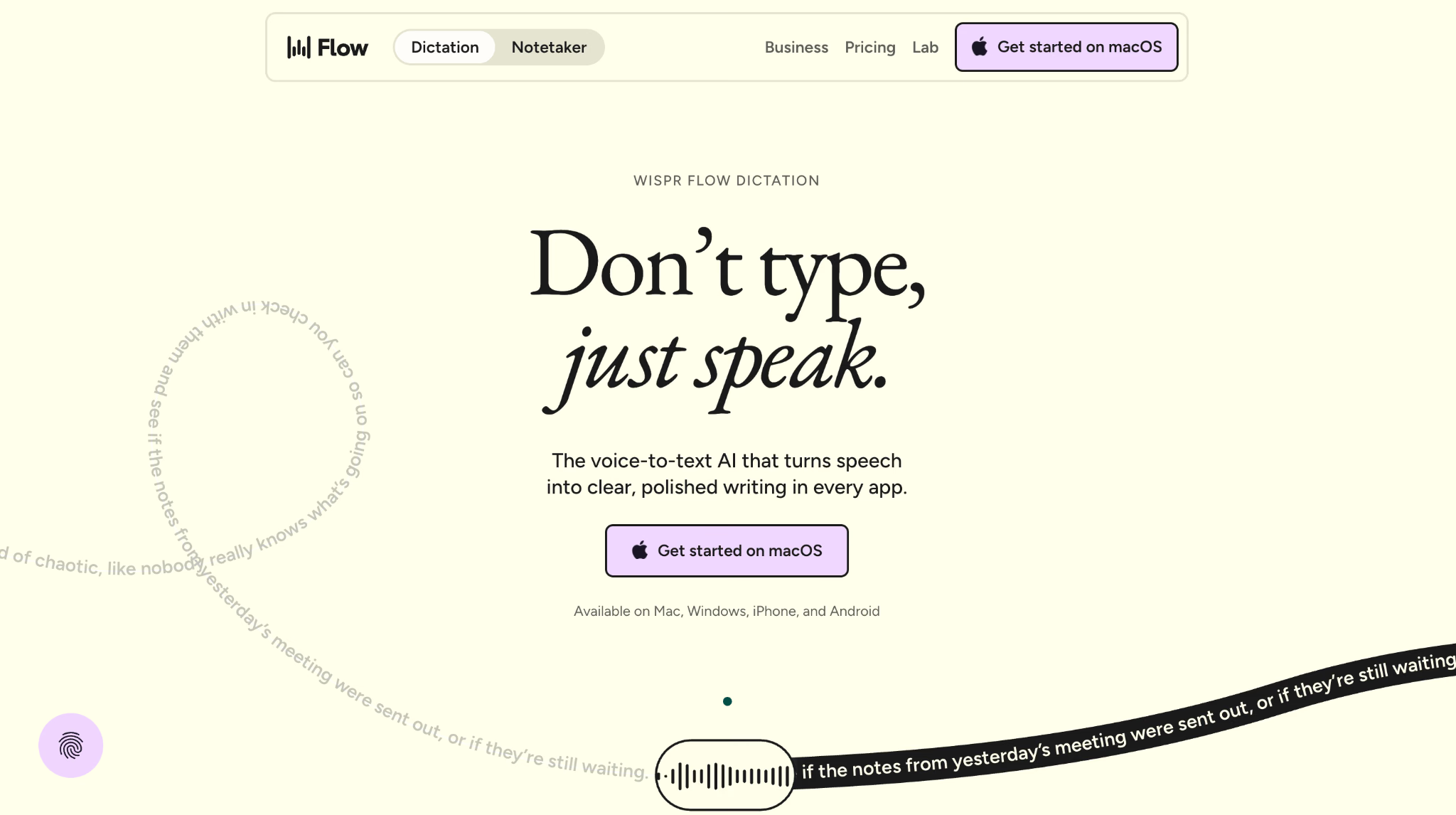
Wispr Flow is the tool I reach for when I am writing rather than meeting. Hold a hotkey, speak, release, and cleaned-up text drops wherever the cursor already is: Gmail, Notion, a terminal, a Slack thread.
The cleanup is the product. Wispr Flow strips filler words, fixes false starts, and applies punctuation from intonation rather than from spoken commands. My rambling 400 words came out as prose I would have sent, which no built-in option managed.
It converts your speech only. In a conversation with another person, Wispr Flow captures your half and nothing else, which is the exact boundary I walked through in my Wispr Flow and JotMe comparison.
PROS: Works in every app via a hotkey, strong AI cleanup, Mac, Windows, iOS, and Android coverage.
CONS: Captures your voice only, cloud processing, per-seat cost adds up, no speaker labels.
The tradeoff: Wispr Flow optimizes for solo writing speed. You give up any multi-speaker recording.
8. Otter.ai: Best Speech to Text Software for English Meeting Transcripts
Free tier with 300 monthly minutes. Pro from $16.99/user/month.
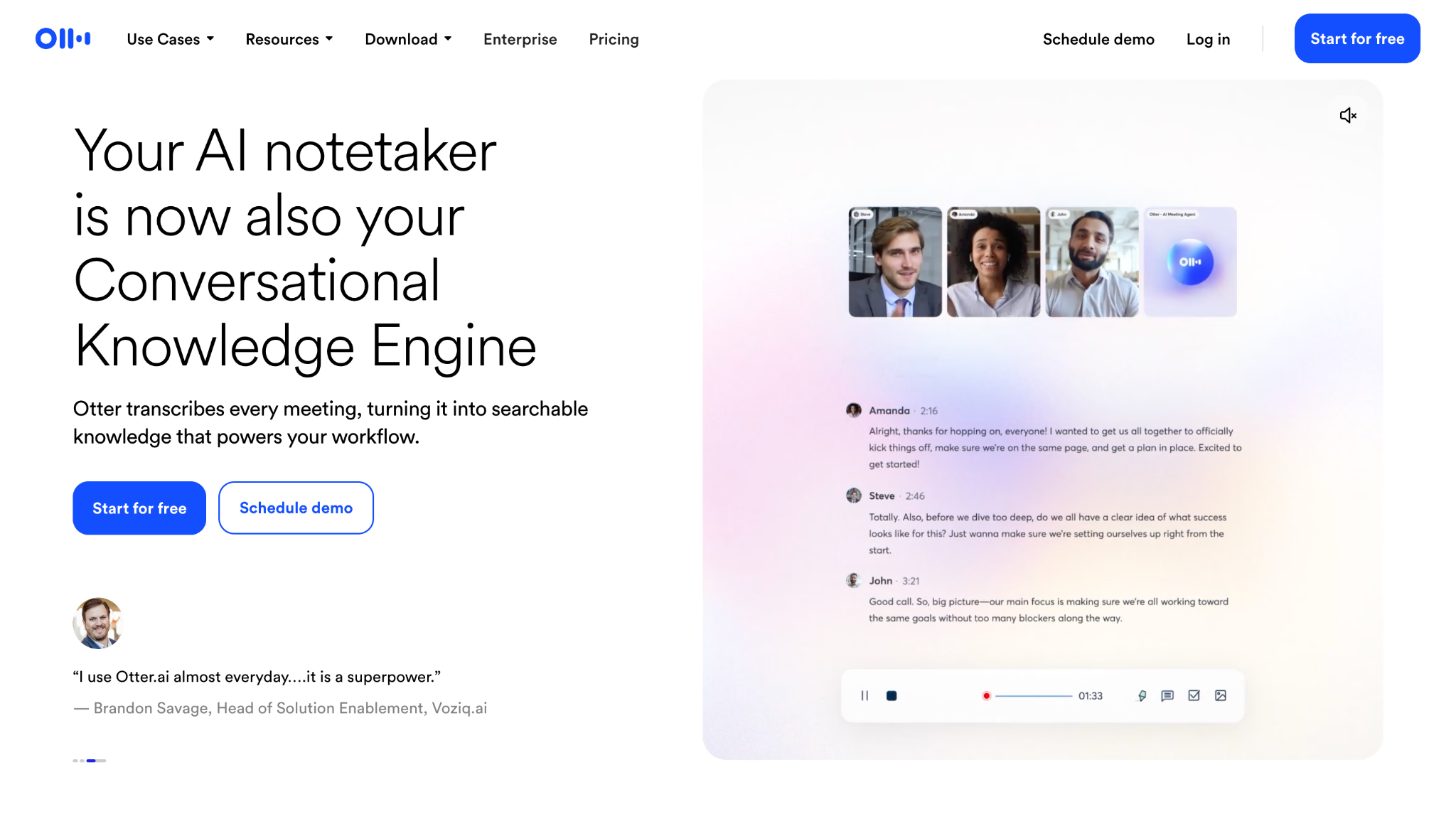
Otter.ai is the best-known meeting speech to text software going, and it transcribes live meetings with speaker separation and produces a searchable archive afterward. For an English-only team running back-to-back calls, that archive is genuinely useful, and the free 300 minutes covers a light week.
Otter joins your call as a visible participant. On internal calls, nobody minds. On client and legal calls, it fails the policy conversation before it starts, which is the recurring complaint I found across every forum thread in this category.
Multilingual handling stayed weak in my testing. The Hindi-English clip came back as English approximations with the speaker labels intact and the meaning gone.
PROS: Reliable speaker separation, searchable meeting archive, useful free tier, strong integrations.
CONS: Sends a bot into the meeting, English-first, translation capability limited, per-seat pricing.
The tradeoff: Otter optimizes for the English meeting record. You give up bot-free capture and serious language coverage.
9. OpenAI Whisper: Best Open-Source Speech to Text Software
Free and open source. Self-hosted, or paid through the API.
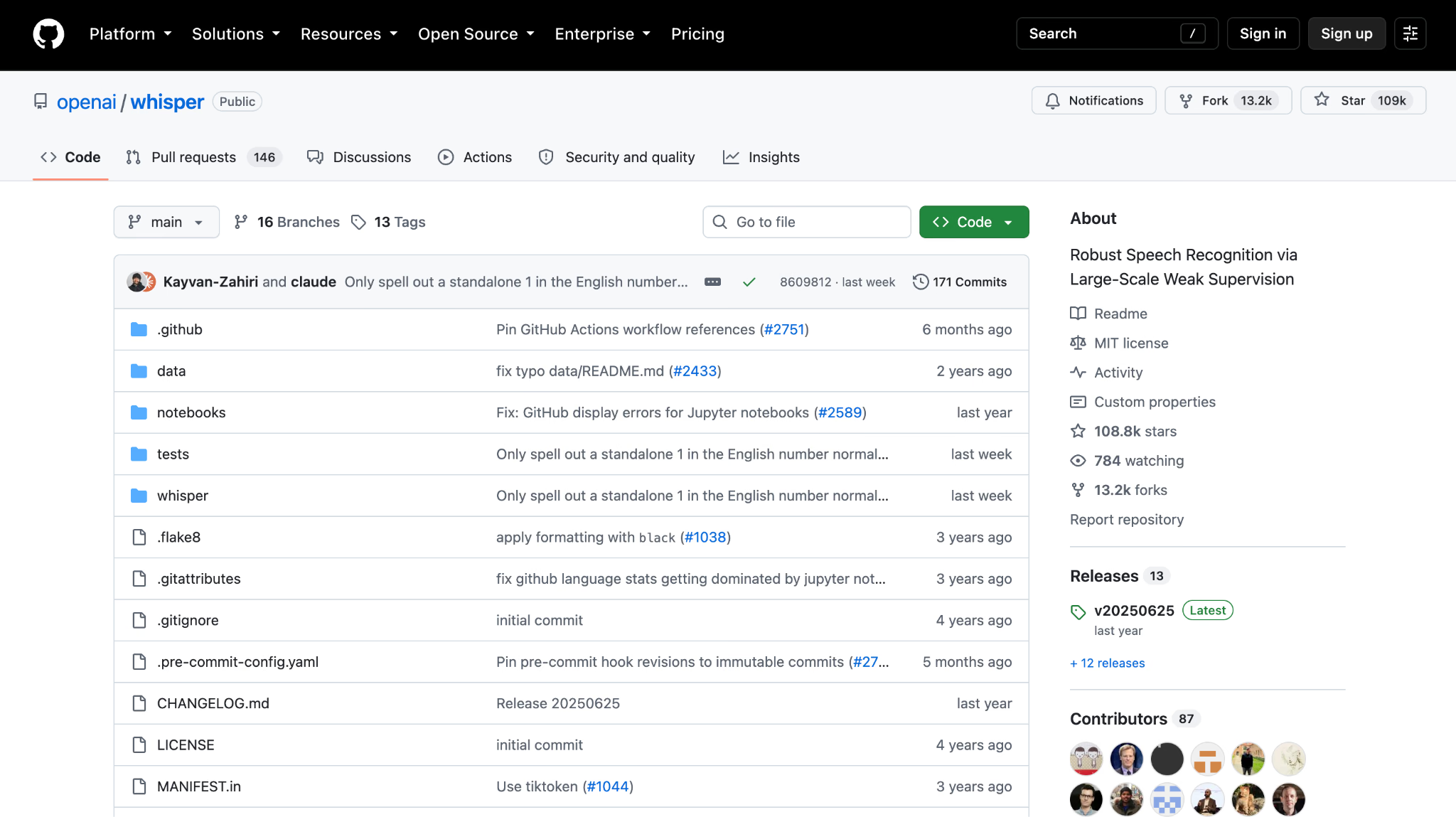
Whisper is the model underneath a large share of the paid speech to text software on this page. OpenAI trained it on 680,000 hours of multilingual audio, and it handles accents and rapid speech better than most commercial engines.
Running it yourself costs nothing beyond hardware, and the audio never leaves your machine. That combination is the honest answer to the r/accessibility thread asking for free or cheap speech to text software on Linux.
It gave me the second-best result on the code-switched clip, recognizing both languages, though it needed a manual model choice and a command line to get there. Whisper also produces a raw transcript and stops. No speaker labels, no notes, no live mode.
PROS: Free, open source, offline, excellent multilingual coverage, strong on accents.
CONS: Command-line setup, no live dictation, no speaker labels, no interface, needs decent hardware.
The tradeoff: Whisper optimizes for accuracy per dollar. You give up everything a product wraps around a model.
10. Descript: Best Speech to Text Software for Editing Audio by Editing Text
Free tier available. Paid tiers by seat.
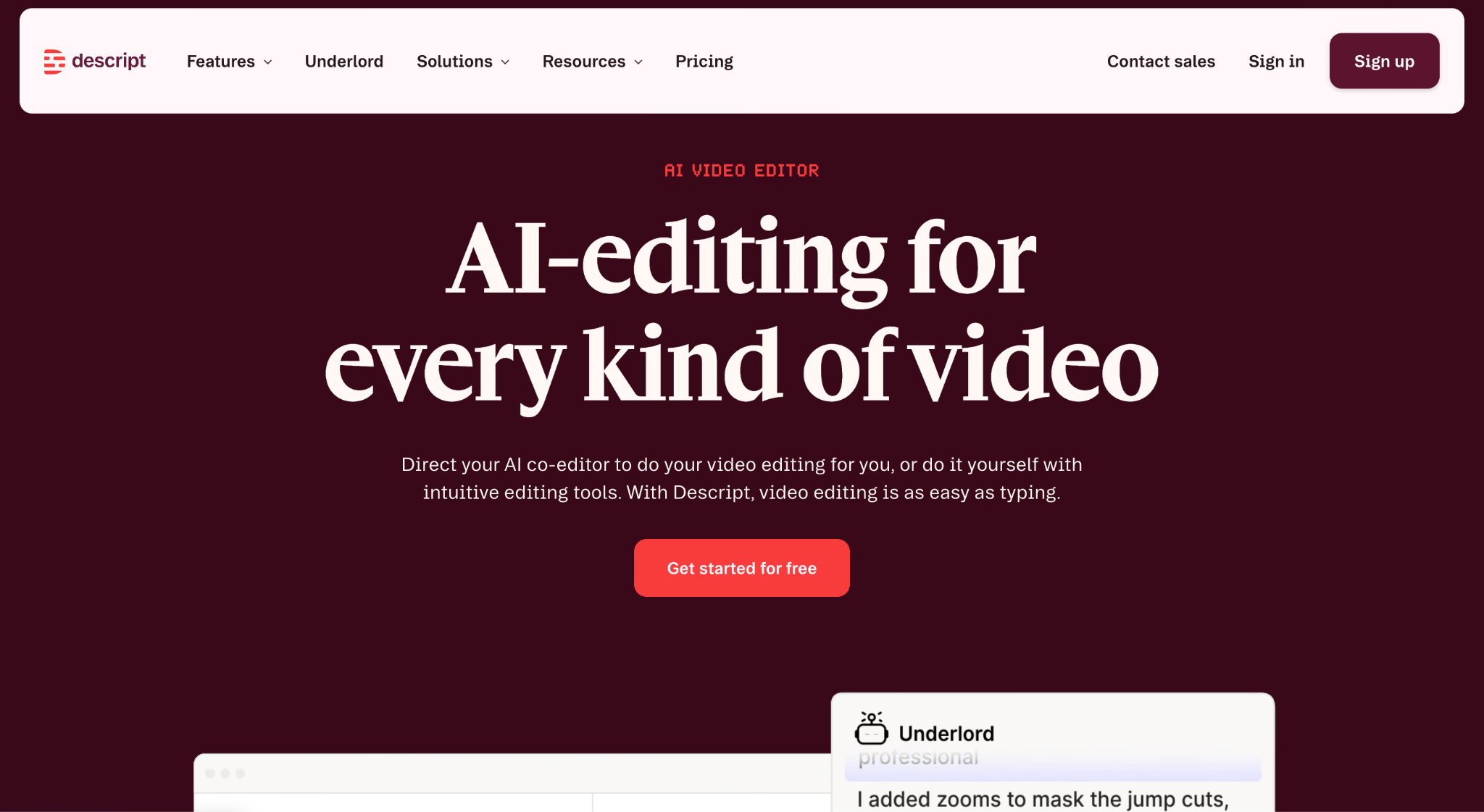
Descript transcribes your recording and then lets you edit the audio by editing the transcript. Delete a sentence in the text, and the sentence disappears from the waveform. For podcast and video work, that inversion saves hours.
Filler-word removal runs as a single click across the whole file, and the transcript stays synced to the media throughout. My clip transcribed cleanly on the English portions.
As general-purpose speech to text software, it overreaches. Descript is an editing suite that happens to transcribe, and it prices and behaves accordingly.
PROS: Transcript-driven audio and video editing, one-click filler removal, strong for podcasts.
CONS: English-focused, heavy application, priced for production work, poor fit for meetings.
The tradeoff: Descript optimizes for media production. You give up lightness and multilingual depth.
11. Sonix: Best Speech to Text Software for Bulk Files and Subtitles
No free plan. Pay-per-hour and subscription tiers.
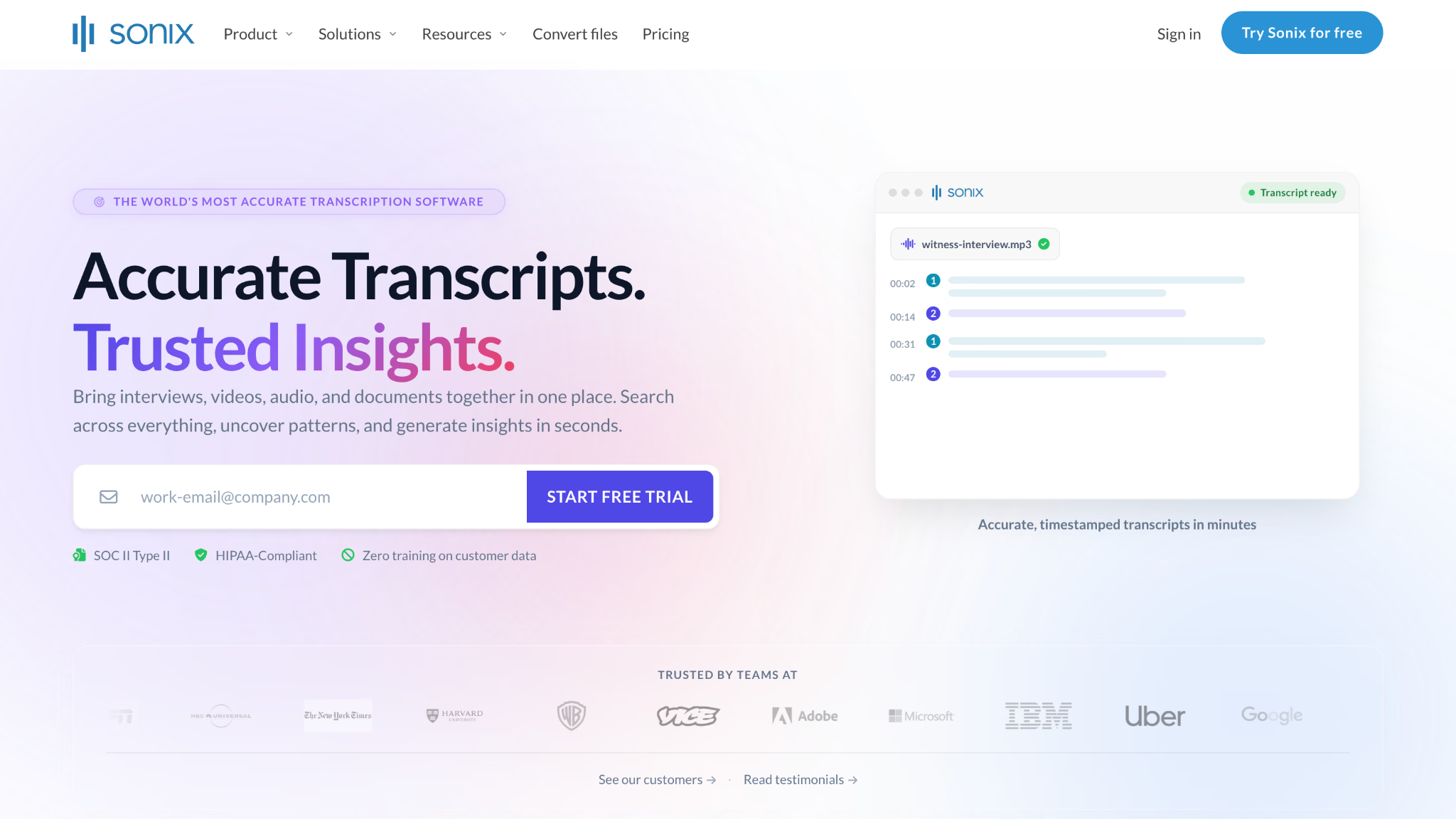
Sonix handles volume. Drop in a folder of recordings, and it returns transcripts with speaker diarization, AI summaries, automated translation, and subtitle exports across 53+ languages, with SOC 2 Type II support for teams that need it.
For a research team processing 40 interviews, that throughput is the whole argument. The in-browser editor makes cleanup fast, and subtitle export saves a separate step.
Live work falls outside its scope. Sonix works as archival speech to text software and transcribes files after the fact, so it never competes for the dictation or live-caption job.
PROS: High accuracy on clean recordings, bulk processing, subtitle export, compliance options.
CONS: No free plan, files only, no live mode, cost scales with hours.
The tradeoff: Sonix optimizes for archives. You give up everything happening in real time.
Other Speech to Text Software Worth Checking
These speech to text software options missed the list on scope or price, and several fit specific situations well.
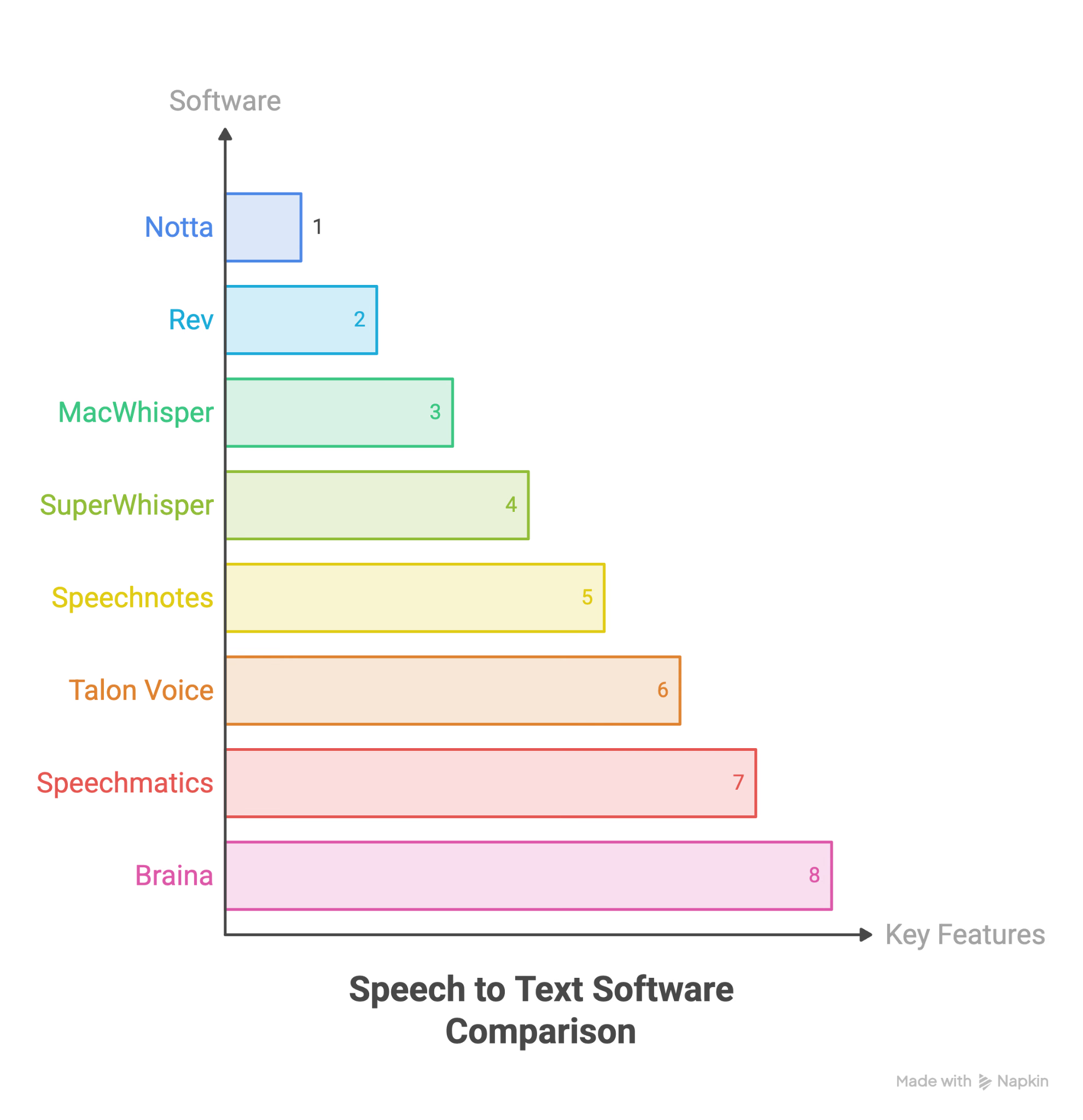
- Notta: for meeting transcription with a generous language list
- Rev: for human-verified accuracy when a machine transcript will not do
- MacWhisper: for running Whisper locally on a Mac with a real interface
- SuperWhisper: for local-first Mac dictation with a lifetime license
- Speechnotes: for quick free browser notes with no account
- Talon Voice: for hands-free coding and heavy accessibility use
- Speechmatics: for API-level accuracy across accents and dialects
- Braina: for Windows dictation bundled with an assistant layer
How Does Speech to Text Software Work?
Speech to text software converts spoken audio into written text using automatic speech recognition, which maps sound patterns to words, and natural language processing, which adds punctuation, capitalization, and structure. Modern tools run multimodal models such as Whisper alongside a large language model, so they infer punctuation from intonation and correct homophones from context rather than waiting for you to say "comma".
Three things decide the output quality. Audio quality comes first, since a $40 USB microphone lifts accuracy more than switching tools does. Model choice comes second, because an on-device model trades a few accuracy points for privacy and offline use. Vocabulary comes third, and it is the one you control, since most paid speech to text software lets you load product names and acronyms in advance before a word gets recorded.
Language handling is a separate axis, and it splits this category cleanly. Single-language engines lock to one language per session. Multilingual engines detect and transcribe more than one at a time, and the strongest of them appear in my roundup of speech translation tools. If you want the difference explained properly, my breakdown of voice translation compared with text translation covers what happens after transcription too.
Is Free Speech to Text Software Good Enough?
For most people, yes. Apple Dictation, Windows Voice Access, Google Docs Voice Typing, and Gboard cost nothing, ship with the device, and land within a few accuracy points of the paid options on clean English. Anyone dictating notes, messages, and drafts should start there and stop there.
Free speech to text software runs out at four specific points, and each one has a name.
- Specialist vocabulary: Legal, medical, and engineering terms defeat every built-in engine. Dragon exists for this.
- A second language in the room: Built-in tools handle one language per session. JotMe and Whisper handle more.
- A shareable record: Free tools give you text in a field. They do not give you speaker labels, timestamps, action items, or permissions.
- Recorded files: Dictation tools transcribe you live. Transcribing an existing MP3 needs different software entirely.
If none of those four describes your week, close this page and press the Windows key plus H.
Tips for Getting Started With Dictation
- Speak naturally first: Test at your normal pace before you start over-enunciating. If accuracy falls below 90%, then try clearer articulation.
- Fix the microphone before you fix the software: Laptop microphones pick up fan noise and room echo. Any decent USB or headset microphone changes the result more than a subscription does.
- Learn 5 commands, not 50: "New line", "new paragraph", "period", "comma", and "delete that" cover almost everything. Modern tools infer the rest.
- Load your vocabulary in advance: Product names, client names, and acronyms come out wrong until you add them as custom terms. JotMe allows 20 on Pro and 50 on Premium.
- Dictate the draft, edit by hand: Voice gets words down 3x faster than typing. Cleanup still happens with a keyboard.
- Check the meter before long files: Minutes and credits burn quietly. Any speech to text software that shows usage before processing saves you the discovery afterward.
- Practice for a week before judging: Every one of these tools felt worse on day one than on day five, mine included.
How to Choose the Right Speech to Text Software
Answer these six questions before you compare the price of a single speech to text software option.
- Which of the four jobs do you actually need: dictation, hands-free control, file transcription, or live conversation capture?
- Does more than one language appear in a typical week of your work?
- Does the audio need to stay on your machine for privacy, compliance, or policy reasons?
- Do you need a record other people will read, or text in a field only you will see?
- Does your client or legal policy allow a bot to join a meeting?
- What does the tier you will end up on cost, rather than the tier you sign up for?
That fifth question eliminates more tools than people expect. Several transcription products join calls as a visible participant, which fails immediately on client and legal work. Speech to text software that captures system audio locally clears that policy without a conversation with IT.
What Is Speech to Text Software
Speech to text software is a program that converts spoken audio into written text, either live as you speak or from a recorded file. It covers dictation tools that type into any application, built-in operating system features, transcription services that process uploaded audio and video, and live captioning tools for meetings. The category also goes by dictation software, voice to text software, and speech recognition software.
Most speech to text software specializes in one of those modes. A dictation app captures your own voice into a text field. A transcription service processes a finished recording. A live capture tool handles a room with several speakers and produces a shared record afterward.
Features That Separate Good Speech to Text Software From Bad
- Accuracy on your actual vocabulary: General benchmarks mean little if the tool mangles your product names every time.
- Custom terms: The ability to load names, acronyms, and jargon before you record.
- Speaker labels: Diarization that tells you who said what, which turns a wall of text into a usable record.
- Timestamps: Clickable time markers so you can verify a line against the source audio.
- Multilingual capture: Handling more than one language per session, and ideally within one sentence.
- Punctuation from intonation: Modern models infer commas and periods rather than making you speak them.
- Offline processing: On-device models for anyone handling confidential material.
- Post-audio output: Summaries, action items, and key points that survive after the recording ends.
- Export and sharing controls: Transcripts that leave the tool cleanly, with permissions attached where sensitivity requires it.
- Transparent metering: Usage shown before processing rather than after.
Note: Check the model-training question specifically. JotMe states that recordings and transcriptions are never used to train its models and never sold to third parties, and it is GDPR compliant with a SOC 2 Type II audit in progress. Several tools in this category are less explicit.
Speech to Text Software Pricing in 2026
Speech to text software pricing splits into four shapes, and knowing which one you are buying prevents most billing surprises.
Metered pricing deserves the closest look, because it is the only model where you can spend without noticing. JotMe splits the two meters and shows both before processing: translation minutes for the audio, AI credits for notes and translation of those notes. My 59-second file cost 1 minute and 1 credit, and the screen said so before I confirmed.
Per-seat pricing scales with headcount rather than usage, which means a 30-person team pays for 30 seats even when 8 people carry the recording load.
Start With the Job, Then Pick the Tool
Name the job before you name the speech to text software. If you are dictating drafts in one language, the tool on your device is already enough, and you can stop reading. If you need specialist vocabulary, use Dragon. If you need a folder of files turned into subtitles, use Sonix.
If your recordings carry more than one language, the whole list shrinks to two real answers, and only one of them gives you speaker labels, timestamps, action items, and a transcript you can share with permissions attached. Download JotMe and run your hardest audio file through it. The free plan covers 50 minutes of transcription a month, which is more than enough to see whether it holds up on the file that broke everything else.
Frequently Asked Questions
What is the best speech to text software in 2026?
For dictating into any app, Wispr Flow wins on cleanup and reach. For specialist vocabulary, Dragon Professional still posts the highest accuracy. For meetings and files that involve more than one language, JotMe wins, because it transcribes code-switched audio in a single pass and produces a shareable record afterward. For anyone who just wants to talk instead of typing, the free tool already on your device is enough.
Is there free speech to text software that actually works?
Yes, Apple Dictation, Windows Voice Access, Google Docs Voice Typing, and Gboard are all free, ship with the operating system, and land within a few points of paid tools on clean English. Windows Voice Access runs fully offline after its language pack downloads. Whisper is free and open source if you are comfortable with a command line. Paid speech to text software justifies its price on specialist vocabulary, multiple languages, file transcription, and shareable records rather than on raw accuracy.
Which speech to text software handles more than one language at once?
Most engines lock to a single language per session and will approximate anything else into that language, which destroys the meaning. In my testing, JotMe transcribed a Hindi-English clip in both scripts in one pass with speaker labels intact, and Whisper recognized both languages with manual model selection. Every built-in option failed the test outright.
Can speech to text software transcribe a recorded audio file?
Yes, though dictation tools and transcription tools are different products. Apple Dictation, Gboard, and Windows Voice Access only handle live speech. For an existing file, use JotMe, Sonix, Descript, Otter, or Whisper. JotMe accepts MP3, WAV, M4A/AAC, FLAC, OGG/Opus, AIFF, CAF, WMA, MP4, MOV, MKV, WebM, AVI, MPEG, 3GP, and TS, and shows the minute and credit cost before the upload starts.
How accurate is speech to text software?
Modern tools land between 92% and 99% on clear English audio from a decent microphone. Accuracy drops on background noise, strong accents, fast speech, technical vocabulary, and any second language. Dragon posts the highest tested figures on specialist terms. The variable you control most is the microphone, since a $40 headset lifts accuracy more than switching tools does.
Does speech to text software work offline?
Windows Voice Access runs offline once its speech pack installs, Dragon runs offline by design, Apple Dictation handles short passages on-device on recent hardware, and Whisper runs entirely locally. Cloud tools including JotMe, Otter, Wispr Flow, and Sonix need a connection. If your audio cannot leave the machine, that requirement narrows this list to 4 options before you look at anything else.
What is the best speech to text software for Android?
Gboard's built-in voice typing covers everyday messaging at no cost and works offline after a language download. For longer or bilingual work, a dedicated app does better, because Gboard drifts past three sentences and keeps no transcript history. Anyone dictating into a phone daily should test both for a week before choosing.
Do these tools send a bot into my meetings?
Otter and several meeting transcription services join as a visible participant, which fails client, legal, and healthcare policies immediately. JotMe's desktop app captures system audio on your own machine, so the participant count never changes, and nobody installs anything. Check this before you buy, because it is the requirement most likely to block a rollout after the purchase order clears.
Last updated on
September 17, 2026
Follow us on social media:
![JotMe — Is Google Translate Accurate? [2026 Test]](/_webflow-assets/0d0512afc7b037d74dff536f22fed08f.avif)