

Google Meet AI Note Taker
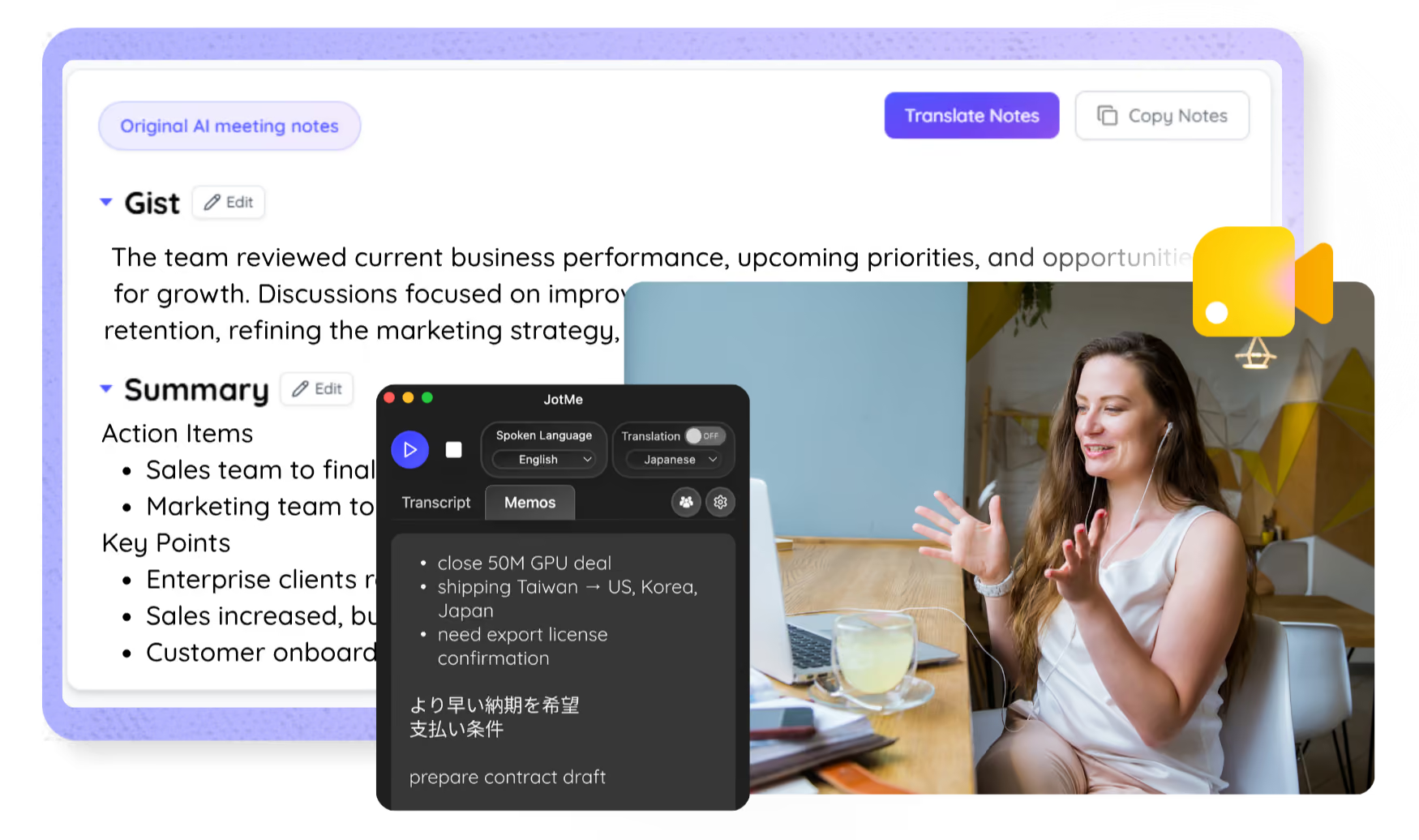
JotMe takes notes for your Google Meets right in the browser with the Chrome extension or desktop app, live or from an uploaded recording, and highlights every action item in the language you choose. No bot joins the call.
Trusted by 2,000 Teams and 500,000 Professionals Across 134 Countries

















Accurate AI meeting notes for every Google Meet
Everything you need to capture, understand, and share what happened on Meet.

Context-aware, ultra-accurate
JotMe's notes are meaning-aware: every point considers who is speaking, what your team is working on, what has been said so far, your custom terms, and how the discussion connects. Decisions and action items come out right.
No bot in your meeting
JotMe works from the Chrome extension in your own browser, so you get a Meet notetaker without a bot in the participant list, and no paid Gemini tier to buy.

200+ languages, notes in yours
Meet in any of 200+ languages and get the notes, summary, and action items in the language you pick, so global teams read the same decisions.
Your notes are saved
Notes and the full transcript are saved to your dashboard after every call, so nothing disappears when the meeting ends.
Notepad-guided notes
Jot quick points during the meeting and JotMe's AI turns them into full meeting notes with your highlights front and center.

Custom dictionary and auto language detection
Improve accuracy with industry-specific terms and custom replacements. JotMe also detects the spoken language automatically, so you never set it by hand.
How to get AI notes from Google Meet
Three steps, under a minute. No bot invite, no host approval. Already have a recording? Upload it instead.
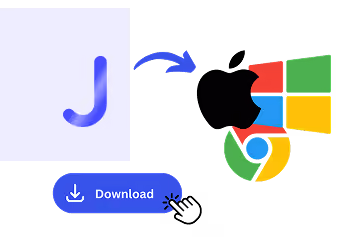
1. Add the Chrome extension or desktop app, or upload your Meet recording
Add JotMe to Chrome for in-Meet notes, or get the desktop app. Already have a recorded Meet? Upload it for the same accurate notes, summary, and action items.
2. Set the spoken language
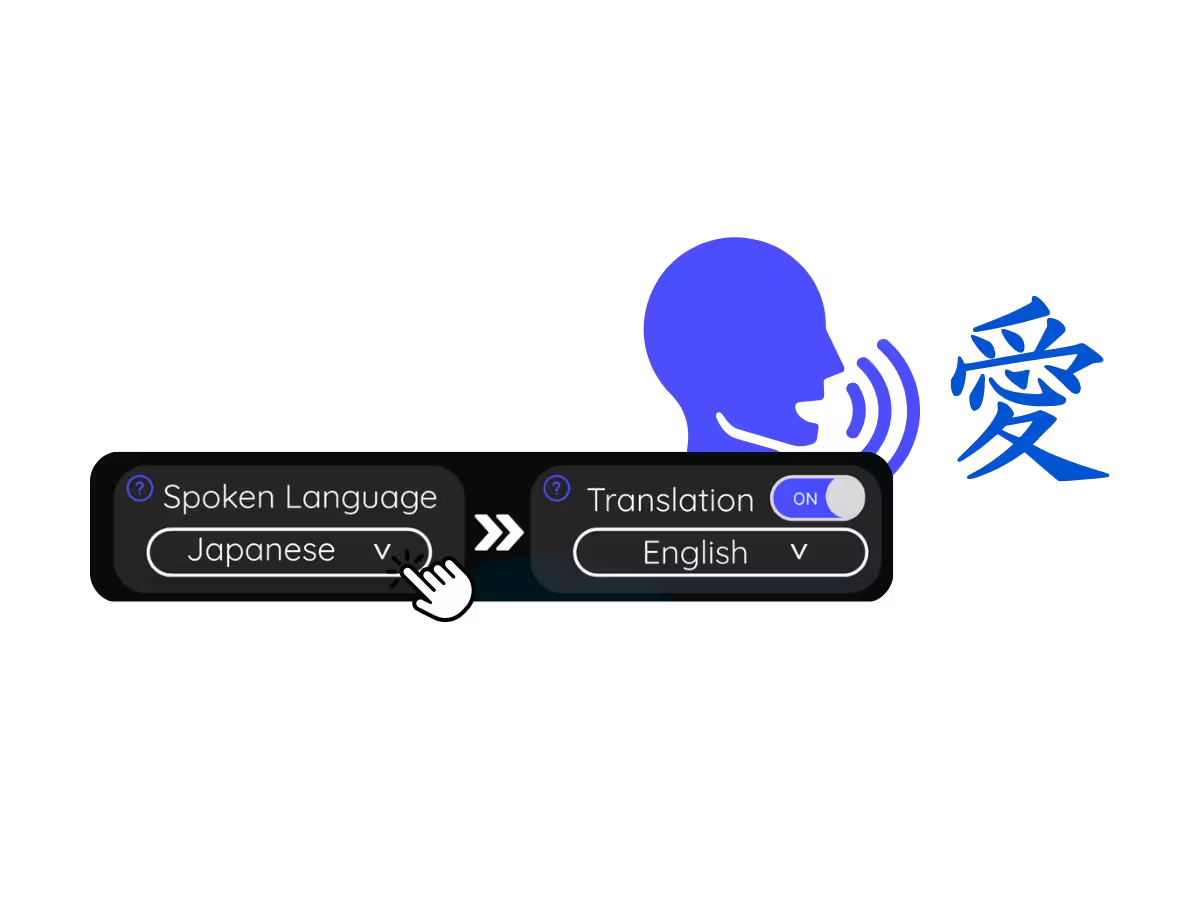
Choose the language being spoken in the meeting, for example Japanese. If people switch languages, pick multilingual mode.
3. Jot highlights if you want
During the meeting, note key points in the Notes panel. When it ends, JotMe writes the meeting notes, summary, and action items, guided by your highlights.
What teams use the Google Meet AI note taker for
From daily standups to all-hands, JotMe keeps every attendee in the conversation.
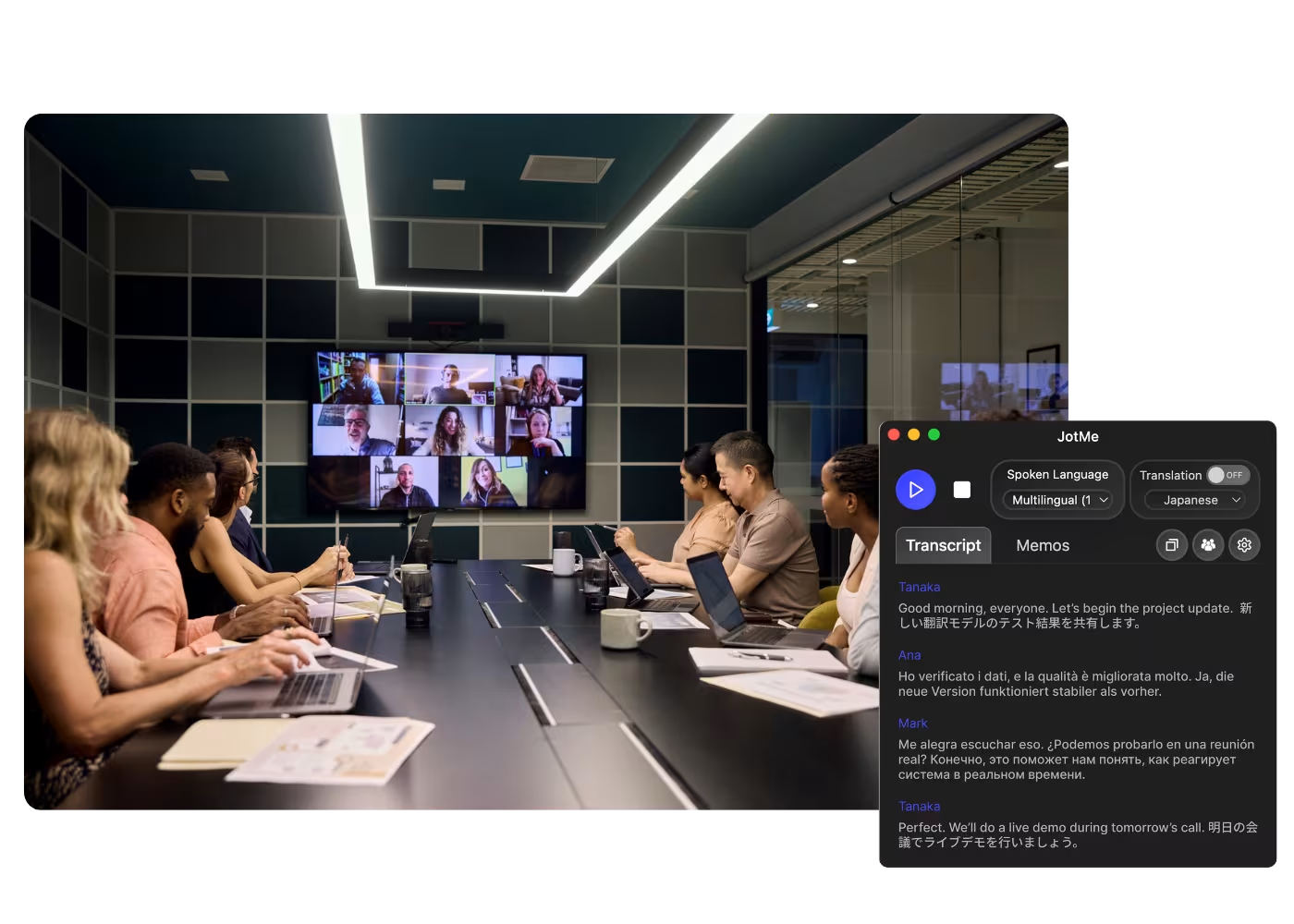
Global all-hands & team meetings
Capture decisions from HQ announcements once, and share the notes in each office's language, so nobody waits on a translated recap.
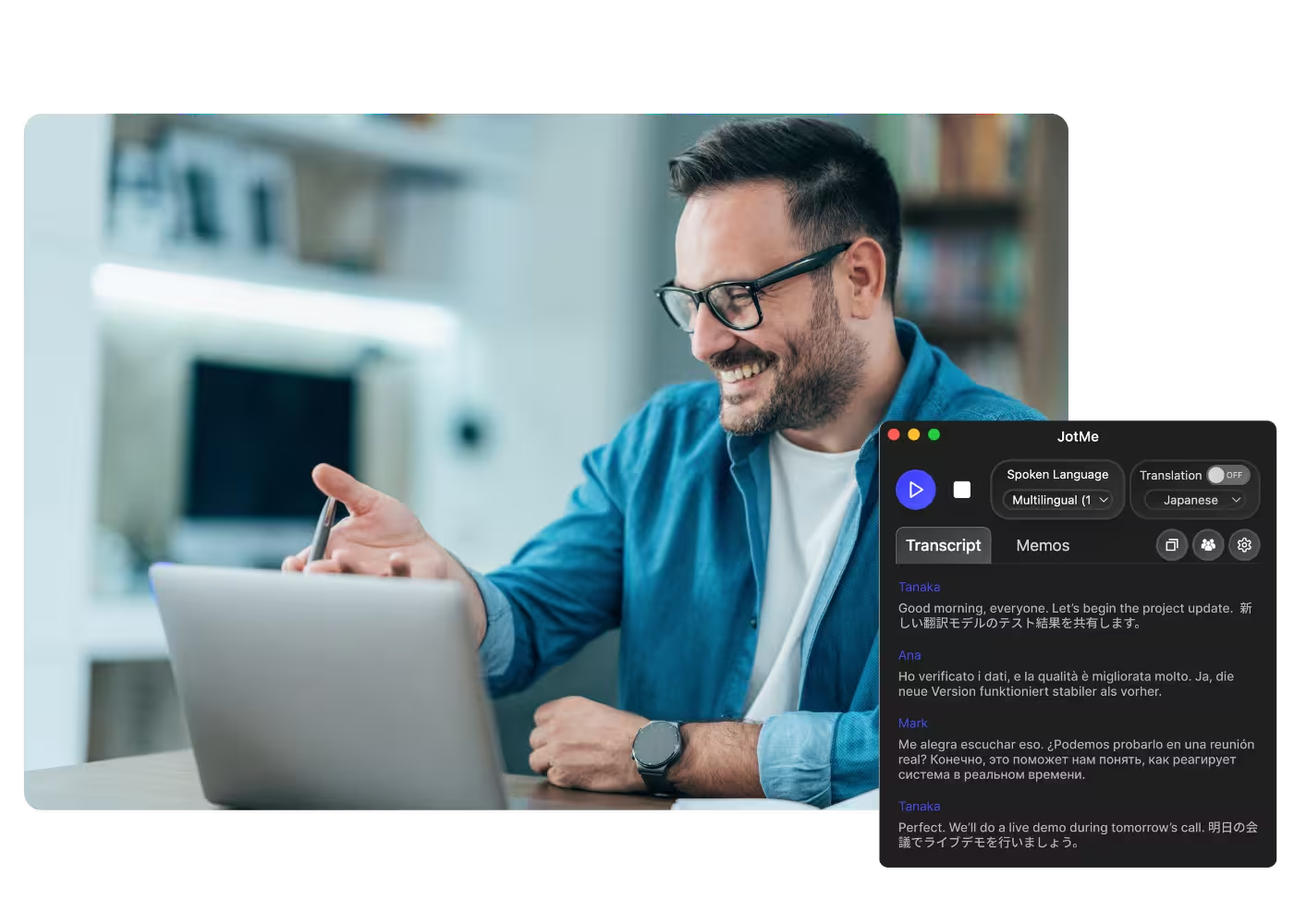
Sales & client calls
Every requirement and objection lands in the notes with action items, even when the customer speaks another language.
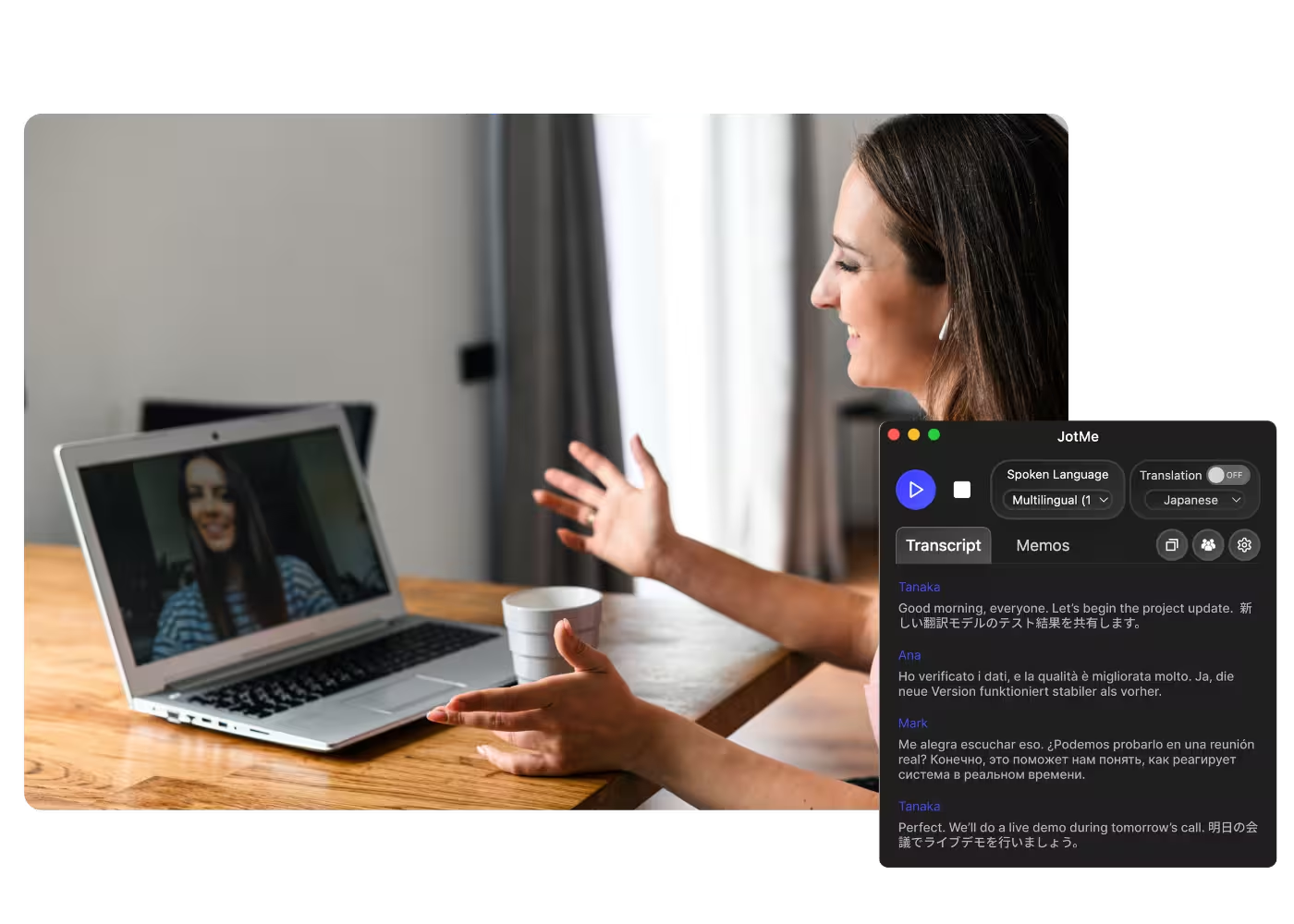
Recorded Meet meetings
No time to run it live? Upload the recording to Audio to Text or Video to Text for the same accurate notes, summary, and action items, no need to have been in the call.
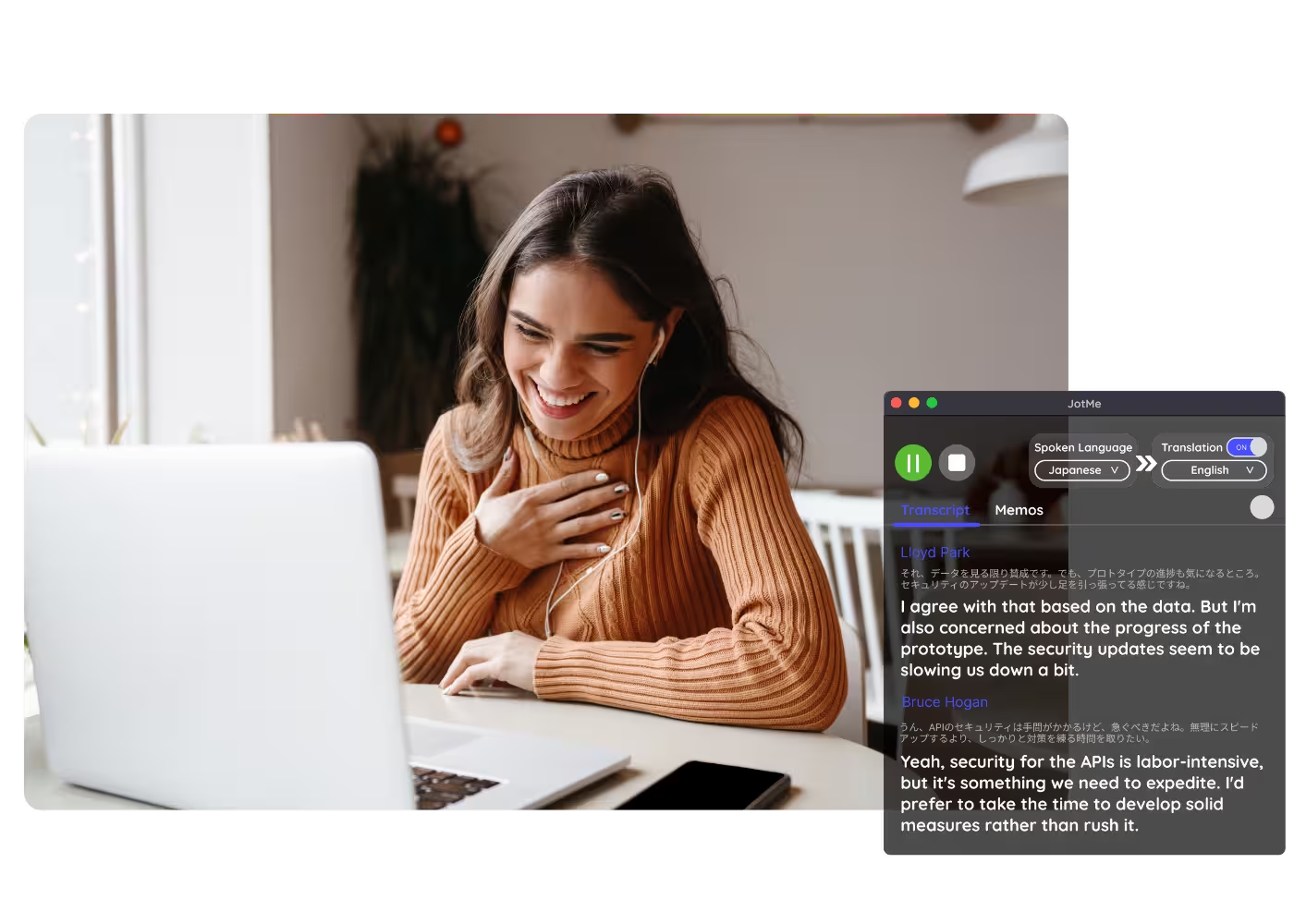
Interviews & research calls
Stay present with the candidate or customer while JotMe captures the details and follow-ups.
See it in action
Watch JotMe take notes on a Google Meet from the extension, live or after the meeting.
500,000+ professionals run meetings and events smoothly with JotMe
See how they’re seeing results with JotMe in bridging multilingual operational gaps.







Frequently asked questions
Everything you need to know about running meetings and events with JotMe.
No. JotMe works from the Chrome extension in your own browser and captures the meeting locally, so no bot shows in the participant list and there's nothing for the host to enable.
Yes. Upload the recording to Audio to Text or Video to Text and JotMe transcribes it and writes accurate notes, the same summary and action items as a live meeting.
Yes. JotMe's free plan includes AI meeting notes, and no credit card is required. Upgrade when you need more.
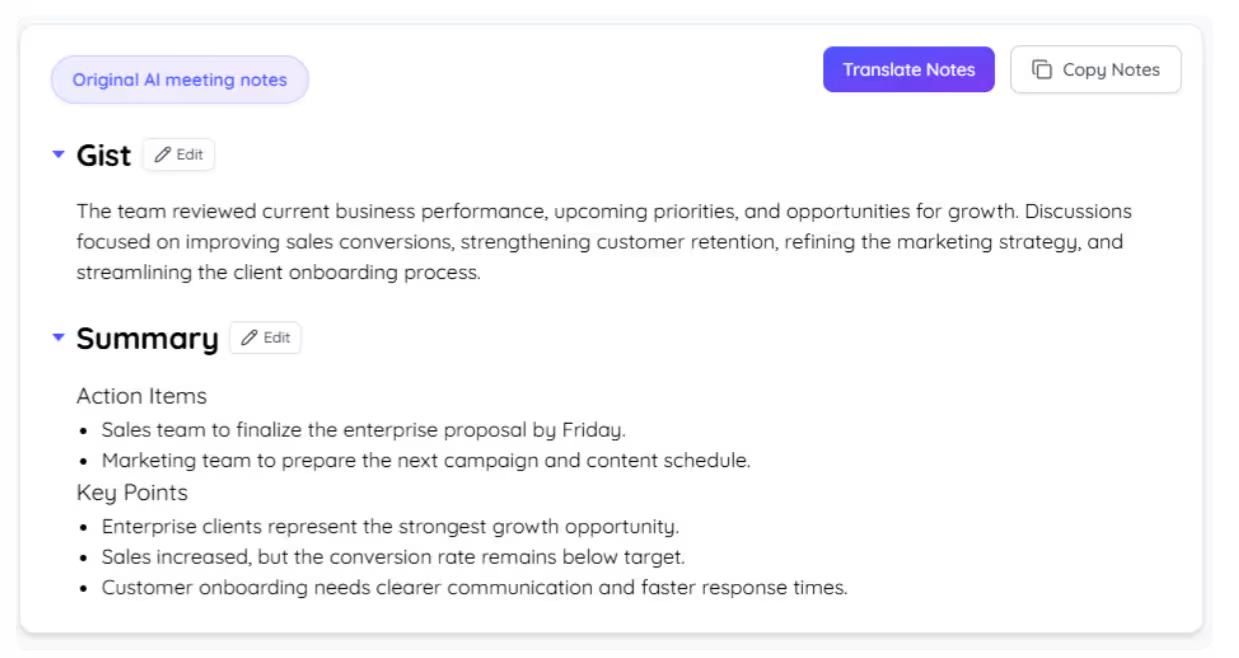
The default format gives you the gist, key points, and action items. Jot your own highlights in the notepad during the call and JotMe folds them into the final notes.
Yes. The meeting can be in any of 200+ languages, and you choose the language for the notes, summary, and action items.
Heading

Never take Google Meet notes by hand again
Never take Google Meet notes by hand again. Jot highlights during the call, get accurate AI notes with action items after, and share them in your team's language, live or from a recording.