






Can ChatGPT transcribe audio? The answer is yes. ChatGPT transcribes audio in 2026 through 3 methods: voice dictation, audio file uploads, and Record mode on the macOS desktop app. The method you get depends on your ChatGPT plan, device, and the type of transcription you need.
We tested these methods to understand how ChatGPT handles real audio files, live speech, and recorded conversations. The results show where ChatGPT works well and where users need a dedicated transcription tool.
ChatGPT works best for short, clear recordings with one speaker and a single language. Users who need speaker labels, timestamps, long meeting transcripts, or multilingual conversations may need a specialized transcription tool like JotMe.
This guide explains how each ChatGPT transcription method works, what limits you should know, and when another tool makes more sense.
Key Takeaways
- ChatGPT can transcribe audio, but the best results come from short, clear recordings with one speaker and a single language. More complex recordings may require additional steps or manual corrections.
- ChatGPT offers three transcription methods: voice dictation, audio file uploads, and Record mode, but each method has limitations depending on the device, file type, and transcription needs.
- Real-world audio transcription requires more than speech-to-text: Features like speaker labels, timestamps, translations, and structured transcripts are areas where ChatGPT may require extra work.
- Multilingual audio and language switching can reduce accuracy: Our tests showed that ChatGPT struggled with Chinese and Spanish context, while JotMe handled multilingual transcription, translation, and language switching more consistently.
- JotMe is a better fit for professional transcription workflows, offering 200+ languages, 39,000+ language pairs, speaker identification, timestamps, and built-in live translation for meetings, interviews, and global teams.
How ChatGPT Transcribes Audio in 2026: The 3 Methods
ChatGPT can convert speech to text in 3 ways. Each method works differently and fits a different type of user.
A student recording a lecture, a professional reviewing a meeting, and a creator converting an interview into text may need different transcription workflows.
Here are the 3 ways to see if ChatGPT can transcribe audio or can't:
Method 1: Voice Dictation
ChatGPT voice dictation uses your device microphone to capture speech and convert it into text inside the chat window.
This method works well when you want to ask ChatGPT a question without typing. You can explain an idea, describe a task, or create quick notes using your voice.
Voice dictation focuses on real-time interaction. It does not replace a full transcription workflow for long recordings because it captures speech during the conversation instead of processing an existing audio file.
If you need live speech-to-text for short conversations, you can use this method for quick input.
Method 2: Audio File Upload
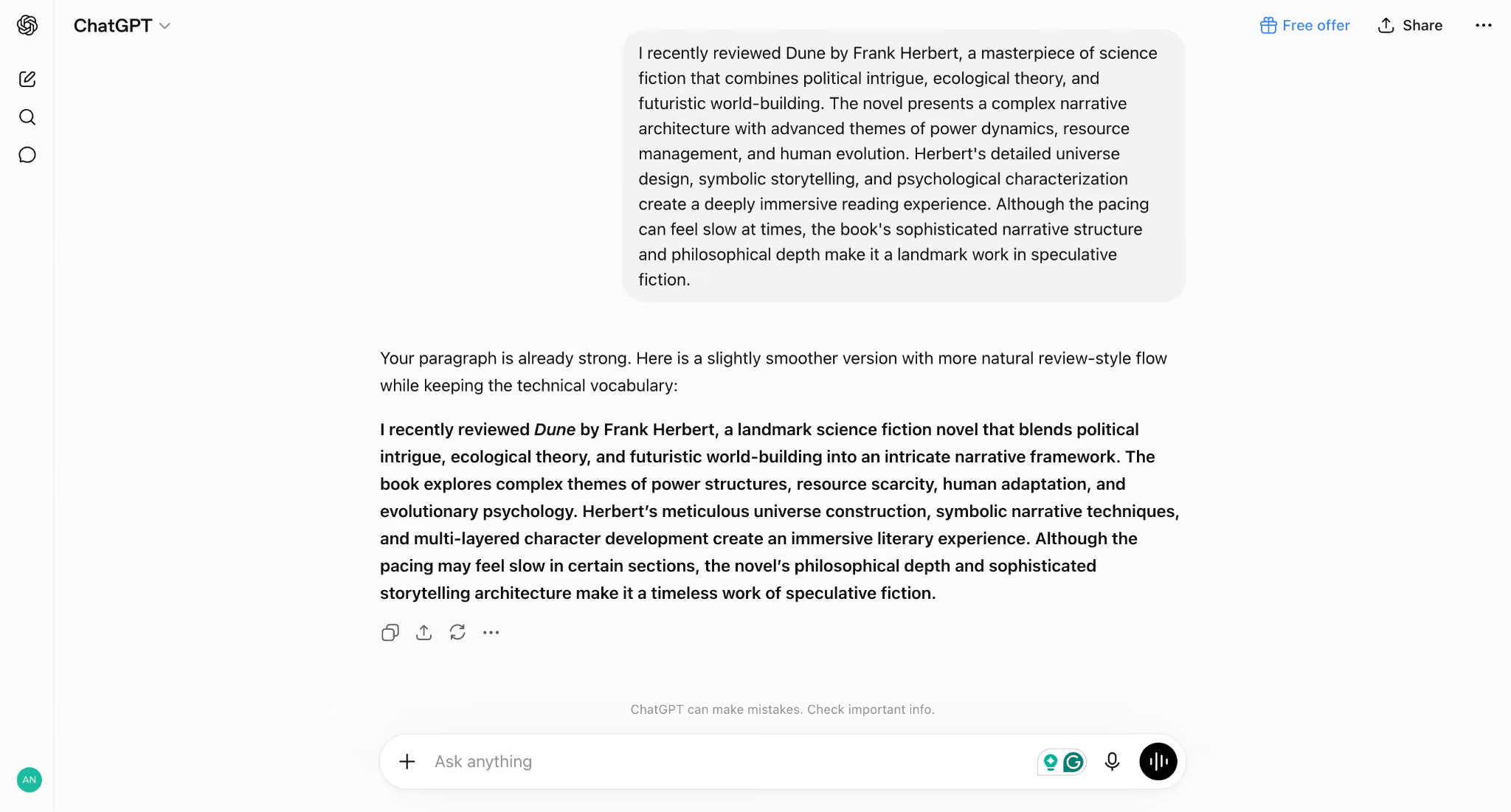
ChatGPT can transcribe audio files when you upload supported recordings into a chat.
The audio file upload method works better for users who already have an audio file, such as a podcast recording, interview, lecture, or meeting recording.
After uploading the file, ChatGPT processes the audio and generates text that you can review, summarize, or analyze.
The available upload features depend on your ChatGPT plan. OpenAI updates these limits over time, so users should check the latest file upload rules before processing large recordings.
This audio to text method works well when you need more than a transcript. You can ask ChatGPT to summarize the recording, extract action items, create notes, or analyze specific parts of the conversation.
Method 3: Record Mode
ChatGPT Record mode allows users to capture conversations directly through the macOS desktop app.
The feature helps users record meetings, brainstorming sessions, and discussions without manually uploading an audio file. Record mode creates structured notes from the conversation.
ChatGPT Transcription Uses AI Speech, Models
OpenAI now runs the gpt-4o-transcribe and gpt-4o-mini-transcribe models alongside the older whisper-1 model on the Speech-to-Text API. OpenAI reports that its updated ChatGPT dictation model achieved a word error rate at least 10% lower across its top-tested languages compared with the previous production model.
None of the 3 methods above give a typical reader a one-click way to drop an existing MP3 into ChatGPT's normal chat window and get a transcript back. That gap is exactly what our test below ran into.
Which ChatGPT Audio Transcription Method Should You Choose
The right method depends on what you want from your audio:
- Use voice dictation when you want quick speech input.
- Use audio file uploads when you already have a recording and need a transcript or analysis.
- Use Record mode when you want ChatGPT to capture and organize a conversation inside the macOS app.
ChatGPT transcription works well for many everyday tasks, but every method has limits. The next section shows what happened when we tested each approach with real audio files.
What Happened When We Tested ChatGPT Transcription
We ran two fresh tests on August 6, 2026: asking ChatGPT to transcribe an uploaded audio file, and using ChatGPT's built-in dictation to capture a Chinese recording. Both technically produced output, but neither produced something a casual reader could use without extra work.
Methodology: Tested August 6, 2026, on ChatGPT Work (agentic mode with terminal access, model 5.6 Sol Max) for the upload test, and ChatGPT's built-in Voice Dictation on the macOS desktop app for the recording test. Files: two short recordings, roughly 44 seconds and 24 seconds, one containing Chinese audio.
The upload test
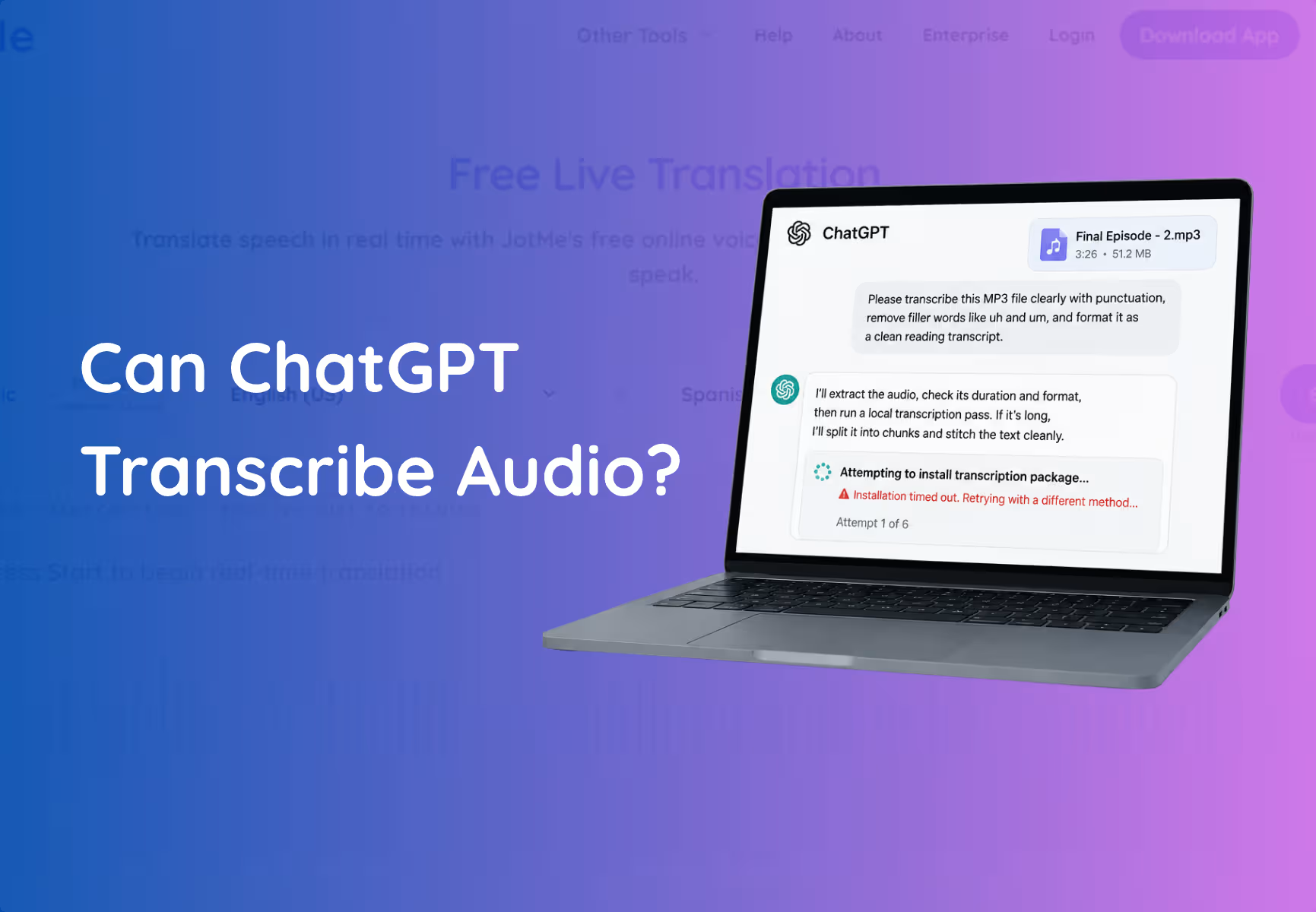
If you want to know whether ChatGPT can transcribe audio, uploading a file and asking directly is the real-world test most users would try first. We uploaded two audio files to ChatGPT and requested an English transcription. On the web version, ChatGPT took 19 minutes and 58 seconds to process both files and successfully generated English text.
However, the output had accuracy issues. Instead of keeping the two recordings separate, ChatGPT mixed content from both audio files and failed to preserve the core meaning of the conversations. While the files were technically processed, the final transcript required significant correction before use.
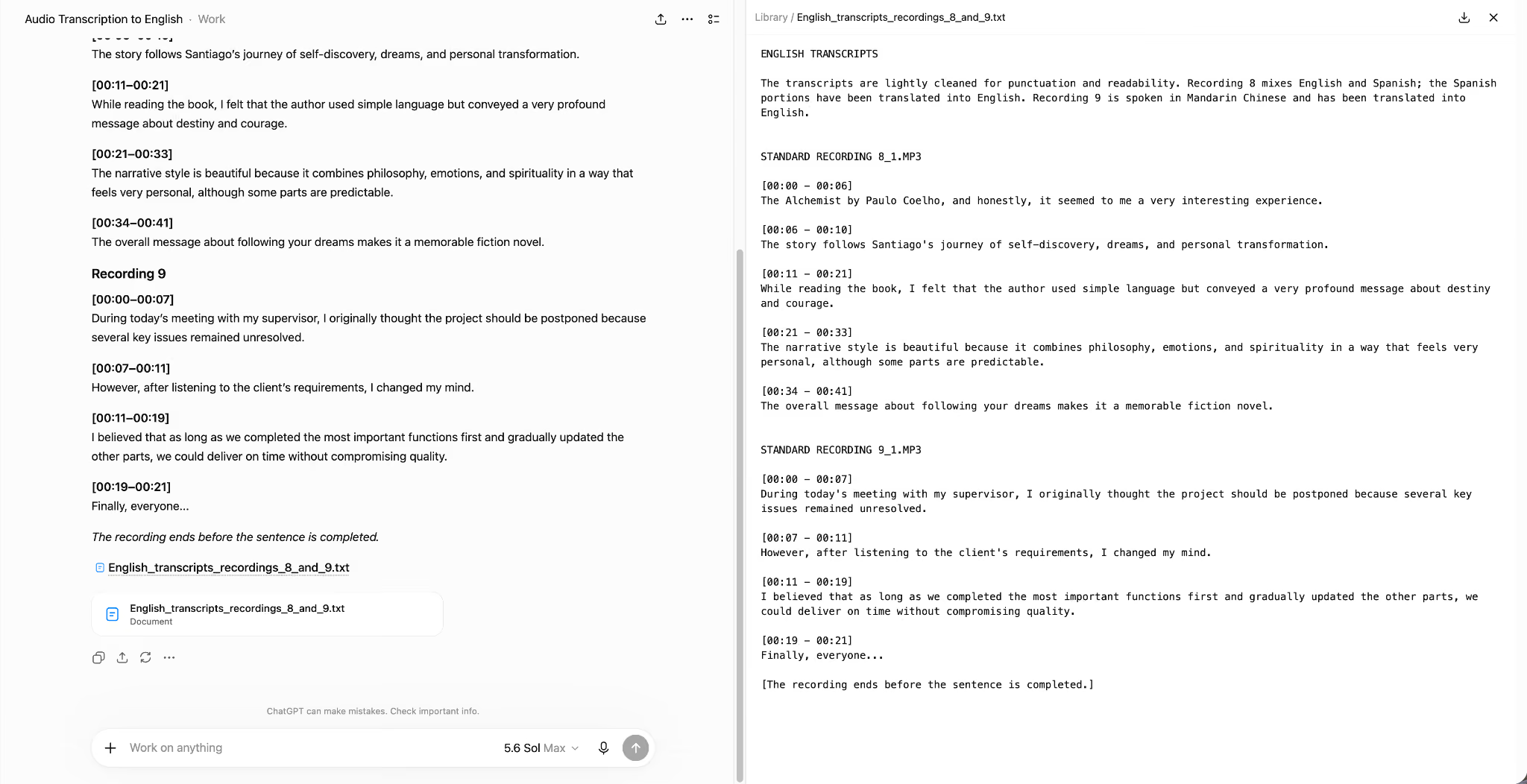
Behind that plan, ChatGPT decided to install a local speech recognition model rather than use a built-in transcription tool, because no such tool exists inside the chat interface itself. The first install attempt failed immediately with an "externally-managed-environment" error, a common Python setup problem that a non-technical reader would not know how to fix on their own.
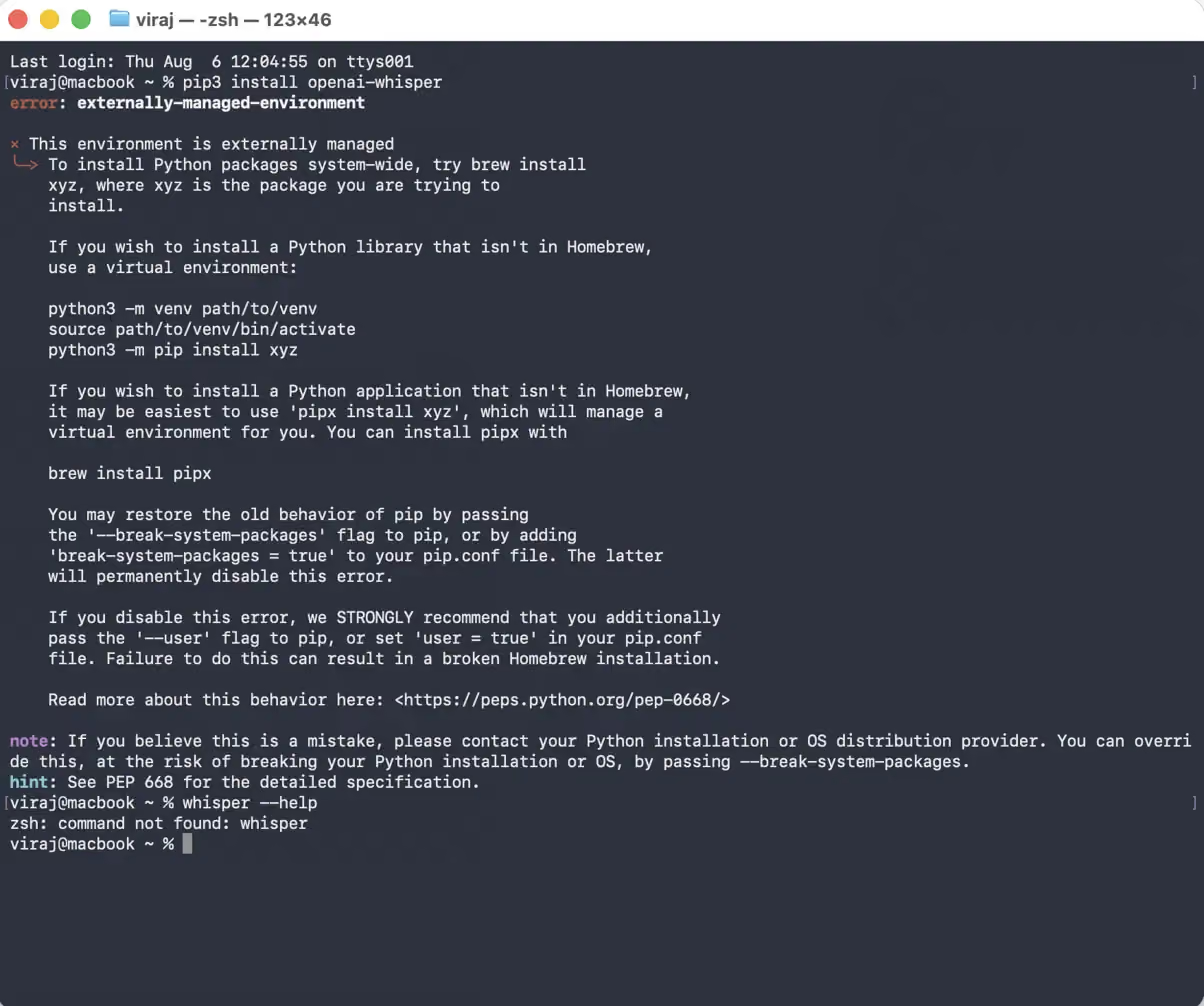
Working through that error meant creating a virtual environment, reinstalling the package inside it, and retrying. For a reader without Python experience, troubleshooting this step alone realistically takes 30 to 50 minutes, well before a single word gets transcribed.
Once the environment was fixed, ChatGPT downloaded the Whisper medium model, a 1.42 GB file, at roughly 20 MB per second. The download alone took several minutes to complete.
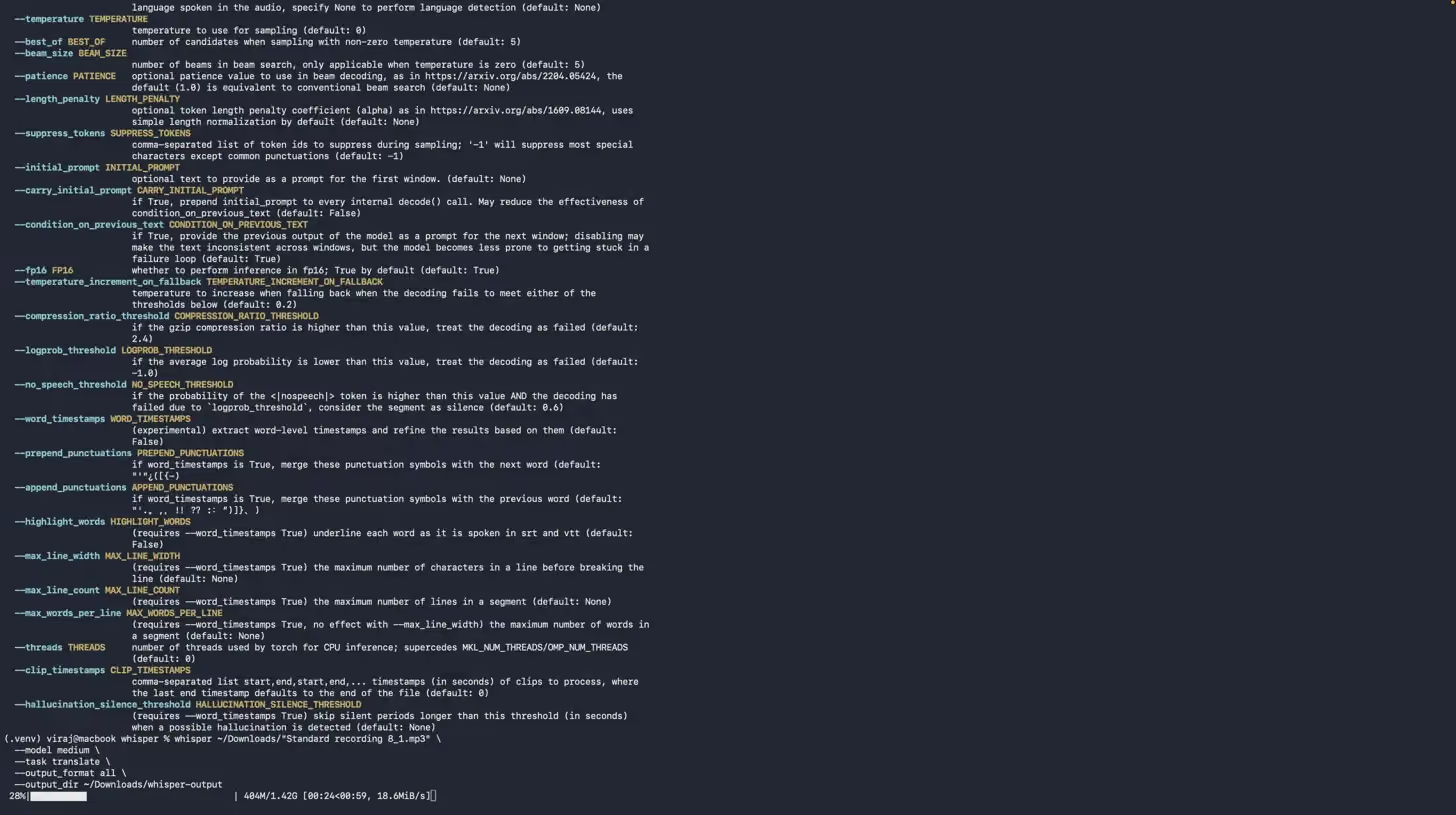
After the download finished, processing the two short files took another 5 to 6 minutes. The output was not one clean transcript but five separate files: JSON, SRT, TSV, TXT, and VTT, so the reader still has to know which format to open.

The result: A transcript is possible, but only after a setup process closer to installing developer software than uploading a file. For a reader who wants voice to text in the next five minutes, this is not a practical option.
The dictation test
We tested ChatGPT's Voice Dictation feature on macOS next, using a Chinese-language audio clip played aloud near the built-in microphone.
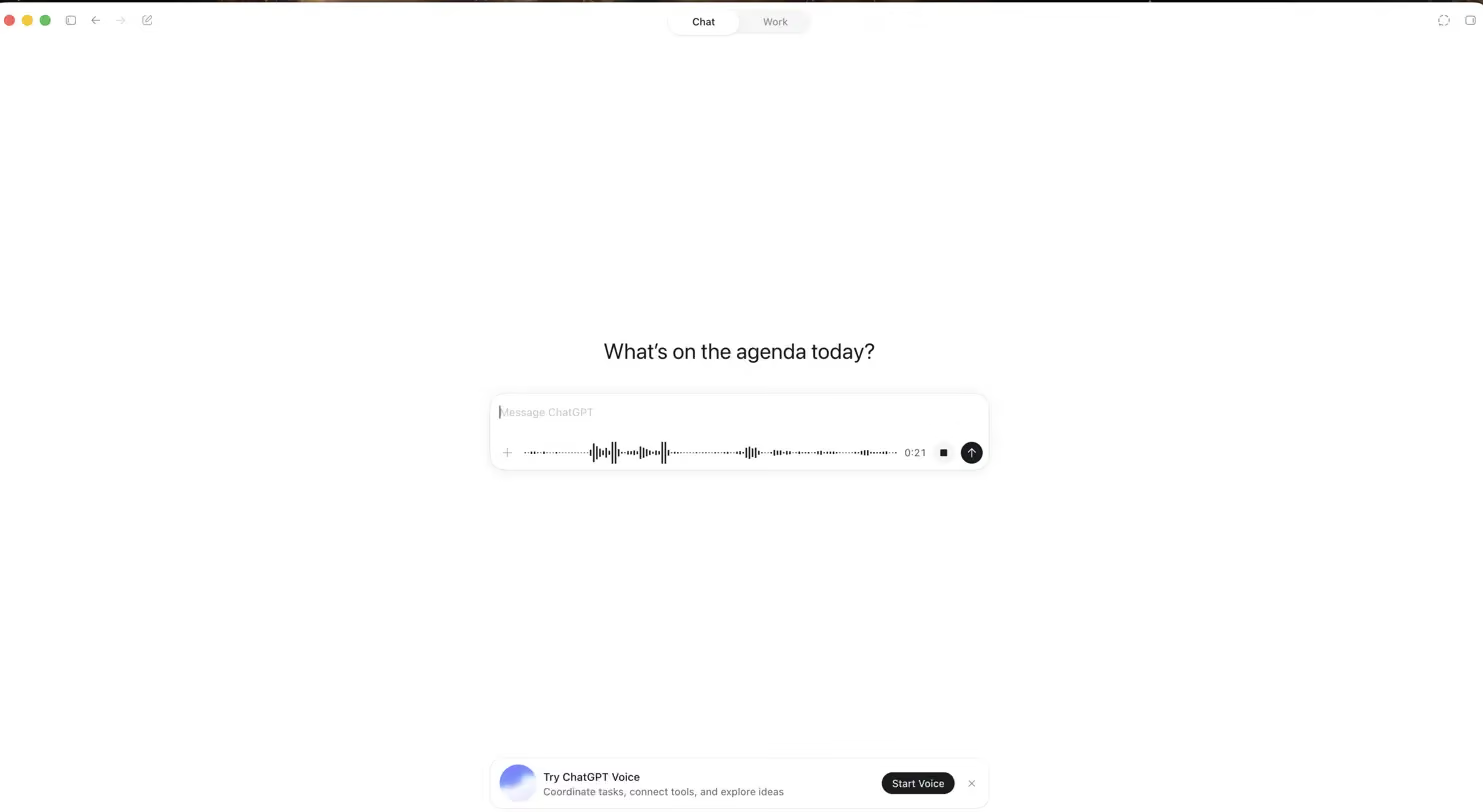
One detail matters here for anyone repeating this test. Dictation transcribes in the language it hears when you simply speak or play audio into the mic. Getting a translation into a different language requires telling ChatGPT that in advance, before you start speaking, not after.
Even with that instruction given upfront, our test did not go as expected. The Chinese audio played into the microphone, and ChatGPT returned only "Yeah. Yeah." as both the transcription and the translation, missing the Chinese speech entirely.
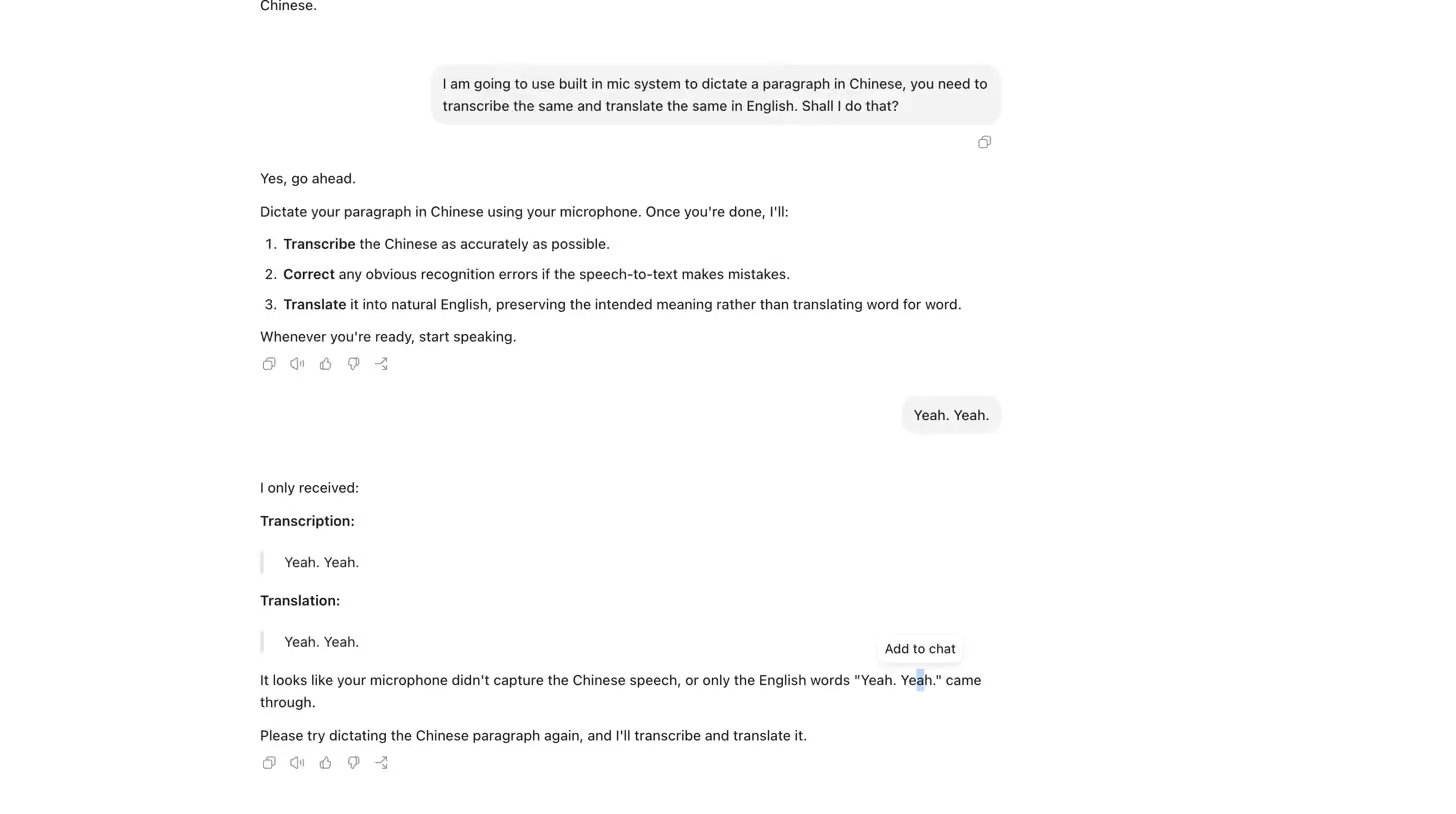
The result: dictation works reasonably well for English speech spoken directly into the mic. For a foreign-language recording played back rather than spoken live, it can fail to capture the audio at all, with no error message explaining why. A reader relying on this method for a multilingual voice note risks losing the content with no warning.
Between the two tests, the pattern holds. ChatGPT can produce a transcript, and it can dictate speech. Getting there reliably, on a real file, in a language other than English, is where both paths get expensive or unpredictable for anyone who is not comfortable troubleshooting Python or double-checking every dictation result.
Where ChatGPT Transcription Breaks Down
ChatGPT transcribes audio well for many everyday tasks, but every transcription method has limits. These limits matter most when you work with meetings, interviews, podcasts, research recordings, or multilingual conversations.
Here are the situations where ChatGPT starts to fall behind:
Each of these is a condition under which ChatGPT stops being the right tool for the job, not proof that the underlying technology fails. A reader transcribing a five-minute voice memo in English will likely never hit any of them.
What Happens With Non-English and Multilingual Audio
ChatGPT can transcribe multilingual audio, but our testing found that accuracy drops when speakers switch between languages in the same recording. Processing also became slower on our multilingual test file compared to a single-language recording. We then tested the same file with JotMe. It handled the language switches correctly, recognized the speakers more consistently, and produced the transcript in under 60 seconds.
After testing all three scenarios, we found that ChatGPT works well for simple recordings in one language. The experience changes when conversations include multiple languages, regional accents, or frequent language switching.
ChatGPT Struggles With Code-Switching
When speakers switch between two languages during the same conversation, ChatGPT can lose context and mix words from both languages. This issue appears most often in customer calls, interviews, and family conversations where people naturally move between languages.
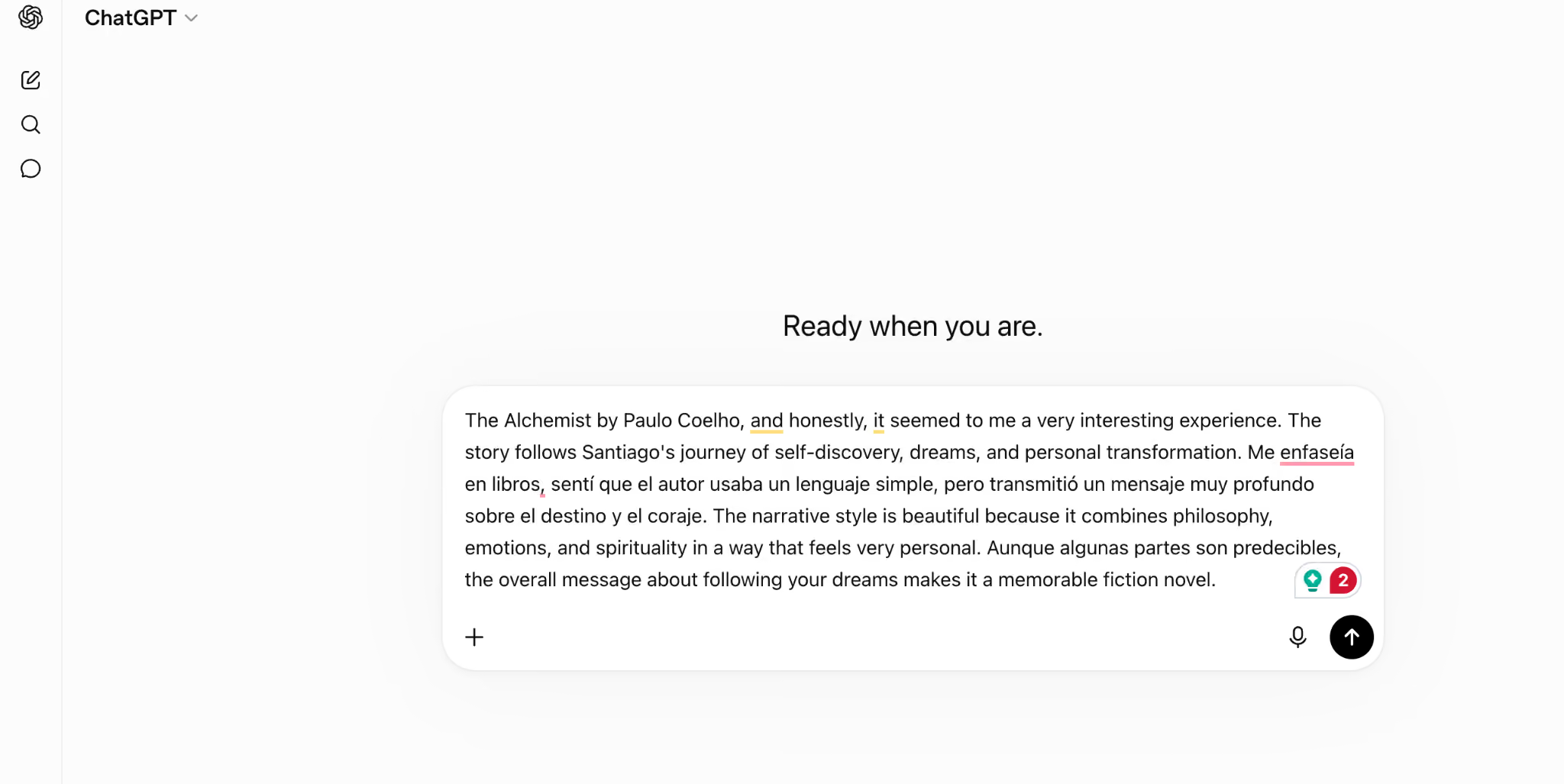
As shown in our test results in the Regional Accents Reduce Accuracy section below, ChatGPT struggled to accurately capture parts of a multilingual meeting recording, particularly when processing Spanish speech, resulting in incorrect wording and grammatical inconsistencies. In contrast, JotMe’s audio-to-text handled the same recording more consistently by identifying language changes during transcription and maintaining the correct context instead of treating the entire recording as a single language.
This ability to recognize and adapt to language switches makes JotMe more reliable for real-world conversations where speakers frequently move between languages within the same discussion.
Translation Requires an Extra Step
ChatGPT first creates a transcript in the original language. You then need another prompt to translate that transcript into English or another language.
That means every non-English recording requires an additional step before you can read or share it.
During our test, we uploaded the same recording to JotMe. It combined transcription and translation into one workflow, which reduced the amount of manual work.
Regional Accents Reduce Accuracy
To test how both tools handled multilingual conversations, I uploaded the same audio file containing English and Spanish speech to ChatGPT and JotMe. The recording also included natural language switching and a Spanish speaker with a regional accent.
ChatGPT correctly identified that the speaker was speaking Spanish, but parts of the transcription were inaccurate. In one section, it produced:
By comparison, JotMe accurately transcribed the same section, even though the speaker switched naturally between English and Spanish throughout the recording.
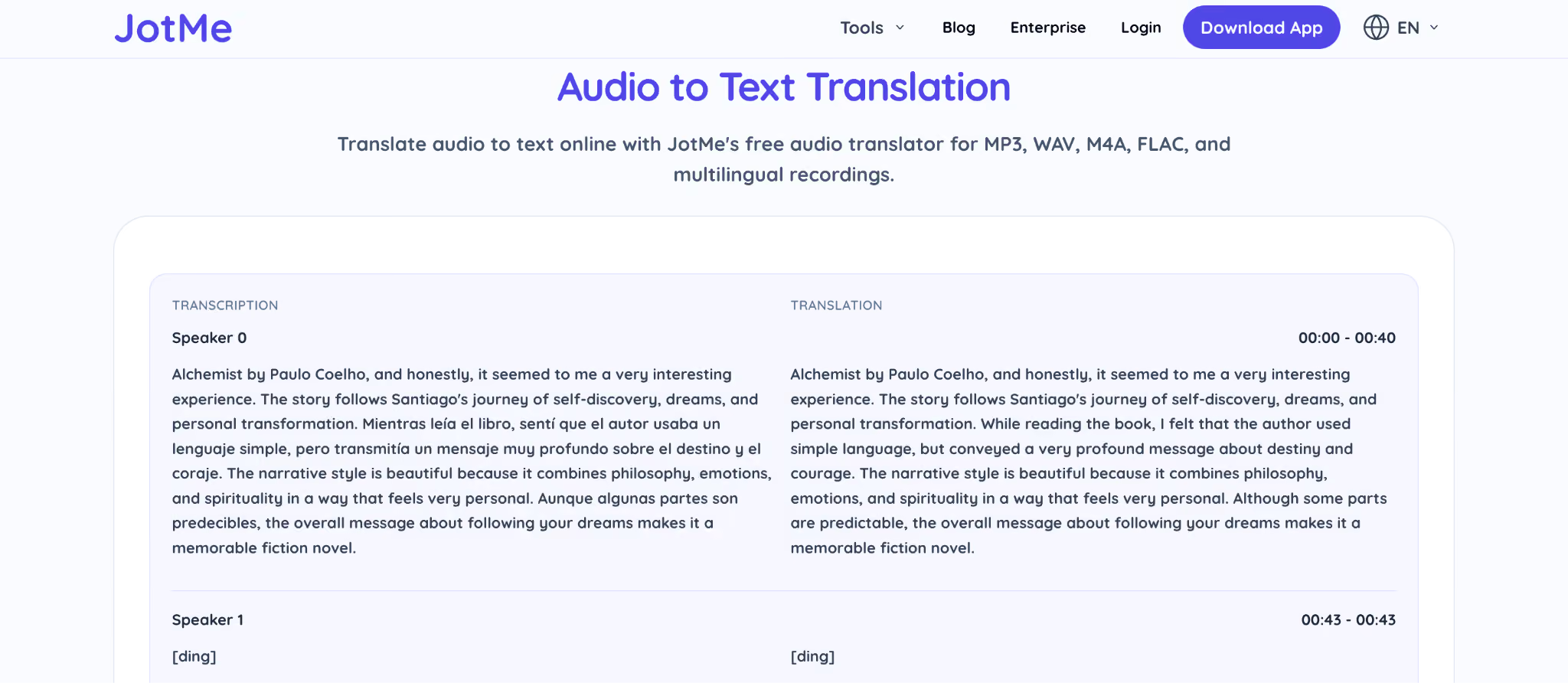
In our testing, JotMe consistently handled rapid language switches without losing context. It also supports multiple regional dialects of both Spanish and English, including Spanish (Argentina), Spanish (Chile), Spanish (Bolivia), Spanish (Colombia), Spanish (Costa Rica), Spanish (Cuba), Spanish (Dominican Republic), and many others. That broader dialect support helped it produce a more natural and grammatically correct transcript for multilingual conversations.
Language Coverage Matters
ChatGPT supports 50+ languages, but transcription quality can vary depending on the language, accent, and level of context required. In testing, English and Hindi generally produced stronger results, while languages such as Chinese, Japanese, Spanish, and regional dialects showed more inconsistencies.
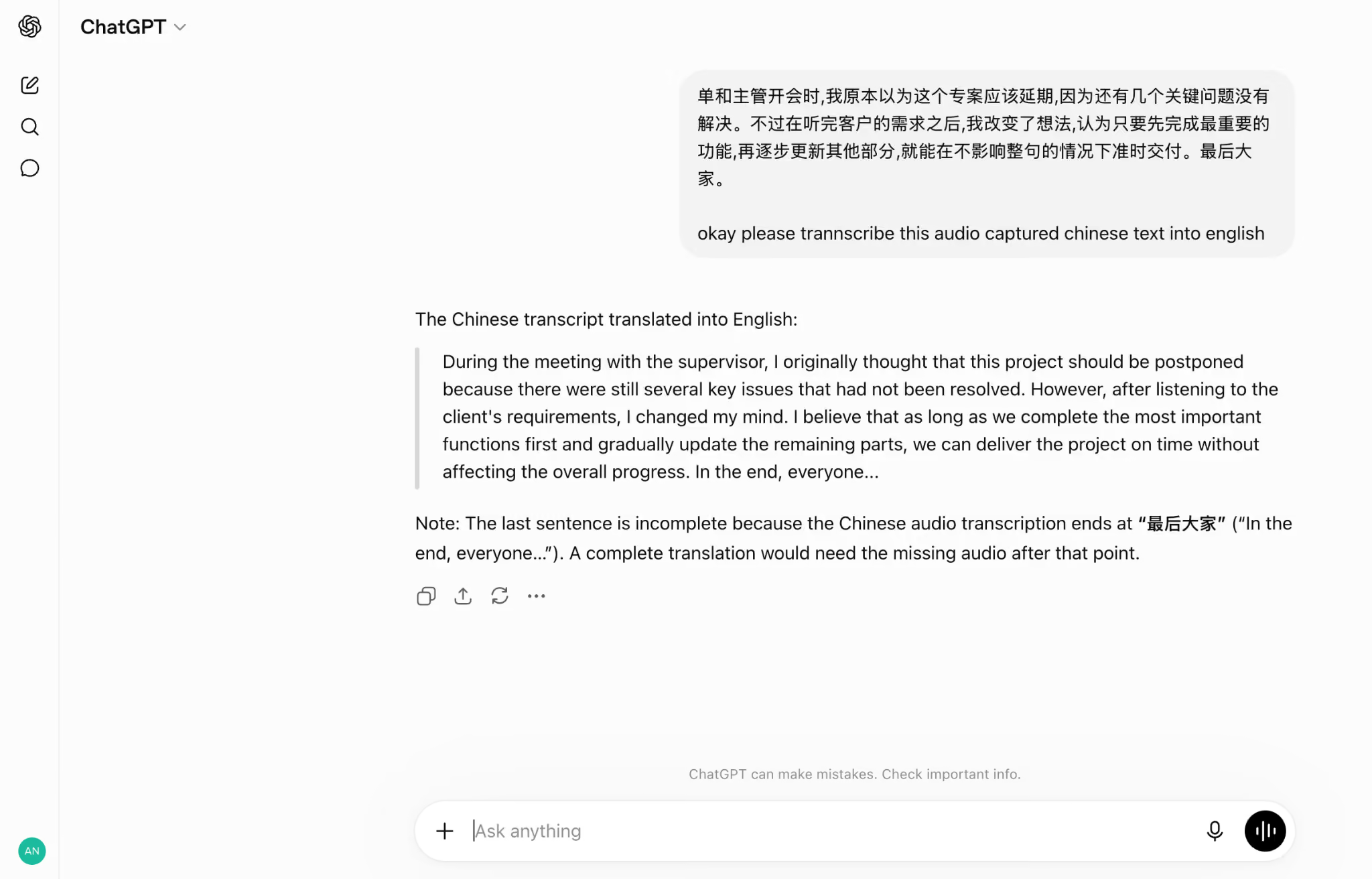
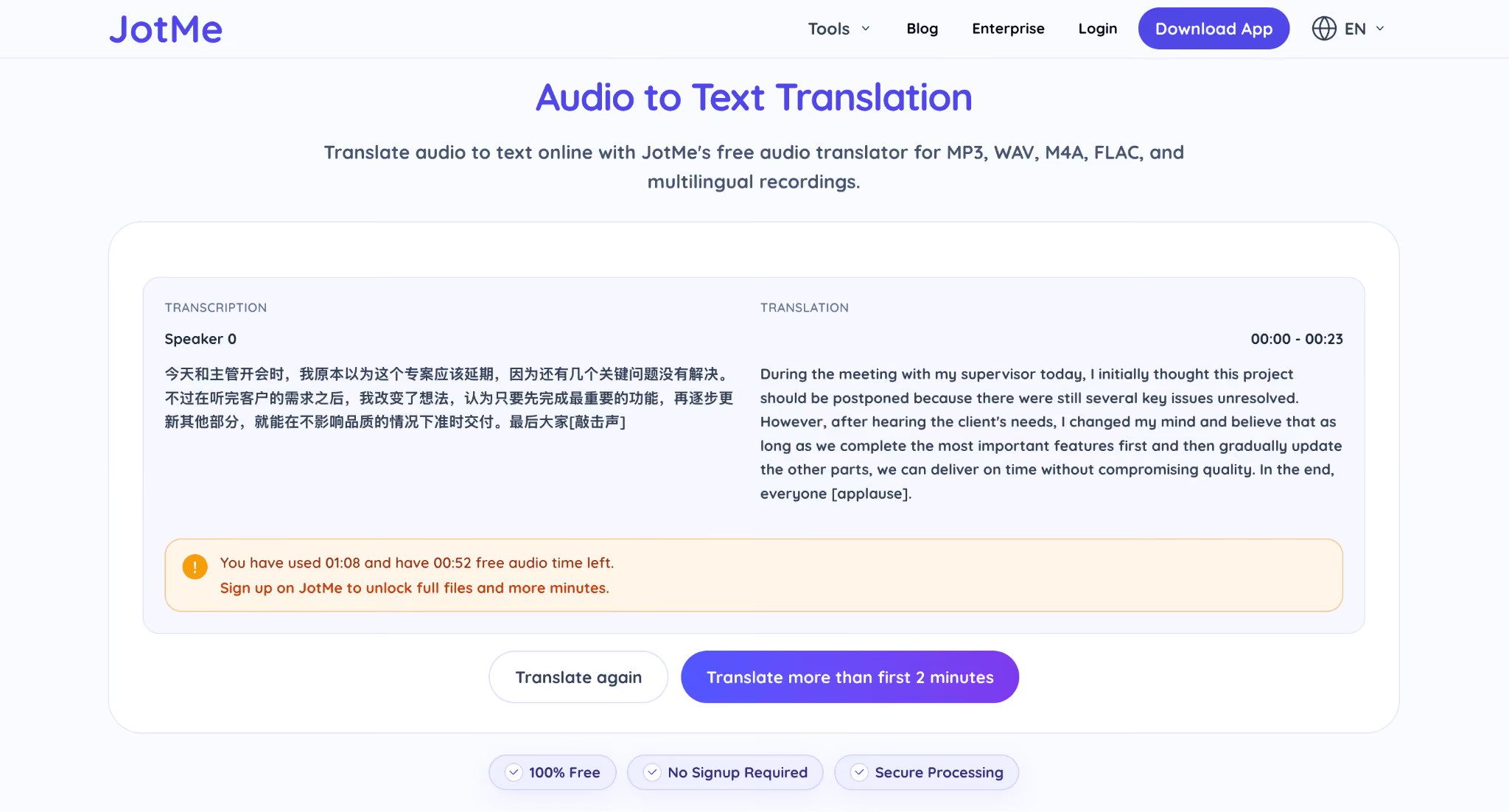
To compare Chinese transcription accuracy, I uploaded the same Chinese audio file to both ChatGPT and JotMe and asked JotMe to transcribe the recording in English. JotMe was able to accurately understand the Chinese speech, preserve the original meaning, and translate it into natural English while maintaining the context of the conversation.
JotMe Chinese transcription:
ChatGPT Chinese transcription:
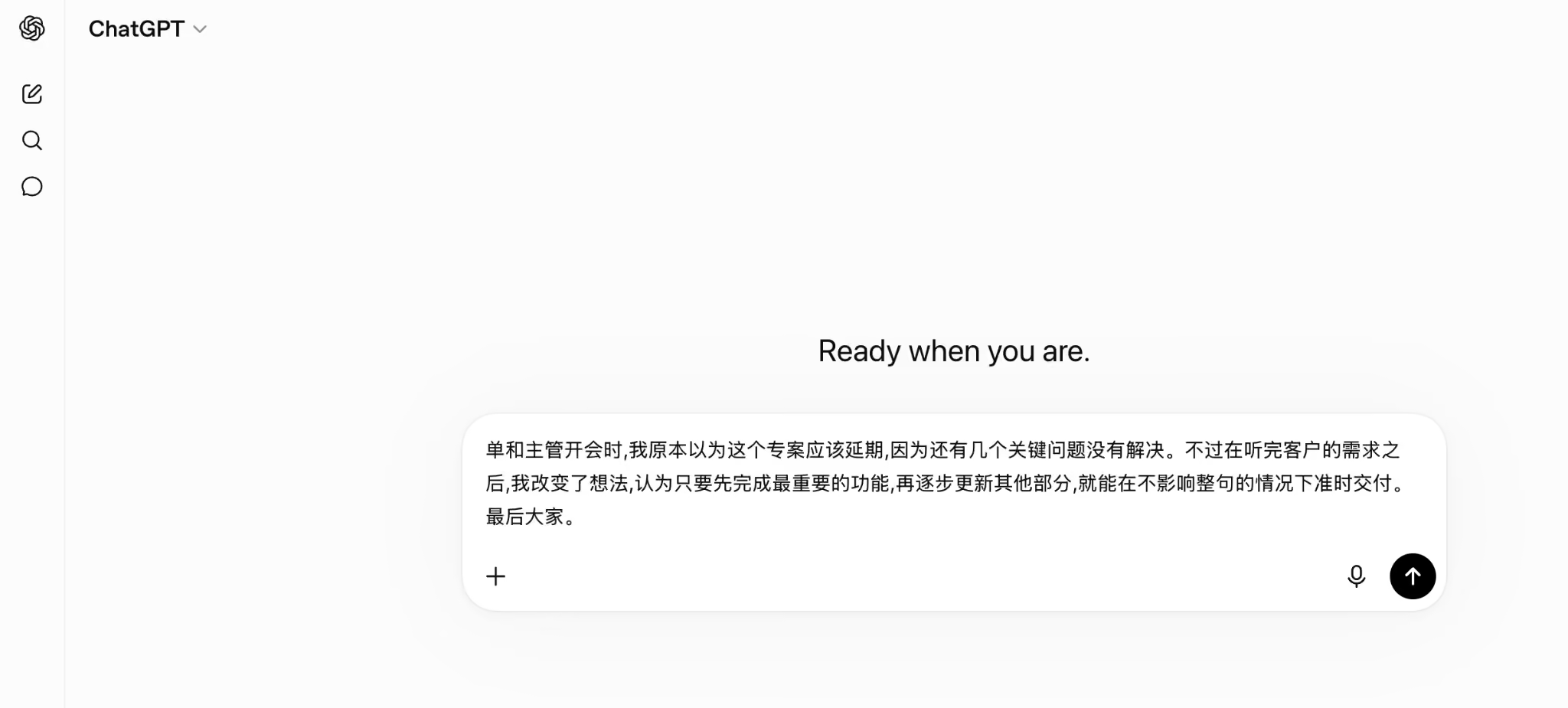
JotMe, on the other hand, preserved the intended meaning and handled the Chinese-to-English transcription request more effectively, even when switching between languages. With support for more than 200 languages and 39,000+ language pairs, JotMe is better suited for organizations that regularly manage multilingual meetings and global teams.
When a Purpose-Built Transcription Tool Makes More Sense
ChatGPT can transcribe audio files when you need a quick text version of a recording. For short files with clear audio and one speaker, it can handle basic transcription tasks well.
The workflow becomes more complicated when you need features around the transcript itself, such as speaker labels, timestamps, translations, or an easy way to review and copy the final text.
This is where a purpose-built audio transcription tool like JotMe can make more sense.
JotMe focuses on converting audio and video files into structured transcripts. It adds features that many users need after transcription, including speaker identification, timestamps, multilingual transcription, and side-by-side translation.
ChatGPT vs. JotMe for Audio Transcription
The main difference comes down to what happens after the audio becomes text.
With ChatGPT, you can upload an audio file, receive a transcript, and ask follow-up questions about the content. If you need speaker names, timestamps, or translated text, you may need additional steps to organize the transcript.
With JotMe, the audio transcription workflow includes those features from the start. The transcript includes speaker labels and timestamps, and you can copy the generated text directly for editing, sharing, or further analysis.
If you want to learn how to convert audio to text using JotMe step by step, follow our detailed guide to upload your file, generate a transcript, and convert your audio into structured text.
Speaker Labels Make Multi-Person Recordings Easier to Review
A basic transcript shows the words spoken in an audio file. A useful transcript also shows who said each line. This difference matters for interviews, podcasts, research recordings, customer conversations, and group discussions.
ChatGPT may combine multiple speakers into one block of text, which means users often need to identify speakers manually.
JotMe adds speaker labels automatically, making longer conversations easier to follow and review.
Multilingual Audio Transcription Requires More Than Text Conversion
Transcribing multilingual audio creates additional challenges because the tool needs to recognize different languages, handle language switching, and preserve the meaning of the conversation.
ChatGPT can process many languages, but mixed-language recordings may require extra prompts and manual corrections.
JotMe supports more than 200 languages and 39,000+ language pairs. It can transcribe multilingual audio and provide translations within the same workflow, which helps users working with international recordings.
Privacy Matters When Uploading Audio Files
Audio recordings can contain private conversations, customer information, interviews, or internal discussions.
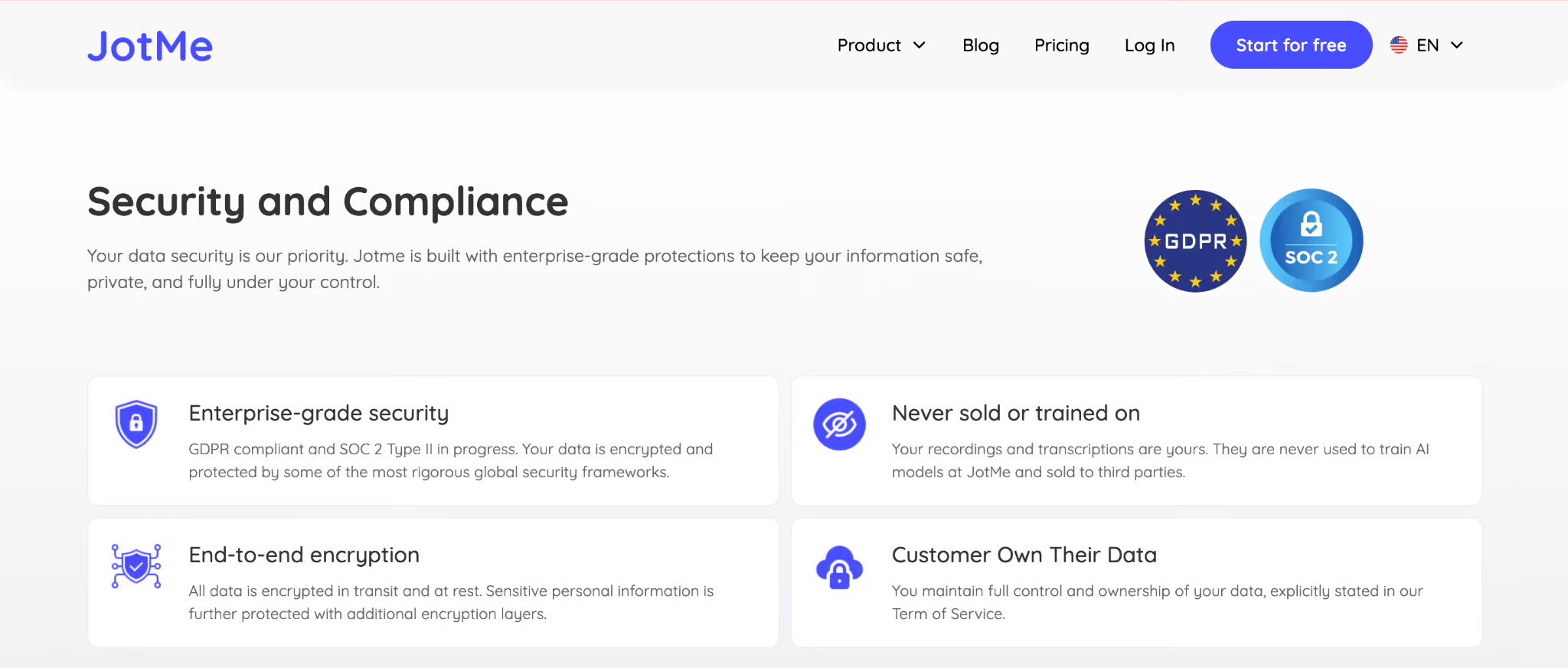
JotMe uses encryption to protect user data and follows privacy standards such as GDPR compliance. Users should always review the privacy policies of any tool before uploading sensitive recordings.
If you need a quick transcript from a short audio file, ChatGPT can handle the task.
If your recordings require speaker labels, timestamps, multilingual transcription, or a transcript that you can immediately copy and use, a dedicated audio transcription tool like JotMe provides a more complete workflow.
Is ChatGPT the Right Tool for Audio Transcription
ChatGPT can transcribe audio files effectively when recordings are short, clear, and use a single language. It works well for quick transcripts, summaries, and AI-based analysis.
However, longer recordings, multilingual conversations, strong accents, and translation needs often require extra steps. For users who need accurate transcripts with speaker labels, timestamps, and built-in translation, a dedicated transcription tool like JotMe can provide a more complete workflow.
Choose ChatGPT for quick AI assistance. Choose JotMe when you need reliable audio transcription for meetings, interviews, and multilingual content.
Want to convert your audio into accurate transcripts? Translate audio to text with JotMe for a faster, structured transcription workflow.
FAQs
Can ChatGPT transcribe MP3 files?
Yes, ChatGPT can transcribe supported audio files, including MP3 files, when the feature is available on your plan. You can upload the recording, generate a transcript, and ask ChatGPT to summarize, analyze, or rewrite the converted text.
Does ChatGPT support audio-to-text conversion for long recordings?
ChatGPT can convert audio to text, but long recordings may require file splitting depending on upload limits and your plan. Users working with lengthy interviews, lectures, or podcasts may need a dedicated transcription tool for a smoother workflow.
Can ChatGPT translate an audio file while transcribing it?
ChatGPT can help translate an audio transcript, but the workflow usually requires transcription first and translation afterward. Users who frequently process multilingual audio files may prefer tools that combine audio transcription and translation in a single step.
How accurate is ChatGPT audio transcription?
ChatGPT audio transcription accuracy depends on audio quality, speaker clarity, background noise, accents, and language. Clear recordings with one speaker usually produce better results, while overlapping conversations and technical vocabulary can reduce transcription accuracy.
Can ChatGPT transcribe audio in different languages?
Yes, ChatGPT can transcribe audio in multiple languages. However, accuracy can vary depending on the language, accent, and recording quality. Multilingual recordings with speakers switching between languages may require additional review after transcription.
Does ChatGPT create timestamps in audio transcripts?
ChatGPT does not automatically provide detailed timestamps for every transcript. Users who need timestamps for podcasts, subtitles, interviews, or research recordings may need a transcription tool designed specifically for timestamped audio-to-text conversion.
Can ChatGPT identify different speakers in an audio file?
ChatGPT does not consistently label individual speakers in audio transcripts. Recordings with multiple people may appear as a single block of text, which makes dedicated speaker identification features useful for interviews, discussions, and group conversations.
Last updated on
August 20, 2026
Follow us on social media:
![JotMe — Is Google Translate Accurate? [2026 Test]](/_webflow-assets/0d0512afc7b037d74dff536f22fed08f.avif)