


Guides
Best Multilingual Team Chat Apps With Automatic Message Translation in 2026

Lovely Mangla
September 2, 2026
If you need multilingual team chat with automatic message translation, JotMe is the best overall choice in 2026. It lets each person read the same conversation in their preferred language while keeping the original message visible for reference. Microsoft Teams is the better fit for Microsoft 365 organizations, Google Chat works best for Google Workspace teams, and Lark is a strong all-in-one alternative. Slack, Discord, and Element can handle translation too, but their automatic workflows rely more on on-demand features, bots, or custom integrations.
We compared seven leading options using their current desktop and web workflows, official feature documentation, public pricing, and the supplied product and user-review captures. We also walked through JotMe's room creation and translation workflow in detail.
Key Takeaways
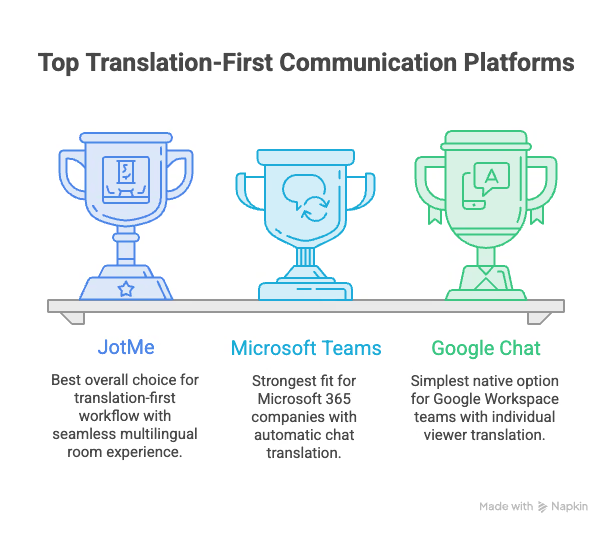
- JotMe is the best overall choice for a translation-first workflow. Each participant can read the same room in a different language, see the original beneath the translation, join as a guest, and translate shared documents or media without leaving the product.
- Microsoft Teams is the strongest fit for Microsoft 365 companies. It can automatically translate incoming chat messages and lets users exclude languages they already understand.
- Google Chat is the simplest native option for a Google Workspace team. Automatic Translation works at the individual viewer level, although the eligible plan requirement matters.
- Lark is the best all-in-one alternative for cross-border operations. It combines automatic chat translation, translate-as-you-type, documents, meetings, and workflow tools.
- Slack has excellent team chat, but not true native continuous translation. Its built-in translation is on demand. Always-on channel translation requires an app, which adds cost, permissions, and another vendor.
- Discord and Element can support automatic translation, but only through bots or custom integrations. Discord favors communities and voice-heavy groups. Element favors data sovereignty and teams that can operate their own translation stack.
The 7 Best Multilingual Team Chat Apps in 2026
- JotMe for multilingual chat rooms, translated files, and meeting continuity
- Slack for integration-heavy teams that can add translation deliberately
- Microsoft Teams for Microsoft 365 organizations
- Google Chat for Google Workspace teams
- Discord for multilingual communities and voice-first groups
- Element for private, self-hosted, or sovereign collaboration
- Lark for an all-in-one global work suite
What Makes the Best Multilingual Workplace Chat App
The best multilingual workplace chat app should make translation feel like part of the conversation, not an extra step. JotMe, Microsoft Teams, Google Chat, and Lark stand out because they can translate messages within the chat experience. Slack takes a more manual approach with its native Translate message option, while Discord and Matrix often depend on bots or integrations.
That difference matters. A workplace should not have to copy messages into another tool, post duplicate translations, or give a third-party bot access to every conversation just to communicate across languages.
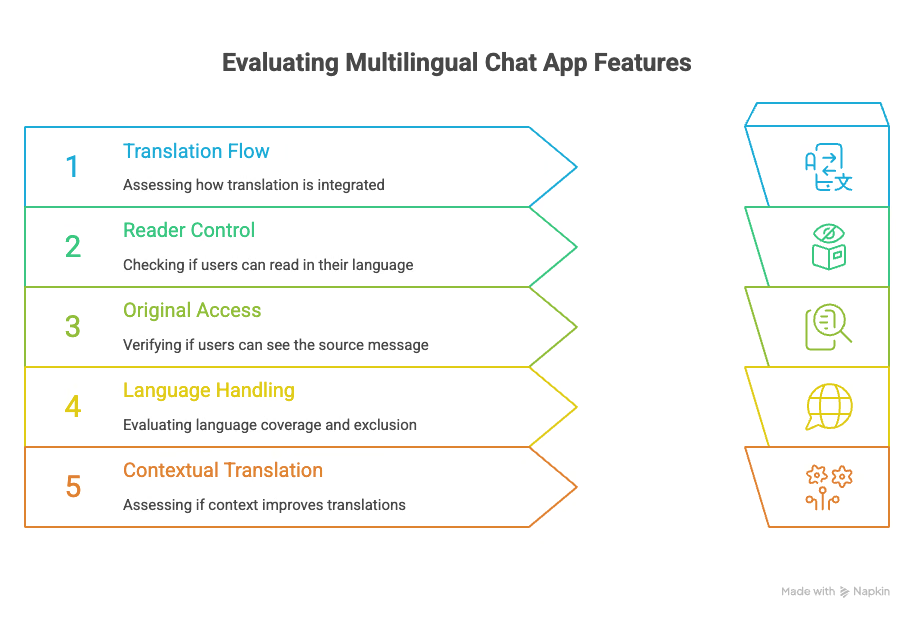
We evaluated each app on the factors that actually affect day-to-day multilingual communication:
- Translation flow: Does translation happen automatically, on demand, or only through a bot?
- Reader-level control: Can two people read one room in two different languages without affecting what others see?
- Original-message access: Can a reader check the source wording when a term, number, or name looks wrong?
- Language handling: How broad is the coverage, and can users exclude languages they already understand?
- Context and terminology: Can the system use conversation context, custom vocabulary, or user guidance to improve specialized translations?
- Chat quality: Are channels, rooms, threads, reactions, mentions, search, and notifications practical for daily work?
- Files and meeting continuity: Can the team translate the assets attached to a decision, not just the sentence introducing them?
- Guests and external collaborators: Can a client, vendor, or contractor participate without a complex account rollout?
- Privacy and administration: Who can read the message, where is it processed, and can an administrator govern translation?
- Price at the translation-enabled tier: A free chat plan is not relevant if the feature being compared requires a higher plan or a paid bot.
We reviewed official help centers and pricing pages for every product, then used the supplied current interfaces and G2 review captures as a reality check. Product limits and prices change, and regional billing can differ, so confirm the final quote before purchasing. More importantly, run a pilot with the languages, acronyms, file types, and privacy policies your team actually uses.
JotMe: Best for Multilingual Chat Rooms, Files, and Meeting Continuity
JotMe AI Chat builds translation into the chat room itself instead of treating it as a separate action. When an owner creates a room, they can set a reading language for each invitee. Members can write in their preferred languages, and JotMe translates each message into the reader’s selected language. Readers can also view the original text below the translation to check names, numbers, product terms, or specific phrases. Changing your reading language affects only your view, so it does not change what other members see.
JotMe also covers the core features teams expect from workplace chat, including named rooms, search, unread filters, pins, mentions, reactions, threads, formatting, and file attachments. More importantly, it connects chat with multilingual meetings and documents. Teams can share meeting notes, invite members to live translation sessions, and add translated files to a conversation. JotMe also provides an editable conversation summary that gives its translation model more context about the team’s goals, current work, and terminology.
Best for: Distributed project teams, agencies, customer-facing groups, and cross-border operations that need translated conversation plus translated working files in one place.
How to Set Up a Multilingual JotMe Chat Room
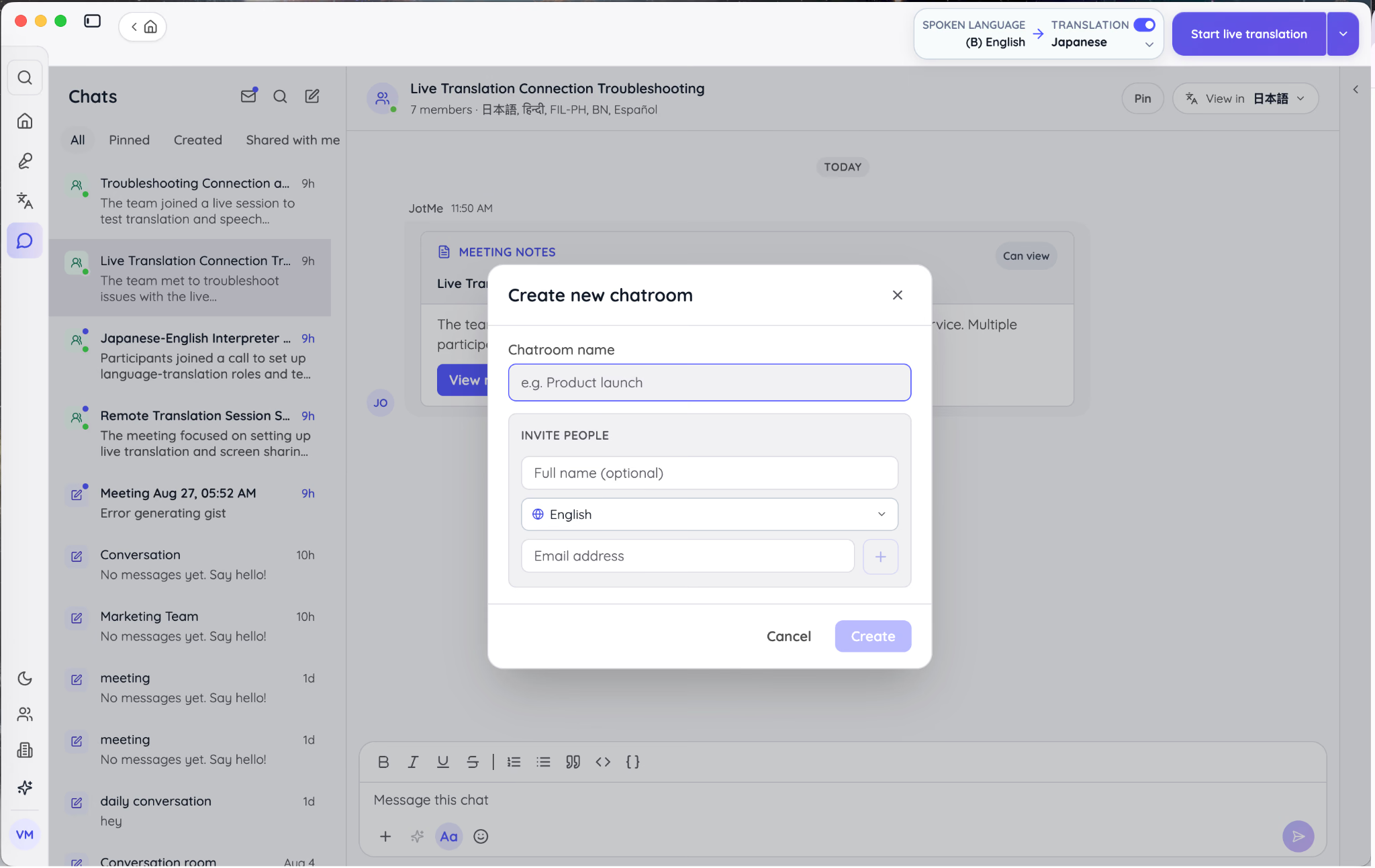
- Open Chats in the left navigation and select Create a chatroom.
- Enter a clear room name, such as Tokyo launch operations or French customer onboarding.
- Add an invitee's name and email address, then choose the language that person should read.
- Add more participants as needed. Each person can have a different reading language.
- Select Create, and invitees receive an email link and can join as guests without creating a paid JotMe account.
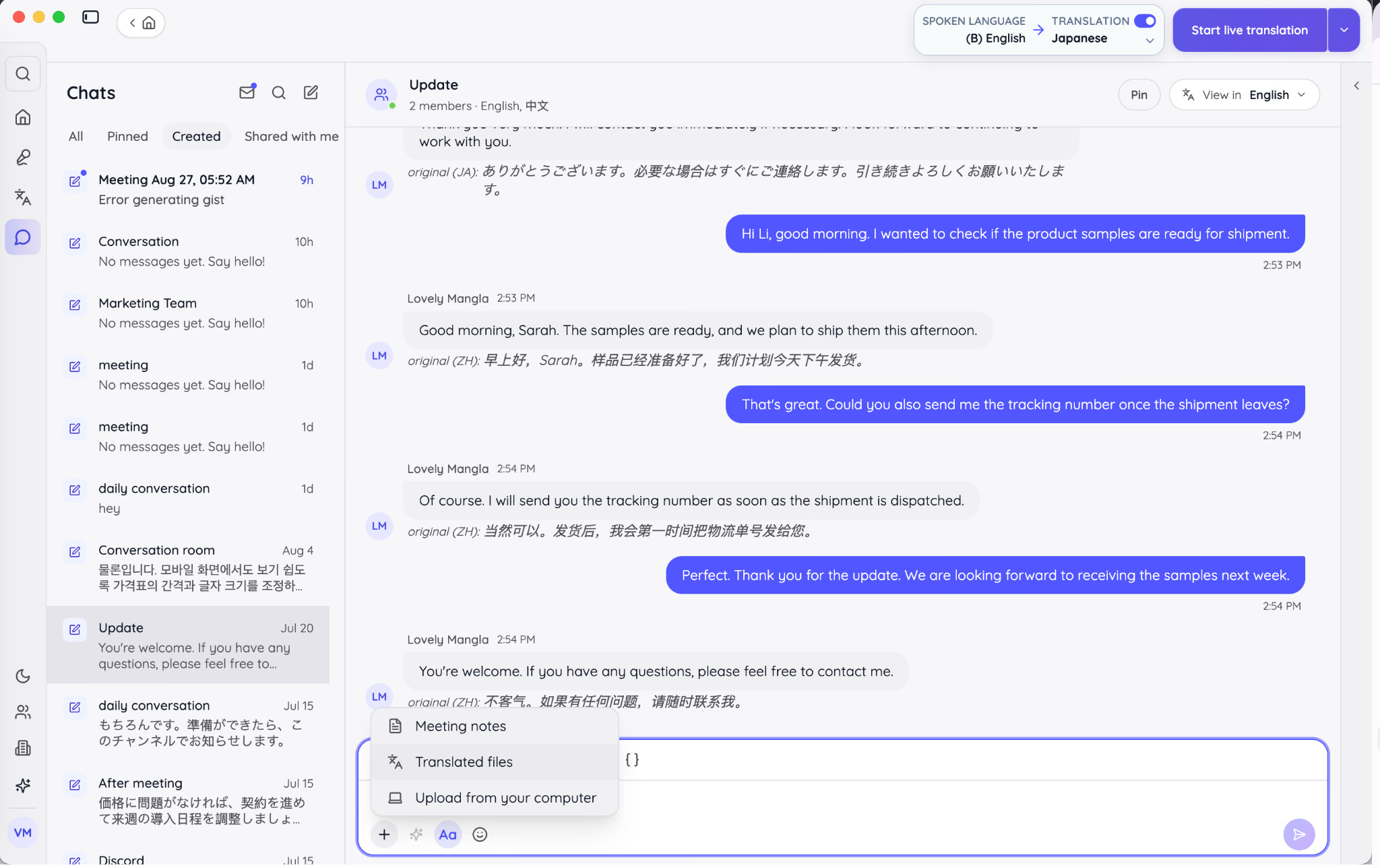
Once the room is active, each member writes in the language that feels natural. The View in control changes the current reader's display language. In the supplied English and Chinese example, the conversation is rendered in English while each original Chinese message remains directly below its translation. This is cleaner than a shared translation bot because the channel contains one message object, not a growing stack of source and translated reposts.
The room owner covers the translation and AI usage generated in that chat, while invited guests do not need their own plan. That model is convenient for a client room or a short vendor project, but owners should monitor usage when a room becomes large or file-heavy. It also makes cost ownership explicit, which is preferable to discovering that every external participant needs a paid seat.
How to Translate Text and Files From the JotMe Workflow
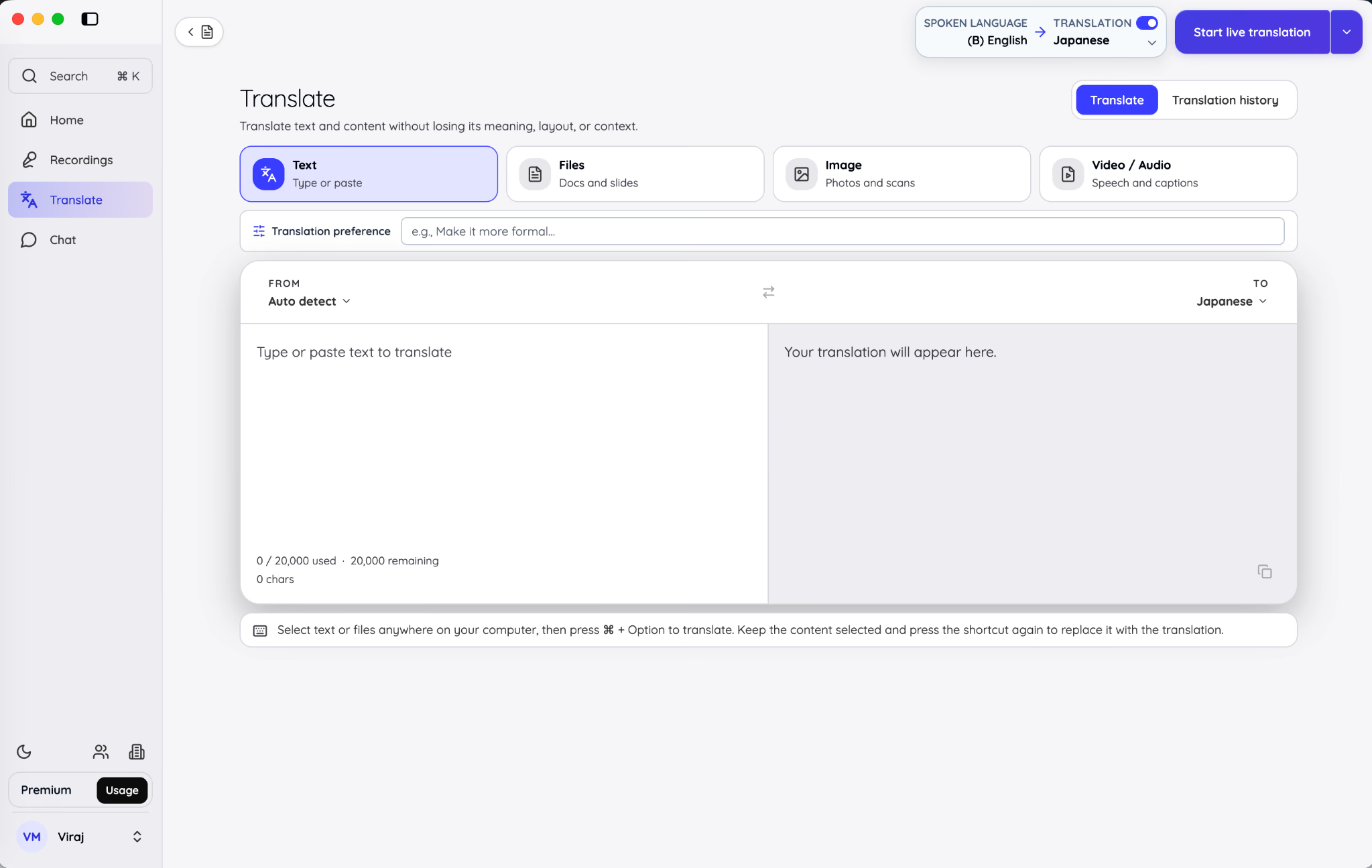
For a short passage, open Translate, choose Text, select the target language, and optionally add a translation preference. The preference can tell JotMe to keep a formal tone, preserve brand terms, or translate for a specific audience. The text translation workspace supports up to 20,000 characters in the current interface, making it suitable for announcements, support replies, and longer project updates.
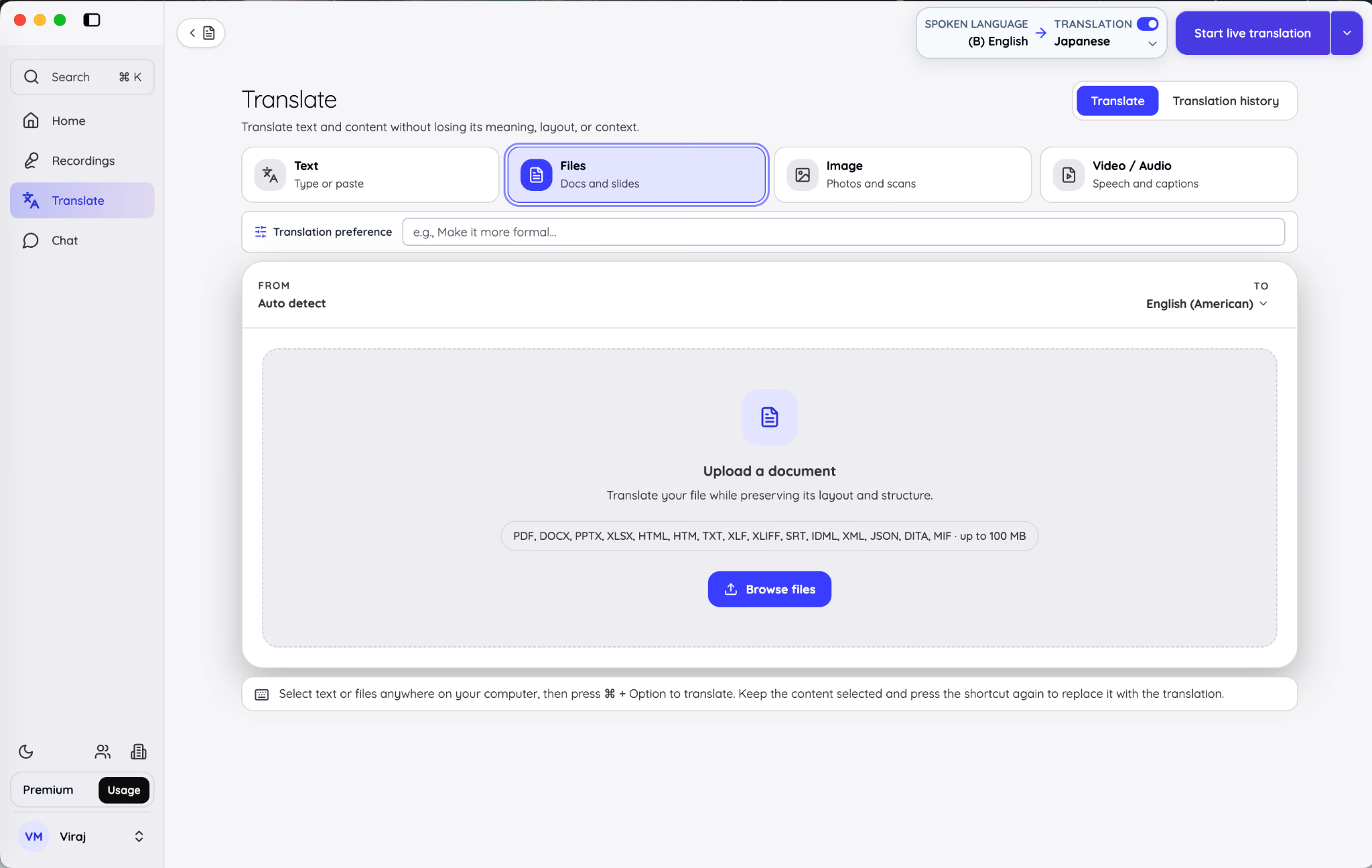
For a working document, select Files, choose the source and target languages, and upload your file. JotMe supports common office formats, PDFs, subtitles, localization files, and structured formats, with a 100 MB on-screen file limit. After translation, you can share the result through a link, email, or chat. Collaborators can compare the original and translated versions in their browser, while the owner controls whether recipients can view, comment, or edit the file.
For a step-by-step look at how to use JotMe as a free language translator for text and documents, you can also read our guide to see the full translation process.
This matters because multilingual collaboration usually breaks at the attachment. A chat app may translate “Please review the contract,” then leave the contract untouched. JotMe can keep the message, document, image, or audio/video asset inside the same translation-led workflow. It is the broadest translation surface in this comparison.
JotMe Pros
- Native, reader-specific translation keeps one clean conversation for everyone.
- The original wording remains visible for verification.
- Guests can join by email without buying a seat or setting up a full account.
- Rooms support threads, reactions, mentions, search, pins, and rich attachments.
- Conversation memory can provide context for more consistent translations.
- Native translation covers text, documents, images, audio, and video.
- Meeting notes and live translation invitations can move directly into chat.
JotMe Cons
- The chat product is newer and has fewer third-party workplace integrations than Slack or Microsoft Teams.
- The room owner is responsible for translation and AI usage, which needs monitoring in busy rooms.
JotMe Pricing
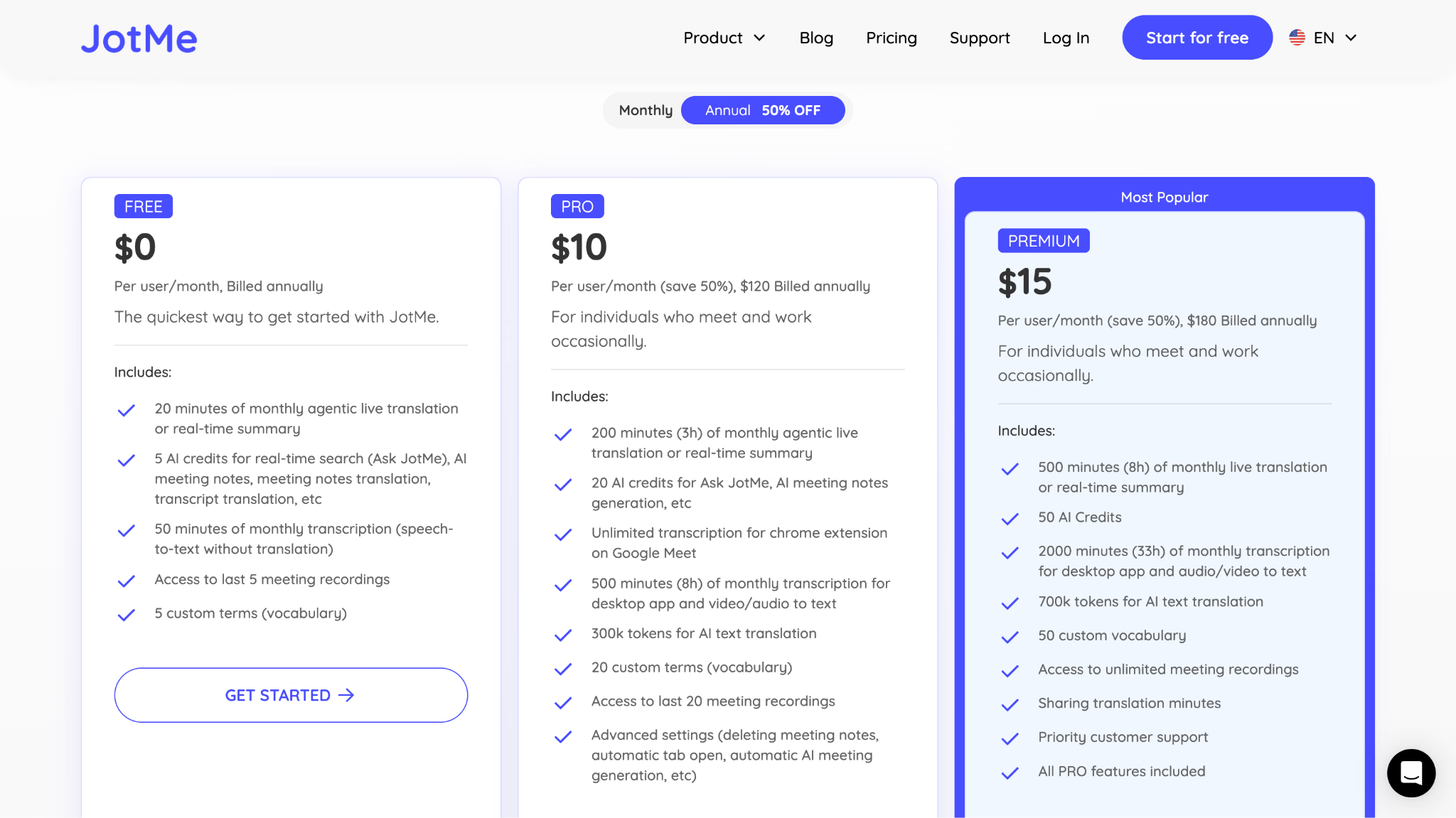
JotMe has a free plan with limited live translation, transcription, AI credits, recordings, and custom vocabulary. Pro starts at $10 per month when billed annually, Premium starts at $15 per month when billed annually, and Teams starts at $30 per month when billed annually. Check the official JotMe pricing page for current allowances because translation minutes and AI credits vary by tier.
Slack: Best for Integration-Heavy Teams That Can Add Translation Deliberately
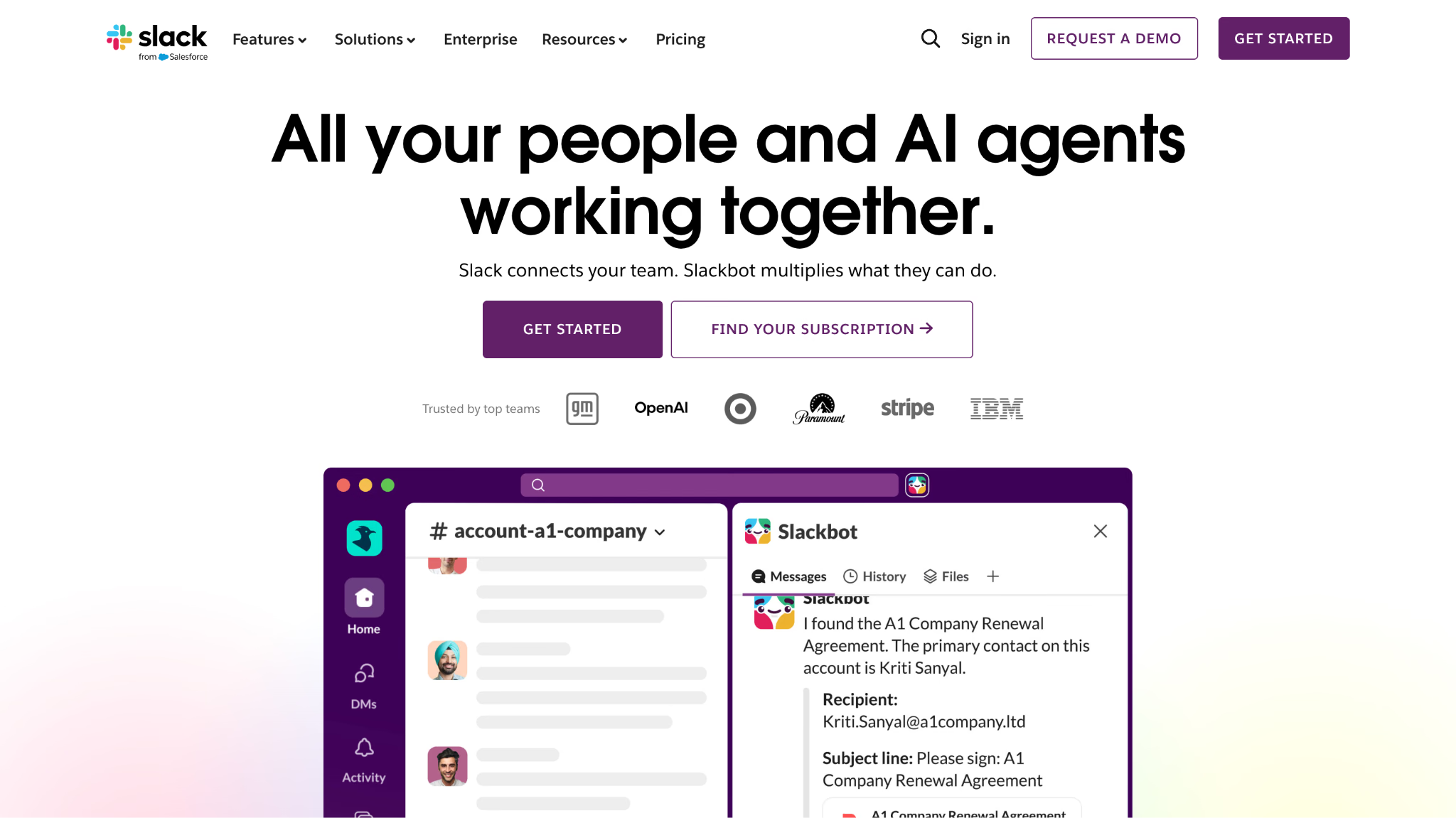
Slack remains one of the strongest pure team chat products. Channels separate projects and departments, threads keep side discussions attached to a message, huddles add lightweight voice and screen sharing, and a deep integration catalog pulls alerts and workflow actions into the conversation. For a company already running on Slack, those advantages are substantial. Search, saved items, canvases, clips, and workflow tools can turn chat into the front door for daily work.
Its multilingual story needs careful wording. Slack updates offer native message translation on eligible Business+ and Enterprise+ plans, but it is on demand. A user sets a translation language in Preferences, opens a message menu, and selects Translate message. The translation is visible only to that user. If a team wants every incoming message translated automatically, it needs a third-party Slack Marketplace app.
Best for: Established Slack teams that value integrations more than translation depth and can approve either the Business+ translation feature or a vetted translation app.
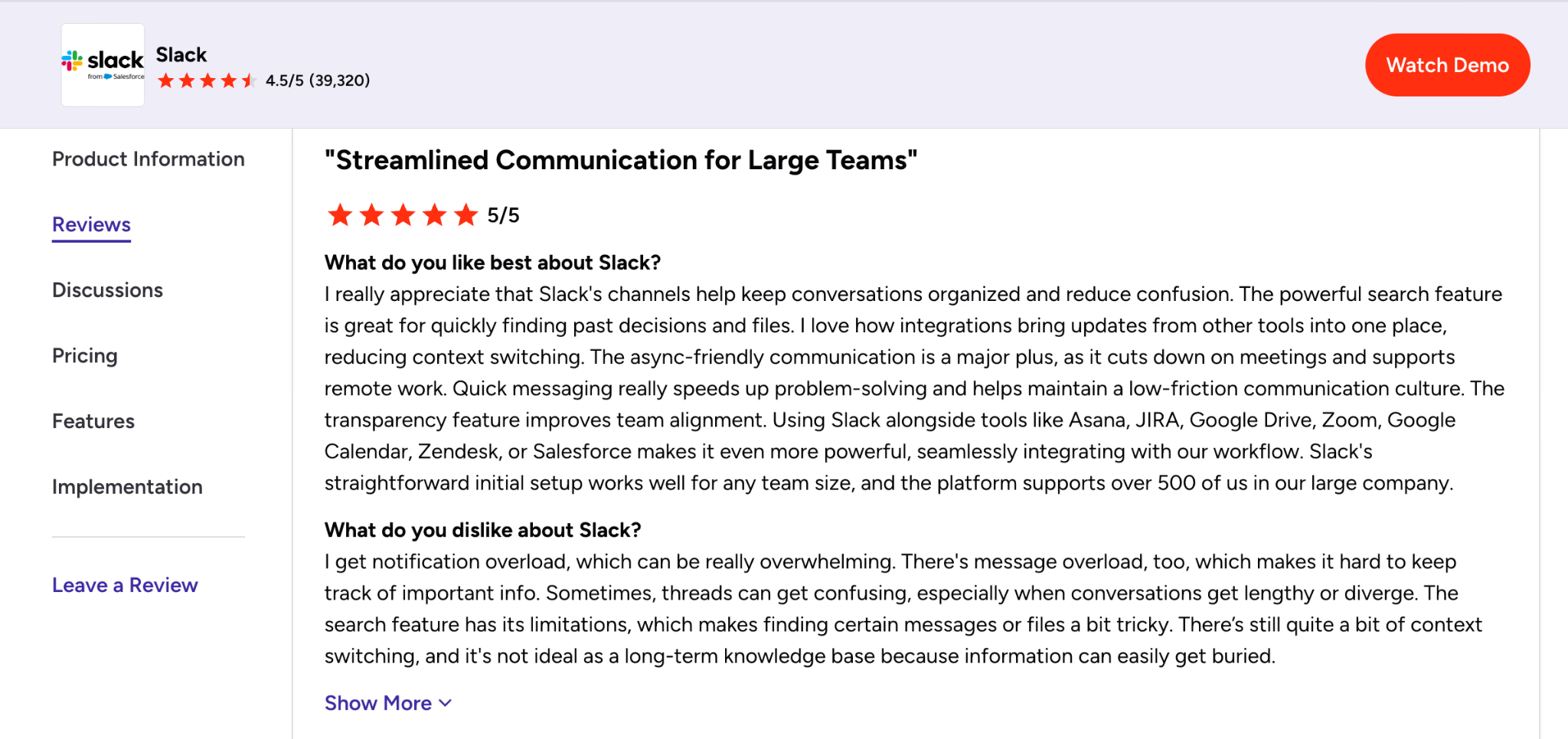
The supplied G2 review capture matches the strengths we see in practice. The reviewer praises channels, search, integrations, async communication, and fast problem-solving across a company of more than 500 people. The same review flags notification overload, confusing long threads, search limitations, and important information becoming buried. Translation can reduce language friction, but it does not solve those information-management problems.
Slack Pros
- Excellent channel, thread, huddle, search, and integration ecosystem.
- Native translation is private to the reader and preserves the shared channel.
- Mature administrative, security, and workflow options for larger companies.
- Familiar experience lowers rollout friction for teams already using Slack.
- Marketplace apps can add continuous or multi-language translation when approved.
Slack Cons
- Native translation is not automatic for every incoming message.
- Native translation requires Business+ or Enterprise+, not the Free or Pro tier.
- Continuous translation requires a third-party app with separate permissions and possibly separate pricing.
- High-volume workspaces can produce notification overload and fragmented knowledge.
- A bot that reposts translations may make already-busy channels harder to scan.
Slack Pricing
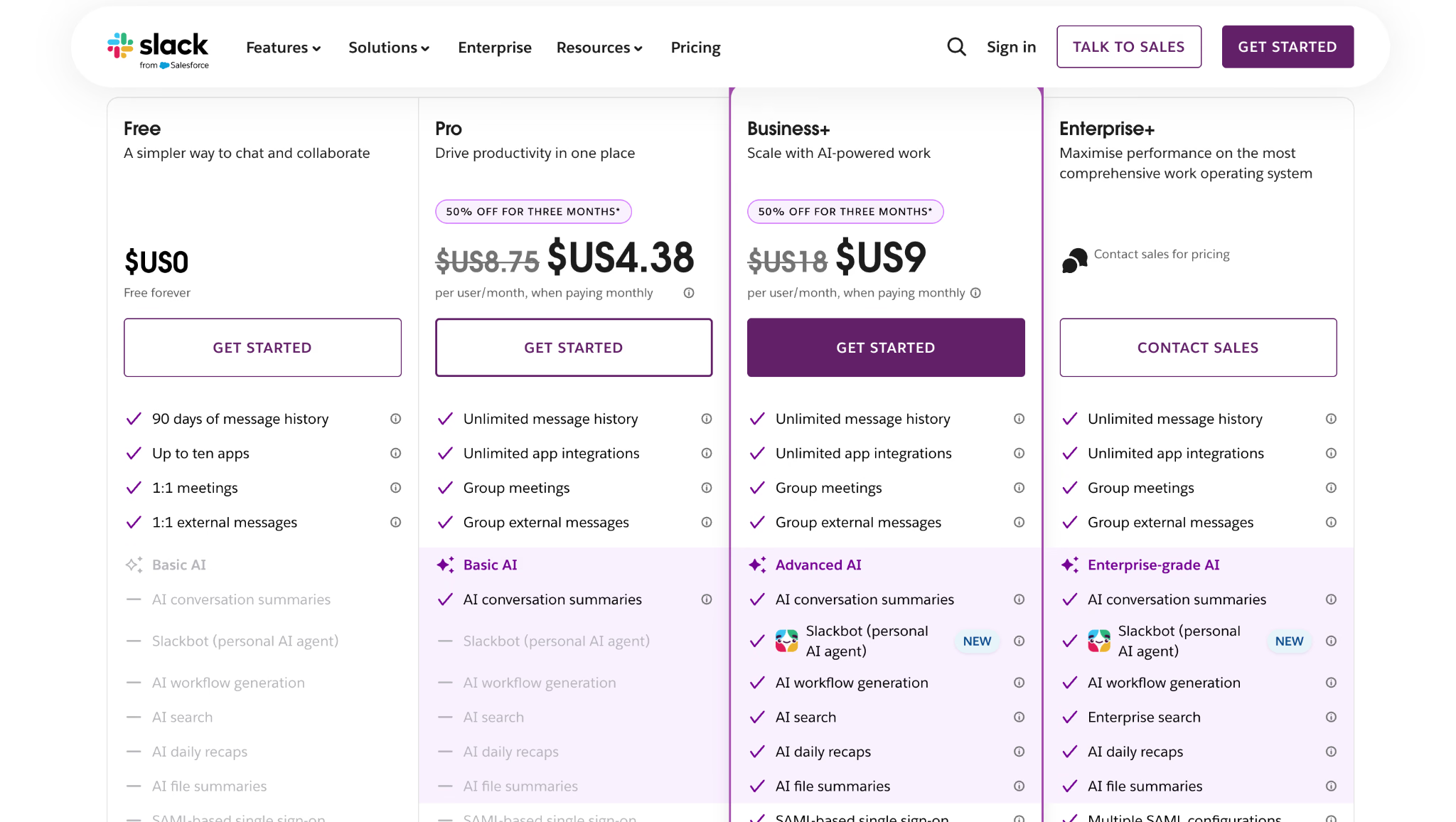
Slack Free includes 90 days of message history, up to 10 integrations, and basic one-to-one collaboration. Pro starts at $4.38 per user per month when billed annually. Business+ starts at $9 per user per month when billed annually, which is the relevant entry point for Slack's native message translation. Confirm current rates on Slack's official pricing page, and budget separately for any translation app.
Microsoft Teams: Best for Microsoft 365 Organizations
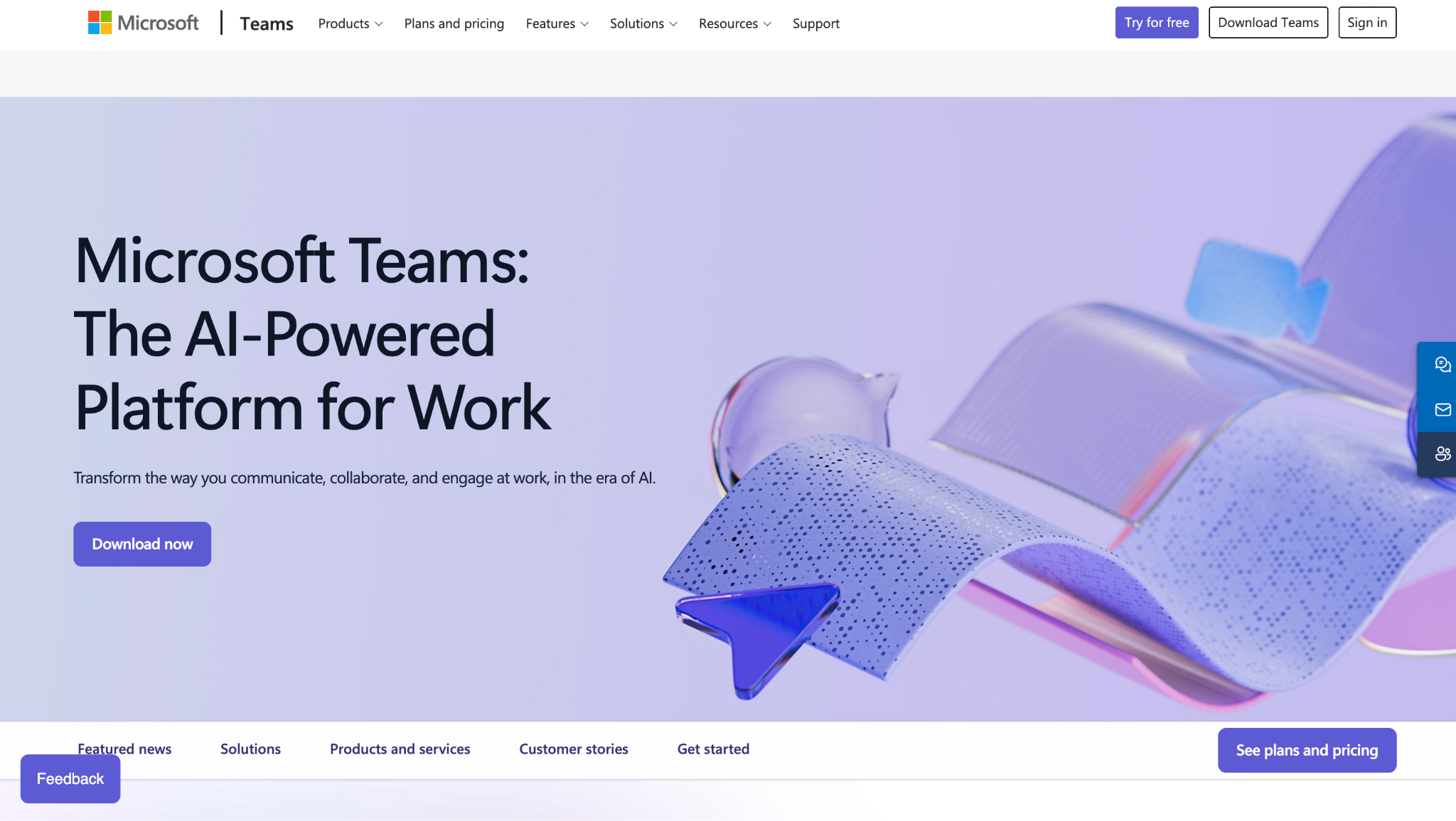
Microsoft Teams combines one-to-one and group chats, threaded channels, meetings, calls, file sharing, and Microsoft 365 collaboration in one platform. Teams connects conversations directly to Word, Excel, Loop, calendars, and other Microsoft tools, which makes it a practical choice for organizations already using Microsoft 365.
Teams also offers one of the strongest native translation workflows in this comparison. Users can translate individual messages or enable automatic translation for incoming chats. In Settings > General > Translation, they can choose a target language, translate messages automatically, ask before translating, or disable translation. Users can also exclude languages they already understand. Teams applies these settings to each reader, while keeping the original message available for reference.
A recent Teams update also expands language support, with Microsoft's current support documentation listing more than 100 supported languages. However, Teams may not automatically translate very short or ambiguous messages.
Best for: Companies already standardized on Microsoft 365 that want native automatic chat translation under existing identity, compliance, and administration controls.
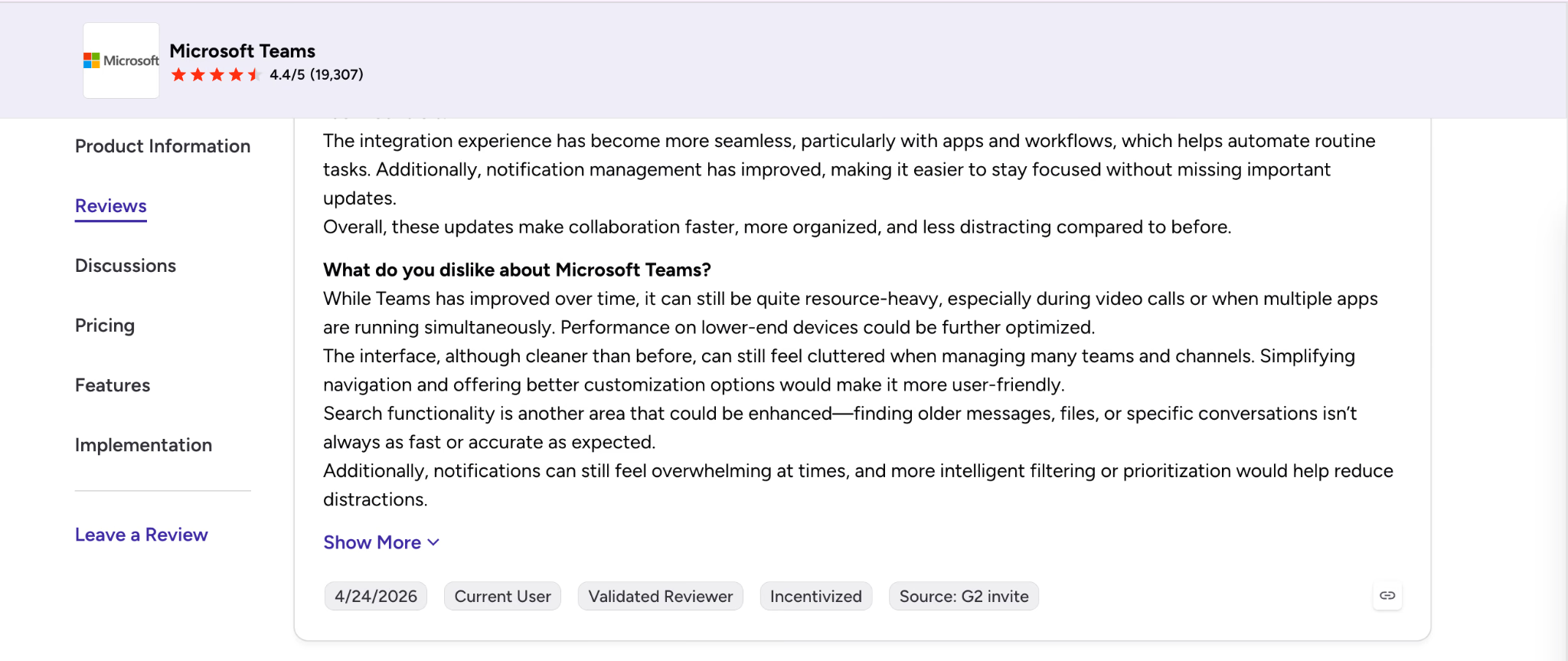
The G2 review highlights the tradeoff: better integrations and notification controls improve collaboration, but video calls can use significant resources, busy workspaces can feel crowded, older-message search can be inconsistent, and notifications can become overwhelming. Translation works well, but teams still need good information organization.
Microsoft Teams Pros
- Native automatic incoming-message translation with per-user language settings.
- Users can exclude languages they already read, reducing unnecessary translation.
- Deep connection to Outlook, OneDrive, SharePoint, Word, Excel, PowerPoint, and meetings.
- Strong administrative controls, identity integration, retention, and compliance options.
- More than 100 supported translation languages in the current help documentation.
Microsoft Teams Cons
- The interface can feel dense when chats, channels, meetings, files, and apps compete for attention.
- Performance can suffer on lower-end devices or during large video meetings.
- An administrator can disable translation, so availability depends on tenant policy.
- Short or unclear messages may not translate automatically.
- Teams is a less attractive standalone choice when the organization does not use Microsoft 365.
Microsoft Teams Pricing
Microsoft offers a free Teams plan for basic chat and meetings. Microsoft Teams Essentials starts at $4 per user per month, paid annually. Microsoft 365 Business plans bundle Teams availability differently by market, so organizations should verify whether Teams and the needed compliance features are included in their regional package.
Google Chat: Best for Google Workspace Teams
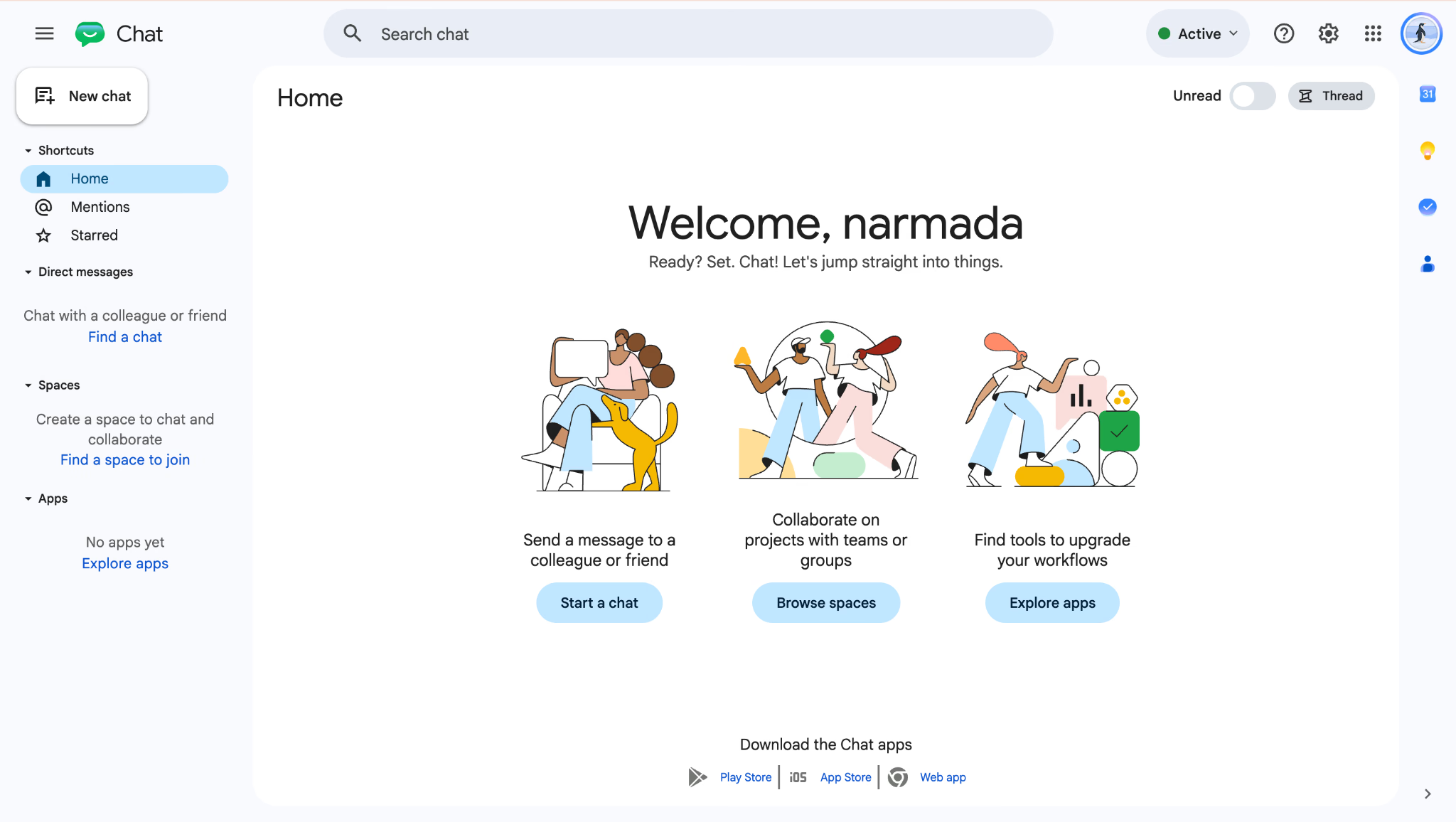
Google Chat is the most natural team messaging option for organizations that already work in Gmail, Drive, Docs, Sheets, Calendar, and Meet. Spaces organize projects, threads keep replies together, and shared files retain their Drive permissions. The interface is relatively restrained compared with Teams, and users can move between email, direct messages, spaces, and meetings without adopting a separate communication identity.
Its Automatic Translation setting converts supported incoming messages into the language associated with the user's Google account. The feature is enabled under Settings > Message & Media > Automatic Translation. A user can reveal the original, and the translated view is not imposed on other members.
Best for: Google Workspace organizations that want straightforward, reader-specific automatic translation inside Gmail and project spaces.
Google Chat is especially effective when multilingual conversation is attached to collaborative documents. A team can discuss a launch in a space, edit the Drive file, open a Meet call, and return to the same conversation. However, Google Chat does not translate an attached document in place as part of the message flow. Google Docs has its own document translation workflow, so users may need to open the file and create a translated copy.
Google Chat Pros
- Native automatic translation is personal to each reader.
- More than 120 language options through Google's translation infrastructure.
- Tight integration with Gmail, Drive, Docs, Sheets, Calendar, Tasks, and Meet.
- Clean interface and simple adoption for existing Workspace users.
- Original messages remain available when a translation needs verification.
Google Chat Cons
- Automatic Translation is limited to eligible paid Workspace or Google AI plans.
- Business Starter does not include the relevant Gemini in Chat translation capability on the current comparison page.
- Short or ambiguous messages may not be translated.
- Chat administration and advanced workflow depth are lighter than Slack or Teams.
- Document translation is a separate Google Docs action rather than an in-chat attachment workflow.
Google Chat Pricing
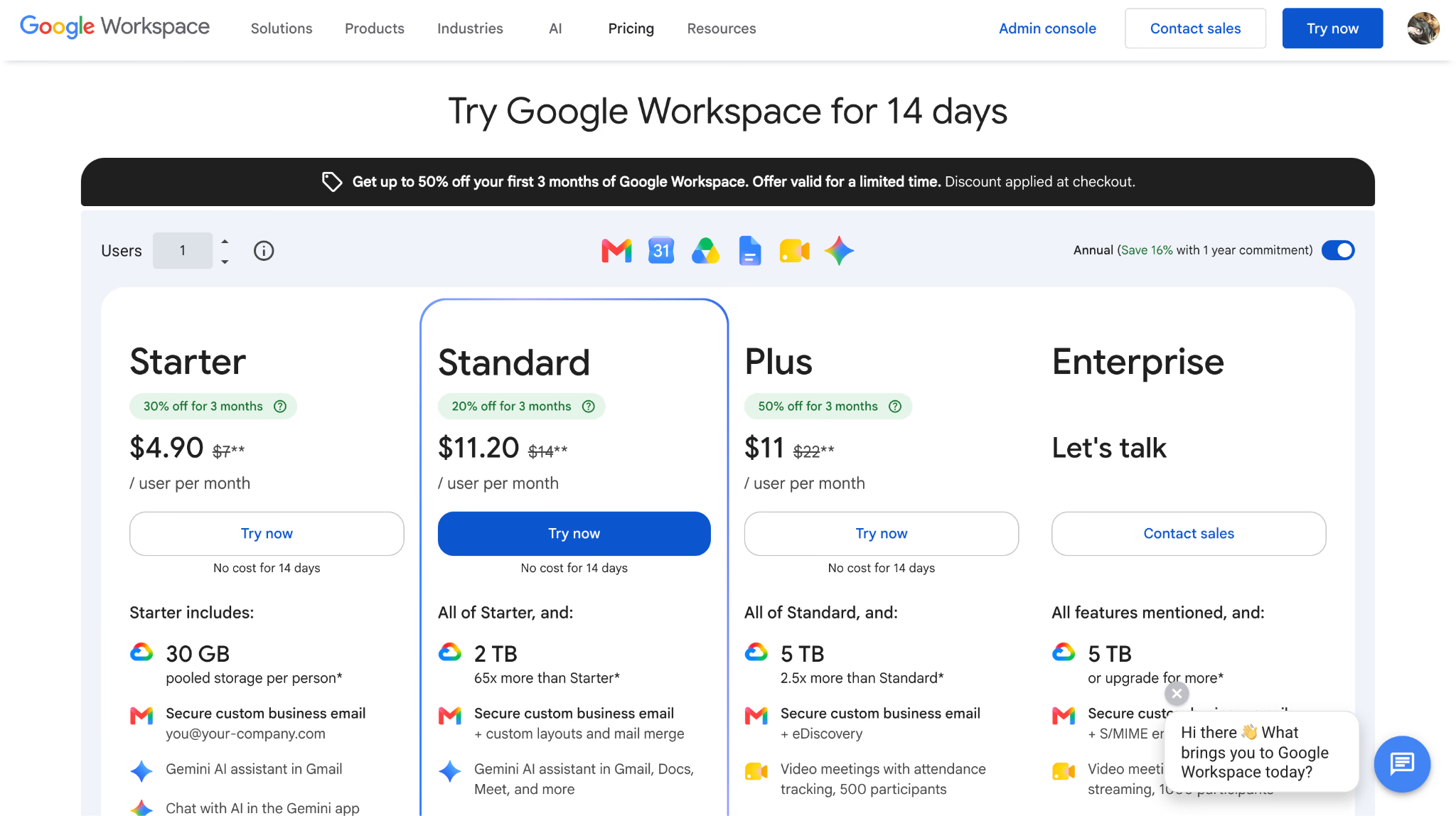
Google Chat is included with Google Workspace. Business Standard starts at $11.20 per user per month with an annual commitment and is the practical entry point in this comparison because the current plan table lists Gemini in Chat translation for Standard and higher tiers, not Business Starter. Business Plus and Enterprise add storage, security, and administrative controls. Verify eligibility on the official Google Workspace pricing page.
Discord: Best for Multilingual Communities and Voice-First Groups
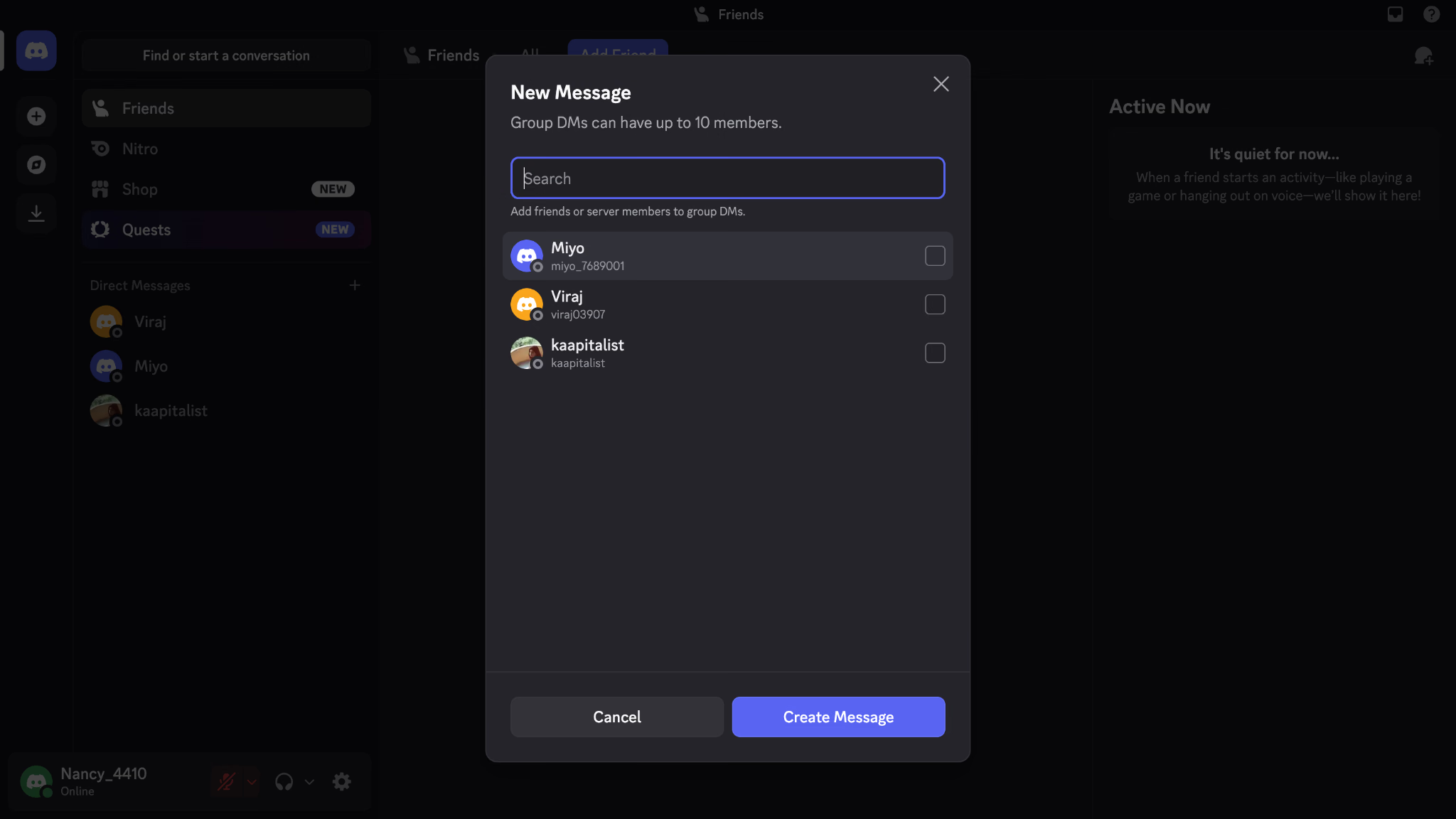
Discord works well for multilingual communities because it combines text, voice, announcement, stage, and forum channels with flexible roles, permissions, and threads. However, Discord does not offer native automatic message translation, so multilingual servers typically rely on third-party translation bots.
That makes the bot itself an important part of the setup. Depending on the tool, a translation bot may translate messages through commands, reactions, or automatic reposts. Some display translations inline, while others create a second translated message. Before adding one, admins should check which channels the bot can access, which service processes the messages, how it handles data, and what happens if the bot goes offline.
For a closer look at the available options, see JotMe's best Discord translator bot review. It compares the leading bots and their translation workflows.
Best for: International communities and informal teams that need excellent text and voice interaction and are comfortable governing a third-party translation bot.
For busy multilingual servers, language-specific channels can reduce duplicate translations, while a dedicated translated announcement channel can keep important updates accessible to everyone. Translation commands also work well for occasional mixed-language conversations. For confidential business communication, however, Discord's reliance on third-party bots makes it less suitable than platforms with built-in, user-specific translation.
Discord Pros
- Strong free core with text, forum, voice, video, streaming, roles, and moderation.
- Excellent sense of presence for communities and informal groups.
- Translation bots can automate selected channels or translate on request.
- Flexible server and channel structure supports language-specific spaces.
- Broad platform availability and low adoption friction for community members.
Discord Cons
- No native automatic message translation.
- Translation quality, privacy, uptime, and behavior depend on the chosen bot.
- Public bot replies can double message volume and fragment threads.
- Governance, retention, discovery, and compliance controls are not designed first for regulated workplaces.
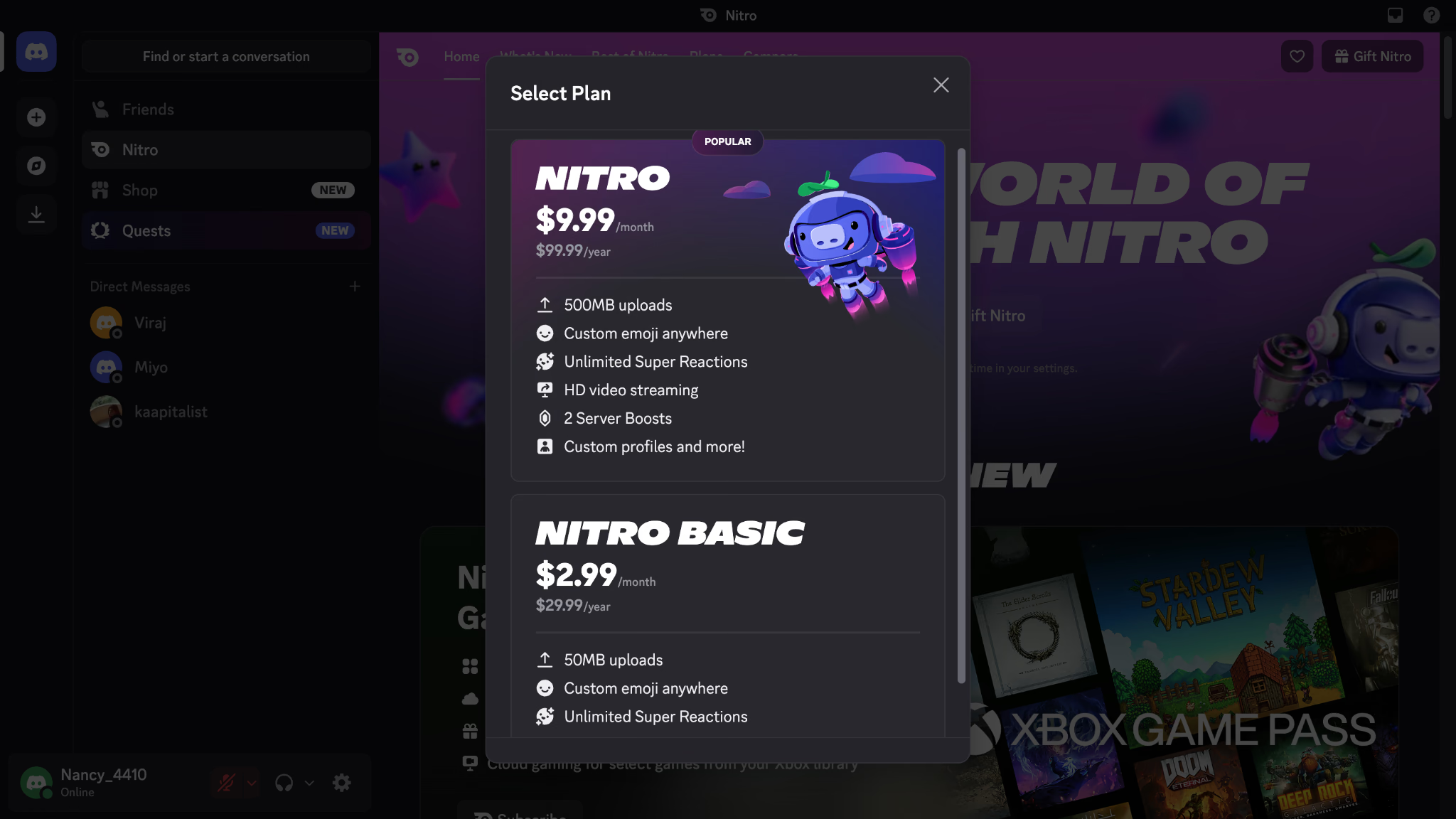
- Nitro does not add native translation, so a paid Discord plan does not solve the core requirement.
Discord Pricing
Discord's core server, text, and voice features are free. Nitro Basic starts at $2.99 per month, while the full Nitro plan adds larger uploads, higher-quality streaming, and profile customization. Translation bots may have their own free limits and subscriptions. Review Discord's official Nitro page for platform pricing, then evaluate the translation bot as a separate vendor and security decision.
Element: Best for Private, Self-Hosted, or Sovereign Collaboration
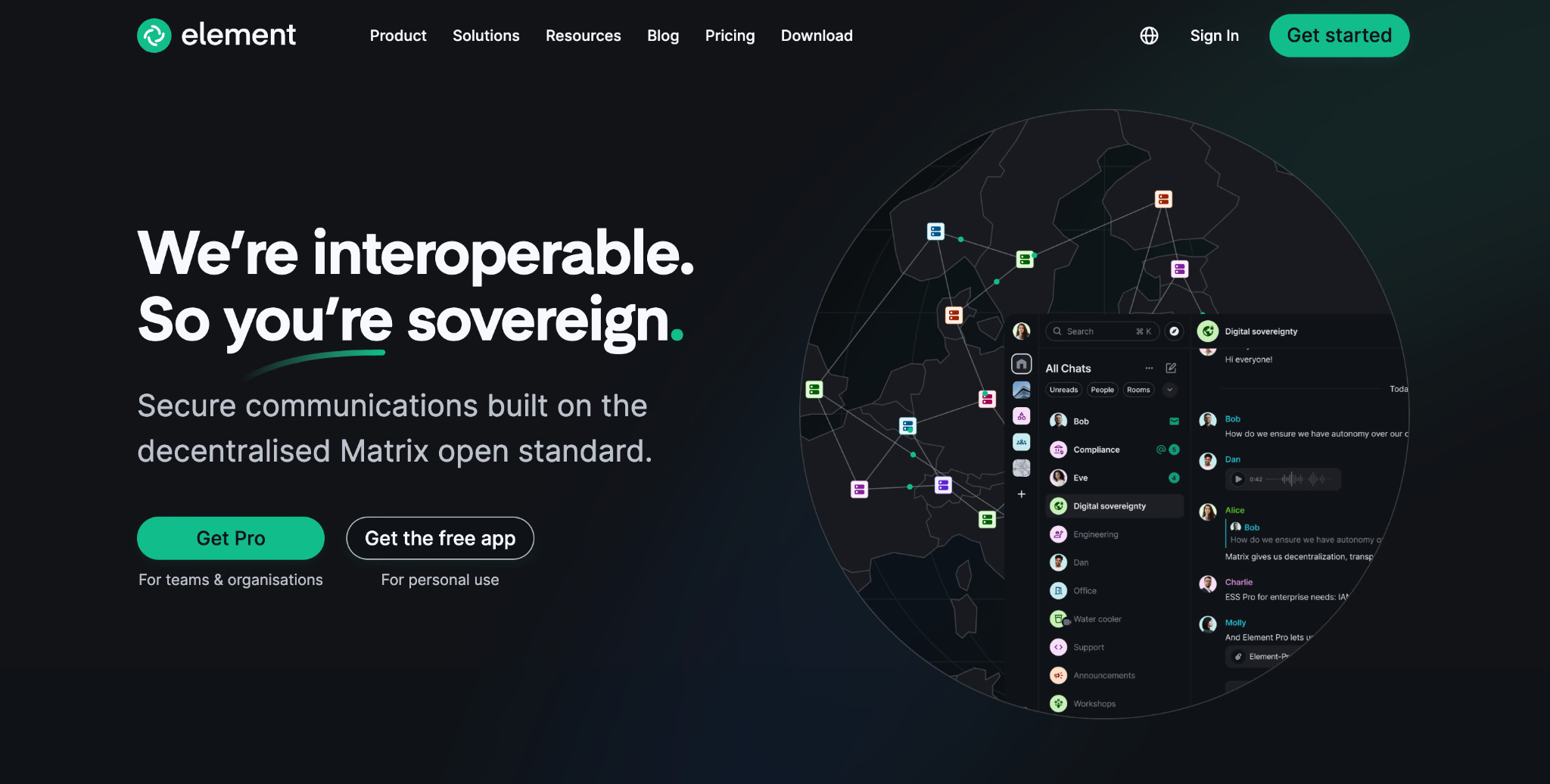
Element is a strong choice for teams that care more about privacy, control, and data sovereignty than built-in translation. It runs on the Matrix protocol and supports rooms, spaces, threads, reactions, voice and video calls, federation, and end-to-end encryption. Organizations can also host their own Matrix server and control where their data stays, which makes Element a practical option for teams with strict security or compliance requirements.
The main limitation is translation. Element does not include automatic message translation as a native feature. Teams need a Matrix bot, bridge, or custom integration to translate messages. That gives administrators more flexibility, but it also adds another layer to manage and secure.
This matters especially in encrypted rooms. If a translation bot sends messages to an external translation service, the message content leaves the organization's controlled environment. Teams with strict privacy requirements may therefore need a self-hosted translation solution or limit translation to specific rooms.
For multilingual teams, Element works best when security and infrastructure control come before translation convenience. It can support a highly controlled multilingual setup, but it requires more technical work than apps with built-in automatic translation.
Best for: Organizations that prioritize encryption and data control and have the technical capacity to operate a private translation integration.
Element is therefore not the easiest multilingual chat app, but it may be the only acceptable option in a sovereignty-first environment. A well-designed deployment can keep the homeserver and translation service inside the same controlled infrastructure. A casual team without Matrix administration experience will usually find JotMe, Teams, Google Chat, or Lark much faster to deploy.
Element Pros
- Open-source Matrix architecture with federation and self-hosting.
- End-to-end encryption and strong data-sovereignty options.
- Rooms, spaces, threads, voice, video, and bridges support serious collaboration.
- Custom integrations can be designed around an organization's exact language and retention requirements.
- No dependency on a single public cloud collaboration vendor.
Element Cons
- No native automatic message translation.
- A custom bot or integration requires technical design, hosting, monitoring, and maintenance.
- External translation can undermine end-to-end encryption if message content leaves the trusted environment.
- The interface and administration are less approachable than mainstream chat suites.
- Enterprise pricing is not publicly listed as a simple per-user figure.
Element Pricing
The open-source Element Community route can be self-hosted without a software license fee, although infrastructure and administration still cost money. Element Enterprise is priced per seat for self-hosted deployments, and Element Sovereign is priced per deployment, both through sales consultation.
Lark: Best All-in-One Chat Suite for Global Operations
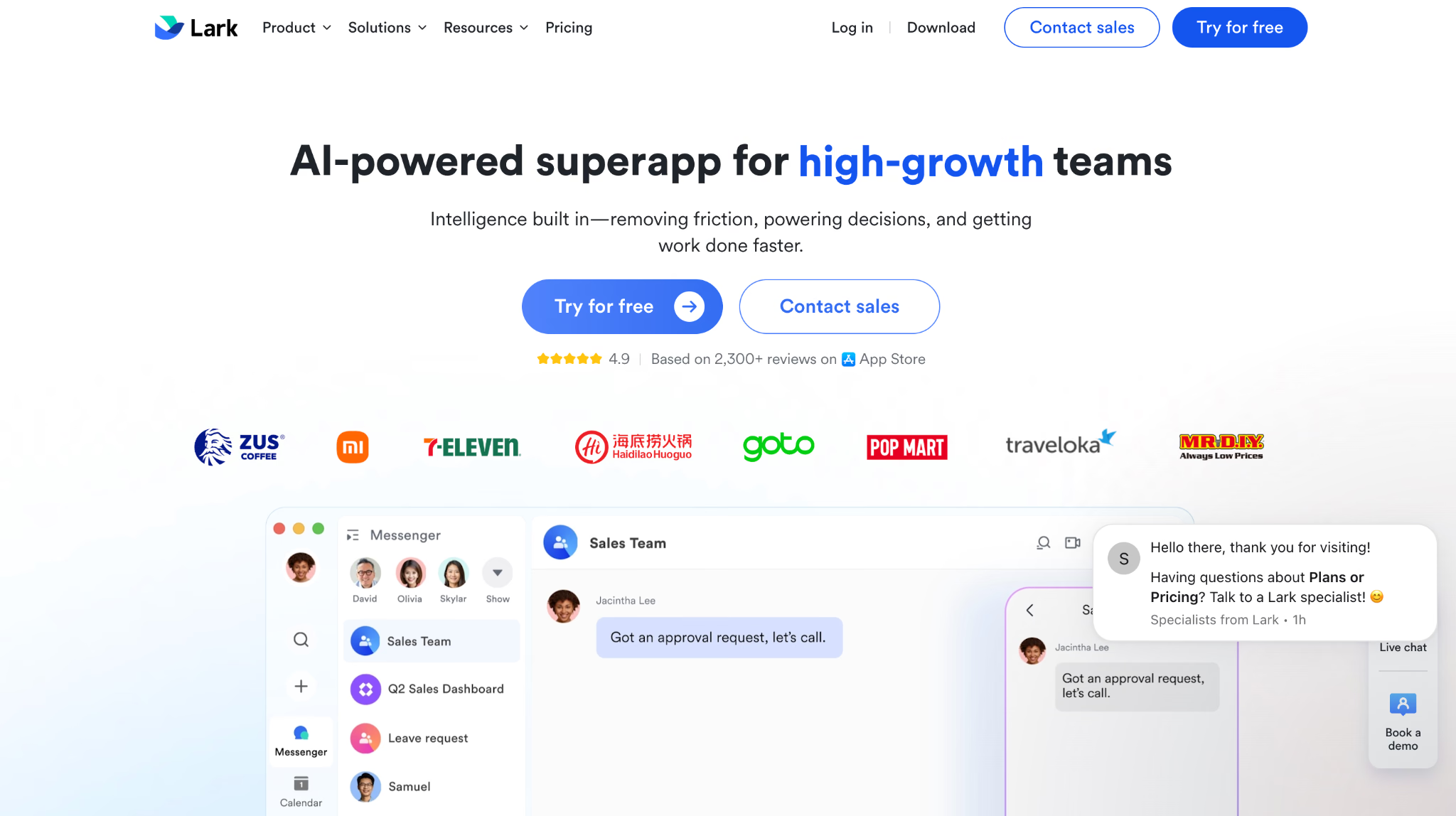
Lark works best for teams that want chat, documents, meetings, calendars, approvals, and other daily work tools in one workspace. Its chat supports one-to-one and group conversations, threads, rich cards, bots, file sharing, and links to other Lark tools. This setup makes particular sense for cross-border teams in retail, logistics, hospitality, and regional operations, where employees often need to move between messages, schedules, forms, approvals, and documents throughout the day.
Translation is built directly into Lark rather than added through a third-party app. Users can translate individual messages, turn on automatic translation for a chat, or translate their own message while typing. Lark also extends translation beyond chat to documents and meeting content, which helps teams keep multilingual communication connected across their workspace.
Lark supports more than 100 source languages and 24 target languages, according to its current global-collaboration information. However, language availability can vary by feature and surface, so teams should test their specific language pairs before choosing Lark for multilingual operations.
Best for: Cross-border organizations that want automatic chat translation and a broader work suite without assembling Slack, Docs, meetings, forms, and workflow tools separately.
Lark is the strongest seventh option because translation is part of the product rather than a Marketplace bot. A sender can translate while composing, which helps customer-facing teams check tone before a message leaves. A reader can enable auto-translation in a busy group. Shared documents can be translated without moving into a separate vendor. The tradeoff is that adopting Lark can feel like adopting a new operating system for work, not simply installing a chat app.
Lark Pros
- Native automatic translation for chats and translation while composing.
- Translation extends across messages, documents, and meeting content.
- All-in-one suite reduces switching between chat, docs, calendar, video, and workflows.
- Strong mobile orientation for distributed and frontline operations.
- Free Starter plan supports teams of up to 20 users.
Lark Cons
- The free plan's 20-user ceiling is restrictive for growing organizations.
- The suite can be more product than a team wants if it already has Microsoft 365 or Google Workspace.
- Target-language availability is narrower than the 100+ source-language headline.
- Migration and change management can be significant because Lark overlaps with several existing tools.
- Some enterprise governance and regional data requirements may require sales consultation.
Lark Pricing
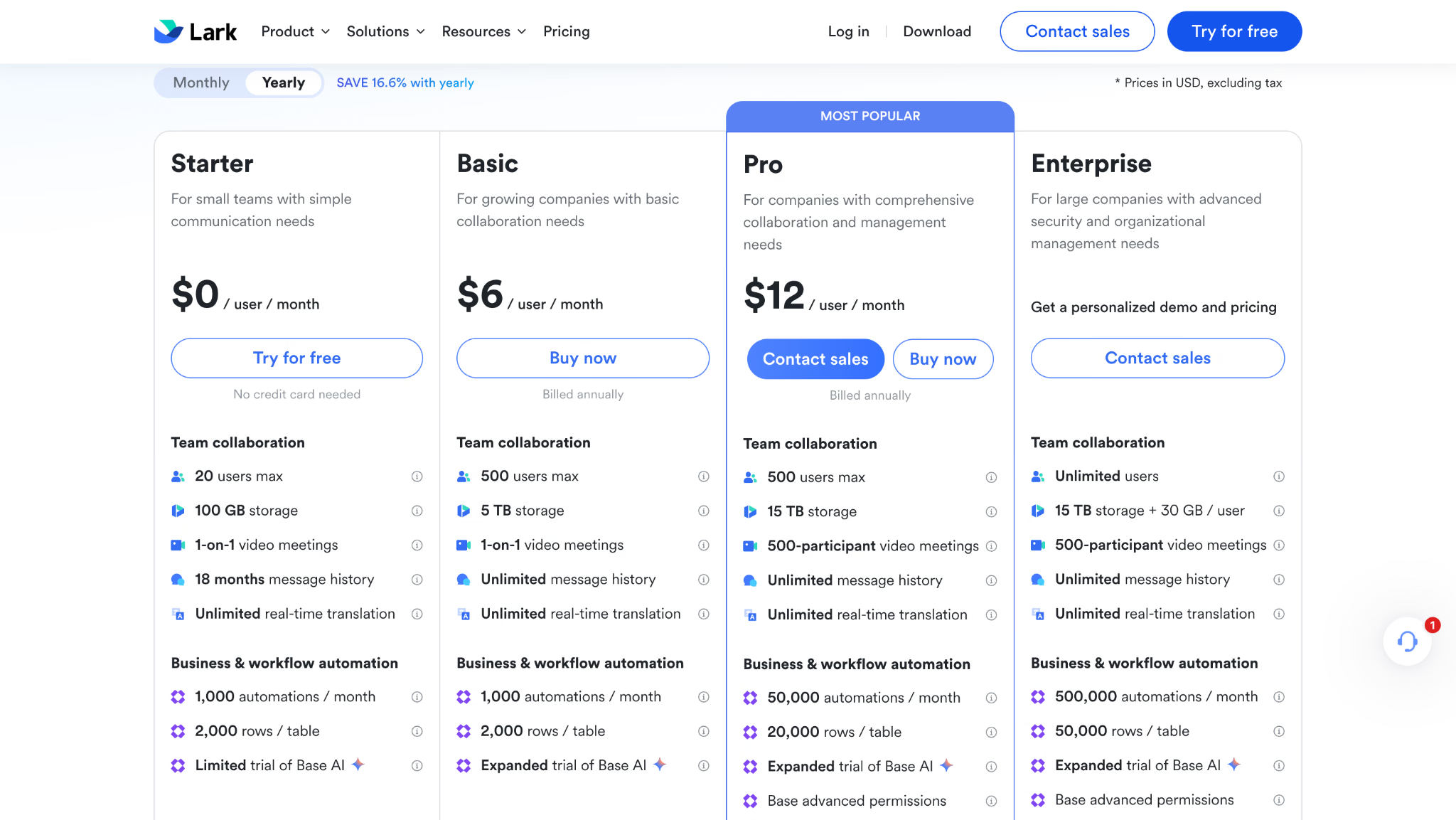
Lark Starter is free for teams of up to 20 users. Pro starts at $12 per user per month when billed annually, and Enterprise pricing is customized. The paid plan expands storage, meeting capacity, administration, and automation.
Which Multilingual Team Chat App Fits Each Use Case
The best multilingual team chat app depends on how your team works. These picks match common business needs with the platform that handles translation, collaboration, integrations, or data control best.
How to Choose Between Native Translation and a Translation Bot
Native translation is usually the better default for workplace chat. It can display the same message differently to each reader, keep the source available, follow tenant controls, and avoid repeated messages in the channel. JotMe, Teams, Google Chat, and Lark all fit this model, although their file support, plan requirements, and language settings differ.
A translation bot is most reasonable when the team cannot change chat platforms, the content is low risk, and administrators can vet the integration. A Discord community may value the bot's flexibility more than enterprise retention. A Matrix organization may build a private bot because control matters more than convenience. Slack teams may accept a Marketplace app because integrations are already central to the workspace.
Before approving a bot, ask five questions:
- Which channels and message types can the bot read?
- Does it send text to another translation provider, and where is that provider located?
- Are messages retained, used for model training, or logged for diagnostics?
- Are translations private to the reader or reposted publicly into the channel?
- What happens to translation access, history, and billing if the app is removed?
Which Workplace Chat App Should You Use
- If you use Microsoft 365: Choose Microsoft Teams. It gives you the most straightforward rollout when your team already works in Microsoft 365.
- If you use Google Workspace: Choose Google Chat. It keeps multilingual communication inside the Google ecosystem without adding another workplace suite.
- If you already use Slack: Keep Slack if on-demand translation meets your needs. If your team needs automatic translation, compare a translation app with migration before switching platforms.
- If multilingual communication is central to your work: Choose JotMe. It lets different people read the same room in their preferred languages without creating duplicate messages.
- If you need multilingual meetings and files alongside chat: Choose JotMe. You can connect conversations with meeting notes, live translation sessions, and translated files in the same workflow.
- If external participants use different languages: Choose JotMe. It works well when a single room needs to support internal teams, guests, clients, or partners across multiple languages.
- If you want an all-in-one global operations suite: Choose Lark. It combines chat, collaboration, documents, and translation in a broader workplace platform.
- If your team prioritizes communities and voice: Choose Discord. Its community-focused features make it a better fit for informal teams and voice-heavy communication.
- If infrastructure control is non-negotiable: Choose Element. It suits teams that need greater control over their communication infrastructure and can manage custom translation integrations.
If multilingual communication is a core part of your team's workflow, start with JotMe. Test it with your real conversations, meetings, files, and language pairs to see whether it can replace the fragmented workflow of separate translation tools.
Try JotMe for multilingual team communication and see how your conversations work when everyone can read in their preferred language.
Frequently Asked Questions
What is the best team chat app with automatic translation?
JotMe is the best overall option when automatic multilingual chat and translated files are both core requirements. Microsoft Teams is best for Microsoft 365 organizations, Google Chat is best for Google Workspace teams, and Lark is best for companies that want an all-in-one global work suite. The right choice depends on whether translation must be native, automatic, user-specific, and available for attachments.
Does Slack automatically translate messages?
Slack does not automatically translate every message with its native translation feature. Eligible Business+ and Enterprise+ users can translate individual messages from the message menu, and the translation appears only to the person who requested it. For continuous automatic translation, teams need a third-party Slack app, which means its permissions, data handling, and pricing need separate review.
Can Microsoft Teams automatically translate chat messages?
Microsoft Teams can automatically translate incoming chat messages after users enable the feature and select their preferred language. Users can also exclude languages they already understand. Administrators can control whether the feature is available, although Teams may not translate very short or ambiguous messages reliably.
Does Google Chat translate messages automatically?
Google Chat can automatically translate incoming messages when Automatic Translation is available on the user's eligible Google Workspace or Google AI plan. Messages appear in the user's preferred language, while the original text remains available for reference. The translation changes only the individual user's view, so other participants continue to see messages in their own language.
Can Discord translate every message in a channel?
Discord does not offer a native setting that automatically translates every message for each reader. Teams can add a third-party translation bot or custom integration that monitors a channel and posts translated messages. Before using one, administrators should check its permissions, data processing practices, and access to private conversations.
Is automatic translation safe for confidential team chat?
Automatic translation can work safely for confidential conversations, but the translation architecture matters. A native feature from your existing workplace platform usually creates fewer third-party data-sharing concerns than a bot that sends messages to an external service. Security teams should review data processing locations, retention periods, encryption, administrator controls, audit logs, subprocessors, and access to restricted conversations.
Which chat app can translate both messages and files?
JotMe provides the most complete combined workflow in this comparison, with multilingual chat rooms alongside text, document, image, audio, and video translation. Lark also combines message and document translation within its workspace. Microsoft Teams and Google Chat rely more on their broader productivity ecosystems for document translation, while Slack, Discord, and Element typically require additional tools or custom integrations for comparable workflows.
Last updated on
September 10, 2026
Follow us on social media:
![JotMe — Is Google Translate Accurate? [2026 Test]](/_webflow-assets/0d0512afc7b037d74dff536f22fed08f.avif)