



Desktop app for any meeting and event

Accurate live translation, multilingual transcription, meeting recordings, AI note taker, custom vocabulary, document translation, multilingual messaging, and an AI voice keyboard.

Mobile App for in-person conversation

Accurate live translation with AI-generated translated speech for iPhone and Android.

Chrome extension for Google Meet

Accurate real-time translation, live transcription, note-taker, AI meeting notes.
Add to
Chrome
A quick trial is available

How to install JotMe on Mac

Your JotMe for Mac download is on its way. Follow the three quick steps below to finish setup and start using AI live translation, transcription, and meeting notes across every call on your computer.

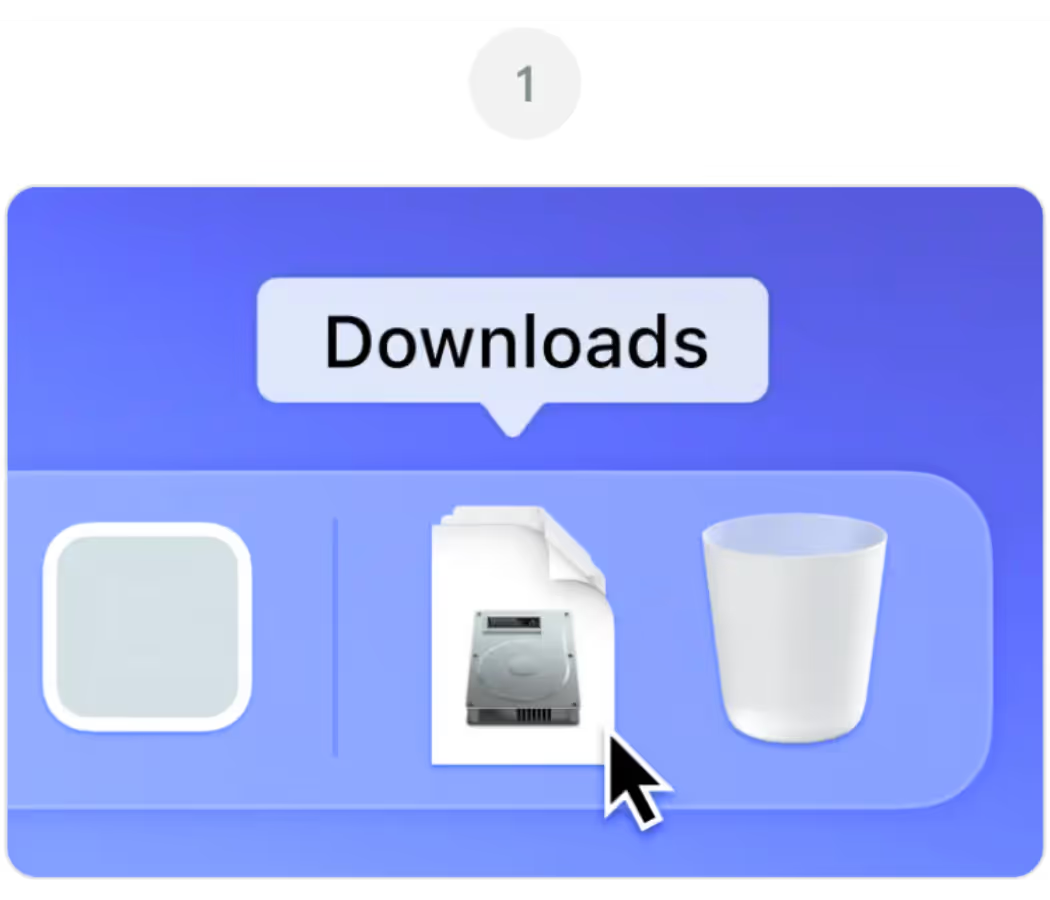
Open JotMe.dmg from your Downloads folder

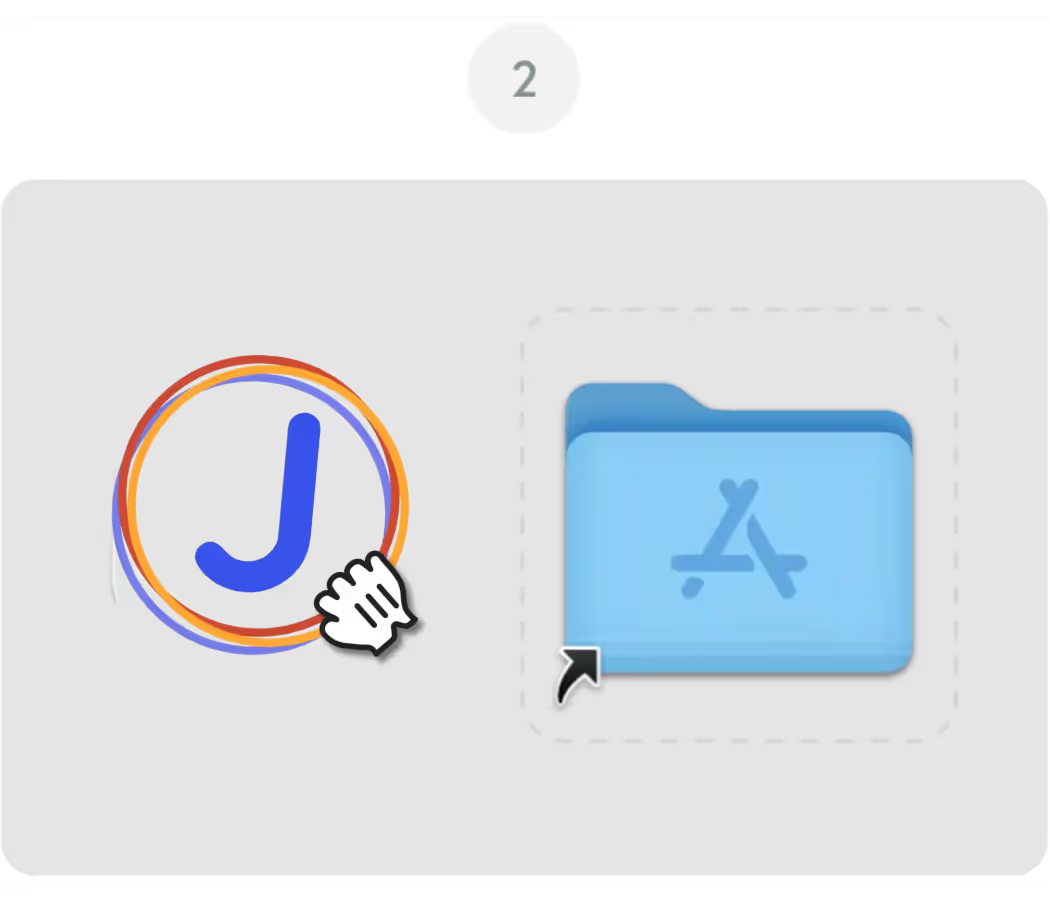
Drag the JotMe icon into your Applications folder

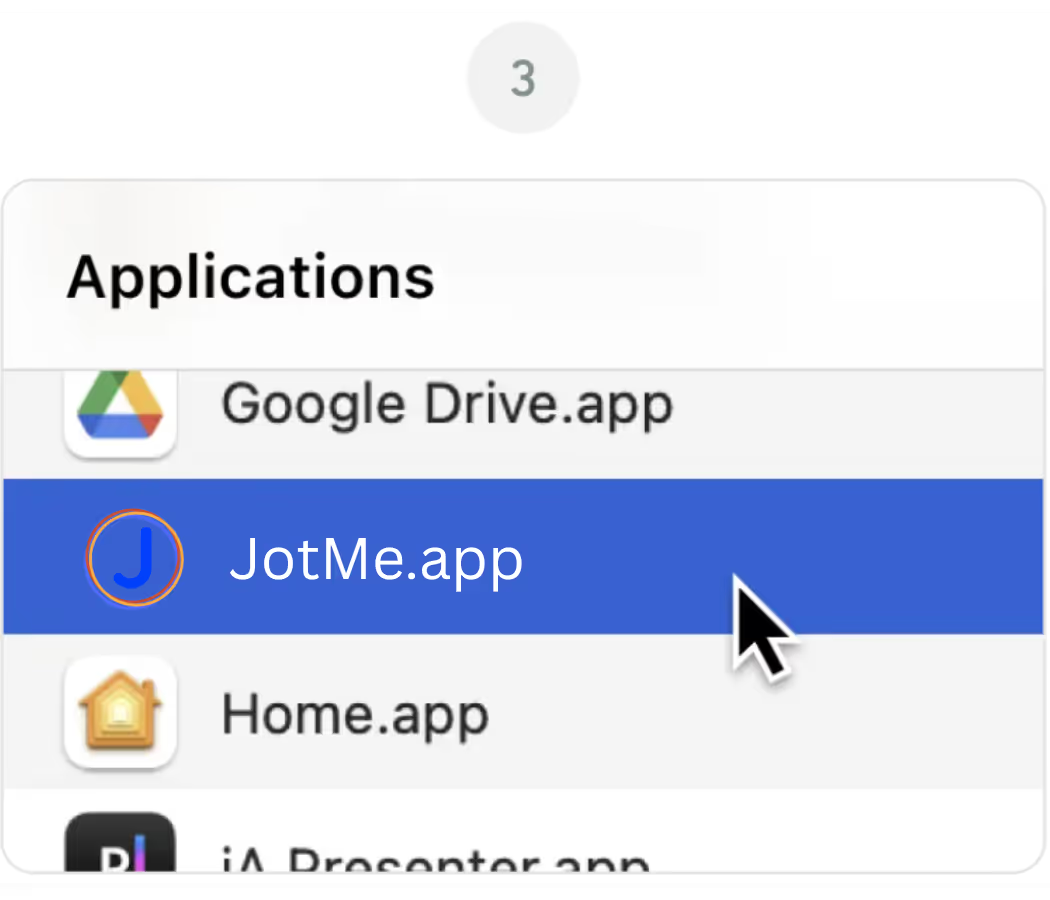
Open the JotMe app from your Applications folder

Desktop app for any meeting and event

Accurate live translation, multilingual transcription, meeting recordings, AI note taker, custom vocabulary, document translation, multilingual messaging, and an AI voice keyboard.

Mobile App for in-person conversation

Accurate live translation with AI-generated translated speech for iPhone and Android.

Chrome extension for Google Meet

Accurate real-time translation, live transcription, note-taker, AI meeting notes.
Add to
Chrome
A quick trial is available
Download Again

Frequently Asked
Questions

1. The download didn't start automatically. What do I do?

If the latest version of the JotMe Mac file didn't download automatically, click the "Download Again" button on this page. Check your browser's download settings if the issue continues, and make sure pop-ups and downloads from jotme.io are allowed.

2. Which Mac version do I need for JotMe?

The main JotMe download on this page is built for Apple Silicon Macs (M1, M2, M3, M4, and later). If you're on an older Intel-based Mac, use the Download for Intel Mac option instead for the best performance.

3. macOS is blocking JotMe from opening. How do I fix it?

If macOS shows a message about an unidentified developer, go to System Settings, then Privacy & Security, and click "Open Anyway" next to the JotMe entry. This is a standard macOS security prompt and only happens on the first launch.

4. Do I need to grant any permissions after installing JotMe?

Yes. On first launch, JotMe will ask for microphone and screen recording permissions so it can capture meeting audio and provide live translation, transcription, and AI meeting notes. You can manage these anytime under System Settings, Privacy & Security.

5. Can I use JotMe on Mac and Chrome at the same time?

Yes. The JotMe Mac app and the JotMe Chrome extension share the same account and dashboard, so you can switch between the desktop app for Zoom and Teams and the Chrome extension for Google Meet without losing your transcripts or settings.