


Availability note for Brazil: Discord currently disables screen sharing, Go Live streams, and real-time video for users in Brazil. Voice calls and text messaging remain available. The steps below apply where screen sharing is available; changing capture settings will not restore a regionally unavailable feature. See Discord’s current Brazil availability notice.
On a Discord call and need to show someone how to change a setting or use an app?
Sharing your Discord screen lets other participants see exactly where to click and follow each step as you explain it. I tested Discord screen sharing on Mac and Android with a colleague, checking that they could see the page and hear the app’s sound. I also tried an English–Japanese conversation with JotMe running beside my browser.
When I shared the entire Mac screen, my colleague could see the webpage and read the live translated captions on their phone. This guide explains how to screen share on Discord on desktop and mobile, include sound, and fix common problems. It also shows how to use JotMe to display translated captions alongside the content you share.
Key Takeaways
- You can share your screen in a Discord private call, group call, or server voice channel.
- You can share one application to show a webpage or presentation during a Discord call. Alternatively, select Entire Screen to show multiple windows.
- If you want to include app sound while sharing the Discord screen, turn on Share App Audio on Android or leave Mute stream audio unchecked on Mac.
- If the sharing button is missing in a Discord server, ask an administrator to check your Video permission.
- JotMe provides live translated captions for multilingual Discord calls. To show viewers the captions, keep JotMe beside your content and share the entire screen.
How to Screen Share on macOS and Windows?
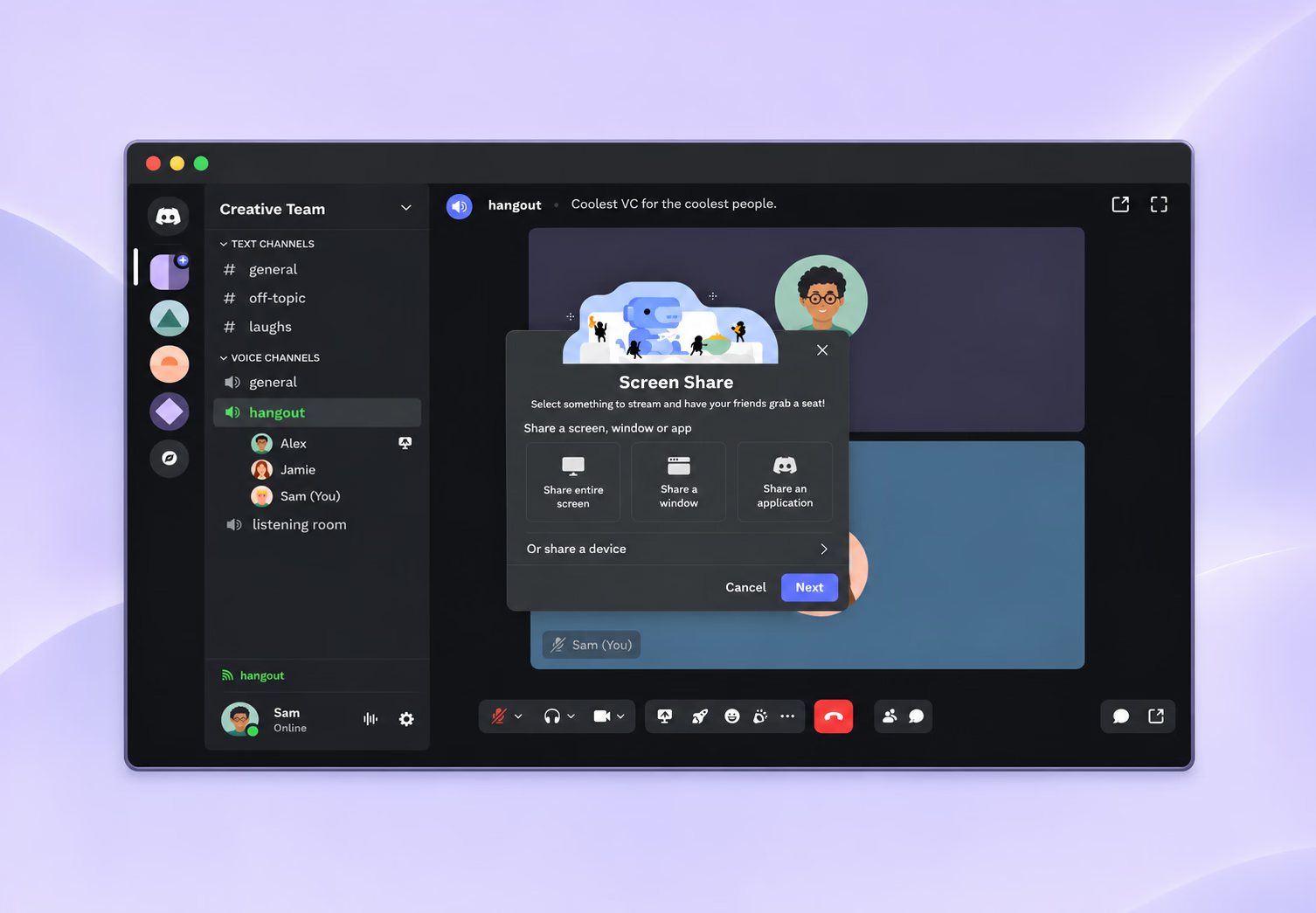
If you want to share your screen on macOS or Windows, join a Discord call or voice channel, click Share Your Screen, and select the application or display you want to show. Check the sound and quality settings, then confirm sharing.
How Do You Share Your Screen in a Private Discord Call?
To share your screen in a private Discord call, open a direct message, start a voice or video call, and click Share Your Screen once you are connected. You can then show one application or your whole display to that person.
Step 1: Start the Voice Call
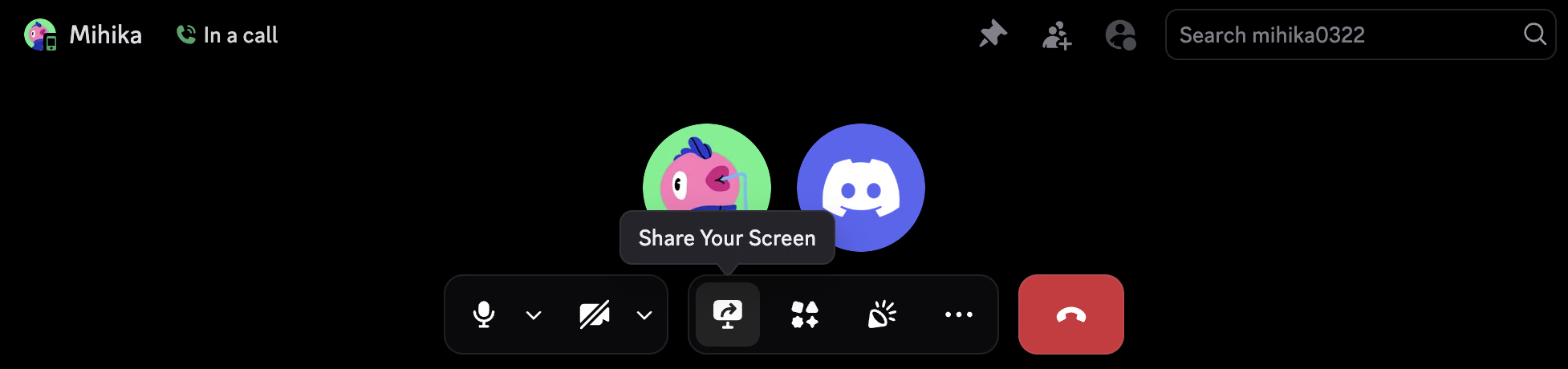
Open the direct message with whom you would like to have a voice call in Discord and click the phone icon at the top. Once you are both in the call, look for the monitor icon with an arrow. Hover over it, and you will see Share Your Screen. You can turn the camera on or off while sharing the screen.
Step 2: Choose an Application or Entire Screen
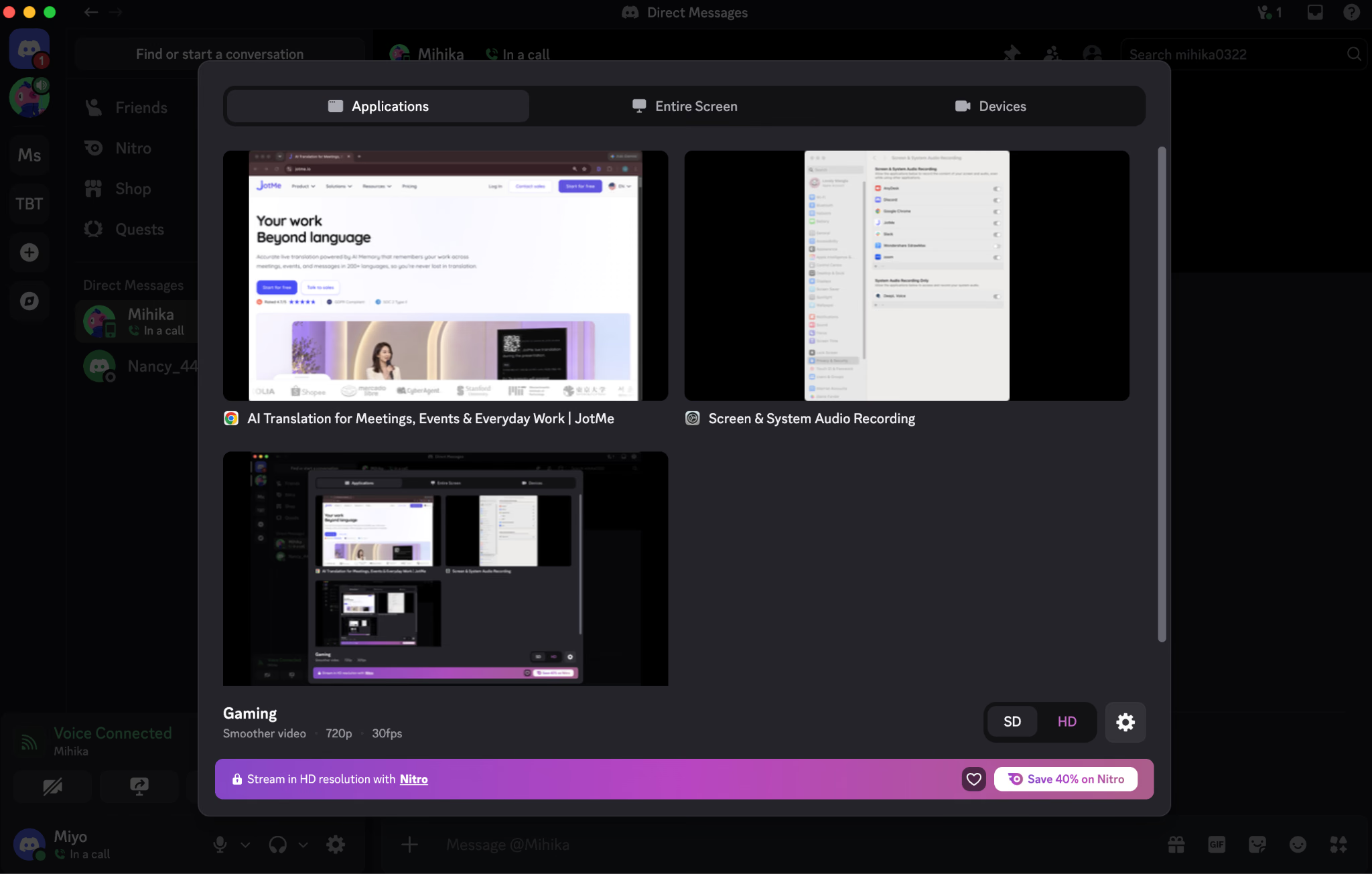
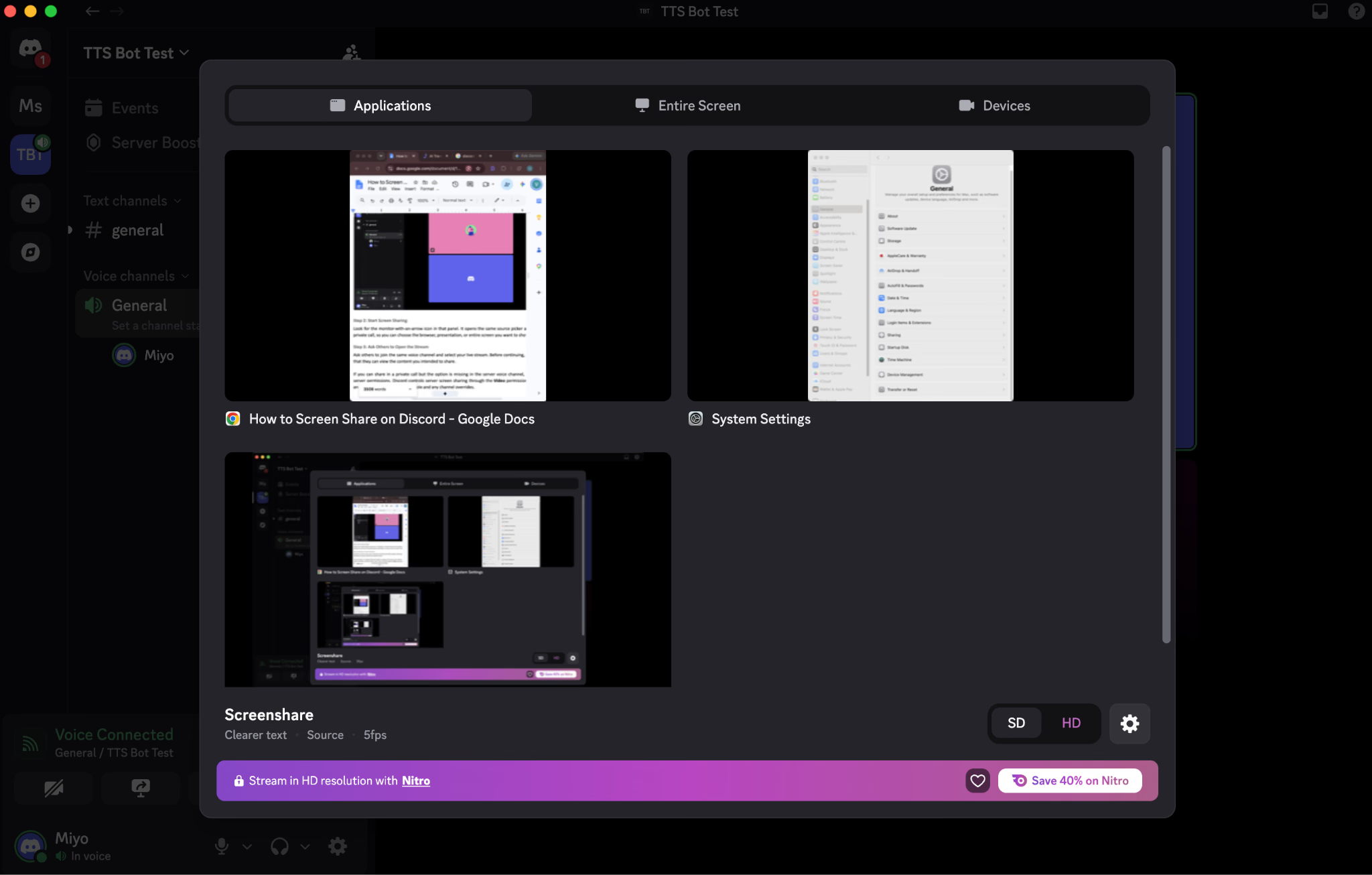
Click Share Your Screen to open the source picker. You will see Applications, Entire Screen, and Devices across the top. You can choose Applications if you only need to show one app. Choose Entire Screen when you will move between windows or want to include a separate caption window.
Step 3: Check Quality and Audio Settings
Open the gear menu in the sharing picker to see the available modes.
| Mode | Settings | Useful for |
|---|---|---|
| Gaming | Smoother video: 720p, 30fps | Moving video and gameplay |
| Screenshare | Clearer text: Source, 5fps | Webpages, documents, or mostly static slides |
| Custom | Available manual settings | Choosing the available settings yourself |
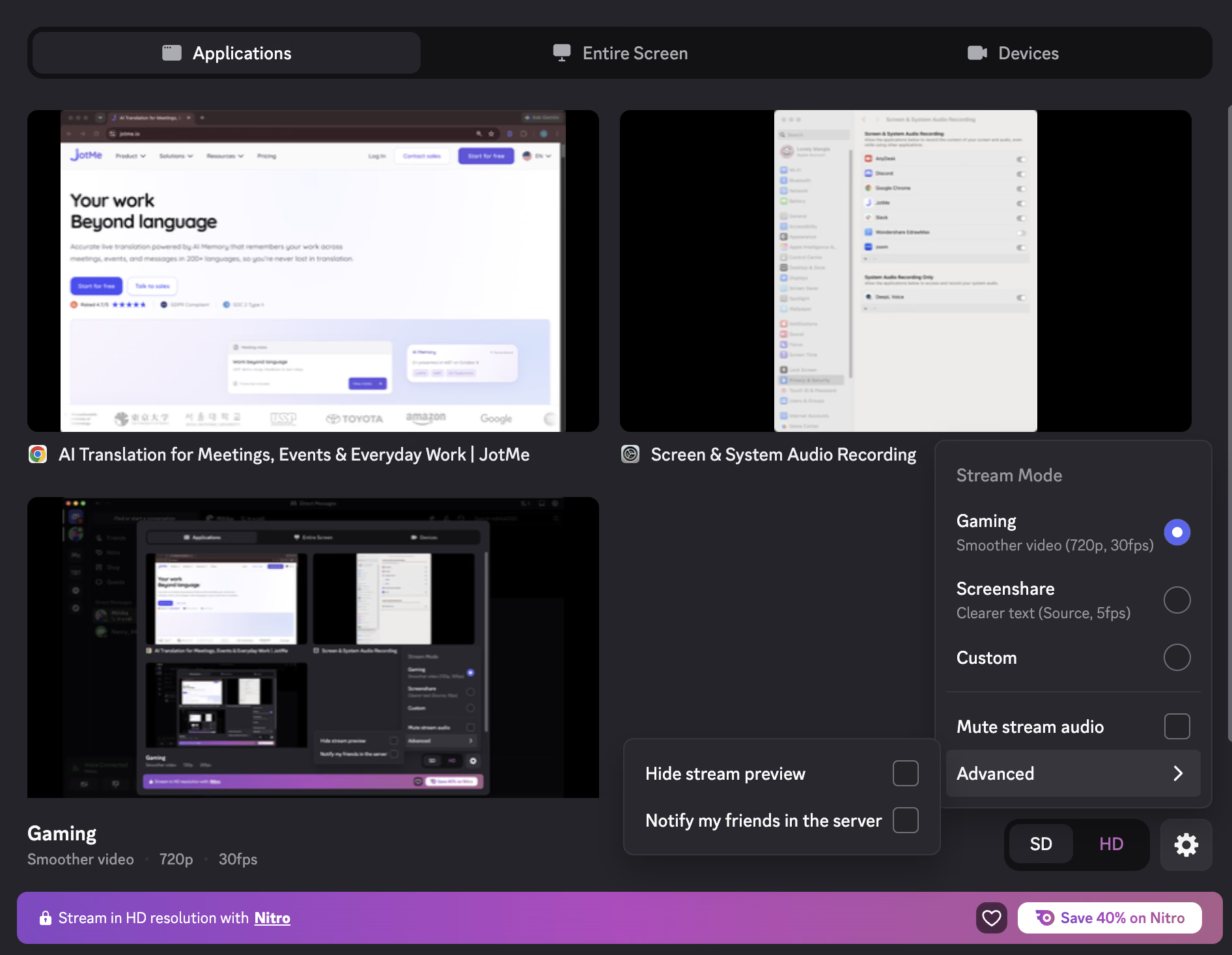
If you are sharing a page full of text, Screenshare is useful to try. For video, its 5fps setting will make movement look choppy, so choose a mode with a higher frame rate. If you see the options marked with the Nitro symbol, they will require the relevant paid access. If you want people to hear the shared app, leave Mute stream audio unchecked.
Step 4: Confirm Sharing
Select your source and complete the confirmation shown by Discord or macOS. Depending on the version, you may see Share Screen, Go Live, or an additional system selection prompt. Follow the labels on your screen rather than waiting for a button that may have changed.
Ask other participants to open the stream if prompted, then check: “Can you see the page?” If you are playing media, also ask whether they can hear it.
Step 5: Stop the Stream When You Finish
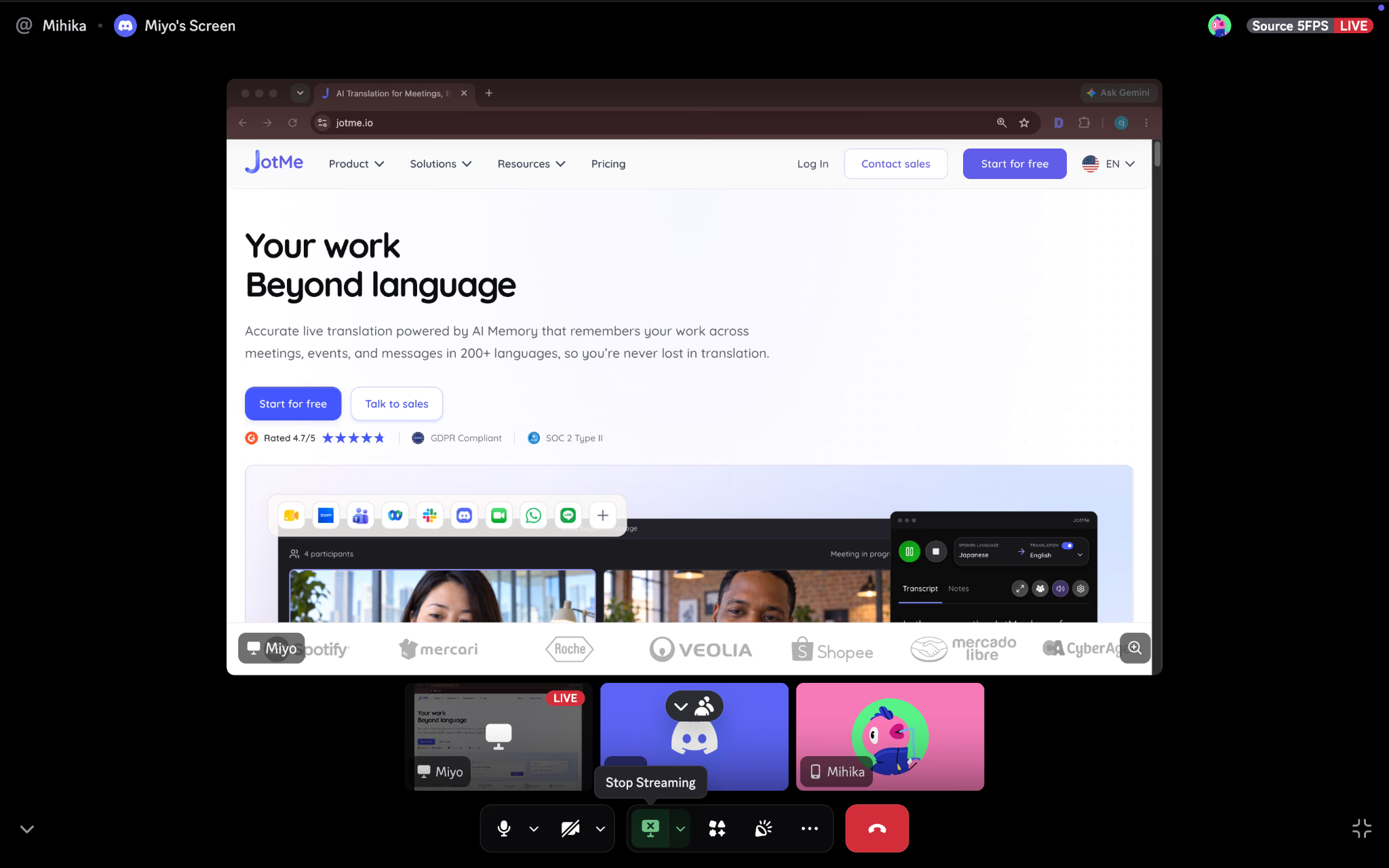
Move your pointer over the call controls and click Stop Streaming, shown as a green monitor button with an X. This ends the screen share while letting you continue the conversation.
If you need to save the walkthrough for later, see how to record a Discord call and choose a recording method before starting.
How Do You Share Your Screen in a Server Voice Channel?
To share your screen in a server voice channel, join a server voice channel and click Share Your Screen in the voice panel. Choose your application or display, check the stream settings, and confirm sharing. Other members can join the channel and open your stream.
Step 1: Join the Server Voice Channel
Open your server and click a channel under Voice channels. For this test, we joined General in our test server.
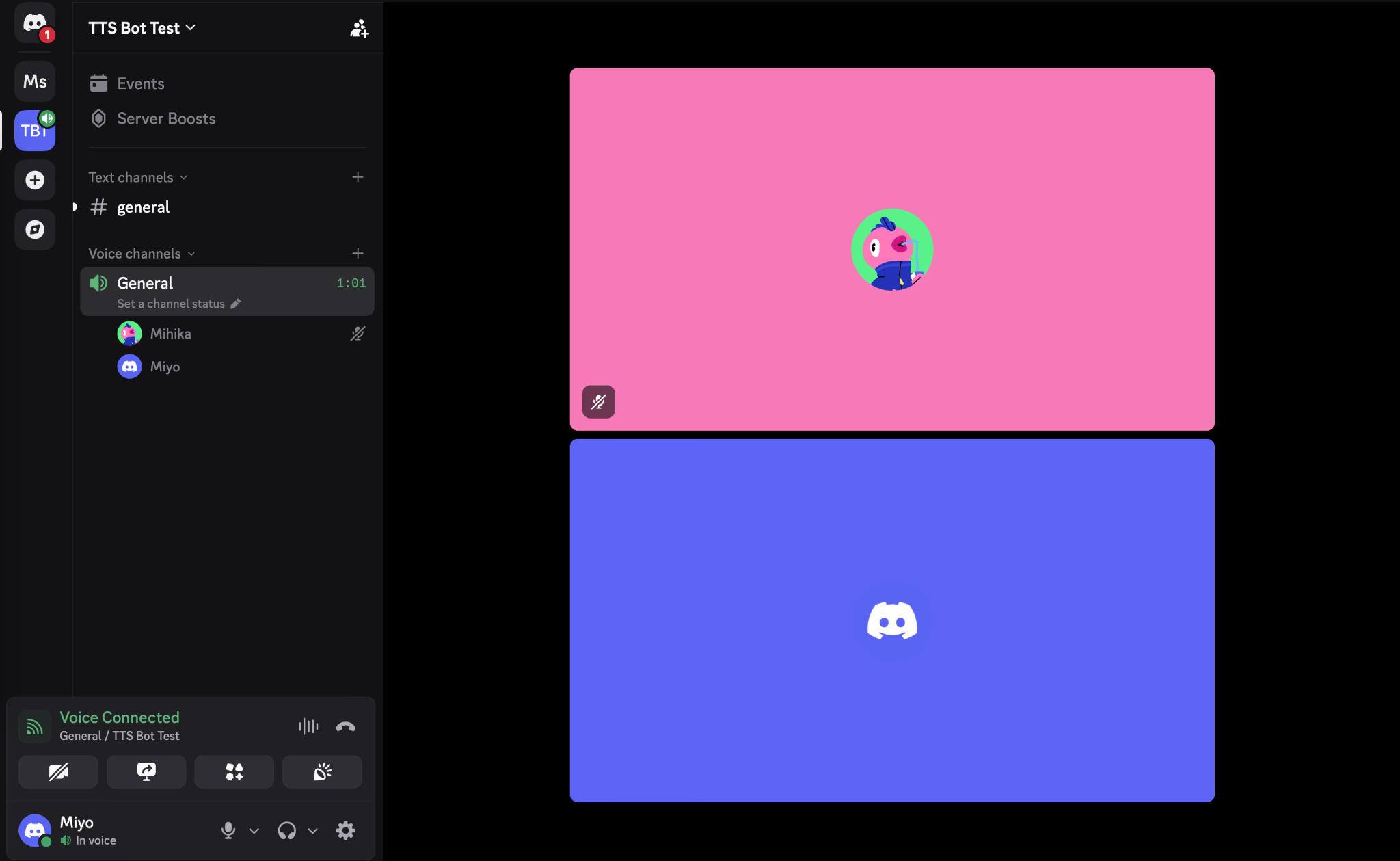
Step 2: Start Screen Sharing
Look for the monitor-with-an-arrow icon in that panel. It opens the same source picker as in a private call, so you can choose the browser, presentation, or entire screen you want to show.
Step 3: Ask Others to Open the Stream
Ask others to join the same voice channel and select your live stream. Before continuing, check that they can view the content you intended to share.
Note: If you can share in a private call, but the option is missing in the server voice channel, check server permissions. Discord controls server screen sharing through the Video permission. Ask an administrator to review your role and any channel overrides.
If you are setting up a voice channel for listening to music together, see our guide to Discord music bots where we review the popular music bots.
What Permission Does Discord Need on a Mac?
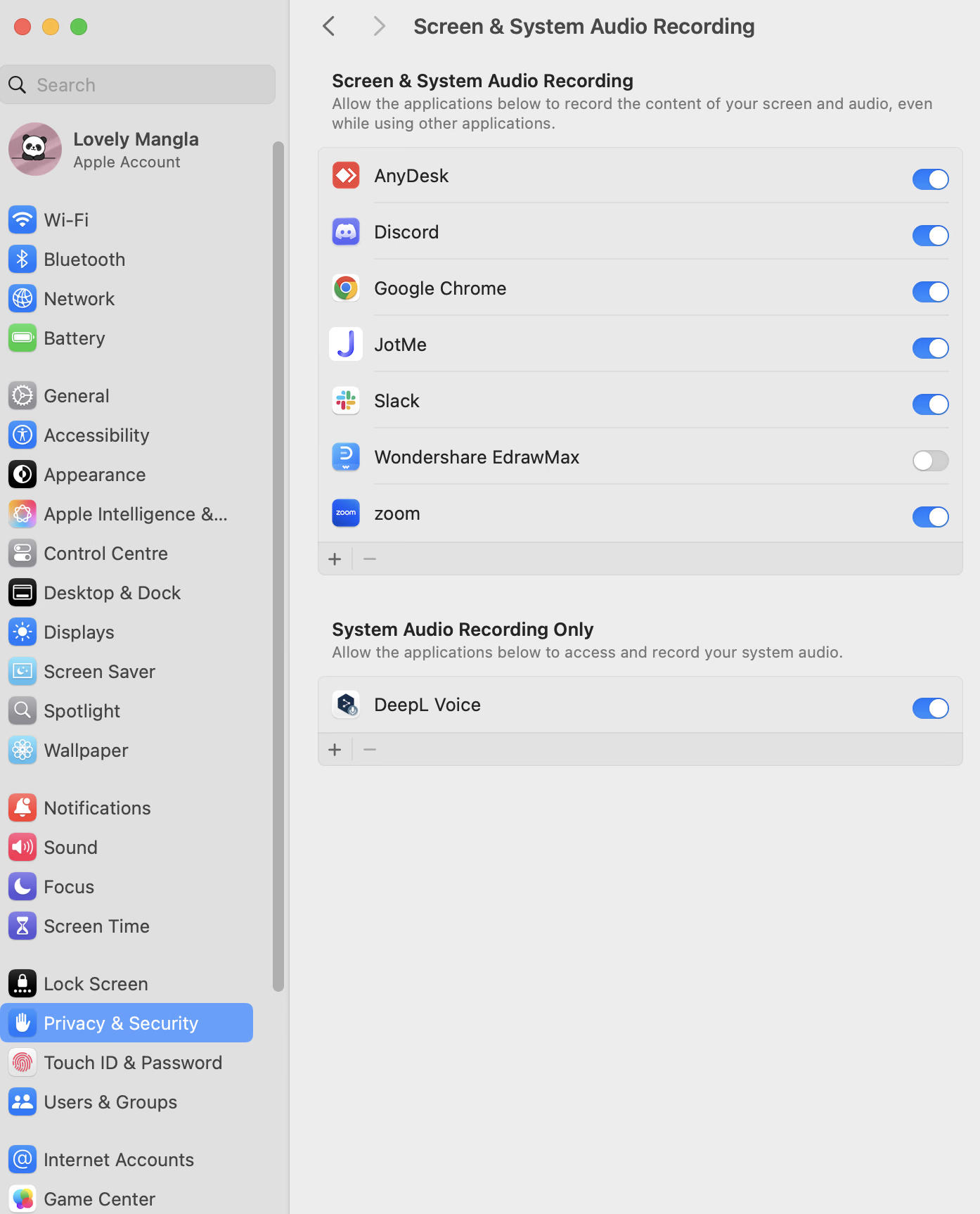
If macOS asks for capture access, open System Settings → Privacy & Security → Screen & System Audio Recording and enable Discord. Older macOS versions may use the name Screen Recording. Reopen Discord if macOS asks you to, and then start screen sharing.
How to Share Screen on Discord Mobile?
To share your screen on Discord mobile, join a call or voice channel, open the call controls, and tap the sharing icon. Review the settings and approve your phone’s capture request.
How Do You Share Your Screen on Discord on Android?
On Android, tap the sharing icon during a connected Discord call, review the stream settings, and approve screen capture.
Step 1: Join the Call
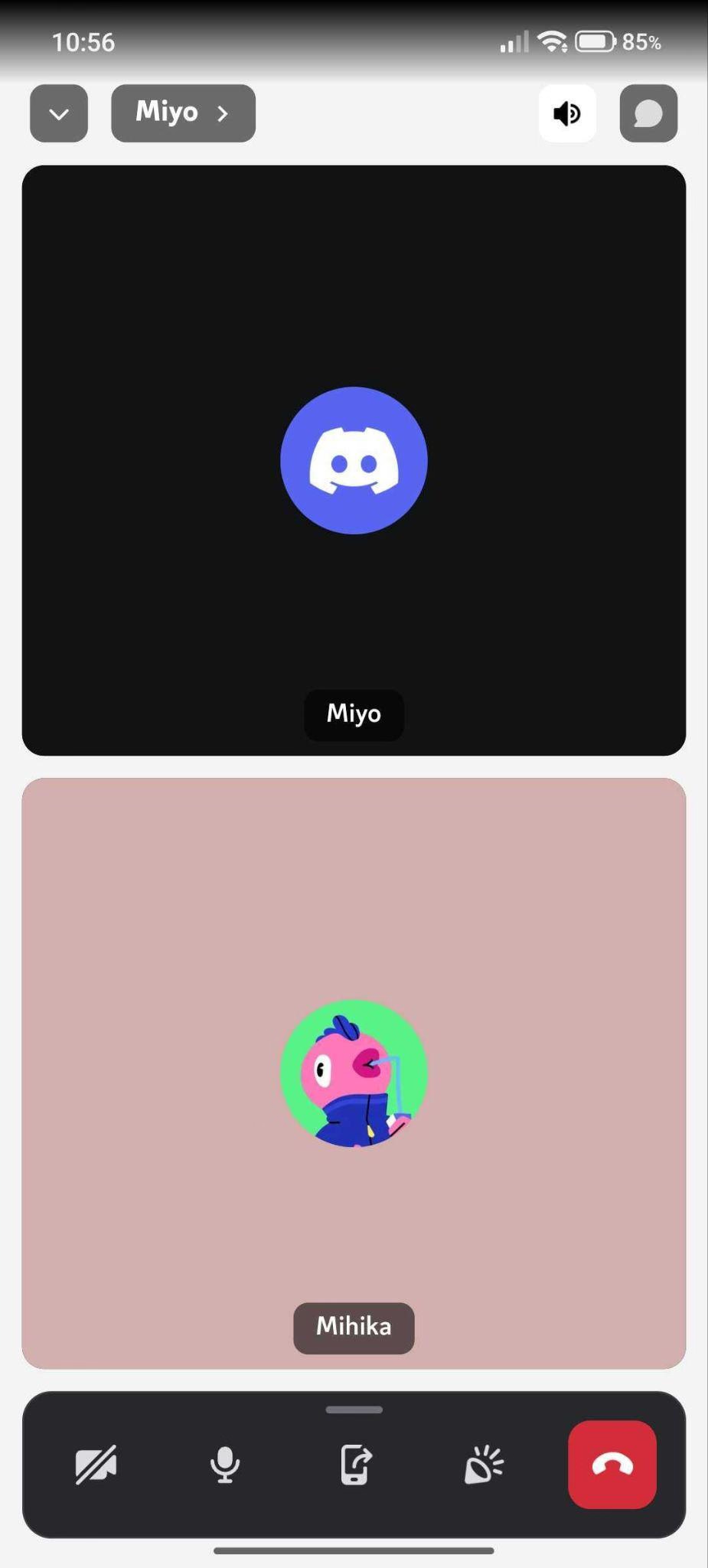
Join a Discord call or a server voice channel. Tap the call screen if the toolbar is hidden. If you still can’t see the sharing button, expand the bottom panel. The sharing icon can look like a phone with an arrow, between the microphone and Activities buttons.
Step 2: Review Stream Settings
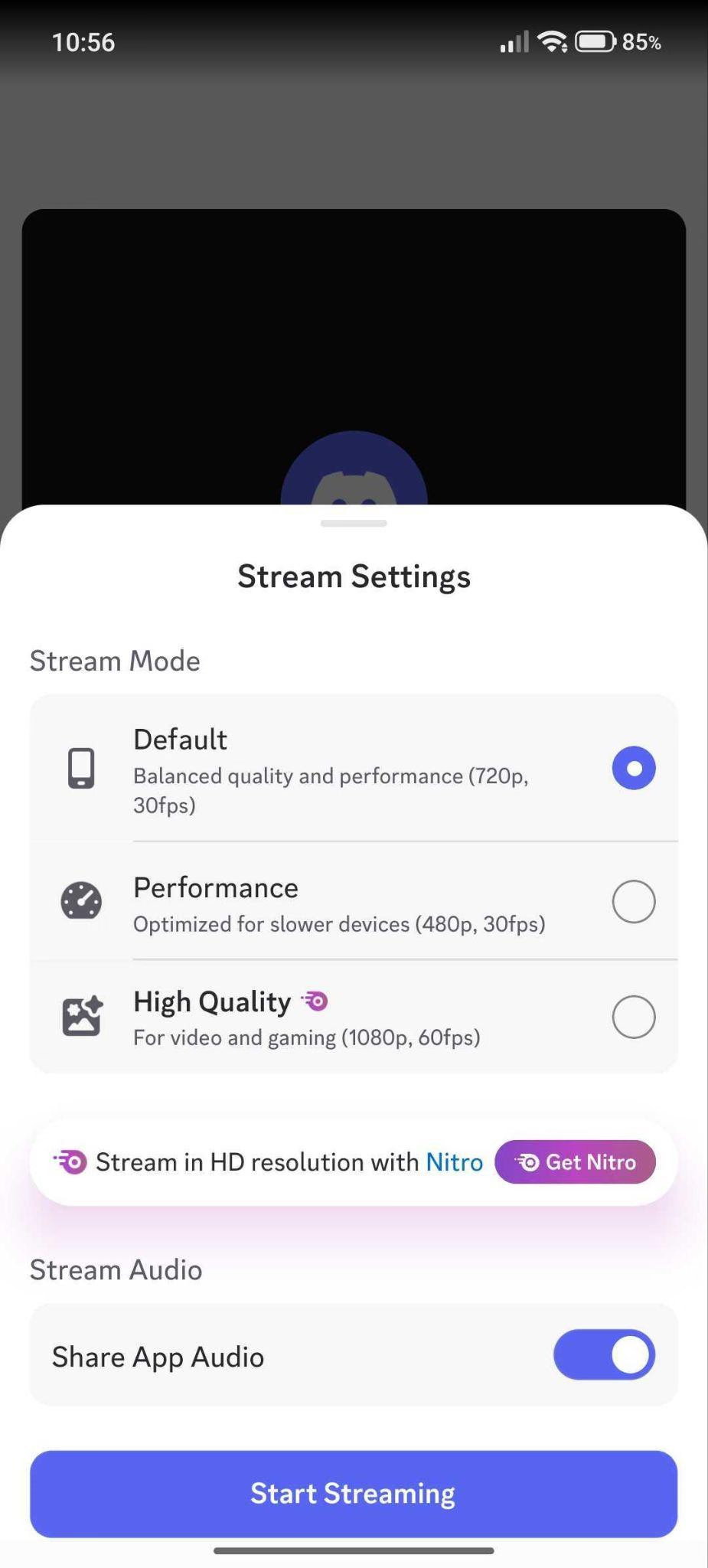
Tap the sharing icon to open the Stream Settings panel. It will offer Default at 720p/30fps, Performance at 480p/30fps, and a Nitro-marked High Quality option at 1080p/60fps. The panel also shows Share App Audio. Leave this enabled if viewers need to hear the app you are demonstrating, then tap Start Streaming.
Step 3: Decide Whether to Share One App or Your Whole Screen
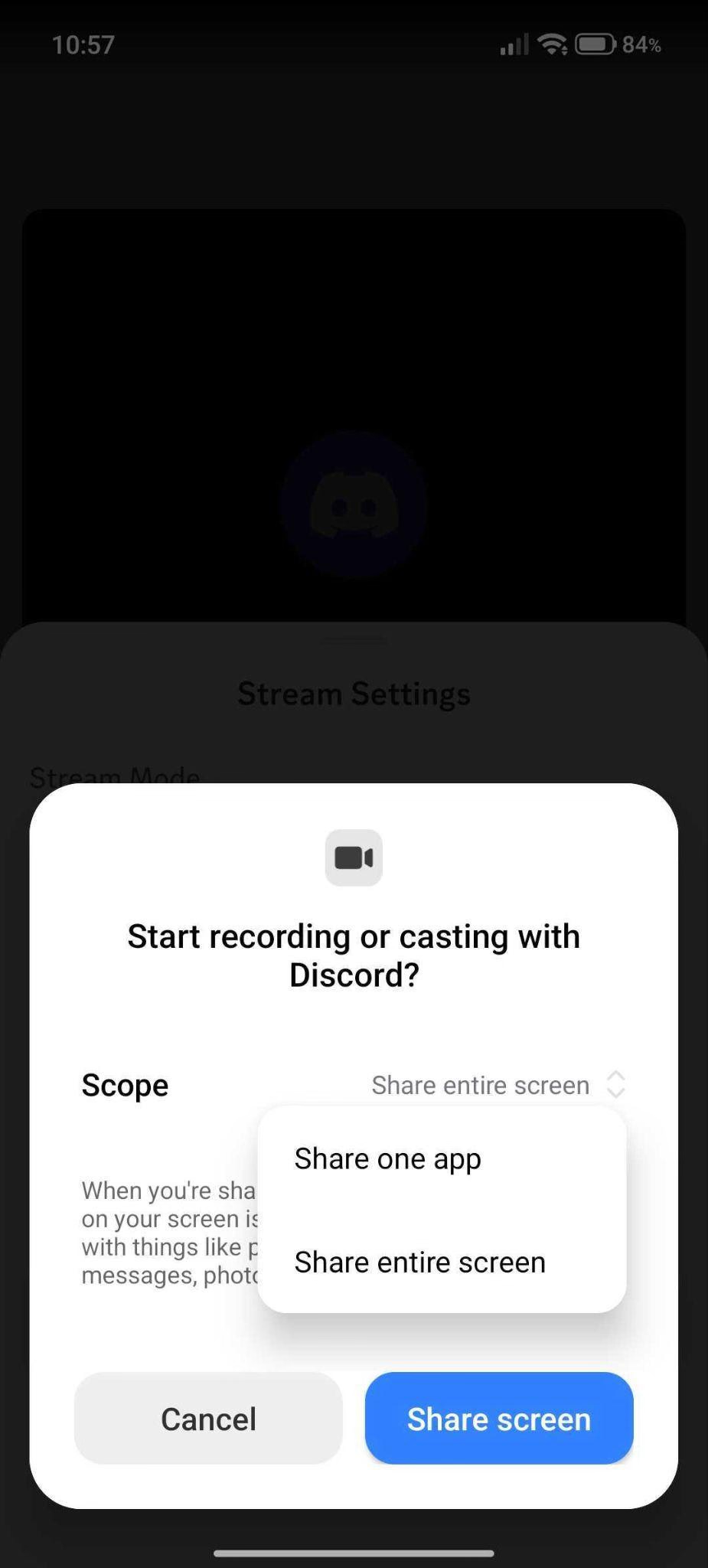
The Android prompt will ask, “Start recording or casting with Discord?” Its Scope menu will provide two options: Share one app and Share entire screen.
| Choice shown | What to do next |
|---|---|
| Share one app | Tap Next and select the app you want to show. |
| Share entire screen | Tap Share screen to approve capture of the display. |
If you are only showing a website, sharing the browser app may be enough. If you need to demonstrate several apps, choose the entire screen and silence notifications first. The exact choices depend on your phone and Android version.
Step 4: Open the Page You Want to Show
After approval, open the selected app or webpage. Other participants will now be able to view the shared content through Discord and hear the shared sound too.
If you selected one-app sharing, switching to another app won’t automatically mean you are sharing that new app. Check the selected capture source before continuing your demonstration.
Step 5: Return to Discord to stop sharing
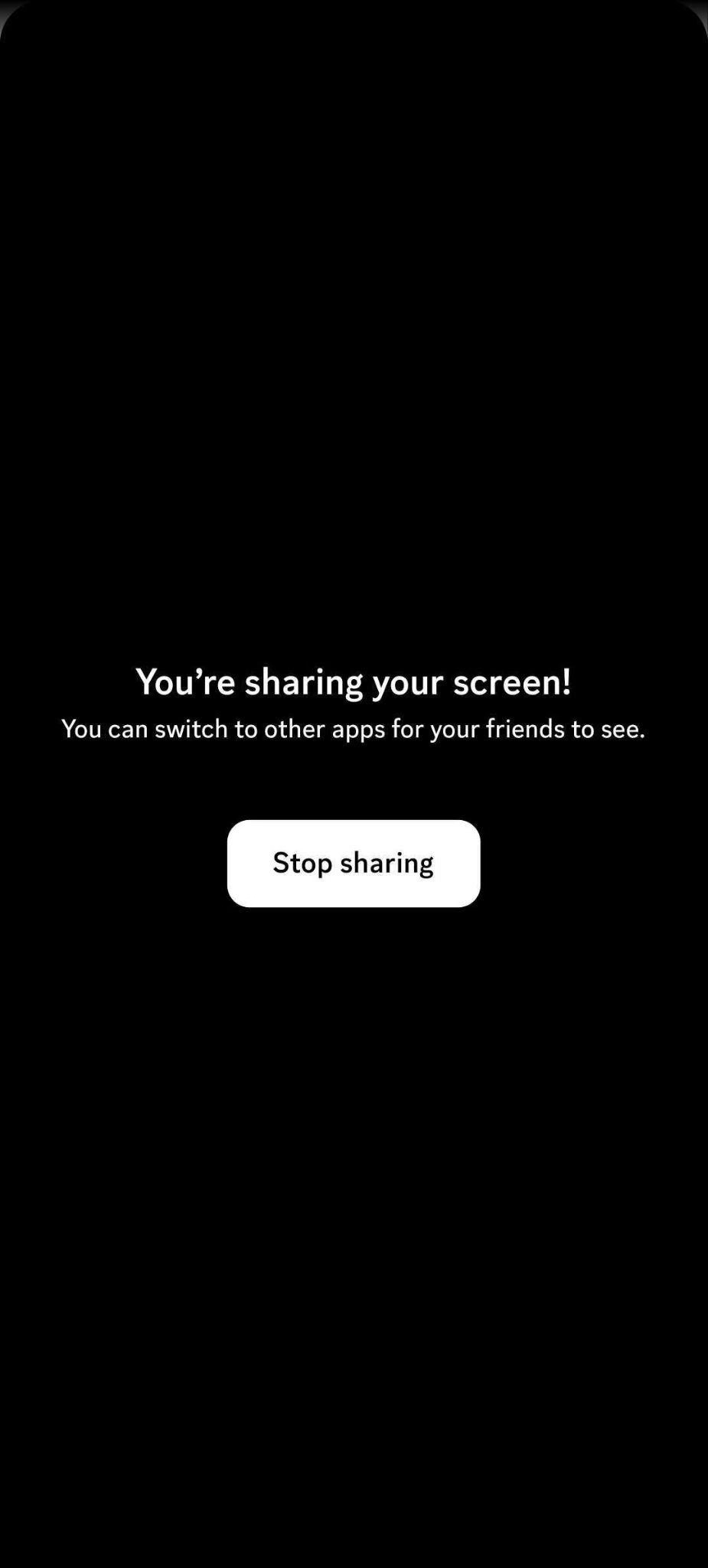
You will see a “You’re sharing your screen!” message with a Stop sharing button below. Tap that button to stop sharing the Discord screen.
How Do You Share Your Screen on Discord on iPhone?
When sharing the Discord screen on iPhone, join a Discord call or voice channel, open the call controls, and tap Share Your Screen. In the iOS broadcast prompt, select Discord if needed and tap Start Broadcast. Open the content you want to show, then return to Discord to stop sharing.
How to Screen Share on Discord with Live Translated Captions?
To share your screen with live translated captions, you can run a live AI translation platform like JotMe beside Discord. Start translation, and place the caption window next to your webpage or presentation. In Discord, share the entire display containing both windows.
How Do You Add JotMe Captions to Your Discord Screen Share?
Open JotMe during the call, choose the spoken and output languages, and start live Discord translation. Keep its transcript window visible on the display you share.
Step 1: Open JotMe During Your Discord Call
Download the JotMe desktop app if you haven’t installed it. Allow the microphone and computer audio access it requests so it can capture the conversation. Leave your Discord call running while you set it up.
Step 2: Choose the Languages
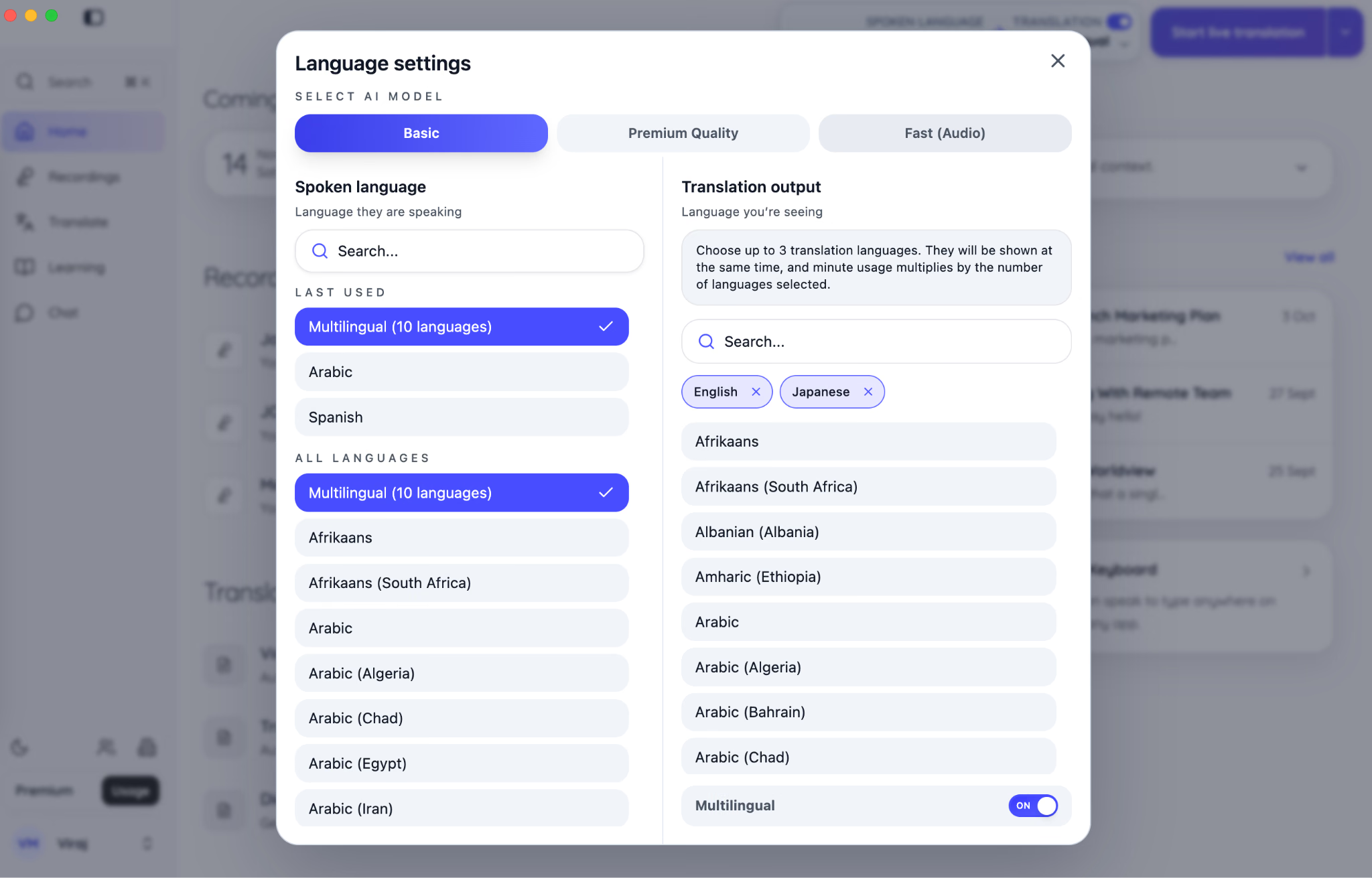
In JotMe’s language settings, select the language people will speak and the language you want to read. If people might speak multiple languages during the call, you can choose Basic → Multilingual (10 languages) for the spoken input. Similarly, choose the output language, such as English or Japanese.
Step 3: Start Live Translation and Arrange the Windows
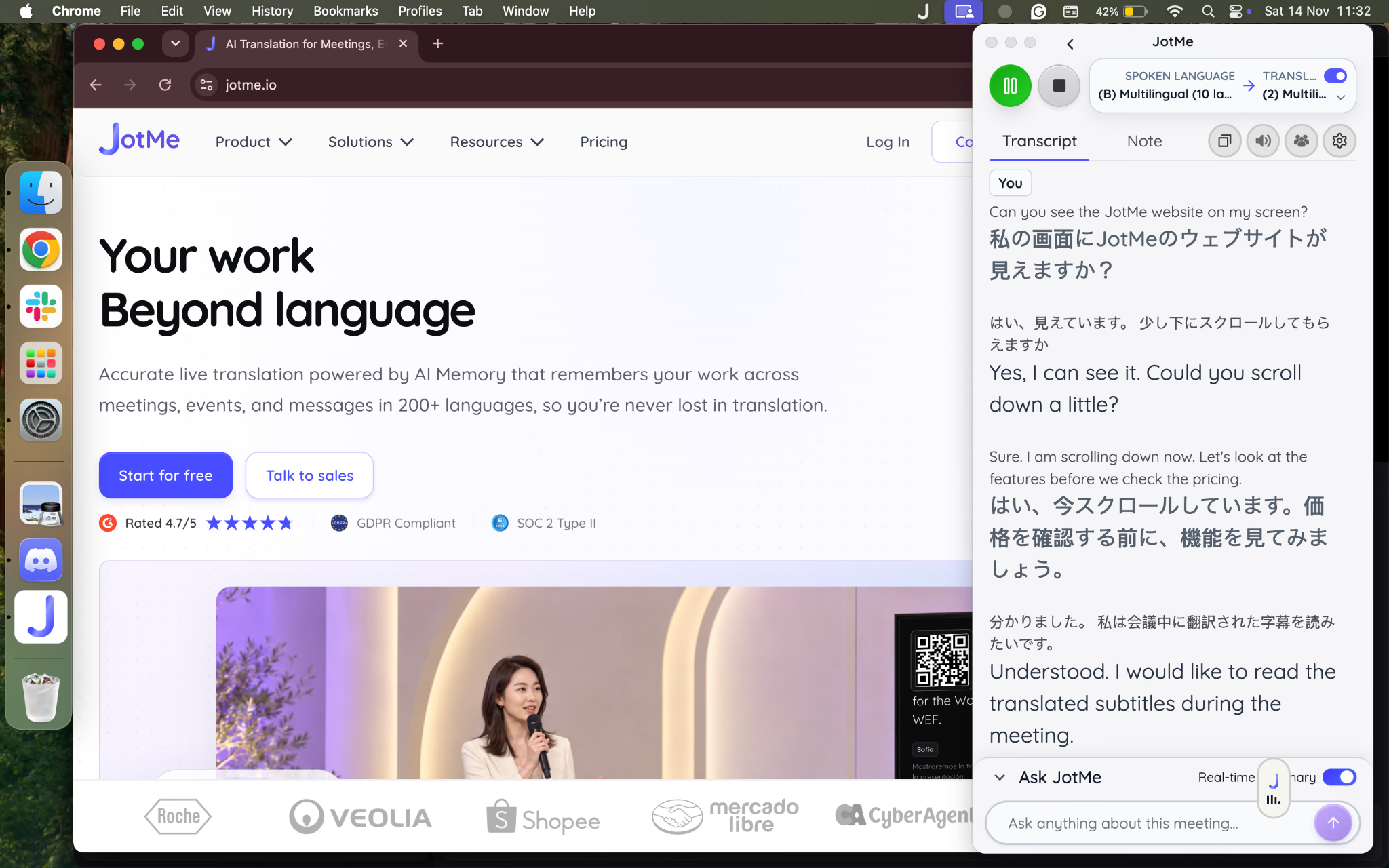
Start the live session, then arrange JotMe and your browser side by side. Leave enough room for several caption lines. If the caption window covers the button you are demonstrating, move or resize it before continuing.
Step 4: Select Entire Screen in Discord
In Discord, click Share Your Screen > Entire Screen and select the display containing both windows.
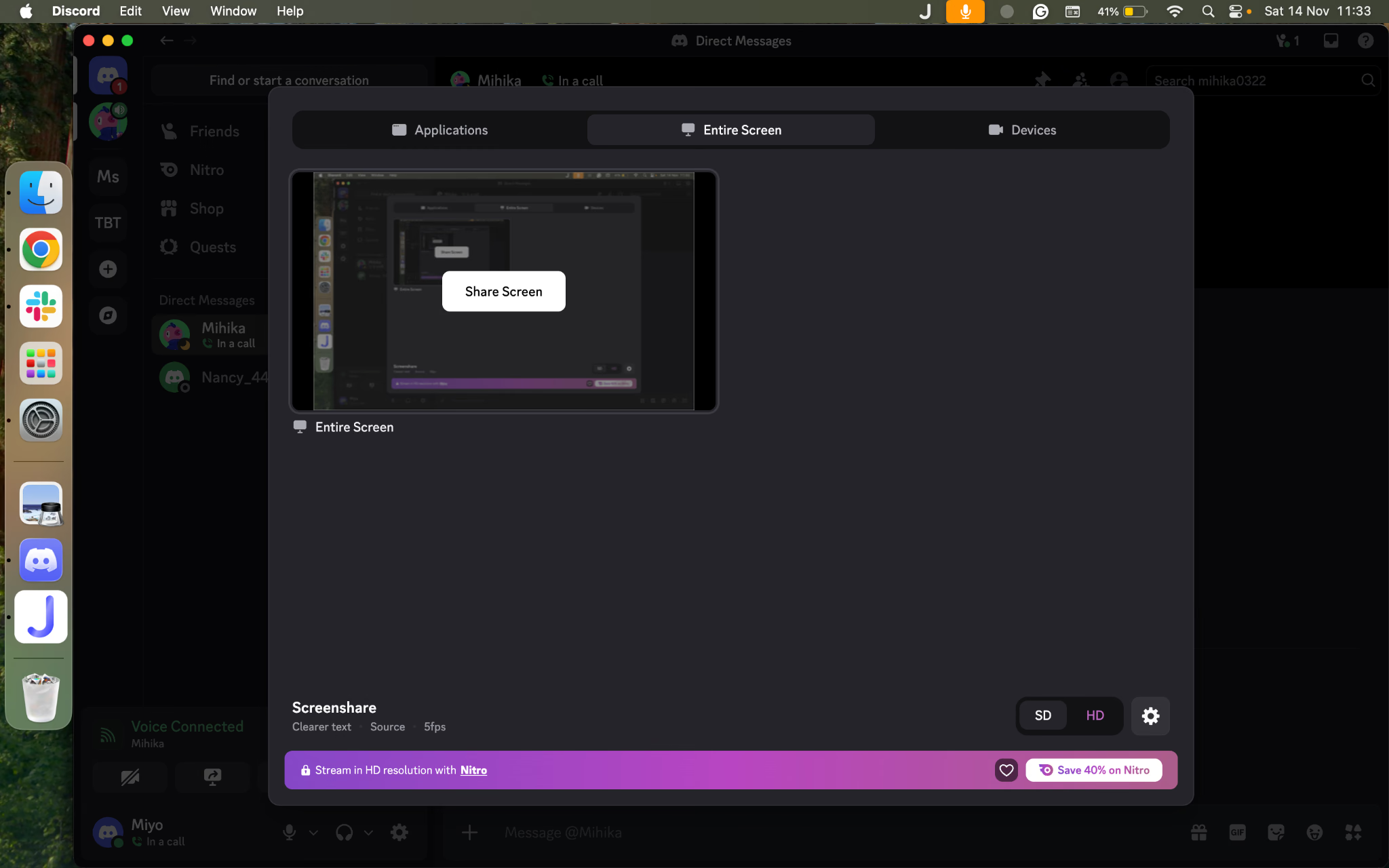
Remember, sharing only the browser may leave the separate JotMe window out of the stream. Selecting the entire display will include both the website and captions.
Step 5: Check That Viewers Can Read the Captions
Ask the other participants to confirm they can read the captions. If the text is too small on the viewer’s device, enlarge the JotMe window.
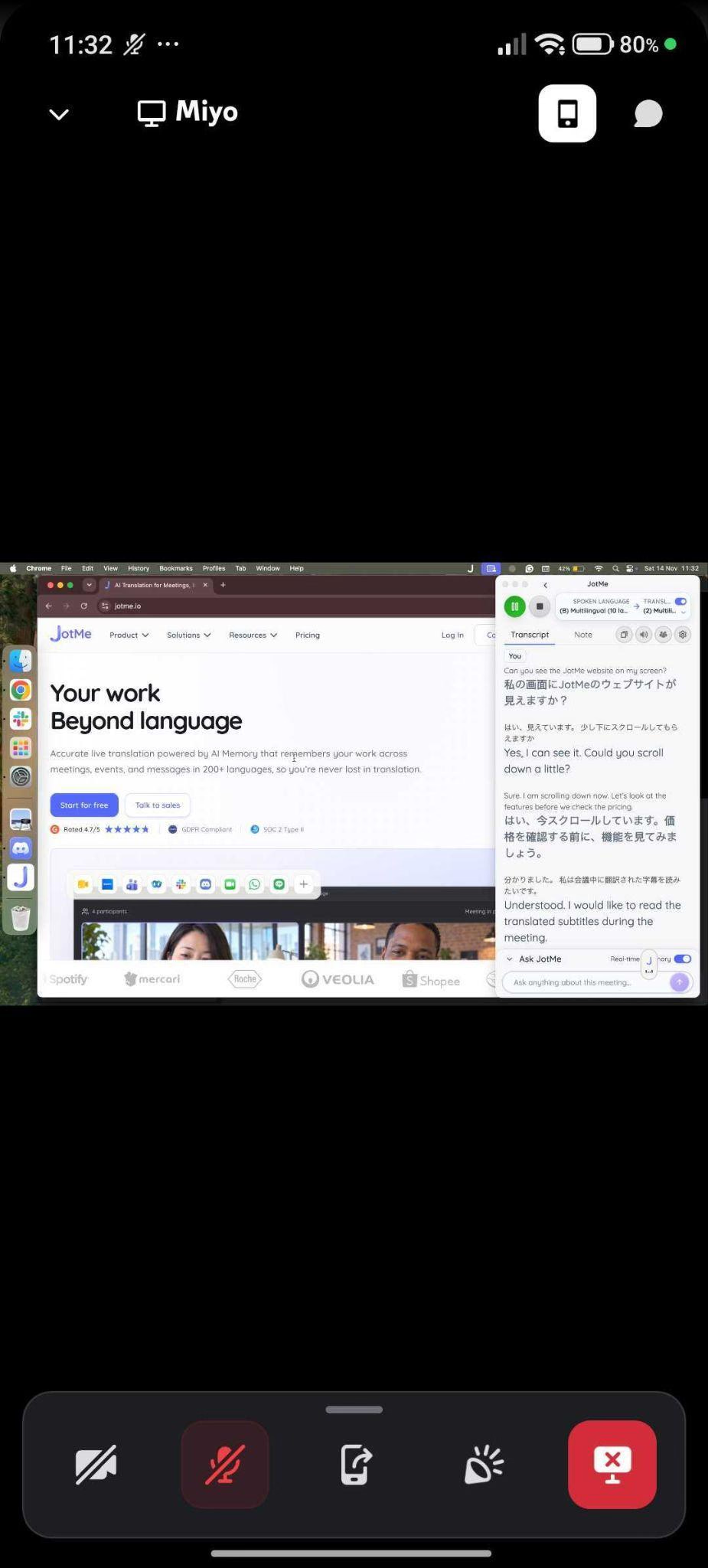
The captions appear as part of the stream image, so viewers see the same text and layout you share. To give people a separate translation view, you can share the live translation minutes with the participants using the URL or code options, which we have explained below.
Share your Discord screen during multilingual calls
Open JotMe alongside Discord to read live translated captions while you talk. Keep the captions beside your webpage or presentation so you can follow both.
Try JotMe FreeFor more information about how JotMe works during a multilingual meeting, see how to translate a Discord call in real time.
How Can Participants Read Translations on Their Own Devices?
JotMe also offers a separate translation sharing feature. This lets participants follow captions on their own device while continuing the call in Discord.
| Sharing Option | How participants access it |
|---|---|
| URL or QR code | Open the shared translation page in a browser. Browser guests don’t need to install JotMe or create an account. The host may require an email address. |
| Code | Enter the host’s code in JotMe Desktop. |
Shared translation uses the host’s allowance, and code sharing requires the Premium tier or above.
You can follow our URL-sharing guide, QR-code guide, or desktop code instructions for the joining steps and requirements.
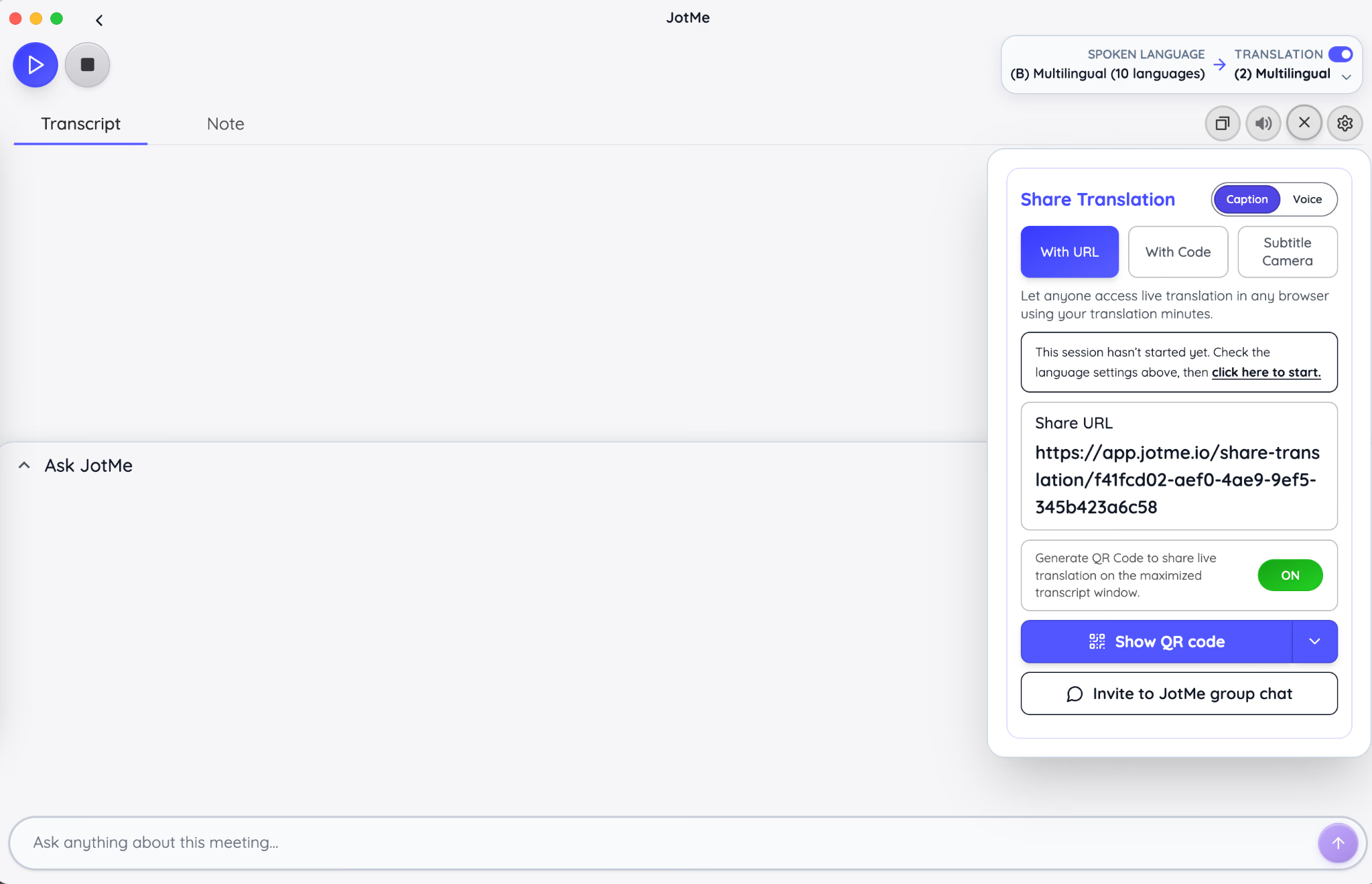
If participants also need translations in the server’s text channels, you can compare the Discord translator bots for written messages and choose the one that fits your needs.
Troubleshooting Common Discord Screen Share Problems
To fix Discord screen sharing, check the settings related to the problem. For example, you need to check the Video permission for a missing button, capture access for a blank picture, app-audio settings for missing sound, or quality and connection settings for lag.
Why is Discord Screen Share Not Working?
Discord screen sharing may fail because the wrong source is selected, capture access is missing, or the connection is struggling. Restart the stream and try a simple webpage first to see whether the problem affects all content or just one application.
You can work through these streaming troubleshooting checks before reinstalling anything:
- Confirm you’re connected to a call or voice channel. Opening a text chat alone is not usually enough.
- Select the source again. Check that you chose the window or display you are actually using.
- Fully quit and reopen Discord. Closing or minimizing its window may leave the app running.
- Check for app and system updates. Restart the device if the problem continues.
For a rundown of interface and feature changes, see our Discord updates guide.
Why is the Screen Share Button Missing on Discord?
The screen-sharing button can be hidden in the call controls or unavailable because your server role lacks Video permission. Expand the call controls first, then check whether sharing works in a private call but fails in one server.
On mobile, try tapping the call screen or expanding its bottom panel before assuming the feature is unavailable. On the desktop, look inside the call controls and the connected voice panel. If the button is missing only in a server, ask an administrator to check Video permission for your role and channel.
Why Does Discord Screen Share Show a Black or Frozen Screen?
A black or frozen stream can come from missing capture permission, a problem capturing one application, or video-processing issues. Try another source and check permissions before changing graphics settings. If only protected content goes black, the service may be blocking capture.
One Reddit user reported that entire-screen sharing worked while individual applications failed, even though the audio came through. If that matches your problem, testing both sharing choices is a useful first step.
- Share a plain webpage or document. This tells you whether normal content works.
- Switch the source. Try the application window if you shared the screen, or the screen if you shared an application.
- Check Mac permissions. Enable Discord under Screen & System Audio Recording and reopen it if prompted.
- Update the relevant software. Check Discord, your operating system, and the graphics driver on Windows.
- Test video hardware acceleration. According to Discord’s screen-share troubleshooting advice, consider disabling it under Voice & Video → Video for some problems. Restore it if there is no improvement.
If Discord displays a specific error code, you can use its error-code guide. Some encoder and decoder errors call for enabling hardware acceleration instead.
If ordinary content works but protected streaming content stays black, check the service’s restrictions. Discord notes that some mobile apps, including Netflix, block screen or audio sharing. Reinstalling Discord won’t remove those restrictions.
Why is There No Sound on Discord Screen Share?
Missing stream sound can come from a muted app, disabled audio sharing, the viewer’s playback settings, or an app that doesn’t allow audio capture. Check whether viewers hear your microphone, the shared app, or neither before choosing a fix.
| What Other Participants Hear | What to Check |
|---|---|
| Your voice, but no app sound | Check the app’s volume and enable stream audio. On Mac, keep Mute stream audio unchecked. |
| Android stream with no app sound | Enable Share App Audio, then test another app to check whether the failure is app-specific. |
| Only one viewer hears nothing | Ask that viewer to check stream volume, device volume, and output device. |
| No app sound from browser sharing | Try Chrome or the desktop app. Discord lists Chrome as its supported browser for application-audio capture. |
An Android discussion on Reddit suggested audio worked in YouTube but failed in other apps despite sharing being enabled. That kind of app-specific failure needs a different check from a muted stream. Test a second app before spending time changing microphone settings.
If the problem persists across apps after updates and a restart, report the phone model, OS, Discord version, and affected apps to Discord Support.
Why is Discord Screen Share Lagging or Blurry?
A weak connection, a busy device, or demanding stream settings can cause lag. Low resolution or small text can make the picture hard to read. Lower the quality to test playback, then enlarge the content if readability is the problem.
- If the stream stutters, close demanding background apps and pause large downloads. Try Ethernet on a computer if WiFi is unstable.
- On Android, try Performance mode if Default struggles. In the version tested here, this lowers the stream to 480p/30fps, so small text may look less sharp.
- If moving video looks choppy, check the desktop stream mode.
- If text is too small, zoom into the webpage, increase the slide text, or give JotMe captions more room. A higher frame rate won’t make small text easier to read.
If only one viewer has trouble, test their connection and playback first. Changing the host’s setup may be unnecessary when everyone else sees a clear stream.
Conclusion
To screen share on Discord, start with a connected call, choose the right source, and check the result with a viewer. Share one application for a focused walkthrough or your entire display when the demonstration needs several windows. Test app sound separately from your microphone.
If you often schedule multilingual Discord calls that require live translated captions, open JotMe beside the webpage and share the entire screen to let everyone read the translated captions through Discord. JotMe supports translated text from Discord calls in 200+ languages (output languages) and also saves the transcript and AI meeting notes, giving you a record to revisit after the call.
Make your next Discord call easier to follow
Use JotMe during your Discord call to read translated captions. Share your entire screen so other participants can see the captions alongside what you are showing.
Contact JotMeFAQs
Is There a Way to Share My Screen on Discord?
Yes, you can share your screen on Discord. Join a server voice channel or start a private call, click Share Your Screen, and choose what you want to show. Confirm sharing when prompted.
How Do I Screen Share in Discord Without a Black Screen?
To share your screen in Discord without a black screen, allow screen capture in your device settings and test a regular webpage before sharing the intended app. If it appears black, switch between application and entire-screen sharing, update Discord, and check the troubleshooting steps above. Remember, protected content may block capture even when other windows work.
How Do I Share My Screen or a Window in Discord Voice Chat?
To share the screen or a window in a Discord voice chat, join the voice channel and click Share Your Screen. Select an application window or your entire display, review the available stream settings, and start sharing. If the button is unavailable in that channel, ask an administrator to check your Video permission.
How Do I Share Audio on Discord Screen Share?
To share audio on Discord screen share, enable app-audio sharing in the stream settings. In the Mac app, that means leaving Mute stream audio unchecked. Then play a short clip and ask a viewer whether they hear it.
How Do I Stream My Screen with Sound on Discord Mobile?
To stream your screen with sound on Discord mobile, tap the sharing icon to open Stream Settings and enable Share App Audio. Then click on Start Streaming. Approve the phone’s capture prompt, open your content, and check the sound with a viewer. The controls and audio support depend on your phone, Discord version, and the app being shared.
Try JotMe
Accurate translation for your meetings, events, and everyday work, with AI Memory that remembers your context.