





Tips
How to Record a Discord Call: 4 Easy Ways With or Without a Bot

Viraj Mahajan
August 15, 2026
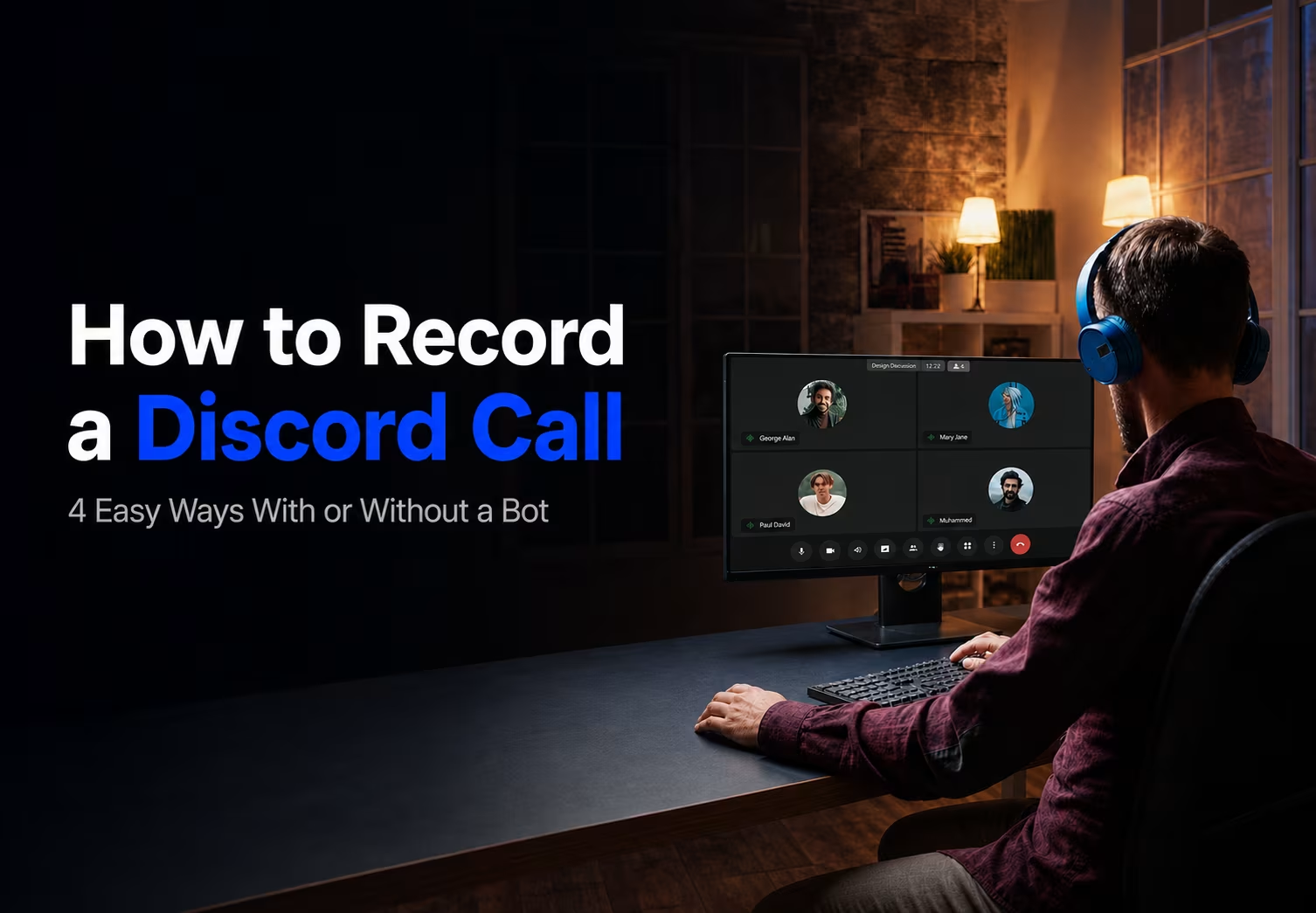
Discord does not have a native call recorder, so anyone figuring out how to record a Discord call has to reach for outside help. You have three practical options for recording a Discord call: use a bot like Craig, record your screen or desktop audio, or use a no-bot desktop app like JotMe. JotMe runs alongside Discord, captures the call, and gives you a transcript after the conversation ends.
In this guide, you will find the practical way to record Discord calls from bots that live on your server to apps like JotMe that run quietly in the background, so you pick the method that fits your setup.
Does Discord Have a Built-in Recording Feature
No, Discord does not have a built-in feature for recording voice or video calls. Discord has stated that it does not record or store the contents of voice and video channels, while its voice calls are encrypted so that only participants in the conversation can hear them. As a result, if you want to record a Discord call, you need to use a third-party tool rather than looking for a recording option inside Discord.
If you need to record a Discord call, your main options are third-party bots, screen-recording software, or dedicated recording and meeting tools. The best choice depends on whether you want to capture video, record only the audio, save the conversation for later, or turn the discussion into searchable notes.
For example, tools such as JotMe can be useful when you need more than a raw recording, particularly if you want to capture and work with what was said during a Discord conversation. If your goal is specifically to understand or translate a multilingual Discord conversation, see our guide on how to translate a Discord call.
How to Record a Discord Call with a Bot
One of the simplest ways to record a Discord voice call is with Craig, a dedicated Discord recording bot. Craig can record each speaker on a separate audio track, making it easier to edit or review the conversation later.
Step 1: Go to the official Craig website and choose the option to invite Craig to your Discord server. Sign in to Discord if prompted, select the server you want to use, review the requested permissions, and click Authorize.
Step 2: Open the Discord server where you added Craig and join the voice channel where you want to record the call.
Step 3: In the server chat, type /join and select the voice channel you are currently using. Craig will join the channel and start recording the conversation.
Step 4: When the call is finished, return to the server chat and use /stop. Craig will end the recording and prepare the audio files.
Step 5: Craig sends you a download option, where you can save the recording in supported formats such as AAC, MP3, or FLAC. You can also choose a combined recording or separate tracks for individual speakers.
Important: Let everyone on the call know that it is being recorded and obtain consent where required by applicable recording and privacy laws.
How to Record Discord Audio Without a Bot
If you want to know how to record a Discord call without a bot, JotMe lets you capture the conversation through its desktop app without adding a bot to your Discord server. You can keep JotMe running alongside Discord and record the call while also using its transcription and translation features.
Step 1: Start your Discord voice or video call and open JotMe on your computer alongside Discord.
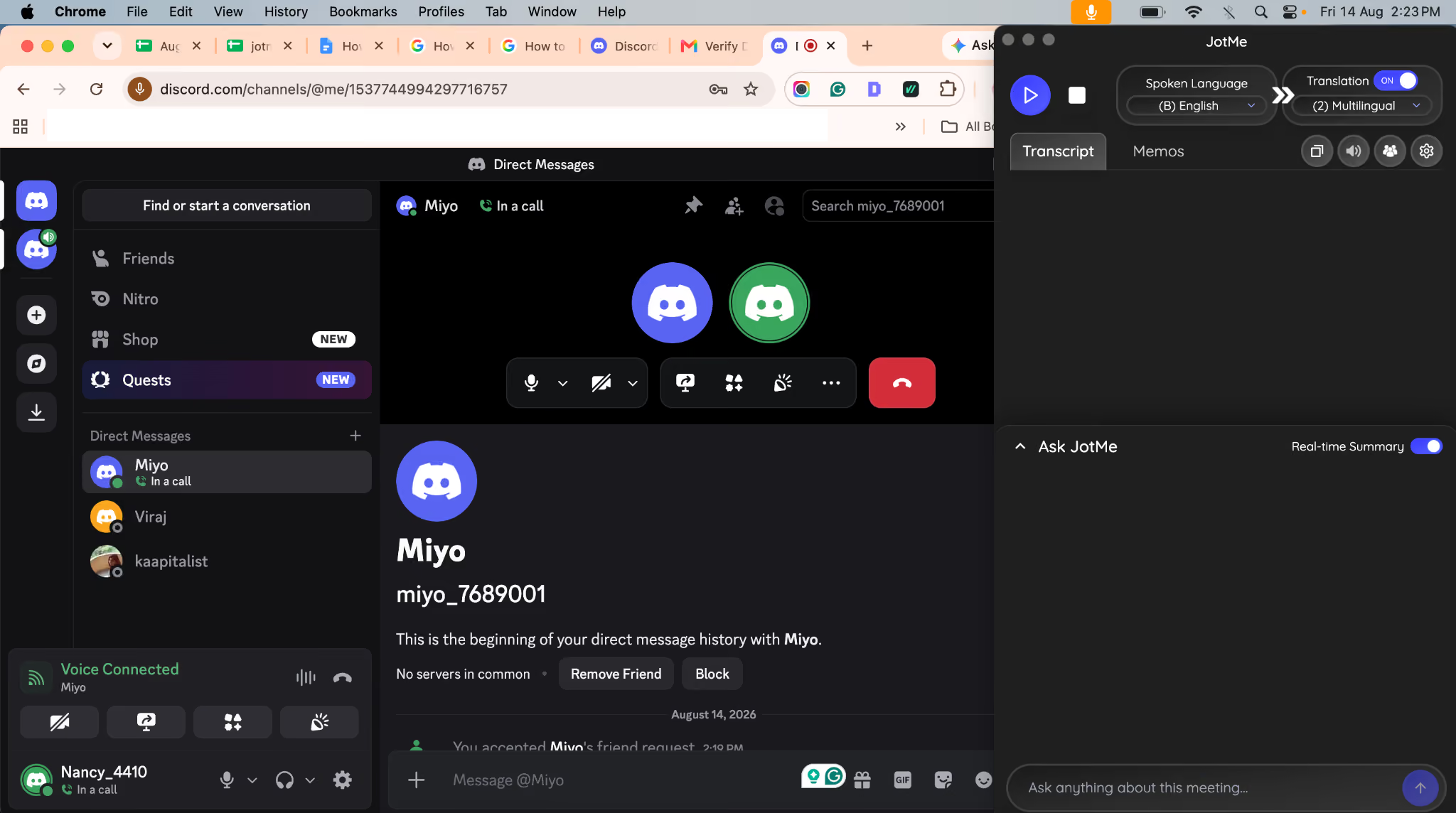
Step 2: In JotMe, select the spoken language of the conversation. If the call is multilingual, you can select multiple spoken languages so JotMe can recognize different languages during the conversation.
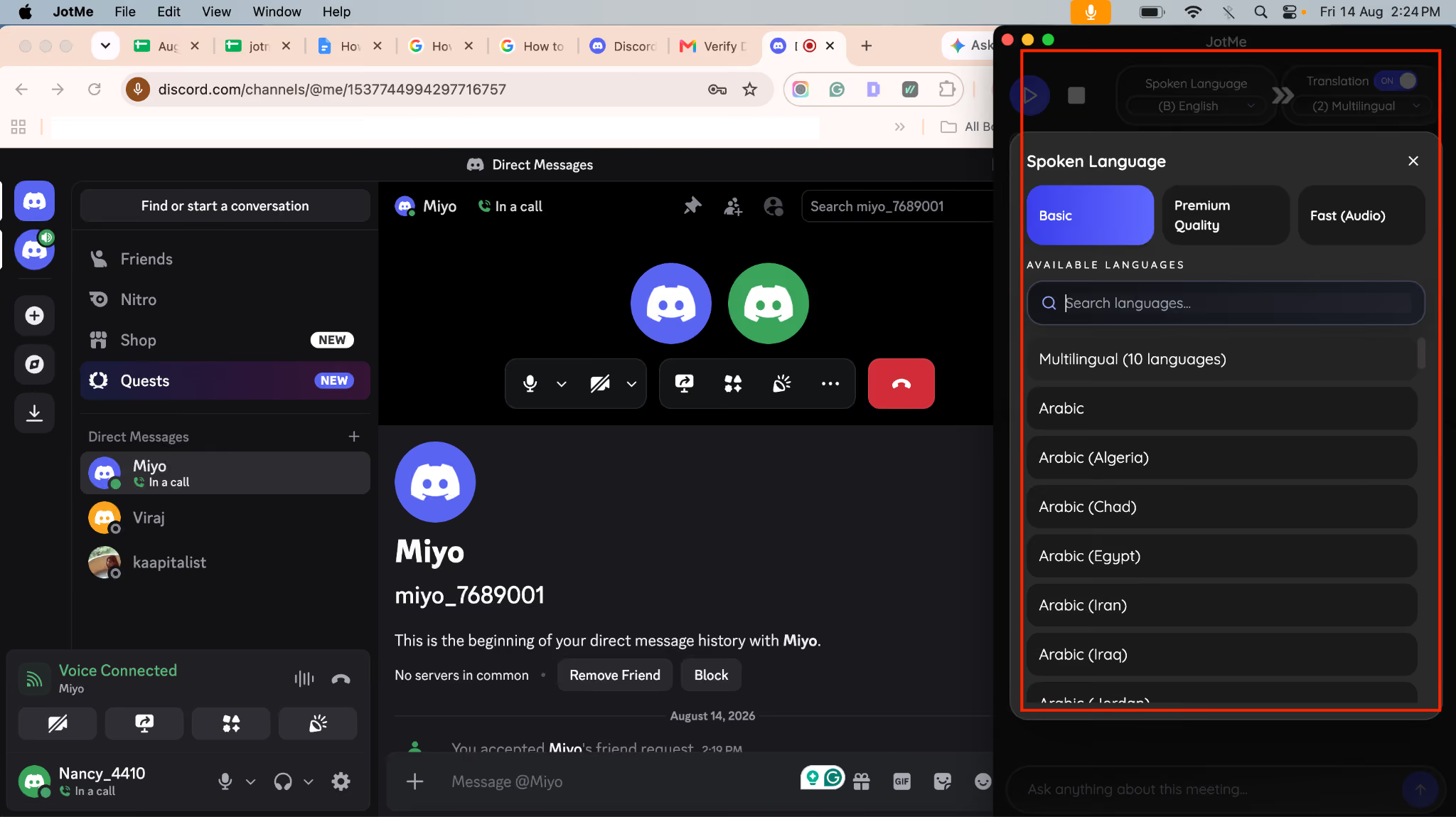
Step 3: If you want live translation, choose your translation language. The host can then share the Discord translation with other participants through a QR code or link.
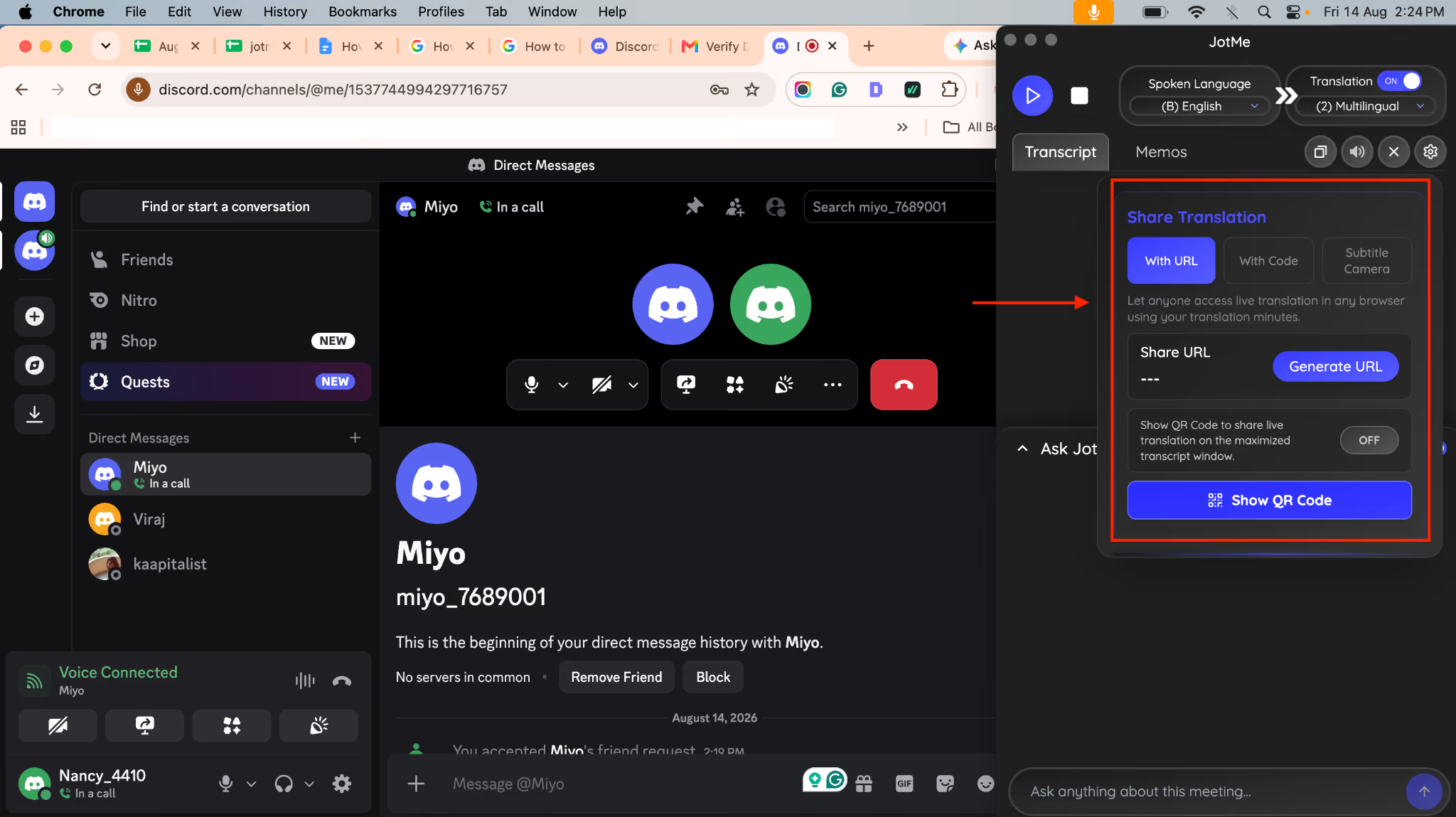
Step 4: Other participants can open the shared translation session through the link or QR code without installing JotMe. They can follow the translated conversation in real time while the Discord call continues normally.
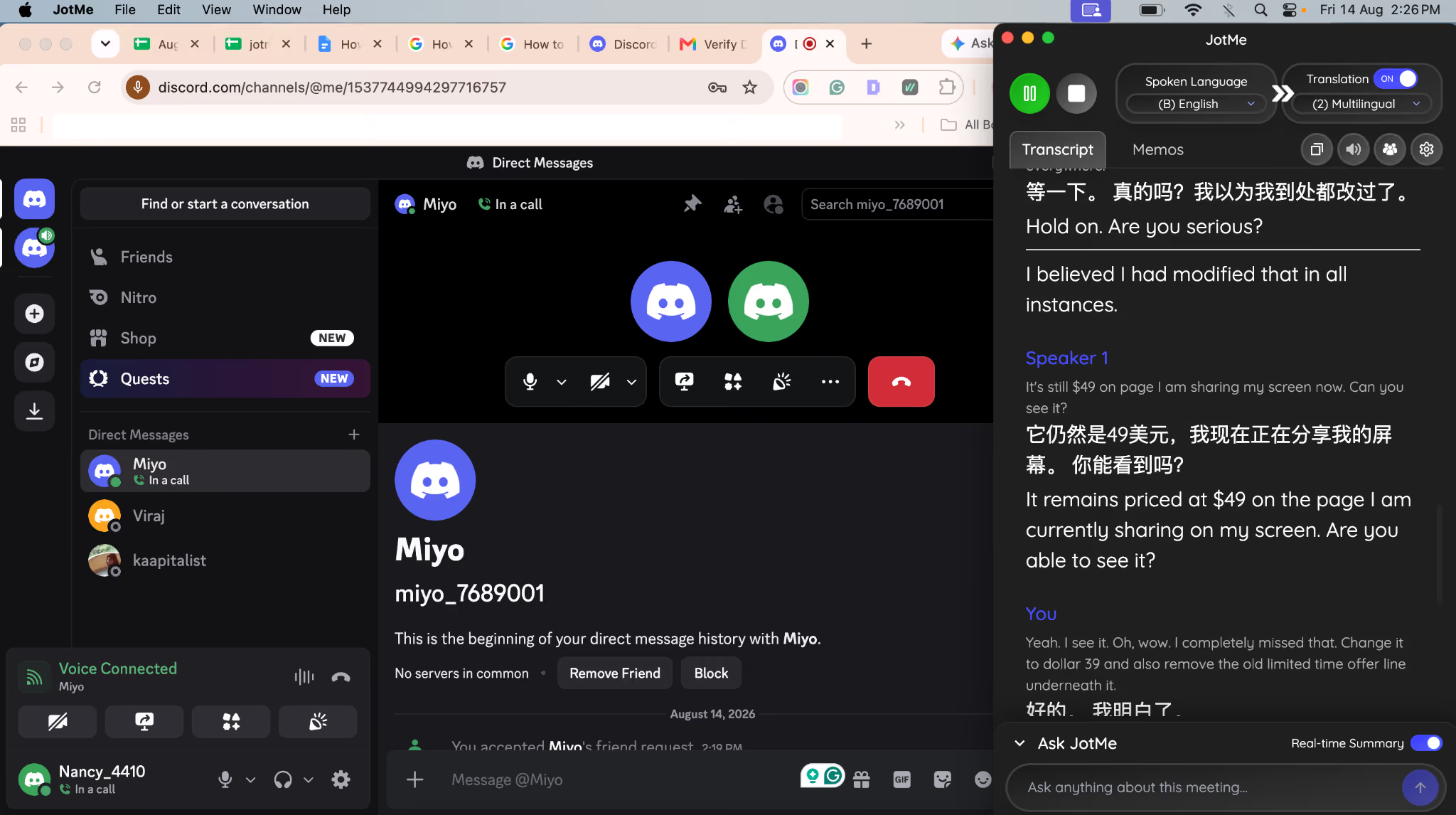
Step 5: When the call ends, open your JotMe dashboard to access the recorded audio and listen back to the conversation. You can also view the Discord call transcript, giving you both the original recording and a searchable text version of the discussion.
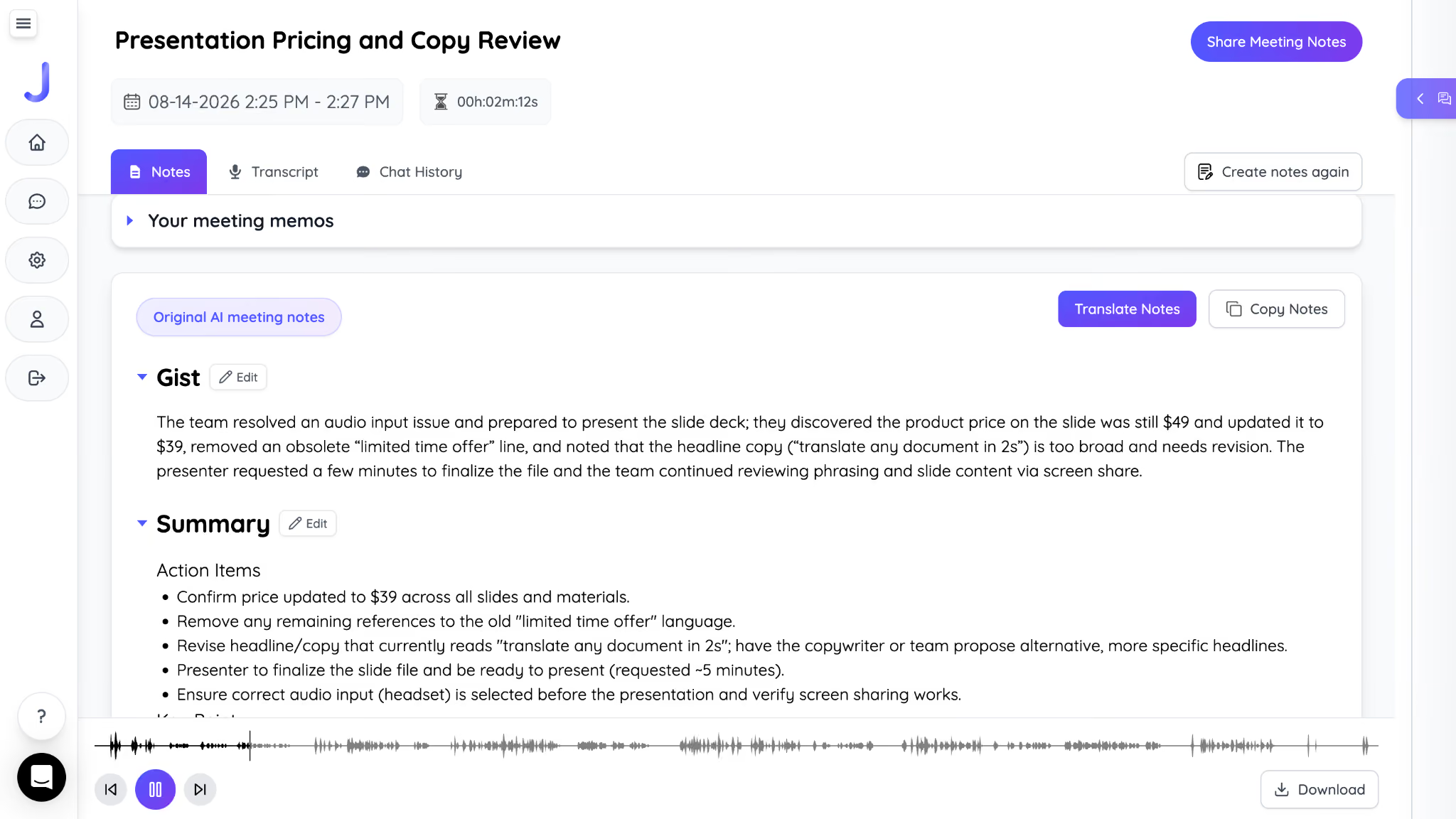
If you want to learn more about turning Discord conversations into searchable text, see our guide on how to transcribe a Discord call.
How to Record a Discord Call on Mobile
You can record a Discord call on both iPhone and Android using the phone’s built-in screen recorder. The exact steps vary slightly by device, and the biggest limitation is whether your phone can capture the call’s internal audio.
On iPhone
Step 1: Open Control Center and make sure Screen Recording is available.
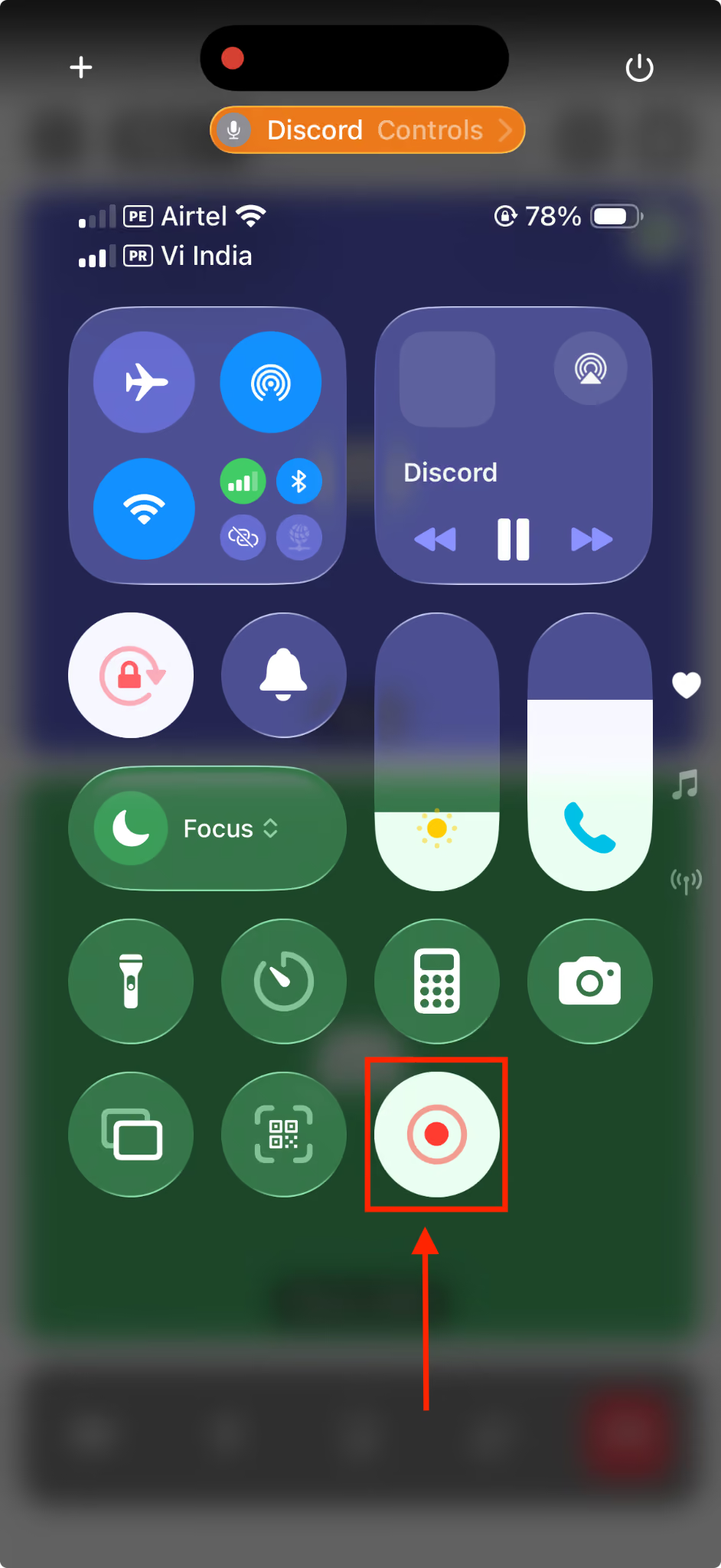
Step 2: Start your Discord voice or video call and open Control Center and tap the Screen Recording button.
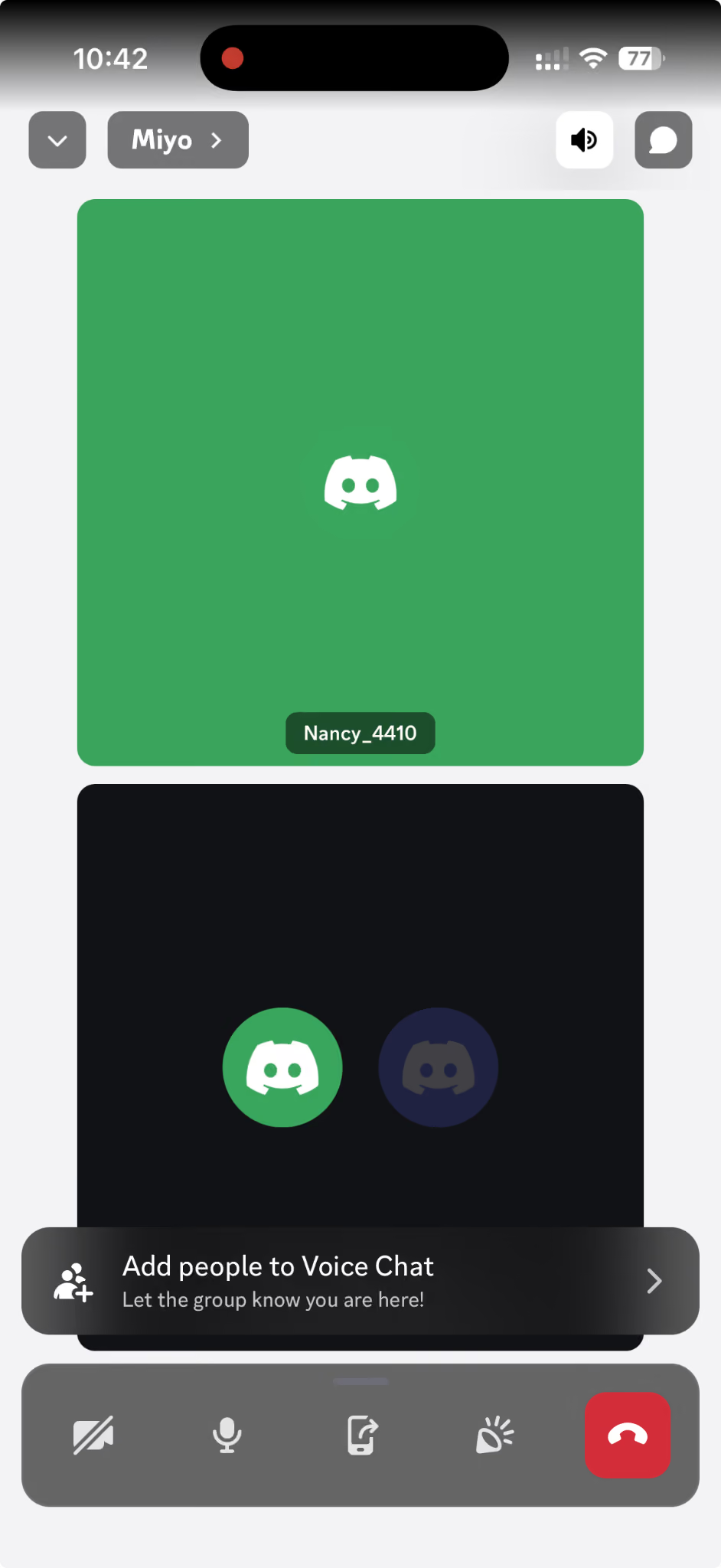
Step 3: Stop the recording when the call ends. The video will be saved to your Photos app.
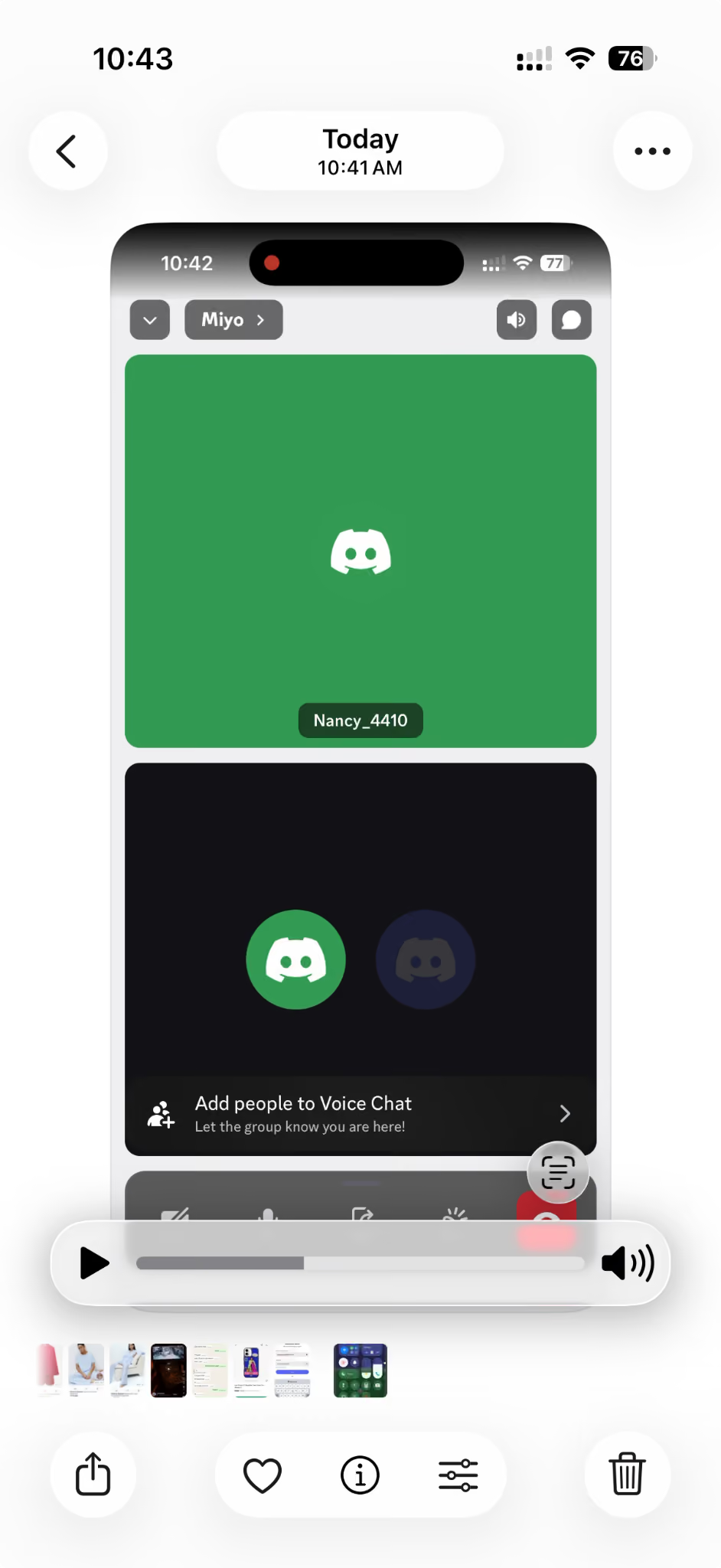
iPhone limitation: Audio capture can depend on your setup. Using headphones or other audio devices can prevent the other participant’s voice from being captured properly, so test a short recording before an important call.
On Android
Step 1: Start your Discord voice or video call and swipe down to open Quick Settings and tap Screen Record.
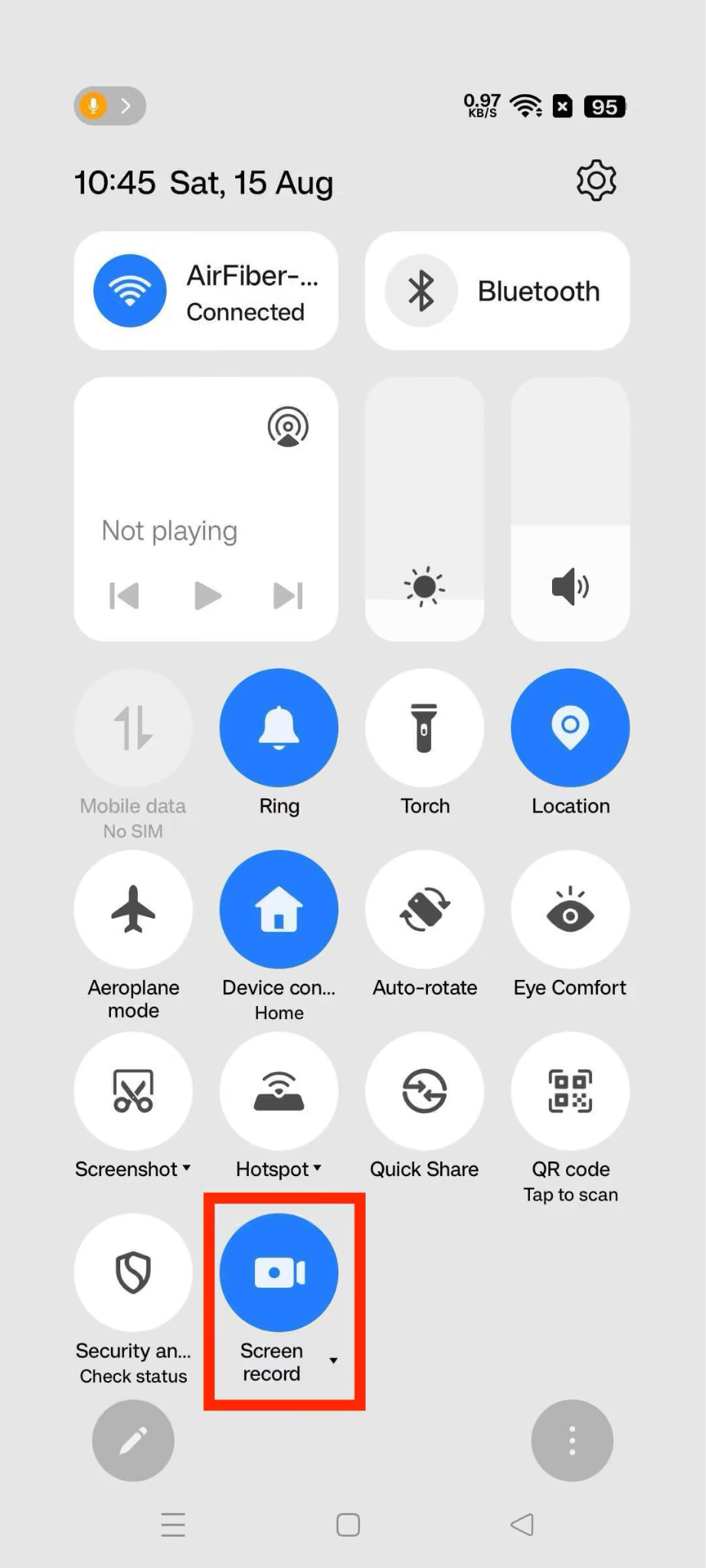
Step 2: Choose the option to include device audio and, if available, your microphone.
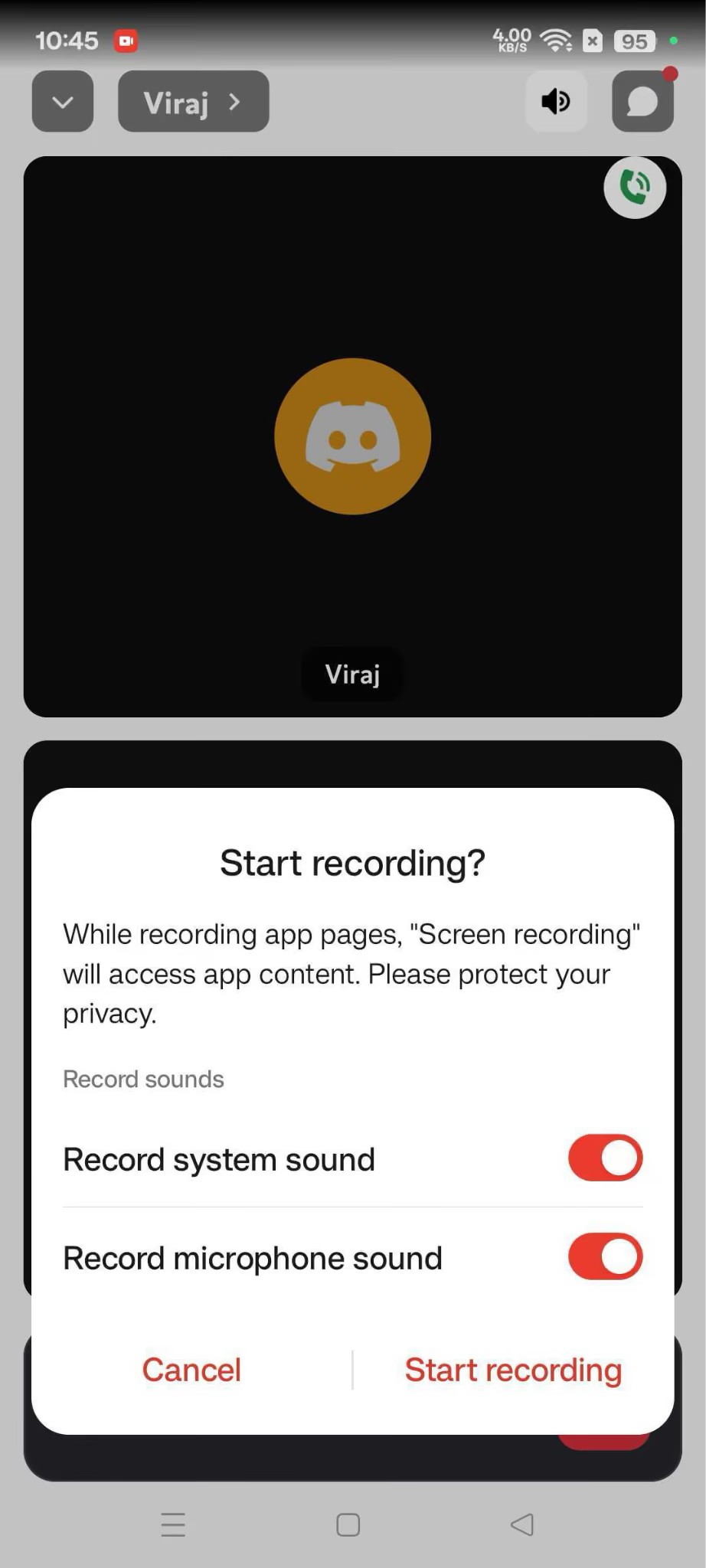
Step 3: Start recording and continue your Discord call.
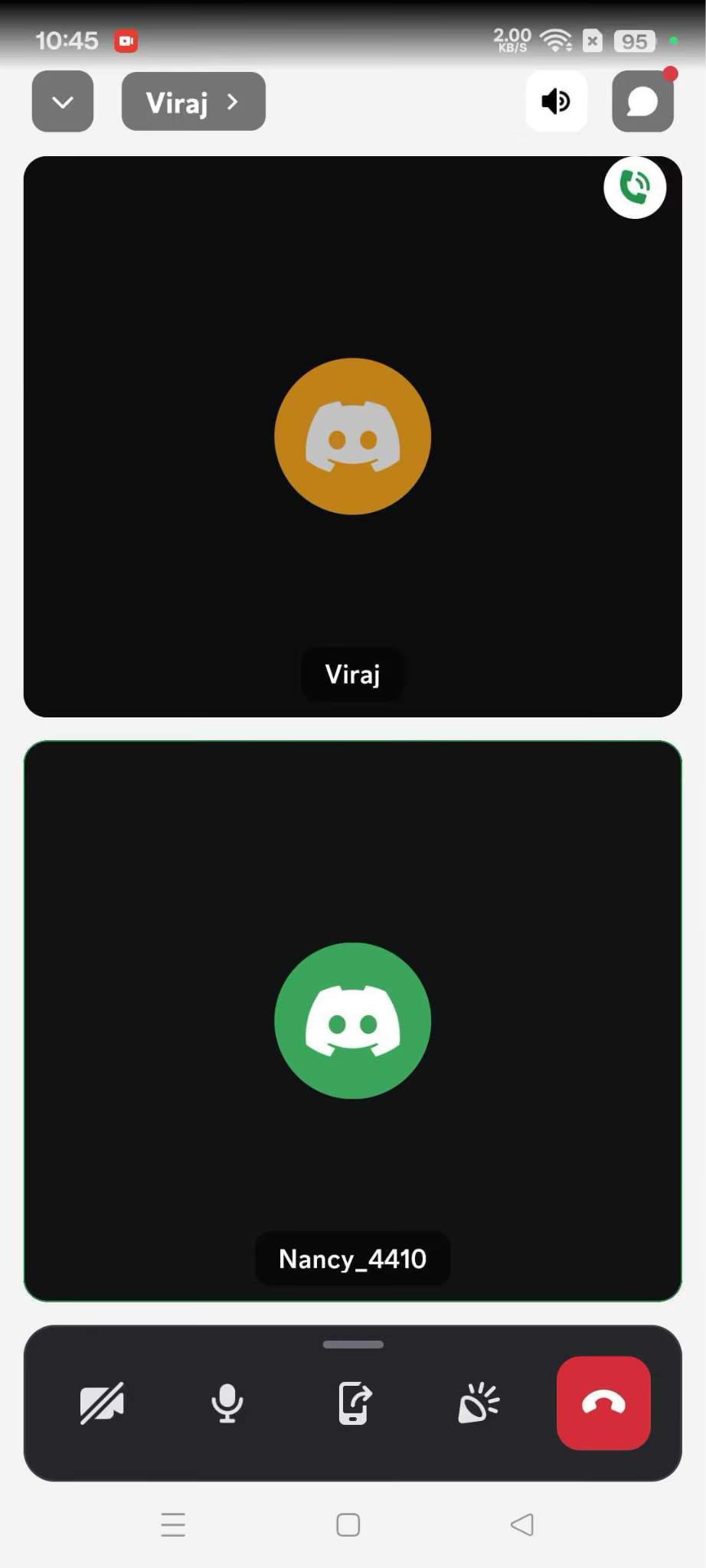
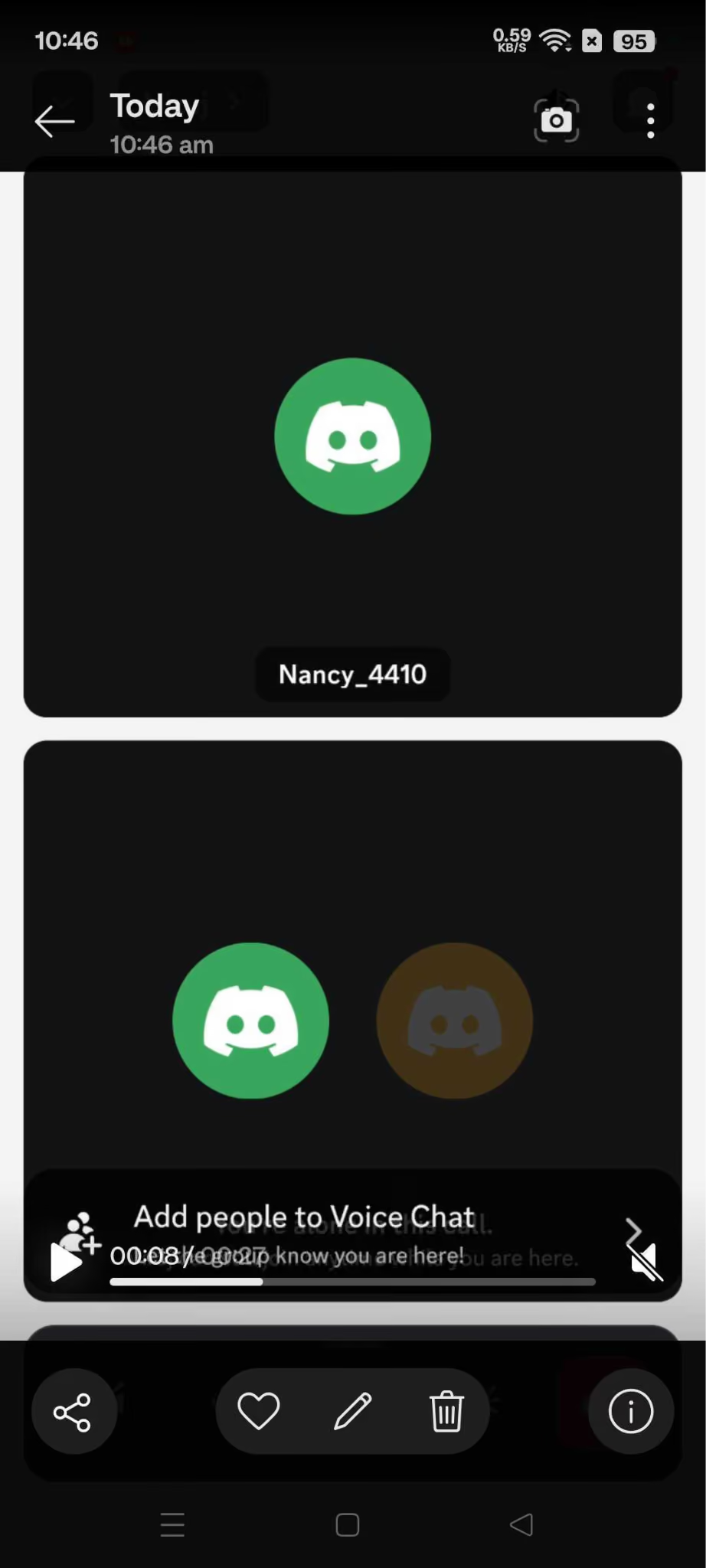
Step 4: Stop the recording when you're finished and find the saved file in your phone’s gallery or recordings folder.
Android limitation: Screen-recording options vary between manufacturers and Android versions. Some devices may restrict internal audio capture during calls, which can result in missing or one-sided audio.
Before recording an important Discord call, make a short test recording to confirm that both sides of the conversation are being captured.
Is It Legal to Record a Discord Call Without Consent
It depends on where you and the other participants are located. Discord itself does not record or store the contents of voice and video calls as a standard practice, and its current audio and video communications are end-to-end encrypted. However, recording a call yourself is subject to the laws and rules that apply to your situation.
- Check local recording laws: Some jurisdictions allow recording when one participant consents, while others require everyone on the call to agree.
- Get permission first: The safest approach is to tell everyone that you are recording and get their consent before starting.
- Check server rules: A Discord server may have its own rules about recording conversations or using third-party apps and bots.
- Respect other people's content: Discord's Terms of Service state that you must not use other people's content without their consent or a legal basis to do so.
- Be careful with recordings: A recording can contain private conversations, personal information, or other sensitive content, so store and share it responsibly.
You can also review Discord's Terms of Service and Privacy Policy for the platform's current rules.
Recording a Multilingual Discord Call
Knowing how to record a Discord call is only part of the challenge when the conversation happens across multiple languages. A recording can preserve everything that was said, but it does not make the conversation easier to understand for someone who speaks a different language.
That is where JotMe can be useful. Instead of ending up with a raw multilingual audio file, you can record the Discord call while getting live translation during the conversation. Participants can follow along in their preferred language through a shared link or QR code, and the conversation is transcribed after the call for easier review.
So, if you're looking for how to record a Discord call for a multilingual gaming session, community meeting, or team discussion, JotMe gives you more than just a recording. Try JotMe to record, translate, and transcribe your Discord conversations in one place.
FAQs
Is Recording Against Discord's ToS?
Discord does not provide a native call-recording feature, but using a third-party recorder is not automatically prohibited. You still need to follow Discord's Terms of Service, Community Guidelines, applicable laws, and any rules set by the server. Discord's Terms also state that you should not use other people's content without their consent or as otherwise allowed by law.
Does Discord Notify People When a Call Is Recorded?
Discord itself does not send a recording notification because it does not have a native call-recording feature. Third-party tools can behave differently. For example, Craig makes its recording status visible by adding [RECORDING] to its nickname while it is recording.
Can You Record a Discord Stream?
Yes, you can capture a Discord stream using a screen recorder such as OBS or your device's built-in recording tools. However, Craig cannot record livestreams or video. Craig is designed to record audio from Discord voice channels.
Can You Record Only One Person on a Discord Call?
Yes, with a multi-track bot such as Craig. Instead of combining everyone into one audio track, Craig creates a separate audio file for each speaker, so you can edit or remove individual speakers later.
Is Craig Free?
Yes, Craig offers free Discord voice-channel recording. It supports multi-track audio and several export formats, including FLAC and MPEG-4 AAC. For the latest information about available features or limits, check Craig's official website before choosing it for your recording needs.
Can You Record Discord on a Phone?
Yes, both iPhone and Android devices have built-in screen-recording tools that can be used to capture a Discord call. However, audio capture can vary by device and recording setup, so test a short recording first to make sure both sides of the conversation are captured properly.
Last updated on
August 24, 2026
Follow us on social media: