






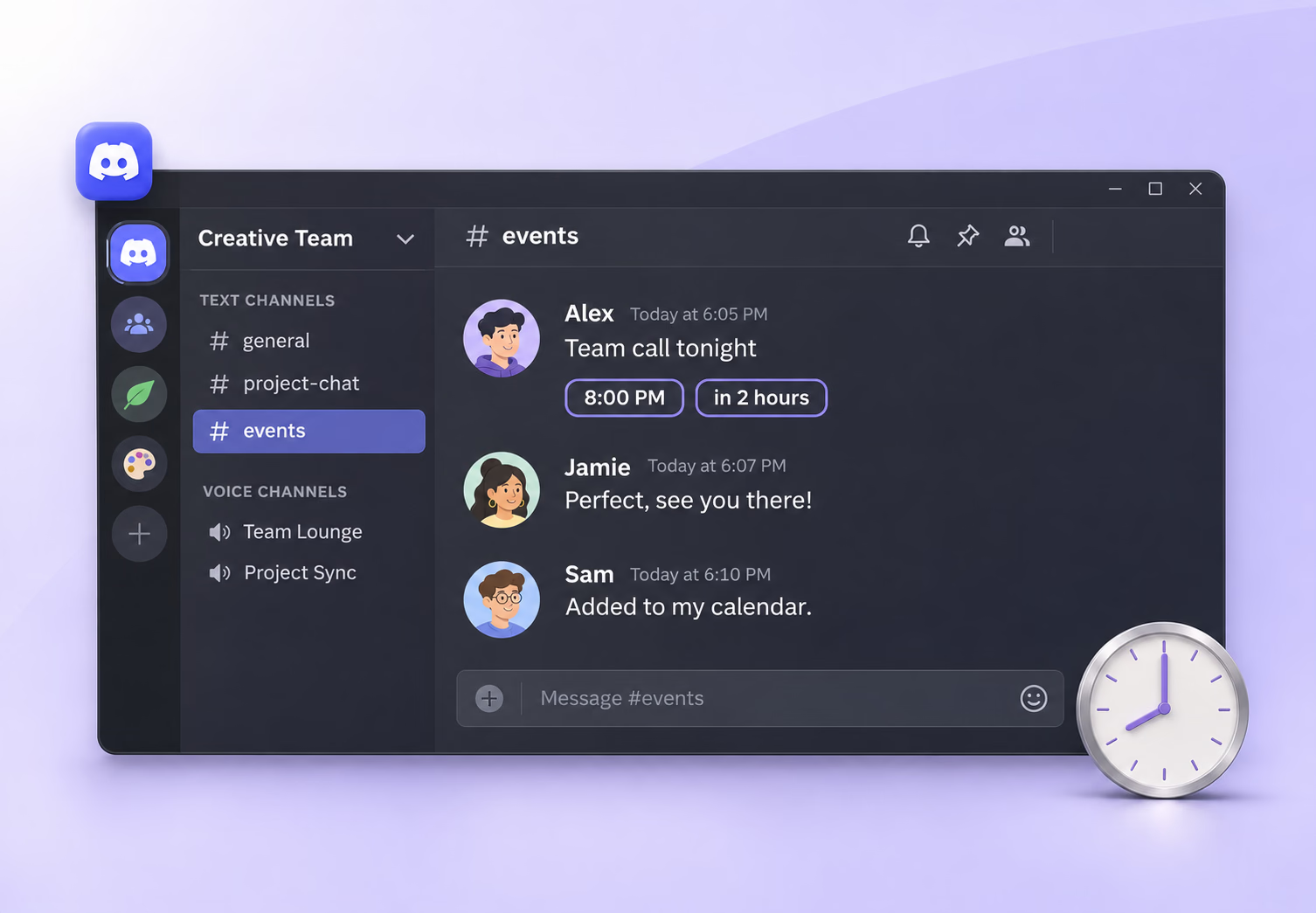
Planning a Discord call with people in different time zones, but tired of explaining what “8 PM” means for everyone? Discord timestamps let you post a date and time that each person sees in their own time zone.
Discord announced its built-in desktop @time feature in February 2026, making it possible to create timestamps directly in the message box without opening a separate website.
I tried Discord’s built-in @time option on my Mac and Android device, then used HammerTime to generate codes for the same project call.
Here’s what I noticed when I tried it on my Mac and Android phone:
- On my Mac, Discord showed the date and time as soon as I pasted the code, before I sent the message.
- On Android, I could still see the code while typing. It changed to the date and countdown after I tapped Send.
- The same call time appeared as 20:00 on my Mac and 8:00 PM on my phone.
- I didn’t need to edit the countdown. It changed from “in 9 hours” to “in 8 hours” as the call got closer.
Below, I will explain how to create timestamps on Discord, choose from nine display formats, and use JotMe to transcribe and translate a Discord call.
Key Takeaways
- Discord timestamps show scheduled events in each viewer’s local time zone. Use them in call invitations or deadline announcements so people can see when the event happens without converting the time themselves.
- On Discord’s desktop or mobile app, you can create a timestamp by typing @time in a Discord message. Enter the event’s date or time, select a suggested display format, and send your message.
- You can also generate a timestamp code with a website such as HammerTime. Select the event’s date, time, and time zone, then copy the generated code into Discord chat and send it.
- You can display an exact date or a countdown for the same event. Choose the F format to show the weekday, date, and time, or R to show changing text such as “in 8 hours.”
- JotMe is a live translation tool that helps you review what was said during a Discord call. It can transcribe and translate the conversation, while timestamps in a saved transcript let you move audio playback to a specific discussion point.
What are Discord Timestamps?
Discord timestamps show people when an event starts in their own time zone. For example, a call scheduled for 8:00 PM in India appears as 2:30 PM for someone in the UK on 20 November 2026. Discord uses Unix timestamps that count the number of seconds passed since January 1, 1970, at 00:00:00 UTC.
Discord supports nine case-sensitive timestamp styles. The table below shows different Discord timestamp styles with an example.
Style | Shows | Example display in English (US) |
|---|---|---|
d | Short date | 11/20/2026 |
D | Long date | November 20, 2026 |
t | Time | 8:00 PM |
T | Time with seconds | 8:00:00 PM |
f | Date and time | November 20, 2026 8:00 PM |
F | Weekday, date, and time | Friday, November 20, 2026 8:00 PM |
s | Numeric date and time | 11/20/2026 8:00 PM |
S | Numeric date and time with seconds | 11/20/2026 8:00:00 PM |
R | Relative time | in 8 hours; changes over time |
**Date order and clock format can differ for each viewer.
For a call invitation, you can choose F so viewers can see the full date and time. You can add an R timestamp to show how soon the call starts and use t when the date is already clear and you only need to display the time.
Note: The letters are case-sensitive. For example, t shows hours and minutes, while T includes seconds. If you leave out the style, as in <t:1795185000>, Discord uses the default f format to display the date and time.
Why Use Discord Timestamps Instead of Plain Text?
You can use Discord timestamps when you want to share an announcement with people across different time zones. A typed “8 PM” means everyone in the chat or channel has to convert the time to their local time zone. A timestamp gives them the local date and time, including a different calendar day when necessary.
You can also pair a full date with a relative timestamp for invitations. Viewers can see both when the call happens and how long they have before it starts. However, it is better to keep the full date visible because a countdown alone becomes less useful when someone reads the message later.
How to Make Timestamps on Discord?
To make timestamps on Discord, you can use @time on desktop or paste a timestamp code generated in your browser. I used both methods for a project call scheduled for 20 November 2026 at 20:00 in India. I have covered both methods below with screenshots:
Method 1: Use @time on Desktop or Mobile App
Step 1: Open a Discord Conversation and Select @time
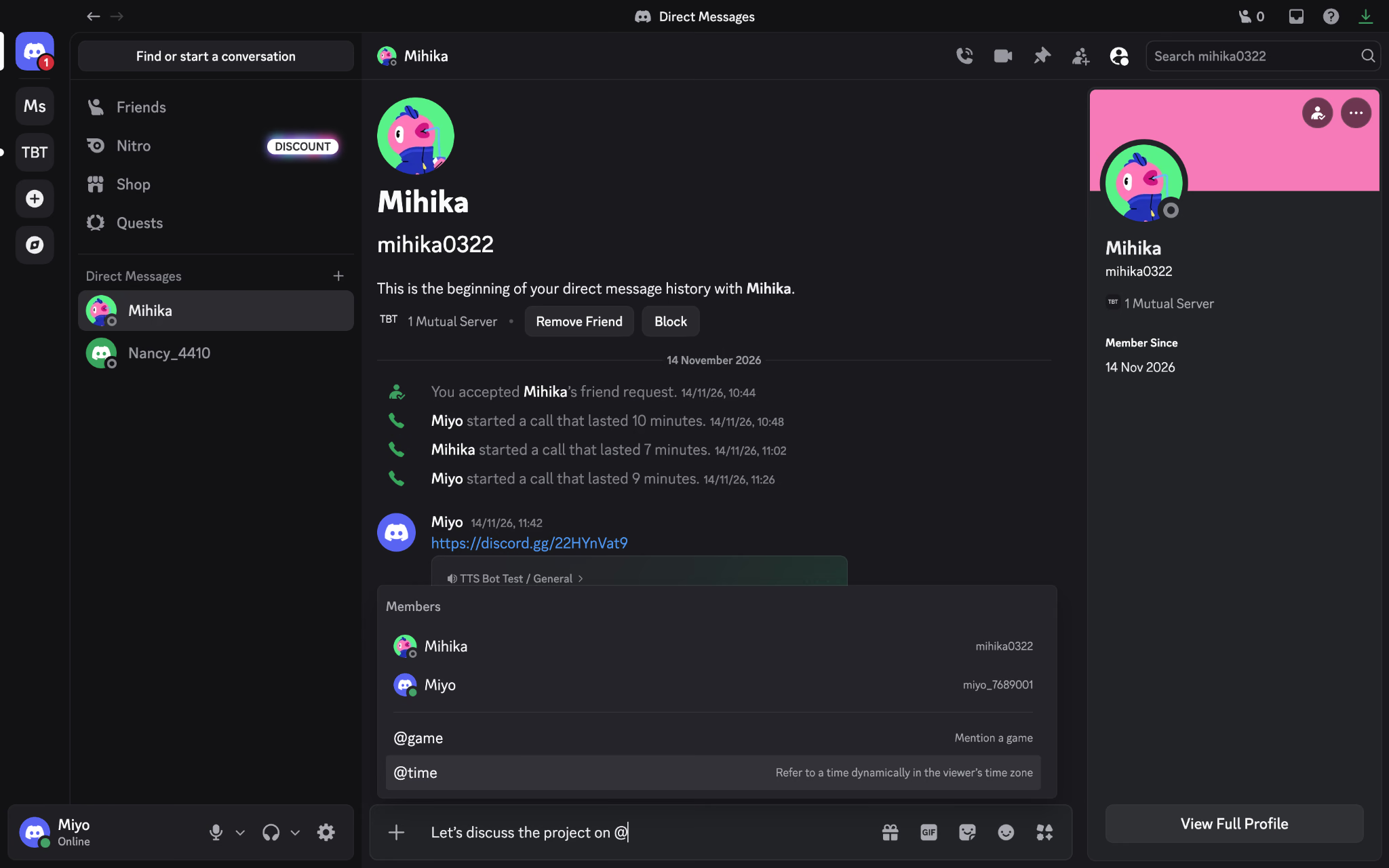
Open the Discord conversation or text channel where you want to post. Start your message, then type @ and select @time from the suggestions. I started with “Let’s discuss the project on” so the timestamp would fit into the invitation.
Step 2: Enter the Time and Choose a Format
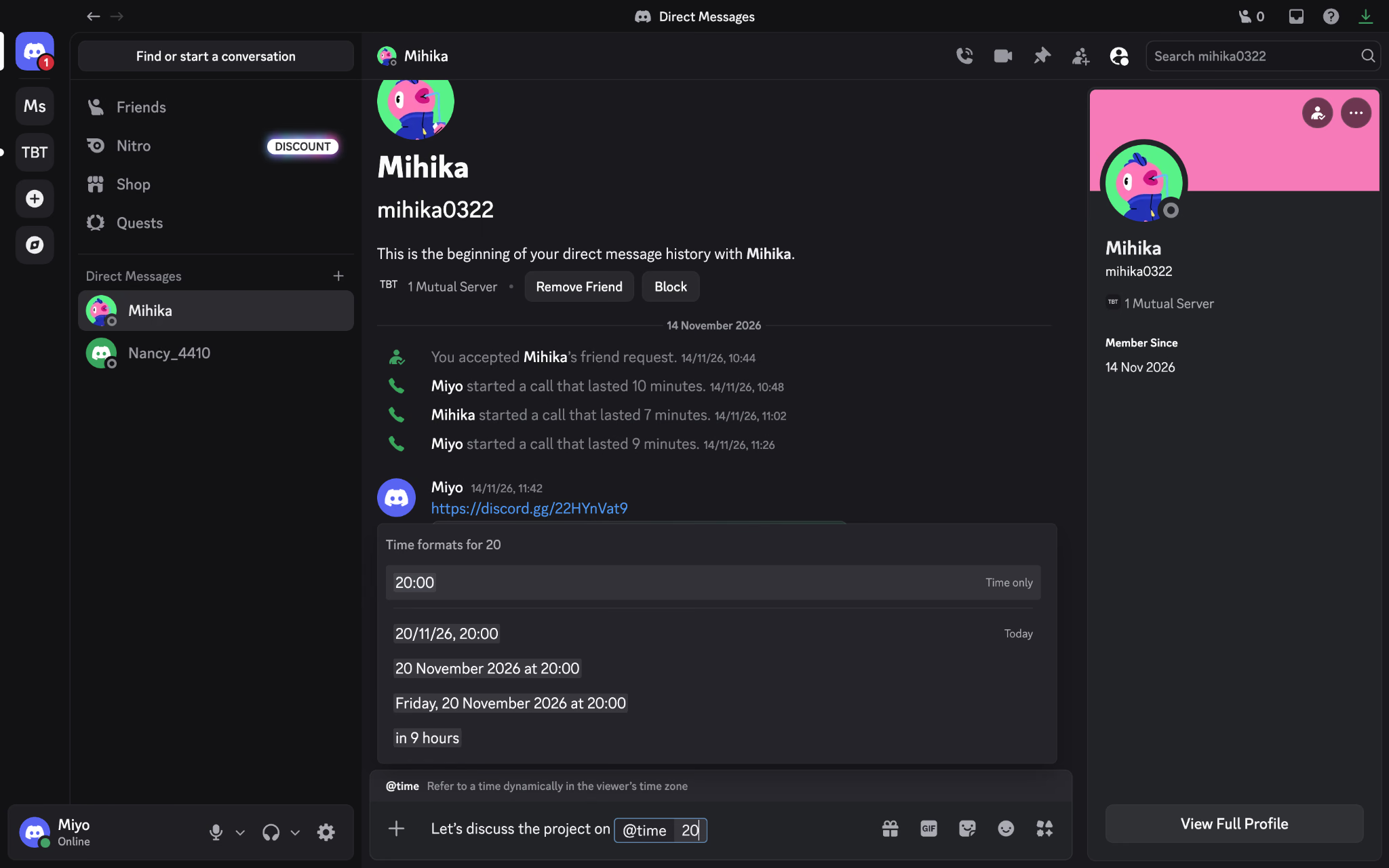
Enter the time in the @time field. When I typed 20, Discord offered formats for 20:00 that day. Check the suggested date before selecting it. That’s because adding a time alone may refer to today when you intended another day.
Choose a date-and-time suggestion for an invitation from the suggestions. For a countdown, select the relative option near the bottom, i.e., “in 9 hours.”
Step 3: Finish and Send the Message
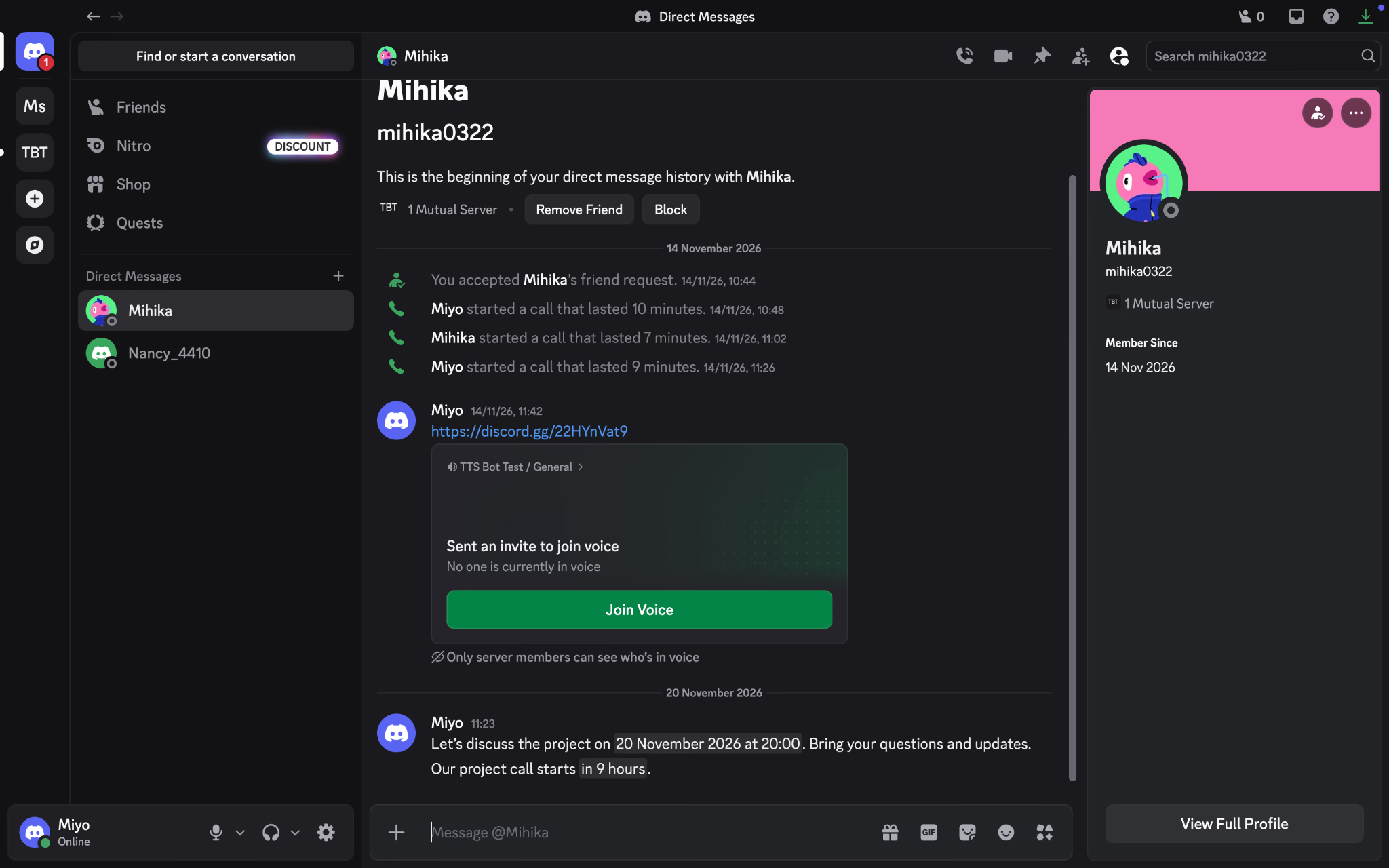
Add the rest of your message and press Enter. My invitation displayed 20 November 2026 at 20:00. I then repeated the process and chose the relative option to add “Our project call starts in 9 hours.”
Method 2: Generate a Discord Timestamp Code
You can also use a generator to copy a code into Discord and make timestamps. I used HammerTime for the same project call, and here are the steps:
Step 1: Choose the Event Date and Source Time Zone
Set the event’s date and time, then check Timezone. For my example, the event was on 20 November 2026 at 20:00 in India, so the source zone was Asia/Calcutta.
Note: The source zone is where the original scheduled time applies. If a host gives you a time in New York, choose that zone even if you are posting from India. Discord handles the viewer’s local display later.
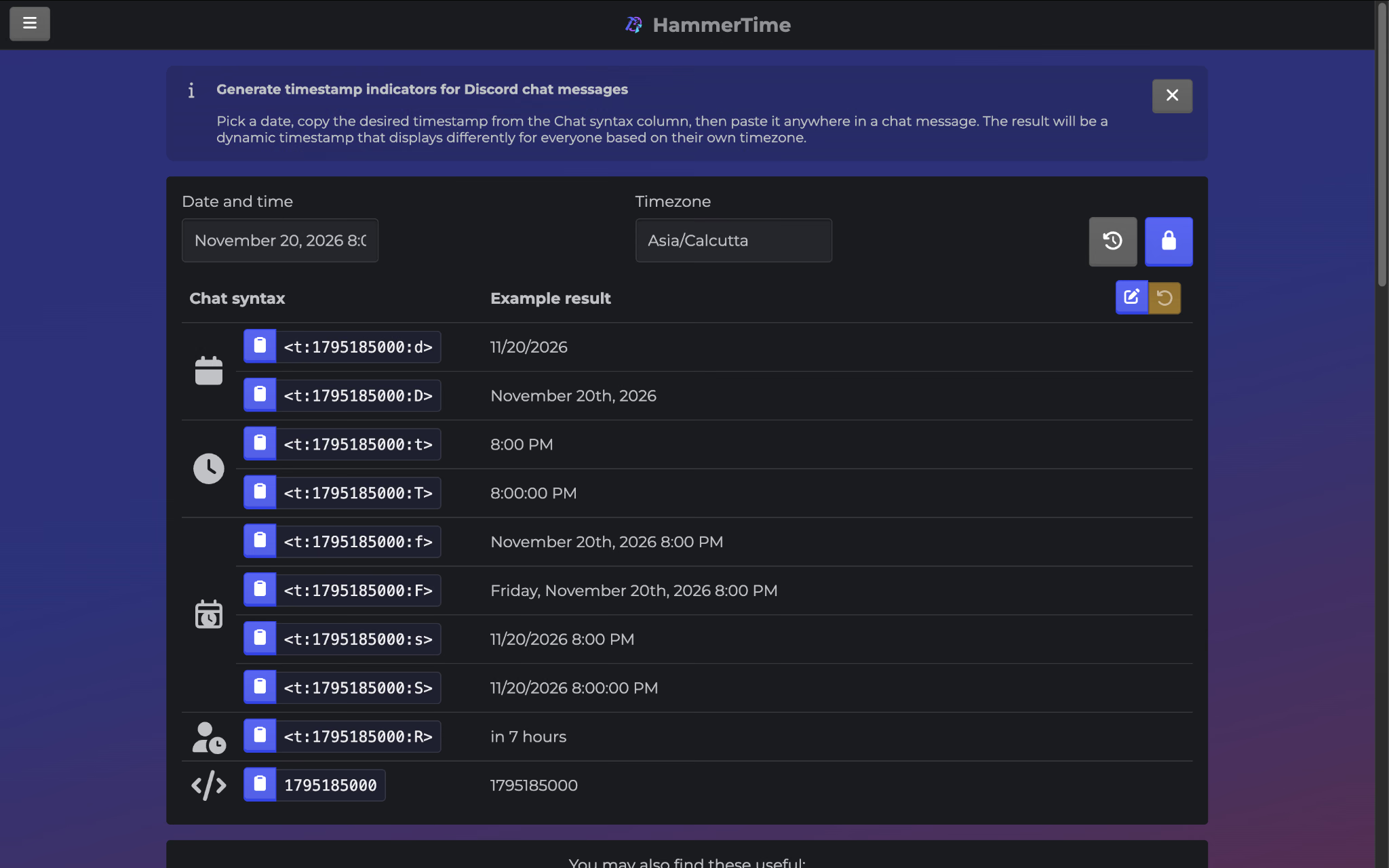
Step 2: Copy the Required Timestamp Codes
Find the format you want under Chat syntax and copy its code. You can use F for the full date and R for the countdown. Both codes will contain the same number, 1795185000, because they refer to the same event.
In <t:1795185000:F>, the number identifies the scheduled moment, and F adds the weekday, date, and time. Changing F to R changes the display to relative wording without changing the event. Here is the message I prepared:
Project call: <t:1795185000:F>
Starts <t:1795185000:R>.
Step 3: Paste and Send the Message in Discord
Paste the codes into Discord as ordinary message text. I copied both into my conversation, and Discord on my Mac previewed the formatted date and countdown before I sent the message. Press Enter to post.
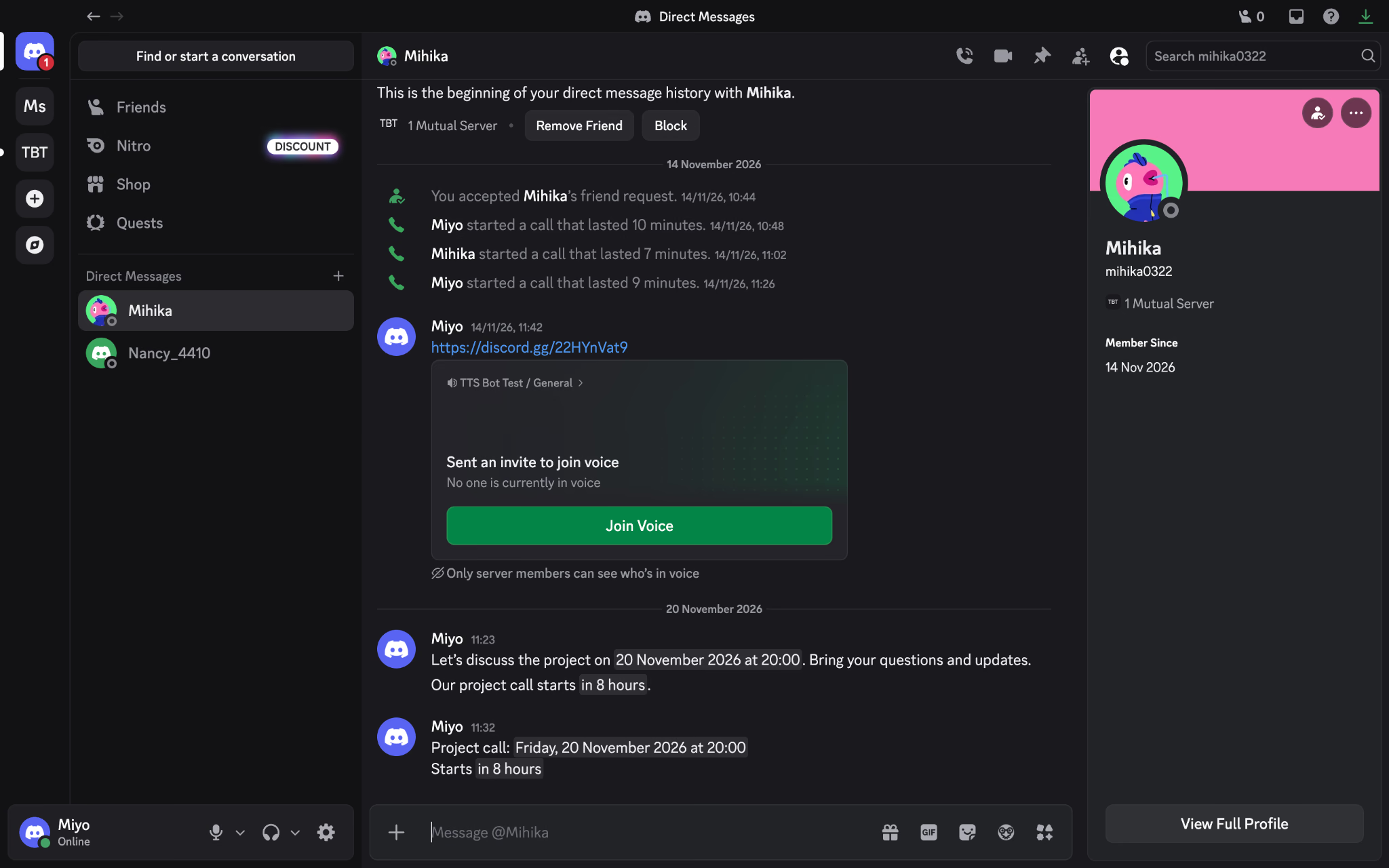
You can use the same steps to generate the code on mobile and create Discord timestamps. On the Discord mobile app, open the Discord conversation where you want to post > paste your message and the generated codes into the message box > tap the Send arrow, then check the date and countdown in the posted message.
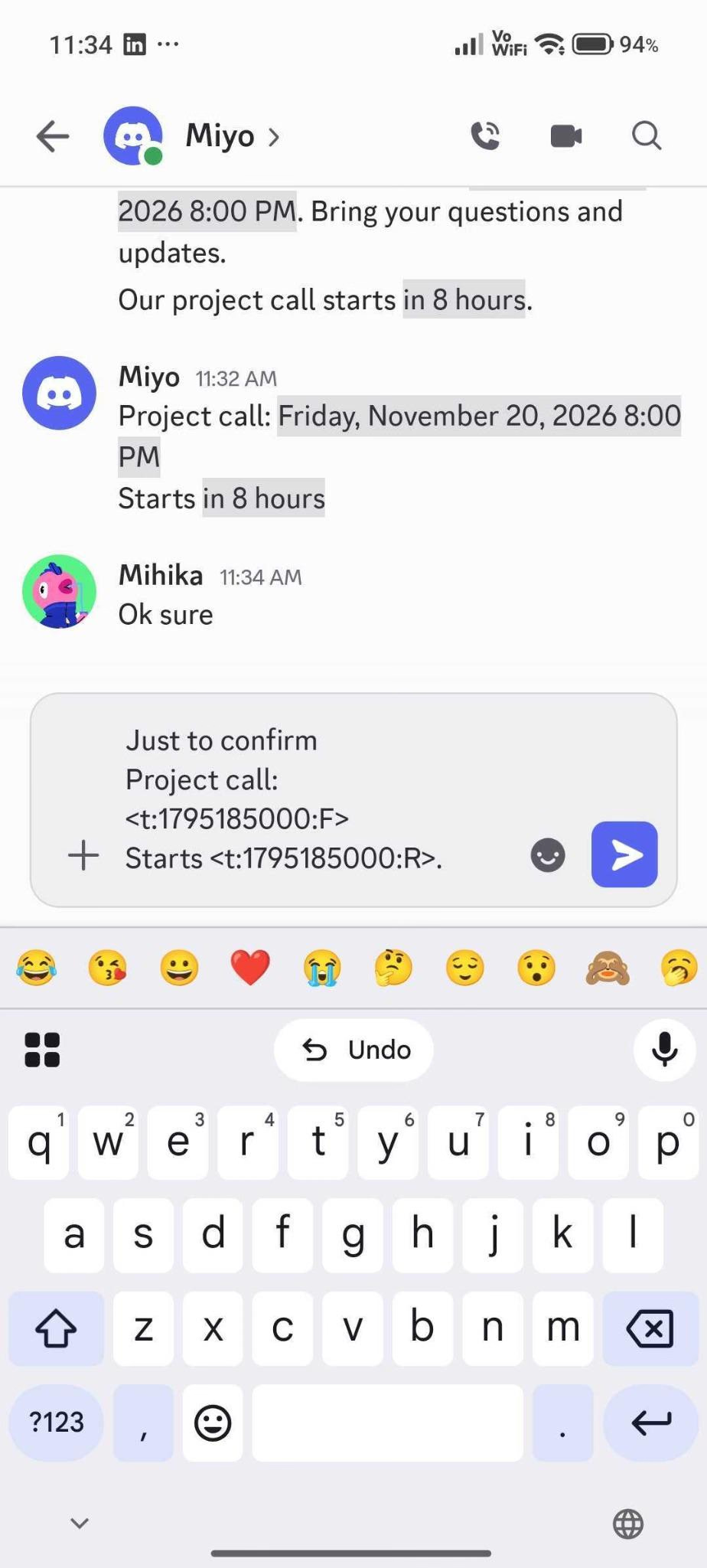
If your Discord timestamp does not work, check the complete code first. It needs the angle brackets, colons, numeric value, and a supported style letter. Use Unix time in seconds, not milliseconds, and paste the code outside backticks or a code block when you want Discord to display it as a timestamp.
If the result shows the wrong event time, recheck the generator’s selected date and source time zone. If @time does not appear in your Discord desktop or mobile app, use a generator code. On mobile, check the result after sending, as the Android message shows raw code while you are drafting the message.
How to Get a Timestamped Transcript and Translation of Your Discord Call?
If you want to get a transcript and translation, you can run JotMe alongside Discord, select your languages, and start the session. Once the call ends, open the saved transcript to review what was said. This is useful when you need to check a deadline someone mentioned or replay a particular discussion.
Step 1: Set Your Languages in JotMe
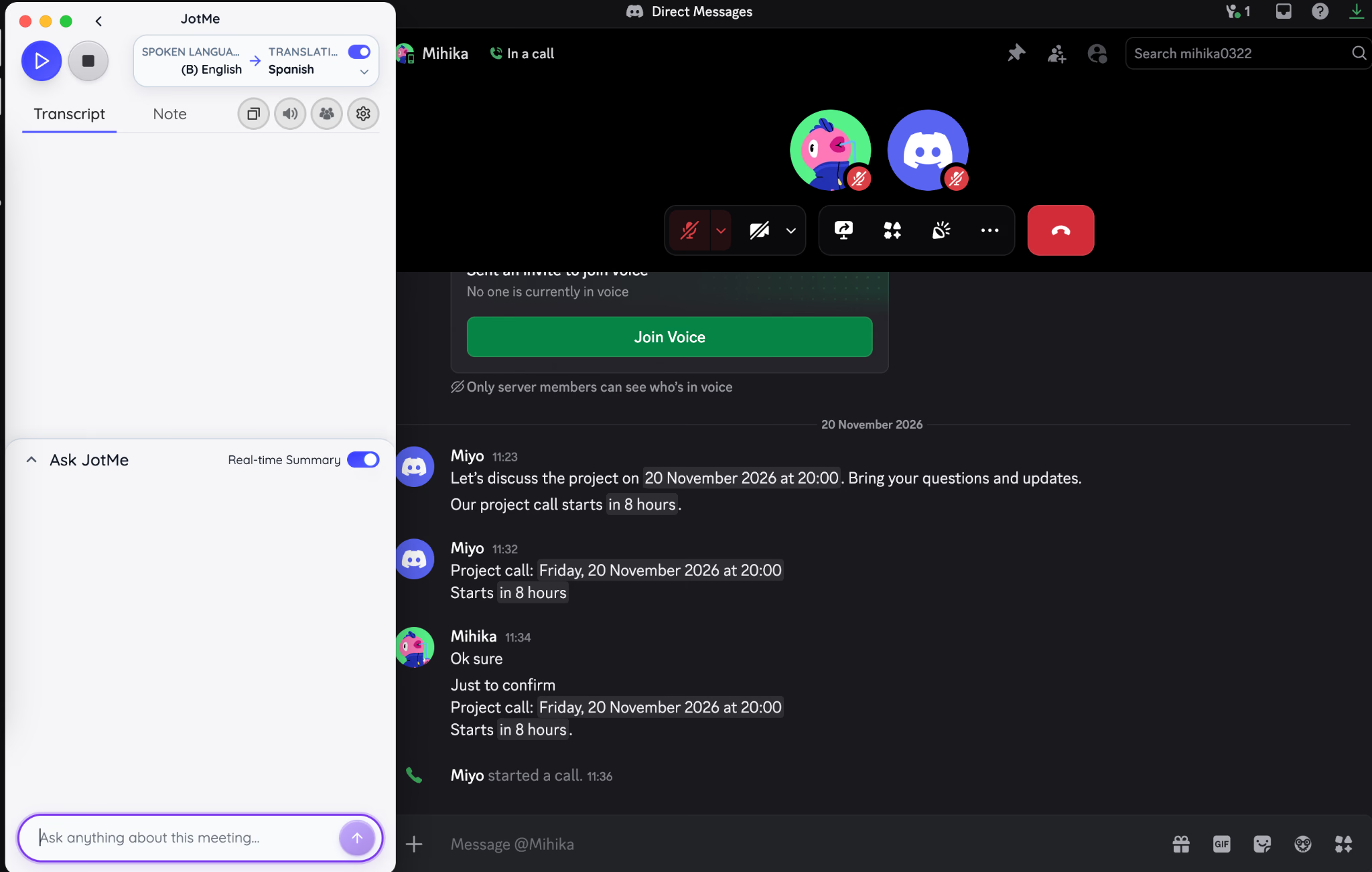
Open JotMe’s desktop app. Set Spoken Language to the language being spoken and Translation to the language you want to read. You need to allow microphone and system audio access so JotMe can hear both sides.
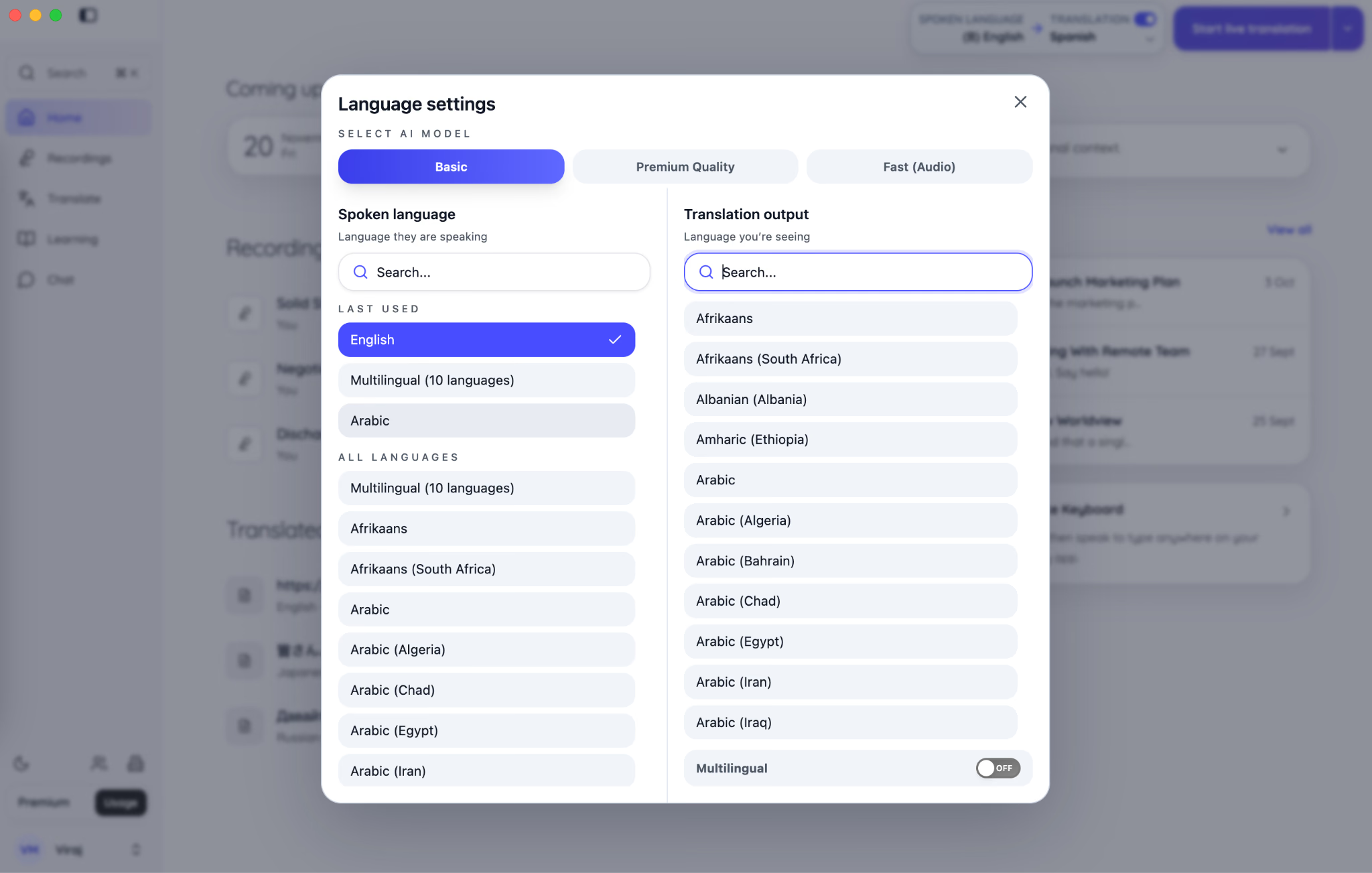
Step 2: Start Transcription and Translation
Click “Start live translation,” and the JotMe window will open to transcribe and translate the call in real time. Click the Play button and begin speaking.
If you are presenting during the call, the Discord screen-sharing guide explains how to share your display. If you only need transcription of what’s being said in the call, you can read: How to transcribe a Discord call.
Step 3: Review the Saved Transcript
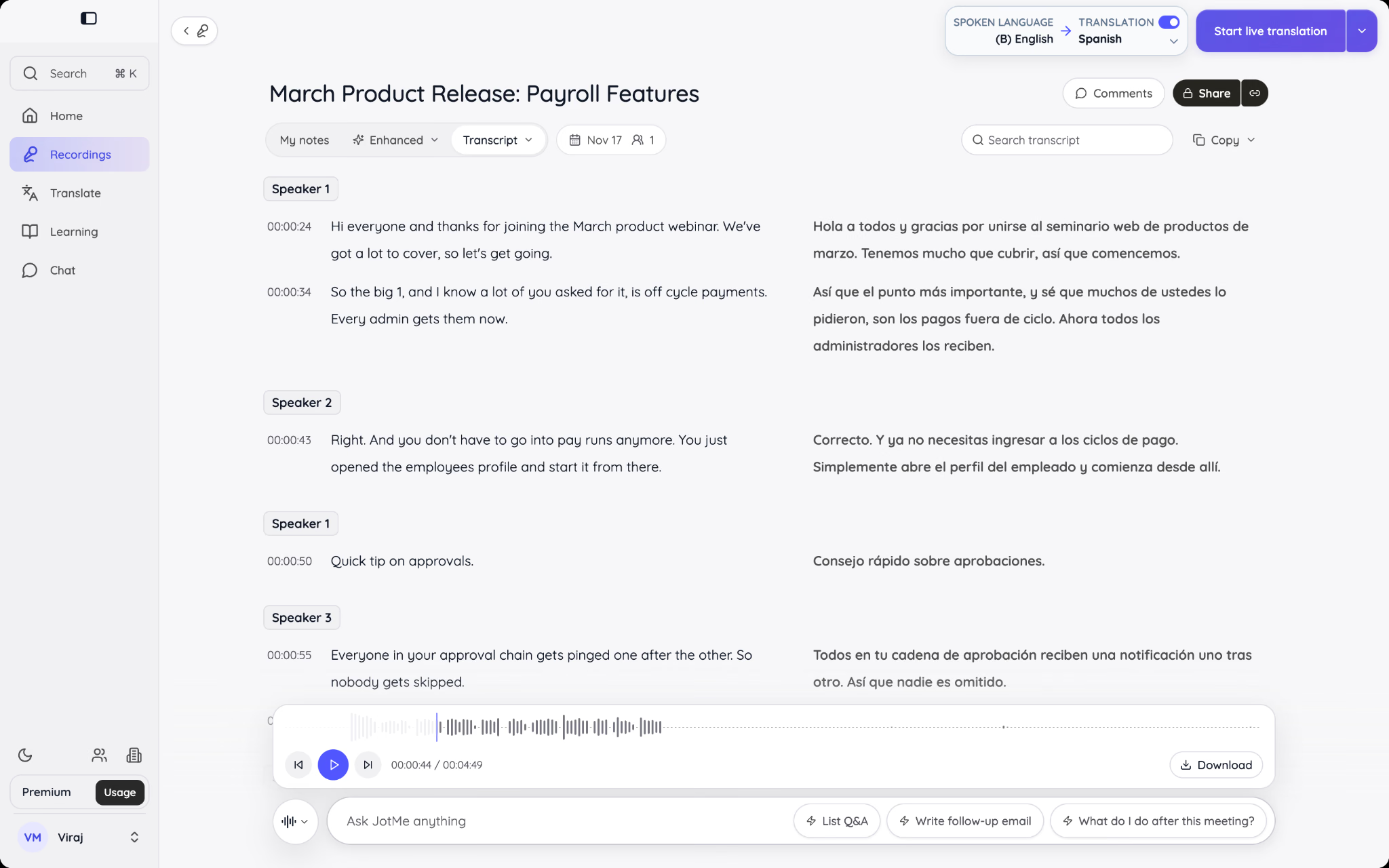
After recording your Discord call, click Stop, then open the saved session from Recordings and select Transcript. Find the passage you need and click its timestamp to move audio playback to that point.
Keep a Transcript of Your Next Discord Call
Need to check a deadline or revisit something someone said? Run JotMe alongside Discord to transcribe the conversation and read translated captions. After the call, open the saved transcript to find the passage you need and replay it from its timestamp.
Download JotMe for FreeConclusion
You can use Discord’s @time feature to send a quick invitation with timestamps, or generate a Discord timestamp code using a tool and paste it into the chat. You can also add the full date with a relative timestamp when the countdown matters. If the call includes deadlines or decisions you will need later, use JotMe with Discord to keep a saved transcript and translation that you can review later.
Follow Your Discord Call in Another Language
Once everyone knows when to join, make the conversation easier to follow. JotMe displays translated captions alongside Discord and saves the transcript for later review. Try it on your next call to follow what’s being said and check the details later.
Download JotMe for FreeFAQs
How Do I Properly Use a Discord Time Stamp in Messages?
To properly use Discord timestamps in messages, insert <t:UNIX_SECONDS:STYLE> into ordinary message text. Replace the placeholders with your event’s numeric value and format letter. Keep the code outside backticks so Discord can display it as a timestamp.
How Do I Make Timestamps in Different Formats and Styles?
You need to change the final letter while keeping the number unchanged to make timestamps in different formats and styles. For example, <t:1795185000:t> shows the time, while <t:1795185000:D> shows the date. These formats change the display without changing the scheduled moment. To reschedule the event, you’ll need to generate a new number.
How Can I Use Discord’s Relative Timestamp?
To use a relative timestamp in Discord, format a Unix timestamp with :R inside angle brackets (<t:UNIX_SECONDS:R>), or type @time in the desktop message composer and select the relative time option. Discord automatically updates relative timestamps (like "in 5 hours" or "15 minutes ago") in real time for every viewer.
How Do I Add Date and Time Stamps in Discord?
You can add a dynamic date and timestamp in Discord by using the @time command in the message box or by pasting a Unix timestamp code (<t:TIMESTAMP:STYLE>) that automatically adjusts to each viewer's local time zone. Here are the common style codes:
- :t — Short time (e.g., 5:18 PM)
- :T — Long time with seconds (e.g., 5:18:00 PM)
- :d — Short date (e.g., 11/20/2026)
- :D — Long date (e.g., November 20, 2026)
- :f — Short date and time (e.g., November 20, 2026 at 5:18 PM)
- :F — Full day, date, and time (e.g., Friday, November 20, 2026 at 5:18 PM)
- :R — Relative time (e.g., in 2 hours or 3 days ago)
How Do I Change Discord Time Format to 12-Hour or 24-Hour?
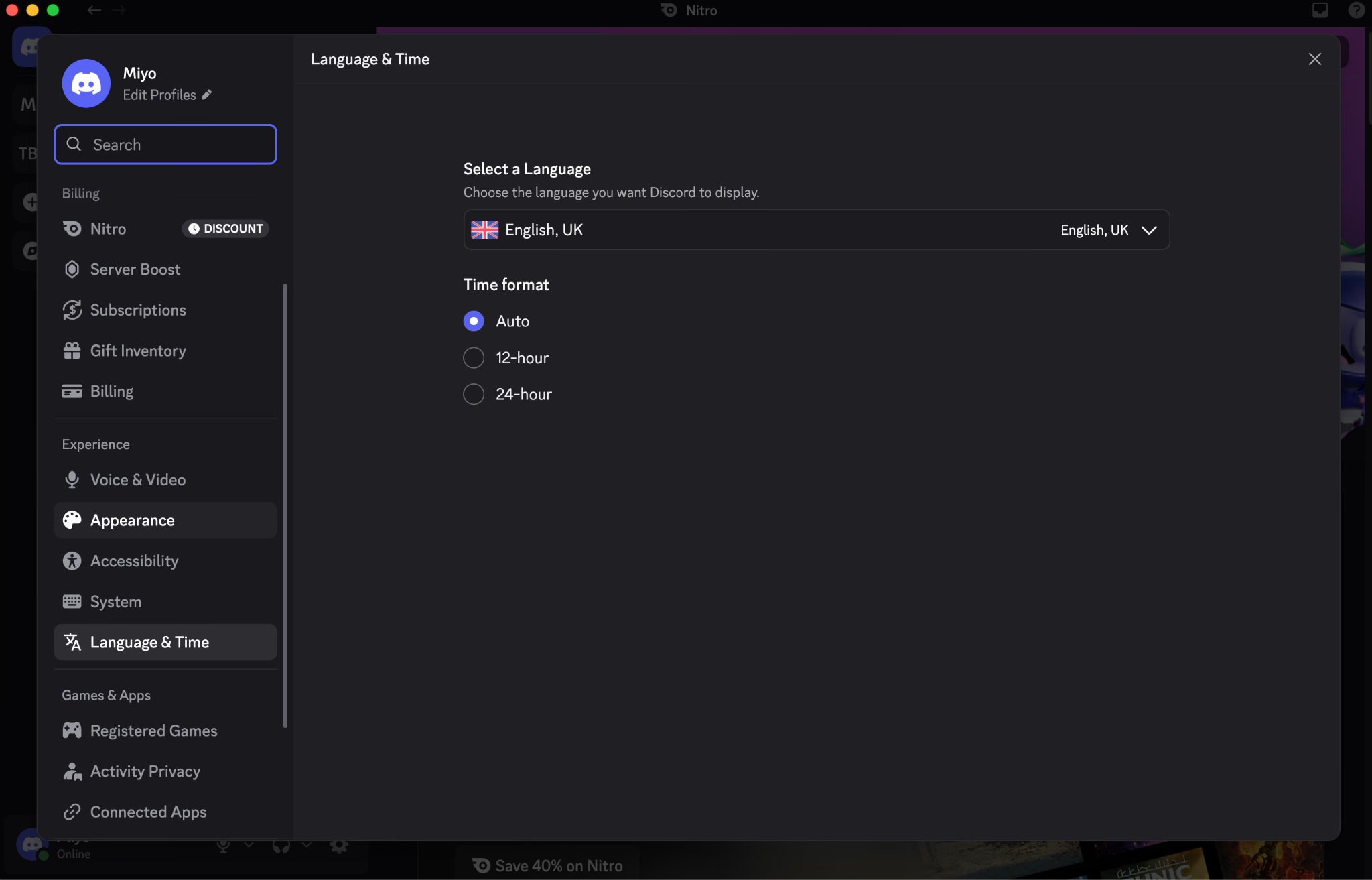
To change the Discord time format to 12-hour or 24-hour, you need to open Discord User Settings, go to Language & Time, and choose 12-hour or 24-hour.
Try JotMe
Accurate translation for your meetings, events, and everyday work, with AI Memory that remembers your context.