




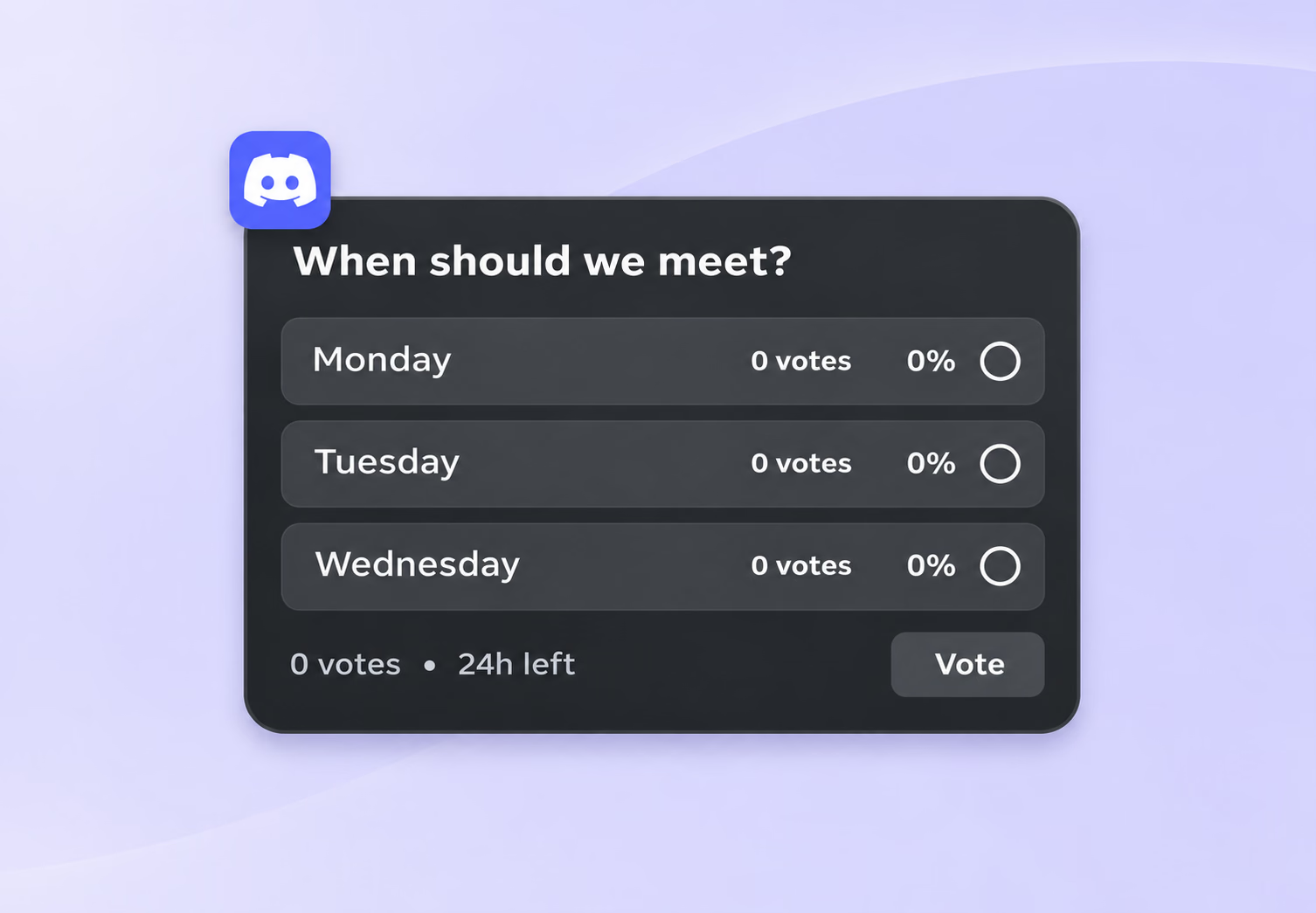
Can’t decide what to play with your friends on Discord this Friday? One person wants Minecraft, another prefers Valorant, and someone else suggests Rocket League. Instead of counting replies in the chat, you can create a Discord poll. Everyone can vote for a game, and you can see which option gets the most votes.
But how do you make a poll in Discord?
You can create a poll using Discord’s built-in feature, emoji reactions, or a bot like EasyPoll. The method you choose depends on how you want people to vote:
- You can make a poll directly in Discord with its built-in feature. Choose “Create Poll” beside the + icon in the Discord chat, and then enter your question, add the choices, and set a time limit.
- You can also let people vote with emojis. Simply post the options in a message and ask everyone to react with the emoji for their choice.
- If you are comfortable installing bots on Discord, you can use a Discord poll bot like EasyPoll. Just add the bot to your server, then use /poll to create your question and choices.
However, sometimes the suggestions come up during a voice call rather than in the chat. If people speak different languages, you might miss an option before it reaches the poll. During a multilingual Discord call, you can use JotMe to follow the conversation, then ask it to turn the suggestions into a poll question and answer choices. After reviewing the wording, you can copy them into Discord.
In this guide, I will explain how to make a poll in Discord with different methods, explain when a bot can help, and show you how to check votes, close a poll, and manage permissions.
Key Takeaways
- You can create a poll directly in Discord by clicking + → Create Poll on desktop or + → Poll on mobile. Then, add your question, answer choices, and a voting time limit.
- If you want to create a simple emoji Discord poll, send a message with your question and answers. Then, give each option an emoji and ask people to react with their choice.
- You can also use a Discord poll bot such as EasyPoll. Simply add it to your server, then use /poll to enter your question and answers.
- If you want to close a Discord poll before its deadline, right-click it on desktop or long-press it on mobile, select End Poll Now, and confirm.
- JotMe is useful when poll ideas come up during a multilingual Discord call. You can use this live translation tool to follow the conversation, then ask it to turn the suggestions into a question and choices you can copy into Discord.
How to Make a Poll in Discord
If you want to make a poll in the Discord app, click + → Create Poll in a text channel, add your question and answers, and click Post. With the built-in Poll feature, you don’t have to install anything, and Discord counts the votes for you.
How to Create a Discord Poll on Desktop and Web
Step 1: Open the Poll Form
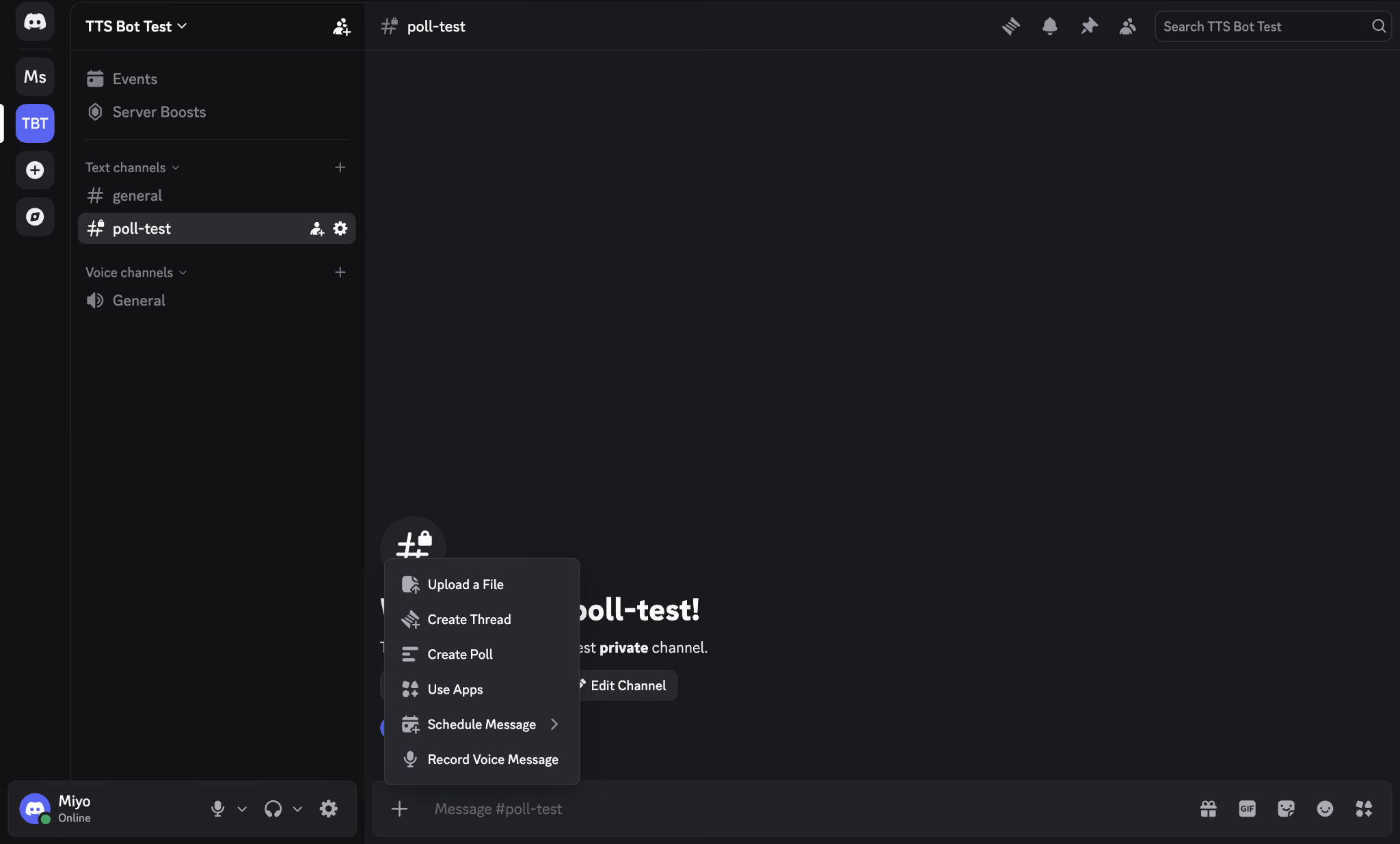
Open the Discord channel or server where you want the poll to appear. Click the + to the left of the message box, then select Create Poll.
Step 2: Enter Your Question and Answers
Discord will open the “Create a Poll” form. Under Question, type any question like “What should we play on Friday?” Then, enter the answers one by one.
If you want to add more answers, click Add another answer. Each answer should be under 55 characters, and you can include up to 10 answer choices for one question. Discord also allows you to add an emoji or smiley beside each answer.
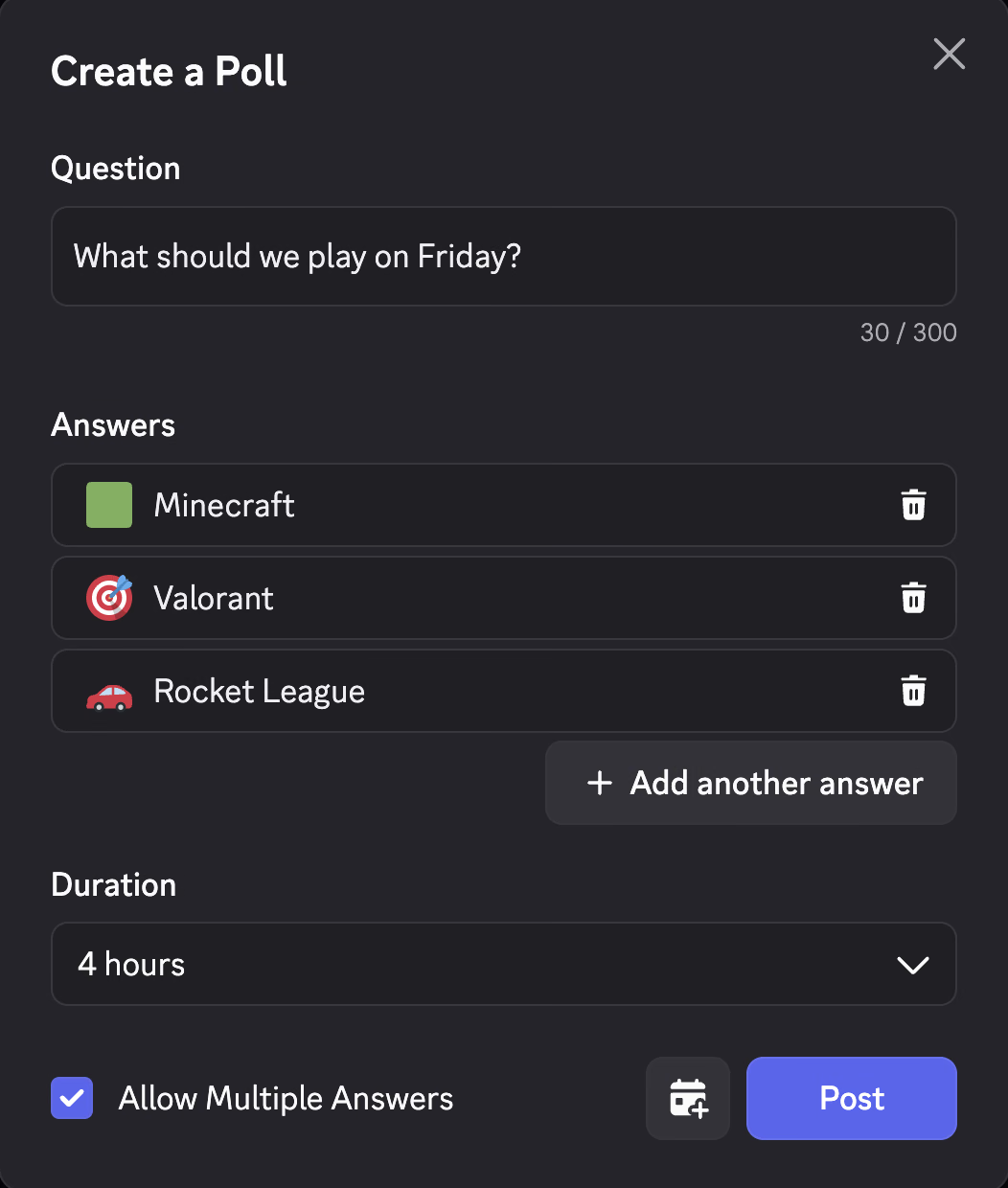
Step 3: Adjust the Poll Settings
You can use the Duration dropdown to choose when voting should end (for example, 1 hour, 4 hours, 8 hours, 24 hours, 3 days, or 1 week).
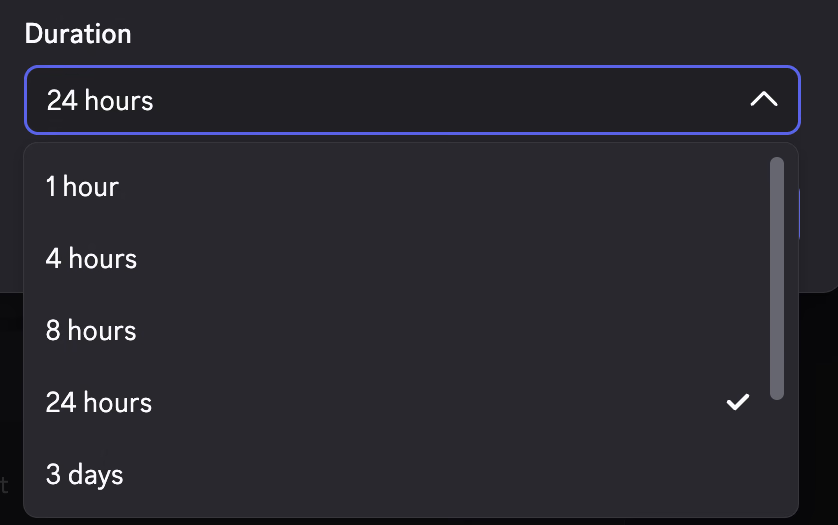
Step 4: Post the Poll
If you want the participants to have a choice to pick multiple answers for one question, check the box next to Allow Multiple Answers. Click Post when you are ready. The poll appears in the channel, where members can select an answer and click Vote.
If you want to schedule the poll instead of sending it right away, you can click the schedule icon next to “Post.” It will open the Schedule Message window, where you can choose the date and time. Once done, click Set Schedule.
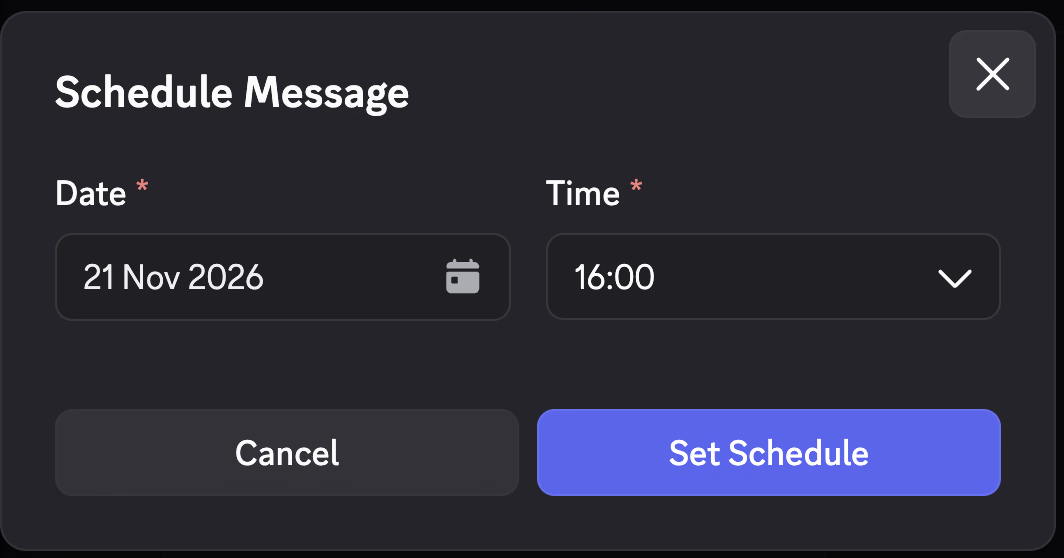
How to Create a Discord Poll on Mobile
Step 1: Open Discord Chat
Open the Discord channel where you want to add the poll and click the + button on the left side of the message text field. A menu opens at the bottom of the screen. Select Poll.
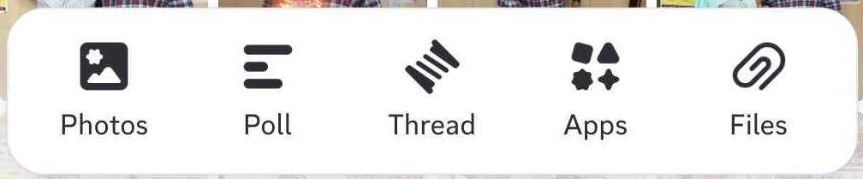
Step 2: Create the Poll
Type the questions in the Question field and add multiple answers. Click Duration to adjust the time limit of the poll, and leave Allow Multiple Answers unchecked if you want people to choose only one answer for the question. Tap Post in the top-right corner to send the poll.
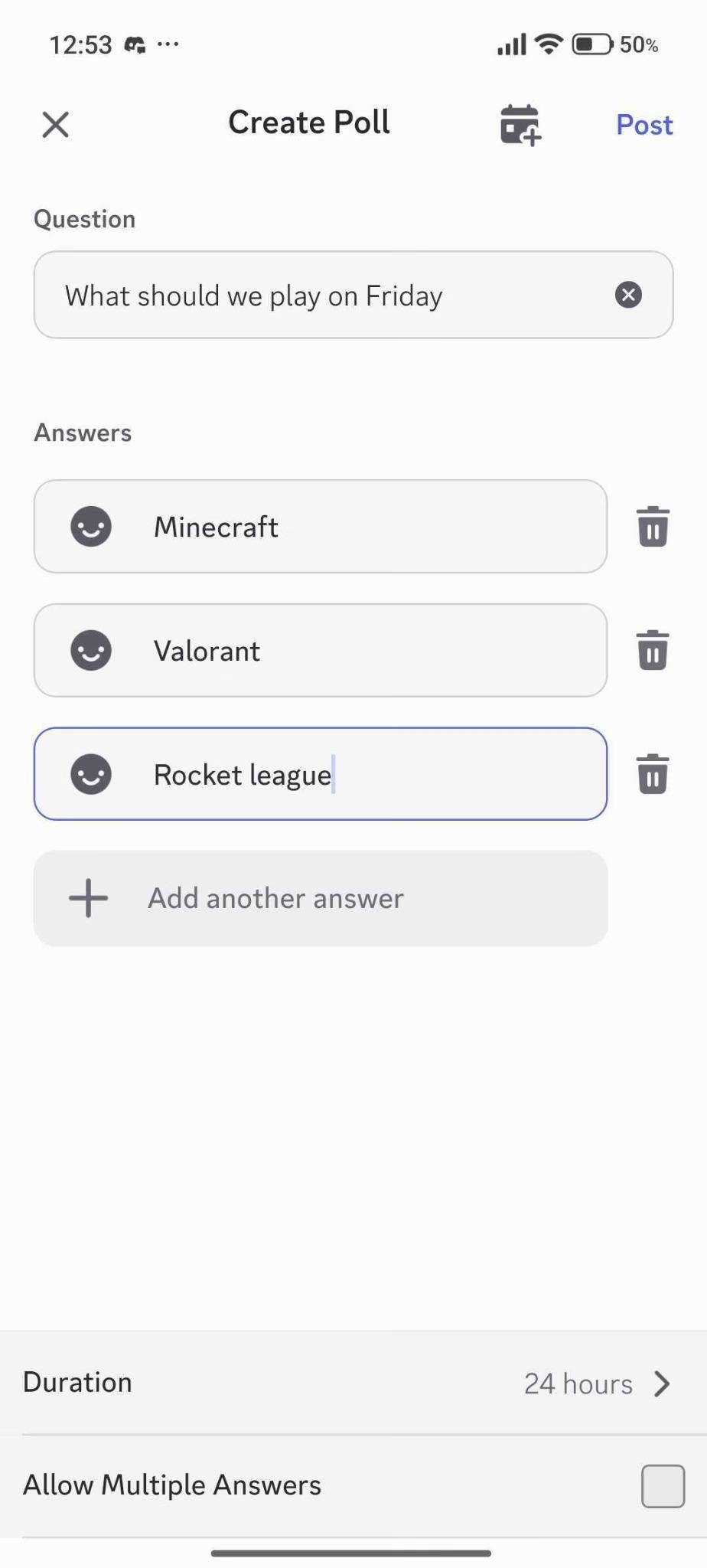
If you can’t find the poll option on Discord, ask a server administrator to check your Create Polls permission. It can be controlled for your role or for an individual channel.
How to Make a Poll in Discord With Emoji Reactions
You can also turn a normal message into a poll with emojis. To do so, post your question in a server text channel or a direct message and give each answer a different emoji. People can then vote by clicking the matching reaction below your message.
Step 1: Write Your Question and Answer Choices
Open the Discord conversation where you want people to vote. Type your question, then put each answer on a separate line with its own emoji. Tell people how many options they should choose.
Here’s the example:
What should we play on Friday?
🟩 Minecraft
🎯 Valorant
🚗 Rocket League
React with the emoji for your choice. Please pick one.
Press Enter to send the message.
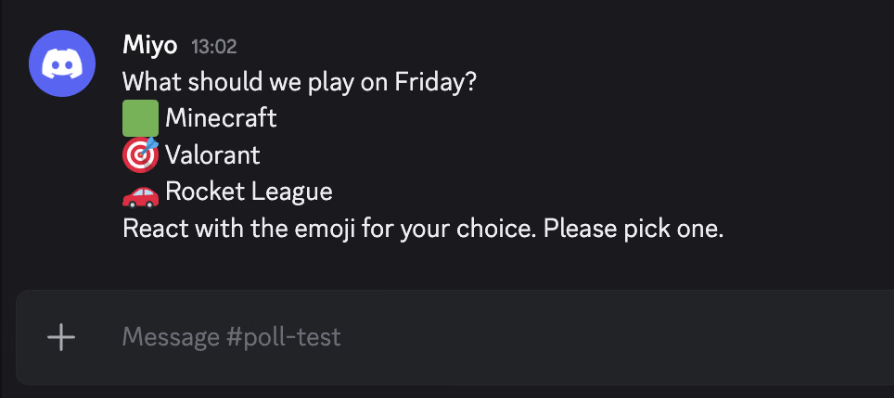
Step 2: Add a Reaction for Each Answer
Right-click your message and select Add Reaction. Choose the emoji for your first answer, then repeat for the remaining choices. Adding the reactions yourself gives everyone a button to click, and participants won’t need to search for the right emoji to vote.
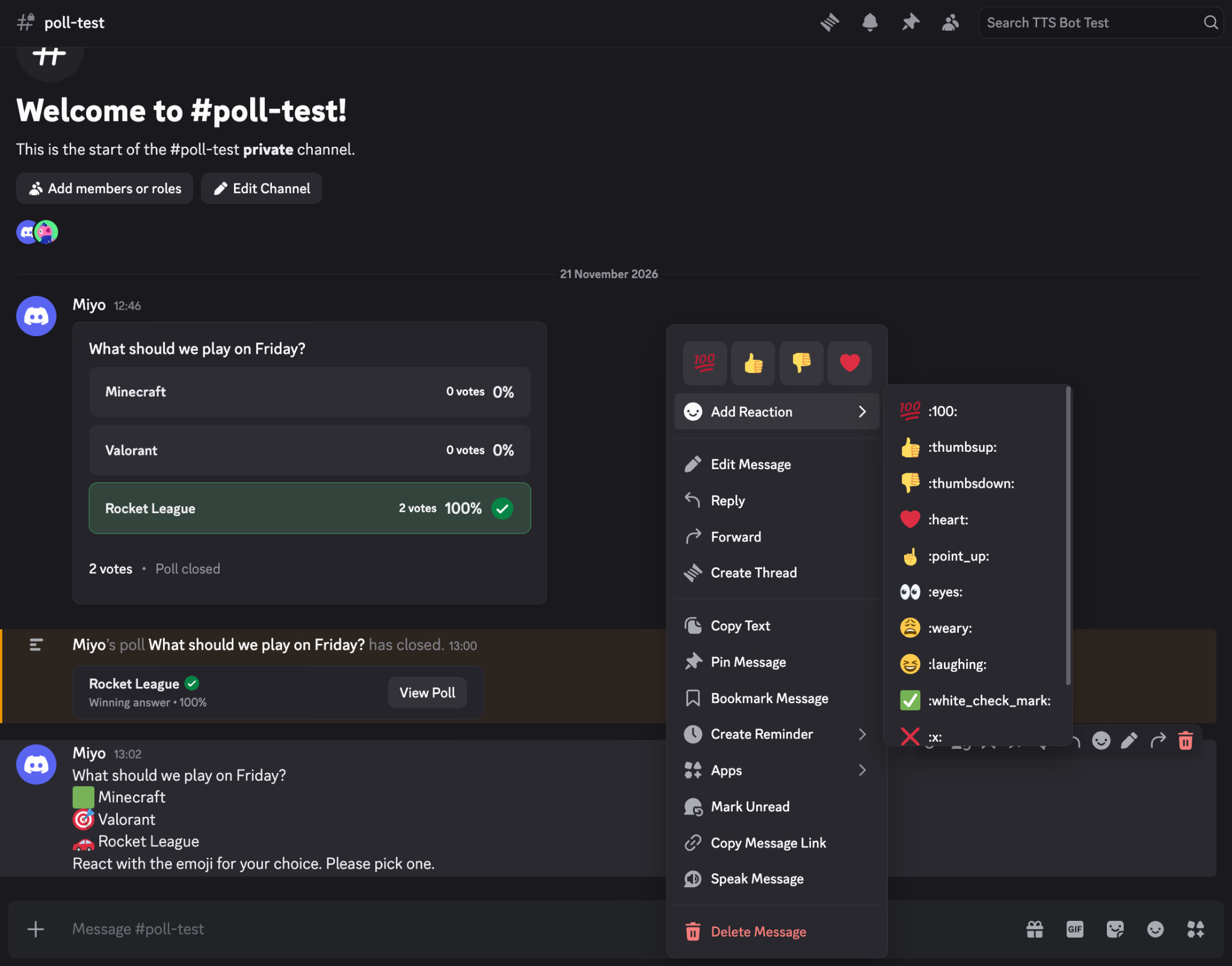
Step 3: Ask People to Vote and Check the Results
People can click or tap the reaction that matches their answer. The number beside each emoji updates as others react, so everyone who can see the message can follow the results. Your starter reactions count too. So, to count everyone else’s votes, subtract your reaction from each total.
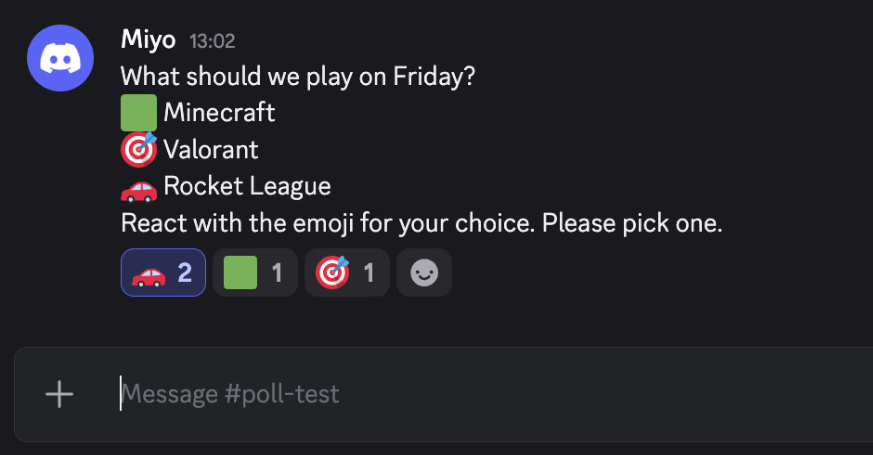
Note: An emoji poll doesn’t stop people from choosing multiple answers or close voting automatically. Ask everyone to pick one if that’s what you need, and include a closing time in your message so they know when you’ll count the results.
How to Make a Poll in Discord With Bots
If your Discord poll needs more answer choices than the limit of the built-in feature or you only want members with a certain role to vote, a Discord poll bot can offer those customizations. The features vary by bot, so choose one based on what you need for your vote.
For this guide, I used EasyPoll to create the same game-night poll. Once you’ve added the Discord poll bot to your server, its /poll command lets you enter your question and answer choices directly in Discord. Here’s how to set it up.
Step 1: Find and Add the Bot
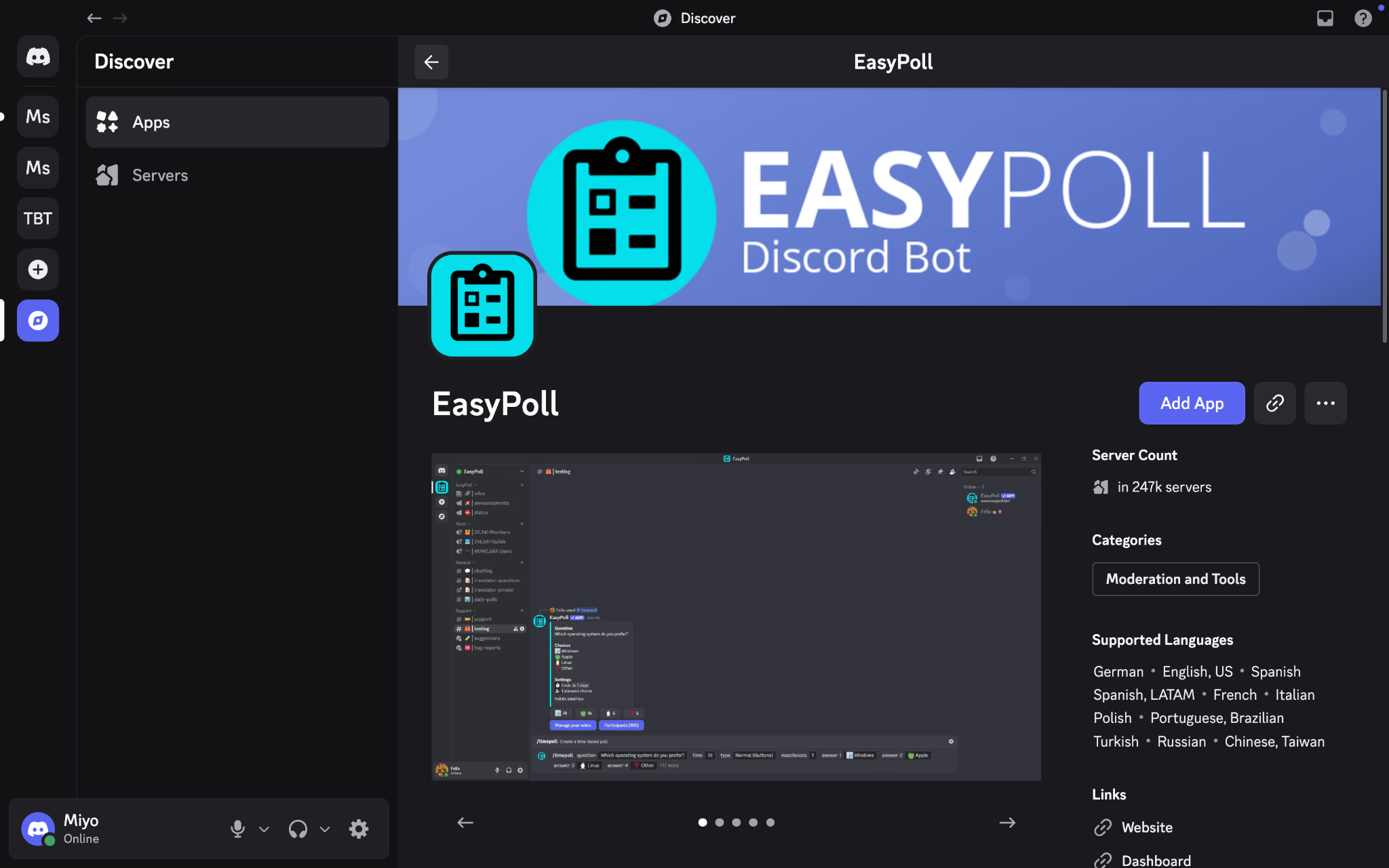
Click your server name, open the App Directory, and search for EasyPoll. Click Add App. Choose the intended server, click Continue, review the requested permissions, and complete authorization. Discord’s add-app screen requires Manage Server permission. Make sure you choose the server where you want to run the poll.
Step 2: Fill in the Poll Command
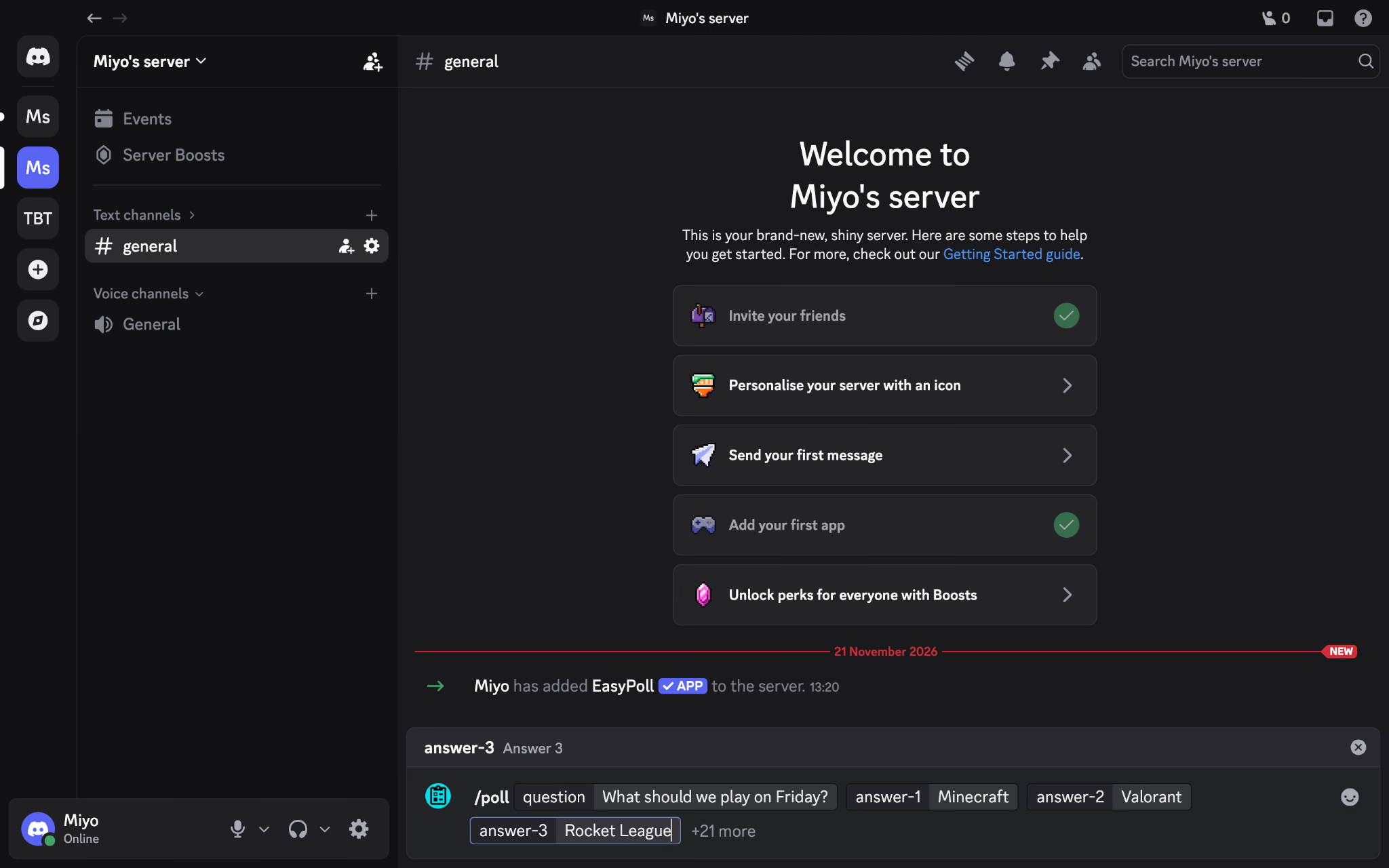
Type /poll in a text channel and select the command marked EasyPoll. Enter “What should we play on Friday?” as the question. Click +24 more to open the additional fields, then add answer-1, answer-2, and answer-3.
Step 3: Submit the Poll and Vote
Press Enter to post the poll. EasyPoll assigns a letter to each game and adds matching buttons underneath. Click B to vote for Valorant, for example.
EasyPoll’s standard /poll has no time limit, and it won’t end after 24 hours like the native poll.
How to Create a Discord Poll From a Voice Chat With JotMe
If you want your Discord group to vote on something discussed during a call, such as choosing an event date or deciding what to cover in the next meeting, you’ll need to collect the suggestions first. That can be harder when the conversation moves between languages.
In that case, you can use JotMe’s Discord translation to follow the discussion and keep a transcript. Then use the Ask JotMe feature to turn the suggestions into a poll question and answer choices. Then, review the draft and copy it into Discord’s poll form.
I tried using JotMe on an English to Spanish call to create the content for the Discord poll. Here’s how to transcribe and translate a Discord call and then create poll content.
Step 1: Choose the Languages
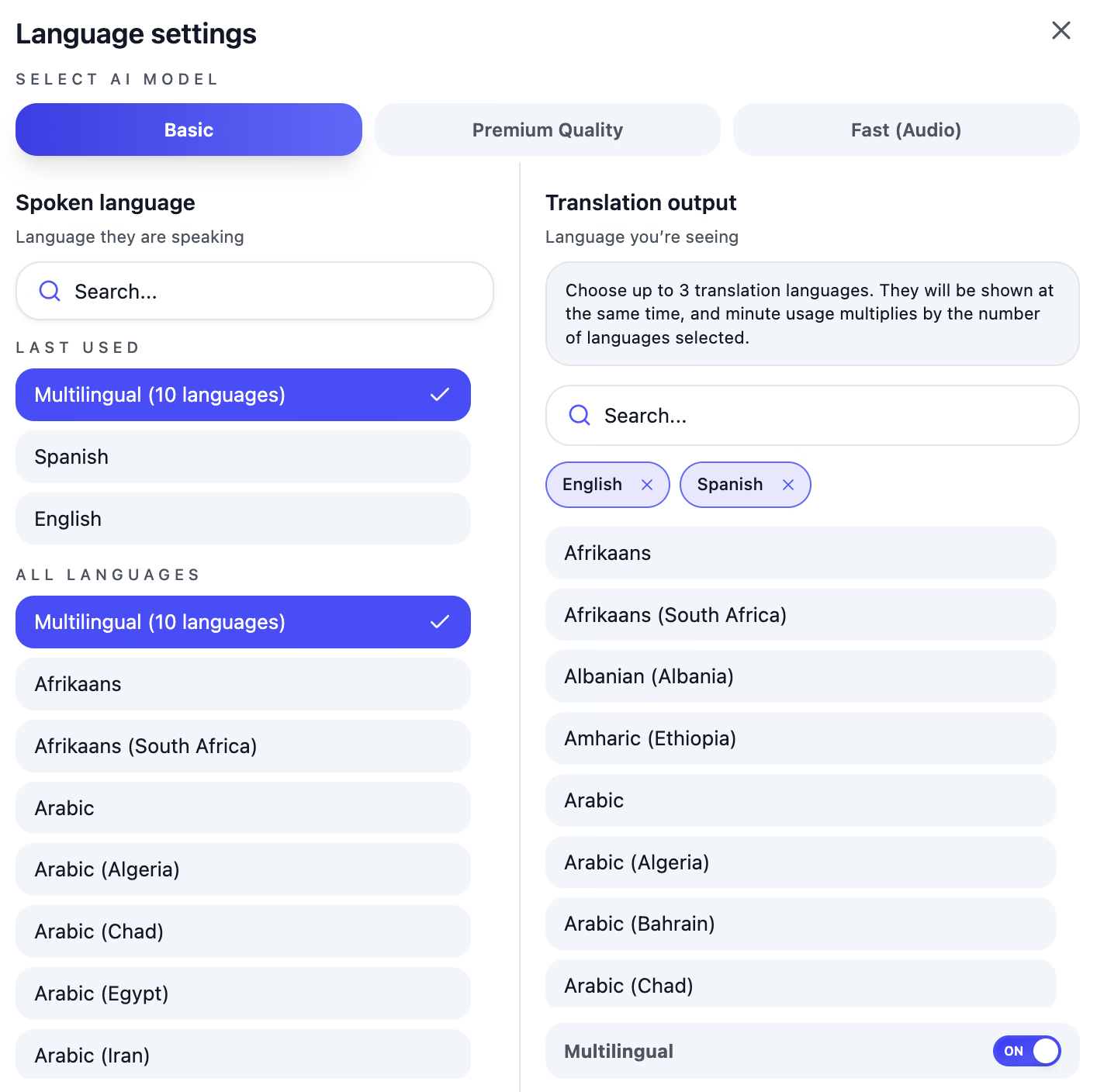
Open JotMe’s desktop app alongside your Discord call and choose the languages. For example, you can select Basic → Multilingual (10 languages) under Spoken language, then English and Spanish as the translation outputs. Click Start live translation.
Step 2: View Live Translation
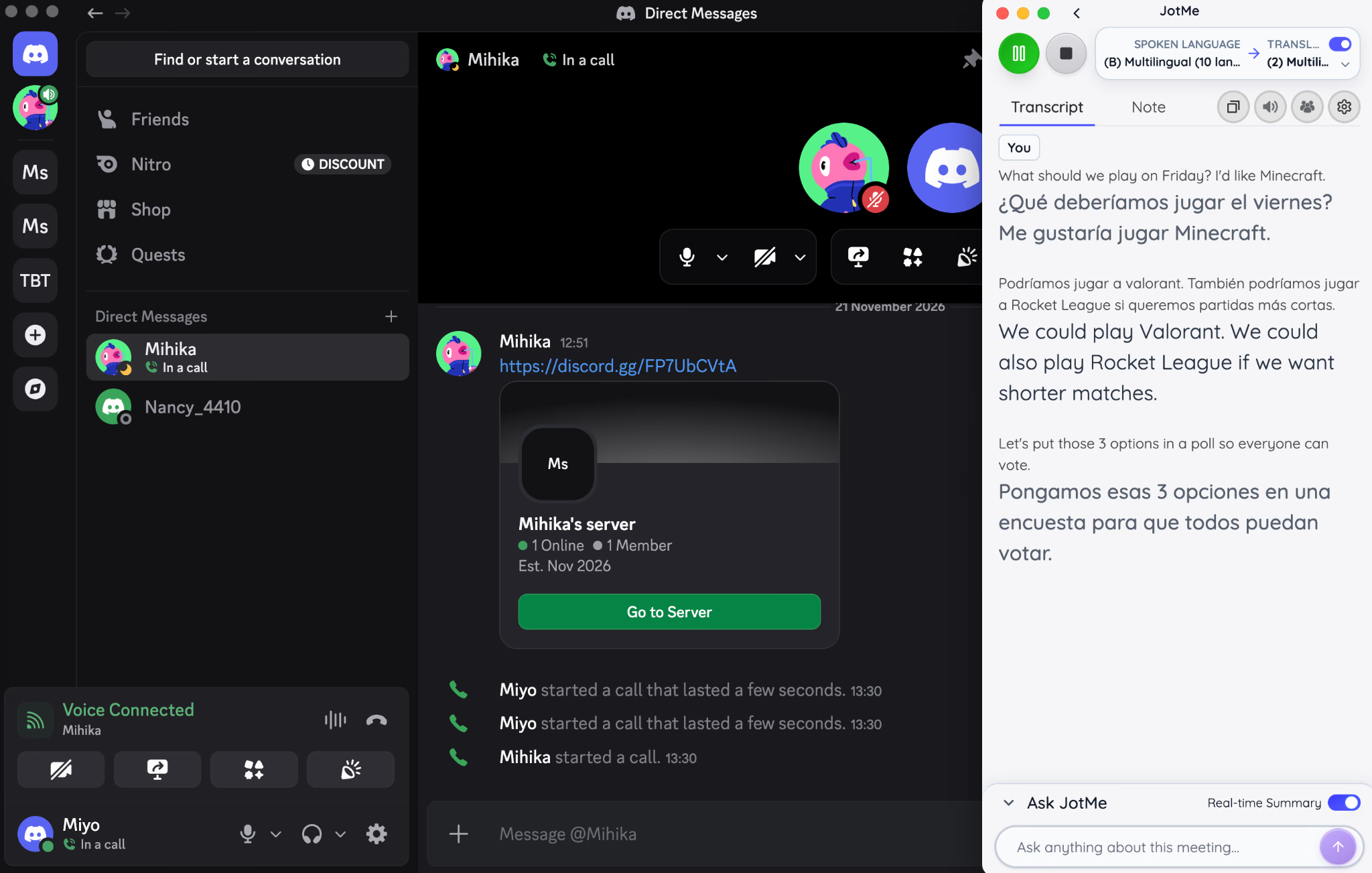
The translated captions appear in your JotMe window. If others need to read the same captions, you can show that window by sharing your screen on Discord.
Step 3: Ask JotMe to Write the Poll
Open the saved meeting recording in Recordings and use Ask JotMe at the bottom. For example, you can enter:
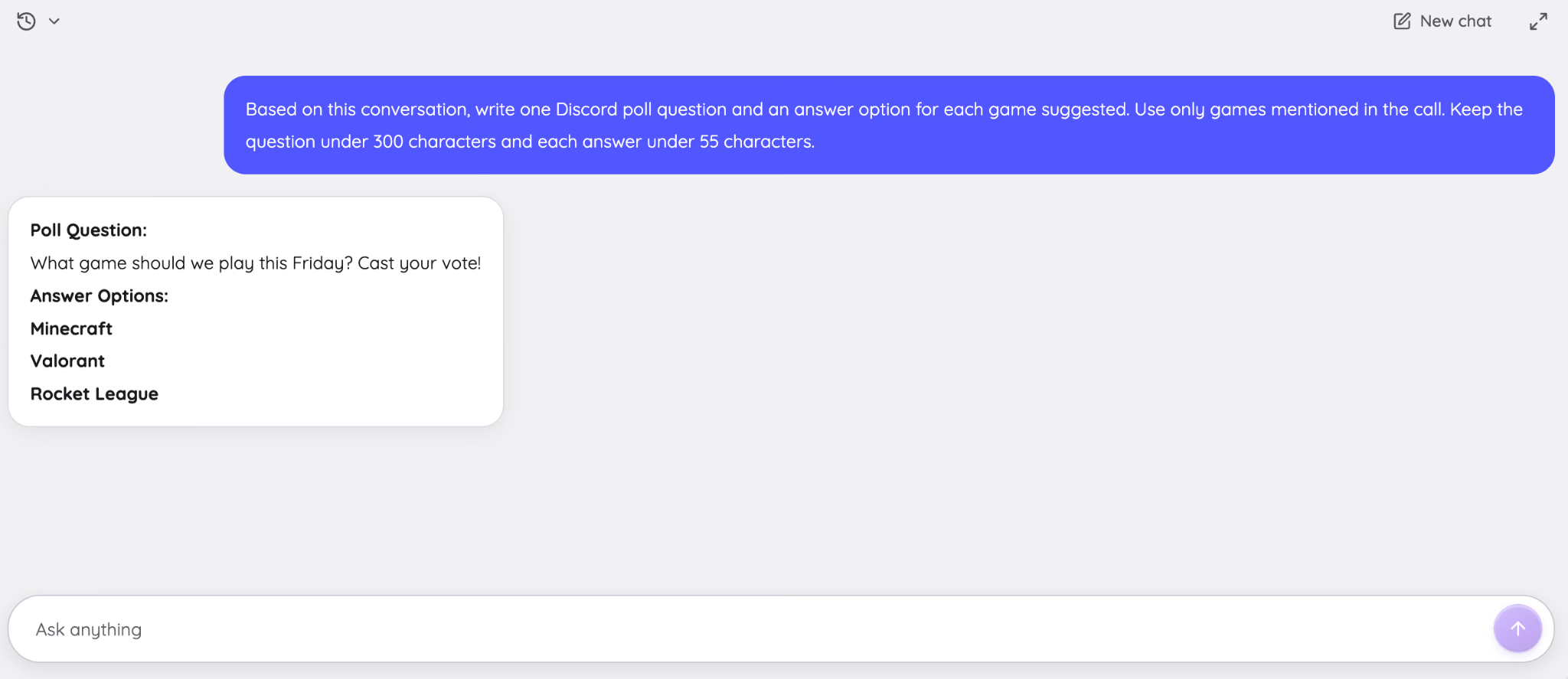
Based on this conversation, write one Discord poll question and an answer option for each game suggested. Use only games mentioned in the call. Keep the question under 300 characters and each answer under 55 characters.
JotMe provides the poll question with multiple answers:
Step 4: Post in Discord
Check everything against the transcript before copying them. Then open the Discord app → Create Poll, paste the question, and add each game as a separate answer. Set the duration and click Post.
Turn Your Discord Discussion Into a Poll
Collecting suggestions during a multilingual Discord call? JotMe displays translated captions so you can follow the discussion. Ask JotMe can then draft a poll question and answer choices from the conversation, ready for you to review and copy into Discord.
Download JotMe for FreeConclusion
If you are creating simple Discord polls, such as the ones for choosing a game, planning an event, or finding a time that suits everyone, you can use Discord’s built-in feature. It allows you to set a deadline, allow one or up to 10 answers, and check the results without counting replies yourself.
Emoji reactions are handy when you just want a quick vote in the chat. Keep in mind that people can choose more than one emoji, and you’ll need to decide when voting ends. For polls that need more answer choices or voting restricted to a particular role, a Discord poll bot such as EasyPoll gives you those extra settings.
Sometimes, the work starts before you create the poll. Your group might discuss several ideas during a Discord call, with suggestions coming in different languages. That’s where JotMe can help. You can use its translated captions to follow the discussion, then ask it to draft a poll from the suggestions in the transcript.
Review the question and choices, paste them into Discord, and give everyone a chance to vote, even those who missed the call.
Keep Track of What Your Discord Group Suggests
A poll is easier to put together when you have the discussion to refer back to. Use JotMe during your next Discord call to follow conversations across languages and save a transcript. Revisit the suggestions and ask JotMe to help prepare the vote.
Try JotMe on Your Next CallFAQs
How Do You See Who Voted for Each Option in a Discord Poll?
On the Discord app, you can see who voted for each answer in the poll by clicking the vote count at the bottom of the poll, then selecting an answer to see who chose it.
How Do You Close a Discord Poll?
To close a Discord poll, simply right-click a poll you created, select End Poll Now, and click Okay in the confirmation dialog. Voting stops immediately. Your poll stays in the channel with its final results, and a message underneath announces the winning answer. On mobile, you need to long-press the sent poll and click End Poll Now → Okay.
How Do I Vote in a Discord Poll?
To vote in a Discord poll, select your answer and then click Vote to submit the response. You’ll see a check mark beside your choice and a Remove Vote button. You can also remove your vote and choose again before the poll closes. If multiple answers are allowed, you can select more than one option.
How Do Administrators Manage Discord Poll Permissions?
Administrators can manage Discord poll permissions by opening Server Settings → Roles → Default permissions → Permissions and finding Create Polls to change the default for everyone. To manage one role, select that role instead and open its Permissions tab.
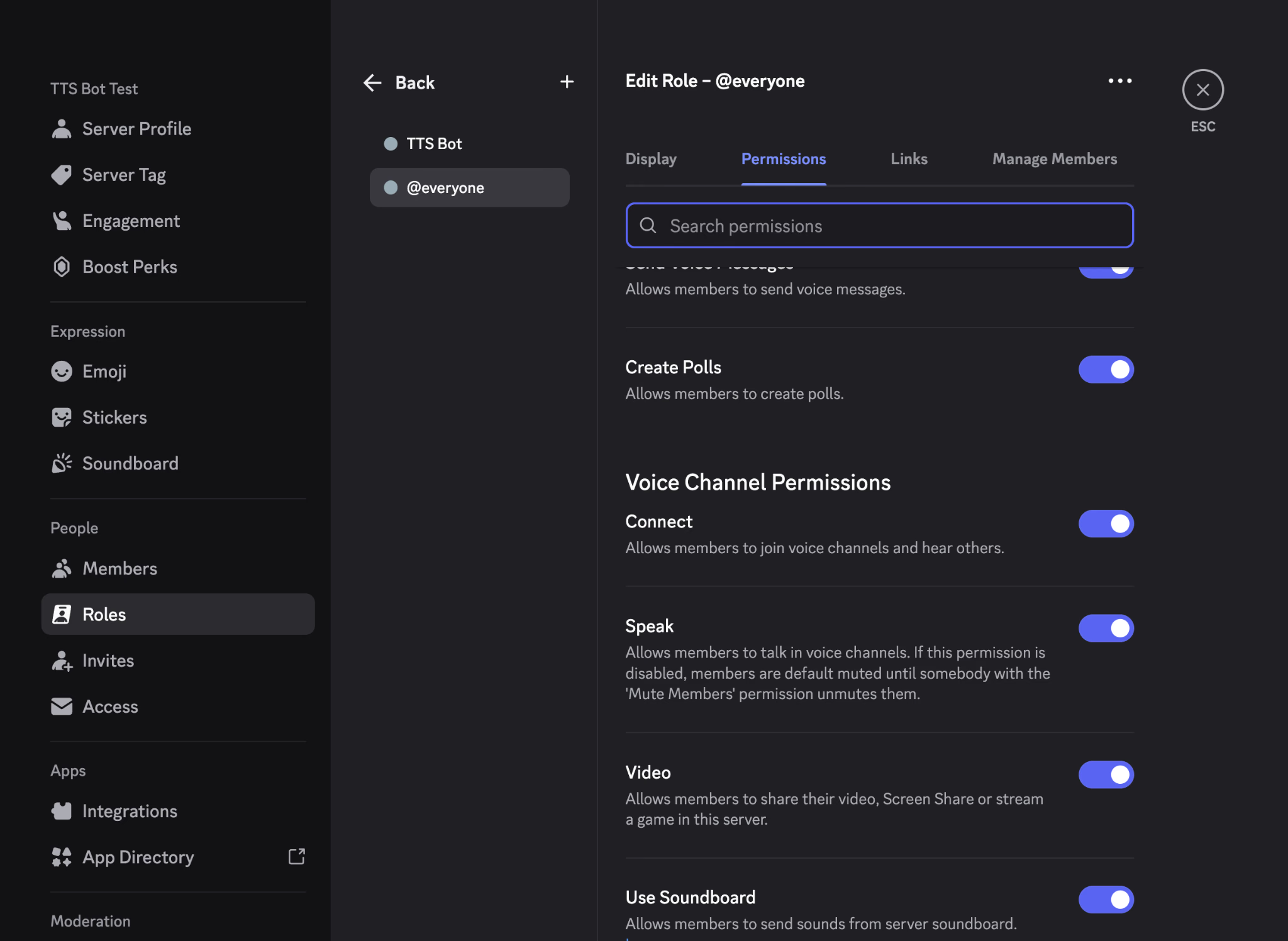
For one channel, open Edit Channel → Permissions → Advanced permissions, select the role or member, and find Create Polls. A check allows it, a cross denies it, and a slash inherits the setting. Save any changes you make.
Try JotMe
Accurate translation for your meetings, events, and everyday work, with AI Memory that remembers your context.