





Tips
How to Use a Live Translation Mobile App to Translate in Real Time [2026 Guide]

Viraj Mahajan
March 17, 2026

The fastest way to translate in real time using a mobile app is through JotMe. Download the JotMe app on iOS or Android, select your source and target language, and the app begins translating live audio in the background with no manual input and no interruption to your meeting or conversation.
Live translation has moved from a novelty to a daily necessity for remote teams, international travelers, and language learners in 2026. A real-time translation app does not just convert words; it keeps conversations moving, preserves context, and eliminates the pause-translate-respond cycle that makes multilingual communication exhausting.
This guide walks you through exactly how to use a live translation mobile app across three of the most widely used platforms:
- JotMe for meetings, professional, and everyday use
- Google Translate for travel and casual conversations
- Apple Translate for iPhone users who want an offline-capable option.
Whether you need a voice translator app for a business call, a language translator app for navigating a new city, or the best translation app for iPhone that works offline, the steps below apply directly to your situation.
How to Use Live Translation JotMe Mobile App
To use the JotMe mobile app for live translation, you will need to download JotMe on your Android or iOS device, select the source and translation language from the drop-down options, and press the translate button.
Here is the detailed guide on how to live translate a conversation using the JotMe mobile app:
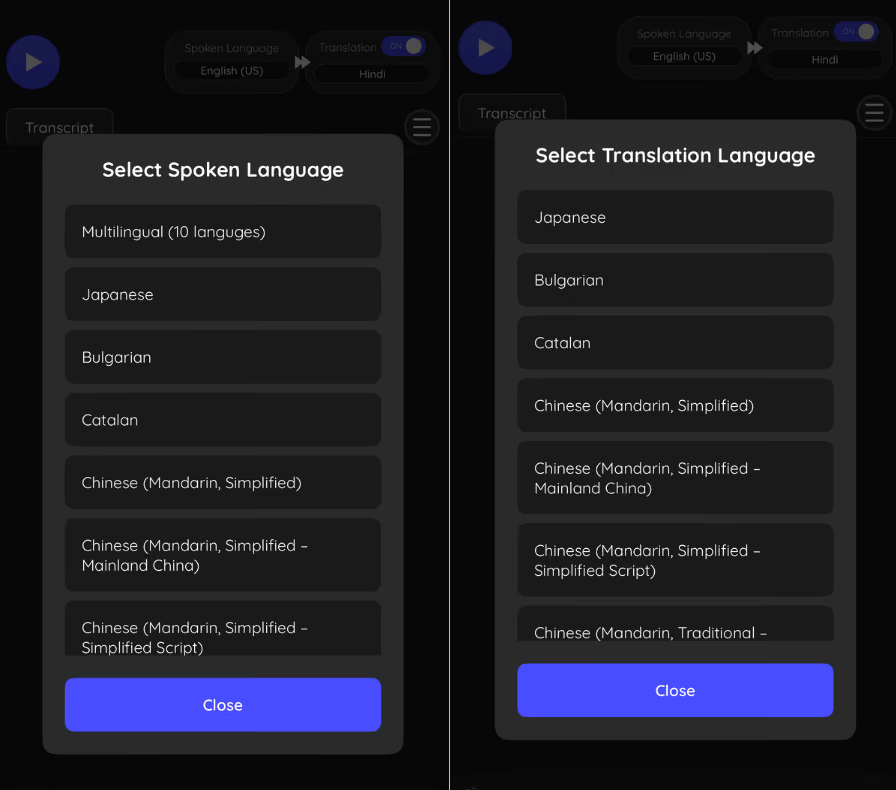
Step 1: Select Languages for Real-Time Translation
Once you have downloaded the JotMe mobile application, open the app and select your source language [the language being spoken] and your destination language [the language you want to read the translation in] from the drop-down selectors on the main screen.
Step 2: Select Translation Quality
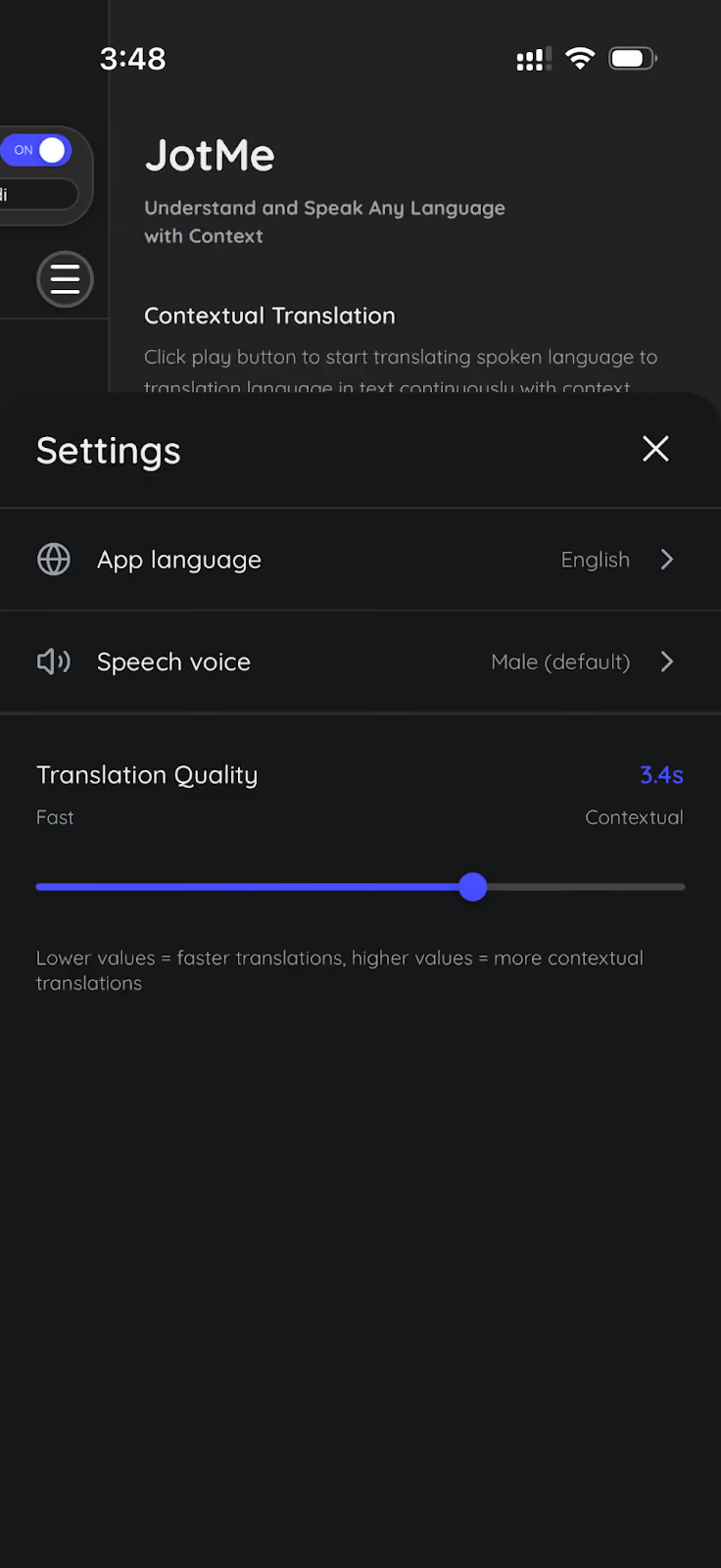
In your JotMe mobile app, tap the three horizontal lines in the top-right corner and then tap the settings gear icon. From here, you can adjust the translation quality based on your needs:
- Lower Quality: Provides faster translation but fewer contextual nuances. Ideal for quick conversations, casual travel exchanges, and situations where speed matters more than precision.
- Higher Quality: Slightly slower translation, but significantly more contextually accurate. Recommended for business meetings, client calls, and any conversation where meaning and tone matter.
Step 3: Start Translation in JotMe
Once you have selected your languages and adjusted translation quality, tap the Translate icon on the top-left and start speaking. You will immediately see real-time transcription and translation appearing directly on your screen as the conversation unfolds.
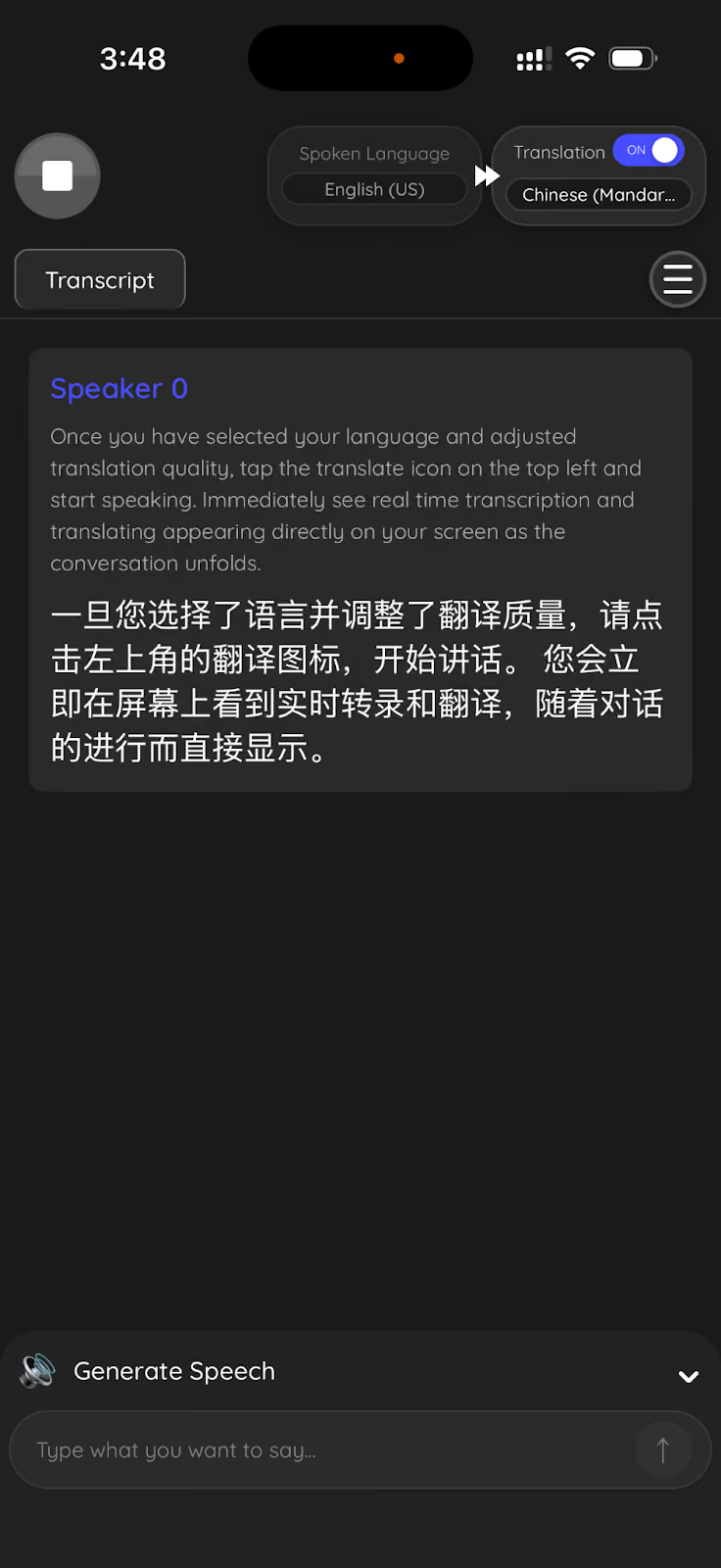
Note: With the JotMe mobile app, you do not need to press any button between sentences. JotMe continuously captures and translates audio as long as the session is active. Unlike Google Translate's Conversation Mode, there is no turn-taking required.
How to Use JotMe for Real-Time Meeting Translation
To use JotMe for real-time meeting translation, you will need to open the desktop app before or during your call on Zoom, Google Meet, Teams, Webex, Slack, Discord, or WhatsApp, select your languages, and JotMe will begin translating live audio from your device in the background.
Here is the step-by-step guide on how to set up JotMe for live meeting translation:
Step 1: Open JotMe Before or During Your Meeting
Launch JotMe on your laptop or desktop at any point before or after your meeting has started. You do not need to set it up in advance, though starting it early ensures no spoken content is missed.
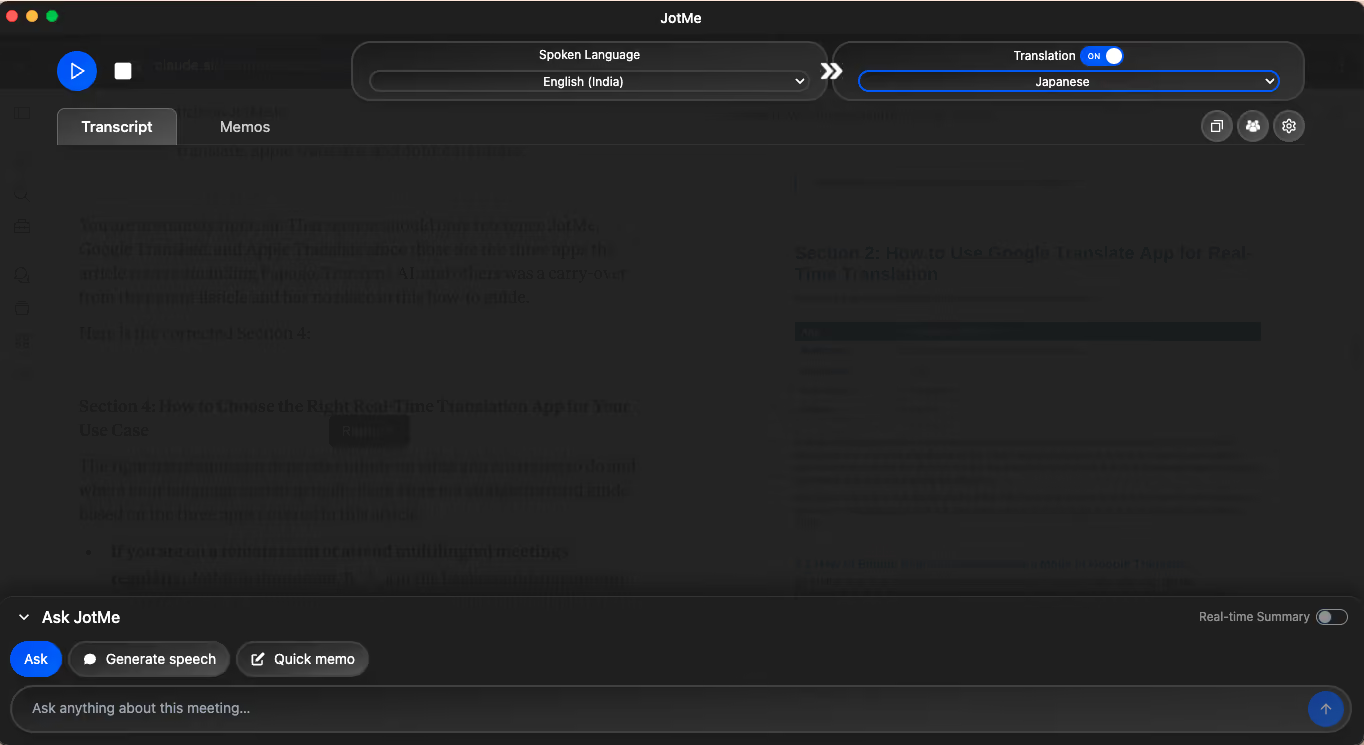
Step 2: Select Source and Target Language
Select the spoken language of the meeting as your source language and your preferred reading language as the target. If your meeting involves speakers from multiple regions, select the dominant spoken language as the source.
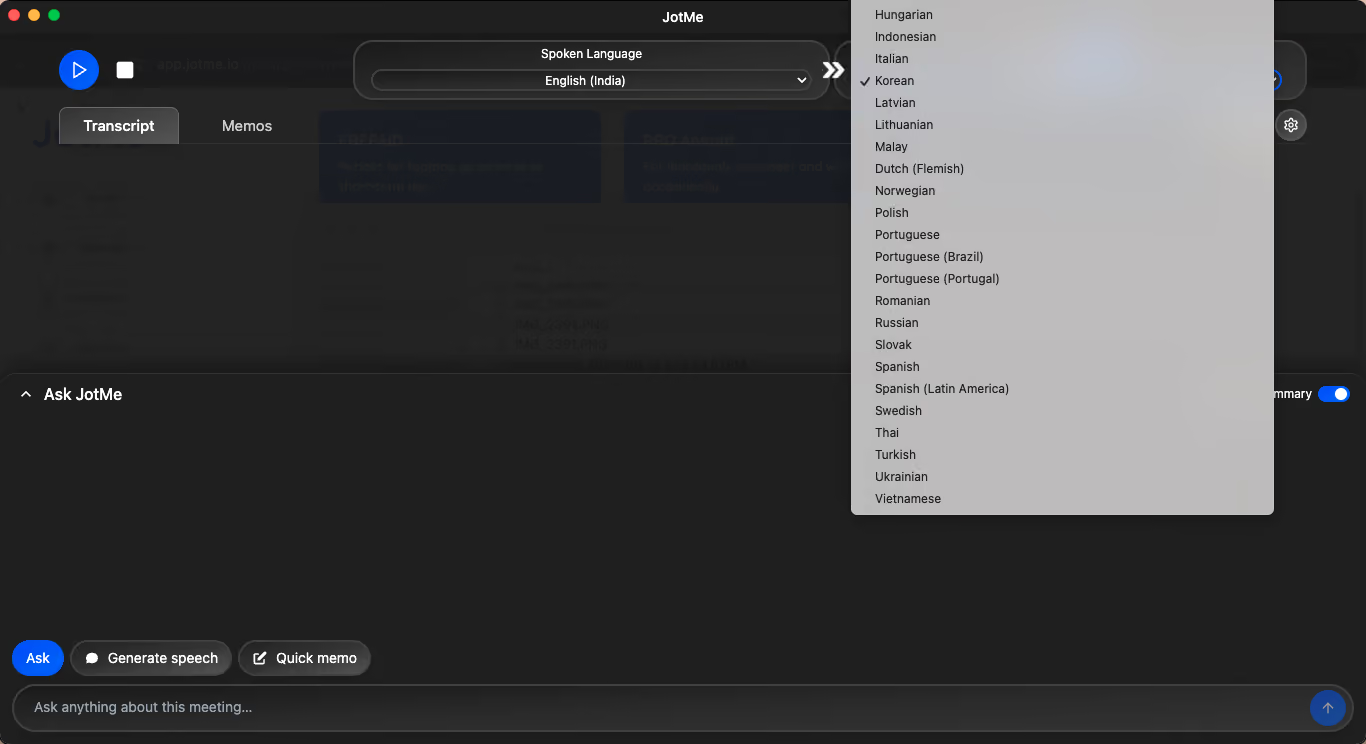
Step 3: Let JotMe Capture Audio
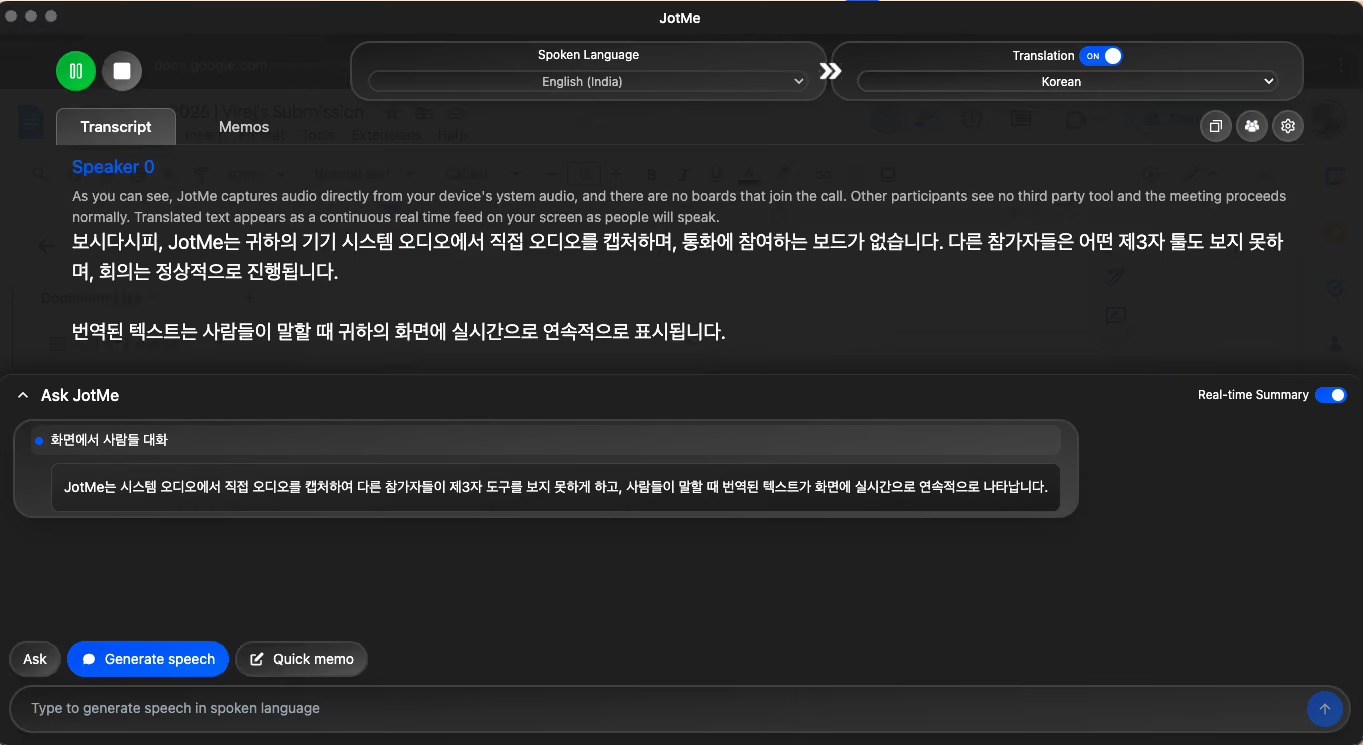
JotMe captures audio directly from your device's system audio, and there are no bots that join the call. Other participants see no third-party tool, and the meeting proceeds normally. Translated text appears as a continuous real-time feed on your screen as people speak.
Step 4: Review or Share After the Meeting
After the session ends, access the AI-generated meeting summary for a structured recap of key points. If you need full transcription, searchable meeting notes, AI insights, or the ability to share translation with external participants via QR code or URL, login to your JotMe account for the complete feature set.
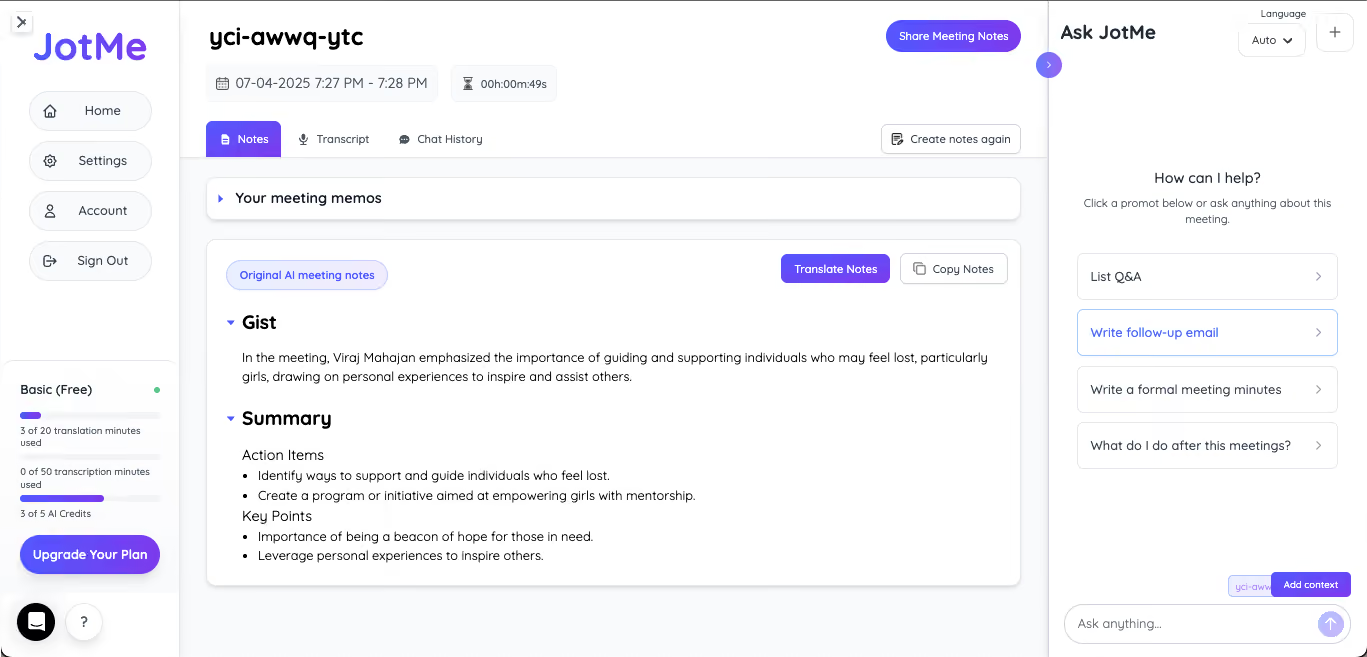
NOTE: The JotMe live translation app handles more than just translation and transcription. It is equipped to provide AI meeting insights, a multilingual mode, and translation sharing with participants who do not have the app.
How to Use JotMe's Mobile Prepaid Plan for Travel
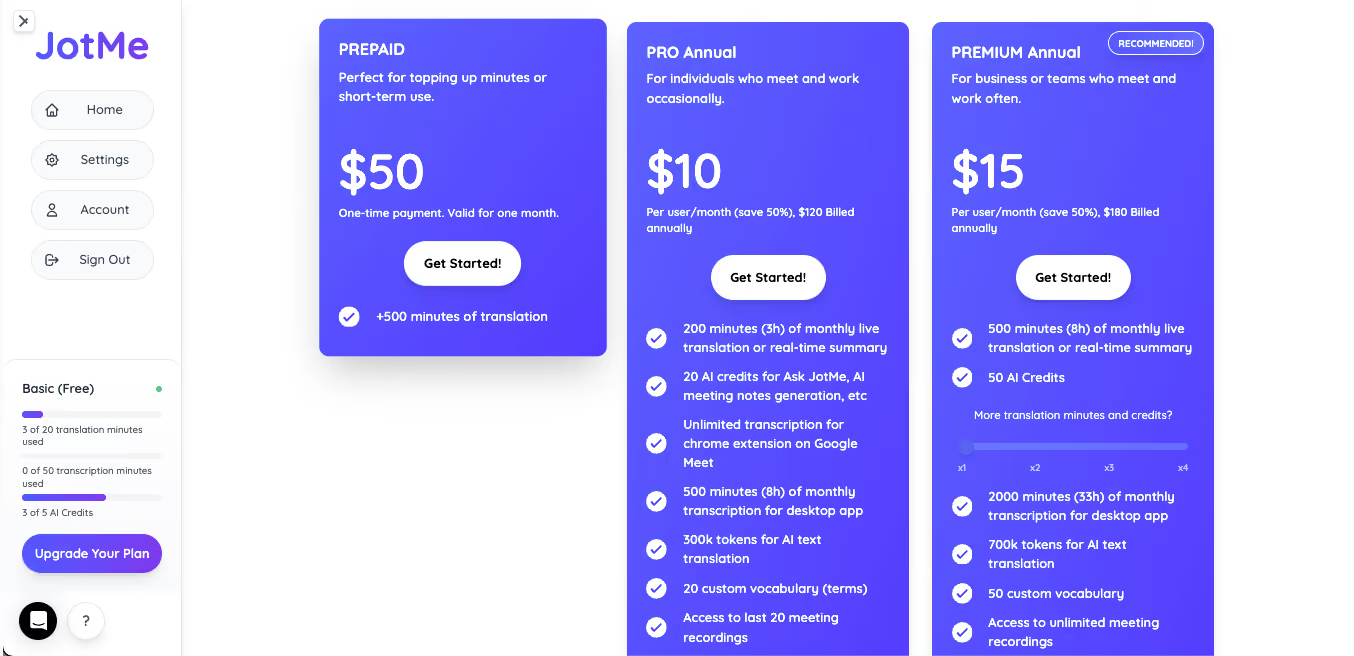
To use JotMe's mobile prepaid plan for travel, purchase the $50 one-time plan from within the JotMe app or at jotme.io, and 500 live translation minutes across 45 languages activate immediately with no subscription and no recurring charge.
Here is how to get the most out of the JotMe prepaid plan during travel:
Step 1: Purchase the Prepaid Plan
Go to jotme.io or open the JotMe app and navigate to Pricing. Select the Mobile Prepaid option and complete the one-time $50 payment. Minutes are available instantly after purchase and remain valid for one month.
Step 2: Use JotMe in In-Person Conversations
Open the JotMe mobile app, select your source and target language, and tap Translate. Point the microphone toward the person speaking. JotMe translates their speech in real time and displays it on your screen. You respond in your language, and they see or hear the translation.
NOTE: For a week-long international business trip with daily meetings and client conversations, 500 minutes provides more than sufficient coverage. That is the equivalent of roughly eight hours of live translation for a one-time cost that is a fraction of a single hour with a human interpreter.
How to Use the Google Translate App for Live Translation
To use Google Translate for real-time translation, you will need to download Google Translate on your phone, click on the Live Translate icon on the left, and start speaking. From here, you can select the spoken and translated languages.
Here are detailed steps to use the Google Translate app for live translation:
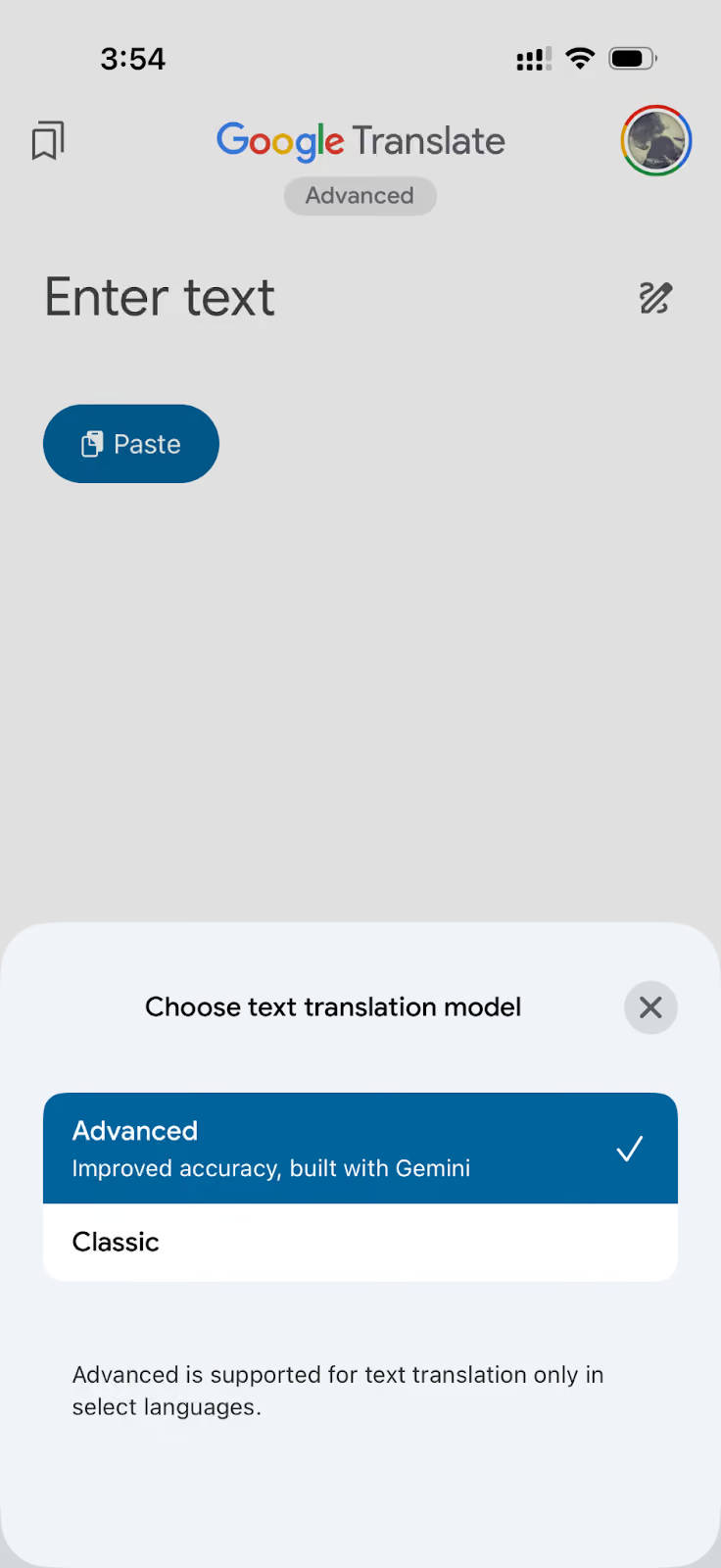
Step 1: Enable Gemini Translation
Launch the Google Translate app on your mobile device. From here, you can choose a translation model. You can either remain at the Classic model or use the Advanced model, which provides better accuracy and is built with Gemini.
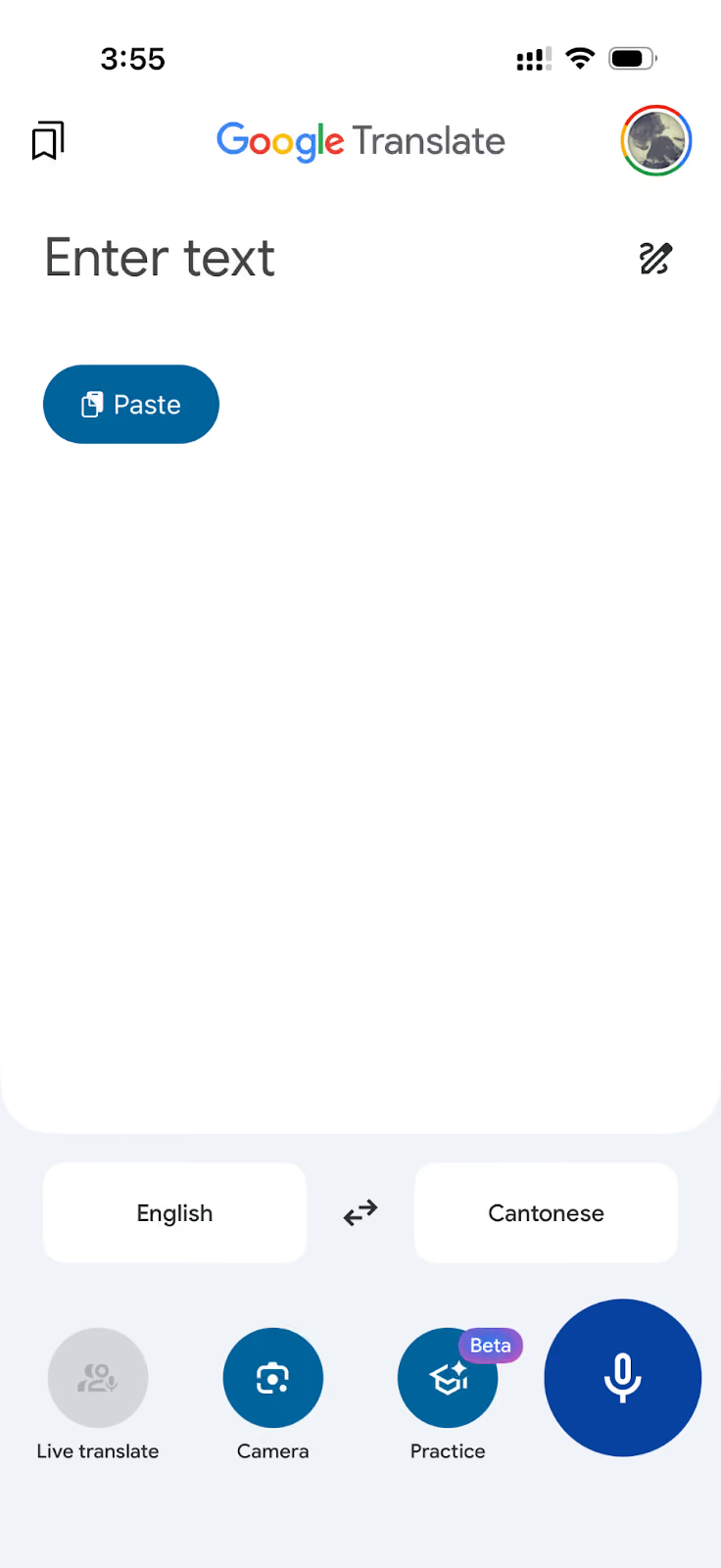
Step 2: Select Languages in Google Translate
Once the translation model has been selected, choose the ‘Translate From’ and ‘Translate To’ languages.
Step 3: Start Live Translation in Google Translate
After selecting the languages, click the large Mic icon on the right, and the Google Translate app will start translating and transcribing in real time.
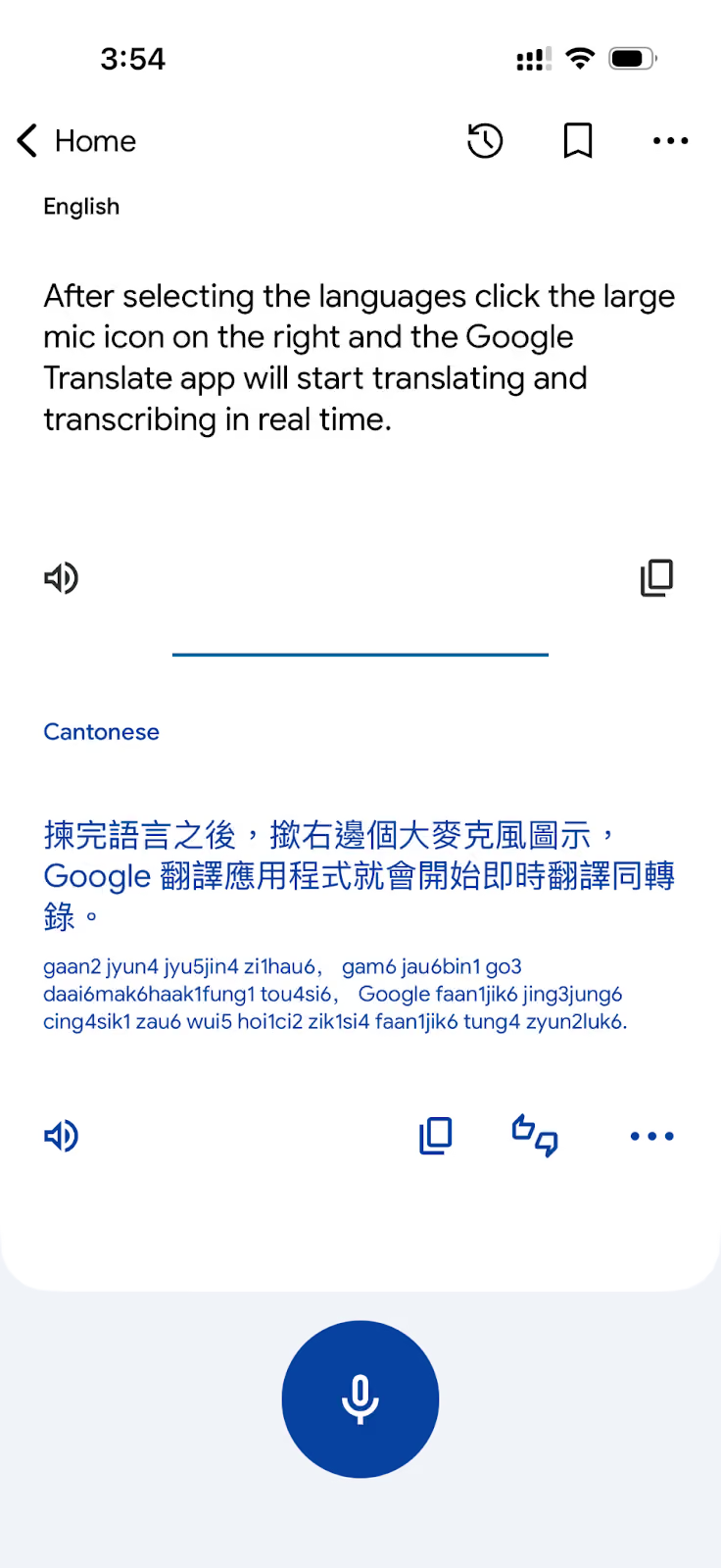
As you can see, Google Translate remains the most widely used translation app in the world, and for casual, everyday use, it earns that position. Its 130+ language library, AR camera mode, and offline pack support make it the default choice for travelers who need a free, broad-coverage language translator app without paying for anything.
That said, Google Translate is not designed for extended translation during meetings. But for travel conversations, document translation, and quick phrase lookups, it is one of the best free translation apps available in 2026.
How to Use Google Translate's Camera for Real-Time Translation
To use Google Translate's camera for real-time translation, open the Google Translate app, tap the Camera icon, point your phone at the text you want to translate, and the app overlays translated text directly on top of the original in real time.
Here is the step-by-step guide for using the Google Translate camera translation feature:
Step 1: Open Camera Mode in Google Translate
Open the Google Translate app and tap the Camera icon below the text input field. The app switches to a live camera view.
Step 2: Select Your Source Language in Google Translate
Tap the language selector at the top of the screen and choose the language of the text you are pointing at. If you are unsure, tap Detect Language and Google Translate will identify it automatically.
Step 3: Point and Translate in Google Translate
In Instant mode, point your camera at any printed text, such as a restaurant menu, a street sign, or a product label, and the translated text appears overlaid on the original in real time as you move the camera.
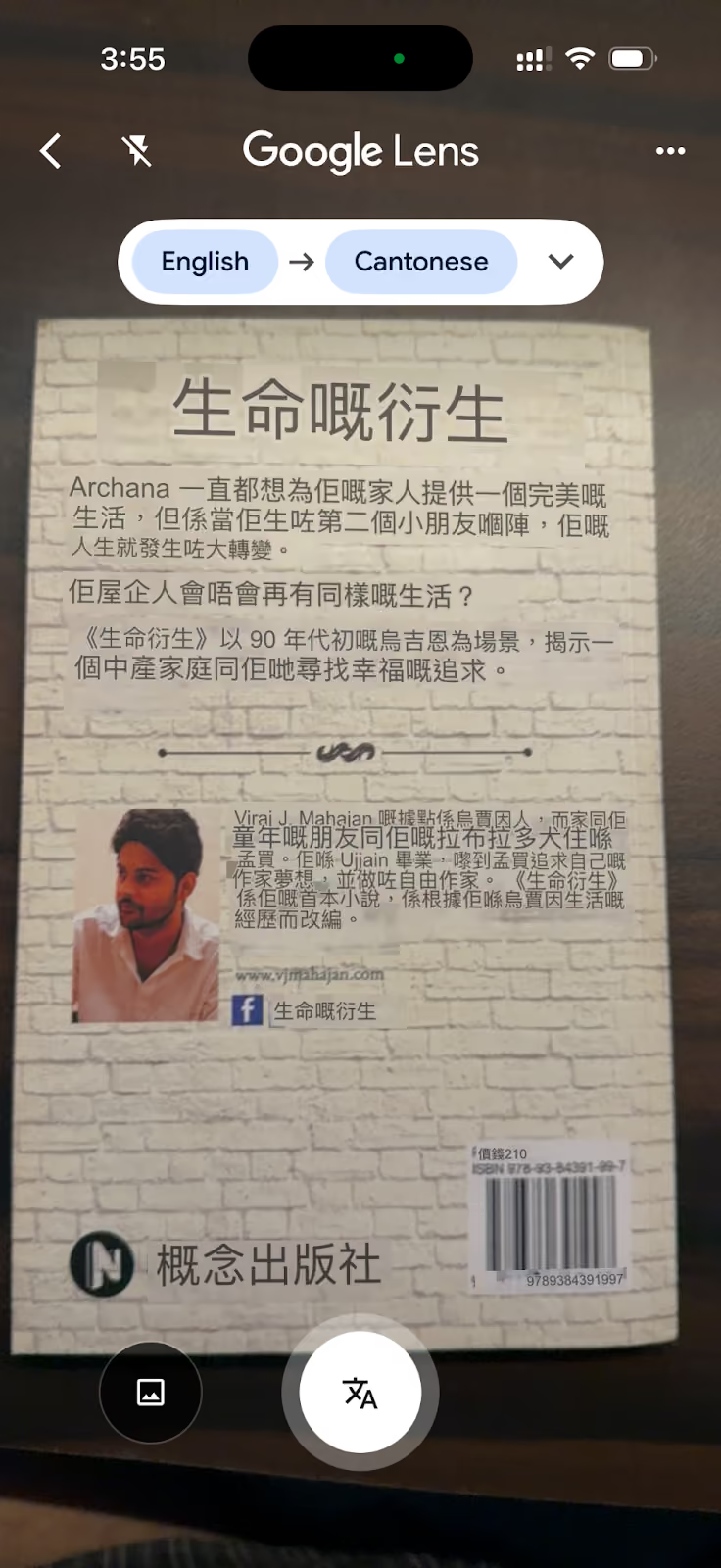
NOTE: Google Translate’s camera translation feature works best with clear, printed text in good lighting. It can struggle with stylised fonts, handwriting, and text at sharp angles.
How to Use the Apple Translate App for Live Translation
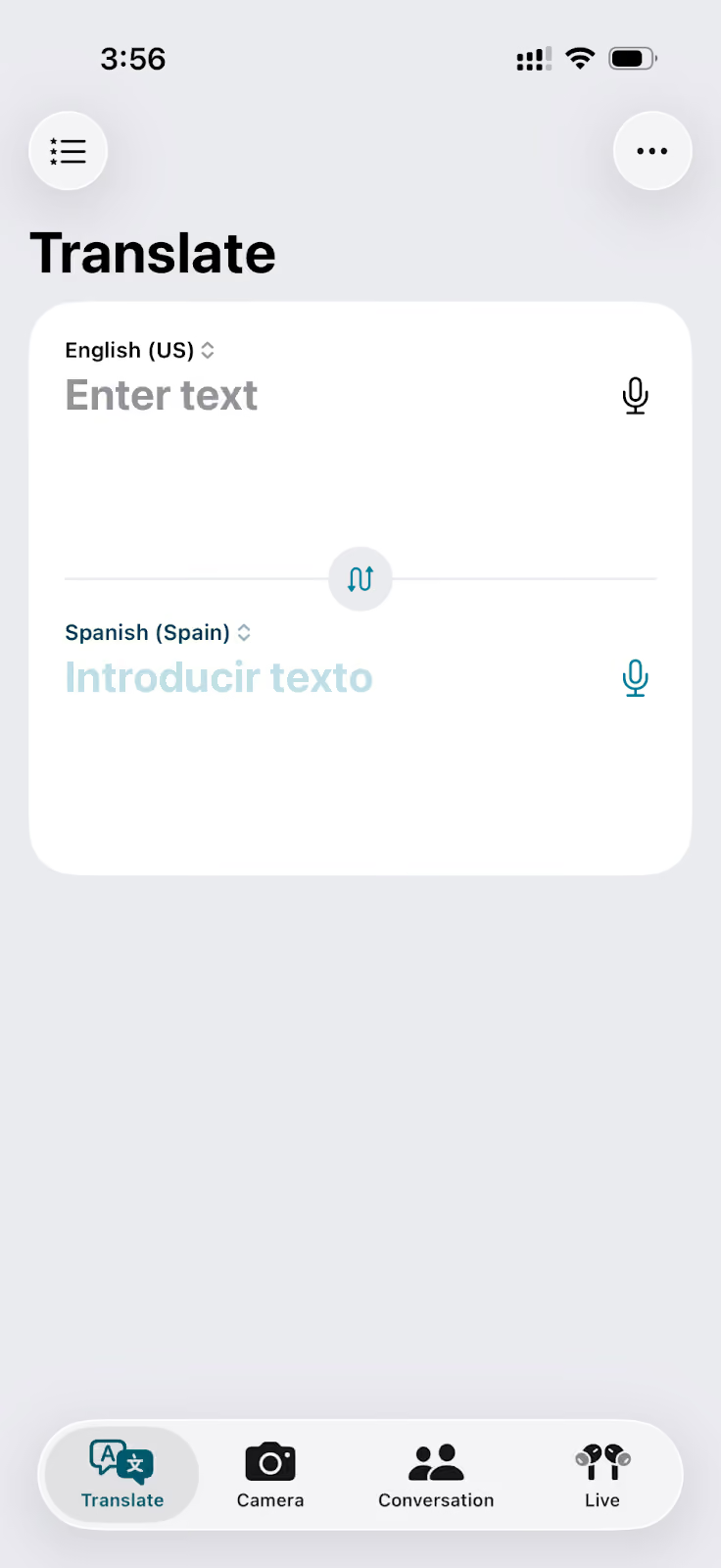
To use Apple Translate on iPhone, open the Translate app, select your source and target languages, and tap the microphone to speak or the text field to type. The translation appears instantly and can be played aloud with a tap.
Here is the step-by-step guide on how to use the Apple translation app:
Step 1: Open the Translate App and Select Languages
Open the Translate app on your Apple device. It is pre-installed on all iPhones running iOS 14 and later. If you cannot find it, use Spotlight Search. Tap the left language selector to choose your source language and the right selector to choose your target language.
Step 2: Enter Text or Speak Your Input in the Translate App
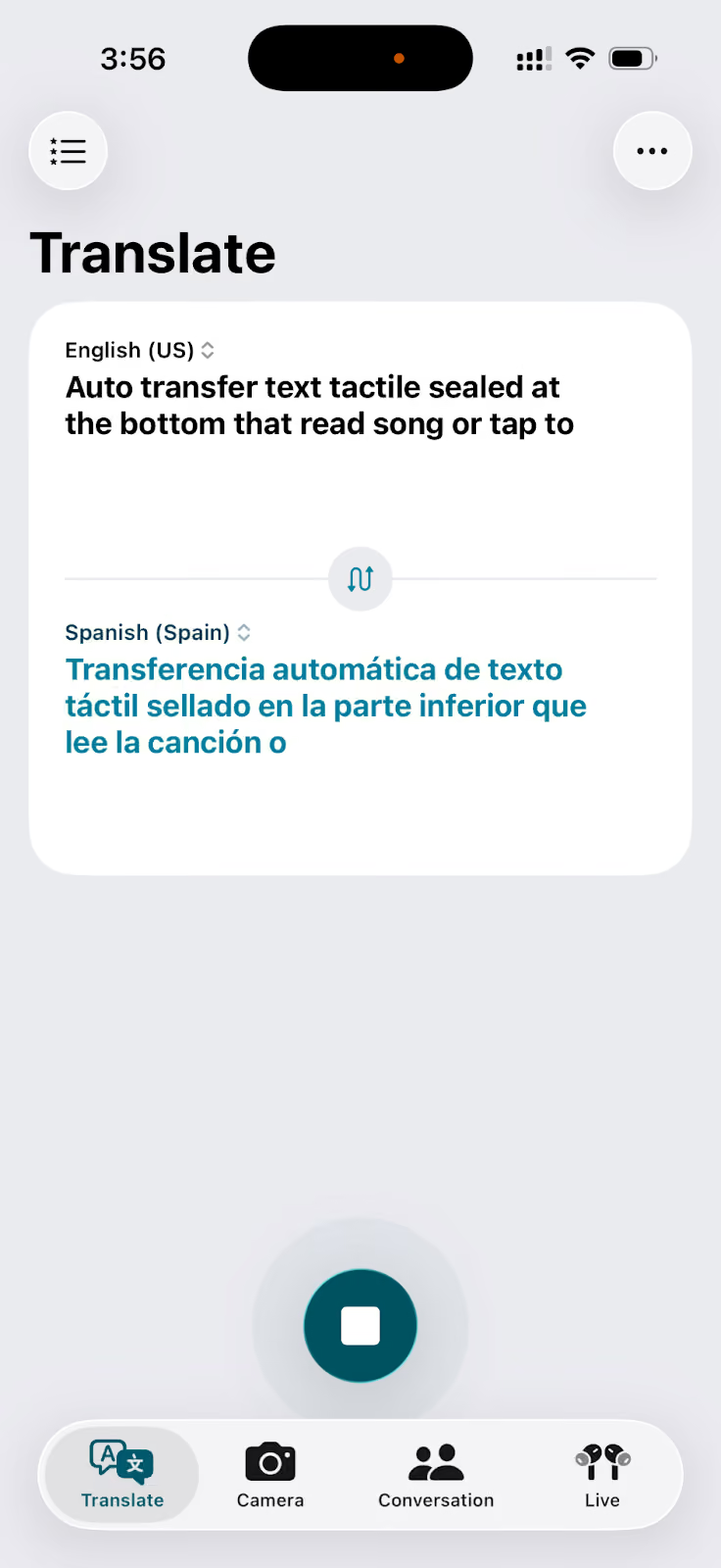
To translate text, tap the field at the bottom that reads Tap to type and enter your phrase. The translation appears in the top panel. To translate by voice, tap the microphone icon and speak. The app transcribes and translates automatically.
Step 3: Play & Share the Translation in Translate App
Tap the Play button next to the translated text to hear it read aloud in the target language. Tap the Star icon to save the translation to your Favourites for quick access later. Highlight the text to access Apple’s default Sharing option.
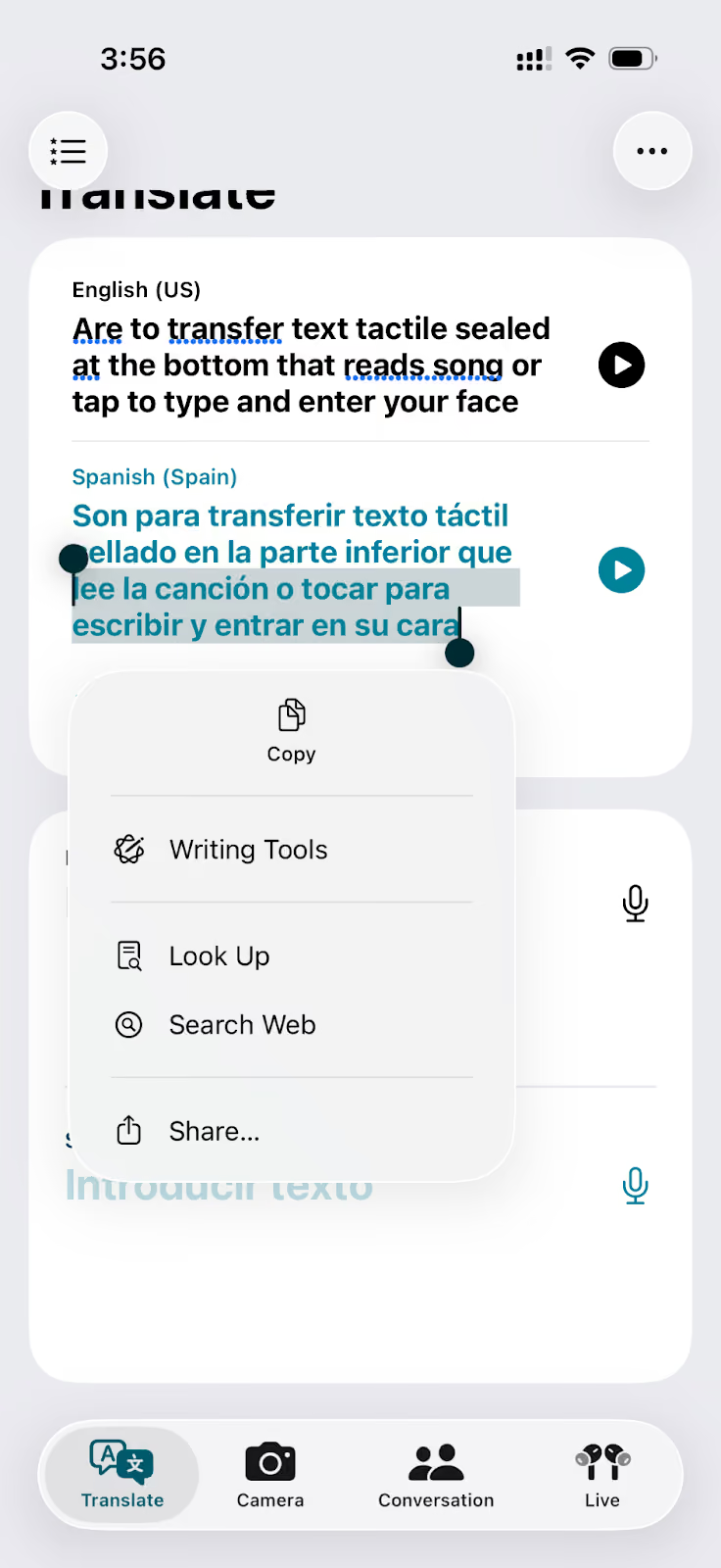
As you can note, Apple Translate is the most private translation app on this list. Unlike most translation apps that send your audio to cloud servers for processing, Apple Translate performs translation on-device by default.
How to Choose the Right Live Translation App for Your Use Case
The right translation app depends entirely on what you are trying to do and where your language barrier actually lives. Here is a straightforward guide based on the three apps covered in this article:
- If you are on a remote team or attend multilingual meetings regularly, JotMe is the answer. It runs in the background, requires no manual input between speakers, works across every major video conferencing platform, and the mobile prepaid plan at $50 for 500 minutes makes it practical for short-term intensive use without a subscription.
- If you are traveling and need free, broad language coverage, Google Translate is the default live translation app. Its 130+ language library, AR camera mode for menus and signs, and offline language packs cover nearly every travel scenario at zero cost.
- If you are on an iPhone and want complete privacy with zero setup, Apple Translate processes everything on-device by default, works fully offline for downloaded languages, and integrates natively with AirPods.
For users who move between all three scenarios: traveling professionals who also run meetings, or iPhone users who also need travel coverage, keeping JotMe for meetings and Google Translate for everything else is the most practical combination. Apple Translate fills in whenever privacy and offline access matter most.
Download JotMe today and see how live translation works in real time.
Last updated on
July 29, 2026
Follow us on social media: