






Tips
PowerPoint Live Translation: How to Set It Up in 6 Steps

Lovely Mangla
September 24, 2026
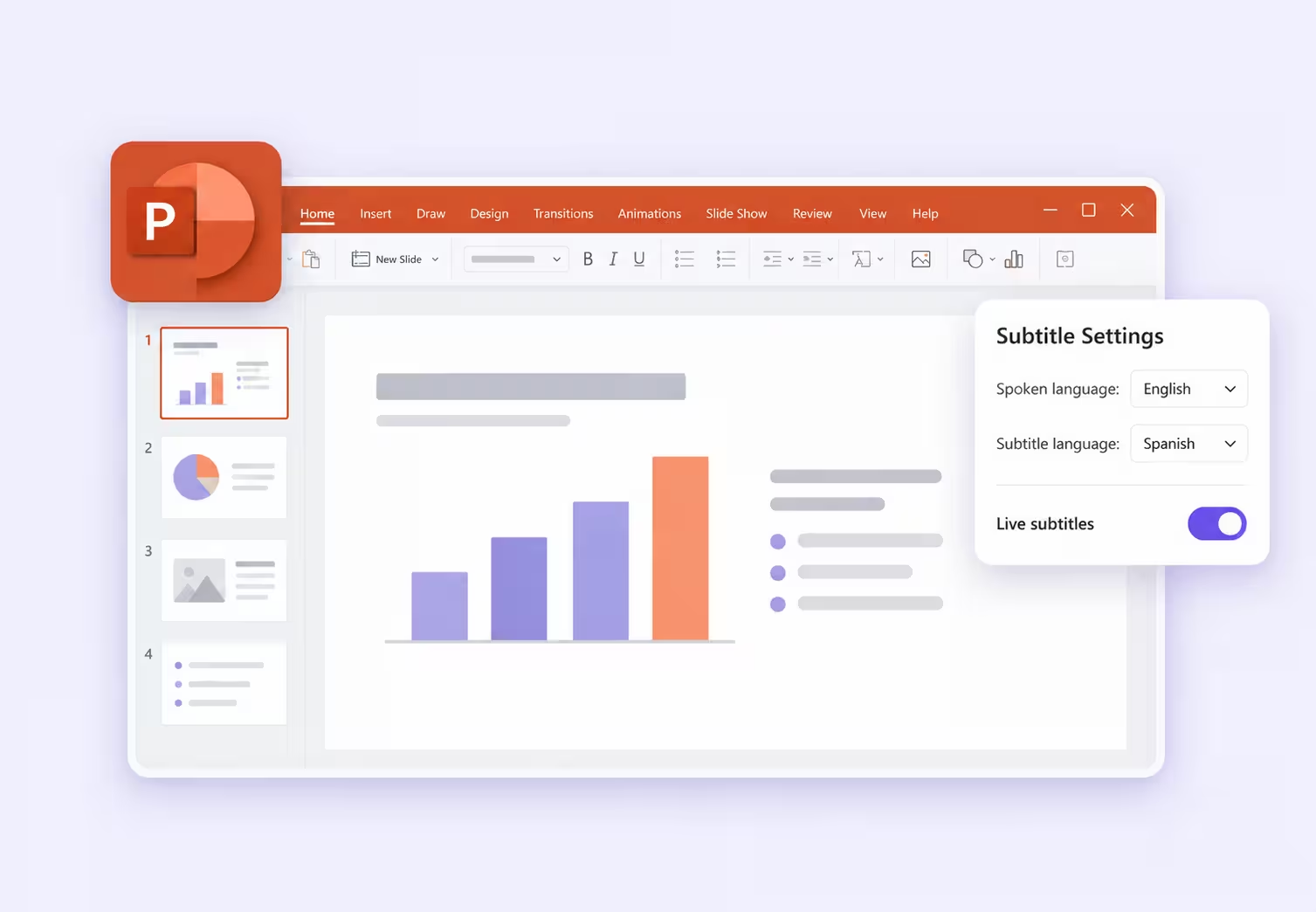
Quick Answer: To enable PowerPoint live translation, open Slide Show > Subtitle Settings, select the language you will speak and the language your audience should read, then enable subtitles and start presenting. For individual audience language choices, use a separate sharing workflow, such as JotMe's browser link or QR code.
PowerPoint live translation became a problem for one organization when the Present Live feature it used for quarterly all-hands meetings disappeared. In a Reddit discussion about finding a replacement, an organizer described a workforce with 40 nationalities and more than 15 languages. Employees had been able to scan a QR code and choose their own subtitle language on their phones.
PowerPoint can still translate your spoken presentation into on-screen subtitles. What changed was the separate Present Live experience in PowerPoint for the web. That distinction matters when you are preparing a class, customer presentation, or company meeting.
This guide covers the built-in setup first, explains its limitations, and shows two JotMe workflows: translated captions beside your slides and a link or QR code that lets attendees follow in their own language.
Key Takeaways About PowerPoint Live Translation
- Built-in PowerPoint subtitles can translate live speech into one selected language on the presentation screen.
- Present Live in PowerPoint for the web has been retired. Its former QR-code experience is different from ordinary slide-show subtitles.
- PowerPoint Live in Teams and Teams translated captions have separate functions and licensing considerations.
- JotMe can display live translation beside PowerPoint or send it to attendees' own devices.
- JotMe's shared-screen and individual-device workflows use minutes differently. Estimate the audience and session length before choosing a setup.
Compare Your PowerPoint Live Translation Options
Here is a side-by-side comparison of all PowerPoint live translation options so you can make the right decision:
The distinction between presentation sharing and speech translation is especially useful in Teams. You can share a PowerPoint presentation successfully, but translated captions still require an eligible license. See Microsoft's Teams caption requirements and JotMe's sharing methods for the respective participant experiences.
What Happened to Present Live in PowerPoint
Microsoft retired Present Live in PowerPoint for the web. Its current support notice confirms the deprecation and directs presenters to PowerPoint Live in Teams. The University of Toronto's retirement announcement lists May 30, 2025, as the effective date and cites low usage as the reason.
Previously, a presenter could display a QR code, and attendees could open the presentation in a browser and choose their own subtitle language. Losing that option particularly affects rooms where several language groups are listening to the same speaker.
Ordinary PowerPoint live translation still serves a different purpose: the presenter chooses a subtitle language that everyone viewing the presentation screen sees. Someone delivering an English presentation to a Spanish-speaking class may find that sufficient. An all-hands meeting with several language groups has a different requirement.
What PowerPoint Live in Teams Replaces
PowerPoint Live in Teams lets presenters share a deck inside a Teams meeting and gives attendees presentation-viewing controls. It should be evaluated alongside Teams' speech-caption features.
For live translated meeting captions, Microsoft lists Teams Premium and eligible Copilot licensing. If the organizer has a qualifying license, all meeting participants can use translated captions without each needing that additional license. If only an individual participant has the qualifying license, access is limited to that licensed participant.
For an organization already conducting presentations in Teams, that route may fit the existing workflow. A classroom or event organizer who mainly needs phone-based translation should compare the audience joining process and total cost before moving the whole session into a meeting platform.
If your presentation also needs moderated questions, polls, or audience discussion, our guide to platforms for hosting live Q&A can help you choose those features alongside translation.
How to Use PowerPoint Live Translation
You can set up PowerPoint live translation from the presentation you already intend to deliver. A blank deck and projector are useful for the classroom workaround covered below, but the standard setup starts with your existing slides.
Step 1. Check PowerPoint Subtitles and Your Microphone
Open the deck in an up-to-date PowerPoint version that supports live subtitles. The main instructions here follow the Windows desktop workflow; Mac and web differences appear below.
Connect your microphone and check that the computer can hear you. If several devices are connected, identify the one you will actually use during the presentation. A laptop microphone selected by mistake can produce very different results from the headset you are speaking into.
Keep an internet connection available throughout the session. Microsoft's subtitles use a cloud speech service. A headset microphone is recommended for clearer input, but you do not need to purchase one merely to locate or enable the feature.
Step 2. Enable PowerPoint Subtitles From the Slide Show Tab
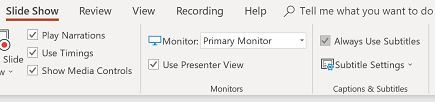
Select Slide Show and enable Always Use Subtitles. Open Subtitle Settings beside it.
This prepares subtitles to start with your presentation. Check the setting in the deck and computer you will use on the day, especially when presenting from a classroom PC or someone else's laptop.
Step 3. Choose the Spoken and Subtitle Languages
Set Spoken Language to the language you will use. Set Subtitle Language to the language the audience should read. Select the correct microphone from the same settings menu when that control is available.
For an English presentation to Japanese-speaking colleagues, select English as the spoken language and Japanese as the subtitle language. Selecting English in both places produces English captions. That helps listeners read along, but it does not translate the speech into Japanese.
Step 4. Position PowerPoint Subtitles for the Audience
Choose where the subtitle text should appear. Desktop options include Above Slide, Below Slide, and overlaid positions at the top or bottom.
For a classroom projector, placing subtitles above the slide is a useful starting point because the text is less likely to sit behind people in the front rows. For a remote presentation, leave enough space for both slide content and readable captions.
Use the appearance controls to adjust readability. On Windows, additional settings are under More Settings; on Mac, look for System Caption Preferences. Check the result at the size your audience will see, particularly if the presentation window will be reduced during a video call.
Step 5. Start the Slide Show and Check the Translation
Start presenting and speak a few complete sentences. Confirm that subtitles appear in the intended language and remain visible as you advance the slides.
Use rehearsal sentences that include a name, a date, a number, and a phrase your audience must understand. For example, a product update might include a release date and a statement about which version supports a feature. Ask someone who understands the target language to check the meaning where possible.
How to Toggle PowerPoint Subtitles During a Presentation
Use the subtitle button in Slide Show or Presenter View to turn captions on or off without ending the presentation. Microsoft's Windows instructions also document the J keyboard shortcut.

How PowerPoint Live Translation Works on Mac and the Web
On Mac, open the subtitle settings from the Slide Show ribbon and choose the spoken and subtitle languages. Enable Always Use Subtitles, or use the presentation's subtitle toggle when needed. Menu appearance can vary with the installed version.
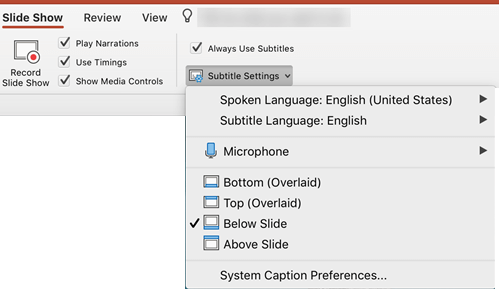
On the web, use the subtitle controls under Slide Show. PowerPoint live translation in a browser should be configured through those controls; searching for the retired Present Live button will take you toward an obsolete workflow.
How to Use PowerPoint Live Translation With a Classroom Projector
A blank slide can keep translated speech visible while you teach from a browser, document, or another presentation. The classroom demonstration follows this arrangement:
1. Connect the projector or second display and open a blank PowerPoint presentation. Remove the unused title and body boxes.
2. Enable translated subtitles and place them above the slide. Start the slide show on the audience display.
3. Reduce the presenter window on your laptop. Move the teaching material to the projected display and resize it beneath the subtitle area, keeping the original captioning slide show running.
The display mode explains an otherwise confusing part of this method. Microsoft documents that PowerPoint can switch the displays to Extend during a slide show, then return to the previous duplicate setting afterward. Extended displays let the laptop and projector show different windows.
If both screens remain identical, check the operating system's display settings before trying to move a window between them. Rehearse the arrangement on the actual classroom equipment: another full-screen application can cover the caption area. Ending the original slideshow also ends its live subtitles.
What Are the Limitations of PowerPoint Live Translation
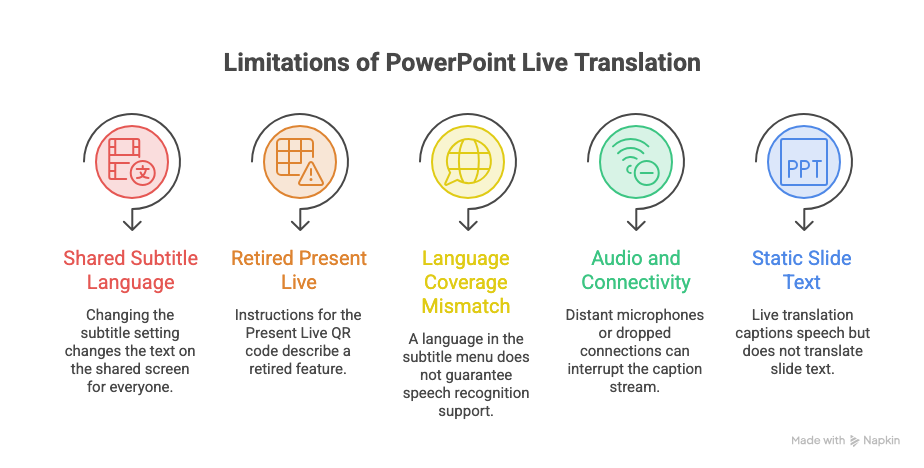
PowerPoint live translation works best when the presentation has a clear source language, and the audience can use one shared subtitle language. These five limitations become more noticeable as the event becomes more multilingual or interactive.
One Shared PowerPoint Subtitle Language
The standard subtitle setup displays the language chosen by the presenter. If one group needs Japanese and another needs Spanish, changing the subtitle setting changes the text on the shared screen for everyone.
Screen sharing does not give each participant a separate language selector for that captured image. For individual choices, you need a participant-facing translation service or an eligible meeting-platform feature.
The Retired Present Live Audience Workflow
Instructions that tell attendees to scan PowerPoint's Present Live QR code describe a retired feature. An organizer returning to that old setup can spend time looking for controls that are no longer available.
The replacement needs to match the lost function. Showing one translated caption stream on a projector does not provide the same experience as letting each attendee choose a language on a phone.
Different Spoken and Subtitle Language Coverage
Microsoft lists more than 60 subtitle output languages, with a smaller set of spoken-language options. Some speech inputs are marked as preview, with lower accuracy than fully supported inputs.
Check the actual source and destination separately. A language appearing in the subtitle menu does not establish that PowerPoint can also recognize speech in that language.
Audio Quality and Connectivity Affect the Translation
A distant microphone, overlapping speakers, or a dropped connection can interrupt the caption stream. JotMe also needs usable audio and connectivity; changing applications does not repair a microphone that cannot hear the audience.
During Q&A, repeat a question into the presenter's microphone or provide an audience microphone. If your event also needs human interpretation or specialist language support, compare the approaches in our guide to top translation services.
Spoken Translation Leaves Slide Text Unchanged
PowerPoint live translation captions what is said. It does not automatically replace the English headings, chart labels, or bullet points in your deck with Japanese text.
Prepare a translated deck separately when attendees need to read the slides in another language. JotMe's PowerPoint document translator accepts a PPTX file and produces a translated deck for review before presenting. Check the resulting text boxes and layouts, since translated text can take more space.
How Can JotMe Replace the Present Live Translation Workflow
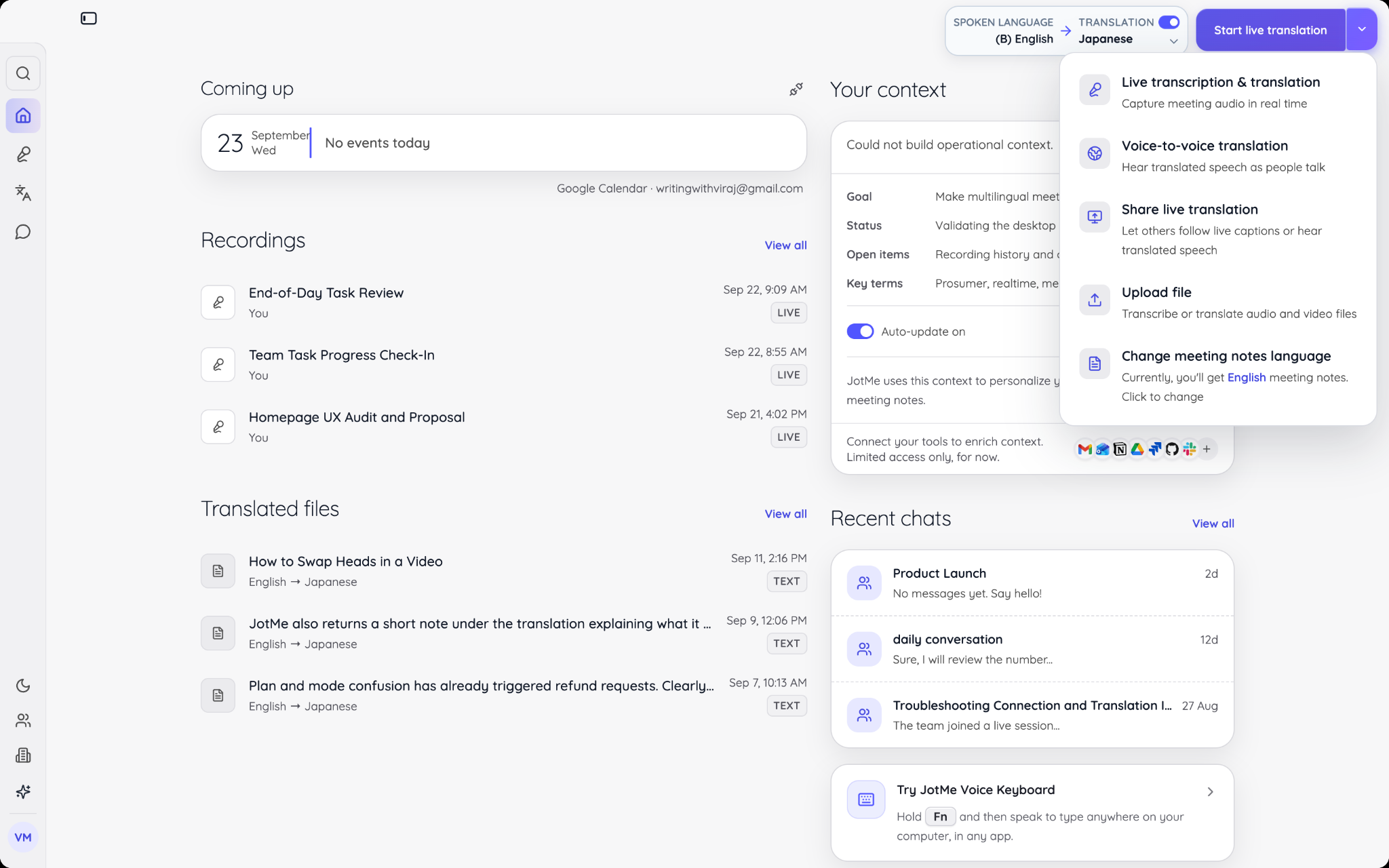
JotMe gives you two ways to provide PowerPoint live translation: show a transcript window beside your slides or let attendees open translations on their own devices. You can choose the delivery method without rebuilding the deck.
JotMe's language documentation describes desktop coverage across 200+ languages and dialects. Availability depends on the selected speech model and translation output, so check the exact language pair in the app before announcing support to an audience.
Consider an English presentation for Japanese and Spanish-speaking partners. A shared Japanese transcript may suit one group watching the same screen. A browser link allows both groups to follow in their respective languages. That second workflow addresses the audience-language choice highlighted in the Reddit discussion.
How to Show PowerPoint Slides and JotMe Translation Together
The following sequence follows JotMe's PowerPoint live translation setup guide, whose PowerPoint screenshots use Windows and whose sharing example uses Zoom.
Step 1. Start JotMe and Set the Languages
Install and open JotMe Desktop. Select your spoken and translation languages, allow the required audio permissions, and start live translation. Confirm that your speech reaches the transcript before opening screen sharing.
For a video call, configure the online environment and computer audio if you also need to capture other participants. For a room captured through one microphone, use the in-person setup. The JotMe Desktop App guide covers installation, permissions, and the main controls.
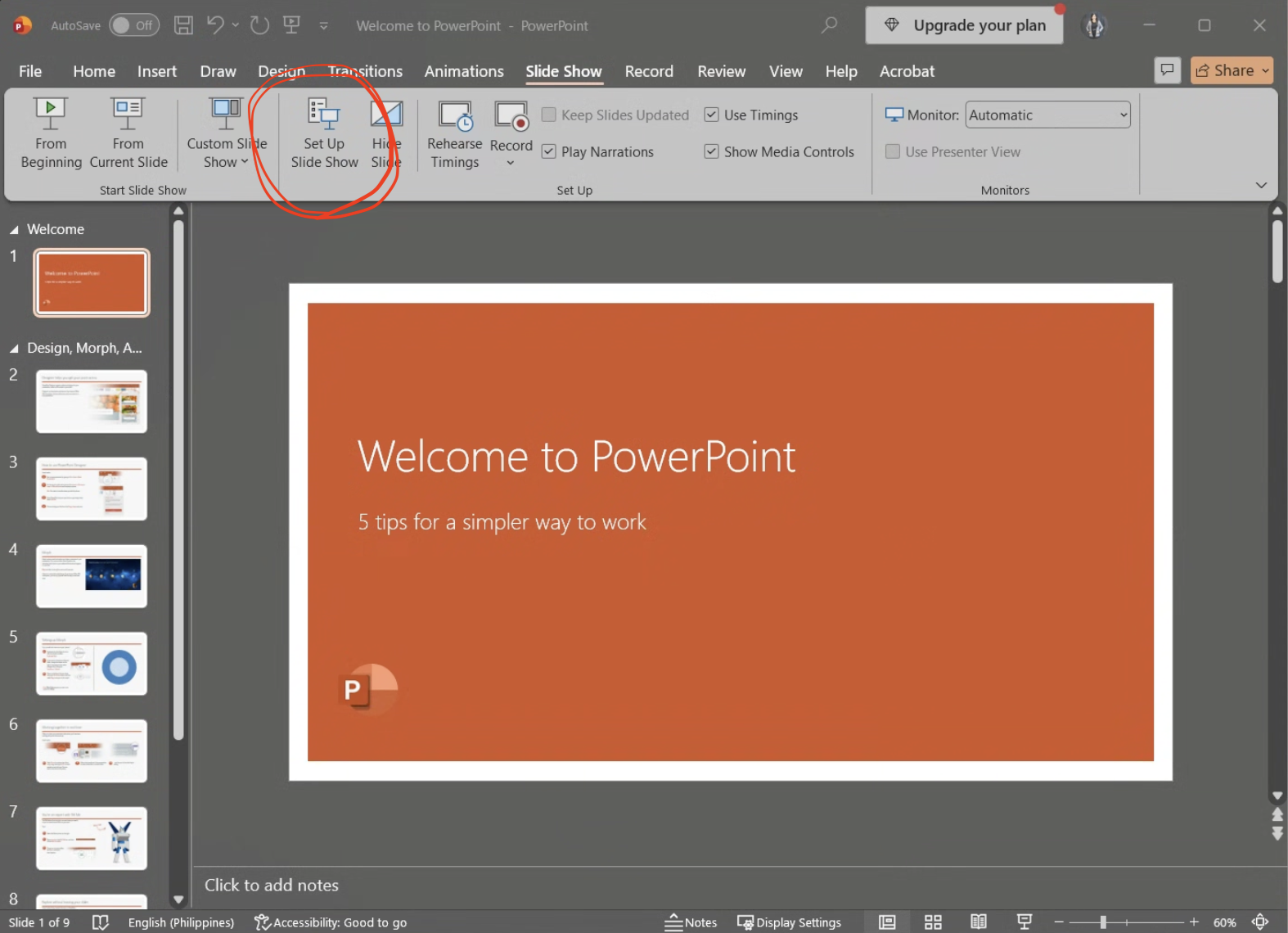
Step 2. Open PowerPoint Slide Show Settings
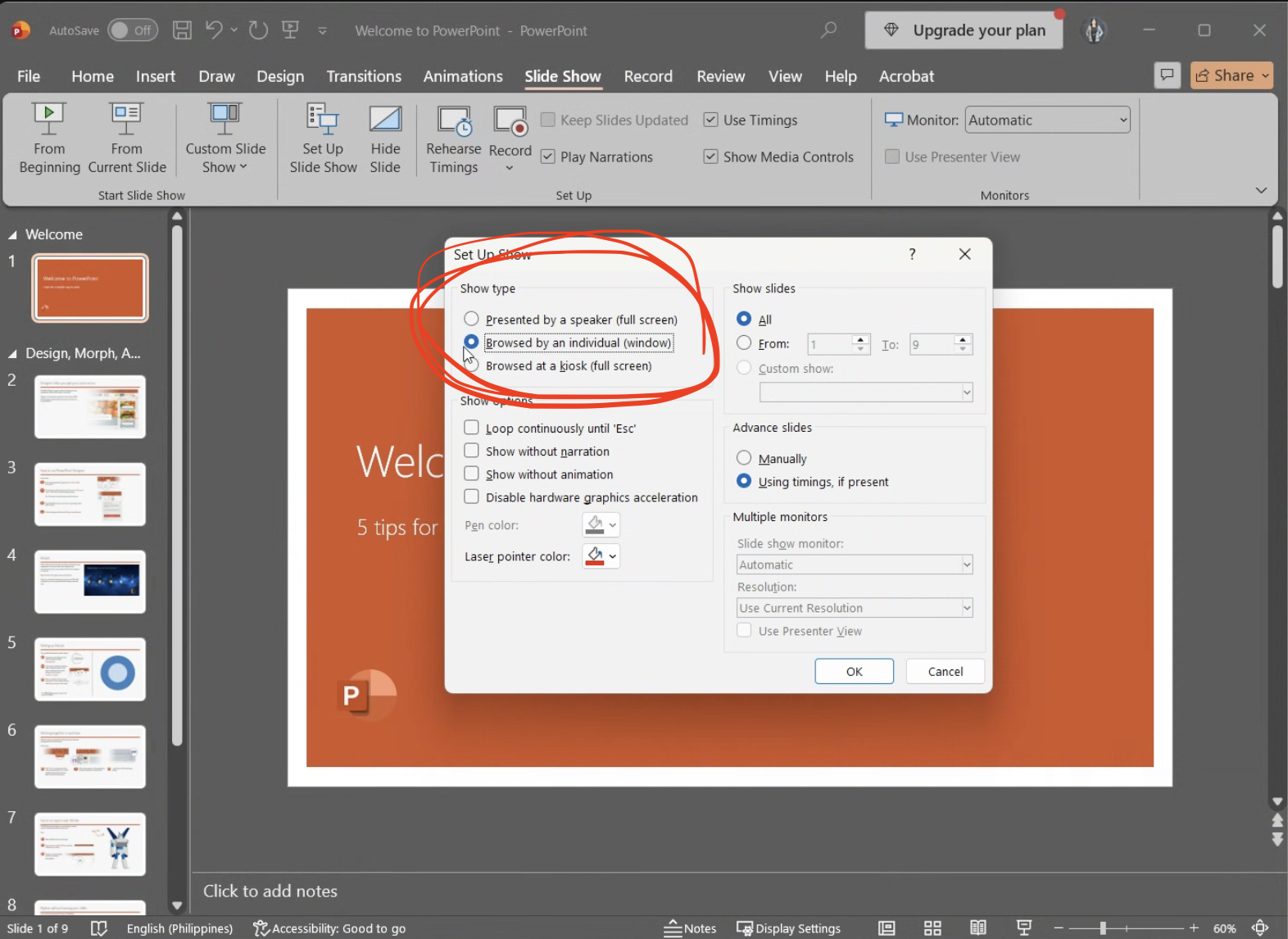
In PowerPoint, select Slide Show > Set Up Slide Show.
Step 3. Choose a Windowed PowerPoint Slide Show
Select Browsed by an individual (window) and confirm. Start the presentation from the beginning or the current slide. This creates a resizable slide-show window with room for JotMe alongside it.
Step 4. Arrange the Slides and JotMe Transcript
Use Maximize Transcript Window in JotMe, then position that window beside PowerPoint. Resize both until the slide content and translated text are readable.
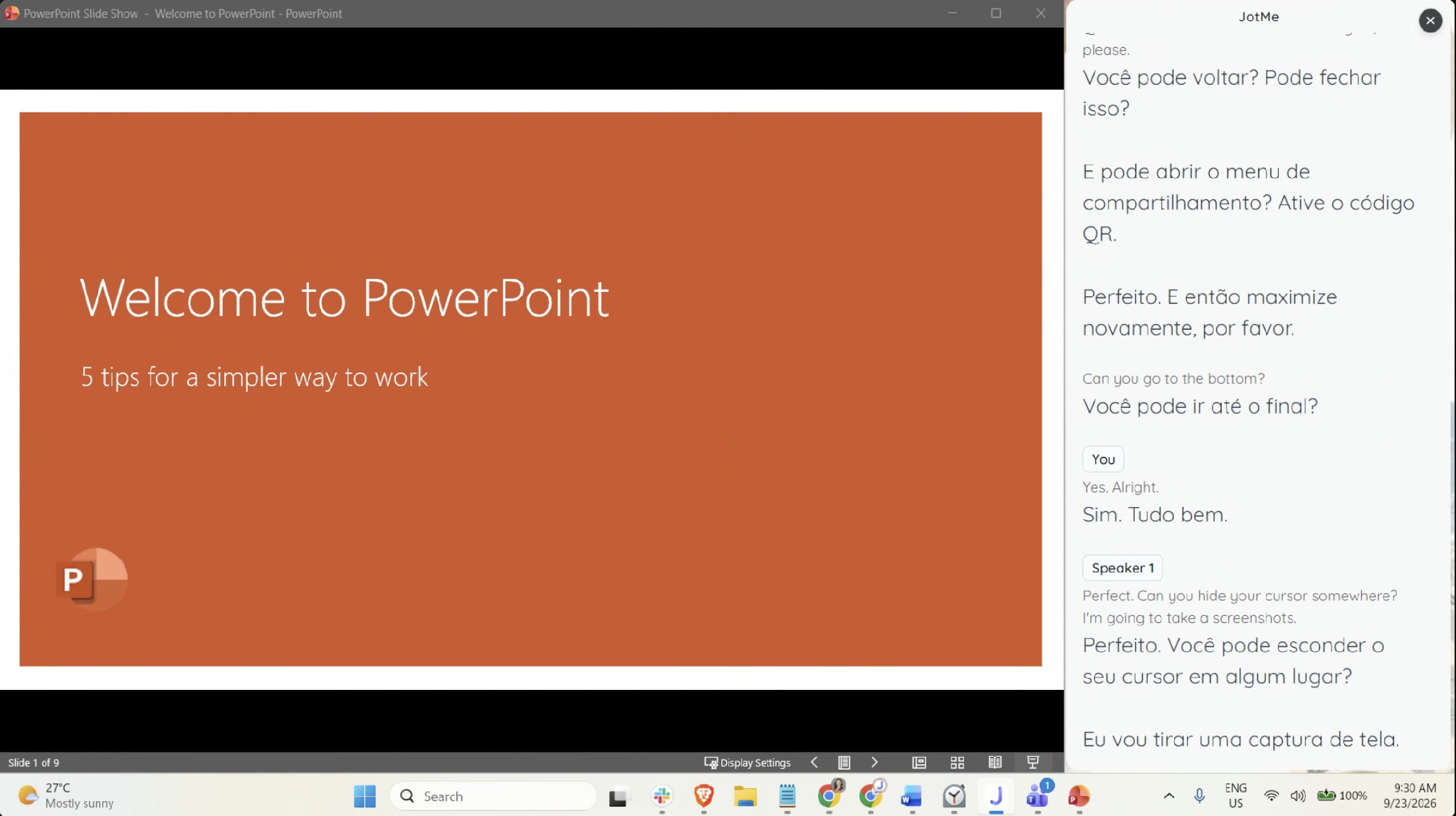
Step 5. Share the Screen and Check the Audience View
In Zoom, select the entire screen containing both windows. Ask a participant to confirm that the slides and JotMe text are visible together. Sharing only the PowerPoint window leaves JotMe out of the audience view.
A useful check is to advance one slide and speak a fresh sentence while the participant watches. A successful screen-share preview on your own computer does not establish that the recipient can read the text at their window size.
This PowerPoint live translation arrangement gives everyone the same displayed output. Continue with the browser workflow when attendees need independent language choices.
How to Give Each Attendee Their Own Translation Language
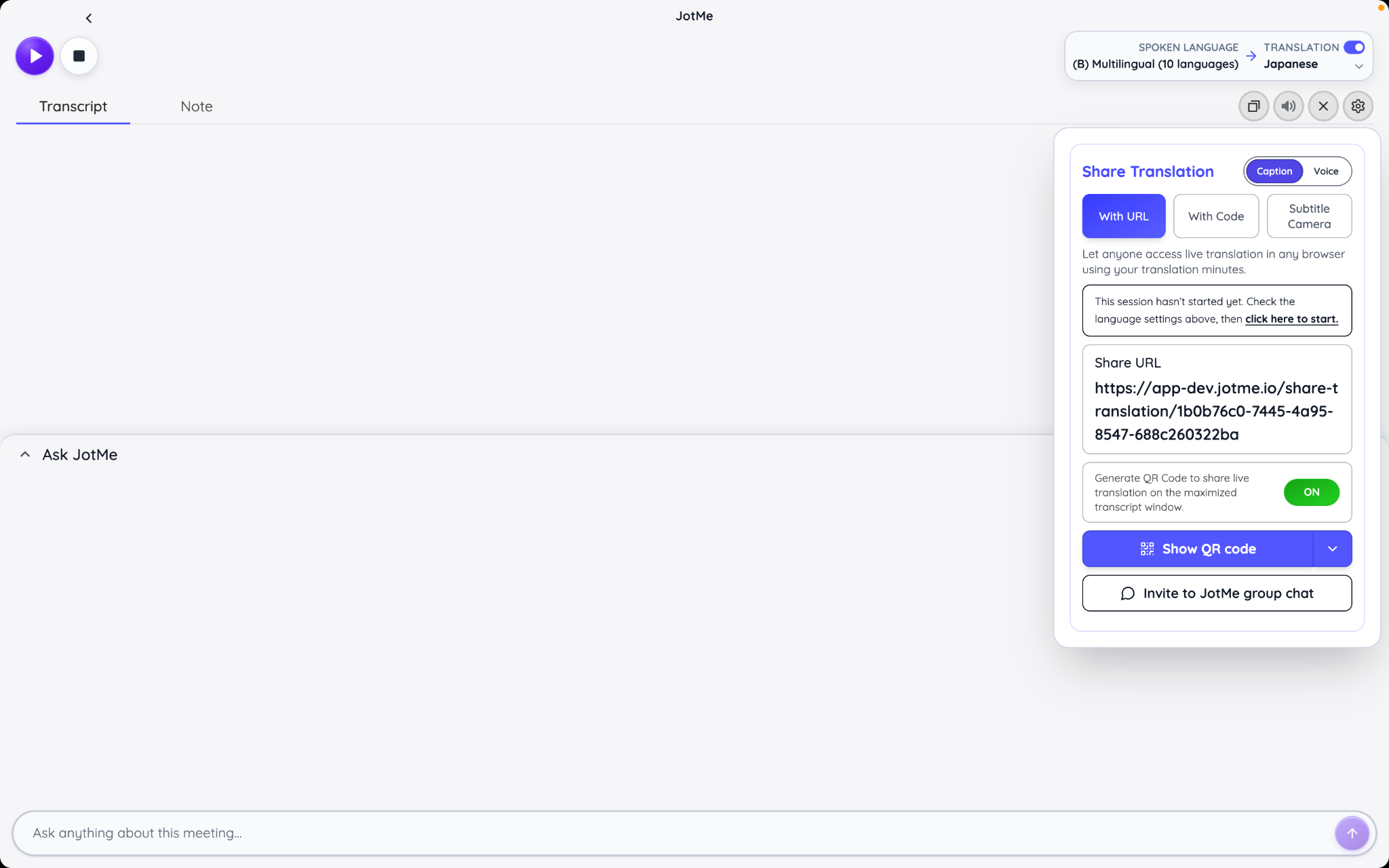
For multilingual audiences, use JotMe's URL-sharing workflow and its QR-code option. Both open the participant experience in a browser.
1. Open Share Translation > With URL and choose Caption for readable translated text.
2. Generate the session link and share it through the meeting chat or the invitation for that session.
3. Enable the QR code option if attendees will join from a room. Display the code in the maximized transcript view.
4. Start the live session, and a participant who opens the link beforehand can wait for the host to begin.
5. Give attendees time to join and confirm their language choices before starting the substantive presentation.
The participant join flow asks for an email address and the spoken and reading languages. Attendees can join on a phone or laptop without installing JotMe or creating an account. If the host restricts available languages, participants choose from that allowed list.
For a room with Japanese- and Spanish-speaking attendees, allow those targets and check the flow with one person from each group. A QR code that scans correctly is only the first check; the audience also needs to reach the right session and see translated speech.
JotMe can also deliver translated voice when that mode is configured. For a caption-focused PowerPoint presentation, start with the text workflow. If you add voice later, ask attendees to use headphones so their translated audio does not feed back into the room microphone.
What JotMe Translation Minutes Mean for Your Presentation
Your delivery method affects usage. A shared JotMe display is one host output, so adding more people who watch that screen does not multiply the stream by audience size. Separate browser connections consume the host's minutes according to connected time and the selected model.
JotMe's usage guide identifies Premium as a plan that can fund guests in shared live translation. Check the current sharing entitlement and available minutes for your account, including team or event arrangements where applicable.
For a 30-minute presentation, these examples illustrate the selected translation output:
The device rows show participant-delivery usage. Account separately for any additional host output, target languages, and transcription usage. Fast Audio uses the 5× multiplier even when translated audio playback is off. Use the event estimate to calculate your actual arrangement.
For PowerPoint live translation, that creates a practical choice: use a shared screen when one caption stream serves the room, or budget for participant devices when independent language selection is essential.
How to Improve PowerPoint Live Translation and Fix Common Problems
We recommend rehearsing the material that could change the meaning of the presentation if translated incorrectly. In a quarterly update, that might be a percentage, a delivery date, a product name, or the difference between a feature being available and planned.
- Keep the microphone at a consistent distance and reduce competing room audio.
- Let one person finish before another begins, especially during questions.
- State unfamiliar names and acronyms clearly. Put their written forms on the relevant slide.
- Use complete phrases and pause at natural sentence boundaries.
- Check important translated phrases with someone who knows the audience's language.
If you use JotMe, its custom vocabulary controls can help prepare names and terminology for supported features. Still include those terms in the rehearsal; adding a vocabulary entry is not a guarantee of a correct result.
Prepare supporting material for people who want to review it after the talk. If you distribute a PDF rather than an editable deck, our comparison of Best PDF translators covers options for translating those handouts. Review figures, labels, and layout before sending them.
What to Check When PowerPoint Live Translation Is Not Working
Here are the common problems and what you need to check to resolve them:
For the projector layout, test from an audience seat as well as from the presenter's desk. Text that looks large on a laptop can become difficult to read across a room.
Which PowerPoint Live Translation Setup Fits Your Audience
Choose the native PowerPoint subtitles when one shared translation language meets the audience's needs. If your organization already runs presentations in Teams, check its translated-caption eligibility before purchasing another tool. For a mixed-language audience, decide how people will receive the translation: on the presentation screen or on their own devices.
JotMe supports both arrangements alongside your existing slides. Start with the shared-screen setup for one audience language, or use the URL and QR-code workflow for individual choices. Before the next presentation, open your actual deck and have an attendee check the translation, readability, and joining process. That rehearsal will tell you more about the suitability of the setup than a list of language counts alone.
FAQs About PowerPoint Live Translation
Is PowerPoint Live Translation Free
Built-in subtitles are part of supported PowerPoint experiences; access depends on the PowerPoint version and license you use. Teams translated captions have their own eligibility rules. JotMe's documented free allowance includes 20 live translation minutes, but shared audience sessions require checking the plan's participant-sharing entitlement and usage.
Does PowerPoint Live Translation Work on Mac
Yes. Microsoft documents live captions and translated subtitles in PowerPoint for Microsoft 365 for Mac. Use the Slide Show subtitle settings to choose languages and the presentation controls to toggle captions. The appearance settings use macOS caption preferences.
How Many Languages Do PowerPoint Subtitles Support
Microsoft lists more than 60 subtitle output languages. Spoken-language support is a separate, smaller list that includes preview entries. Check both menus for your intended pair. The number of languages PowerPoint can display should not be used as the number of languages it can recognize from speech.
Can You Save a Transcript From PowerPoint Live Subtitles
Microsoft's documented live-subtitle workflow does not include a transcript-export step. Arrange a separate transcription workflow if you need a written record. With JotMe, choose to retain the transcript before presenting, then review the saved session afterward. JotMe’s desktop settings also let you control whether participants receive notes and transcripts after the session.
Can PowerPoint Live Translation Work During a Zoom Presentation
Yes, the audience can see on-screen translated text when it is included in the screen or window you share. Check the recipient view. With JotMe's two-window arrangement, share the display containing both PowerPoint and JotMe, or send participants a translation link for their own devices.
Can You Translate the PowerPoint Slides Themselves
Yes, through a separate text or document translation workflow. PowerPoint's Review > Translate option translates selected text. For translating a full deck or comparing file-based tools, see our guide to the best document translators. Review charts and embedded images separately from editable slide text.
Can PowerPoint Live Translation Run Without Internet
PowerPoint's built-in live captions and subtitles depend on an online speech service. Plan for a reliable connection throughout the presentation. A translated deck prepared in advance can support the audience during a connection problem, but it will not translate new spoken remarks or questions.
Last updated on
September 26, 2026
Follow us on social media: