
Tips
How Do I Get Automatic Conference Call Translations

Lovely Mangla
February 28, 2026

Quick Answer: You can get automatic conference call translations using built-in translation features in video conferencing platforms, professional interpretation services, or third-party live AI translation tools like JotMe. Each translation option differs in accuracy, cost, language support, and setup complexity.
Many times, conference calls are held with clients speaking different languages. However, built-in live translation on video conferencing platforms like Google Meet, Zoom, and Webex supports only one language at a time. You must manually switch languages or ask the client to repeat, which can break the natural conversation flow.
If you want your conference calls to run smoothly without translation pauses and back-and-forth disruptions, consider using a dedicated live translation tool like the JotMe desktop app. JotMe provides real-time conference call translation without complex setup and can translate up to 10 spoken languages at once.
Further, JotMe desktop app uses a multilingual speech recognition engine to deliver contextual, continuous translations in 45+ languages. This way, JotMe helps reduce misunderstanding in your conference calls and maintains naturalness in conversations.
In this guide, we’ll walk you through using JotMe as a conference call translator and discuss how it streamlines your multilingual calls.
What are the Methods to Get Automatic Transcription and Translation of Conference Calls?
If you need to live translate your multilingual conference calls, you can use the built-in translation features in Zoom, Webex, and Microsoft Teams, or a dedicated third-party conference call translation service like JotMe desktop. Let’s review both to decide which method works the best.
Method 1: Built-in Platform Features
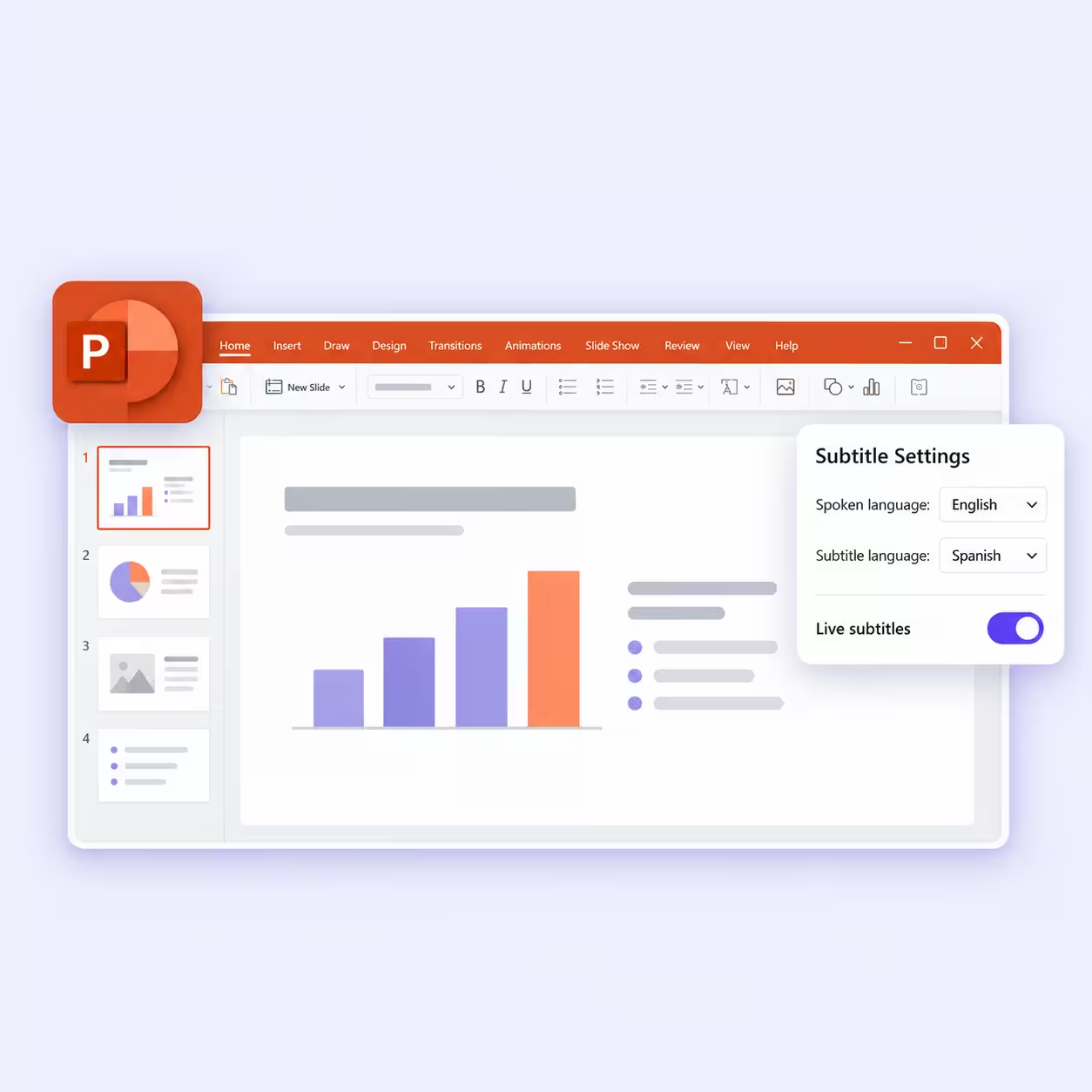
Video conference calling platforms like Zoom, Microsoft Teams, Webex, and Google Meet have built-in live translation features. As you activate the feature, you’ll see translated real-time subtitles of the conversations as captions. This potentially eliminates the need to install any third-party software.
However, there’s a catch. Although convenient, the built-in translation feature has certain limitations. Here are the details:
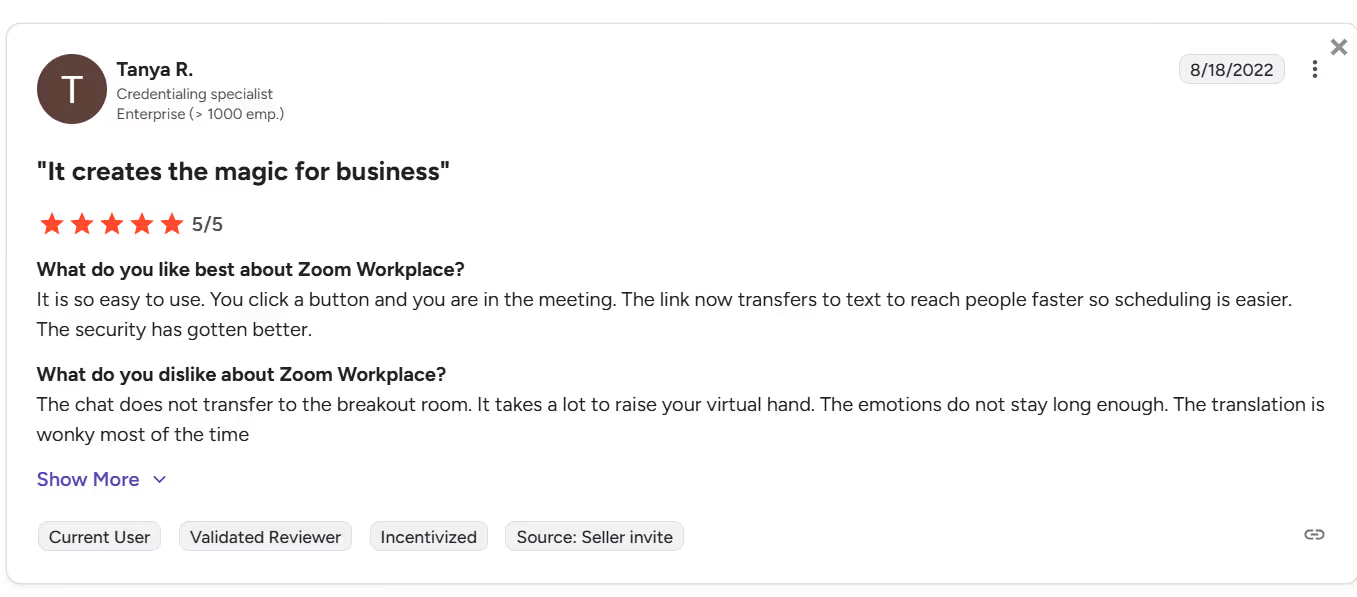
Inaccurate Translations: In multilingual conference calls, accuracy matters most. And here, the built-in translators in Zoom, Google Meet, or Webex sometimes mess up. One user on G2 mentions that Zoom’s translations are wonky most of the time.
Licensing Required: Some platforms, like Webex, require you to pay $300/year to obtain a license for their Real-Time translation services. Even Zoom needs you to be a Pro plan user (costs $13.33 per user/month, billed annually) to access its translation feature.
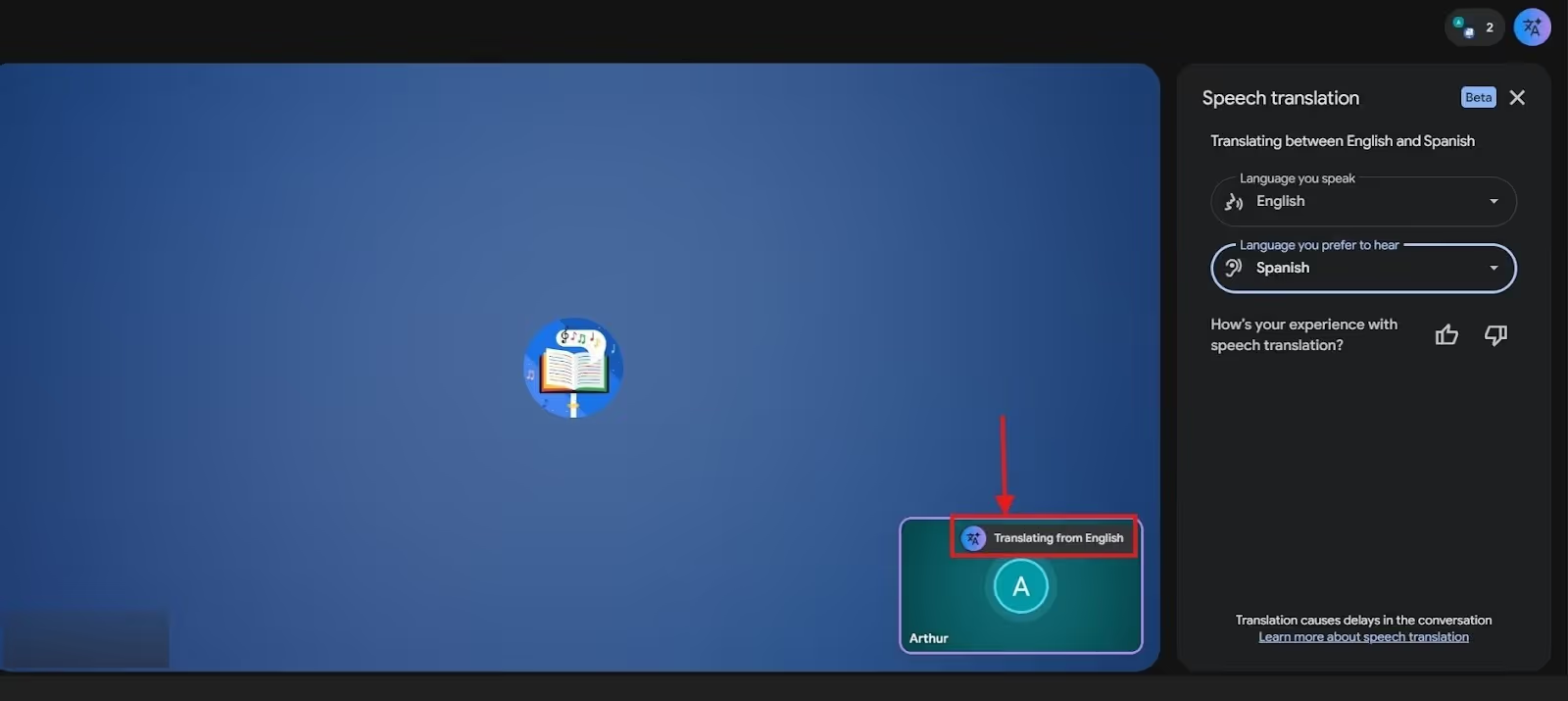
Bot-Like Translation: As of now, Google Meet’s speech translation feature is in Beta stage and doesn’t provide translated captions. In our tests, Google Meet spoke the translations aloud, which felt a bit intrusive and often disrupted the natural flow of conversation.
No Dialect Support: Zoom, Google Meet, or any built-in translation feature doesn’t support dialects of a language. For example, translating between French (France) and French (Canada), or German (Germany) and German (Switzerland).
Method 2: Using Third-Party Conference Call Translation Services
According to a survey report conducted by Zoom and Morning Consult among 8,000 leaders and employees from 16 countries, more than half (52%) of this group spend 3 to 4 hours a day on virtual meetings.
However, using Zoom's built-in live translation features can lead to accuracy issues, misinterpretations, and potential distrust among participants. Regardless of size (small or enterprise), no organization can afford employee distrust, as it breaks communication and breeds conflict.
JotMe is one of the best live translation software that provides features like live contextual translation, AI ask, post-meeting notes, and generate speech, at a mere $10/month (if billed annually). Here are a few aspects that make JotMe stand out:
- Accuracy: JotMe uses advanced speech recognition technology to understand the flow, tone, intent, and core meaning of the conversations and preserves them in translations. This way, the translation is not only accurate, but the participants feel like speaking with the natives.
- Cost-Saving: As mentioned earlier, real-time translation on platforms like Webex requires a real-time translation license that costs $300/year. Meanwhile, the JotMe desktop app’s pricing plan starts at $10/month ($120 billed annually). That is, your translation costs are reduced by 60%, and a practical solution for teams that frequently attend multilingual calls.
- No-Bot Integration: When you’re in a conference call with your team, a bot entering and translating your conversations feels intrusive and can make your clients feel somewhat uncomfortable. JotMe, on the other hand, has a bot-less translation setup and captures audio directly from the system while running in the background.
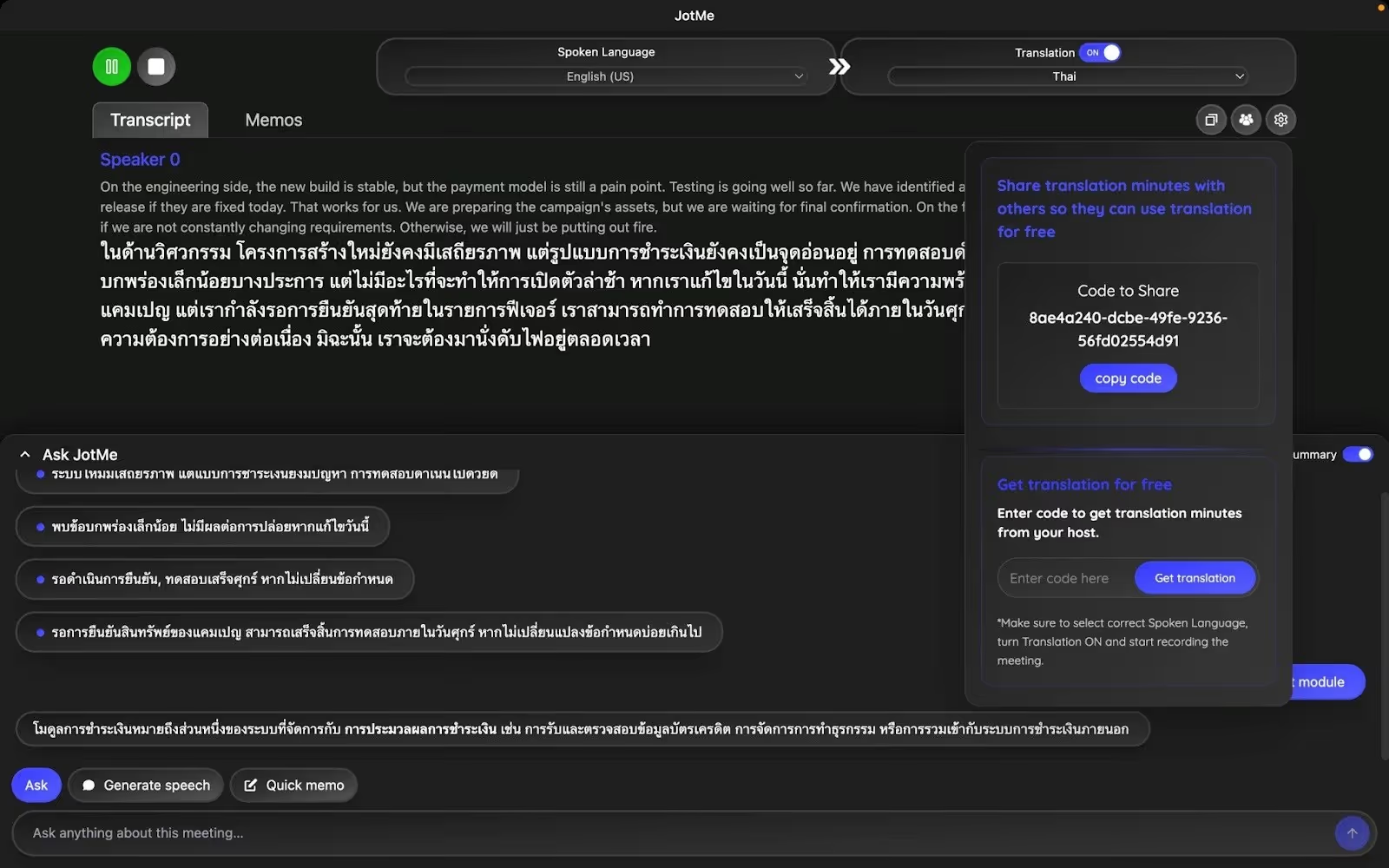
- Sharing Translation Minutes: Google Meet’s in-built translations are accessible only to the participants with a premium Google Workspace subscription, specifically Google AI Pro, Business Plus, Enterprise Plus, and Frontline Plus. However, with JotMe, if you have a premium plan, you can share a code with your participants. They can enter the code to access the translation minutes without paying.
How to Enable Live Conference Call Translation?
Visit JotMe’s official website, and click on the “Try for free” button to download the JotMe setup on your device. Now, follow the prompts to install the JotMe desktop app and follow the steps to obtain a real-time translation:
Step 1: How to Launch JotMe in a Live Conference Call?
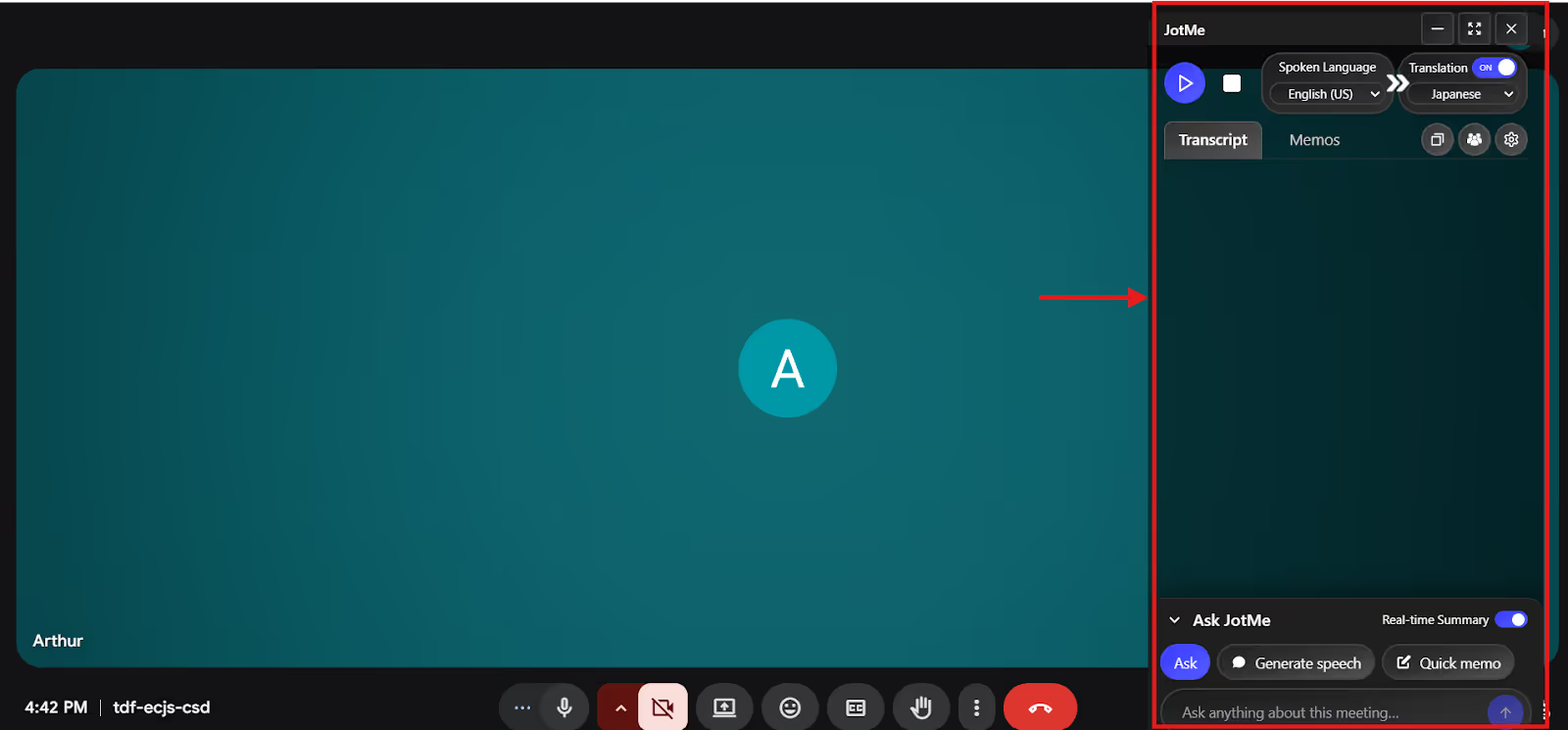
Start a conference call on your preferred platform through the browser or desktop app and launch JotMe. JotMe will run in the background and provide instant translations as you start speaking.
Step 2: How to Set Languages in JotMe?
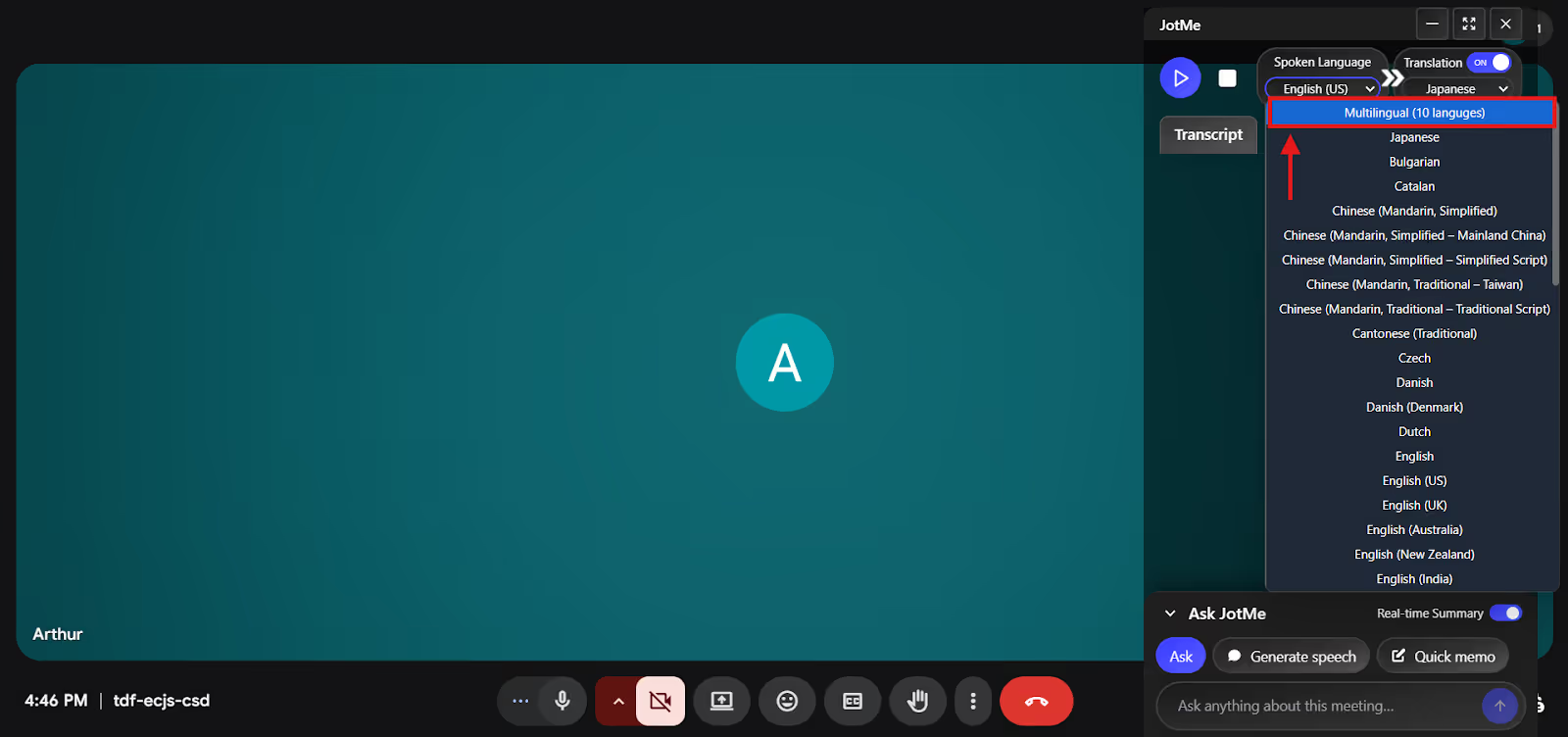
In the JotMe window, toggle the Translation option. Then, click the dropdown menu under “Spoken Languages” and “Translation Languages” to select the respective language of the speakers' conference call.
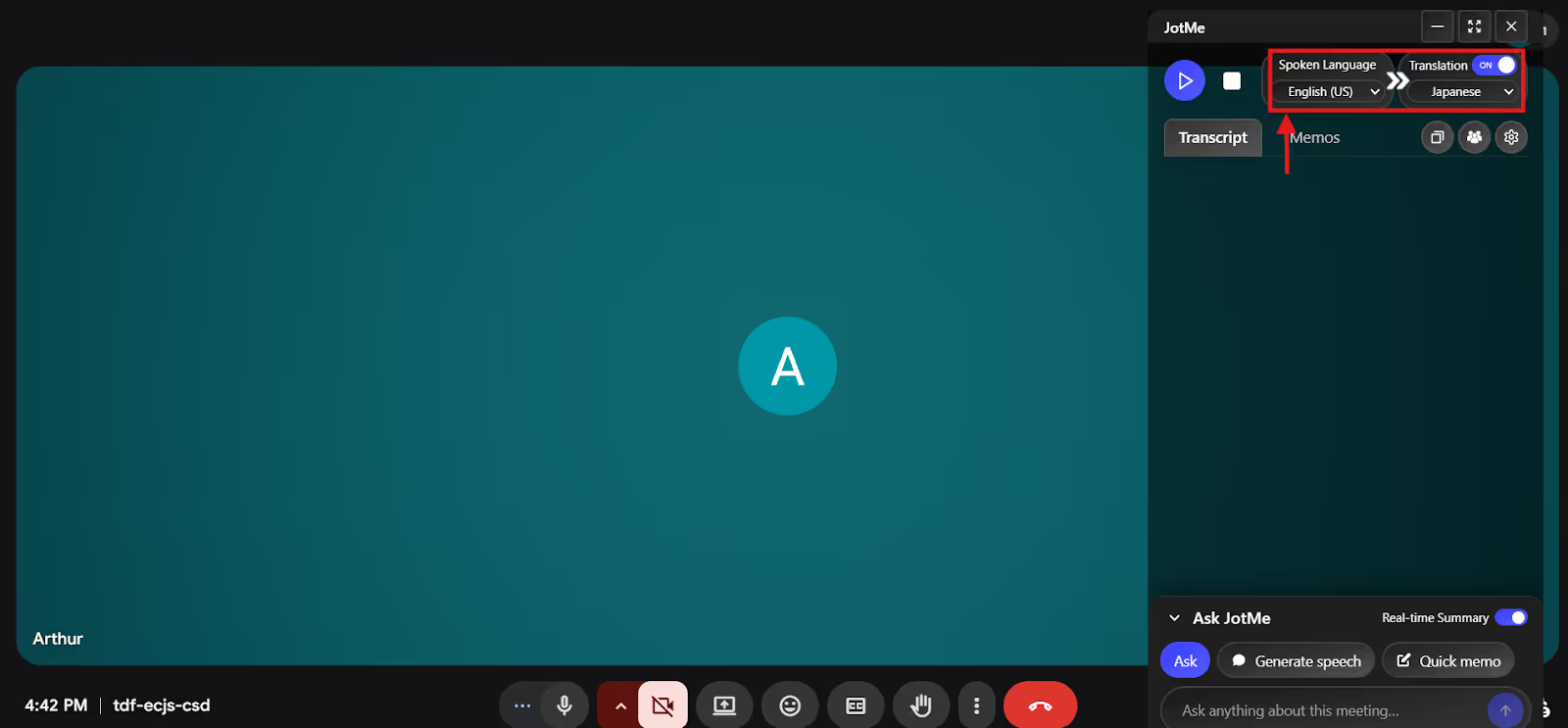
Unlike the built-in translation features, JotMe offers a “multilingual translation” feature that can translate up to 10 languages at once. This is especially suitable if people on call speak different languages. Select “Multilingual” from the dropdown menu under “Spoken Languages” and start speaking.
Step 3: How to Start Conference Call Translations With JotMe?
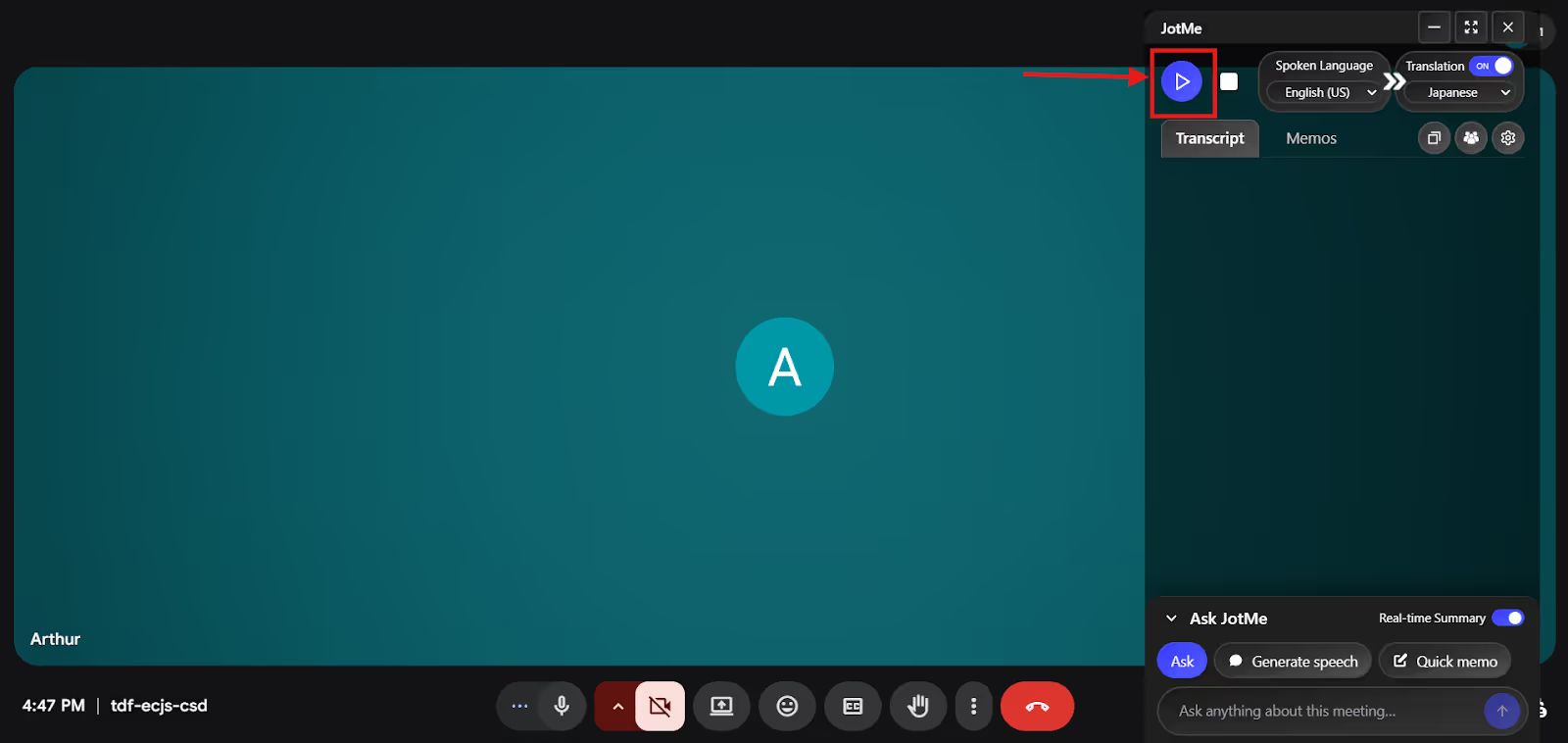
Now that you’ve selected the languages, hit the “Play” button at the top-left corner of the JotMe window to start real-time translation of the conference calls.
Step 4: How to Get Real-Time Summaries With JotMe?
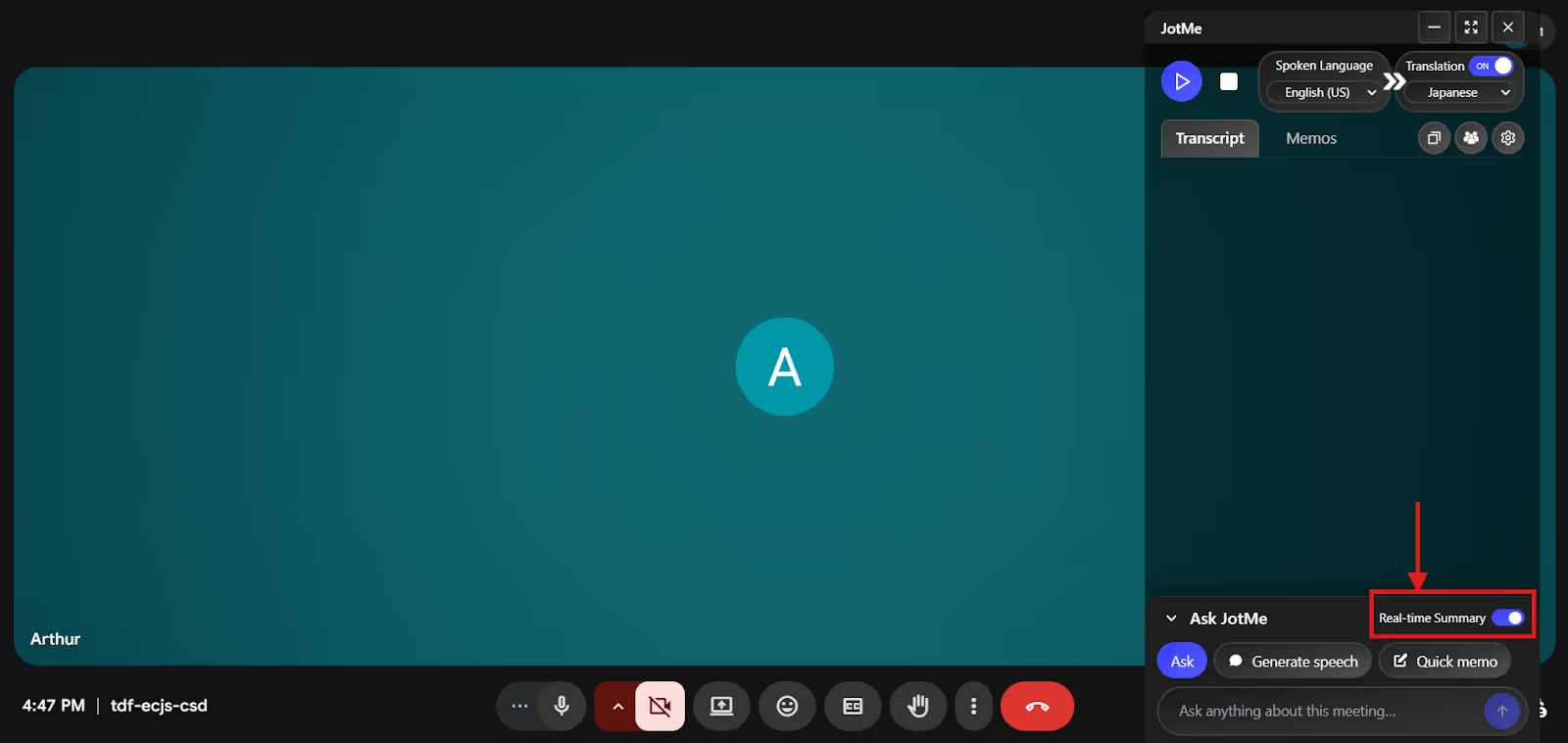
As JotMe starts translating, head to the bottom of the window and toggle the “Real-time Summary” option. JotMe will provide instant summaries of the meeting that you can skim at any time to stay in sync with the discussions.
Why is JotMe Better For Live Conference Call Translation?
JotMe is better than the in-built translation features of Google Meet, Webex, Microsoft Teams, and Zoom, primarily because of its high accuracy, and additional features like AI Ask, post-meeting notes, and simultaneous translations. Let’s learn about these features in detail:
JotMe Offers Continuous and Contextual Translation
JotMe’s desktop app uses advanced speech recognition technology that focuses on tone, nuance, flow, and meaning. So, the translations feel natural, and the people in conference calls understand exactly what’s said.
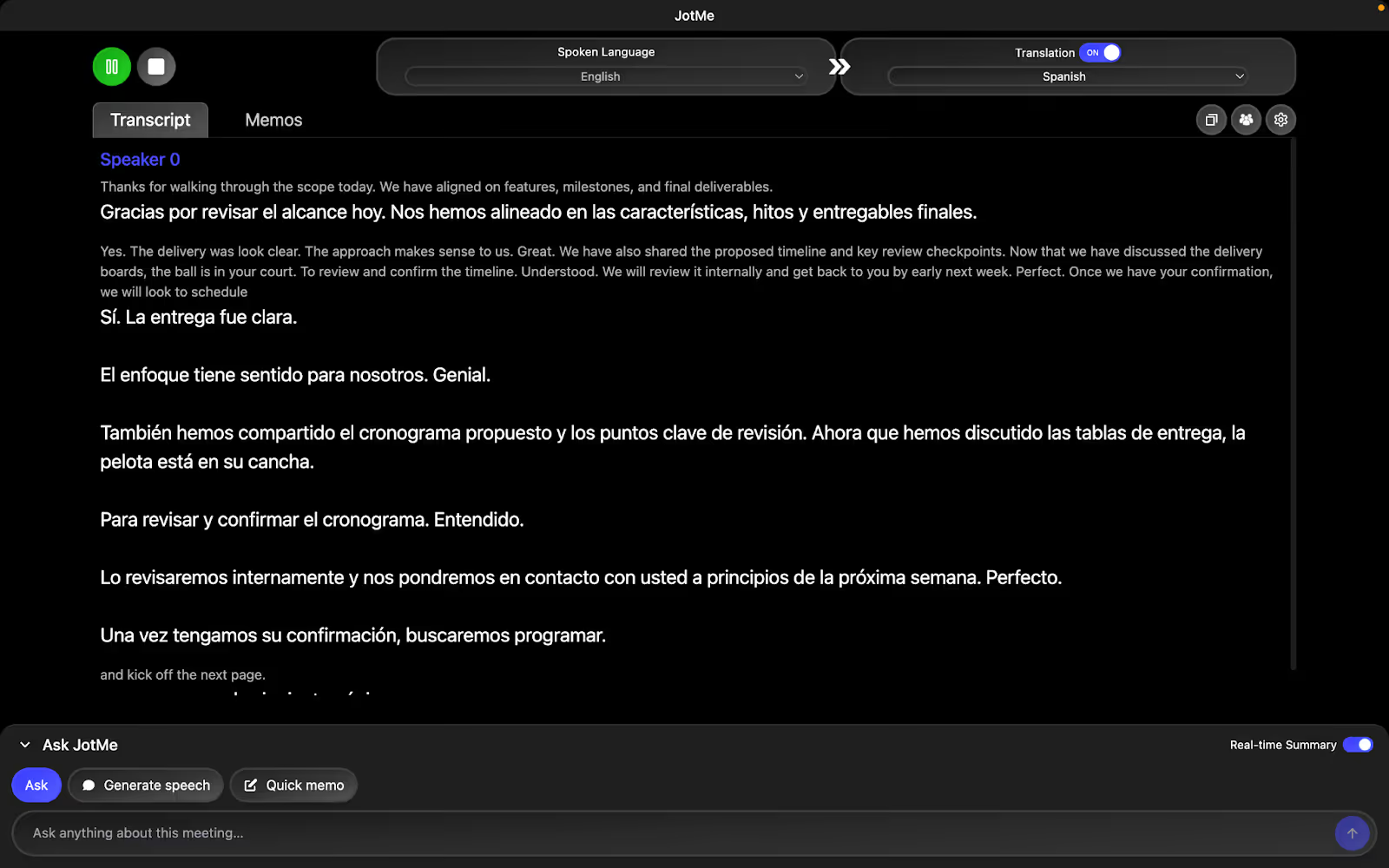
This became evident when JotMe was tasked with conference call translation in Spanish. We were discussing our ongoing project, and idiomatic expressions and technical terms were flying back and forth. JotMe provided accurate and continuous English to Spanish live translations.
That is, the transcriptions and translations kept going in a single flow without any stops, even when we paused or took a breath while speaking.
JotMe Lets You Share Live Translation Through a URL
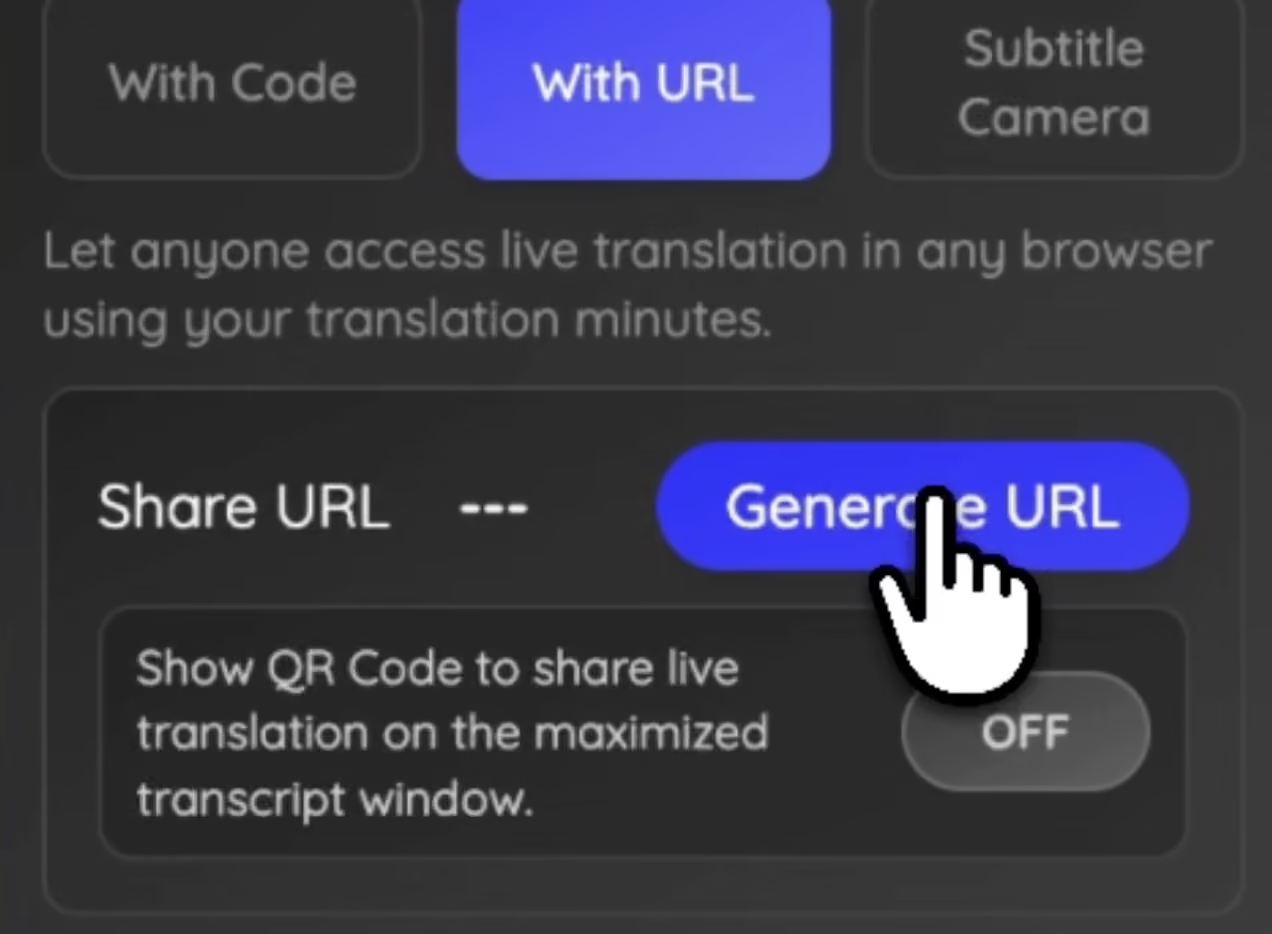
During multilingual conference calls, not every participant may have translation software installed. JotMe solves this by generating a live translation URL that hosts can share with meeting participants before or during the call. Anyone opening the link can follow real-time translated captions in their preferred language.
This works well for webinars, product demos, or international client meetings. For example, if a presenter speaks English while attendees prefer Spanish, Portuguese, or French, they can open the link on their device and follow live subtitles without interrupting the meeting flow.
If you want to enable this in your own conference calls, you can follow our step-by-step guide on how to share AI live translation with a URL.
JotMe Makes Translation Access Easy With QR Code Sharing
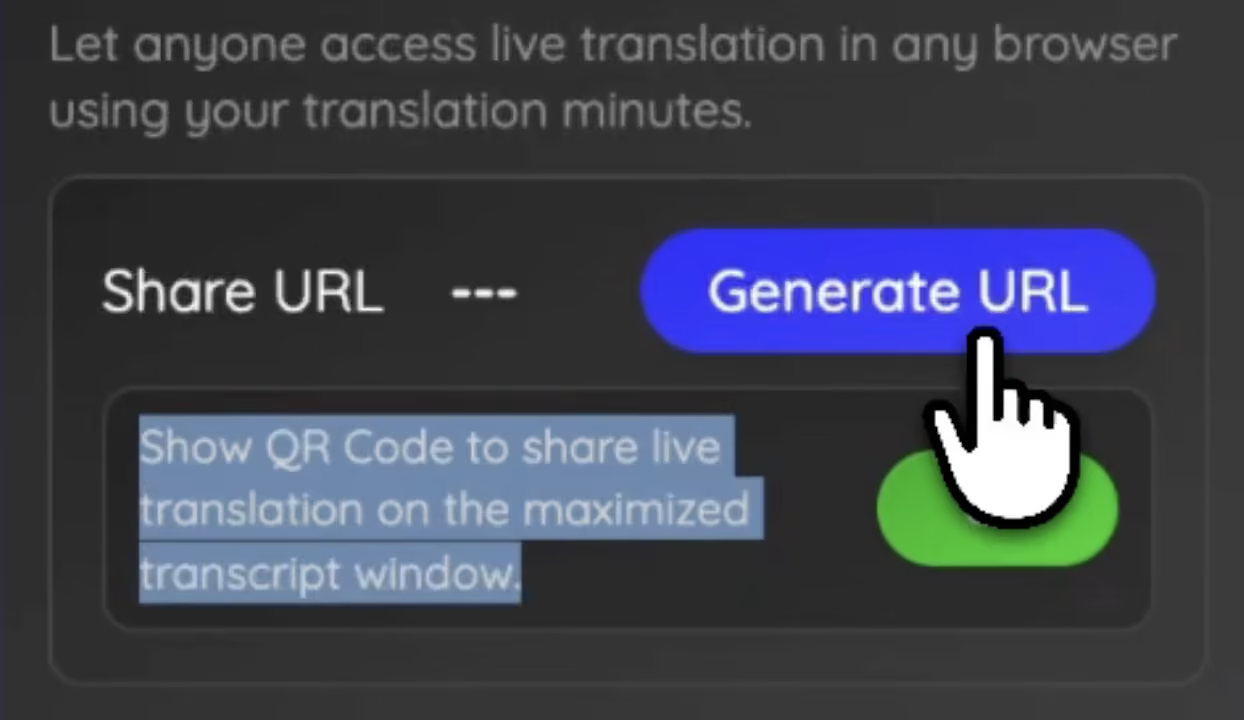
In hybrid meetings or conference rooms, sharing a link may slow things down. JotMe simplifies this by generating a QR code for live translation that appears when the transcript view is maximized in the desktop app.
Hosts can display the QR code on a presentation screen so participants can scan it with their phones and instantly access translated subtitles. This is especially useful during international conferences, training sessions, or company town halls.
If you're hosting hybrid conference meetings, you can also learn how to share AI live translation using a QR code.
JotMe Can Display Translated Subtitles Directly on Your Webcam
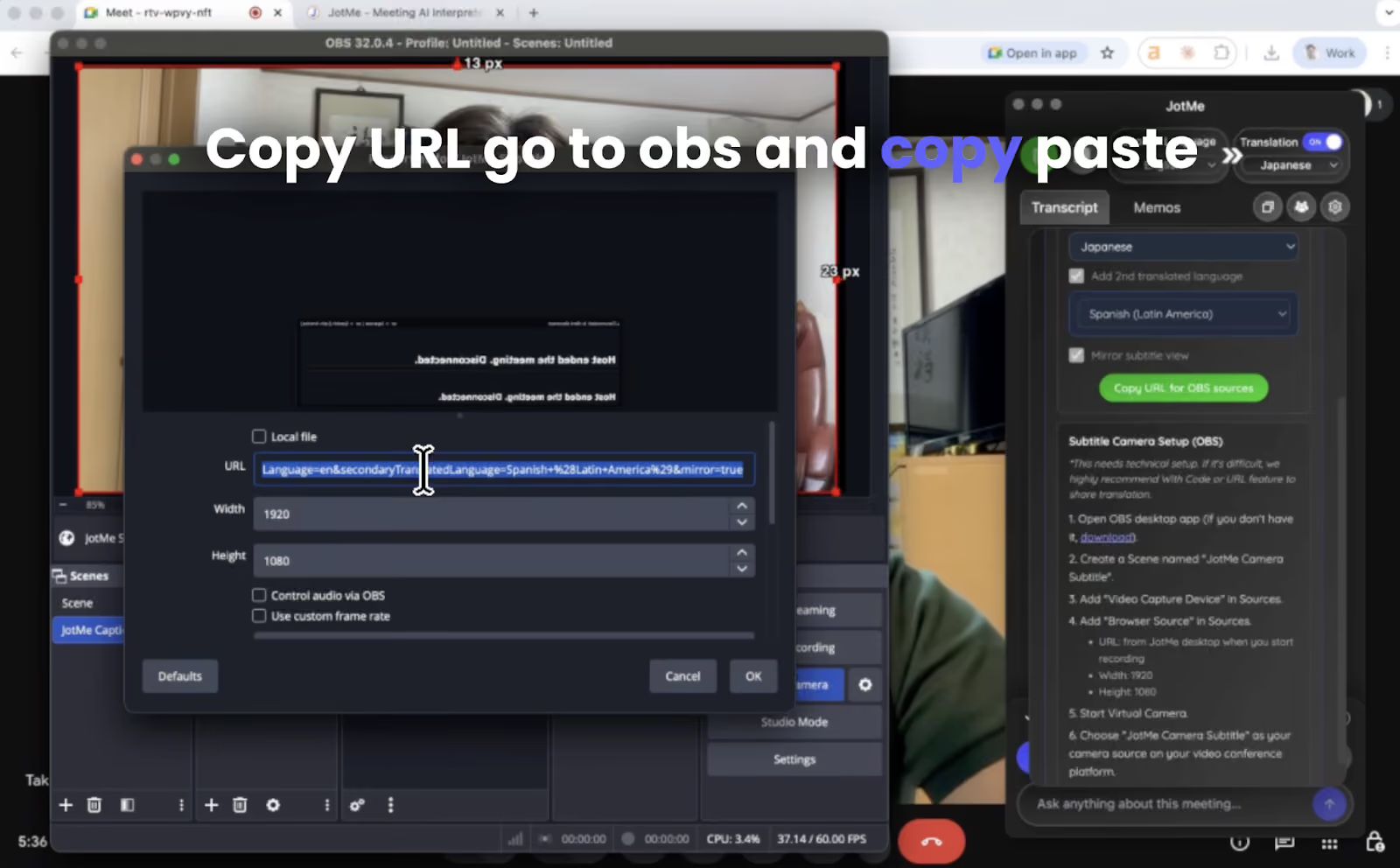
For large virtual meetings, some participants may forget to open translation links. JotMe supports webcam subtitle overlays using OBS Studio, allowing translated captions to appear directly on the presenter’s video feed.
As the host speaks, real-time translated subtitles appear on the video stream, so everyone in the meeting can read them automatically. This makes global presentations, executive updates, and multilingual webinars easier to follow without extra tools.
If you want subtitles to appear directly during your conference calls, see our guide on how to share AI live translation through your web camera.
JotMe’s Generate Speech Feature
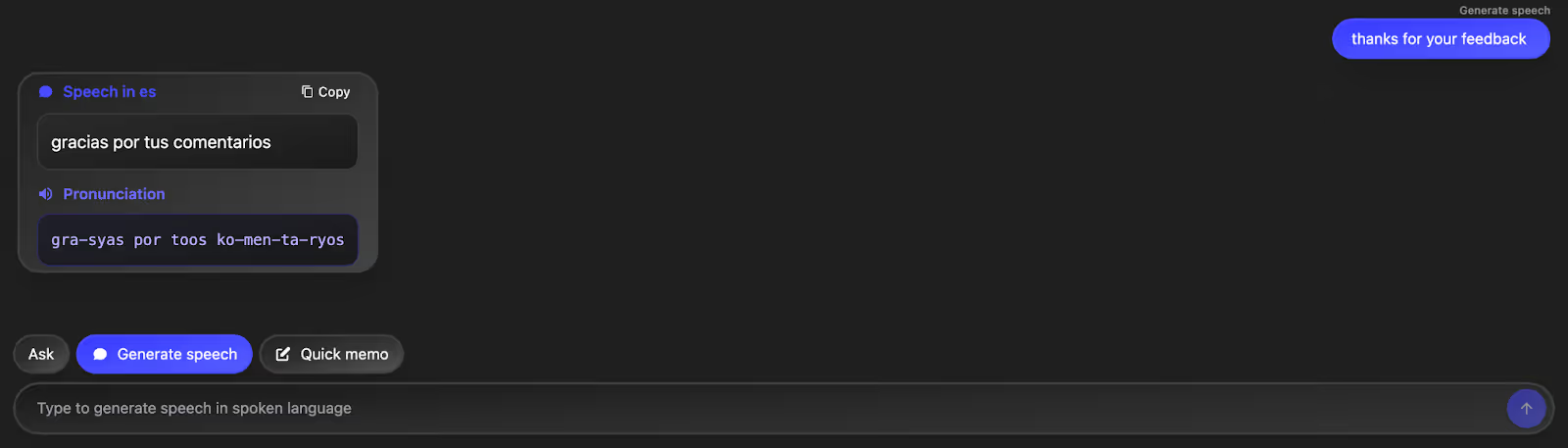
JotMe’s Generate Speech feature became useful when we wanted to speak to the clients in their native language. All we need to do is type the text we want to say in our language, and JotMe will provide an accurate text-based translation with correct pronunciation. So, speakers can understand what we're trying to say without any confusion or pronunciation struggles.
JotMe Provides AI Meeting Notes & Summaries
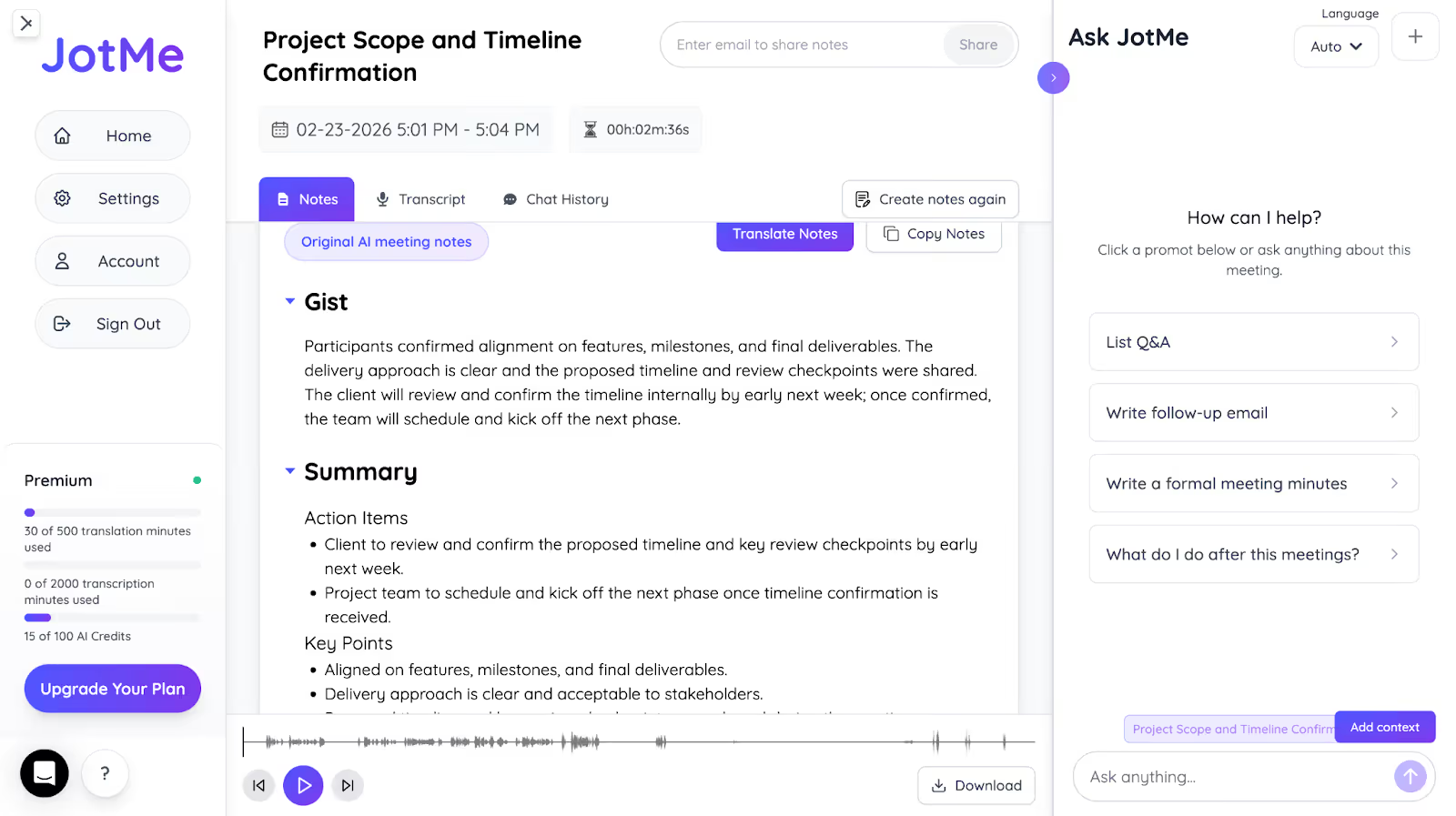
JotMe also functions as an AI note-taker that automatically prepares meeting notes, so we don’t need to manually jot down the details. In our Google Meet conference calls, JotMe divided the meeting summaries into Action Items, Gist, and Summary.
We could share the meeting notes as a reference for colleagues who couldn’t attend. Additionally, when live translation is shared with participants through a URL, JotMe automatically sends the AI meeting notes to everyone who accessed the translation after the meeting ends, ensuring all participants stay aligned on the outcomes.
JotMe Provides Real-Time Answers to Your Queries
Having a question during a conference call or not understanding something that’s mentioned during discussions is common. However, interrupting the meeting for clarification can disrupt the flow.
In such scenarios, JotMe’s AI Ask feature is useful. Hit the “Ask” button at the bottom of the JotMe window, type in your question in the blank input box, and hit “Enter.” JotMe will provide concise answers to your questions in real time, so you can swiftly get back to the discussion.
JotMe also has a mobile app for Android and iOS with features such as contextual and continuous translation, text-to-speech, and multilingual translation. It’s better suited to real-time translation while traveling or translating in-person business meetings.
Conclusion: What is the Most Accurate Translation Tool to Translate Conference Calls?
JotMe is among the more advanced options for conference call translations. Although the built-in translation features are convenient, their limitations include limited language support, a requirement for a paid license or plan, and inaccurate translations.
JotMe stands out with its contextual, continuous translations in 107 languages (45 on desktop and 77 on the Chrome extension) in real time, alongside features like AI Ask, real-time summary, and post-meeting notes to streamline your multilingual conference calls.
JotMe provides a cross-platform translation without bots on multiple platforms, including Google Meet, Zoom, Microsoft Teams, WhatsApp, and more. JotMe also encrypts the conversations and provides secure storage to protect the stored information.
You can also translate your multilingual meetings without worrying about data leakage or compromising any sensitive information. Try JotMe today and never miss a word on your next conference calls.
FAQs
What is the app that translates conferences?
There are many apps that translate conference sessions in real time, but the JotMe desktop app stands out for its simple setup, bot-free translations, contextual translations, and additional features like AI Ask, post-meeting notes, and real-time summaries. This can help prevent misunderstandings and streamline your multilingual conference calls.
How to live translate a Zoom call?
To live translate a Zoom call, you can use its built-in translation feature, but it isn’t very accurate and doesn't generate meeting notes. JotMe comes across as a reliable solution with contextually accurate and continuous translations, summaries, and a generate speech feature.
Do Zoom, Google Meet, and Webex offer built-in conference call translation?
Yes, Zoom, Google Meet, and Webex offer built-in conference call translation, but they have limitations. On the other hand, the JotMe desktop app is a reliable alternative, offering accurate translations, instant answers to your queries, and real-time summaries.
Can I use conference call translation on WhatsApp or WeChat calls?
Yes, you can use conference call translation on WhatsApp or WeChat calls with third-party live translation software like JotMe. Just launch the JotMe desktop app, select the spoken and translation languages, press Play, and start your calls to get accurate real-time translations.
Last updated on
April 14, 2026
Follow us on social media:
![JotMe — Is Google Translate Accurate? [2026 Test]](/_webflow-assets/0d0512afc7b037d74dff536f22fed08f.avif)