





Tips
How to Record a Zoom Meeting as Host or Participant

Lovely Mangla
August 17, 2026
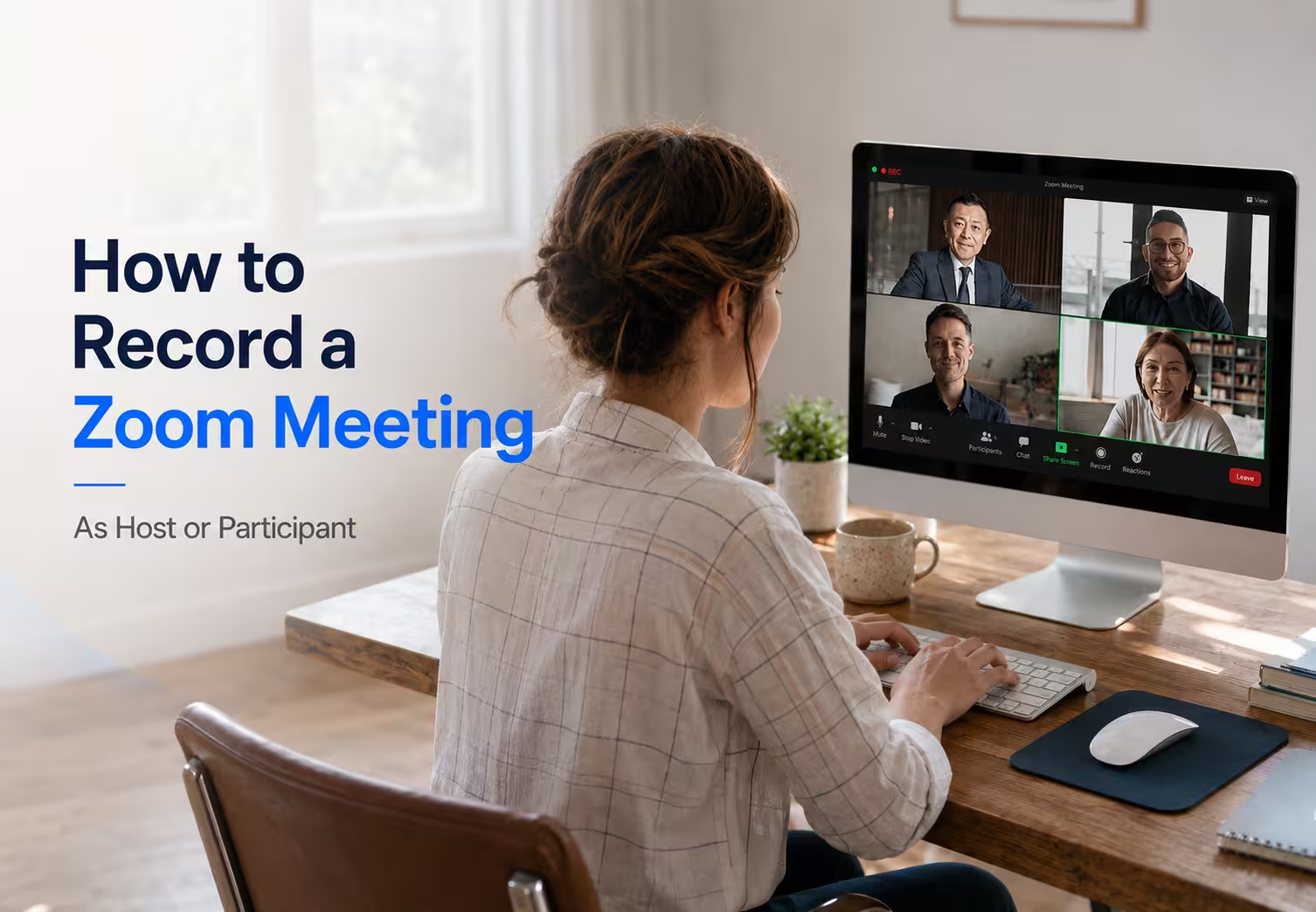
You can record a Zoom meeting directly in Zoom when you are the host, co-host, or a participant the host has authorized. Desktop users can save recordings locally, while cloud recording requires a paid Zoom account. Participants also need the host to grant recording access before they can use Zoom’s native computer recording.
That distinction matters when a meeting involves two or more languages. Zoom can handle the recording itself, but participants who need to capture the conversation and understand it across languages may need a separate tool. JotMe provides a practical alternative by capturing the ongoing Zoom conversation while also offering multilingual transcription and translation for meetings where speakers switch between languages.
This guide gives you detailed steps to learn how to record a Zoom meeting as a host or participant and how to capture a multilingual meeting without adding a bot.
Key Takeaways
- Hosts and co-hosts can record directly in Zoom, while participants need the host to grant recording permission.
- Zoom Basic supports local desktop recording, but cloud recording requires a paid Zoom plan.
- Mobile recording works through Zoom cloud recording, so it requires a supported paid account.
- Participants who cannot use Zoom’s native recorder can use an external capture tool, subject to applicable recording and consent requirements.
- JotMe is useful when you need more than a recording, especially for multilingual Zoom meetings where you need live translation, transcription, and AI meeting notes.
Who Can Record a Zoom Meeting
Zoom gives the host the primary recording controls. A co-host can also start and stop a recording after the host assigns co-host privileges. Participants can record a meeting to their computer when the host explicitly allows them to do so.
Here is how the permissions work:
For participant recording, the host can open the Participants panel, select the participant, choose More, and click Allow Record. The participant then sees the recording controls. The host can remove that permission later with Forbid Record.
Participants can also ask the host to enable recording. Zoom provides a participant control for requesting permission to record to a computer, although the host remains in control of whether that permission is granted.
Zoom also notifies participants when a meeting is being recorded. Depending on the account configuration and device, participants may see a recording consent message or hear an audio notification.
What is the Difference Between Local Recording and Cloud Recording
The biggest difference comes down to where Zoom stores the recording and what features you need after the meeting.
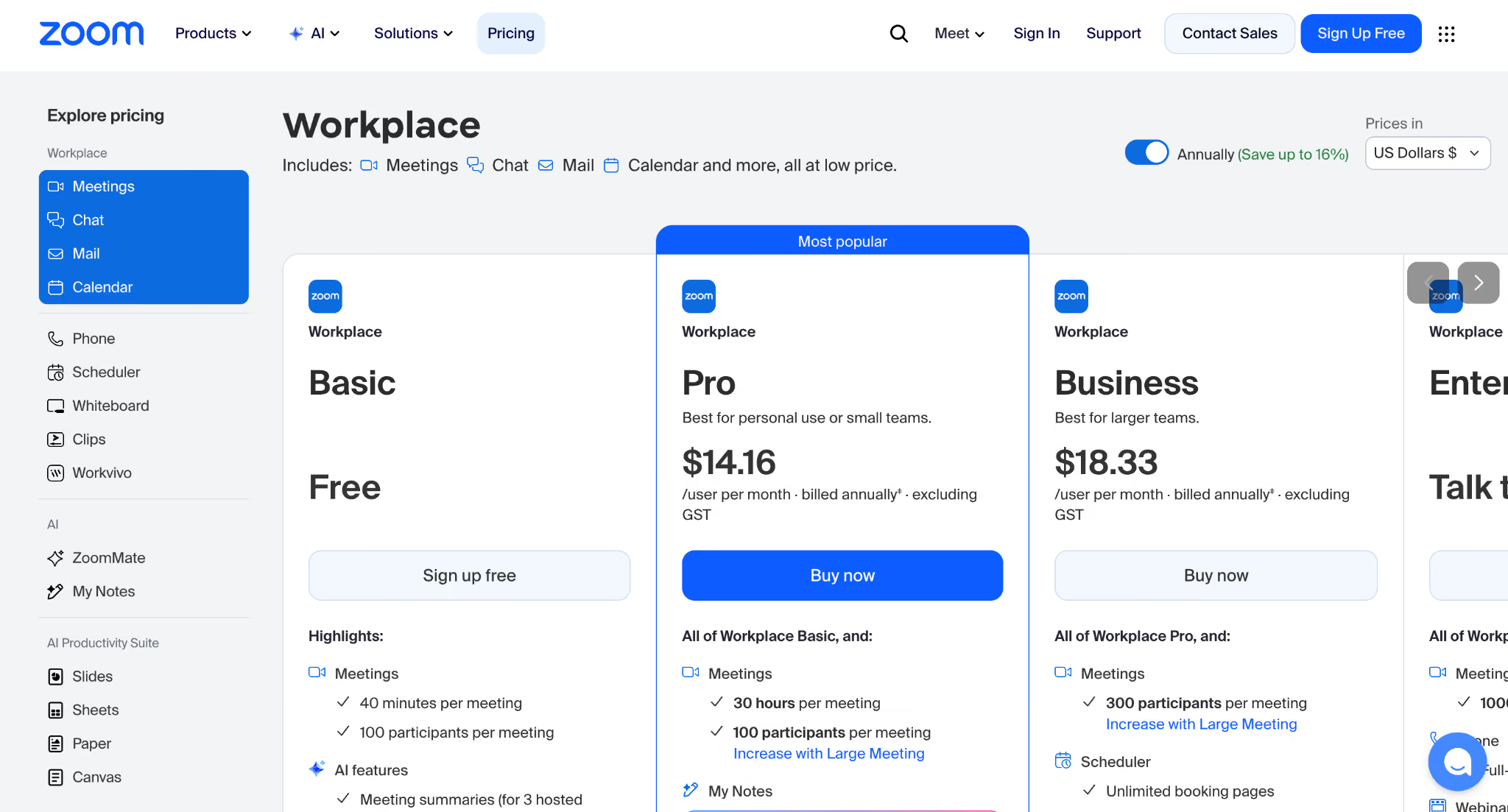
Zoom currently lists 10 GB of meeting recording storage per licensed user for Pro and Business plans, with higher allocations on some plans. Enterprise plans can include unlimited cloud recording storage.
Cloud recording is available to licensed users on paid plans such as Pro, Business, Education, and Enterprise. Zoom’s current Workplace Pro pricing starts at $14.16 per user per month when billed annually, or $16.99 monthly, while Business starts at $18.33 per user per month when billed annually.
Local recording has a major advantage for users on the free plan because you do not need cloud storage to save the meeting. Your computer simply stores the recording files locally.
How to Record a Zoom Meeting on Desktop and Mobile
You can learn how to record a Zoom meeting on both desktop and mobile. Let's first see how to record on desktop:
How to Record a Zoom Meeting on Desktop
The desktop process is straightforward when you are the host or have recording permission.
Step 1: Start or join the Zoom meeting.
Step 2: Look for the Record control in the meeting toolbar.
Step 3: Select Record on this Computer for a local recording, or choose cloud recording when your account supports it.
Step 4: Click the pause or stop icons on the screen, or tap the Record button again to end the recording mid-meeting.
With computer recording, Zoom saves the recording to your device and converts the files after the meeting. Cloud recordings are processed online and appear in the Zoom web portal once they are ready.
How to Record a Zoom Meeting on Mobile
Zoom does not support local recording on iOS or Android. Mobile recording goes to the Zoom cloud, and Zoom requires a supported paid account plus host or co-host privileges.
Step 1: Start the meeting as the host or co-host.
Step 2: Tap More > Record and select Start Recording.
Step 3: Pause or stop the recording from the same control.
Step 4: After the meeting, access the processed recording through the Zoom web portal.
Note: Someone using a free Zoom account on a phone cannot simply save a local MP4 through Zoom’s native recording feature.
How to Record a Zoom Meeting as a Participant
Recording a Zoom meeting as a participant starts with a request, not a button. Open the Participants panel, find your name, click More, and choose the option to request recording permission. Zoom sends the request to the host, who can approve or deny it. There is no native Zoom setting that lets a participant bypass that decision because recording access stays under the host’s control.
When the host declines the request or does not respond, you still have a few options. Your computer’s built-in screen recorder can capture the meeting outside Zoom’s permission system, although you should tell the other participants that you are recording. A tool such as OBS Studio works similarly and gives you more control over the recording, but it takes a little more setup.
JotMe takes a different approach. Instead of asking Zoom for recording permission, JotMe captures the system audio playing through your computer and turns the conversation into a live transcript and post-meeting notes. That means you can use JotMe alongside Zoom without asking the host to change their recording settings or adding another participant to the call.
You can also check our translation for Zoom guide if you need more than a transcript and want to follow the conversation in another language. It explains how the workflow fits into an active Zoom call rather than treating translation as something you have to do after the meeting.
You can also explore our guide to the best Zoom translation tools, which lists six options and compares them on factors such as language coverage, live translation, setup, and meeting workflow. That is useful when the real requirement is not simply recording the call, but making the conversation easier to understand and revisit afterward.
Whichever method you use, recording a meeting can involve privacy, workplace, and local consent requirements. Zoom’s native recorder notifies participants, but an external capture method does not necessarily trigger the same in-app notification, so make the recording policy clear before you start.
Where Are Zoom Recordings Saved
For local recordings, Zoom currently uses these default folders:
Windows: C:\Users\[Username]\Documents\Zoom
Mac: /Users/[Username]/Documents/Zoom
Linux: home/[Username]/Documents/Zoom
You can check or change the location in the Zoom desktop app under Settings → Recording → Local recording storage.
Cloud recordings work differently. Sign in to the Zoom web portal and open Recordings & Transcripts, then select Cloud recordings. You can search by meeting topic, meeting ID, date, host, or keywords where transcript search is available.
Zoom does not impose one universal retention period for every cloud recording. Account administrators can configure automatic deletion after a specified number of days. Deleted recordings can generally remain recoverable in the cloud recording trash for 30 days before permanent deletion.
A useful distinction comes up when a Zoom account moves from paid to Basic. Zoom says cloud recordings associated with a downgraded account can be deleted after 30 days if the subscription is not restored during that period.
How to Record a Zoom Call in Two or More Languages
To learn how to record a Zoom call in two or more languages, use JotMe as a Zoom AI notetaker. JotMe transcribes Zoom calls in real time, translates the conversation into live captions in more than 200 languages and 39,000+ language pairs. Here is how to use JotMe to capture a multilingual Zoom meeting in real time:
Step 1: Join the Zoom call and open the JotMe desktop app.
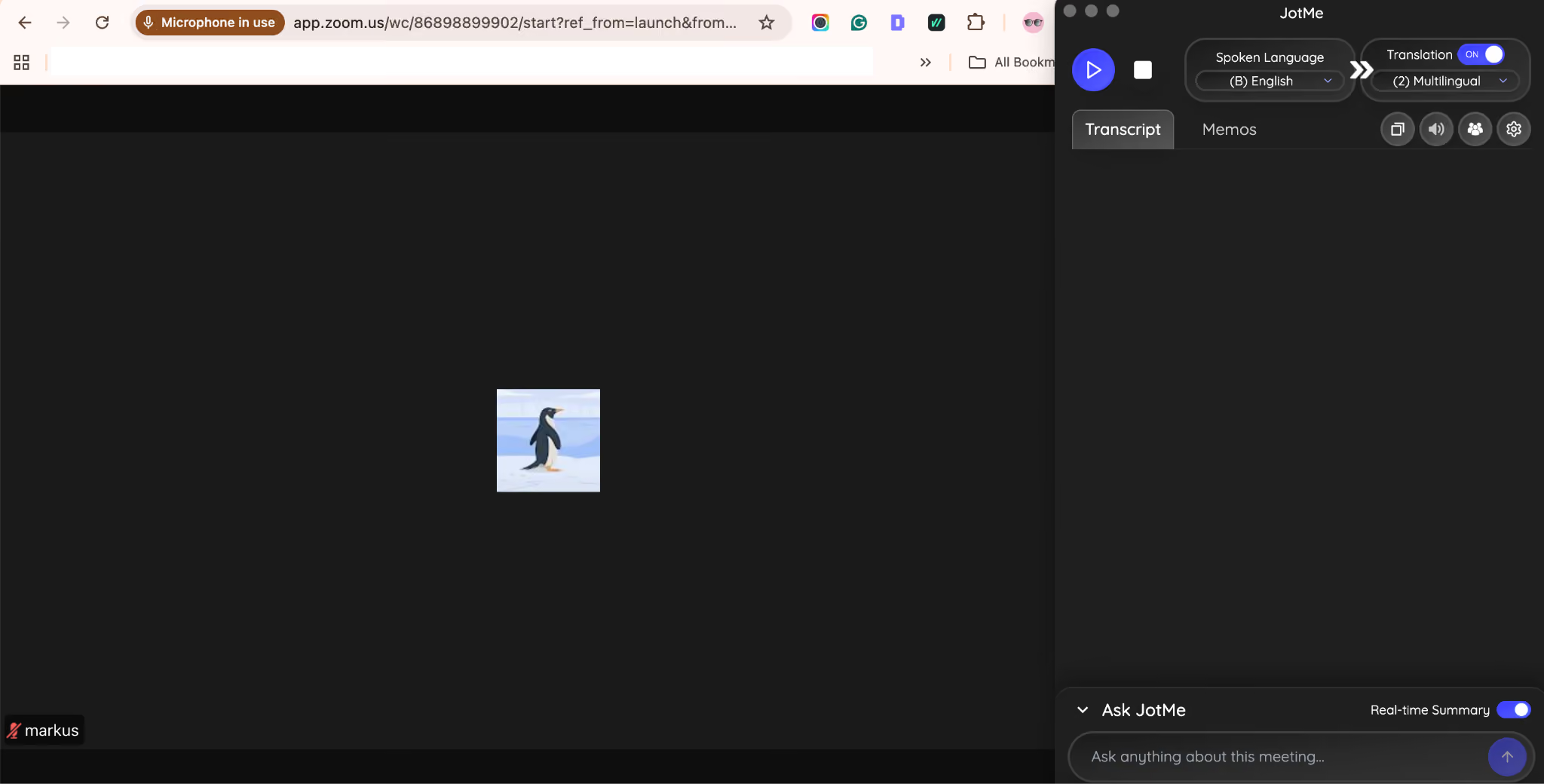
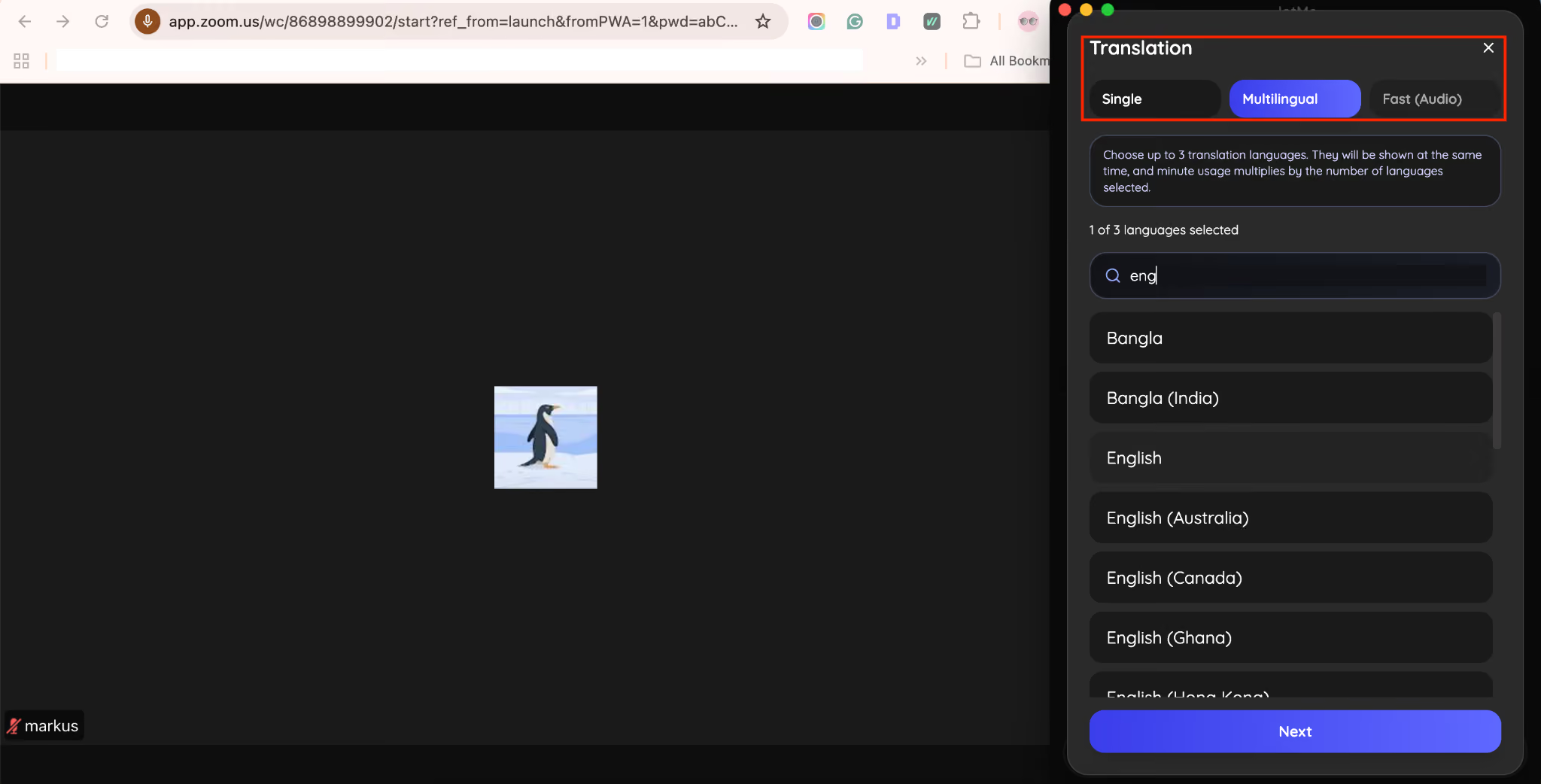
Step 2: Choose spoken language as multilingual and output language as multilingual, and choose the language in which you want to see the translation. For instance, if you are speaking in English and another teammate is speaking Chinese, then choose translation languages English and Chinese.
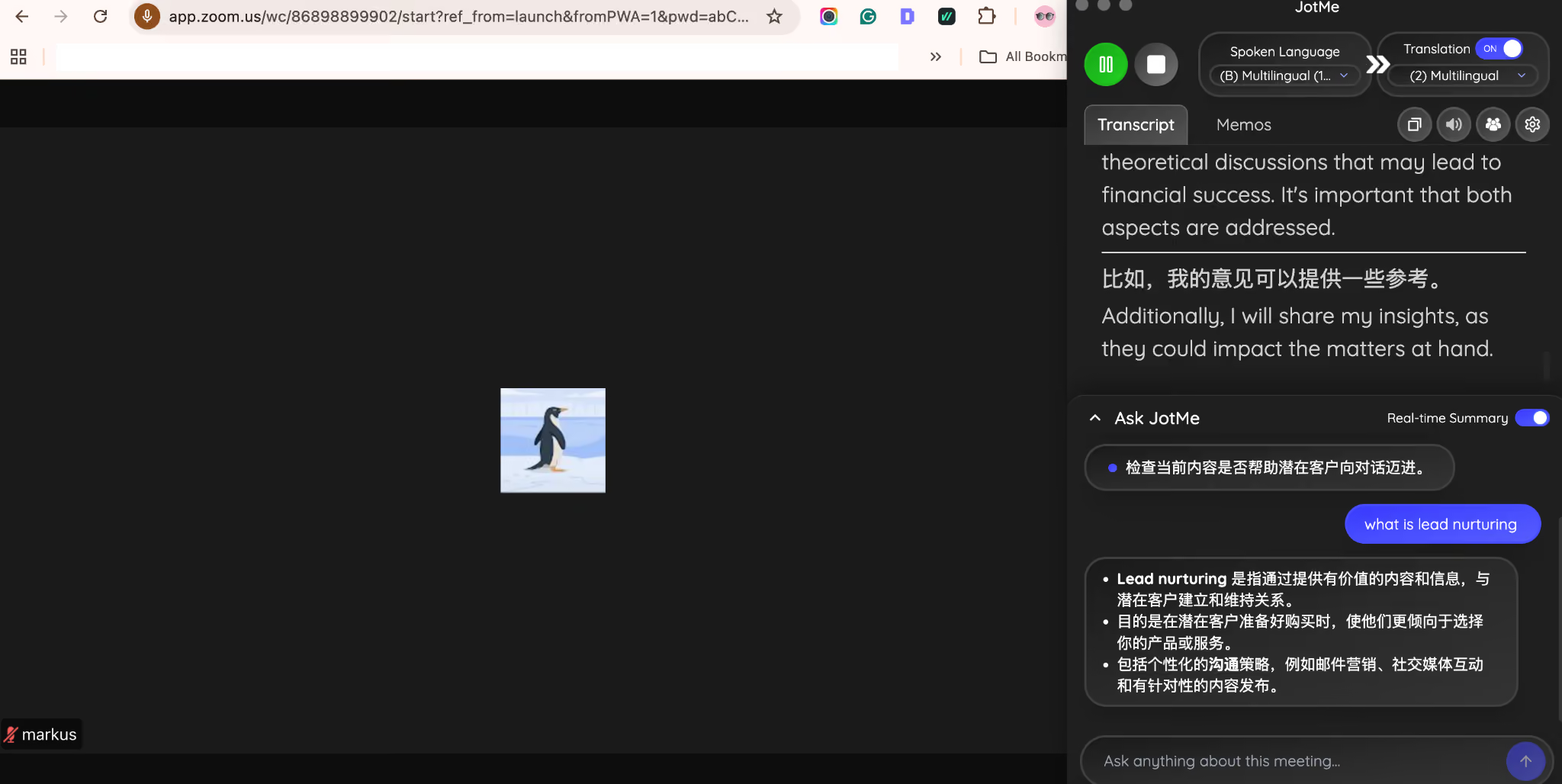
Step 3: Start the call and read the live translation on the JotMe screen. You can also ask any difficult terms to AI Ask during the meeting and read the summary in bullet points.
Step 4: Once the meeting is done, access the AI meeting notes and write a follow-up email with JotMe.
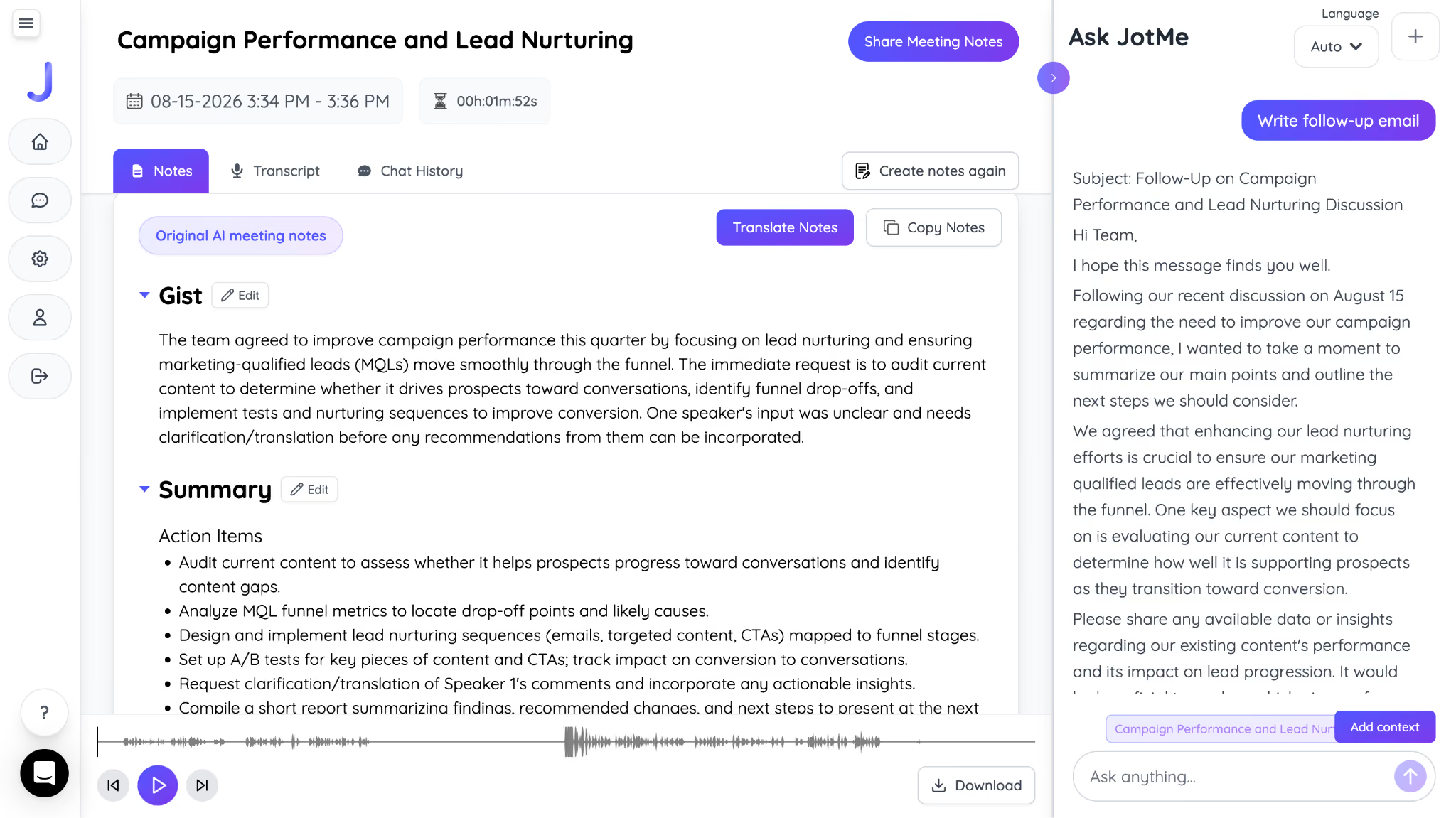
The main advantage is that you do not have to rely on the recording alone. JotMe gives you a searchable transcript and AI-generated notes, so you can quickly find decisions, action items, or specific parts of a multilingual discussion without replaying the full call.
FAQs
Can you record a Zoom meeting without permission?
The host and co-host can record a Zoom meeting without participant approval, while participants need the host to grant recording permission. Zoom’s native recording controls do not let a participant bypass the host’s decision, although an external recorder operates separately from Zoom’s permission system and may be subject to applicable consent rules.
Does Zoom notify everyone when a meeting is being recorded?
Zoom notifies participants when a meeting recording starts with an on-screen recording notification, and phone participants can hear an audio notification. Depending on the account and meeting settings, participants may also receive a consent prompt before continuing in the meeting.
Why is my Record button missing?
The Record button on Zoom calls is usually missing because you are a participant without recording permission, recording has been disabled by your administrator, or you are trying to use cloud recording on a Basic account. Free Zoom accounts can record meetings locally on a computer, while cloud recording requires a licensed paid account.
How long do cloud recordings last on Zoom?
Zoom cloud recordings do not have one fixed expiration period for every account. Hosts or administrators can set automatic deletion, and deleted recordings generally remain in the trash for 30 days before permanent deletion. The amount of cloud storage also varies by Zoom plan.
Can you record a Zoom meeting on the free plan?
The free Zoom Basic plan supports local recording on desktop, so you can save a meeting directly to your computer without paying for Zoom. Cloud recording is available only with a supported paid account.
Can you record only the audio from a Zoom call?
Zoom can save an audio-only M4A file alongside the recorded meeting video when using computer recording. For a searchable version of that audio, tools such as JotMe can transcribe the recording and turn the conversation into notes and summaries.
Last updated on
August 25, 2026
Follow us on social media: