



Quick Answer: The 7 best Discord TTS bots in 2026 are Wamellow, TTS Bot, Better TTS, ST Manager, Orator, HornBot, and Botto Voice. These bots read typed messages aloud in Discord voice channels, helping members participate without using a microphone. If you need to understand spoken conversations in another language, JotMe runs alongside Discord and offers live translated captions and voice-to-voice translation.
When you type a reply during a Discord voice call, someone has to notice the chat and read it. By then, the group may have moved on. A Discord TTS bot reads your message aloud in the voice channel, so you can join the conversation without using your microphone.
However, the hard part is choosing the best Discord TTS bot among hundreds of available options. Some Discord TTS bots can read automatically from a selected text channel, whereas others require a command for each message. Free plans can also limit message length or reserve some voices for paid members.
I compared the best Discord TTS bots using their developer documentation, setup instructions, and pricing information. I also installed a TTS bot in a test server and checked that it could read two messages aloud without a separate speech command for each one.
Below, you will find what each text-to-speech bot for Discord offers for free, what its paid plan adds, and any restrictions to check before installation. There is also a setup walkthrough and troubleshooting advice if your bot joins the call but stays silent.
Key Takeaways
- For everyday TTS, you can start with Wamellow. Its free plan supports channel reading and moderation controls. Premium costs €4/month and adds unlimited TTS without voting requirements.
- For simple automatic reading in a Discord server, try the free features of TTS Bot. Once it is set up, it can read messages without a command before every reply.
- For custom pronunciation, try Better TTS. You can use it for free with pronunciation teaching, 300+ neutral voices, and support for over 90 languages.
- Botto Voice has a free plan, with paid plans starting at $1.99 per server/month for additional voice access and higher limits.
- HornBot offers free speech engines with Patreon memberships starting at $2/month. You should check which voices your chosen membership includes before paying.
- For translated captions during multilingual Discord calls, you can use JotMe alongside Discord. It helps you understand spoken replies in another language, while your TTS bot reads typed messages aloud.
Best Discord TTS Bots at a Glance
Wamellow, TTS Bot, Better TTS, ST Manager, Orator, HornBot, and Botto Voice are some of the best picks for Discord voice-channel TTS.
Bot | Best for | Voice and language offering | Free Plan | Paid Plan |
|---|---|---|---|---|
Wamellow | Free everyday TTS with server controls | 97 voices in 10 languages | ✅ Yes | From €4/month |
TTS Bot | Automatic reading in a dedicated text channel | Uses speech providers; confirm current choices in the bot | ✅ Yes | Premium through Patreon; check current tiers |
Better TTS | Pronunciation and personal expression | 300+ neural voices and 90+ languages | ✅ Yes | No paid plan confirmed |
ST Manager | Choosing among speech providers | Eight providers listed, including premium engines | ✅ Yes | Premium providers available; check pricing in-app |
Orator | Voice selection with dashboard management | 300+ voices and 50+ languages | ✅ Yes | $3.50/month or $35/year |
HornBot | A broad mix of everyday and character voices | 7,000+ voices across seven engines | ✅ Yes | Patreon memberships from $2/month |
Botto Voice | Language and accent selection | Current voice guide lists 959 free voices in 83 languages | ✅ Yes | From $1.99/server/month |
JotMe | Following multilingual Discord calls | Live translated captions, voice-to-voice translation, and meeting notes | ✅ Yes | From $20/month |
Note: JotMe is a separate app that runs alongside Discord. It does not join your server as a TTS bot or automatically read your messages from a text channel. You can use one of the Discord TTS bots to read your typed replies aloud. If you want to follow spoken conversations with translated captions or voice-to-voice translation, you can try JotMe.
How I Evaluated Discord TTS Bots
I checked each bot's official website, documentation, and available pricing information. I also installed TTS Bot on a test server. After setup, it read two messages aloud without requiring a speech command before each one.
Here is what I compared:
Voice and Languages: Which voices and languages each Discord TTS bot lists, whether it supports custom pronunciation, and which options require payment.
Setup: Whether members can type normally in a linked text channel or need to use a command for every message.
Free and Paid Plans: Message limits, voting requirements, and the features a subscription adds. Where I could not confirm a public price, I have mentioned it clearly.
Server Controls: Whether admins can restrict who triggers speech, filter messages, or skip playback.
7 Best Discord TTS Bots for Voice Channels (Plus JotMe)
Wamellow, TTS Bot, Better TTS, ST Manager, Orator, HornBot, and Botto Voice are some of the best Discord TTS bots available. Below, I have covered how each bot reads messages, what you get for free, and which restrictions to check before adding to the server.
1. Wamellow: Best Free Starting Point for Everyday TTS
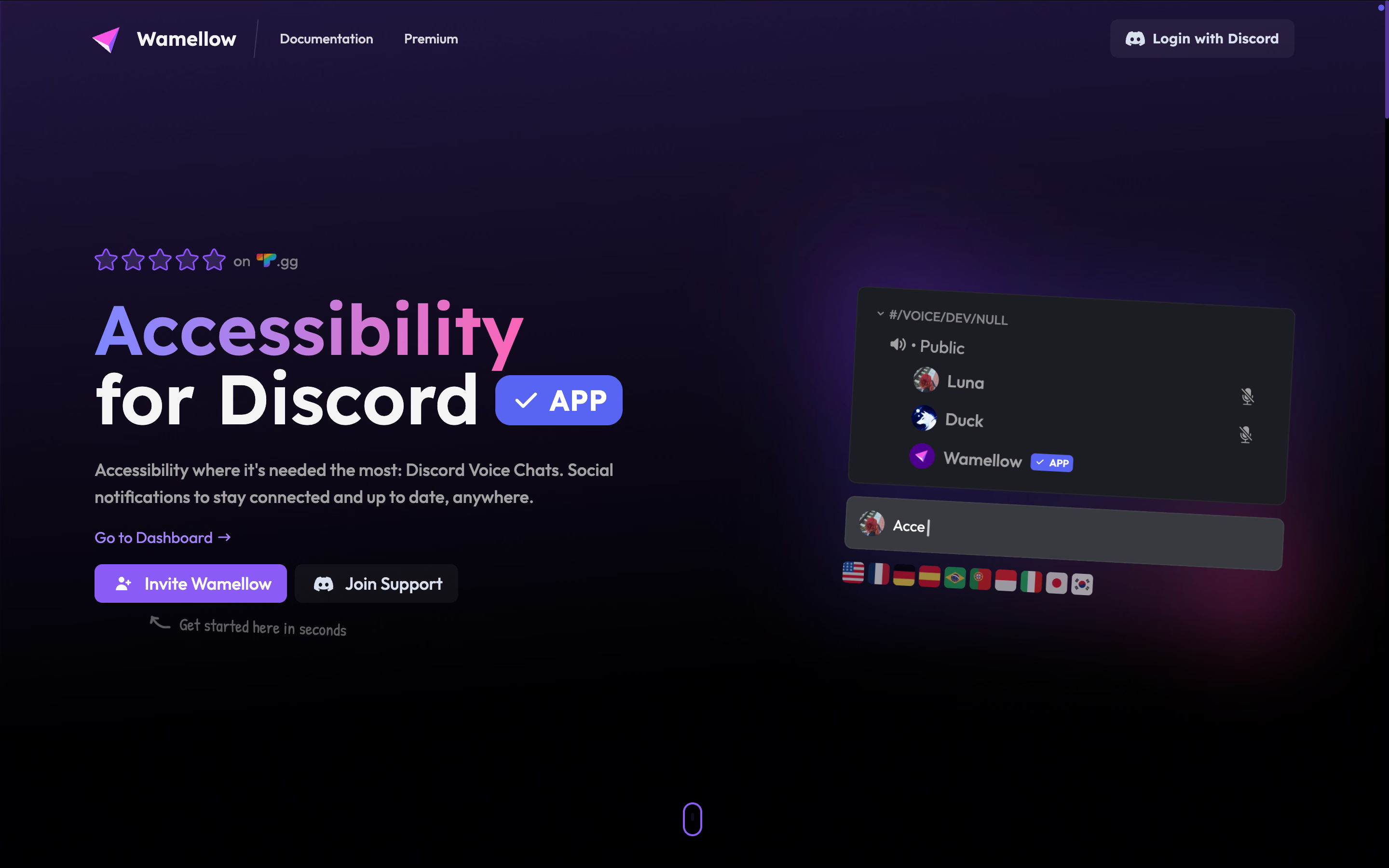
Wamellow is my starting recommendation for a server introducing typed speech. It combines voice-channel reading with controls for queues, roles, and interruptions, so the decision goes beyond choosing a voice.
Wamellow offers 97 voices in 10 languages, along with controls for restricting who can trigger speech and skipping messages.
One useful feature of Wamellow is the priority role. The designated members can interrupt speech that is already playing. If someone relies on typed replies throughout a call, the priority role can help them answer without waiting for every queued message to finish.
Key Features of Wamellow
- Voice-channel speech through /tts voice and audio-file generation through /tts file.
- Automatically reads messages from a selected text channel.
- Supports message queues, /tts skip, and role restrictions.
- A priority role for designated speakers.
Wamellow Pricing
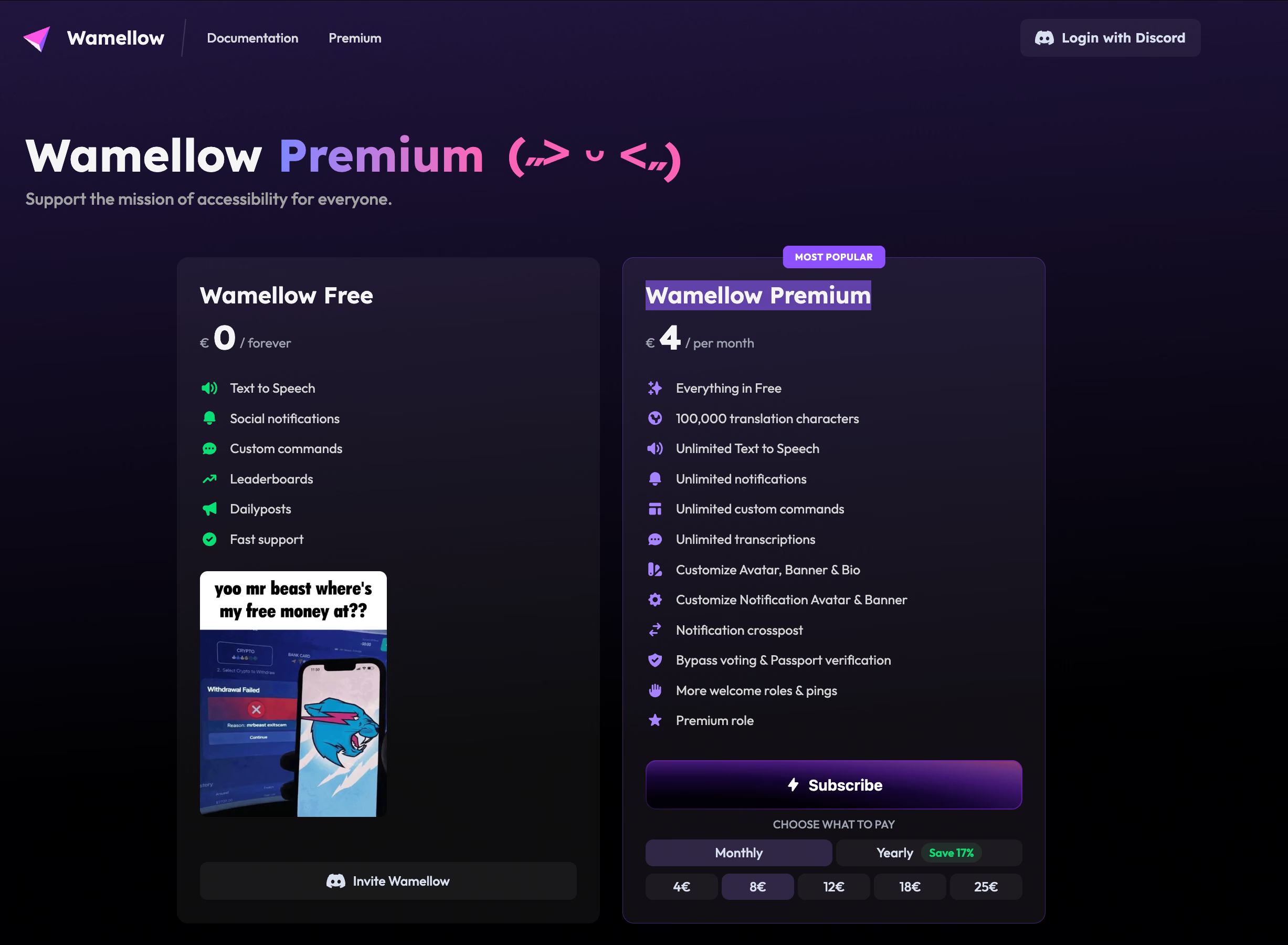
Wamellow has free TTS. Its Premium page lists €4/month, including unlimited TTS and bypassing voting requirements.
Best For
Friend groups and community servers that want an accessible place for typed replies and practical server controls.
Wamellow Limitations
Wamellow’s TTS documentation puts messages longer than 300 characters behind a voting requirement for free users. That matters more for detailed explanations than short conversational replies.
2. TTS Bot: Best for a Dedicated Channel That Reads Typed Replies
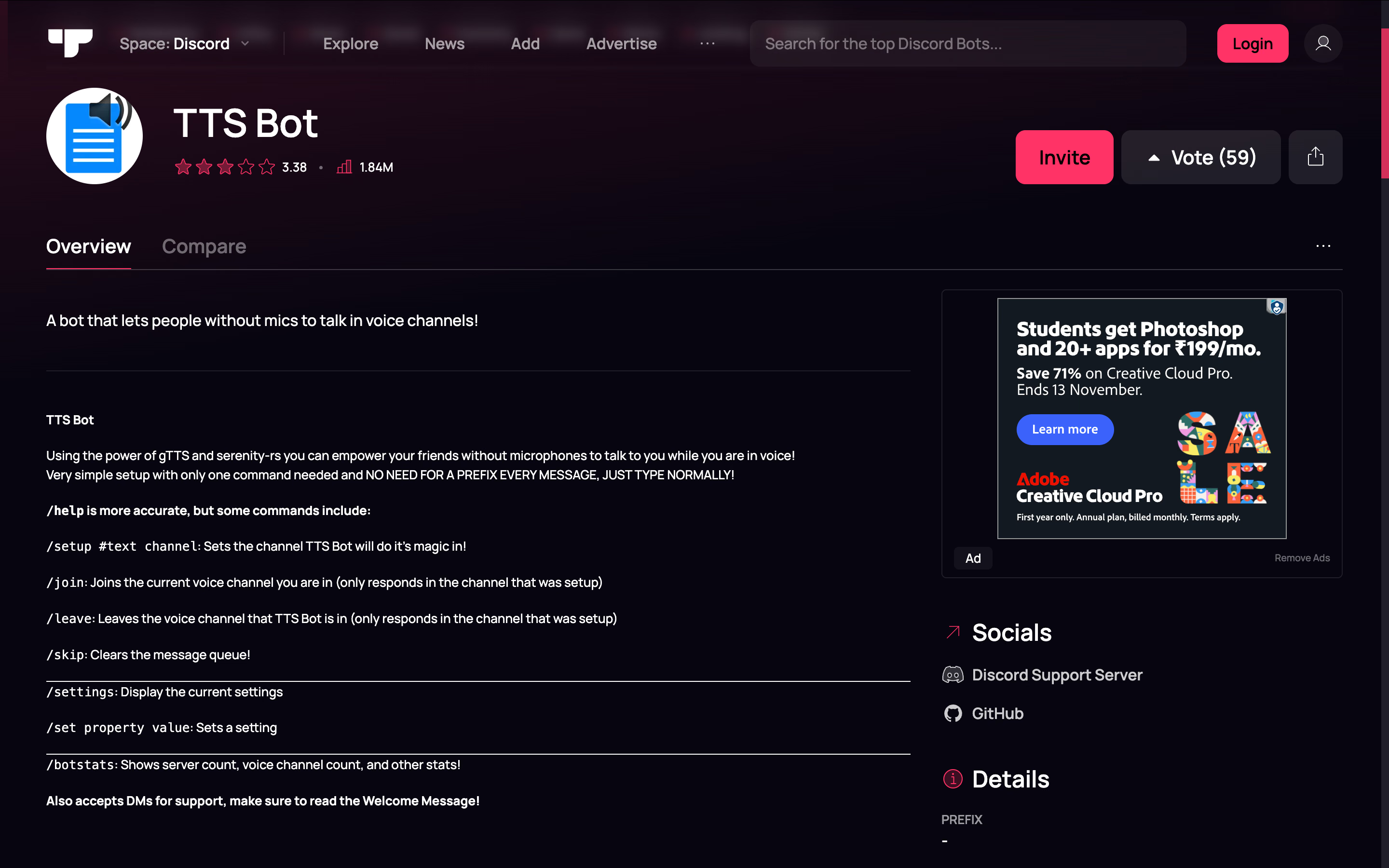
TTS Bot is the option I’d shortlist when the goal is simply to type a reply and have the call hear it. Once it is set up, members can type normally without adding a speech command to every reply.
That removes a small but recurring obstacle. During a quick conversation, remembering a command for every message can become the reason someone stops replying.
You can use /setup to select the text channel, then run /join from that channel. If you enter /join elsewhere, the bot may not respond.
Key Features of TTS Bot
- A configured text channel for automatic message reading.
- /join and /leave commands to connect and disconnect.
- Settings controls and /skip to clear the queue.
- A public source-code repository for people who want to self host.
TTS Bot Pricing
The hosted bot offers free features, with premium access supported through the developer’s Patreon. Check the current tier for the voices you want rather than assuming every provider is included.
Best For
Choose TTS Bot for a small group that wants one text channel where members can type replies and have them read aloud.
TTS Bot Limitations
Some command examples online may be outdated. Use the installed bot’s /help rather than copying old command examples. Self-hosting also requires you to arrange hosting, maintain the bot, and cover speech-provider charges.
3. Better TTS: Best for Pronunciation Customization
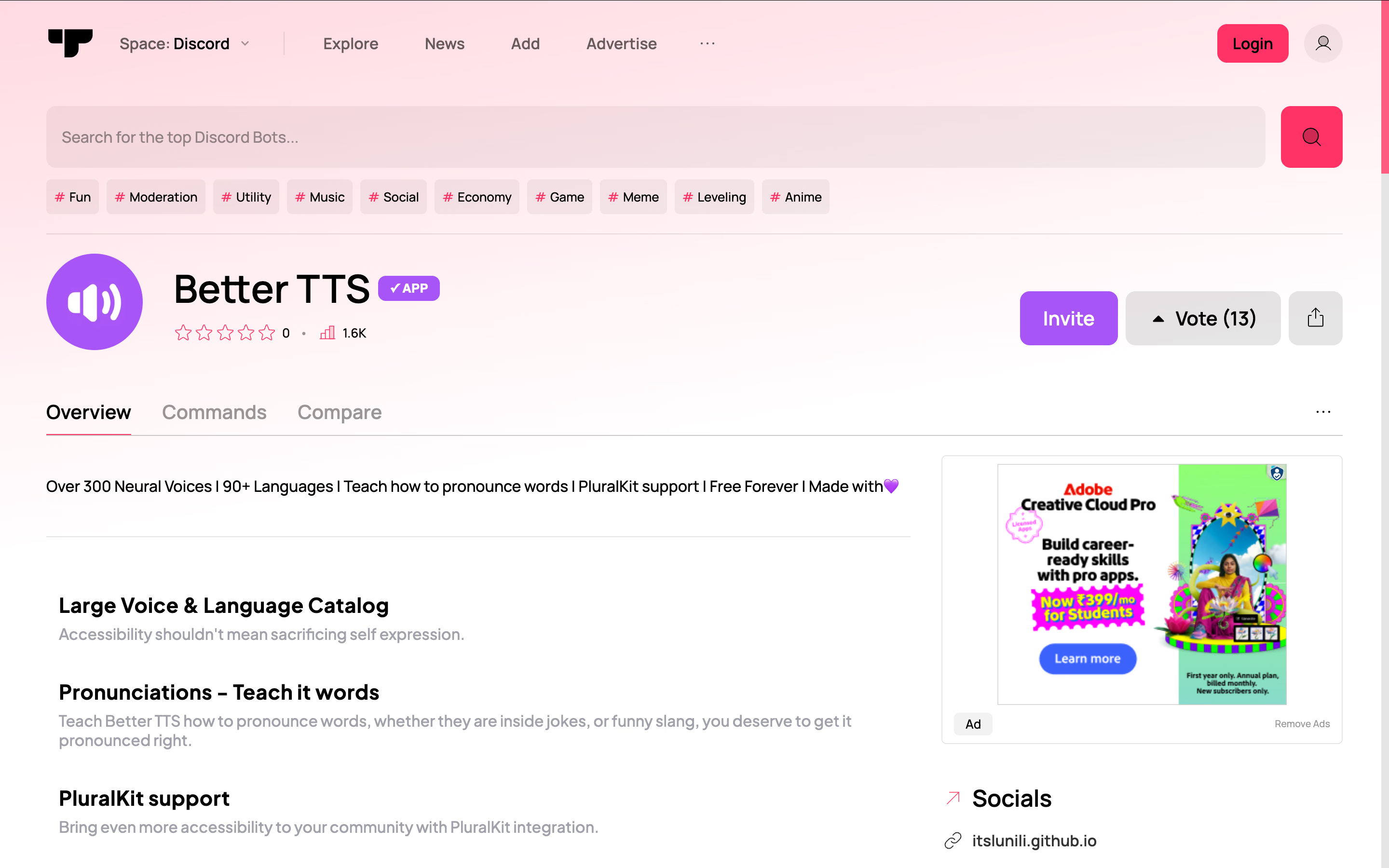
Better TTS is worth shortlisting when the same names or unusual words keep sounding wrong. Its developer highlights pronunciation teaching alongside more than 300 neural voices, 90+ languages, and PluralKit support.
I would put pronunciation ahead of the catalog size here. A gaming community may repeat a character name dozens of times. A work group may constantly mention a product acronym. Correcting that recurring word can make a bigger everyday difference than switching between otherwise similar voices.
Better TTS also has a feature that waits for a quiet moment before speaking, with a five-second fallback. This may reduce interruptions, though it can also delay a typed reply.
Key Features of Better TTS
- Pronunciation teaching for unfamiliar words and server vocabulary.
- Personal and server customization.
- PluralKit integration.
- An advertised pause-aware speaking feature.
Better TTS Pricing
Better TTS is advertised as free. Its public description does not provide a clear paid-plan breakdown.
Best For
Communities where names, identity, or recurring vocabulary make generic pronunciation frustrating, or those who already use PluralKit.
Better TTS Limitations
The quiet-moment feature of Better TTS can delay a response while it waits to speak. That trade-off may suit a discussion better than a time-sensitive gaming call. It also provides limited detail on usage allowances, so confirm the installed bot’s restrictions before relying on it for a long event.
4. ST Manager: Best for Comparing Speech Providers in One Bot
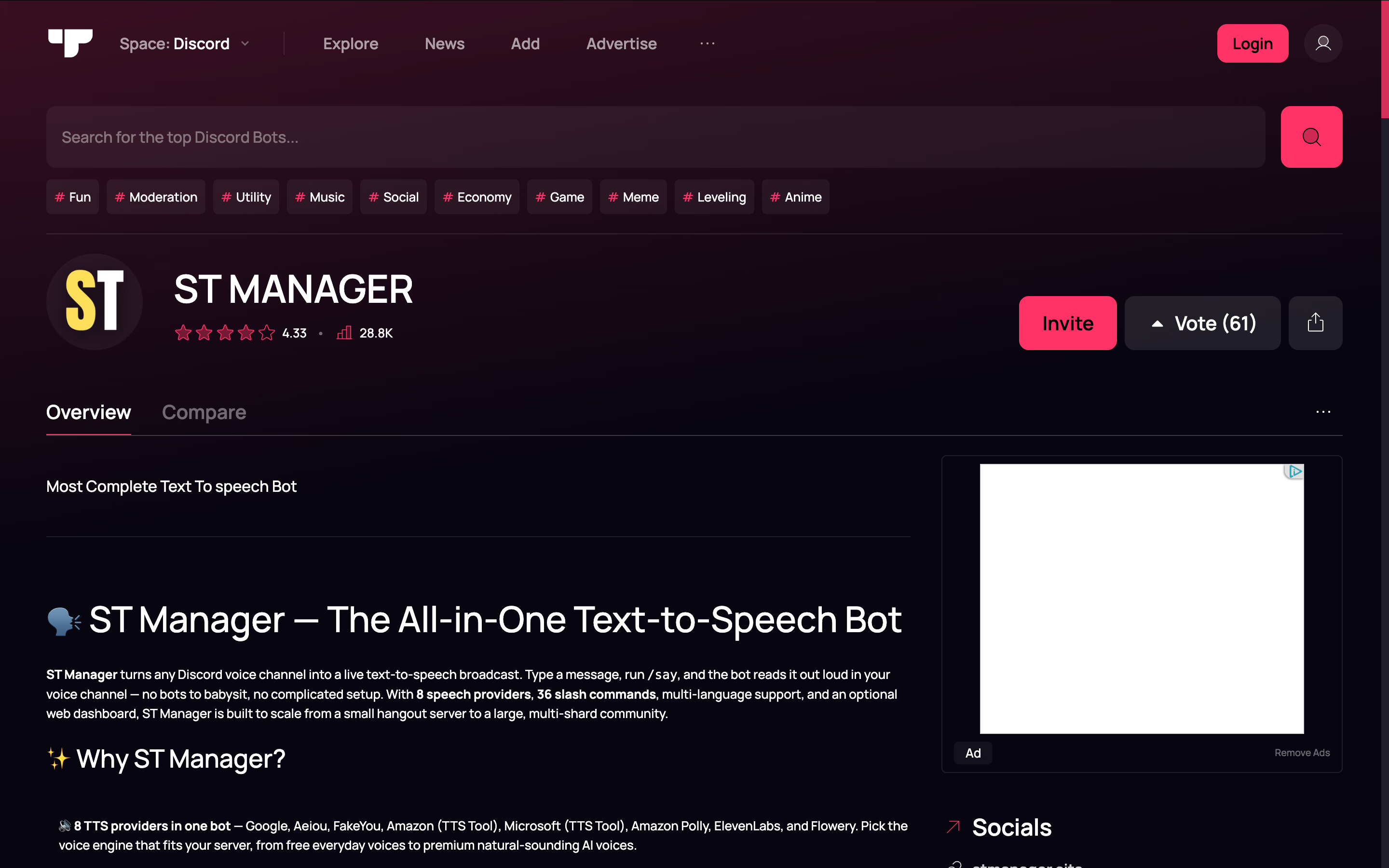
ST Manager suits server owners who want several speech providers available through one bot. Its developer lists eight providers, including Google, Flowery, Amazon Polly, and ElevenLabs, with free and premium access depending on the provider.
The appeal of ST Manager is flexibility. If your current voice handles one language poorly, a provider-focused bot gives you other options to investigate without starting the installation process again.
Key Features of ST Manager
- /say and provider-specific speech commands.
- /set_channel_provider for automatic channel reading.
- Server, channel, and personal settings.
- Whitelisting, activity logging, and repeating announcements.
ST Manager Pricing
ST Manager offers free providers alongside premium options. Check the in-app premium information for your preferred provider.
Best For
Server owners who want provider-level control or recurring spoken notices and are comfortable configuring defaults. For a group that only needs ordinary replies, TTS Bot is a simpler place to begin.
ST Manager Limitations
Installing the bot does not give you free access to every provider. Check which engine your chosen voice uses before relying on it.
5. Orator: Best for Managing Voice Settings in a Dashboard
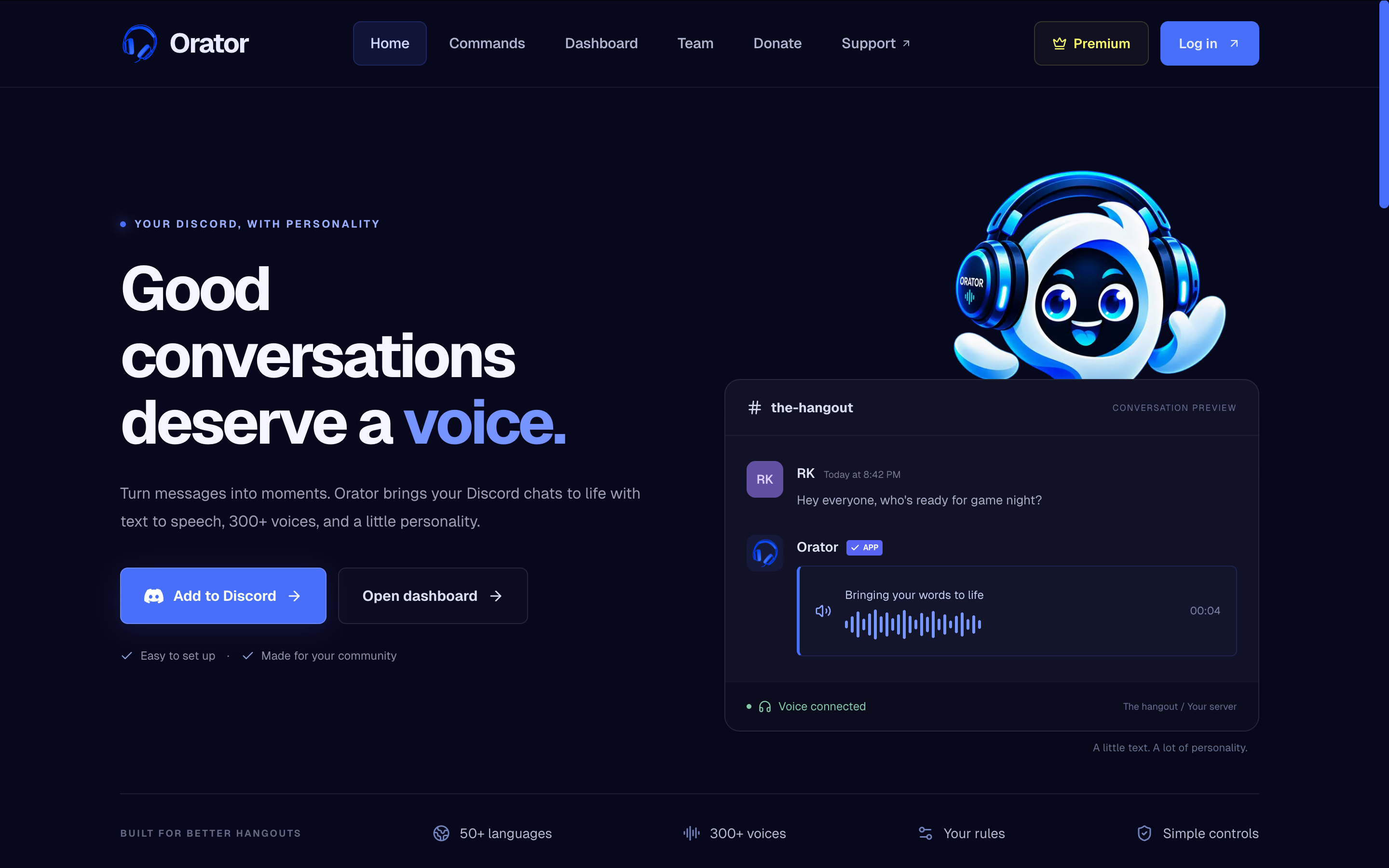
Orator is worth considering when you prefer a visual dashboard for managing voices, channels, and preferences. It offers more than 300 voices across 50+ languages.
The dashboard is the reason I would put Orator on this list. Choosing a default voice during setup is one task. Finding and changing that setting a month later is another. A visible place to manage preferences may suit moderators who would rather browse options than remember configuration commands.
Key Features of Orator
- Voice-channel text-to-speech.
- Voice and language selection.
- Dashboard management for server preferences.
- Premium options including voice API access and whitelist or blacklist controls.
Orator Pricing
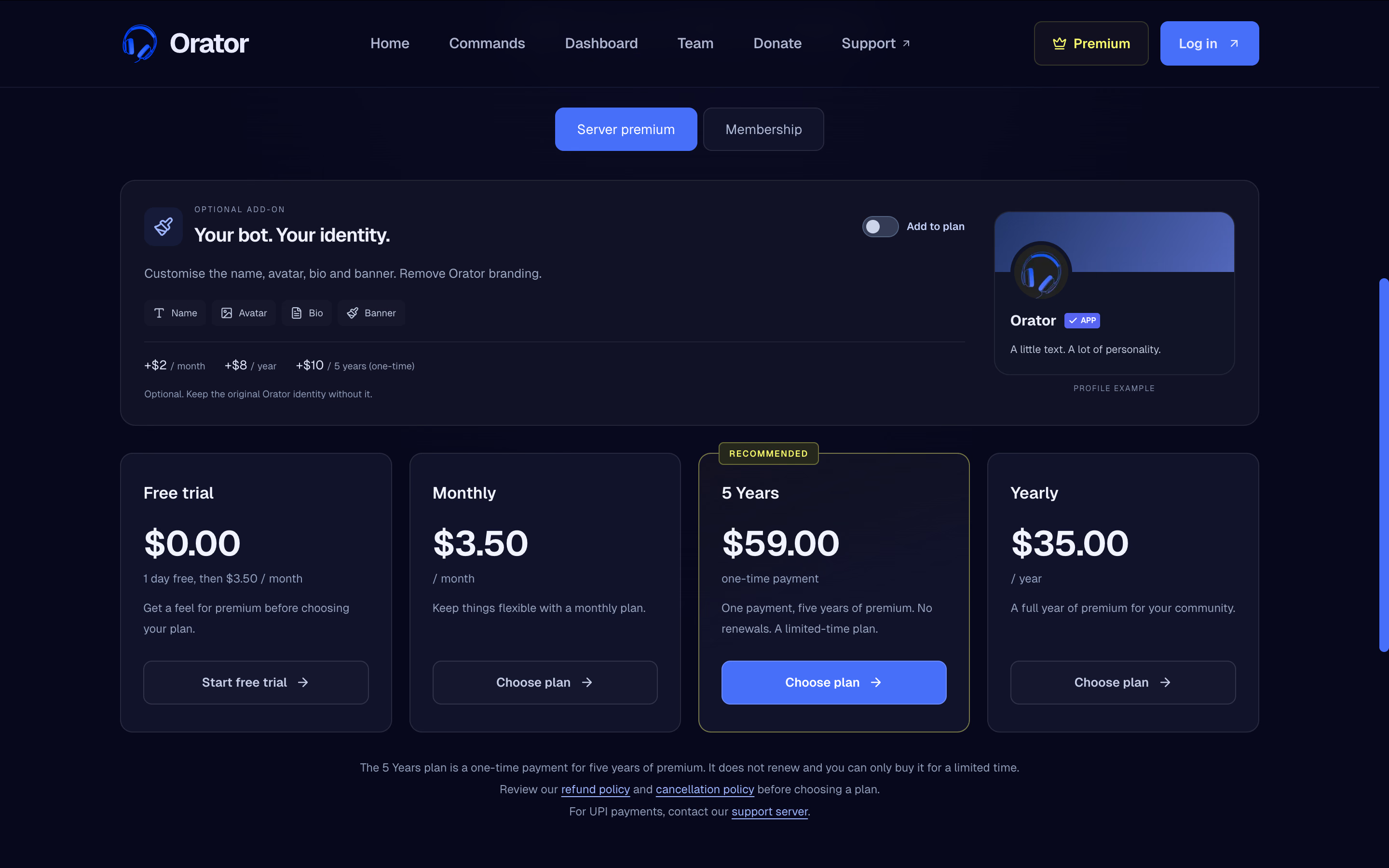
The Premium page lists $3.50/month or $35/year, alongside optional customization. It distinguishes server premium from personal membership, so check which one covers your intended use.
Best For
Community whose moderators want a visual way to manage voice preferences. Compare it with ST Manager if your decision is between easier browsing and more explicit provider control.
Orator Limitations
Do not assume every advertised control or voice API belongs to the free offering. Whitelist and blacklist controls appear on the Premium page. If restricting speakers is essential to your setup, check what the free plan allows before choosing it.
6. HornBot: Best for Everyday Speech and Character Voices
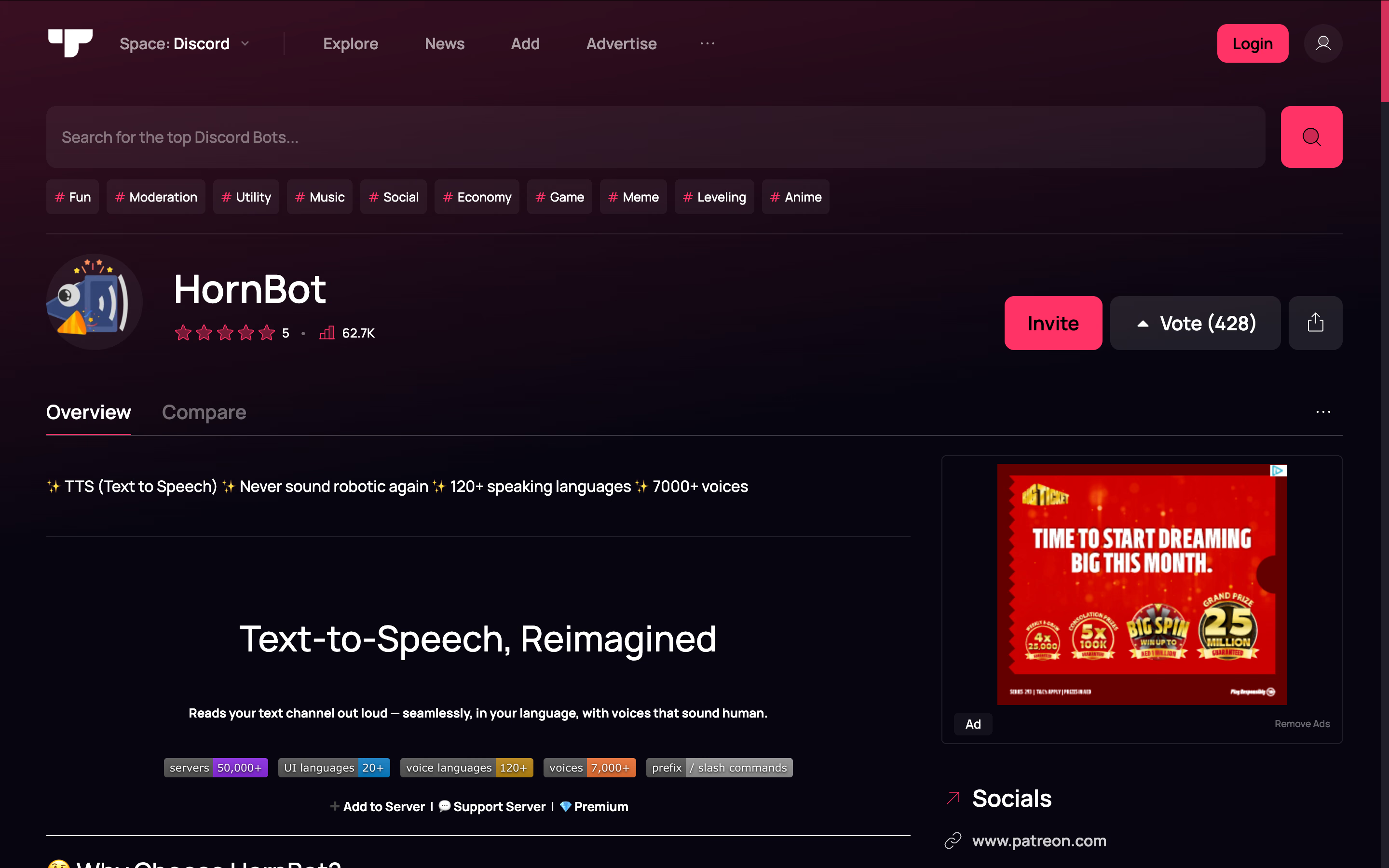
HornBot is my shortlist option for a community that wants ordinary replies and character voices in the same bot. It offers 7,000+ voices, seven engines, and 120+ TTS languages across the overall offering.
The useful distinction is the split between tiers. Google Translate TTS and Flowery are listed as free engines, while other engines appear in the premium offering. Start by finding the voice you want, then establish what access it requires.
HornBot also lets you restrict reading by channel, role, or message prefix. For example, a role-playing server can have it read character dialogue while leaving other chat messages unspoken.
Key Features of HornBot
- Queued channel reading with skip and clear controls.
- Restrictions by channel, role, or message prefix.
- Premium personal voice, pitch, and speed settings.
- Premium downloadable speech.
HornBot Pricing
HornBot offers free engine access. Its linked Patreon displays memberships starting at $2/month. Personal and server memberships include different benefits.
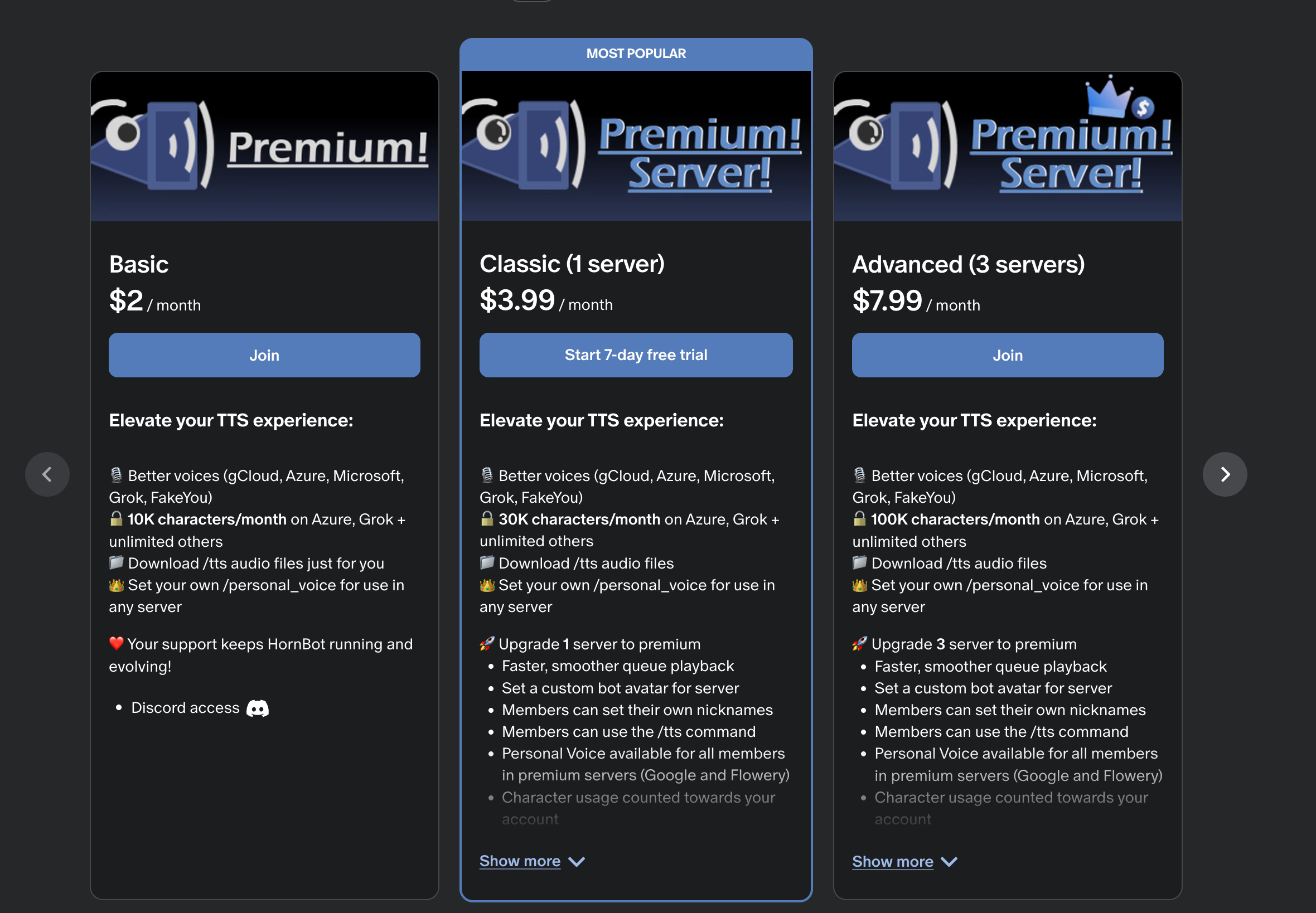
Best For
Role-playing or social communities that want voice variety without losing control over whose messages are read. Keep an understandable everyday voice available for members who rely on TTS throughout a call.
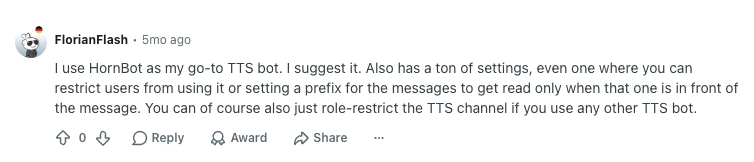
A Reddit user highlighted something more practical than HornBot’s voice count. They recommended its controls for deciding whose messages get read and requiring a message prefix. Those are useful features when some members rely on typed speech, but the server doesn’t want every chat message broadcast.
HornBot Limitations
The headline catalog includes premium choices. It does not mean you get 7,000 free voices. Try a few full sentences before choosing a default. A character voice that works for one announcement may be tiring across an hour of replies.
7. Botto Voice: Best for Language and Accent Selection
Botto Voice lets members choose a language, regional accent where available, and speaking voice through its /voice-set menus. Its voice guide lists 959 free voices across 83 languages, including multiple Spanish accents.
For automatic reading, members must type in the linked text channel and share the bot’s voice channel. A reading list can further restrict whose messages are spoken.
Key Features of Botto Voice
- A linked reading channel and personal voice selection.
- Language, accent, and voice menus.
- Reading lists for controlling whose messages are spoken.
- A configurable filter for spoken output.
Botto Voice Pricing
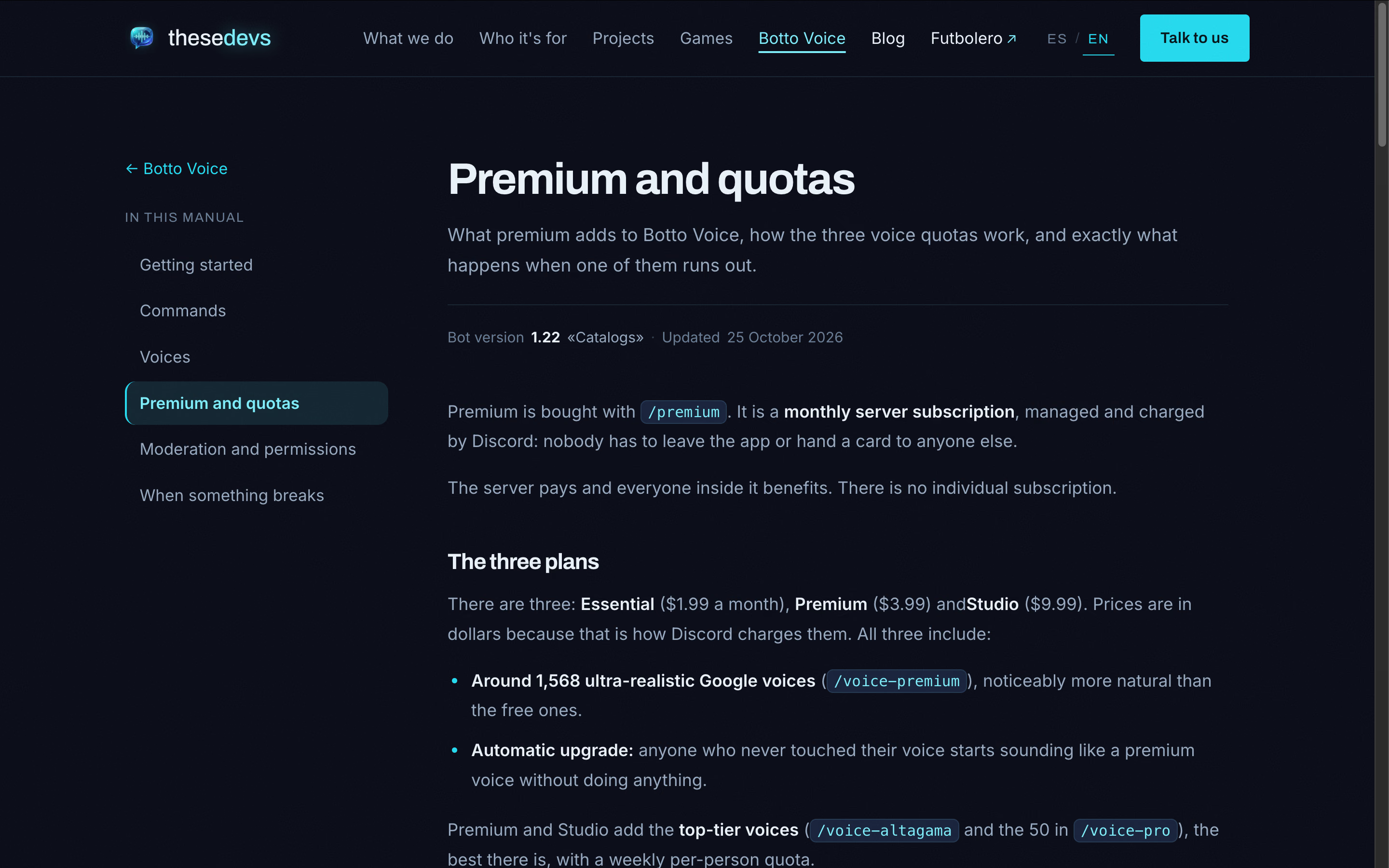
The plan guide lists Free, Essential at $1.99, Premium at $3.99, and Studio at $9.99 per server per month. Free includes a 200-character message limit and a daily cap.
Best For
Multilingual servers that want members to choose familiar accents. Its documented eligibility rules also suit moderators who want a clear explanation to pin beside the reading channel.
Botto Voice Limitations
Paid voice allowances are divided into tiers, with fallback rules when quotas run out. Check them before promising the same premium voice throughout a long event. Also review the moderation settings: the standard word filter ships off and needs to be enabled deliberately.
8. JotMe: Best for Following Multilingual Discord Calls
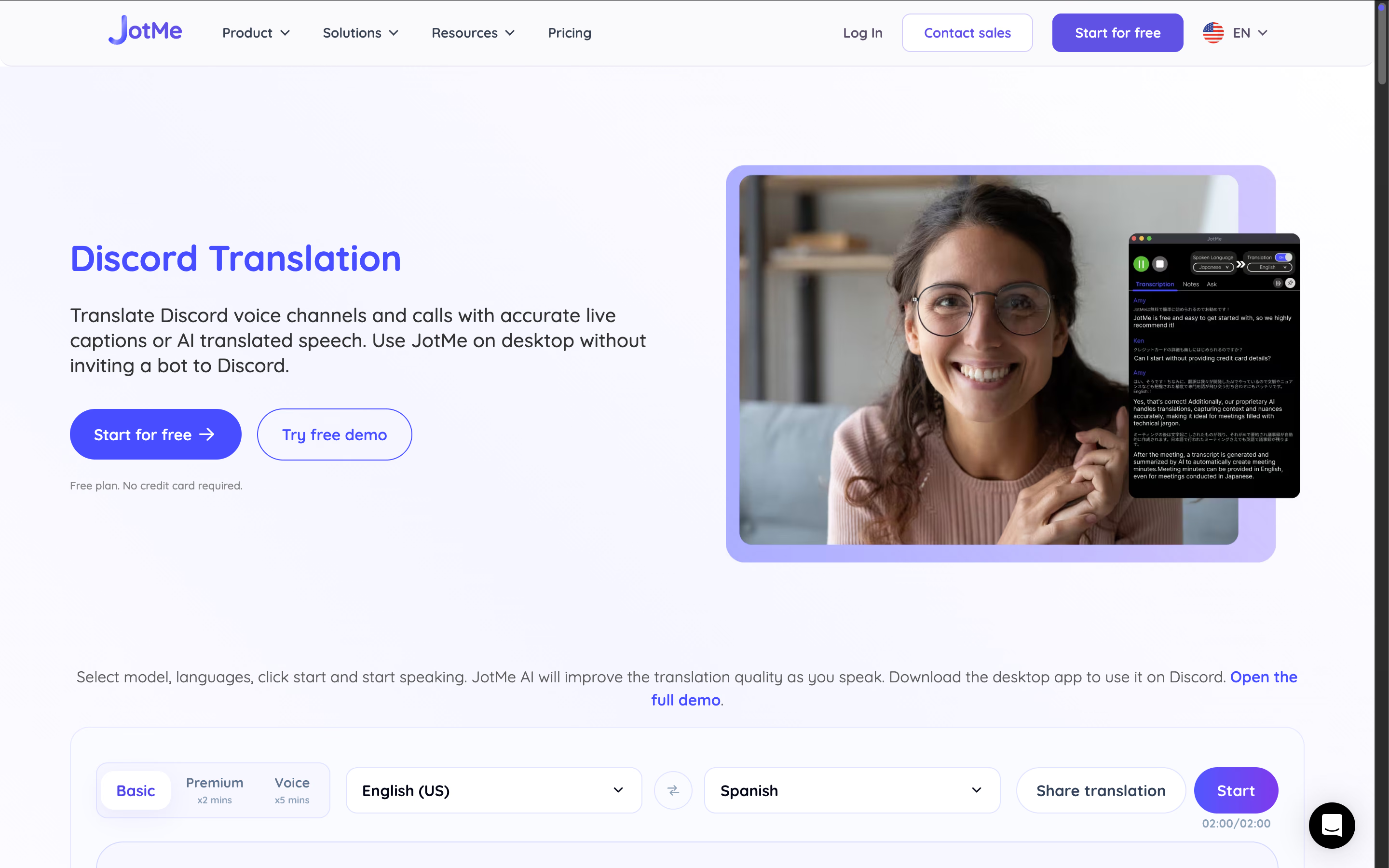
A TTS bot helps others hear what you type. But if someone replies in a language you don’t understand, you’ll still need help following the conversation. JotMe runs alongside Discord and translates spoken conversation into live captions.
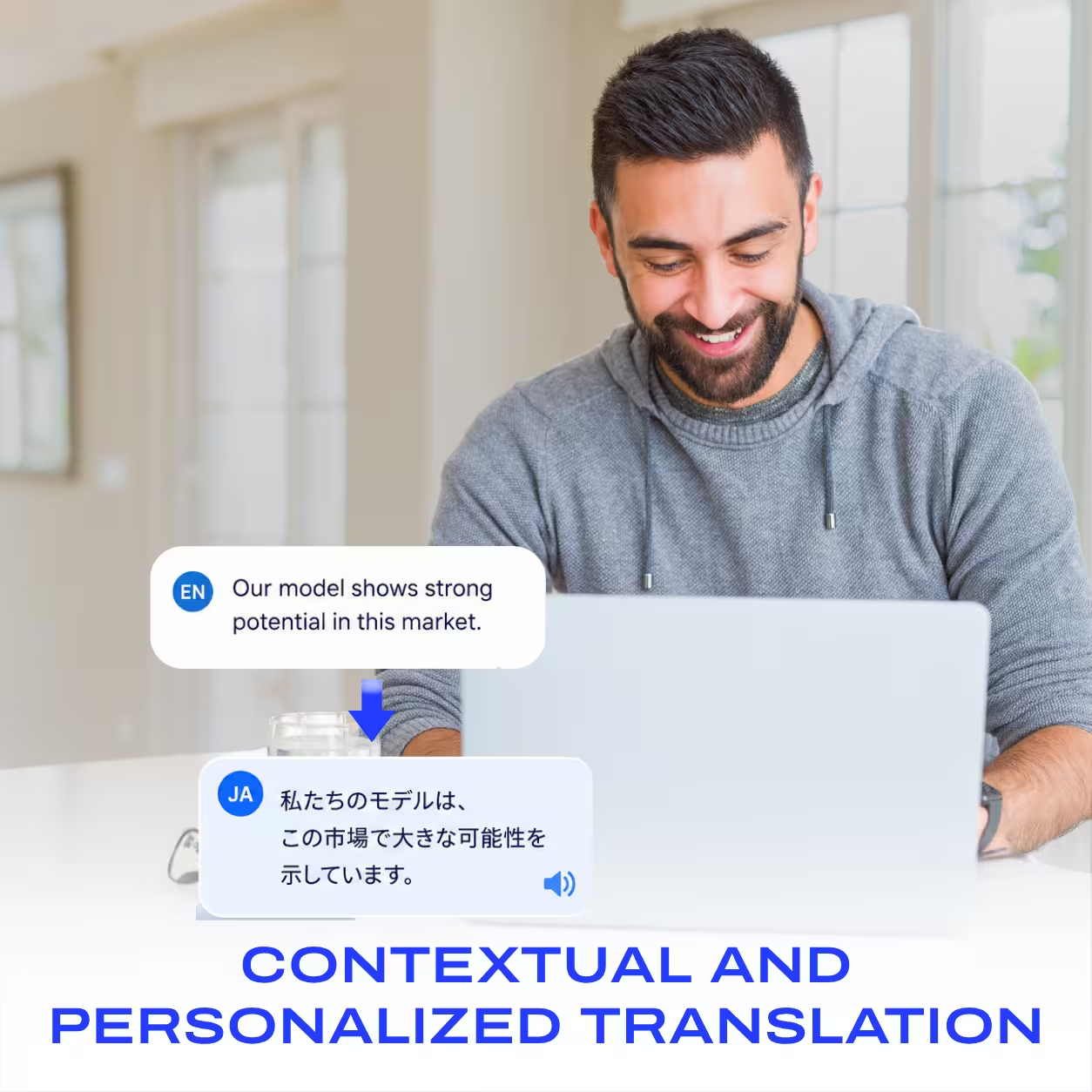
For example, during an English–Japanese call, you can read English translations of your colleague’s Japanese speech. JotMe also offers voice-to-voice translation if you want spoken Discord translations, plus transcripts and AI notes to review after the call.
Unlike the Discord TTS bots above, JotMe is a separate app. You don’t need to invite it to your Discord server. Just open JotMe alongside Discord, and it starts translating live.
Key Features of JotMe
- Live translated captions for spoken conversations.
- Voice-to-voice translation.
- Live transcription and AI meeting notes.
- Translation sharing so others can follow along.
- Works alongside Discord without joining as a server bot.
JotMe Pricing
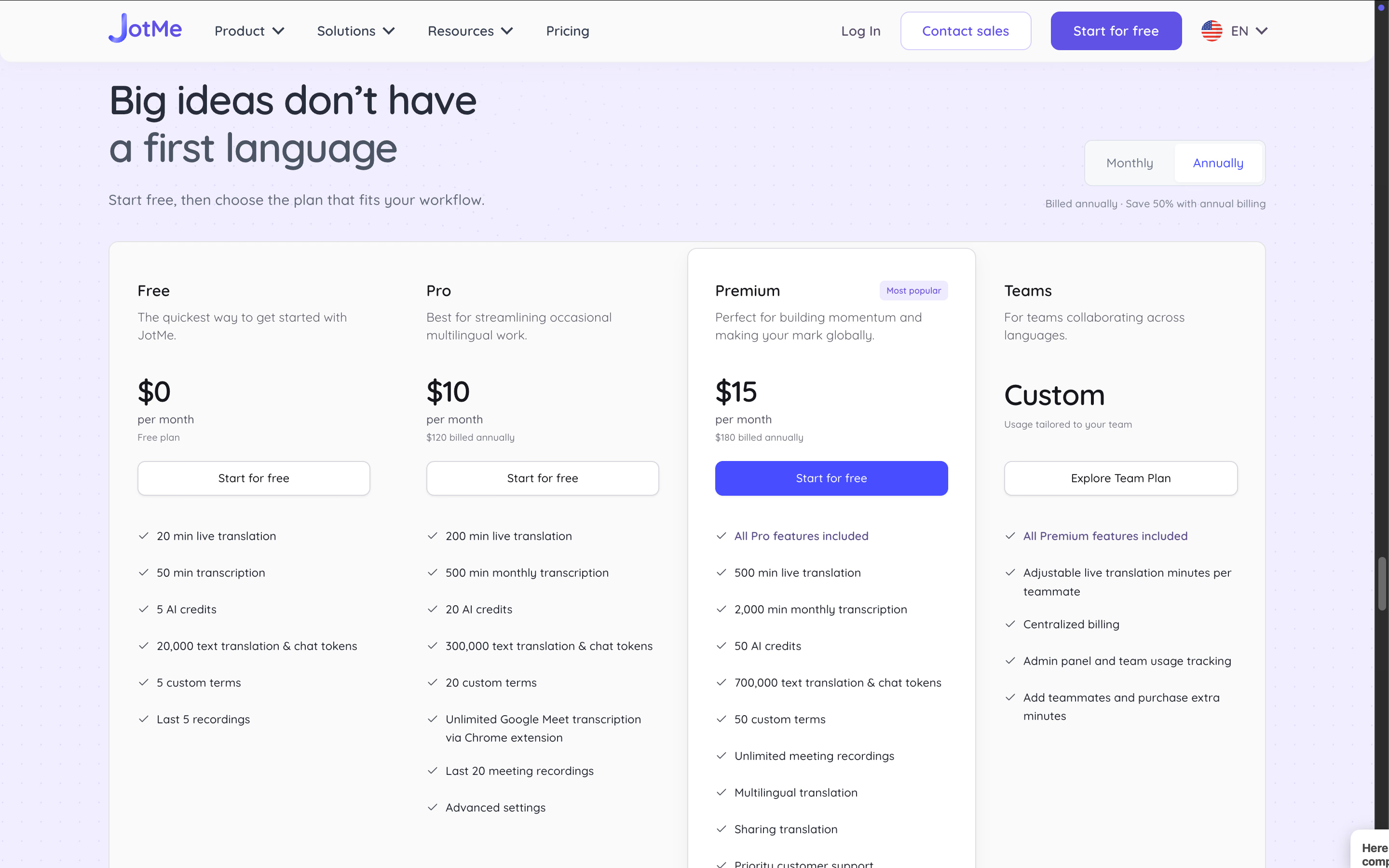
JotMe offers a free plan with limited usage and paid plans for additional allowances.
Best For
Multilingual gaming groups, study groups, and teams that need to understand spoken conversations during Discord calls.
JotMe Limitations
JotMe does not automatically read messages from a Discord text channel. You’ll still need a TTS bot for that.
How to Add a TTS Bot to a Discord Server
To add a Discord TTS bot, invite it to your server, approve the required access, join a voice channel, and configure where it reads messages. The installation pattern is similar across bots, but their setup commands and reading rules differ.
Step 1: Invite the Bot and Grant Permissions
Open the invite link from the bot's official website or Discord app listing. Sign in to Discord, select your server, and review the requested permissions before authorizing it.
You need permission to manage the server or add apps. If your server does not appear, check that you are signed into the correct account and have the required role.
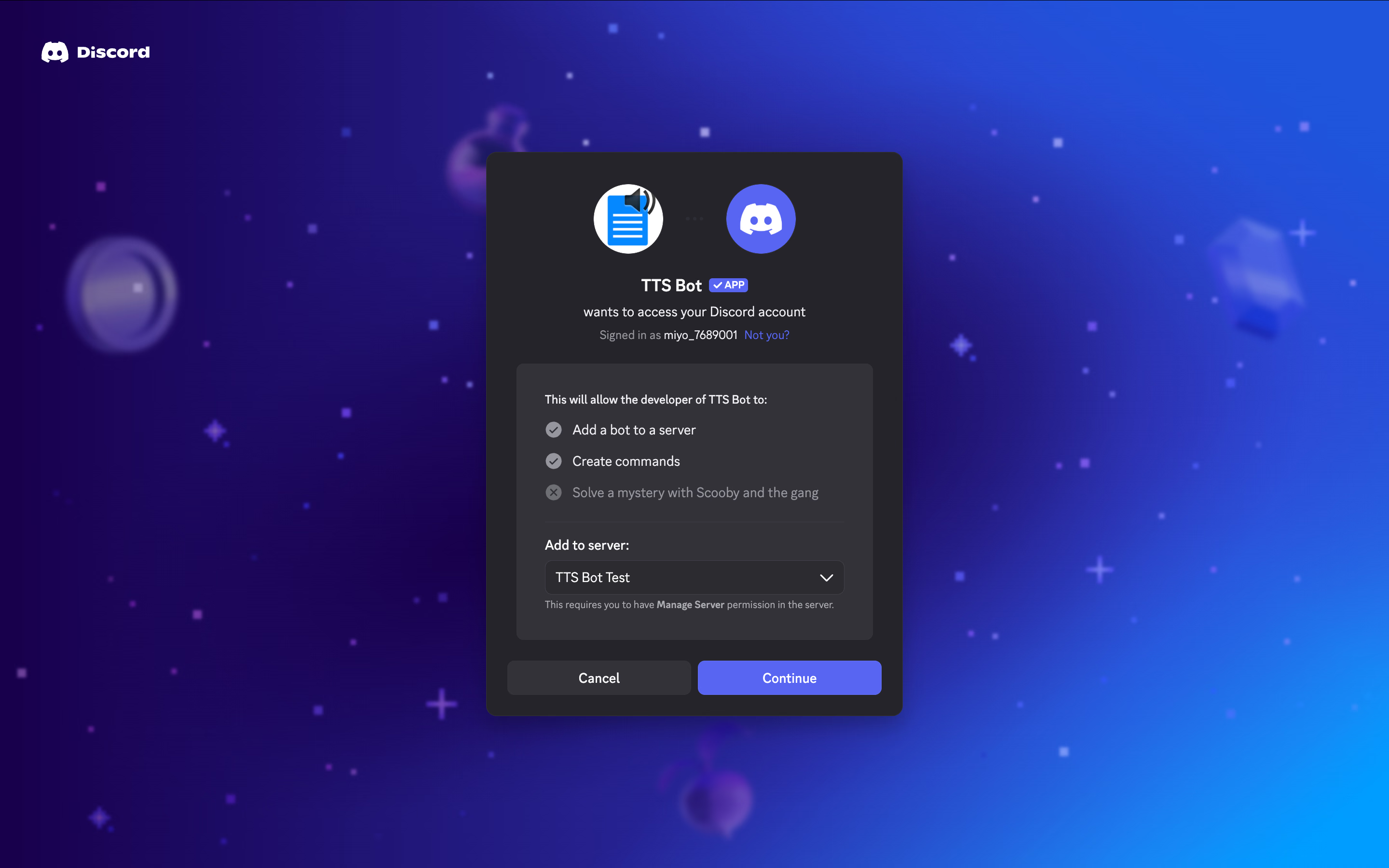
The bot also needs access to the channels you will use. Check that it can view the selected text channel and has Connect and Speak permissions in the voice channels.
If Discord offers both installation options, choose Add to Server for a bot that needs to join your server's voice channels.
Step 2: Connect It to a Voice Channel
For TTS Bot, use /setup to select the text channel where members will type their messages. Next, join a voice channel yourself. Return to the configured text channel and run /join to bring the bot into the call.
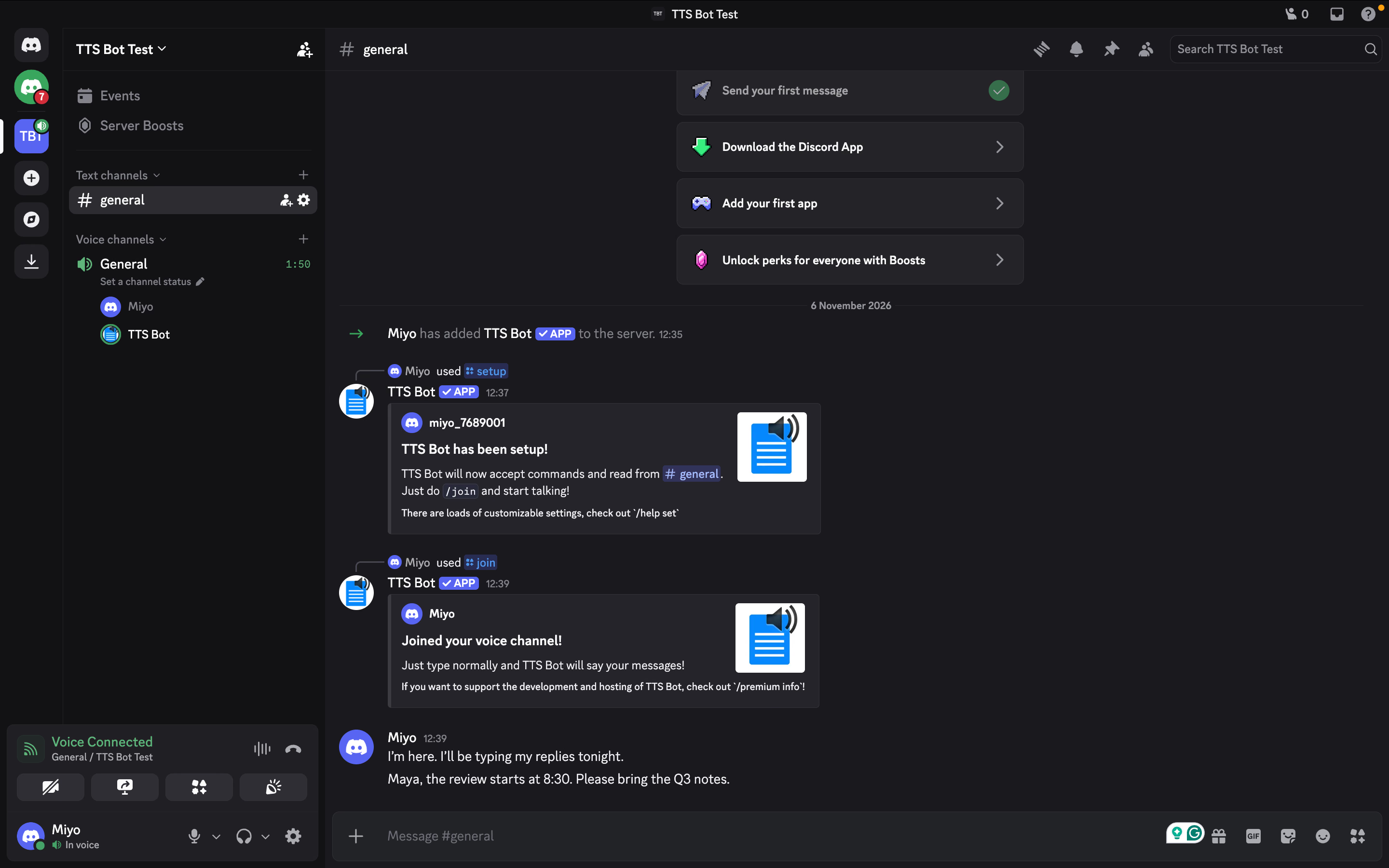
Other bots might use different commands or a different dashboard. Follow your chosen bot's instructions rather than combining commands from several bots.
Before continuing, confirm that the bot appears in the intended voice channel and that everyone knows which text channel it will read.
Step 3: Send Your First TTS Message
Type: “I’m here. I’ll be typing my replies tonight.” Ask someone else in the call to confirm they heard it. Then send a second message without a speech command to check whether automatic reading is working.
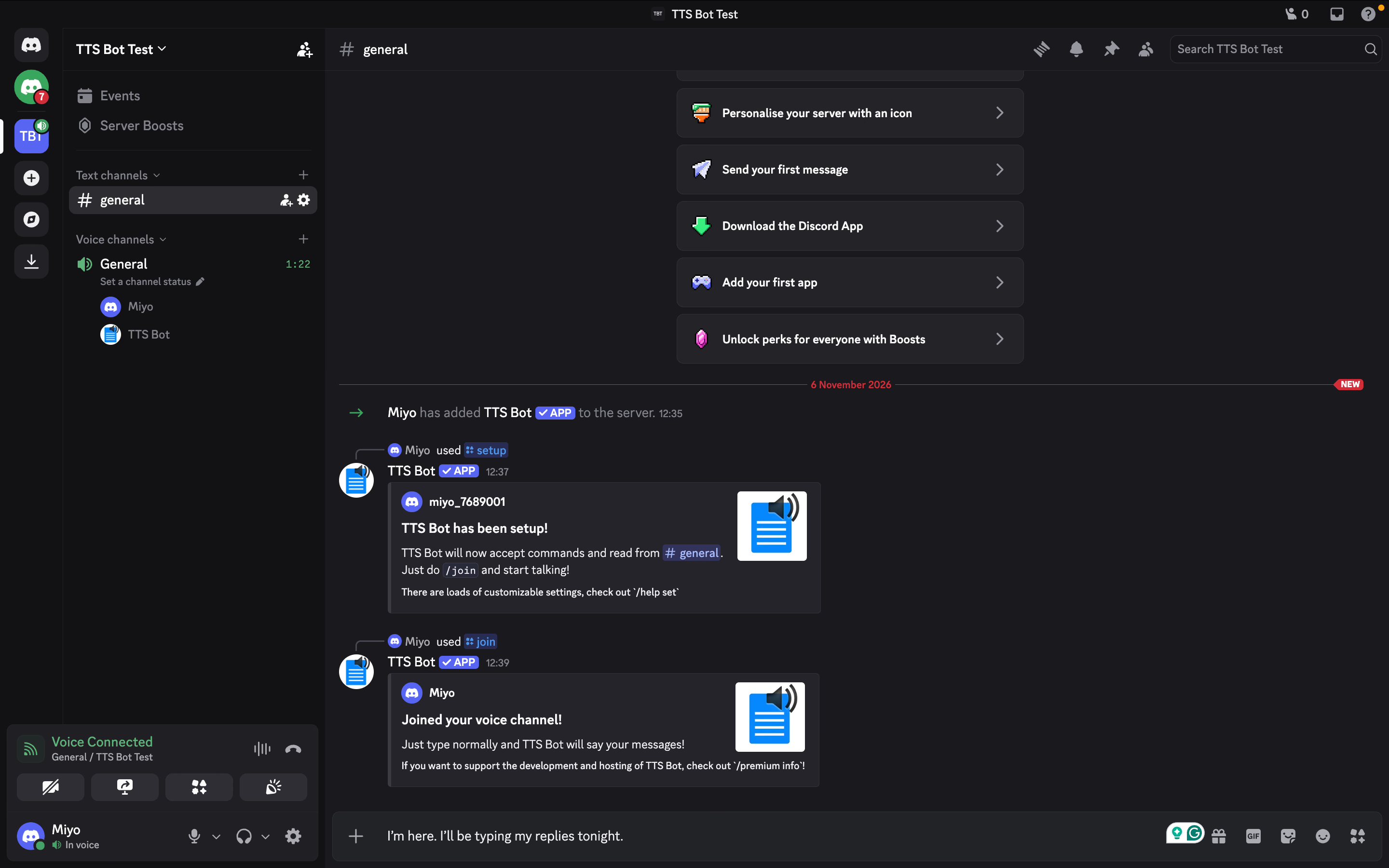
Try a name or number next, and find the skip control before you need it. Pin a short message explaining where members should type and how to stop playback.
Bonus: Need Live Translation Without Adding a Discord Bot?
If your goal is to understand people speaking another language, you can use JotMe without adding a server. Open JotMe alongside your Discord call to read live translated captions as people speak. For example, if a teammate speaks Japanese, you can follow their replies in English while staying in the call.
Follow your next Discord call in your language
Use JotMe alongside Discord to read live translated captions, without inviting a bot to your server.
Try JotMe for FreeDiscord’s Built-in TTS vs. a Discord TTS Bot
Discord’s built-in TTS reads messages through a listener’s Discord app. On the other hand, a voice-channel TTS bot joins a voice channel and reads messages aloud to people in that call.
For example, typing “/tts Hello everyone” uses Discord’s built-in feature. Whether someone hears it depends on their app settings. With a server bot, you type in its configured text channel, and the bot speaks in the voice channel.
Question | Built-in Discord TTS | Voice-channel TTS bot |
|---|---|---|
Where is speech played? | Through your Discord app | Into the bot’s voice channel |
What controls playback? | Uses Discord's TTS settings and permissions | Bot settings, channel access, and usage rules |
Can messages be read automatically? | Notification settings can enable automatic local reading | Supported bots can read eligible messages in a linked channel |
How are voices selected? | Depends on your platform and system | Depends on the bot, provider, and its free or paid tier |
Does choosing a language translate the message? | No automatic translation implied | Only if the bot separately supports and enables translation |
Use built-in TTS if you want Discord to read messages to you. Choose a voice-channel bot if you want people in a call to hear your typed replies. Some bots also use a command called /tts. Check the app name in Discord's command picker so you select the one you intend to use.
Reading English in a bot's voice is different from translating it into Japanese. If your main need is translating written chat, our Discord translator bots comparison covers that workflow.
What to Do When Discord TTS Is Not Working
If the Discord TTS is not working or stays silent, check whether it has joined the correct voice channel, can read your text channel, and has usage allowance left. Send one short text message after each change so you can tell what fixed the problem.
Check Voice-Channel Permissions
If the bot does not join, confirm that you are in the intended voice channel and that it can access that channel. Check Connect and Speak permissions in the voice channel. Channel-specific permissions can block access even when the server permissions allow it.
If the bot has joined but you hear nothing, ask another participant in the call whether they can hear it. If they can, check your output device, the bot’s volume, and whether you have muted it.
Check Discord's Settings for Built-in TTS
If you are using Discord's built-in TTS, check User Settings → Accessibility and Notifications → Text-to-Speech. These settings control Discord's own message reading. For a bot speaking in a voice channel, check the bot's permissions and settings instead.
Check the Bot’s Voice and Language Settings
Send one plain sentence with an available free voice. If it works, check whether your preferred voice requires a subscription or has reached its usage limit. Check the bot's help or plan information before changing other settings.
Check Where You Are Typing
Make sure you are sending messages in the text channel configured for automatic reading. Some bots also require you to join their voice channel before they will read your messages.
Check any role restrictions or reading lists, too. If the bot reads one member's messages but ignores another's, those settings may explain why.
If Discord’s interface has changed or settings are updated, you can check our Discord updates guide.
When You Need Captions or Translation Instead of TTS
Use captions when you need to read spoken conversation, and live translation when you need to understand another language. JotMe supports those workflows alongside Discord, while a TTS bot helps other people hear your typed reply.
Suppose you join an English - Japanese planning call. Your bot reads an English reply clearly, but you still cannot follow your colleague’s spoken Japanese response. Changing the bot’s English voice will not resolve that problem. You need a tool that captures and translates the speech coming back.
Follow the Spoken Conversation With JotMe
JotMe runs on your computer alongside Discord, using the microphone and system audio for live transcription and translation. Its online-meeting documentation explicitly includes Discord. It doesn’t join the participant list as a server bot.
You can consider JotMe when you need translation but can’t install server bots. Captions appear in JotMe and can also be shared with others via the live translation sharing option.
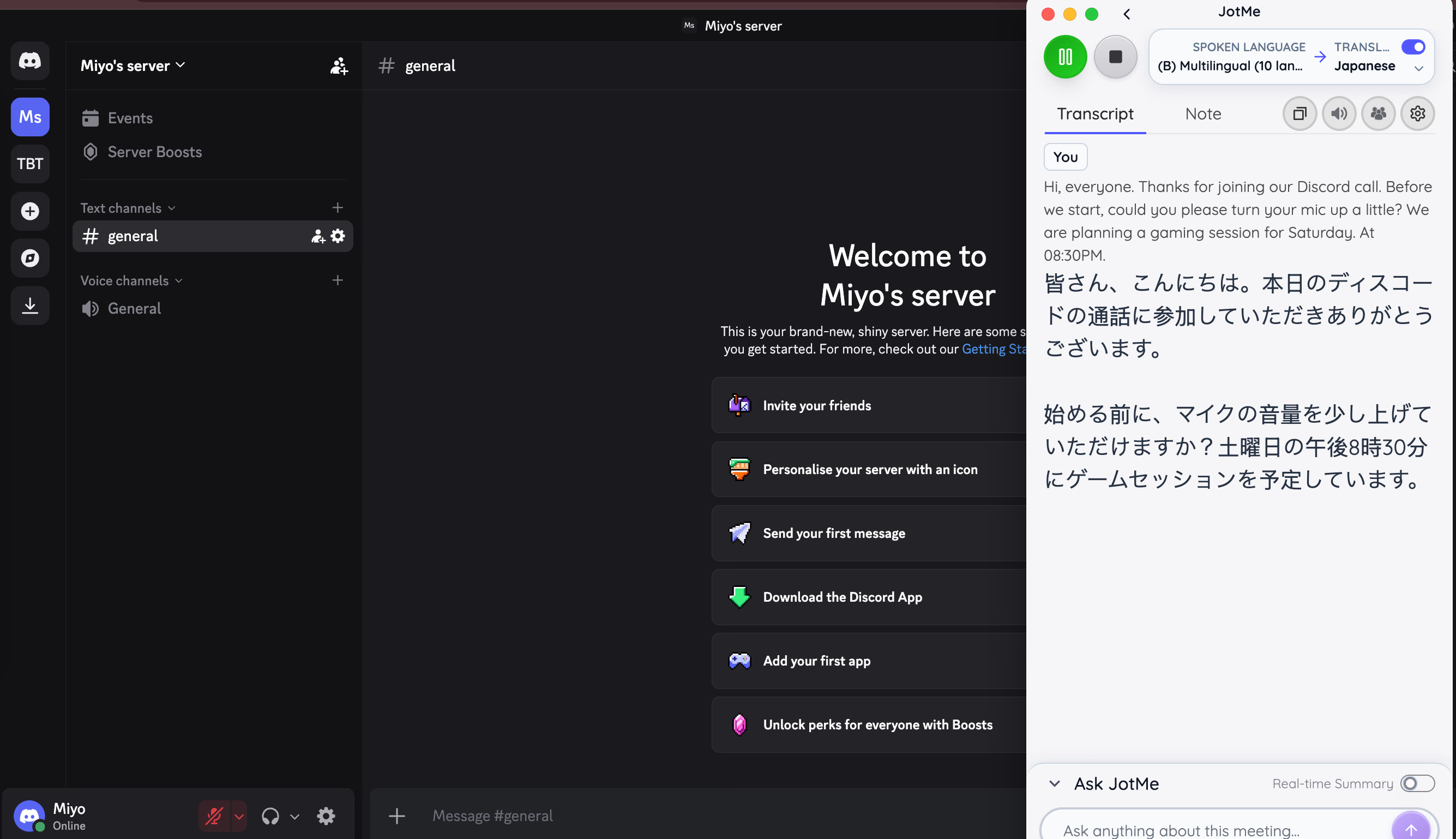
For more information, you can check out our guide to translating a Discord call that explains the broader use case.
Set Up Captions Before the Conversation Gets Busy
Open JotMe Desktop and your Discord call, allow microphone and system audio access, and select the Online environment. Set the spoken and translation languages before starting English-to-Japanese live translation.
Start JotMe and ask someone in the Discord call to say a short sentence. Check that their speech appears in the captions before continuing.
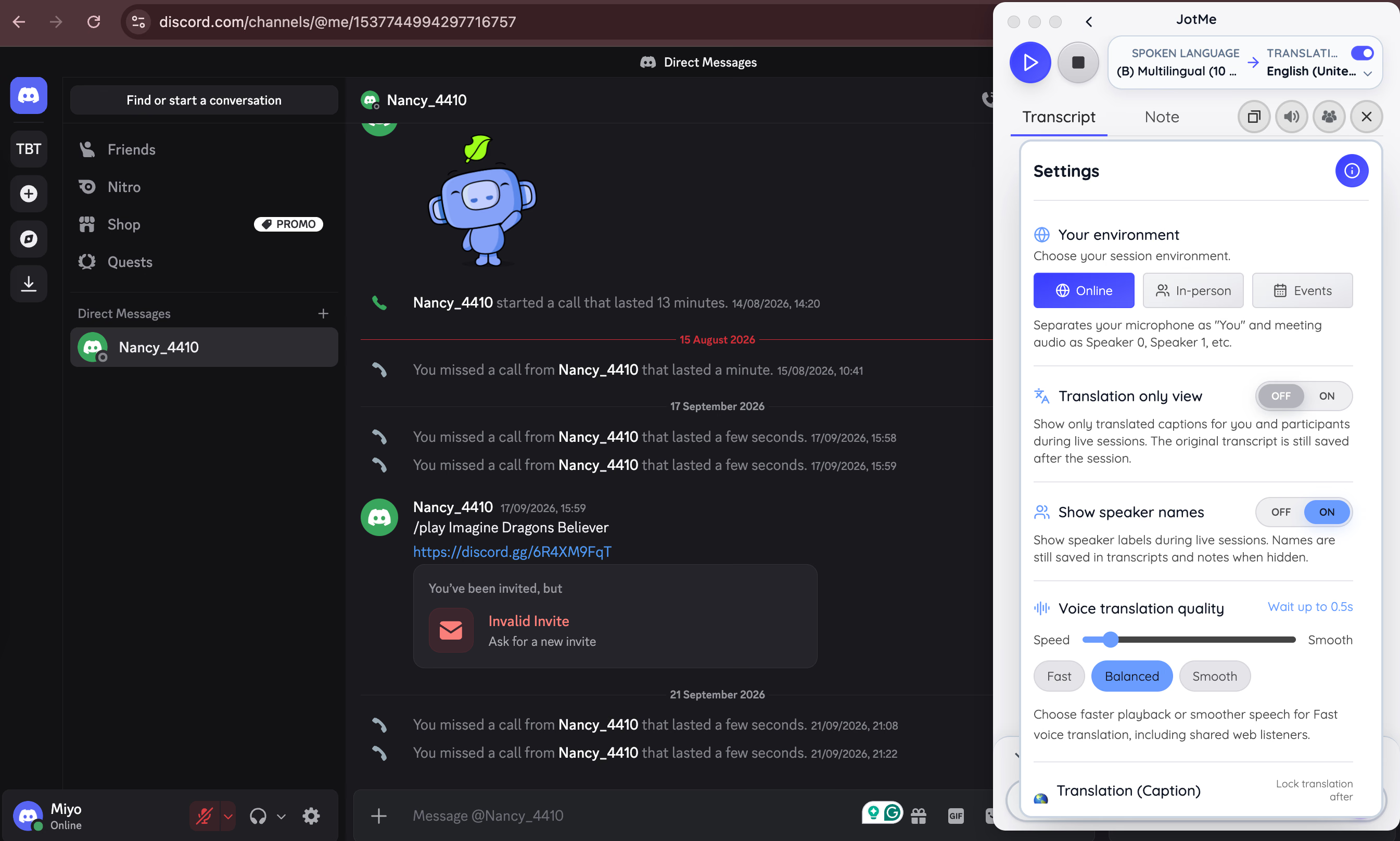
If you want spoken translations, JotMe also offers voice-to-voice translation. Its Fast (Audio) mode includes listening, speaking, and two-way options.
Sending translated speech to other Discord participants requires virtual audio routing. Test it with someone in the call. Confirm that they can hear the translated speech, rather than only hearing it through your own headphones.
For a visual walkthrough, watch how to set up JotMe’s voice translation for a Discord call, including the audio routing needed to send translated speech to other participants.
Keep Something Useful After the Call
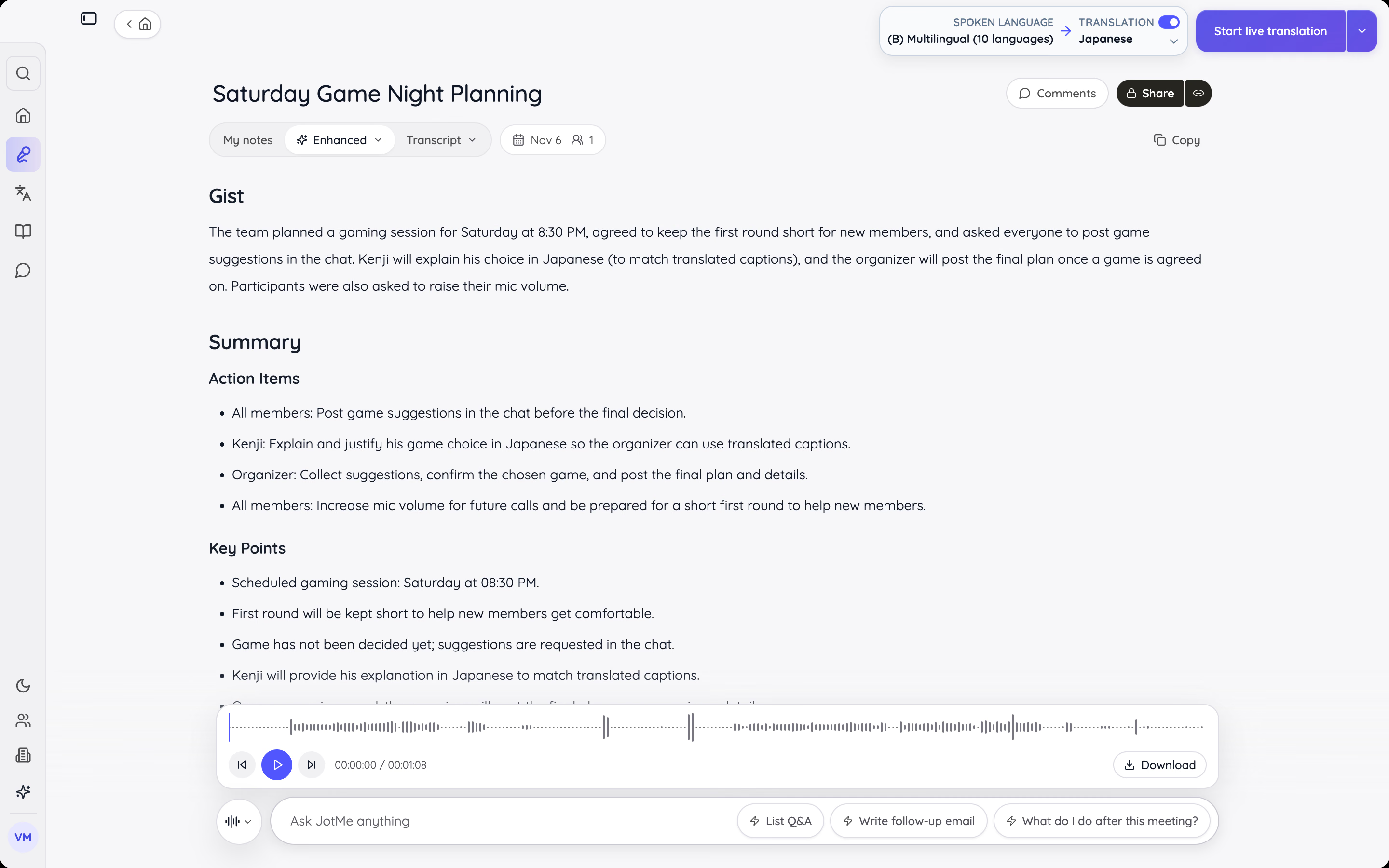
For a work or study discussion, you also need to consider what people might need to revisit after the conversation. JotMe can generate separate AI notes using the transcript and your own session notes. A list of decisions and follow-ups is often easier to revisit than a long stretch of audio.
Our guide to transcribing Discord calls covers the written record. If you also need the original audio, see how to record a Discord call. Agree with participants on capture and sharing before starting.
Hear the reply. Understand it, too
Your TTS bot helps others hear what you type. If you need help understanding their replies in another language, use JotMe alongside Discord to follow the conversation with live translated captions.
Try JotMe for freeWhich Discord TTS Bot Should You Choose?
You can start with Wamellow for automatic message reading and server controls, or TTS Bot if your group simply wants typed replies read aloud. Better TTS is worth considering for custom pronunciation, while HornBot offers character voices. Try your preferred bot's free features during a normal call before paying for additional voices or higher limits.
For multilingual Discord calls, you can use JotMe to follow spoken replies with live translated captions. You can run JotMe alongside your TTS bot. The bot reads what you type, and JotMe helps you understand what others say in a different language. Try JotMe's free plan during your next Discord call to see how it handles the languages your group speaks.
Make your next multilingual call easier to follow
Found a TTS bot that suits your server? Keep it for typed replies. When the conversation crosses languages, JotMe can help with live translation and meeting notes you can revisit after the call.
Talk to the JotMe TeamFAQs
How do you create a custom text-to-speech message on Discord?
To create a custom text-to-speech message on Discord, choose your bot’s speech command, type your message, and select a voice if that option is supported. If you have enabled automatic reading, simply type in the linked text channel. For Discord’s built-in TTS, type /tts followed by your message.
Does the text-to-speech command work in DMs?
No, Discord's built-in /tts (text-to-speech) command does not work in Direct Messages (DMs) or group DMs. To have text read aloud in DMs, you can use a screen reader or accessibility utility (such as Windows Narrator or Apple VoiceOver).
Are Discord TTS bots free?
Yes, all seven Discord TTS bots in this guide offer free features. Paid plans may unlock more voices, longer messages, or higher usage limits. However, you should check whether your preferred voice is included before subscribing to the paid plan.
Can a TTS bot read every message automatically?
Yes, several Discord TTS bots can automatically read messages from a selected text channel after setup. Depending on the bot, you may also need to join its voice channel or have an approved role.
Can a TTS bot speak in different languages?
Yes, Discord text-to-speech (TTS) bots can speak in different languages, depending on the bot and selected voice. Choose a voice that supports the language you are typing in. Reading a Spanish message aloud does not necessarily mean the bot can translate an English message into Spanish.
Can you use a Discord TTS bot on mobile?
Yes. Once a server bot is configured, you can type in its linked text channel and use its available commands through Discord on mobile. Join the bot's voice channel if its reading rules require it. Any dashboard settings may need to be opened separately in a browser.
Try JotMe
Accurate translation for your meetings, events, and everyday work, with AI Memory that remembers your context.