





Guides
What is a Hybrid Meeting? Best Practices & How to Run One

Narmada Kajla
September 30, 2026
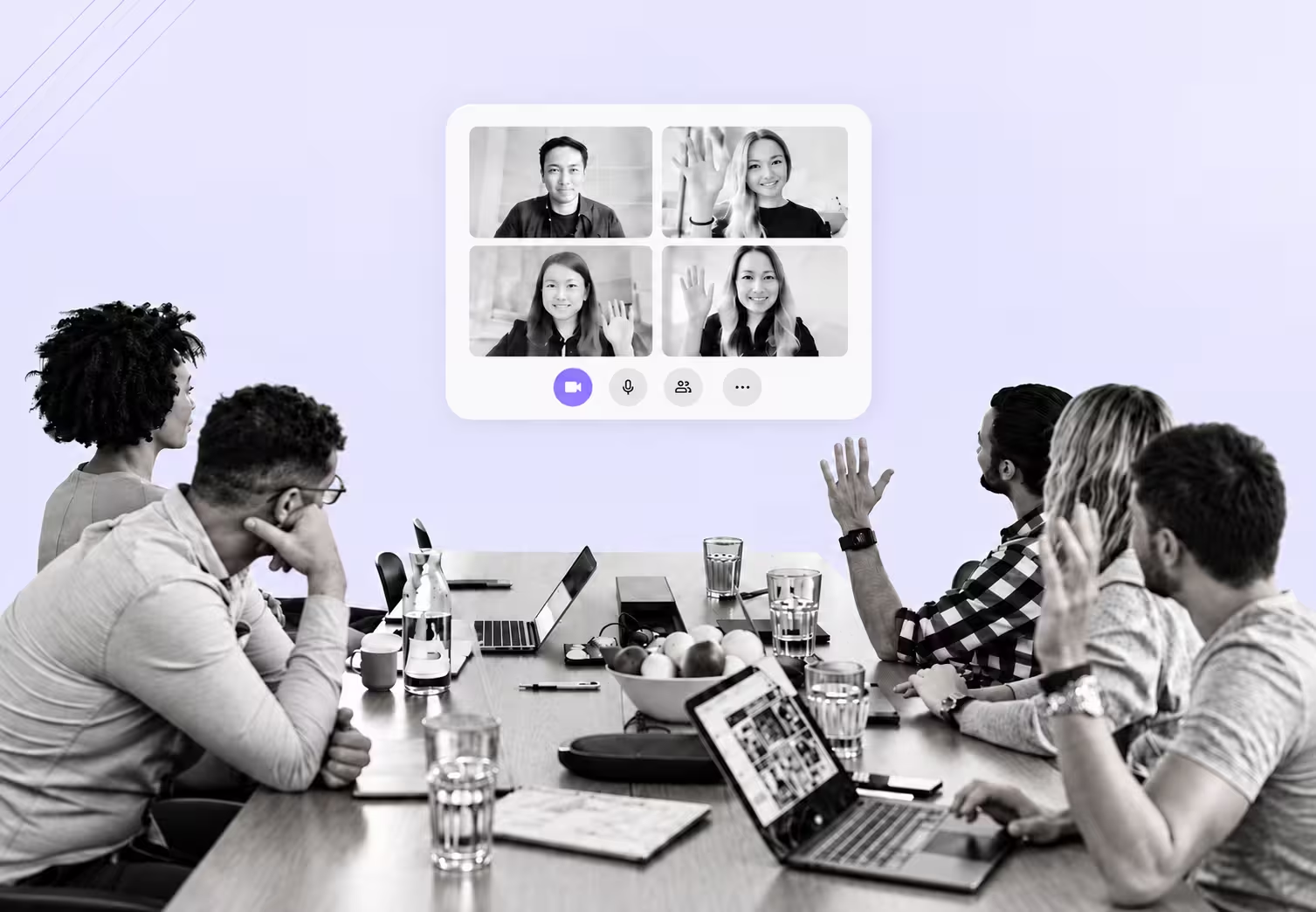
A hybrid meeting is a meeting where some people sit together in a room, and others join by video or audio at the same time. Both groups take part in one live discussion, so the room and the screen have to work as a single meeting.
People in the room can hear side comments and see physical cues that may not reach remote attendees. Online participants depend on the room's microphones and cameras, so they may miss quiet comments, struggle to identify speakers, or need to use the platform's controls before speaking.
This guide covers how to close that gap, and what to do when the room and the remote side don't share a first language.
TL;DR
- A hybrid meeting mixes in-room and remote attendees in one live conversation. In a virtual meeting, everyone is on their own screen, which gives participants a more consistent meeting environment.
- Your hybrid meeting setup depends on room size. A small room needs a camera and microphone that cover every seat. A large room usually needs several microphones and two screens.
- Running a hybrid meeting effectively comes down to habits: hear from remote attendees first, stop side conversations, watch the chat, and write decisions down where everyone can see them.
- When attendees speak different languages, live captions shared to each person's own device keep everyone in the same conversation. JotMe helps you share the live translation or captions through a link or QR code.
What is a Hybrid Meeting
A hybrid meeting is a meeting in which some participants attend in person in the same room while others join remotely by video or audio. Everyone takes part in one live conversation, connected through cameras, microphones, screens, and meeting software.
Hybrid Meeting Equipment and Room Setup Guide
A hybrid meeting equipment list typically includes a camera, microphones, speakers, a display, and video conferencing software. Larger rooms may also need a room controller or additional cameras and microphones. If attendees speak different languages in the hybrid meeting setup, you may need to add live captions or translation so everyone can follow the discussion.
- Hybrid Meeting Camera: Check the field of view before the resolution. A sharp camera that only shows the middle of the table cuts out the people at the ends. Sit in the farthest seat and ask a remote colleague if they can see your face clearly.
- Microphones: Microphone coverage is one of the most important considerations. A high-quality microphone is still a problem if it cannot clearly pick up people at the far end of the table.
- Screen: Put the remote faces on a screen next to the camera. When people look at the screen to talk to a remote colleague, they also look roughly at the camera, and the remote person sees someone talking to them instead of someone looking at a wall.
- One Device With Audio On: If several laptops in the same room join with microphones and speakers on, the sound loops back as echo. Let one device handle room audio. Anyone joining on a laptop to share a screen or use the chat should mute the microphone and turn the speaker off.
- Speakers: Use speakers that are loud and clear enough for everyone in the room to hear remote participants without creating echo or feedback.
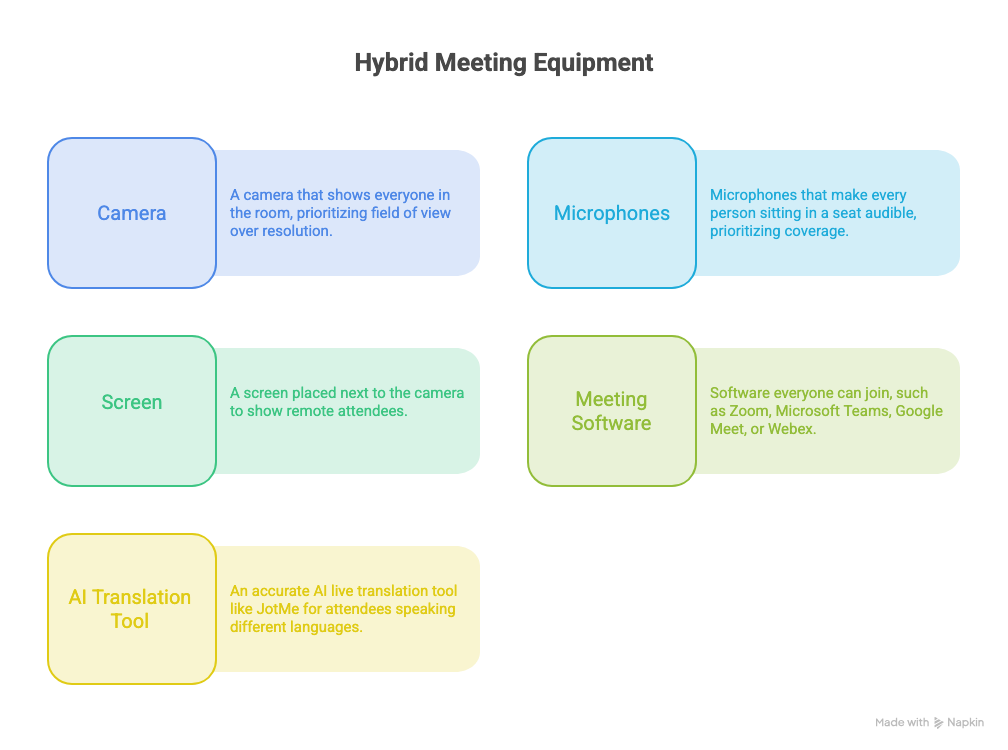
Note: Choose hybrid meeting equipment based on the room layout and seating distance.
If possible, use a hybrid meeting platform your team already knows. Familiar software can reduce setup friction and make it easier for participants to use chat, screen sharing, captions, and other meeting controls. JotMe works alongside Zoom, Microsoft Teams, Google Meet, and Webex, so nobody has to switch to a new video conferencing platform to get the live translation in their language.
How Do You Run an Effective Meeting with Remote Participants?
In a hybrid meeting, people in the room naturally have access to more visual and conversational cues than remote attendees. Run the meeting in a way that keeps the remote side equally involved.
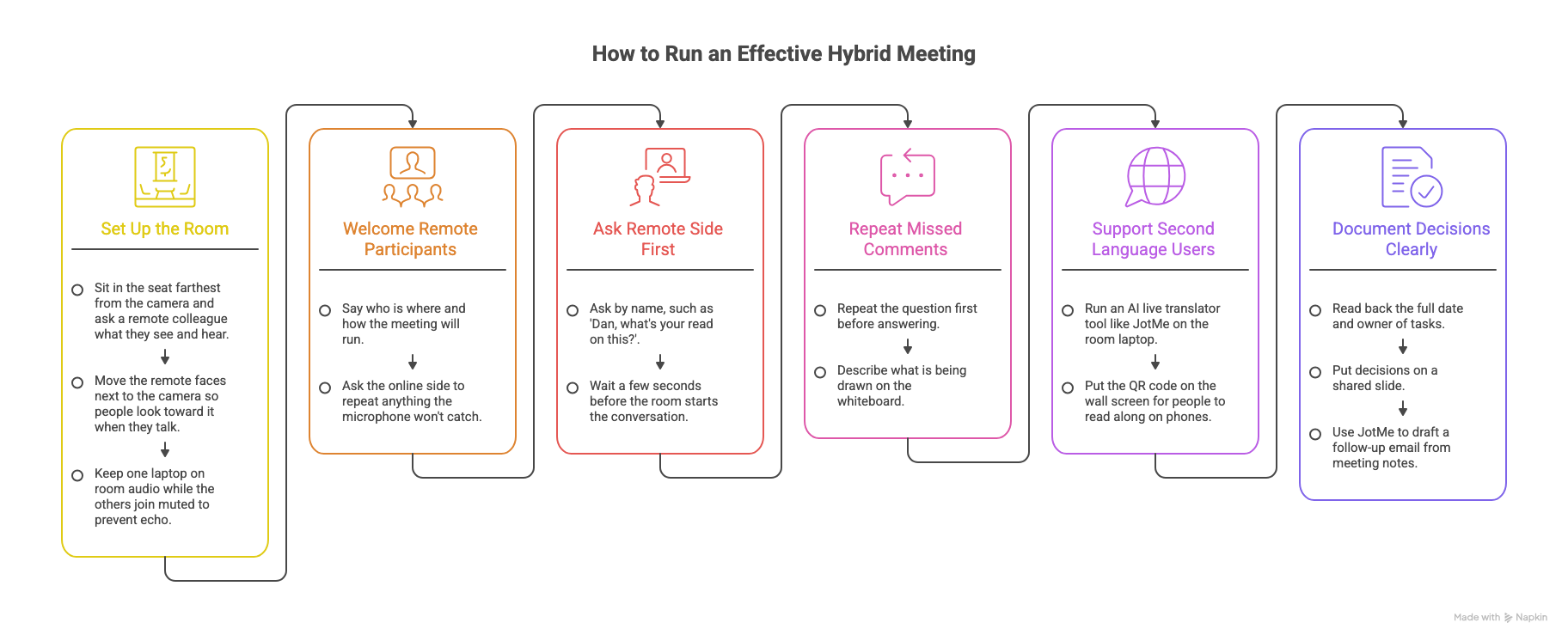
You need to set up the room so remote attendees can see and hear it. You need to ask them first, repeat what the microphone misses, check who is following in a second language, and put decisions in writing. Here is how to run an effective hybrid meeting that includes remote participants:
Step 1: Set Up the Room for the Screen
Before anyone joins, sit in the seat farthest from the camera and ask a remote colleague what they see and hear. If they can't see your face or catch your words, the far end of the table is invisible online. The fix is usually small. Move the remote faces next to the camera so people look toward it when they talk to them, and keep one laptop on room audio while the others join muted, so there's no echo.
Step 2: Welcome the Remote Side by Name
Say who is where and how the meeting will run. Suppose five of the team members sit in the office and two, Lizzie and Dan, join on video. The host can open with something like, "I'll ask the online side first, and if you say something the mic won't catch, repeat it." It takes ten seconds and sets the rules for the room too.
Step 3: Ask the Remote Side First
Someone in the room can answer in two seconds. Dan might still be finding the unmute button. So, ask by name, "Dan, what's your read on this?" and wait a few seconds before the room starts the conversation.
Step 4: Repeat What the Microphone Missed
Hybrid meetings produce comments that only the room hears. Let’s say Kyle asks a quiet question from the far end of the table, and the answer reaches Lizzie and Dan as "yes, that should work."
The person answering repeats the question first: "Kyle is asking whether design can hand off by Wednesday. Yes, if we lock the copy today." The same goes for the whiteboard. If someone draws on it, they say what they are drawing, because the camera only shows a bright rectangle.
Step 5: Check Who is Following in a Second Language
A hybrid meeting can make language barriers harder to manage. Remote attendees may already have fewer visual and conversational cues, and following a fast discussion in a second language can add another layer of difficulty.
Lizzie reads English well, but it's her second language. On her screen, the whole office is one small tile. Four people talk over each other, someone makes a joke, and she can't tell who is speaking. She stays quiet, and that evening she messages to ask what we decided.
The audio was fine, and nobody was rude. The room simply moved faster than she could follow. Now, when we run an accurate AI live translator tool like JotMe on the room laptop and put the QR code on the wall screen, people in the room can easily read along on their phones in their own language.
Lizzie opens the same link from the chat and reads in the language she prefers. Nobody has to interrupt the room to say they are lost.
Step 6: Say the Decision Out Loud, Then Write It Down
Spoken dates can be ambiguous, especially when participants are in different regions. "Let's ship next Friday" can mean the 12th to one person and the 19th to another. Read it back with the full date and owner, "Launch moves to Friday, September 18. Sam owns it," and put it on a shared slide.
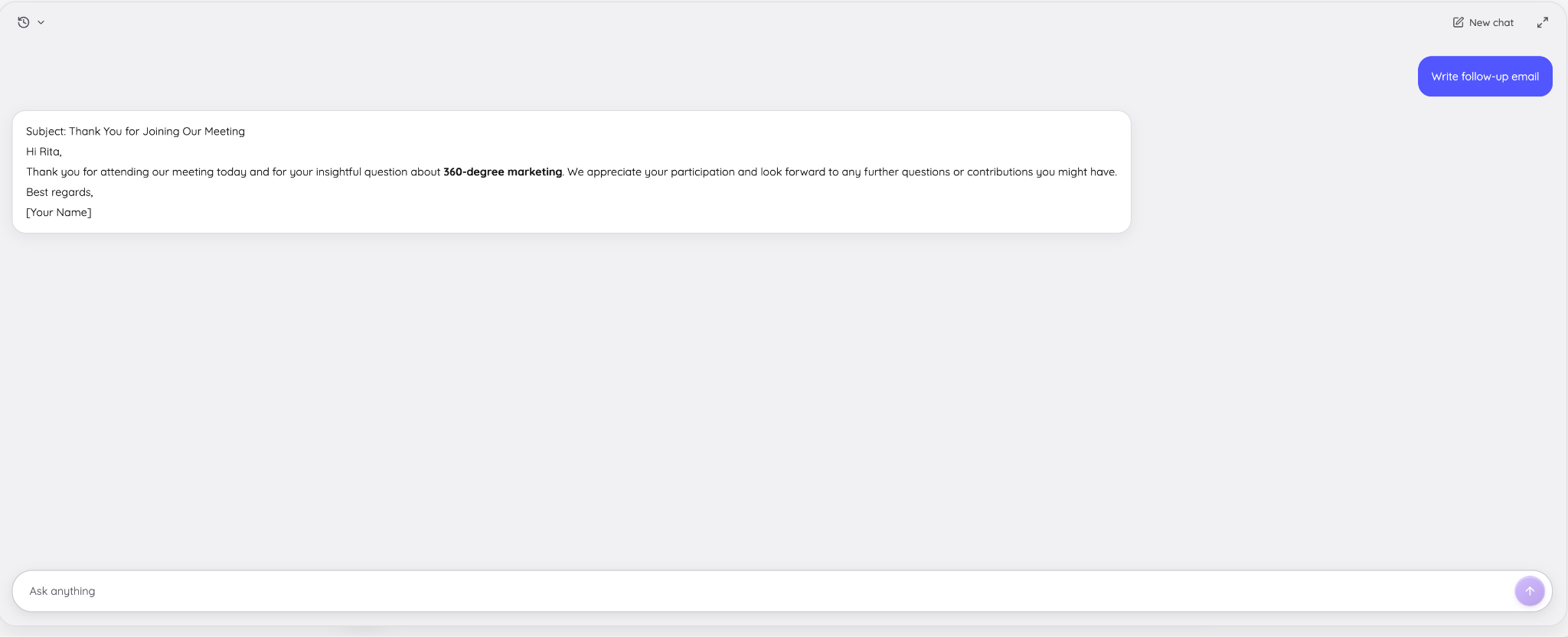
After the meeting, you can even ask JotMe to draft the follow-up email from the notes just like we did, so the online side gets the same record as the room.
How Does JotMe Work in Hybrid Meetings?
JotMe is an accurate AI live translation tool that translates spoken words into captions, shares those captions to each attendee's device by URL or QR code, and turns the conversation into notes afterward. In a hybrid meeting, JotMe gives the room and the remote side the same conversation in the language each person prefers.
How to Set Up JotMe for a Hybrid Meeting
Here is how to use JotMe during a hybrid meeting:
Step 1: Pick the Device
Use the JotMe desktop app (Mac or Windows) on the room laptop and the mobile app (iPhone or Android) for in-person conversations
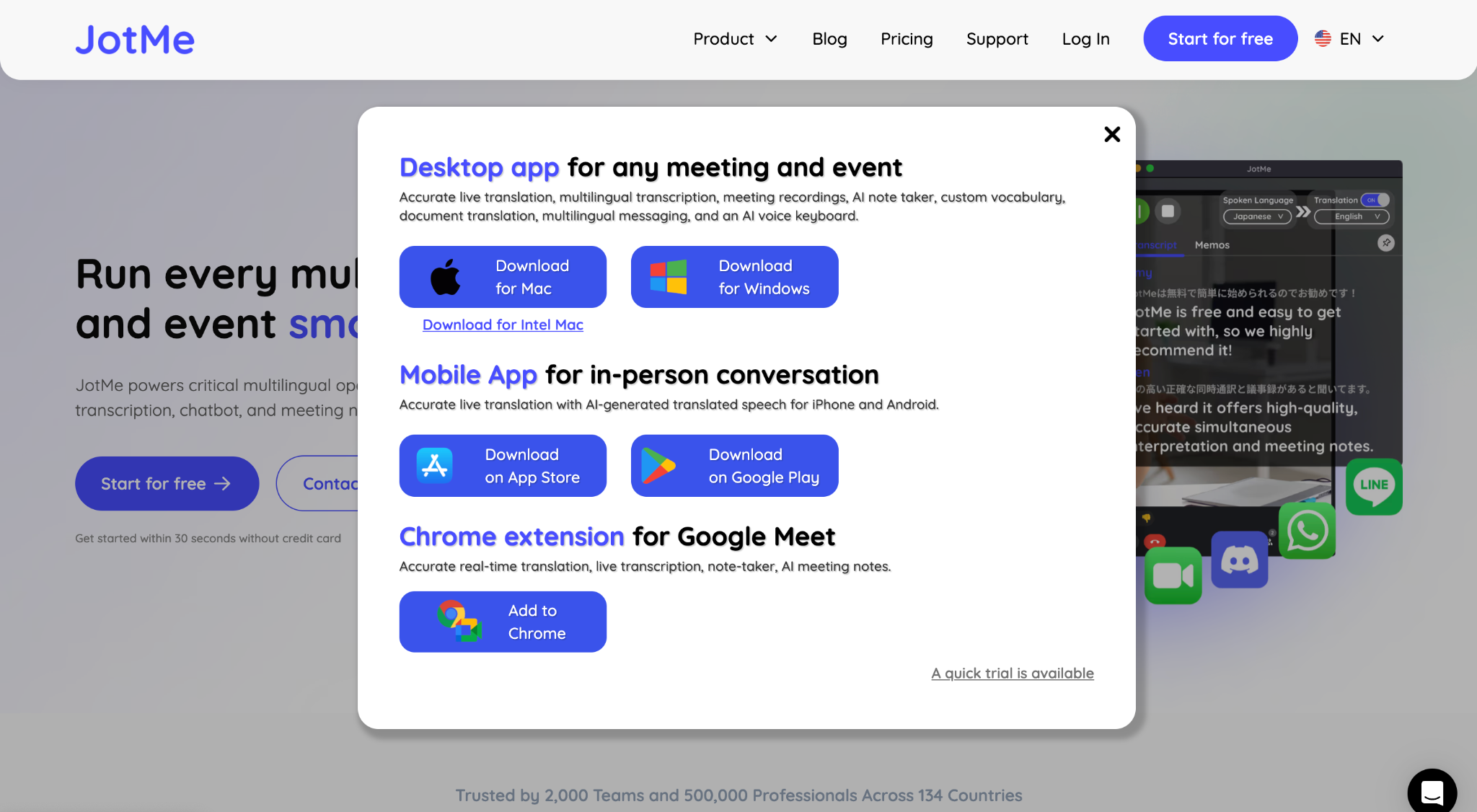
For a meeting room, the JotMe desktop app on the laptop connected to the room screen is the simplest option. Anyone joining from a personal laptop can stay muted so the audio doesn't echo.
Step 2: Set the Languages and Start
Choose the spoken language and the languages to translate into, and start before the meeting begins. JotMe covers 200+ languages and 39,000+ language pairs for live translation, so the same setup works for a Japanese supplier visit or a Korean partner briefing in your office.
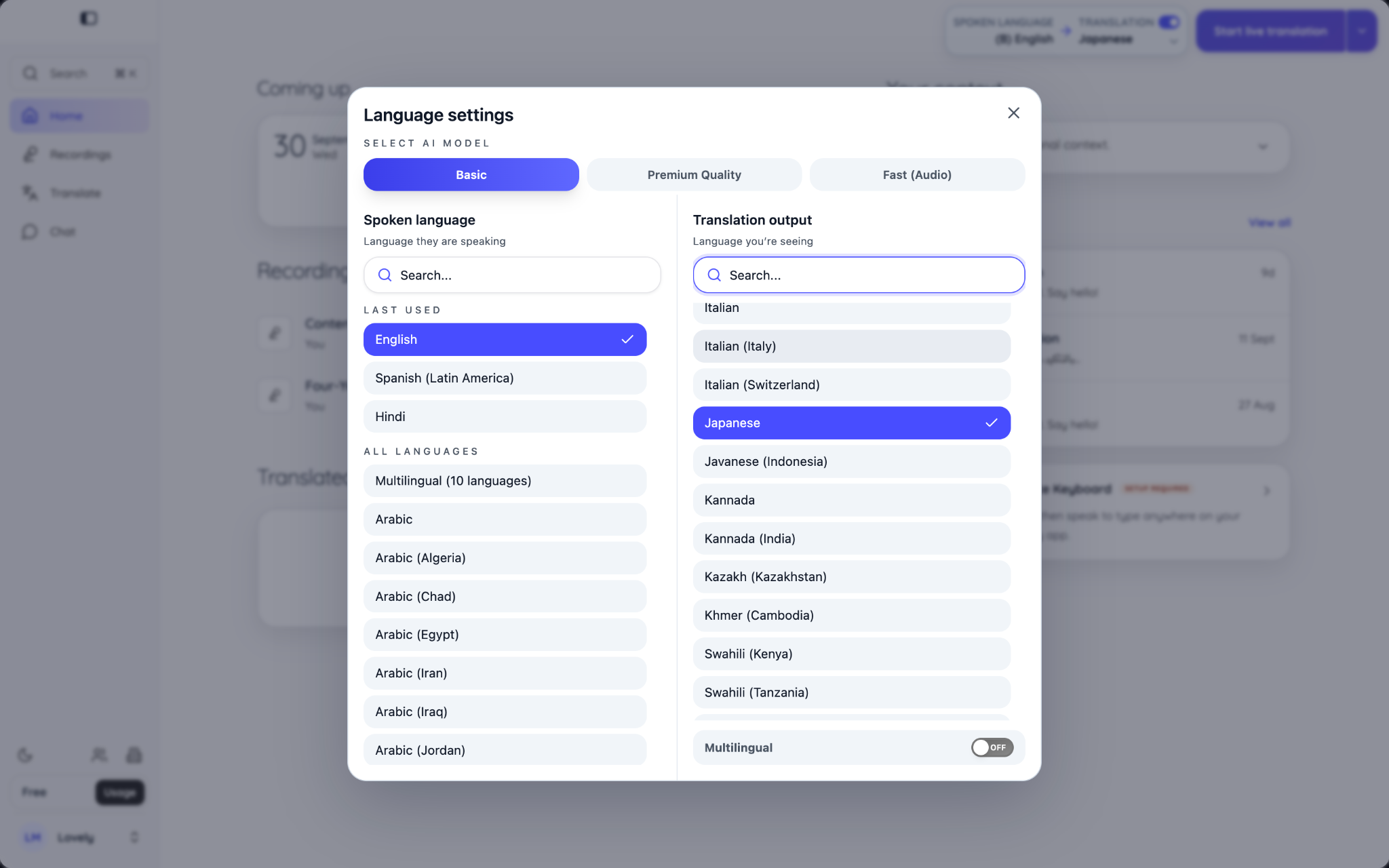
For a Japanese supplier visit, you can set English as the spoken language and Japanese as the translation language. For a Korean partner briefing where your team speaks English, set English as the spoken language and Korean as the translation language.
Step 3: Pick the Right Mode for the Room
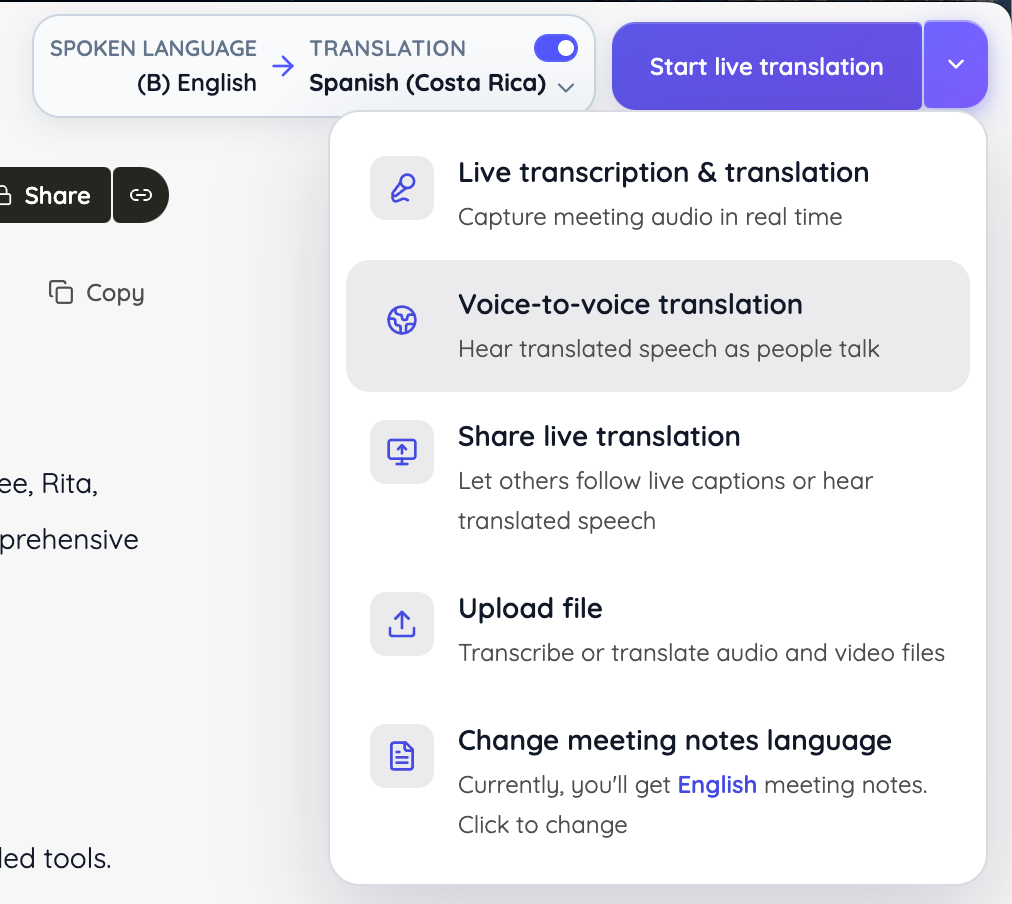
JotMe provides several translation, sharing, and post-meeting options. The main options include live transcription and translation, voice-to-voice translation, sharing live translation, uploading recordings for translation, and changing the language of meeting notes.
Step 4: Share the Link or QR Code
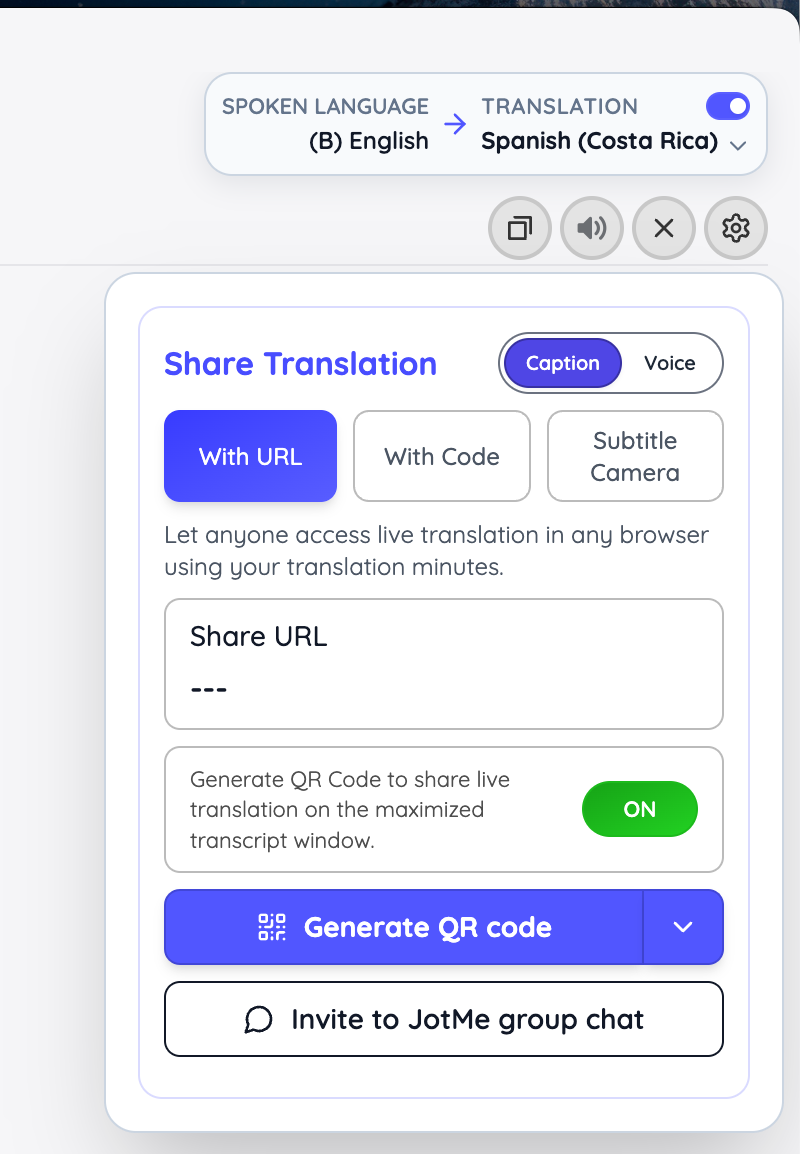
The Share Translation option lets you choose between Caption and Voice and offers three ways to share: With URL, With Code, and Subtitle Camera. You can put the QR code on the room screen and paste the link into the meeting chat. Each person opens it in a browser and picks a language.
Step 5: Send the Meeting Notes
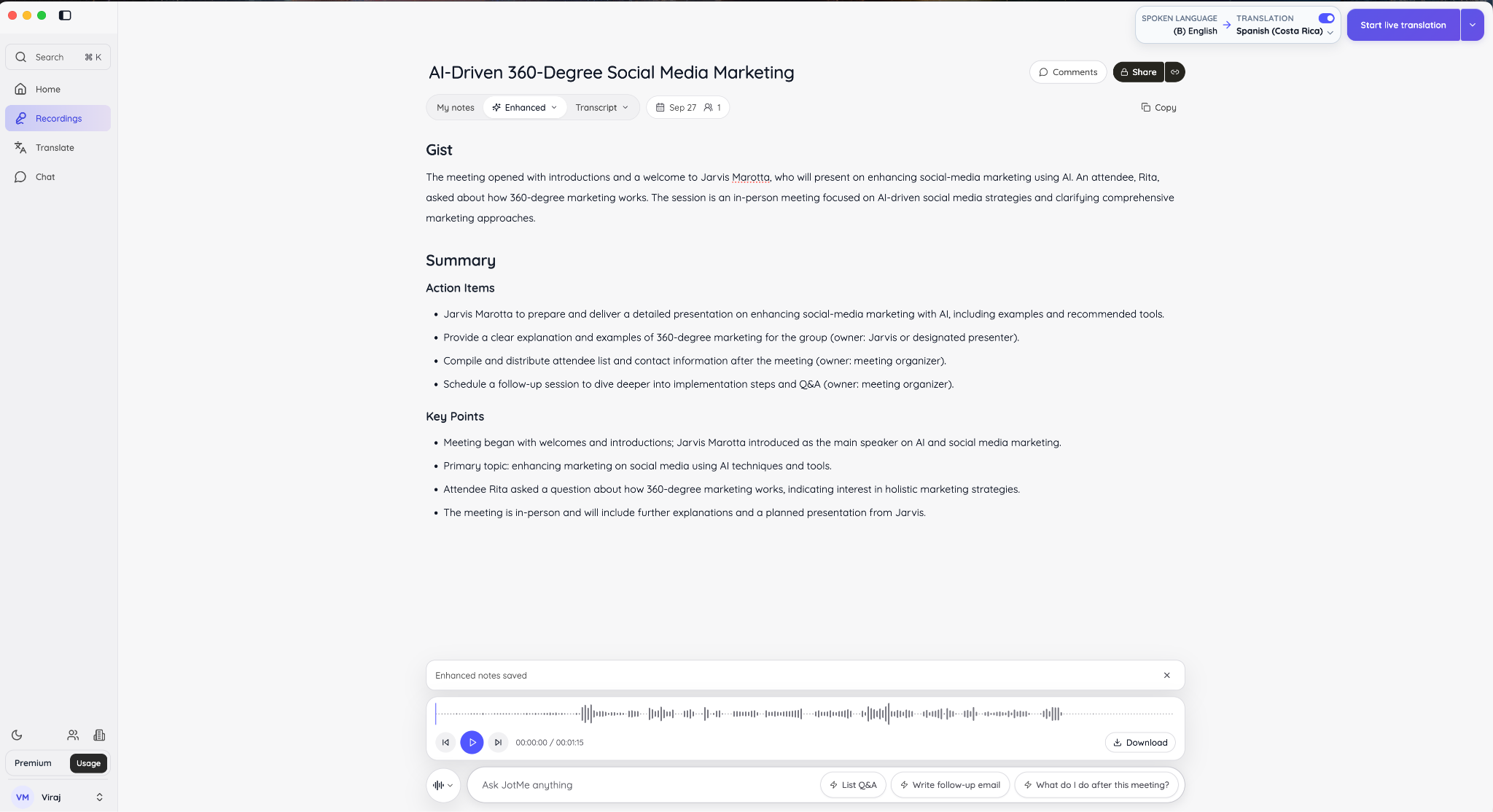
JotMe generates AI meeting notes after the recording ends. In our in-person test session, the notes opened with a short gist followed by action items, such as compiling the attendee list and scheduling a follow-up session, with the meeting organizer as owner. The key points followed, including Rita's (one of the visiting partners) questions about 360-degree marketing (as you can see in the image).
How we tested this:
We ran the JotMe desktop app on Mac, simulated an in-room conversation, shared translation to another device, and reviewed the generated notes afterward.
Best Practices for Successful Hybrid Meetings and Events
Successful hybrid meetings are planned before they start. You need to decide whether the meeting needs to be hybrid, send an agenda and materials early, assign four meeting roles, keep one shared record, and rehearse events with the real technology. Here are some of the best practices for running successful hybrid meetings and events:
- Decide Whether the Meeting Should be Hybrid: Decide whether the meeting actually benefits from having people together in the room. If the work can be handled just as effectively online or asynchronously, a hybrid setup may add unnecessary complexity. Before planning a hybrid meeting, you must ask, "What do we gain from being in the same room?" If you cannot answer, consider running the work virtually or handling it asynchronously instead.
- Write an Agenda that Says What You Need from People: "Q3 budget" is a topic. "Decide whether to cut the event's budget by 10% or delay the hire" is an agenda item. Remote attendees cannot read the room to work out what matters, so you need to tell them with a proper agenda.
- Assign Four Meeting Roles: Give each hybrid meeting a facilitator, room tech lead, chat monitor, and note owner. The facilitator manages speaking order and participation, while the tech lead watches the camera, microphones, and screen. The chat monitor surfaces questions from remote attendees, and the note owner records decisions, dates, and action items.
- Keep One Shared Record: If the room writes notes on paper and remote attendees type on laptops, the record can split. Use one shared document, or AI meeting notes, so everyone works from the same transcript and summary.
- Ask Remote Attendees for Feedback: After your first two or three hybrid meetings, ask one question: "Did you feel included?" Their answer tells you whether to fix audio, camera angle, or turn-taking first.
- Build in a Break For Remote Attendees: In the NIH survey, reviewers who attended hybrid meetings in person rated their attention at 8.55 out of 10, and remote attendees rated theirs at 8.02. While the gap might be small, it is a reason to add a short break when the meeting runs past an hour.
Hybrid Meeting Etiquette for In-Room Participants
- Speak Toward the Microphone: Remote attendees only hear what the microphone picks up, and your voice fades out when you turn away.
- Describe Anything You Point At: "As you can see here" is not at all clear to the remote participants. Say "the third column, labeled Q3 revenue," or share the file to describe details.
- Look at the Camera When You Address a Remote Colleague: Looking directly at the camera will help the remote person feel addressed instead of watched.
Hybrid Meeting Etiquette for Remote Participants
- Mute When You Are Not Speaking: Keyboard noise and background sounds reach the whole room through the speaker, so if you are not speaking, mute yourself.
- Turn Your Camera On If You Can, and Use Raise-Hand or Chat to Join: Turn your camera on when appropriate, and use raise-hand or chat features to signal when you want to speak.
- Say When You Missed Something: If you miss something, say so rather than waiting until the meeting ends. Asking for clarification early can prevent you from falling behind.
Hybrid Meeting and Event Checklist
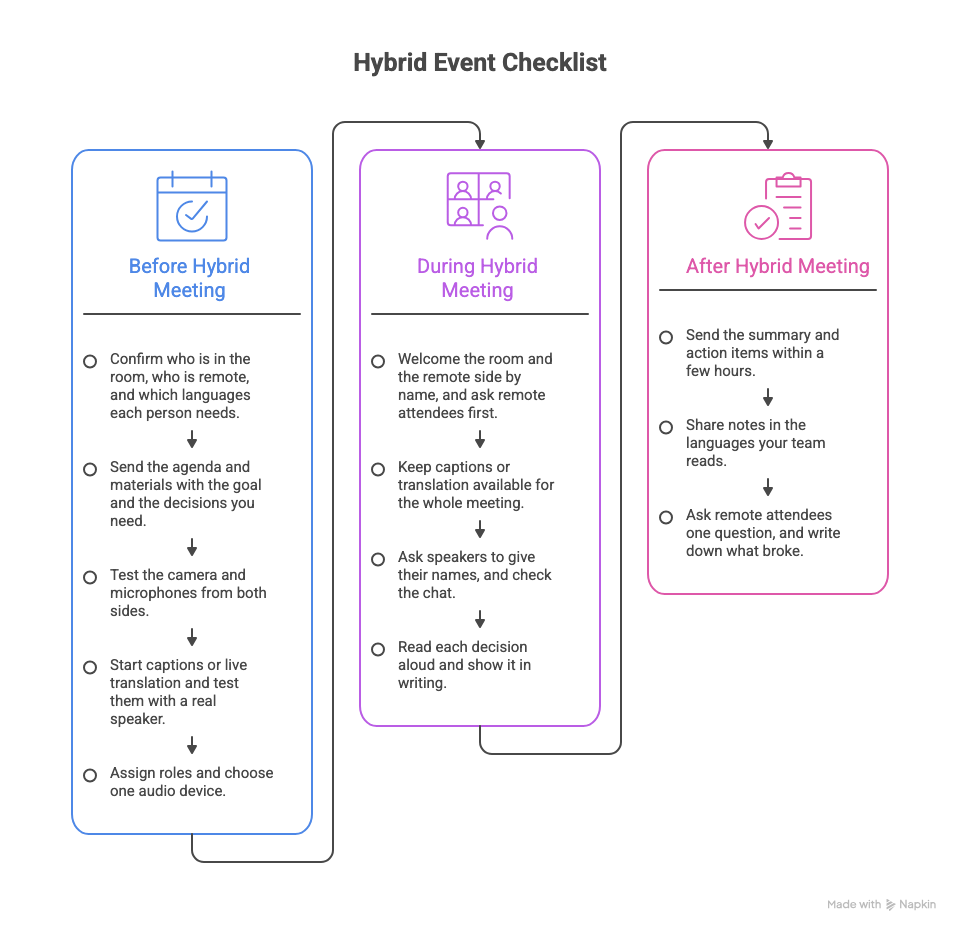
The hybrid event checklist works in three passes. Before the meeting, you need to confirm attendees, languages, and equipment. During it, the goal is to protect the remote experience and record decisions. After it ends, you need to send notes, confirm action items, and fix whatever did not work well during the meeting.
Before Hybrid Meeting
- Confirm who is in the room, who is remote, and which languages each person needs. This decides whether you need captions or translation, and it is far easier to arrange before the meeting than during it.
- Send the agenda and materials with the goal and the decisions you need.
- Test the camera and microphones from both sides. Sit in the farthest seat, speak, and ask a remote colleague what they saw and heard.
- Start captions or live translation and test them with a real speaker. Check that the QR code and link work on both a phone and a laptop.
- Assign roles and choose one audio device. You need a facilitator, a chat watcher, and a note-taker. Other laptops in the room join muted to avoid echo.
During Hybrid Meeting
- Welcome the room and the remote side by name, and ask remote attendees first. This gives them a turn before the conversation moves on.
- Keep captions or translation available for the whole meeting. Don't switch them off partway through.
- Ask speakers to give their names, and check the chat. Read important chat messages aloud and pause for online questions.
- Read each decision aloud and show it in writing. Include the date, the owner, and the number, so nothing depends on how it sounded.
After Hybrid Meeting
- Send the summary and action items within a few hours.
- Share notes in the languages your team reads. Send each person the version they read most comfortably.
- Ask remote attendees one question, and write down what broke. "Did you feel included?" is enough. Note any audio dropouts or caption problems and fix them before the next meeting.
How to Run the Best Hybrid Meetings
Running the best hybrid meeting means nobody on the screen has to wonder what they missed. That comes from equipment that covers the whole room, a facilitator who checks the remote side as often as the room, and a habit of writing decisions down instead of trusting memory. When attendees also speak different languages, shared captions and translation make a meeting easy to follow for everyone.
You can start with these five steps, and you will notice the difference in one meeting:
- Test the audio from both sides before you begin, sitting in the farthest seat.
- Hear from remote attendees first whenever you ask for questions or opinions.
- Give everyone the same captions in their own language if your team speaks more than one language.
- Confirm decisions aloud and in writing, including dates and numbers.
- Send notes right after the call in the languages people read.
If your team speaks different languages, try JotMe on your next hybrid meeting. JotMe gives you live translation, shared captions, and multilingual meeting notes in one workflow. Start for free and share a QR code at your next hybrid meeting.
FAQs
How does a hybrid meeting work?
In a hybrid meeting, some attendees sit together in a room while others join by video or audio from another location. A room camera and microphones capture the physical room so remote attendees can see who is present and hear what they are saying.
What makes a hybrid meeting effective?
An effective hybrid meeting has clear audio, a written agenda, and a facilitator who treats remote attendees as equals. It also produces a written record of decisions and action items, so the result does not depend on who was in the room.
When should you avoid a hybrid meeting?
Consider a fully virtual meeting when most participants are remote, the work depends heavily on shared digital documents, or the physical room adds little value. Consider asynchronous collaboration when the discussion does not require real-time participation.
What is the difference between a hybrid meeting and a virtual meeting?
In a virtual meeting, every participant joins remotely, so everyone has the same experience. In a hybrid meeting, some people share a room, and others join online, which makes the experience uneven by default. Hybrid meetings need extra planning: room audio, camera placement, and a facilitator who watches the remote side.
What are the challenges of running a hybrid meeting?
The main challenges of running a hybrid meeting are unequal participation, weak audio and camera coverage, and remote attendees who can't tell who is speaking. Side comments and whiteboard sketches do not reach the remote participants, and decisions get remembered differently by the in-room participants and the remote attendees. Language differences also add another layer when attendees follow the meeting in their second language.
How can I translate a hybrid meeting live for people in the room and online?
You can translate a hybrid meeting live by using an AI translation tool that converts spoken audio into translated captions or speech. For example, JotMe lets an organizer start live translation, select the languages, and share the translated captions through a link or QR code. People in the room can scan the code, while remote attendees can open the shared link.
How do I translate English to Japanese live in a hybrid meeting?
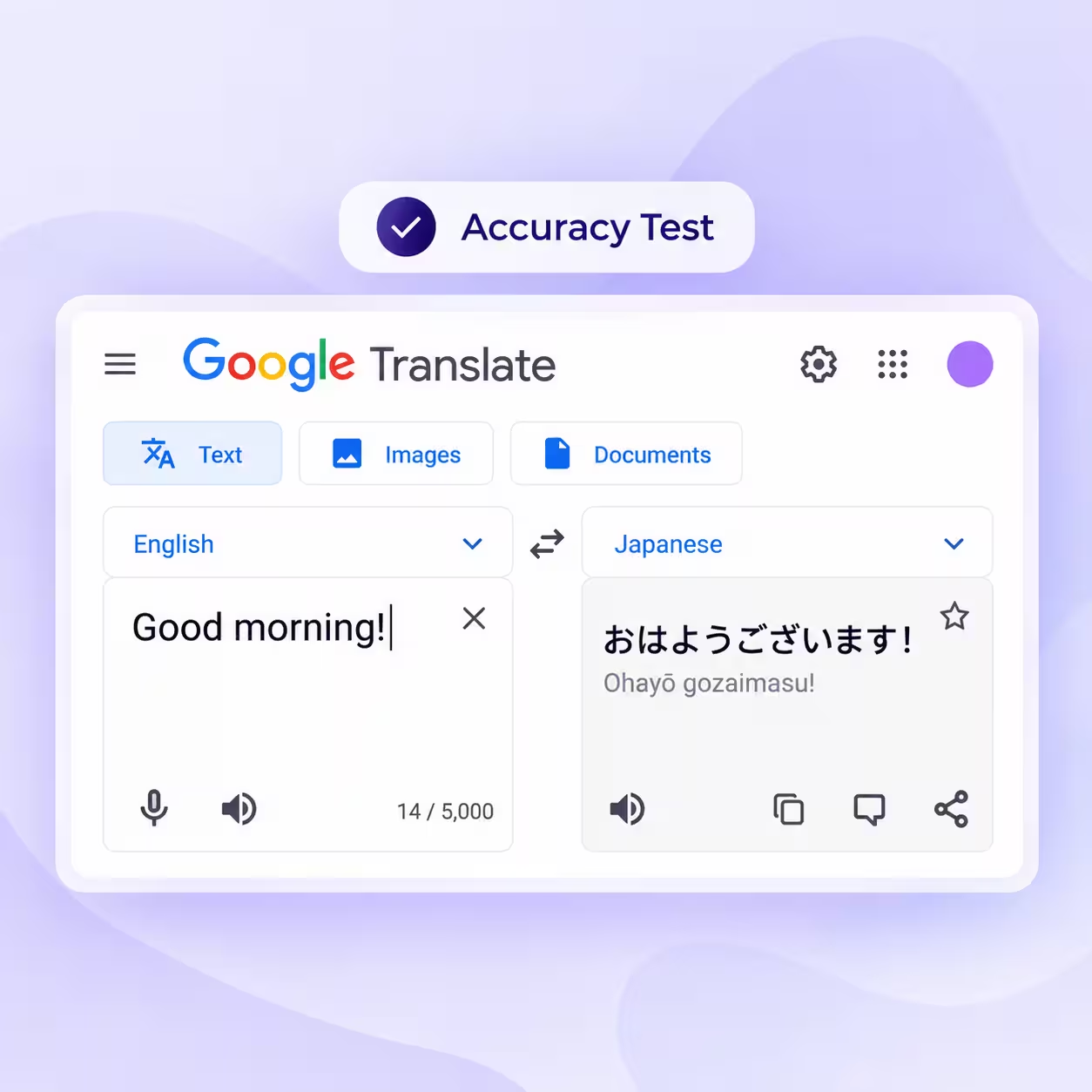
To translate English to Japanese live in a hybrid meeting, set English as the spoken language and Japanese as the caption language in JotMe before the meeting starts, then share the caption link. Japanese-speaking attendees can read English to Japanese live translations on their own devices. Japanese to English translation works the same way, and JotMe can produce a Japanese transcript with an English translation afterward.
Can JotMe work as a live audio translator and voice translator for Spanish and English?
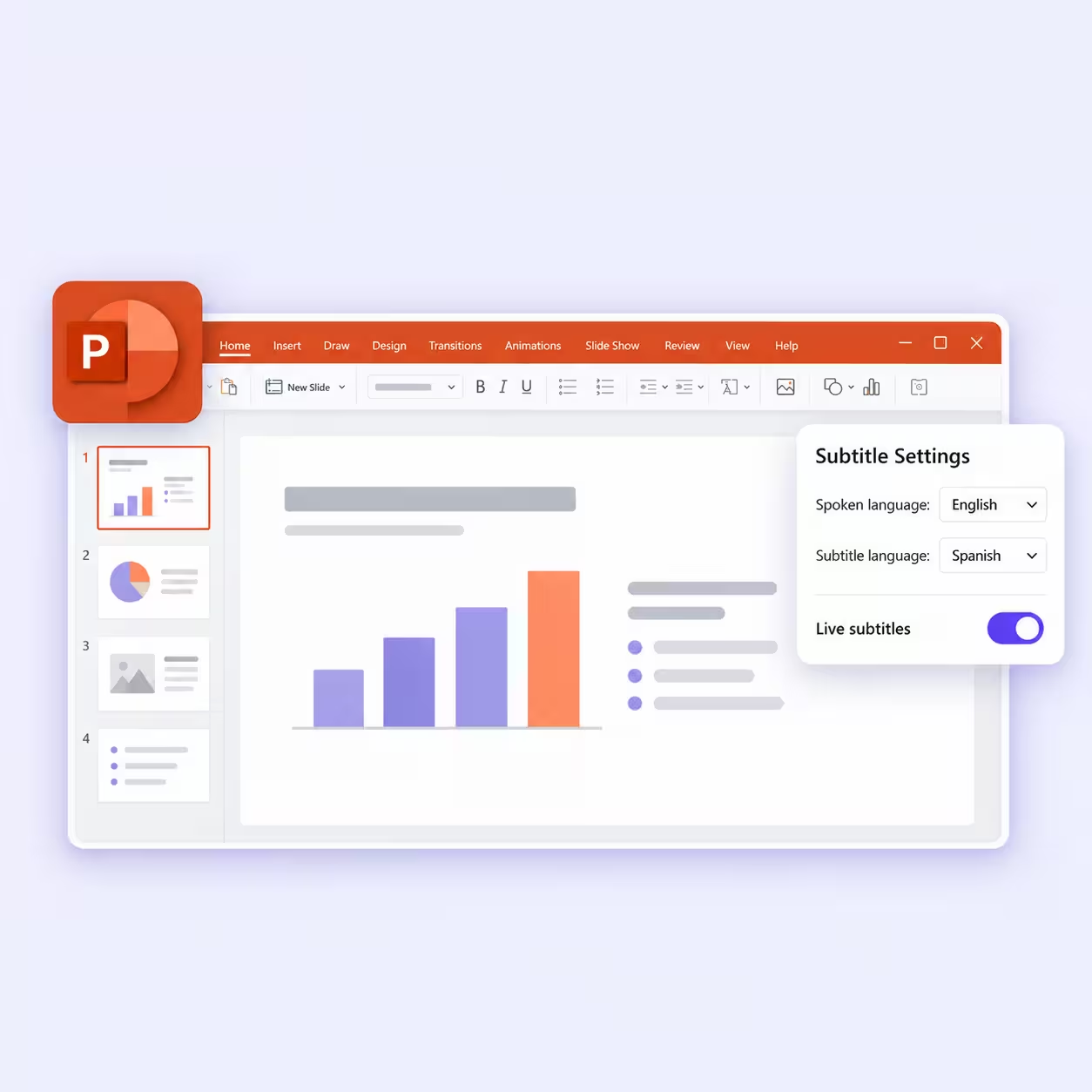
Yes. JotMe supports live translation between Spanish and English in both directions, including Spanish to English live translation and English to Spanish live translation. It supports real-time speech-to-speech translation with AI voice output for Spanish and English. Its voice translator suits people who prefer to listen instead of read.
Last updated on
October 2, 2026
Follow us on social media: