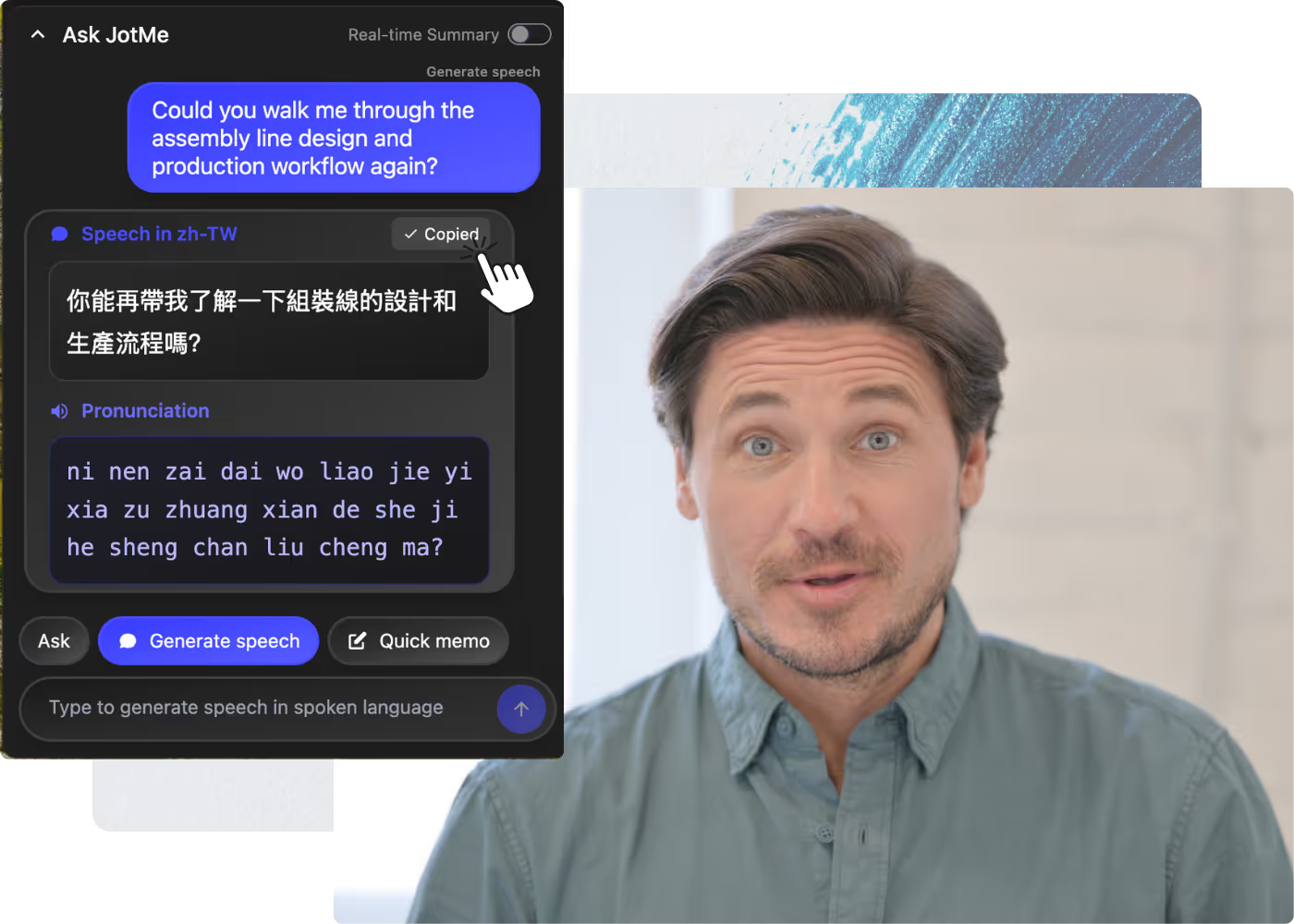
Accurate live translation, multilingual transcription, meeting recordings, AI note taker, custom vocabulary, document translation, multilingual messaging, and an AI voice keyboard.
How to translate, transcribe, and take meeting notes with JotMe?
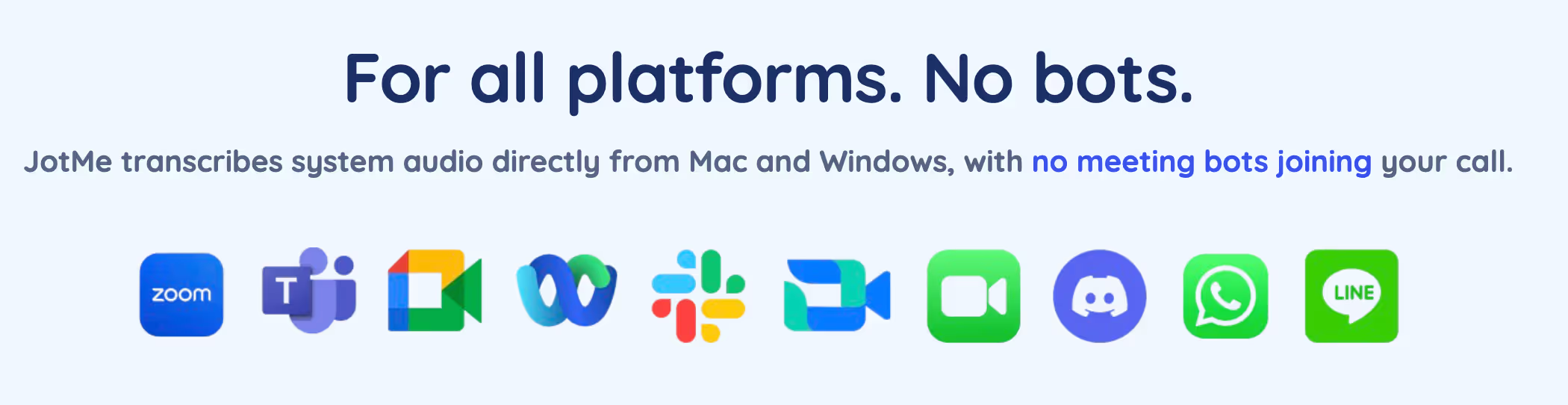
In person or online on Zoom, Microsoft Teams, Google Meet, or Webex. JotMe has you covered. Open JotMe, click Start to translate and transcribe in real time, then click Stop to generate AI meeting notes.
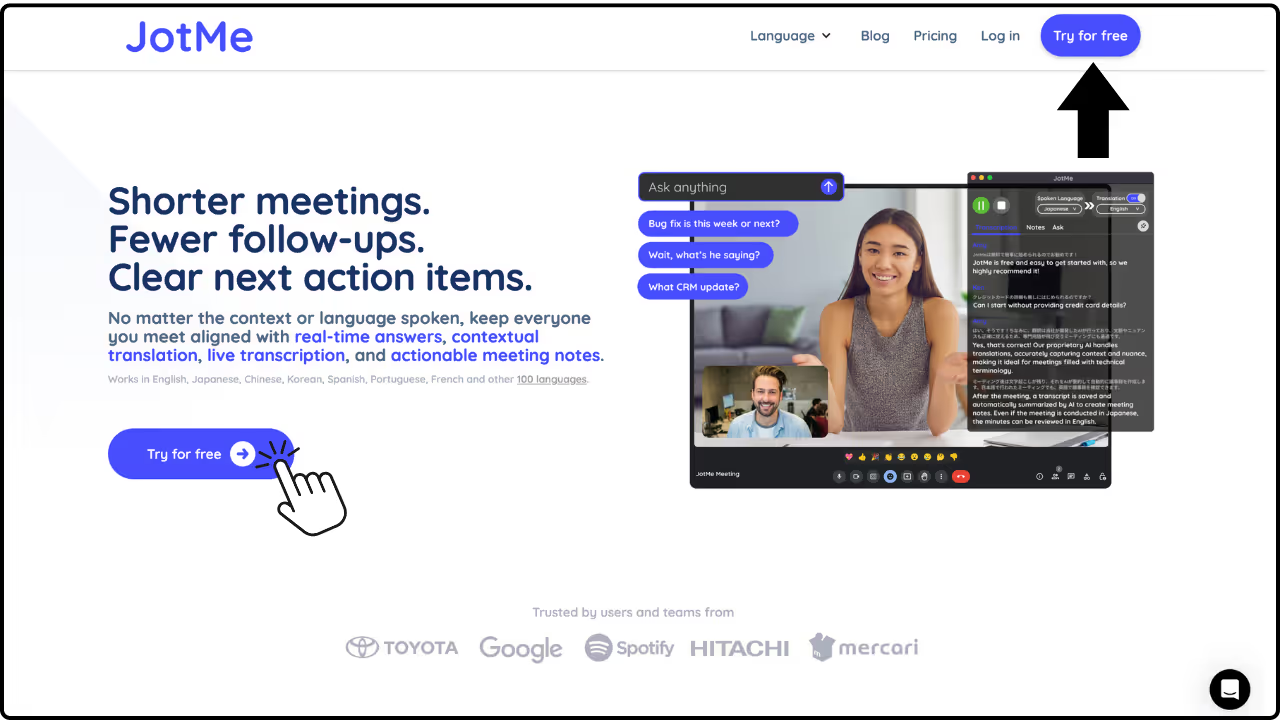
Choose your app and download it from here. Alternatively, you can use the button in the top-right corner of the page.
2. Start Your Meeting
Begin your meeting as usual, Google Meet, Zoom, Teams, or in person, etc. (The Chrome Extension App works only with Google Meet.)
3. Launch JotMe
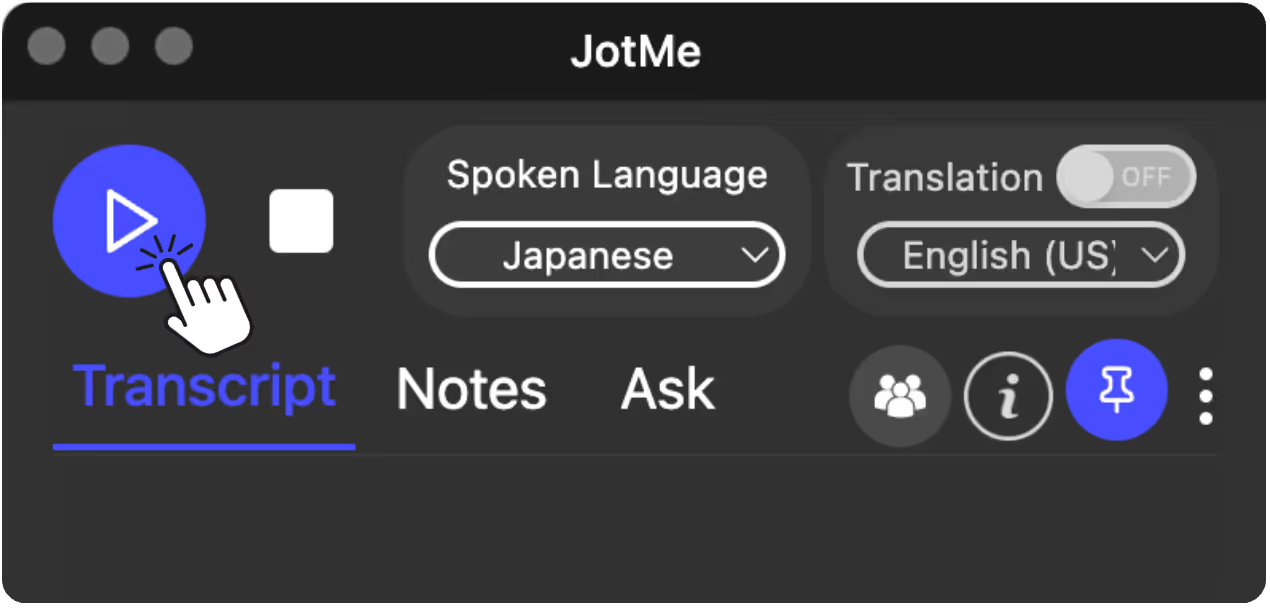
Desktop App: Open the app and click the Start button.
Chrome Extension: It automatically joins your Google Meet. No action required.
4. Customize Your Setup
During the meeting, select the Spoken Language and Translation Language to fit your needs. See all the available language here.
5. End the Meeting
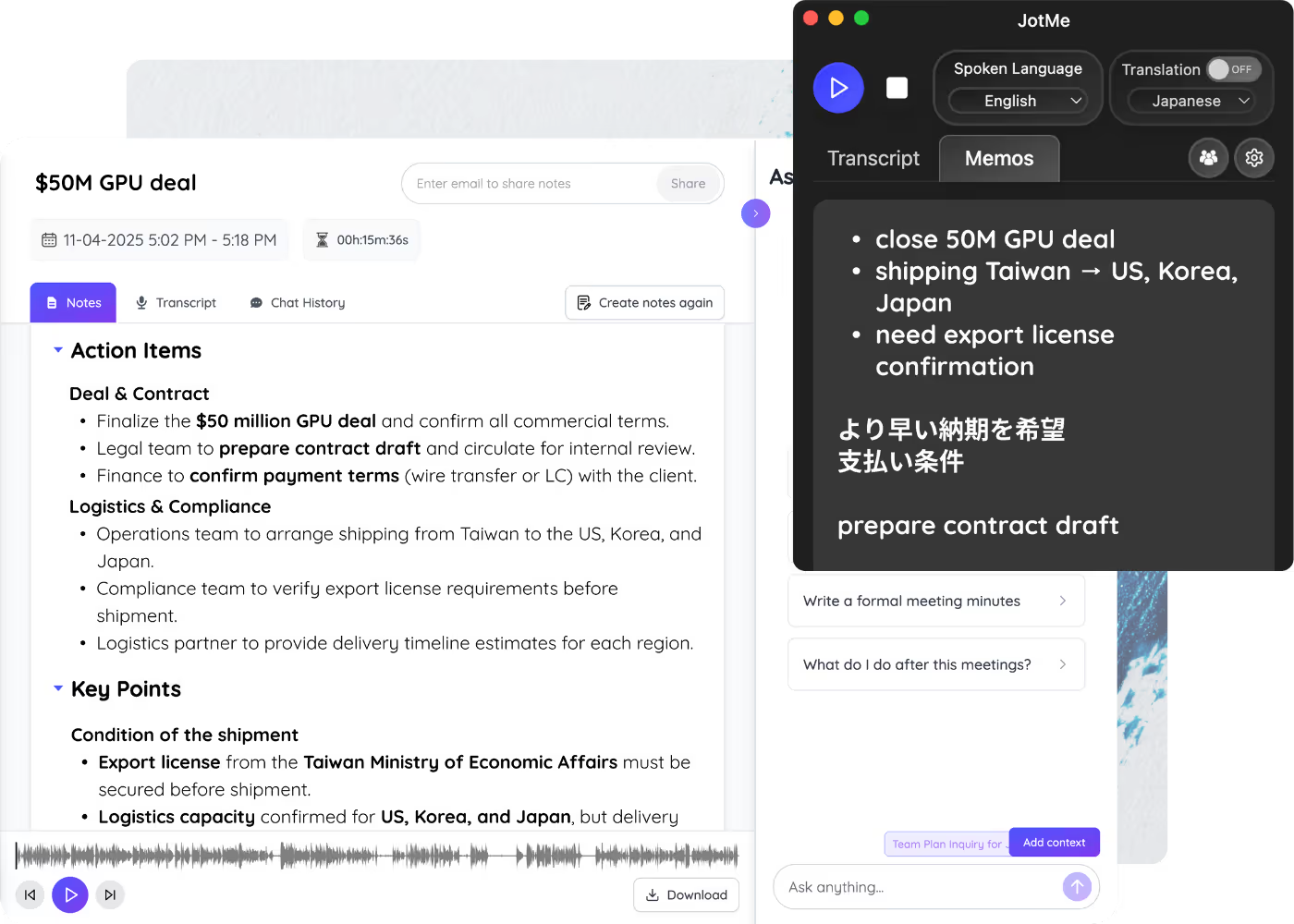
Desktop App: Click the Stop button to generate AI meeting notes and store your meeting recording.
Chrome Extension: It will do this automatically when your Google Meet ends.
What can you do more with Desktop App?
📝 Take Notes During Meetings
Leave memos during live meetings, and JotMe AI will personalize your meeting notes based on what you wrote. (Also available on the Chrome Extension as well.)
🌍 Simultaneous Multilingual Transcription
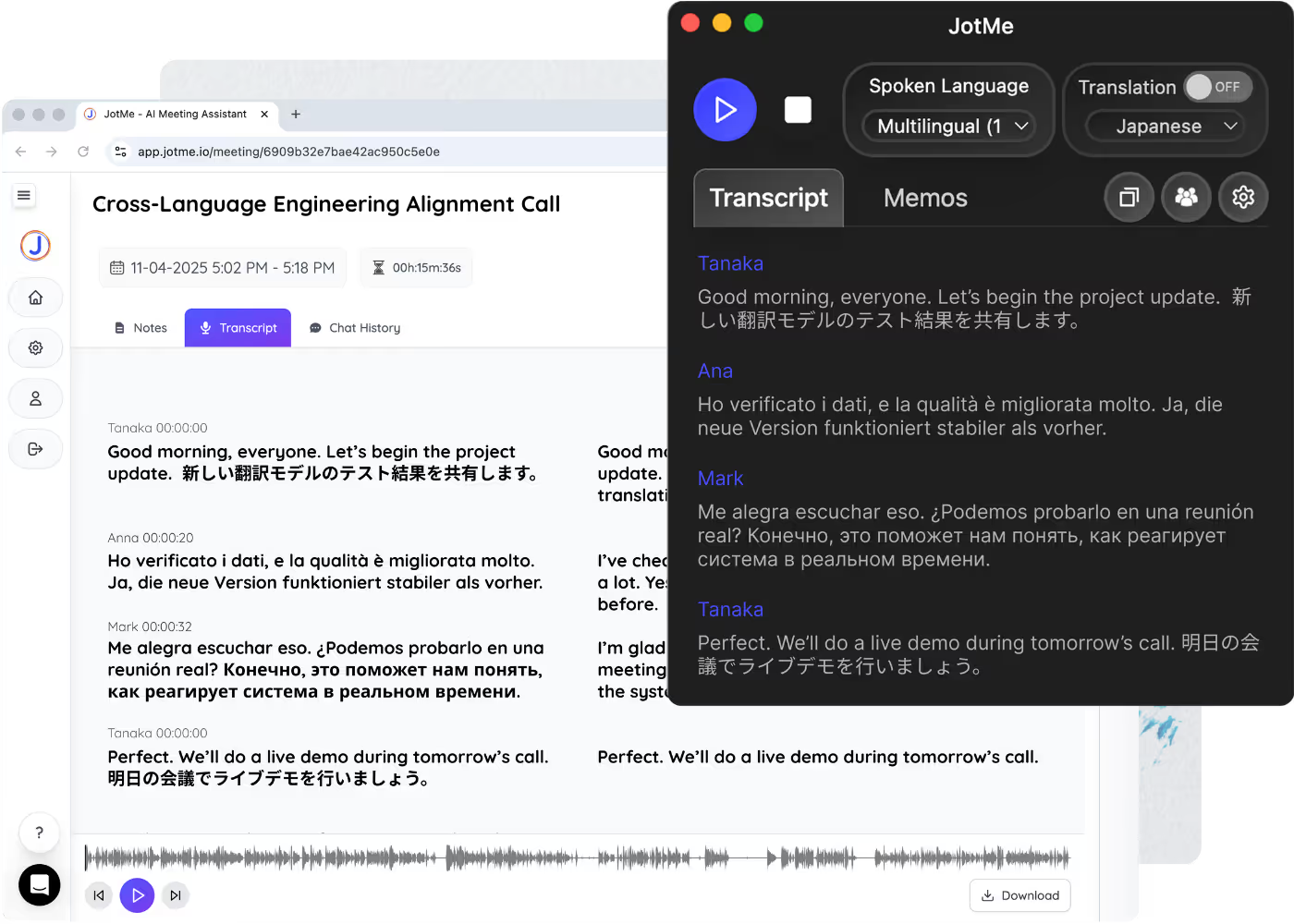
Supports English, Japanese, Spanish, French, German, Hindi, Russian, Portuguese, Italian, and Dutch — all at once, simply by selecting “Multilingual” as the spoken language.
👥 Share Live Translation Minutes(Premium Plan Only)
Share live translation for internal meetings, external meetings, or live events. You can choose from four ways to share: code, URL, QR code, or subtitles through your camera.
Share with Code
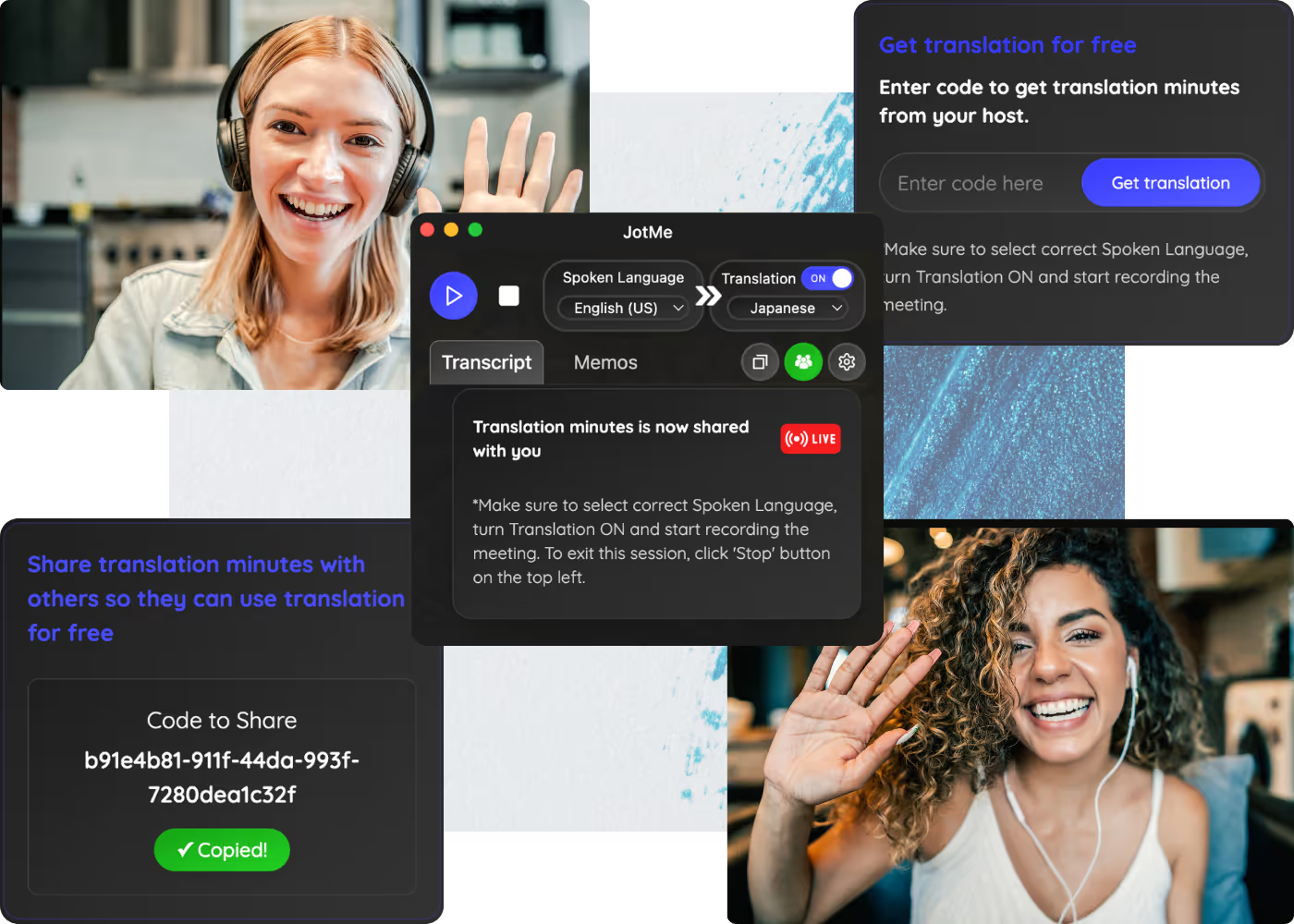
Share AI live translation with your teammates by using a share code.
What the host needs to do
Turn on translation to generate a share code.
Send the code to the person you want to share translation minutes with.
Once they connect, their account email will appear on your screen. They can now use your translation minutes.
What participants need to do
Enter the share code and click “Get Translation.”
Once connected, you will see a green share icon with the message “Translation minutes are now shared with you.”
Select your preferred language and click Start to view the live translation.
When the meeting ends, click Stop to generate AI meeting notes.
Share with URL
Share a link with online participants so they can view the live translation directly from their browser. No download or account creation is required. See how it works here.
Share with QR Code
Share live translation with in-person participants by displaying a QR code. Participants can simply scan the code to view the translation instantly. See how it works here.
Share with Subtitle Camera
Display AI subtitles directly on your camera feed. This option works best for webinars, presentations, or meetings where a few speakers are presenting to an audience. See how it works here.
💬 Ask Anything About the Meeting
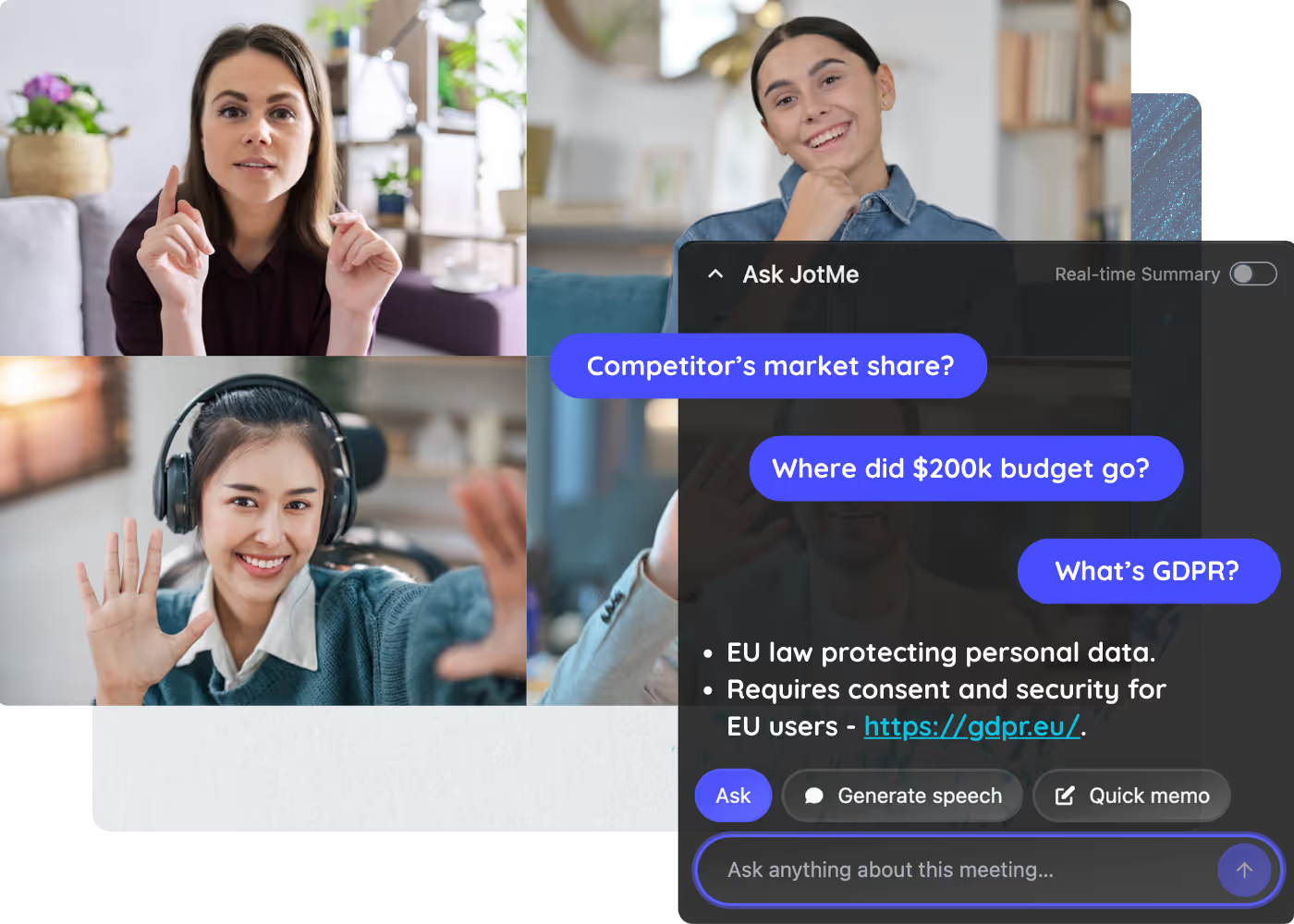
Get instant answers during your meeting. You can ask anything during the meeting. Sky is the limit here.
📌 Real-time summary
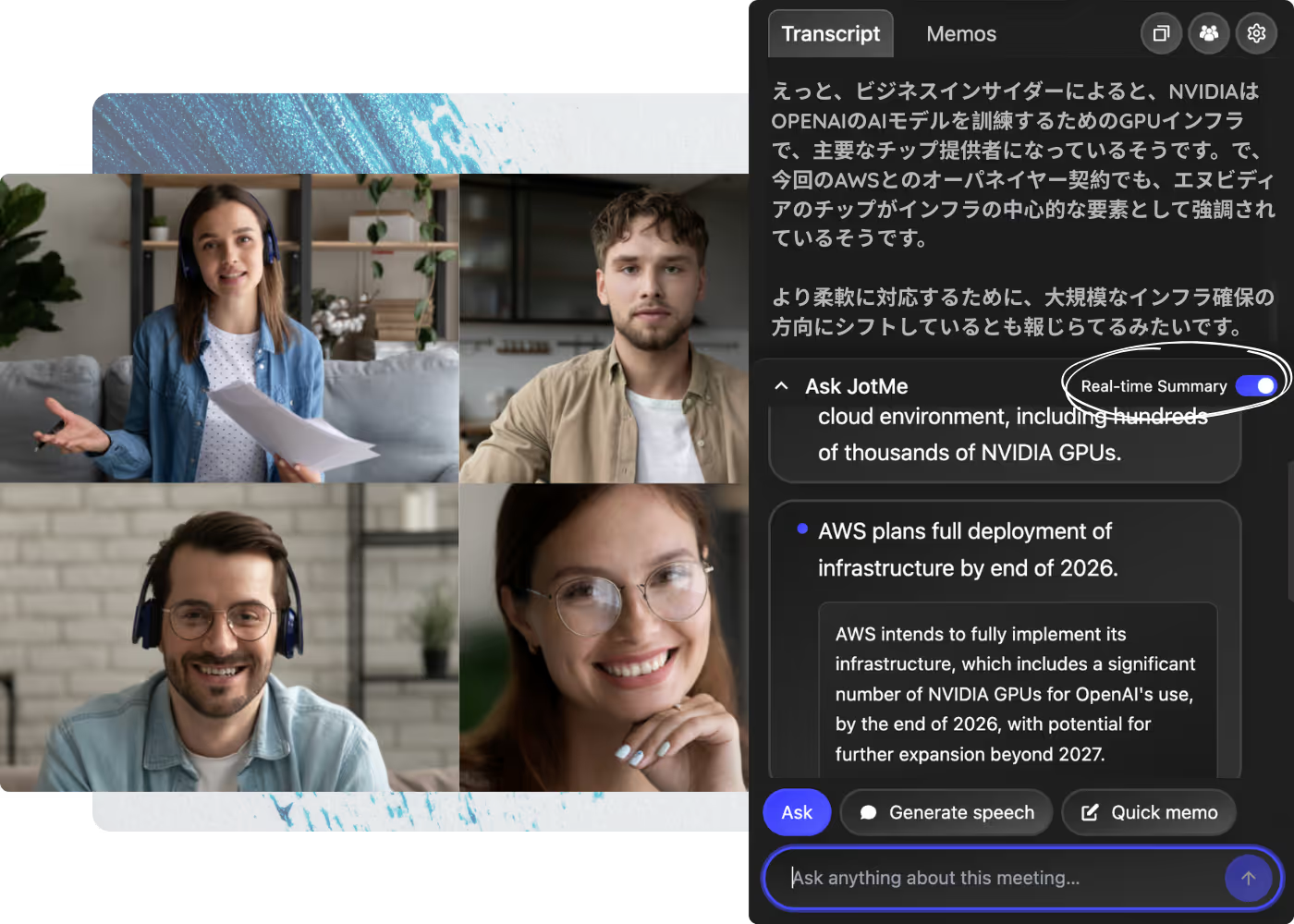
Easy-to-digest summaries and translations for faster understanding. Simply turn on the “Real-time summary” toggle to receive summaries in your “Translation Language” during the meeting. Click any summary to get AI explanation - more insights and context from the full meeting transcript.
🗣️ Speech Generation
Click the “Generate speech” button to create a live speech script and pronunciation. Use it when you want to speak in a language you’re not familiar with during the meeting. You can also copy and paste the text to silently share it in the meeting chat, slack or other internal messaging system.
How does credits get consumed?
Live translation minutes
Translation is ON during the meeting.
Real-time summary is ON during the meeting.
Transcription minutes
When you are transcribing your meetings (speech-to-text without translation).
AI credits (consume 1 AI credit each)
AI meeting notes is generated.
Generate speech in the meeting.
Use "Ask JotMe".
Translate transcript.
Translate meeting notes.
AI Translation/Chat token
Use AI text-to-text translator
From Web Application
From Chrome extension popup
📱 Mobile app is ready to download!
Click “Try for free” anywhere on the page to download the app.





.png)