
How to Stream GTA VI on PS5 to Discord Easily (Step-by-Step Guide)

Quick Answer
Rockstar Games started pre-loading Grand Theft Auto VI (GTA 6) on November 10, 2026, for players who pre-ordered the game digitally. You can start playing Grand Theft Auto VI (GTA 6) on November 19, 2026. If you're planning to stream GTA VI from your PS5 to Discord and play with friends watching, you'll need a PC or Mac. If your friends speak different languages, you can use JotMe to translate multilingual Discord voice chats. Simply download the JotMe desktop app, open it alongside Discord, select the spoken language (or Basic → Multilingual for its 10 supported spoken languages), choose the language in which you want to read the captions, and start live translation after granting the required audio permissions. JotMe will display live translated captions as your friends talk, helping everyone follow the conversation without switching languages.
Streaming GTA VI on PS5 to Discord takes an extra piece of hardware: a Windows PC or Mac. The PS5 joins Discord voice channels on its own, yet its Discord integration carries no video, so the game's picture has to travel through a computer before your friends can watch it in a voice channel.
Rockstar launches GTA VI (GTA 6) on November 19, 2026, and the PlayStation Store listing describes it as a single-player experience with Remote Play support. For most friend groups, launch week on Discord will look like a watch party: the host plays on the PS5 while the rest of the voice channel follows the story live.
Pick a route based on the gear you already own:
- PS Remote Play and Discord Go Live: This route costs nothing extra if you own a PC or Mac. Sony's Remote Play app mirrors the PS5 in a window, and Discord shares that window with the voice channel.
- Capture card and Discord Go Live: This route can provide a high-quality picture and low-latency HDMI passthrough to your TV, depending on the capture card and settings. A capture card copies the PS5's HDMI signal into your computer, and you share the card's preview window.
- PS5 Broadcast and a Discord link: Of these three routes, this is the one that skips the computer. The PS5 streams to YouTube or Twitch while everyone talks through Discord voice chat on the console, and you post the stream link in your server.
The checklist below covers what each route needs before launch night.
What You Need to Stream GTA VI From PS5 to Discord?
The PS Remote Play route works for GTA VI because its PlayStation Store page lists the game with "Remote Play supported," next to offline play and a 1 player count.
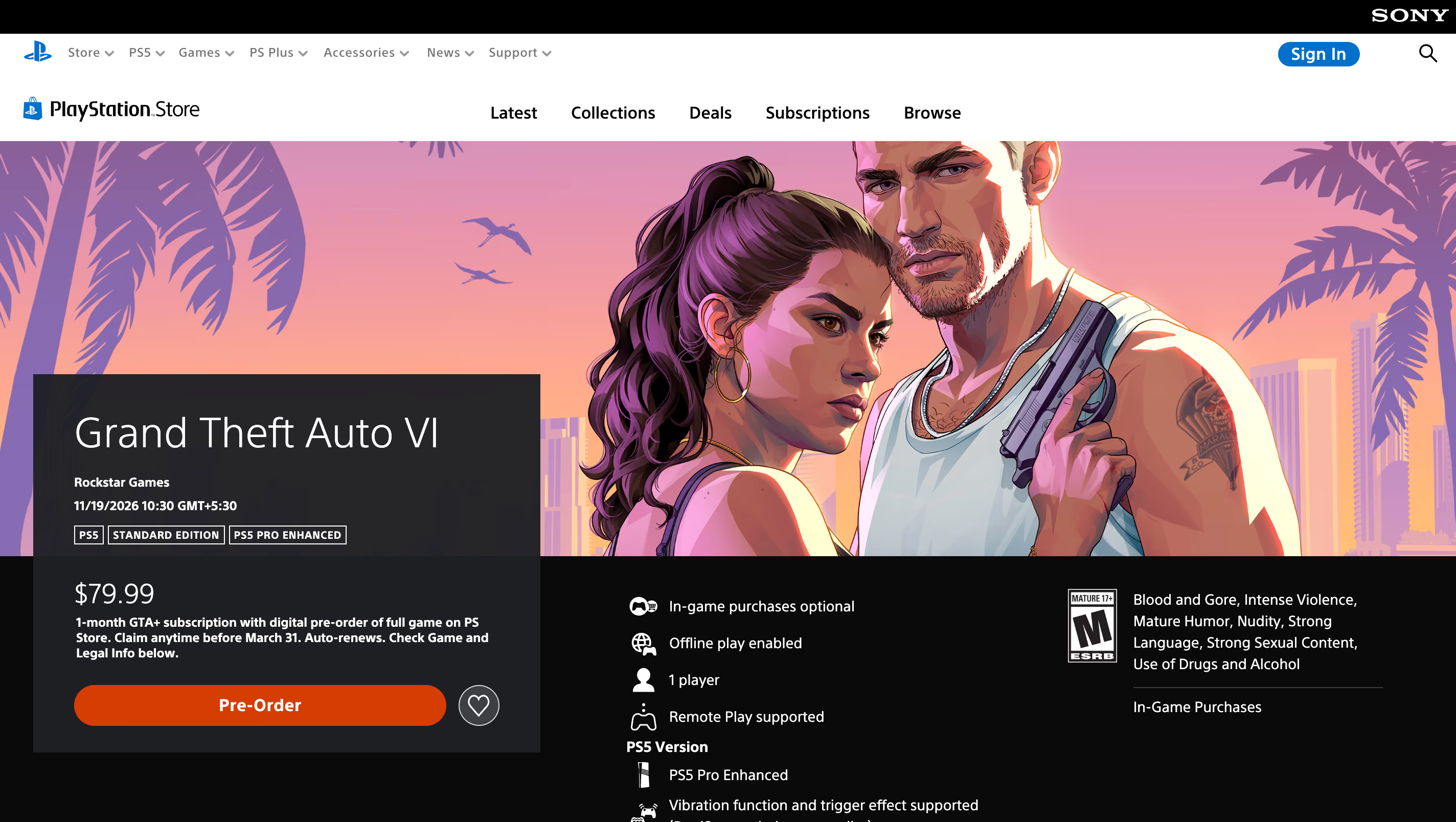
That 1 player count shapes the whole plan. Your friends watch your run in the voice channel instead of joining your session, so the Discord stream becomes the shared part of launch week. We recommend PS Remote Play for most squads, then a capture card once you care about lag.
| Setup | Extra gear | Picture on Discord | Delay while you play | Best for |
|---|---|---|---|---|
| PS Remote Play + Go Live | PC or Mac, USB cable for the DualSense | Free: Up to 720p at 30fps. Nitro: Up to 4K at 60fps, depending on the eligible subscription and streaming setup. | Remote Play streams the console over your home network, so inputs take an extra hop | Squads that want a free setup |
| Capture card + Go Live | Capture card, two HDMI cables, USB cable, PC or Mac | Free: Up to 720p at 30fps. Nitro: Up to 4K at 60fps, depending on the eligible subscription and streaming setup. | Your TV receives the HDMI passthrough signal; latency depends on the capture card and display | Streamers who care about lag and image quality |
| PS5 Broadcast + Discord link | YouTube or Twitch account linked to PSN | Set by YouTube or Twitch | You play on the TV directly, and viewers watch with a short broadcast delay | Squads without a computer |
The best way to stream PS5 gameplay to Discord depends on your equipment. PS Remote Play is suitable if you already have a Windows PC or Mac and want a free setup. A capture card is better if you want to play directly on your TV while sharing the gameplay through your computer. If you don't have a computer, you can broadcast to YouTube or Twitch and share the link in Discord.
Install the Discord desktop app on your computer before starting. According to Discord's Go Live guide, Discord supports application audio sharing on Windows and macOS desktop apps, Chrome, and mobile devices. However, you cannot adjust stream quality when streaming through a browser. Using the desktop app makes it easier to manage your stream settings and troubleshoot audio problems.
If friends from other countries plan to join the server, our comparison of Discord translator bots for text channels helps with the written side of the chat before the stream starts.
How to Stream GTA VI on PS5 to Discord With PS Remote Play
PS Remote Play is Sony's free app for controlling a PS5 from a Windows PC or Mac, and it turns the console's picture into a regular window that Discord can share. You set it up once, and later sessions reconnect to the same saved console.
- Turn on Remote Play on the PS5: From the home screen, go to Settings > System > Remote Play and switch on Enable Remote Play. To wake the console from rest mode, open Settings > System > Power Saving > Features Available in Rest Mode and turn on Stay Connected to the Internet and Enable Turning On PS5 from Network.
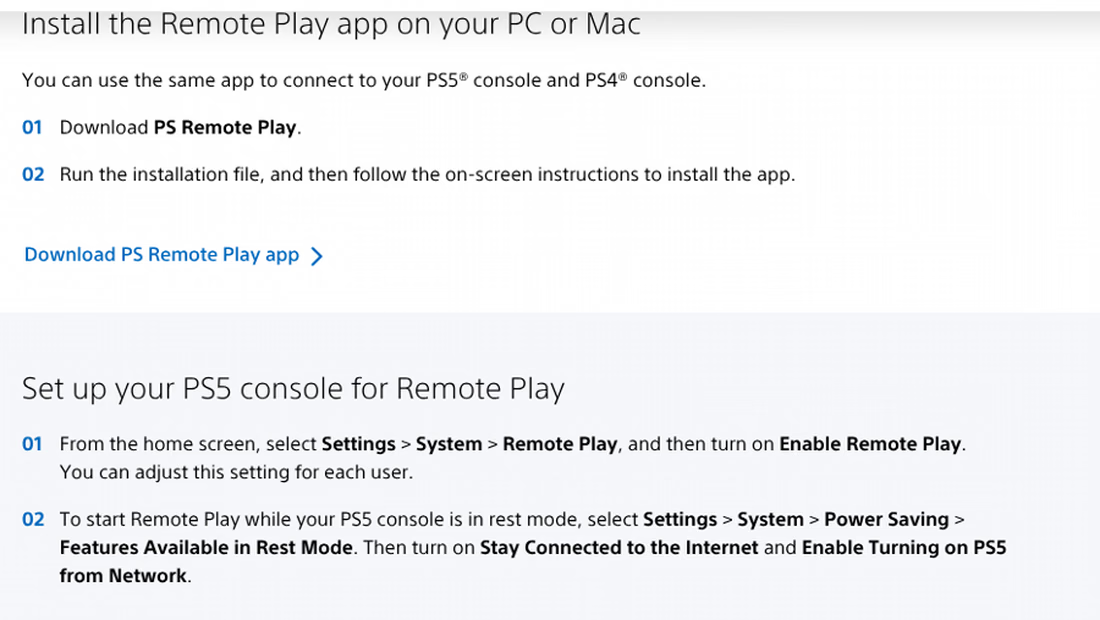
- Install PS Remote Play on your computer: Download the app from Sony's PS Remote Play page and run the installer. Sony lists Windows 10 (64-bit) or Windows 11 with a 7th Generation Intel Core processor or later, and it recommends upload and download speeds of at least 15 Mbps for the best performance, with 5 Mbps as the baseline.
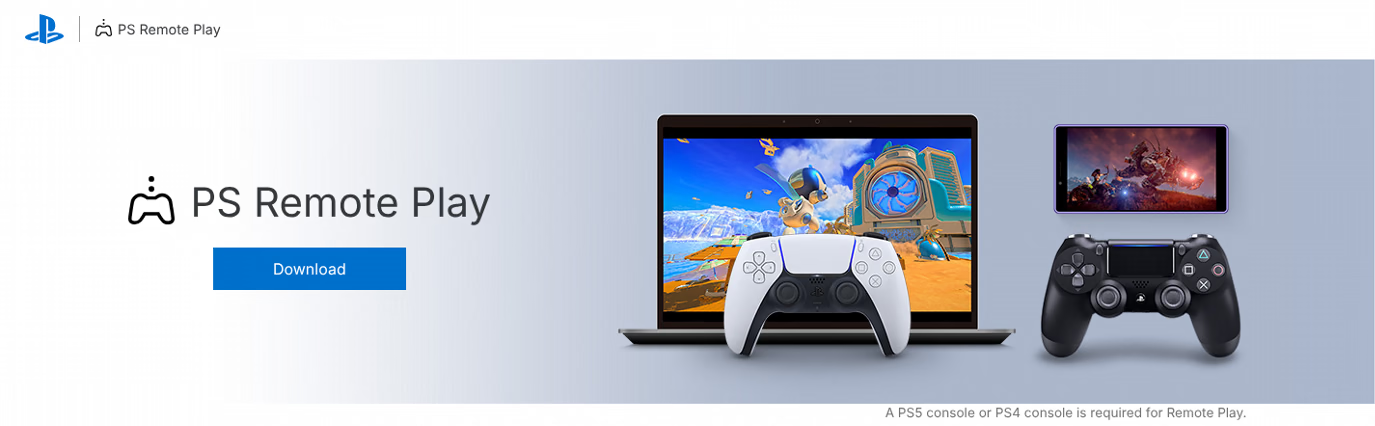
- Connect the controller and sign in: Plug the DualSense into the computer with a USB cable and open PS Remote Play. Sign in with the same PlayStation account you use on the console, then select PS5 so the app finds the console and connects to it.
- Match Discord quality to the Remote Play feed: For PS5, Remote Play adjusts video quality automatically to your network. Set the outgoing quality in Discord instead: a free account streams up to 720p at 30fps. Nitro's higher limit does not increase the detail of the incoming Remote Play feed.
- Launch GTA VI and join the voice channel: Start the game from the Remote Play window, then open the Discord desktop app and join the voice channel where your squad gathers.
- Share the PS Remote Play window with Go Live: Click the Screen icon in the voice status panel near the bottom left corner of Discord. Choose the PS Remote Play window from the application list and set the stream quality. Press Go Live to start the stream.
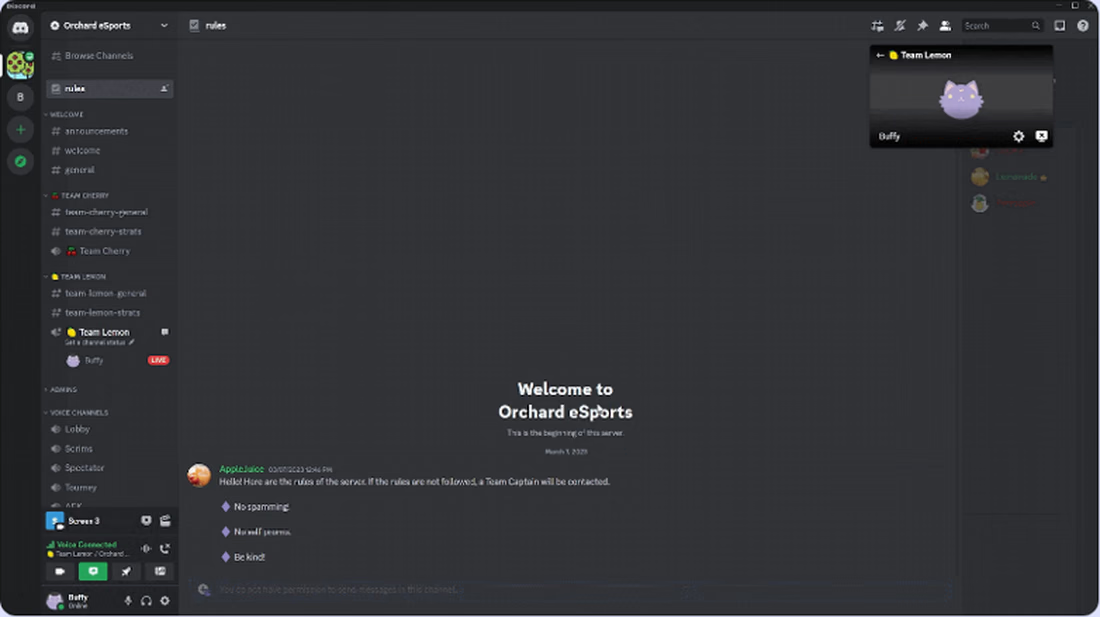
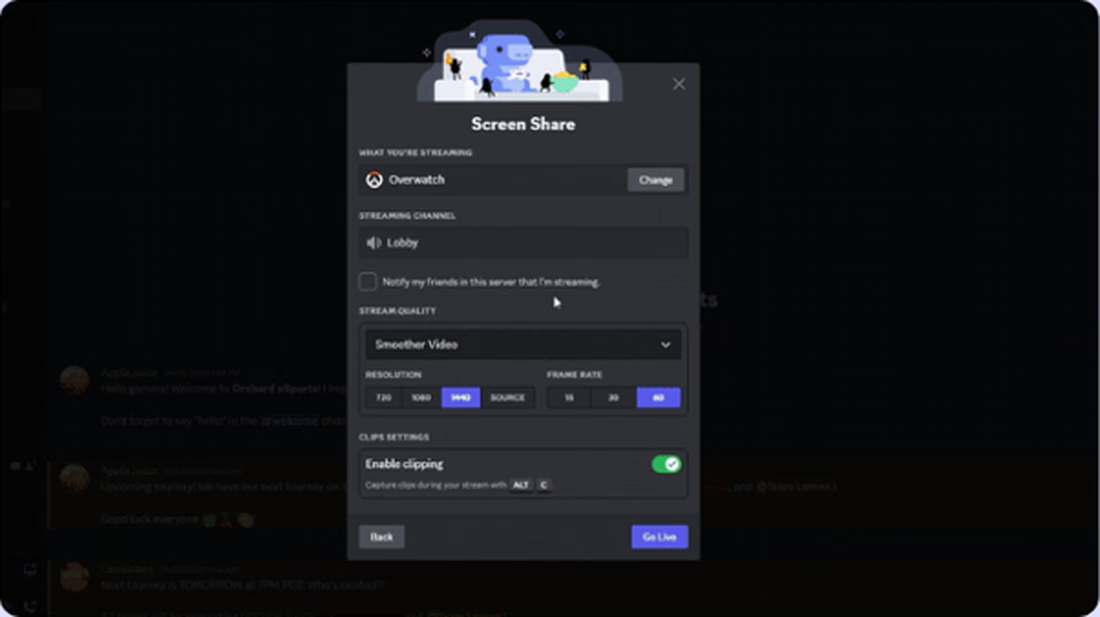
Discord caps free streams at 720p and 30fps, and Nitro subscribers can stream up to 4K at 60fps. A single Go Live stream holds up to 50 viewers plus the streamer, which leaves room for a full friend server on launch night.
How to Check the Audio Path for GTA VI Discord Streams?
The picture usually works on the first try. Audio is where PS5 Discord setups break, with friends hearing no game sound at all or missing your voice entirely.
The Audio Path Check needs no extra tools. Trace two sounds through your setup, the game audio and your microphone, and confirm that each reaches the voice channel exactly once.
| Setup | Where GTA VI audio comes from | Where your voice comes from | What breaks it | Fix |
|---|---|---|---|---|
| PS Remote Play | Game audio plays through the PS Remote Play app on your computer. When you share the window, Discord can include its application audio in the stream. | Your computer microphone in the Discord desktop app | Streaming from a browser that skips app audio, or leaving Remote Play on Speaker Muted | Use the Discord desktop app and keep Speaker Active in the Remote Play control panel |
| Capture card | The PS5's HDMI signal flowing into the capture card | Your computer microphone in the Discord desktop app | A headset plugged into the PS5 or the DualSense, which stops game sound from reaching HDMI | Plug the headset into the computer and monitor game audio through the capture software |
| PS5 Broadcast | The YouTube or Twitch stream itself | Discord voice chat on the PS5 through the controller mic or a headset | Expecting the broadcast to carry the squad chat, since PS5 broadcasts leave out Discord voice audio | Keep the conversation in Discord and ask viewers to wear headphones while the stream plays |
Run the full chain once before November 19 with these checks:
- Rehearse with a game you already own: GTA VI stays locked until launch day, so test Remote Play and Go Live with any installed PS5 game first.
- Share the app window, never the whole screen: A full-screen share can pull every computer sound into the stream, notifications included, while a window share keeps the audio limited to Remote Play.
- Use a wired connection for the console: Sony recommends at least 15 Mbps in both directions for the best Remote Play performance, and an Ethernet cable keeps that speed steadier than Wi-Fi during a long session.
- Check the server's Video permission: Discord ties screen sharing in a voice channel to the Video permission, so ask a server admin to enable it for your role before the party starts.
- Hide the Remote Play connection banner: When another user signs in to your PS5 during Remote Play, a "Remote Play connected" message appears on screen. Turn on Hide Remote Play Connection Status under Settings > System > Remote Play to keep it off the stream.
JotMe for Discord
Read your squad's voice chat in your own language
JotMe turns Discord voice chat into live translated captions, with no bot to invite. The platform advertises 200+ languages and dialects; available spoken and output languages depend on the selected model.
Try JotMe freeHow to Stream PS5 to Discord With a Capture Card
A capture card copies the PS5's HDMI output into your computer while passing the signal through to your TV. You avoid Remote Play's network delay while playing on the TV, although passthrough latency still depends on the card and display; the computer handles the Discord stream.
- Turn off HDCP first: Connect the PS5 straight to your TV without the capture card and go to Settings > System > HDMI. Switch off Enable HDCP there. Elgato's HDCP guide explains that the PS5 turns HDCP on by default, and a capture card shows a black image while it stays on.
- Wire the card between the console and the TV: Run an HDMI cable from the PS5 to the card's HDMI In port and a second cable from the card's HDMI Out port to your TV. Connect the card to your computer over USB.
- Open the capture preview: Open the capture card's compatible software, such as Elgato's capture software, or add the card as a Video Capture Device in OBS Studio. A windowed projector in OBS gives Discord a clean window to share.
- Go Live with the preview window: In the Discord desktop app, join the voice channel and click the Screen icon. Choose the capture preview window and press Go Live.
- Move your headset to the computer: Elgato notes that the PS5 stops sending game sound over HDMI when headphones connect to the console or the controller, which leaves the card silent. Plug the headset into the computer and listen through the capture software instead.
If you already stream to Twitch with a capture card, this route reuses the same wiring, and Discord becomes another window on your desktop.
How to Join Discord Voice Chat on PS5 and Stream Without a PC
If you don't have a PC or Mac, you can broadcast your PS5 gameplay to YouTube or Twitch and share the stream link in your Discord server. You can also join a Discord voice channel directly from your PS5, allowing your friends to talk to you while watching the broadcast separately.
- Link Discord to your PlayStation account: Press the PS button and open Game Base > Discord. Select Link Account and follow the on-screen prompts, or link from Discord under User Settings > Connections. If you linked the accounts before PS5 voice chat arrived, link them again to grant the voice permission, as PlayStation's linking guide describes.
- Join the squad's voice channel: Open the control center, select Game Base, go to the Discord tab, and pick your server. Choose the voice channel and select Join.
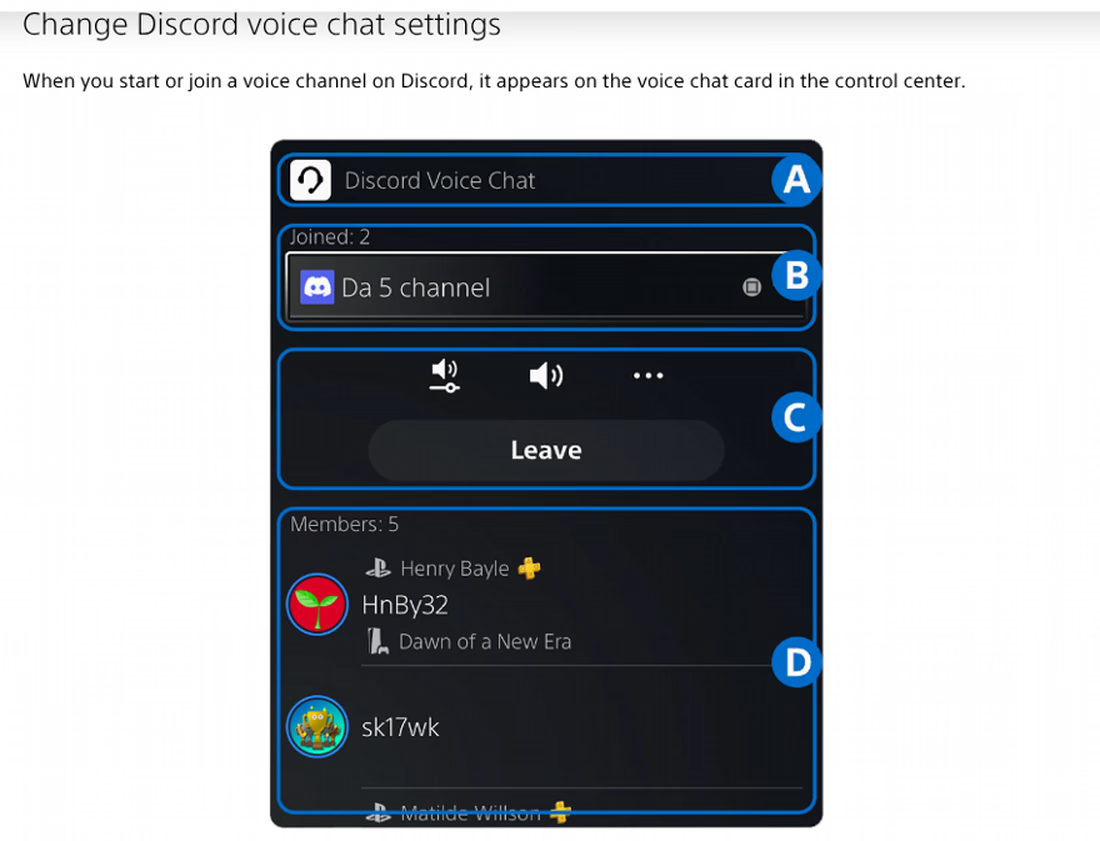
- Start a broadcast: Press the Create button and select Broadcast. Choose YouTube or Twitch and enter the broadcast details, then select Go Live. Some services require two-factor authentication on the linked account before the PS5 can broadcast.
- Post the link in your server: Paste the stream link into a Discord text channel so the squad can open it without leaving voice chat.
Two limits shape this route, and PlayStation's Discord voice chat page states both. Discord voice chat audio stays out of PS5 captures and broadcasts, so the YouTube or Twitch stream leaves out the Discord conversation while the squad hears you in Discord. The broadcast can separately include microphone audio if you enable it in the PS5 broadcast settings. You also can't stay in a Discord voice chat and a PS5 party voice chat at the same time, which rules out PS5 Share Screen while you talk on Discord.
The PS5 broadcast guide covers resolution and frame rate options for each service. Discord keeps adding console features, and our roundup of the latest Discord updates tracks what changed this year.
How to Translate Discord Voice Chat While You Stream GTA VI
Discord gaming servers often mix players from several countries, and a fast voice channel leaves anyone outside the main language behind. Text-channel translation does not translate a spoken voice conversation.
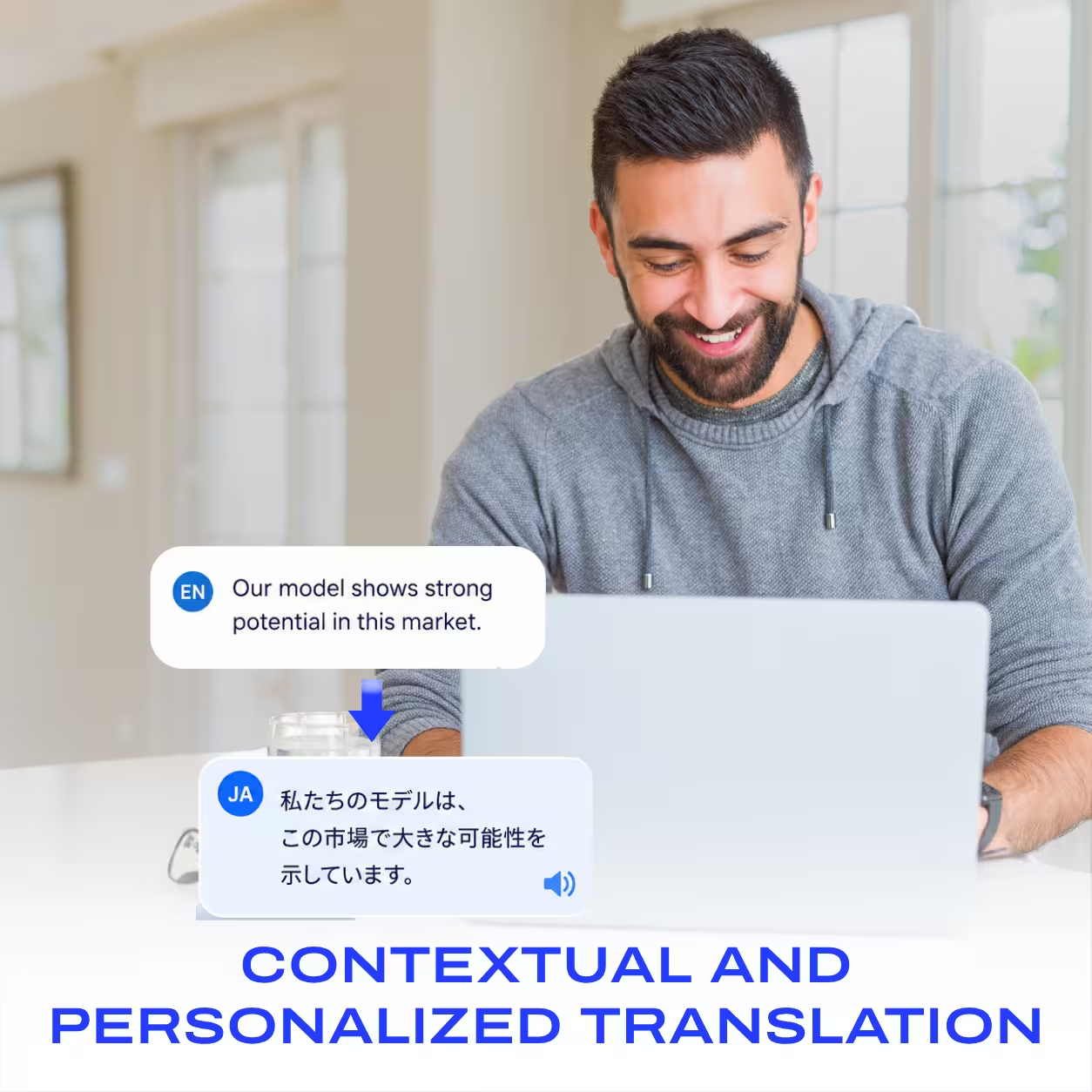
You can translate Discord voice chats while streaming GTA VI by running JotMe alongside the Discord desktop app. This is useful when your gaming group includes friends who speak different languages. Instead of asking everyone to switch to English or repeatedly explain what someone said, each participant can follow the conversation through translated captions in their preferred language.
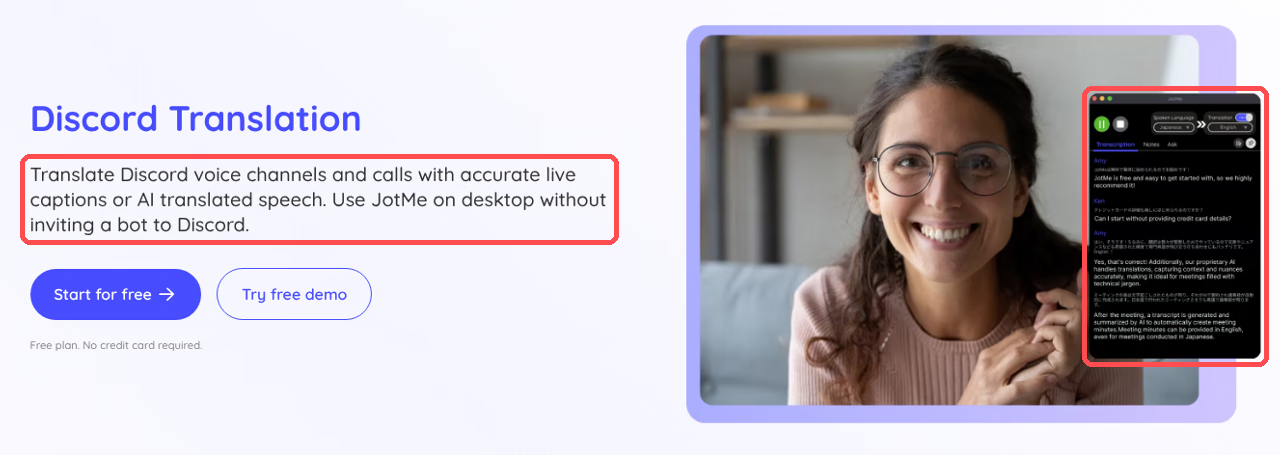
JotMe is a desktop app for Windows and Mac that captures audio from your computer and displays live translated captions. The platform advertises 200+ languages and dialects across 39,000+ language pairs, with spoken-language recognition and translation options depending on the selected model. Players can follow conversations without inviting a translation bot into their Discord server. Basic → Multilingual follows 10 supported spoken languages automatically, while Fast (Audio) detects 100+ spoken languages and has 13 output languages. Custom vocabulary is available in supported transcription modes.
JotMe works when the Discord voice conversation plays through your computer. In a PS Remote Play or capture card setup, you can run JotMe alongside Discord to capture the audio coming through your computer.
Keep in mind that this may include GTA VI's background music, sound effects and character dialogue along with your friends' voices. For clearer translations, use headphones and keep the game audio at a level that doesn't overpower the conversation. If you join Discord voice chat directly through your PS5, JotMe running on your computer won't capture that console audio.
- Install JotMe for Windows or Mac: Download the desktop app from our Discord translation page and sign in. The free plan includes live translation minutes and asks for no credit card.
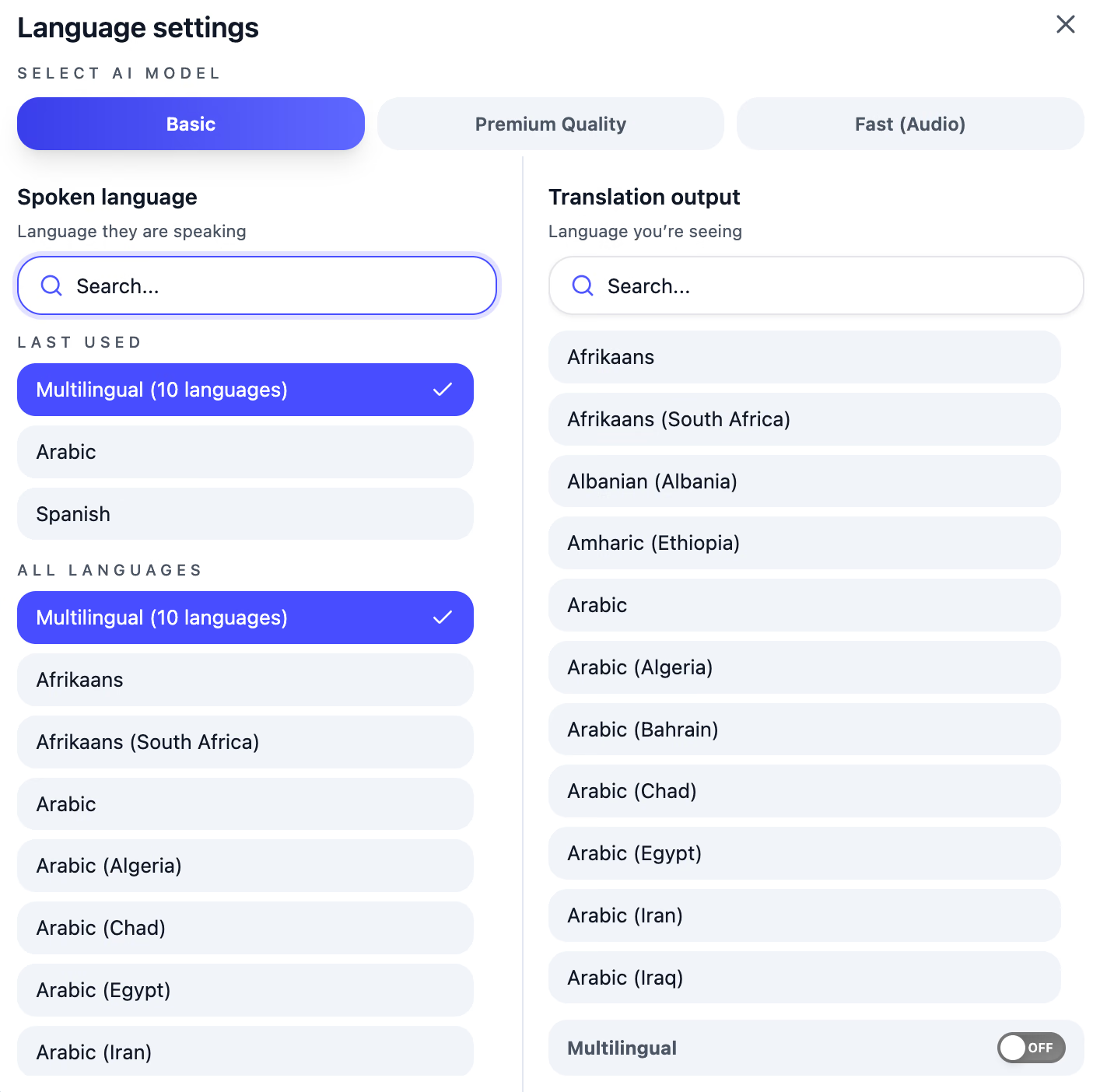
- Set the spoken language: Before starting the session, select the language your friends are speaking. If they switch among English, Spanish, French, German, Hindi, Russian, Portuguese, Japanese, Italian and Dutch, choose Basic → Multilingual. That mode follows these 10 languages automatically; other language combinations need a suitable supported model.
- Set your translation language: Choose the language in which you want to read the conversation, allow the required microphone and system-audio access, and click Start live translation. JotMe displays accurate live translated captions as the conversation continues. Voice-to-voice translation can speak translations aloud if you prefer to listen. Select Fast (Audio) before starting, choose one of its 13 output languages, and complete the appropriate audio-routing setup. Fast uses 5× minutes, including when translated speech playback is off.
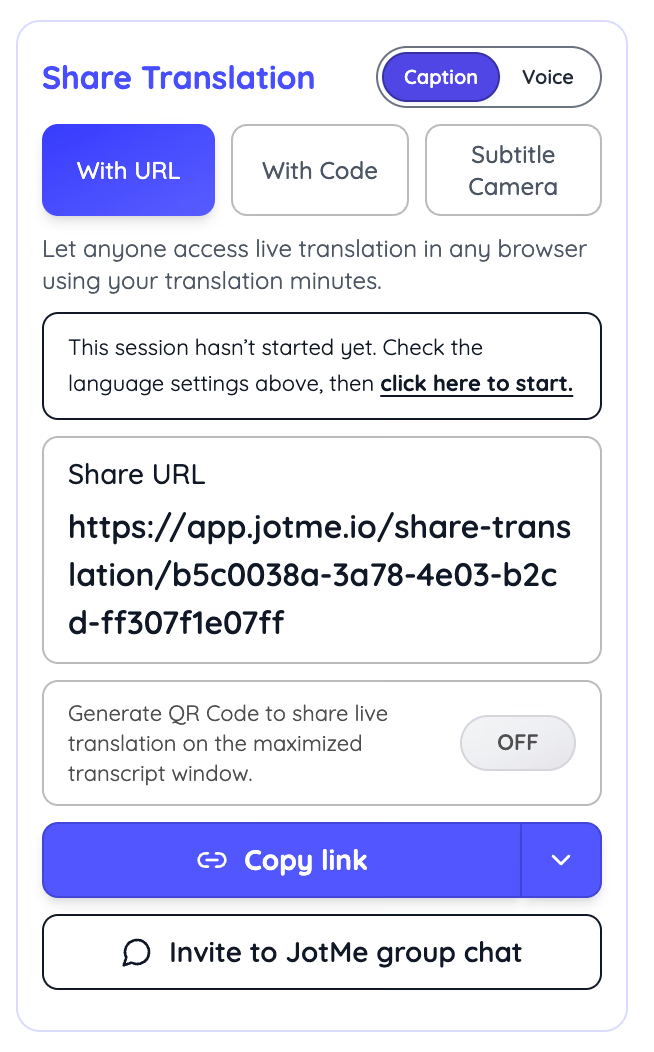
- Share the translation with the room: Use Share Translation to send a link or QR code through our live translation sharing feature. Each friend opens it in a browser and selects an allowed translation language, with nothing to install. Shared guests use the host's minutes; Fast sessions offer the same 13 output languages.
With system-audio capture enabled, JotMe can caption audio playing on your computer, including GTA VI's story dialogue in a Remote Play setup. A friend reading Japanese captions can follow a cutscene next to the squad's commentary, although voice chat produces cleaner captions than a chase scene with gunfire and radio music under the lines.
When your storage settings retain the session, JotMe saves its transcript and translation to your dashboard, giving you something to refer to after the call. A session configured to store nothing does not create a saved recording. This can help players catch up on discussions they missed or revisit information shared during the session. Our walkthrough on how to translate a Discord call covers the full desktop setup, and the Discord transcription page explains how saved transcripts work.
Don't let language differences interrupt your GTA VI sessions
Keep every friend in the GTA VI watch party, whatever language they speak
Whether your friends speak English, Japanese, German or another language, JotMe helps everyone follow the conversation with live translated captions.
Download JotMe freeChoosing Your GTA VI Discord Setup Before Launch Night
Start with PS Remote Play if you already own a PC or Mac. It costs nothing, and the Audio Path Check catches most audio problems before your friends join. Move to a capture card when the Remote Play delay starts to bother you, and keep the PS5 Broadcast route for nights when the computer is busy. Turn on Remote Play on your PS5 tonight and run a test stream with a game you already own.
If your squad mixes languages, set up JotMe's live Discord translation during that same test, so the captions are ready when GTA VI goes live on November 19.
Frequently Asked Questions
Can You Stream GTA VI Directly From a PS5 to Discord?
The PS5 has no built-in way to send video to Discord. Its Discord integration covers voice chat, and PlayStation ties Share Screen to PS5 party voice chat, so the game's video has to pass through a PC or Mac with PS Remote Play or a capture card before Discord can show it.
Does GTA VI Support PS Remote Play?
PlayStation Store lists GTA VI with "Remote Play supported" on PS5, so the PS Remote Play route is supported in principle once the game unlocks. Sony also warns that some games hide certain images during Remote Play, so run a short test once the game goes live.
Do You Need Discord Nitro to Stream GTA VI in 1080p?
Free Discord accounts stream at up to 720p and 30fps. Nitro raises the ceiling to 4K at 60fps. Use the desktop app to adjust stream quality; Discord does not offer those controls when streaming from a browser. A higher Discord setting does not add detail to the incoming Remote Play feed.
How Many Friends Can Watch a Discord Go Live Stream?
Discord allows 50 concurrent viewers on a Go Live stream, plus the streamer. Viewers have to stay in the same voice channel, since joining another channel drops them from the stream.
Why Is My Discord Stream Black When I Share PS Remote Play?
A black stream can have several causes, including screen-capture permissions, drivers or the wrong shared window. Confirm the permissions and window first. Discord's current streaming guide also suggests disabling Hardware Acceleration under User Settings > Voice & Video > Video, then restarting Discord to test again. Capture card users who see black should confirm that HDCP stays off on the PS5.
Can My Discord Friends Hear Me on a PS5 Broadcast?
PS5 broadcasts leave out Discord voice chat audio, so YouTube or Twitch viewers hear the game without your squad's Discord conversation. You can separately enable microphone audio in the PS5 broadcast settings. Friends who want both can watch the broadcast while they stay in the Discord voice channel.
Can You Play GTA VI With Friends Over Discord?
PlayStation Store describes GTA VI as a single-player experience with a 1 player count, and the listing makes no mention of online multiplayer. Until Rockstar says otherwise, a Discord Go Live stream is the closest thing to playing together.
Try JotMe
Accurate translation for your meetings, events, and everyday work, with AI Memory that remembers your context.