
![JotMe — 10 Best PDF Translators in 2026 [Tested on Real Files]](/_webflow-assets/52442e149d62f69c33531d1a6fc60851.avif)
Not every PDF translator solves the same problem. Some PDF translators are built to preserve formatting, others focus on translation quality, while a few specialize in scanned PDFs with OCR or enterprise security. The main challenge is knowing which is the best PDF translator that fits your document before you upload a confidential contract, a research paper, or a marketing brochure.
For this purpose, we tested the nine most popular tools to find the best PDF translator for different situations. Using the same contract, brochure, and scanned PDF, we compared translation quality, formatting preservation, OCR performance, pricing, and privacy to see where each document translator performs well and where it falls short.
One thing became very clear during testing: document translation is rarely the final step. Most people still need to review edits with teammates, explain clauses to clients, or discuss the translated document in another language. For this situation, you can try JotMe's PDF translator at app.jotme.io. Along with translating PDFs while preserving their formatting, JotMe lets you continue a conversation after translation, without switching between separate translation and communication tools.
TL;DR
- Best PDF translator overall: JotMe delivers the best balance of translation accuracy, formatting preservation, OCR support, and multilingual workflows in our tests.
- Best free PDF translator: Google Translate is suitable for quick understanding, but expect to lose formatting and advanced document structure.
- Best for scanned PDFs: JotMe and Adobe Acrobat Pro handled OCR documents more reliably than the other tools we tested.
- Average cost to translate one contract: JotMe starts at 10 AI credits for documents up to 50,000 characters, making contract translations predictable and avoiding per-page charges. For high-volume work, subscription plans are generally more cost-effective than pay-per-file pricing.
- Best for confidential documents: JotMe is GDPR-compliant and doesn't store uploaded documents after translation, making it a stronger choice for contracts, research, and other sensitive files. Lara also offers privacy-focused features like Incognito mode, where content is not stored, logged, or used for training.
What Is the Best PDF Translator in 2026
JotMe is one of the best PDF translators in 2026, as it offers a strong balance of translation quality, formatting preservation, OCR support, and continuous translation after the initial translation.
A PDF translator should do more than replace words from one language with another. It needs to understand the document structure, keep tables and headings readable, handle scanned pages, and protect sensitive files during processing. Tools like Google Translate work well for quick understanding, while professional PDF translator software such as JotMe, DeepL Pro, and Adobe Acrobat Pro are designed for users who need a reliable translated document.
How Did We Test Each PDF Translator
A PDF translator can look impressive until you upload a real document. A simple text translation test does not reveal the problems that occur in actual files: broken tables, missing text from scanned pages, incorrect technical terms, or formatting changes that make the final document difficult to use.
So we tested a variety of tools to find the best PDF translator for real-world documents. Here are the three main types of PDF files that we used during the test:
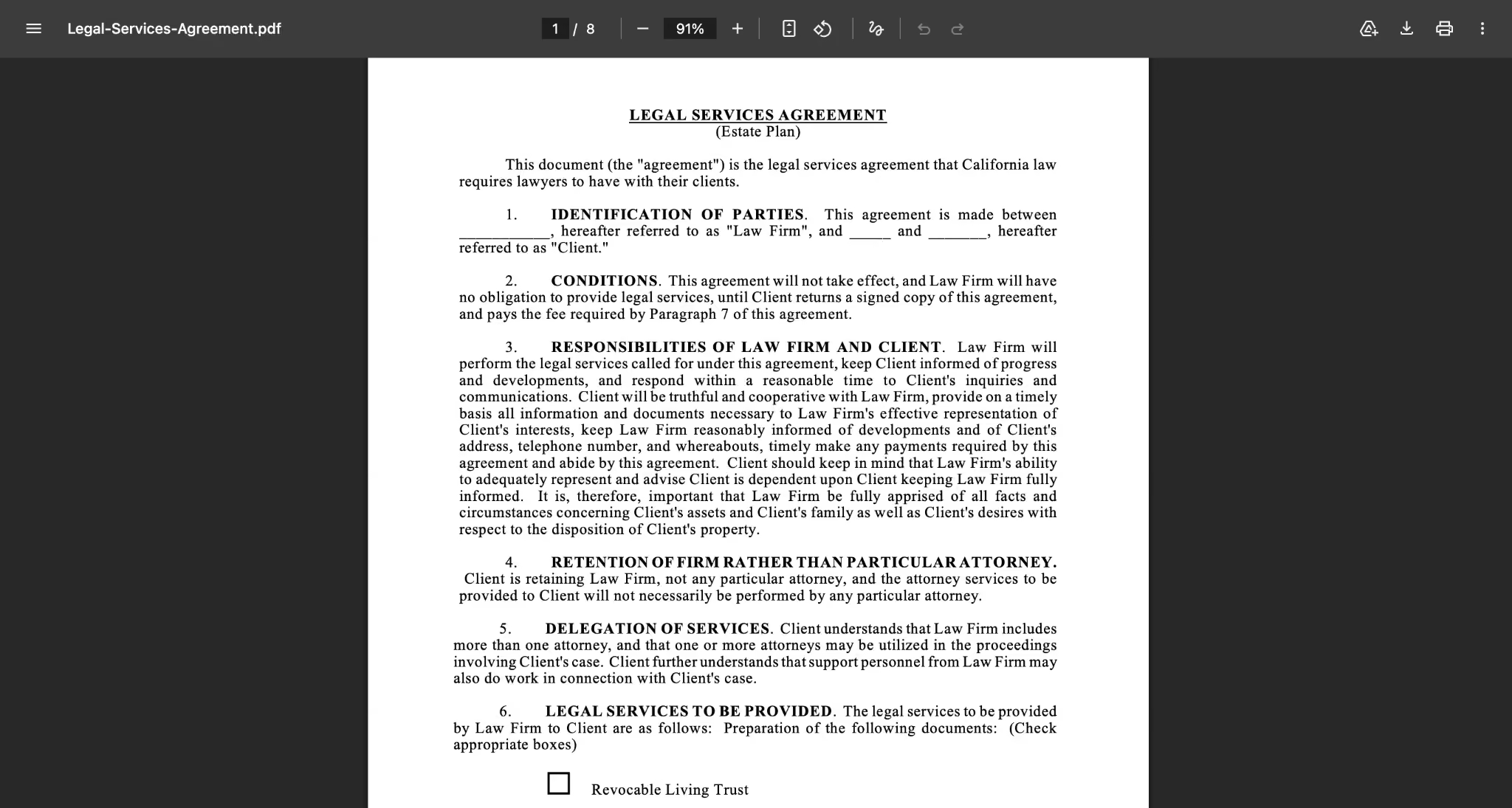
Test File 1: Legal Service Agreement Test
For the first test, we used an 8-page-long legal service agreement containing formal clauses, numbered sections, a checklist, and industry-specific terminology.
We translated the same agreement from English into Korean and Japanese using the tested PDF translation tools. The goals were not only to check if the sentences were understandable but also to look for problems that appear in real legal workflows: did clause numbering remain unchanged, was the legalese translated naturally, did the checklist remain the same, and did the translated PDF still look like a professional document?
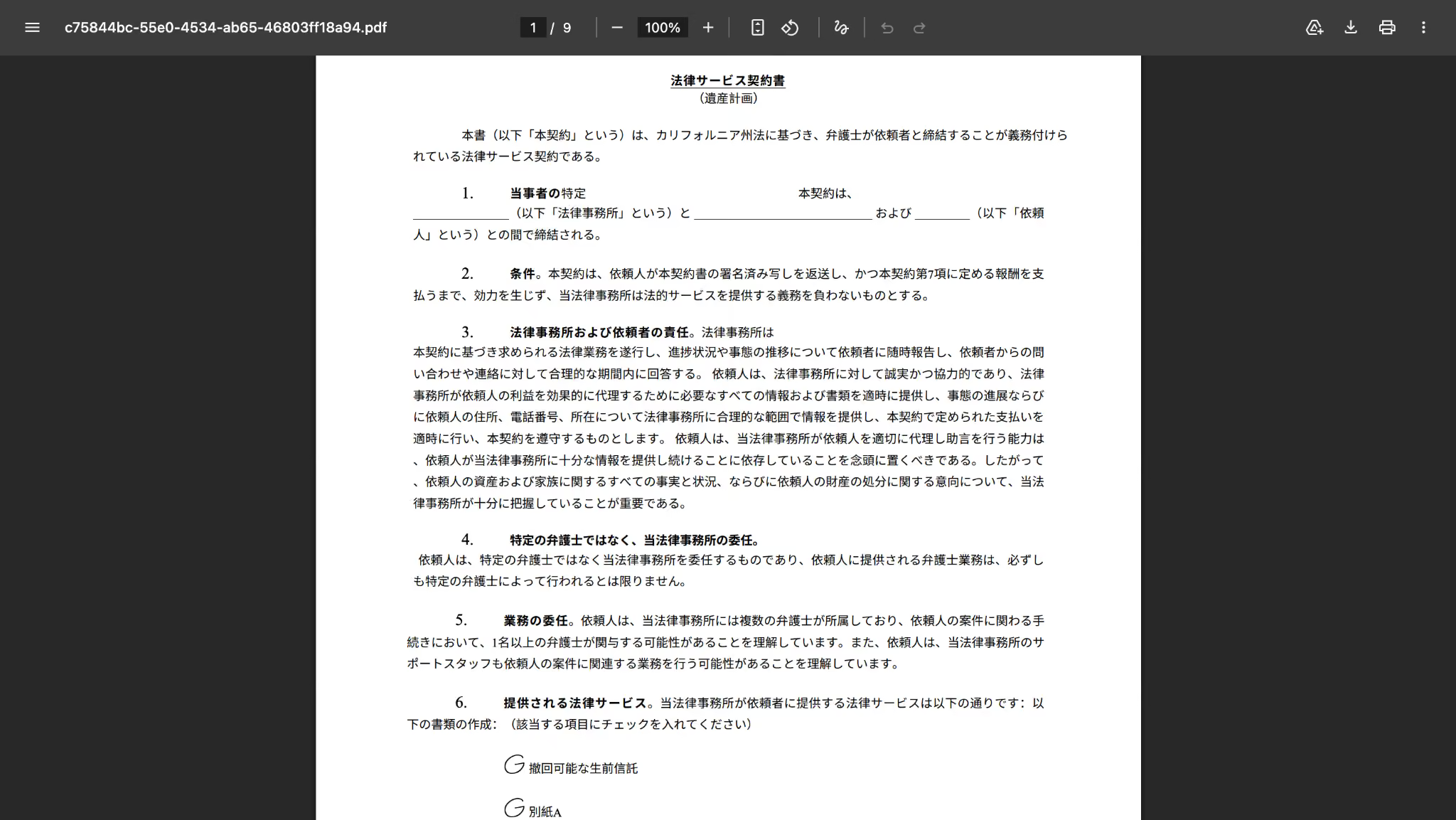
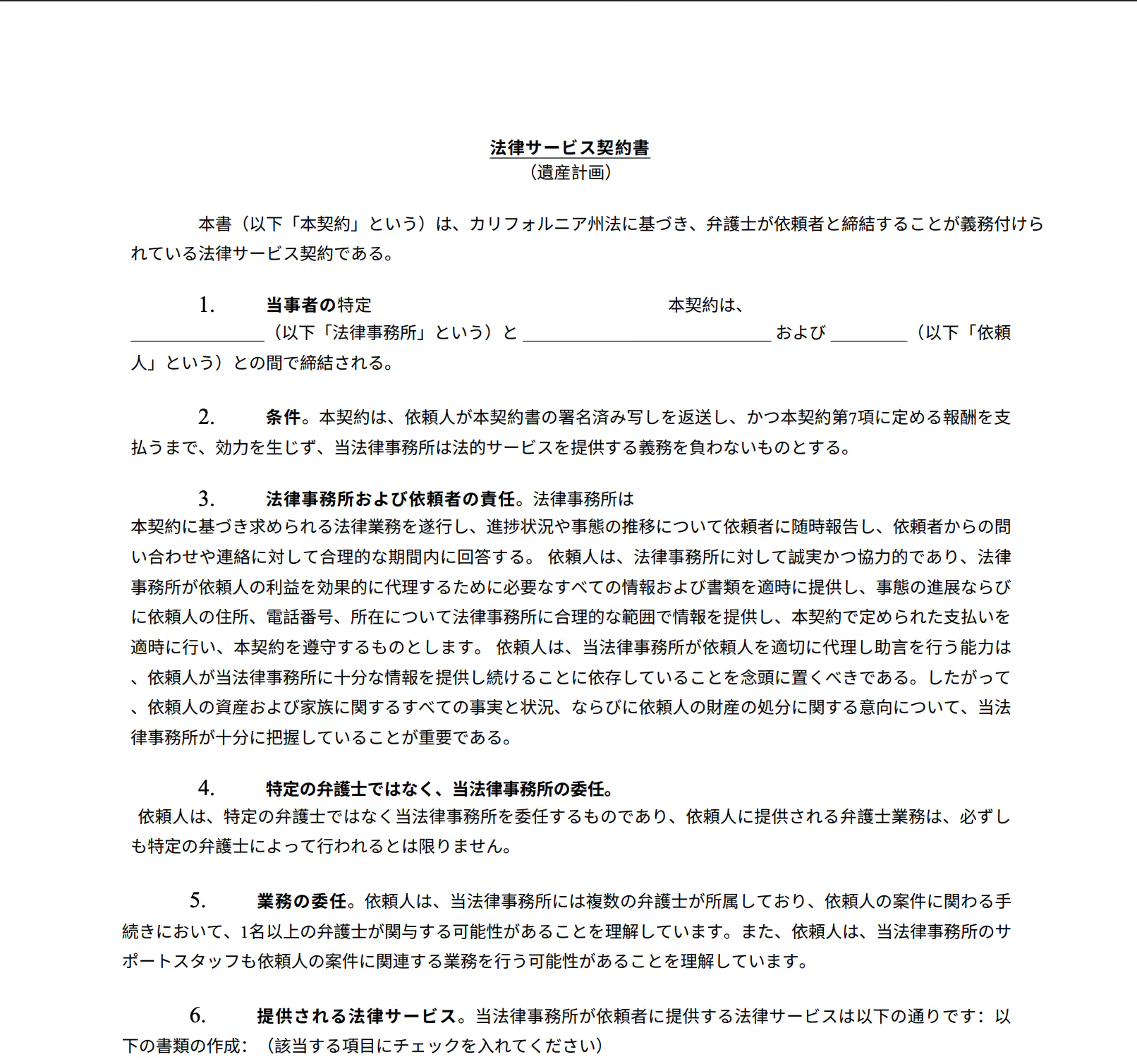
First, we translated the legal agreement on JotMe, and it turned out accurate. Clauses remained the same, and legal terminology was translated from English to Japanese with context.
Original legal service agreement:
JotMe translated the legal service agreement. It felt short in one place: it put the "G" sign replacing the checklist box (☐). In Japanese, it would be a circle (⭘, maru).
Same document we translated using DeepL:
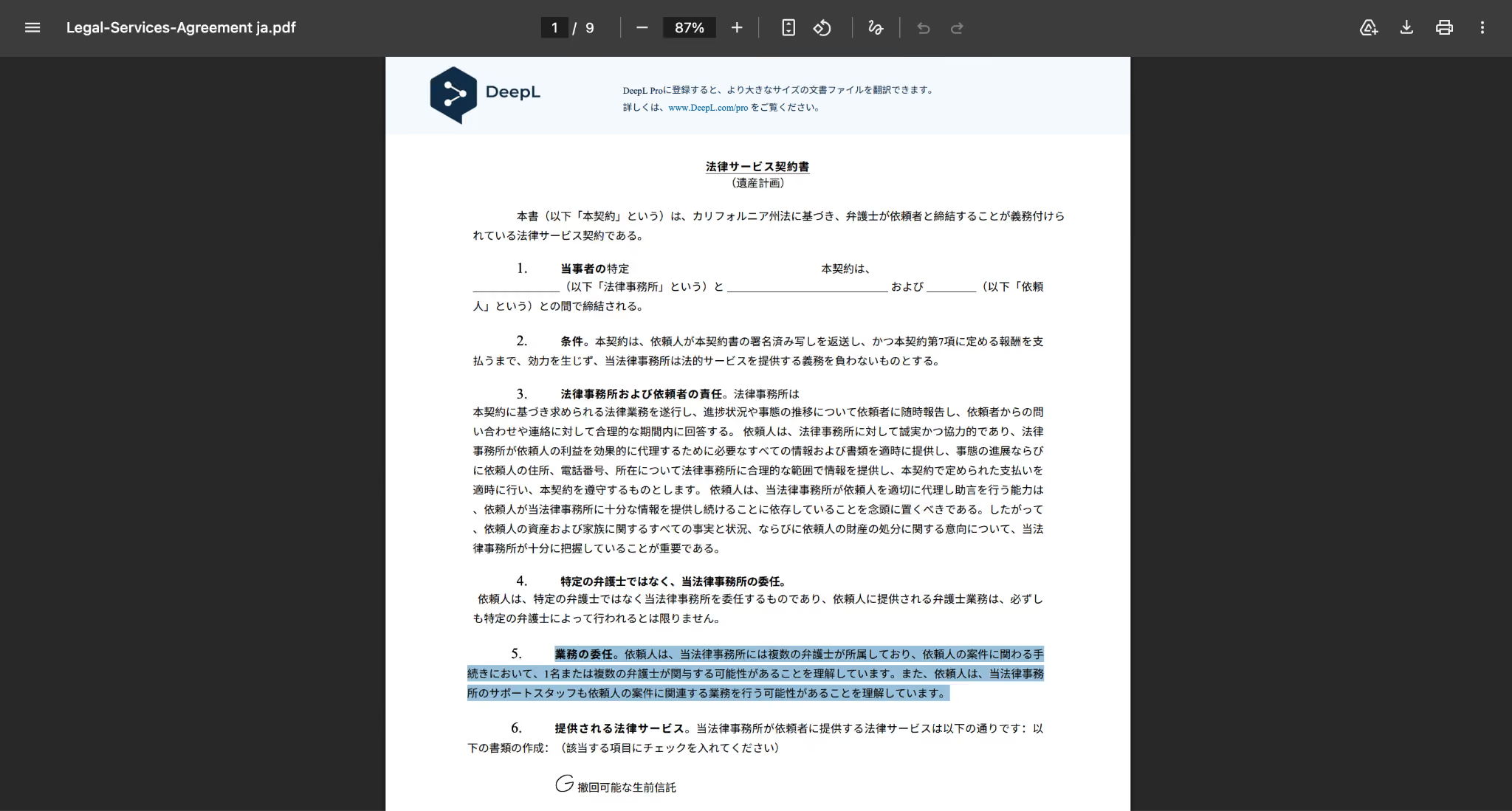
DeepL made the same mistake with the checklist, and it also weakened the legal terminology. Here is the original content and the translated one, so you can see the issue:
Original:
DELEGATION OF SERVICES: Client acknowledges and understands that the Law Firm consists of multiple attorneys and that one or more attorneys may participate in providing legal services and handling matters related to Client's case. Client further acknowledges and understands that the Law Firm's support personnel may perform work and provide assistance in connection with Client's case.
DeepL Translation:
Issue: DeepL conveys the general meaning but weakens the legal wording by translating "services" as "work" and "handling matters" as "procedures." This narrows the scope of attorney involvement and support activities compared to the original agreement language.
In the legal agreement document, JotMe did a better job compared to DeepL, preserving the context and legal terms.
Test File 2: Marketing Brochure Translation Test
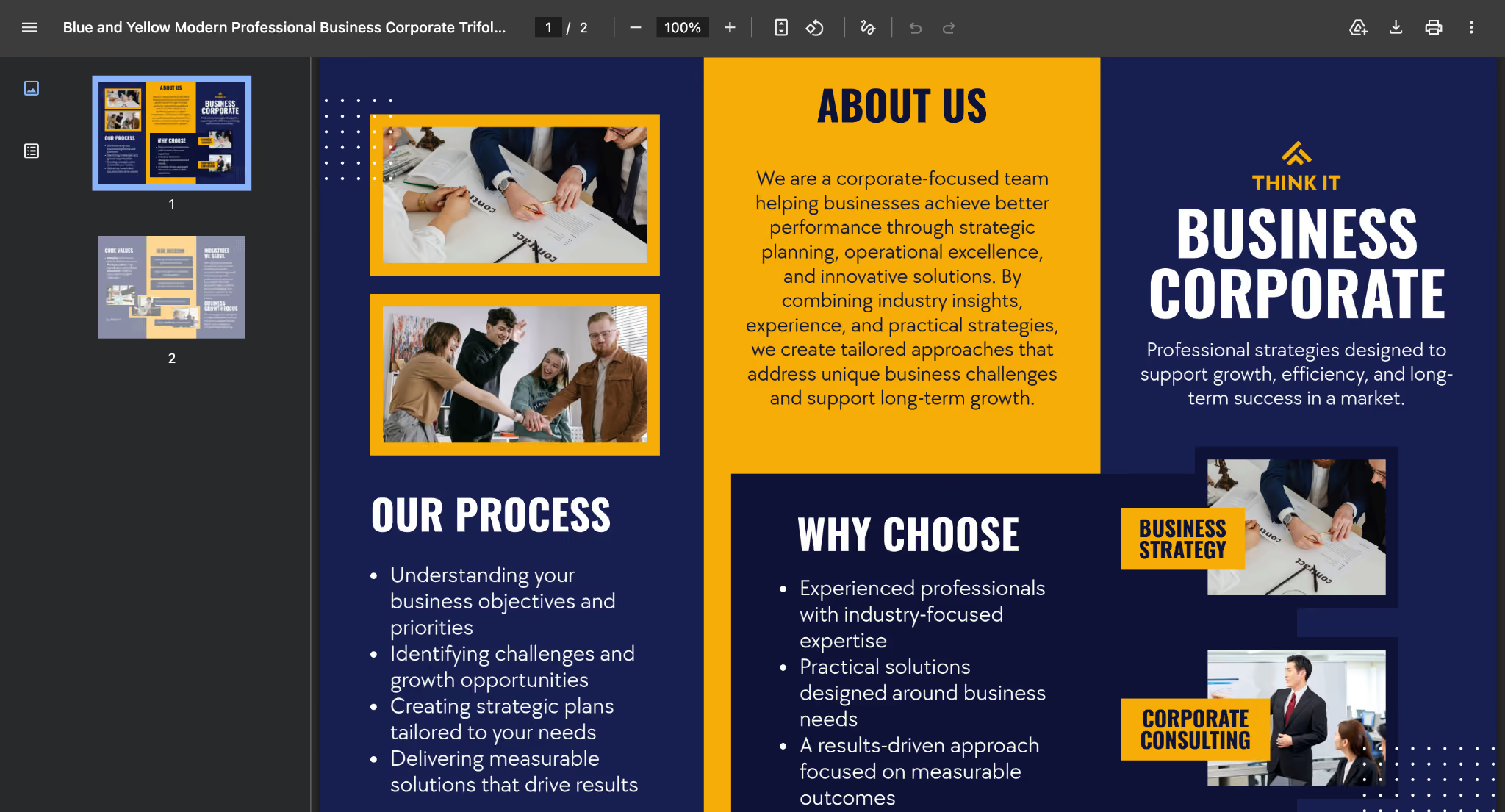
The second document was a marketing brochure containing: product descriptions, images, multiple text sections, branded headings, and visual formatting elements.
A marketing PDF creates a different challenge from a contract. Accuracy matters, but the translated file also needs to remain visually usable.
We checked:
- whether images stayed in place
- whether text boxes moved
- whether fonts and spacing changed
- whether the translated text overflowed outside the design elements
This test showed why formatting preservation is one of the biggest factors when choosing the best PDF translator. A translation can be linguistically correct but still fail if the final brochure requires hours of manual redesign.
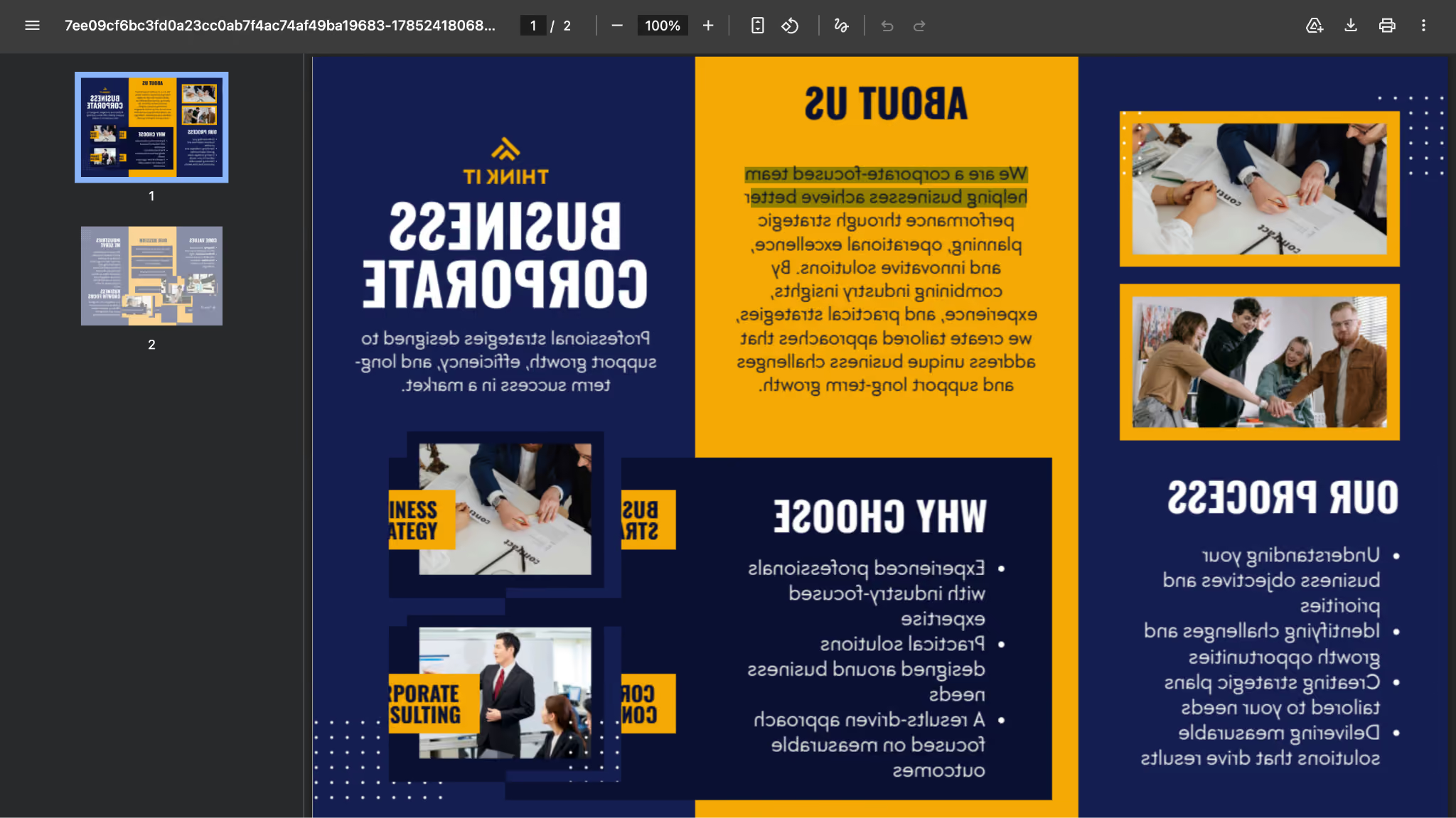
JotMe performed well in this area. We translated a marketing brochure from English to Korean using JotMe, and the overall result was strong. Instead of keeping the original awkward phrasing, JotMe adapted the content into a natural Korean business copy.
For example, "helping businesses achieve better performance" became a smoother expression focused on enhancing business performance, and "operational excellence" was translated as "operational efficiency," which fits better in a corporate context. The final version reads more like professionally written Korean marketing content while preserving the original message.
Original content:
We are a corporate-focused team helping businesses achieve better performance through strategic planning, operational excellence, and innovative solutions. By combining industry insights, experience, and practical strategies, we create tailored approaches that address unique business challenges and support long-term growth.
JotMe Korean translation:
English translation: As a corporate-focused team, we help enhance business performance through strategic planning, operational efficiency, and innovative solutions. By combining industry insights, experience, and practical strategies, we develop tailored approaches that address unique business challenges and support long-term growth.
Original brochure:
JotMe translated brochure:
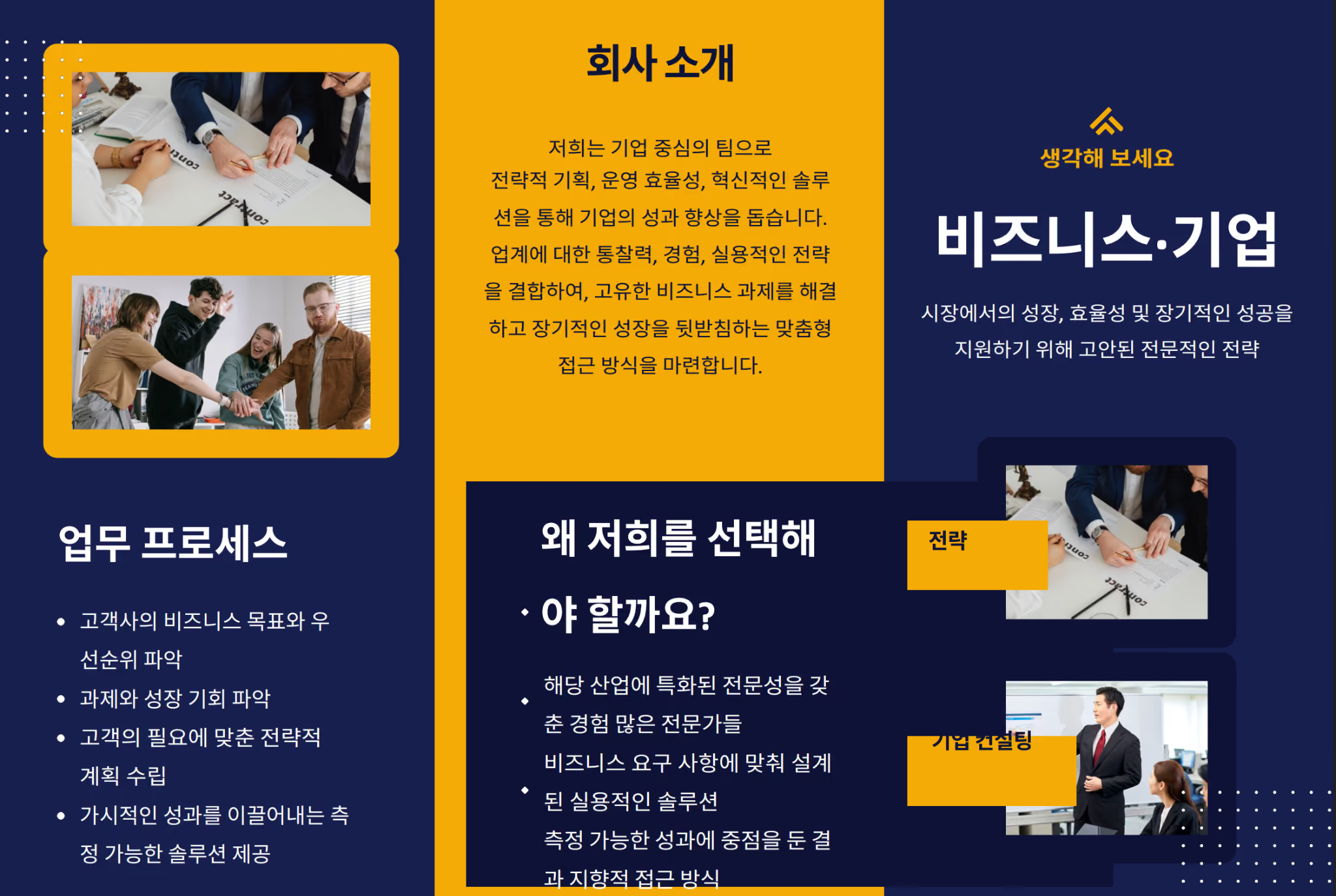
The same brochure we tested on Google Translate, and here is how it translates into Korean:
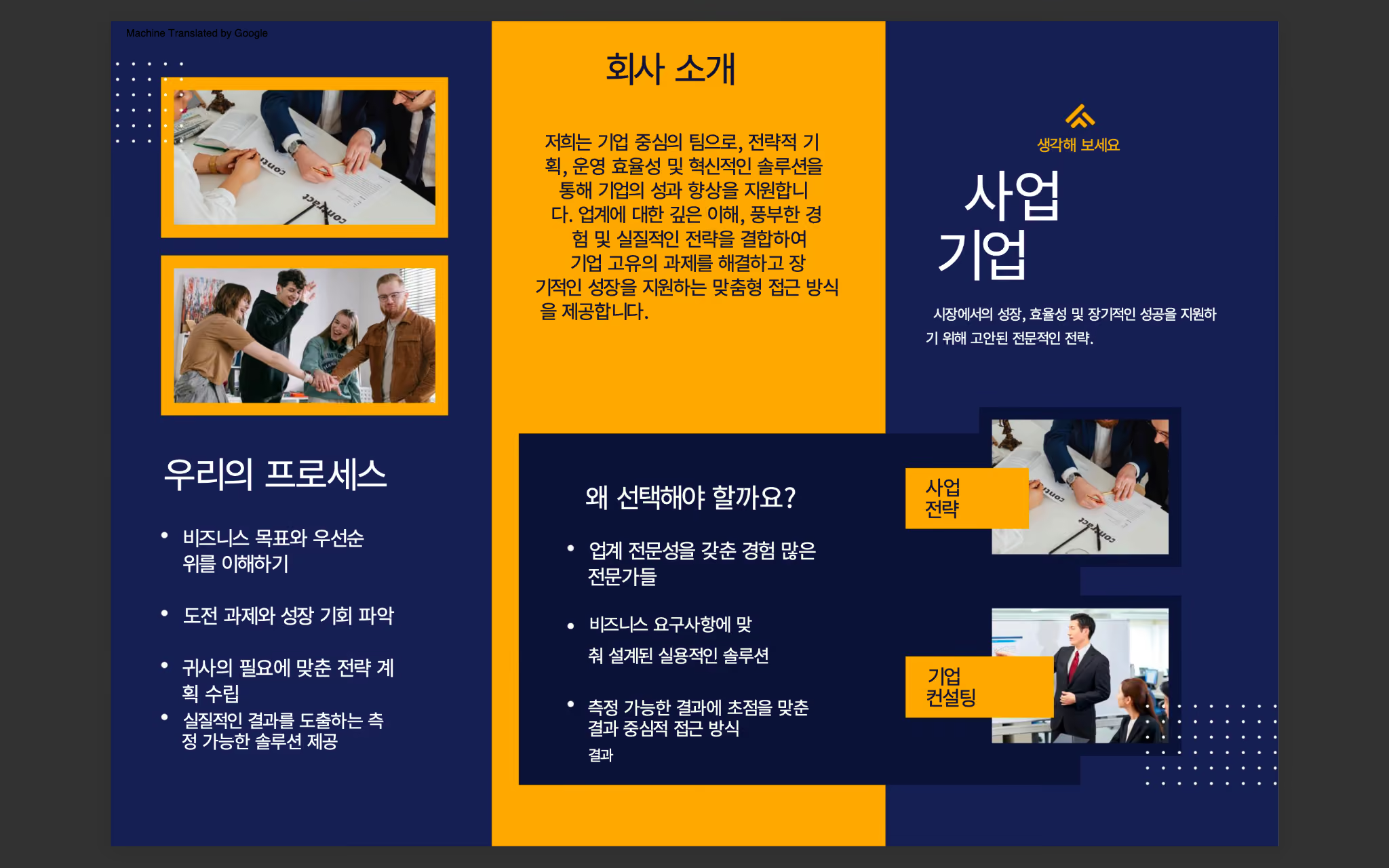
We translated the same brochure with Google Translate, but it struggled to preserve the original layout. Text placement and alignment shifted throughout the document, making the brochure look unpolished and visually inconsistent.
Test File 3: Scanned PDF OCR Test
The third test focused on scanned PDFs because many users do not translate editable files. They are working with scanned contracts, government forms, archived documents, and photographed pages.
A scanned PDF does not contain selectable text. The PDF translator first needs OCR technology to identify the words before translation can happen.
For this test, we checked:
- Did the tool correctly detect the text?
- Were missing characters handled properly?
- Did the translated version keep the original page structure?
- Were form fields preserved?
Here is the original OCR test:
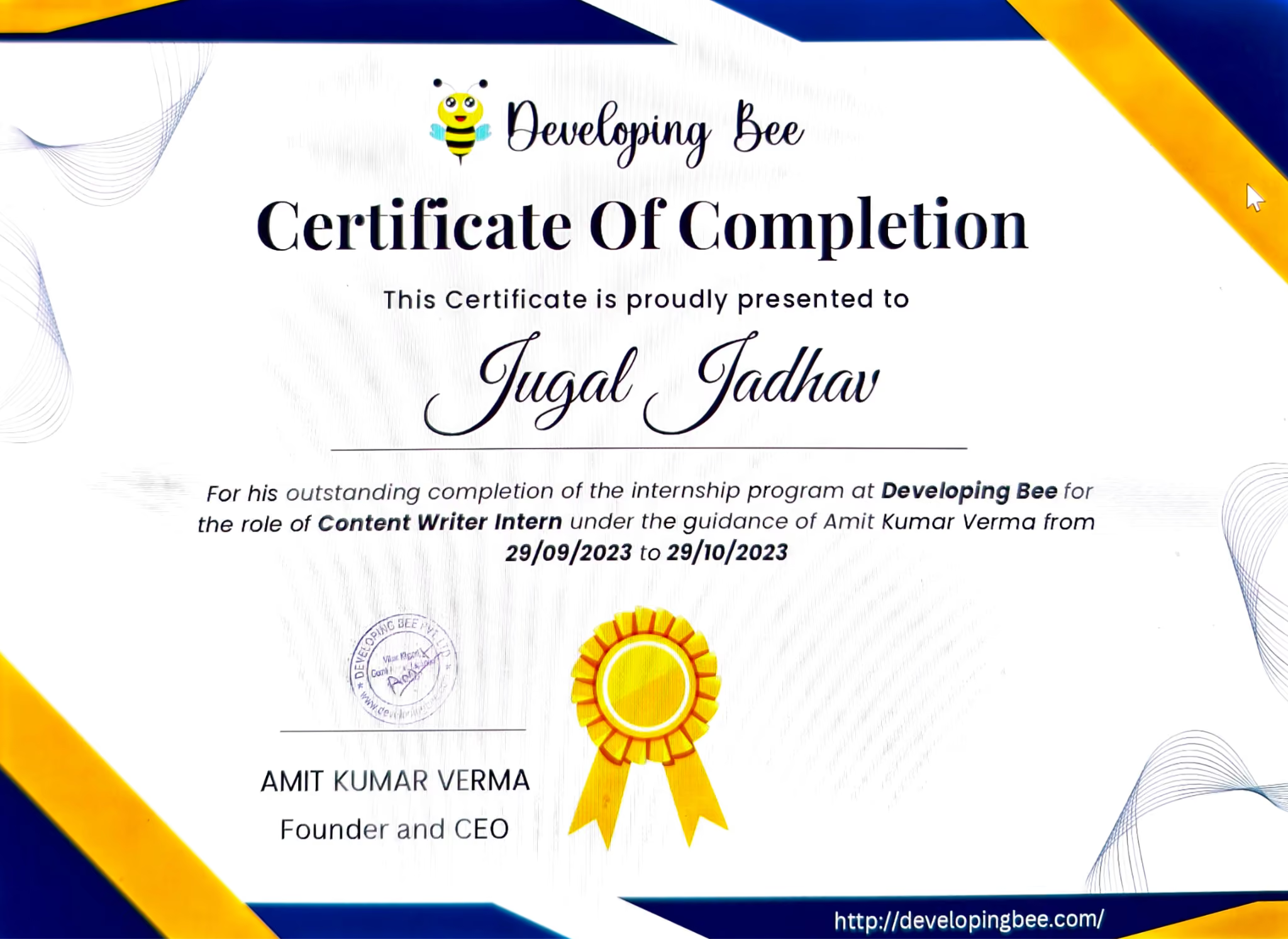
Here is how JotMe translated the OCR file:
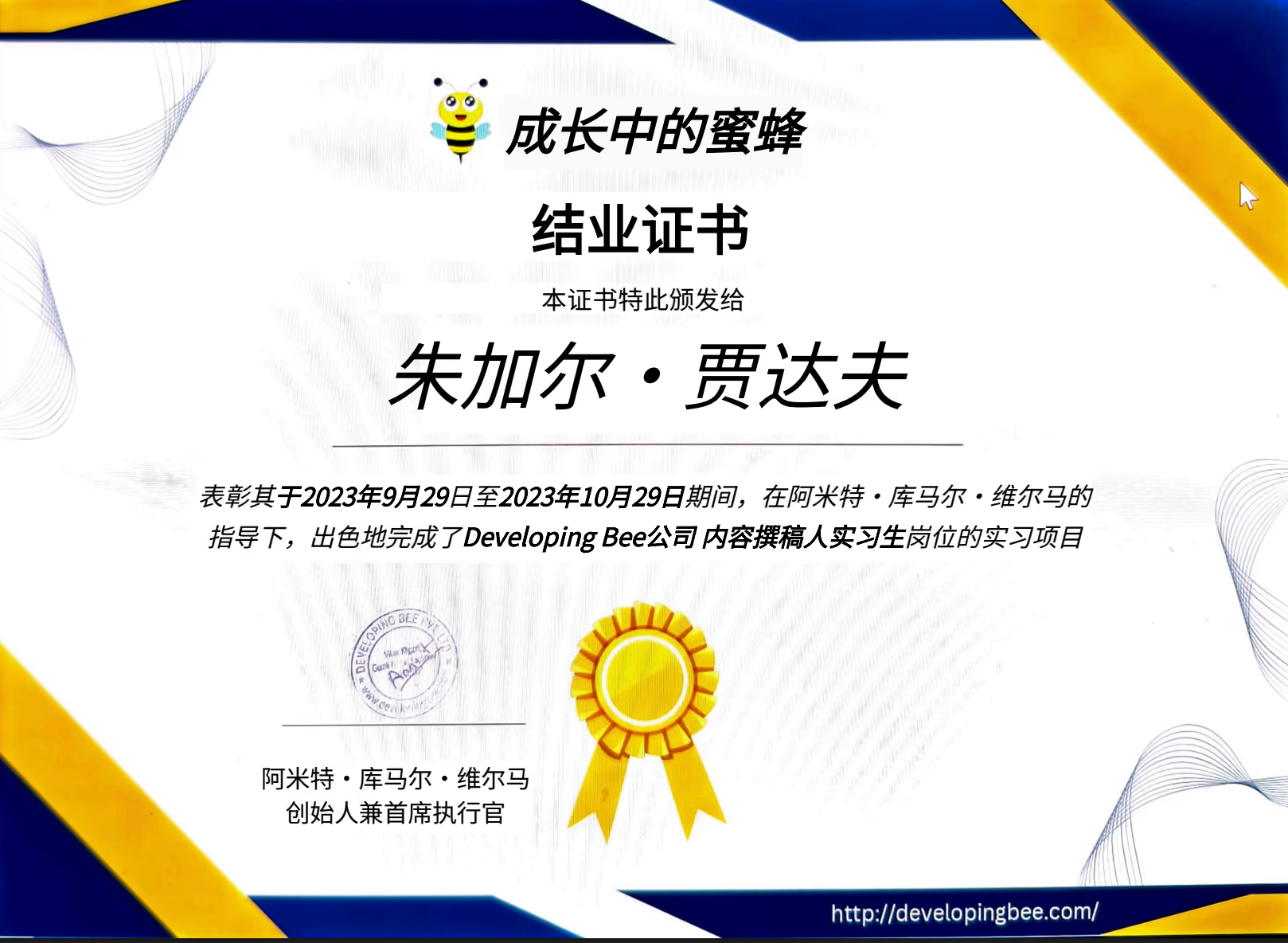
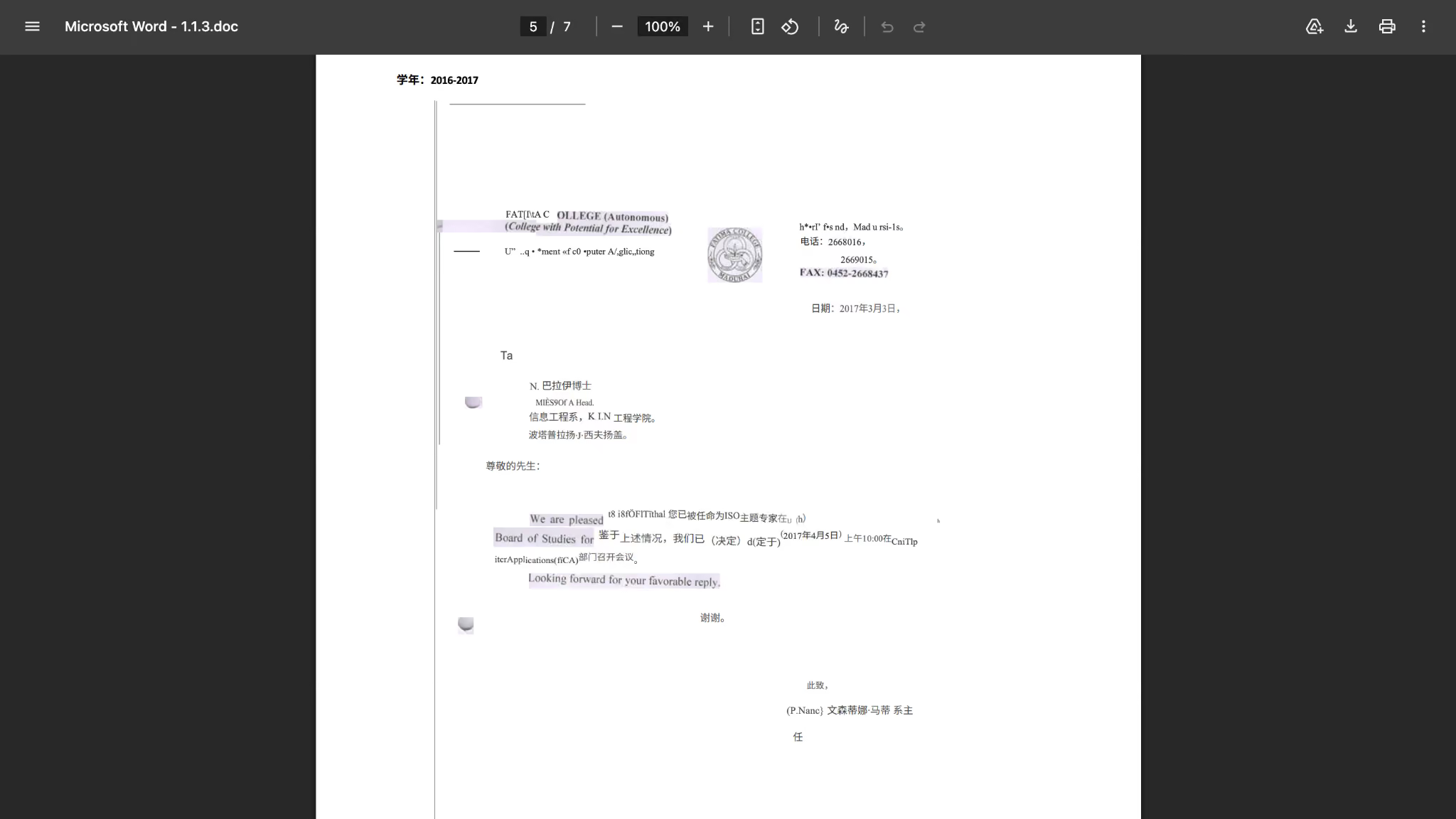
Among the top PDF translators, JotMe translated the OCR PDF with the highest accuracy, and it captured most of the text, and the English-to-Chinese translation was accurate. Based on the testing, we would give JotMe a 9 out of 10.
Smallpdf failed to translate the OCR PDF into Chinese completely:
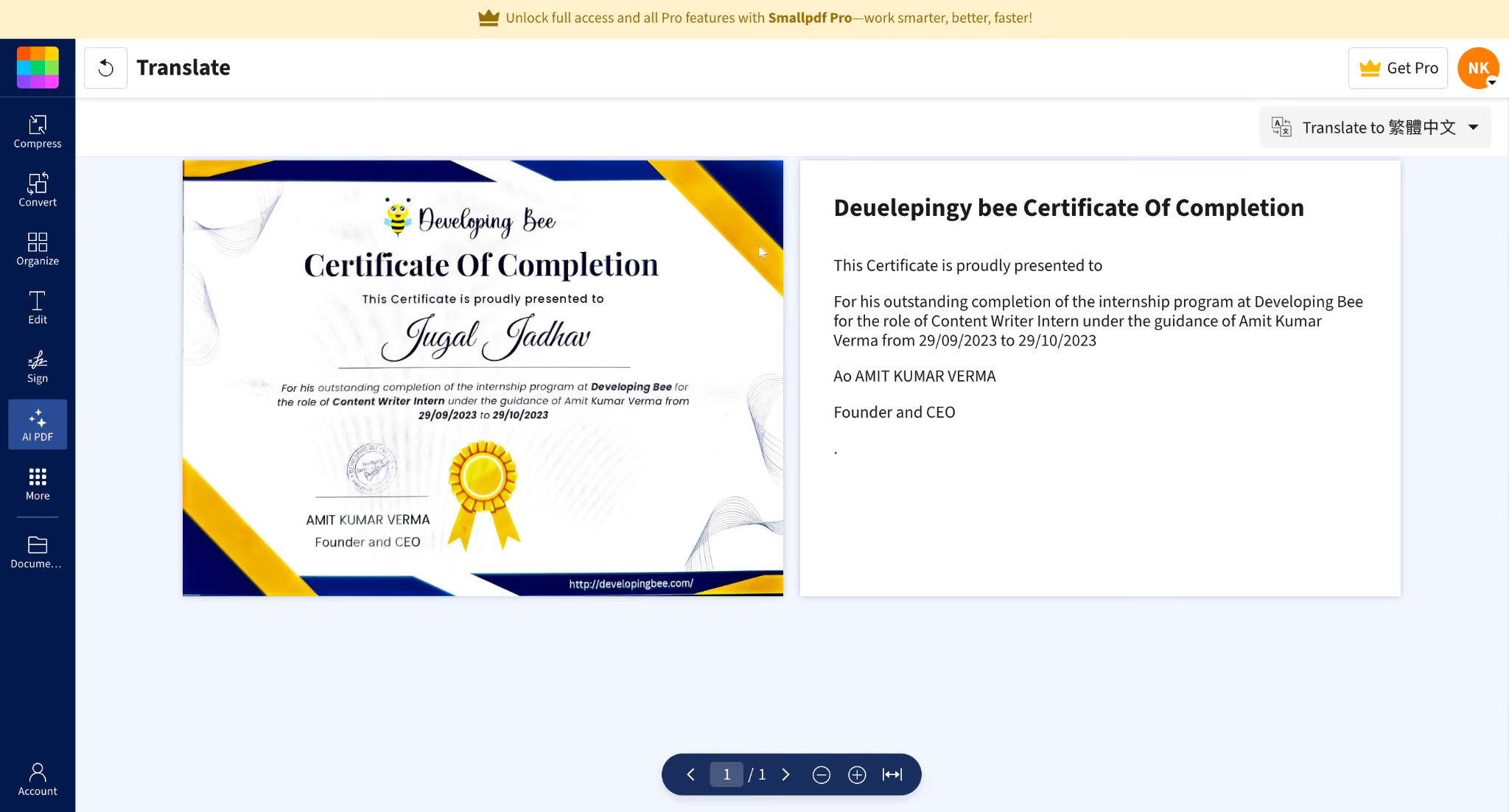
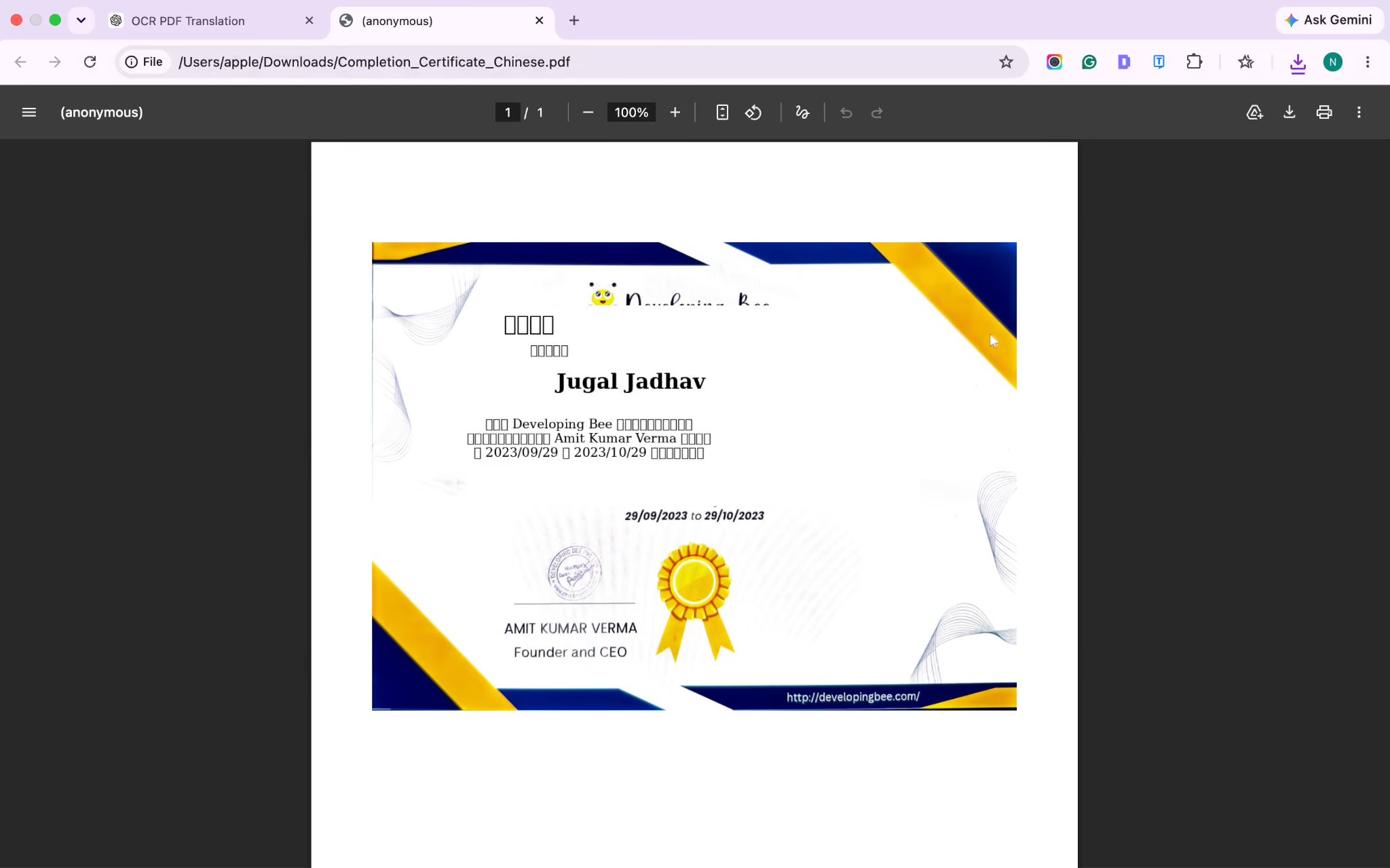
As you can see, Smallpdf failed to capture and translate a single word from the OCR PDF in Chinese. We selected Chinese as the target translation language, but it kept the content in the original English instead of translating it. The original formatting was also lost, making the translated document unusable.
We also tested OCR PDF translation with ChatGPT by uploading the same OCR file and selecting Chinese as the target language. However, the results were not satisfactory, as it failed to capture any text from the OCR PDF and did not translate a single word into Chinese.
Translation Language Pairs Tested
We tested each PDF translator across multiple language combinations because translation quality can vary significantly depending on language structure.
The main language pairs used during testing were:
Using different language pairs helped determine whether a PDF translator was producing only understandable sentences or actually preserving the original meaning and document purpose.
What Factors Did We Evaluate During Testing
Translation accuracy was only one part of the evaluation. A PDF translator can produce grammatically correct sentences, but still fail if the final document becomes difficult to use.
We evaluated each tool across five areas:
Across these tests, JotMe delivered the most consistent results among the tools we compared, including DeepL, ChatGPT, Google Translate, and Smallpdf. JotMe performed strongly across translation accuracy, formatting preservation, and OCR handling, while the other tools showed limitations in at least one area, such as layout changes, weaker terminology handling, or incomplete text extraction.
Which PDF Translator Software Are Worth Using
After testing nine PDF translators on contracts, brochures, and scanned documents, the biggest difference was not just translation quality. The strongest tools solved different problems.
Some PDF translator software is designed for quick understanding, while others focus on professional document workflows where formatting, OCR, privacy, and terminology matter. The right choice depends on what happens after the translation is complete.
JotMe: 9/10
JotMe’s AI-powered PDF translator is designed for users who need more than a basic text conversion. It focuses on preserving the meaning, structure, and terminology of the original document, making it useful for contracts, research papers, reports, and other professional PDFs.
The biggest problem JotMe solves is what happens after translation. Most PDF translators stop after generating the translated file, but users often still need to understand clauses, review sections, or discuss the document with others. JotMe keeps live translation and document understanding in the same workflow.
- Preserves PDF structure, including headings, numbering, tables, and page layout
- Supports scanned PDF translation through OCR-based text extraction
- Supports 200+ languages across 39,000+ language pairs
- Allows users to continue discussing and understanding the translated document
During testing, JotMe performed consistently across legal agreements, brochures, and OCR-based PDFs. It handled technical terms better than simple word-for-word translators and required fewer formatting corrections after translation.
DeepL Pro: 8.5/10
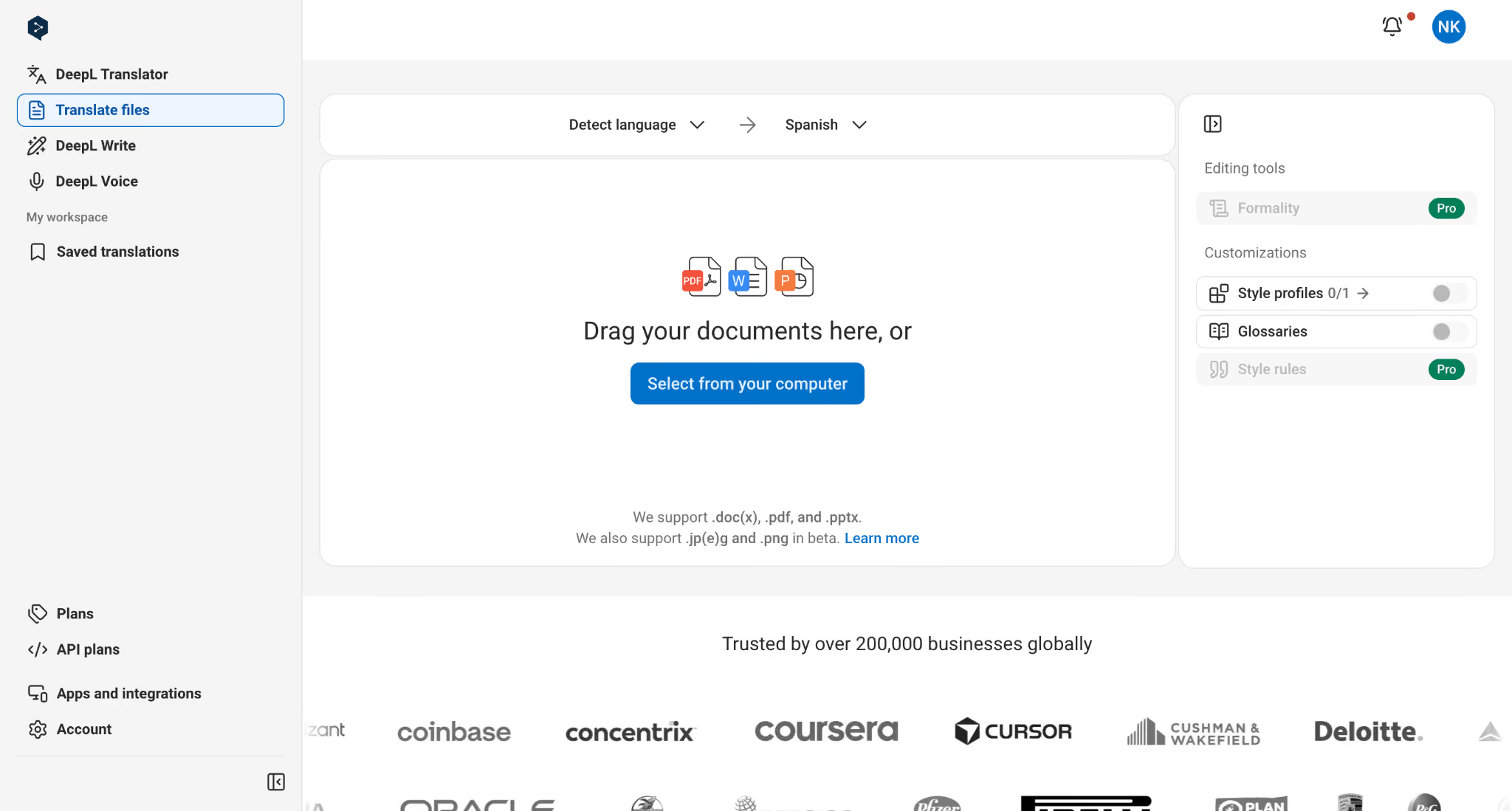
DeepL Pro is a translation-focused PDF translator known for producing natural and fluent translations. It performs especially well when the main goal is understanding the meaning of a document rather than preserving complex visual layouts.
DeepL Pro solves a common problem with machine translation: sentences that are technically correct but sound unnatural. DeepL's translation quality makes it a strong option for formal documents where language accuracy matters, especially for European language pairs.
- Uses contextual translation to produce more natural sentences
- Supports PDF and other document formats, including Word (.docx/.doc), PowerPoint (.pptx), and Excel (.xlsx).
- Allows glossary use so you can keep specific terms, brand names, or technical vocabulary consistent across translated documents
- Lets you download translated files in supported formats, including PDF or editable Word (.docx) output for translated PDFs on eligible plans.
During testing, DeepL handled general business language well, but complex PDFs with multiple columns, tables, or design elements required additional formatting checks. It worked well when the PDF has a clean structure and selectable text.
Google Translate: 7/10
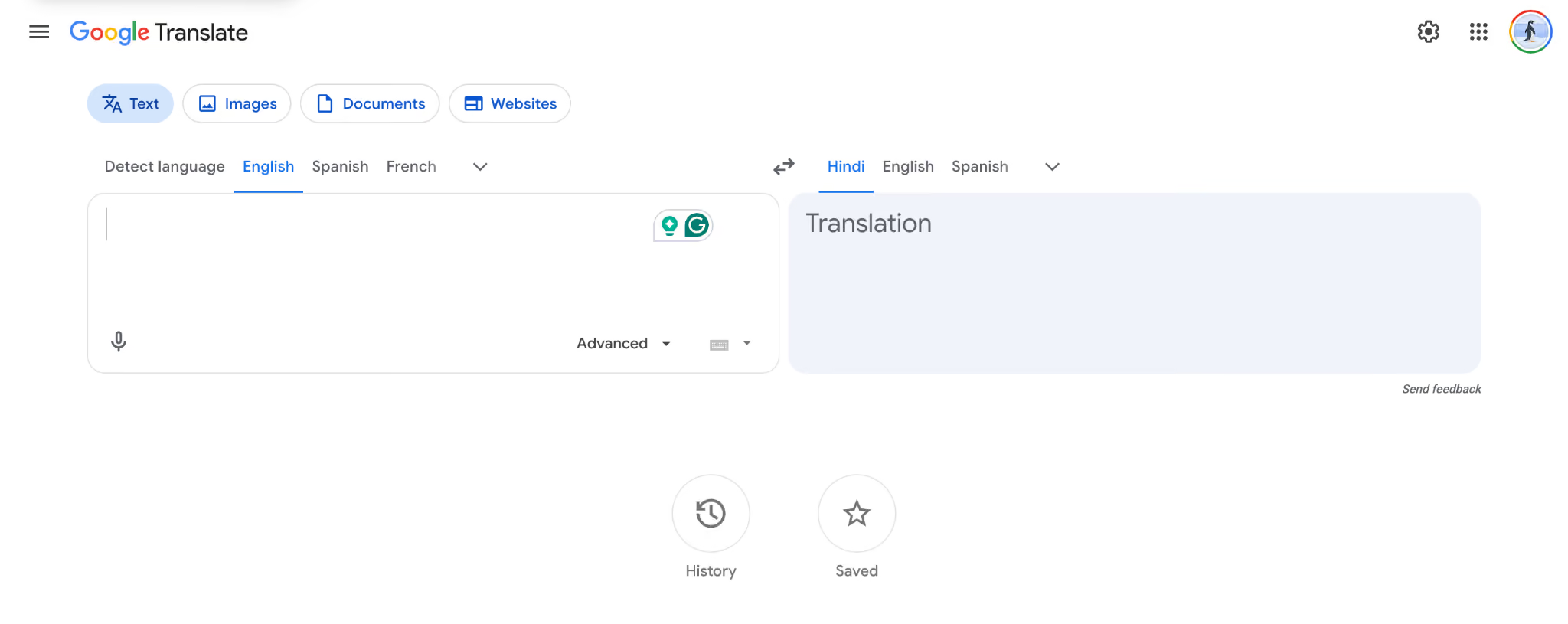
Google Translate remains one of the most accessible PDF translation tools because it lets users translate documents without a subscription. It solves a simple problem: understanding the content of a foreign-language PDF when formatting accuracy and professional terminology are less important.
Google Translate works well for personal documents, references, and simple text-based PDFs. However, users translating contracts, reports, or business documents should review the output carefully because formatting elements and industry-specific terms may not always carry over correctly.
- Supports translation across 100+ languages, including English, Spanish, French, German, Chinese, Japanese, Korean, Arabic, and Hindi
- Allows users to upload supported document formats directly instead of copying and pasting text manually
- Automatically detects the source language when users are unsure which language the PDF contains.
- Translates selectable text inside PDFs, but has limitations with scanned documents, where the text cannot be extracted properly
During testing, Google Translate provided a quick translation for the marketing brochure, but it failed to preserve the original PDF formatting. Text placement shifted, alignment changed, and the brochure layout looked inconsistent after translation.
Adobe Acrobat Pro: 8/10
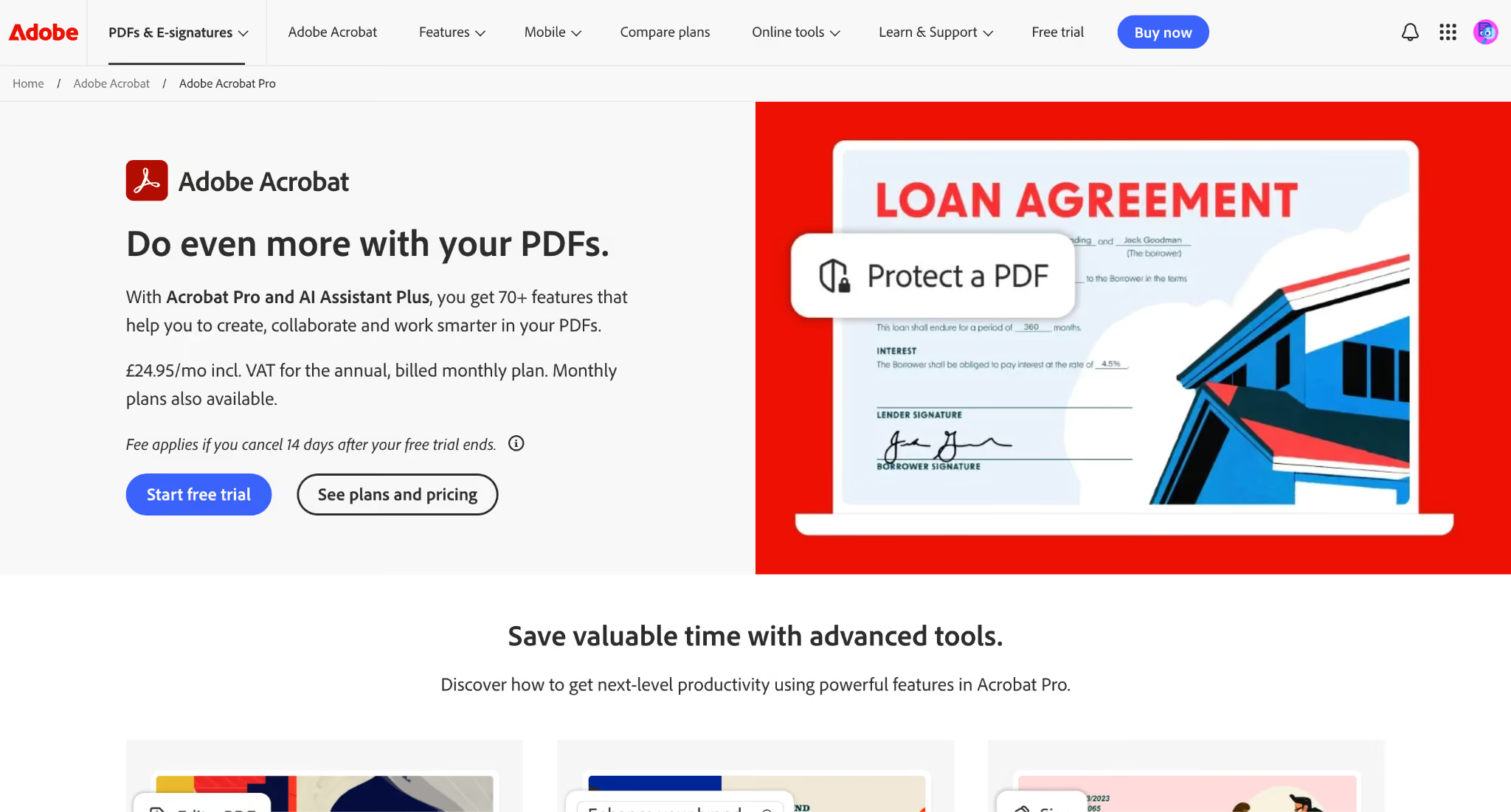
Adobe Acrobat Pro is primarily a PDF editing and management tool, but its built-in translation capabilities make it a practical option for users who regularly work with PDFs. It solves the problem of switching between multiple applications by consolidating editing, OCR, and document management into a single place.
For users who handle contracts, forms, or business PDFs, Adobe's strong PDF foundation is a major advantage. To actually translate a full document, Acrobat redirects the workflow through its integrated Adobe Express app, but the document remains editable after processing, which makes corrections easier when needed.
- Uses OCR technology to convert scanned PDFs into searchable text
- Maintains PDF editing capabilities after translation
- Allows users to modify and organize translated documents
- Supports professional PDF workflows, such as annotations and document management
Adobe performed well when the document required post-translation editing. However, users looking specifically for a dedicated, one-click PDF translation workflow without external app integrations may find specialized translation tools more focused.
ChatGPT: 7/10
ChatGPT can translate PDF content while understanding context, tone, and meaning better than many traditional translation systems. It solves a different problem: helping users understand, rewrite, or analyze document content rather than producing a final formatted PDF.
This makes ChatGPT useful when the translated text will be reviewed, edited, or reused in another document. It performs particularly well when users need explanations of difficult sections rather than just a direct translation.
- Allows users to upload PDFs and request translations directly
- Understands document context before translating sections
- Adjusts tone, style, and wording based on instructions
- Explains complex terms or sections after translation
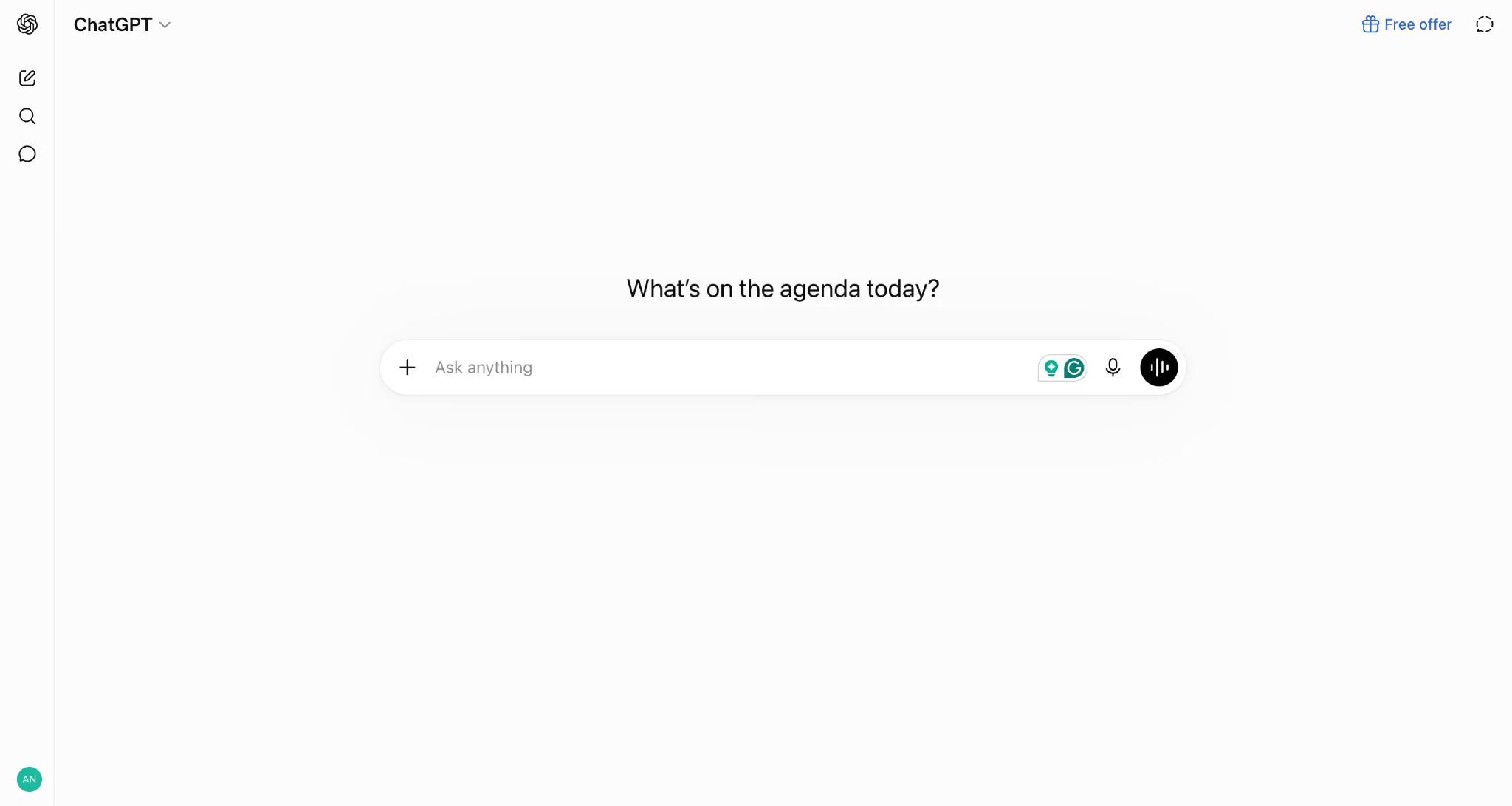
During testing, we uploaded a marketing brochure to ChatGPT and asked it to translate the PDF into Japanese while preserving the original layout. ChatGPT explained that it could translate the text but could not generate the same PDF design, formatting, and visual structure. The translated content would require manual formatting and redesign before it could be used as a finished brochure.
DocTranslator: 7.5/10
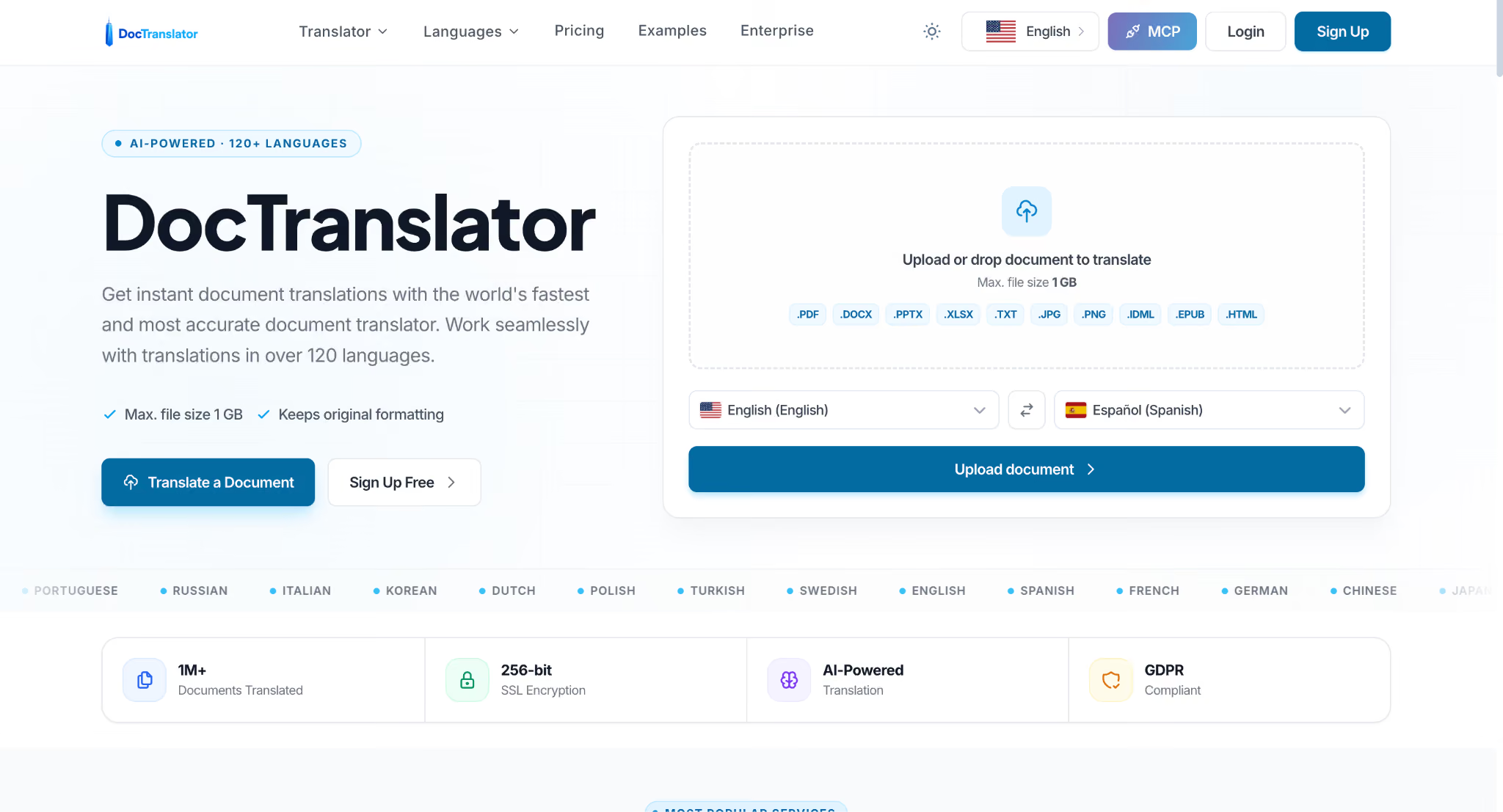
DocTranslator is a dedicated PDF translation software that translates entire documents while preserving their original formatting. Unlike general-purpose translators, DocTranslator focuses on maintaining the document's layout, making it suitable for reports, manuals, presentations, and other files where formatting is as important as the translated text.
According to DocTranslator, the platform is built to handle both small and large PDFs while preserving visual elements such as tables, fonts, and images. During our research, we found that DocTranslator offers more document-specific features than most free PDF translators, although many of these capabilities require a paid plan.
- Supports PDF files up to 1 GB, making DocTranslator suitable for translating lengthy reports, manuals, and technical documentation.
- Preserves the original document formatting, including tables, fonts, images, charts, and page structure during translation.
- Translates documents into 120+ languages, including English, Spanish, French, German, Chinese, Japanese, Korean, Hindi, Arabic, and Portuguese.
- Supports multiple document formats beyond PDF, including DOCX, PPTX, XLSX, IDML, HTML, EPUB, TXT, JPG, and PNG.
The rating above is combined with the features documented on DocTranslator's official website, rather than an evaluation of its paid plans.
Smallpdf: 6/10
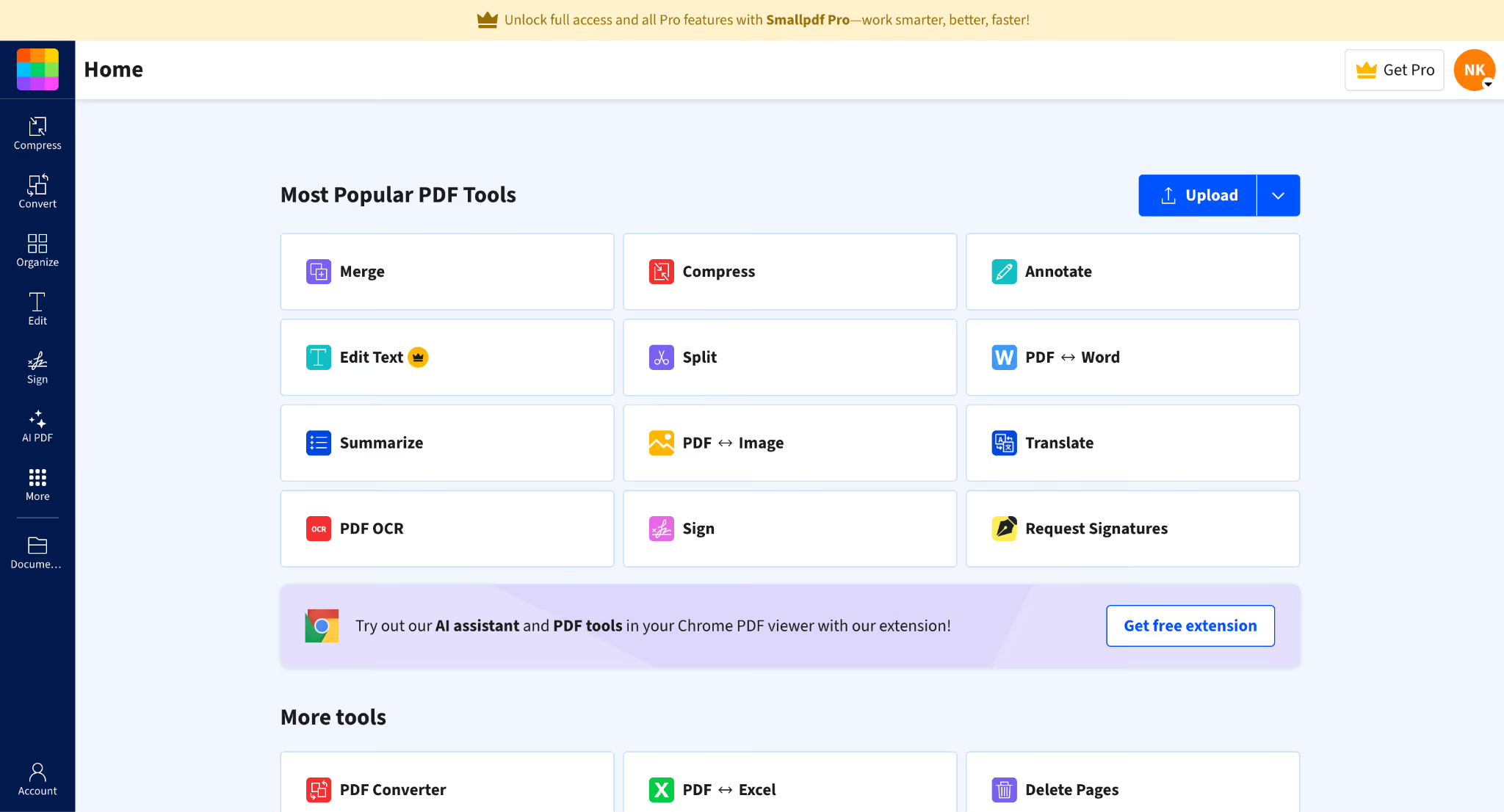
Smallpdf is a browser-based PDF translator designed for users who want a simple way to translate documents without installing dedicated software. It solves the problem of quick document understanding, especially for users who already use Smallpdf for tasks like PDF conversion, editing, or compression. However, it is better suited to everyday translation needs than to highly technical documents, where terminology and formatting require strict control.
- Translates PDFs into and from languages such as English, Spanish, French, German, Chinese, Arabic, and Hindi
- Offers full document translation or AI-generated summaries for long PDFs
- Supports translation workflows for files like Word, Excel, PowerPoint, JPG, PNG, GIF, and TIFF
- Includes AI chat features that allow users to ask questions about the translated PDF
During testing, Smallpdf handled the legal service agreement translation reasonably well, preserving the overall meaning of the document. However, some formatting elements and document structure required review after translation.
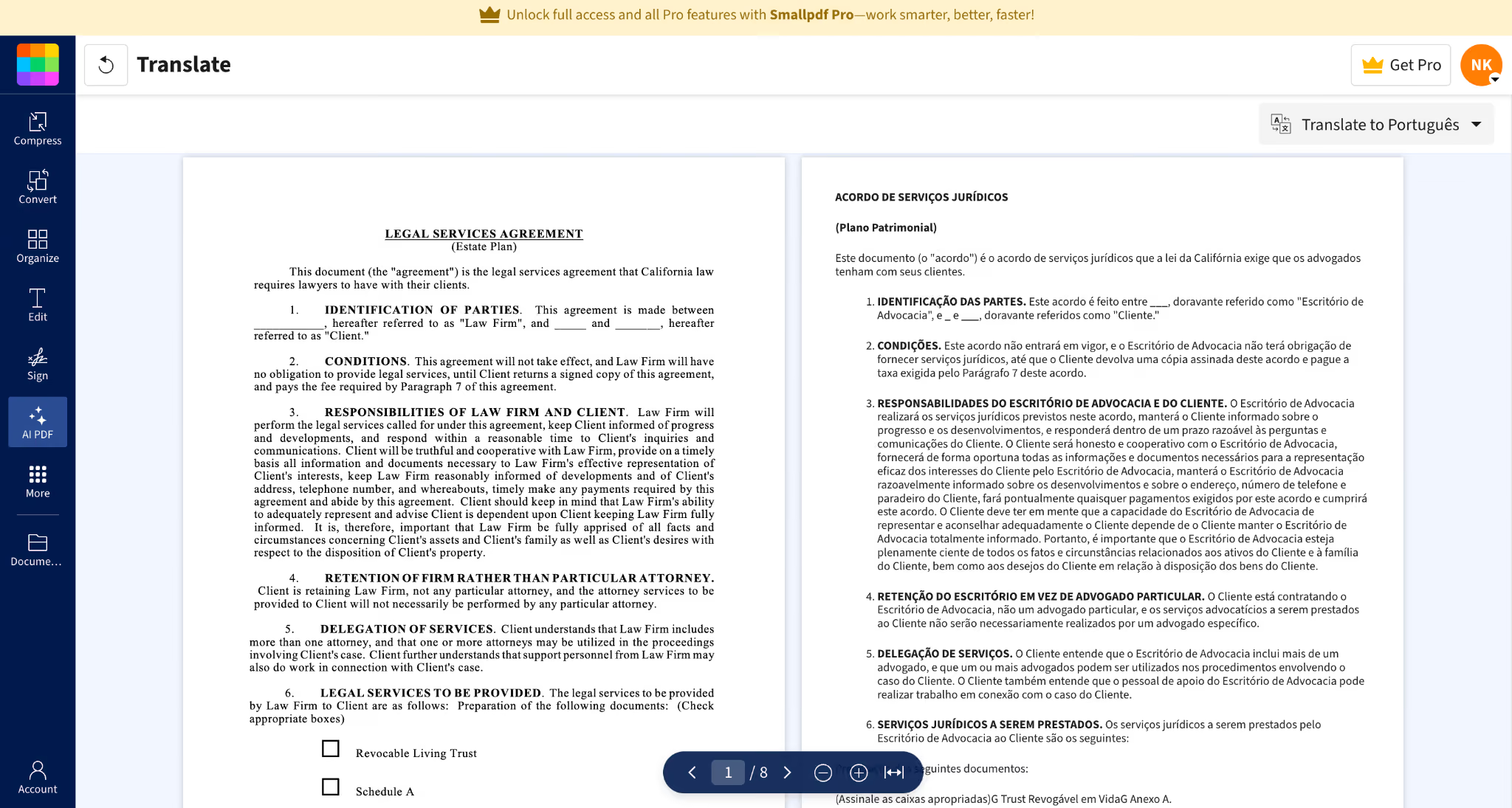
In the OCR test we did earlier, Smallpdf showed limitations with scanned PDFs. It failed to properly capture the text from the scanned document, kept the content in English instead of translating it into Chinese, and lost the original formatting.
SYSTRAN: 8/10
SYSTRAN is an enterprise-focused machine translation platform built for organizations that need to translate large volumes of professional documents. Unlike general-purpose translators, it focuses on business, government, legal, financial, and technical use cases where terminology consistency matters as much as basic sentence translation.
Based on the features documented by SYSTRAN, the platform is designed to handle complex files while keeping the original document structure and adapting translations to specific industry contexts.
- Supports PDF, Word, PowerPoint, Excel, HTML, XML, JSON, RTF, TXT, and other document formats
- Uses advanced text extraction technology to preserve original formatting and document structure
- Supports translation into more than 55 languages, including commonly used business languages such as English, French, German, Spanish, Chinese, Japanese, and Arabic
- Offers domain-specific translation models for areas such as legal, financial, healthcare, and technical content
SYSTRAN is a strong option for businesses handling regulated or technical content because it focuses on domain-specific translation rather than general language translation. However, its enterprise-oriented approach may be more than individual users need for occasional PDF translation. For users who occasionally translate standard documents, simpler PDF translation tools may provide a faster workflow.
Lingvanex: 6.5/10
Lingvanex is a translation platform that offers online and offline translation tools for individuals and businesses. It focuses on privacy-sensitive workflows by providing desktop translators that run locally.
Lingvanex supports document translation across common formats and provides options for users who need translation beyond a browser-based tool.
- Supports document translation for formats such as PDF, DOC, DOCX, ODT, XLSX, XLS, PPTX, RTF, and TXT
- Offers translation across 100+ languages, including English, Spanish, French, German, Chinese, Japanese, Arabic, and Hindi
- Supports text, document, and speech translation features
- Includes browser-based translation tools without requiring software installation
During testing, Lingvanex showed limitations with PDF formatting and output accuracy. We tested it using a marketing brochure and selected Arabic as the target language, but the translated output was generated in English to Welsh instead. The document formatting also changed noticeably, affecting the original brochure layout. Based on this test, Lingvanex may work better for simple text translation than complex PDFs, where language selection and design preservation are important.
Lara Translate: 8/10
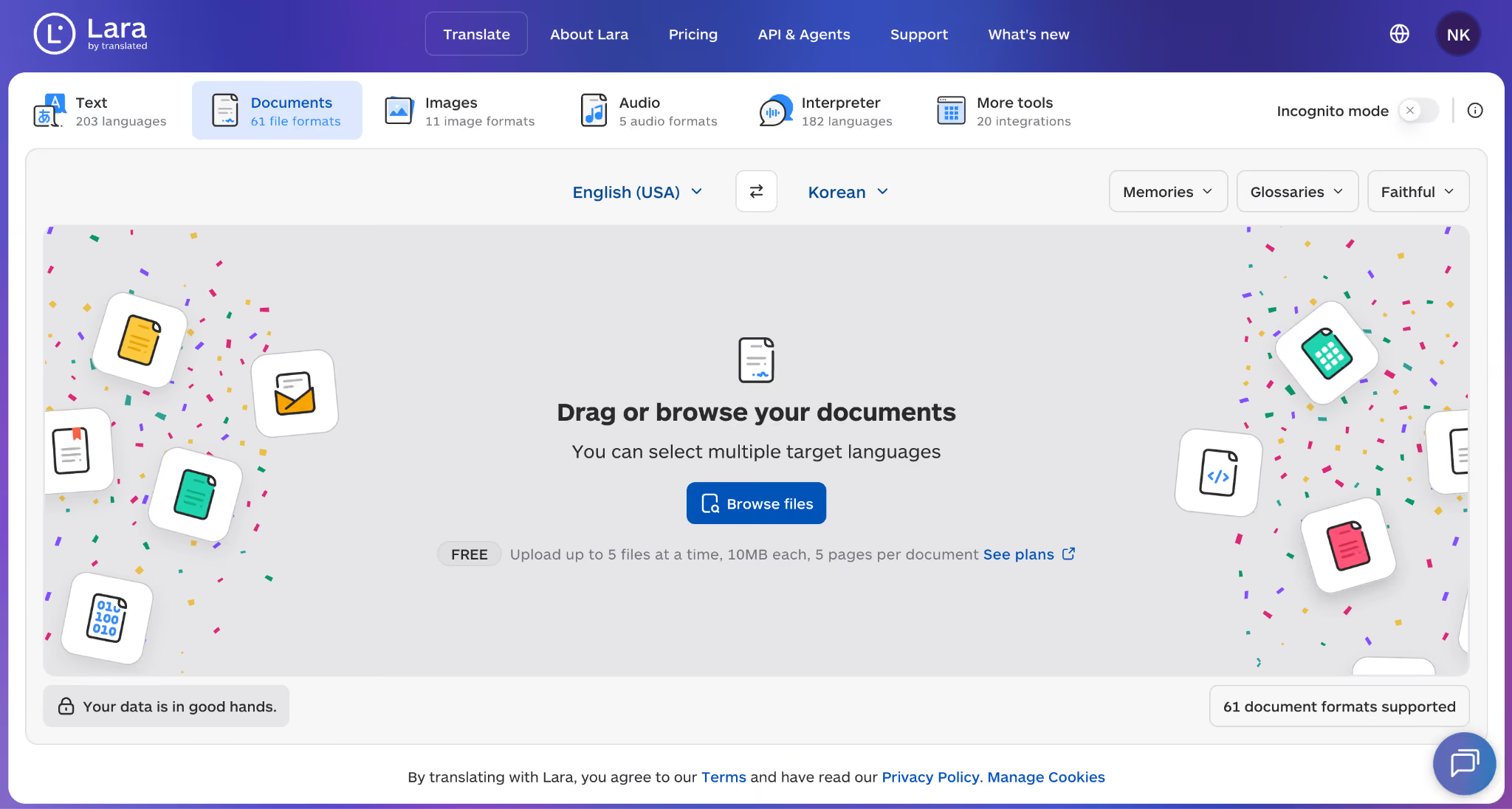
Lara Translate is built around translation quality, supporting more than 200 languages and preserving document formatting during translation.
It solves a common problem with AI translation tools: getting a readable translation without losing the original document structure. Lara supports multiple file formats and includes privacy features such as Incognito mode, where content is not stored, logged, or used for training.
However, during our PDF test, Lara showed that translation quality can still vary when handling legal terminology. While the translated document was understandable, some legal terms were not translated with the precision expected for professional agreements.
- Supports document translation across 61 file formats and 203 languages for PDF translation
- Preserves document formatting during translation
- Includes glossary and memory features for consistent terminology
- Offers Incognito mode for privacy-focused translation workflows
During testing, we uploaded the same legal services agreement PDF and translated it from English into Korean.
The original text was:
DELEGATION OF SERVICES. Client understands that Law Firm includes more than one attorney, and that one or more attorneys may be utilized in the proceedings involving Client's case. Client further understands that support personnel from Law Firm may also do work in connection with Client's case.”
Lara translated this section as:
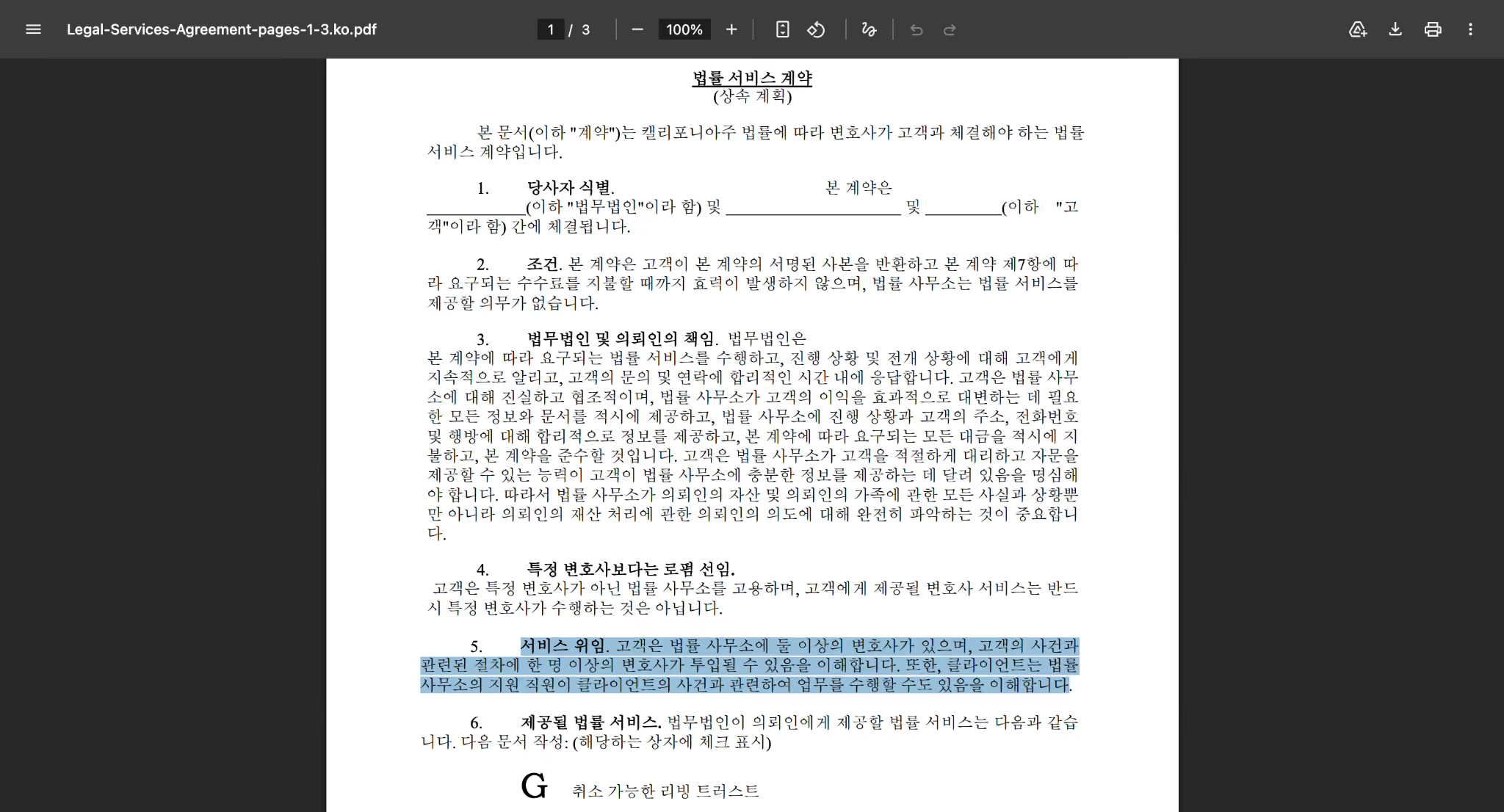
The translation is understandable, but there were a few issues that matter in legal documents.
Compared with general translation tools, Lara produced a readable result and preserved the document structure well, but legal users should still review terminology carefully before using translated agreements.
What Does PDF Translator Software Cost to Translate One PDF
The cost of translating a PDF depends less on the file itself and more on how each platform charges. Some tools bill by characters, some by pages, and others include a fixed number of document translations in a monthly subscription.
To compare them fairly, we estimated the cost using the same three PDF files from our testing.
How JotMe Pricing Works
Unlike most PDF translation software that charges solely by subscription, JotMe uses AI credits based on document length. That makes it much easier to estimate the cost before uploading a file.
The free plan includes 5 AI credits, which are enough to try image translation. PDF translations start at 10 AI credits, so most business documents require a paid plan.
- Pro: $10/user/month (20 AI credits)
- Premium: $15/user/month (50 AI credits)
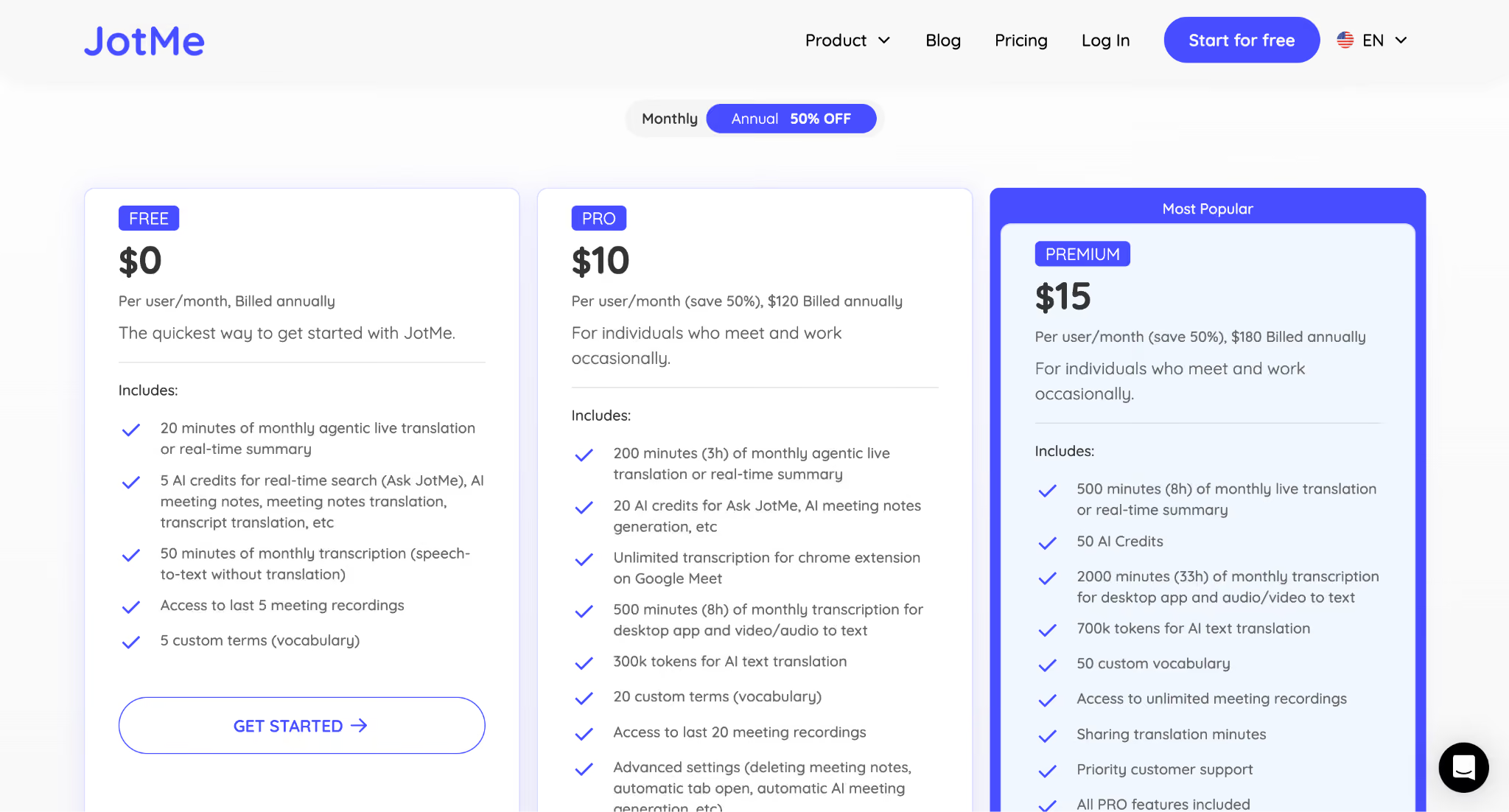
One advantage we found during testing was that JotMe showed the credit cost before the translation started, so there were no surprises after uploading the file.
How the Other PDF Translators Charge
Every other PDF translator in this guide uses a subscription model rather than charging per document.
- DeepL Pro starts at $8.74/month and includes 3 file translations per month on the Individual plan. Higher plans increase the monthly file limit to 20 or 100 translated documents.
- Adobe Acrobat Pro starts at $19.99/month. Translation is part of Acrobat's broader PDF editing workflow, so you're paying for editing, OCR, signing, and document management in addition to translation.
- DocTranslator offers the most flexible pricing. You can translate documents at $0.005 per word, making it inexpensive for occasional jobs, or subscribe for $14.99/month (100 pages) or $135/year.
- Smallpdf offers a free version with limitations. Smallpdf Pro starts at $10.99/month and unlocks full document translation and other PDF tools.
- SYSTRAN targets business users. Pricing starts at €17.99/user/month and includes PDF translation and support for Word, Excel, and PowerPoint.
- Lingvanex starts at $3.99/month (billed annually) for up to 120 document translations per year, with higher plans increasing the annual document allowance.
- Lara Translate offers a free plan with 60,000 characters/month and paid plans for higher usage. Pro starts at €8/month (billed annually) and includes 500,000 characters/month, while Team starts at €25/month with 1.5 million shared characters/month.
Subscription vs. Pay-Per-Document: Which Costs Less
The cheapest option depends entirely on how often you translate PDFs.
- Occasionally, one or two PDFs: Google Translate is free if formatting is not important. DocTranslator's pay-per-word pricing is also economical for small documents.
- Regular business documents every month: JotMe offers predictable pricing because costs are based on document length, not page count.
- Large teams translating dozens of PDFs: DeepL Pro, SYSTRAN, and Adobe Acrobat Pro become better value because their higher-tier subscriptions include larger document allowances and additional collaboration features.
- High-volume document translation: DocTranslator's annual plan offers one of the lowest costs for users translating hundreds of pages each month.
My takeaway after testing
If you only translate the occasional PDF, paying for an expensive monthly subscription rarely makes financial sense. Free tools can handle simple documents, although you'll usually spend extra time fixing formatting afterward.
For users who regularly translate contracts, reports, brochures, or scanned PDFs, JotMe's character-based pricing was the easiest to predict during testing, while DocTranslator offered the lowest cost for very high document volumes. Enterprise teams that already use Adobe or DeepL may find their subscriptions worthwhile because translation is only one part of their document workflow.
Which PDF Translator Should You Pick
The best PDF translator depends on what you need after the translation is complete. If you only need to understand a document, free tools can work. If the translated PDF will be shared with clients, used for research, or reviewed by a legal team, accuracy, formatting, OCR, and privacy become much more important.
Based on our testing, these are the best choices for different situations:
- Best overall PDF translator: Choose JotMe if you need accurate translations, preserved formatting, OCR support, and a workflow that continues after translation. It performed the most consistently across legal agreements, marketing brochures, and scanned PDFs.
- Best for contracts and confidential documents: Choose JotMe because it maintains legal terminology better during testing, preserves document structure, and is GDPR-compliant for users handling sensitive files. Lara Translate is also a strong option for privacy-focused translation with Incognito mode, but legal terms should still be reviewed carefully.
- Best for translation accuracy in standard documents: Choose DeepL Pro if your priority is natural-sounding translation, especially for European language pairs. For complex PDFs with tables or advanced layouts, JotMe offers a more complete document workflow.
- Best for scanned PDFs: Choose JotMe if your document is an image-based PDF, scanned contract, or archived file. OCR quality decides the result, and JotMe handled scanned documents more reliably in our testing.
- Best free PDF translator: Choose Google Translate for quick, simple PDF translation. It works well when formatting and professional terminology are less important.
- Best for enterprise translation: Choose SYSTRAN for large-scale regulated workflows, or JotMe and Lara Translate if your team needs broader multilingual document translation with privacy controls.
If you are still unsure which tool to choose, start with the document itself:
- A contract, research paper, or business report → JotMe
- A scanned PDF → JotMe
- A quick personal translation → Google Translate
- A formal European-language document → DeepL Pro
- An enterprise workflow → SYSTRAN and JotMe
- A privacy-focused multilingual workflow → JotMe and Lara Translate
The biggest lesson from testing these PDF translators is that translation quality alone is not enough. A good document translator should leave you with a document you can actually use, not one that requires hours of fixing afterward.
If you are looking for how to translate a PDF while keeping the original layout, terminology, and document structure intact, try app.jotme.io to translate your own file and compare the result with your current workflow.
FAQs
Which PDF translator keeps tables intact?
JotMe and DeepL are among the stronger options when preserving document structure matters. JotMe focuses on keeping PDF elements such as tables, headings, and formatting aligned during translation, making it suitable for contracts, reports, and business documents. DeepL also maintains the layout of supported files well, especially for standard documents, although complex PDF designs may still require some manual checking.
Can free PDF translators handle business documents?
Free PDF translators can handle basic business documents when the goal is only to understand the content quickly. Tools like Google Translate are useful for simple references, but professional documents often require better formatting preservation and more accurate terminology. For contracts, reports, or client-facing documents, JotMe provides a more practical workflow because it focuses on contextual translation while maintaining the original document structure.
Which PDF translator works with scanned files?
JotMe is a strong option for scanned PDF translation because it can process image-based documents using OCR technology before translating the extracted text. This makes JotMe useful for scanned contracts, forms, and archived documents that do not contain selectable text in the PDF. The quality still depends on the scan clarity, but OCR capability makes it more suitable for these files than basic PDF translators.
Do PDF translators change my brand fonts?
PDF translators can sometimes change fonts, spacing, or text positioning, especially when the translated language takes more or fewer characters than the original. A well-designed PDF translator tries to preserve the original layout, but marketing brochures, presentations, and design-heavy documents should always be reviewed after translation. Testing the translated PDF before sharing it publicly helps catch any spacing or font issues.
Which PDF translator is safest for contracts?
JotMe is a suitable choice for users translating confidential contracts because it is GDPR-compliant, making it better suited for sensitive files such as legal agreements, financial documents, and internal reports. For any confidential document, users should still review the privacy policy of the translation tool they choose.
What is the cheapest way to translate 50 PDFs?
The cheapest option depends on how much accuracy and formatting preservation you need. Google Translate can be a free solution for basic understanding, especially when document quality and layout are less important. If you need multiple languages, higher translation accuracy, and PDFs that maintain their original structure, JotMe becomes a more practical choice for professional document translation workflows.
Which professional PDF translator is the best?
JotMe is one of the strongest choices for professional PDF translation because it combines contextual translation, formatting preservation, OCR support, and document workflow features in one platform. It is designed for users handling contracts, research papers, business reports, and other documents where accuracy matters more than simple word replacement.
Which PDF translator handles scanned files and OCR?
JotMe handles scanned PDF translation by using OCR technology to recognize text from image-based documents before translating. This makes it useful for scanned contracts, application forms, archived documents, and other PDFs that do not contain selectable text. However, OCR accuracy can depend on the scan quality, image clarity, and document structure. For best results, use a clear scanned PDF with readable text.
Can a PDF translator read text inside?
Yes, some PDF translators can read text inside images, but they need OCR capabilities to extract the text first. JotMe can process image-based PDFs by detecting the text within scanned pages and translating it while maintaining the document structure. This is different from basic PDF translators that only work with selectable text and may ignore or skip content embedded inside images.
Last updated on
August 10, 2026
Follow us on social media:
![JotMe — Is Google Translate Accurate? [2026 Test]](/_webflow-assets/0d0512afc7b037d74dff536f22fed08f.avif)