



Microsoft Teams Live Translation vs JotMe: Best Live Translator

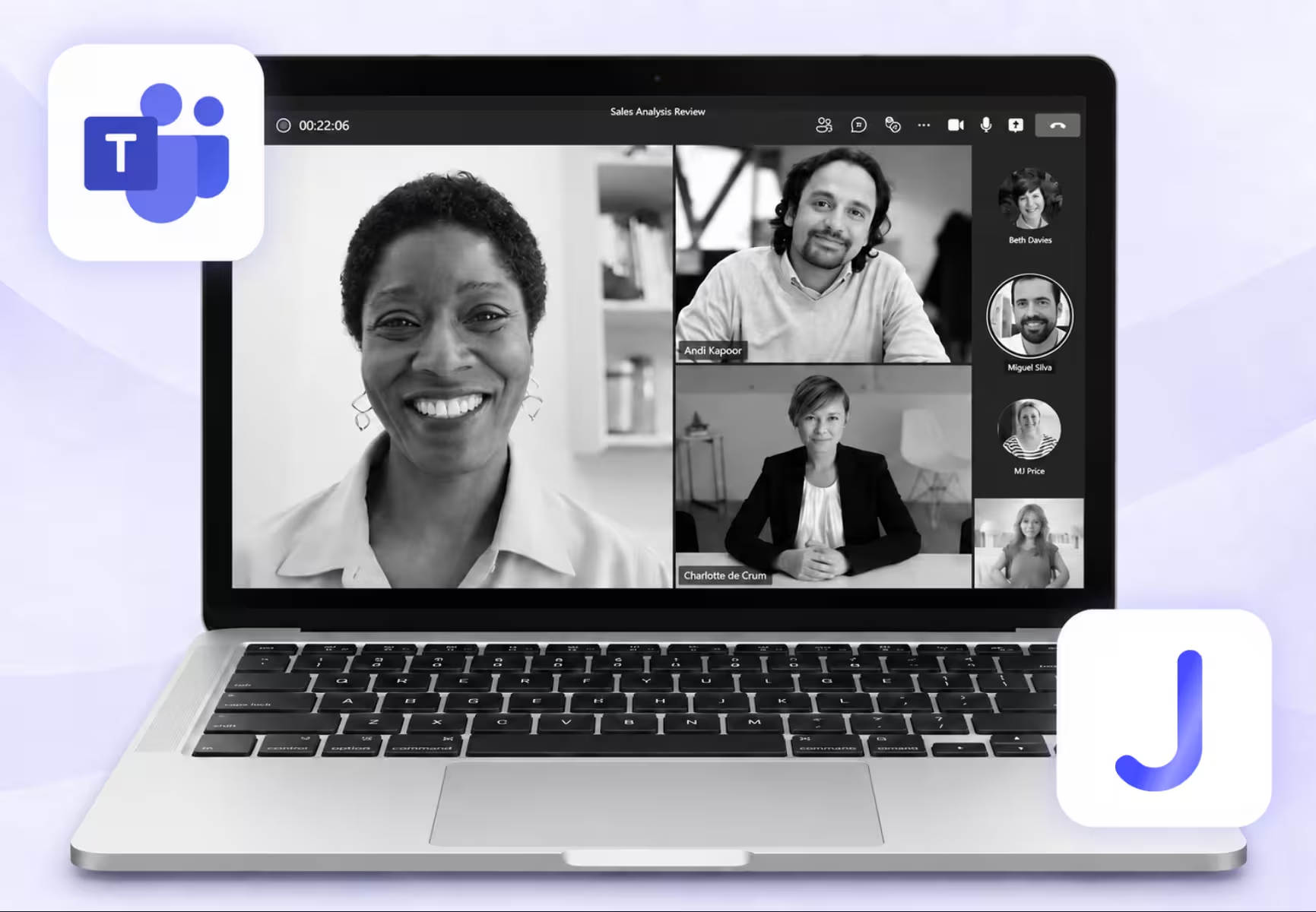
Microsoft Teams took us about 20 minutes to get through the subscription process and set up the translation features we wanted to test. With JotMe, the getting-started sequence took about 30 seconds. Once the conversation began, however, the more useful differences appeared in what each tool translated and how long we waited to hear it.
In our recorded comparison, Teams produced understandable translations overall and did an impressive job of recreating the speaker's voice. JotMe handled the meaning more accurately in the caption example we repeated, revised its translation as the conversation developed, and started translating speech sooner after the speaker finished.
Those differences matter when a meeting involves actual decisions. A sentence about a disadvantage should still describe a disadvantage in another language. And when someone asks whether a deadline can move, the answer needs to arrive while everyone is still discussing the schedule.
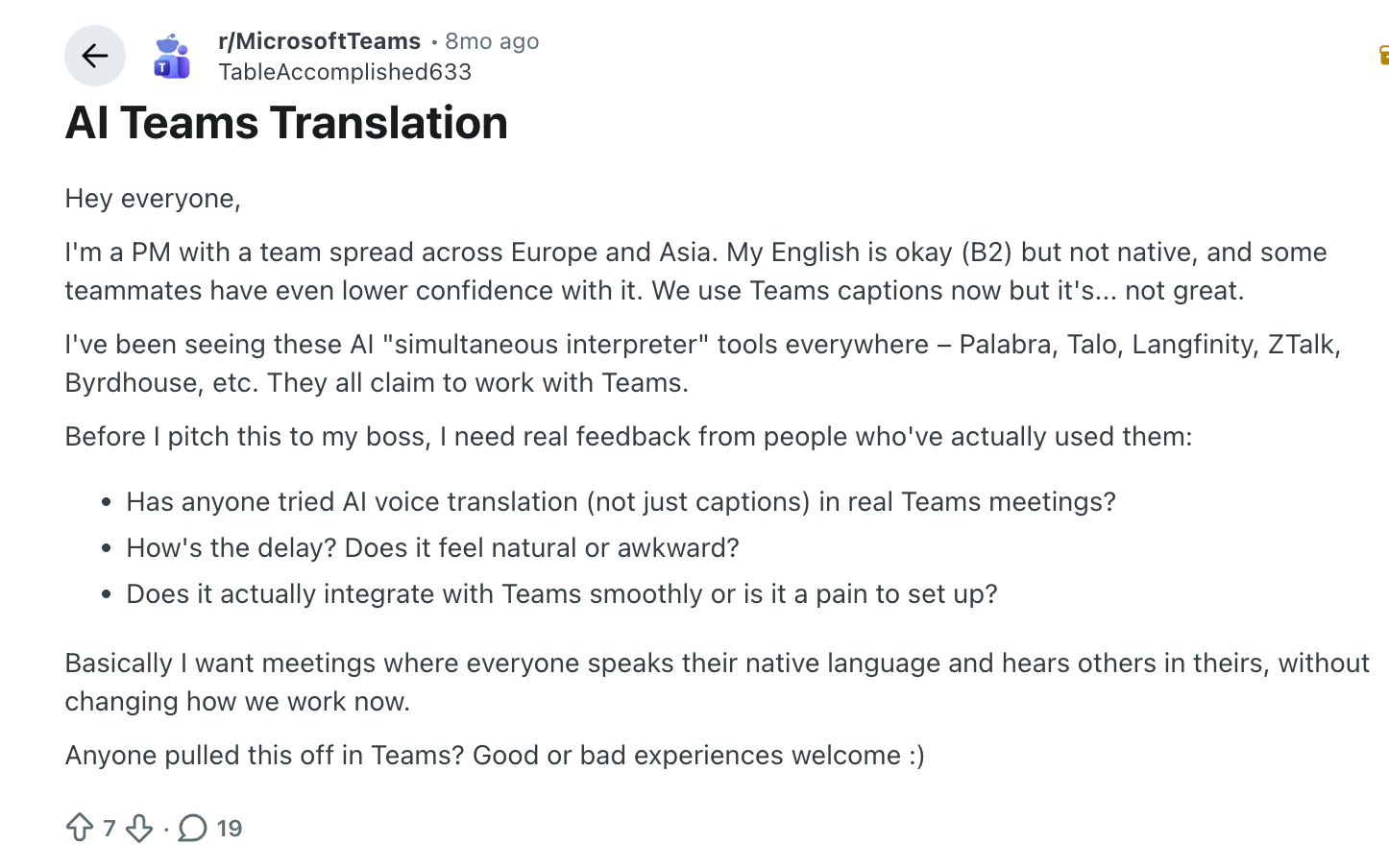
A project manager in this Microsoft Teams discussion on Reddit described a similar need: their colleagues were spread across Europe and Asia, had different levels of confidence in English, and wanted to speak and listen in their own languages while continuing to use Teams. They asked specifically about voice translation, delay, and setup. That is the practical question behind this comparison.
Here, we explain how Microsoft Teams live translation and JotMe work, walk through captions and voice interpretation separately, and review our team's recorded test results. We also compare their current pricing, including the licenses and usage allowances that affect the real cost.
Key Takeaways
- JotMe was quicker to get started in our demonstration: Approximately 30 seconds, compared with roughly 20 minutes spent selecting subscriptions and setting up Teams. These were our observed setup times.
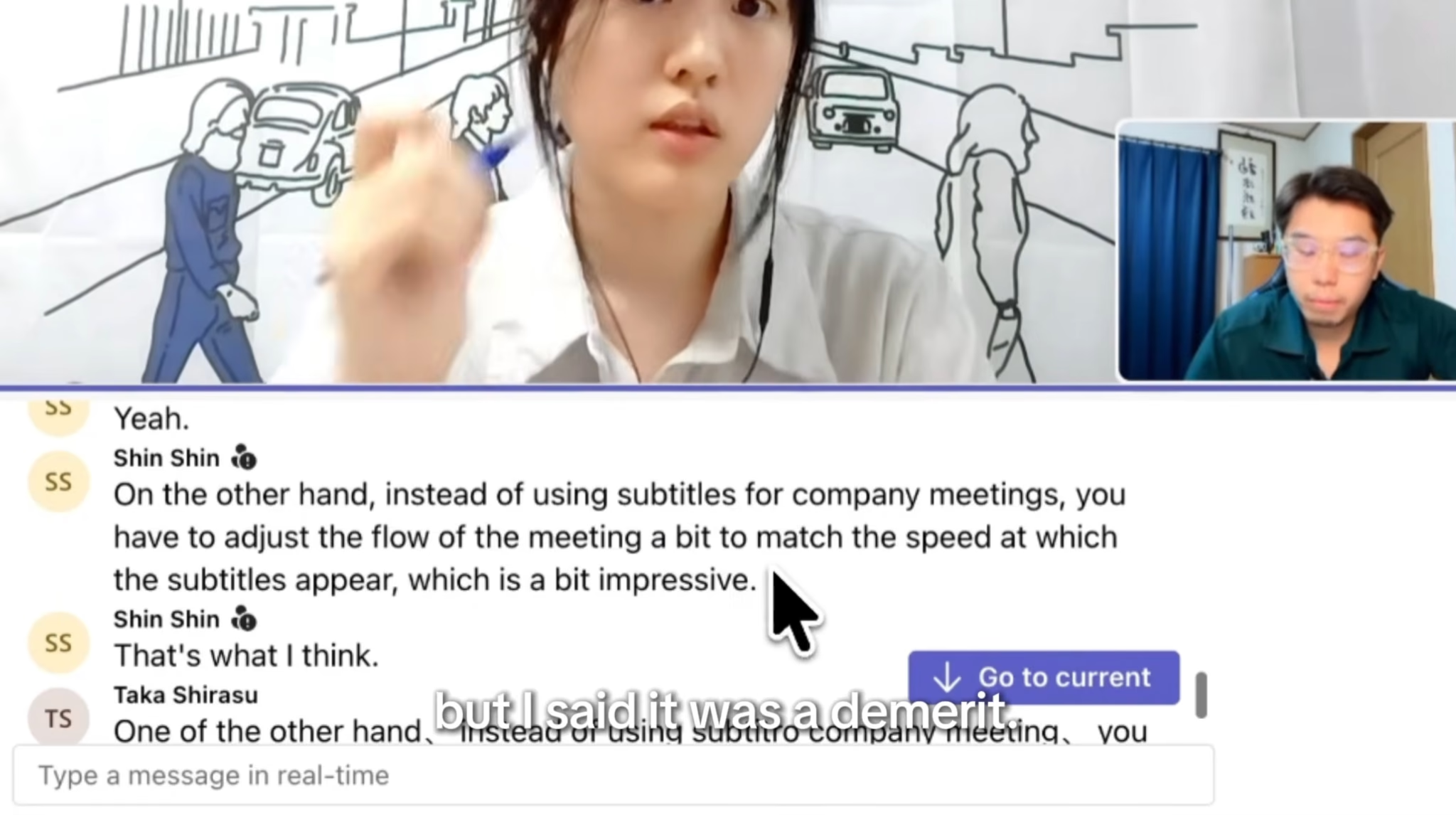
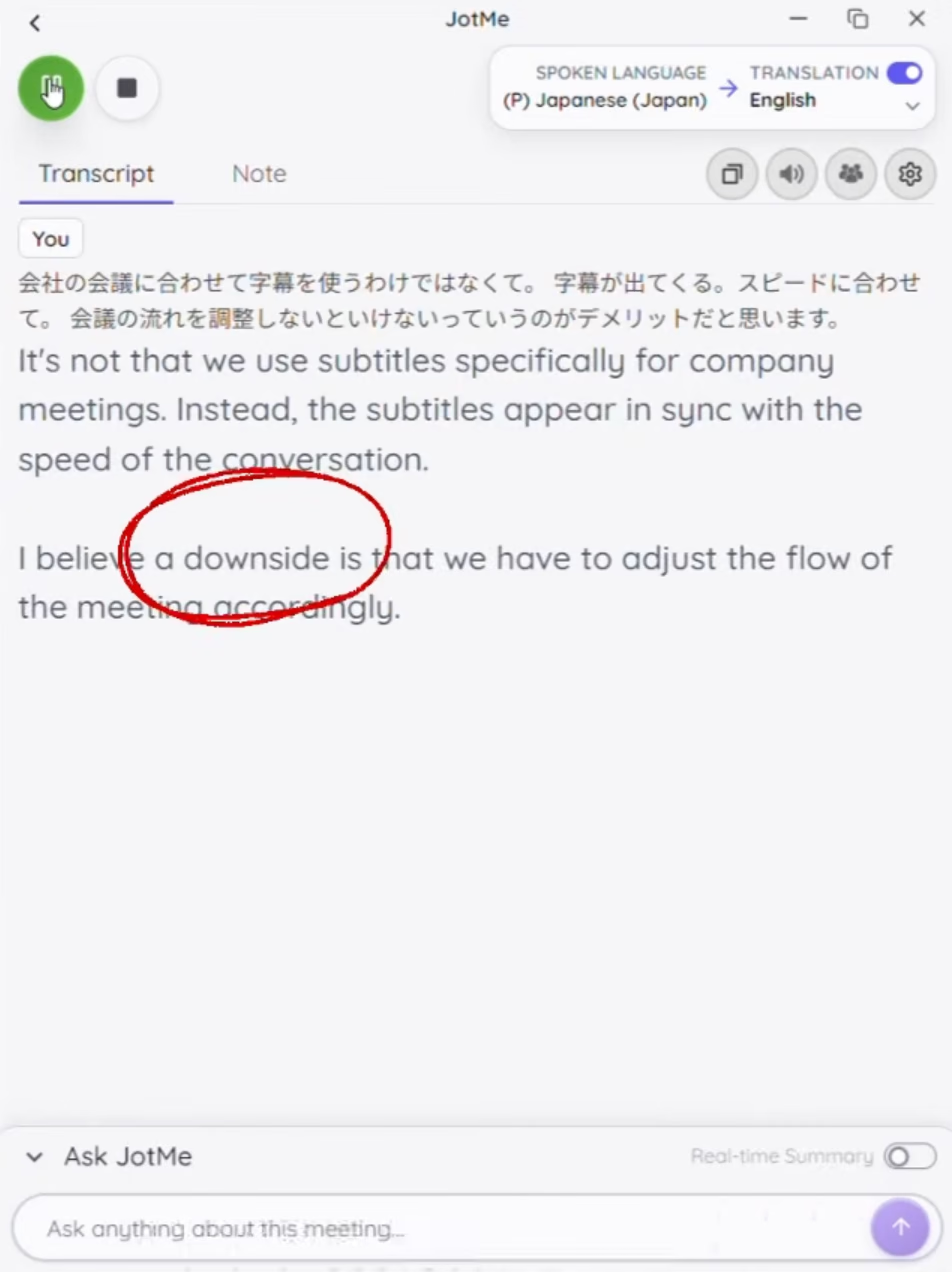
- JotMe handled our repeated caption example better: It translated “demerit” as “downside,” while the Teams output shown in the comparison used “impressive,” changing the intended meaning.
- Teams reproduced the speaker's voice more closely: Teams voice simulation was the stronger of the two in our listening comparison.
- JotMe started translated speech sooner: Less than one second after the speaker finished in the demonstrated example, while we reported roughly three to five seconds of delay with Teams.
- Pricing depends on the feature: Teams translated captions and its AI Interpreter have different licensing requirements. JotMe's caption and voice modes also consume translation minutes at different rates.
Quick Comparison: Microsoft Teams Live Translation vs. JotMe
Microsoft Teams provides translation within the meeting application. JotMe runs alongside Teams as a desktop app, so you can keep the Teams call while using JotMe for translated text or audio. The comparison is therefore about which translation workflow to use during a meeting, rather than whether you should move your calls to another platform.
The timing figures come from our recorded demonstration, not an average across many meetings. The setup comparison also does not establish how long a first-time, two-way voice configuration will take. That workflow can require additional audio setup, which we explain below.
How We Performed Live Comparison Between Teams Live Translation and JotMe
Our team compared the process of getting started, reading translated captions, and listening to translated speech. We recorded the experience so you can examine the examples behind our conclusions.
What We Considered During Testing
We first looked at the steps needed to reach live translation. For Teams, that included finding an appropriate subscription and the add-on needed for voice interpretation. For JotMe, we followed the website-to-desktop-app sequence and started live translation.
Next, we considered whether the captions preserved the intended meaning. A translation can sound fluent while giving the listener the wrong idea. We repeated a sentence containing “demerit” to see how each product handled that meaning.
We also examined sentence completeness and contextual updates. Did the text arrive in readable sentences? When later speech clarified an earlier phrase, did the translation change to reflect that information? The budget example gave us a visible instance of JotMe revising its wording.
For translated audio, we considered response time, voice resemblance, and conversational pacing. We listened to whether the generated voice sounded like the speaker and whether the pause before translation made it harder to continue the exchange.
What These Results Establish
The examples support the observations described here, including Teams' stronger voice resemblance. They do not establish a universal accuracy score or guarantee that either product will behave identically in your meetings.
The video does not document a standardized test dataset, repeated trials, network measurements, hardware specifications, or every selected translation setting. It explicitly repeats the caption sentence, but the voice demonstrations use different speech. The voice results should therefore be read as observations from those examples, rather than a controlled comparison of identical recordings.
There is also a small timing difference within the narration: the JotMe caption example is described as taking around one to two seconds, while the closing recap says two to three seconds. We retain that distinction instead of presenting either figure as a precise benchmark. For JotMe voice translation, the stated sub-second figure measures the wait after the speaker finishes, not the time required to deliver the entire translated sentence.
How to Set up Microsoft Teams Live Translation
Start by deciding whether you want translated text on screen or translated speech in your headphones. That choice determines the Microsoft entitlement you need.
In our video, finding the right subscription was the slowest part of getting started. We eventually selected Microsoft 365 Business Premium with Copilot Business as an add-on. That was the combination we used for the demonstration; it is not the minimum subscription every reader must purchase.
Step 1: Check Your Existing Teams Access
Sign in with the work account you use for meetings and check which subscriptions your organization has assigned to it. If you already use Teams at work, begin with those existing entitlements before buying another bundle.
Microsoft 365 Business Premium and Teams Premium are separate products. The shared word “Premium” is easy to misread during checkout. Teams Premium is an add-on to a paid Teams license.
Step 2: Match the License to the Translation Feature
For meeting captions, Microsoft supports eligible Teams Premium or Microsoft 365 Copilot entitlements. An eligible organizer can make translated captions available to participants; an individually licensed attendee can also use them personally.
Step 3: Confirm the Feature is Available in Your Meeting
Ask your administrator to check the relevant meeting policy if the option is missing. Then open a meeting with a colleague and try the feature you plan to use. Reaching the Teams meeting screen is only the beginning of this check; confirm that translated text or audio actually reaches the intended person.
Our approximately 20-minute setup experience included choosing and purchasing subscriptions. An organization that has already configured the required licenses and policies may have a much shorter path.
How to Set up JotMe for Live Translation
For live translation in Microsoft Teams with JotMe, install the desktop app and run it alongside your meeting. You do not need to purchase Microsoft's translation add-ons to use JotMe's own translation features.
Step 1: Download and Open the Desktop App
Visit JotMe, choose Start for free, and download the installer for your Mac or Windows computer. Complete the installation and open the app.
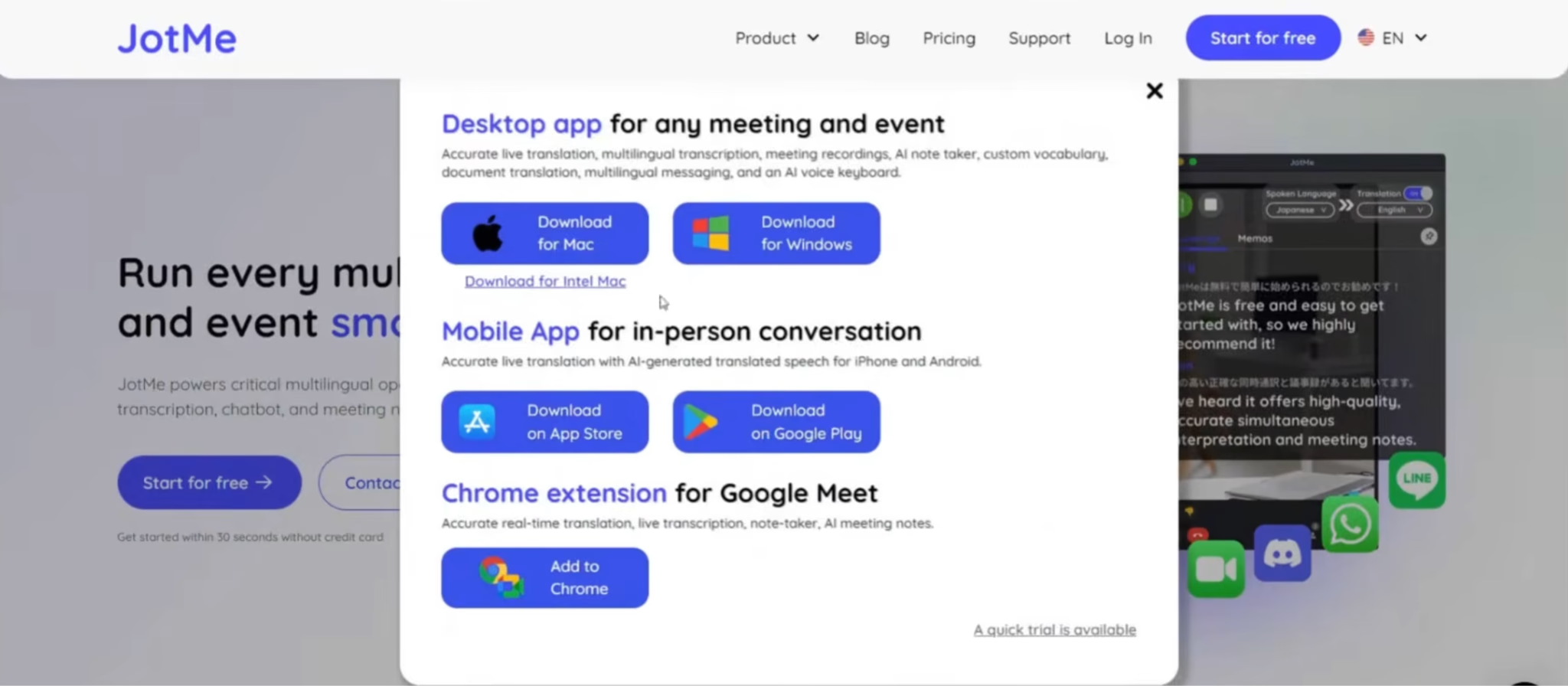
Step 2: Allow the Audio Sources You Need
In an online meeting, JotMe needs access to the meeting audio to translate other participants and microphone access to capture you. Its desktop setup guide explains these controls under Settings and Setup.
Open your Teams call and keep JotMe available beside it. A brief exchange is enough to reveal a common setup problem: your words appear, but the other person's words do not. In that situation, check the incoming audio capture before changing language settings repeatedly.
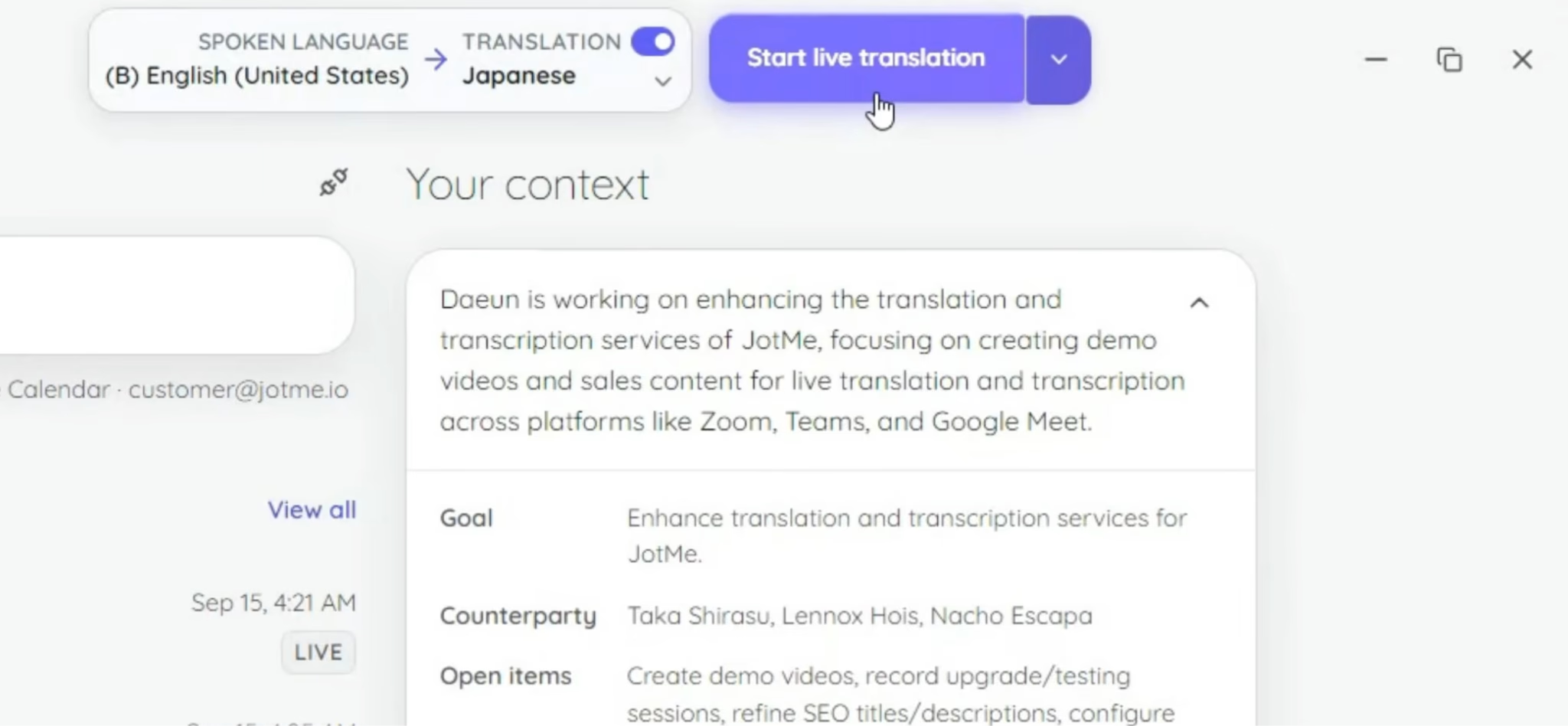
Step 3: Select the Languages and Start Translation
Choose the spoken language and the language you want to read. Start the live session using the app's translation or Play control. For a more detailed walkthrough of this caption workflow, see how to get live translation for Teams meetings.
How to Use Microsoft Teams Translated Captions
Teams translated captions let you read another language while the meeting's original audio continues. They are useful when you want to follow the discussion without listening to a second spoken track.
In the desktop meeting controls:
1. Open More actions, then Language and speech.
2. Select Show live captions.
3. Open Caption settings, then Language settings.
4. Check that the meeting's spoken language is correct.
5. Enable Translate to and choose your reading language.
Your reading preference and the spoken-language setting serve different purposes: one controls the output you see, while the other tells the service what speech to recognize.
If the translation option is unavailable, check the entitlement described above. If captions themselves are unavailable, your administrator can inspect the Live captions meeting policy.
In our test, the next question was whether the displayed English represented what the speaker meant. Readability and fluent wording were not enough to answer that.
How to Use JotMe to Create On-Screen Captions
With JotMe's Teams caption translation, the translated text appears in JotMe while you remain in the Teams meeting. You can place that window where it is comfortable to read alongside the speaker or shared presentation.
1. Join the Teams meeting and open JotMe.
2. Start the live transcription and translation workflow.
3. Select the language being spoken and the language you want displayed.
4. Confirm that translation is enabled, then press Play.
5. Check a short exchange from both sides before continuing the meeting.
JotMe's Teams translation walkthrough covers the language selection and Play controls. If you choose a multilingual setting, check that it supports the languages your speakers will actually use.
During the demonstration, we paid attention to what happened after the first words appeared. JotMe revised a word as the budget discussion continued. That behavior helps when a sentence becomes clearer over time, although a reader should expect some live text to change before the thought is complete.
For example, during a project call, someone might begin with a short phrase and explain its object a moment later. Waiting for that completed thought can be more useful than treating the first caption fragment as final. The video gives a concrete example of why the finished meaning deserves as much attention as the initial display speed.
If you need a written record after the call, review JotMe's Microsoft Teams transcription workflow as well. The text you follow live and the record you return to afterward solve different parts of the meeting: one helps you respond now, while the other helps you check what was discussed.
How to Use the Microsoft Teams Interpreter Feature
Microsoft Teams Interpreter translates spoken conversation into audio in your chosen language. In our test, its voice simulation was particularly convincing: the translated voice retained a strong resemblance to the original speaker.
Step 1: Open Interpreter in the Meeting
Select More actions > Language and speech > Interpreter > Turn on for me. Choose your listening language, adjust the balance between original and interpreted audio, select your voice preference, and turn the feature on.
Step 2: Check Who Can Receive Interpretation
An individual listener needs the eligible Copilot access described earlier. Microsoft's Interpreter licensing documentation includes 20 hours per person per month, with further access subject to capacity. This is a different entitlement from letting attendees read translated captions.
Step 3: Try a Short Exchange
Have one person ask a question and the other reply. Listen for three things: whether the meaning survives, whether the voice is easy to follow, and whether each person knows when to speak again.
This last point became noticeable in our demonstration. The voice could sound impressively familiar while the pause before playback still interrupted the conversation. For a presentation, that delay may be manageable. In a discussion with short questions and quick answers, it changes the rhythm of the exchange.
How to Use JotMe as Your AI Interpreter
JotMe's voice workflow lets you listen to another participant in your language or send translated speech back into the Teams call. Decide who needs to hear the translation before starting, because listening locally and speaking into the meeting use different audio paths.
Step 1: Choose the Voice Translation Workflow
Open Voice-to-voice real-time translation from JotMe's start menu. In the speech-to-speech controls, select Fast (Audio) as the spoken-language model and choose the available voice translation language.
Step 2: Select the Direction
For an online meeting, choose the direction that matches your conversation:
- Listening Only: hear the meeting translated through your headphones.
- Speaking Only: send a translation of your microphone speech into Teams.
- Two-Way: translate incoming meeting speech and your outgoing speech.
Step 3: Complete the Audio Routing
Follow JotMe's device instructions for the selected mode. Its published two-way setup uses BlackHole 2ch and 16ch on Mac, and VB-CABLE plus Virtual Audio Cable Line 1 on Windows. Missing drivers can prevent the workflow from starting, so allow time for installation and a restart if prompted.
Step 4: Check the Sound From the Other Person's Side
Start with a short question in each language. Ask the other participant what they heard, then have them answer. This confirms whether the complete conversation works, rather than merely whether a translated voice plays on your own computer.
Imagine a client asking for a delivery date in Korean while you respond in English. You need their translated question in your headphones and your translated answer in their Teams audio. If only the first part works, you have a useful listening aid, but you have not yet configured the full two-way exchange.
JotMe's voice translator overview describes the broader speech-to-speech workflow. Language availability can differ between written translation and generated speech, so select the actual voice output you need in the app before the meeting.
The voice feature also uses a different minute rate from basic captions. We account for that in the pricing section instead of assuming that every minute in a plan buys one minute of voice interpretation.
Microsoft Teams vs. JotMe Caption Translation Test
JotMe performed better in the repeated caption example because its output preserved the intended negative meaning. It also showed a contextual revision in a separate budget discussion. Teams' output was understandable overall, but the specific errors and fragmented sentences made parts of the discussion harder to follow.
The word that changed the meaning
In the Teams segment, we identified a translation in which the intended word “demerit” appeared as “impressive.” A demerit describes a disadvantage; “impressive” suggests a favorable judgment. That difference could cause a listener to misunderstand whether the speaker was raising a concern or expressing approval.
We then repeated the sentence with JotMe. Its translation used “downside,” retaining the negative meaning.
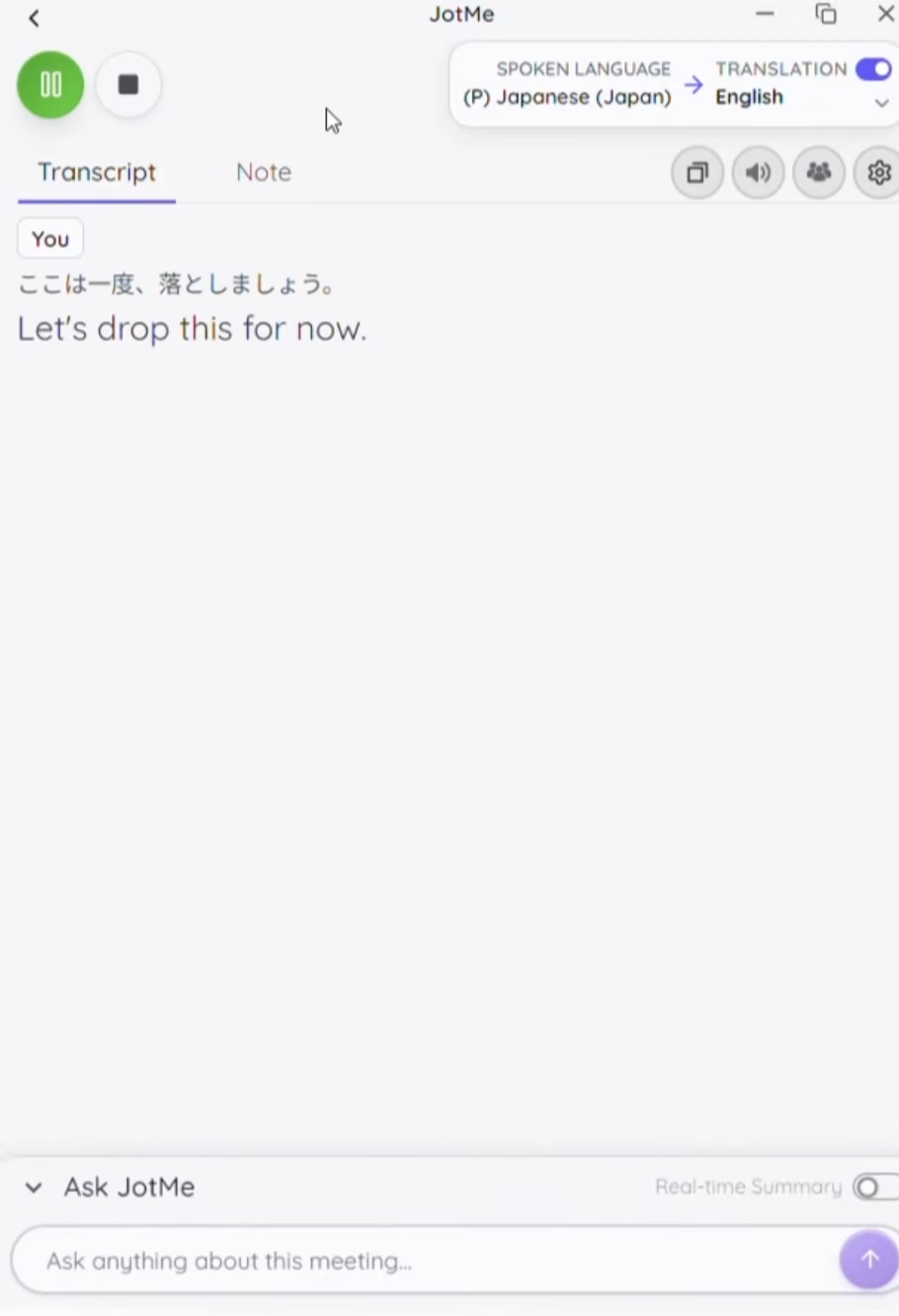
First, JotMe translated the conversation to Drop:
When we spoke further, it automatically understood the context and changed drop to lower:
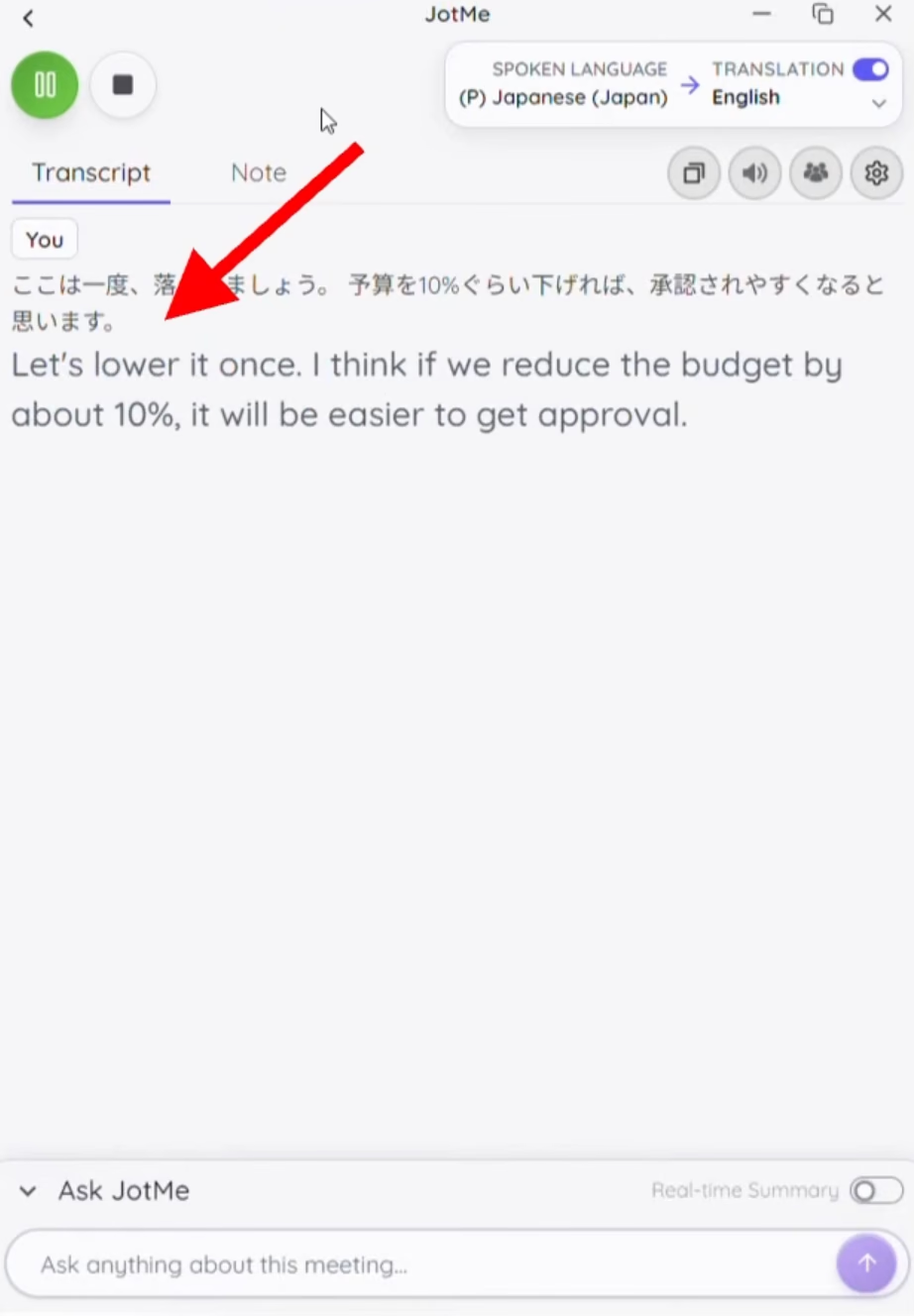
This is a concrete example of a difference in the output, not a numerical accuracy score. It also does not isolate whether the Teams error began in speech recognition or translation. From the participant's perspective, the practical problem was the meaning of the caption they received.
How the Captions Handled Developing Context
Our reviewer noticed that some Teams sentences appeared in pieces and that earlier translations did not visibly update as the discussion continued. That made the experience feel less connected in the examples discussed.
JotMe showed a different behavior. During the budget example, it initially used “drop,” then revised the word to “lower” as the discussion developed. Both words can be used when talking about a budget, so this is best understood as evidence of a contextual update, rather than proof that the initial word was necessarily wrong.
Consider a discussion about reducing costs. A participant may introduce the reduction first and name the budget category afterward. A reader needs a coherent account of that whole thought to understand the proposal. Captions that arrive quickly but leave separate fragments unresolved can make that harder.
The video supports a narrower conclusion than saying Teams never uses context: in these examples, we preferred JotMe's displayed revision behavior and the meaning of its repeated translation.
Caption Delay and Readability
We reported a consistent delay of around two to five seconds for Teams in this test. In the JotMe caption example, the narration describes a delay of about one to two seconds. The closing recap gives a slightly broader two-to-three-second description.
That supports a qualitative finding that JotMe felt more responsive during the demonstration. It does not support a fixed claim such as “twice as fast” across all meetings.
For the person reading, the useful question is whether the translation arrives early enough to take part and remains accurate enough to act on. Our repeated sentence illustrates why speed alone is an incomplete measure. A fast positive description would still be misleading if the speaker had described a drawback.
Our caption verdict: JotMe was the stronger option in the demonstrated examples. It retained the intended meaning of “demerit” and showed a visible contextual revision, with shorter reported delays.
Microsoft Teams vs. JotMe Voice Translation Test
The voice comparison produced a clearer tradeoff. Teams sounded more like the original speaker. JotMe started its translated response sooner after speech ended, making the demonstrated exchange feel easier to continue.
Teams Produced the More Convincing Voice Resemblance
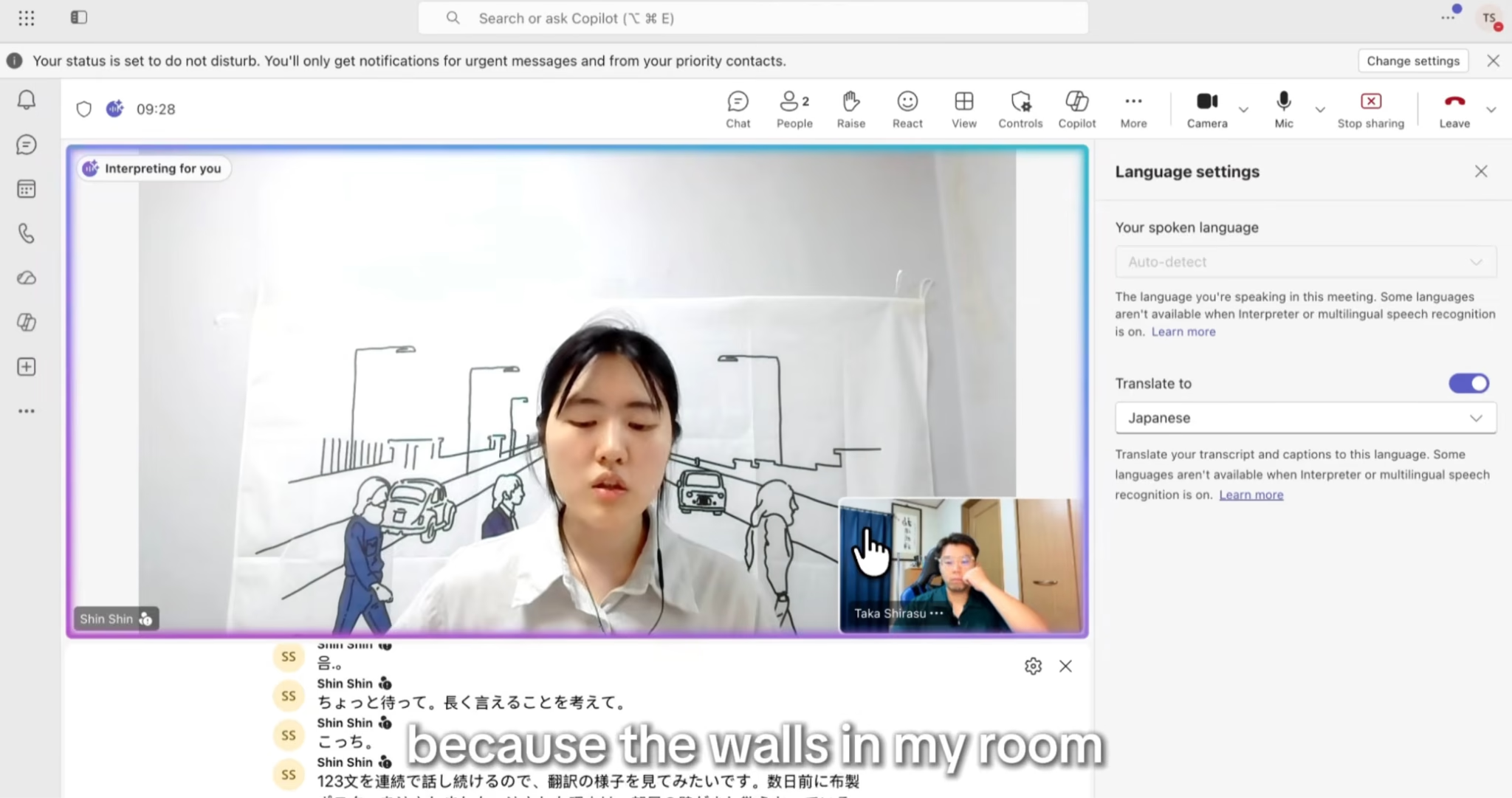
At around 03:33, we tested how the speaker sounded in Korean through Teams. The reviewer responded positively to the similarity, and the narration described the voice as sounding close to the speaker's actual voice. The overall translation quality was also described as reasonable.
That is a meaningful strength. A voice that remains recognizable can make an interpreted meeting feel more personal, particularly when colleagues know one another well. It is a separate quality from the accuracy of the words or the speed of the response, so we considered it separately.
The Delay Changed the Pace of the Conversation
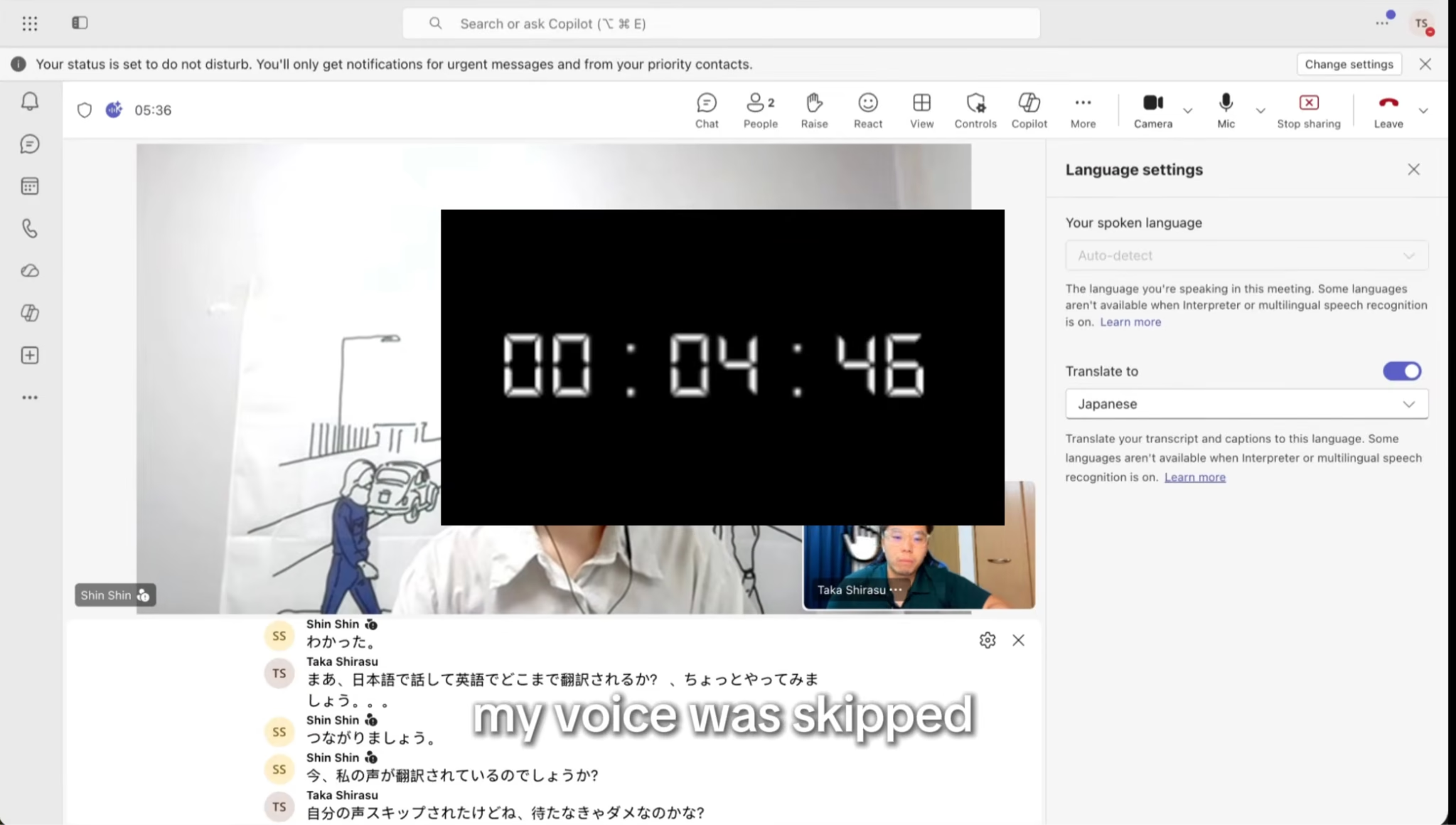
We reported approximately three to five seconds of delay in the Teams voice test. The reviewers discussed having to stop speaking and let the interpretation finish, and one remarked that speech had been skipped.
The recording does not establish why that skipped speech occurred. It does show the participants adjusting their behavior around the interpretation. Instead of replying as soon as they understood the original speaker had finished, they had to account for another audio turn.
For a prepared presentation, speakers can leave deliberate space between points. A working discussion often has shorter turns: someone proposes a date, another person raises a constraint, and a third asks what happens to the budget. A noticeable wait after each contribution can make that exchange feel slower even when the translated voice is pleasant to hear.
JotMe Responded Sooner in the Demonstrated Exchange
The JotMe voice segment covers a schedule that feels tight, checking whether the client can extend it by a week, and reconsidering priorities if that is not possible. The narration reports that translated speech began in less than one second after the speaker finished.
That was the more useful advantage for conversational pacing in our test. The translated voice sounded less like the original speaker than Teams did, but the shorter wait helped the exchange move forward.
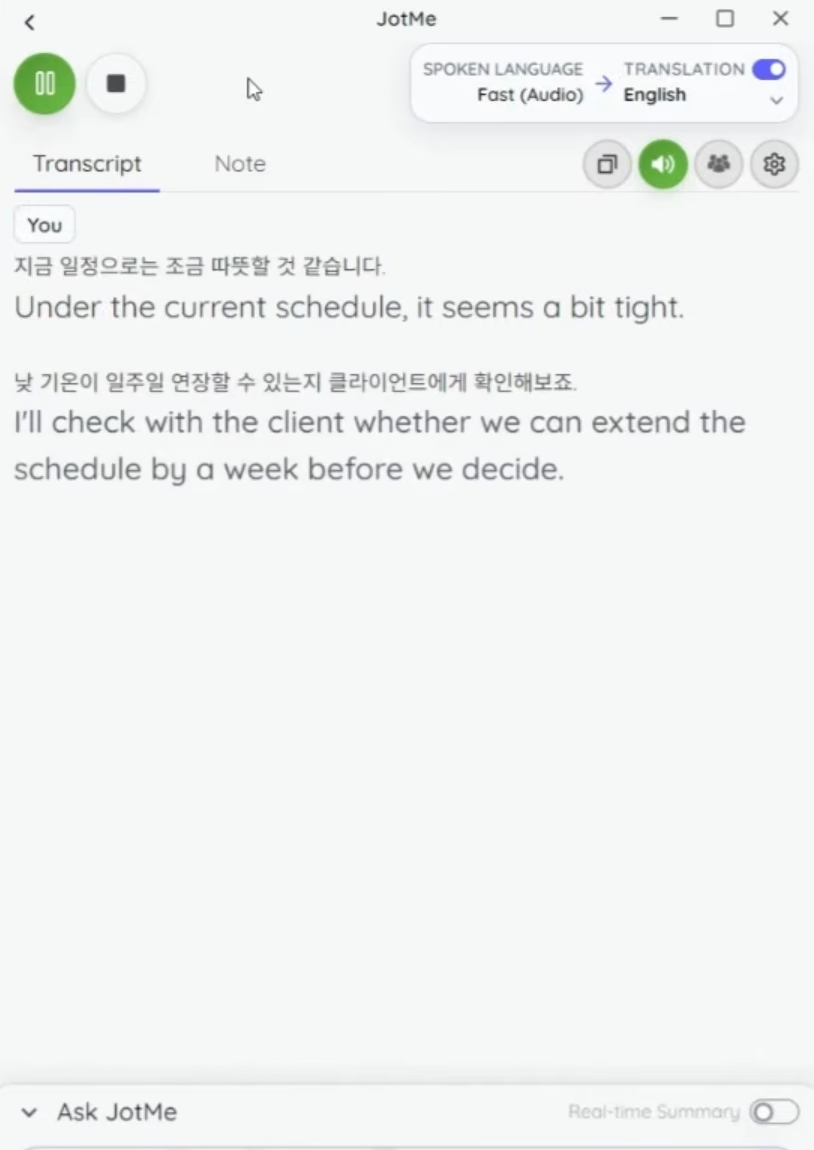
The sub-second result is a start-of-playback observation after the spoken turn. It does not mean an entire sentence was translated and played in under one second, or that every language pair will produce the same response time.
Our voice verdict: choose Teams' demonstrated result if voice resemblance is your main criterion. JotMe's demonstrated result was more appealing for conversations where the time between speaking and hearing the translation matters more.
Microsoft Teams Live Translation vs. JotMe Live Translation: Pricing Comparison
Compare the feature you need and the subscriptions you already have before comparing headline prices. Someone who already has Copilot may be able to try Teams Interpreter without buying another add-on. Someone who only needs captions should not price their decision around an entire Microsoft 365 bundle.
The prices below are published US-dollar prices checked on September 18, 2026. Billing commitments, promotional eligibility, regional pricing, and taxes can affect the checkout total.
Microsoft Teams Translation Pricing
Microsoft option
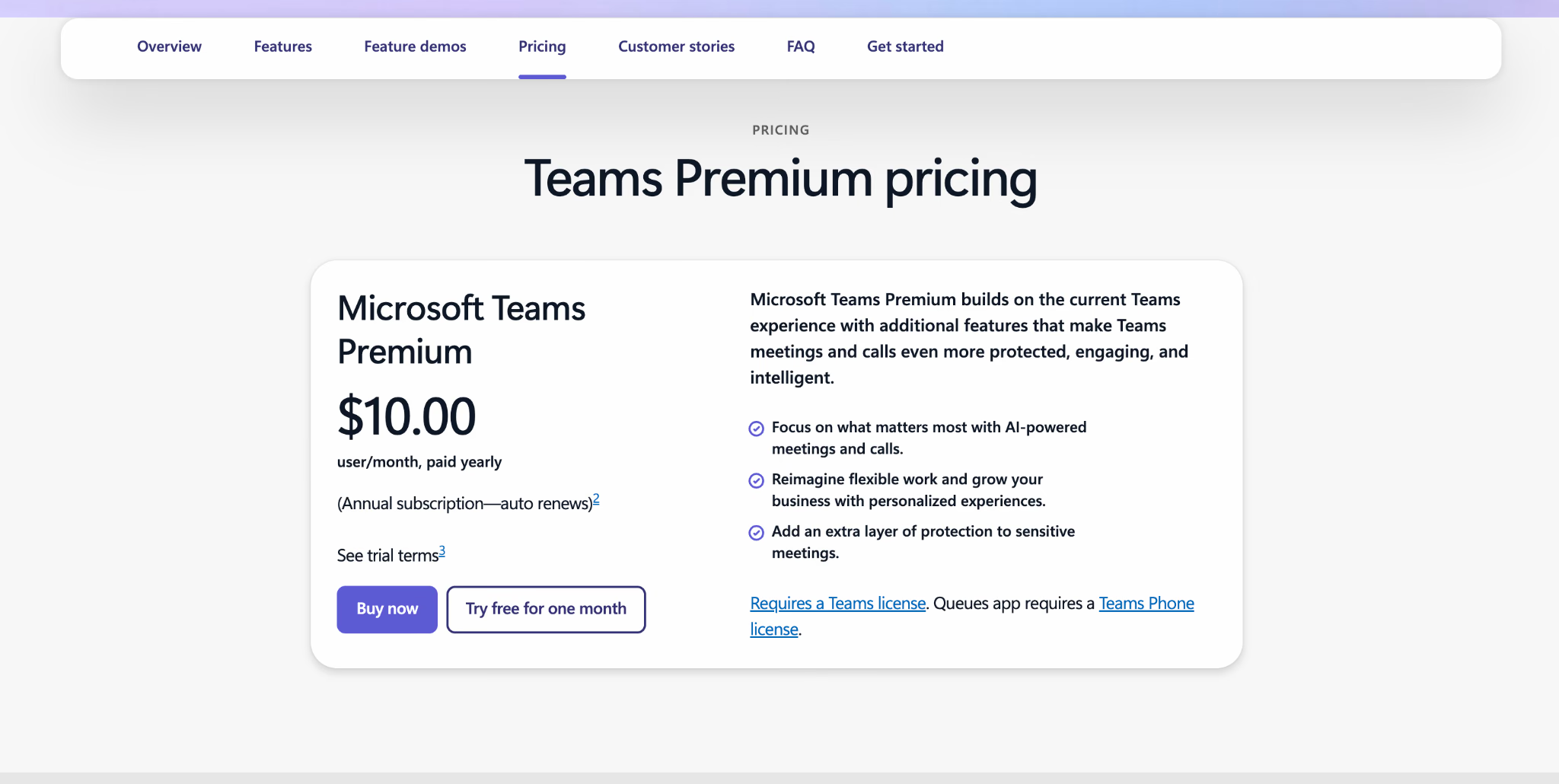
Our video used Business Premium plus Copilot Business, but it did not state the amount paid. The bundle price above is a current purchasing example, not a reconstructed invoice for that test.
For caption access, an eligible organizer can cover the meeting's attendees. For Interpreter, consider the number of listeners who need Copilot, and its included 20 hours per user per month. Additional Interpreter access depends on available capacity.
JotMe Translation Pricing
JotMe publishes these individual prices and allowances on its website. Teams pricing starts at a published $60 monthly, with the total depending on seats and the translation-minute pool; Enterprise pricing is custom. See the JotMe plans and pricing explanation for the wider plan comparison.
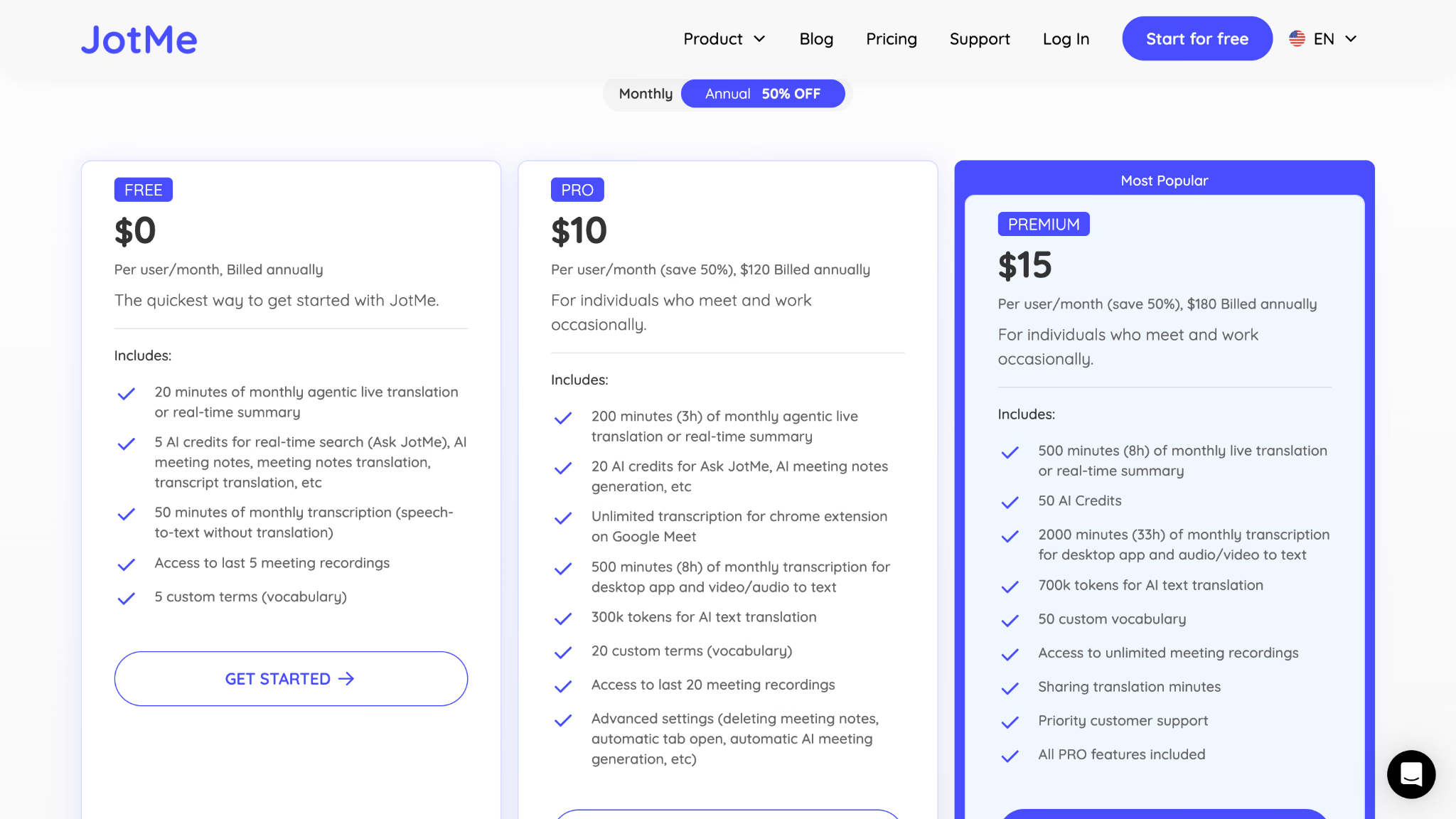
The annual rate is a monthly equivalent. For example, annual Premium means an upfront $180 charge. It does not mean a $15 charge each month. JotMe's billing documentation explains payment and allowance renewal.
How Many Meeting Minutes Do Those Allowances Cover
JotMe's selected mode changes how quickly live-translation minutes are consumed:
- Basic captions use the standard rate.
- Premium Quality uses twice the minutes.
- Fast Audio, used for speech-to-speech translation, uses five times the minutes.
Accordingly, a 200-minute Pro allowance covers approximately 200 minutes in Basic, 100 minutes in Premium Quality, or 40 minutes in Fast Audio before any additional sharing or output multipliers. A 500-minute Premium allowance covers approximately 100 minutes at the Fast Audio rate under the same assumptions.
Consider four 30-minute meetings in a month. That is 120 minutes of meeting time. At Basic's standard rate, the translation fits within Pro's 200-minute allowance. At the 5x Fast Audio rate, those meetings consume 600 translation minutes, so Premium's included 500-minute balance alone would not cover them. Extra capacity or a different plan would be needed.
Sharing translated output with participants can change the calculation further. Use the intended meeting setup when estimating usage, especially if multiple people will listen through a shared translation session.
This is why we would not call JotMe universally cheaper than Teams. Its free entry point, independent setup, and observed responsiveness are useful reasons to try it. For frequent voice interpretation, an existing Copilot subscription and its larger included time allowance can change the cost comparison substantially.
Microsoft Teams Live Translation vs. JotMe: Which One to Choose For Live Meetings
JotMe was our preferred translation experience in the recorded comparison. It was easier to reach live translation, handled the repeated caption example more accurately, and started translated voice output sooner after speech ended. Those are useful advantages when the goal is to follow a discussion and respond without repeatedly interrupting its pace.
Teams also gave us a result worth recognizing: its voice simulation sounded more like the original speaker. If your organization already has the required licenses, your meeting format is supported, and voice resemblance matters to you, its Interpreter deserves a trial with your colleagues.
Choose JotMe when you want to keep using Teams while trying a separate translation workflow, or when the caption behavior and response times in our demonstration address problems you have noticed in your own meetings. JotMe's Microsoft Teams tools cover the broader translation, transcription, and meeting-notes workflow.
Choose Teams' native translation when it already meets your language and access requirements, and your participants prefer its built-in controls. For caption-only meetings, an eligible organizer's license may also make the native option economical across a group.
Your trial should resemble an ordinary working conversation. Discuss a real deadline, explain a limitation, ask a follow-up question, and check what each person understood. These are more revealing than a single greeting because they expose the meaning and timing problems that affect collaboration.
For a wider shortlist, our guide to the best live translation tools for Microsoft Teams compares additional options. To try the workflow shown here, start with JotMe's free plan and use a short meeting segment to check your languages, audio, and preferred translation mode.
FAQs
Can Microsoft Teams translate meetings in real time?
Yes, Teams offers translated captions for reading and an AI Interpreter for translated speech. They have different access requirements, so choose the feature first. The setup sections above cover each workflow and link to Microsoft's current instructions.
Is Microsoft Teams live translation free?
Native translated captions require an eligible entitlement, although attendees can receive access through a licensed organizer. Interpreter requires eligible Copilot access for the listener. Having ordinary captions available does not establish access to either translation feature.
Is Microsoft 365 Business Premium the same as Teams Premium?
They are separate subscriptions. Business Premium is a Microsoft 365 business suite; Teams Premium adds capabilities to an existing paid Teams license. The name alone does not tell you whether the account has everything needed for AI voice interpretation.
Can I use JotMe during a Microsoft Teams meeting?
Yes, you can use the JotMe desktop app alongside Teams for captions or voice translation. Reading meeting captions and sending generated speech back into the call are different setups. For two-way voice translation, complete the audio-routing steps before the conversation begins.
Can I save the translated Teams audio after the meeting?
Microsoft states that Teams meeting recordings retain the original audio rather than the Interpreter audio. If you need translated speech in a recording, do not assume that turning on Interpreter will create it.
Does JotMe's translation allowance equal the same number of voice minutes?
The selected mode determines usage. Fast Audio uses a 5x rate, so 100 translation minutes provide about 20 minutes in that mode before additional sharing or output multipliers. Use the mode's rate when estimating meeting capacity.
Can Microsoft Teams live captions translate multiple languages in the same meeting?
Microsoft Teams live translation works best when the spoken-language setting matches the language being spoken. If participants switch between languages, the caption results may become less accurate unless the appropriate language settings are used. Reddit users have reported difficulties when bilingual speakers change languages during a conversation. For multilingual meetings, test the language settings before the meeting begins.
Why is the Translate to option missing in Microsoft Teams?
The Translate to option may be unavailable because of licensing, meeting policies, or feature configuration. A Teams Premium license alone does not guarantee that every participant will see the translation option. Ask your administrator to check the meeting's live captions and transcription policies, and verify that the organizer has the required entitlement. Microsoft also documents cases where users with Premium reported translation options not being available.
Can each participant choose their own translated caption language in Teams?
Yes. Microsoft Teams allows participants to select a preferred caption translation language when the feature is available. This is useful for multilingual meetings because different attendees may want to read the conversation in different languages. However, the spoken-language setting must be accurate for speech recognition and translation to work properly.
![JotMe — Is Google Translate Accurate? [2026 Test]](/_webflow-assets/0d0512afc7b037d74dff536f22fed08f.avif)