






Tips
How to Record a WhatsApp Call on iPhone and Android

Lovely Mangla
August 8, 2026
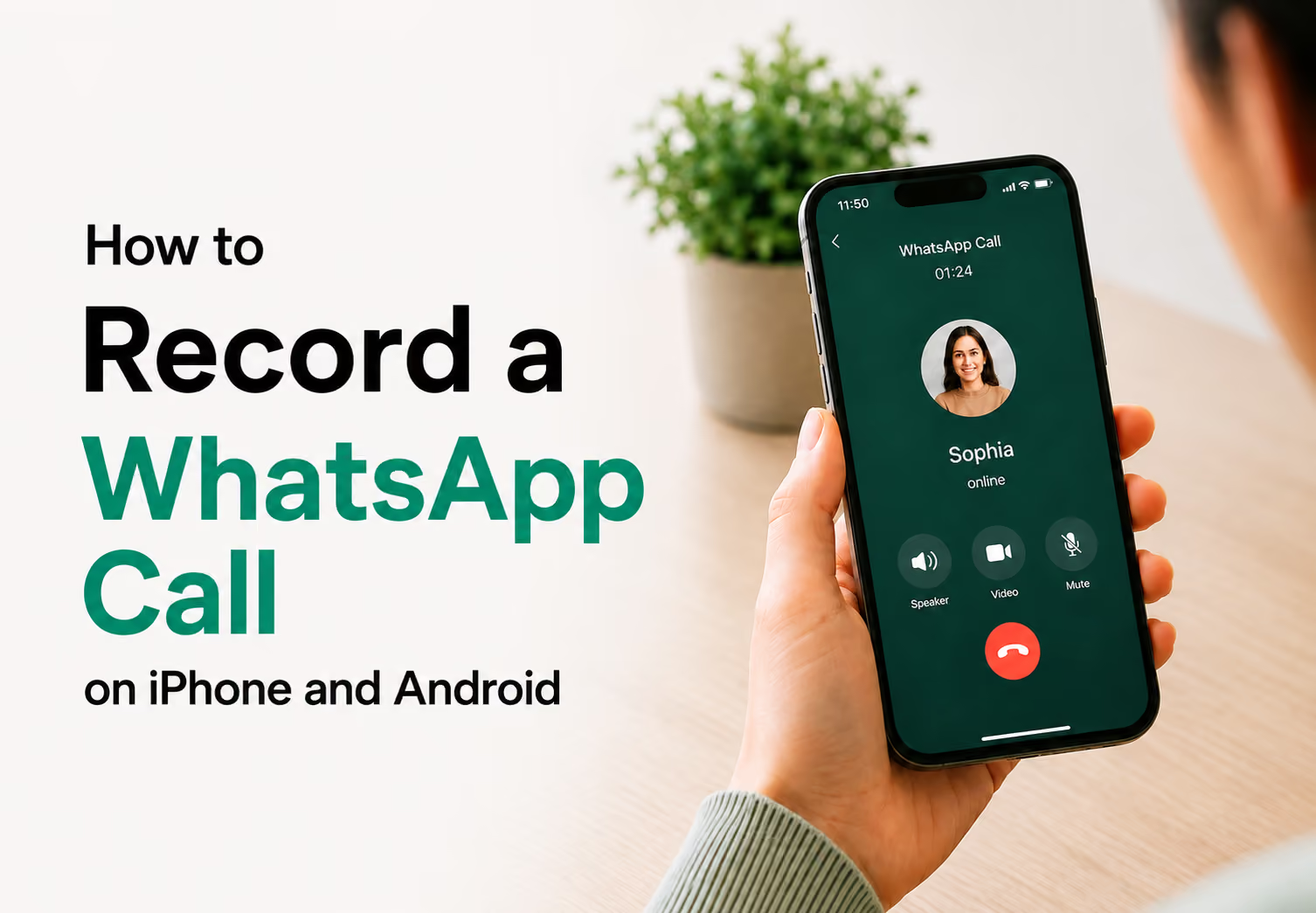
WhatsApp has no built-in call recorder on either platform, so if you're wondering how to record a WhatsApp call, every method below is a workaround. On Android, you can use screen recording with internal audio enabled. On iPhone, you need Screen Recording with an external route because iOS only captures your own microphone. A second device recording the call on speaker also works, but it is the least convenient option.
If you mostly take WhatsApp calls on web or desktop for work, a screen recording is not the most useful format anyway. JotMe runs alongside WhatsApp Web or WhatsApp Desktop, captures the call audio locally, and gives you a searchable transcript and live translation instead of a video file you have to scrub through later.
Does WhatsApp Have a Built-In Call Recorder
WhatsApp does not have a built-in call recorder on Android, iPhone, web, or desktop. Two things rule it out: WhatsApp calls are end-to-end encrypted, and both iOS and Android restrict apps from capturing another app's call audio directly. That's why every method here works around WhatsApp instead of through it, using your device's screen recorder, a separate app, or a second phone to capture the audio after your phone has already decrypted it.
How to Record a WhatsApp Call on Android
Android's built-in screen recorder can capture WhatsApp call audio from both sides, as long as internal audio recording is turned on. Here is how to record a WhatsApp call on Android:
- Open WhatsApp and start your call.
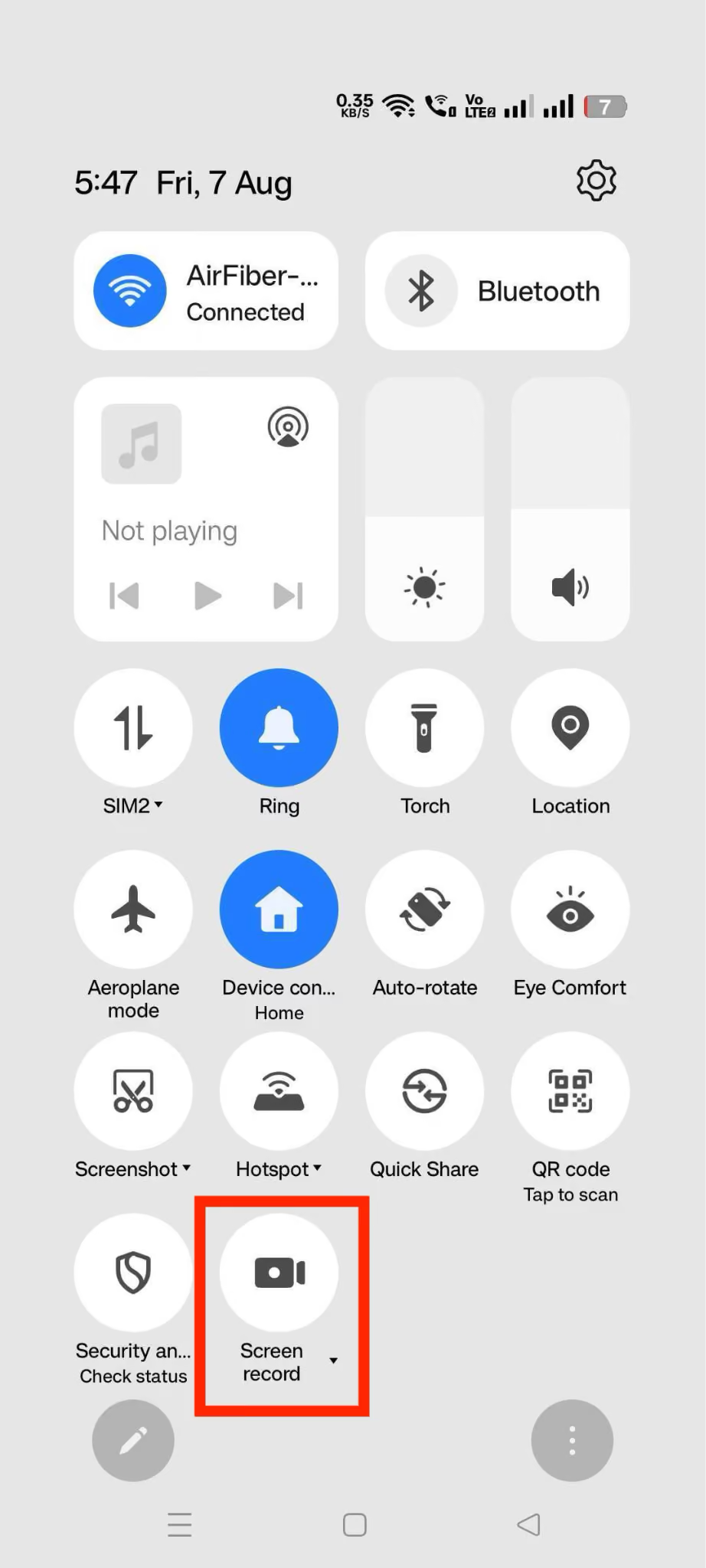
- Swipe down to open Quick Settings and tap Screen Record.
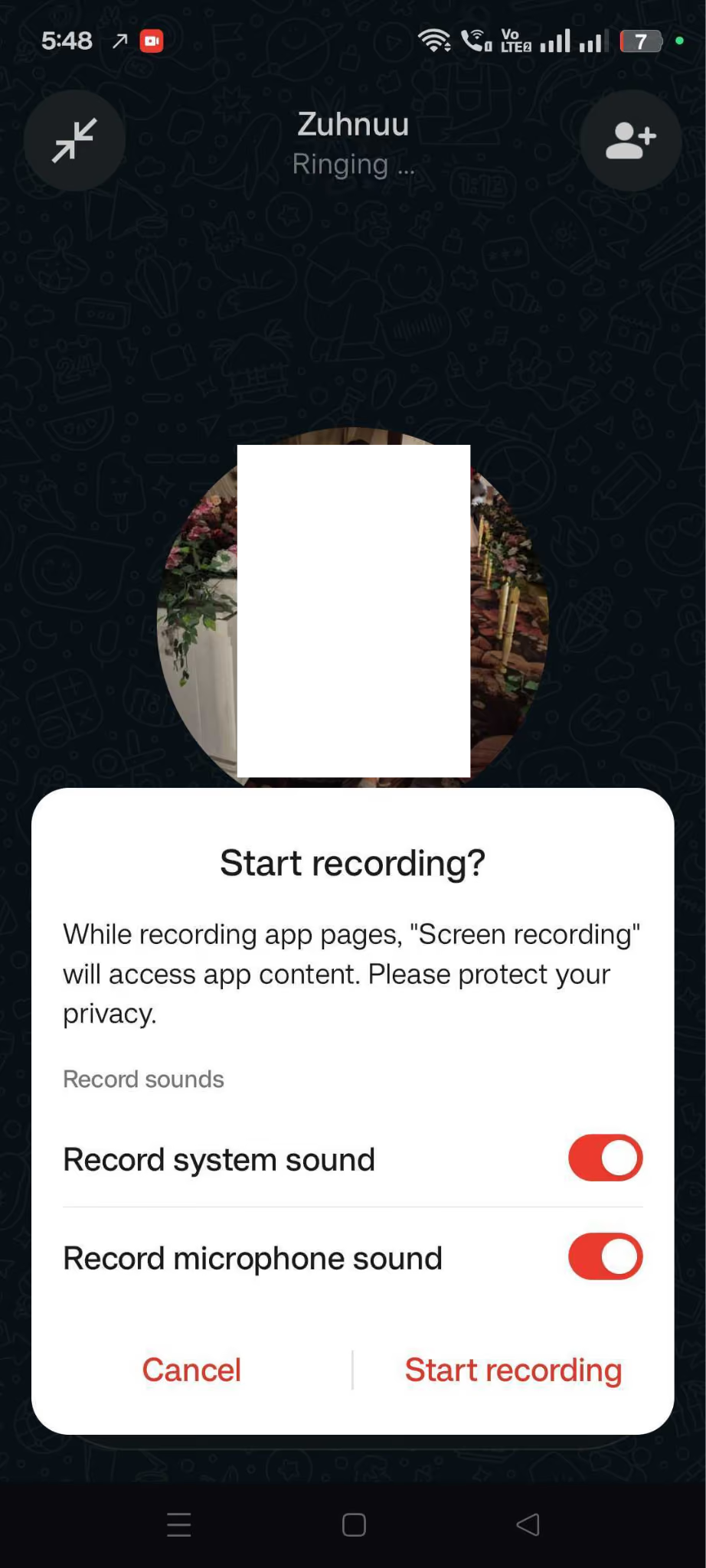
- When the audio options appear, choose Media sounds and mic (some phones label this Internal audio + mic) so both your voice and the caller's voice get captured.
- Talk through your call as usual, and click the red button to Stop when the call ends.
- Open your Gallery or Photos app to find the recording.
This works on Android 11 and above on stock Android, since that's when Google added system-level internal audio capture to the screen recorder. Samsung, Xiaomi, and OnePlus phones all ship their own version of this recorder, and the option is usually called "Internal audio" or "Media sounds" instead of matching the stock wording exactly. A few OEM skins block internal audio capture during an active call as a privacy safeguard, so if your recording comes back silent on the caller's side, check your phone's screen recorder settings for a call-specific restriction before assuming the app failed.
How to Record a WhatsApp Call on iPhone
If you want to record a WhatsApp video call, iOS Screen Recording only captures your own microphone, not the other person's voice over WhatsApp. Apple's screen recorder taps your phone's mic input, not the app's audio output, so the caller's side of the conversation never makes it into the recording no matter how you configure it. That single constraint is why every iPhone method below routes around it instead of trying to fix it directly.
Two workarounds solve this:
Speaker mode plus Screen Recording: Put your WhatsApp call on speaker so the caller's voice comes through your phone's speaker, then start Screen Recording with your microphone turned on. Your phone's mic now picks up both your voice and the caller's voice bouncing off the speaker, so both sides end up in the recording, though quality drops compared to a direct audio capture.
To turn this on:
- Go to Settings > Control Center and add Screen Recording if it isn't already there.
- Start your WhatsApp call and tap the speaker icon to switch to speakerphone.
- Open Control Center, press and hold the Screen Recording icon, and turn the microphone on.
- Tap Start Recording, then continue your call.
- When you're done, tap the red status bar and confirm Stop. The recording saves to your Photos app.
Take the call on a Mac instead: If you use WhatsApp Desktop or WhatsApp Web on a Mac, open JotMe on the side and select the spoken and output languages. Start the conversation; JotMe will offer live WhatsApp translation. You can listen to the call recording after the call ends and also get detailed, structured notes.
Is It Legal to Record a WhatsApp Call
Recording laws depend on consent rules that vary by country and, in the US, by state. Some places only require one party on the call to consent, which means you can legally record without telling the other person. Others require every participant's consent before you hit record.
The US operates on one-party consent at the federal level, but states including California, Florida, Pennsylvania, and Washington require all-party consent, so recording someone in those states without telling them can violate state law even though federal law wouldn't stop you. Cross-border calls complicate this further: if you're in a one-party consent state and the person you're calling is in a two-party consent state or a country with stricter rules, their local law can still apply to the recording.
Given WhatsApp's global reach, this comes up often, so telling the other person before you record is the safest default regardless of where either of you is calling from. Our guide to translating WhatsApp calls covers these consent rules in more detail if you want the full breakdown.
How to Record a WhatsApp Call on Desktop
According to the latest WhatsApp updates, WhatsApp Web and Desktop now support calling, which opens up two solid recording paths depending on what you actually need afterward.
JotMe, if you need a WhatsApp call transcript and audio recording. A video recording works fine if you just want a record of the call. It's less useful if you need to search what was said, share notes with a client, or read a call back in another language. That's the gap JotMe fills. Open WhatsApp Web or WhatsApp Desktop, run JotMe alongside it, and start your call as usual:
Step 1: Open JotMe on one side, and another side, open WhatsApp on web or desktop.
Step 2: Choose spoken and output languages if you are talking with multilingual colleagues or clients. For example, if you are talking to a Chinese client or customer, then choose the speaking and output language as multilingual.
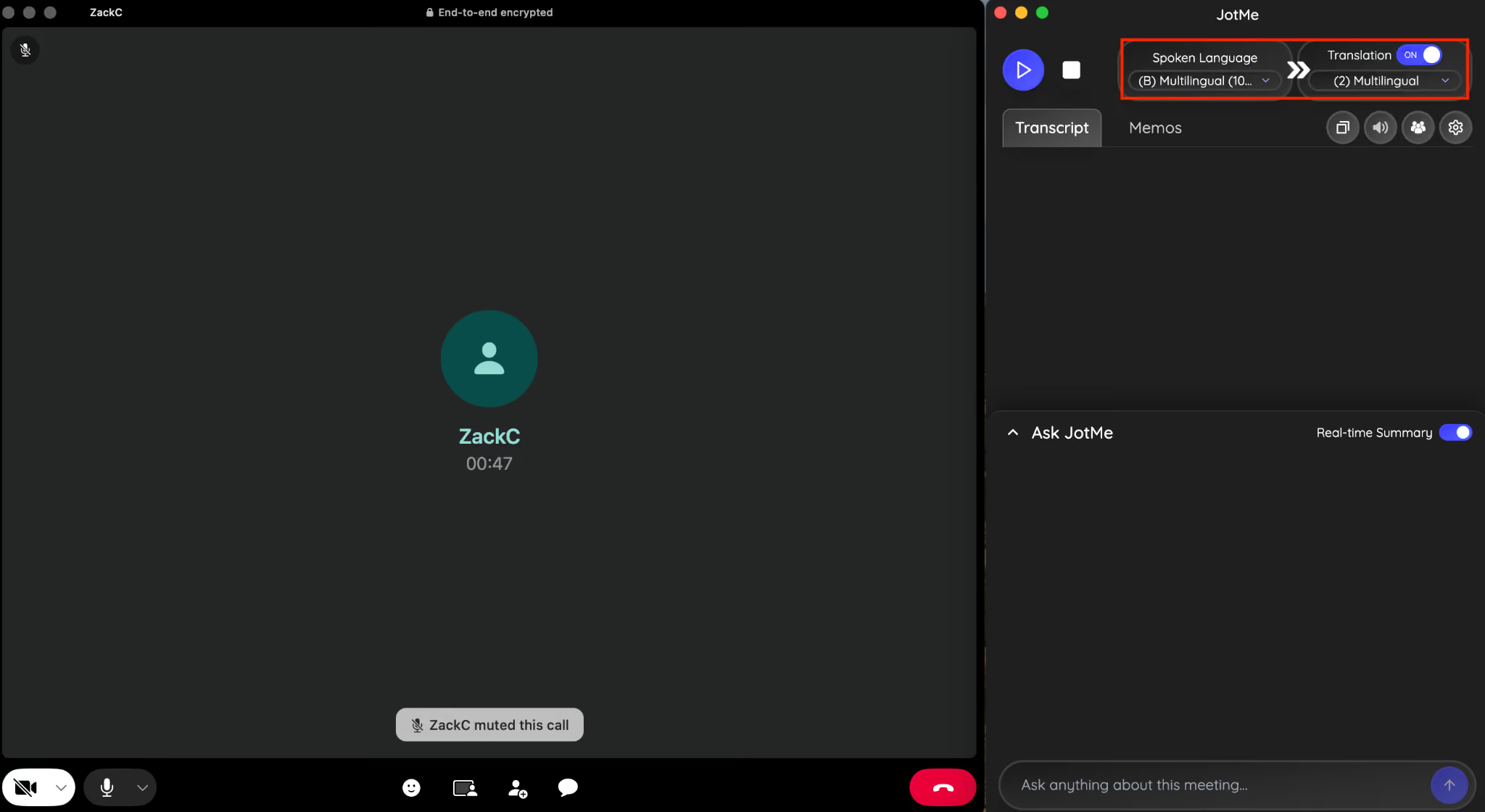
Step 3: Start a conversation, understand each other's language with live translation. If you have any doubts regarding the ongoing call, then use the Ask JotMe feature to get the answer during the call without searching on Google.
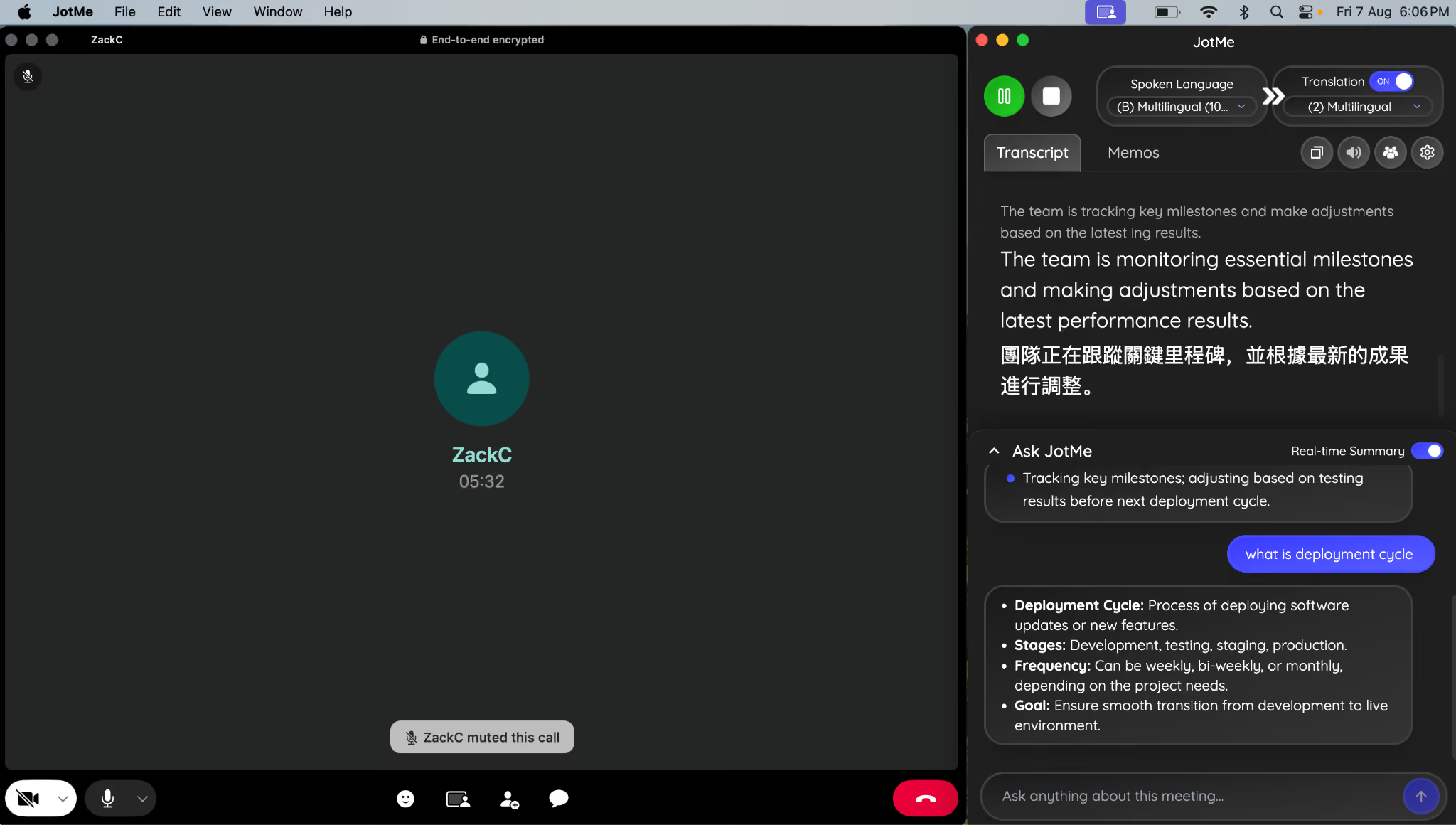
Step 4: Once the call ends, you will get a after meeting English to Chinese and Chinese to English call transcription and structured notes.
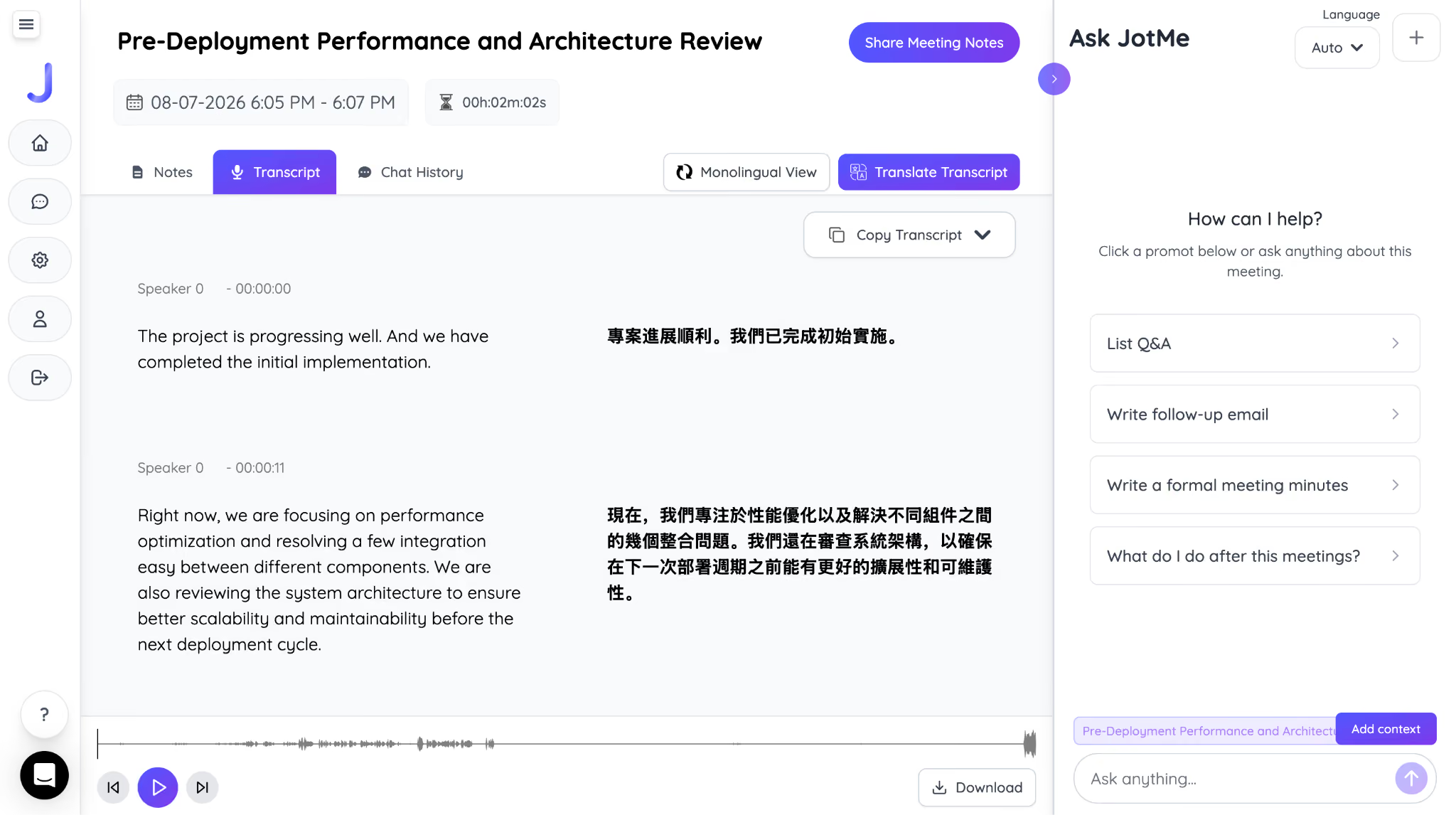
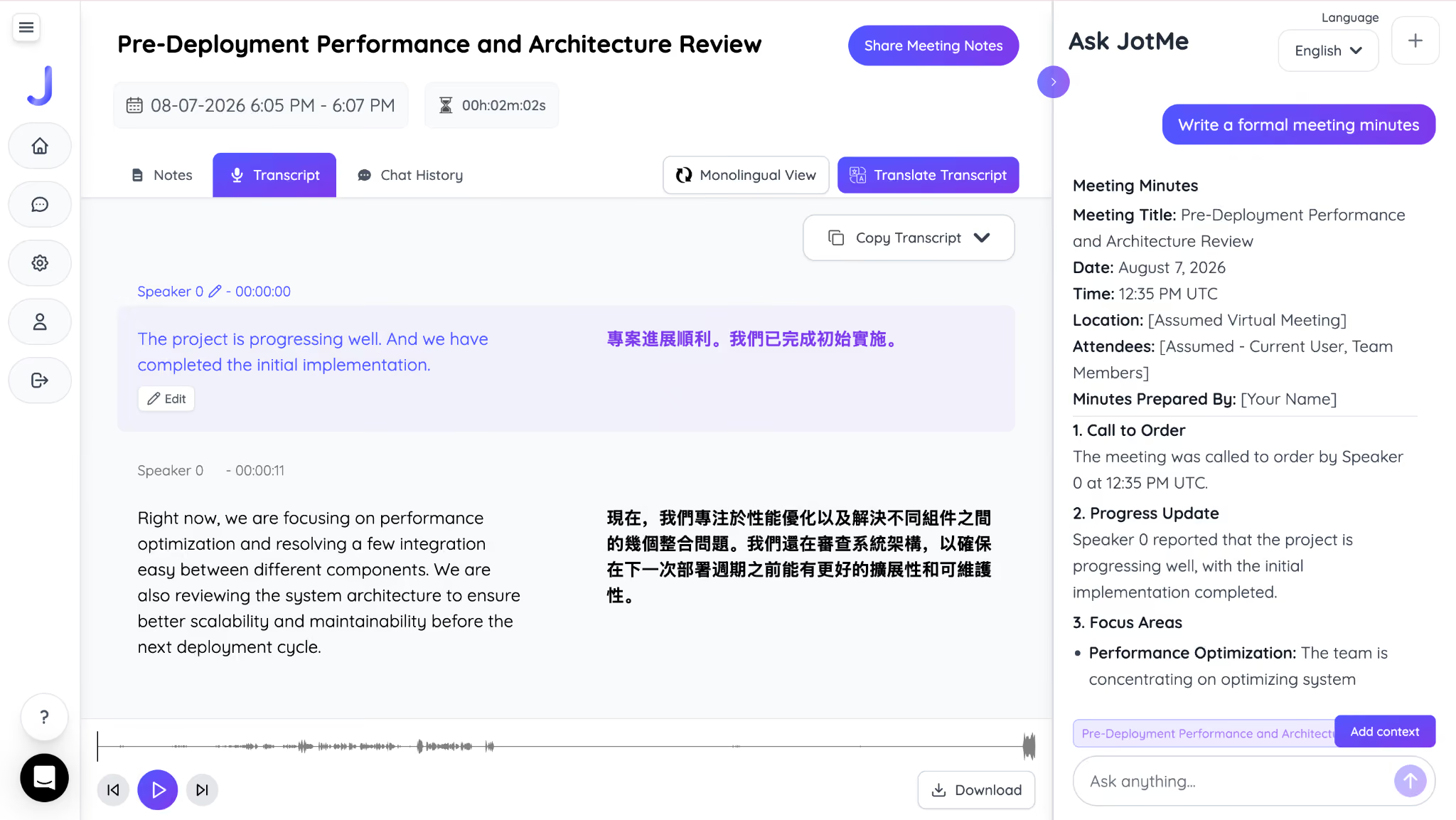
Step 5: You can also ask JotMe AI to draft an email or can get a quick idea of the complete call in a few words.
If the call happens in a language you don't speak, turn on live WhatsApp call translation instead of plain transcription, and JotMe shows you captions in your own language as the other person talks, with the option to hear it read back in your cloned voice.
JotMe captures the audio locally after WhatsApp has already decrypted it, so nothing about your call's end-to-end encryption changes, and there's no bot joining the call for the other person to notice. For a full walkthrough of setup and features, see how to use JotMe.
If you're also weighing WhatsApp against a more privacy-focused option like Signal for business calls, our WhatsApp vs Signal comparison breaks down where each app holds up and where a live translation layer like JotMe fits into either one.
Record WhatsApp Video Call: What to Know
Now you know how to record a WhatsApp call, so next is choosing the best method. The best choice to record a WhatsApp call depends on your device. Android users can try built-in screen recording with internal audio, while iPhone users need a workaround such as speaker mode and microphone recording. For desktop calls, JotMe is a better option if you need more than a recording, including searchable transcripts and live translation during multilingual WhatsApp calls.
If you only need a video record, use your device’s screen recorder. If you need to understand, search, translate, or revisit what was said, a transcript is much more useful than a video file.
FAQs
Will the other person know I'm recording?
WhatsApp doesn't notify anyone when you screen record or use an audio capture tool during a call, on any platform. That doesn't make recording without consent acceptable, so check your local laws and tell the other person before you record.
Can you record a WhatsApp video call?
Yes, you can record a WhatsApp video call, but the result depends on your device and how its screen recorder handles WhatsApp audio. Android phones that support internal audio capture may record the video and both sides of the call. On iPhone, the built-in screen recorder has limitations with WhatsApp call audio, so you may need to use speakerphone with the microphone enabled or another recording method.
Do call recorder apps work for WhatsApp?
Some Android call recorder apps can record WhatsApp VoIP calls, but compatibility varies widely by phone, Android version, and the app itself. Many apps cannot capture both sides of a WhatsApp call reliably because Android restricts access to call audio. iPhone apps have even more limited access to other apps' call audio, so a third-party WhatsApp call recorder generally cannot directly capture the conversation.
Where is the recording saved?
Screen recordings on Android save to your Gallery, and on iPhone they save to your Photos app. Desktop recordings from JotMe transcripts save to your JotMe dashboard instead of a video file.
Can you record a WhatsApp call on a PC?
Yes, with JotMe you can record WhatsApp calls on a PC while also providing a searchable transcript of the conversation. It can also provide live translation during multilingual calls, so you can follow the conversation in your preferred language instead of relying only on a video recording.
Can you record a WhatsApp voice note?
Yes, but you usually don't need to record a voice note because WhatsApp already stores it as an audio message. You can save or share the audio file and use a transcription tool to convert the speech into text.
Last updated on
August 21, 2026
Follow us on social media: