





Tips
How to Cancel Google Workspace Subscription in 6 Easy Steps

Lovely Mangla
September 21, 2026
To cancel a Google Workspace subscription billed directly by Google, sign in to the Google Admin console, open Billing > Subscriptions, select your plan, and choose Cancel Subscription. Follow the confirmation screens until Google confirms the cancellation. Check your payment commitment and save the data you need before completing the process.
We tested this after subscribing to Google Workspace for live translation in Google Meet. We checked the meeting features, opened our subscription, reviewed a downgrade offer, and completed the cancellation. The navigation felt straightforward in our recorded experience.
Your route may differ if you subscribed through Google Play, Apple, or a reseller. This guide explains those differences, what happens to Google Workspace email, and how to handle cancellation problems. It also covers an option for readers who mainly need meeting translation.
Google Workspace Cancellation: Key Takeaways
- Find the billing provider first: Your receipt helps identify whether Google, an app store, or a reseller manages your subscription.
- Check the commitment: A monthly payment does not necessarily mean you have a Flexible Plan.
- Prepare your files and email: Finish any export or migration before canceling a business account.
- Read the final confirmation: Our recording ended with a message confirming both cancellation and organization account deletion. Your account may have a different outcome.
- Evaluate the features you still need: If translation was your main reason for subscribing, compare a dedicated translation tool with the cost of keeping your Workspace plan.
Where Can You Cancel Your Google Workspace Subscription
Start with the account and provider shown on your latest invoice. Having a Google login does not tell you where the subscription is billed.
Google provides a separate cancellation guide for subscriptions purchased with a personal Gmail account. For a reseller purchase, the Payment plan column in the Admin console can identify reseller pricing; the subscription details provide the reseller's information.
If you cannot access any billing screen, find the original welcome email and your latest receipt. Those records give you a better starting point than repeatedly trying unrelated Google accounts.
What Should You Check Before Canceling Google Workspace
Before opening the cancellation flow, decide how you will handle your email, files, and remaining subscription costs. These checks matter even if the final cancellation takes only a few clicks.
Check Your Google Workspace Plan and Payment Commitment
Record the edition, payment plan, number of licenses, and renewal date shown in your subscription details. Keep a copy with your invoices.
The edition and payment plan answer different questions. Business Starter or Business Standard describes the features you bought. Flexible or Annual/Fixed-Term describes the payment commitment. We recommend checking both before deciding whether to cancel or downgrade.
Also list any separately billed services you intend to keep. Treat each item on your bill as a separate decision rather than assuming that changing Workspace settles every Google-related charge.
Export Your Google Workspace Data Before Cancellation
For an organization-wide backup, an eligible super administrator can use Data > Data import & export > Data export in the Admin console. Google's export tool makes the archive available no earlier than 48 hours after an export starts; it typically takes about 72 hours and can take up to 14 days. Check the eligibility requirements before relying on it.
Wait for the export to finish, download it, and verify that you can open the files you need. Starting an export and immediately canceling is not a completed backup.
Make a short inventory of critical information: customer emails, shared project files, meeting recordings, calendar events, and documents owned by departing users. Assign someone to confirm that each item has a usable destination.
Prepare Your Google Workspace Email and Account Access
If customers contact an address such as you@yourcompany.com, arrange its replacement service before canceling the service that hosts the mailbox. Test sending and receiving with the new provider before making the final change.
Also check applications that use your work Google account to sign in. Set up another login method where necessary, and save your invoices before deleting an organization account.
For our cancellation test, the purpose was to review and end the subscription we had used for Meet translation. A business moving its entire email system needs preparation beyond the clicks shown in that recording.
How to Cancel Google Workspace in the Admin Console
For a directly billed subscription, the main route is Google Admin > Billing > Subscriptions > Your Plan > Cancel Subscription. The walkthrough below combines our recorded experience with Google's current cancellation instructions.
The exact prompts can vary by account. Check your edition, payment plan, and any final charges in the Admin console before confirming cancellation.
Step 1: Sign In to Your Google Workspace Admin Account
Open the Google Admin console and sign in with the account that manages the subscription.
We moved to Google Admin after checking Google Meet's translation settings.
If you have several Google accounts open, confirm the organization or subscribing email before continuing. A personal account, work user account, and administrator account can lead to different screens.
Step 2: Open Your Google Workspace Subscription
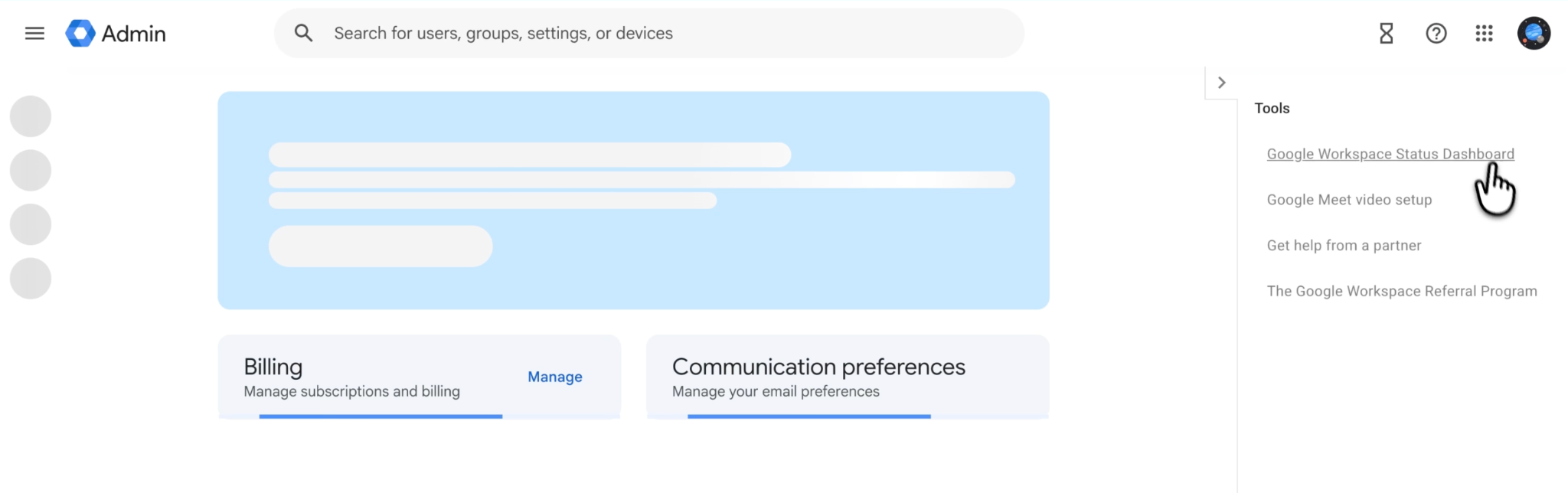
In the Admin console menu, open Billing, then Subscriptions. Select the Google Workspace subscription you want to end.
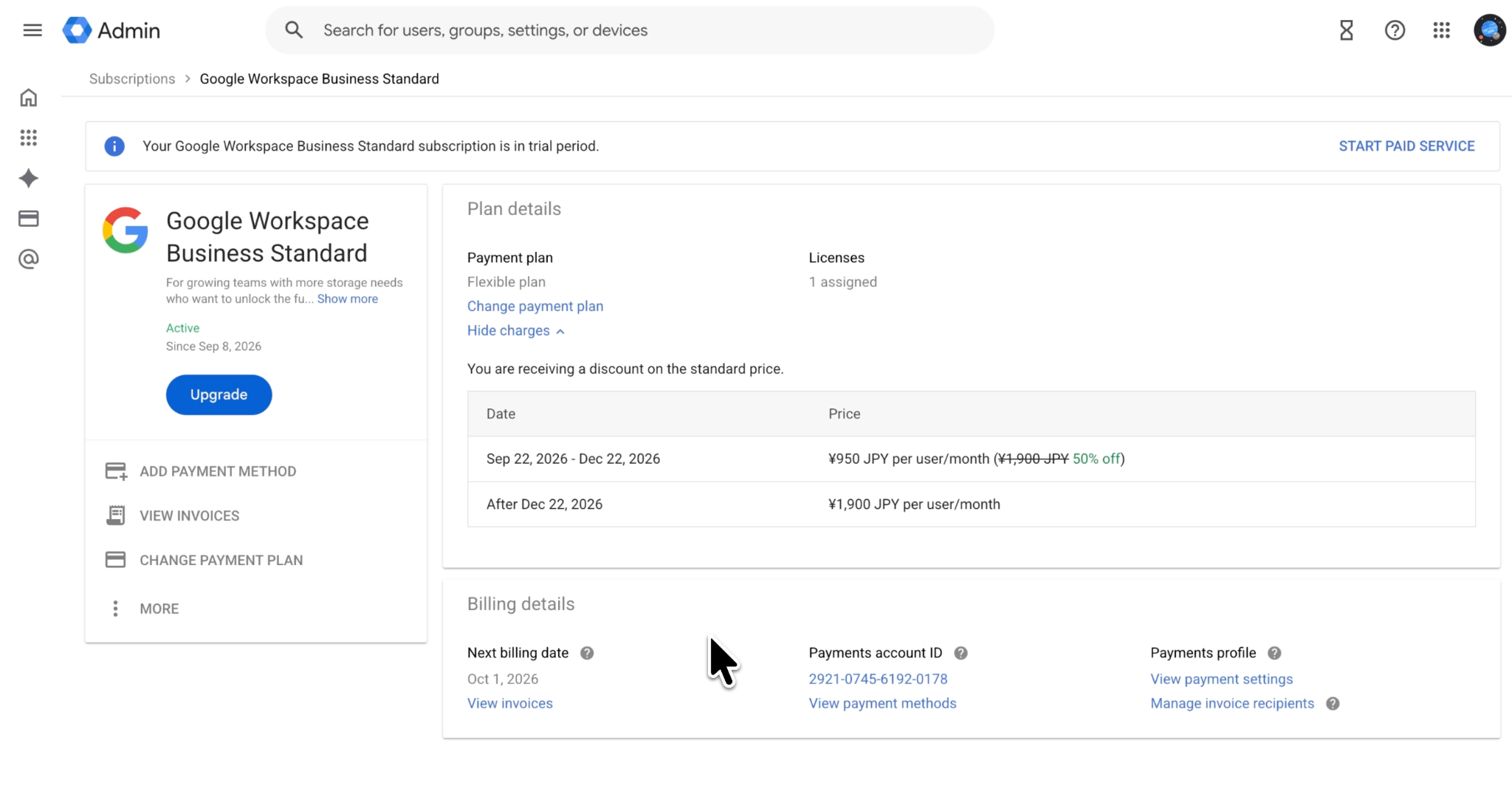
We found the subscription section easy to locate. Before continuing, use this screen to check that you have selected the correct product. If your account contains several subscriptions, take a moment to compare the product name with your invoice.
Keep a record of the plan details at this stage. It is much easier to resolve a later billing question when you have the subscription name and dates in front of you.
Step 3: Choose the Google Workspace Cancellation Option
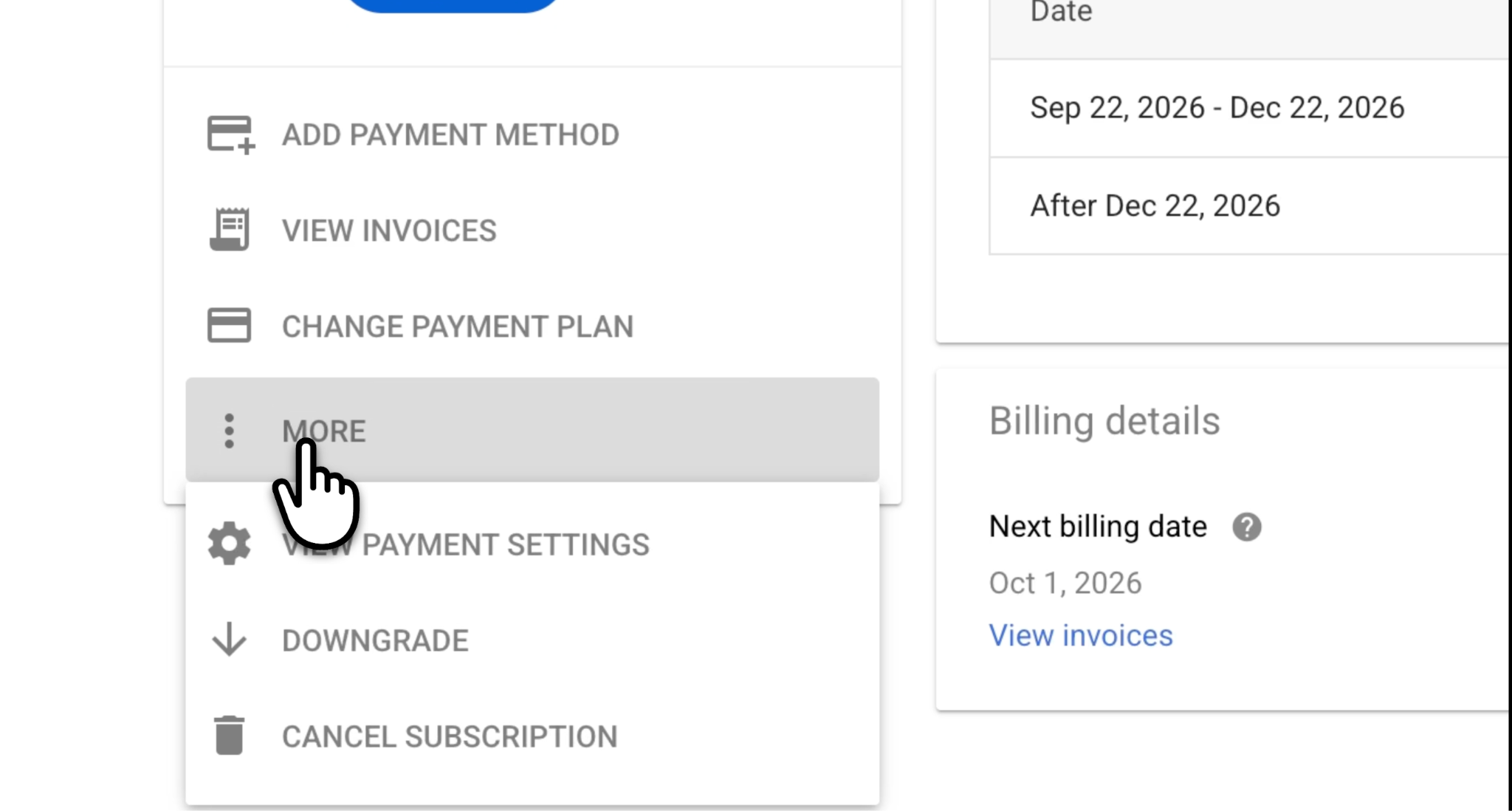
Select Cancel Subscription. Depending on the account interface, it may appear under More. Complete any reason prompt, then continue through the cancellation flow.
Do not treat an initial click as a completed cancellation. Continue until you reach the final review and confirmation.
Step 4: Review Any Google Workspace Downgrade Offer
Google presented a downgrade option during our test. We reviewed that screen and continued because we wanted to end the subscription.
A lower edition may suit you if you still need business email and shared documents. Before accepting an offer, compare the features you would keep with those you would lose, and read its effective date and payment terms.
If cancellation is still your choice, continue with the cancellation option displayed on that screen.
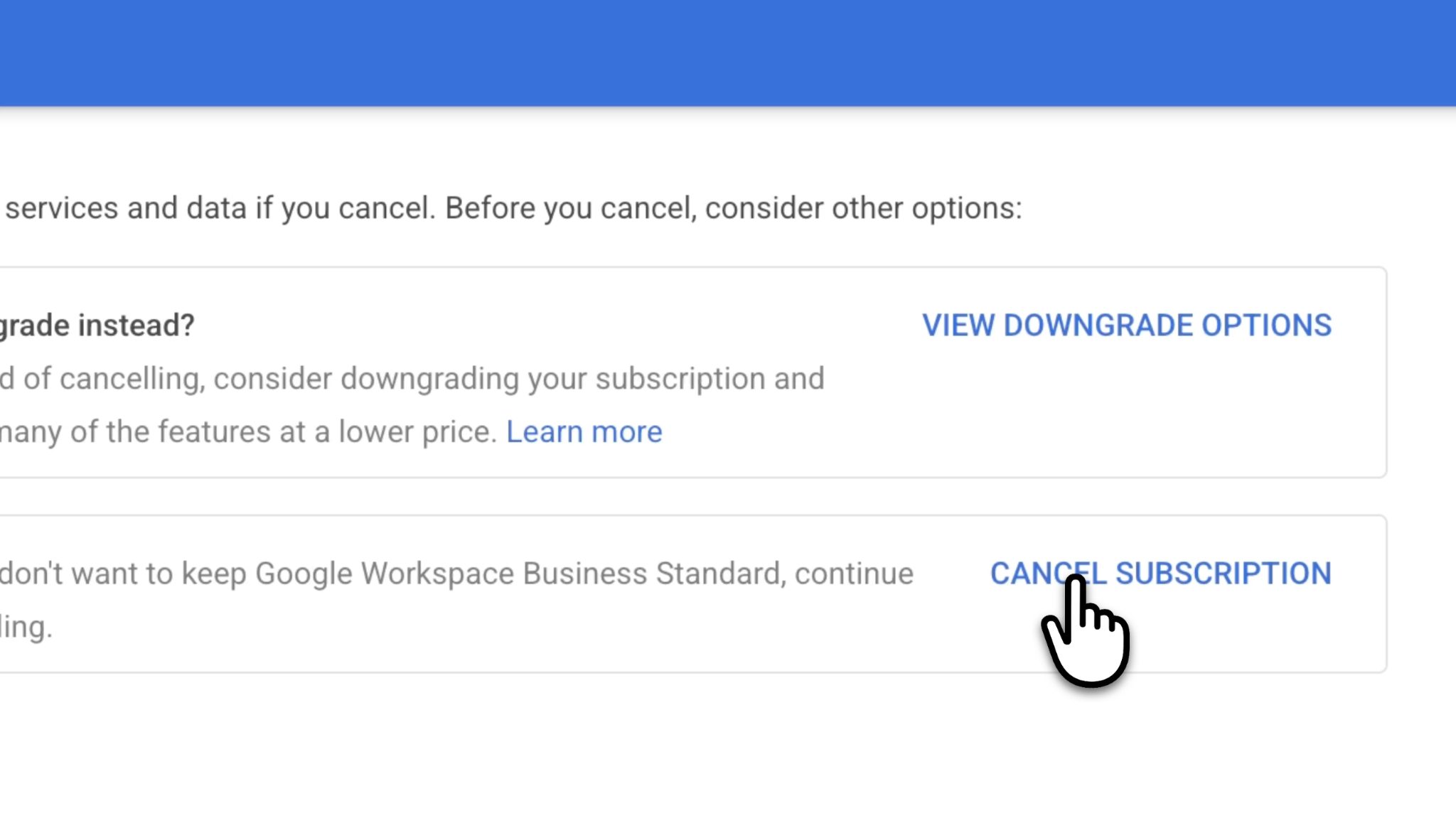
Step 5: Confirm Your Google Workspace Cancellation
Read the final screen carefully. Complete any acknowledgment or email confirmation requested, then select Cancel My Subscription.
Pay particular attention to any wording about organization deletion. In our recording, the final message confirmed that the subscription was canceled and the organization's account was deleted. That was the outcome of our flow; it is not a universal requirement for every Workspace cancellation.
Make your decision based on the account and data effects shown on your screen. If those effects are broader than you intended, resolve that difference before confirming.
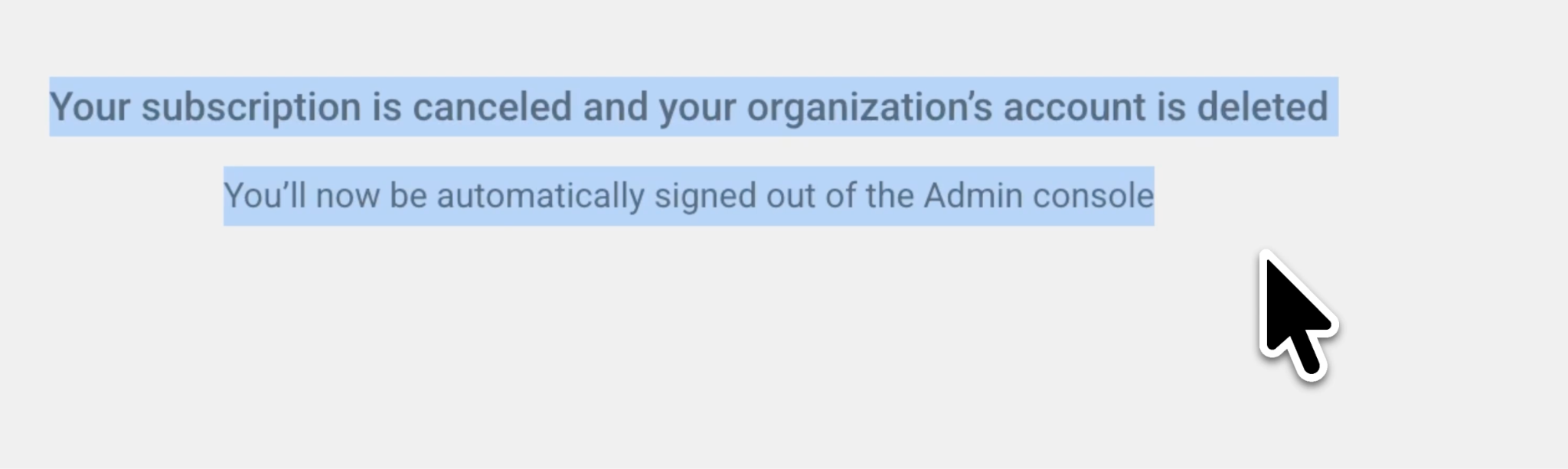
Step 6: Save Your Google Workspace Cancellation Confirmation
Save a screenshot or copy of the confirmation and retain any cancellation email. If your Admin console remains accessible, check the subscription details again.
We reached a clear confirmation in our recorded test. For your records, capture the product name, cancellation date, and any final charge or effective date displayed. Keep those details somewhere outside the account you are closing.
Check any final invoice against those records, since cancellation can still be followed by a bill for an existing obligation.
How to Cancel Google Workspace With a Personal Gmail Account
If you purchased a Workspace Business subscription on the web using your personal Gmail address, sign in with that same account. Open Billing > Subscriptions, choose the subscription, and follow its cancellation prompts.
For this account type, Google says that cancellation removes premium Workspace features and access to the Admin console and billing records. Your personal Gmail, Calendar, Meet, and other Google services remain available, and your personal data stays in the account. Save the billing information you need first. Google's Gmail-based cancellation guide describes these effects.
This distinction matters when you see advice saying that a Gmail address can never manage Workspace. Check how you originally subscribed instead of assuming that every Workspace customer has a custom business domain.
If the subscription was purchased through a mobile app store, use the billing route in the next section.
How to Cancel Google Workspace Through Google Play or Apple
Use this route only when the app store manages the purchase. Installing Gmail or Meet on a phone does not, by itself, make that store your billing provider.
Cancel Google Workspace Through Google Play
Open Google Play subscriptions under the Google account used for the purchase. Select the Workspace subscription, choose Cancel subscription, and complete the prompts.
Check the access end date shown by Google Play. Uninstalling an app does not cancel its subscription.
Cancel Google Workspace Through Apple
On an iPhone, open Settings > Your Name > Subscriptions, select the subscription, then choose Cancel Subscription.
If it is missing, check the Apple Account on your receipt. If the receipt names another billing provider, return to that provider's cancellation process.
What Happens to Google Workspace Email and Data After Cancellation
The outcome depends on how your account was created and which cancellation options you select. Avoid assuming that every business account becomes a free personal account.
Google's organization cancellation and deletion guidance warns that Workspace user data is deleted after cancellation and cannot be restored. Finish your backup before proceeding; keeping a copy of an old sharing link is not a backup of the file.
For a domain-verified organization, canceling Workspace and deleting the organization account are separate decisions. Keeping another service, such as Cloud Identity, can also change which functions remain available. Do not use a generic promise of a recovery period as a substitute for having your own backup.
You may only need to cancel the subscription. Delete the organization only if you also intend to close it and have addressed its other services.
Will Google Workspace Keep Charging You After Cancellation
Possibly, a cancellation can still be followed by a final bill. The key questions are which payment plan you have and which period the invoice covers.
Google Workspace Flexible Plan Cancellation Charges
On the Flexible Plan, you can cancel without an early termination penalty and pay for the service already used. Because billing occurs after usage, a final charge can arrive after the cancellation date.
Compare the invoice's service dates with the date you canceled. A bill for earlier usage is different from a new charge for service after cancellation.
Google Workspace Annual Plan Cancellation Charges
An Annual/Fixed-Term Plan commits you to the agreed term. Canceling early does not erase that commitment: Google states that the remaining balance is charged. A monthly payment schedule, where available, does not change the annual obligation.
If your goal is to leave at the end of the term, review the renewal settings and effective dates before choosing immediate cancellation.
We would check the remaining obligation before comparing a replacement product's price. Paying for a new service while an existing commitment is still due can change the expected savings.
Why Can't You Cancel Your Google Workspace Subscription
The community discussions we reviewed describe two frustrating problems: being unable to reach the Admin console and seeing charges after attempting to cancel. Start by checking the account and billing details behind each problem.
Your Google Workspace Admin Login Keeps Looping
In one Google Workspace Reddit discussion, a user described being billed while repeated account selection prevented access to the Admin console.
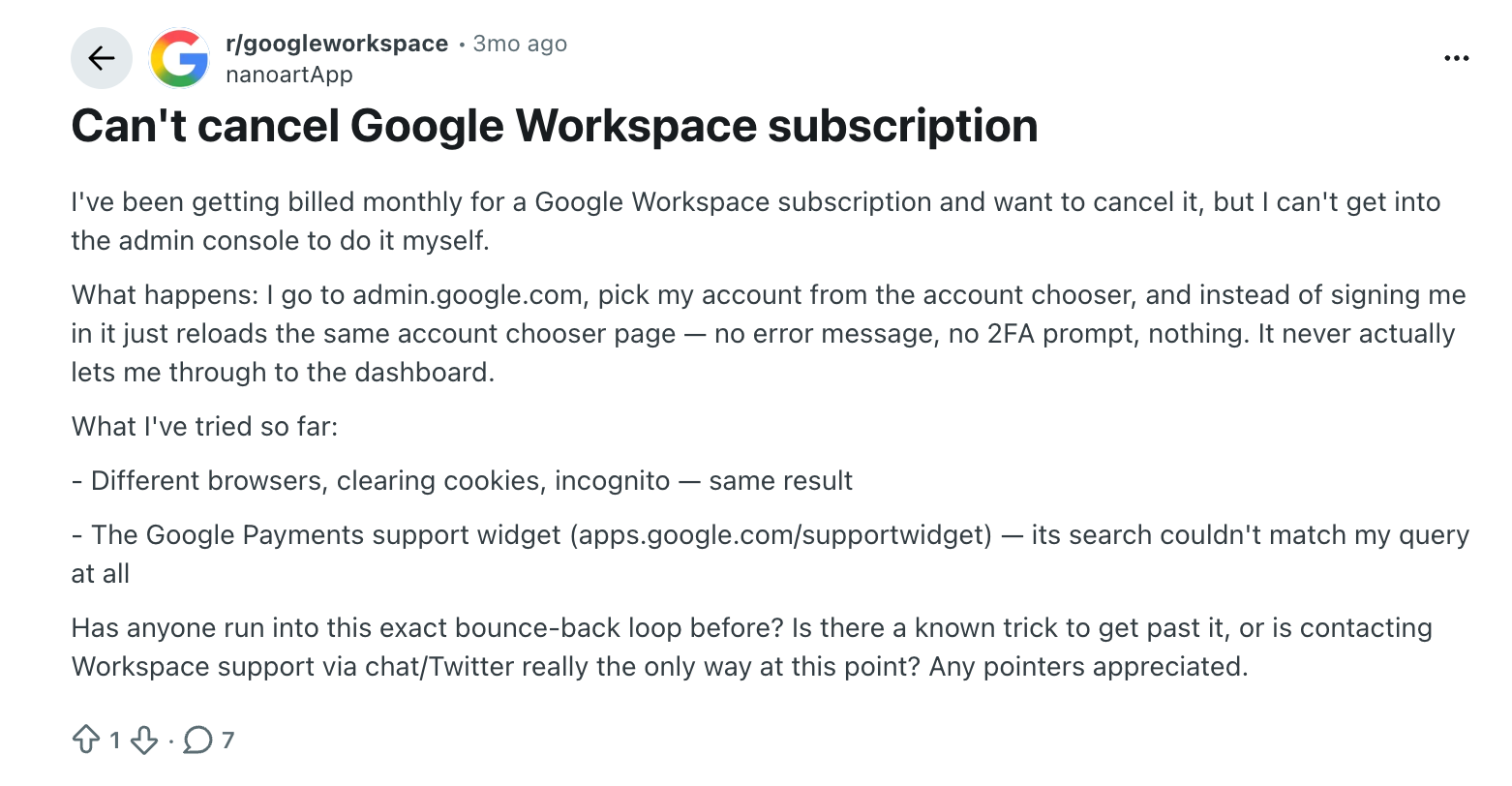
First, match the login to the account that's subscribed. For a domain-managed organization, use its administrator account. Try a private browser session to separate it from other signed-in accounts. If that doesn't help, use Google's Admin console sign-in troubleshooting, including account recovery or the login support route where appropriate.
For a Workspace subscription purchased with personal Gmail, follow the dedicated Gmail-based instructions above. Applying domain-only sign-in advice to that purchase can send you in the wrong direction.
Your Google Workspace Account Has No Cancellation Button
Check whether the account has the necessary billing privileges and whether another provider manages the subscription.
Ask the administrator or billing owner to review the subscription with you. If you bought through a reseller, contact that provider with the subscription name and invoice number. A missing button alone does not establish that cancellation is unavailable.
Your Google Workspace Subscription Still Appears on a Bill
Another Reddit cancellation discussion describes continued charges after the user believed they had canceled.
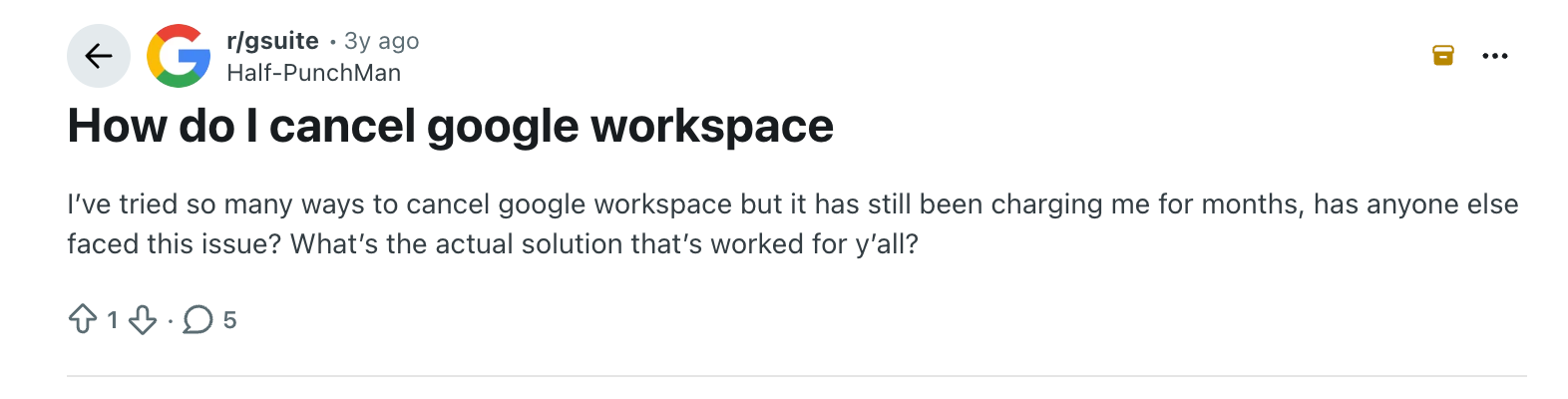
Compare four pieces of evidence: the product named on the invoice, its service period, your payment commitment, and the cancellation confirmation. Check whether the charge relates to a different subscription or organization.
If those details do not explain the bill, send them to the billing provider and request an itemized explanation. Include the date you completed cancellation and the confirmation you saved. Removing an app from your device is not evidence that the subscription ended.
Google Workspace Pricing: Should You Downgrade Instead of Canceling
Downgrading may be worth considering if your team still relies on Google Workspace email, shared storage, and document collaboration. We saw a downgrade offer during our cancellation, but we continued because our decision was to end that subscription.
Here are the regular U.S. list prices for three common Google Workspace plans, excluding taxes and introductory promotions:
Before accepting a downgrade, write down the features you must retain. For example, Google's current Meet translated captions documentation lists Business Standard and Business Plus among eligible business editions; Business Starter is not listed. A cheaper edition may not preserve the feature that prompted your subscription.
Also check when the change takes effect. On an annual commitment, an immediate reduction in the amount owed should not be assumed. Google's annual plan guidance explains restrictions on downgrading and reducing committed licenses.
Need Google Meet Translation After Canceling Google Workspace
We originally subscribed to Workspace to use live translation in Google Meet. Before canceling, we checked both caption and speech translation settings. The recording shows us reviewing language options and then seeing translated captions in Japanese.
That experience highlights a useful question: do you need the wider Workspace suite, or are you mainly paying to understand meetings in another language?
If translation is the main requirement, JotMe provides a separate way to translate meeting audio. Its Google Meet translation tools include live translated text through the desktop app or a Chrome extension. JotMe has its own plans and usage allowances, which you should compare with your meeting hours.
Use JotMe After Canceling Google Workspace
For a desktop meeting, use this basic workflow:
Step 1. Install JotMe on your computer and sign in.
Step 2. Join the Google Meet call with an account that has access to the meeting.
Step 3. Open JotMe, select the spoken and translation languages, and start the session.
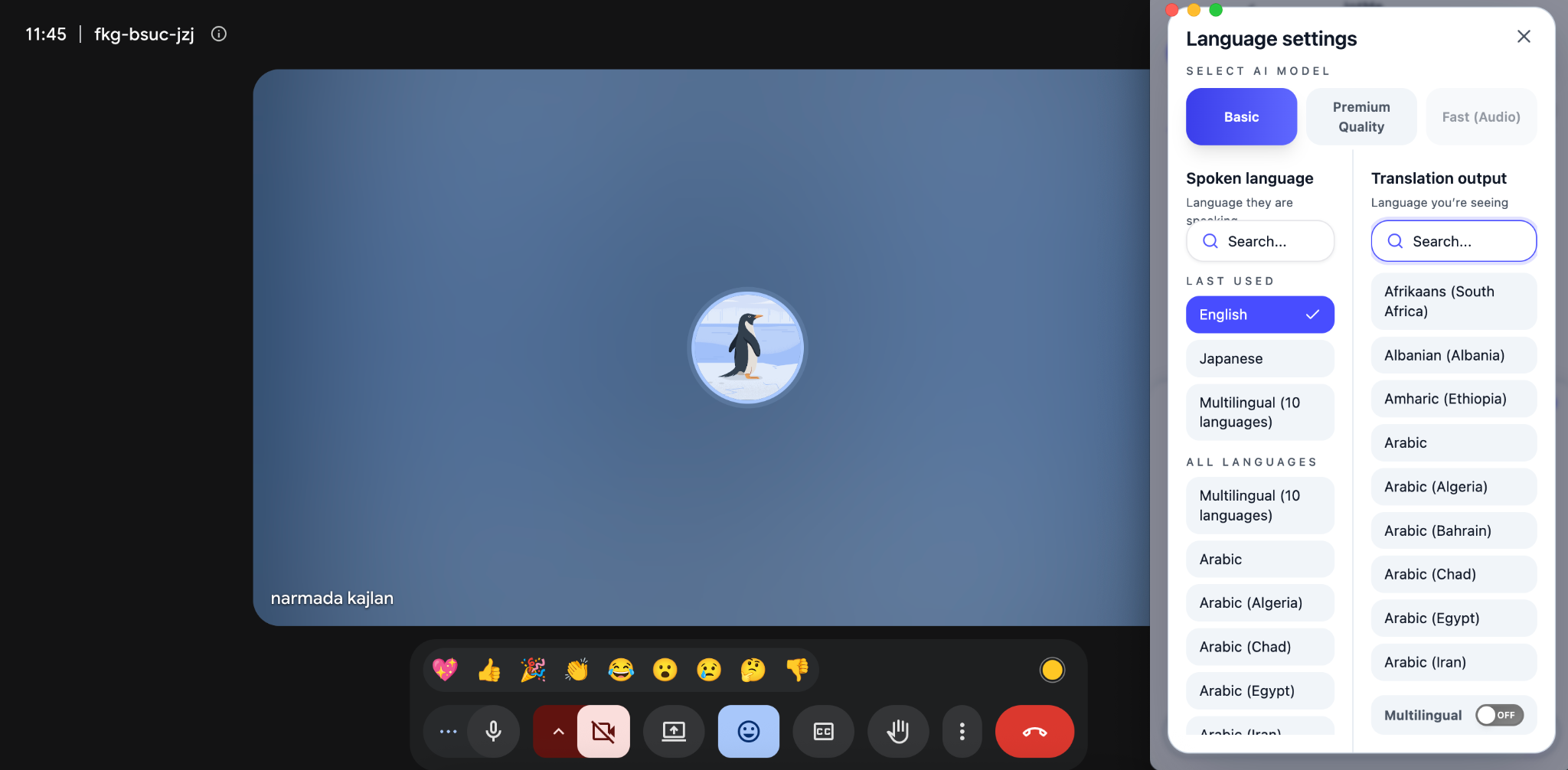
Step 4. Read the translation as the conversation continues, then stop the session when finished.
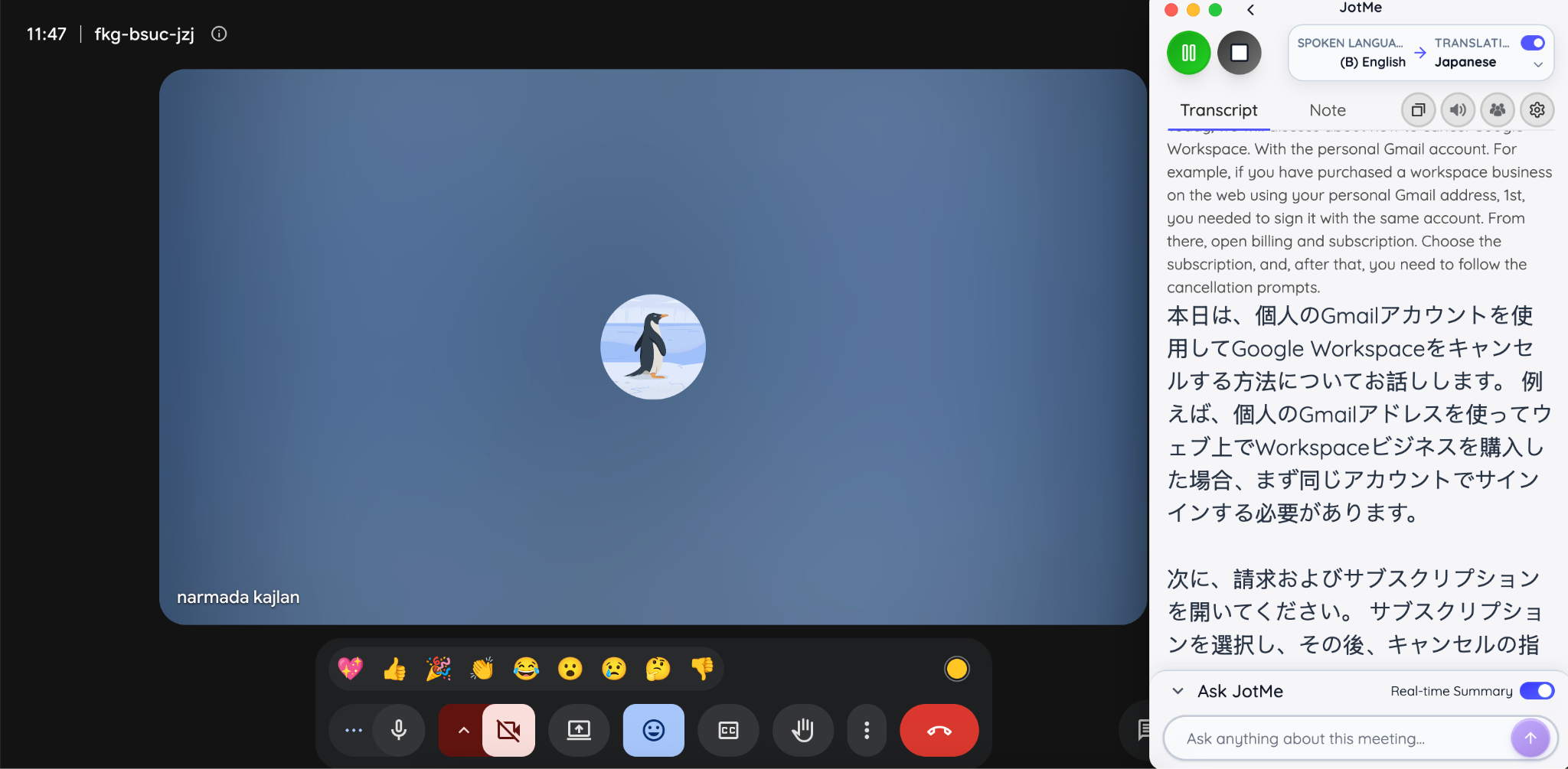
Our JotMe setup guide explains the controls. If you prefer working inside the browser, explore the JotMe Google Meet extension.
For a quick microphone-based test, open the JotMe live translation demo, choose the languages, allow microphone access, and speak. The guide to using JotMe for free live translation explains this short-session workflow. Use it to check a language pair and sample conversation before choosing a longer meeting setup.
Compare Translation Tools Before Canceling Google Workspace
Try the tools with the languages, accents, and terminology used in your actual meetings. Check whether you need text, translated speech, a saved transcript, or shared captions for other participants.
For further comparisons and setup advice, see:
- Six live translation tools for Google Meet for meeting-focused options.
- How to use a live translation app in real time for desktop and mobile workflows.
- Google Translate alternatives for broader live conversation needs.
JotMe handles translation and meeting assistance. If you also rely on Workspace for business email, storage, or account administration, arrange those services separately before canceling. Your replacement workflow should cover everything the team uses.
Google Workspace Cancellation FAQs
How Much Is Google Workspace?
Regular U.S. list prices for Business Starter, Standard, and Plus are $7, $14, and $22 per user per month with an annual commitment. Flexible prices are $8.40, $16.80, and $26.40. These exclude taxes and promotions; check Google Workspace pricing for your location and purchase terms.
Is Gemini Included With Google Workspace?
Yes, eligible Google Workspace plans include Gemini features. Google Workspace artificial intelligence capabilities vary by edition: Business Starter includes Gemini in Gmail, while Business Standard provides broader assistance across apps such as Docs and Meet. Check the features attached to your subscription before downgrading.
How to Approve Templates in Google Workspace
For supported editions, an administrator can open Apps > Google Workspace > Drive and Docs > Templates. Enable custom templates if needed, then open Template Gallery submission settings, choose Moderated, and save. Administrators with the Docs Templates privilege receive email requests to approve submissions; approved templates appear in the organization's custom gallery.
Can I Cancel Google Workspace During the Free Trial?
Yes, Google says that canceling during the 14-day free trial avoids subscription charges. Check the trial dates in your account, save any data you need, and complete the confirmation before the trial ends.
Will I Get a Refund After Canceling Google Workspace?
Cancellation does not automatically entitle you to a refund for unused time in an annual commitment. An eligible remaining credit balance is different: Google explains when you can request its return and when it initiates a refund after all subscriptions are canceled.
Does Canceling Google Workspace Delete My Domain Name?
Treat domain registration and Workspace service as separate items. Check your registrar, renewal settings, and domain invoice before changing either. If you also plan to delete the organization account, preserve independent access to your registrar first.
Can I Cancel Google Workspace Without Admin Access?
For an organization-managed subscription, involve the administrator with billing access or use Google's administrator recovery process if you are the account owner and are locked out. A reseller purchase should be handled with the reseller. If you purchased through Google Play or Apple, manage the subscription with the purchasing account in that store.
Last updated on
September 23, 2026
Follow us on social media: