



Tips
How to Use Free Live Translation for Quick Meetings

Viraj Mahajan
April 30, 2026
.avif)
Free live translation has become the quiet workaround for the moment a meeting drifts into a language you don't actually speak. You join a call expecting English, the supplier slips into Korean to consult a colleague, and you are left reading body language while the real conversation happens somewhere you cannot follow.
This guide walks small team executives, event organizers, foreign language learners, and anyone running a quick multilingual meeting through the fastest, no-signup way to translate an ongoing conversation in 200+ languages, using a browser tab and roughly thirty seconds of setup, so the next time the conversation shifts under you, you stay inside it instead of stepping out to figure out what was said.
Quick Guide
- Open JotMe live translation.
- Pick the language you will hear and the language you want it translated into
- Click Start, allow microphone access, and read the live translation as the speaker talks
That gets you running. The rest of this article shows you how to make the output meeting-ready, which scenarios free live translation handles best, how to share the translation with your team, and what to do when a quick fix turns into a regular workflow.
Why You Need Free Live Translation
Most people discover they need a live translation app the same way: mid-meeting, with no time to evaluate options. Free live translation exists for exactly that moment. It is the tool you reach for when the cost of doing nothing is higher than the cost of a quick, imperfect translation. Three situations where it pays off immediately:
Scenario 1: A supplier call switches languages mid-meeting. You are a manager on a call with a Korean supplier. The supplier rep starts explaining a defect rate issue in Korean to a colleague, then forgets to translate it back. You open a live translation app on a second tab, point it at Korean to English, and follow the side conversation in real time. The deal does not stall because you understood what was said off-script.
Scenario 2: An event organizer testing a tool before committing. You are running a multilingual webinar next month with speakers in Japanese, Spanish, and English. Before you sign up for any platform, you want to see how live translation actually performs on real speech, not a marketing demo. You open the free tool, run a sample session with a colleague, and judge the output for yourself. If it holds up under your conditions, you keep going. If it does not, you have lost nothing.
Scenario 3: A foreign language learner who needs a workaround. You are studying Mandarin and your professor's office hours are conducted partly in Chinese. You can follow most of it, but you lose the technical terms. You run live translation as a backup, glancing at the English translation only when you hit a gap. You learn faster because you stop falling behind on the parts you don't yet know.
In each case, the free tool buys you the conversation. Once you have used it a few times, you start to see where the same workflow could carry more weight, longer meetings, more languages, sharing the translation with your team in real time, and generating a transcript you can revisit. That is when JotMe stops being a quick fix and starts being part of how you work.
How to Use Free Live Translation for Meetings
JotMe's live translation tool runs in the browser. There is nothing to download for the basic flow. Here are the three steps.
Step 1: Open the Live Translation Page
Go to JotMe's live translation page in any modern browser. The page loads with the translation interface ready.
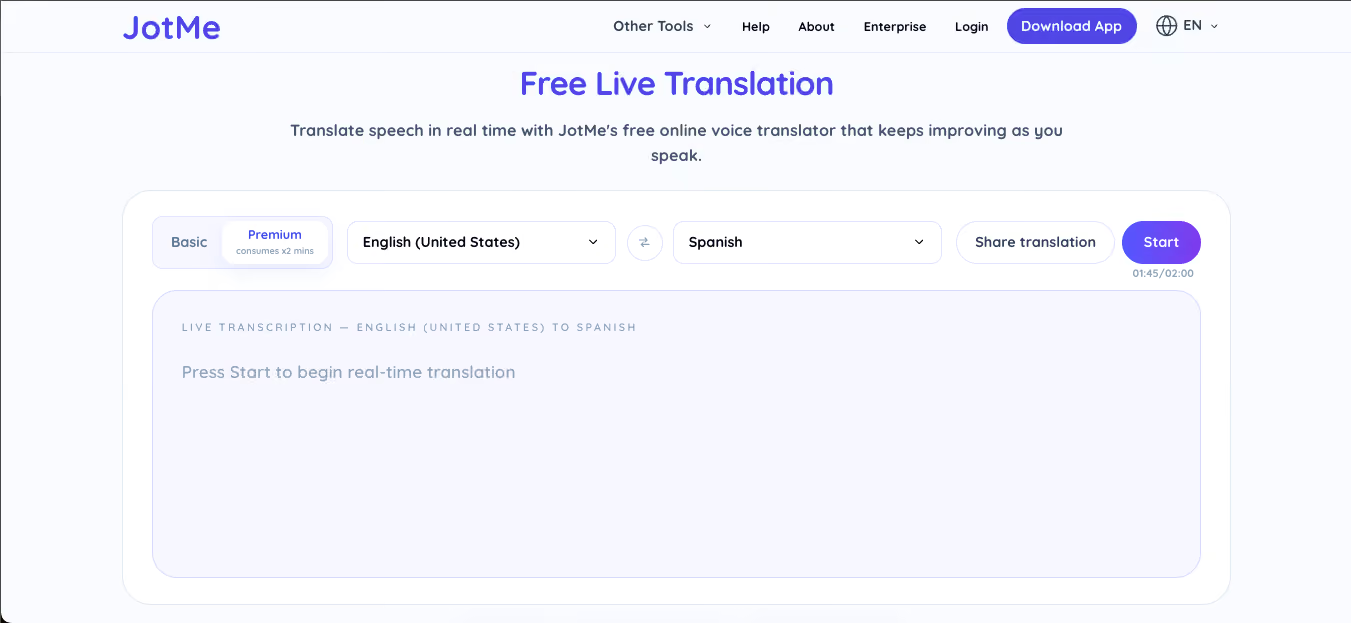
You will see two dropdowns, a Start button, and a Basic / Premium toggle. Basic gives you two minutes per session. Premium gives you twice that and runs more accurate models, which matters if the speaker has an accent or talks quickly.
You do not need to log in. You do not need to install anything. This is one of the few apps for live translation that loads as a working tool the moment you open it.
Step 2: Select Your Languages
Use the first dropdown to pick the source language, the language being spoken in your meeting. Use the second dropdown to pick the target language, the one you want to read.
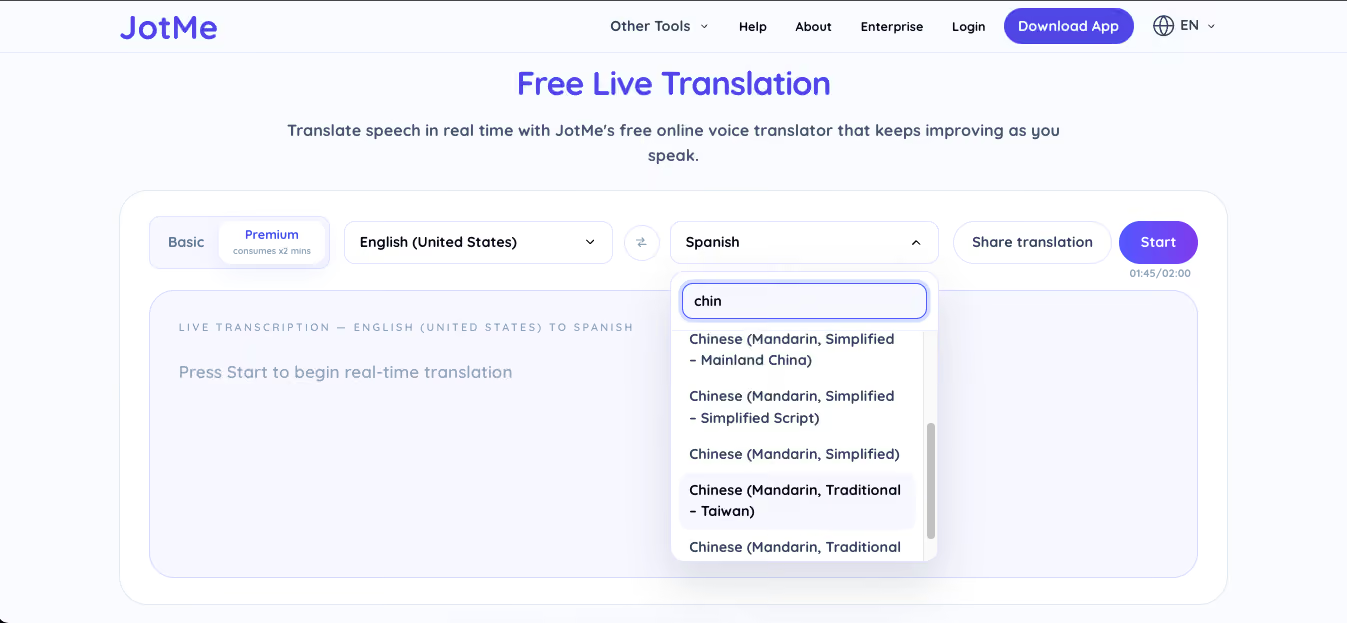
JotMe supports 200+ languages for live translation. If you are pairing a major language with English, the model is highly tuned.
Step 3: Click Start
Click the Start button. Your browser will ask for microphone access. Allow it. The tool begins listening and shows the source transcript on one side and the live translation on the other.
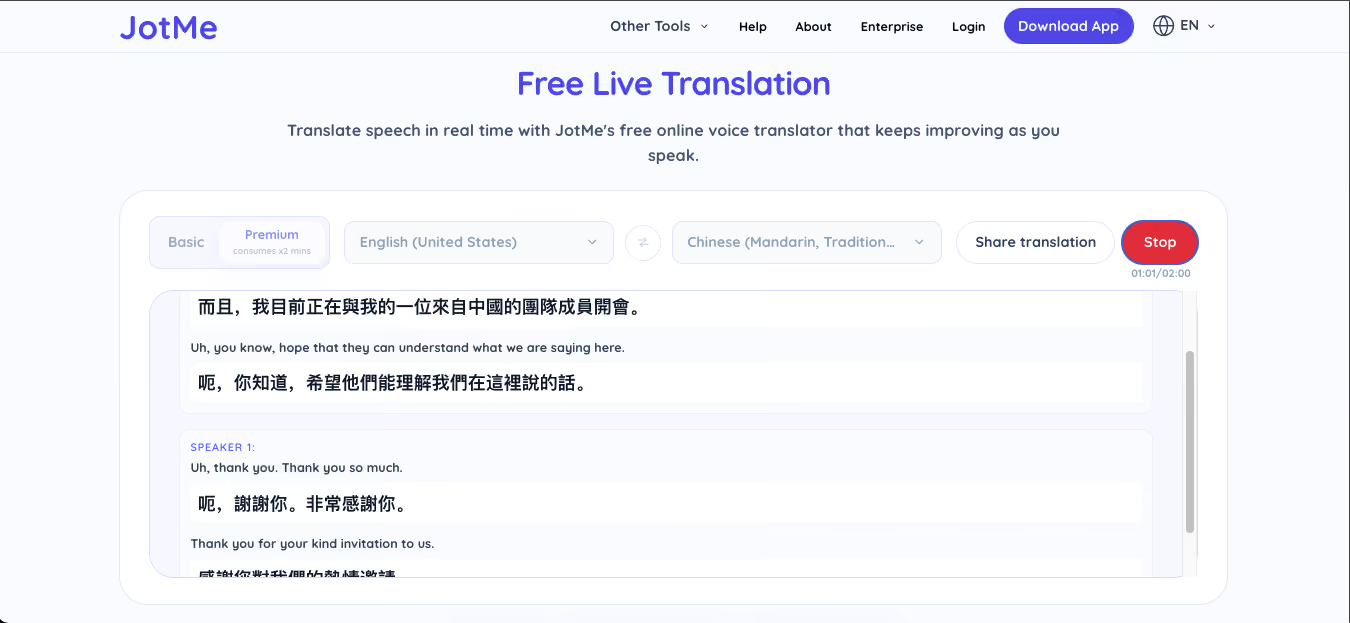
Speak naturally, or in this case, let the meeting run as it would. The translation updates as the speaker talks. JotMe's model also improves its translation as the conversation continues, because it picks up context from earlier sentences and corrects itself when meaning sharpens.
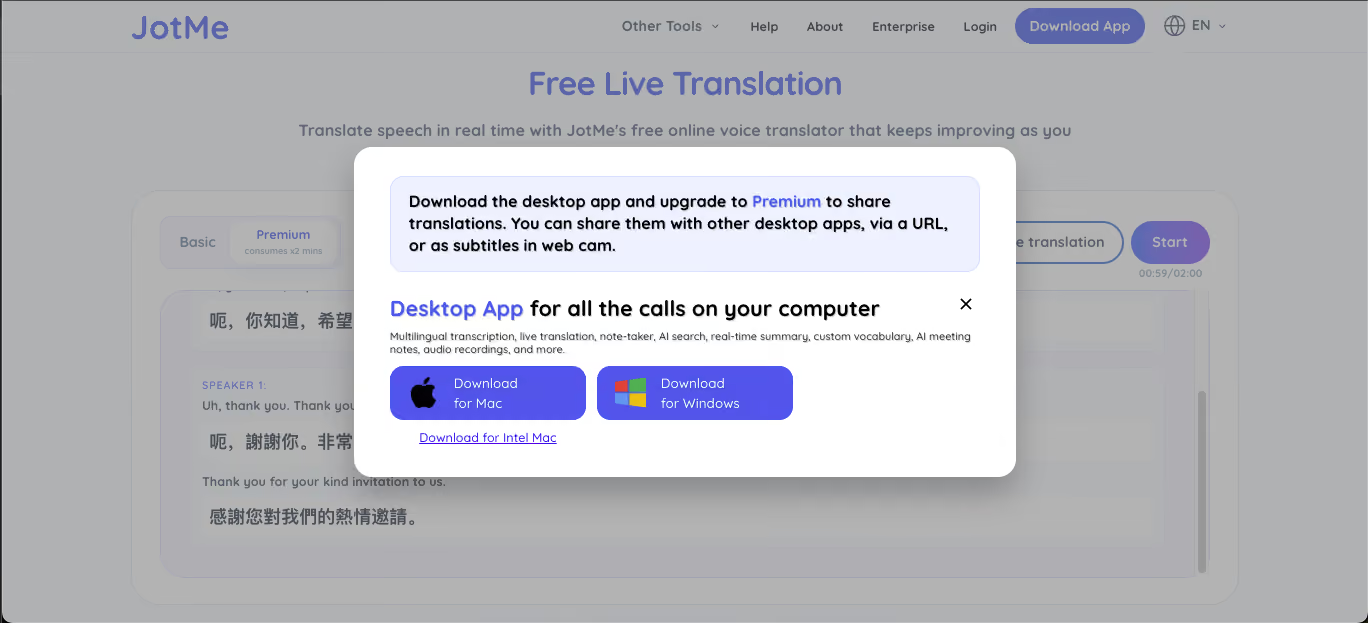
If you want to share the live output with a teammate, click the Share translation button before you start.
When You Need More Than Free Live Translation Meetings
The free browser tool gives you two minutes on Basic. That is enough for a quick check, a hallway conversation, or a short clarification inside a longer meeting. It works as a tester, a backup, and a daily small-dose tool.
For longer meetings, the JotMe Desktop app is the next step. Use it for:
- Full sales calls
- Hour-long client reviews
- Multilingual webinars
- Recurring team standups
JotMe desktop app sits on top of any meeting platform you use:
The JotMe desktop app translates the entire session and also generates:
- A full transcript
- AI meeting notes you can revisit afterward
- AI insights
This becomes essential the moment the conversation matters enough that you want a record. As you can see, the browser tool shows you what the model can do. The desktop app puts that capability into your daily work.
Tips to Get Cleaner Live Translation
A few things separate a usable translation from a frustrating one.
Use a decent microphone: Built-in laptop mics work, but a basic USB mic or a headset cuts background noise and improves accuracy by a wide margin. This is true for every live translator app, not just JotMe.
Place the device near the speaker: If the meeting is in a room and you are translating someone across the table, push the laptop closer to them.
Pick Premium for fast or accented speech: JotMe’s Basic mode handles clear, paced speech well. If your speaker talks quickly or has a strong regional accent, we recommend checking the Premium option for the better model.
Match dialect, not just language: Portuguese (Brazil) and standard Portuguese return different translations for the same sentence. Same with Arabic (Algeria) versus standard Arabic. That’s why JotMe is considered the best Arabic translator as it covers 20+ dialects.
Do not interrupt the audio source: If you are translating a meeting on Zoom, keep the Zoom audio playing through your speakers and let the laptop mic pick it up. Or use a virtual audio cable for cleaner capture. Cutting the audio mid-sentence may break the context.
Read the source transcript too: JotMe shows both the original speech and the translation. Glancing at the source helps you catch when a name, a product term, or a number was misheard, which is the most common failure mode in any best translation app.
Free Live Translation vs Other Options
Most people default to the Google Live translation app on their phone for casual situations. It works for tourist conversations and short exchanges. For business meetings, webinars, or study sessions on a laptop, it is awkward; you have to hold your phone up, switch tabs, or piece together a workflow.
A browser-based live translation app is built for the desk. You keep your meeting running in one window and your translation in another. Free, no signup, no install. That is the gap JotMe's tool fills.
If you want a deeper comparison of options, the broad market includes the Google Live Translation app, Microsoft Translator, DeepL Voice, and JotMe. Each has a use case. For browser-based, meeting-friendly translation in 200+ languages without an account, JotMe is the simplest entry point and arguably the best translation app for this specific job.
Conclusion
The shift toward real-time multilingual communication is no longer a fringe need. The global language services market crossed $76 billion in 2024 and is projected to reach over $96 billion by 2032, driven largely by demand for AI-powered translation in business meetings, webinars, and customer-facing conversations. Separately, more than 60% of multinational teams now report using some form of live translation or interpretation tool weekly, up from under 20% just five years ago. The conversation is moving faster than monolingual workflows can keep up with.
That is why a free live translation app matters. It removes the friction of evaluation. You do not have to commit to a plan, install software, or get IT approval to find out whether real-time translation actually helps your team. You open a tab, run it on a real conversation, and judge the output for yourself. For executives, event organizers, language learners, and anyone running meetings across borders, that thirty-second test is the difference between adopting the right tool and avoiding the topic entirely.
Try JotMe's free live translation now. No signup, no install, 200+ languages, two minutes on the house. If it earns its place in your workflow, you can always download the JotMe desktop app.
FAQs
How to translate English into Spanish?
To translate English to Spanish, open JotMe’s free English to Spanish live translation, set the source dropdown to English (US) and the target dropdown to Spanish or Spanish (Latin American), and start speaking.
How to use Google Translate?
Google Translate works through the official website and the mobile app. You type or paste text into the source box, pick your languages, and read the translation. The mobile app also has a conversation mode and a camera mode for translating signs and printed text. For live meetings, webinars, or any conversation that runs longer than a minute, Google Translate has limitations. A browser-based live translator app like JotMe is the better fit for desk and meeting use.
Is there a Chrome extension for translation?
Yes, the JotMe Chrome extension is one of the best for live translation, especially for online meetings. It joins your Google Meet calls directly, runs live translation in 200+ languages while the meeting happens, and produces a transcript and AI meeting notes after the call ends.
How to translate Spanish to English for free?
To translate English to Spanish, open JotMe’s free Spanish to English voice translation, set the source dropdown to Spanish (or Spanish (Latin American), depending on the speaker) and the target to English (US), then click translate.
Last updated on
July 29, 2026
Follow us on social media: