






Tips
How to Record a Teams Meeting (With or Without Admin Rights)

Lovely Mangla
August 6, 2026
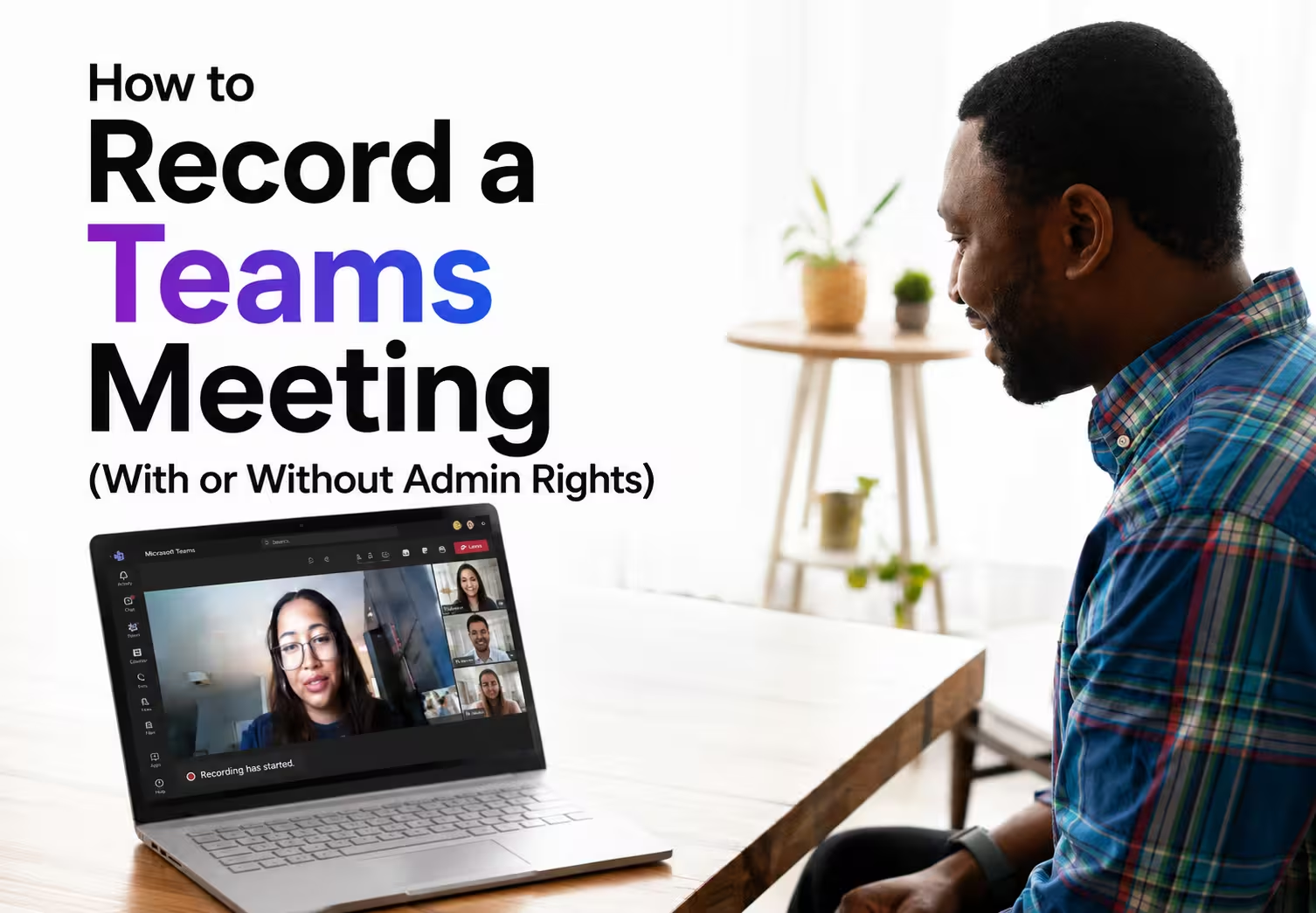
Recording a Microsoft Teams meeting is straightforward if you have the right permissions. During the meeting, select More actions (three dots) > Record and transcribe > Start recording. The recording is then saved to the meeting organizer's OneDrive or SharePoint when the meeting ends.
If you don't see the Record button, it usually means you joined the meeting as a guest, your Microsoft 365 license doesn't include recording, or your organization's admin has disabled the feature. In those cases, you cannot enable recording yourself inside Teams.
This guide explains how to record a Teams meeting using the built-in feature, why the Record button may be missing, where recordings are stored, and how tools like JotMe let you capture meetings from your own computer when Teams recording isn't available.
Who Can Record a Teams Meeting
Only the meeting organizer, co-organizers, and presenters from the same Microsoft 365 organization can use Teams' built-in recording feature. Guests, external attendees, and anonymous participants cannot record a Teams meeting natively, even if they can see all other meeting controls.
Three conditions have to line up before the button works.
- Your license: Recording requires a Microsoft 365 business or enterprise license. Personal and free accounts do not get it.
- Your organization: You have to belong to the tenant hosting the meeting. Joining a client's call as an external guest rules you out.
- Your admin policy: An administrator can disable recording for the whole tenant or for specific policy groups, and that setting overrides everything else.
That third condition causes most of the confusion, because Teams gives no explanation when a policy blocks you. The screenshot below shows the meeting toolbar with Record available, which means the license and the policy both allow it.
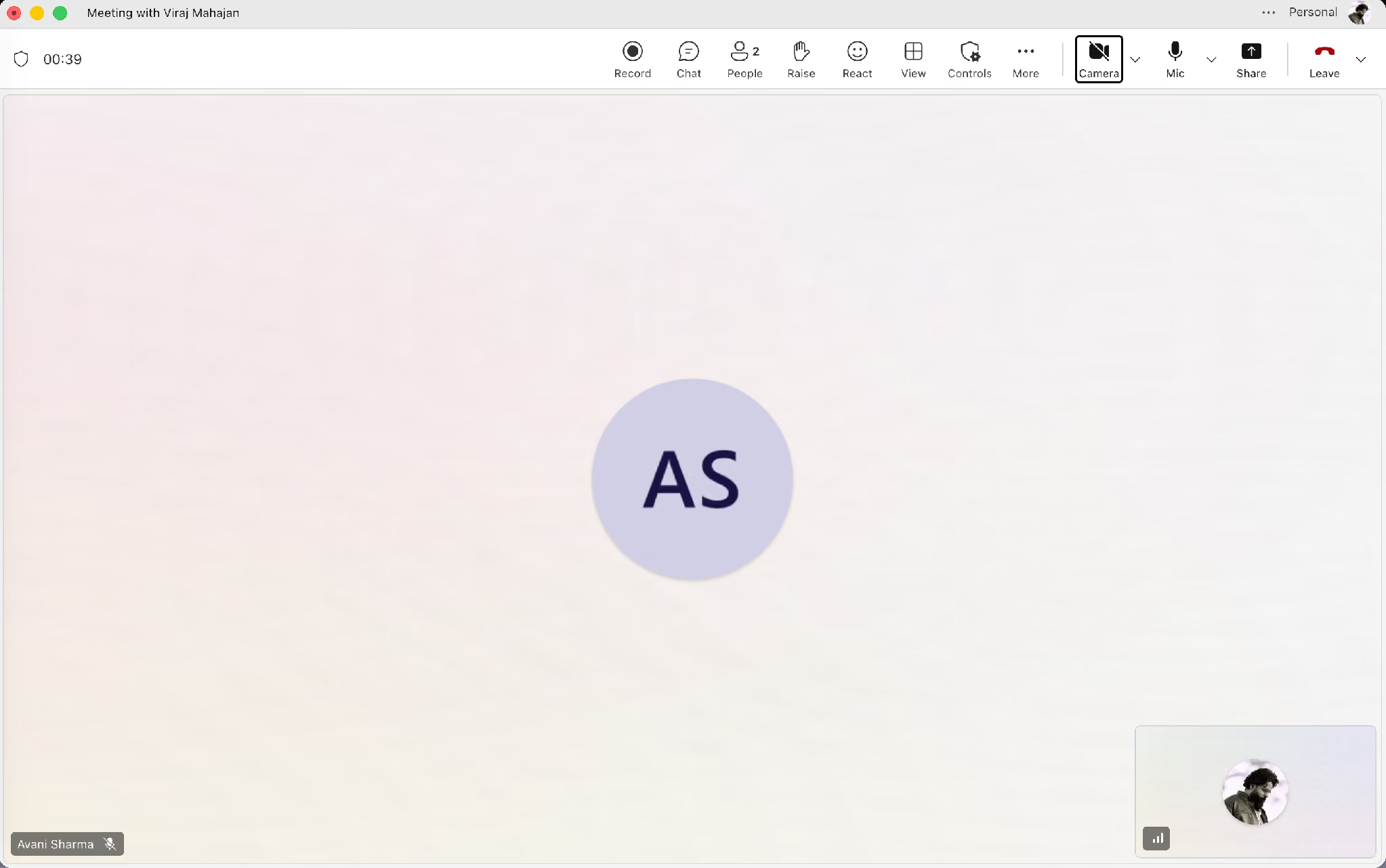
If your work involves regular calls with partners or suppliers outside your tenant, you will run into the guest restriction constantly. That scenario is the reason the desktop route in section 5 exists, and JotMe's Microsoft Teams integration was built around it.
How to Record a Teams Meeting on Desktop, Web, and Mobile
The native path runs the same way across all 3 clients, which makes this the fastest route when your account allows it.
- Step 1: Join or start the meeting from the Teams desktop app, the web client, or mobile.
- Step 2: Open the meeting controls at the top of the window and select More actions, shown as the three dots.
- Step 3: Select Record and transcribe, then select Start recording.
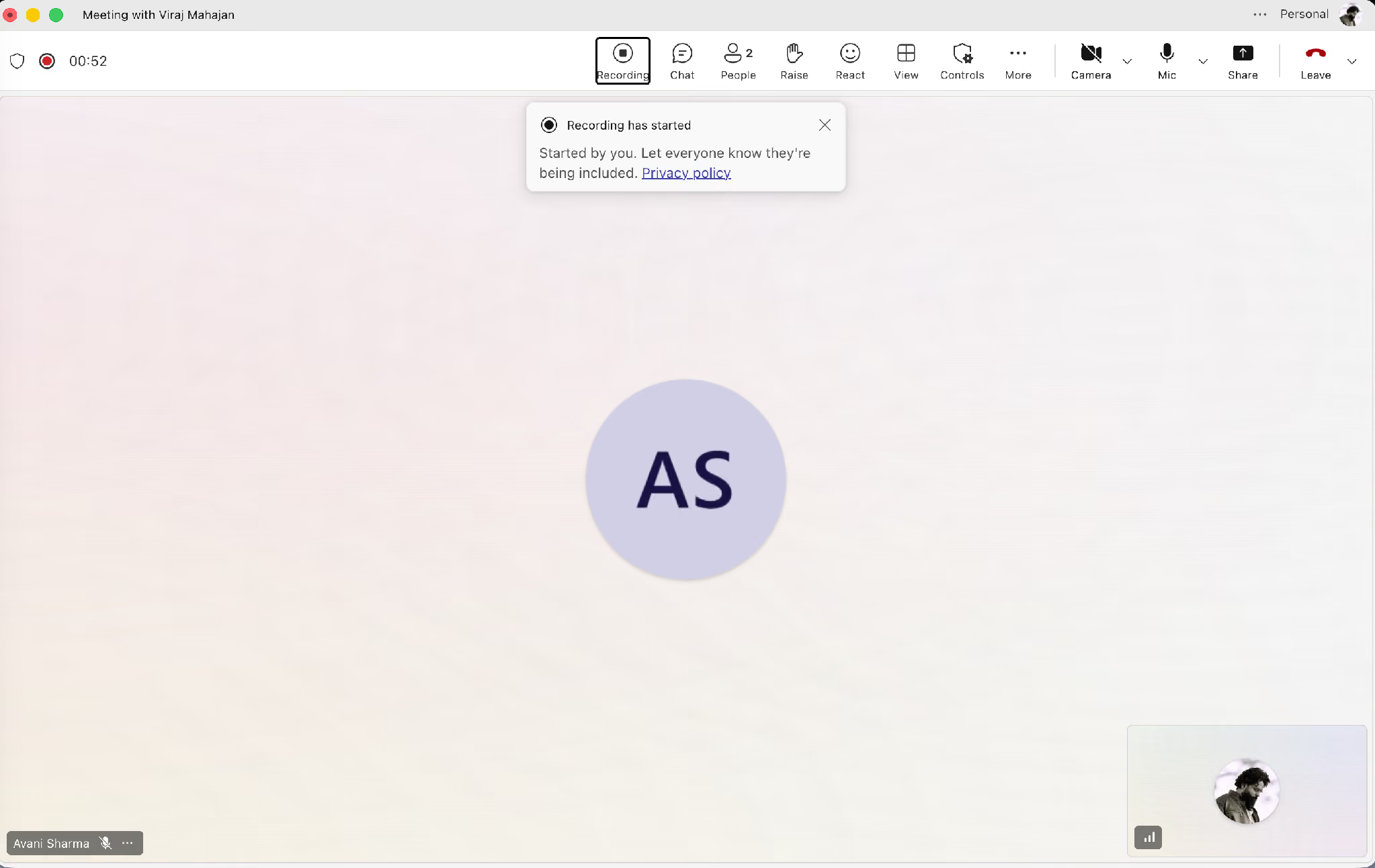
- Step 4: Confirm that the recording indicator appears and that the banner announces the recording to the room.
- Step 5: Select More actions and then Stop recording when the meeting ends, or hang up and let Teams close it for you.
Teams notifies every participant the moment recording begins. Nobody records a Teams meeting secretly through the native feature, and the banner names the person who started it.
Stopping asks for a confirmation before it ends the capture, which prevents the common mistake of killing a recording halfway through a decision.
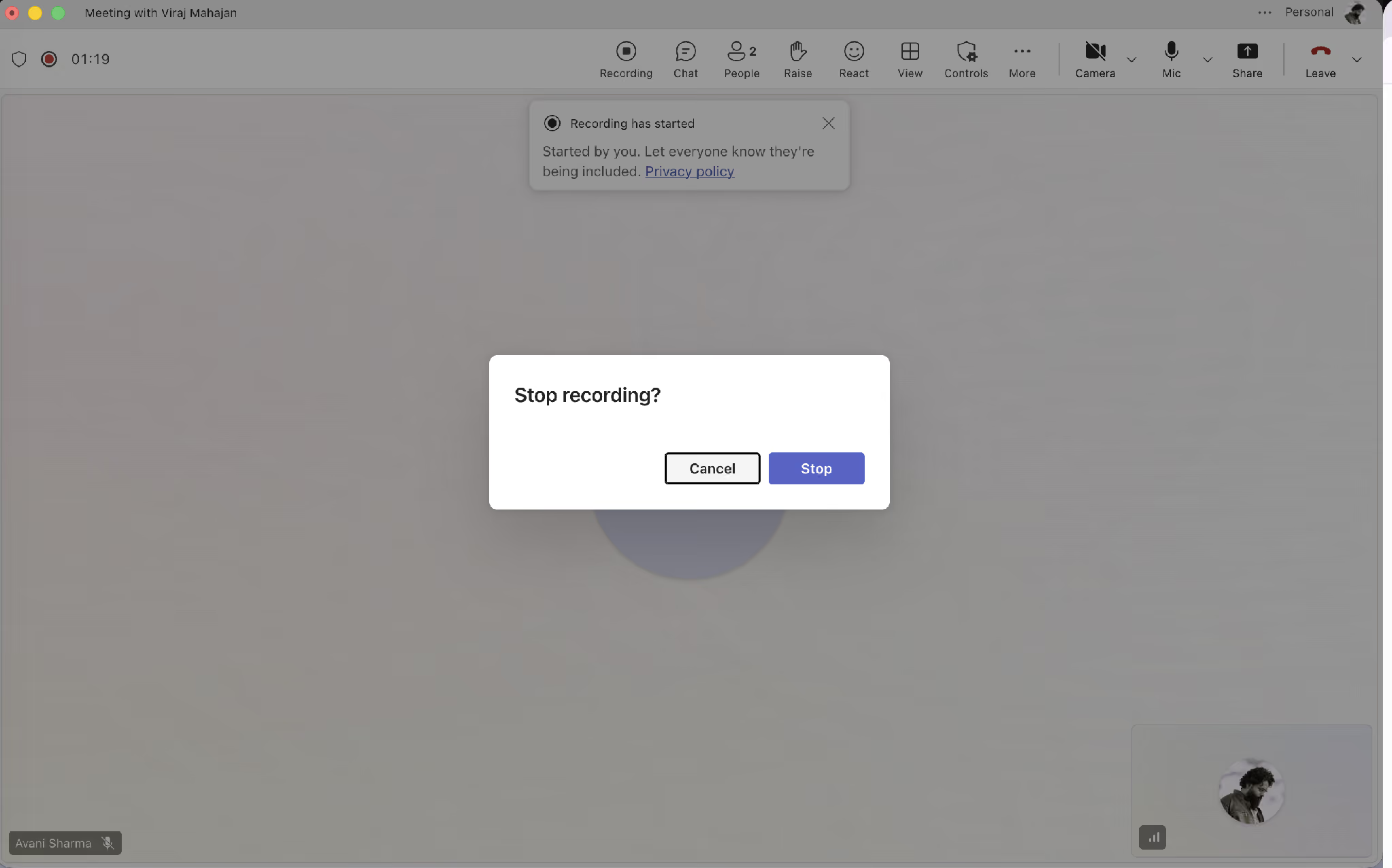
Two limits worth knowing before you rely on this:
- A recording runs for up to 4 hours and stops automatically once everyone leaves the call. Microsoft documents the full behavior on its start, stop, and find meeting recordings page.
- And Teams updates change these details often enough that our Microsoft Teams update log tracks the ones that affect meeting capture.
Why Your Teams Meeting Record Button Is Greyed Out
A missing Record control has 4 causes, and they are worth ruling out in this order because the fix gets slower as you go down the list.
- You joined as a guest or external attendee: Nothing you change on your side will help. Ask someone inside the host organization to record, or use the desktop route below.
- Your role is attendee rather than presenter: The organizer can promote you to presenter during the call in a few seconds through the People panel.
- Your license does not include it: Check with whoever manages your Microsoft 365 subscription. Free and personal accounts have no recording feature to enable.
- An admin policy blocks it: Your IT administrator has to change the meeting policy assigned to your account. This is the slowest fix and the most common cause in larger organizations.
For the last one, send your administrator a request naming the exact setting. Ask them to check the Teams meeting policy assigned to your account and enable cloud recording for it. Naming the setting turns a vague request into a 2-minute task and usually gets it done the same day.
Waiting on an admin ticket helps nobody when the call happens this afternoon. Everything in the next 2 sections works without any policy change, because it runs entirely on your own machine.
Where Teams Saves Your Recording and Who Can See It
Teams sends the file to 1 of 2 places, and the destination depends on the meeting type rather than on any setting you chose.
- Regular meetings: The recording lands in the meeting organizer's OneDrive for Business, inside a Recordings folder.
- Channel meetings: The recording lands in the channel's SharePoint document library, where everyone with channel access can reach it.
The link appears in the meeting chat a few minutes after you stop, and it also shows up under Recap on the calendar entry.
Two things surprise people here. Retention policies can expire a recording automatically, so a file you assumed was permanent can disappear on a schedule your administrator set. And the organizer owns the file, which means a recording of your own client call lives in someone else's OneDrive.
JotMe stores the same meeting under your own account at app.jotme.io, with the audio, the transcript, and the AI meeting notes attached to one record. Ownership stays with the person who ran the capture, and no retention policy from another tenant applies to it.
How to Record a Teams Meeting Without a Bot Joining the Call
You can record a Microsoft Teams meeting without adding a bot by using a desktop recording tool like JotMe. JotMe captures the meeting audio directly from your computer, so it does not appear as a participant in the Teams call and does not require permission from the meeting organizer's Microsoft 365 tenant.
Most AI note takers work by sending a bot into the meeting. This bot appears in the participant list, which can create privacy concerns or fail when an organization's admin settings block external recording tools. JotMe avoids this by recording from your own device instead of joining the meeting as a participant.
Setting it up takes 3 steps before the call connects.
- Open the JotMe desktop app
- Set the spoken language and the translation output
- Then start capture.
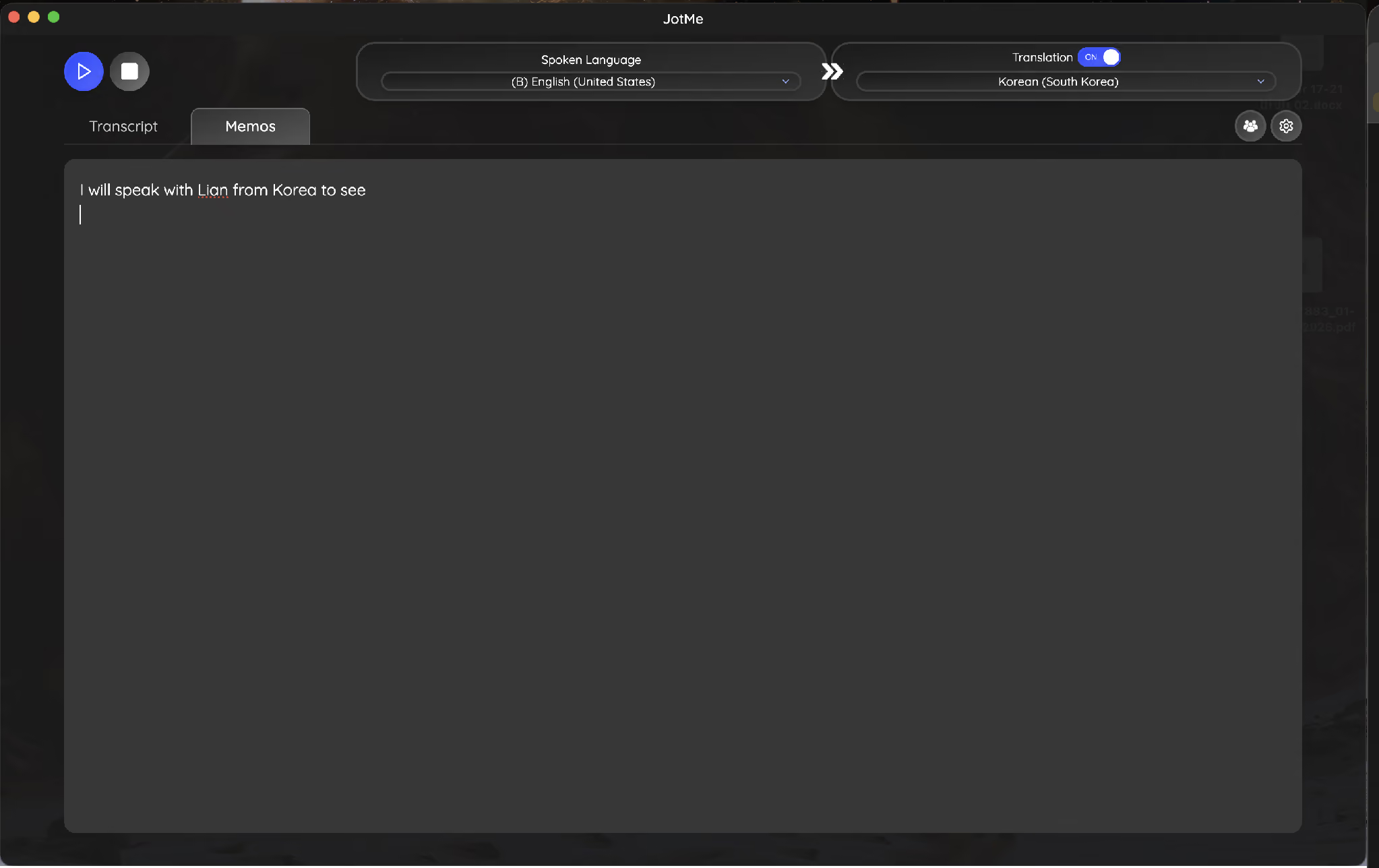
The screenshot below shows English (United States) as the spoken language and Korean as the translation target, with the transcript building in both languages as the meeting runs.
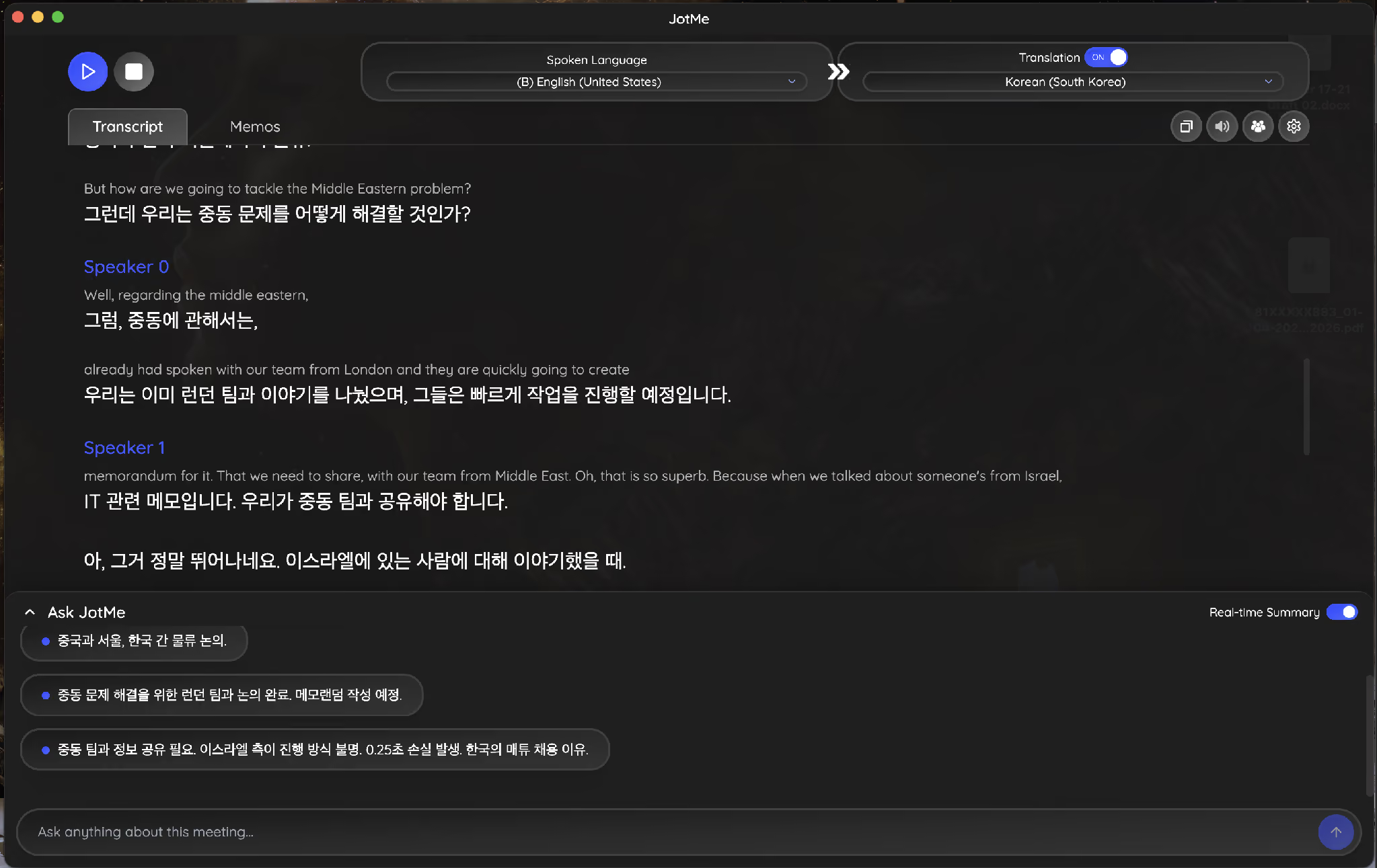
The Memos tab runs alongside the transcript for anything you want to note yourself. Typing a memo during the call feeds directly into the notes JotMe generates afterward, which is how a private reminder becomes a tracked action item rather than a line you forget in a notebook.
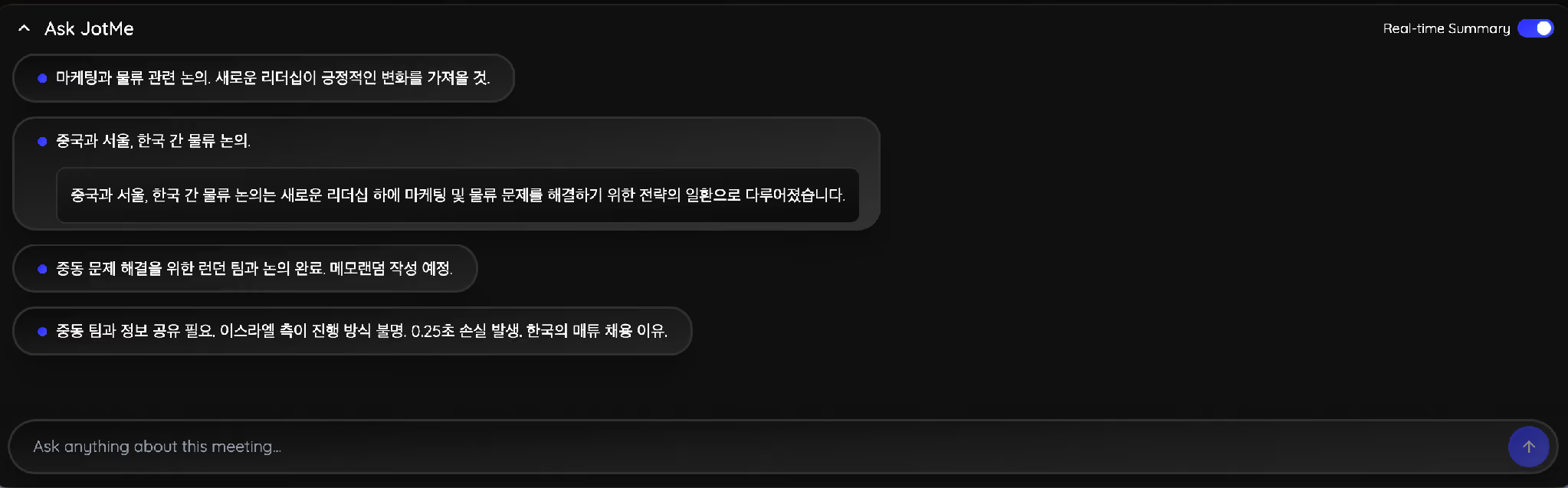
A real-time summary panel runs underneath the transcript and updates while people are still talking. On a call about account logistics across China, Seoul, and the Middle East, the panel captured the London memorandum decision and the Korea hiring point as they happened, in Korean, for the participant reading in that language.
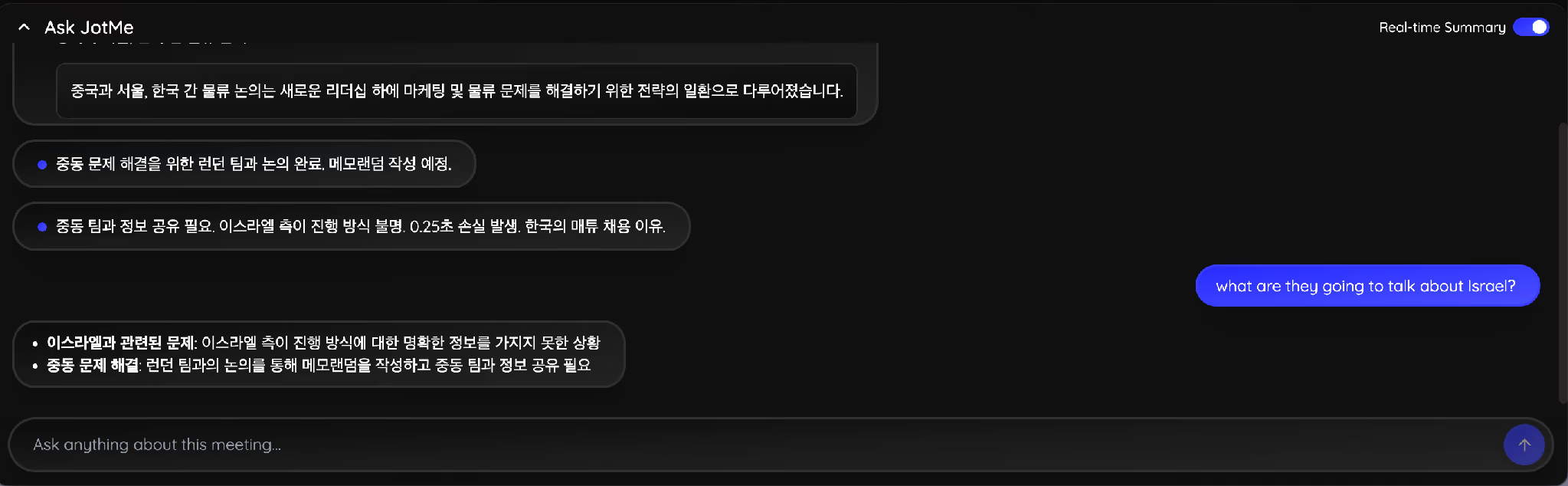
You can also ask the assistant a direct question mid-call instead of scrolling back through the transcript. Asking what the group planned to do about a specific region returns the answer in the language you are reading, drawn from what has been said so far.
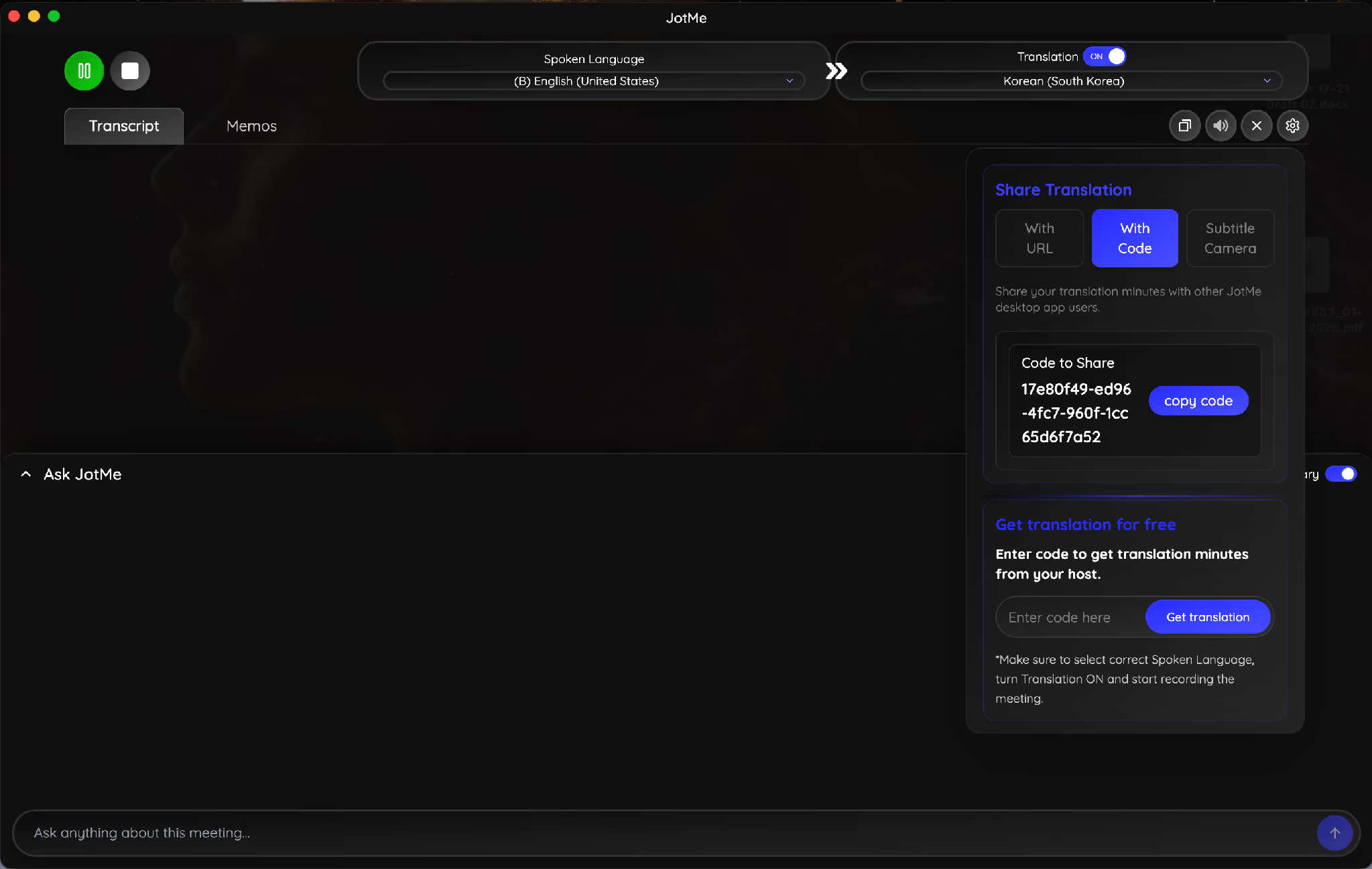
The host can extend live translation to everyone else on the call as well. The Share Translation panel offers 3 routes: a URL, a share code, or a subtitle camera feed. Participants enter the code in their own JotMe desktop app and read the meeting in their language using the host's translation minutes, which means nobody else on the call needs to buy anything before the meeting starts. Full setup for this lives on the Teams live translation page.
What a Teams Recording Leaves Out
Here is the detail that decides this for anyone running cross-border calls. Microsoft states plainly that live captions appear during a meeting and are not recorded. The translated captions your Korean or Japanese colleague relied on for 45 minutes do not exist in the file afterward. You get an English video and nothing else, and generating captions on the recording afterward means starting the language work over from the beginning.
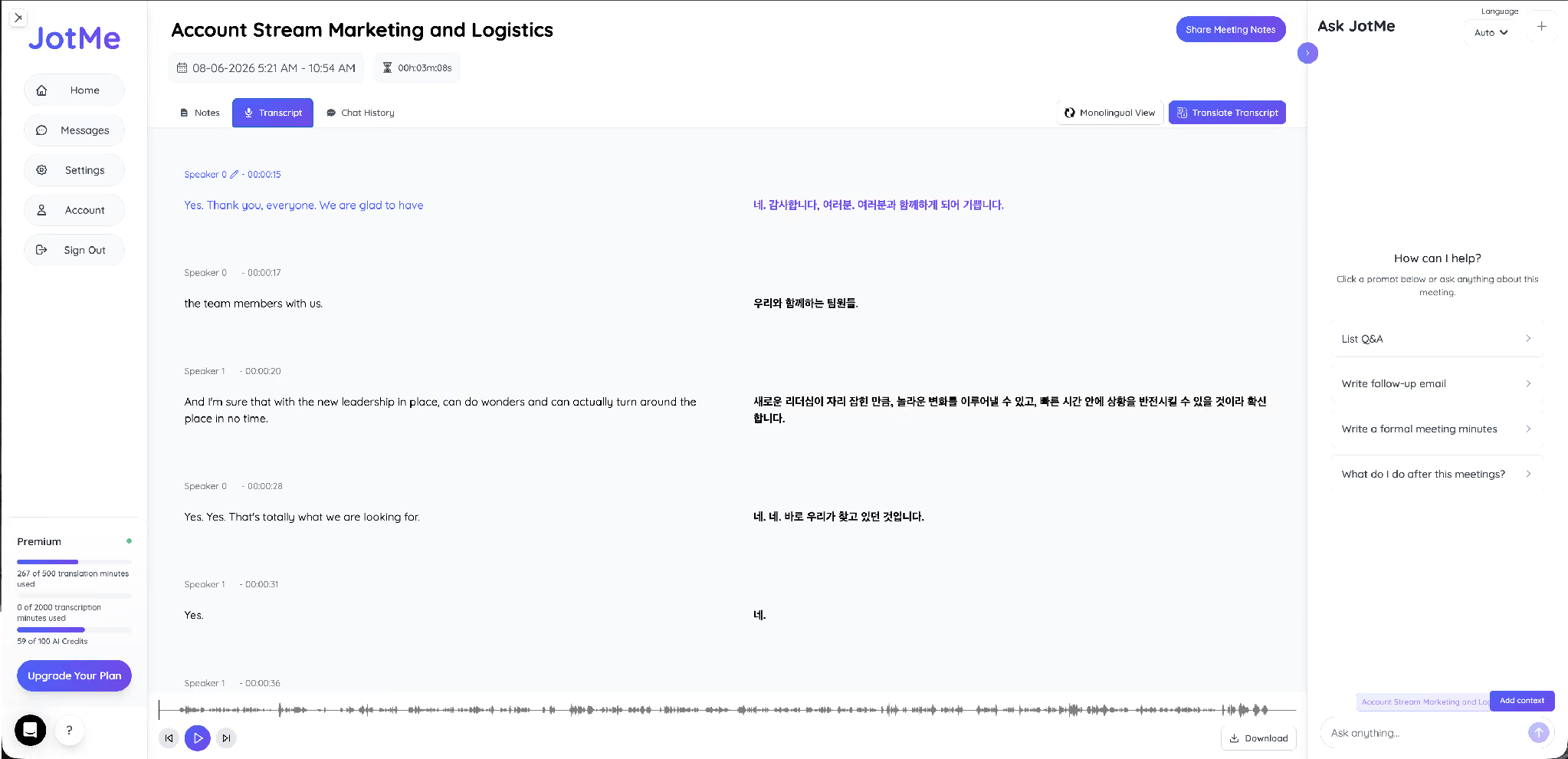
JotMe keeps both languages in the record. The transcript opens side by side, with speaker labels and timestamps on each line, and clicking a line jumps the audio to that second.
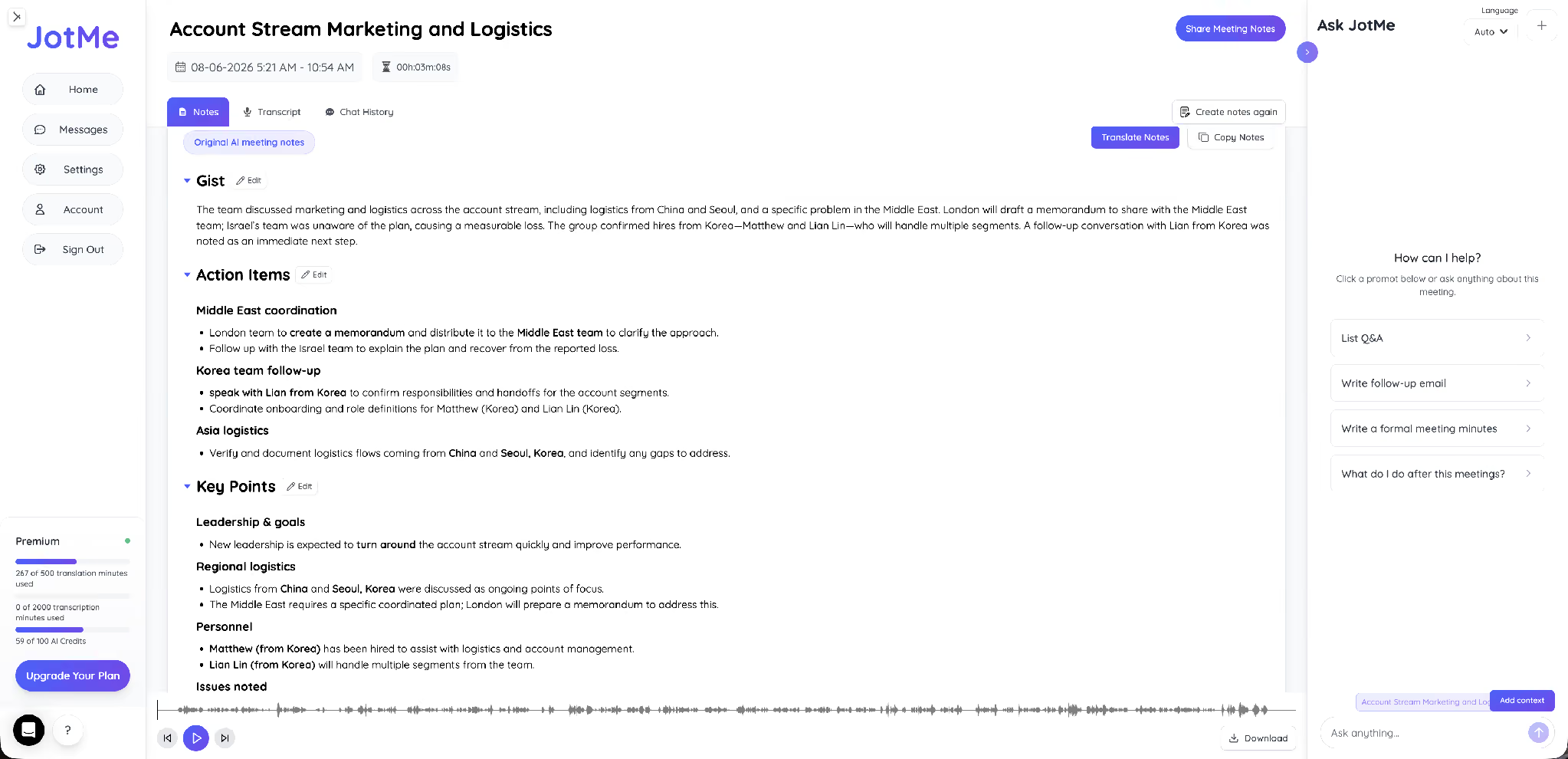
The Notes tab turns the same recording into a Gist, a set of action items grouped by workstream, and the key points behind them. Nothing here required a prompt. JotMe generates a Teams meeting summary structure by default the moment the meeting ends.
An Other Points section carries the material that usually falls out of a recording entirely, including attendee tone and any memo you typed during the call. The notepad action from the Memos tab appears here as a tracked follow-up.

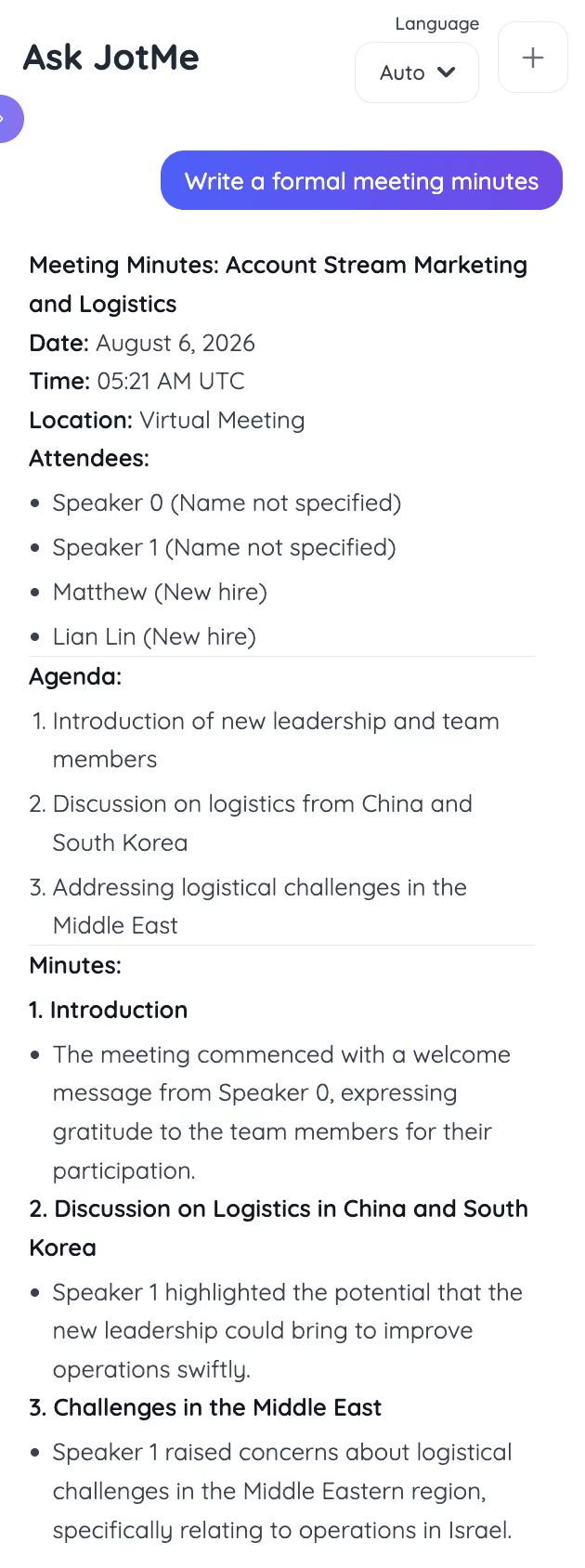
Asking for formal meeting minutes returns the full structure, with date, time, location, attendees, agenda, and numbered sections covering each discussion point. That output goes to a board or a client without further editing, and it can be translated into any of 21 languages for AI meeting notes so every attendee reads the same record in their own language.
A recording and a transcript solve different problems, and the text side has its own workflow covered in our guide on how to transcribe a Teams meeting.
For a wider view of what else handles multilingual Teams calls, the comparison of the best live translation tools for Teams sets JotMe against the alternatives across 200+ languages and 39,000+ language pairs.
Which Method Should You Use to Record Teams Meeting
Use native Teams recording when you organize the meeting, your license covers it, your admin allows it, and everyone speaks the same language. It costs nothing extra, and the file lands where your organization expects it.
Use the JotMe desktop app when any one of those breaks down. Joining a client's tenant as a guest, dealing with admin restrictions, or running a multilingual call where attendees need live translation all point in the same direction. JotMe captures the meeting from your machine and translates conversations in real time without adding a participant to the roster.
Frequently Asked Questions
Can Guests Record a Teams Meeting?
No, guests, external attendees, and anonymous participants have no access to the native recording control, and no setting on their side changes that. Either someone inside the host organization records, or the guest captures the call from their own machine with a desktop app.
Does Everyone Get Notified When You Record a Teams Meeting?
Yes, Teams posts a banner to every participant the moment recording starts and names the person who started it, and the notice also lands in the meeting chat. Recording without notification does not happen through the native feature.
How Long Are Teams Recordings Kept?
That depends on your organization. Teams applies whatever retention policy your administrator configured, and many tenants expire meeting recordings automatically after a set period. Check the policy before you assume a file will still be there next quarter.
Can You Record a Teams Meeting on Mobile?
Yes, through the same More actions menu in the mobile app, provided your role and license allow it. The recording still saves to the organizer's OneDrive rather than to your phone.
Does a Teams Recording Include Translated Captions?
No, Microsoft states that live captions are not recorded, so any translation your colleagues read during the call disappears from the file. Captions on a recorded video have to be generated afterward and then translated as a separate step.
How Do You Record a Teams Meeting Without an Admin Policy Change?
Capture the call from your own device instead of through Teams. A desktop app that reads system audio needs no tenant permission, adds no participant to the meeting, and stores the result under your own account rather than the organizer's OneDrive.
Last updated on
August 21, 2026
Follow us on social media: