





To cancel a Microsoft Teams subscription billed through your business account, open the Microsoft 365 admin center, go to Billing > Your products, and select the subscription you want to end. Open its cancellation option, complete the prompts, and check the final subscription status. If immediate cancellation isn't available, consider turning off recurring billing.
The first thing to get right is the account. Business and personal Microsoft subscriptions have different management pages. Looking in the wrong one can leave you searching for a cancellation button that never appears.
That is what happened when we recorded ourselves canceling the Microsoft subscriptions we had signed up for to test Teams live translation. We started in his account settings, found the admin center, and worked through several cancellation prompts. This guide follows that experience and explains the other routes you may need.
Key Takeaways
- Start with the product name and seller on your receipt. Your charge may be for a Microsoft 365 plan or a Teams add-on.
- For the business account, the useful route was the admin center's product list.
- Check the commitment end date before assuming you can stop a monthly payment immediately.
- After submitting a request, verify the result for each subscription you intended to cancel.
Where Can You Cancel Your Microsoft Teams Subscription
Use the billing account associated with the purchase. Signing in to Teams successfully does not, by itself, tell you where the subscription is managed.
Microsoft's subscription management guide explains the personal-account and third-party routes. The business walkthrough below applies to subscriptions you can manage in the admin center.
If you are unsure which row applies, find the most recent receipt or invoice before proceeding. Write down the product name, purchasing account, seller, and subscription identifier if one is provided. These details are more useful than searching every account you have used to join a Teams meeting.
What Should You Check Before Canceling
Before selecting a cancellation option, confirm which product you are ending, whether you can manage its billing, and when the change takes effect.
Identify the Subscription You Actually Want to End
Our team began with a simple goal: cancel the subscriptions we had used for Teams live translation. During the recording, we found ourselves returning to the product list to deal with additional entries.
Use that as a reason to inspect the list carefully. If you signed up for a base Microsoft 365 plan and a separate translation-related add-on, decide what you still need before touching either entry. A subscription used by colleagues for email, files, or meetings deserves a different decision from an add-on you purchased for a short test.
Make a short list of the products you intend to keep and the products you intend to end. Match each cancellation confirmation to that list.
Check Your Billing Permissions
Microsoft distinguishes billing permissions from other administrative roles. For a Microsoft Customer Agreement account, the relevant access is billing account or billing profile owner/contributor. For a Microsoft Online Subscription Agreement account, Microsoft specifies at least Billing Administrator access.
If someone else purchased the subscription for your organization, ask that person or your billing administrator to handle the change. Being able to use a paid feature does not establish that you purchased it.
Check the Term and Save What You Need
Look for the trial end date, renewal date, commitment length, and payment frequency. Keep a copy of those details so you can compare them with the final confirmation.
If you are ending a broader Microsoft 365 plan, save important files and arrange continued access for anyone affected. Microsoft's subscription lifecycle guidance explains that service and data access change as a subscription ends. Avoid treating the cancellation screen as a backup plan for your data.
How to Cancel a Microsoft Teams Business Subscription: Step-by-Step
Follow these steps to cancel a Microsoft Teams Business subscription. You can also see the video in which we are performing the subscription cancellation steps:
Step 1: Open the Microsoft 365 Admin Center
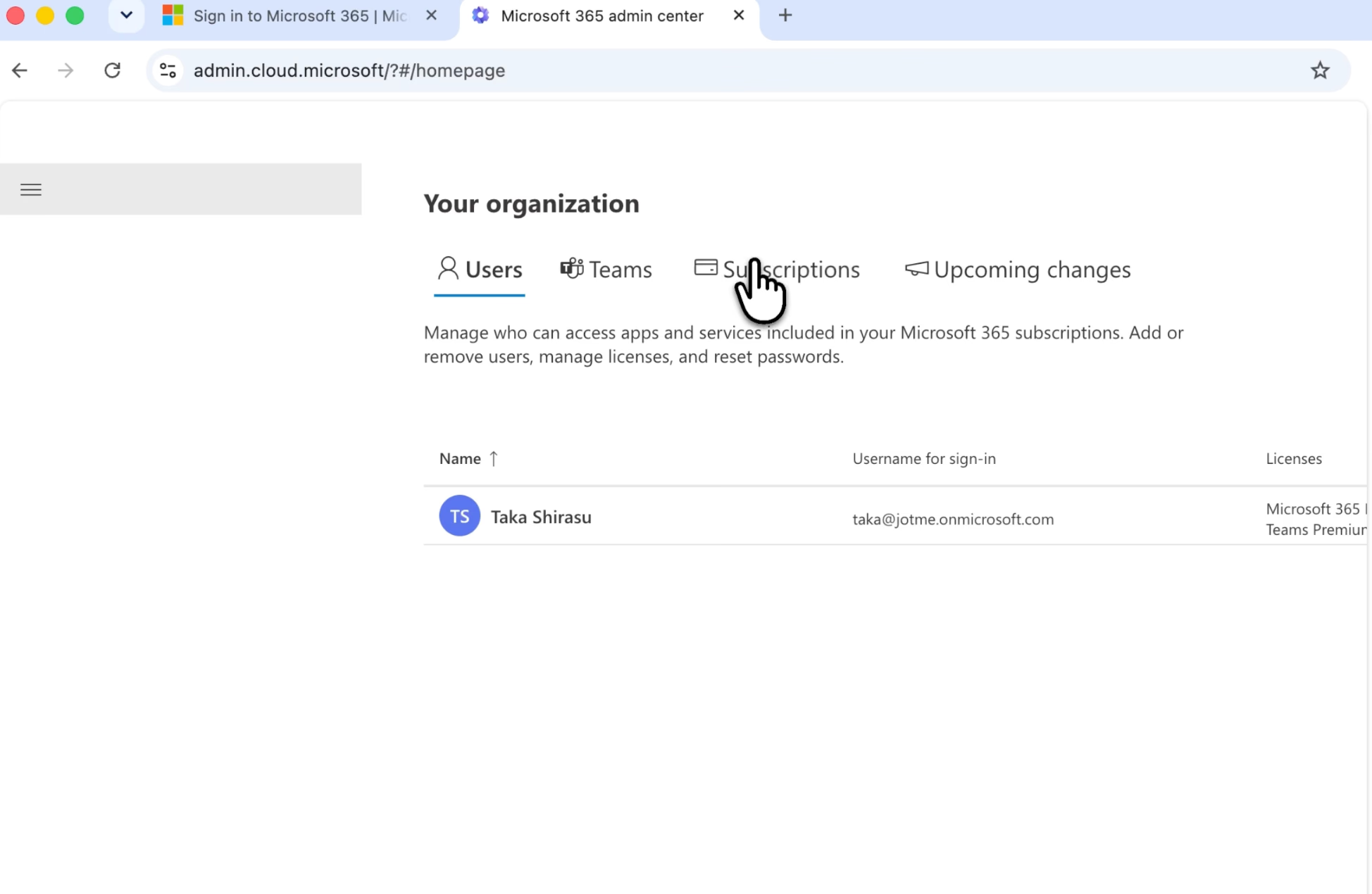
Go directly to the Microsoft 365 admin center and sign in with the work account associated with the subscription.
We first opened My account and looked through his subscription information. After a while, we realized we needed the admin center. That change was the turning point: we had been looking for a billing action in the wrong place.
If the browser opens an account automatically, check the signed-in identity before continuing. We also spent time trying to remember which account we had used during signup. An existing browser session can save time, but it can also send you into an unrelated account.
Step 2: Open Billing, Then Your Products
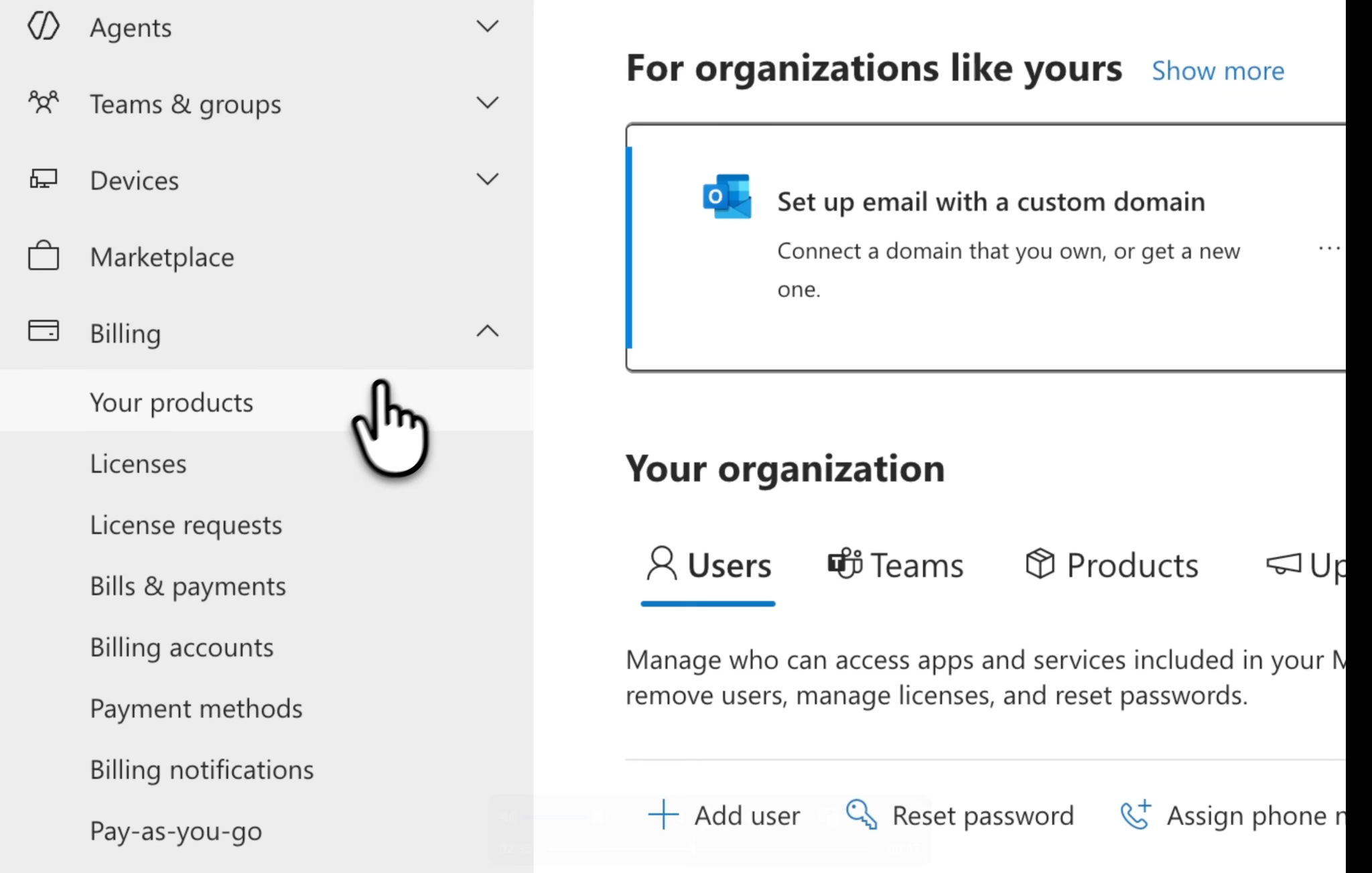
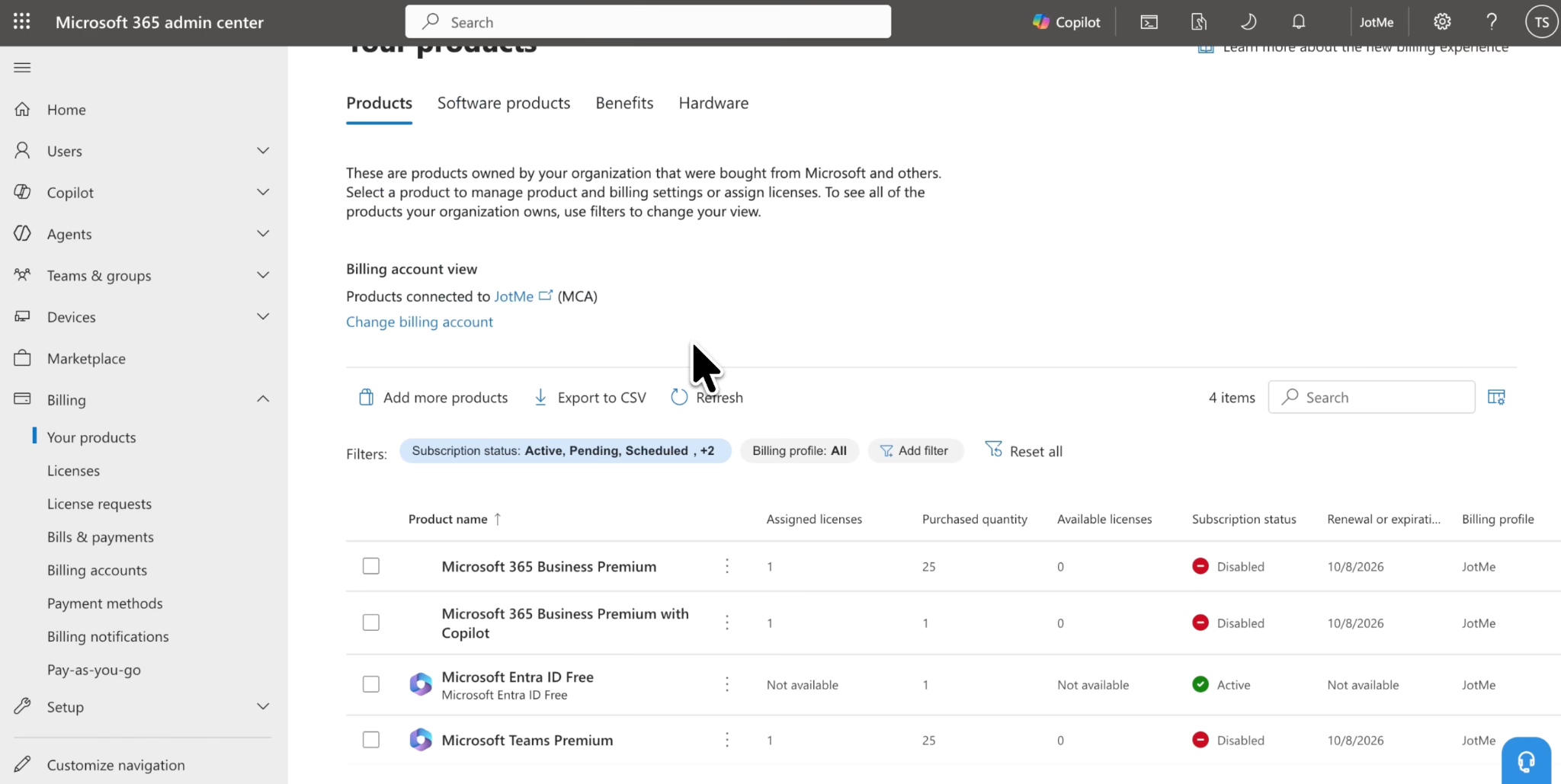
In the navigation menu, select Billing, then Your products. We recap this route after finding the cancellation control. In Microsoft's simplified view, select Subscriptions.
Review the product names before opening a menu. Don't choose an entry just because its name looks familiar from the signup process.
Step 3: Select the Subscription and Find its Cancellation Option
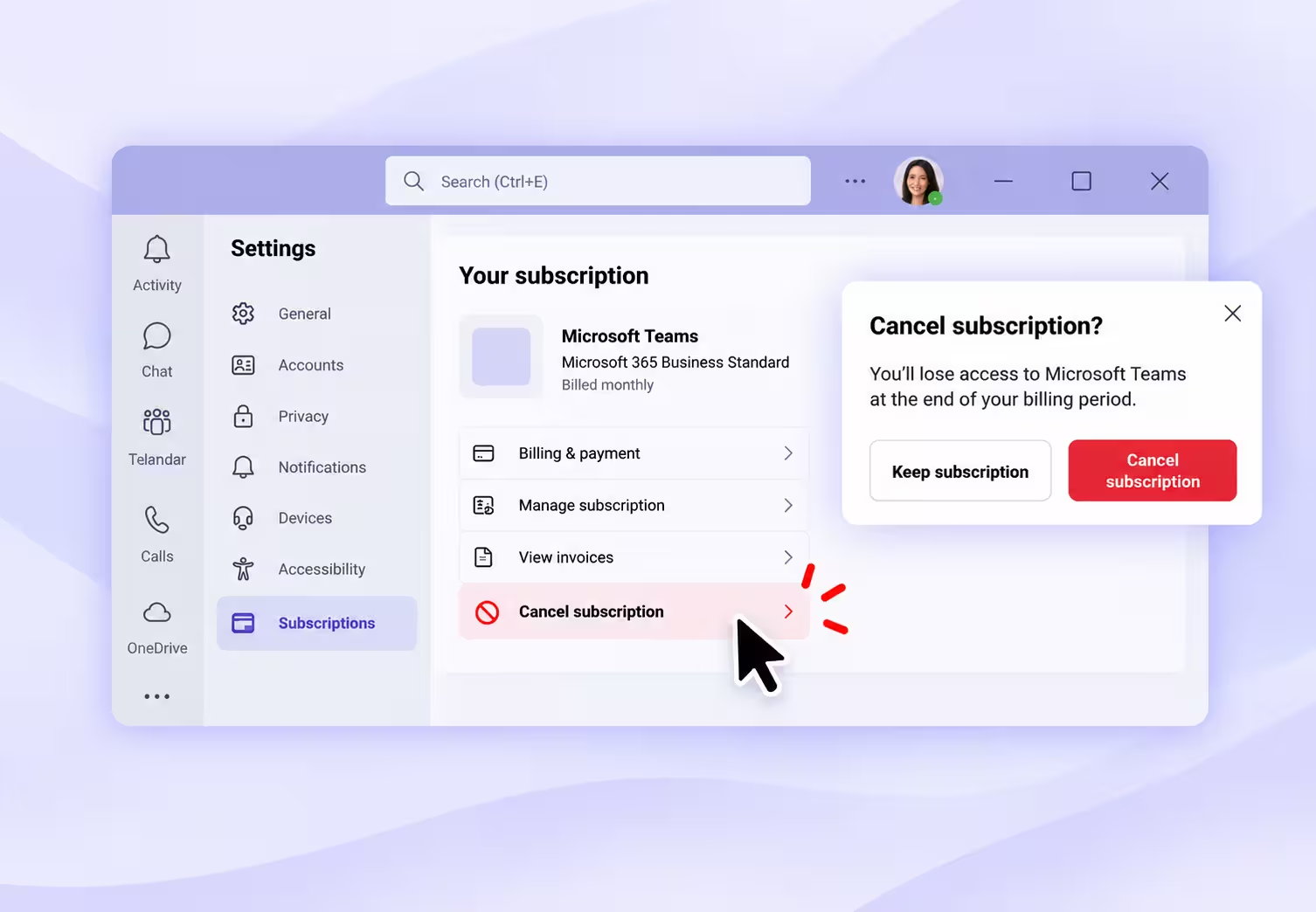
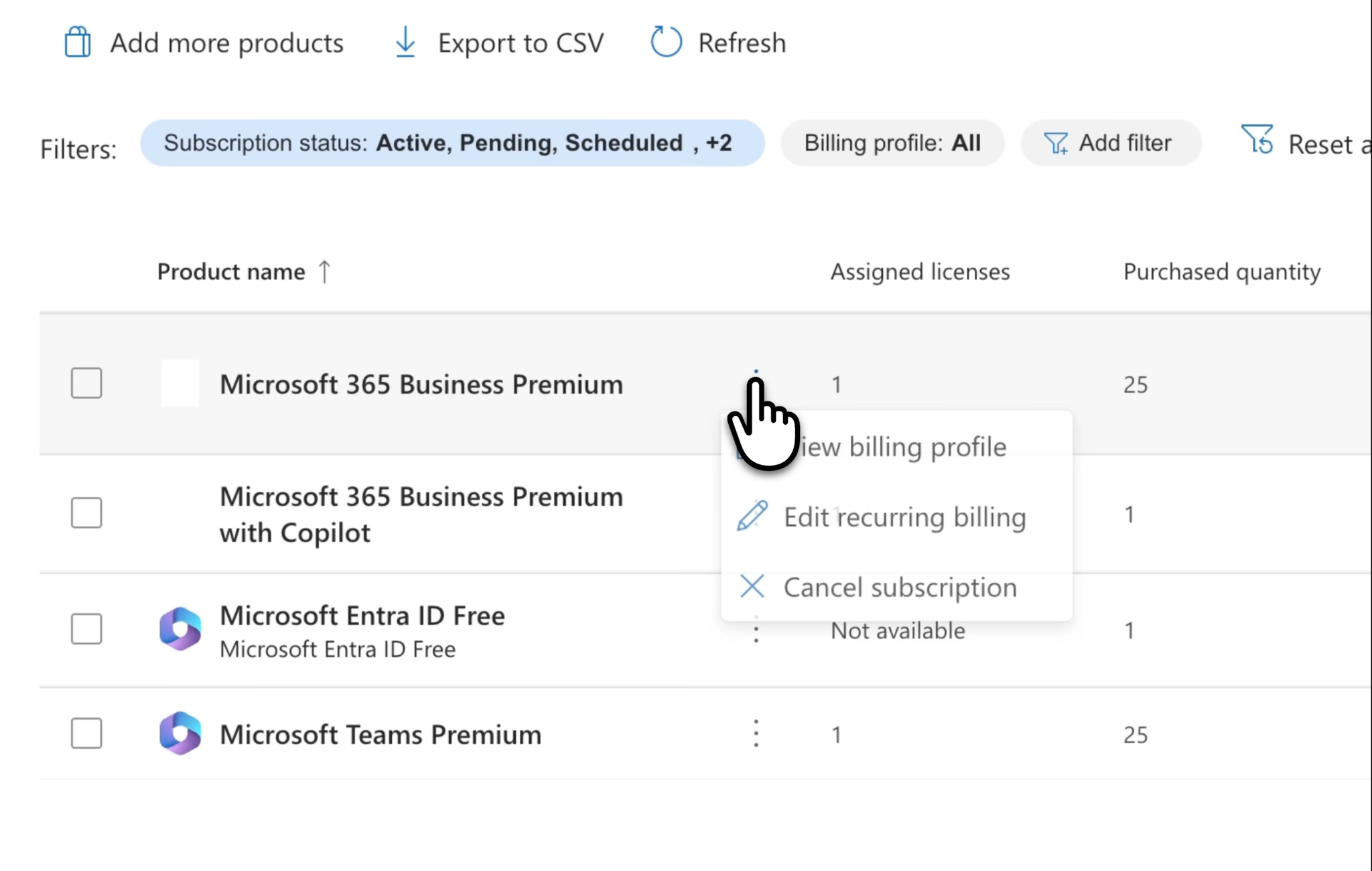
We used the three-dot menu next to a product and selected Cancel subscription. If that menu appears in your account, open it for the specific product you want to end.
If you cannot find the same three-dot menu, check the subscription details before assuming cancellation isn't available.
Step 4: Review When the Cancellation Will Take Effect
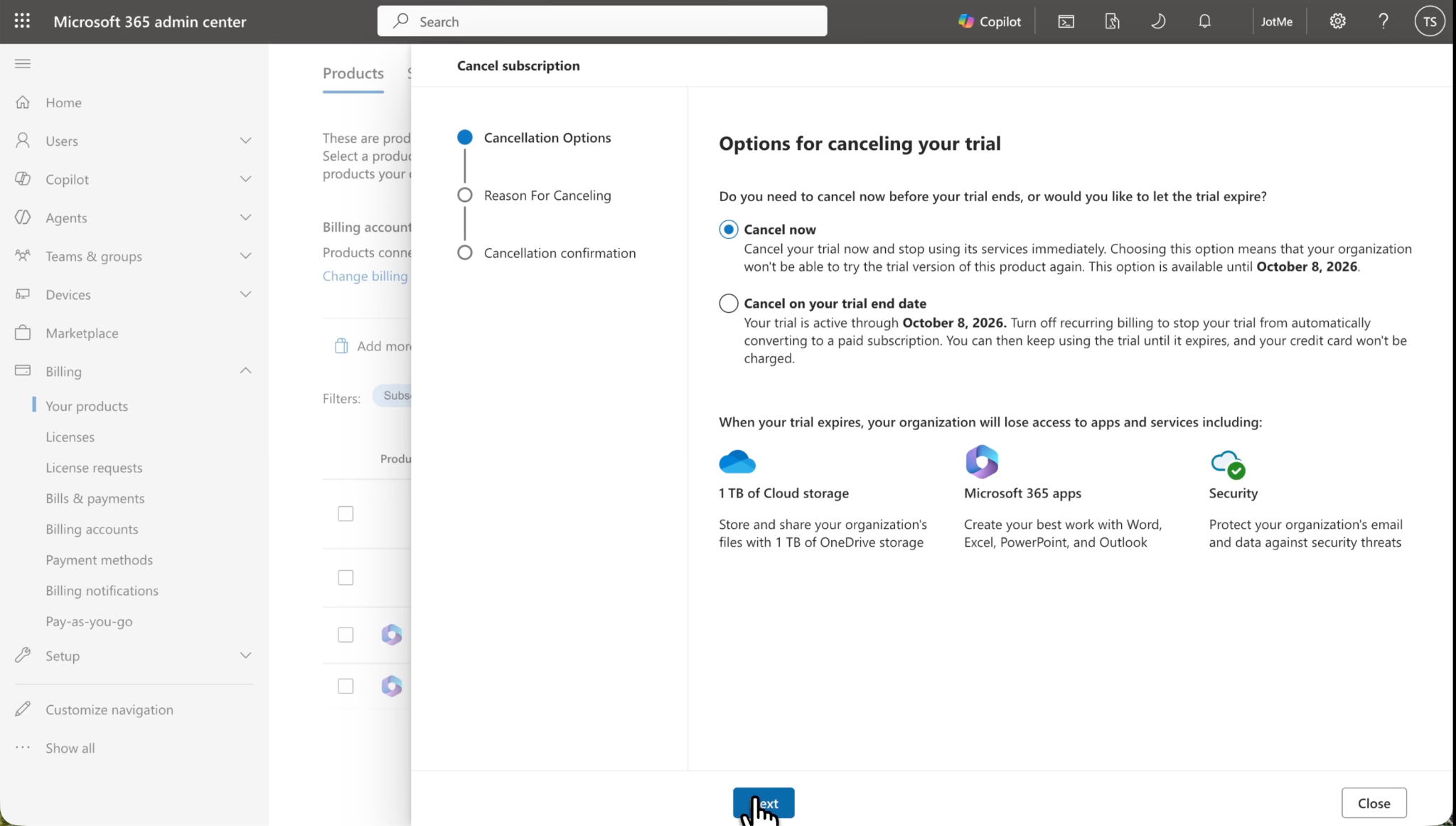
Read the date and service-access information before confirming. We mention that our trial runs until October 8. That date belongs to our account in the recording; use the date shown on your subscription.
The questions to answer here are practical: Are you ending access now? Are you stopping the next renewal? Does the screen show a remaining commitment or another billing consequence?
If the offered action does not match your intended outcome, go back to the subscription details and review the term.
Step 5: Choose a Reason and Complete the Confirmation
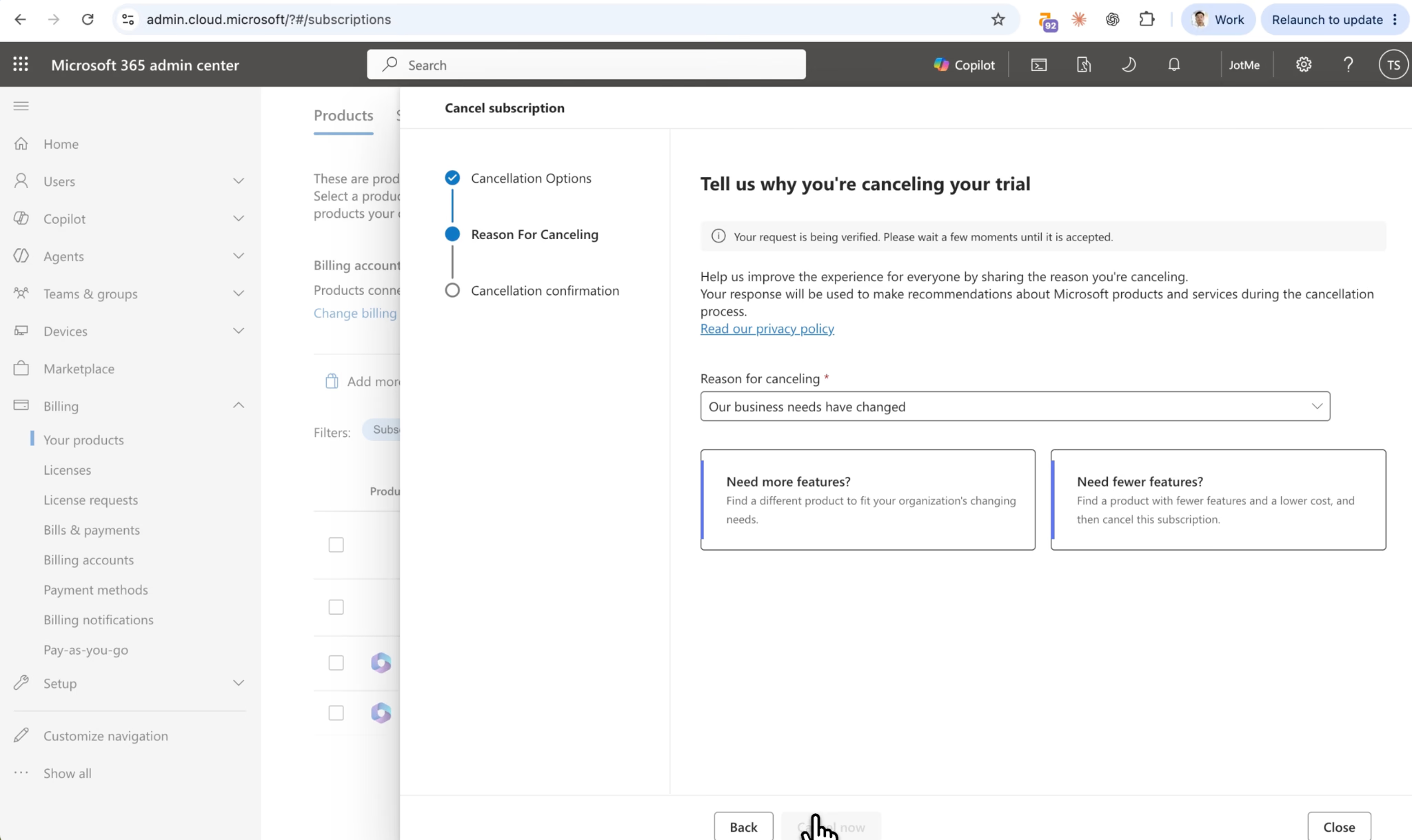
We encountered a cancellation-reason prompt and selected an option indicating that we were no longer interested. We then continued with the cancellation action.
Follow each prompt until you reach the outcome screen. Selecting a reason is only part of the process; check whether a final submission button appears below it.
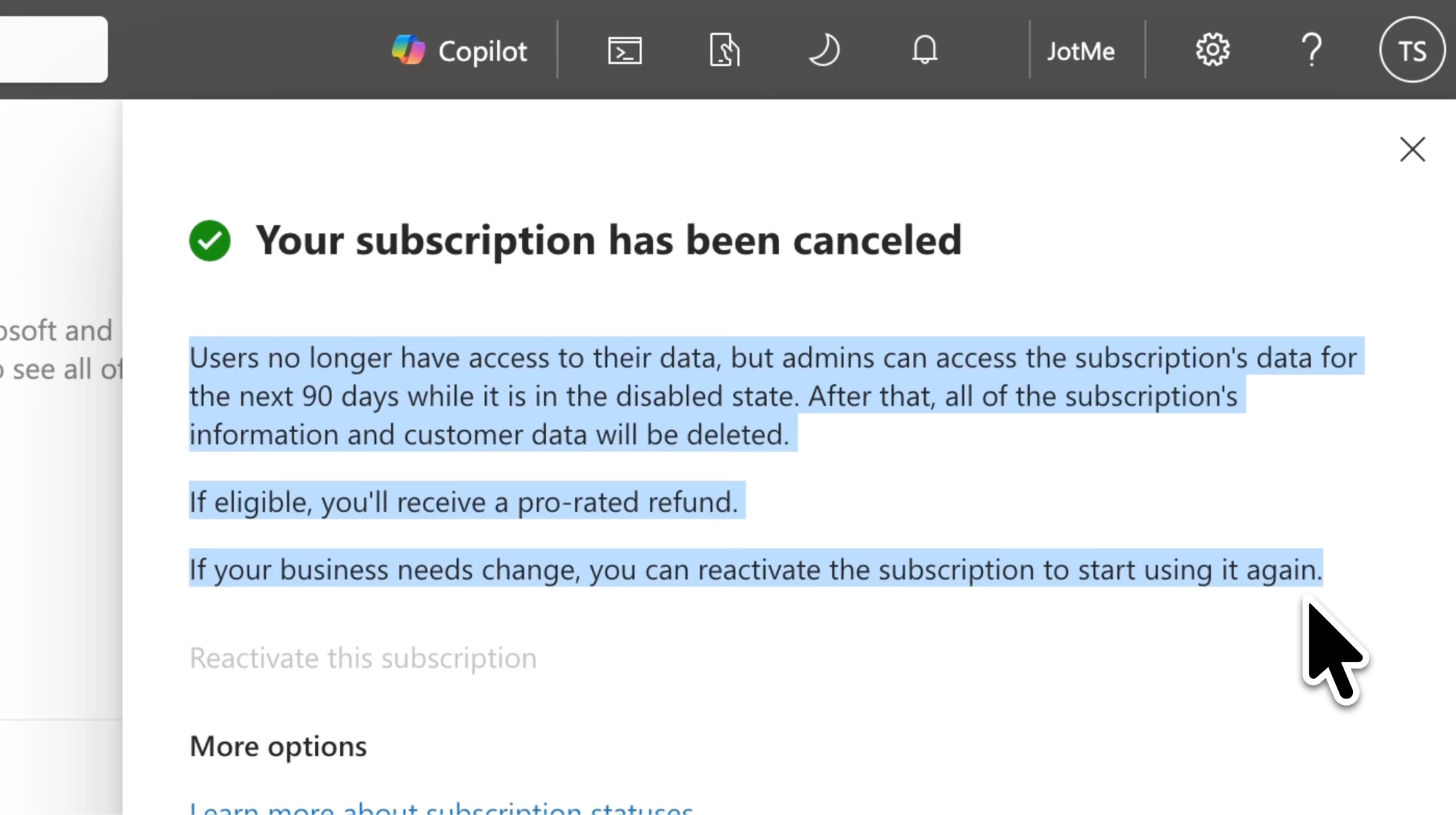
After the process, we read a message about users losing access to their data. Pause at any similar message and confirm that it matches the product you intend to cancel. This matters especially if your goal is to remove a meeting feature, but the selected product includes other services.
Step 6: Wait for Processing, Then Check the Result
If a request is processing, allow the displayed processing period to pass before checking the product again. A temporary message is a reason to verify the result, not to assume success or failure.
Return to the product details and record what the account now shows. Save the confirmation, effective date, and any billing information provided. If the request still appears unresolved, keep the exact message for support.
Step 7: Review the other subscriptions you intended to cancel
We realized that we may need to repeat the process for the other subscriptions in his account, and after 2-3 minutes, we finally canceled the subscription.
Return to your original product list and check each intended cancellation separately. Keep a record such as: product name, action requested, date submitted, effective date, and result shown. This makes a later invoice easier to reconcile.
Our recording demonstrates the navigation and the confusing messages we encountered. It does not show a subsequent invoice or refund, so the final account and billing records remain the place to confirm those outcomes.
How to Turn Off Recurring Billing for a Teams Business Subscription
If your goal is to prevent another term from starting, open the subscription's recurring billing settings:
1. Open the Microsoft 365 admin center's product list.
2. Select the subscription you want to manage.
3. Choose Edit recurring billing.
4. Select Off, then Save.
5. Check the displayed expiration date.
The subscription stays active until expiry. Turning recurring billing off also removes existing scheduled changes for that subscription, so review any planned plan or license changes.
How do You Stop a Free Trial From Becoming Paid
Turn off renewal before a business trial ends. Trials without a payment method can expire without a charge.
We used the cancellation flow offered in his trial account. If your goal is to avoid converting a trial into a paid subscription, check both the trial date and the renewal setting before deciding what to do.
How to Cancel a Subscription Purchased With a Personal Microsoft Account
Use this route if the purchase is a personal Microsoft subscription. Taka's business-account walkthrough uses a different portal.
1. Open Services & subscriptions and sign in with the purchasing account.
2. Find the plan and select Manage.
3. Choose Cancel subscription, Upgrade, or Cancel, depending on what appears.
4. Review the effects and complete the remaining confirmation screens.
These steps follow Microsoft's general subscription cancellation guide.
If you see Turn on recurring billing, automatic renewal is already off. The subscription can remain usable until its displayed expiry date.
If you bought the subscription through Apple, Google Play, or a retailer, return to that provider's account. Microsoft directs those purchases to the seller to manage billing.
Why Can't I Cancel My Microsoft Teams Subscription
The next step depends on what is missing or what the account says. Use the situation closest to yours.
You Receive Invoices But Cannot Find the Subscription
Start by checking whether the invoice belongs to a business account while you are viewing a personal account. In one Microsoft 365 Reddit discussion, a former business owner described receiving bills while being unable to locate the subscription. They later said they found the old business login on another computer.
Search your signup emails for the original work-account identity and product name. Compare those details with the account currently open in your browser.
Receiving an invoice does not necessarily identify the purchasing login. Microsoft billing profiles can send invoice copies to additional recipients.
The Product is Missing From the Admin Center
Check which billing account is selected. Microsoft supports multiple billing accounts, and the product page includes a billing-account selector. Its billing account guide also shows where to find your agreement type under Billing > Billing accounts.
If you have several organizations or browser profiles, compare the organization details with your invoice. If a reseller supplied the subscription, ask the reseller to identify the correct management route.
You Can See the Subscription But Cannot Change It
Ask your billing administrator to check your permissions. Microsoft separates roles for managing Teams from roles for managing billing.
If permissions are correct, read the cancellation eligibility information on the product. A missing immediate-cancellation option can relate to the agreement or timing. Use the billing rules in the next section to understand what to ask support.
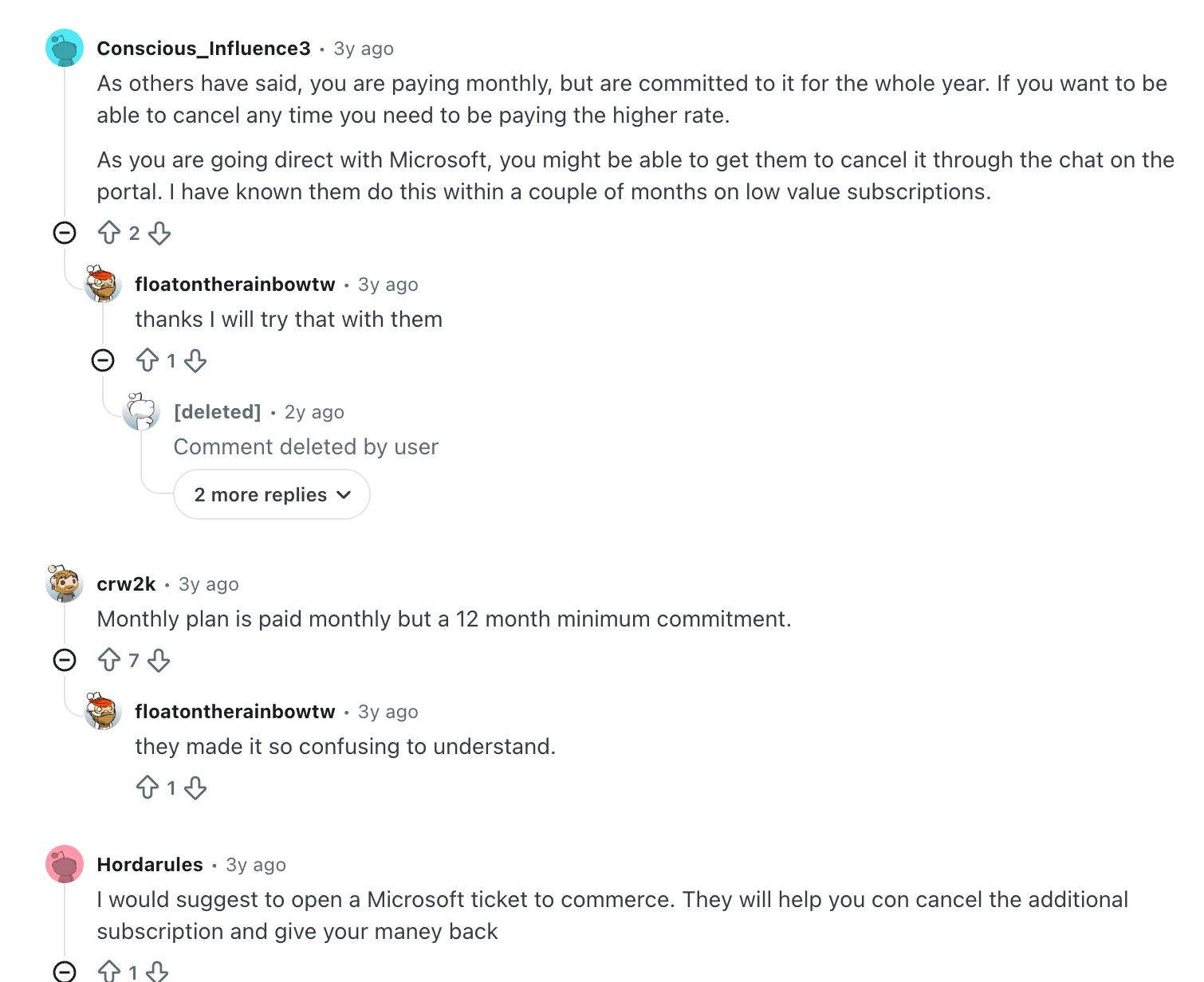
You Pay Monthly, But the Account Shows an Annual Commitment
Check the subscription term alongside the payment schedule. The two describe different things: how long the purchase runs and how often the bill arrives.
A participant in an Office 365 Reddit thread wrote: "I thought monthly payment means no yearly commitment." That confusion is exactly why it helps to read both fields before deciding that the cancellation screen is malfunctioning.
The Page Says Pending or Already Canceled
This was part of our experience. We returned to the page more than once because the messages did not make the result immediately clear.
Wait for any stated processing interval, refresh, and open the subscription details again. Compare the result with the action you requested. If you still can't confirm the effective date, send support the message and the product identifier instead of repeating the same cancellation request indefinitely.
You Still See a Charge After Making a Change
Match the charge to its invoice and subscription. Check whether it relates to another product, an earlier billing period, or a continuing commitment. Compare the effective date with the billing period, rather than relying only on the date you clicked the button.
For personal subscriptions, Microsoft's cancellation troubleshooting page also covers overdue balances, the wrong account, and cancellation close to a billing date.
If the charge is unfamiliar, use the payment investigation route linked in Microsoft's refund guidance. Keep the invoice and confirmation so support can compare them with the records you are looking at.
Will You Get a Refund When You Cancel Microsoft Teams
Refund eligibility depends on the subscription and agreement. For business plans, Microsoft's cancellation policy distinguishes these cases:
Partner purchases and seller-led proposals need seller guidance; regional exceptions can apply.
For personal plans, Microsoft says a cancellation does not automatically result in a refund.
What Happens to Your Data and Access After Cancellation
The effect depends on the subscription you end and its effective date. Before canceling a broader business plan, arrange copies of important files, email, and meeting materials, and confirm how affected colleagues will continue working.
Microsoft's business subscription lifecycle guide describes changes to access and eventual data deletion. Timelines vary by subscription and purchase route, so use the rules for your account rather than assuming a universal grace period.
For personal Microsoft 365 plans, cancellation also affects storage allowances. Check your usage and the implications in Microsoft's personal subscription cancellation guide, especially if other people share the plan.
How to Contact Microsoft if You Still Cannot Cancel
For a business subscription, open Help & support in the admin center, describe the billing issue, and use Contact Support if the suggested answers do not resolve it. Microsoft provides the current process and phone-support links in its business support guide. If you cannot sign in, use the phone-support route on that page. Customers whose subscriptions all come through a partner should contact that partner.
Have the following ready:
- The exact product name and subscription identifier, if available.
- The organization or purchasing account associated with it.
- The invoice number and relevant billing period.
- The message shown when you try to cancel.
- The result you want: immediate cancellation, no renewal, or an explanation of a charge.
For example: "I want to stop renewal of [product]. The account shows [message]. Please confirm its effective end date and whether any payments remain under the current term."
That gives support a specific outcome to investigate and gives you a clear answer to retain with your billing records.
Still Need Live Translation in Teams? Try JotMe
If you subscribed mainly to translate meetings, decide which Microsoft services you still need before ending a broader plan. Then assess a separate live translation tool for your meeting workflow.
JotMe for Microsoft Teams runs alongside your meetings. Its Teams live translation captures audio through the desktop app and provides translated captions without requiring Teams Premium for JotMe's translation feature. You still need access to the Teams meeting itself, and JotMe has its own plan limits.

Choose the workflow you need:
- Live caption translation for Teams for following a conversation in another language.
- Teams transcription for keeping a written record of the discussion.
- Our Teams live translation guide for setup instructions.
If you are comparing options, read our guide to the best live translation tools for Teams, or visit JotMe to try the desktop app with a short meeting before your next multilingual call.
FAQs
Can I cancel Microsoft Teams from the Teams app?
For the business subscription shown in Taka's recording, he completed the process through the Microsoft 365 admin center. Start with the billing portal for your purchase. The receipt and product details will help you identify the right account.
How do I cancel a Teams Premium or Copilot subscription?
Find the exact add-on you purchased in the product list and inspect its available cancellation or renewal controls. Check its agreement and effective date. If your organization purchased it for you, ask the billing administrator to make the change.
Does uninstalling Teams cancel the subscription?
No, uninstalling Teams does not cancel a paid subscription. Complete the subscription-management process and retain the resulting end date or cancellation confirmation. Likewise, signing out of Teams does not end a subscription.
How long did cancellation take in Taka's recording?
Our cancellation completes at approximately 05:39. Our recording includes account confusion, locating the admin center, repeated prompts, and status-check messages. It is one recorded attempt, not a promised completion time for every account.
Why is my subscription still active after I turn off renewal?
Renewal settings and current access are separate. With recurring billing off, a personal Microsoft subscription remains available until its expiry date. Microsoft's recurring billing explanation describes that behavior. Check the displayed end date to verify the change.
Can I keep using Teams with JotMe after canceling an add-on?
JotMe's translation works separately from Microsoft's translation add-ons. Before canceling, confirm you will keep the Team access you need. Then test JotMe's live translation in Teams with your remaining setup.
Try JotMe
Accurate translation for your meetings, events, and everyday work, with AI Memory that remembers your context.
![JotMe — Is Google Translate Accurate? [2026 Test]](/_webflow-assets/0d0512afc7b037d74dff536f22fed08f.avif)