Let’s review the updated timeline before we share it with the team.
Turn audio and video into a record you can revisit
Turn audio and video recordings into accurate, searchable transcripts with JotMe. Revisit what was said, add translation, and create notes for your next step.
Audio and video files up to 1 GB · 100+ languages
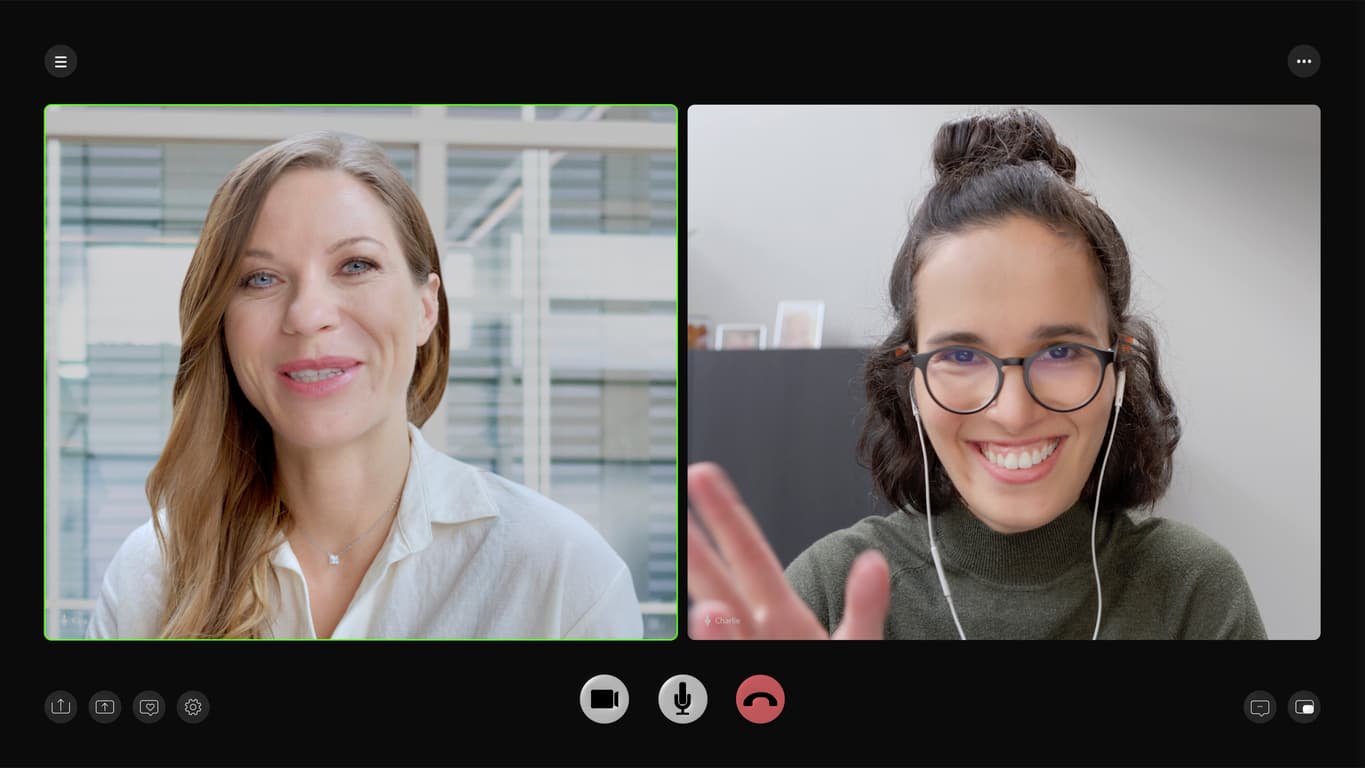 Recorded meeting
00:12
12:30
Project review.mp4Video · 12 min 30 sec
Transcription complete
Join 500,000 of the world’s most capable global professionals





 Rated 4.7/5
 GDPR Compliant
 SOC 2 Type II
A record you can search and revisit
Start with the audio or video you already have. Turn a recorded interview into text, revisit a meeting decision, or pull useful notes from a webinar. Choose transcript translation and meeting-notes languages when another team needs the content in its own language.
Transcribe an audio recordingMake the transcript useful across languages
Add a translating language when a teammate needs the recording in another language. Keep the written record accessible without dubbing or rerecording the original audio.
Explore multilingual transcriptionBring a long recording into a useful summary
Choose AI meeting notes alongside the transcript to pull out key points and action items. Open the saved result when you need the full conversation behind the summary.
Explore AI meeting notesHow to transcribe your recording
Select the recording
Open file transcription in JotMe Desktop and choose your file. The app checks its format, size, and recording duration.
Choose outputs and review usage
Keep the source language on automatic detection. Add an optional translation and choose notes languages. Review the minutes and AI credits shown in the estimate.
Confirm, transcribe, and review
Choose Confirm and start transcribing to upload and process the recording. Open the saved result and check important passages against the audio.
Try it yourself
Try a short recording or a small file. The demo shows its own supported formats and free limits.
Use cases
Bring it into the work you already do.

Recorded team meetings
Turn a saved discussion into a record your team can search and revisit.
Explore the use case
Interviews and research
Work from an interview transcript when preparing a report or follow-up.
Explore the use case
Recorded webinars
Make the spoken content of a webinar easier to review and share.
Explore the use caseTrusted by 2,000 teams
Across 134 countries
From multilingual meetings to everyday teamwork. Hear from the people using JotMe.
 G2
 Chrome Web Store
“JotMe streamlines our multilingual meetings, ensuring seamless collaboration in our fast-paced work environment.”


“This bilingual feature streamlines note-taking at work, saving time and boosting efficiency in both languages.”


“Essential for non-fluent speakers; simplifies complex meetings with real-time translation and accurate transcriptions.”

 Upwork
“As my job involves translation and bridging cultures, I have found this tool as a game changer to my daily work.”


“Japanese was once a mystery to me, but this product made it clear and accessible with contextual understanding.”


“The translation we've needed for years – now a reality with JotMe!”
What formats and usage should I check?
- Common formats
- MP3, WAV, M4A, and FLAC, plus MP4, MOV, MKV, WebM, and AVI
- Maximum file size
- 1 GB per recording
- Source language
- Automatic detection
- Before uploading
- Review the usage estimate and confirm
- Upload language coverage
- 100+ languages with automatic detection
Uploaded recordings support 100+ languages with automatic detection. Live transcription has a different language range.
View usage detailsHow do I transcribe an existing recording?
Open file transcription in JotMe Desktop, select your recording, and choose the outputs you need. Review the file details and usage estimate, then confirm to upload and start processing.
Which formats can I upload?
Common formats include MP3, WAV, M4A, and FLAC, plus MP4, MOV, MKV, WebM, and AVI. The app validates the selected file, including its encoding. This is a transcription workflow; audio and video dubbing have their own supported-format list.
What is the upload limit?
Files can be up to 1 GB. The app checks the recording duration as well as file size, because transcription usage depends on the recording.
Should I choose audio or video transcription?
Choose the page that matches your source recording. Both create text from speech; the audio page covers recorded interviews and calls, while the video page explains spoken audio versus visual slide content.
Can I translate the transcript and generate notes?
You can select an optional translating language and languages for AI notes before starting. Review those selections and the displayed usage estimate before confirming.
Does transcription create translated audio?
No. For translated speech in a downloadable media file, use Audio dubbing or Video dubbing. Transcription and dubbing are different outputs with different usage rules.
Can I try it for free?
JotMe has a free plan with usage allowances. Check current pricing and the balance shown in the app before starting. Free does not mean unlimited use, and different tools use different allowances.