


Guides
9 Best Video Conferencing Software in 2026 [Tested & Ranked]

Narmada Kajla
August 31, 2026
![JotMe — 9 Best Video Conferencing Software in 2026 [Tested & Ranked]](/_webflow-assets/4fa5abcbde99248d834c3eea6d577b14.avif)
The best video conferencing software for daily online meetings is: Zoom, Google Meet, Microsoft Teams, Webex, Jitsi Meet, Dialpad, RingCentral, GoTo Meeting, and Zoho. You can combine the JotMe desktop app with these online meeting platforms to get real-time translation in 200+ languages without adding a bot to your meeting.
There is not a single day that passes without an online meeting to discuss daily tasks, give major updates, or discuss new projects, as I do every morning. So it's very important to choose the right video conferencing software to ensure your internal and external communication runs smoothly.
If your team also works remotely and members speak different languages, as in our team, you'll need live translation and meeting notes so everyone can stay on the same page. In this guide, you will find an AI live translation tool that integrates with your virtual meeting platform without a bot architecture.
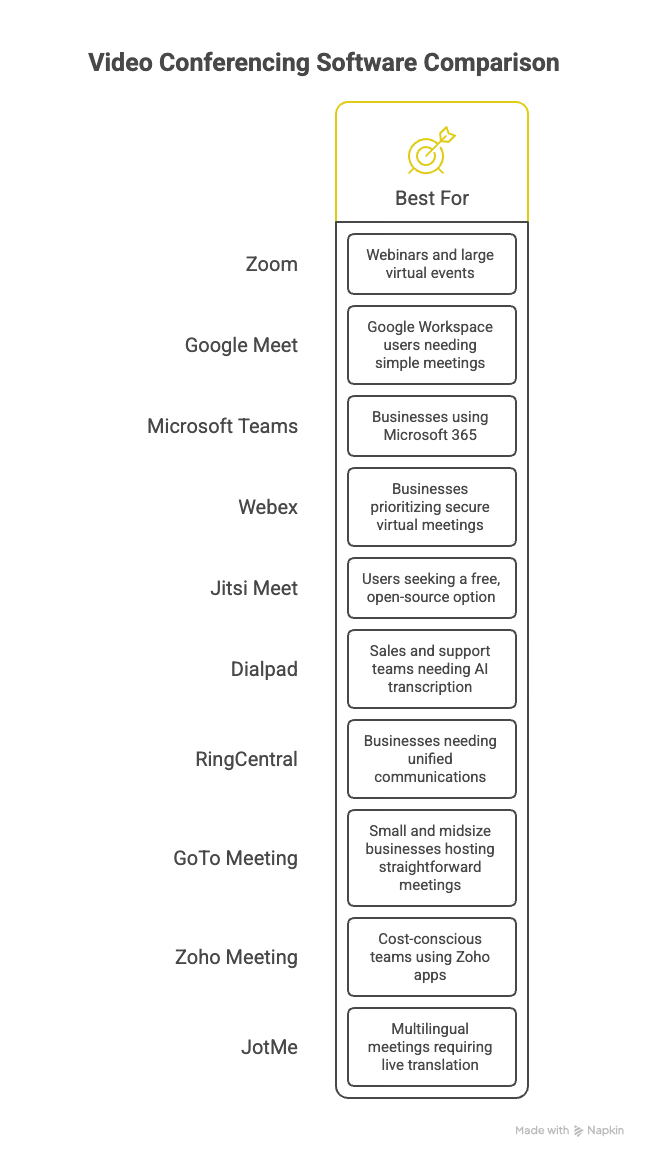
Let's first take a glance at each video meeting platform:
- Zoom: As a video conferencing software, Zoom is best suited for webinars and large virtual events because of its strong webinar features, participant capacity, and presentation tools.
- Google Meet: As a conferencing tool, Google Meet is best for Google Workspace users who need simple online meetings, especially teams already using Gmail, Calendar, and Drive.
- Microsoft Teams: As a virtual meeting platform, Microsoft Teams is well-suited for businesses using Microsoft 365, offering meetings, team collaboration, chat, and file sharing in one place.
- Webex: As an online meeting software, Webex is ideal for businesses that prioritize secure virtual meetings, making it suitable for organizations handling sensitive client or internal discussions.
- Jitsi Meet: As a video conferencing platform, it is suitable for users seeking a free, open-source option, especially small teams that want to hold meetings without creating an account.
- Dialpad: As a video conferencing service, Dialpad is best for sales and support teams that need meetings alongside business calling, live transcription, and conversation insights.
- RingCentral: As an online meeting software, RingCentral is ideal for businesses needing unified communications, combining video meetings with business phone systems, messaging, and team collaboration.
- GoTo Meeting: As a conferencing software, GoTo Meeting is suited for small and midsize businesses hosting straightforward online meetings, with easy setup, screen sharing, and collaboration features.
- Zoho Meeting: As a video conferencing platform, Zoho Meeting is best suited for cost-conscious teams and businesses already using Zoho apps, offering essential meeting tools at one of the lowest per-host prices on the market.
Regardless of the video conferencing software you choose, you can use JotMe for multilingual live translation. JotMe is a real-time AI translator for work, providing accurate translation for meetings, events, conversations, documents, and multilingual communication. It also provides transcription, AI meeting notes, and other tools that help teams work across languages.
What is Video Conferencing Software
Video conferencing software is an application that lets two or more people meet through live video and audio over the internet. It also lets you share the screen, chat, and record meetings. You join a virtual room from a browser or an app instead of dialing a phone number for a meeting, and everyone sees and hears each other in real time.
Video Conferencing vs. Web Conferencing vs. Online Meetings
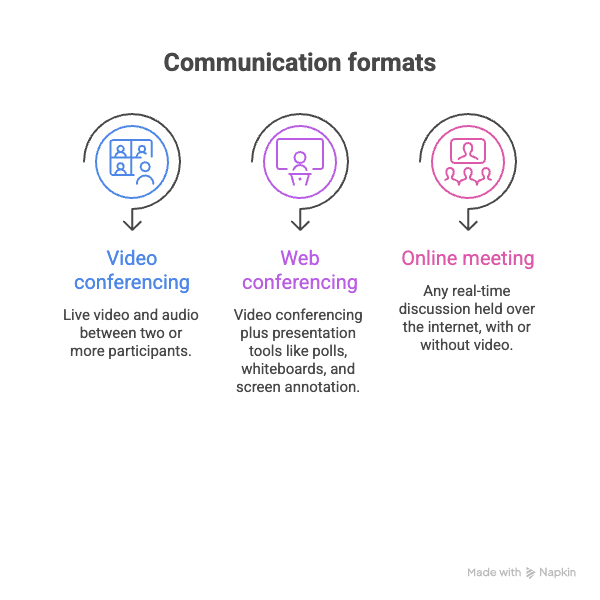
Video conferencing, web conferencing, and online meetings are often used as if they mean the same thing, but they cover slightly different ground. Video conferencing centers on live video and audio between participants. Web conferencing widens that scope to include presentation tools like polls, whiteboards, and screen annotation, often for one presenter speaking to many viewers.
Online meeting is the broadest of the three terms, and it covers any real-time discussion held over the internet, with or without video.
The distinction matters when you're choosing software. A sales team running a weekly demo for prospects wants web conferencing features like polls and annotation. A remote team holding a daily standup usually just wants reliable video conferencing without the extra presentation layer.
Here's how the three terms break down in practice:
Quick Comparison of Best Video Conferencing Platforms
After testing multiple video conferencing platforms, I have chosen my 9 favorite online meeting platforms. Here is what each offers:
Best Free Video Conferencing Software
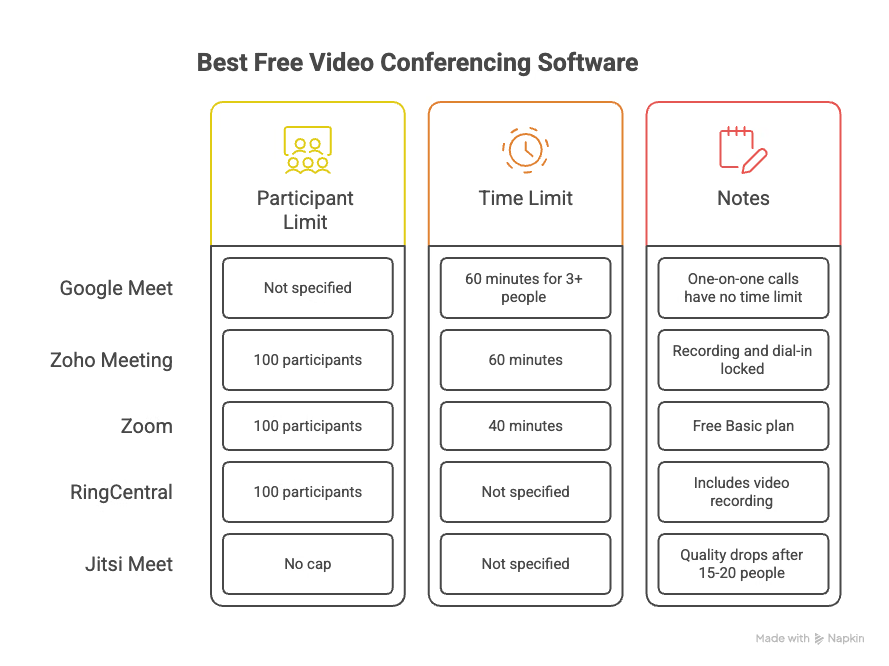
Five video conferencing software on this list offer a genuinely usable free plan, and each one caps you somewhere different. Here's where the free tier holds up and where it runs out.
- Google Meet: One-on-one calls have no time limit on the free plan, but any call with three or more people cuts off at 60 minutes.
- Zoho Meeting: The free plan covers 100 participants and 60-minute meetings without asking for a credit card, though recording and phone dial-in stay locked behind a paid tier.
- Zoom: 100 participants on the free Basic plan, but group meetings end at the 40-minute mark, right when a call usually gets to the useful part.
- RingCentral: The free video tier supports up to 100 participants and includes video recording, which most free plans skip.
- Jitsi Meet: There's no participant cap tied to a paid upgrade, since there's no paid tier at all, but video quality drops once a call passes roughly 15 to 20 people.
How I Choose the Right Video Conferencing Software
I evaluate video conferencing software based on the features that matter most for real online meetings, rather than simply comparing the number of features each platform offers.
I look at video and audio quality, meeting limits, participant capacity, screen sharing, recording, collaboration tools, security, ease of use, and pricing.
I also consider the type of meeting each platform is built for. A tool that works well for large webinars may not be the best choice for small team meetings, and vice versa.
I test how easily each platform handles common meeting tasks, including joining a call, sharing a screen, managing participants, and recording sessions. I also consider integrations with calendars, productivity apps, and other workplace tools.
In-Depth View on Top 9 Video Conferencing Software
I tested each of these online meeting tools myself before adding them to this list. Here is what stood out, what fell short, and who each platform actually works best for.
My Pick for Scaling Meetings and Webinars: Zoom
What I liked:
- Zoom handles everything from a 2-person call to a large webinar smoothly
- AI Companion generates meeting summaries and highlights on its own
- The free plan still gives you 100 participants, breakout rooms, and a waiting room
What I disliked:
- The 40-minute cap on the free plan cuts meetings short right when they get useful
- Live translation between speakers is not built in, so multilingual teams end up juggling a second tool
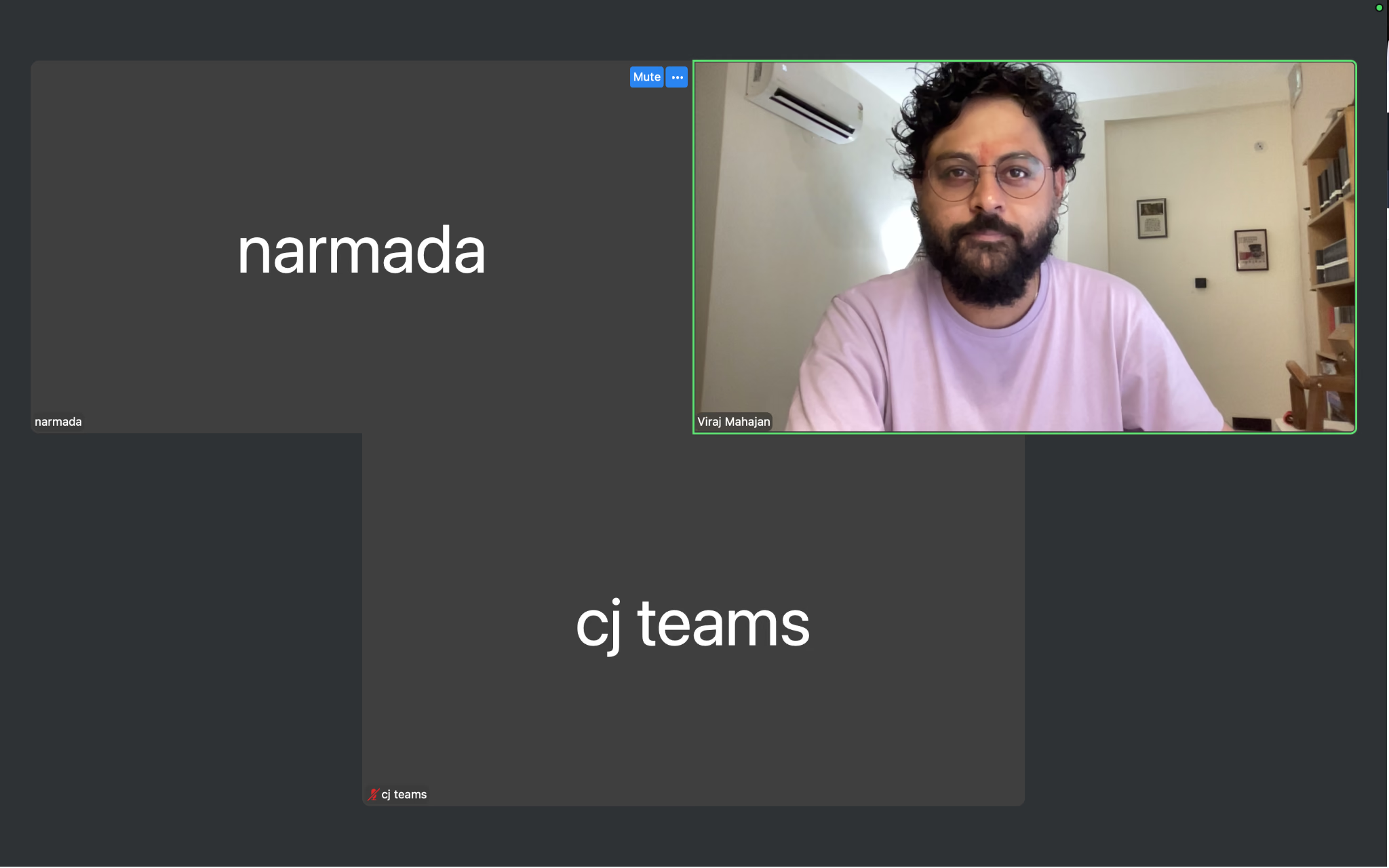
I opened Zoom for a daily standup and a client webinar in the same week, and it worked well for both. Screen share stayed sharp even when a teammate joined on a weak hotel Wi-Fi, and switching between gallery and speaker view took one click. Zoom is the video conferencing software I reach for when a meeting might grow beyond a small internal call, since its webinar tools and participant capacity scale with minimal setup.
Where it fell short for our team was language support. Zoom's captions cover a wide list of languages for transcription; they do not translate what a French-speaking client says into English for the rest of the room in real time. That is a real limitation once a call includes people who do not share a working language. On calls like that, I run JotMe alongside Zoom as a desktop app, not a bot, so it provides translation for Zoom in 200+ languages and delivers a clean, translated transcript afterward, without anyone in the meeting noticing an extra participant. If you want to understand Zoom translation, then JotMe’s complete live Zoom translation review will make you understand everything in detail.
Zoom FAQs
How to download Zoom on Mac?
Go to zoom.com/download and click Download under the Zoom Workplace Desktop App for Mac, or install it directly from the Mac App Store. Open the downloaded .pkg file and follow the on-screen prompts to complete installation.
How do I turn on translation in Zoom?
Sign in to the Zoom web portal and go to Settings, then Meeting, then In Meeting (Advanced). Turn on Automated Captions, enable Translated Captions, and choose the languages you want available. During a meeting, click Show Captions and select Translated Captions to activate it.
How do I translate a Zoom meeting?
Zoom translates meetings through its Translated Captions feature, which converts spoken language into on-screen text in another language as people talk. Each participant can select their own preferred caption language from the captions menu once the host enables the feature.
How much does Zoom translation cost?
Zoom translation costs $5 per user per month (or $50 per user per year) when purchased as the Translated Captions add-on. This requires an eligible paid Zoom Workplace plan. Translated Captions are also included at no extra cost with higher-tier plans such as Zoom Workplace Business Plus and Enterprise. Zoom's free Basic plan does not include the feature as a standalone entitlement, although Basic users can view translated captions when the meeting host enables them. Zoom's AI Voice Translator is currently available as a free public beta for eligible paid U.S. accounts.
Can Zoom translate in real-time?
Yes, Zoom translates spoken conversation into on-screen captions in real time across more than 35 languages. This currently works as transcription rather than translated voice audio, so participants read the translation instead of hearing it.
My Pick for Google Workspace Teams: Google Meet
What I liked:
- Starts a meeting straight from Gmail, Calendar, or a Google Doc with one click
- Free version covers 100 participants and unlimited 1:1 calls
- Noise cancellation and a genuinely simple interface, even for non-technical users
What I disliked:
- Breakout rooms and recording require a paid Workspace plan
- Advanced AI features only unlock with the Gemini add-on
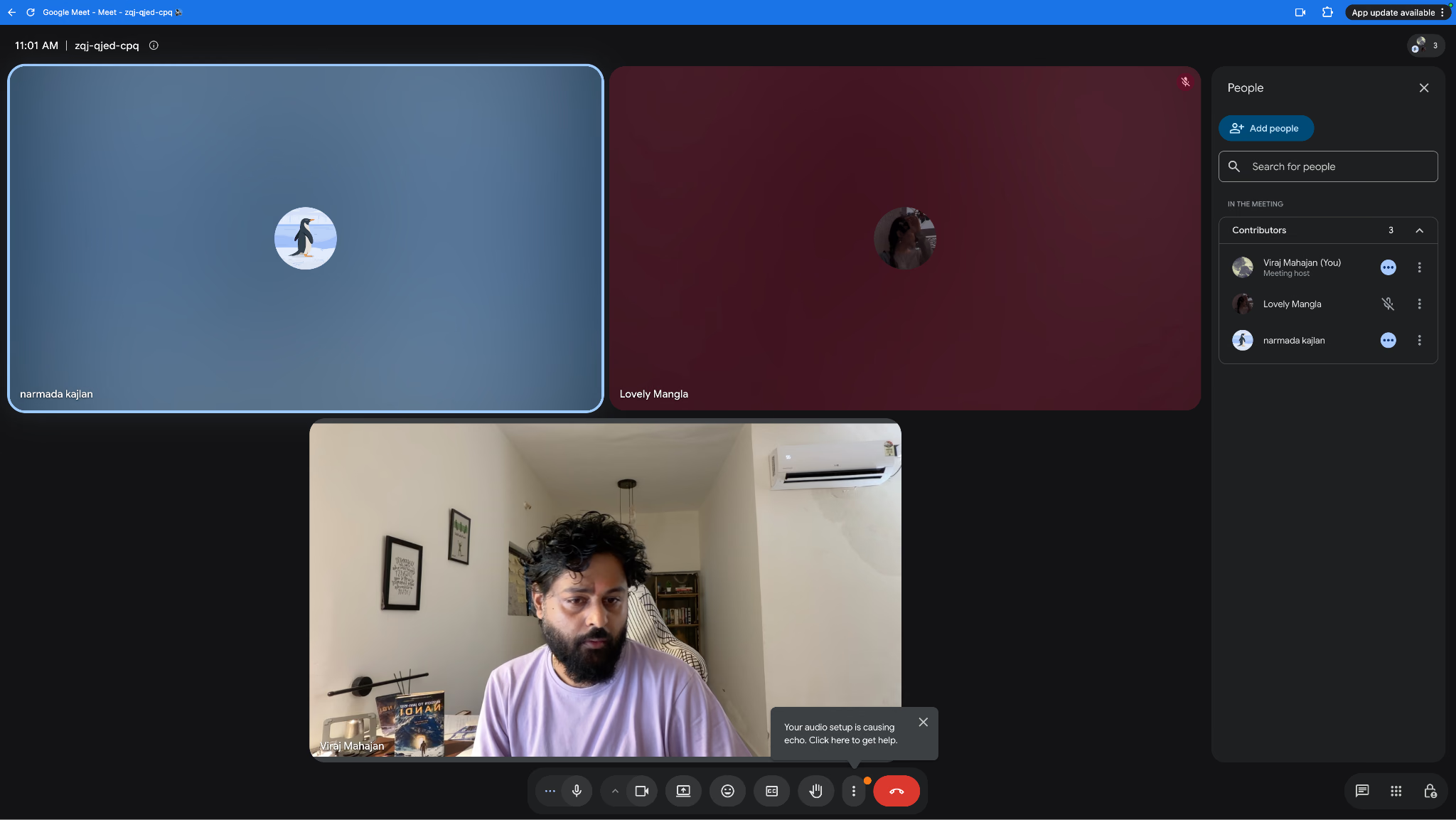
Google Meet is the online meeting tool I recommend to teams already having Gmail, Drive, and Calendar, because the whole point is that you never leave that ecosystem. I joined meetings from a shared Doc mid-edit and from a Calendar invite, and both took under five seconds to connect. Audio quality held steady across a dozen participants on a standard Workspace plan.
The gap is similar to what you see on most mainstream platforms, where live captions are not the same as real-time translation. If your Google Meet call includes a vendor or client speaking a different language, Google Meet will not bridge that gap on its own. Pairing Google Meet with JotMe fills that specific gap. You can read through JotMe’s guide to learn how you can get English to Japnese translation on Google Meet.
Google Meet FAQs
Which is better, Zoom or Google Meet?
Zoom generally works better for larger meetings, webinars, and teams that want deeper AI meeting features, while Google Meet works better for teams already using Gmail, Calendar, and Drive. The right choice depends more on which ecosystem your team already uses daily than on raw feature count.
How many minutes can you use Google Meet for free?
One-on-one calls on the free plan have no time limit, but group calls with three or more participants are capped at 60 minutes. After that limit, the meeting ends automatically, and participants need to start a new call.
Can I do Google Meet without video?
Yes, you can join any Google Meet call with your camera turned off and participate using audio only. You can also dial in by phone if you prefer not to use video or a computer microphone at all.
What happens after 1 hour of Google Meet?
On the free plan, a group meeting with three or more participants ends automatically once it hits the 60-minute mark. Google Meet typically warns participants shortly before the cutoff, and the host can start a new meeting immediately afterward if the conversation needs to continue.
Which is cheaper, Google Meet or Zoom?
Google Meet's entry-level Workspace plan starts around $7 per user per month, which comes in lower than Zoom's Pro plan at roughly $16.99 per user per month when billed monthly. Both platforms also offer free tiers with more limited features and participant caps.
My Pick for Microsoft 365 Businesses: Microsoft Teams
What I liked:
- Up to 300 participants even on the entry-level Essentials plan
- Deep integration with Outlook, Word, Excel, and SharePoint
- Live captions available in 30 languages
What I disliked:
- Multi-factor authentication is locked to higher pricing tiers
- The interface takes longer to learn if your team is not already on Microsoft 365
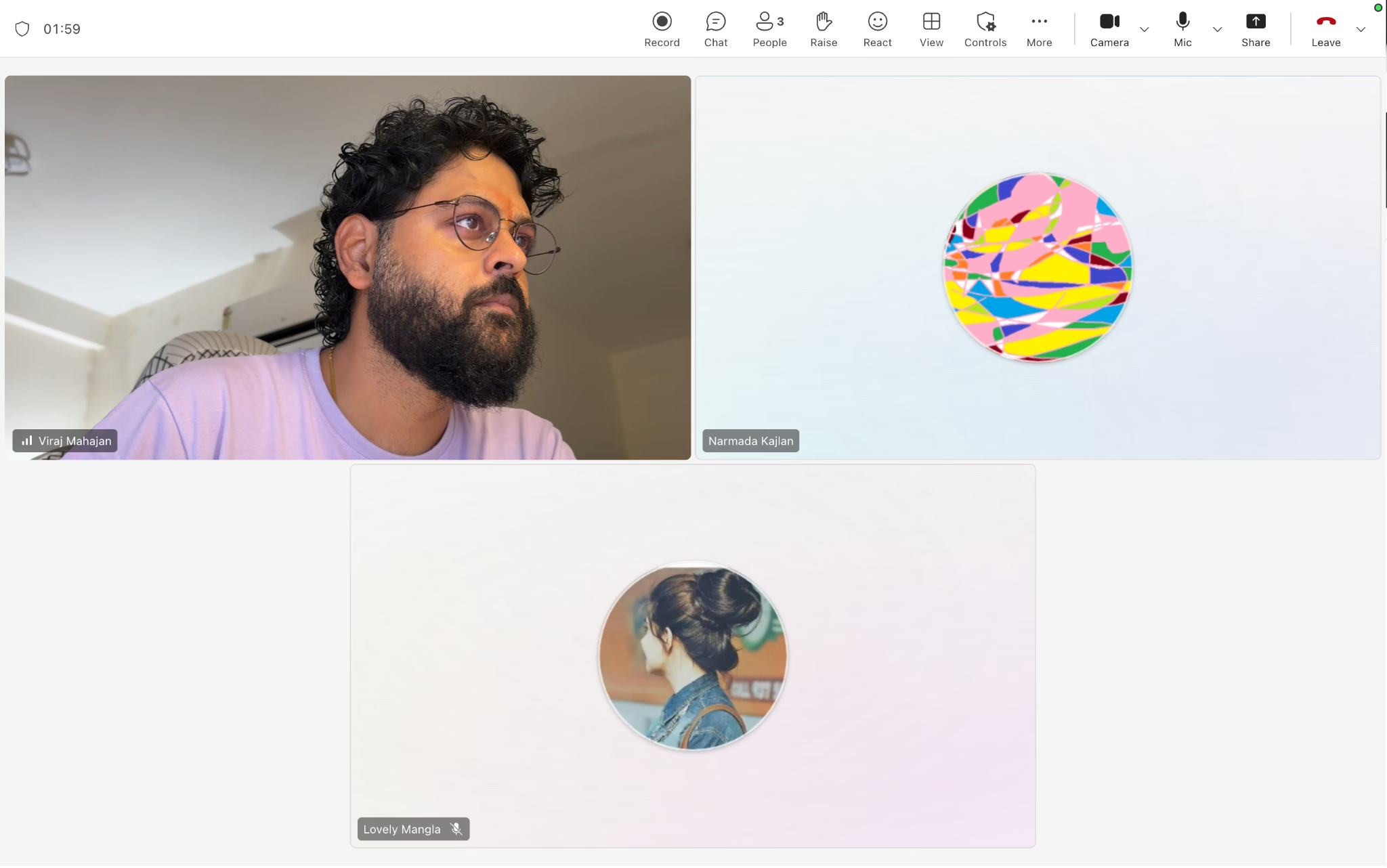
Microsoft Teams is the virtual meeting platform I would push to any business already paying for Microsoft 365, since scheduling from Outlook and pulling files straight from SharePoint during a call saves real time.
Teams offers live captions in 30 languages, which sounds like it solves the multilingual meeting problem, but captions only display what was said in the original language or a single translated stream, not a full two-way live translation for every participant at once.
For teams running calls with international clients or distributed teammates who each need the conversation in their own language, JotMe adds that layer on top of Teams, translating the live conversation into 200+ languages and producing a searchable Teams transcript of the conversation once the call ends.
Microsoft Teams FAQs
Does Teams have live translation?
Yes, Microsoft Teams offers live captions with real-time translation, letting participants view captions in a language different from what is being spoken. Organizations with Teams Premium or Microsoft 365 Copilot can also access the AI Interpreter feature for spoken, voice-based translation.
Can Teams translate in real time?
Yes, Teams translates live captions in real time as people speak during a meeting. Standard live captions handle text translation, while the AI Interpreter feature, available on higher-tier plans, extends that to real-time spoken translation.
How do I enable translation in Microsoft Teams?
During a meeting, select More options from the meeting controls, then choose Language and Speech, then Turn on Live Captions. Open the captions settings and select your preferred spoken language and translation language from the dropdown menu.
Is it better to use Teams or Zoom?
Microsoft Teams tends to work better for organizations already standardized on Microsoft 365, since meetings connect directly to Outlook, SharePoint, and Word. Zoom tends to work better as a standalone meeting and webinar tool for teams that are not tied to a specific productivity ecosystem.
What is the main purpose of MS Teams?
Microsoft Teams exists to bring chat, video meetings, file sharing, and app collaboration into one workplace hub built around Microsoft 365. It is designed to keep teams communicating and working on shared documents without switching between separate tools.
My Pick for Security-First Teams: Webex
What I liked:
- End-to-end encryption included even on the free plan
- Closed captions in English, French, German, and Spanish
- Meeting Assist transcribes, summarizes, and highlights key moments in real time
What I disliked:
- Real-time translation only comes as a paid add-on, at an extra cost per license
- Post-meeting transcripts are English only
Webex is the online meeting software I would point security-conscious teams toward first. Every plan, including the free plan, ships with end-to-end encryption, which matters if your calls involve client contracts or internal financials. I tested the polling and Q&A panel during a mock webinar and found it easy to set up mid-meeting without disrupting the flow.
Real-time translation on Webex is only available as a separate paid add-on, and even then, post-meeting transcripts remain in English. That is worth knowing up front if multilingual support is a priority, since it adds to the per-license cost rather than being built in.
Webex FAQs
What is the difference between Zoom and Webex?
Zoom and Webex are both video conferencing platforms, but they have different strengths. Zoom is known for its simple interface, reliable video quality, and ease of use, making it a popular choice for meetings, webinars, and virtual events. Webex, developed by Cisco, focuses more on enterprise communication, security, and integration with workplace tools. Both offer features such as video meetings, screen sharing, chat, recording, and AI-powered tools, so the better choice depends on whether you prioritize ease of use and flexibility or enterprise-grade collaboration and security.
Does Webex have a time limit?
Yes, free Webex meetings with three or more participants are capped at 40 minutes. Paid Webex plans remove or extend that limit depending on the tier.
Is Webex better than Teams?
Webex tends to be the stronger standalone choice for security-focused meetings and regulated industries, while Teams tends to be the stronger choice for organizations that want meetings tightly integrated with Microsoft 365 collaboration tools. Neither platform is universally better, since the right fit depends on your existing software stack.
Can Webex work with Microsoft Teams?
Yes, Cisco and Microsoft built an interoperability partnership that lets Webex devices and users join Microsoft Teams meetings and vice versa through Cloud Video Interop. This partnership covers video meeting joins only, since chat and messaging between the two platforms remain completely separate.
What companies use Webex?
Webex is widely used by government agencies, healthcare organizations, financial institutions, and large enterprises that prioritize security and compliance in their meeting infrastructure. Cisco, the company behind Webex, also uses the platform internally across its own global operations.
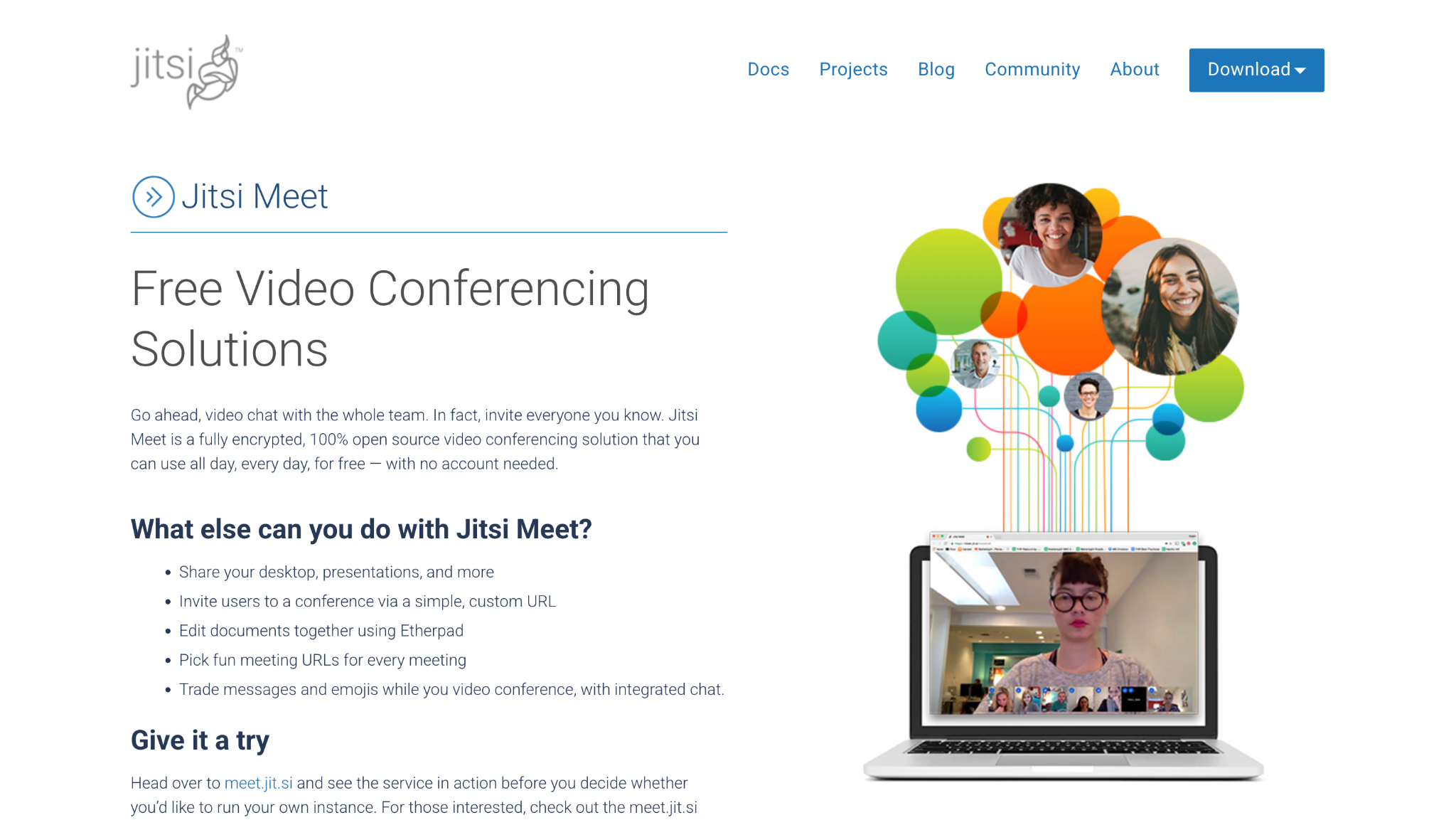
My Pick for Free, No-Account Meetings: Jitsi Meet
What I liked:
- Completely free and open source, with no account required to join or host
- Works straight from a browser link, no download needed for participants
- Simple in-meeting chat and reactions keep small calls moving
What I disliked:
- No built-in transcription or AI meeting notes
- Video quality dips faster than paid platforms once a call passes 15-20 participants
Jitsi Meet is the video conferencing platform I recommend to small teams, developers, or anyone who wants to hop on a call without creating an account first. I sent a plain link to a test group, and everyone joined within seconds, with no sign-up screen in the way.
Because Jitsi keeps things minimal, it skips transcription, meeting notes, and translation entirely. That is fine for a quick internal sync, but it becomes a real gap the moment a call includes someone who speaks a different language than the rest of the room.
Jitsi Meet FAQs
Is Jitsi Meet safe or not?
Jitsi Meet is generally considered safe for everyday use, since it supports encrypted connections and does not require an account to join or host a meeting. It is open source, meaning its code is publicly reviewable, though it lacks some of the enterprise-grade security certifications that platforms like Webex offer.
Is Jitsi Meet better than Zoom?
Jitsi Meet is better for users who want a free, no-account, open-source option for small or informal meetings. Zoom is better for larger meetings, webinars, and teams that need AI meeting notes, recording, and stronger participant management tools.
What is Jitsi Meet used for?
Jitsi Meet is used for hosting free video calls and meetings directly from a browser link, without requiring participants to create an account or download software. It is popular with developers, small teams, and privacy-conscious users who want a lightweight, open-source meeting tool.
Is Jitsi better than Google Meet?
Jitsi Meet is better for users who want to avoid creating an account entirely, while Google Meet is better for teams that want built-in integration with Gmail, Calendar, and the rest of Google Workspace. Google Meet also offers more polished features like noise cancellation and cloud recording on paid plans.
What are the disadvantages of using Jitsi?
Jitsi Meet has no built-in transcription, AI meeting notes, or live translation, and video quality can reduce once a call passes 15 to 20 participants. It also lacks the dedicated customer support and enterprise security certifications that paid platforms typically offer.
My Pick for Sales and Support Teams: Dialpad
What I liked:
- Clean, minimal interface that AI-adjusts video resolution to available bandwidth
- Live meeting transcription and automatically detected action items
- Strong security: AES 256-bit encryption, SSO, and HIPAA compliance
What I disliked:
- No breakout rooms, which matters for training or workshop-style calls
- Transcription and AI notes are only offered in supported languages, not full multilingual translation
Dialpad is the video conferencing service I would hand to a sales or support team that wants meetings, calling, and AI insight in one place. I tested the "AI Notes" panel during a mock sales call, and it flagged action items and follow-up questions accurately enough to skip manual note-taking afterward.
Dialpad's AI notes are genuinely useful, but they are built around a primary language rather than real-time translation across languages spoken in the same call, which is worth factoring in if your sales team regularly talks to prospects abroad.
Dialpad FAQs
Is Dialpad Meetings free?
Dialpad offers a free tier for its core communications products, though full meeting features, higher participant limits, and AI tools are generally reserved for paid plans. Dialpad’s pricing and the features available in its free tier vary depending on the product and plan you choose.
Is Dialpad better than RingCentral?
Dialpad tends to be the stronger pick for sales and support teams that want AI-powered call transcription and conversation insights built into their calling workflow. RingCentral tends to be the stronger pick for businesses that need a broader unified communications system spanning phone, video, and messaging at scale.
What is Dialpad used for?
Dialpad is mainly used by businesses to handle calls, messages, meetings, and customer support from one platform. It combines a business phone system with team collaboration, contact center tools, and AI features such as call transcription and summaries.
Is Dialpad a VoIP phone?
Yes, Dialpad operates as a VoIP, or Voice over Internet Protocol, phone system, meaning calls run over an internet connection instead of traditional phone lines. This lets businesses make and receive calls from any device with an internet connection.
Does Dialpad use AI?
Yes, Dialpad builds AI throughout its platform, including live call transcription, automatically generated meeting notes, and conversation insights that flag action items during sales and support calls. Its AI features are a core part of what differentiates Dialpad from more basic VoIP or meeting tools.
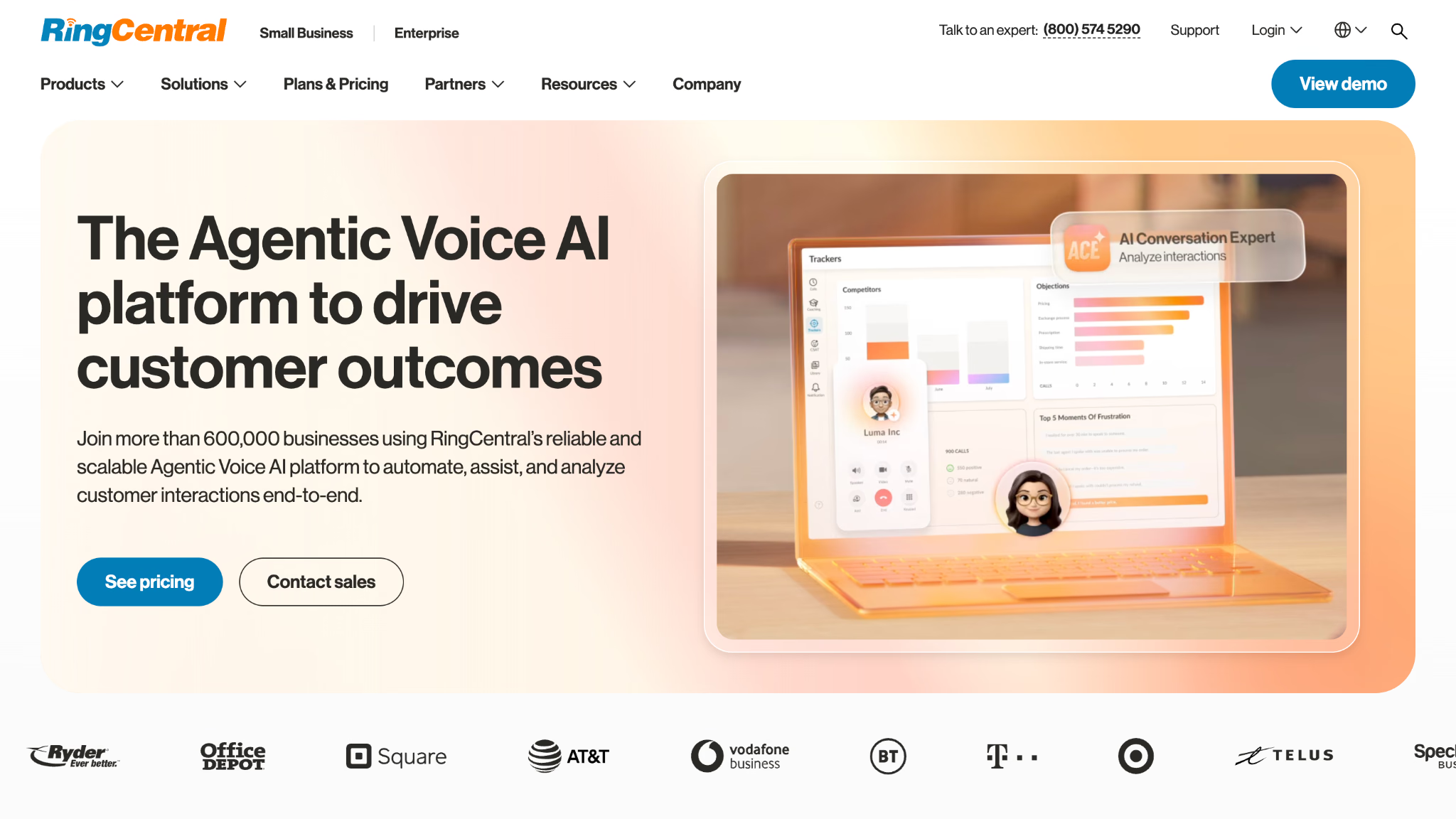
My Pick for Unified Communications: RingCentral
What I liked:
- One of the few platforms offering true end-to-end encryption
- Free plan, including video recording and AI-powered transcription
- Call Me/Call Out feature lets the host dial participants directly into the meeting
What I disliked:
- The sheer number of features creates a real learning curve at first
- Polling is only available on the separate Webinar product
RingCentral earns its spot as unified communications software by bundling video meetings, business phone systems, and messaging into a single login. I tested the Call Me feature by having RingCentral dial a teammate directly, and it connected faster than sending a join link and waiting for them to click it.
RingCentral's AI Meeting Insights generate summaries and topic lists, but, like most platforms on this list, those insights remain in the language of the meeting rather than translating across languages in real time.
RingCentral FAQs
What is RingCentral used for?
RingCentral is used as a unified communications platform that combines business phone calling, video meetings, team messaging, and analytics into one system. Businesses use it to consolidate multiple separate communication tools into a single subscription.
How do I set up RingCentral?
To set up RingCentral, start by opening your activation email and creating your account and password. Then sign in to the RingCentral app or Admin Portal to add users, assign extensions, and configure business hours and call handling. You can also download the desktop or mobile app for calls and messages. If you use a RingCentral desk phone, connect it to your network, and it should configure automatically. Third-party devices may require manual setup through the Admin Portal.
Can I use RingCentral for free?
Yes, RingCentral offers a free tier for video meetings that supports up to 100 participants, though its full business phone and unified communications features require a paid plan. The free video plan is more limited than RingCentral's paid offerings in meeting length and feature access.
Is RingCentral the same as Zoom?
No, RingCentral and Zoom are different companies with different core focuses. RingCentral is built primarily as a unified communications platform combining phone systems with video, while Zoom is built primarily as a video meeting and webinar platform that has since added phone calling as an add-on.
Can I use RingCentral for free?
Yes, RingCentral offers free options, but they are limited compared with its paid business phone plans. You can use RingCentral’s free video meetings and collaboration features, while features such as a dedicated business phone number and full calling capabilities require a paid plan. RingCentral also offers a free trial of its paid business phone service, so you can test the full feature set before subscribing.
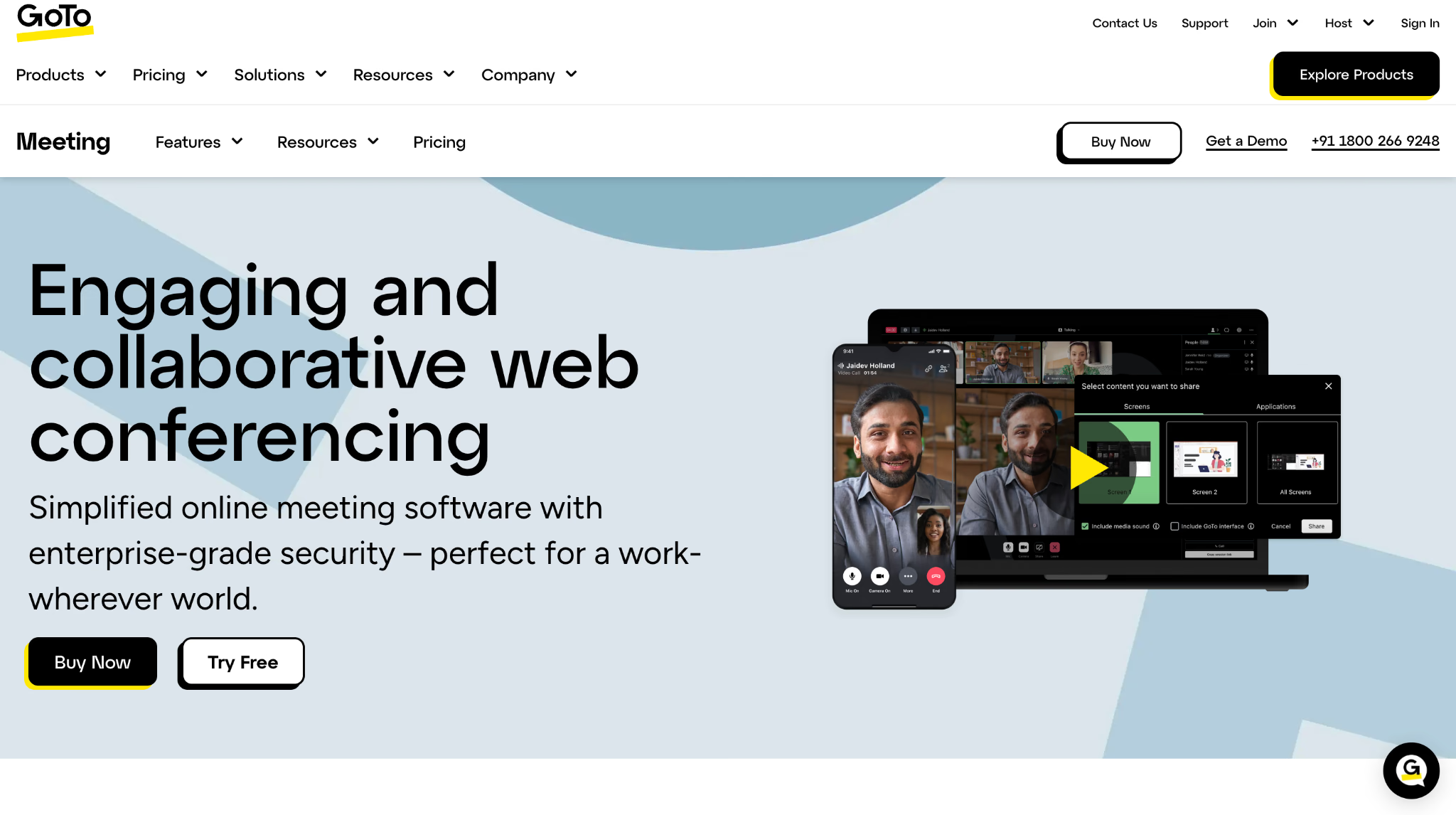
My Pick for Small Business Simplicity: GoTo Meeting
What I liked:
- 24/7 phone and web support included for every user
- Breakout rooms available on every plan, not just top-tier pricing
- Commuter Mode lets you dial into a meeting audio-only from the mobile app
What I disliked:
- No free plan, unlike most video conferencing software
- No noise cancellation, so audio quality trails behind Zoom or RingCentral
- Transcriptions are English only and no live translation option
GoTo Meeting is the conferencing software I would recommend to a small or midsize business that wants a straightforward setup without a steep learning curve. I used Commuter Mode during an actual commute, listening to a meeting audio-only through the mobile app, and it worked exactly as advertised.
Because GoTo Meeting's transcription tool only supports English, teams running multilingual calls are left without a real solution inside the platform itself. JotMe fills that gap: it live-translates the conversation into 200+ languages and delivers a translated transcript after the call, so GoTo Meeting users aren't limited to English-only records.
GoTo Meeting FAQs
Is GoToMeeting free?
GoTo Meeting does not offer a fully free plan for regular use, though it does provide limited free meeting options for trial purposes. Full features, including recording, longer meeting durations, and higher participant limits, require a paid subscription.
Is GoTo like Zoom?
GoTo Meeting and Zoom cover similar core video conferencing features, including screen sharing, recording, and cloud meetings, and both target small to midsize businesses along with larger organizations. GoTo Meeting tends to focus on straightforward setup and reliable support, while Zoom offers a broader range of AI and webinar tools.
Does GoToMeeting still exist?
Yes, GoTo Meeting is still an active video conferencing product, operated by GoTo, the company formerly known as LogMeIn following its 2022 rebrand. It continues to be updated with new features and remains one of the company's core collaboration products.
Is GoTo Meeting safe?
Yes, GoTo Meeting includes standard security features such as password-protected meetings, encrypted connections, and administrative controls for managing participants. It is generally considered a safe option for standard business meetings, though organizations with strict compliance needs should review its specific security documentation.
What is GoTo Meeting used for?
GoTo Meeting is used for hosting online meetings, screen sharing, and video calls for small and midsize businesses that want straightforward setup without a steep learning curve. It supports meeting recording, transcription, and collaboration tools across desktop and mobile devices.
My Pick for Budget-Conscious Teams: Zoho Meeting
What I liked:
- Free plan covers 100 participants and 60-minute meetings, no credit card needed
- Paid plans start at roughly 1- 3 per host/month, among the cheapest on this list
- Fits straight into the Zoho ecosystem if you already use Zoho Bookings, CRM, or Notebook
What I disliked:
- Recording, phone dial-in, and transcription are locked behind paid plans, even the cheap ones
- No live translation, so multilingual calls need a separate tool regardless of plan
I set up Zoho Meeting mainly to see if the low price actually meant a stripped-down product, and it did not feel that way. The free plan still includes screen sharing, whiteboards, and virtual backgrounds, and setup took less time than most paid platforms on this list.
Once I moved to a paid Professional plan to test recording and advanced analytics, the jump in cost was still smaller than a single seat on most competitors, which makes Zoho Meeting the video conferencing software I would recommend first to a small business watching its software budget, especially one already running other Zoho apps.
The tradeoff is that Zoho Meeting keeps things simple. There is no built-in live translation, so a call with participants speaking different languages runs into the same wall it would on Jitsi Meet or GoTo Meeting.
Zoho Meeting FAQs
What is Zoho Meeting used for?
Zoho Meeting is used for hosting online meetings and webinars, offering screen sharing, recording, polls, and calendar integration at a lower price point than most competitors. It is commonly used by small businesses and teams already using other Zoho applications like Zoho CRM or Zoho Mail.
Is Zoho better than Zoom?
Zoho Meeting is better for budget-conscious teams that want core meeting features without paying a premium price, while Zoom is better for teams that need advanced AI tools, larger webinar capacity, or more polished video quality. The right choice depends on how much you are willing to pay for extra features versus a lower-cost, simpler tool.
What are the disadvantages of Zoho?
Zoho Meeting has a smaller participant capacity on paid plans compared to platforms like Teams or GoTo Meeting, and it lacks live translation or advanced AI meeting features. Its interface and integrations are also most useful to teams already using other Zoho products, which limits its appeal as a standalone tool.
Who is better, Zoho or Microsoft?
Both Zoho and Microsoft offer a wide range of business and collaboration tools, but the better option depends on your needs. Microsoft Teams is a stronger choice for businesses that rely on Microsoft 365 and need advanced productivity, collaboration, and security features. Zoho is a good option for small and mid-sized businesses looking for affordable, easy-to-use business software with a broad range of tools.
How many people can join a Zoho Meeting?
Zoho Meeting supports up to 250 participants in a single meeting, depending on the plan. Free and trial plans support fewer participants, while higher-tier paid plans allow meetings with up to 250 people.
Best Video Conferencing Software for Small Businesses
Small businesses usually care about three things when choosing video conferencing software: price, ease of use, and whether the platform fits the tools they already use.
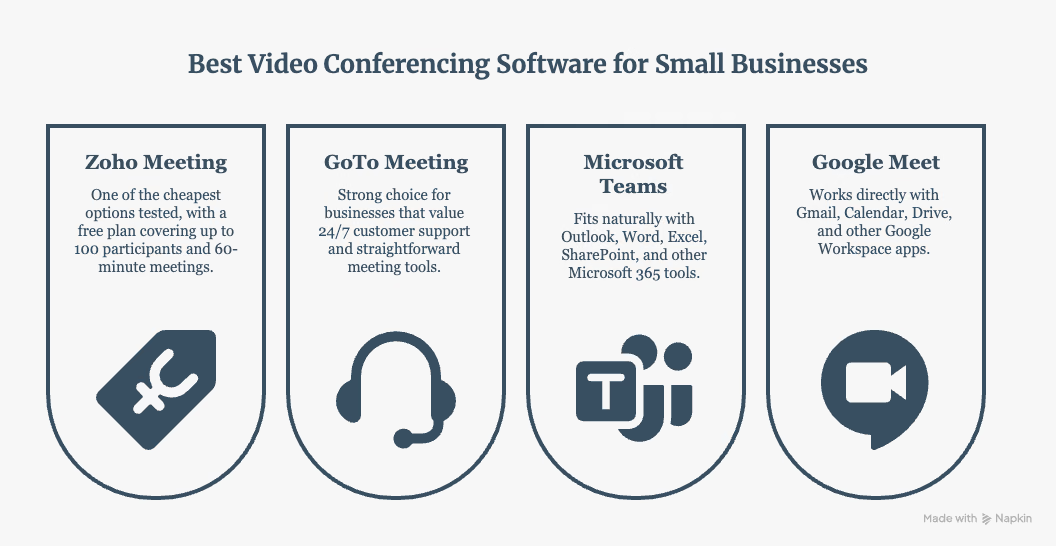
If price is your main concern, Zoho Meeting is the best fit. If hands-on support matters more, GoTo Meeting is the stronger choice. Teams and Google Meet make more sense when your business already relies heavily on Microsoft 365 or Google Workspace.
Which Video Conferencing Tools Handle Multilingual Meetings
Multilingual support varies considerably between video conferencing platforms. Some offer translated captions, while others provide spoken interpretation or require a separate tool.
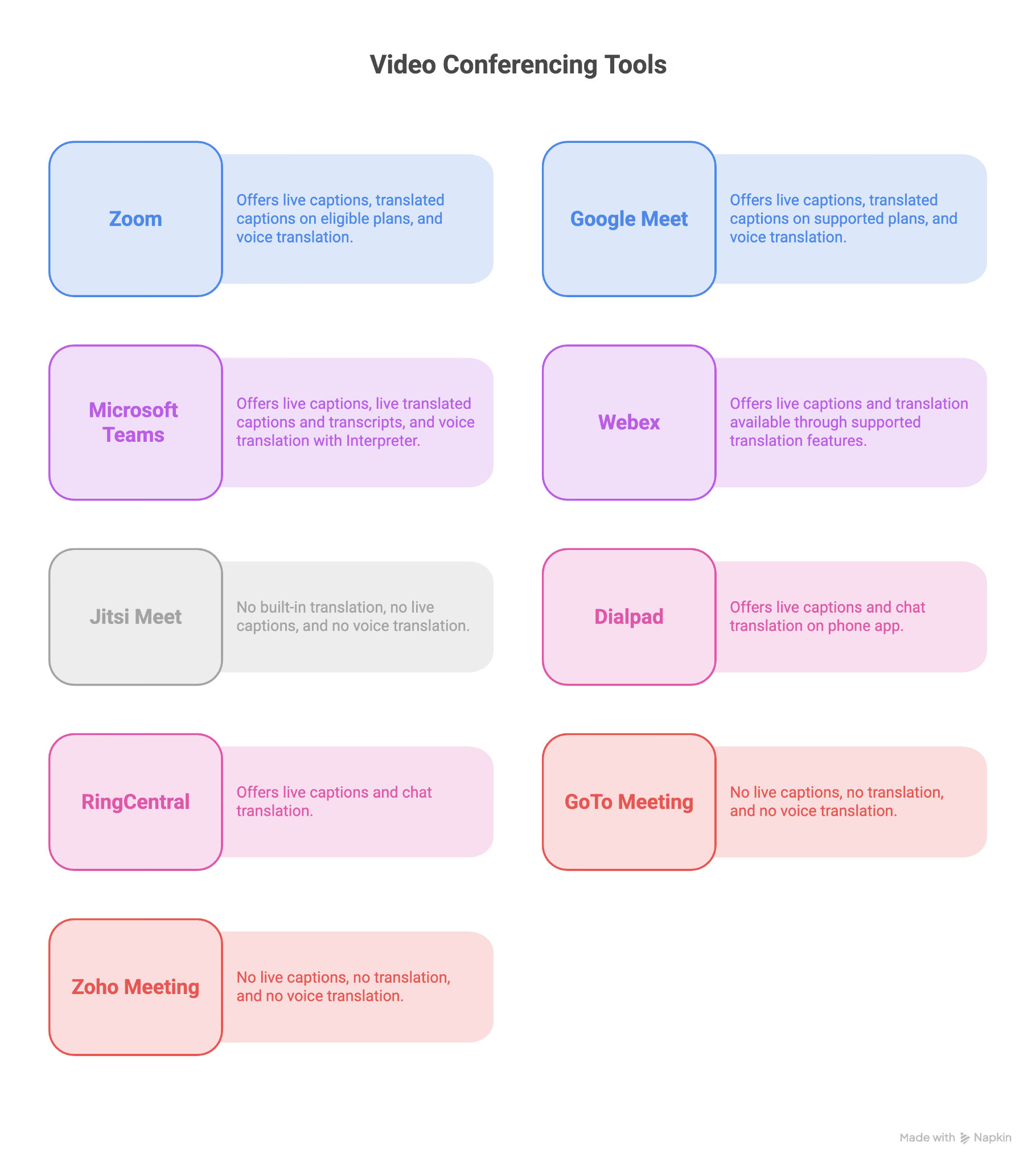
The important distinction is between captions and translation. Captions turn speech into text, while translated captions convert that text into another language. Microsoft Teams goes a step further with its Interpreter feature, which can provide real-time voice to voice interpretation, although availability depends on the Microsoft license you have.
When I need multilingual support across different meeting platforms, I prefer using JotMe rather than relying entirely on a platform's built-in translation features. JotMe supports 200+ languages and more than 39,000 language combinations, allowing participants to communicate in their preferred languages instead of having everyone default to English.
What I like about this approach is that JotMe doesn't require me to change the way I run my meetings. I can use it alongside Zoom, Google Meet, Microsoft Teams, or another conferencing platform and add a separate translation layer to the meeting.
For example, if I am speaking English with clients who prefer Japanese, Spanish, or Chinese, I can keep the meeting running on my usual conferencing platform while JotMe handles the translation. This gives me more flexibility than choosing a meeting platform based solely on the languages supported by its built-in captions or translation features.
How to Get Real-Time Translation Using JotMe in 200+ Languages
Three of my clients speak three different languages. One is based in Japan, one in Spain, and one in China. I needed a live translation tool that could catch each voice on the call and translate audio to text in every other language in real time, so the Japanese client reads Japanese, the Spanish client reads Spanish, the Chinese client reads Chinese, and I can read in English. Here, I used JotMe to enable real-time, accurate conversation alongside my video conferencing platform.
See how JotMe works with my video conferencing platform:
Step 1: Open your preferred virtual conferencing software platform. I do most of my meetings on Google Meet, so I opened Google Meet and JotMe.
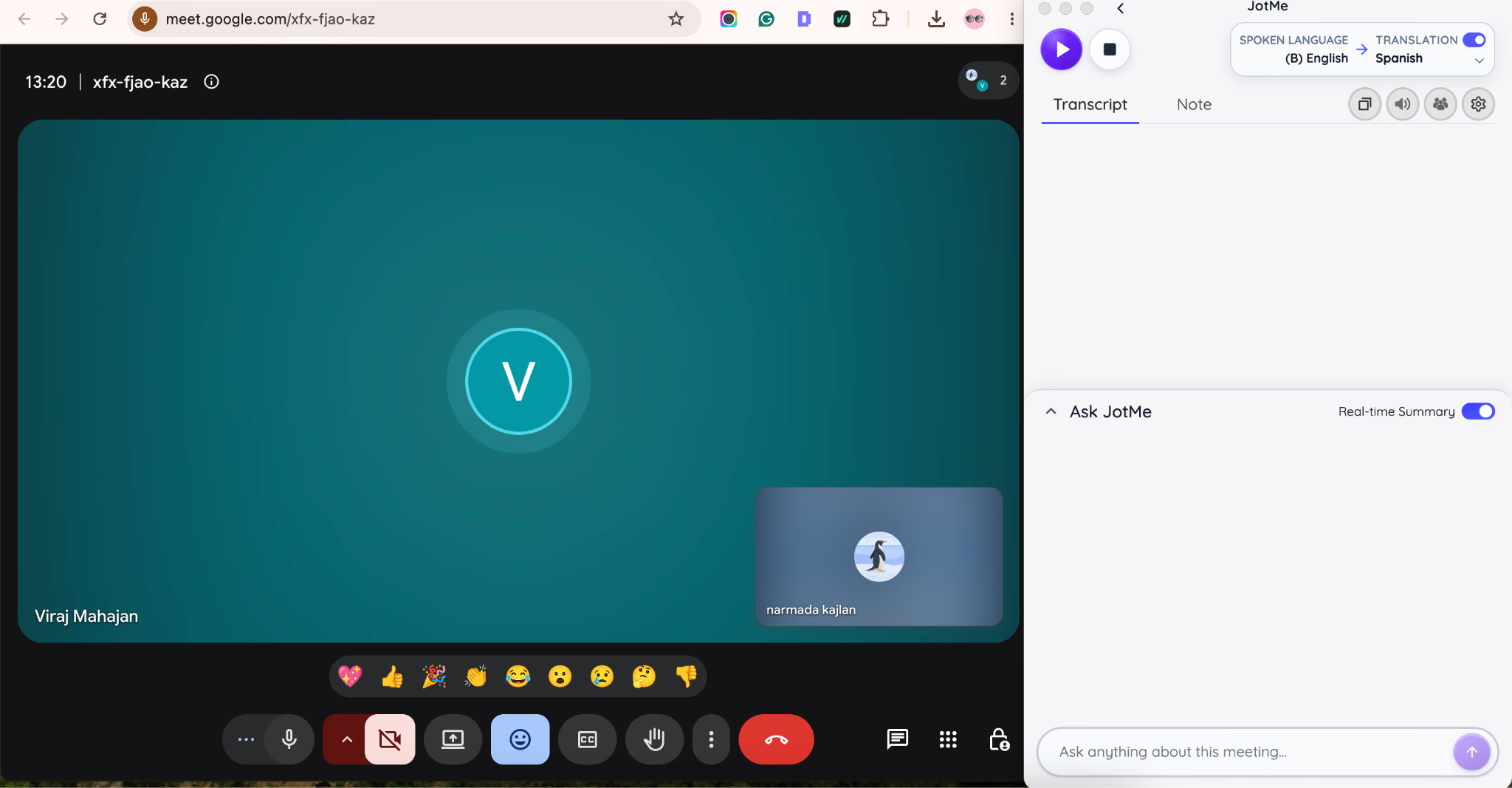
Step 2: As there were speakers in 4 different languages at the meeting, I set the spoken language to multilingual and the translation language to English.
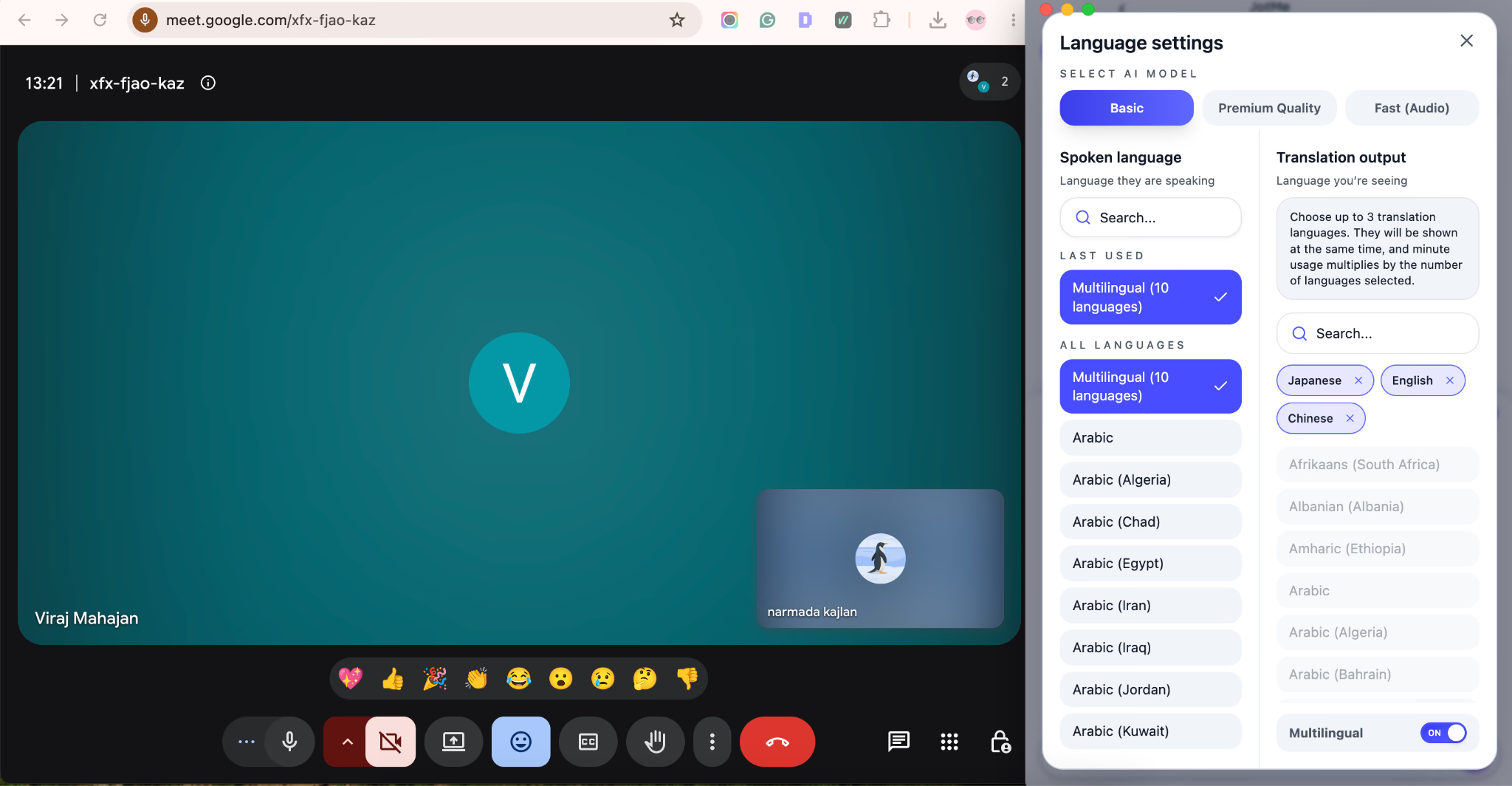
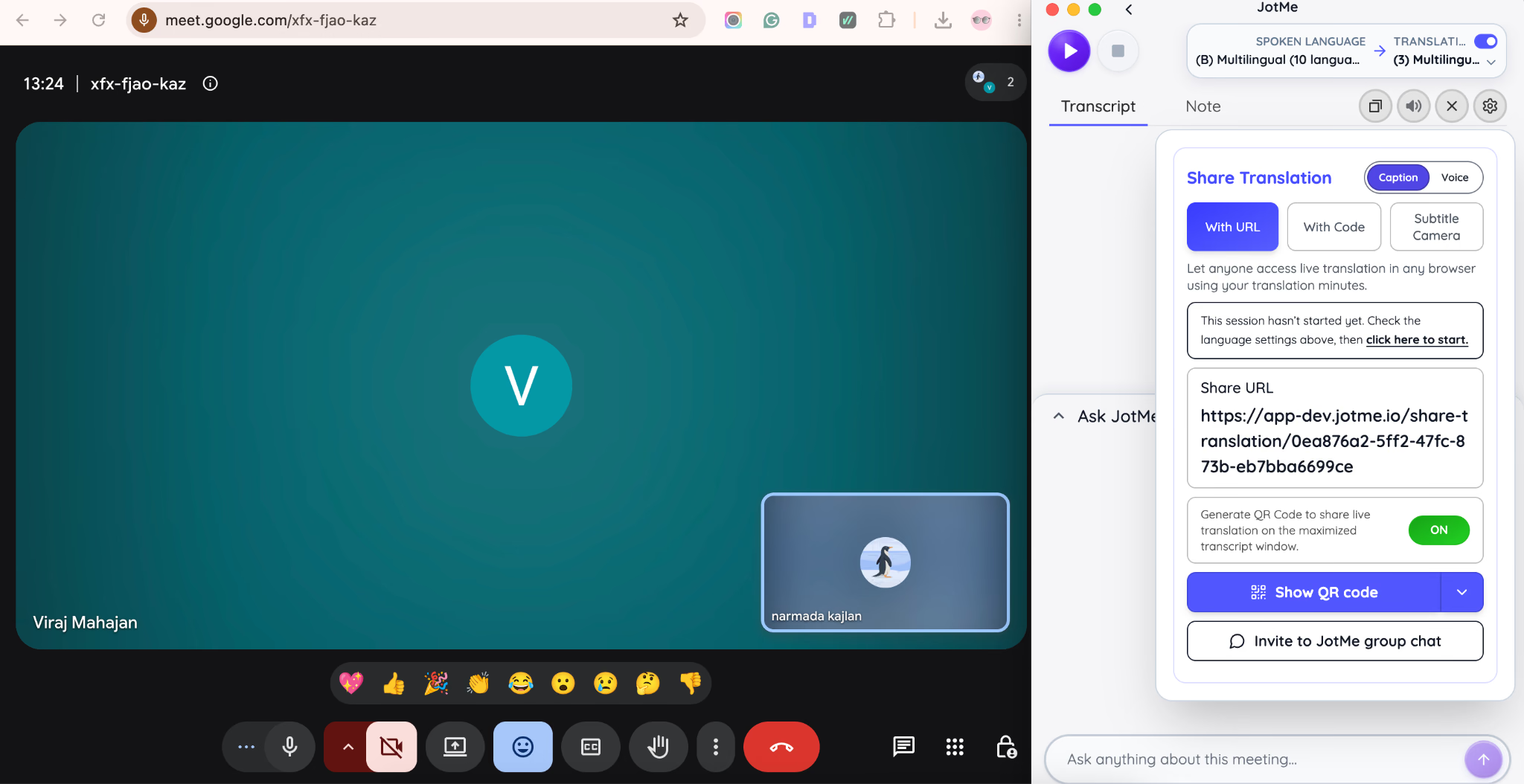
Step 3: I shared the translation minutes via QR code so my clients can also access the live translation, read the translation, and understand the meeting. When you share the translation minutes via QR code or link, your teammates can access the translation without downloading JotMe on their desktop. They need to enter their email address and choose translation languages.
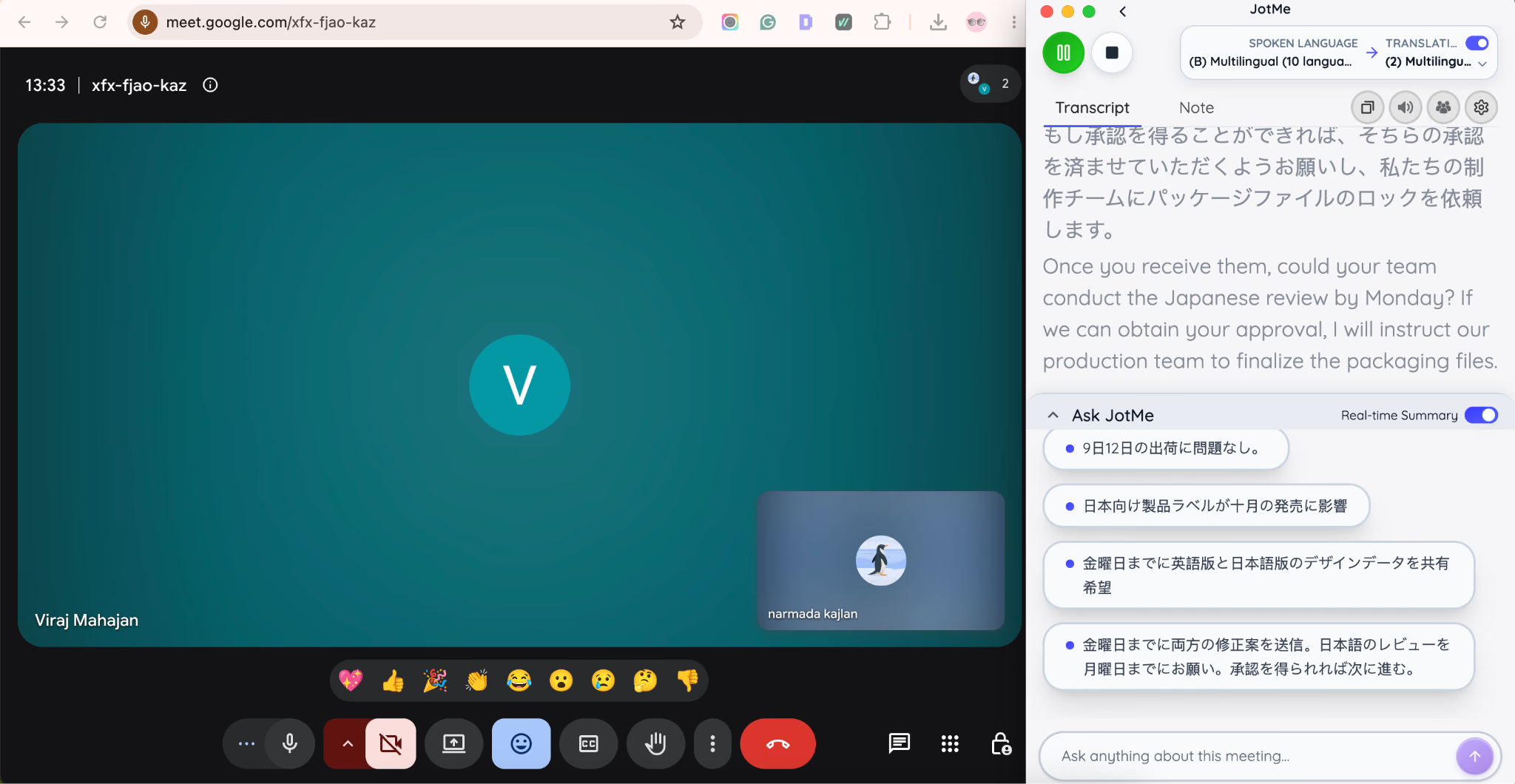
Step 4: As we started speaking, JotMe showed live translation with a latency of 1-2 seconds, and the accuracy was on point. As I had some doubts about certain terms, the JotMe Ask feature answered my queries during the meeting.
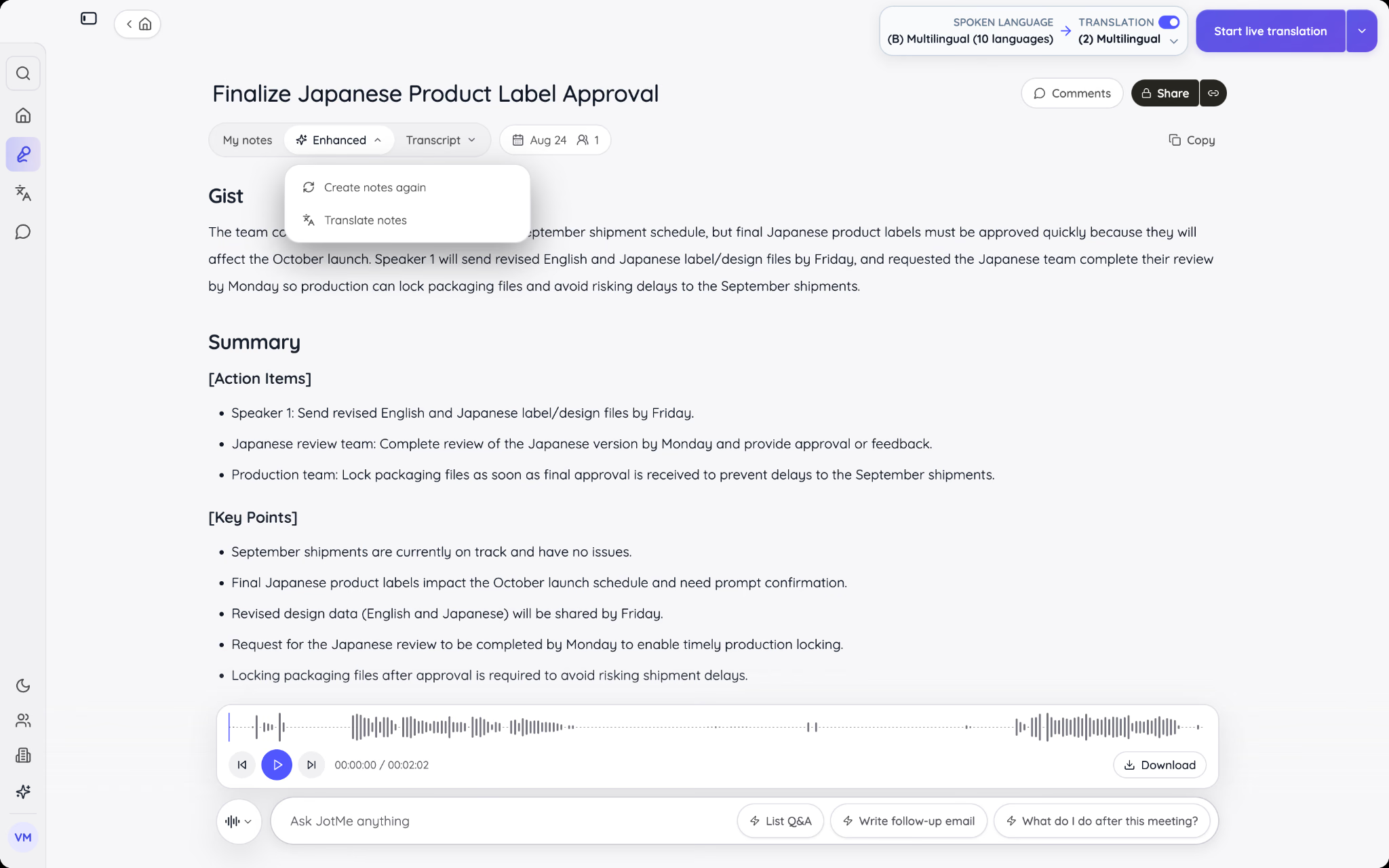
Step 5: Once the meeting was over, JotMe automatically shared the notes in the client's preferred languages.
Here are some key features of JotMe that I found really helpful for online meetings:
Live Translation
JotMe is a real-time AI translator for work that translates spoken conversations into 200+ languages, helping multilingual teams communicate during meetings and business conversations. If I speak English during a call with clients in Japan, Spain, and China, JotMe converts my speech into Japanese, Spanish, and Chinese simultaneously, and each participant sees their own language on screen as I talk.
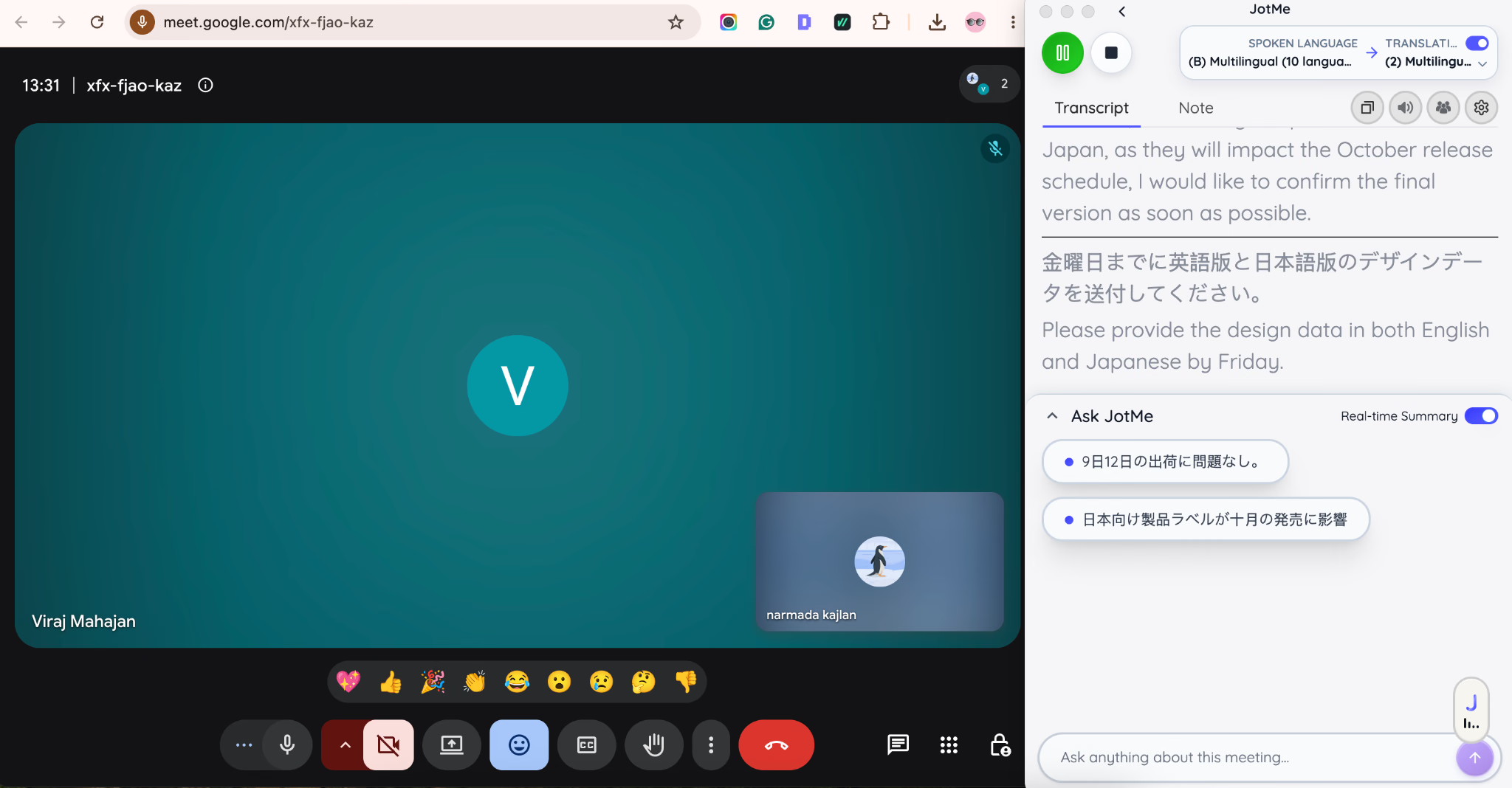
This matters most in meetings where even a small delay in understanding costs time. Instead of pausing to explain a point twice or waiting for a human interpreter to catch up, everyone follows the conversation as it unfolds. I have run client calls where three languages were active at once, and no one needed to ask me to repeat myself, because the translation kept pace with the conversation in real time.
Context-Aware Translation
JotMe does not translate word-for-word; it captures the sentence's context and then provides contextual and personalized AI translation. Context matters when a phrase means something different depending on how it is used. A word-for-word translator often produces output that reads correctly but misses the actual meaning, and that gap becomes a real problem in business meetings where precision matters.
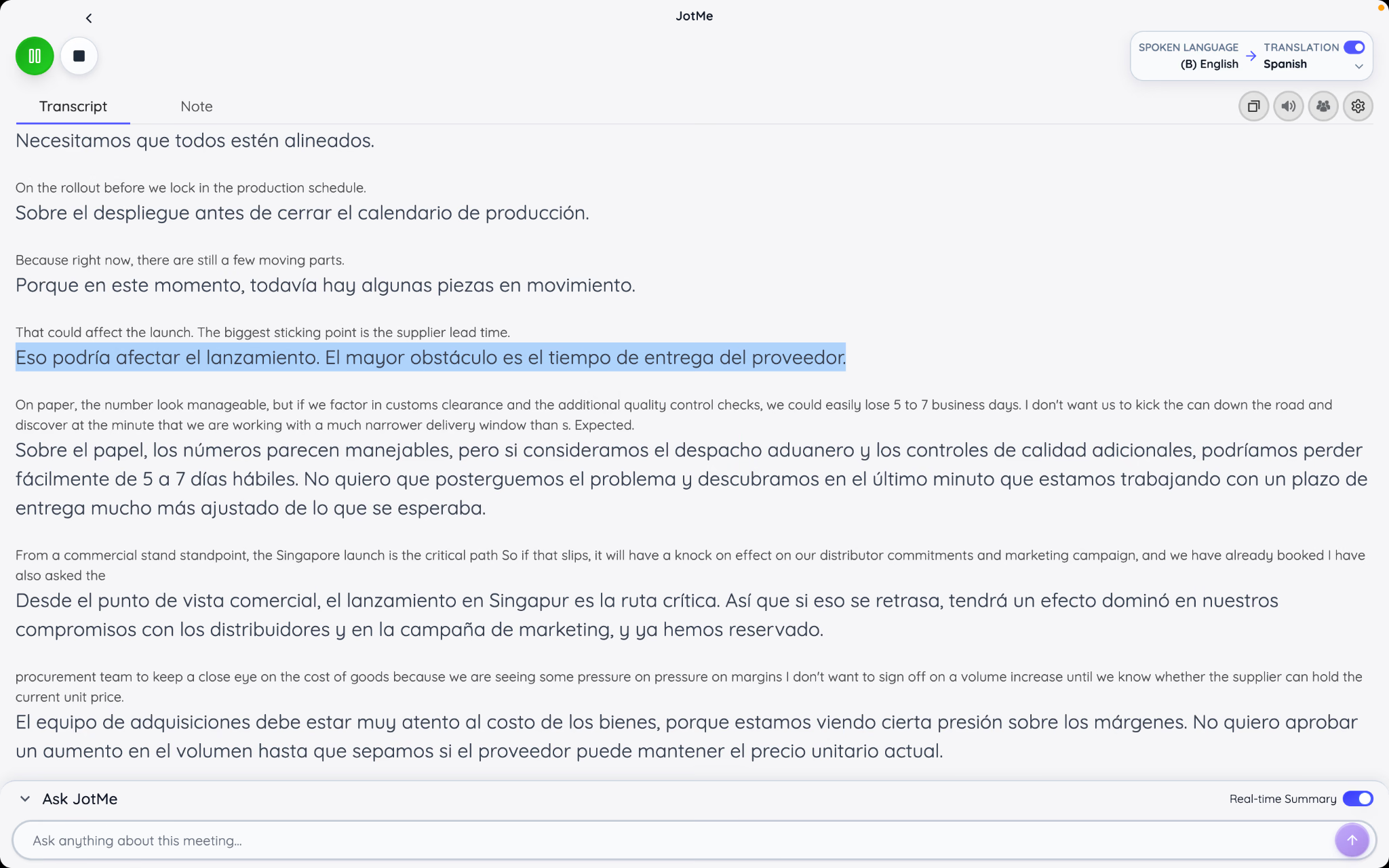
I noticed this most clearly during a call that involved industry-specific terms and casual paraphrasing mixed together. JotMe adjusted the translation based on how each sentence was actually meant, not just the literal words used. That kept the meaning intact for participants reading in Japanese, Spanish, or Chinese, instead of leaving them with a translation that technically matched the words but lost the point.
AI Meeting Notes in 21+ languages
Once a meeting ends, JotMe generates AI meeting notes and delivers them to each participant in their own preferred language. A client in Tokyo receives notes in Japanese, a client in Madrid in Spanish, and a client in Shanghai in Chinese, all from the same meeting.
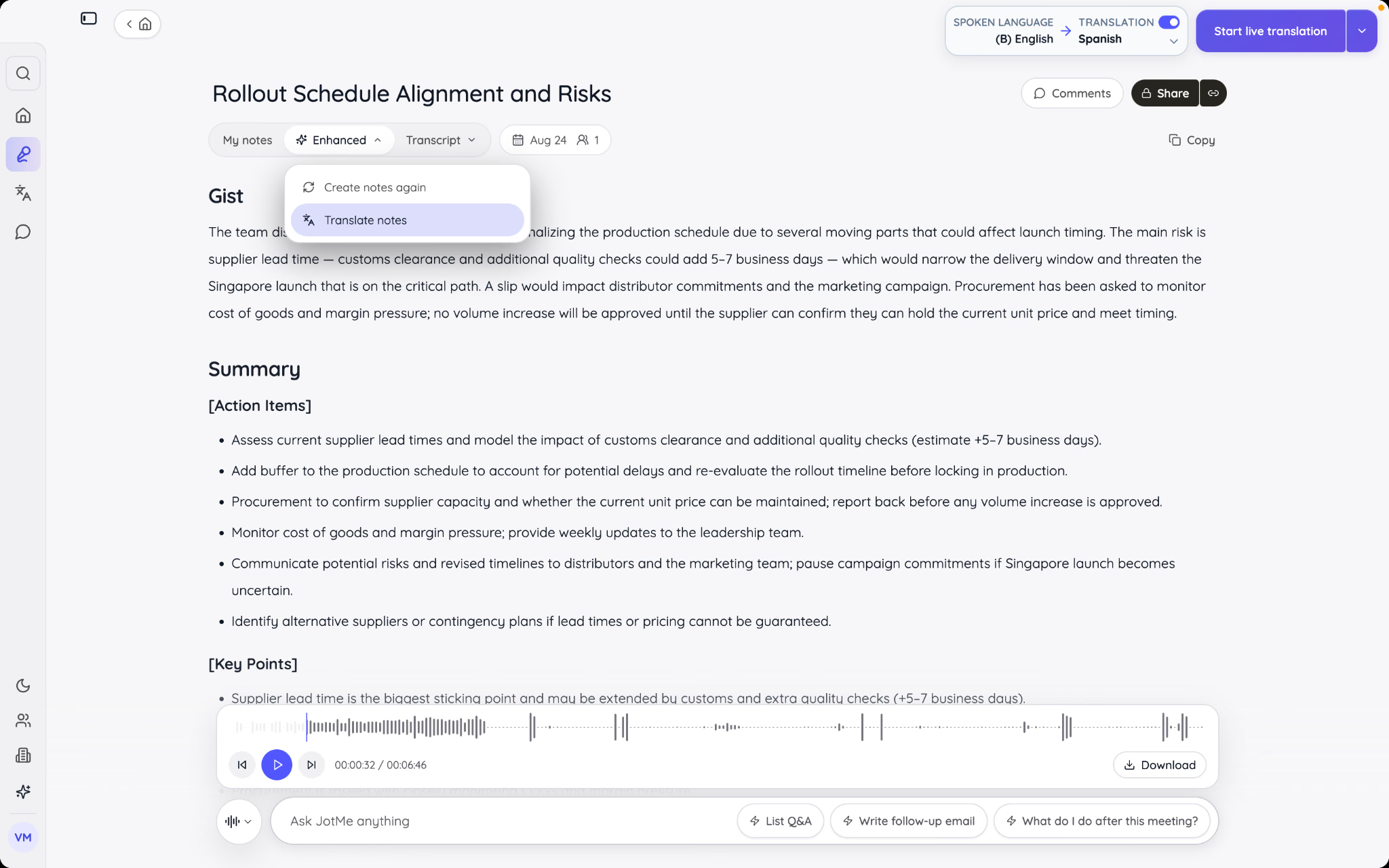
This removes a step that once required real effort. Before I used JotMe, I translated meeting notes manually or asked each client to run them through a separate translator after the fact. Now the notes arrive already translated and ready to read, since JotMe works as a full AI meeting note translator on top of its live translation, not just a captioning tool during the call.
Share Live Translation via QR Code or Link
Not every participant wants to download JotMe before a meeting starts. JotMe solves this by generating a QR code or a shareable link that gives anyone access to live translation and transcription directly in their browser. A participant scans the code or opens the link, creates an account, and follows the translated conversation on their own desktop or phone without installing anything.
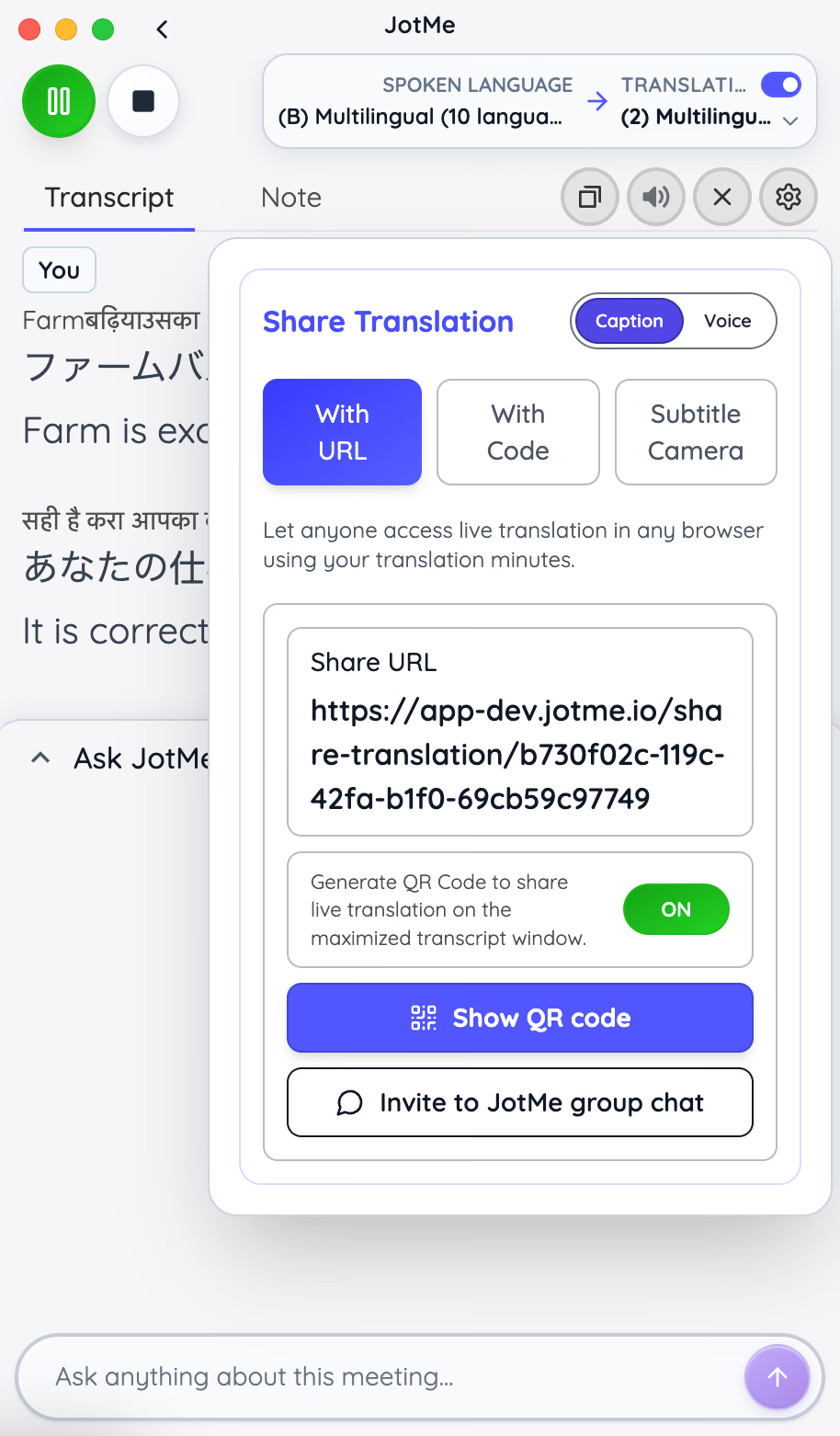
This makes JotMe useful even for one-off calls with people outside your usual team, like a new client or a vendor joining a single meeting. They do not need to commit to installing a desktop app for a one-off call. After the meeting ends, JotMe automatically sends the meeting notes to everyone who joined through the link, translated into their preferred language, so the experience stays consistent whether someone used the desktop app or just scanned a code.
Ask JotMe
JotMe includes an in-meeting AI assistant called Ask JotMe. If a call includes technical jargon or industry terms that do not translate cleanly into Japanese or Chinese, a participant can ask JotMe to explain the term without leaving the meeting platform. The answer appears right there, so the conversation keeps moving instead of stalling on one confusing phrase.
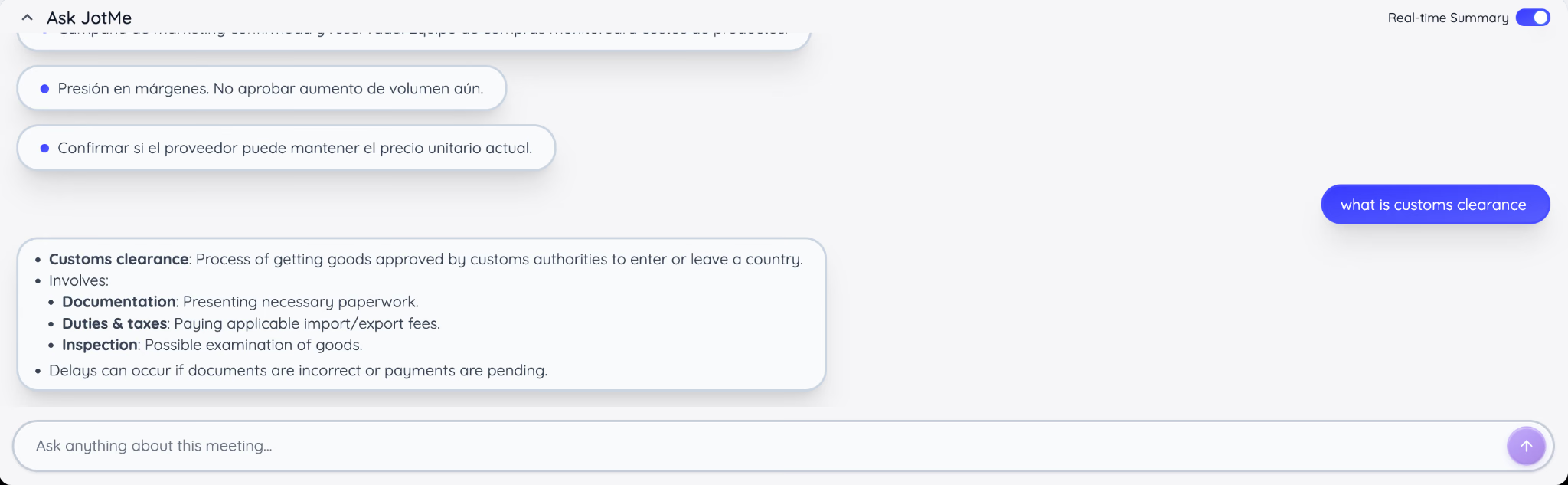
Participants can also use Ask JotMe to ask broader questions related to the meeting while it is still in progress. If someone is unsure how a point connects to an earlier part of the discussion, they can ask JotMe directly instead of waiting until after the call to follow up. This keeps every participant engaged in real time, even when the conversation includes terminology specific to one industry or region.
Real-Time Summaries in Bullet Points
As a meeting runs, JotMe generates bullet-point summaries of what has been discussed so far, updated live. This helps anyone who joins a call a few minutes late catch up instantly, since they can scan the bullet points instead of asking the group to recap what they missed.
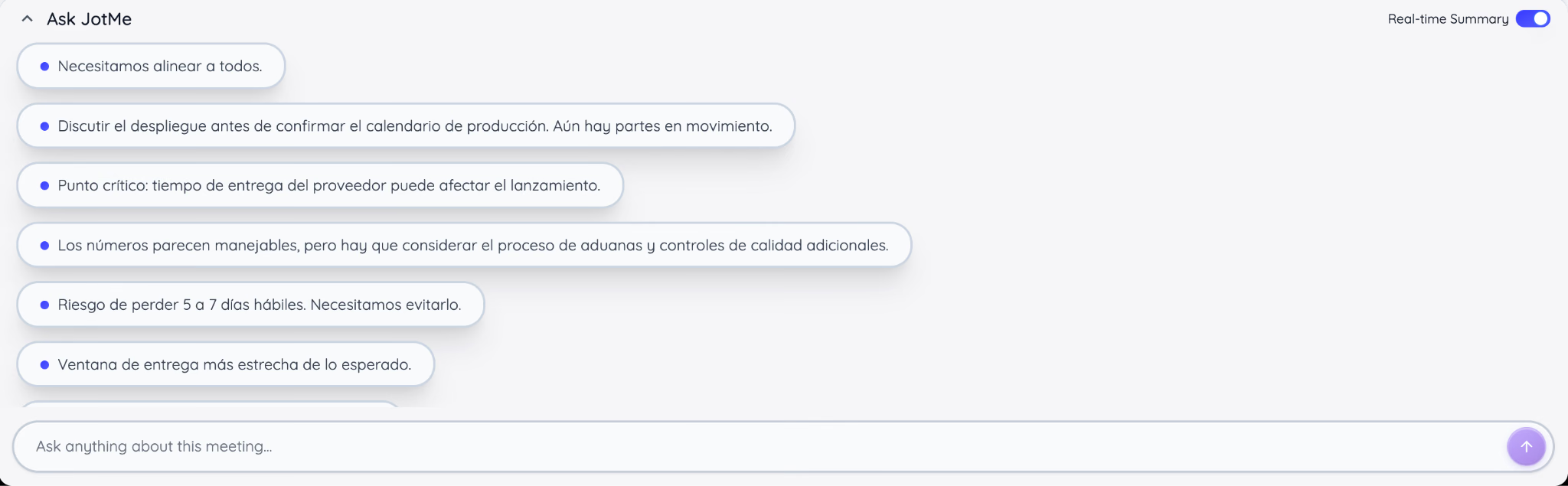
I have used AI meeting summary on calls where a client joined ten minutes in after a scheduling conflict. Instead of interrupting the flow to explain what happened before they arrived, they read the running summary and rejoined the conversation with full context in under a minute. For meetings that run long or cover several topics, the bullet-point summary also works as a quick reference for anyone who wants to check what was covered without waiting for the full transcript afterward.
What Features Should You Look For in Video Conferencing Software
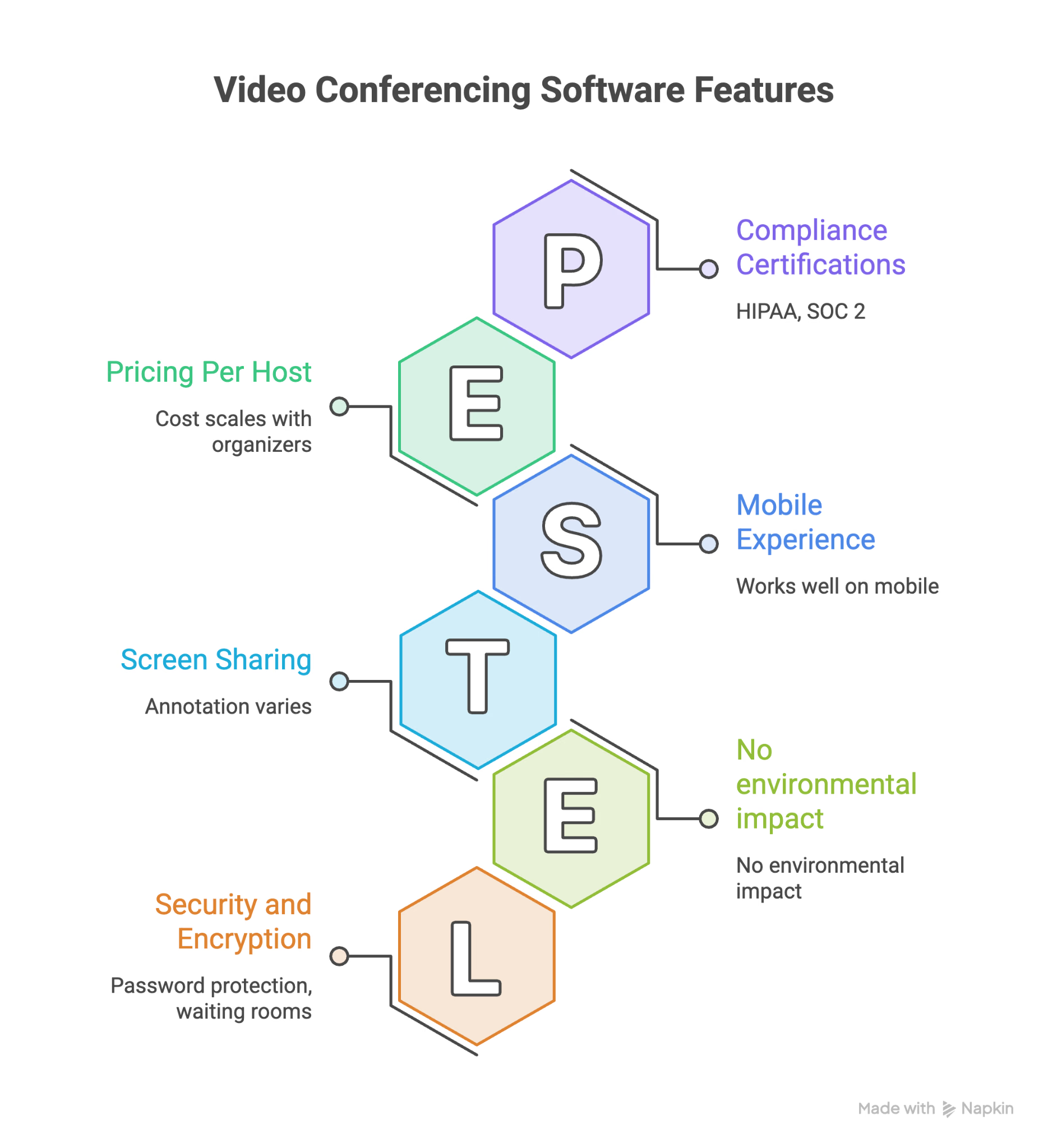
I judge the best video conferencing software on nine things every time I test one, since these are the features that decide whether a meeting actually goes smoothly.
Participant Limits
Every professional meeting software caps how many people can join a single meeting, and that cap usually depends on your plan tier. A team of five doesn't need the same headroom as a company running an all-hands with 200 people. Check the free-plan limit too, since some online meeting platforms drop that number sharply once you stop paying.
Recording and Transcription
Meeting recording lets you revisit a call instead of relying on notes taken in the moment. Transcription goes a step further, turning that recording into searchable text you can scan for a specific point. A few video conferencing platforms bundle both into every plan, while others lock recording behind a paid tier.
Screen Sharing and Annotation
Screen sharing is close to standard at this point, but annotation, where a viewer can draw or highlight directly on the shared screen, still varies by meeting platform. Annotation matters most for training sessions, design reviews, or any call where you're walking someone through steps on screen.
Security and Encryption
Look for end-to-end encryption, password-protected meetings, and waiting rooms that keep uninvited guests out. Businesses handling client contracts or financial data should also check for compliance certifications like HIPAA or SOC 2 before settling on a platform.
Integrations
Video conferencing software works better when it connects to the tools your team already uses. Calendar integration alone saves the step of copying a meeting link by hand, and integrations with your CRM or file storage cut out even more manual work. For teams working across countries and languages, the right integrations can also support cross cultural communication by making it easier to collaborate with international clients and remote teammates.
Meeting Length Caps
Free plans commonly cut group calls off after 40 or 60 minutes, which can end a conversation mid-sentence. If your team runs longer calls regularly, check the length cap on the free tier before you commit, or budget for the paid plan that removes it.
Mobile Experience
A conference platform that works well on desktop doesn't always carry that over to its mobile app. If your team joins calls from a phone during a commute or between meetings, test the mobile app directly instead of assuming it matches the desktop experience.
Pricing Per Host
Most video conferencing software prices by host rather than by participant, so the cost scales with how many people on your team need to start their own meetings. Compare the per-host price against your actual count of meeting organizers, not your total headcount.
Language Support
Live captions cover the words spoken in a meeting, but they don't always translate them into another language for every participant. If your calls include people who speak different languages, check whether the virtual meeting platform offers automatic conference call translation, translated captions, spoken translation, or notes in more than one language, since most stop at English.
What Equipment Do You Need for Video Conferencing
For basic video conferencing, you need a computer, smartphone, or tablet with a camera, microphone, speakers or headphones, and a stable internet connection. Most modern devices already have everything you need, so you don't have to buy extra equipment to join a meeting.
If you spend several hours a day on calls, a few upgrades can make a noticeable difference:
- A headset: Reduces background noise and prevents echo, especially in shared spaces.
- A dedicated microphone: Useful if you want clearer audio than your laptop or phone's built-in mic provides.
- A webcam: Worth considering if your built-in camera produces poor-quality video.
- A stable internet connection: Wired Ethernet is ideal, but a strong Wi-Fi connection is usually enough for regular meetings.
Which Video Conferencing Software Should You Choose
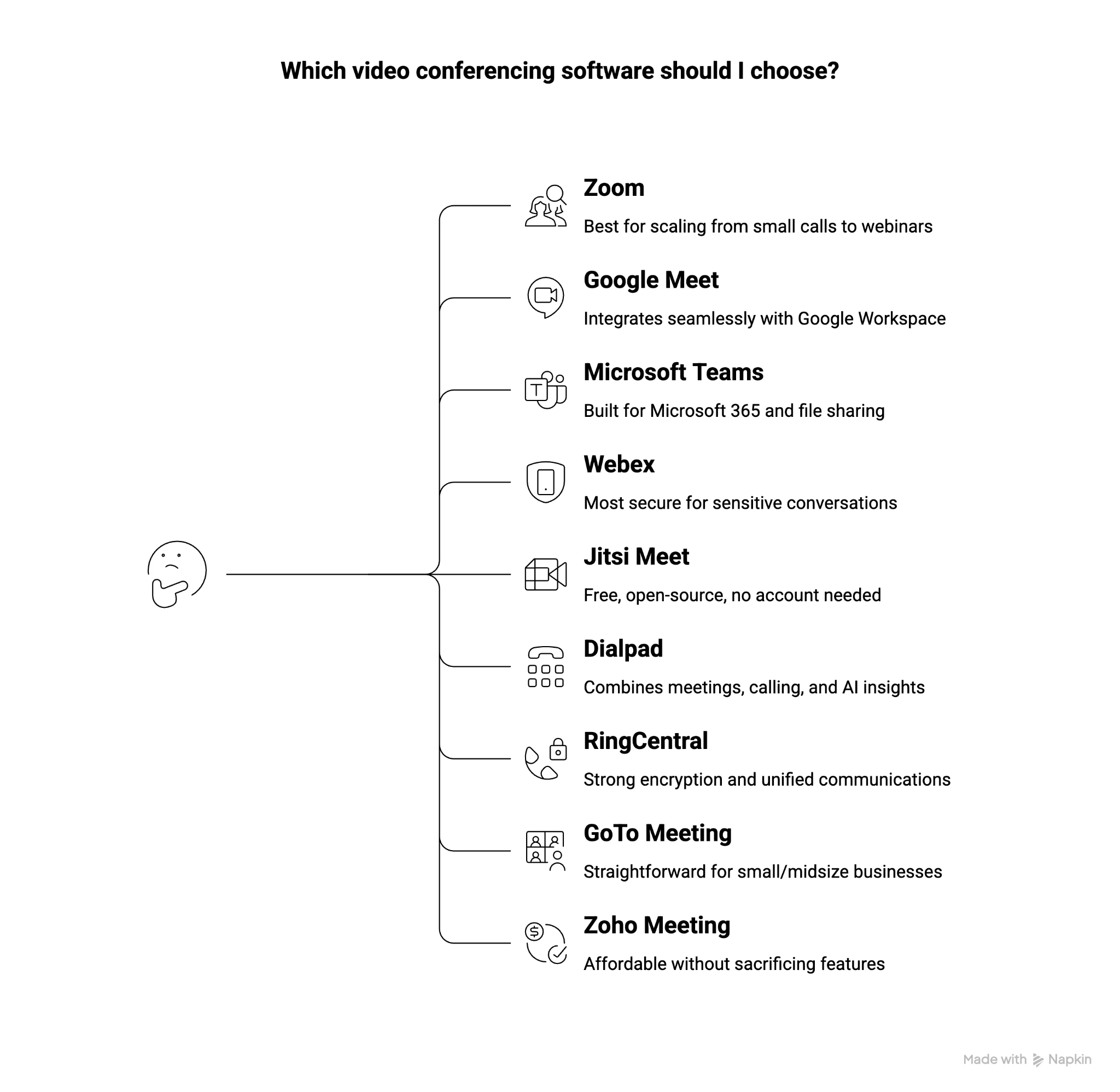
- If you searched for the best video conferencing software that scales from a small team call to a full webinar, choose Zoom.
- If you searched for a video conferencing tool that fits into a Google Workspace setup you already use, choose Google Meet.
- If you searched for a video conferencing platform built around Microsoft 365 and workplace file sharing, choose Microsoft Teams.
- If you searched for the most secure video conferencing software for handling sensitive client conversations, choose Webex.
- If you searched for a free, open-source video conferencing platform that skips account creation entirely, choose Jitsi Meet.
- If you're looking for a video conferencing service that combines meetings, business calling, and AI-driven sales insights, choose Dialpad.
- If you searched for video conferencing software with strong encryption bundled into a full unified communications system, choose RingCentral.
- If you searched for straightforward conferencing software for a small or midsize business with reliable support, choose GoTo Meeting.
- If you're looking for the most affordable video conferencing software without sacrificing core features, choose Zoho Meeting.
The right video conferencing platform depends less on which one has the most features and more on which one matches how your team actually works day to day. A sales team calling prospects needs something different than a legal team securing client conversations, and a startup watching every dollar needs something different than an enterprise standardizing on Microsoft 365.
Video conferencing platforms handle the meeting itself, but multilingual teams often need a dedicated real-time AI translator to communicate across languages. JotMe works alongside the platform you already use, providing accurate real-time translation for work across meetings, events, and other business conversations.
Are you also dealing with a multilingual team and finding it hard to make communication smooth?
JotMe works efficiently with 200+ languages and translates audio to text in real time.
Try JotMe Now.
FAQs
What are the top 5 video conferencing apps?
The top 5 video conferencing apps are Zoom, Google Meet, Microsoft Teams, Webex, and Jitsi Meet. The best choice depends on your needs: Zoom is strong for meetings and webinars, Google Meet works well with Google Workspace, Microsoft Teams is ideal for Microsoft 365 users, Webex is suited to security-focused organizations, and Jitsi Meet is a free, open-source option.
Which tool is used for video calling?
Zoom, Google Meet, Microsoft Teams, Webex, and Jitsi Meet are commonly used for video calling. These tools let you communicate through live video and audio over the internet, usually with features such as screen sharing, chat, and meeting links. Zoom, for example, supports video calls from desktop, mobile, and web browsers.
Which software is commonly used for video conferencing?
Zoom, Google Meet, and Microsoft Teams are among the most commonly used video conferencing platforms, particularly for work, education, and remote collaboration. Other widely used options include Webex, Jitsi Meet, RingCentral, GoTo Meeting, Dialpad, and Zoho Meeting. Your choice should depend on factors such as meeting size, integrations, collaboration features, security, and price.
What are web conferencing tools?
Web conferencing tools are online software platforms that let people hold meetings, presentations, training sessions, and collaborative discussions over the internet. They typically combine video and audio calling with features such as screen sharing, chat, presentation controls, recording, captions, and meeting management. Examples include Zoom, Google Meet, Microsoft Teams, Webex, and Jitsi Meet. Microsoft Teams meetings, for example, include audio, video, and screen sharing.
What are some examples of video conferencing tools?
Some popular video conferencing tools include Zoom, Google Meet, Microsoft Teams, Webex, Jitsi Meet, Dialpad, RingCentral, GoTo Meeting, and Zoho Meeting. These video conferencing services offer features such as video and audio calls, screen sharing, meeting recording, chat, collaboration tools, integrations, and security controls.
How Secure Is Video Conferencing Software?
Video conferencing software can be secure when it offers strong encryption, password protection, waiting rooms, and host controls. For sensitive meetings, check whether the platform supports end-to-end encryption (E2EE) and meets relevant compliance standards.
Last updated on
September 5, 2026
Follow us on social media:
![JotMe — Is Google Translate Accurate? [2026 Test]](/_webflow-assets/0d0512afc7b037d74dff536f22fed08f.avif)