


Tips
How Live Zoom Translation Works: Ultimate Guide for Enterprises [Review June 2026]

Lovely Mangla
June 4, 2026
![JotMe — How Live Zoom Translation Works: Ultimate Guide for Enterprises [Review June 2026]](/_webflow-assets/18c6d8fa985be0f07706ddd9faa22a47.avif)
Live Zoom translation promised to give my team back the 2 hours we lose to follow-up emails after every bilingual call, so I spent a week running it through real meetings.
I lead content at JotMe, and pressure-testing live translation tools is part of how my team decides what we recommend to our enterprise clients.
The newest pitch was Zoom's own AI Companion, which turns speech into on-screen captions and, in beta, into synthetic voice. I wanted to know if built-in Zoom translation could carry a real client conversation between English and Chinese, or if I still needed a dedicated tool besides it. So I ran the same call twice, once on Zoom alone and once with JotMe alongside it, and the gap showed why you would require JotMe for your multilingual meetings.
In this article, you will get:
- A real-world Zoom translation test using the same English-Chinese sales call on Zoom and JotMe.
- How Zoom translates captions, voice translator, and Human interpretation work in 2026.
- Zoom translation mistakes and limitations I encountered during live client-style conversations.
- A side-by-side comparison of Zoom vs. JotMe for language coverage, accuracy, pricing, and post-call workflows.
- Step-by-step instructions for setting up live Zoom translation with JotMe.
- My recommendations on when Zoom's built-in translation is enough and when a dedicated translation tool is the better choice.
Here is how Zoom and JotMe compare before I get into the meeting itself.
What is Zoom Translation, and Can Zoom Translate a Meeting in Real Time?
Zoom translates speech into live on-screen captions in up to 46 languages through AI Companion, and a newer voice translator beta speaks the translation aloud in 5 languages.
These features are designed to help multilingual teams communicate during live meetings. If you're wondering whether Zoom can translate a meeting in real time, the answer is yes.
Translated captions use Zoom AI Companion to turn speech to text in 46 languages, and a newer voice translator beta speaks the translation aloud in 5 languages. For spoken accuracy beyond those few languages, many teams still run a dedicated tool next to Zoom.
How Does Zoom's Live Translation Work Today?
Zoom handles translation through three features, and they are positioned at very different stages of maturity.
Zoom Translated Captions
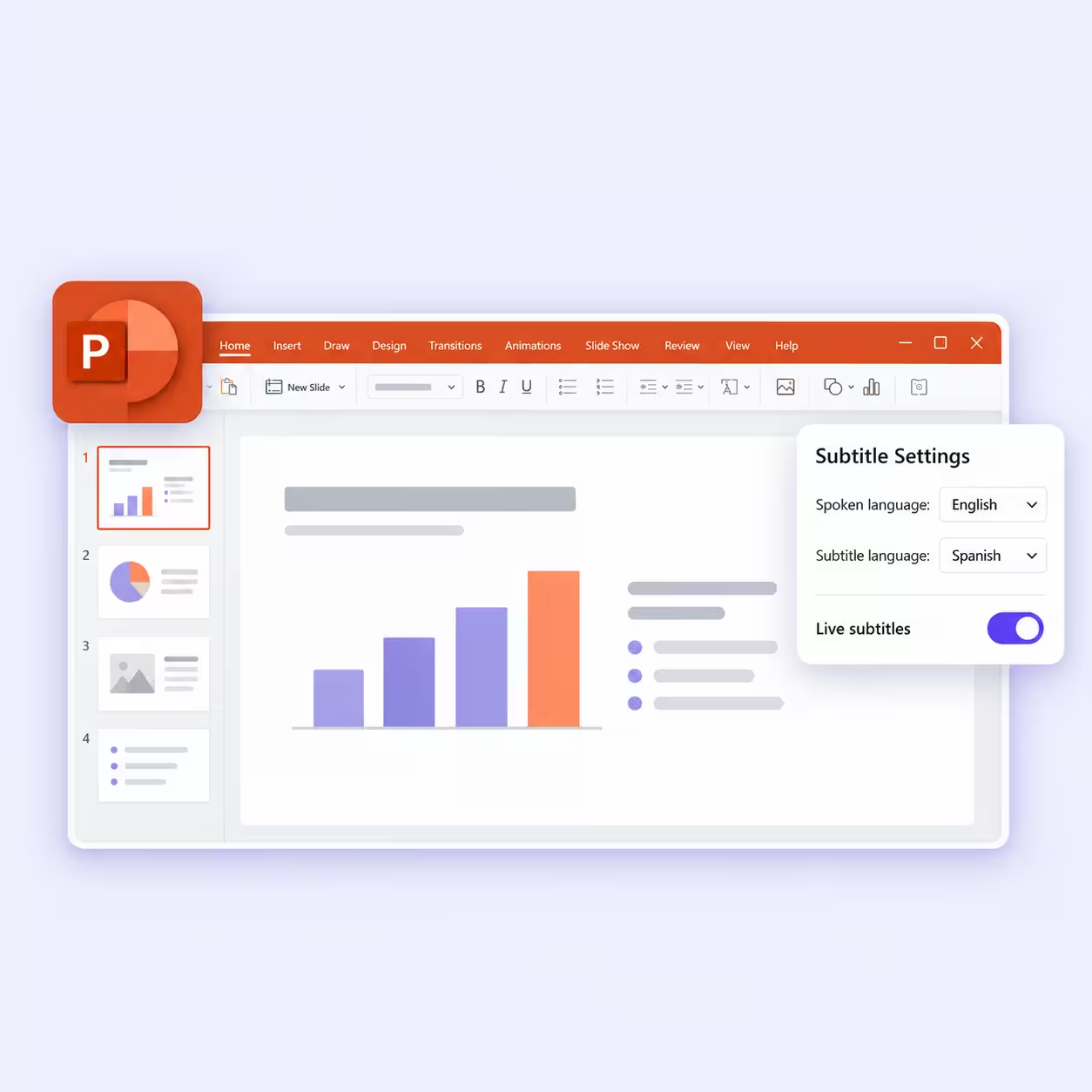
Zoom translation captions are powered by AI Companion, and it detects the spoken language and prints live subtitles that each participant can switch to their own language from the show captions, then translate.
Zoom AI Companion automatically detects and translates spoken language in real-time with captions in 46 languages. The catch is access. Translated captions are included with Zoom Workplace Business Plus, Enterprise Essentials, Enterprise Plus, and Enterprise Premier plans, so smaller plans need a paid add-on before this Zoom automatic translation turns on.
Zoom’s Speech-to-Speech
Zoom launched a voice translator as a beta in April 2026, which lets participants speak one language while others hear AI-generated speech, and it currently supports five languages: English, Chinese, French, Japanese, and Spanish, for paid customers on US-based accounts.
Zoom’s speech-to-speech leans on the caption engine rather than replacing it, so the feature converts translated text into synthetic speech, and for longer stretches of uninterrupted talk, the translated audio may arrive only after the speaker pauses. That pause is the difference between true simultaneous interpreting and captions read aloud.
Zoom’s Human Interpretation
Zoom interpretation lets a host assign professional interpreters to language channels that attendees tune into, which works well for set-piece events and carries the cost and scheduling of booking people for every language direction.
A Real Bilingual Call Tested: Zoom vs. JotMe
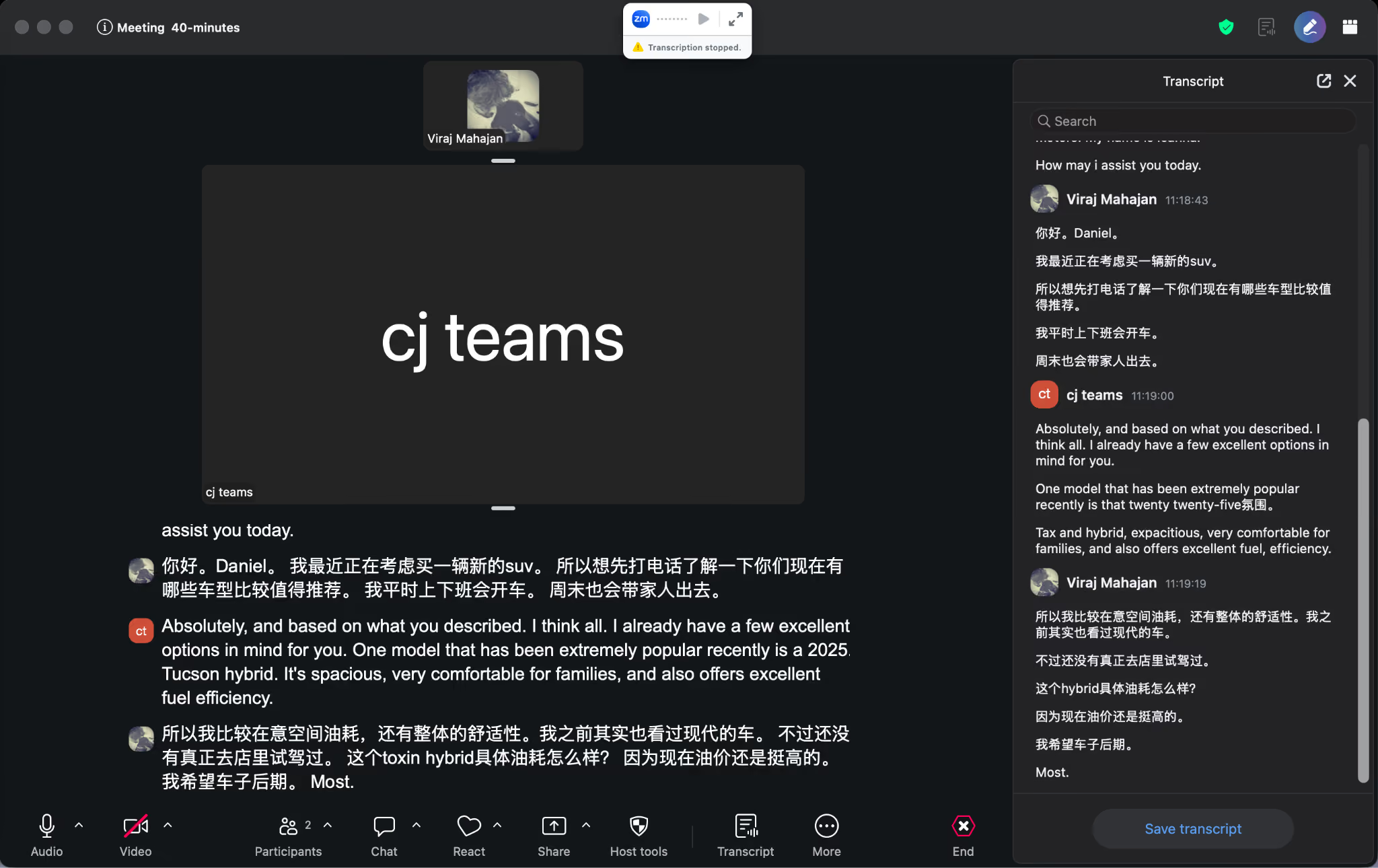
To keep it honest, I built a scenario my team actually fields: a mock SUV sales call where I played a Chinese-speaking buyer and a teammate played an English-speaking dealer. Same script, same audio, one 6-minute call recorded on each setup.
Zoom held its own on the basics. The live transcript captured both sides, labeled the speakers, and saved itself offline the moment I clicked end, which is genuinely useful for a record.
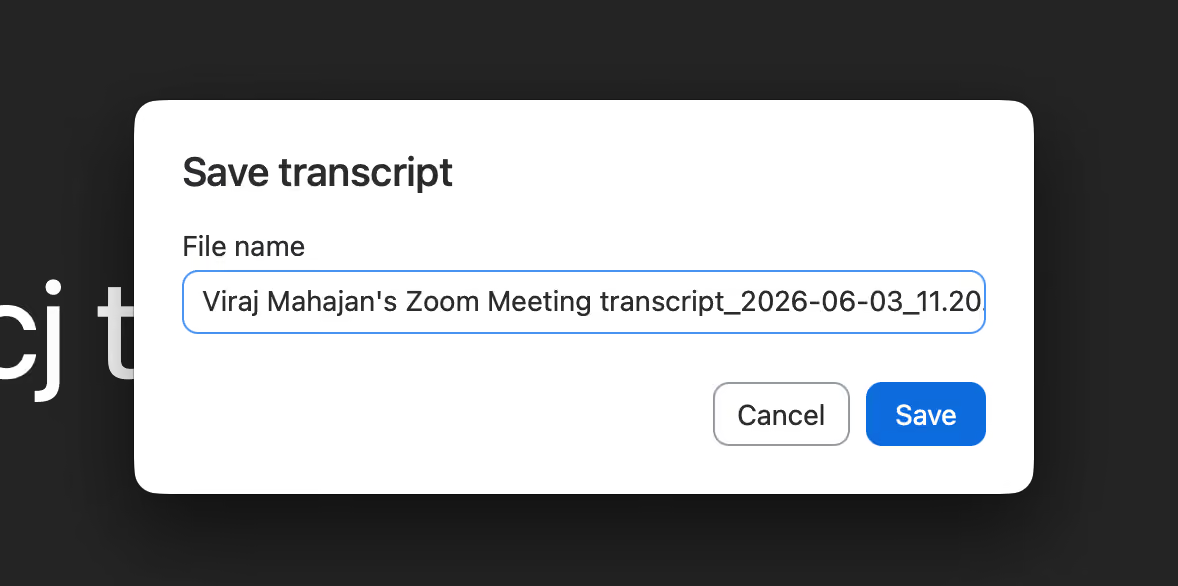
The limits showed up the moment the talk got specific.
A 2025 Tucson Hybrid landed in the transcript as a "toxin hybrid," the model year mixed an English phrase with a stray Chinese character, and "spacious" came through as "expacitious." The captions also ran as raw text in mixed scripts, so reading the call back in clean English meant cleaning it up myself. Partway through, the transcription simply stopped, and I had to restart it.
JotMe ran the same audio as a conversation rather than a string of subtitles. I set Chinese as the spoken language and English as my target, and English appeared on screen as we talked.
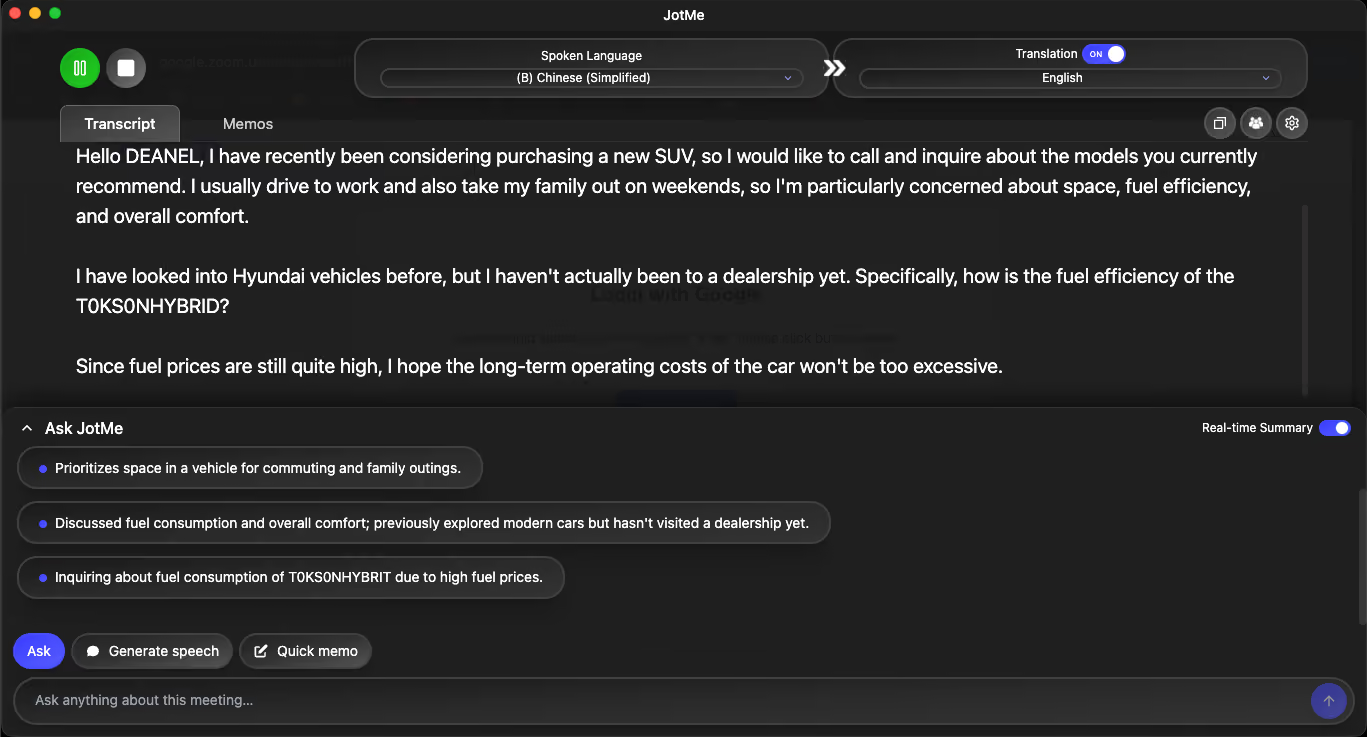
The transcript ran bilingual, Chinese beside a clean English read that kept the buyer's actual point intact, including the worry about fuel costs and rear-seat space for the family.
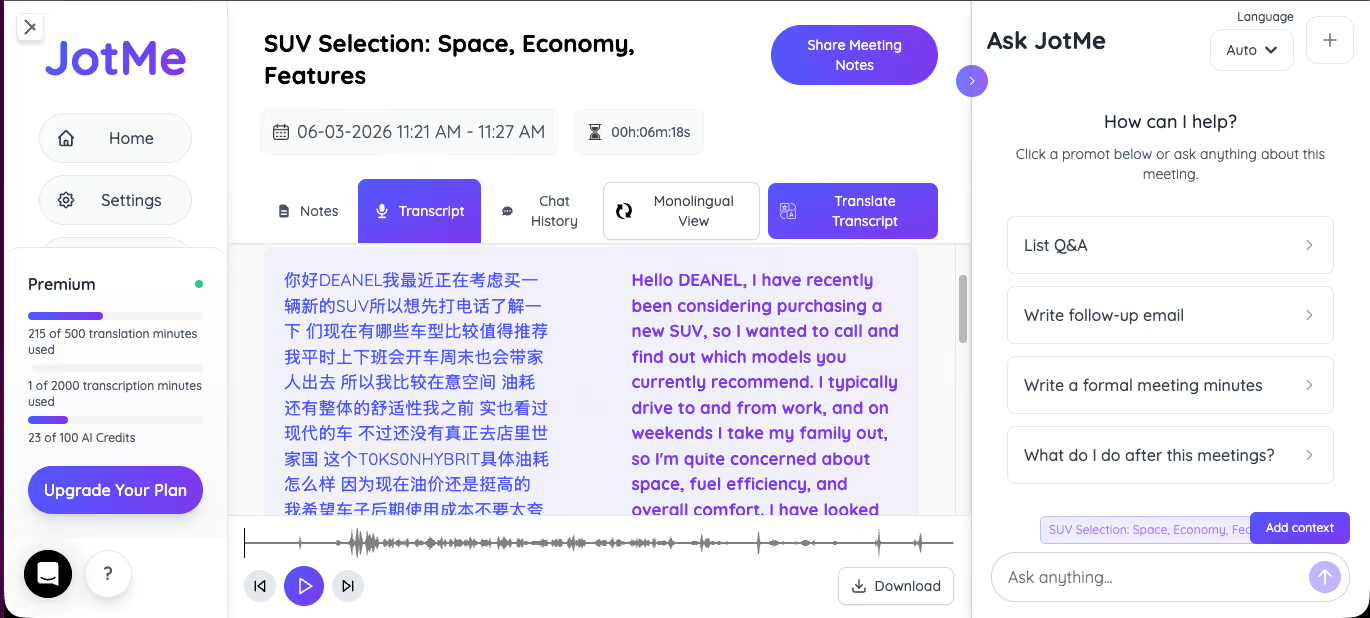
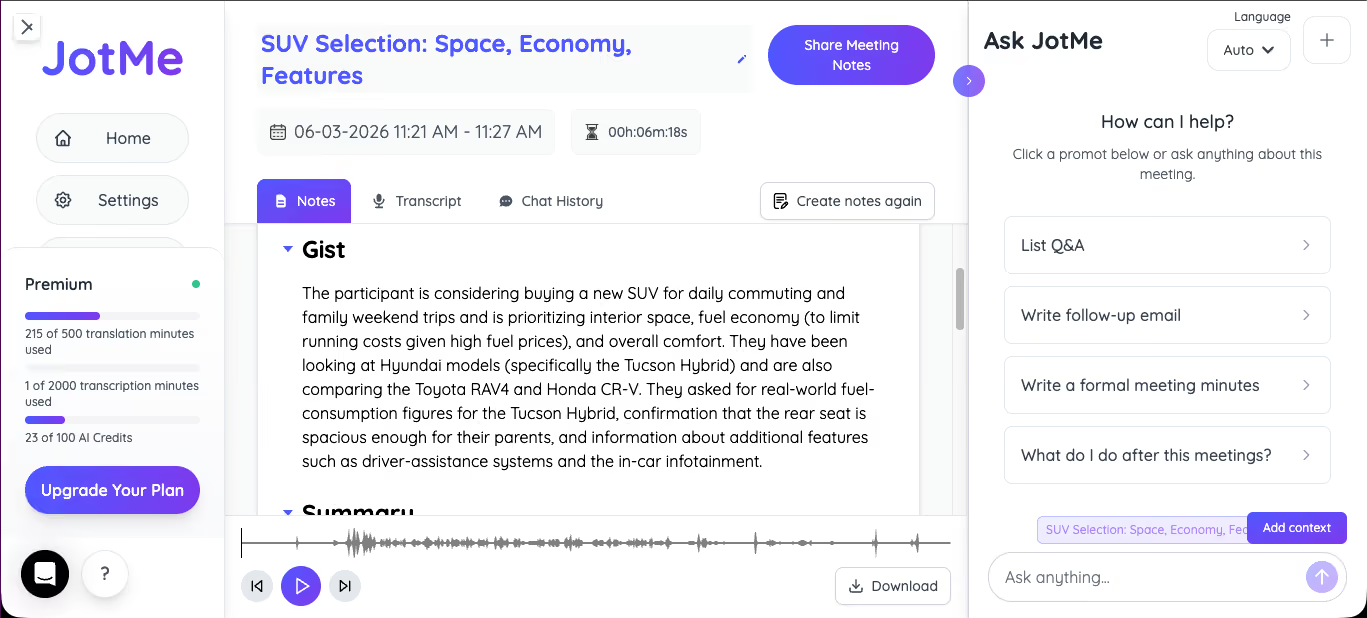
After the call, the difference compounded. JotMe handed me the recording with a waveform I could scrub, a titled note called "SUV Selection: Space, Economy, Features," and a Gist that correctly named the Hyundai Tucson Hybrid, the Toyota RAV4, and the Honda CR-V the buyer had compared.
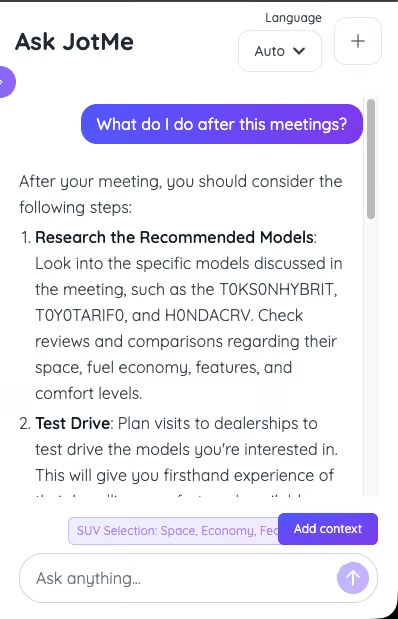
The part that changed my workflow was Ask JotMe. I could query the meeting like a knowledge base, and asking "what do I do after this meeting" returned a short action list instead of a blank page.
Where Zoom Live Translation Falls Short?
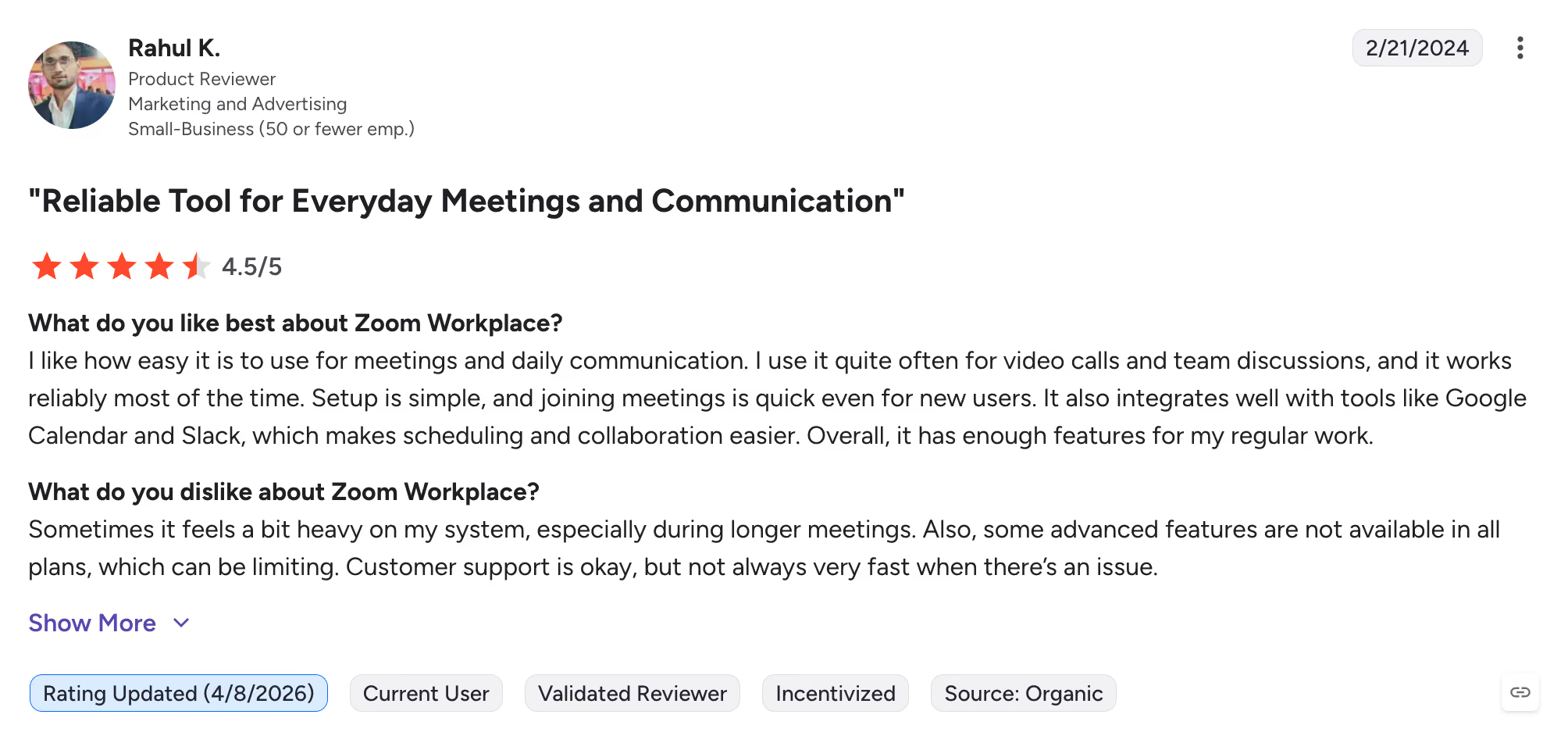
Zoom live translation is useful for basic multilingual meetings, but it has limitations around plan availability, translation accuracy for specialized terminologies, languages, and post-meeting analysis. During my testing, I also noticed some practical friction beyond translation itself. Interestingly, a Zoom user on G2 shared a similar experience, noting that Zoom can feel resource-heavy during longer meetings and that some advanced features are locked behind higher-tier plans.
Here are the major gaps that I found during my testing during a multilingual call with my clients:
Access is Plan-Gated: The Zoom live caption feature needs a Business Plus or Enterprise plan, or a paid add-on, so a team on a lower tier cannot simply switch it on. The new Voice Translator narrows that further to 5 languages on US paid accounts during the beta, and it delivers audio after a pause rather than continuously.
Context Accuracy Degrades on Specific Terminology: Context is the bigger gap for the languages my clients actually use. Captions translate close to the word and sentence level, so a Chinese, Japanese, or Korean phrase that depends on context can flatten, which is how a Tucson became a "toxin." For an operations lead working with suppliers in Seoul, Tokyo, or Shenzhen, that single slip can move a number or a commitment.
The Post Call Record Requires Manual Work: Zoom saves the transcript in the original language by default, with no summary, no action items, and nothing to query, so the alignment work that should end on the call spills into the follow-up thread instead.
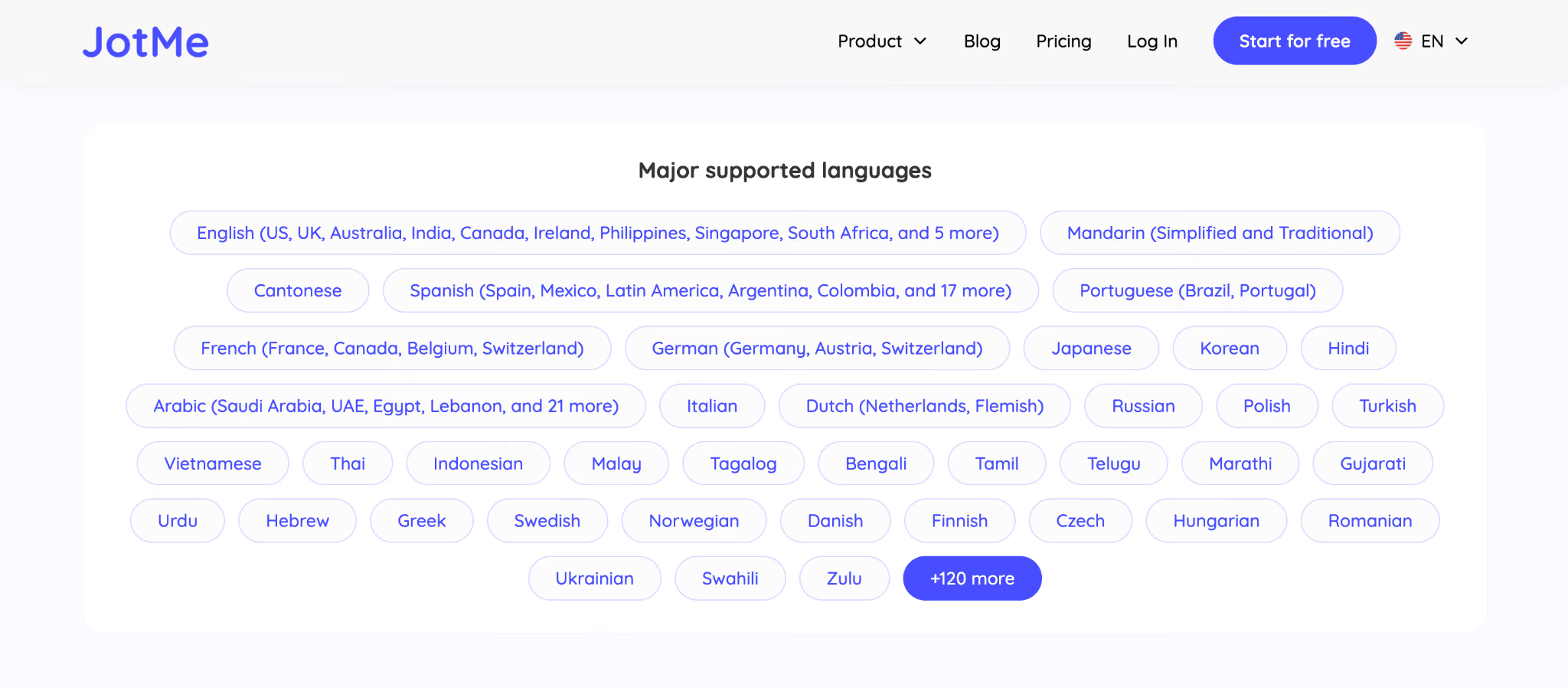
Limited Language Coverage: Standard Zoom translated captions support 36 languages, while AI Companion expands that coverage to 46 languages. However, Voice Translator currently supports only 5 spoken languages. Teams working across less common languages may still need a dedicated translation platform to cover all participants consistently.
Here is how the two setups compare across those gaps:
My experience during testing aligned with feedback from other users as well. One G2 reviewer rated JotMe 4.5/5 and highlighted its real-time translation capabilities for multilingual meetings. They noted that the translations were clear enough to follow discussions with international clients without constantly asking for clarification.
The reviewer also pointed to the bilingual transcript, automatic summaries, and post-meeting records as major time-savers, eliminating the need to manually review recordings or take notes afterward.
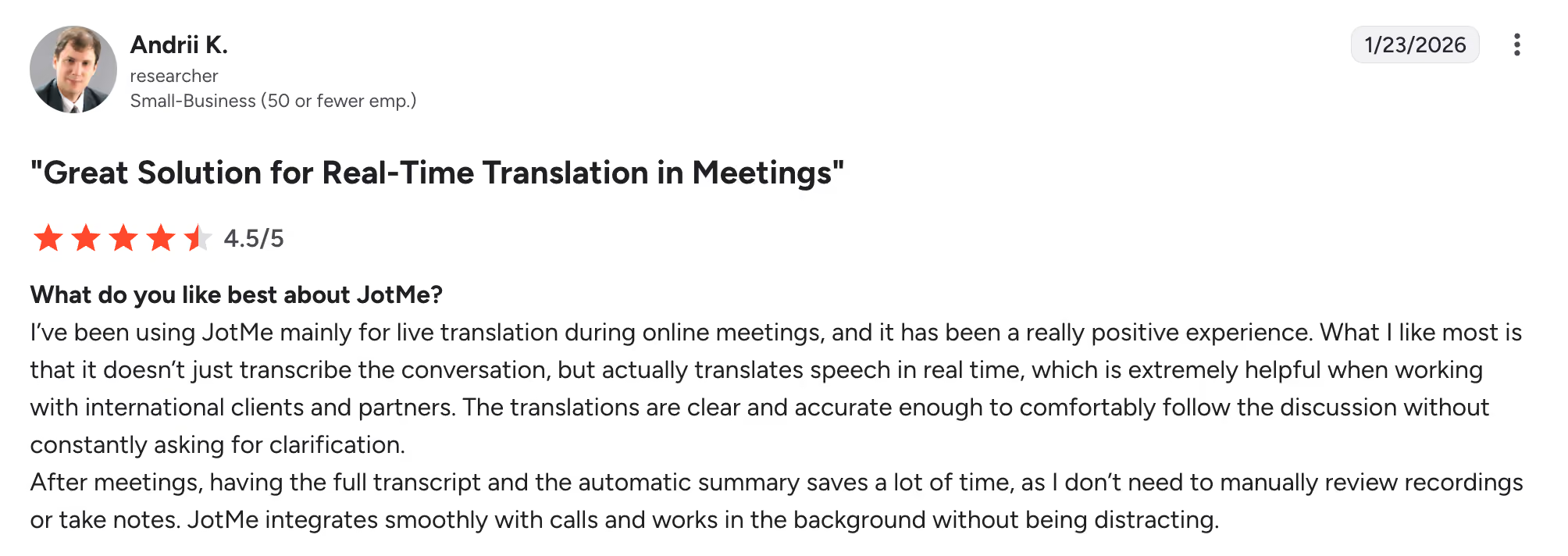
That mirrors what I found in my own testing. The biggest difference was not just the live translation itself, but having a usable bilingual transcript, meeting notes, and a searchable record immediately after the call ended.
JotMe runs on the same Zoom call without joining as a participant. You don’t need the host's permission. The desktop app captures audio directly, translates in context, and delivers a bilingual transcript plus queryable meeting notes the moment the call ends.
Who can use Zoom Live Caption Translation?
The Zoom translation feature is available to organizations with eligible paid Zoom plans and can help participants follow conversations in different languages through live translated captions. Zoom automatic translation is especially useful for global teams, webinars, training sessions, and multilingual meetings.
- International teams working across multiple languages
- Webinar hosts with global audiences
- Customer support and sales teams
- Educational institutions with multilingual learners
- Businesses collaborating with overseas partners and clients
How to Set Up Live Zoom Translation With JotMe?
Running live Zoom translation with JotMe took a few minutes, and no host permissions were required, since nothing joined the call as a participant.
Step 1: Install JotMe Desktop App
I added the desktop app, and the Chrome extension is there for browser-based calls, which is ideal for Google Meet.
Step 2: Start or Join Your Zoom Call
Join your Zoom call as you would normally do and open JotMe in your system. Select the spoken language and output language. I picked Chinese as the spoken language and English as the target, and the real-time captions ran during the call while the meeting notes were generated the moment it ended.
Is Zoom Translation Worth the Cost?
Zoom translation is worth the cost if your plan already includes it. For teams on Business Plus or above, translated captions add genuine value at no extra charge. For everyone else, the math changes quickly.
Here is what each path actually costs:
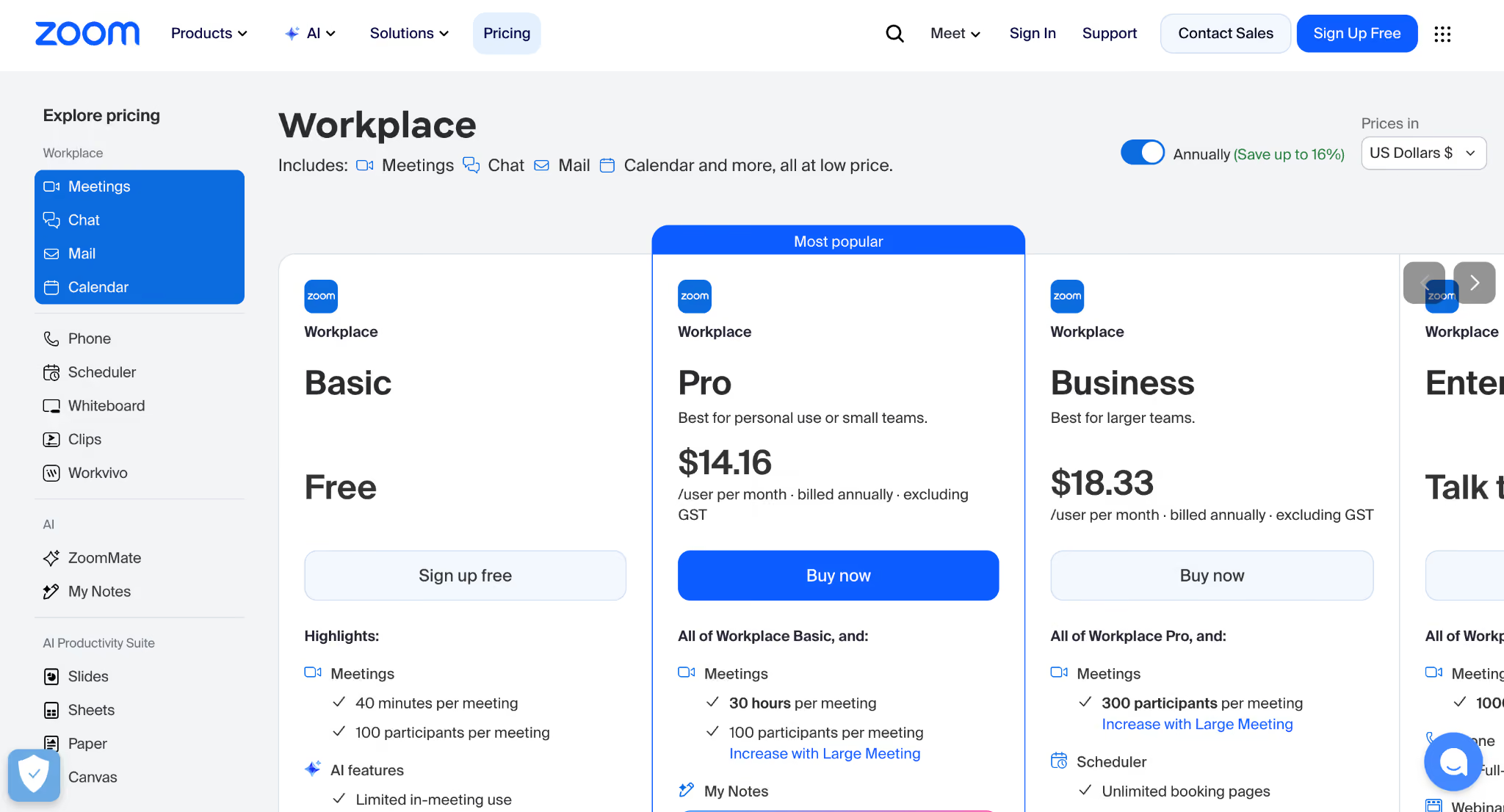
Zoom Pro at $14.16 per user per month includes unlimited AI note-taking, but live translated captions require an upgrade or add-on on top of that. The Voice Translator is expected to become a paid add-on after the beta closes. A cross-border team on Zoom Pro gets no live translation without additional spend.
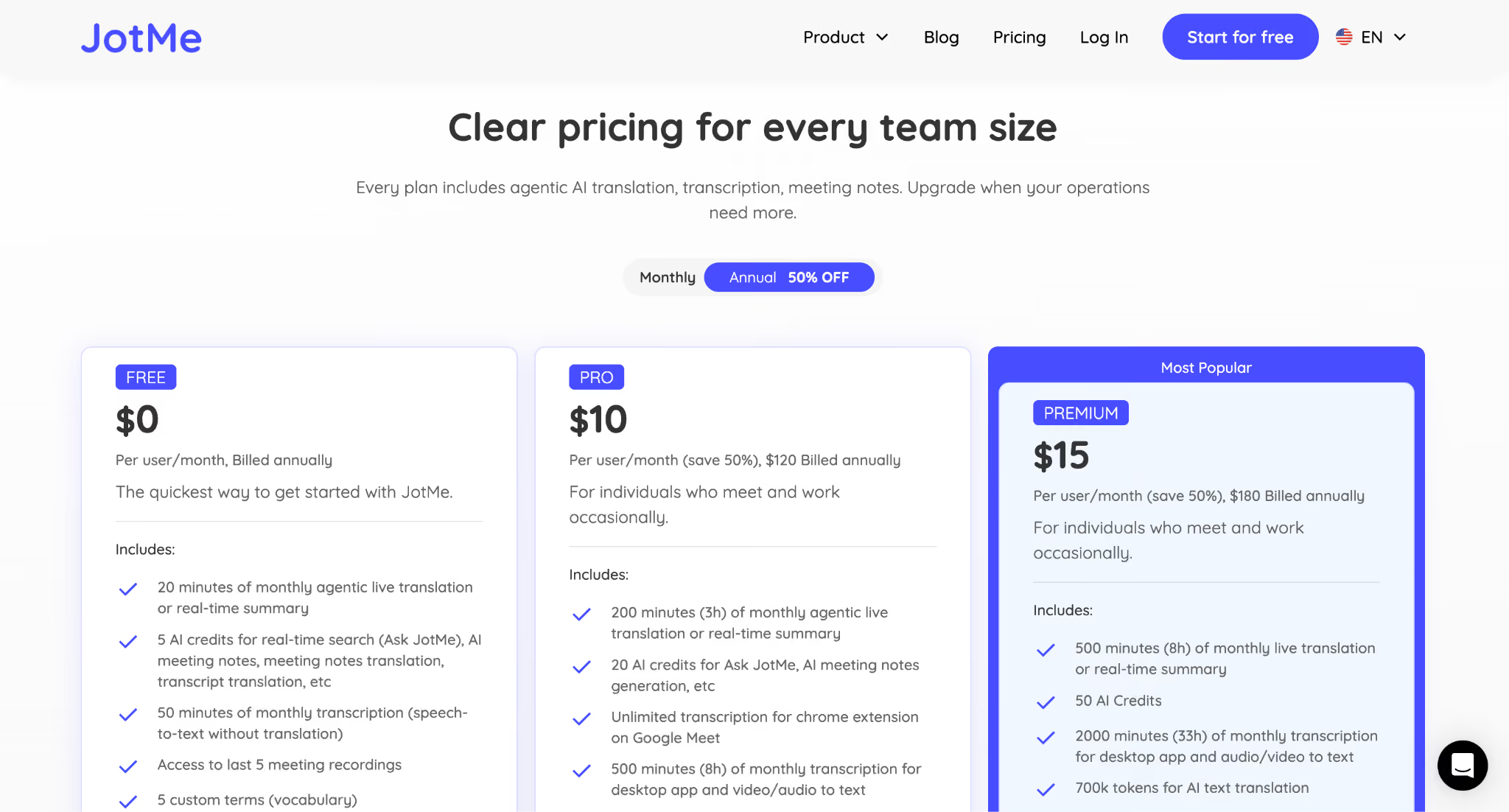
JotMe Pro at $10 per user per month includes 3 hours of monthly live translation or real-time summary, 8 hours of transcription, and unlimited transcription through the Chrome extension on Google Meet. The free tier covers an initial test run before committing to a paid plan.
For teams running more than two or three multilingual calls per month, JotMe at $10 covers a use case that Zoom requires a plan upgrade to match. For teams already on Business Plus or Enterprise, running JotMe on Zoom adds context accuracy and a queryable post-call record that Zoom's captions do not produce.
Best Practices to Use for Live Zoom Translation
After testing multilingual meetings with clients and internal teams, I noticed a few habits consistently improved the quality of the translation. These are now part of my team's standard workflow:
- I run a 2-minute test call before important meetings. Accuracy on Chinese, Japanese, and Korean can vary more than on European language pairs, so I always verify the setup using the exact languages we'll use.
- I add product names and acronyms beforehand whenever possible. This helps avoid situations where a model name turns into something completely different, like when "Tucson Hybrid" became "toxin hybrid" during my test.
- I make sure every speaker has a clean microphone and minimal background noise. In my experience, audio quality affects translation accuracy more than any software setting.
- I give the conversation a minute to establish context. Context-aware translation tools usually improve as the meeting progresses and they gather more information from the discussion.
- I repeat important numbers, dates, and commitments out loud. This creates a cleaner transcript and makes post-meeting notes much more reliable.
- I match the translation method to the meeting type. For webinars and presentations, captions are usually enough. For negotiations, client calls, or discussions where nuance matters, I prefer voice translation or full interpretation.
Zoom Live Translation vs. JotMe Live Translation: Which Setup Should You Use?
As per my experience, the right setup depends on how often your calls are multilingual and how accurate the record needs to be.
For occasional internal syncs where rough subtitles are enough and your plan already includes translated captions, Zoom's built-in feature handles the job. Turn it on and use it.
For client calls, supplier negotiations, or any meeting where accuracy of terminology and a clean post-call record matter, a dedicated translation tool running alongside Zoom delivers a different class of output. Zoom captures words. JotMe captures meaning, and it hands you a bilingual transcript, meeting notes, and a queryable meeting summary the moment the call ends.
The fastest way to evaluate the difference is on your own language pair. Download JotMe, run a 10-minute test call in the language you actually use with your team or clients, and compare the output against Zoom's transcript from the same call. If you would rather compare the full field first, my team's roundup of the top AI live translation tools for Zoom walks through six options side by side.
FAQs
Can Zoom translate in real time?
Yes, Zoom translates speech into live captions in 46 languages through AI Companion, and a Voice Translator beta speaks translations aloud in 5 languages. Live captions need a Business Plus or Enterprise plan, or a paid add-on.
How do I turn on translated captions in Zoom?
The host enables translated captions in meeting settings, then each participant opens Show Captions and chooses Translate to pick a target language. The feature requires a qualifying Zoom Workplace plan or the translated-captions add-on.
Does Zoom AI Companion translate speech to speech?
Zoom's Voice Translator launched in April 2026 for paid US accounts and covers English, Chinese, French, Japanese, and Spanish. It renders translated captions into synthetic speech, so for long passages, the audio can arrive after the speaker pauses.
How many languages does Zoom translation support?
Zoom translates captions in 35+ languages, expanding to 46 with AI Companion, while the Voice Translator beta covers 5. By comparison, JotMe supports 200+ languages across 39,000+ language pairs.
Can Zoom translate Chinese or Spanish to English in real time?
Yes, through translated captions and, for those languages, the Voice Translator beta. In my test, Zoom captured the gist of a Chinese-to-English call but flattened product terms, while a context-aware tool kept them intact.
Is there a Zoom translator that does not add a bot to the call?
Yes, JotMe captures the meeting audio directly, so no bot joins the Zoom call, and participants install nothing on their end while live translation, transcription, and notes run in the background.
Does Zoom translation work on mobile?
Yes, Zoom translated captions work on iOS and Android through the Zoom mobile app. Participants enable captions from the meeting controls and select a target language from the captions settings. Some configuration options, including the host-side setup for enabling translation across the account, are easier to complete on desktop before the call starts.
Last updated on
July 29, 2026
Follow us on social media:
![JotMe — Is Google Translate Accurate? [2026 Test]](/_webflow-assets/0d0512afc7b037d74dff536f22fed08f.avif)