






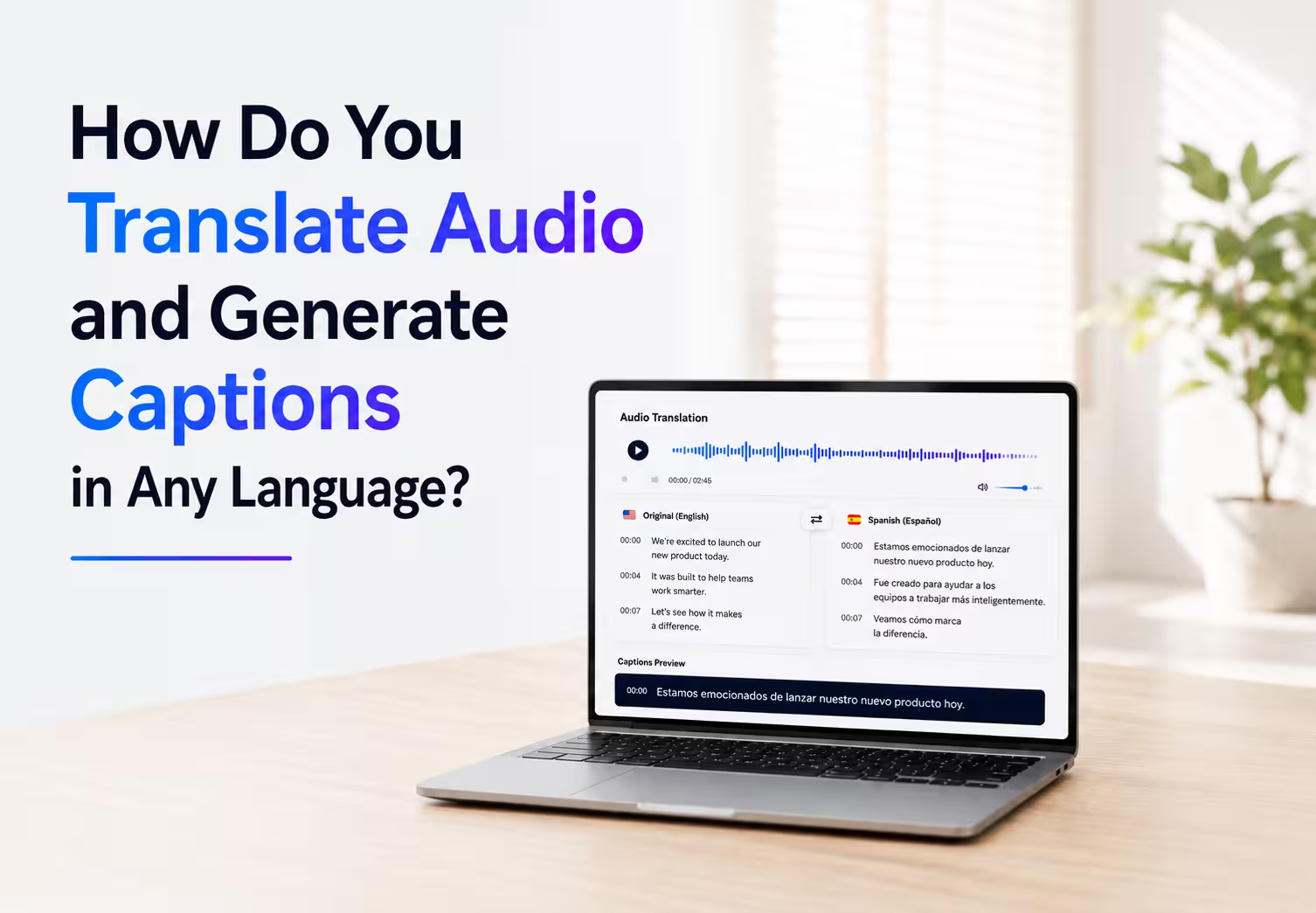
You translate audio into another language by opening JotMe, selecting Translate audio, uploading your MP3 or WAV file, and picking an output language. JotMe analyzes the speakers, translates the script, generates a dubbed track that keeps the original voices, and writes a caption file in the same run. The tool covers 200+ languages and 39,000+ language pairs, so a Korean office recording, a Mandarin lecture, or a Vietnamese voice note lands in the language you actually work in.
The hard part of any audio translation shows up after the download. You cannot read the source language, so nothing tells you if the file you just received says what the speaker said or something close enough to feel right and wrong in the details that decide the outcome.
This guide runs a real Korean business conversation through JotMe, lines the original Korean transcript up against the translated captions, and hands you a repeatable check you can run on any translated file in about 5 minutes.
Key Takeaways
- What JotMe Does With Audio: JotMe reads the full recording for context before translating, then returns a dubbed track in the original speaker voices plus a caption file you can open in any text editor.
- Audio Formats You Can Upload: MP3, WAV, AAC, FLAC, M4A, AIFF, OGA, OGG, OPUS, and WEBA all go through the Translate audio tab.
- What It Costs: JotMe charges audio translation in translation minutes at 20 times the file length, so the 2.9-minute Korean recording used in this test cost 58 translation minutes.
- The Part Nobody Covers: Every tool hands you an output. The caption file is the thing that lets you audit that output line by line against the source, and Section 3 turns that into a 3-step check.
Can JotMe Translate Audio Files Like MP3 and WAV
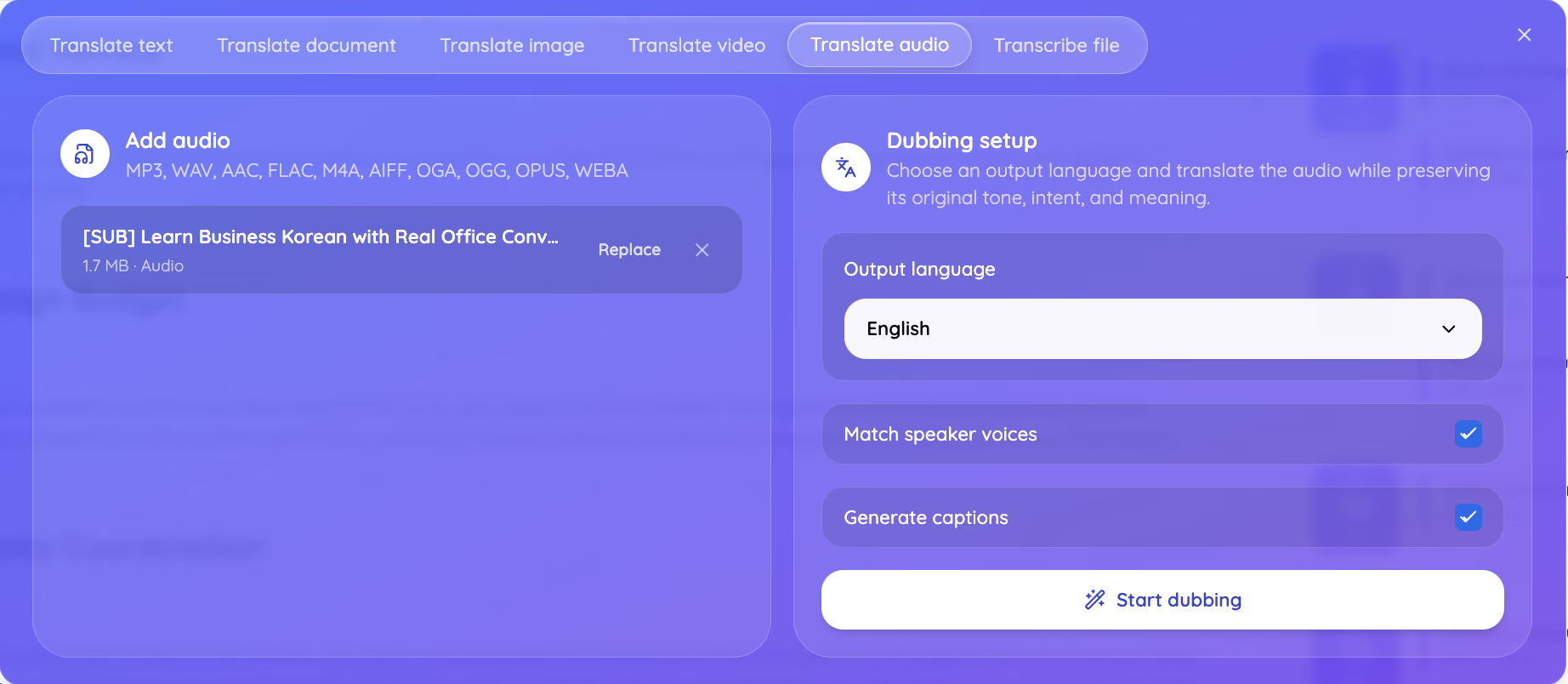
Yes, JotMe translates audio through the Translate audio tab in the translate bar, and the panel accepts MP3, WAV, AAC, FLAC, M4A, AIFF, OGA, OGG, OPUS, and WEBA files. Drop the file on the left, set up the dub on the right, and the whole job runs in one pass.
The Dubbing setup panel asks for 3 things. Pick the output language from 200+ languages, keep Match speaker voices checked so the translated track sounds like the people in the room, and keep Generate captions checked so you walk away with a caption file as well as the dubbed audio. JotMe describes the job in its own words on that panel: choose an output language and translate the audio while preserving its original tone, intent, and meaning.
People often reach for the wrong tool at this point. If you only need the words on a page, convert audio to text first and translate the transcript afterward. If you need something a listener can play, translate audio through the dubbing flow instead, because the output arrives as sound rather than a wall of text.
How Do You Translate Audio and Generate Captions in 5 Steps
You translate audio and generate captions in 5 steps: open the Translate audio tab, add your file, choose the output language with captions switched on, confirm the translation minutes, and download both outputs. The Korean business conversation below moved through all 5 steps in under a minute of processing.
Step 1: Open JotMe and select Translate audio from the translate bar
The translate bar carries 6 tabs. Translate text, Translate document, Translate image, Translate video, Translate audio, and Transcribe file. Pick Translate audio for anything that arrives as sound with no picture attached, including voice notes, lecture recordings, interview files, podcast cuts, and song stems.
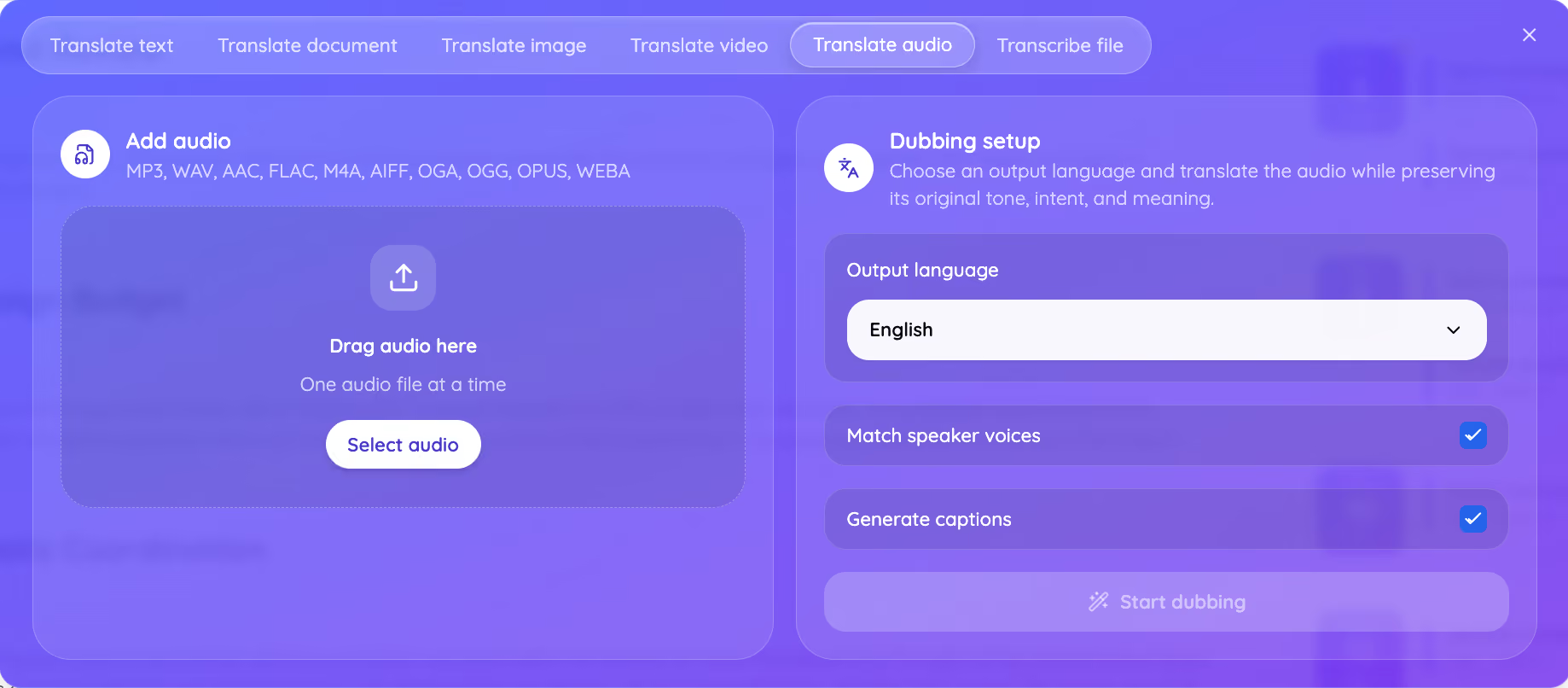
Step 2: Add your audio file to the panel
Drag the file into the Add audio box or click to browse. The test file here runs 1.7 MB and holds a 2.9-minute Korean office conversation between a project management team leader and a new marketing hire, which gives the tool 2 distinct voices, workplace vocabulary, and a stack of numbers to get right.
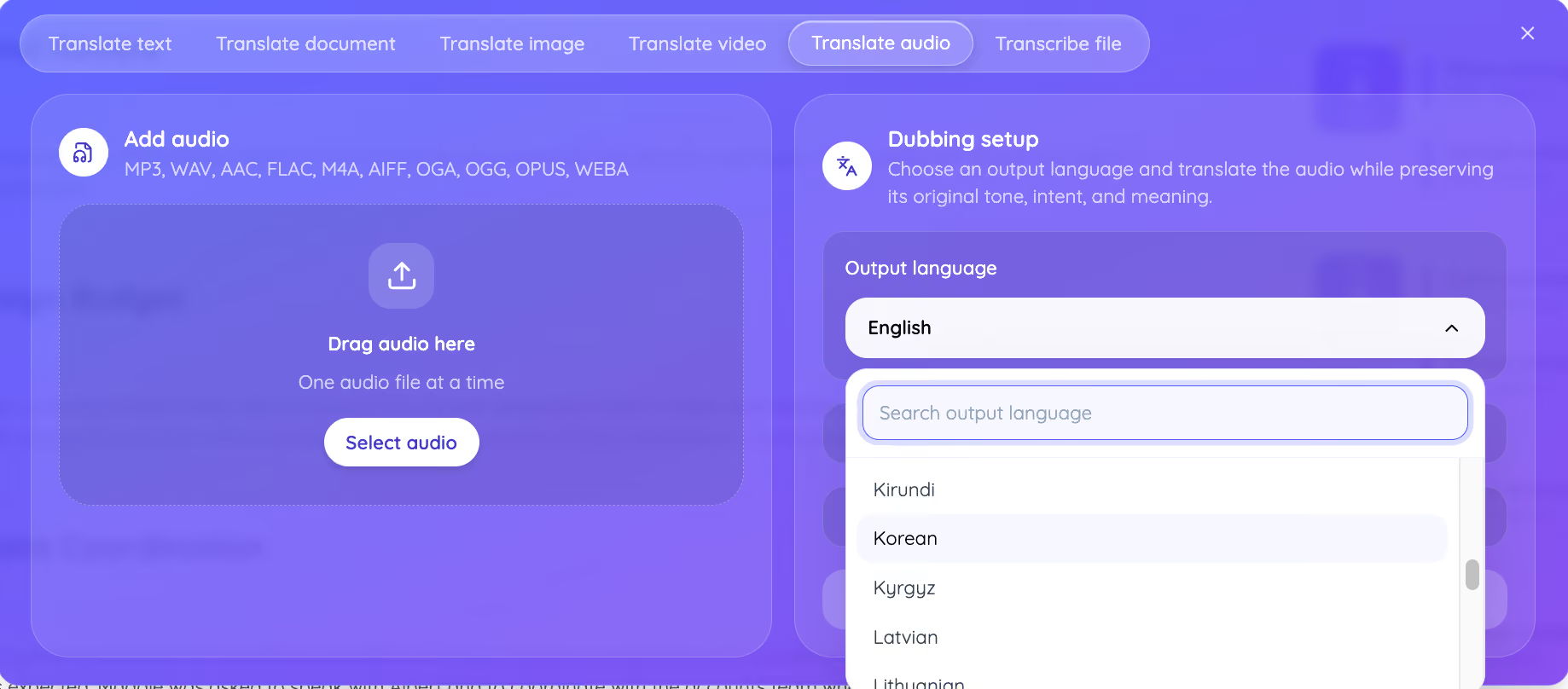
Step 3: Choose the output language and switch captions on
Set the output language, then leave both checkboxes on. Match speaker voices carries the speaker identity across, which is the same idea behind voice-to-voice real-time translation on live calls. Generate captions writes a timed caption file next to the dubbed track. Preserve your voice, tone, and intent. That single instruction is what separates a dub from a robotic read-through of a machine translation.
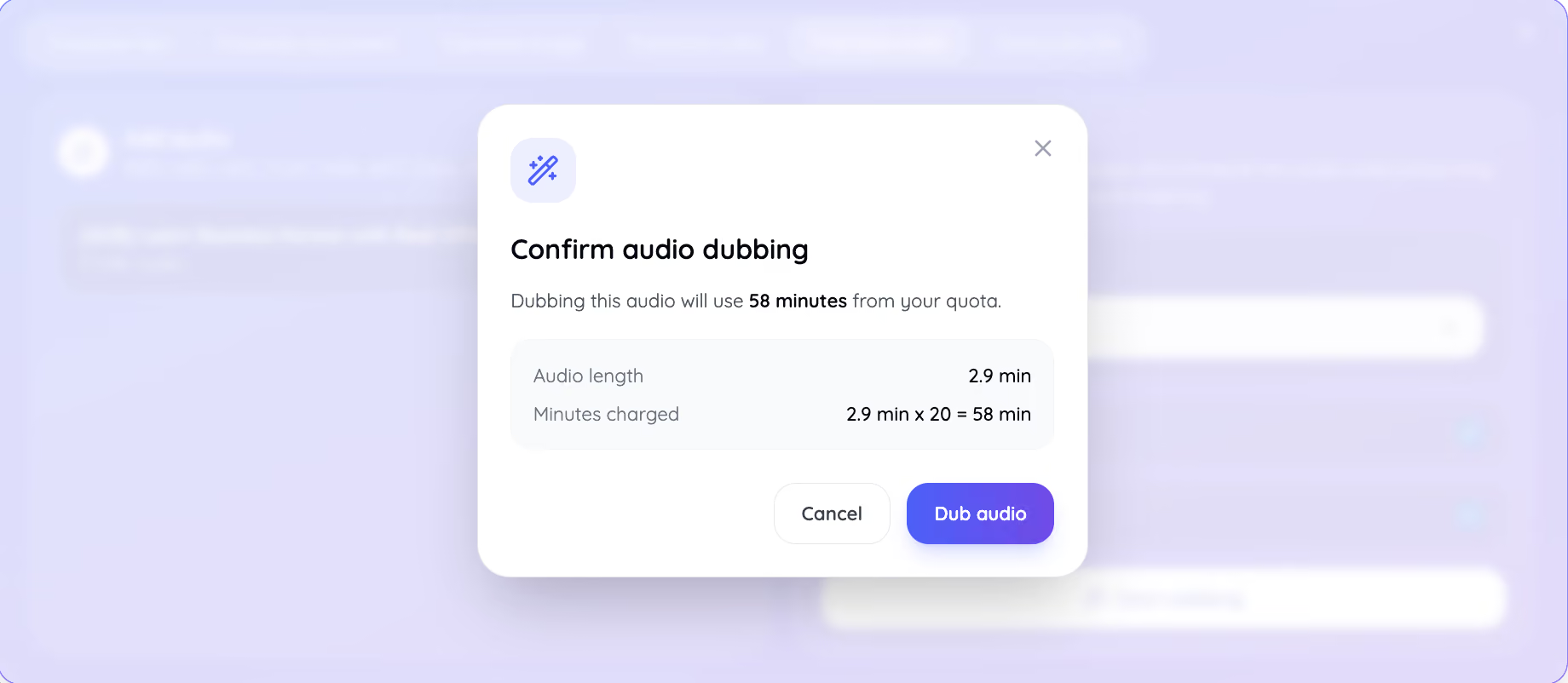
Step 4: Confirm the translation minutes
JotMe shows the exact cost before it starts. The confirmation box for this file reads 2.9 min x 20 = 58 min, so you approve the charge with the number in front of you rather than discovering it afterward.
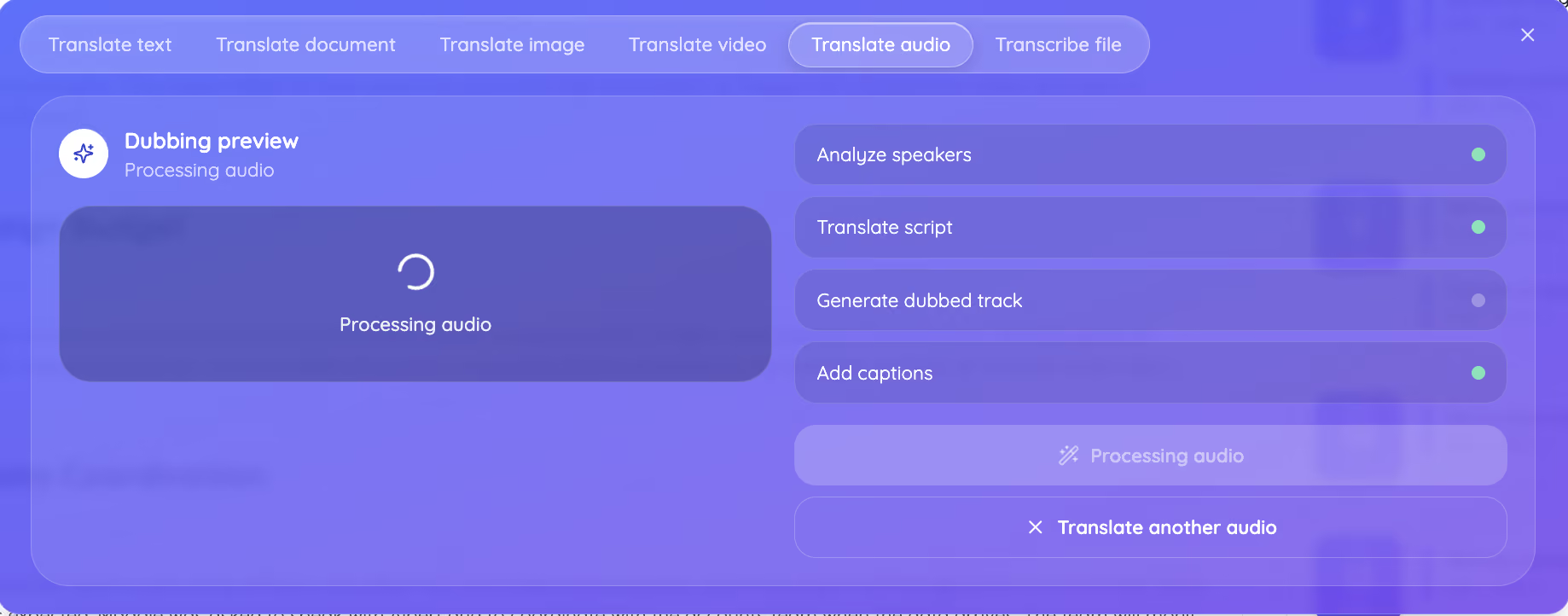
Step 5: Watch the 4 stages, then download both files
JotMe runs Analyze speakers, Translate script, Generate dubbed track, and Add captions as separate stages, and the progress list marks each one as it clears. Speaker analysis running as its own stage is the reason a 2-person conversation comes back with the right lines attached to the right voices.
When the panel reads Dubbed audio ready, you get 2 buttons: Download dubbed audio and Download captions. The dubbed MP3 is what people listen to, and the caption file is what you use to check the work in Section 3.
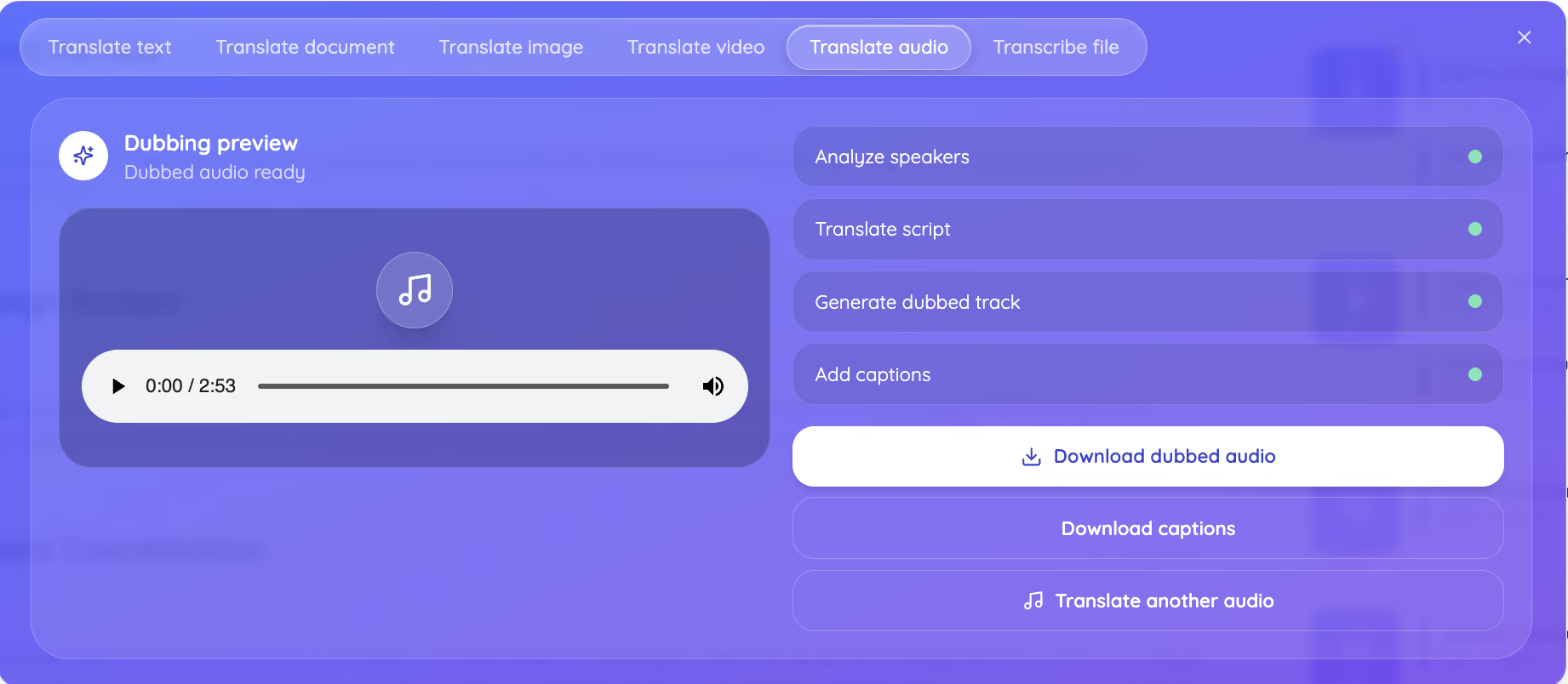
Get accurate voice to text translations in minutes. The 2.9-minute Korean file crossed from Processing audio to Dubbed audio ready inside the same minute on this run, which puts a translated recording in your hands faster than most people finish writing the email asking a colleague to explain what the file said.
How Do You Check an Audio Translation in a Language You Do Not Speak
You check an audio translation by reading the caption file against the source transcript, since the captions turn invisible audio into text you can inspect line by line. Run these 3 passes on any translated file, and you will catch the failures that matter in about 5 minutes.
- Pass 1, Anchor Check: List every number, name, date, job title, and technical term in the source, then confirm each one appears in the translated captions. Numbers and names are where machine translation quietly breaks a deal.
- Pass 2, Register Check: Read the greeting, the closing, and any apology. Politeness carries meaning in Korean, Japanese, Hindi, and Tamil that flattens into nothing when a tool translates word for word.
- Pass 3, Timing Check: Scan the caption timestamps top to bottom. Every cue should start after the previous cue starts. An out-of-order cue tells you the alignment slipped, which matters the moment you load those captions into a video.
What Happened When We Ran a Korean Office Conversation Through JotMe
The test file holds a scripted Korean workplace introduction. Kim Min-soo, a project management team leader with 18 years at the company, meets Park Ji-eun, a new marketing hire fresh out of university. The conversation carries honorifics, a job handover, an internship history, and 8 separate factual anchors, which makes it a fair stress test for any tool that claims to translate audio with context rather than by dictionary lookup.
Pass 1 came back clean. All 8 anchors survived the translation: 18 years at the company, promotion to team leader 3 years ago, a February university graduation, a business administration major, a 6-month internship at a small advertising agency, social media ad work, Photoshop skills, and a 5-person team. Nothing dropped, and nothing shifted.
Pass 2 is where the interesting part showed up. Korean workplace speech carries meaning that has no English equivalent, and a literal rendering turns a polite professional into a stranger begging for favors.
What the Korean Says
A Word-for-Word English Rendering
I ask you to treat me well, please do me the favor
What JotMe Returned
I look forward to working with you
What the Korean Says
A Word-for-Word English Rendering
I started out as a rank-and-file employee
What JotMe Returned
I started as an entry-level employee
What the Korean Says
A Word-for-Word English Rendering
Team chief plus an honorific suffix
What JotMe Returned
Team Leader
What the Korean Says
A Word-for-Word English Rendering
I am marketing. I have been put in charge of the work.
What JotMe Returned
I will be in charge of marketing tasks.
What the Korean Says
A Word-for-Word English Rendering
I am in charge of project management choreography
What JotMe Returned
I mainly handle project management tasks.
The last two rows deserve attention, because they show something a feature list cannot. The supplied Korean transcript carries its own errors. One sentence splits across two speaker labels mid-phrase, and another contains 안무, the word for choreography, where the speaker clearly said 업무, the word for work tasks. JotMe read the audio and the surrounding context rather than the flawed text, and both lines came back correct in English. A word-for-word engine would have shipped project management choreography to your inbox.
This is the same interpretation behavior that runs on live translation for meetings, where a tool has one pass at a sentence and no chance to ask the speaker what they meant.
Honest Score: Can JotMe Translate Audio Accurately
We handed both audio files, the original Korean transcript, and the translated captions to ChatGPT and asked for a rating out of 10. It returned 9/10, and it named real flaws rather than waving the file through.
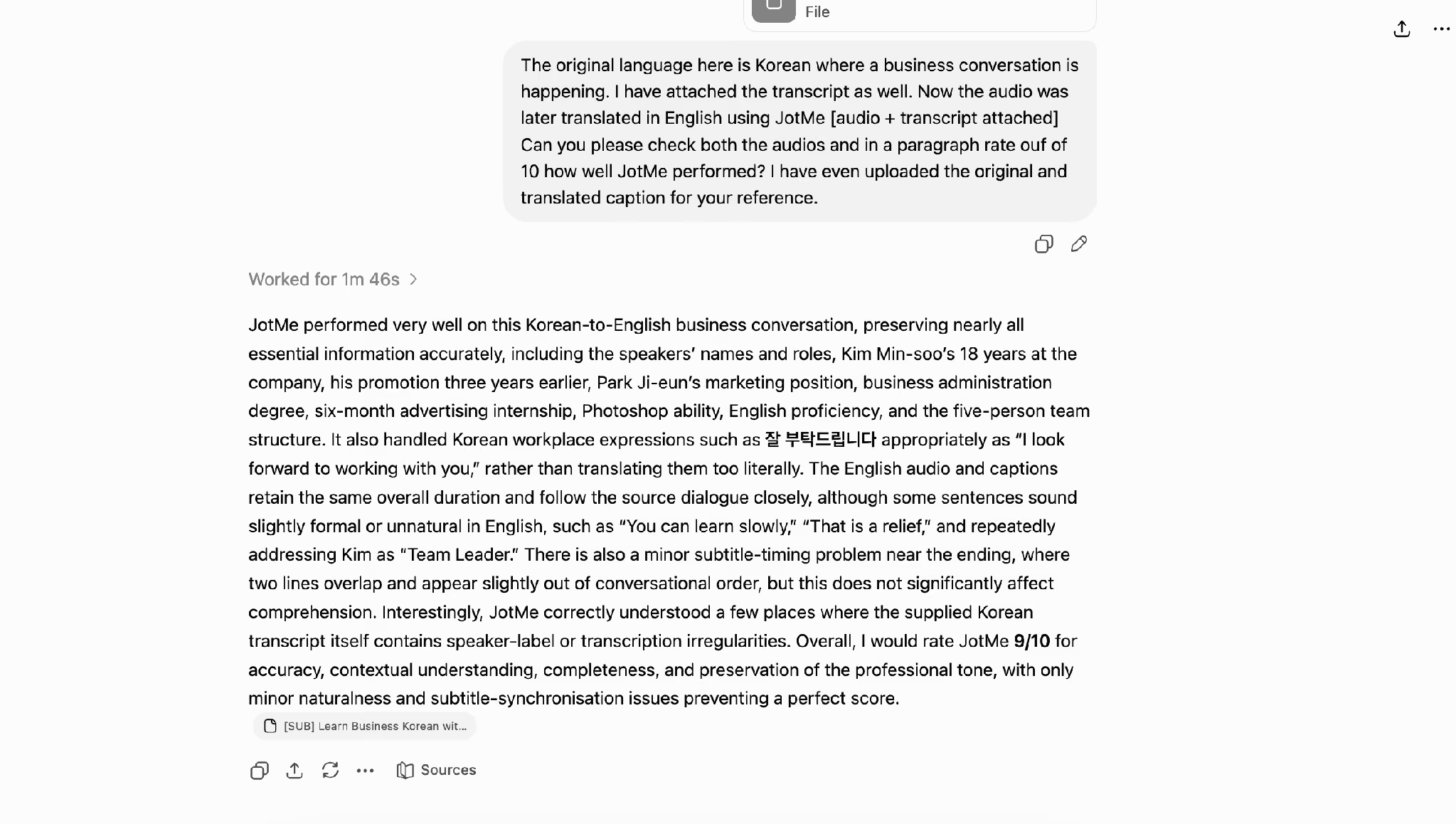
- Pass 3 caught a timing slip. Near the 2:32 mark, a caption cue timed at 00:02:35.740 appears after a cue that runs to 00:02:38.035, so 2 lines land out of conversational order in the file.
- A few lines read stiffer than natural English speech. You can learn slowly, and that is a relief are both accurate and both something no English speaker would say in that moment.
- The dub keeps addressing Kim as Team Leader throughout. Faithful to the Korean, formal to an English ear, and worth an editing pass before you publish the file anywhere.
A 9/10 with 3 named flaws is a more useful number than a perfect score, because it tells you exactly which 3 minutes of cleanup stand between the download and a publishable file.
Why Can You Not Upload an Audio File to Google Translate
Google Translate has no audio upload field, on desktop or in the mobile apps. It works through your microphone instead, and Google's own documentation describes the flow as translating spoken words through a mic in the browser, with limited support outside Chrome. Transcribe mode and Conversation mode live in the mobile app only.
The workaround people fall back on is playing an MP3 out loud near a laptop microphone and hoping the tool keeps up. That approach picks up room noise, treats 2 speakers as one stream, produces no audio output, and leaves you with nothing you can hand to anyone else.
Google Translate still does one job well, and that job is a fast read of typed text. Anything that arrives as sound needs a tool built for it, which is why the search for Google Translate alternatives spikes hardest around audio and video queries rather than text ones.
How Do You Turn Translated Audio Into Text You Can Edit
You turn translated audio into text by taking the caption file JotMe generates alongside the dub, since that file already holds every translated line with a timestamp attached. Open it in any text editor, strip the timestamps, and you have a clean transcript in your target language.
JotMe writes captions in WebVTT, the W3C caption format that browsers read natively through the HTML track element. That single file does three jobs:
- Subtitle a video with it
- Upload it straight to YouTube, or
- Read it as the translated transcript of your recording.
For jobs where you never wanted the audio in the first place, skip the dub. The translate audio to text tool handles the straight file-to-transcript path, and Transcribe file inside JotMe covers the same ground when you already work in the app. A student who needs a lecture in readable form takes this route. A creator who needs the lecture spoken in another language takes the dubbing route in Section 2.
Both paths start from the same upload, so you never have to guess which one you need before you begin. Translate audio once, then decide what to do with the caption file afterward.
How Many Translation Minutes Does JotMe Cost to Translate Audio
JotMe charges audio translation in translation minutes at 20 times the file length, so every 1 minute of audio costs 20 translation minutes. The 2.9-minute Korean file in this test cost 58 translation minutes, which the confirmation box shows before anything runs.
Plan context matters here more than it does for documents, because audio eats the allowance 20 times faster than a live call does.
Anyone testing the workflow for the first time should run a short clip on the free plan before committing to a long recording. Comparing that output against free language translator options tells you quickly whether the dubbing quality justifies the minutes for your use case.
When Should You Translate Audio With AI Instead of a Free Tool
Translate audio with AI when someone other than you has to understand the result. A rough sense of what a voice note says is a job for any free tool. Accurate output that keeps speaker identity, survives a client review, and comes with a caption file is the job JotMe takes on. Below are 3 situations where the difference decides the outcome.
Music Artists and Creators Opening a New Territory
An independent artist releasing a Spanish single to an English-speaking audience carries more than the track itself: a co-writer voice memo from Bogota, a French press interview from a festival, a producer note recorded on a phone at 2 in the morning. Spanish to English translation audio work like this usually goes to a studio, and a studio quotes per minute. Running the same files through the dubbing flow returns a translated track with the original voices, and the caption file gives the label something to work from. The same applies when you translate French to English audio from a press junket you never scheduled a translator for.
Students Working From Recorded Lectures
A pharmacology student sitting in on a Mandarin lecture series ends up with 40 minutes of audio and no way through it. Search demand for English to Hindi translation in voice audio comes mostly from exactly this group, students who record a class in one language and study in another. Translate audio from the lecture into Hindi, and you get a dubbed track for the commute plus a caption file for the notes, which beats replaying a recording you cannot parse.
Operations Teams Living Inside Voice Notes
A logistics coordinator in Chennai opens WhatsApp to a 90-second WAV file from a freight partner in Ho Chi Minh City, sent at 11 at night, describing a customs hold. Typing that out is not an option, and neither is waiting until morning. Upload it, translate audio into Tamil or English, and the shipment moves. Teams that hit this daily usually graduate to Tamil to English live translation so the next conversation happens in real time instead of arriving as a file.
When you professionally translate your audio for a label, a professor, or a paying client, the caption file and the dubbed track both matter, because one proves the work and the other delivers it.
What Else Can You Translate in JotMe
JotMe carries 6 translate tabs. Translate text handles pasted copy, Translate document takes PDF, DOCX, PPTX, XLSX, HTML, TXT, SRT, XLIFF, and more up to 100 MB, Translate image re-renders PNG, JPG, WEBP, and GIF files with the layout kept, Translate video dubs MP4, MOV, MKV, and 7 other formats, Translate audio covers the 10 audio types listed earlier, and Transcribe file returns text from any of them. Every tab runs the same contextual read of the full file before the first word gets translated, and no file stays on a server afterward, which matters for unreleased tracks, exam recordings, and supplier calls.
Which Audio Translation Route Should You Pick
Pick the dubbing route when a person has to listen to the result, and pick the transcript route when a person has to read it. A voice note from a supplier, a lecture you plan to revisit, and a track you want released in a second territory all belong to the first group, and JotMe handles them through one upload that returns a dubbed file plus captions in 200+ languages. Anything you need as searchable text comes out of the same caption file with the timestamps stripped.
Run the read-back check on your first translated file before you trust the tool with anything that matters. Take a 1-minute clip, translate audio through the free plan, and hold the captions against the source. If you want the same accuracy inside a call rather than after it, the live translation tool covers the conversation as it happens.
FAQs
Can I Translate Audio on the Free Plan?
Yes, for files up to 1 minute. The free plan includes 20 translation minutes per month, and audio charges at 20 times the file length, so a 60-second clip uses the entire monthly allowance. A 3-minute file needs 60 translation minutes, which puts it on Pro at $10 per user per month. Test the quality on a short clip first, then upgrade once you know the output works for your language pair.
Which Audio File Formats Does JotMe Accept?
The Translate audio tab accepts MP3, WAV, AAC, FLAC, M4A, AIFF, OGA, OGG, OPUS, and WEBA. WhatsApp voice notes usually arrive as OPUS or M4A, iPhone recordings arrive as M4A, and most lecture recorders write MP3 or WAV, so the common sources all upload without a conversion step first.
Does JotMe Keep the Original Speaker Voices in a Translated Audio File?
Yes, when Match speaker voices stays checked in the Dubbing setup panel. The Korean test file came back with 2 distinguishable voices holding their original character across the language switch, and Analyze speakers runs as its own stage before translation starts to make that separation possible. Turning the checkbox off gives you a standard synthetic read instead.
Can Google Translate Translate an MP3 File?
No, Google Translate offers no way to upload an MP3, WAV, or any other audio file on desktop or mobile. It listens through your device's microphone in mic mode, Transcribe mode, and Conversation mode, so the closest workaround plays the file out loud near your laptop and accepts whatever the microphone picks up. That approach gives you no dubbed audio, no caption file, and no speaker separation.
What Caption Format Do You Get With a Translated Audio File?
You get a WebVTT file, the W3C standard that browsers parse natively and YouTube accepts as a subtitle upload. Each cue carries a start time, an end time, and the translated line, which is what makes the verification method in Section 3 possible in the first place. Rename the extension or run it through a converter if a specific editor demands SRT instead.
Does JotMe Store My Audio File After the Translation?
No file stays on a server after the job completes, which is the reason legal teams, research groups, and labels run sensitive recordings through JotMe rather than a browser tool with unclear retention terms. Download both outputs before you close the panel, since nothing waits around for you afterward.
Last updated on
August 11, 2026
Follow us on social media:
![JotMe — Is Google Translate Accurate? [2026 Test]](/_webflow-assets/0d0512afc7b037d74dff536f22fed08f.avif)