
Free Language Translator: How to Translate Text, Voice, and Documents Free in 2026


What can a free language translator actually handle once you move past a single sentence? Plenty of people open a quick text box, translate a phrase, then hit a wall the moment the job turns into a voice call, an hour of recorded audio, or a 40-page PDF. Free language translator tools cover text, voice, audio, and PDF translation in 2026, and each one carries limits that matter before you trust it with anything important. The free language translator that wins for a Zoom call is rarely the same one that wins for a legal document. Your right pick depends on the job in front of you and how much accuracy you can afford to lose.
The table below maps each tool to the jobs it does for free and the languages it covers, so you can match the tool to your task before reading the details.
| Tool | Voice | Text | PDFs | Platform Integration | Languages |
|---|---|---|---|---|---|
| JotMe | Yes | Yes | No | Zoom, Google Meet, Microsoft Teams, Webex | 200+ languages |
| DeepL | Yes (through DeepL Voice suite) | Yes | Yes | Microsoft 365, Google Workspace, Salesforce, Zendesk | 100+ languages |
| Google Translate | No (available only on mobile app) | Yes | Yes | None native | 240+ languages |
| ChatGPT | No | Yes | Yes | None native | 40+ languages |
| Otter AI | Limited | Yes | No | Google Workspace, HubSpot, Salesforce | 3 languages |
Language Translator: Best Voice, Text, PDF Translators
A language translator can mean 5 very different tools depending on what you feed it. For this guide, JotMe covers live voice and meeting audio, Google Translate and DeepL handle everyday text and documents, ChatGPT carries context-heavy PDFs, and Otter AI stays in English-first transcription with light translation. The sections below break each type down by what language translator does, who it fits, and what to check before you rely on the free tier.
The honest version of free translation is this: every free tier draws a line somewhere, in characters, in minutes, in file size, or in formatting. The trick is matching the tool to the job before you hit that line, so a quick text check goes to one tool and a live client call goes to another.
What is an Audio Language Translator?
An audio language translator converts spoken language into another language in real time or from a recording, using speech recognition and AI translation together. The stronger tools read full sentences for context, so the output keeps the speaker's meaning and tone rather than translating word by word. JotMe and Otter AI fall in this category, and JotMe is the one that handles continuous live meetings across 200+ languages.
The category covers 2 distinct jobs:
- Translating a conversation while it happens, and
- Translating a recording you already have.
The same free tool rarely tops both, so the right choice depends on whether you need captions during a live call or a clean transcript afterward.
Best Audio Language Translator For:
- Live business calls on Zoom, Google Meet, Microsoft Teams, and Webex: JotMe captures the audio and shows live captions in your language.
- Quick in-person exchanges while traveling: Google Translate conversation mode covers short back-and-forth for free.
- Recorded interviews, lectures, and webinars you process after the event: JotMe audio-to-text, with Otter AI as an English, Spanish, and French option.
- Cross-border meetings where Korean, Japanese, or Mandarin context matters: JotMe, because it interprets meaning across those harder pairs.
What Should You Look for in an Audio Language Translator?
A few traits separate a usable audio translator from a frustrating one:
- Continuous, hands-free listening, so you skip tapping the mic for every sentence.
- Context retention across full sentences for accurate meaning.
- Coverage for your exact language pair, including the harder Asian languages.
- Support for the meeting apps your team already uses.
- A transcript and notes you keep after the conversation ends.
What is a Text Language Translator?
A text language translator converts written words from one language to another, from a quick phrase to a full paragraph you paste in. Free versions work well for everyday reading, casual messages, and short passages. Google Translate, DeepL, and ChatGPT lead this category, each with a different strength.
Privacy is the quiet tradeoff here. Free tiers often store the text you paste to improve their models, which matters the moment you translate a contract clause, a customer email, or anything else you would not post in public.
Best Text Language Translator For:
- Everyday phrases, web pages, and casual reading: Google Translate, with 240+ languages free.
- European-language text where fluency and tone matter: DeepL, which reads more naturally for pairs like German to English and Italian to English.
- Context-heavy or technical passages where you set the tone: ChatGPT, since you can prompt it for formal or casual output.
- Live meeting captions you read in your own language: JotMe. For broader options, see JotMe's Google Translate alternatives guide.
What Should You Look for in a Text Language Translator?
These details decide how far the free tier carries you:
- Character limits on the free tier, since some cap each translation.
- Translation quality for your specific pair, from English to Hindi to Arabic to English.
- Tone and formality control for professional messages.
- Privacy terms, including whether your text trains the tool's model.
- Formatting retention when you paste structured content.
What is a Document Language Translator?
A document language translation app takes a full file, usually a PDF, Word, or slide deck, and returns it translated while trying to keep the original layout. Free tiers handle simple, text-based files but struggle with scanned pages, heavy formatting, and long documents. Google Translate, DeepL, and ChatGPT each translate documents for free within tight limits.
Formatting is where free document translation breaks down most often. Tables, multi-column layouts, and embedded images rarely survive the round trip cleanly, and scanned PDFs need OCR that most free tiers skip, so a photographed contract often comes back untranslated.
Best Document Language Translator For:
- Simple text-based PDFs and office files: Google Translate, free up to 10MB and 300 pages per PDF.
- European-language documents that need fluent phrasing: DeepL, with a few free document translations each month.
- PDFs where you want to ask follow-up questions and control tone: ChatGPT, within its free daily upload cap.
What Should You Look for in a PDF Language Translator?
Run through this checklist before you upload anything sensitive:
- File size and page caps on the free tier.
- Support for scanned or image-based PDFs, which many free tools skip because they lack OCR.
- Layout retention for tables, columns, and images.
- Daily upload limits that throttle how many files you process.
- Clear data handling for sensitive legal or medical documents.
How Does an Audio Language Translator Work?
An audio language translator works by chaining several AI steps together, each running in well under a second so the output feels live. The tool captures audio, converts speech to text, reads that text for context, translates it, then displays or speaks the result. JotMe runs this full chain while a meeting is in progress and keeps the transcript afterward.
Speed and accuracy pull against each other at every stage. A tool that translates each word the instant it lands reacts fast but loses meaning, since one word often depends on the 5 that follow it. JotMe reads full sentences before it commits to a translation, which adds a short delay of around 3 to 4 seconds and produces output that holds up in legal, medical, and financial conversations. Background noise and crosstalk test the speech recognition stage hardest, especially with strong accents, which is where cheaper tools tend to drop sentences.
| Stage | What Happens | Why It Matters |
|---|---|---|
| Audio Capture | The tool pulls audio from your device or microphone. | Direct capture avoids sending a bot into the call. |
| Speech Recognition | Spoken words convert into text. | Accents and crosstalk decide how clean the text is. |
| Context Modeling | The AI reads full sentences, your domain, and prior speech. | This preserves intent instead of word-for-word output. |
| Translation | The text converts into the target language. | Language-pair tuning drives the quality of the result. |
| Output | Captions, a transcript, or synthesized voice appear. | This decides how you read or hear the translation. |
Tools split into two categories at the capture stage. Some send a bot into your meeting to record, which alerts everyone and raises privacy questions. JotMe captures audio straight from your device, so nothing joins the call and you keep control of your mic and camera.
The output stage shapes how you use the result. Caption output drops translated text on screen as people talk, which fits meetings, while voice output reads the translation aloud for in-person travel, and transcript output saves everything as searchable text for interviews and lectures you revisit later. Free tools usually deliver one of these well and treat the rest as an afterthought, which is why the right pick tracks back to your specific job.
How to Translate Text for Free Using JotMe
To translate text for free, you need a tool rated well for written output and contextual accuracy. This walkthrough uses JotMe's free text translator, which loads in the browser with no signup.
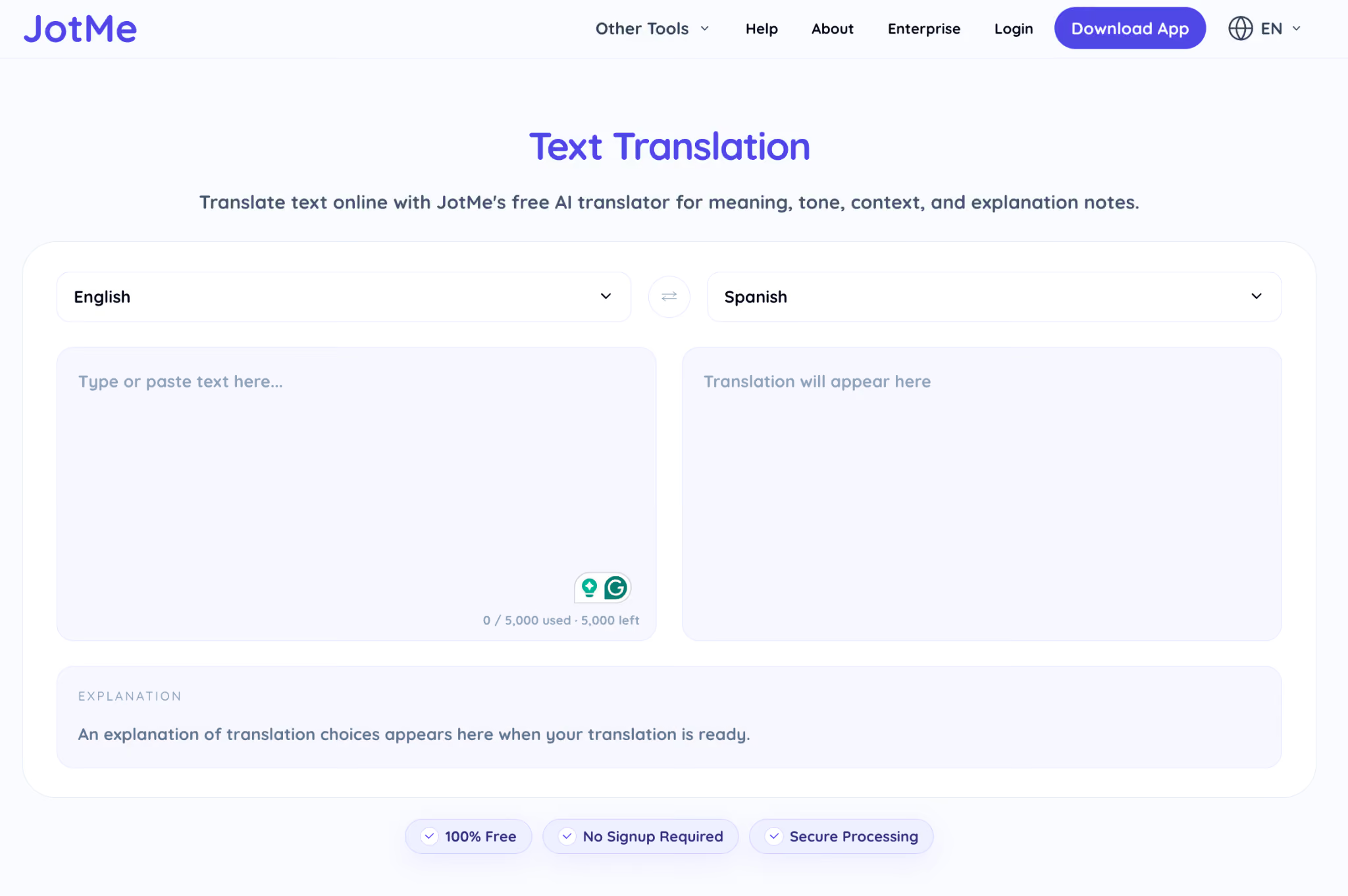
Step 1: Open the JotMe Text Translator
Open the JotMe Text Translator in any browser. The page loads as a working tool right away, so you start without creating an account.
Step 2: Language Selection
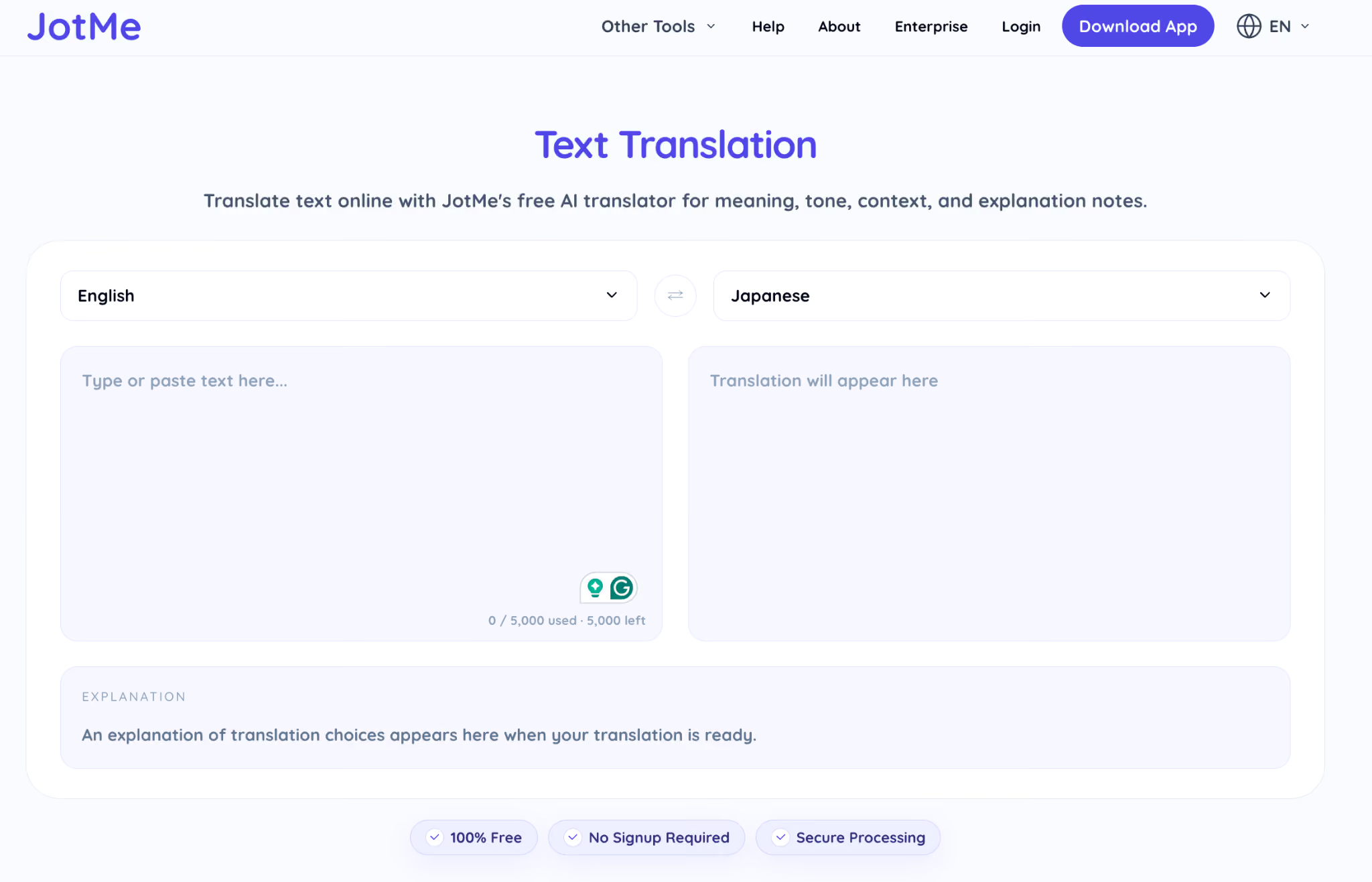
Pick your source language in the first dropdown and your target language in the second. JotMe supports 200+ languages, covering common pairs like English to Japanese, German to English, and Arabic to English.
Step 3: Add Text to Translate
Paste or type your text into the input box. JotMe reads the full passage for context before it translates, so the output keeps tone and meaning across longer sentences. Copy the result, or switch the target language to compare.
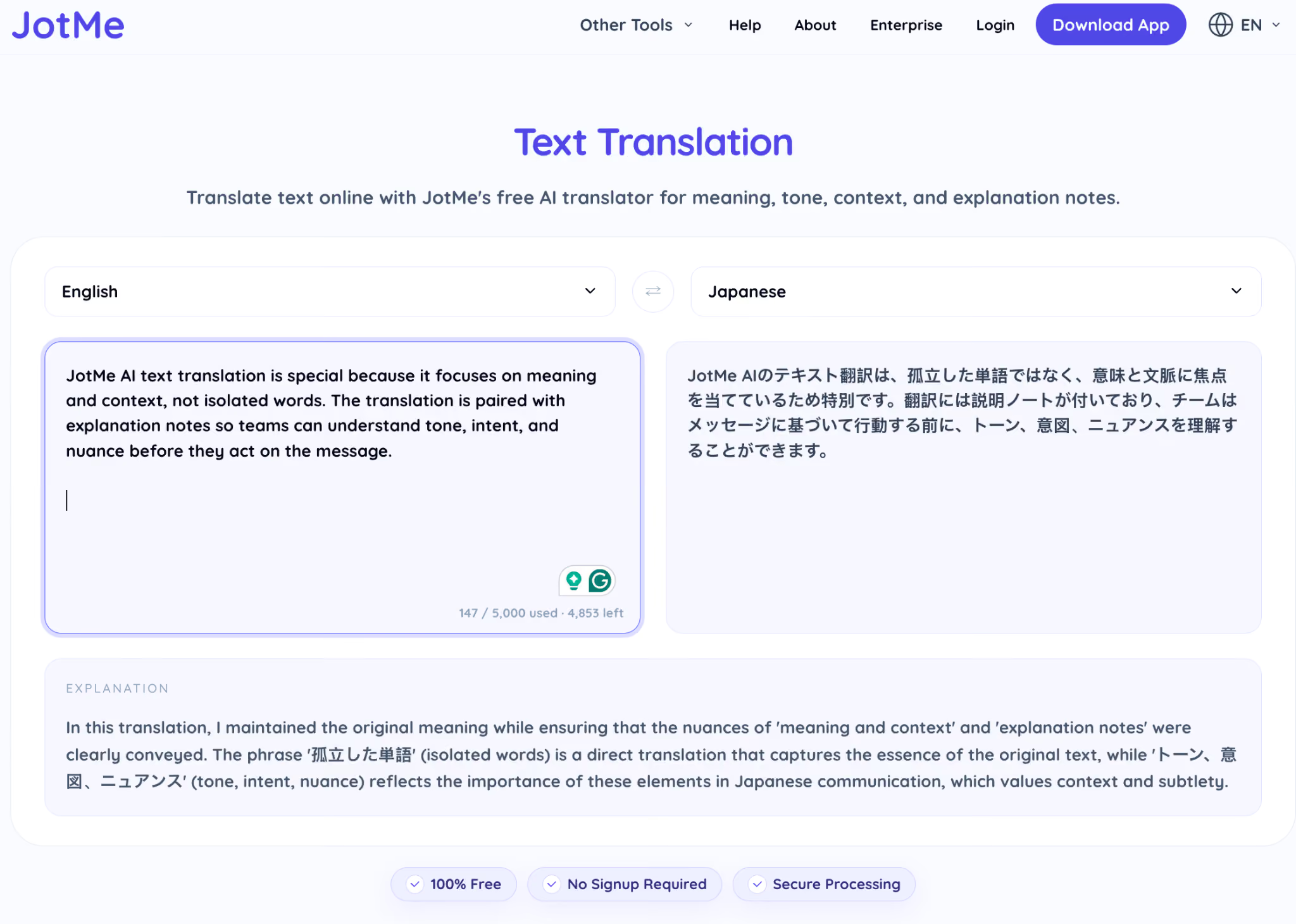
For one-off passages, JotMe’s free browser tool covers the job with no account. For long, repeated text work, compare the output against DeepL for European pairs and ChatGPT when you need to control the tone with a prompt.
How to Translate Voice for Free Using JotMe
Translating voice in real time is harder than text, which is why few free tools do it well. Real-time voice translation needs a tool that captures continuous speech, holds context, and translates as the conversation runs. This walkthrough uses JotMe's free live translation.
Step 1: Open JotMe Live Translation
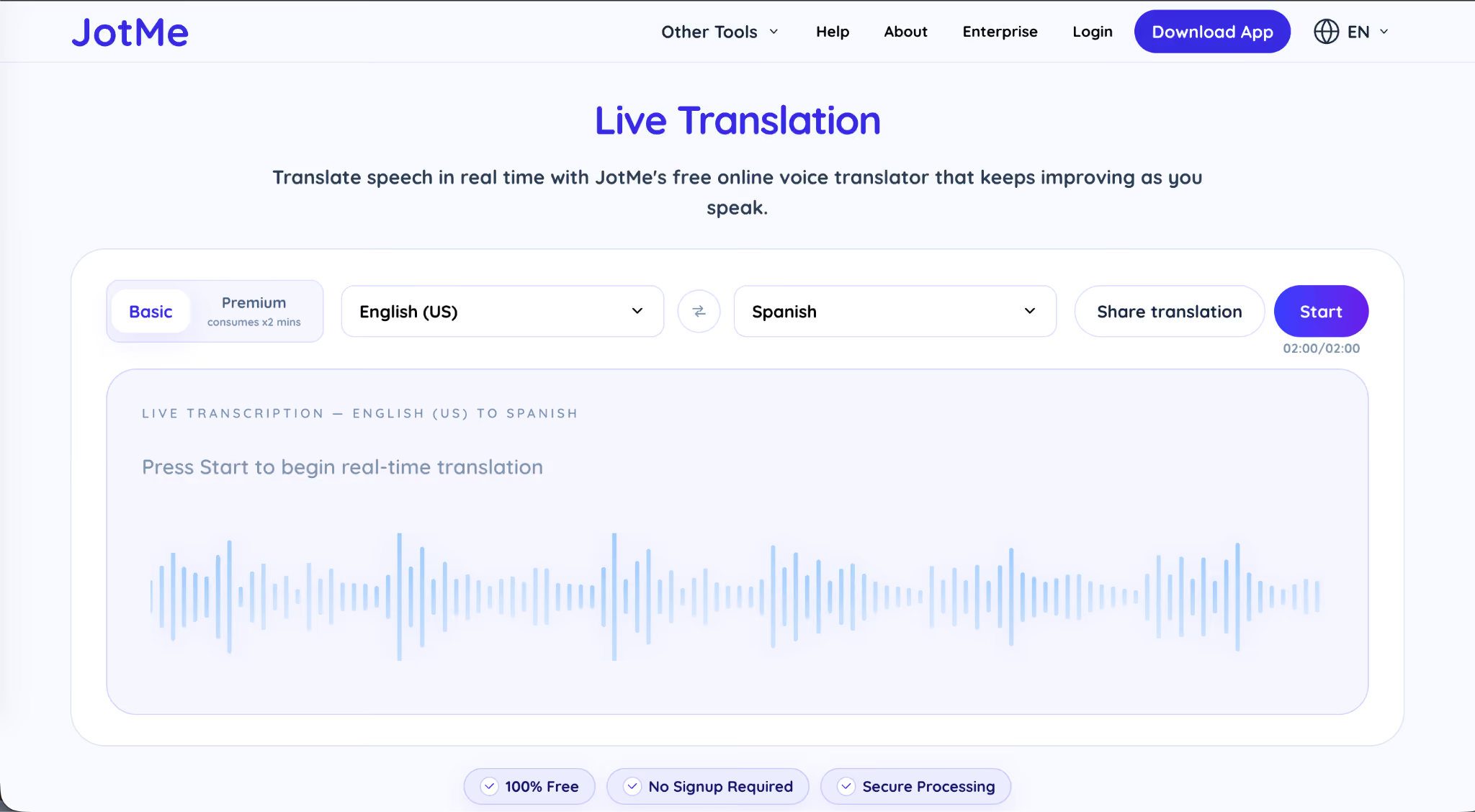
Open JotMe Live Translation in your browser. The tool loads instantly with no install, so you test it on a real conversation in under a minute.
Step 2: Language Selection
Set the first dropdown to the spoken language and the second to the language you want to read. For a cross-border call, that might mean Japanese to English or Spanish to English.
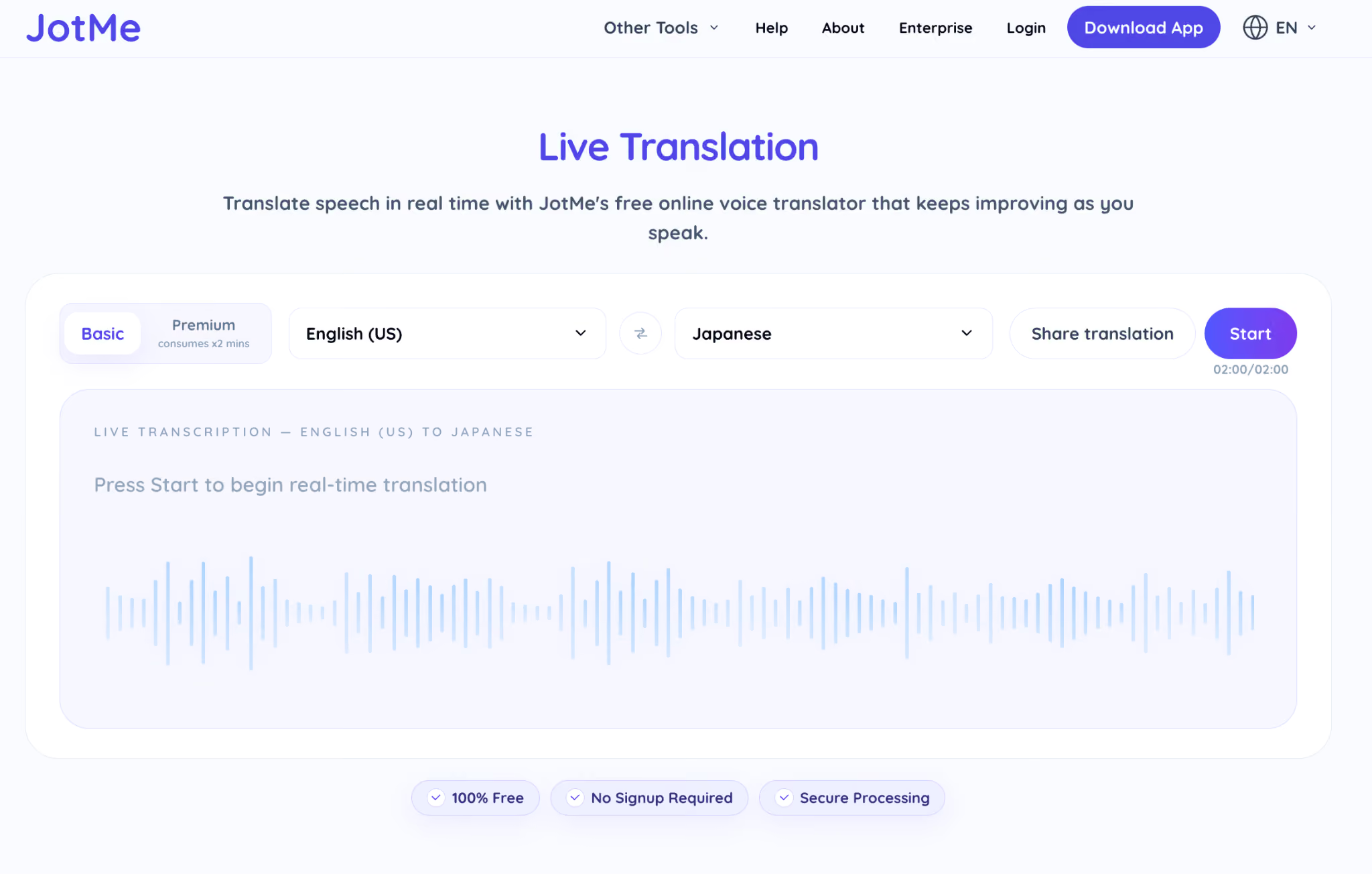
Step 3: Start Live Translation
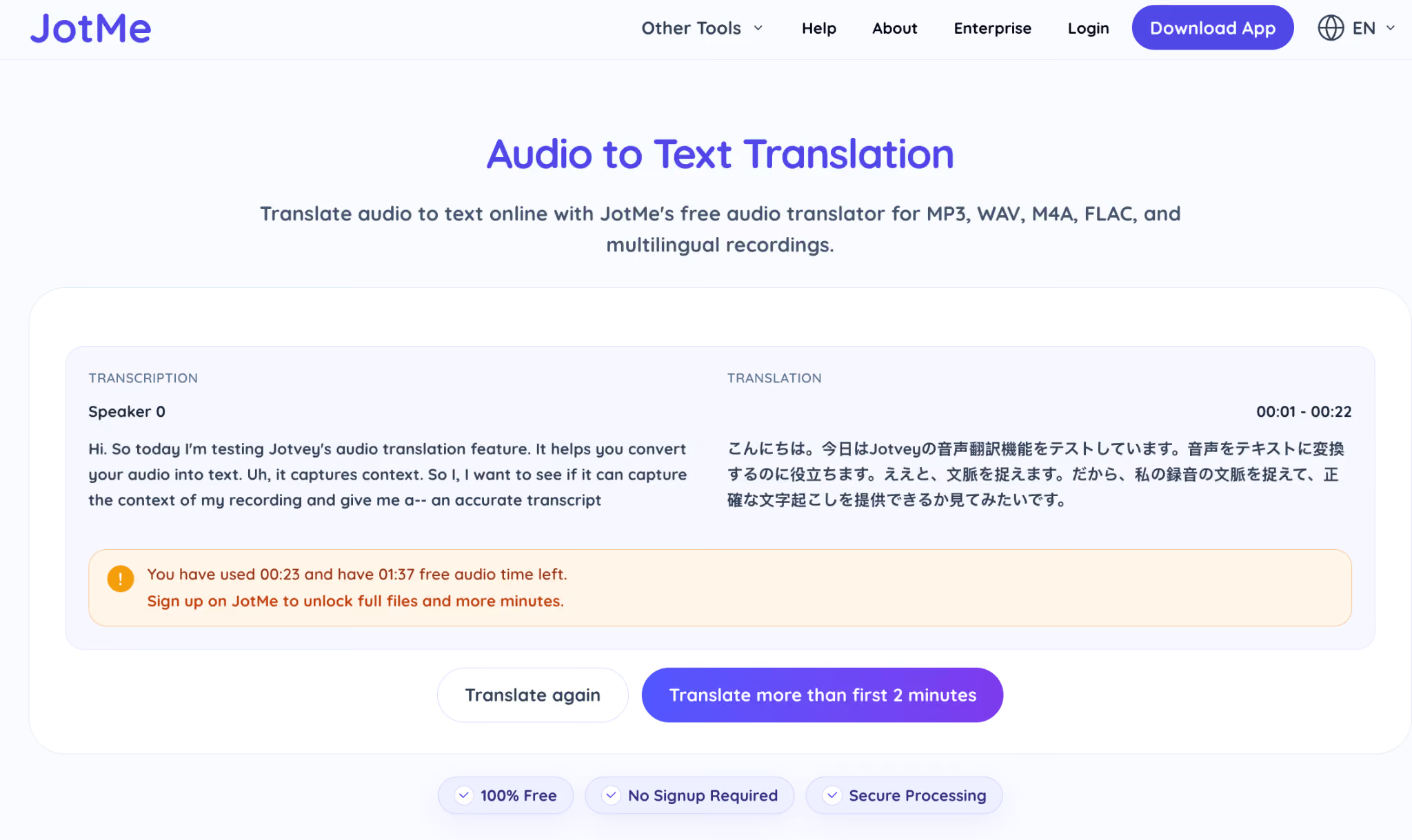
Click Start and allow microphone access when the browser asks. JotMe shows the live transcript on one side and the translation on the other, updating as the speaker talks. The output sharpens as the conversation continues, since the AI uses earlier context to translate later lines.
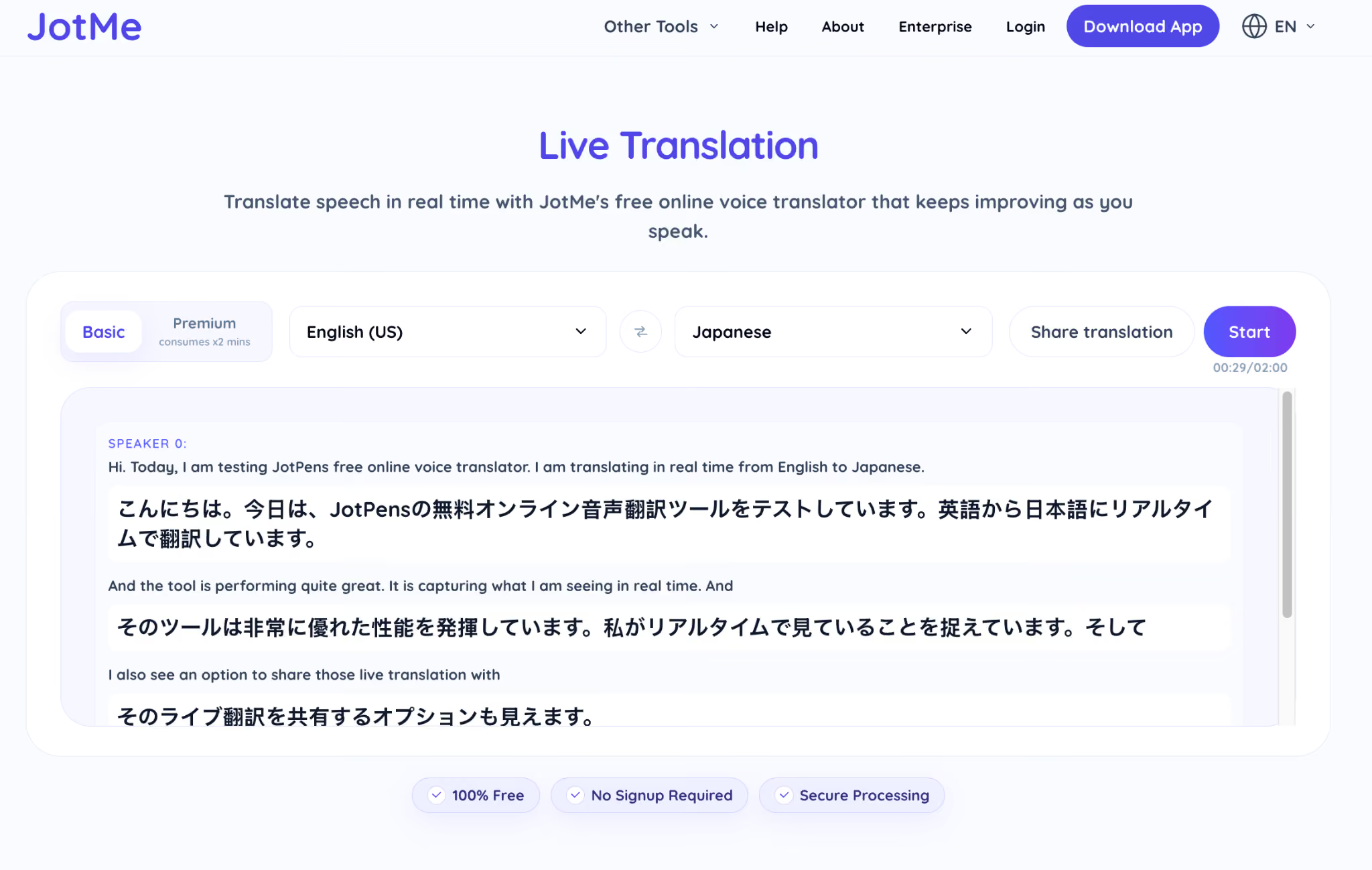
The free browser version fits a quick test on a short conversation. For full meetings on Zoom, Google Meet, Microsoft Teams, or Webex, the JotMe desktop app captures the call audio directly and runs translation for the whole session.
How to Translate Audio for Free Using JotMe
Translating recorded audio for free covers interviews, lectures, voice notes, and webinar recordings you process after the event. You upload the file, pick a target language, and get a translated transcript back. Here is how to do it with JotMe.
Step 1: Open JotMe Audio to Text Translation
Open the JotMe Audio to Text Translation page in your browser.
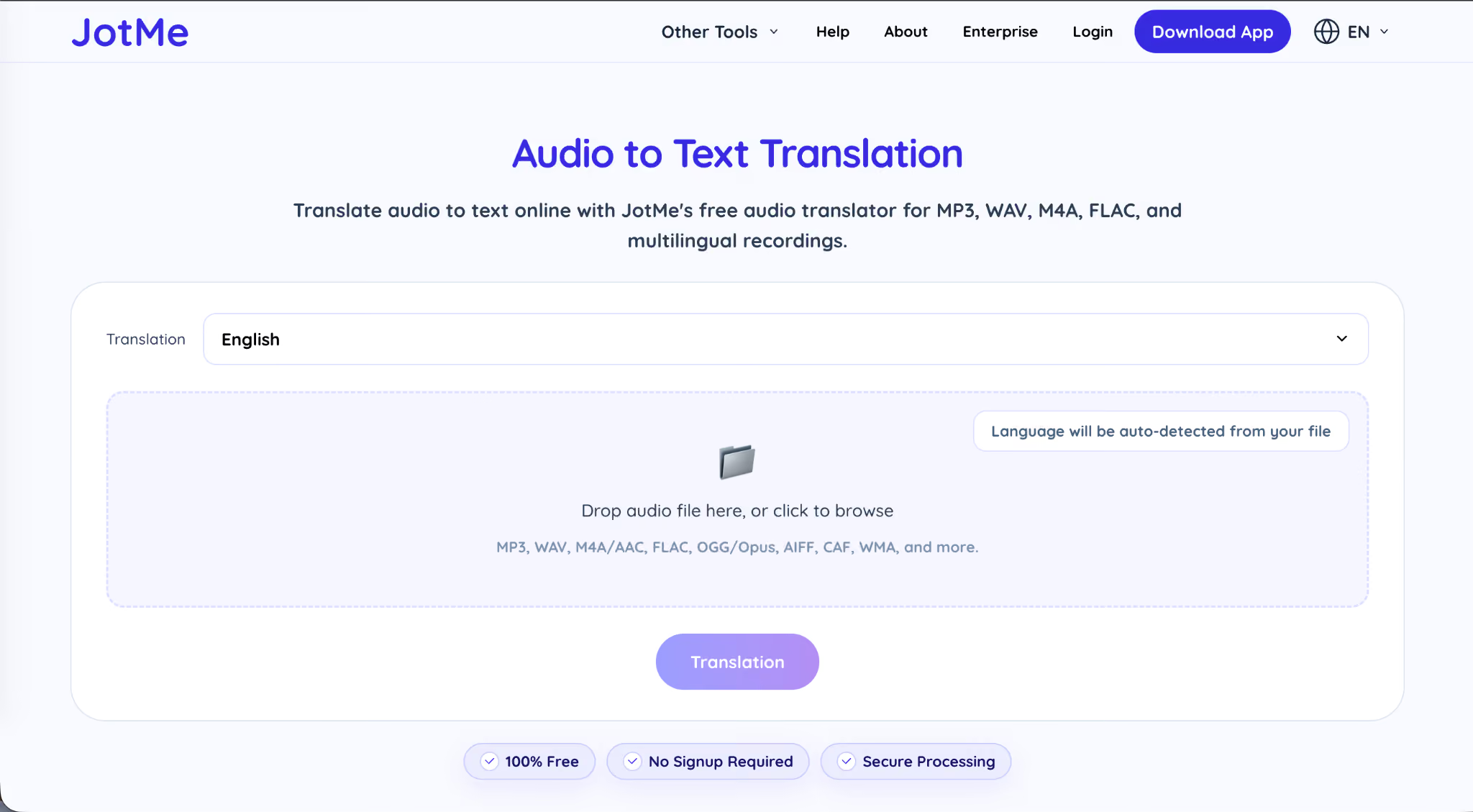
Step 2: Upload and Preview
Upload your recording and preview the file. JotMe transcribes the speech, then translates it into your chosen language.
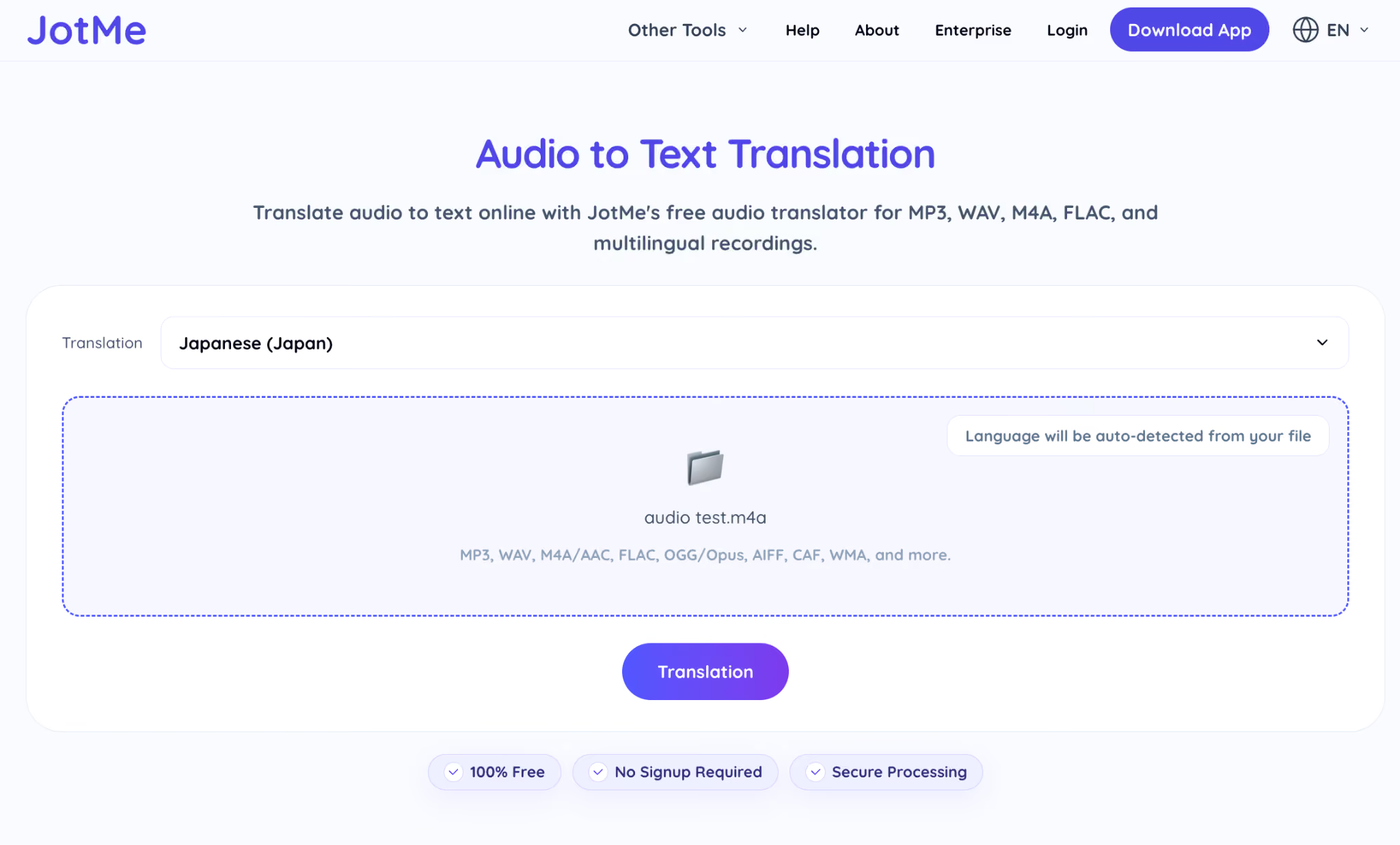
Step 3: Translate and Export
Select your target language to convert audio to text, review the translated transcript, and copy or export the text for your records.
How to Translate PDFs for Free Using ChatGPT
Translating PDFs for free gets tricky, since many free tools mangle the content, and that risk grows with medical or legal documents. ChatGPT translates text-based PDFs for free and lets you guide the tone through a prompt. Here is how to do it.
Step 1: Go to ChatGPT
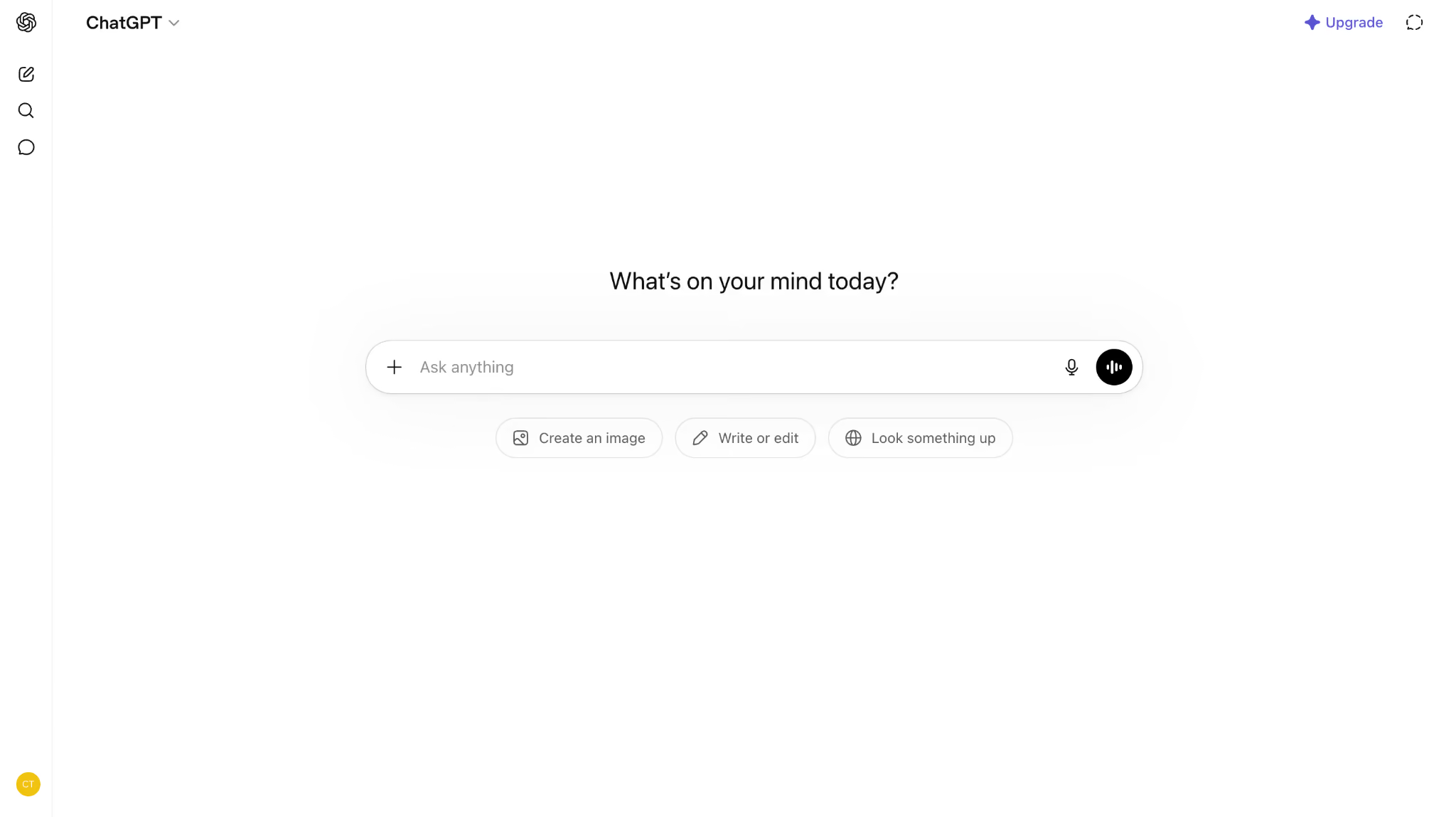
Open ChatGPT in your browser and sign in with a free account.
Step 2: Upload PDF
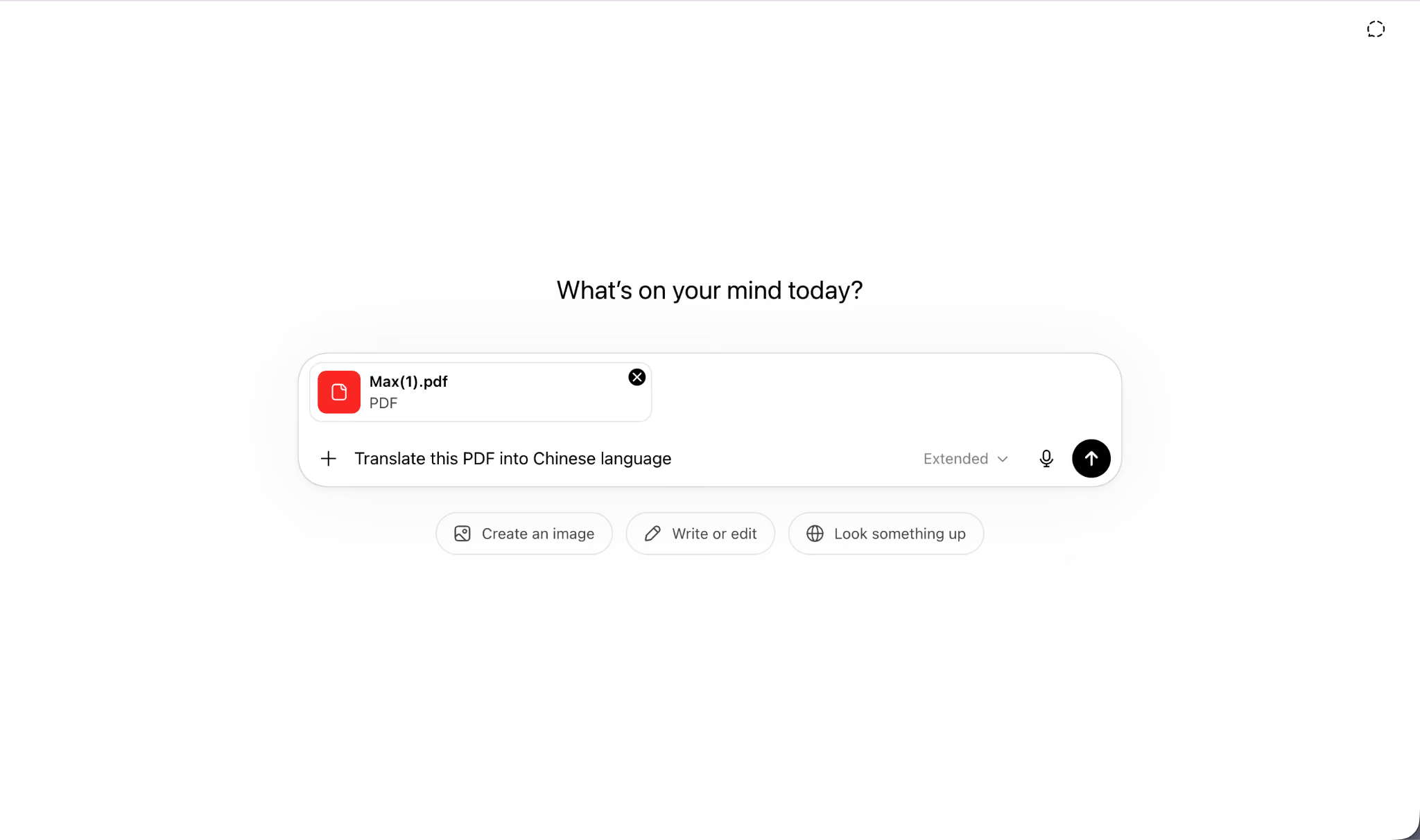
Attach your PDF using the upload icon. On the free plan, ChatGPT allows around 3 file uploads per day, accepts files up to roughly 512MB per file, and reads text-based PDFs only, so scanned or password-protected files will fail.
Step 3: Add Prompt
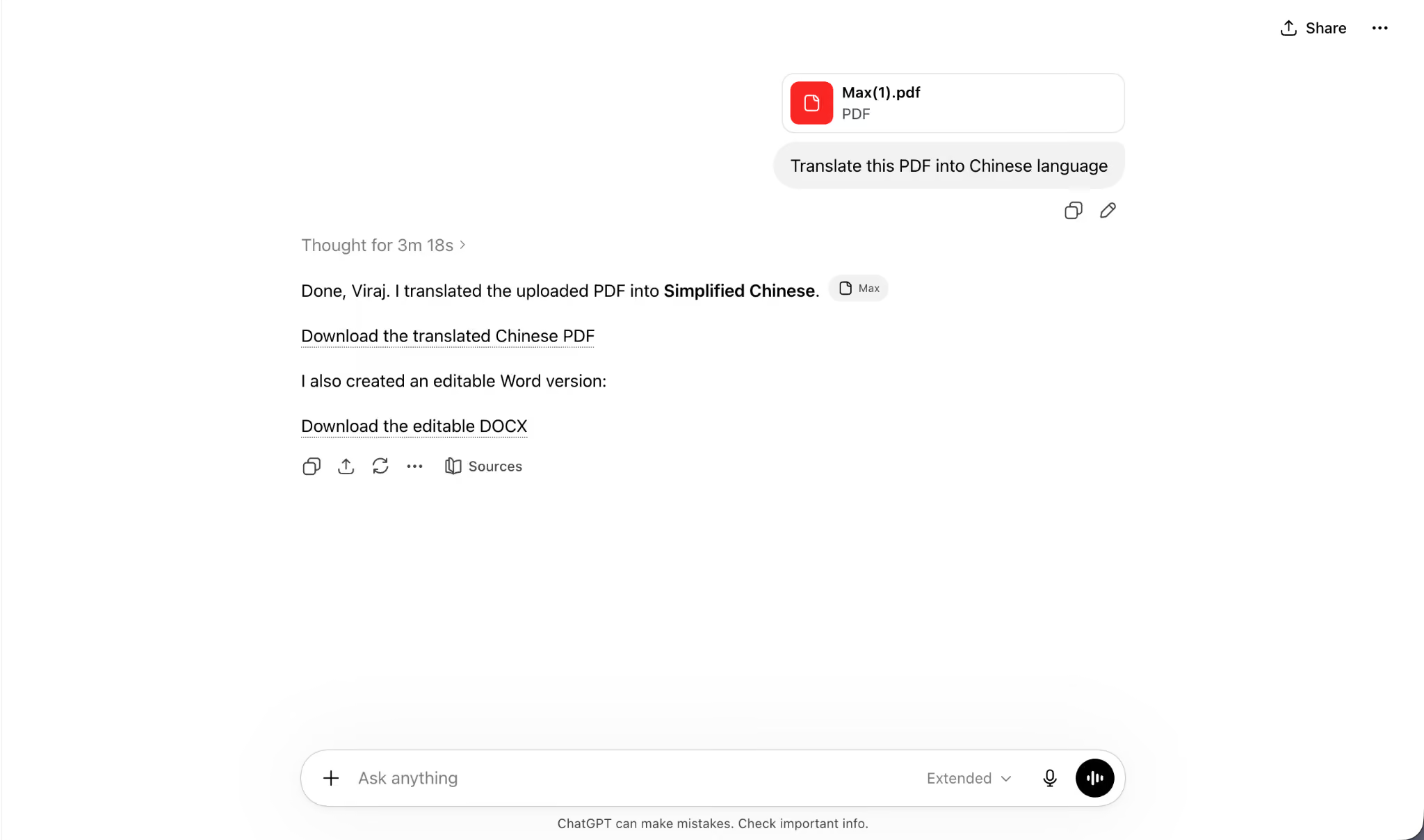
Type a clear instruction, such as: translate this document into French and keep the original formatting and tone. Review the output carefully, because long PDFs can get cut off when they exceed the model's context window, and sensitive legal or medical text still needs a human check.
When to Use an Audio Language Translator?
An audio language translator fits any situation where people speak different languages and the conversation cannot wait for a human interpreter. The need shows up most in work settings, where a missed sentence costs a deal or a deadline.
- Cross-border client and supplier calls where decisions happen live. A misread number or term resets a negotiation, so live captions in your own language keep both sides moving together.
- Multilingual team standups across regional offices. Engineers in Tokyo and managers in Berlin follow the same update without one side translating for the other afterward.
- International webinars and company town halls. Hundreds of attendees read live captions in their own language while the speaker presents once.
- Interviews and research recordings you transcribe later. A translated transcript turns hours of foreign-language audio into searchable text you quote with confidence.
- University lectures delivered in a second language. Students follow technical material in real time, then revisit the saved transcript while studying.
Audio Translation for Zoom, Google Meet, Teams
For live meetings, JotMe runs translation directly inside the calls your team already takes. Download the JotMe app for Mac or Windows, join your Zoom, Google Meet, Microsoft Teams, or Webex call, then open JotMe alongside it. JotMe captures the audio from your device, so nothing joins the meeting as a bot and you keep full control of your mic and camera. For the full rundown of options, see JotMe's guide to the best AI live translation tools.
This matters most for an English-speaking manager or operations lead working with Korean, Japanese, or Chinese partners, where a real-time gap turns into 2 to 3 hours of follow-up emails that a clear 3-minute exchange on the call would have settled.
What Makes JotMe the Best Audio Translation for Meetings?
Free text tools stop being useful the moment a conversation goes live and multilingual. JotMe handles that gap with contextual interpretation, real-time output, and a meeting setup that stays private. The features below explain why JotMe holds up where general translators fall short, and you can read more on the live translation tool page.
Contextual Awareness
JotMe reads full sentences, your domain, and everything already said in the meeting, then translates for meaning rather than word for word. Legal, medical, and financial terms keep their professional sense, which is the difference between an understandable translation and a usable one. For example, a Japanese supplier's polite, indirect phrasing comes through as a clear commitment in English instead of a cold, literal string that leaves you guessing.
Real-Time Translation
JotMe shows live captions as people speak, with a short delay of around 3 to 4 seconds. The translation runs hands-free and continuous, so nobody taps a microphone before each sentence, and the conversation flows as if everyone shared a language. On a 30-minute sales call, that means you answer objections as they land, rather than reading a summary an hour later.
No-Bot Meeting Architecture
JotMe captures audio straight from your computer and never joins the call as a participant. No bot appears in the attendee list, your mic and camera stay under your control, and the conversation stays private to the people in it. For client calls under an NDA, that privacy often decides the tool, since no third-party recorder turns up in the meeting.
39,000+ Language Pairs
JotMe supports 200+ languages across 39,000+ language pairs, which covers the common business pairs and the harder contextual ones. For Korean, Japanese, and Mandarin, that depth is where JotMe separates from word-for-word tools. A call that opens in Korean to English and then pivots to Mandarin stays covered without switching tools mid-meeting.
Android/iOS Translation App
JotMe offers iOS and Android translation apps for in-person conversations away from the desk. The mobile app delivers continuous live translation, converts typed text into natural speech, and keeps a chat-style bilingual transcript split by speaker. At a trade show or a factory visit, you hold up your phone and trade sentences with a supplier face to face.
AI Note Taker
After the call, JotMe turns the conversation into AI meeting notes with action items and key points, and translates those notes into 21 languages. The transcript stays searchable, so a teammate in another region reviews decisions later without a separate recap. A product planning call in English becomes a Hindi summary your Mumbai team reads the same afternoon.
Custom Vocabulary
JotMe lets you load your own terms, product names, and acronyms, so the translation stays accurate for the jargon your team uses every day. Load your SKU codes and brand names once, and JotMe stops mishearing them on every later call.
More than 1,700+ organizations and over 300,000 users run JotMe, which removes the need for a $350-per-hour interpreting agency between you and the person you want to talk to.
JotMe vs. Other Free Translation Tools
The web is full of free translation apps, and each one is good at a narrow slice of the work. The table below compares JotMe with DeepL, Google Translate, ChatGPT, and Otter AI on the capabilities that decide a live multilingual meeting.
| Capability | JotMe | DeepL | Google Translate | ChatGPT | Otter AI |
|---|---|---|---|---|---|
| Real-time Voice Translation | ✅ Yes | ✅ Yes (through DeepL Voice suite) | ❌ No | ❌ No | Limited |
| Context-aware, Full-sentence Translation | ✅ Yes | ❌ No | ❌ No | ✅ Yes | ❌ No |
| Meeting Platform Support | ✅ Yes | ❌ No | ❌ No | ❌ No | ✅ Yes |
| Transcript and AI Notes | ✅ Yes | ❌ No | ❌ No | ❌ No | ✅ Yes |
| Free Tier | ✅ Yes | ✅ Yes | ✅ Yes | ✅ Yes | ✅ Yes |
| Languages | 200+ | 100+ | 240+ | 40+ | 3 |
For everyday text and documents, Google Translate, DeepL, and ChatGPT each hold their own. For live voice in meetings, where context and a clean transcript decide the outcome, JotMe is the one that fits the job. You can run JotMe's free live translation in your browser and judge the output on a real conversation.
Stacking these tools also works. Many teams keep Google Translate for quick reading, DeepL for European documents, ChatGPT for PDFs they want to question, and JotMe for the live calls where a missed sentence costs real money. The free tiers cover a lot once you stop asking one tool to do every job.
FAQs
What is an audio language translator?
An audio language translator converts spoken language into another language using speech recognition and AI translation. It works in real time during a conversation or on a recording you upload, and the stronger tools keep the speaker's context and tone.
Which audio language translator works in real time?
JotMe works in real time for live meetings, showing translated captions as people speak with a delay of around 3 to 4 seconds. Google Translate's conversation mode handles short exchanges between 2 people, but it struggles with continuous meeting audio.
How to set up JotMe for a live meeting?
Download the JotMe app for Mac or Windows, then join your Zoom, Google Meet, Microsoft Teams, or Webex call as usual. Open JotMe alongside the meeting, pick the spoken language and your target language, and JotMe captures the audio from your device to show live translated captions.
Can JotMe transcribe and translate in real time?
Yes. JotMe transcribes every spoken word and translates it at the same time, showing the source transcript and the translation together. JotMe saves the full transcript to your dashboard for review after the call.
Can I share a translated meeting with JotMe?
Yes. JotMe lets a host share live translation through a URL or a QR code, so participants follow translated captions on their own devices. After the meeting, JotMe can send the translated transcript and summary by email.
How to use JotMe for free?
Open JotMe's free live translation or text translation in your browser with no signup to test it right away. The free JotMe plan adds 20 minutes of live translation and 50 minutes of transcription each month, which suits students and occasional users.
Free Language Translator: How to Translate Text, Voice, and Documents Free in 2026

What can a free language translator actually handle once you move past a single sentence? Plenty of people open a quick text box, translate a phrase, then hit a wall the moment the job turns into a voice call, an hour of recorded audio, or a 40-page PDF. Free language translator tools cover text, voice, audio, and PDF translation in 2026, and each one carries limits that matter before you trust it with anything important. The free language translator that wins for a Zoom call is rarely the same one that wins for a legal document. Your right pick depends on the job in front of you and how much accuracy you can afford to lose.
The table below maps each tool to the jobs it does for free and the languages it covers, so you can match the tool to your task before reading the details.
| Tool | Voice | Text | PDFs | Platform Integration | Languages |
|---|---|---|---|---|---|
| JotMe | Yes | Yes | No | Zoom, Google Meet, Microsoft Teams, Webex | 200+ languages |
| DeepL | Yes (through DeepL Voice suite) | Yes | Yes | Microsoft 365, Google Workspace, Salesforce, Zendesk | 100+ languages |
| Google Translate | No (available only on mobile app) | Yes | Yes | None native | 240+ languages |
| ChatGPT | No | Yes | Yes | None native | 40+ languages |
| Otter AI | Limited | Yes | No | Google Workspace, HubSpot, Salesforce | 3 languages |
Language Translator: Best Voice, Text, PDF Translators
A language translator can mean 5 very different tools depending on what you feed it. For this guide, JotMe covers live voice and meeting audio, Google Translate and DeepL handle everyday text and documents, ChatGPT carries context-heavy PDFs, and Otter AI stays in English-first transcription with light translation. The sections below break each type down by what language translator does, who it fits, and what to check before you rely on the free tier.
The honest version of free translation is this: every free tier draws a line somewhere, in characters, in minutes, in file size, or in formatting. The trick is matching the tool to the job before you hit that line, so a quick text check goes to one tool and a live client call goes to another.
What is an Audio Language Translator?
An audio language translator converts spoken language into another language in real time or from a recording, using speech recognition and AI translation together. The stronger tools read full sentences for context, so the output keeps the speaker's meaning and tone rather than translating word by word. JotMe and Otter AI fall in this category, and JotMe is the one that handles continuous live meetings across 200+ languages.
The category covers 2 distinct jobs:
- Translating a conversation while it happens, and
- Translating a recording you already have.
The same free tool rarely tops both, so the right choice depends on whether you need captions during a live call or a clean transcript afterward.
Best Audio Language Translator For:
- Live business calls on Zoom, Google Meet, Microsoft Teams, and Webex: JotMe captures the audio and shows live captions in your language.
- Quick in-person exchanges while traveling: Google Translate conversation mode covers short back-and-forth for free.
- Recorded interviews, lectures, and webinars you process after the event: JotMe audio-to-text, with Otter AI as an English, Spanish, and French option.
- Cross-border meetings where Korean, Japanese, or Mandarin context matters: JotMe, because it interprets meaning across those harder pairs.
What Should You Look for in an Audio Language Translator?
A few traits separate a usable audio translator from a frustrating one:
- Continuous, hands-free listening, so you skip tapping the mic for every sentence.
- Context retention across full sentences for accurate meaning.
- Coverage for your exact language pair, including the harder Asian languages.
- Support for the meeting apps your team already uses.
- A transcript and notes you keep after the conversation ends.
What is a Text Language Translator?
A text language translator converts written words from one language to another, from a quick phrase to a full paragraph you paste in. Free versions work well for everyday reading, casual messages, and short passages. Google Translate, DeepL, and ChatGPT lead this category, each with a different strength.
Privacy is the quiet tradeoff here. Free tiers often store the text you paste to improve their models, which matters the moment you translate a contract clause, a customer email, or anything else you would not post in public.
Best Text Language Translator For:
- Everyday phrases, web pages, and casual reading: Google Translate, with 240+ languages free.
- European-language text where fluency and tone matter: DeepL, which reads more naturally for pairs like German to English and Italian to English.
- Context-heavy or technical passages where you set the tone: ChatGPT, since you can prompt it for formal or casual output.
- Live meeting captions you read in your own language: JotMe. For broader options, see JotMe's Google Translate alternatives guide.
What Should You Look for in a Text Language Translator?
These details decide how far the free tier carries you:
- Character limits on the free tier, since some cap each translation.
- Translation quality for your specific pair, from English to Hindi to Arabic to English.
- Tone and formality control for professional messages.
- Privacy terms, including whether your text trains the tool's model.
- Formatting retention when you paste structured content.
What is a Document Language Translator?
A document language translation app takes a full file, usually a PDF, Word, or slide deck, and returns it translated while trying to keep the original layout. Free tiers handle simple, text-based files but struggle with scanned pages, heavy formatting, and long documents. Google Translate, DeepL, and ChatGPT each translate documents for free within tight limits.
Formatting is where free document translation breaks down most often. Tables, multi-column layouts, and embedded images rarely survive the round trip cleanly, and scanned PDFs need OCR that most free tiers skip, so a photographed contract often comes back untranslated.
Best Document Language Translator For:
- Simple text-based PDFs and office files: Google Translate, free up to 10MB and 300 pages per PDF.
- European-language documents that need fluent phrasing: DeepL, with a few free document translations each month.
- PDFs where you want to ask follow-up questions and control tone: ChatGPT, within its free daily upload cap.
What Should You Look for in a PDF Language Translator?
Run through this checklist before you upload anything sensitive:
- File size and page caps on the free tier.
- Support for scanned or image-based PDFs, which many free tools skip because they lack OCR.
- Layout retention for tables, columns, and images.
- Daily upload limits that throttle how many files you process.
- Clear data handling for sensitive legal or medical documents.
How Does an Audio Language Translator Work?
An audio language translator works by chaining several AI steps together, each running in well under a second so the output feels live. The tool captures audio, converts speech to text, reads that text for context, translates it, then displays or speaks the result. JotMe runs this full chain while a meeting is in progress and keeps the transcript afterward.
Speed and accuracy pull against each other at every stage. A tool that translates each word the instant it lands reacts fast but loses meaning, since one word often depends on the 5 that follow it. JotMe reads full sentences before it commits to a translation, which adds a short delay of around 3 to 4 seconds and produces output that holds up in legal, medical, and financial conversations. Background noise and crosstalk test the speech recognition stage hardest, especially with strong accents, which is where cheaper tools tend to drop sentences.
| Stage | What Happens | Why It Matters |
|---|---|---|
| Audio Capture | The tool pulls audio from your device or microphone. | Direct capture avoids sending a bot into the call. |
| Speech Recognition | Spoken words convert into text. | Accents and crosstalk decide how clean the text is. |
| Context Modeling | The AI reads full sentences, your domain, and prior speech. | This preserves intent instead of word-for-word output. |
| Translation | The text converts into the target language. | Language-pair tuning drives the quality of the result. |
| Output | Captions, a transcript, or synthesized voice appear. | This decides how you read or hear the translation. |
Tools split into two categories at the capture stage. Some send a bot into your meeting to record, which alerts everyone and raises privacy questions. JotMe captures audio straight from your device, so nothing joins the call and you keep control of your mic and camera.
The output stage shapes how you use the result. Caption output drops translated text on screen as people talk, which fits meetings, while voice output reads the translation aloud for in-person travel, and transcript output saves everything as searchable text for interviews and lectures you revisit later. Free tools usually deliver one of these well and treat the rest as an afterthought, which is why the right pick tracks back to your specific job.
How to Translate Text for Free Using JotMe
To translate text for free, you need a tool rated well for written output and contextual accuracy. This walkthrough uses JotMe's free text translator, which loads in the browser with no signup.
Step 1: Open the JotMe Text Translator
Open the JotMe Text Translator in any browser. The page loads as a working tool right away, so you start without creating an account.

Step 2: Language Selection
Pick your source language in the first dropdown and your target language in the second. JotMe supports 200+ languages, covering common pairs like English to Japanese, German to English, and Arabic to English.

Step 3: Add Text to Translate
Paste or type your text into the input box. JotMe reads the full passage for context before it translates, so the output keeps tone and meaning across longer sentences. Copy the result, or switch the target language to compare.

For one-off passages, JotMe’s free browser tool covers the job with no account. For long, repeated text work, compare the output against DeepL for European pairs and ChatGPT when you need to control the tone with a prompt.
How to Translate Voice for Free Using JotMe
Translating voice in real time is harder than text, which is why few free tools do it well. Real-time voice translation needs a tool that captures continuous speech, holds context, and translates as the conversation runs. This walkthrough uses JotMe's free live translation.
Step 1: Open JotMe Live Translation
Open JotMe Live Translation in your browser. The tool loads instantly with no install, so you test it on a real conversation in under a minute.

Step 2: Language Selection
Set the first dropdown to the spoken language and the second to the language you want to read. For a cross-border call, that might mean Japanese to English or Spanish to English.

Step 3: Start Live Translation
Click Start and allow microphone access when the browser asks. JotMe shows the live transcript on one side and the translation on the other, updating as the speaker talks. The output sharpens as the conversation continues, since the AI uses earlier context to translate later lines.

The free browser version fits a quick test on a short conversation. For full meetings on Zoom, Google Meet, Microsoft Teams, or Webex, the JotMe desktop app captures the call audio directly and runs translation for the whole session.
How to Translate Audio for Free Using JotMe
Translating recorded audio for free covers interviews, lectures, voice notes, and webinar recordings you process after the event. You upload the file, pick a target language, and get a translated transcript back. Here is how to do it with JotMe.
Step 1: Open JotMe Audio to Text Translation
Open the JotMe Audio to Text Translation page in your browser.

Step 2: Upload and Preview
Upload your recording and preview the file. JotMe transcribes the speech, then translates it into your chosen language.

Step 3: Translate and Export
Select your target language to convert audio to text, review the translated transcript, and copy or export the text for your records.

How to Translate PDFs for Free Using ChatGPT
Translating PDFs for free gets tricky, since many free tools mangle the content, and that risk grows with medical or legal documents. ChatGPT translates text-based PDFs for free and lets you guide the tone through a prompt. Here is how to do it.
Step 1: Go to ChatGPT
Open ChatGPT in your browser and sign in with a free account.

Step 2: Upload PDF
Attach your PDF using the upload icon. On the free plan, ChatGPT allows around 3 file uploads per day, accepts files up to roughly 512MB per file, and reads text-based PDFs only, so scanned or password-protected files will fail.

Step 3: Add Prompt
Type a clear instruction, such as: translate this document into French and keep the original formatting and tone. Review the output carefully, because long PDFs can get cut off when they exceed the model's context window, and sensitive legal or medical text still needs a human check.

When to Use an Audio Language Translator?
An audio language translator fits any situation where people speak different languages and the conversation cannot wait for a human interpreter. The need shows up most in work settings, where a missed sentence costs a deal or a deadline.
- Cross-border client and supplier calls where decisions happen live. A misread number or term resets a negotiation, so live captions in your own language keep both sides moving together.
- Multilingual team standups across regional offices. Engineers in Tokyo and managers in Berlin follow the same update without one side translating for the other afterward.
- International webinars and company town halls. Hundreds of attendees read live captions in their own language while the speaker presents once.
- Interviews and research recordings you transcribe later. A translated transcript turns hours of foreign-language audio into searchable text you quote with confidence.
- University lectures delivered in a second language. Students follow technical material in real time, then revisit the saved transcript while studying.
Audio Translation for Zoom, Google Meet, Teams
For live meetings, JotMe runs translation directly inside the calls your team already takes. Download the JotMe app for Mac or Windows, join your Zoom, Google Meet, Microsoft Teams, or Webex call, then open JotMe alongside it. JotMe captures the audio from your device, so nothing joins the meeting as a bot and you keep full control of your mic and camera. For the full rundown of options, see JotMe's guide to the best AI live translation tools.
This matters most for an English-speaking manager or operations lead working with Korean, Japanese, or Chinese partners, where a real-time gap turns into 2 to 3 hours of follow-up emails that a clear 3-minute exchange on the call would have settled.
What Makes JotMe the Best Audio Translation for Meetings?
Free text tools stop being useful the moment a conversation goes live and multilingual. JotMe handles that gap with contextual interpretation, real-time output, and a meeting setup that stays private. The features below explain why JotMe holds up where general translators fall short, and you can read more on the live translation tool page.
Contextual Awareness
JotMe reads full sentences, your domain, and everything already said in the meeting, then translates for meaning rather than word for word. Legal, medical, and financial terms keep their professional sense, which is the difference between an understandable translation and a usable one. For example, a Japanese supplier's polite, indirect phrasing comes through as a clear commitment in English instead of a cold, literal string that leaves you guessing.
Real-Time Translation
JotMe shows live captions as people speak, with a short delay of around 3 to 4 seconds. The translation runs hands-free and continuous, so nobody taps a microphone before each sentence, and the conversation flows as if everyone shared a language. On a 30-minute sales call, that means you answer objections as they land, rather than reading a summary an hour later.
No-Bot Meeting Architecture
JotMe captures audio straight from your computer and never joins the call as a participant. No bot appears in the attendee list, your mic and camera stay under your control, and the conversation stays private to the people in it. For client calls under an NDA, that privacy often decides the tool, since no third-party recorder turns up in the meeting.
39,000+ Language Pairs
JotMe supports 200+ languages across 39,000+ language pairs, which covers the common business pairs and the harder contextual ones. For Korean, Japanese, and Mandarin, that depth is where JotMe separates from word-for-word tools. A call that opens in Korean to English and then pivots to Mandarin stays covered without switching tools mid-meeting.
Android/iOS Translation App
JotMe offers iOS and Android translation apps for in-person conversations away from the desk. The mobile app delivers continuous live translation, converts typed text into natural speech, and keeps a chat-style bilingual transcript split by speaker. At a trade show or a factory visit, you hold up your phone and trade sentences with a supplier face to face.
AI Note Taker
After the call, JotMe turns the conversation into AI meeting notes with action items and key points, and translates those notes into 21 languages. The transcript stays searchable, so a teammate in another region reviews decisions later without a separate recap. A product planning call in English becomes a Hindi summary your Mumbai team reads the same afternoon.
Custom Vocabulary
JotMe lets you load your own terms, product names, and acronyms, so the translation stays accurate for the jargon your team uses every day. Load your SKU codes and brand names once, and JotMe stops mishearing them on every later call.
More than 1,700+ organizations and over 300,000 users run JotMe, which removes the need for a $350-per-hour interpreting agency between you and the person you want to talk to.
JotMe vs. Other Free Translation Tools
The web is full of free translation apps, and each one is good at a narrow slice of the work. The table below compares JotMe with DeepL, Google Translate, ChatGPT, and Otter AI on the capabilities that decide a live multilingual meeting.
| Capability | JotMe | DeepL | Google Translate | ChatGPT | Otter AI |
|---|---|---|---|---|---|
| Real-time Voice Translation | ✅ Yes | ✅ Yes (through DeepL Voice suite) | ❌ No | ❌ No | Limited |
| Context-aware, Full-sentence Translation | ✅ Yes | ❌ No | ❌ No | ✅ Yes | ❌ No |
| Meeting Platform Support | ✅ Yes | ❌ No | ❌ No | ❌ No | ✅ Yes |
| Transcript and AI Notes | ✅ Yes | ❌ No | ❌ No | ❌ No | ✅ Yes |
| Free Tier | ✅ Yes | ✅ Yes | ✅ Yes | ✅ Yes | ✅ Yes |
| Languages | 200+ | 100+ | 240+ | 40+ | 3 |
For everyday text and documents, Google Translate, DeepL, and ChatGPT each hold their own. For live voice in meetings, where context and a clean transcript decide the outcome, JotMe is the one that fits the job. You can run JotMe's free live translation in your browser and judge the output on a real conversation.
Stacking these tools also works. Many teams keep Google Translate for quick reading, DeepL for European documents, ChatGPT for PDFs they want to question, and JotMe for the live calls where a missed sentence costs real money. The free tiers cover a lot once you stop asking one tool to do every job.
FAQs
What is an audio language translator?
An audio language translator converts spoken language into another language using speech recognition and AI translation. It works in real time during a conversation or on a recording you upload, and the stronger tools keep the speaker's context and tone.
Which audio language translator works in real time?
JotMe works in real time for live meetings, showing translated captions as people speak with a delay of around 3 to 4 seconds. Google Translate's conversation mode handles short exchanges between 2 people, but it struggles with continuous meeting audio.
How to set up JotMe for a live meeting?
Download the JotMe app for Mac or Windows, then join your Zoom, Google Meet, Microsoft Teams, or Webex call as usual. Open JotMe alongside the meeting, pick the spoken language and your target language, and JotMe captures the audio from your device to show live translated captions.
Can JotMe transcribe and translate in real time?
Yes. JotMe transcribes every spoken word and translates it at the same time, showing the source transcript and the translation together. JotMe saves the full transcript to your dashboard for review after the call.
Can I share a translated meeting with JotMe?
Yes. JotMe lets a host share live translation through a URL or a QR code, so participants follow translated captions on their own devices. After the meeting, JotMe can send the translated transcript and summary by email.
How to use JotMe for free?
Open JotMe's free live translation or text translation in your browser with no signup to test it right away. The free JotMe plan adds 20 minutes of live translation and 50 minutes of transcription each month, which suits students and occasional users.