





Tips
How to Use JotMe Chat for Multilingual Team Messaging

Lovely Mangla
July 6, 2026

JotMe Chat lets multilingual teams message in their own language while everyone reads every conversation in their own language. Instead of copying messages into a separate translator, each person types naturally, JotMe translates every reply in real time, and the original text remains visible for verification.
Whether you're coordinating with suppliers in Seoul, negotiating with partners in Tokyo, or managing a global team across multiple languages, JotMe keeps every conversation in one place without slowing communication. This guide shows you how to create a multilingual chatroom, invite team members and guests, set each person's language, share files, and turn conversations into AI-generated meeting notes.
What Is JotMe Chat?
JotMe Chat is a real-time messaging space where every member reads the conversation in their own preferred language. You type in yours, and JotMe interprets each message into the language every other member has chosen, keeping the original text visible underneath. JotMe supports 200+ languages, so most cross-border teams find every party covered inside a single room.
Here is how the 3 roles line up before you start:
Who Should Run a Multilingual Chatroom?
A multilingual chatroom fits an English-speaking manager, MD, or operations lead who works with non-English suppliers, partners, or clients, often in Korean, Japanese, or Chinese. The feature removes the side translations and the post-meeting email chains that usually swallow the hours after a call.
More than 1,700 organizations already use JotMe for cross-border communication, and the chat feature carries the same conversations into a written thread that the whole team can search later. If your projects run across 2 or more languages, a room per deal keeps the discussion, the files, and the decisions in a single place.
How to Set Up a Chatroom Before a Cross-Border Call
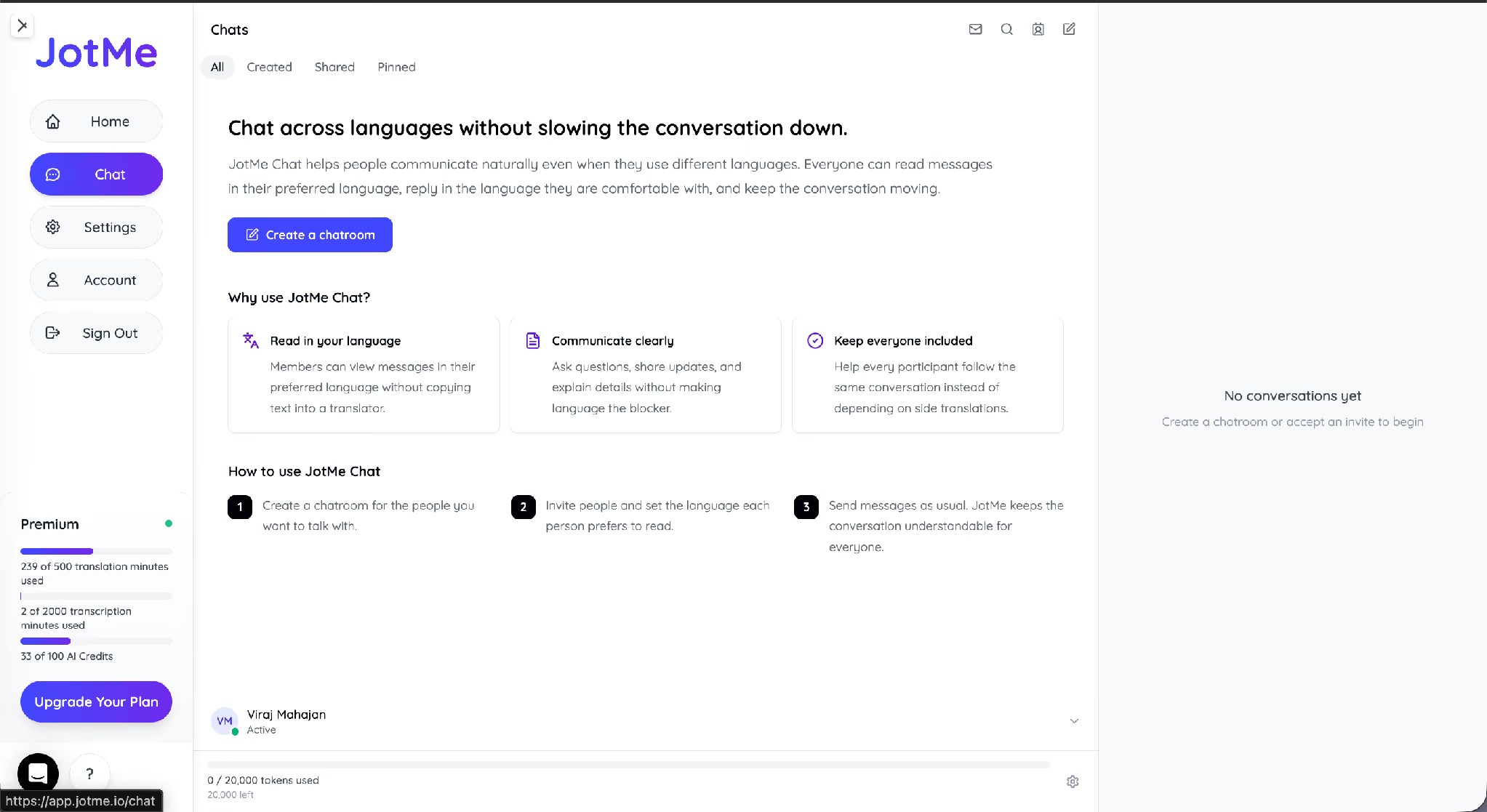
You create a JotMe chatroom in under a minute from the Chat tab, name it, and add the people you want in the conversation, along with the language each one reads.
Step 1: Open Chat and Start a New Chatroom
Open the Chat tab in the left sidebar and click Create a chatroom. The home screen also shows a short why-and-how panel the first time you land there.
Step 2: Name the Room and Add Your First Members
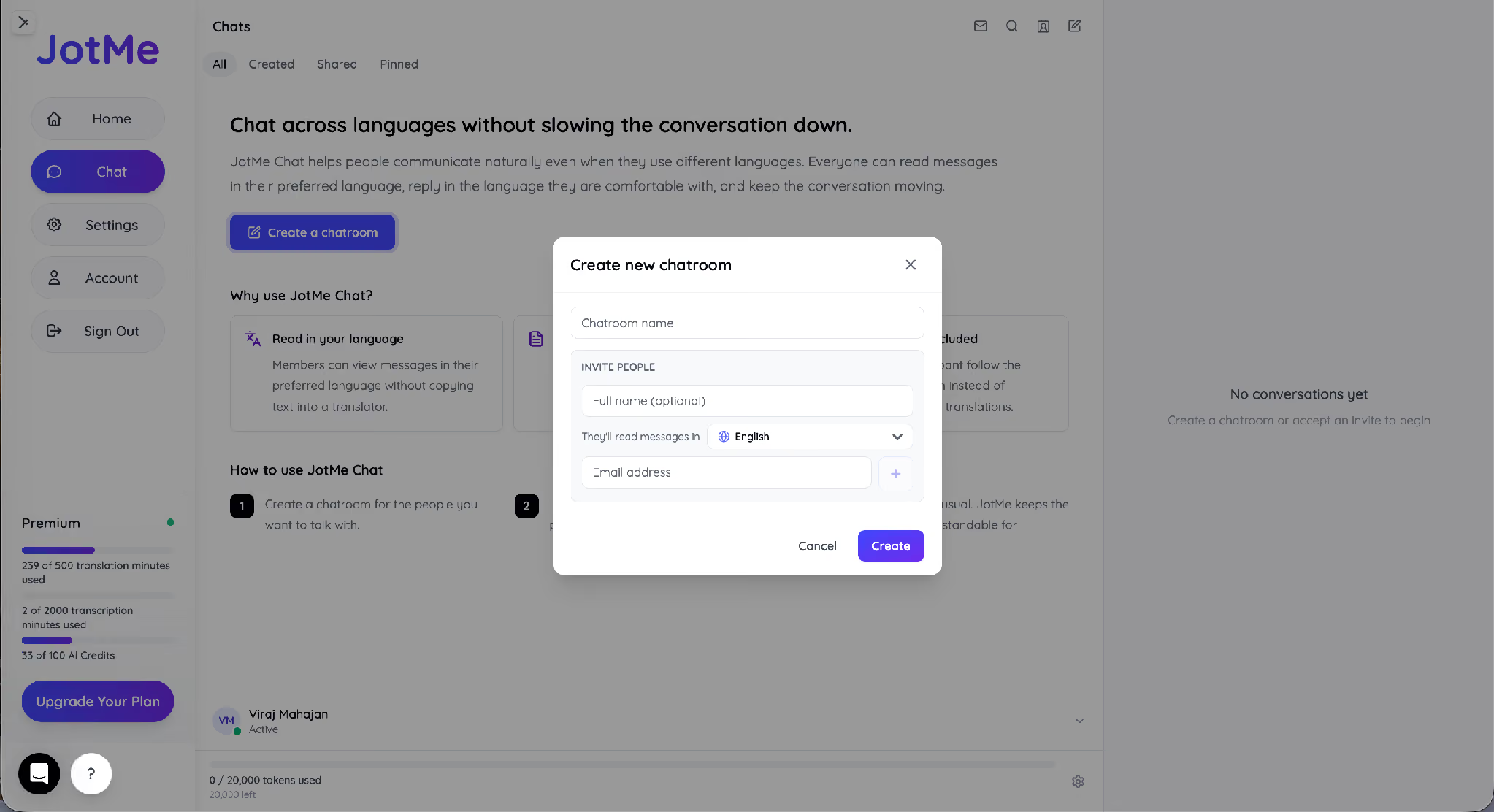
Give the room a clear name, such as Marketing Team or Q3 Supplier Deal. Under Invite people, add a full name (this one is optional) and the email address of the person you want in the room, then click the plus button to queue them.
Step 3: Set the Language Each Person Reads In
Pick the language each invitee reads messages in from the They'll read messages in dropdown. The list is searchable and covers 200+ languages, including regional variants such as Arabic (ar-EG) and (ar-DZ). English is the default, so change it for anyone who needs another language.
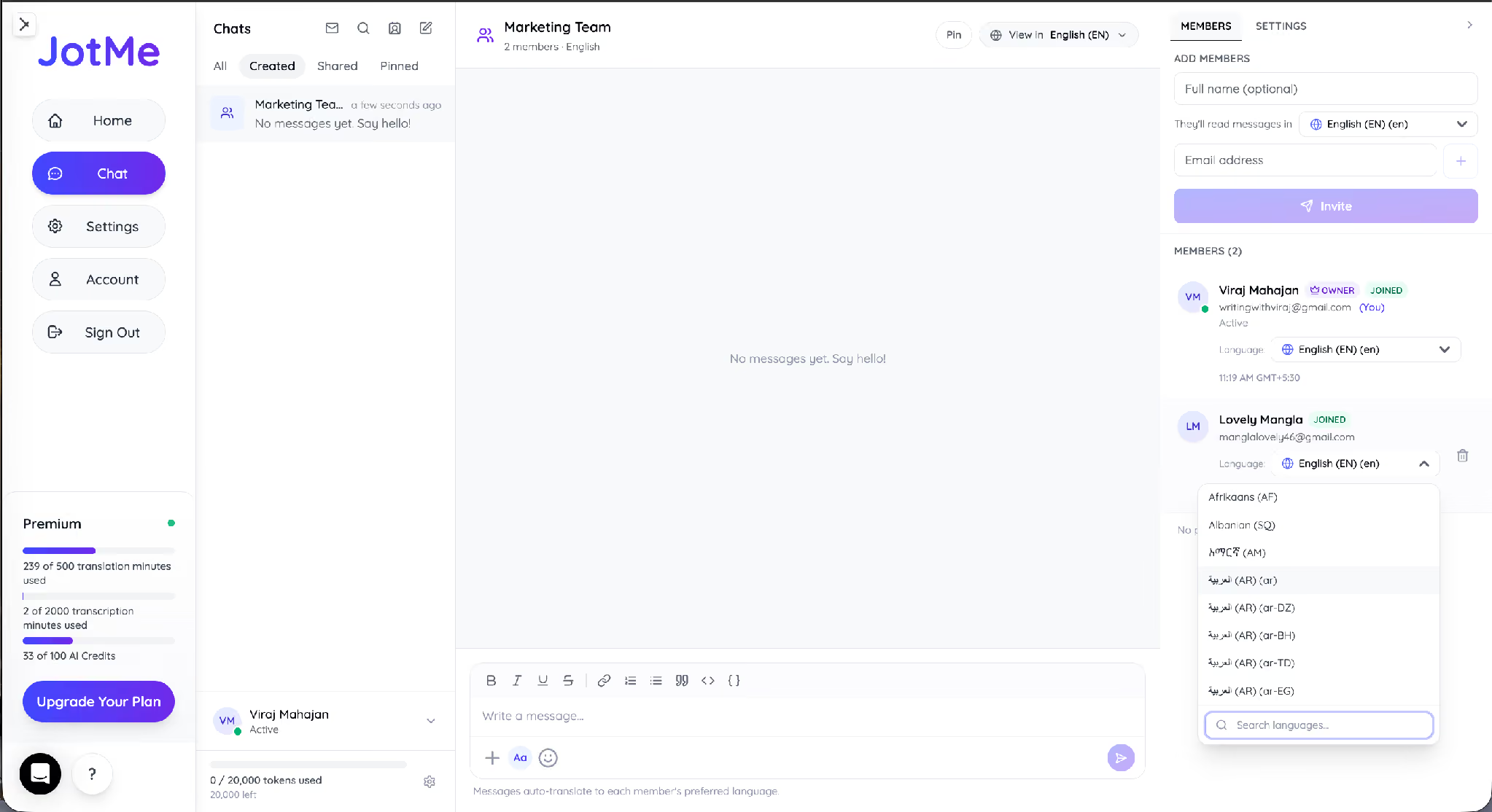
Step 4: Create the Room and Review the Members Panel
Click Create. The room opens with a members panel on the right that lists everyone, their role, and their language. You appear as the owner, and each person you add shows as joined once they accept the invite.
Tip: Confirm every member's language in the panel before the first message goes out. A wrong default means someone reads the opening line in a language they do not speak.
Bringing a Supplier or Partner Into the Chat
Anyone you invite joins from an email link, and guests join without creating a JotMe account. A guest sets a display name on entry and starts reading and sending right away, with an optional prompt to create an account or sign in later.
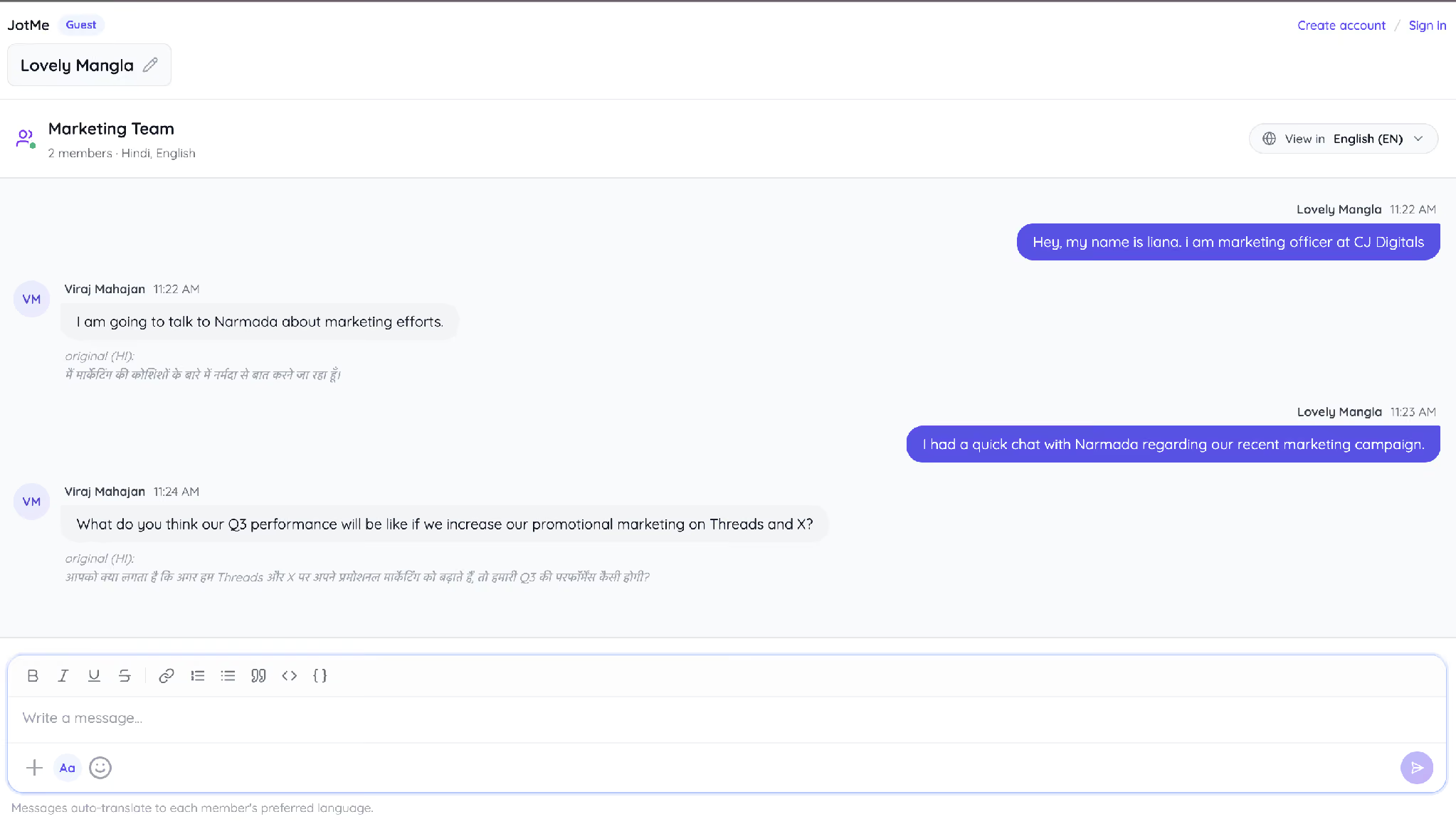
A supplier in Seoul who has never heard of JotMe can accept the invite, set their name, and start negotiating in Korean while you read every reply in English. The account-free entry matters most for the people outside your company, since it removes the sign-up step that usually stalls a first conversation.
Reading the Same Thread in Each Person's Language
The View in control at the top of the room sets the language you read the whole thread in. Every member picks their own, so the same conversation reads in Hindi for one person and English for another, and the original text stays visible under each message.
In the Marketing Team room, Viraj writes in Hindi, and Lovely reads it in English, while the original Hindi appears just below the translation. Later, when Lovely replies in English, Viraj reads it in Hindi through English to Hindi translation, with the original English still visible underneath. This allows both users to communicate smoothly across languages while preserving the original text for reference.
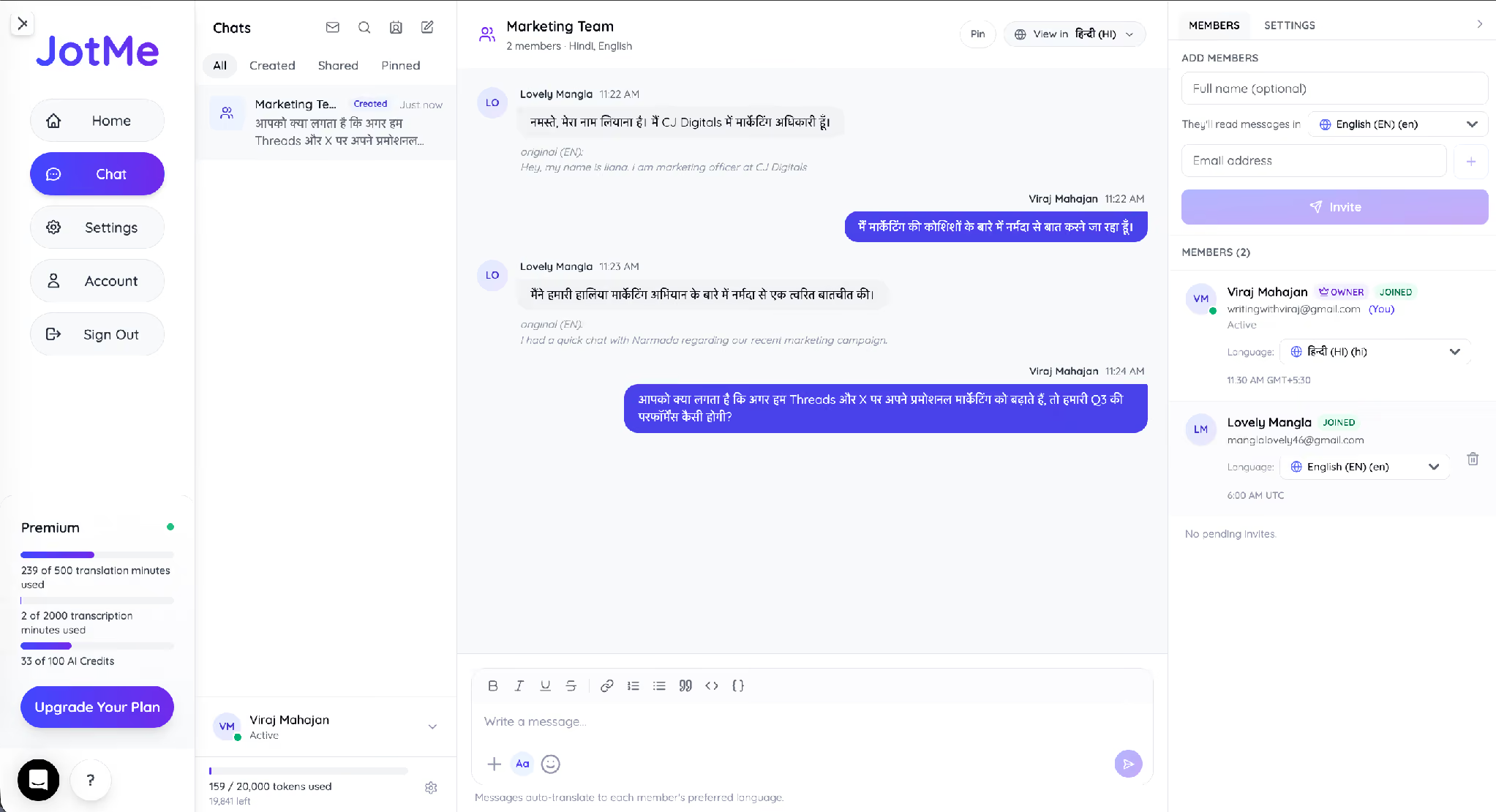
The original text under every message is the part that protects you from legal and numerical details. A translated price or clause reads cleanly, and the source line stays right there when a number has to match the contract.
Switching a Teammate's Language Partway Through a Project
You can change any member's reading language from the members panel at any point in the project. Open that person's language dropdown, pick the new language, and confirm the prompt that names the member and the target language.
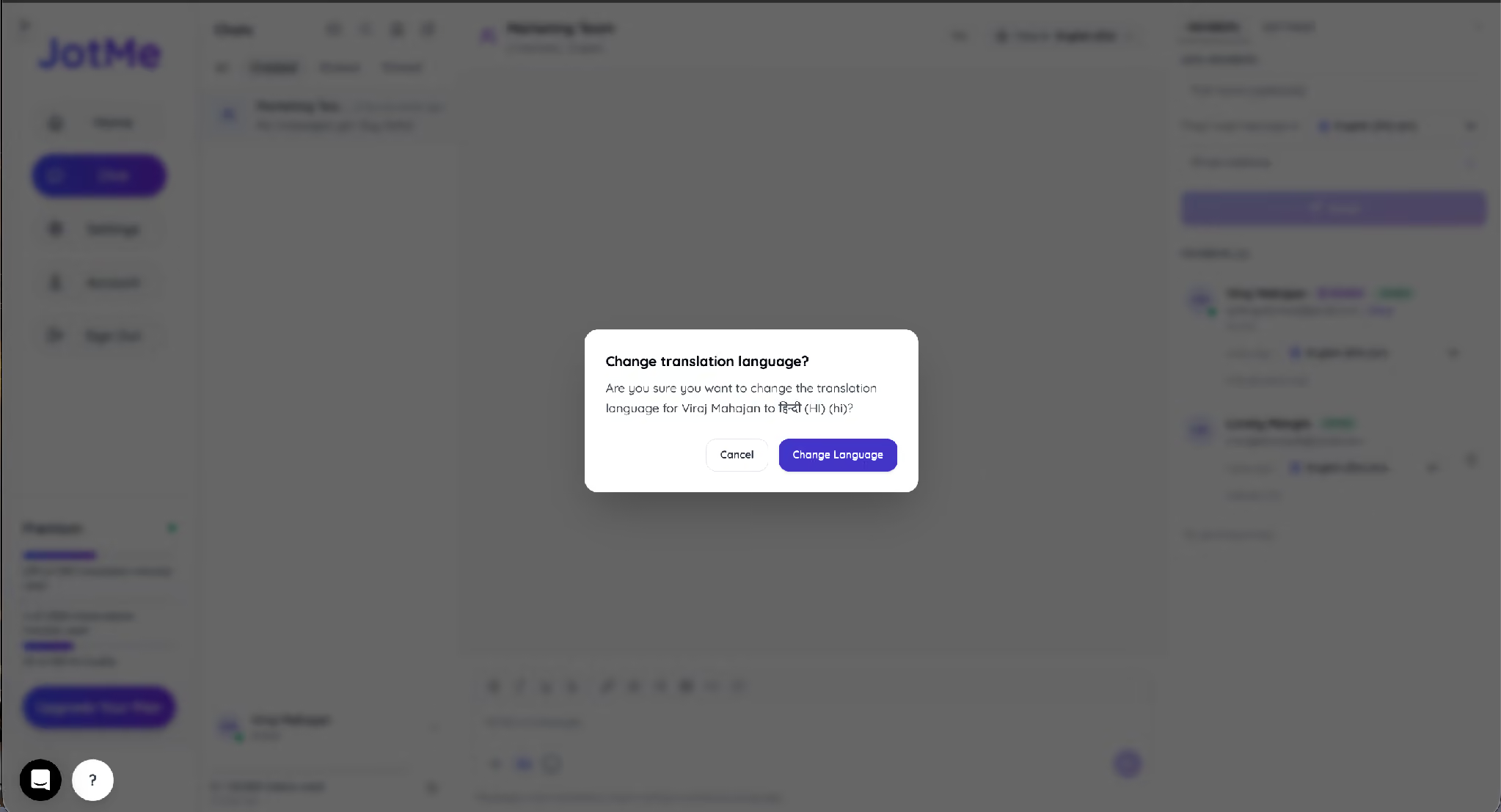
A German client who joins a room set to English is 2 clicks away from reading everything in German. You change their language, confirm, and the thread re-renders in English to German for them while everyone else keeps their own view.
Sharing Contracts and Files Without Leaving the Chat
The plus menu in the composer attaches files directly to the conversation, so contracts, decks, and specs stay in the same thread as the discussion around them.
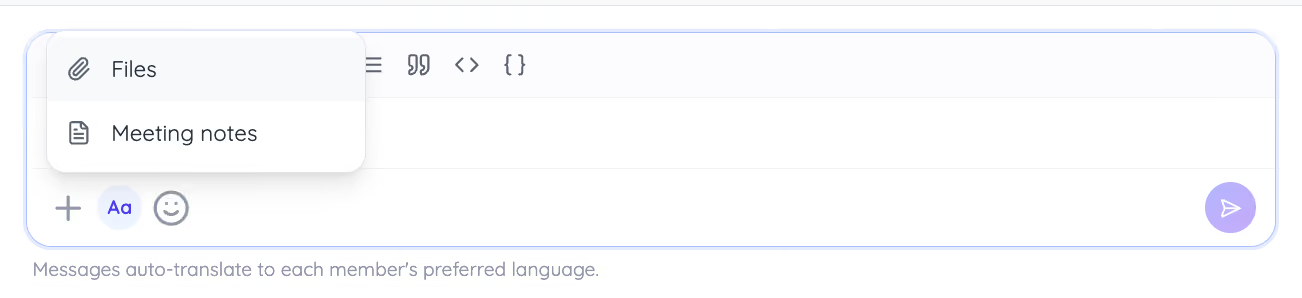
A global sales team can drop a contract draft into the room, let each party read the clause-by-clause discussion in their own language, and reach sign-off in a single thread instead of a scattered email chain. The file and the decision live together, and the original text under each translated message keeps every party reading the same terms.
Note: Keep a single room per deal. When the contract, the file history, and the notes share a single thread, handover to a colleague takes seconds.
Turning a Live Multilingual Call Into Shared Meeting Notes
Instead of manually writing follow-up emails or translating meeting summaries for every stakeholder, JotMe automatically turns your multilingual conversations into AI meeting notes. Every participant can review the recap in the language they work in, making it easier to align on decisions, action items, and next steps after a cross-border discussion.
To generate AI meeting notes, open the + menu inside the chatroom and select the meeting notes option. JotMe creates a structured summary in any of its 21 supported meeting note languages, so everyone can review the same discussion without needing a second translation.
Room members can generate meeting notes whenever they need them. Guests can generate meeting notes once, with each guest-generated summary using 1 AI credit from the room owner's balance. If you frequently invite external clients or suppliers, it's worth keeping an eye on AI credit usage, as guest-generated notes are billed to the owner.
How Global Teams Put JotMe Chat to Work
JotMe Chat helps multilingual teams keep conversations, files, and decisions in one place instead of switching between messaging apps, email threads, and translation tools. Here are some of the most common ways businesses use it.
- Negotiate contracts across languages: Share draft agreements in the chatroom, discuss each clause in every participant's preferred language, and keep the final document in the same conversation for easy reference.
- Onboard international suppliers and partners: Invite external contacts as guests without requiring them to create an account. They can communicate in their native language from the first message, while your team reads everything in theirs.
- Share meeting outcomes faster: Generate AI meeting notes after a multilingual discussion so every stakeholder receives the same summary in the language they understand best.
- Manage cross-border projects in one workspace: Keep messages, shared files, meeting notes, and project decisions together in a dedicated chatroom, making it easy for anyone to catch up without searching through multiple email chains.
By combining multilingual messaging, file sharing, and AI meeting notes in a single workspace, JotMe eliminates the need to constantly switch between separate translation tools, messaging apps, and follow-up documents.
What JotMe Chat Costs You in Tokens and Credits
JotMe Chat draws tokens, and those tokens come from the conversation owner's balance. Chat translation does not touch your translation minutes, which cover live audio instead. Each room shows a token counter, for example, 20,000 tokens, and the sidebar tracks your wider plan usage as you go.
AI credits are separate and fuel the meeting notes and Ask JotMe features. The main cost to watch as an owner is guest note generation, since each guest who generates meeting notes spends 1 of your AI credits. Members generating their own notes and everyday messaging keep the accounting simple: messages spend tokens, notes spend credits, and both bill to the owner.
Reminder: Watch the token counter on long threads. As the owner, you carry the token cost for the whole room, so a very active multilingual thread draws down your balance faster than a quiet one.
Need a Quick Translation Outside the Chat
For a quick block of text that does not belong in a chatroom, you can translate it in the browser with JotMe's free text translation tool. Set the source and target languages, for example, English to Spanish, and paste up to 5,000 characters at a time.
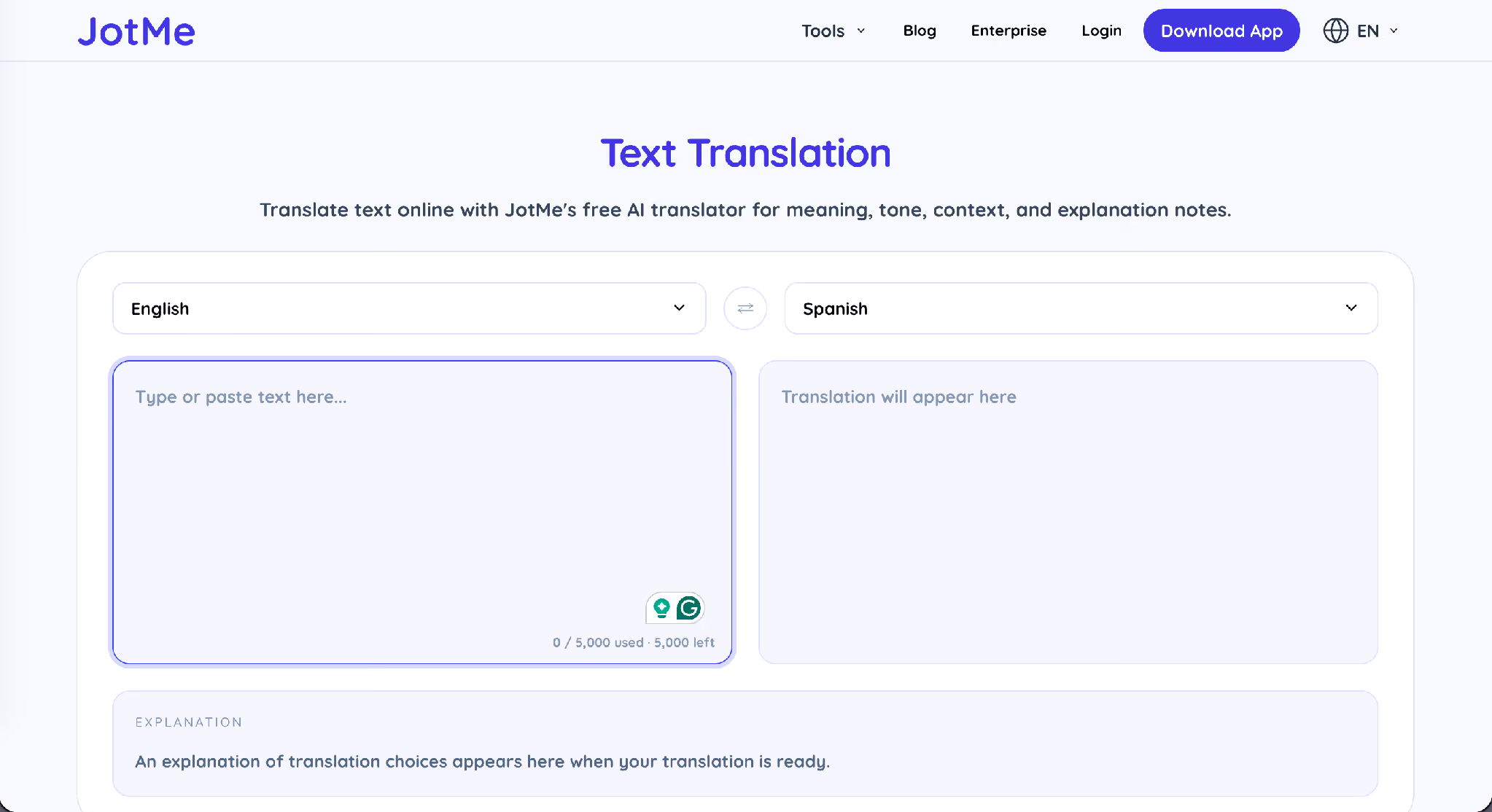
Paste: Can we finalize the contract this week? And the translation tool returns the Spanish ¿Podemos finalizar el contrato esta semana? along with an explanation of the tone and context choices behind it. That explanation panel is what separates JotMe from a word-for-word translator, and it works across 39,000+ language pairs.
Tips to Get More Out of JotMe Chat
Follow these tips to make the most of JotMe Chat for multilingual team messaging and cross-border collaboration.
- Set each member's language before the first message so nobody reads the opening line in the wrong one.
- Keep a single room per deal so files, notes, and decisions stay together for handover.
- Ask guests to set a real display name on entry so the thread stays readable weeks later.
- Generate meeting notes right after a call while the context is still fresh.
- Check the original text under any message whenever a legal clause or a number has to match exactly.
- Track the token counter on busy threads, since chat translation bills you as the owner.
Start Your First Multilingual Chatroom
JotMe Chat fits any team that closes deals, onboards suppliers, or runs projects across languages, and the setup takes less time than writing a single translated email by hand. Open the Chat tab, create a room, invite the people you work with, and set each person's language. For the calls that happen before the chat, pair it with real-time call translation so the whole cross-border workflow runs on a single tool.
Frequently Asked Questions
Does everyone need a JotMe account to join a chatroom?
No, guests join from the email invite without creating an account. A guest sets a display name on entry and can start reading and sending messages right away, with account creation left as an optional step.
What language does each member see messages in?
Each member reads the thread in the language set by their view in control or their member language. JotMe interprets every message into that language and keeps the original text visible underneath.
Can I change someone's language after they join?
Yes. Open that member's language dropdown in the members panel, pick the new language, and confirm the prompt. The thread re-renders in the new language for that member while everyone else keeps their own view.
How many languages does JotMe Chat support?
JotMe supports 200+ languages for translation across the app, including regional variants. AI meeting notes are available in 21 languages.
Can guests create meeting notes?
Yes, once. A guest can generate meeting notes a single time from the available languages, and each guest generation charges 1 AI credit to the room owner.
Does JotMe Chat use my translation minutes?
No, chat translation draws tokens from the conversation owner's balance, not from translation minutes. Live translation minutes cover live audio features instead.
Does the original message stay visible?
Yes, every translated message shows the original text underneath, labeled with the source language, such as original (EN) or original (HI), so any party can check the exact wording.
Last updated on
July 29, 2026
Follow us on social media: