



Tips
How Do I Automatically Translate Spoken Conversations in Google Meet

Viraj Mahajan
August 13, 2026
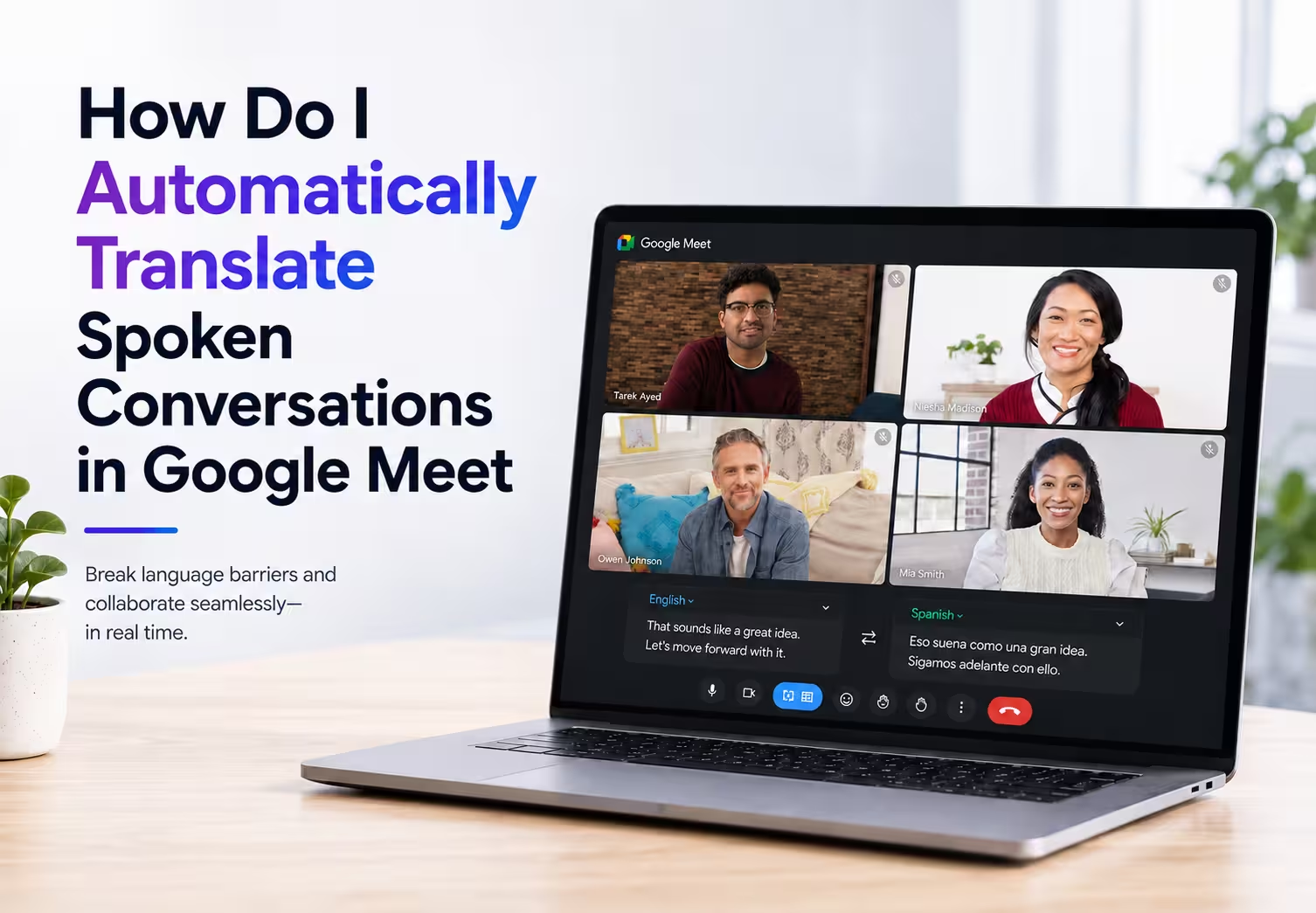
You can automatically translate spoken conversations in Google Meet in 2 ways: turn on Google's built-in speech translation, which requires a paid Workspace or Google AI plan and supports 5 languages, or use an AI meeting translation tool alongside the call. JotMe takes the second route through a desktop app and a Chrome extension, both of which translate Google Meet meetings across 200+ languages while the conversation runs, then hand you a bilingual transcript and AI meeting notes when the call ends.
Most people who search for Google Meet live translation find the same wall. Live captions appear in English, the translated-captions toggle asks for a plan the account does not have, and the speech translation feature covers Spanish, French, German, Portuguese, and Italian only. Anyone working with a Japanese supplier, a Korean design team, or a Hindi-speaking classroom lands outside that list entirely.
This guide covers what Google Meet offers today, where it lacks, and the exact steps for both JotMe setups, with screenshots from a live call.
Key Takeaways
- Google's Native Feature: Speech translation in Google Meet reached general availability for business customers on January 27, 2026, and it covers bidirectional translation between English and Spanish, French, German, Portuguese, and Italian.
- The Real Limit: Only 1 language pair runs per meeting, translated audio never appears in the recording, and the feature works on desktop while mobile support remains in rollout.
- The JotMe Desktop Route: Download the JotMe desktop app, join the call, set the spoken language and the translation language from the top bar, and the entire meeting translates in real time with Ask JotMe running alongside it.
- The JotMe Chrome Extension Route: The extension detects the Google Meet call on its own, translates as you speak through a no-bot architecture, and produces a bilingual transcript plus meeting notes you can share afterward.
What Does Automatic Speech Translation in Google Meet Do
Google Meet speech translation converts a speaker's voice into another language during the call and plays that translation over the original audio. Google announced general availability on February 4, 2026, confirming that the feature left the limited alpha program on January 27, 2026, and reached Workspace customers on select plans.
The engineering story explains why this arrived when it did. Google's own account of the build says older audio translation ran as a chain of 3 steps, transcribing speech, translating the text, then converting it back to speech, which produced 10 to 20 seconds of latency and made natural conversation impossible. The team landed on a single model that starts emitting audio almost immediately, and they identified 2 to 3 seconds as the sweet spot where conversation still flows.
Google Meet also carries a separate, older feature called translated captions, which displays text rather than audio. The two features answer different questions, and mixing them up is the most common reason people think their account is broken.
Google publishes the full translated-captions language list and the toggle path on its Google Meet Help page for translated captions. Teams tracking what ships next inside the app can follow the running summary of new Google Meet features on the JotMe blog.
How Do You Translate Google Meet Meetings With the JotMe Desktop App
You translate Google Meet meetings with the JotMe desktop app in 4 steps: download the JotMe app, join your Google Meet call as usual, set the spoken language and the translation language in the top bar, and let the transcript build in both languages as people talk. JotMe covers 200+ languages and 39,000+ language pairs, which puts Japanese, Korean, Chinese, Hindi, Vietnamese, and Tamil inside the same workflow as Spanish and French.
Step 1: Download and Open the JotMe Desktop App
The JotMe desktop app runs beside the browser rather than inside it, so the meeting itself stays untouched. The JotMe setup walkthrough covers installation and the first-run permissions in order.
Step 2: Join Your Google Meet Call on the Other Screen
JotMe captures your meeting without sending a bot into the call. The participant list stays exactly the same, and the host doesn't receive a join request. This is especially useful for client meetings where an unfamiliar bot name can distract people before the conversation even begins.
Step 3: Set the Spoken Language and the Translation Language
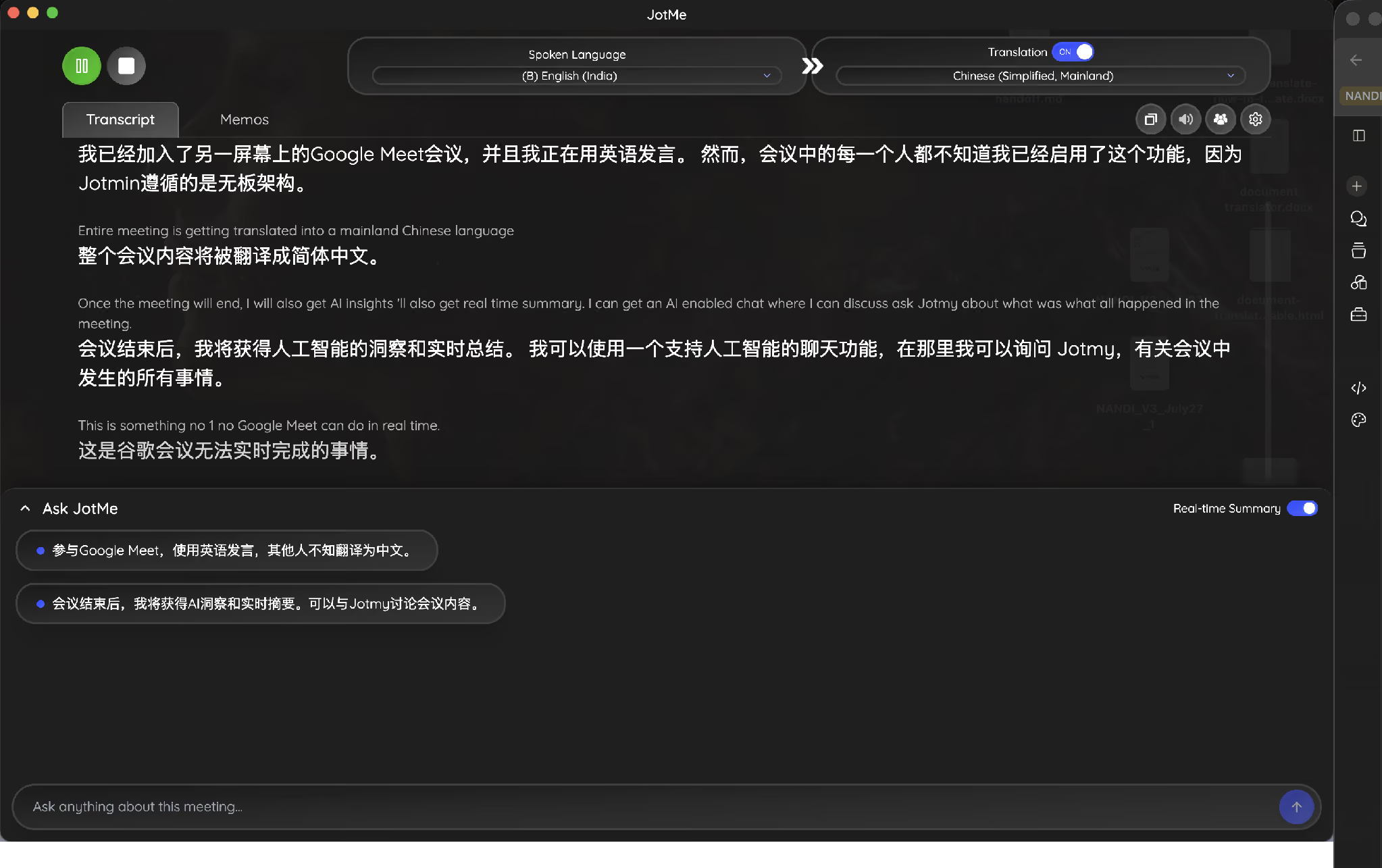
Set the Spoken Language to English (India) and turn on Translation for Chinese (Simplified, Mainland). During the meeting, each line appears first in English and then immediately below it in Chinese, so everyone can follow the conversation in both English to Chinese and Chinese to English.
Step 4: Use Ask JotMe and the Real-Time Summary
The lower panel in the above screenshot carries Ask JotMe with the Real-time Summary toggle switched on, and the bullet points update as the meeting progresses. Somebody joining 20 minutes late reads 2 lines instead of asking 4 people to recap, and the same panel answers questions about what a speaker said earlier without a scroll through the transcript.
Note: the desktop app also keeps a Memos tab next to Transcript, so action items you type during the call stay attached to the same session as the translation.
How Do You Set Up Google Meet Live Translation With the JotMe Chrome Extension
You set up Google Meet live translation with the JotMe Chrome extension by installing it once, opening any Google Meet call, and picking a translation language from the panel that appears on the right. The extension detects the meeting on its own, so no separate start step exists.
Step 1: Install the JotMe Extension and Open a Google Meet Call
The JotMe extension attaches a panel to the meeting window with Spoken Language on the left, a Translation toggle on the right, and Transcription and Notes tabs underneath.
Step 2: Pick Your Translation Language From the Dropdown.
The dropdown in this build lists English, Japanese, Chinese, Korean, Hindi, Thai, Vietnamese, French, German, Italian, Portuguese, Russian, and Spanish as quick picks. Japanese and Korean, the 2 languages missing from Google's generally available speech translation, appear at the top of that list.
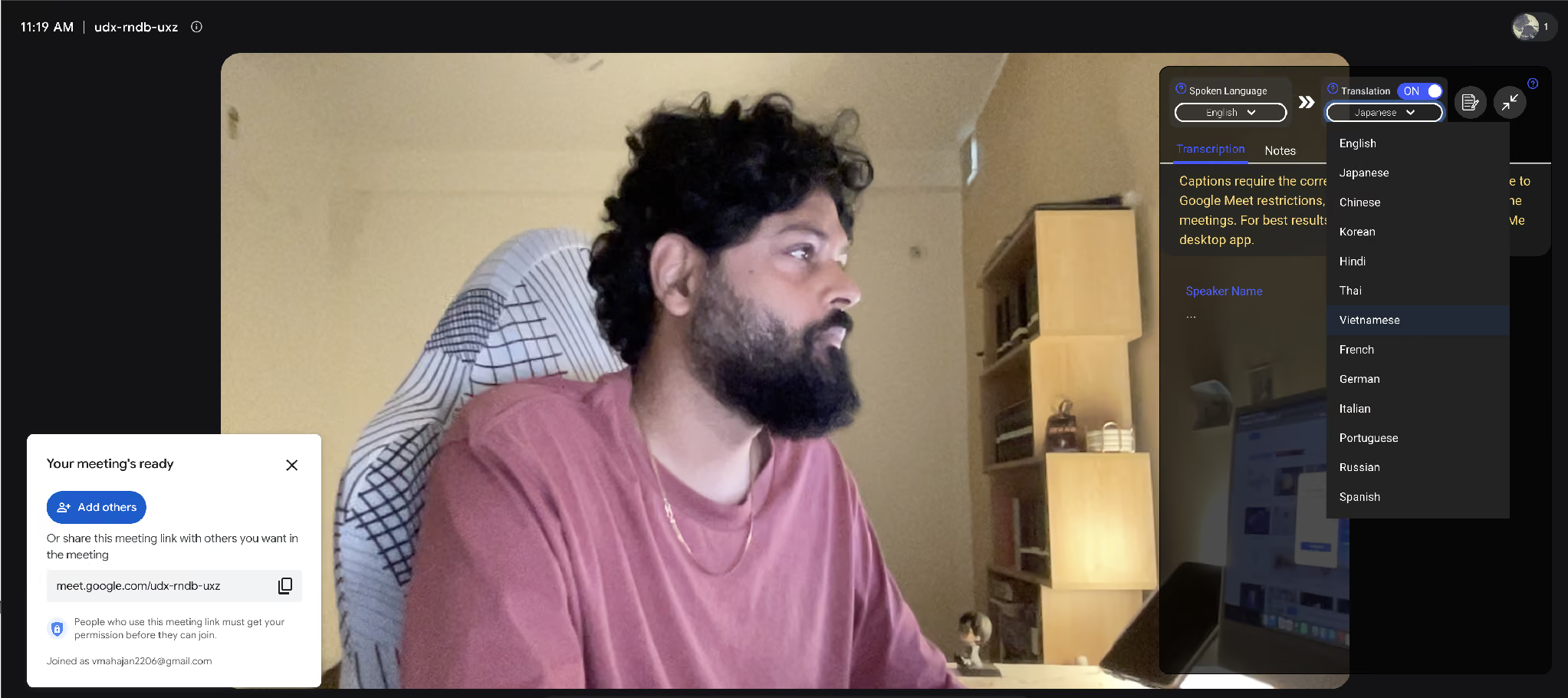
That same screenshot carries a message worth reading before a serious call. JotMe states that captions require the correct spoken language setting, that Google Meet restrictions can stop captions from appearing in some meetings, and that the desktop app gives the better result. Both routes exist for a reason, and the comparison of the JotMe Chrome extension and the desktop app explains which one suits which meeting type.
Step 3: Start Speaking and Read the Bilingual Transcript
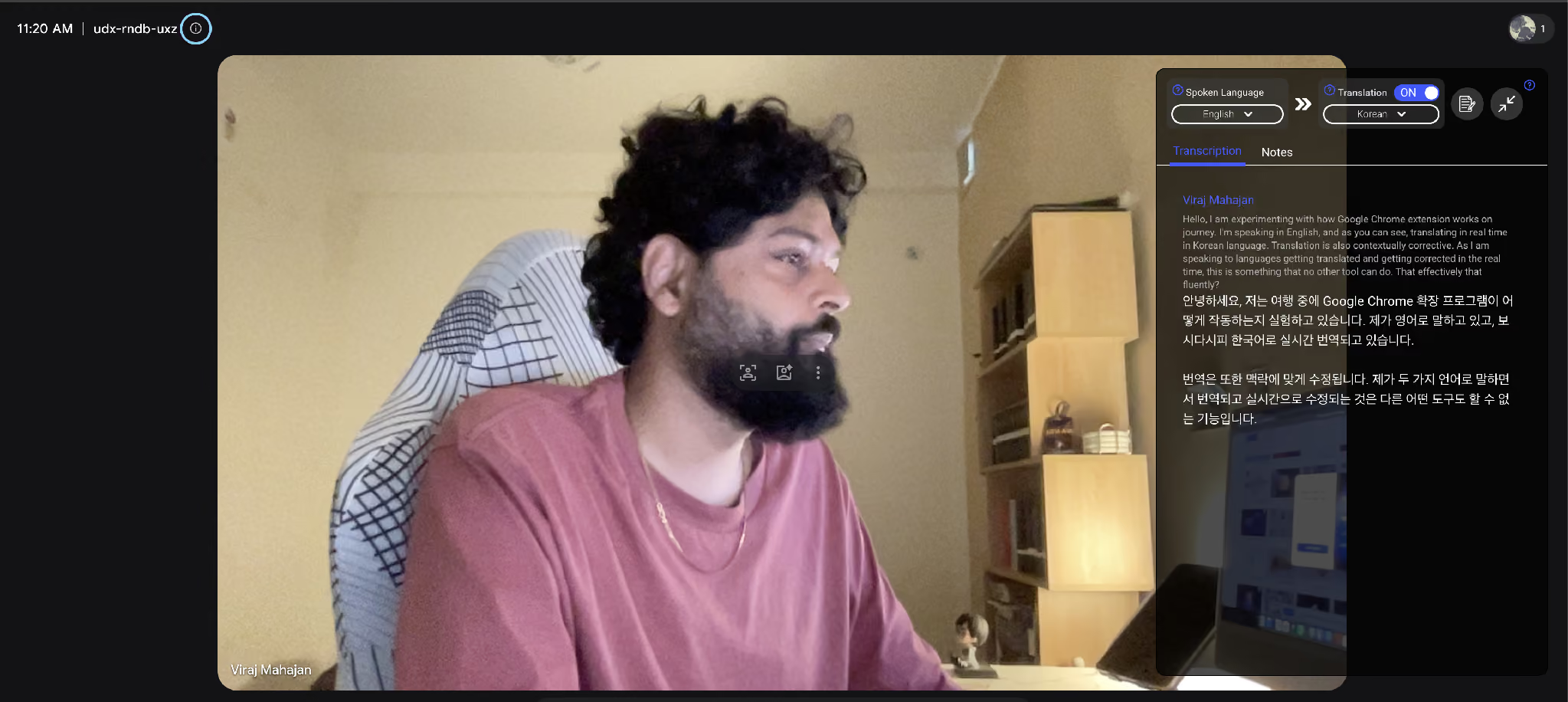
As you can see below, the JotMe extension is smoothly providing English to Korean live translation line by line. The source paragraph appears in gray, the Korean translation follows underneath, and the translation corrects itself as the sentence completes rather than locking in a first guess halfway through a clause.
Step 4: Take the Notes and the Transcript After the Call
The Notes tab produces AI meeting notes once the call ends, and the bilingual transcript exports for anyone who missed the meeting. A supplier in Osaka reads the Japanese column, the operations lead in London reads the English column, and both work from one document. The Google Meet translation tool page covers the export and sharing options in full.
Why Does Google Meet Live Captioning Show Only One Language
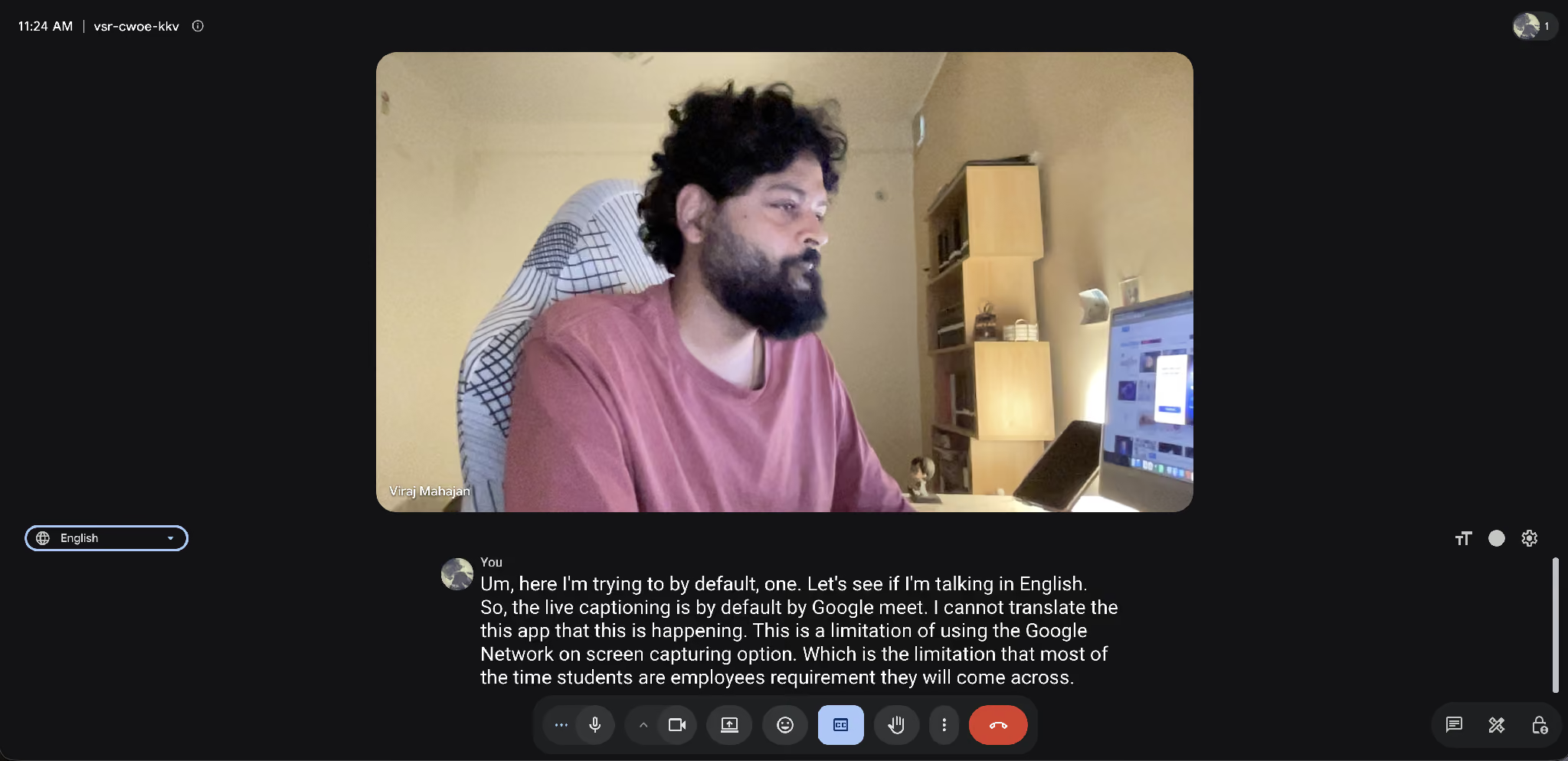
Google Meet live captioning transcribes the language people speak rather than translating it, so a call held in English produces English captions and nothing else until translated captions or speech translation gets switched on. The screenshot below shows exactly that: default Google Meet captioning running on a live call, printing English text for English speech, with no second language anywhere on screen.
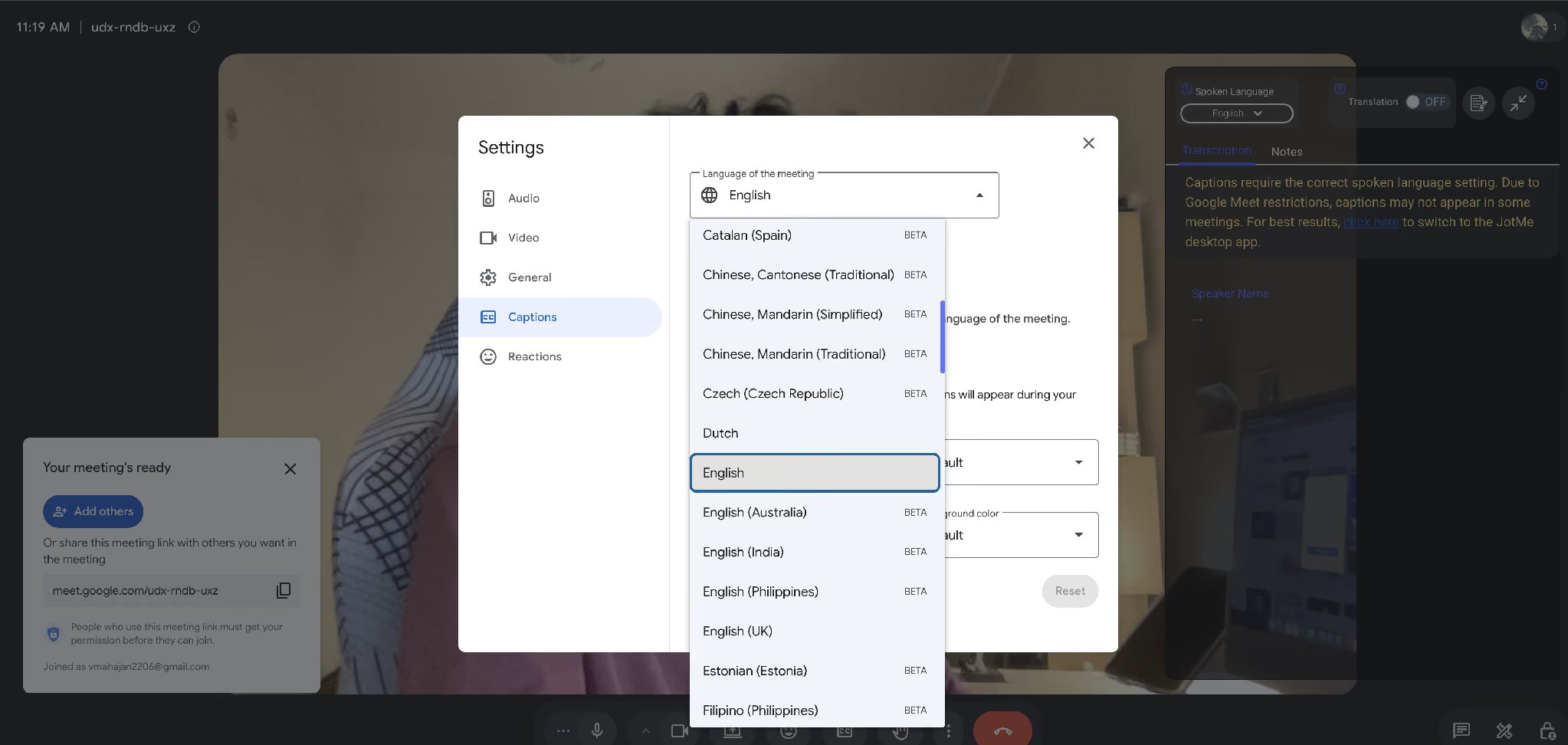
The setting people reach for first makes the confusion worse. Language of the meeting under Settings then Captions asks which language people are speaking, and the list runs long enough that it reads like a translation menu. Catalan, Chinese Cantonese and Mandarin variants, Czech, Dutch, English, English (India), and dozens more appear there, all marked as caption input languages rather than output languages.
The 6 Limits Worth Knowing Before a Client Call
- One Language Pair Per Meeting: Google confirms that a single pair such as English to Spanish stays active at a time, so a call with Japanese, German, and English speakers cannot serve all 3 at once.
- Five Languages in the Generally Available Build: Speech translation covers English paired with Spanish, French, German, Portuguese, and Italian. Japanese, Korean, Hindi, Vietnamese, Tamil, and Thai fall outside that set.
- Recordings Lose the Translation: The saved recording keeps the original spoken audio, so the translated audio never survives the meeting.
- Conference Room Hardware Is Read-Only: People in a Meet hardware room hear translations, and their own speech goes untranslated.
- Desktop First: Google lists Android and iOS support as a coming rollout rather than a shipped feature.
- Plan Gated: A free personal Google account gets neither speech translation nor translated captions.
Google announced a larger model called Gemini 3.5 Live Translate on June 9, 2026, promising 70+ languages and 2,000+ language combinations in one meeting. That upgrade entered private preview for selected business Workspace customers, and Google has published no general availability date, pricing, or tier requirement for it. Anyone who needs Japanese or Korean on a call this week still needs a different route.
Google Meet Native Translation vs JotMe: Which Covers More
Google's native feature wins on convenience for the 5 supported European languages, and JotMe wins on language coverage, app support beyond Google Meet, and what survives after the call ends. The table below lines both up on the points people actually check before a meeting.
Roughly 1,700+ organizations and 300,000 users run JotMe across those apps today. The JotMe for Google Meet hub collects the setup guides for each one.
Who Needs an AI-Powered Translation Tool for Google Meet Calls
Anyone whose language pair falls outside Google's 5 supported languages needs an AI-powered translation tool running alongside the call. Three situations show up most often in support conversations, and none of them get solved by the native feature today.
Operations Leads Working With Japanese and Korean Suppliers
Teams that need English to Japanese translation during supplier meetings can benefit from live bilingual transcripts. An English-speaking operations manager reviewing tooling schedules with a supplier in Nagoya can keep English as the spoken language and Japanese as the translation language. Each statement appears in both languages during the meeting, helping both sides verify technical terms, quantities, and delivery dates without waiting for a follow-up email. This is especially useful for recurring supplier calls where small translation mistakes can delay production or create unnecessary back-and-forth.
A Translation Tool for Students Attending Lectures in Another Language
Universities run guest lectures over Google Meet constantly, and a student in Pune attending a German professor's materials-science session has no path through Google's consumer tier. A free Google account gets neither translated captions nor speech translation. The best translation app for students that produces a bilingual transcript solves the revision problem as well as the live one, since the transcript becomes study material the moment the lecture ends.
Design and Product Reviews Across 3 Languages
A product review with a Korean design team, a Vietnamese QA lead, and an English-speaking product manager breaks the single-pair rule immediately. Each participant setting their own translation language sidesteps the constraint, and the shared bilingual transcript gives the team one record instead of 3 personal sets of notes that disagree by Friday.
Which Google Meet Translation Setup Should You Start With
Start with Google's native speech translation when your team works in English, Spanish, French, German, Portuguese, or Italian, and your organization already pays for an eligible Workspace tier. That path adds nothing to install. Everything outside those 5 languages, every free account, and every meeting that needs a shareable bilingual transcript points to JotMe instead, through the Chrome extension for a quick call or the desktop app when the meeting matters.
Run one short test call before the meeting that counts. Install the extension, set your translation language, speak for 2 minutes, and read the transcript back. The JotMe Google Meet translation setup walks through both routes with the same screenshots used above.
FAQs
Can Google Meet Translate Spoken Conversations Automatically?
Yes, through speech translation, which became generally available to business customers on January 27, 2026, and dubs translated audio over the original voice. The generally available build handles English paired with Spanish, French, German, Portuguese, and Italian, runs 1 language pair per meeting, and needs a Business Standard or Plus, Enterprise Standard or Plus, Frontline Plus, or Google AI Pro or Ultra plan. Accounts outside those tiers see no translation option at all.
Why Are My Google Meet Captions Not Translating?
Captions show a single language because live captioning transcribes speech rather than translating it. Language of the meeting under Settings then Captions sets which language Google Meet listens for, and translated captions live behind a separate toggle available on specific Workspace tiers. An account on a free personal plan reaches neither toggle, which explains most reports of captions appearing in English on a Japanese call.
Does JotMe Add a Bot to the Google Meet Participant List?
No, both the JotMe desktop app and the Chrome extension run outside the meeting, so nothing joins the call and no host permission gets requested. Other participants see the same list they saw before, which keeps client calls and interview panels clean.
How Many Languages Can JotMe Translate in a Google Meet Meeting?
JotMe supports 200+ languages and 39,000+ language pairs, with AI meeting notes available in 21 languages. That covers Japanese, Korean, Chinese, Hindi, Vietnamese, Thai, and Tamil alongside the European languages Google supports natively.
Can I Translate Google Meet Meetings on a Free Plan?
JotMe offers a free plan with 20 minutes of live translation per month, which covers a short standup or a first test call. Google Meet speech translation requires a paid tier with no free option, so a personal Gmail account has no native path to translated audio.
Will Google Meet Support Japanese and Korean Speech Translation Soon?
Google announced Gemini 3.5 Live Translate on June 9, 2026, with 70+ languages and 2,000+ language combinations in a single meeting, and that model entered private preview for selected business Workspace customers. Google has published no general availability date, pricing, or tier requirement, so the timeline for Japanese and Korean inside Google Meet stays open.
Do I Get a Transcript After the Google Meet Call Ends?
The JotMe Chrome extension and desktop app both produce a bilingual transcript plus AI meeting notes once the call finishes, and you can share either with people who missed the meeting. Google Meet recordings keep the original spoken audio and drop the translated audio, so the native feature leaves no translated record behind.
Last updated on
August 13, 2026
Follow us on social media:
![JotMe — Is Google Translate Accurate? [2026 Test]](/_webflow-assets/0d0512afc7b037d74dff536f22fed08f.avif)