




Tips
How to Switch from the JotMe Chrome Extension to the Desktop App?

Taka Shirasu
January 12, 2026

If your JotMe Chrome Extension is not working, you're not alone. Some Google accounts restrict Chrome extensions on Google Meet, and JotMe has shifted focus toward our desktop and mobile apps, where we can deliver better AI-powered features. Here’s how to switch smoothly and continue capturing transcripts and live translations without interruptions.
- Remove the Extension from Chrome Browser
- Download Desktop App
- Start Transcribing and Translating
Step 1: Remove the JotMe Chrome Extension
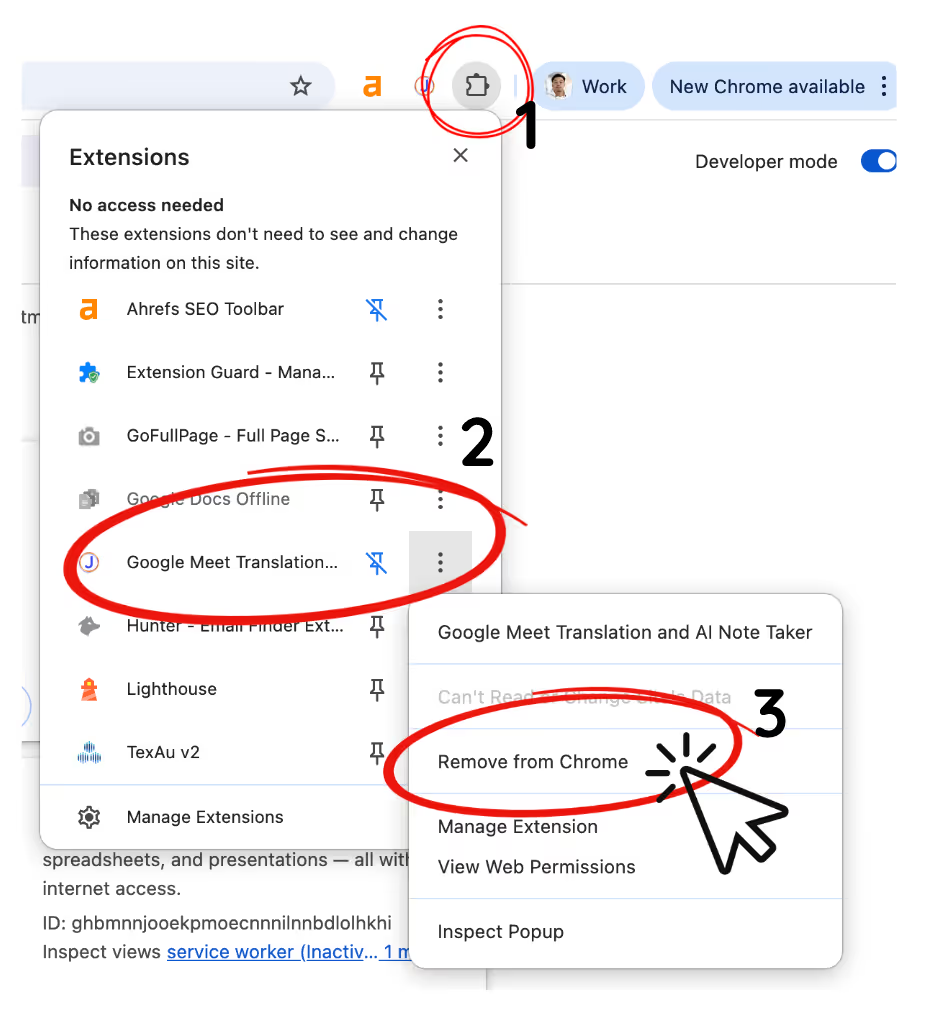
The JotMe desktop app will not work if the Chrome extension remains active because one account cannot run multiple sessions simultaneously. Click the puzzle icon in Chrome, locate JotMe, and remove or disable the extension.
Step 2: Download the JotMe Desktop App
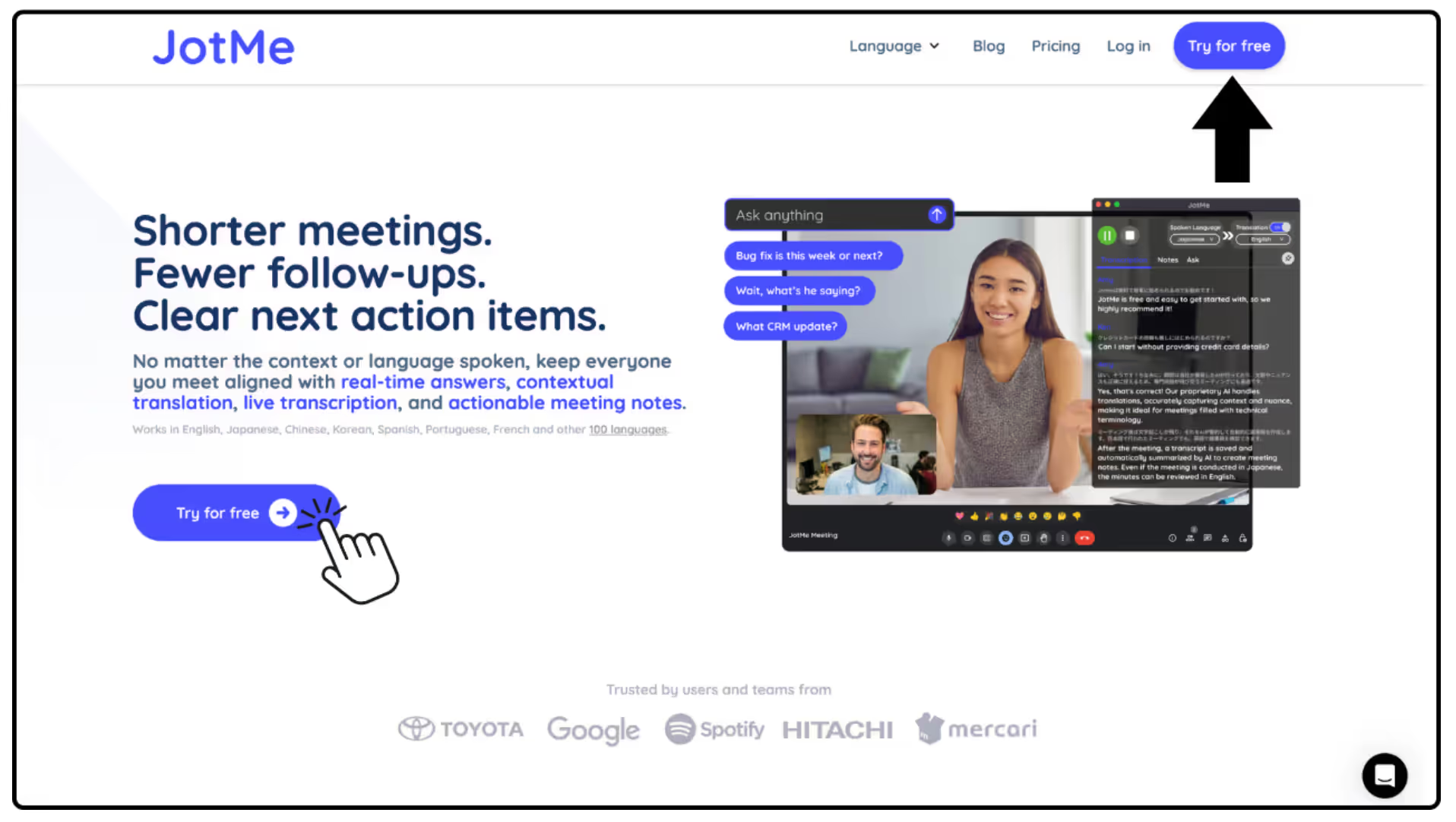
Visit the JotMe site and click any “Try for Free” button. Select the desktop installer for your device: macOS (Apple Silicon), macOS (Intel), or Windows. Download and install to continue using AI transcription without browser limitations.
Step 3: Start Transcribing and Translating with the Desktop App
Open the desktop app, select your spoken and translation languages, and click Start to transcribe and translate the meetings in real-time. For step-by-step usage guidance, see: https://www.jotme.io/how-to-use-jotme.
Last updated on
April 14, 2026
Follow us on social media: