





Resources
What is the Most Accurate Way to Translate Business Meetings in Real Time

Lovely Mangla
July 23, 2026
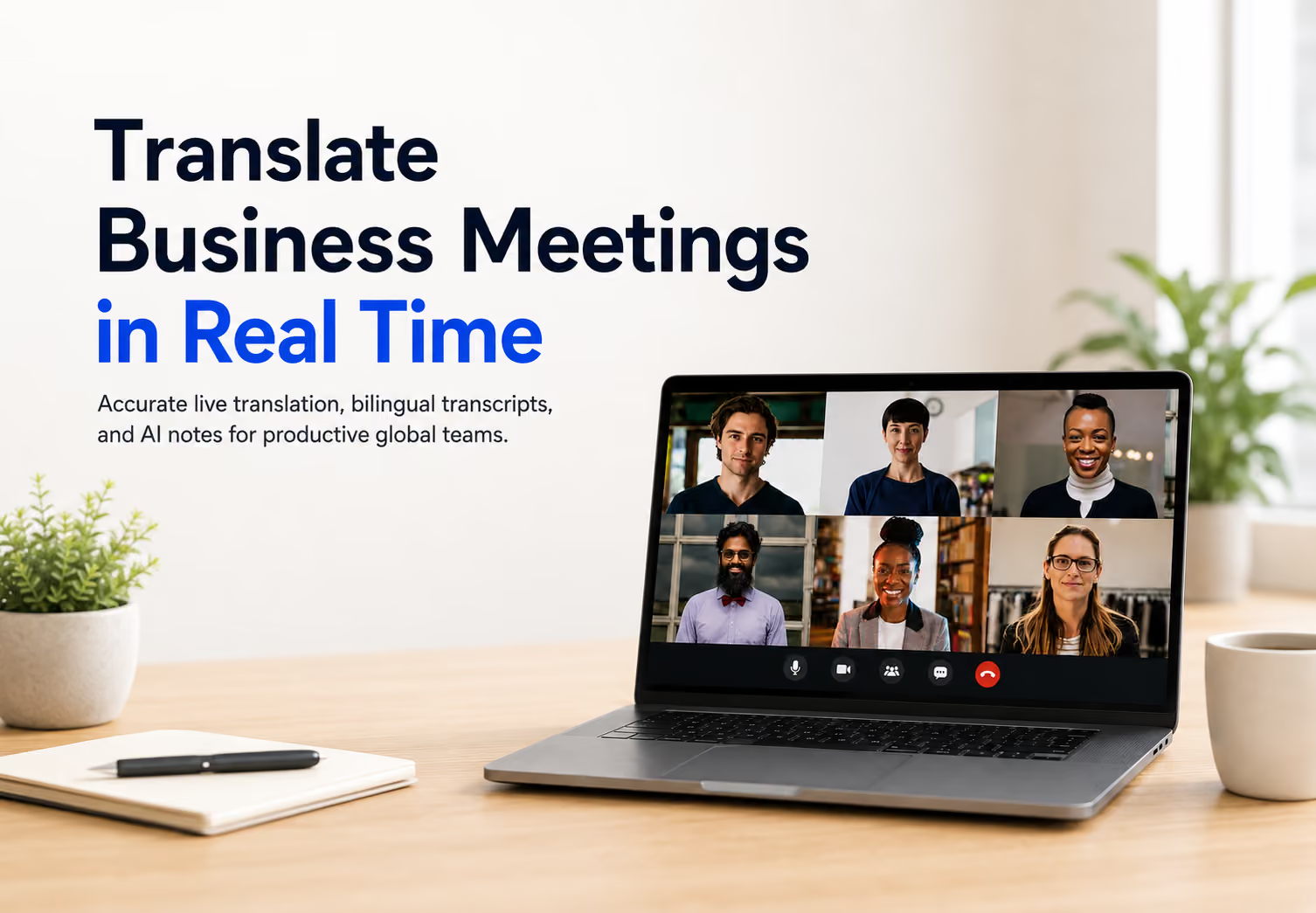
The most accurate way to translate business meetings in real time is to use a real-time translation and transcription tool like JotMe that captions every speaker, keeps the full context of the conversation, translates as people speak in 200+ languages, and saves a bilingual transcript and AI notes you can verify.
When you translate a business meeting with a word-by-word engine, the intent behind phrases like cost per acquisition or platform commissions drops out, and a manager loses hours to follow-up email chains. This guide shows how JotMe translates a business meeting accurately, with live Spanish and English examples, a clear look at Google Meet live translation for business and Zoom simultaneous interpretation, and proof from the app for every claim.
What Makes a Business Meeting Translation Accurate in Real Time?
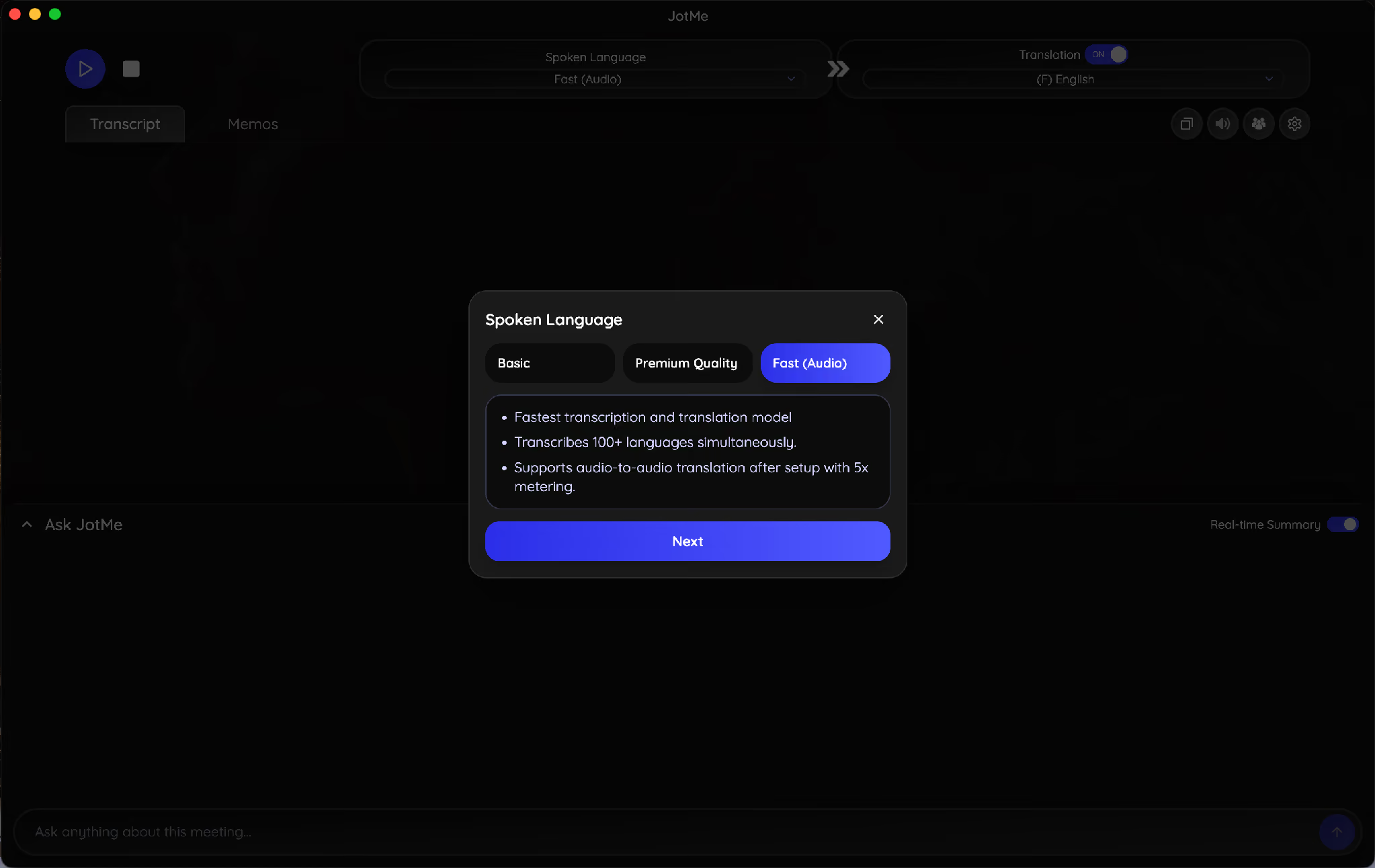
A business meeting translation is accurate when the tool reads full sentences for context, separates each speaker, runs on a high-quality model, and saves a transcript you can check line by line. JotMe lets you set the model quality before you translate a business meeting, so you pick Premium Quality for the most accurate output on a high-stakes call, or the faster model for a quick internal sync.
Our roundup of the best live translation tools ranks these options by how they perform in real meetings, and JotMe covers 200+ languages across 39,000+ language pairs, so one setup can translate a business meeting from Spanish today and Japanese tomorrow.
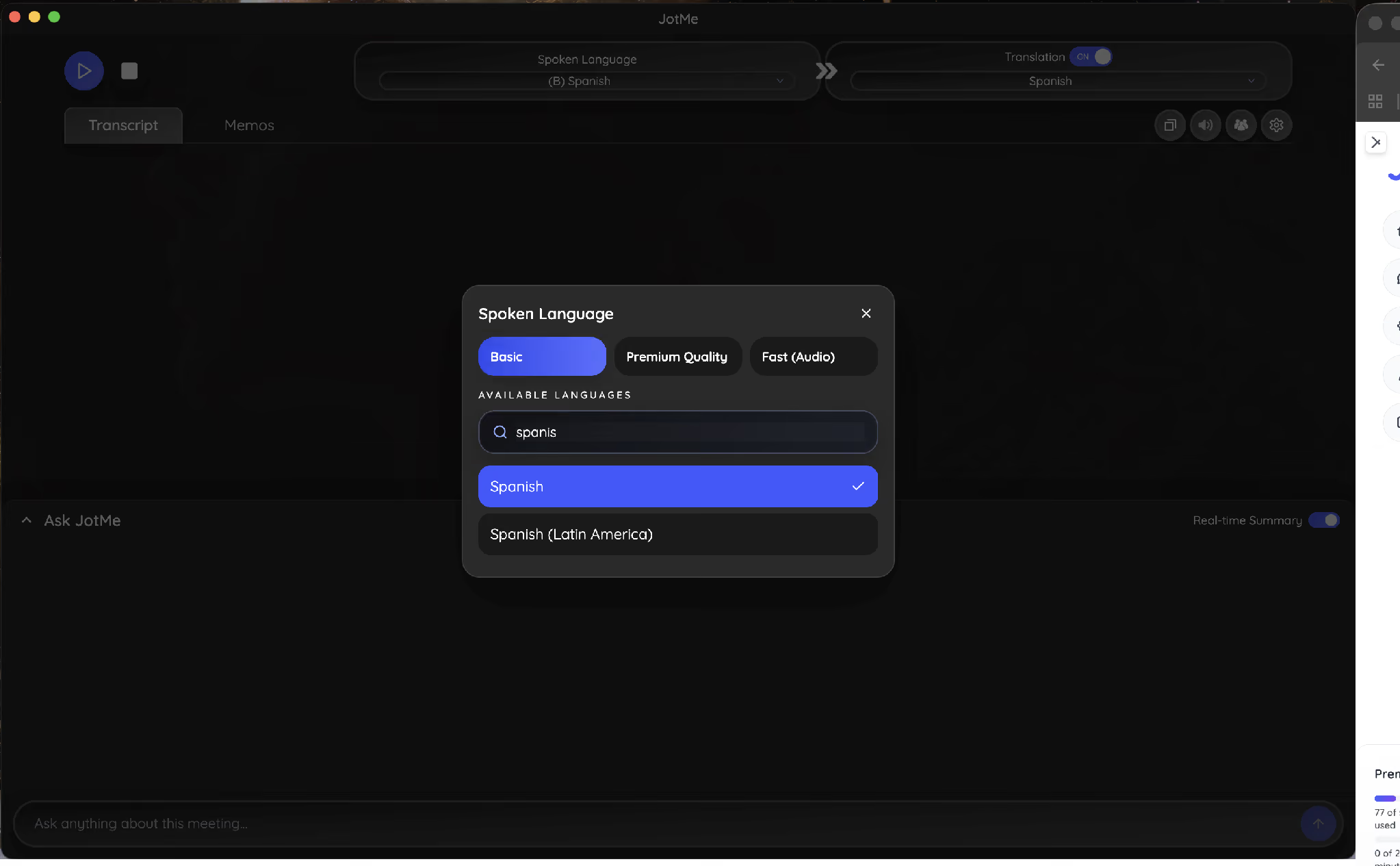
Accuracy also depends on the exact language you pick. You search and choose the spoken language, including regional variants like Spanish and Spanish (Latin America), so a business meeting in Spanish translation matches the dialect on the call.
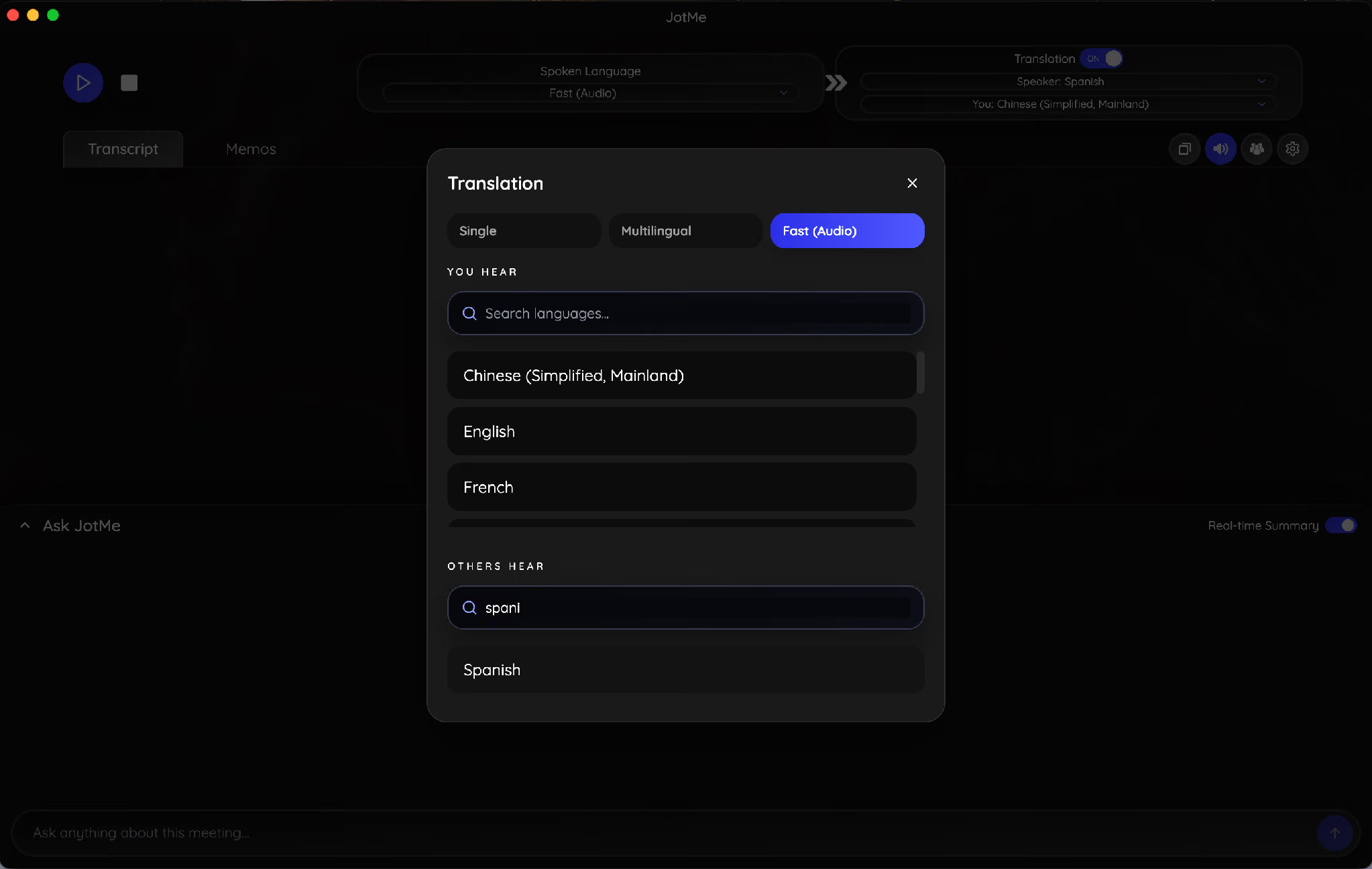
You then set what you hear and what everyone else hears, which is how JotMe runs a business meeting in Spanish translation for one person and Chinese for another at the same time.
How Does JotMe Translate a Business Meeting in Real Time?
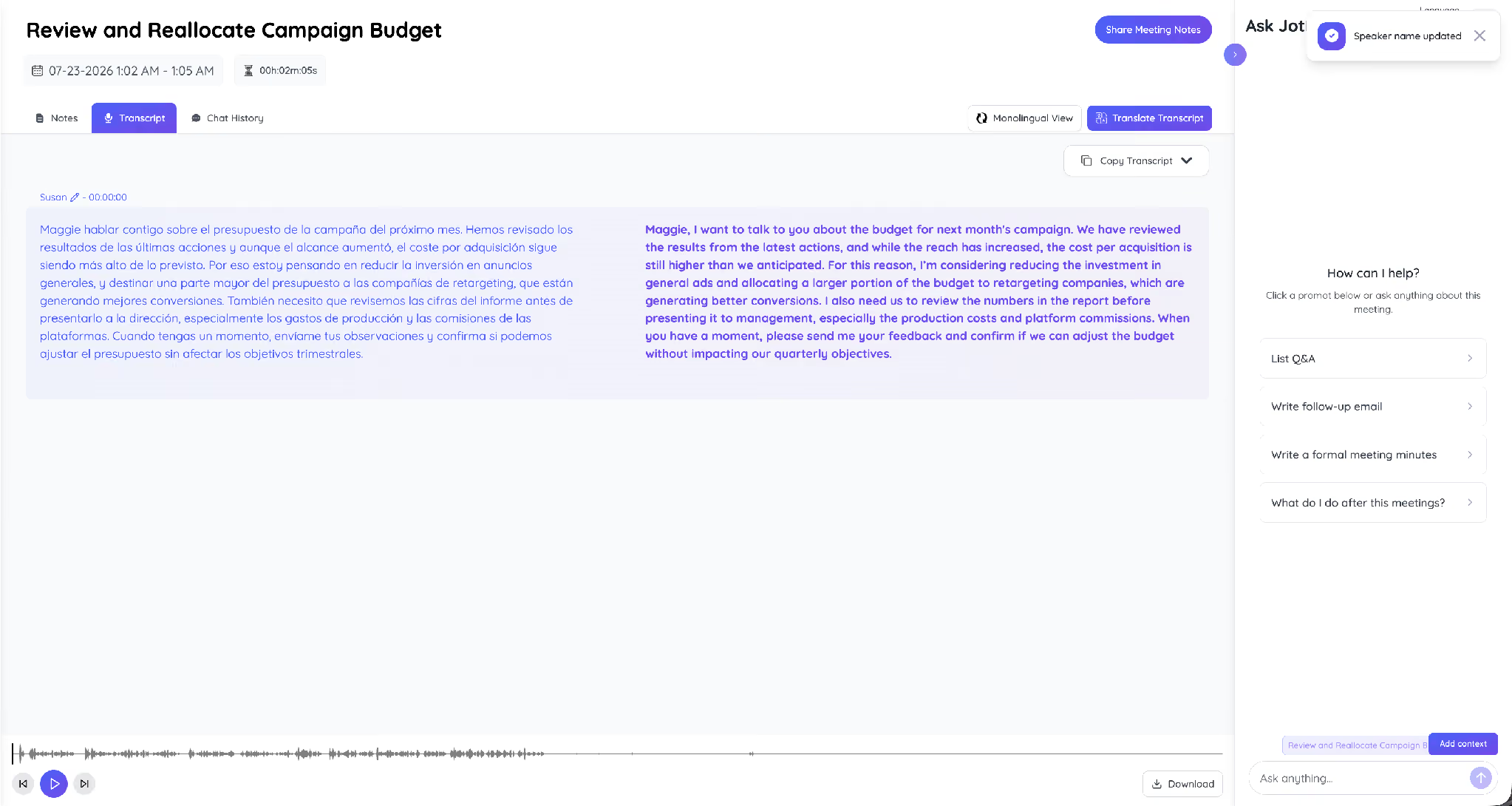
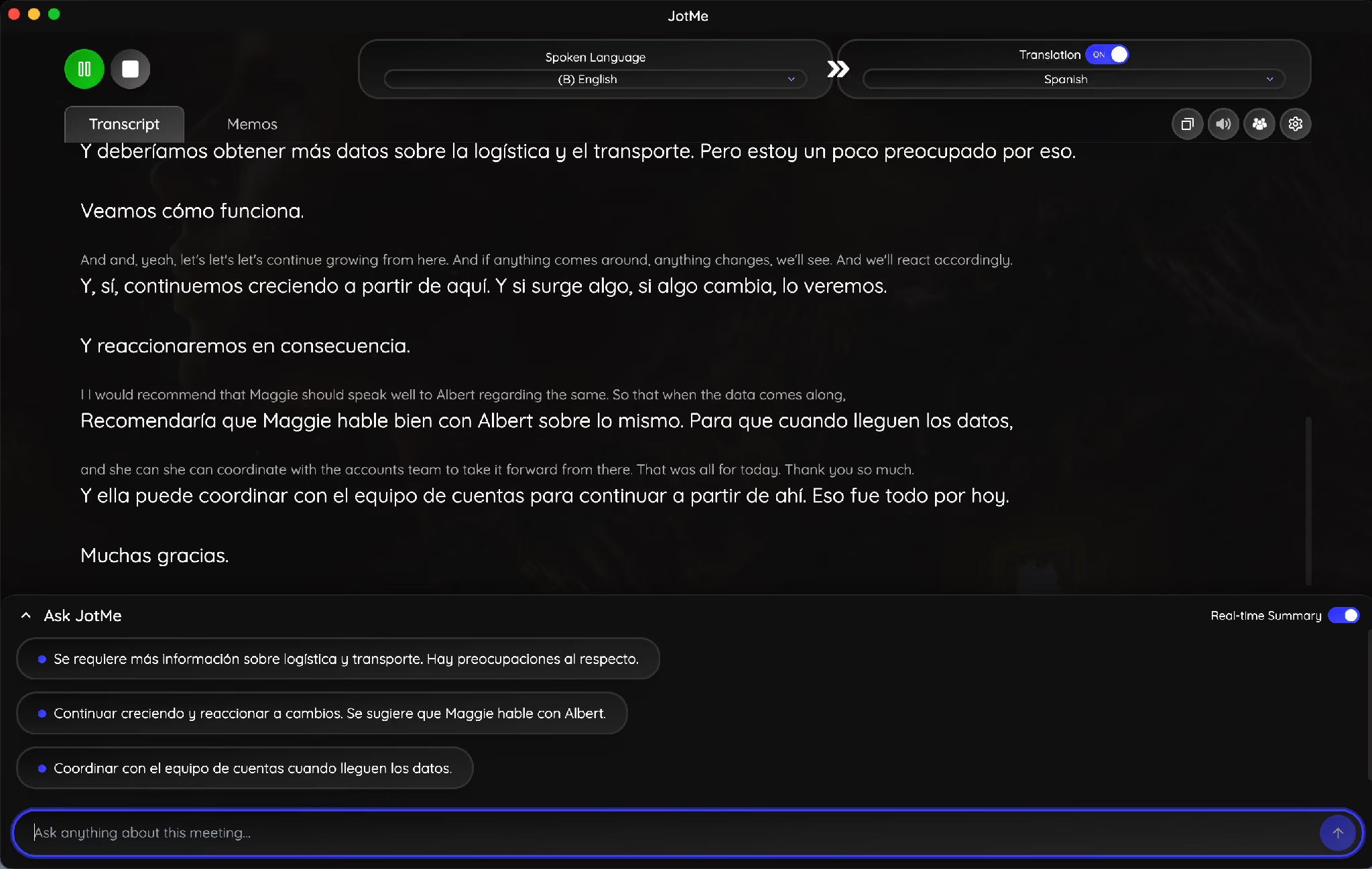
JotMe translates a business meeting in real time by captioning each speaker, translating the speech as it happens, and writing both languages into a saved transcript. In this campaign budget meeting, Susan spoke Spanish and JotMe produced the English live.
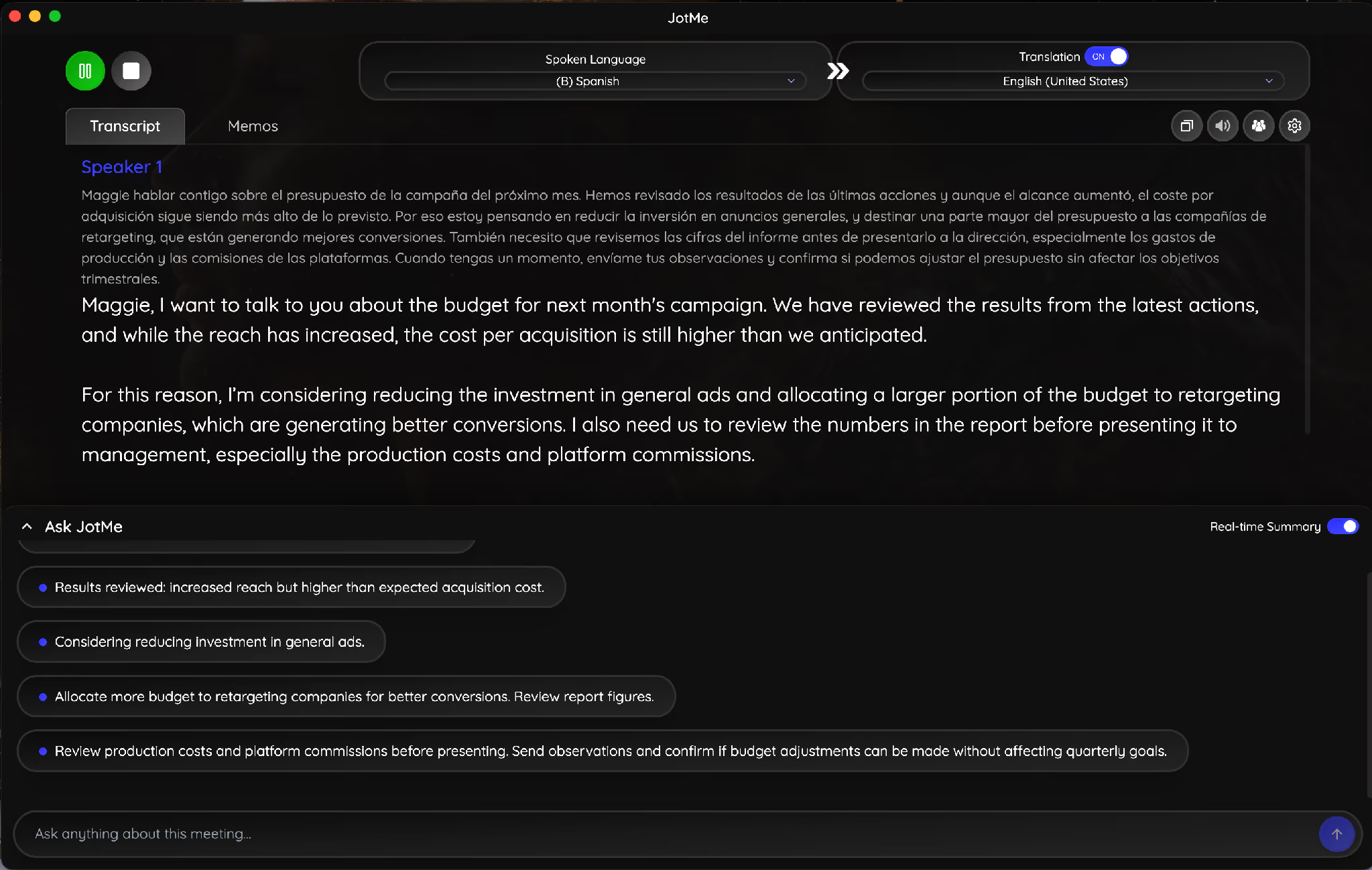
English (JotMe): “Maggie, I want to talk to you about the budget for next month’s campaign.”
The saved transcript keeps both languages side by side, so anyone can verify the business meeting in Spanish translation after the call. You can run the same Spanish to English live translation in your own calls.
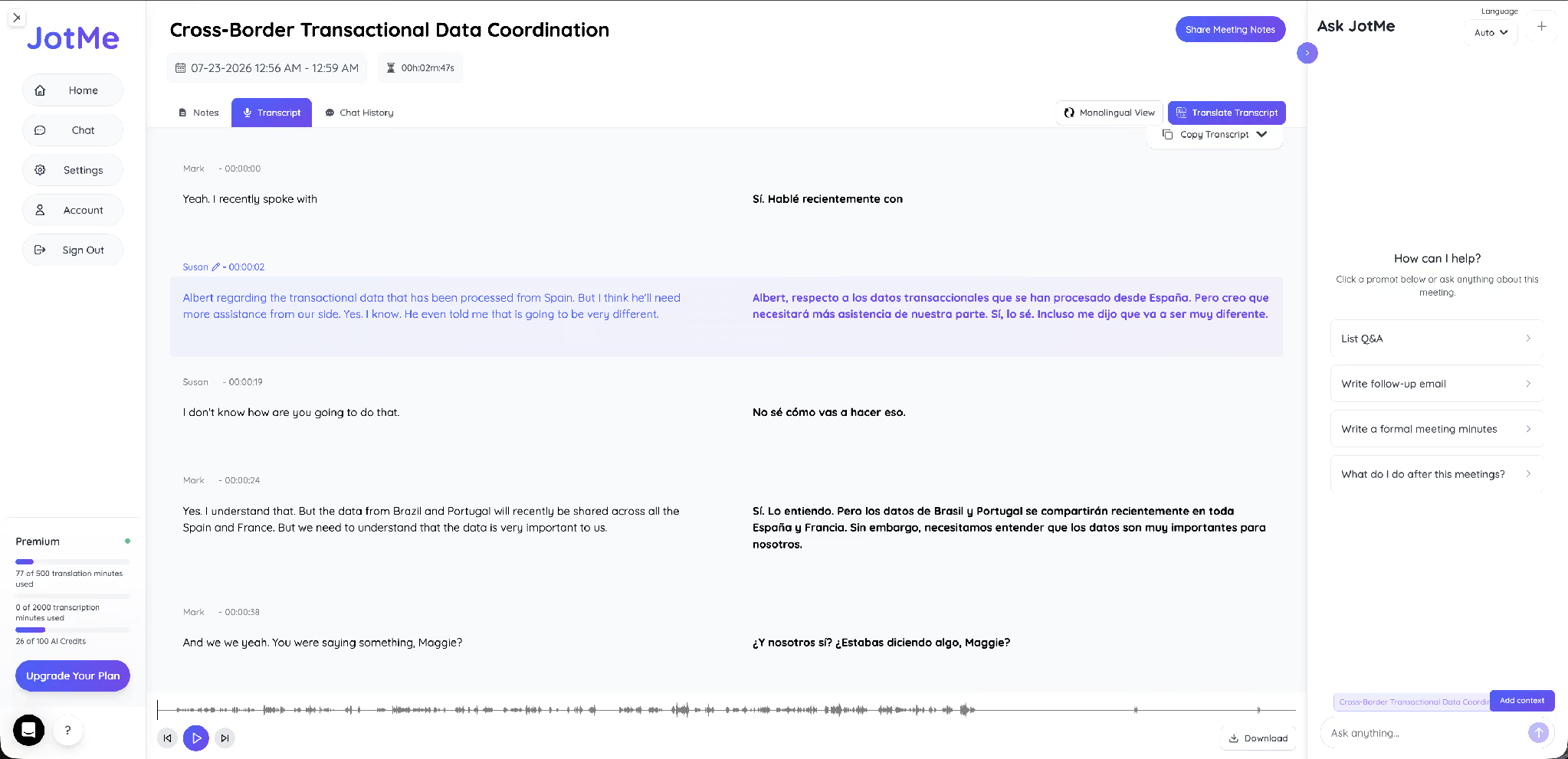
To translate a business meeting to Spanish, you flip the direction, and JotMe reads each English speaker into Spanish as they talk. In this cross-border meeting, the team spoke English and JotMe produced the Spanish live.
English (spoken): “I don’t know how are you going to do that.”
English (spoken): “Yes. I understand that.”
Short exchanges like these are where a meeting in Spanish translation has to stay fast and clean, and the transcript records every line for both sides. For recorded files, English to Spanish audio to text turns a saved meeting into a Spanish transcript you can share.
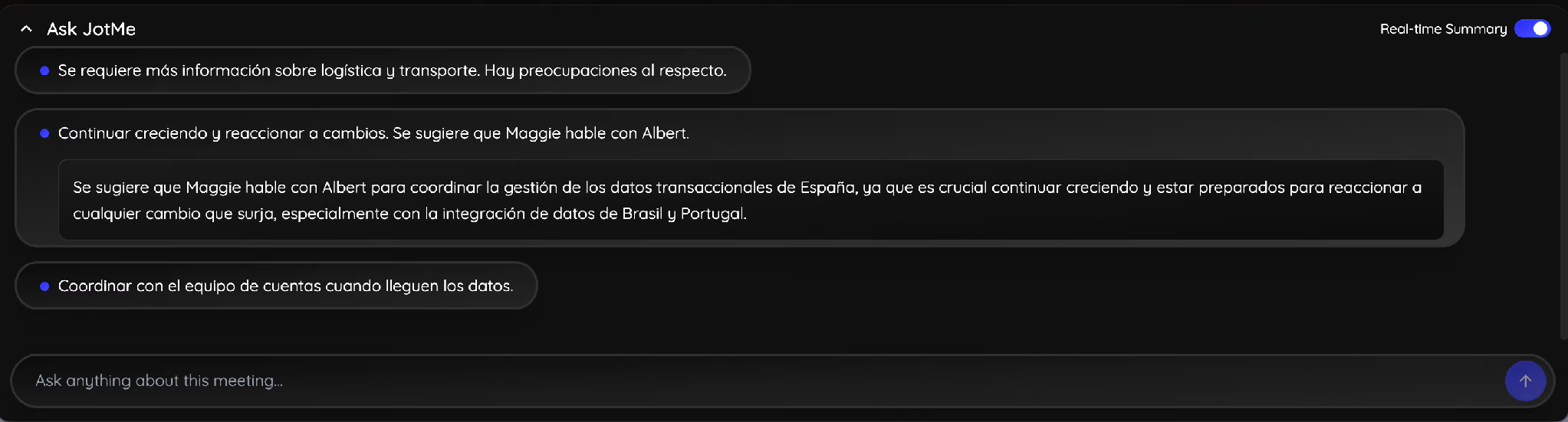
JotMe also writes a live summary as the meeting runs, in the language of the call, so you act on a decision without waiting for notes. Here the summary appeared in Spanish while the team spoke.
What Do You Get After You Translate a Business Meeting?
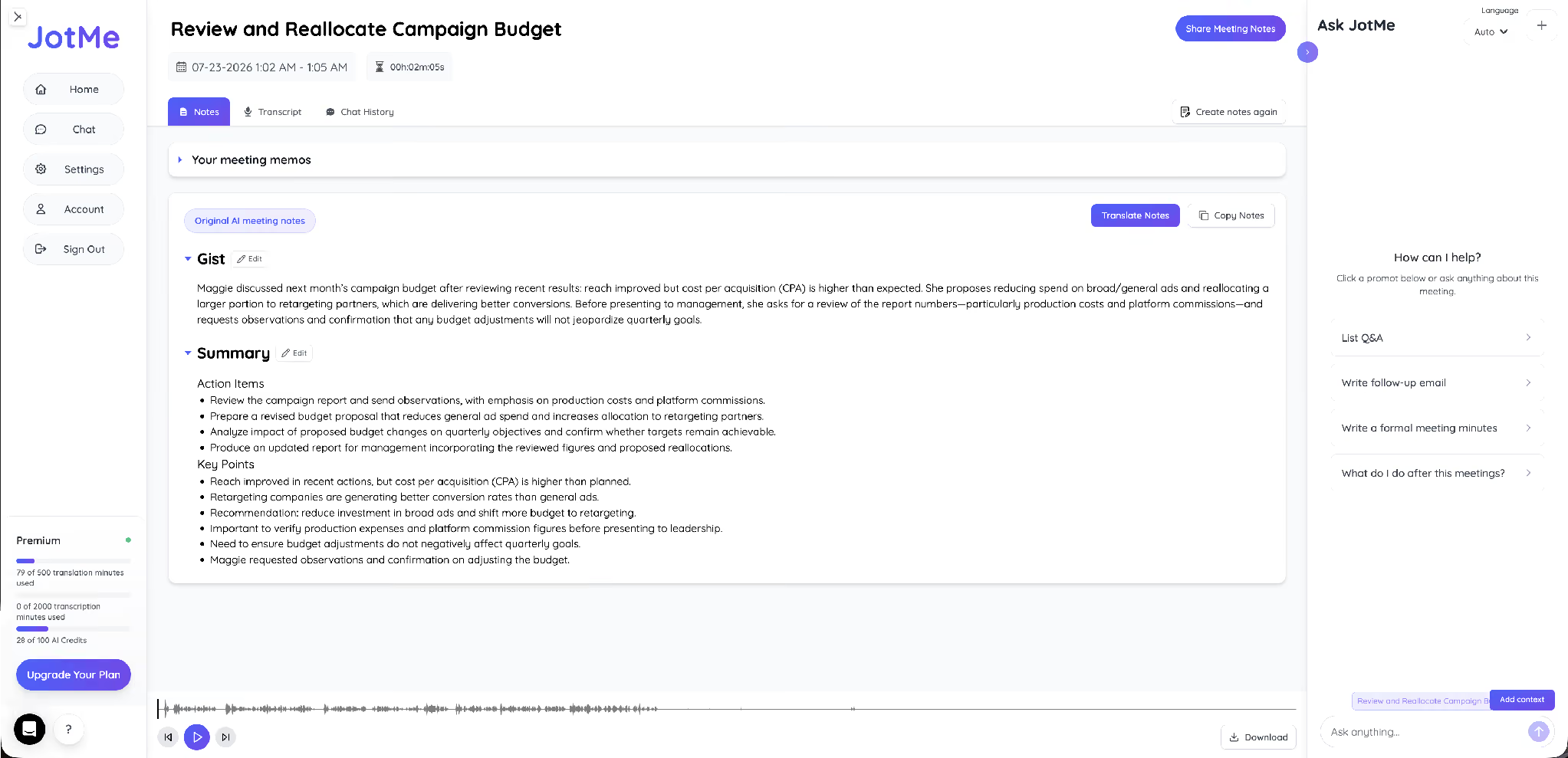
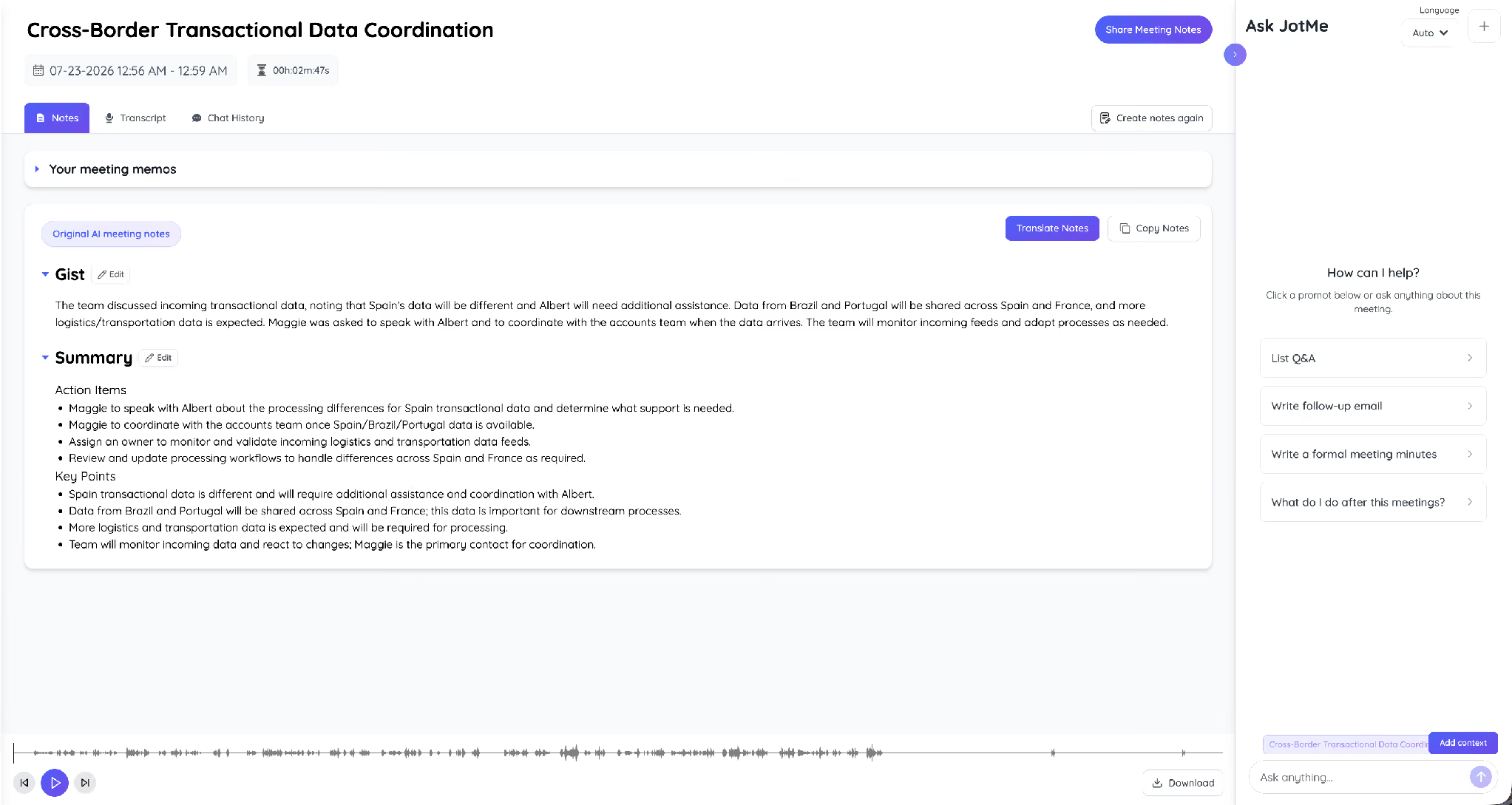
After you translate a business meeting, you get a saved bilingual transcript, AI meeting notes, formal minutes, and translated team chat, all in the language your team reads. JotMe writes the notes with a Gist, a Summary, Action Items, and Key Points, and the budget meeting notes capture the reallocation decision and the follow-up owners.
The cross-border meeting produced its own notes with action items and next steps, which keeps a business meeting in Spanish translation useful long after the call ends.
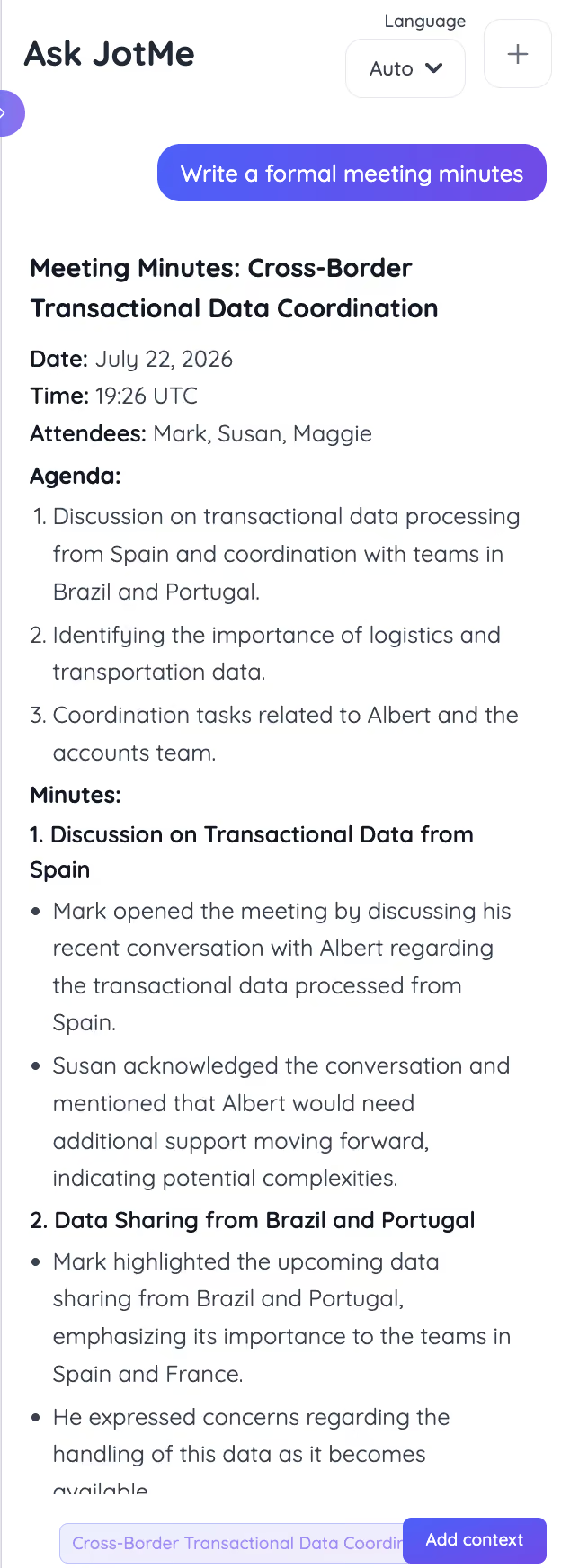
JotMe also turns the meeting into formal minutes with the date, attendees, agenda, and numbered discussion points, ready to share with anyone who missed the business meeting.
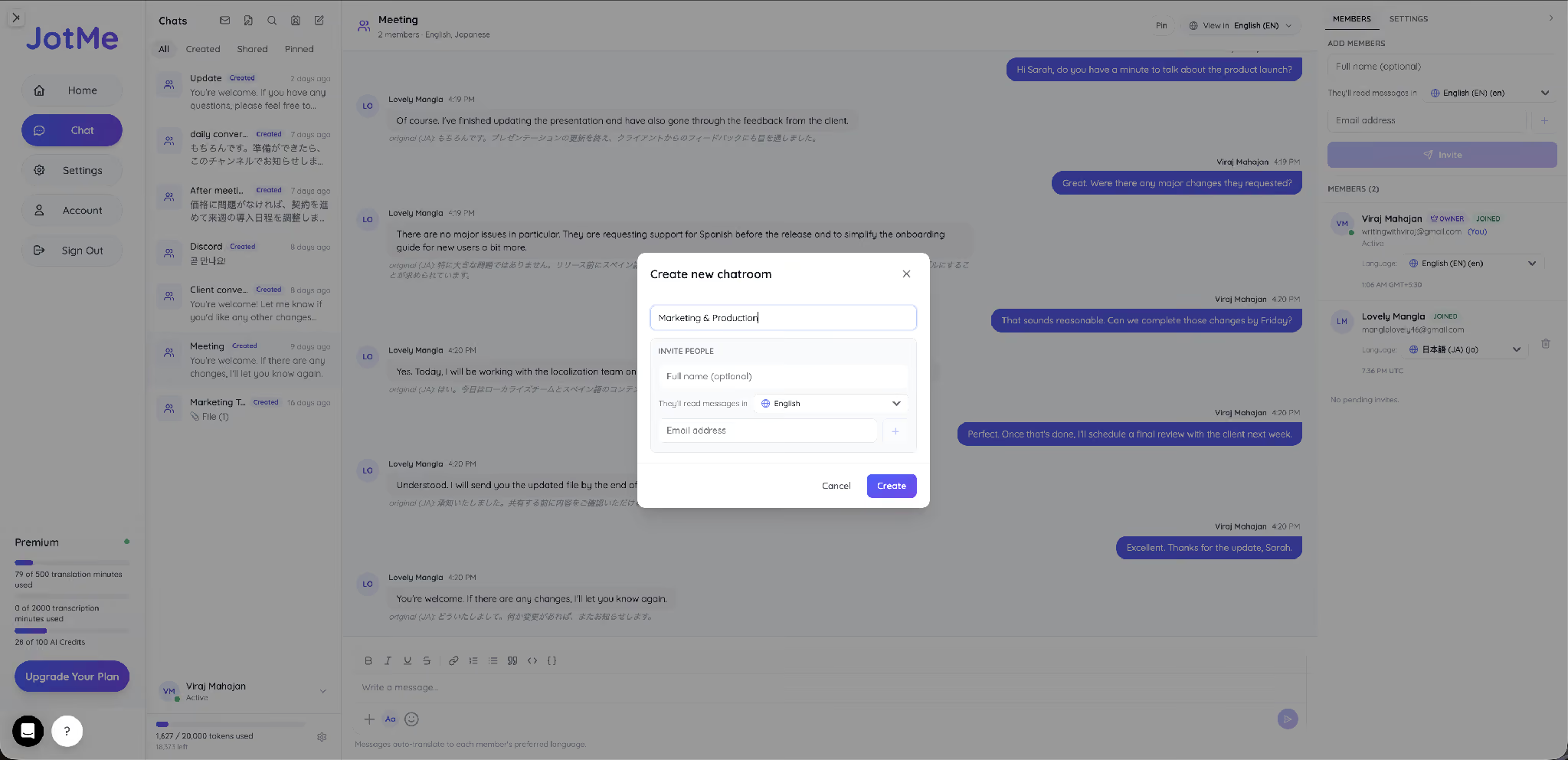
The same translation covers written work. JotMe Chat auto-translates every message into each member’s preferred language, so an English speaker and a Japanese speaker read the same thread, each in their own language.
Can Google Meet and Zoom Translate Business Meetings on Their Own?
Google Meet and Zoom can translate business meetings on their own, but only within paid limits, so many teams add JotMe to fill the gaps.
Google Meet live translation for business runs on translated captions that cover roughly 69 languages and need a paid Google Workspace plan with a Gemini add-on, so free accounts get same-language captions with no translation. The spoken voice translation covers 5 language pairs built around English with Spanish, French, German, Portuguese, and Italian. So the honest answer to “Can Google Meet translate live for every team?” is no. You add JotMe for Google Meet to translate a business meeting on any account in 200+ languages, with a saved bilingual transcript, including direct Spanish to English translation in Google Meet.
Zoom handles translation through three features, and Zoom simultaneous interpretation is the one built for spoken output. Translated captions cover about 35 to 46 languages on Business Plus, Enterprise Plus, or a paid add-on. A voice translator beta reads the translation aloud in 5 languages. The interpretation feature lets a host assign people as interpreters to language channels, which adds booking, cost, and a desktop or mobile requirement, with no separate recording per language. JotMe gives you AI simultaneous interpretation on Zoom without assigning a host or booking a person, so Zoom meeting translation stays on the record. For reference, Zoom documents its own translated captions on the Zoom blog.
The table compares the main tools people use to translate business meetings in real time.
For a Microsoft stack, JotMe runs the same English to Spanish translation for Microsoft Teams.
How Much Does It Cost to Translate a Business Meeting in Real Time?
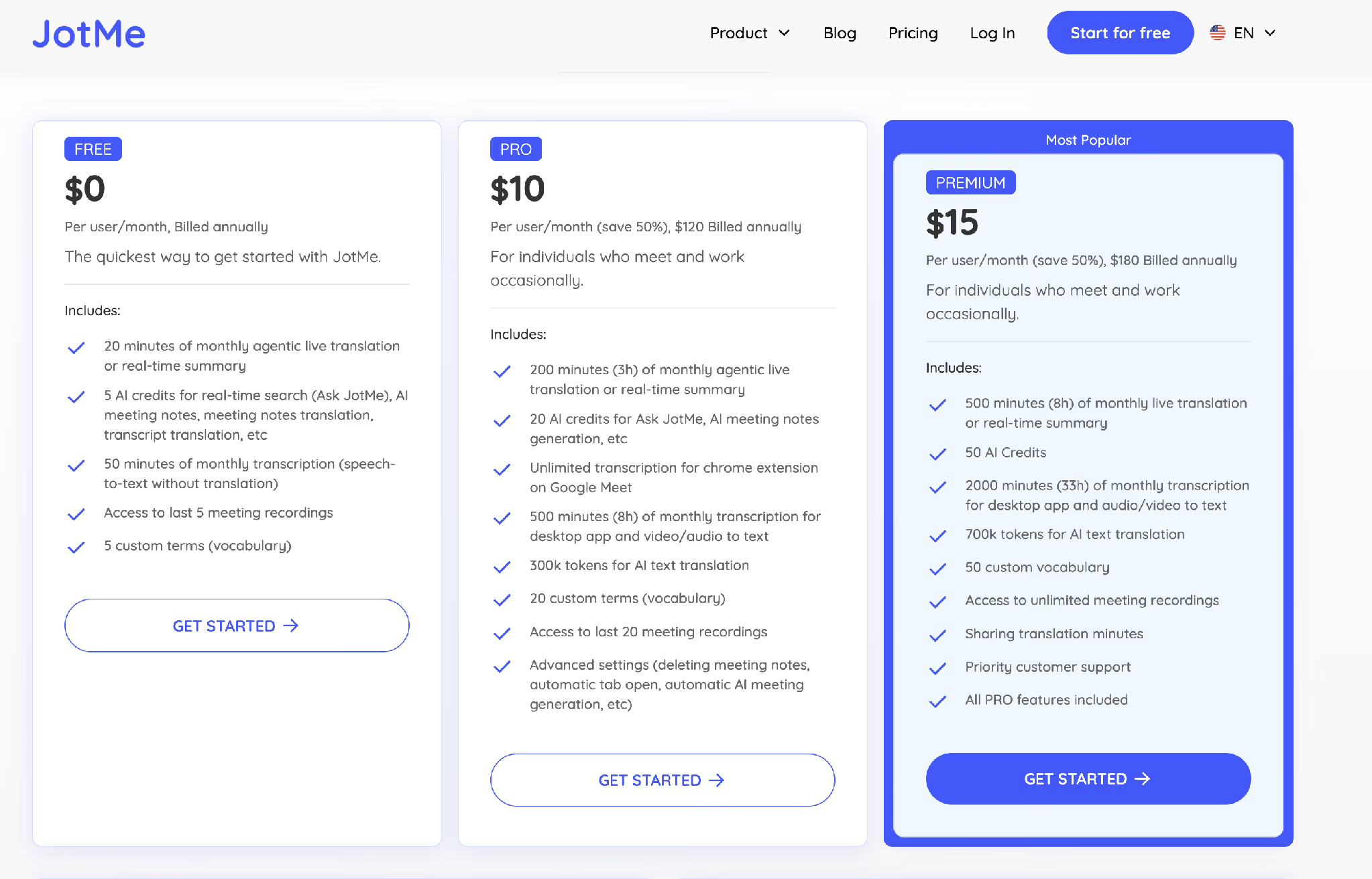
It costs nothing to start. The free plan includes 20 minutes of monthly live translation. Pro runs $10 per user per month billed annually with 200 minutes. Premium runs $15 per user per month billed annually with 500 minutes, unlimited meeting recordings, and priority support. Event tools like Interprefy and paid Workspace or Zoom add-ons cost more than that range and often tie you to one platform.
How Do You Set Up Real-Time Business Meeting Translation?
You set up real-time business meeting translation in five steps, and the whole flow takes about two minutes before the call.
Step 1: Open JotMe on the desktop and start a new session for live translation.
Step 2: Set the spoken language, then pick Premium Quality for the most accurate output or the faster model for speed.
Step 3: Set the language you want to read or hear, and the language everyone else hears.
Step 4: Join your Zoom, Google Meet, or Microsoft Teams call, and JotMe captions and translates each speaker live.
Step 5: After the call, review the bilingual transcript, AI notes, and minutes, then share them with anyone who missed the meeting.
Which Setup Should You Use for Your Next Multilingual Business Meeting?
The accurate way to translate a business meeting in real time comes down to full-sentence context, speaker separation, and a saved bilingual transcript you can verify, and JotMe delivers all three across Zoom, Google Meet, and Microsoft Teams in 200+ languages. Try it free on your next call, and compare it against your current setup.
FAQs
Can Google Meet translate a business meeting live for free?
No. Free Google accounts get same-language captions only. Google Meet live translation for business needs a paid Workspace plan with a Gemini add-on. To translate a Google Meet call on a free account, you add JotMe.
What is the best way to translate a business meeting from Spanish to English?
The best way to translate a business meeting from Spanish to English is a real-time tool that captions the Spanish, translates it to English live, and saves a bilingual transcript. JotMe does this in 200+ languages and keeps the meeting notes for later review.
How do I translate a business meeting to Spanish?
You set English as the spoken language and Spanish as the output, and JotMe reads each speaker into Spanish live. The result is a meeting in Spanish translation with a saved transcript both sides can check.
Does Zoom have simultaneous interpretation?
Yes. Zoom simultaneous interpretation lets a host assign interpreters to language channels, and a voice translator beta reads AI translation aloud in 5 languages. For AI interpretation without booking a person, teams add JotMe.
How many languages can JotMe use to translate a business meeting?
JotMe translates business meetings in 200+ languages and 39,000+ language pairs, which covers Spanish, Japanese, Korean, Chinese, and more in the same setup.
Can I get a translated transcript after the meeting?
Yes. JotMe saves a bilingual transcript, AI meeting notes, and formal minutes after the call, so you can verify any line and share the record in each person’s language.
Last updated on
July 24, 2026
Follow us on social media:
![JotMe — Is Google Translate Accurate? [2026 Test]](/_webflow-assets/0d0512afc7b037d74dff536f22fed08f.avif)