





Resources
How To Get Live Subtitles in Multiple Languages on Zoom Calls

Viraj Mahajan
July 24, 2026
You get live subtitles in multiple languages on Zoom calls in two ways: turn on Zoom translated captions, which require the host to hold a Business Plus or Enterprise plan, or run JotMe alongside Zoom, which gives you subtitles in 200+ languages on any account without host permission and without a bot joining the call.
Zoom captions cover a lot of ground for one language. The moment your call needs subtitles on Zoom meetings in two or three languages at once, the requirements change, and most of them land on the host rather than on you. This guide shows what Zoom captions do, how to change the caption language, where the limits start, and how to caption any Zoom call in the language each person reads.
Key Takeaways
- Zoom captioning gets enabled in the web portal, and admins can restrict enablement to the host and co-host, which leaves participants asking the host to switch captions on.
- Zoom automated captions support 49 languages, and Zoom translated captions support 36 source languages, plus Greek, Norwegian, and Welsh as target-only languages.
- Zoom Pro costs $12.03 per user per month, and Business costs $15.58 per user per month, and neither tier includes translated captions, which need Business Plus, an Enterprise tier, or a paid add-on held by the host.
- JotMe covers 200+ languages across 39,000+ language pairs with bot-free architecture, starting free and moving to $10 per user per month, and any participant runs it without host approval.
Does Zoom Have Closed Captioning Built In
Yes, Zoom has closed captioning built in. Zoom automated captions generate same-language subtitles on Zoom meetings in real time, and a separate transcript panel shows the running text beside the video. You reach both from the meeting toolbar, where Show captions and transcript control the two views.
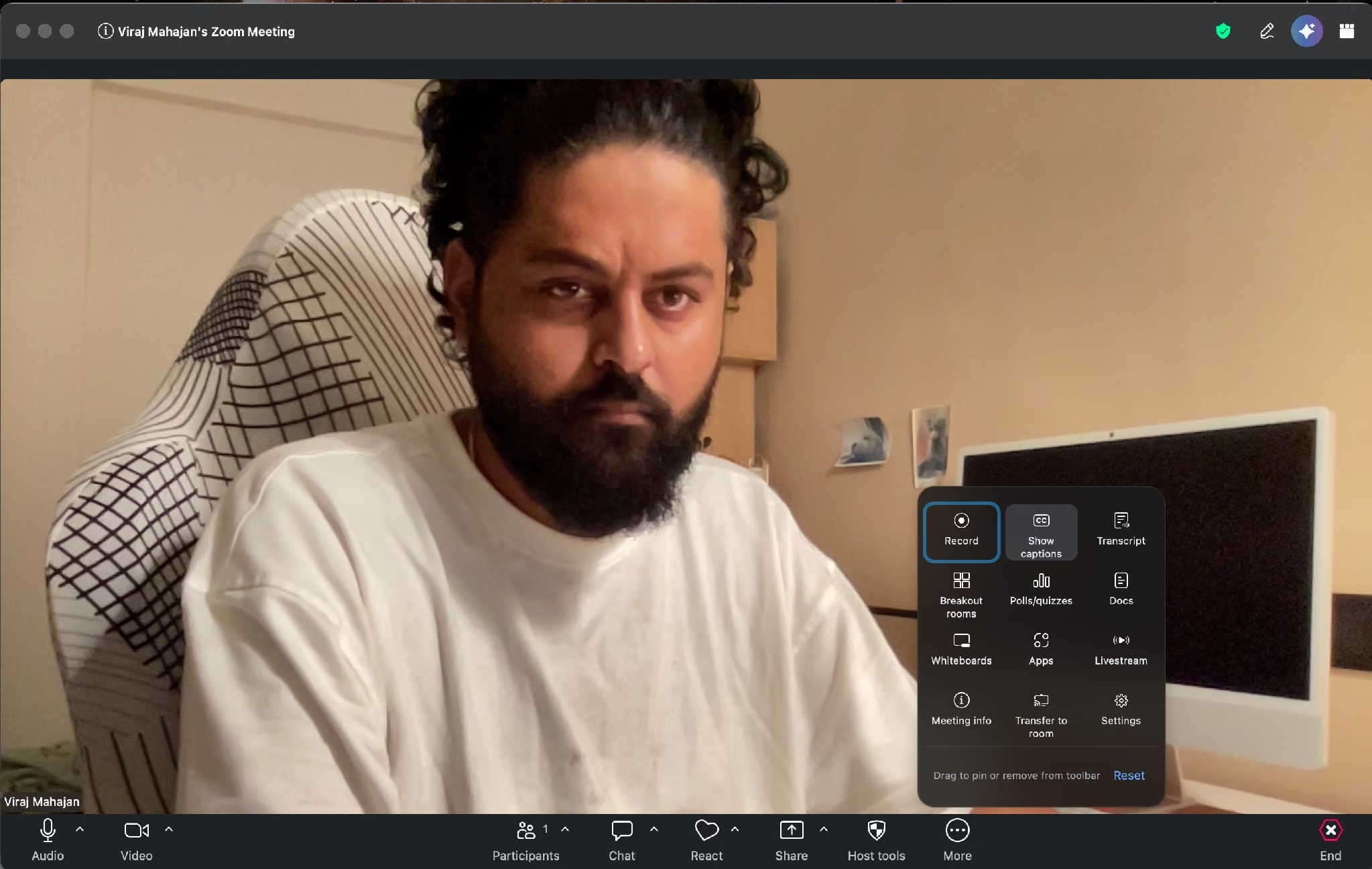
Zoom closed captioning covers 49 languages for automated captions, including English, Hindi, Spanish, Japanese, Chinese (Simplified), Arabic, and Zulu. Admins keep the setting on for paid accounts by default, and they choose which caption languages the account exposes.
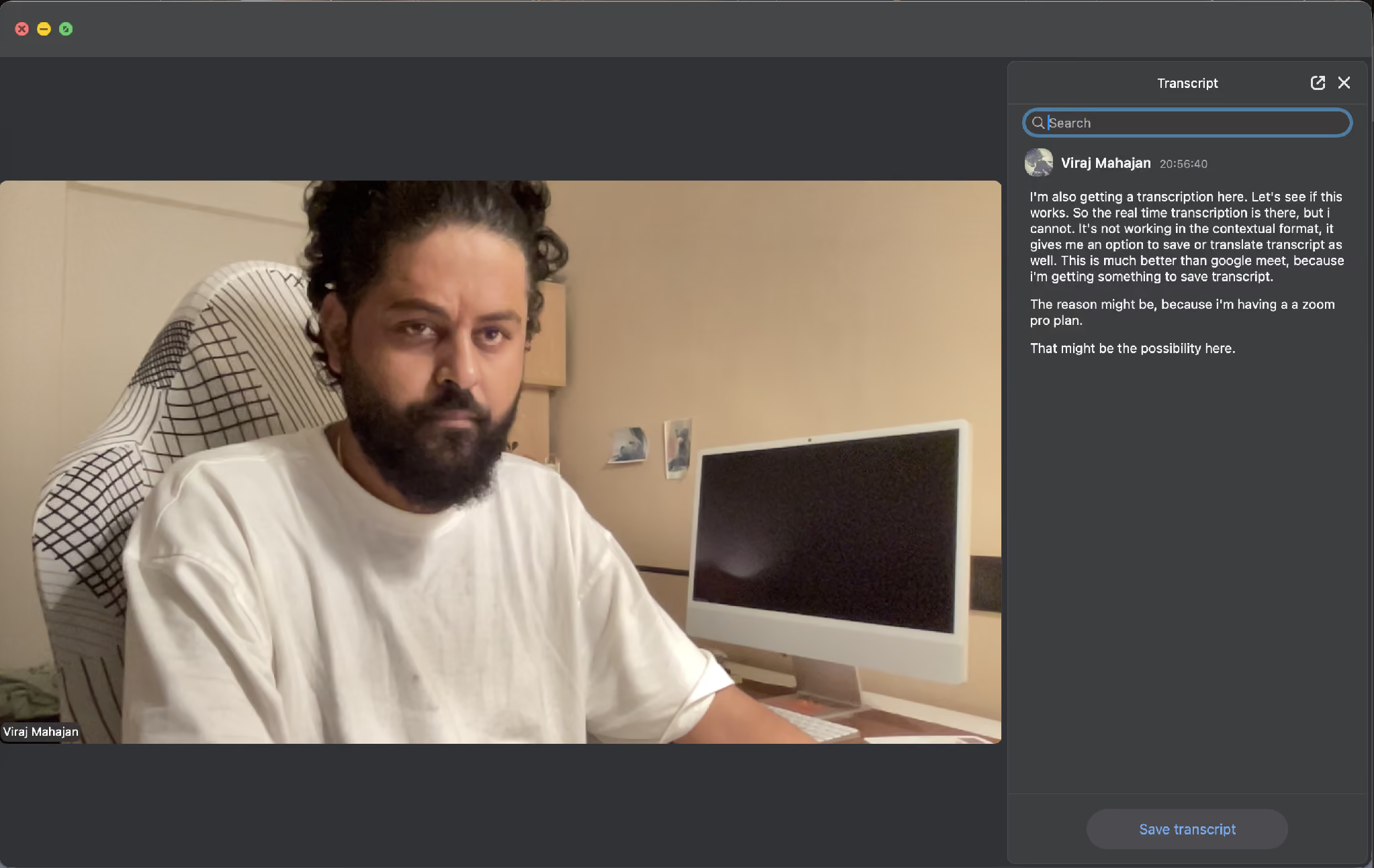
The Zoom transcript panel adds a searchable record during the call, and it carries a Save transcript button when the host leaves that setting on. In this test on a Zoom Pro plan, the transcript ran live and offered both save and translate options.
Zoom keeps adding to this area, and we track the changes in our roundup of the latest Zoom features.
How Do You Turn On Subtitles in a Zoom Meeting and Change the Caption Language
You turn on subtitles in a Zoom meeting from the toolbar, then set the speaking language and the translation language from the caption menu. The three steps below follow Zoom’s own instructions.
Step 1: Join the meeting, then click Show captions in the toolbar. You may need to click More, then Captions. Captions appear above the toolbar, and Zoom sets English as the speaking language by default.
Step 2: To change the speaking language, click the up arrow beside Show captions, open the Caption language menu, and pick the language the speaker actually uses. This changes the language captions get generated from, and it does not translate anything on its own. Zoom saves the choice for later meetings.
Step 3: To read captions in your own language, click the same up arrow, turn on Translation under Captions and translation, pick your language, and click Save. Each participant picks independently, so two people on the same call read two different languages.
Zoom documents the full process and the current language list in its guide to viewing captions in another language. The available language pairs come from the host’s account settings, so your dropdown reflects what the host allows.
What Are the Limitations of Subtitles on Zoom Meetings
The limits of subtitles on Zoom meetings come down to the control and plan tier. Almost every decision about captions, translation, and saving belongs to the host and the account admin rather than to the person who needs the subtitles.
- Captions depend on the host and the admin: Admins can tick a setting that allows only the host and co-host to enable captions. When that setting applies, participants request captions from the host and wait. JotMe runs on your own machine, so you caption the call yourself and skip the request.
- Translation rides entirely on the host’s plan: Zoom translated captions require the host to hold Zoom Workplace Business Plus, Enterprise Essentials, Enterprise Plus, or Enterprise Premier, or to carry the Translated Captions add-on. If the host lacks that, nobody on the call reads translated captions, no matter what the participants pay. JotMe removes the dependency, because the plan you hold covers your own subtitles.
- Zoom Pro and Business omit translated captions: Zoom pricing lists Pro at $12.03 per user per month and Business at $15.58 per user per month, and the plan table marks translated captions in the Enterprise column only.
- Language coverage stops well short of a global team: Translated captions cover 36 source languages, with Greek, Norwegian, and Welsh available only as targets. Dialects also refuse to translate between each other, so French (France) to French (Canada) fails. JotMe covers 200+ languages and 39,000+ language pairs.
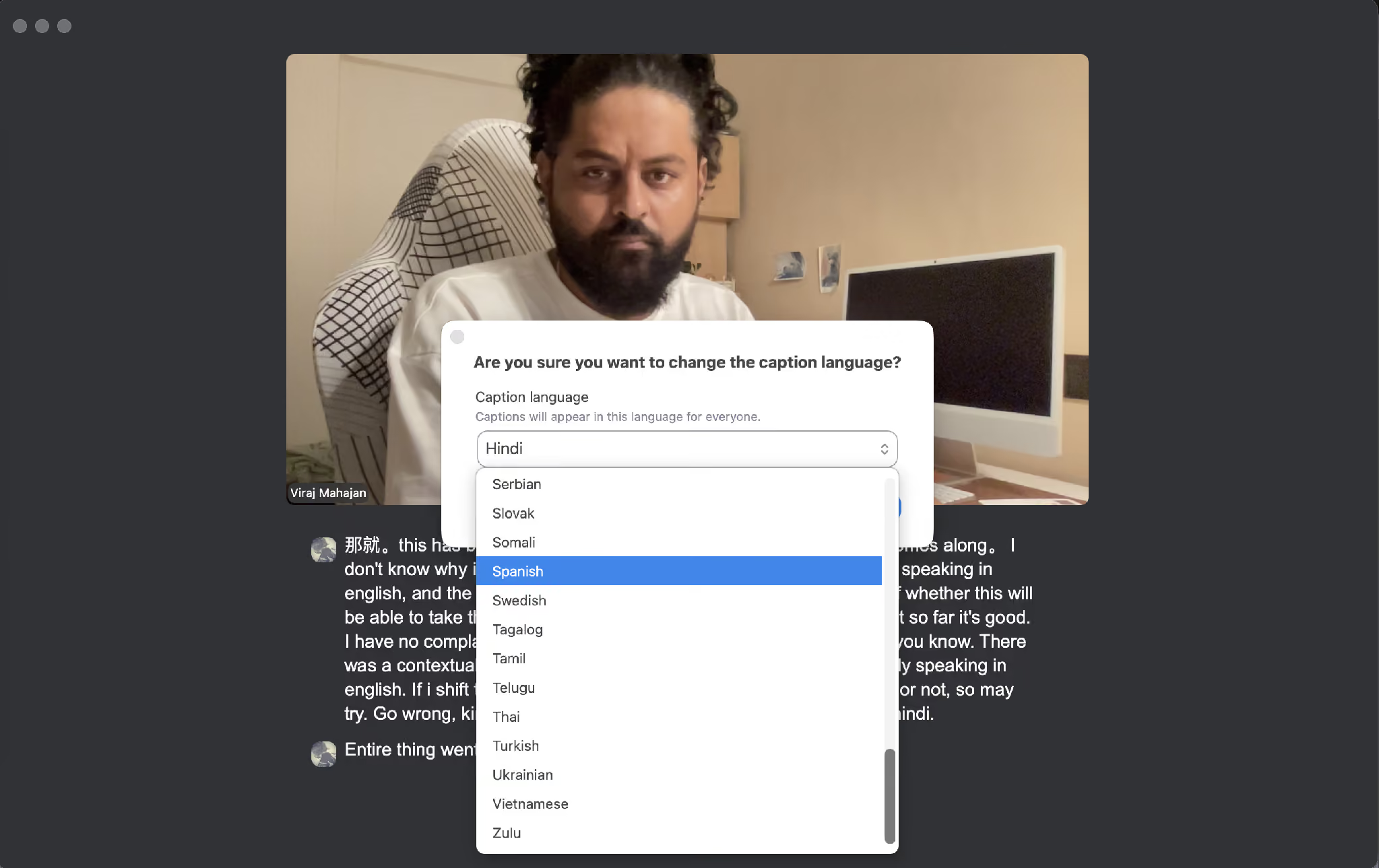
- Accuracy drops when a speaker switches language mid-call: In this test, the captions held up during English, then broke apart once the speaker moved to Hindi.
- Saving captions depends on host settings: Hosts can switch off the option that lets participants save captions or transcripts, which leaves you with nothing after the call. JotMe saves your own bilingual transcript regardless.
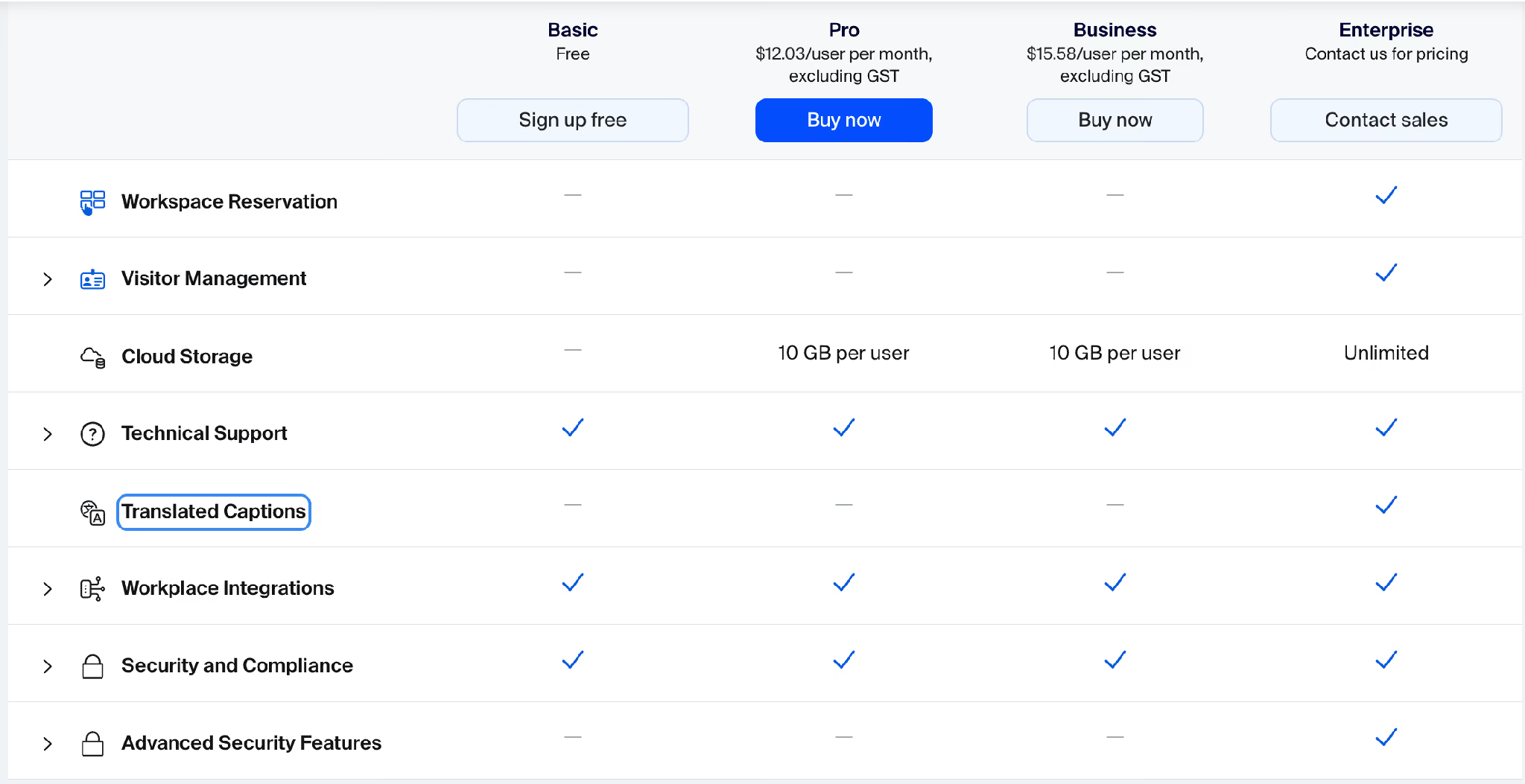
The Zoom plan table shows translated captions checked for Enterprise alone, while technical support and workplace integrations reach every tier.
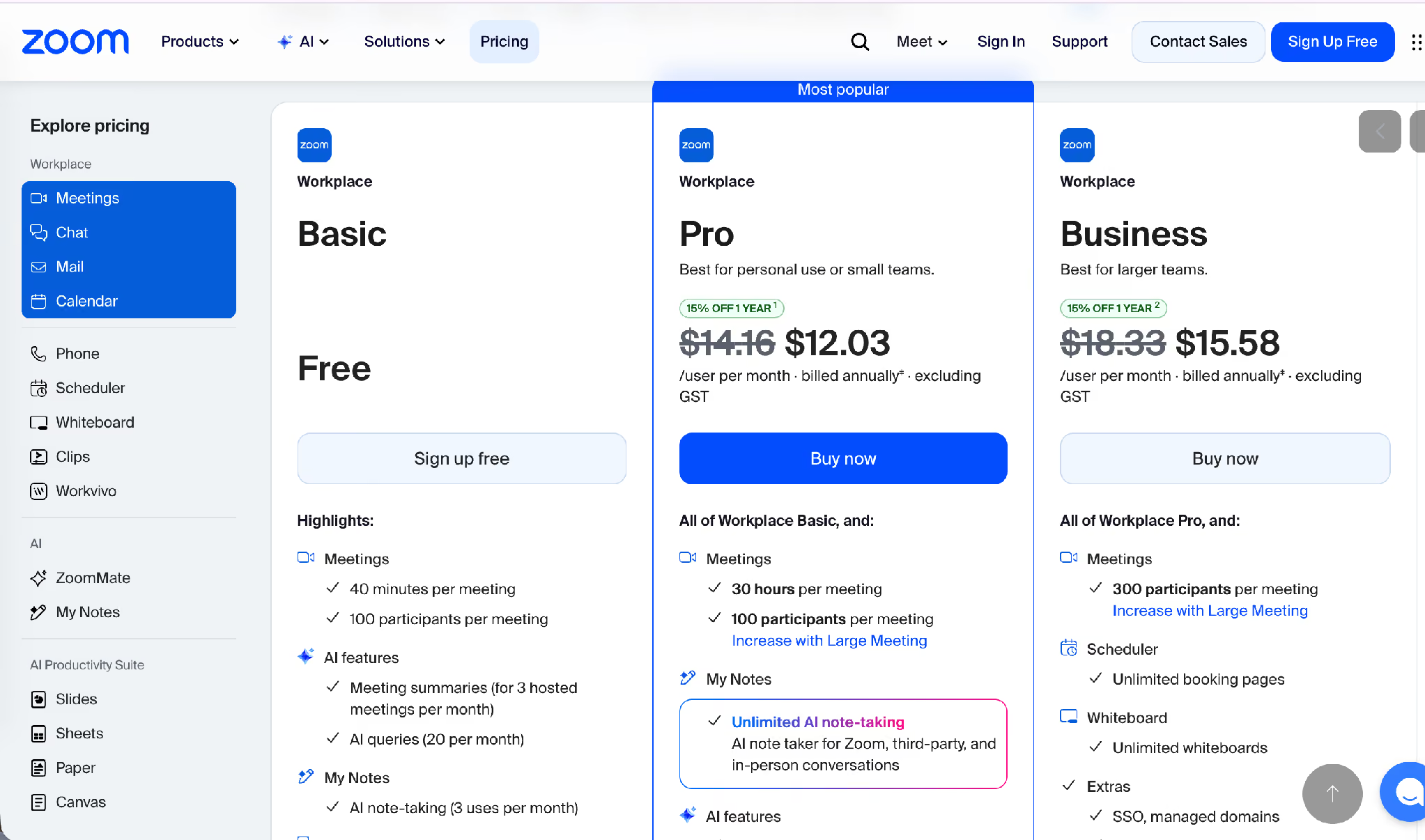
Zoom pricing confirms where Pro and Business land, and neither carries translated captions.
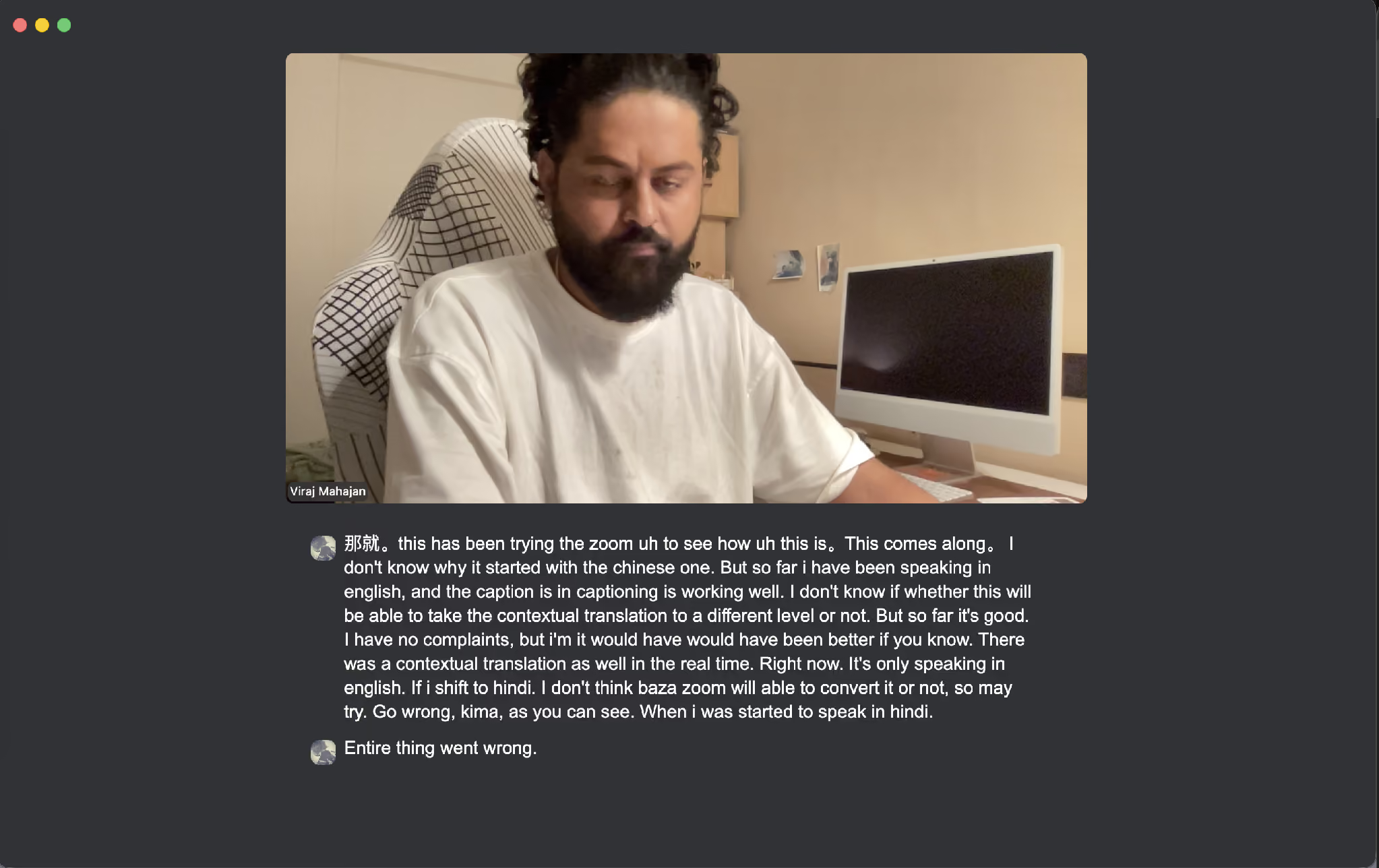
The caption test above ran clean in English. Once the speaker moved into Hindi, the output collapsed, and the speaker called it out on the call.
JotMe prices the same capability differently. The free tier covers 20 minutes of monthly live translation, Pro costs $10 per user per month billed annually with 200 minutes, and Premium costs $15 per user per month billed annually with 500 minutes and unlimited meeting recordings.
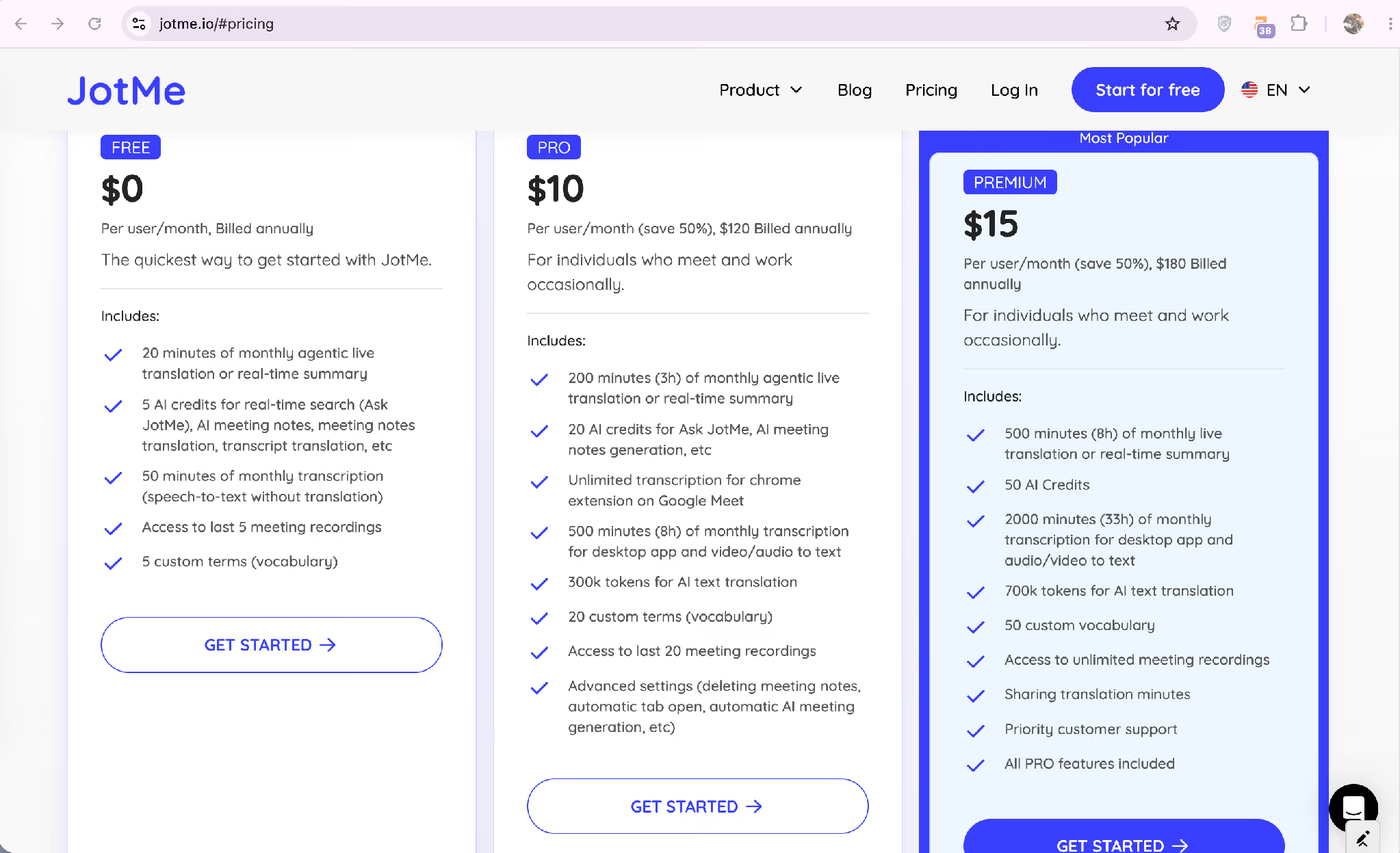
The table below sets the three options side by side:
How Do You Get Live Subtitles in Multiple Languages on Zoom Calls?
You get live subtitles in multiple languages on Zoom calls by running JotMe alongside the Zoom window. JotMe captions the speaker, translates as they talk, and shows both languages on your screen. Nothing joins the participant list because JotMe uses bot-free architecture, so the host sees a normal call and you read the language you chose.
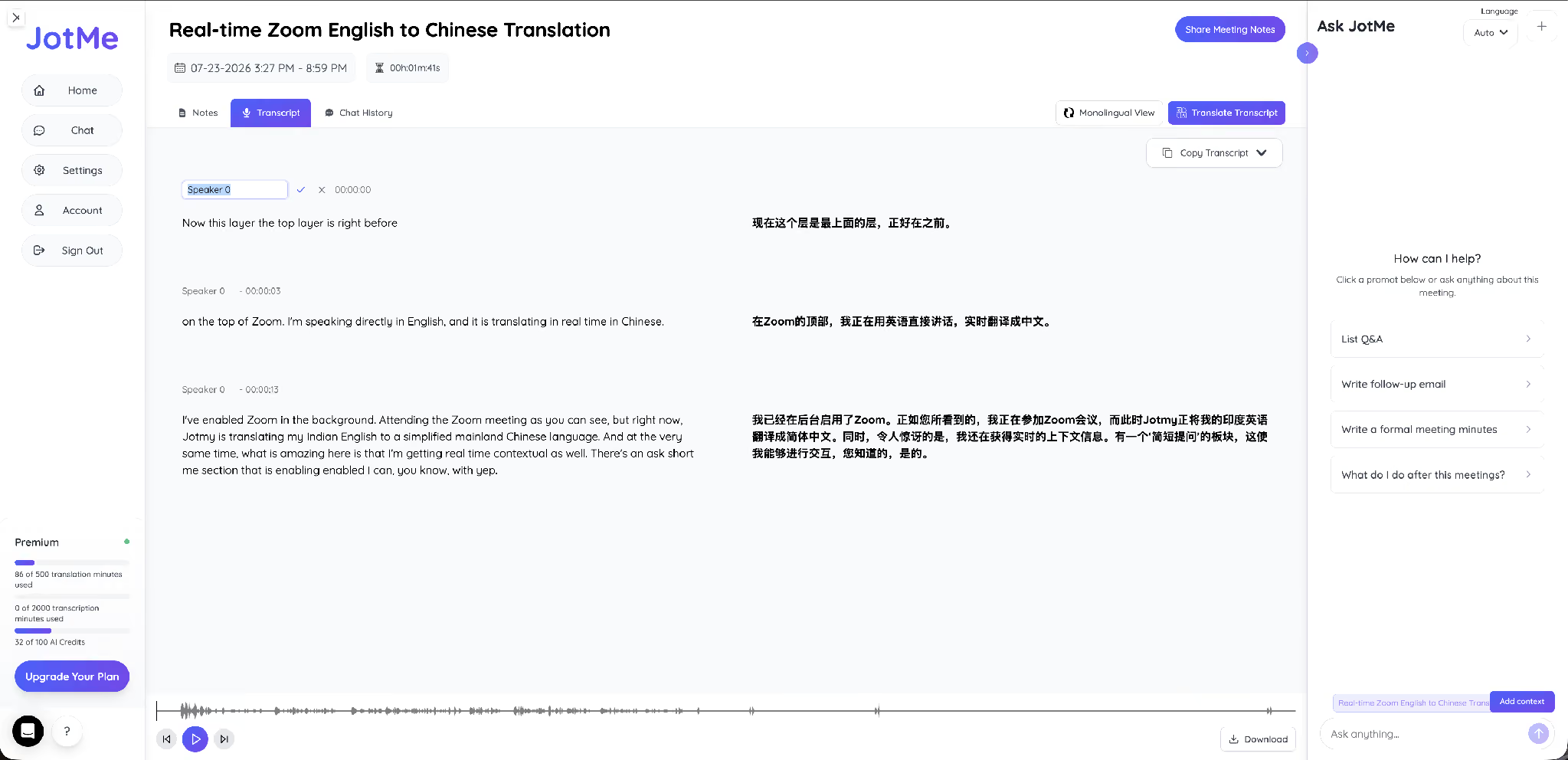
In this session, the speaker set English (India) as the spoken language and Chinese (Simplified, Mainland) as the output, with Zoom running behind the JotMe window. See how JotMe provides English to Chinese translation in real time:
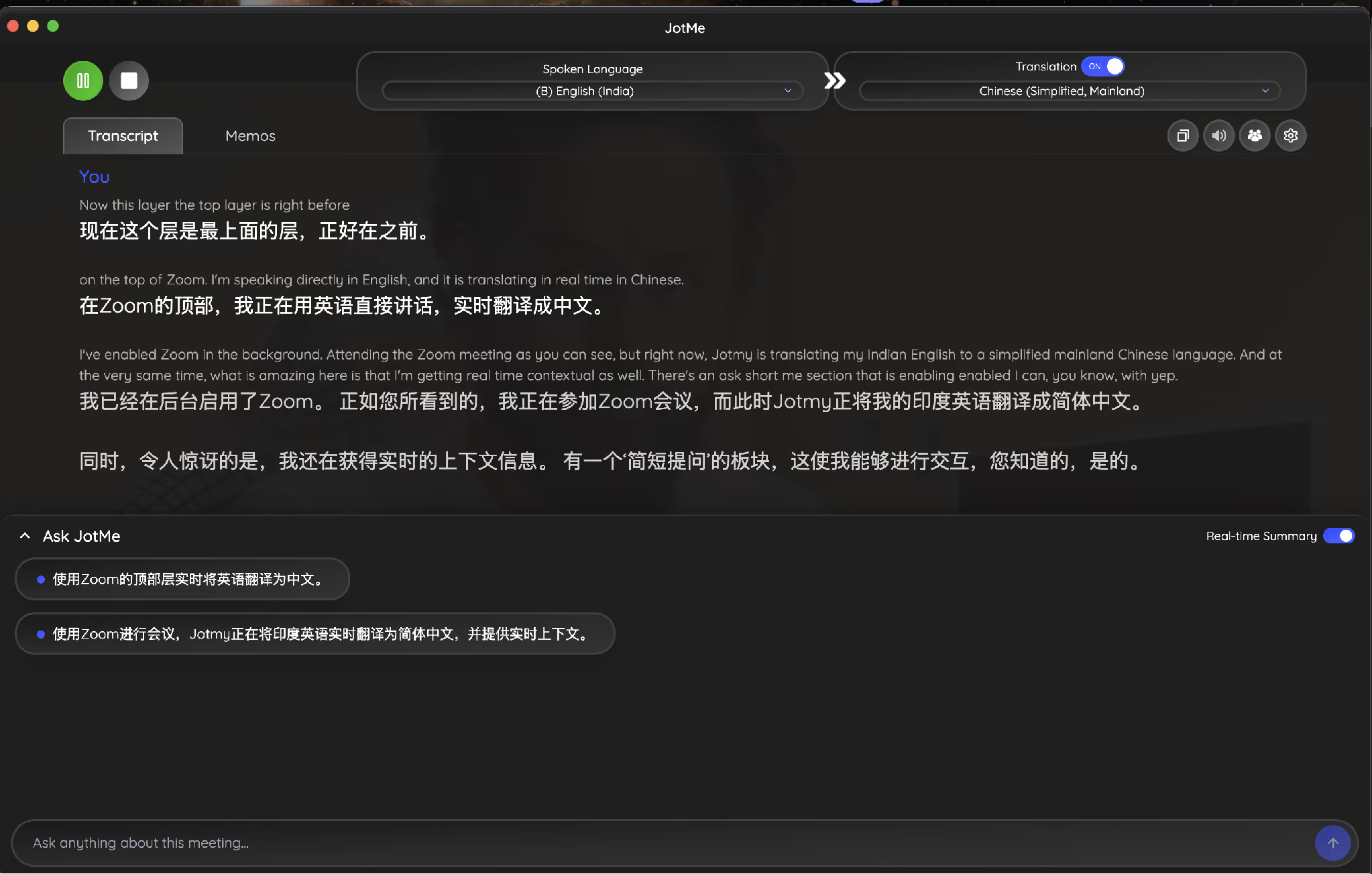
English (spoken): “on the top of Zoom. I’m speaking directly in English, and it is translating in real time in Chinese.”
JotMe also writes a running summary in the output language while the call continues, so a Chinese reader follows the decisions without waiting for notes.
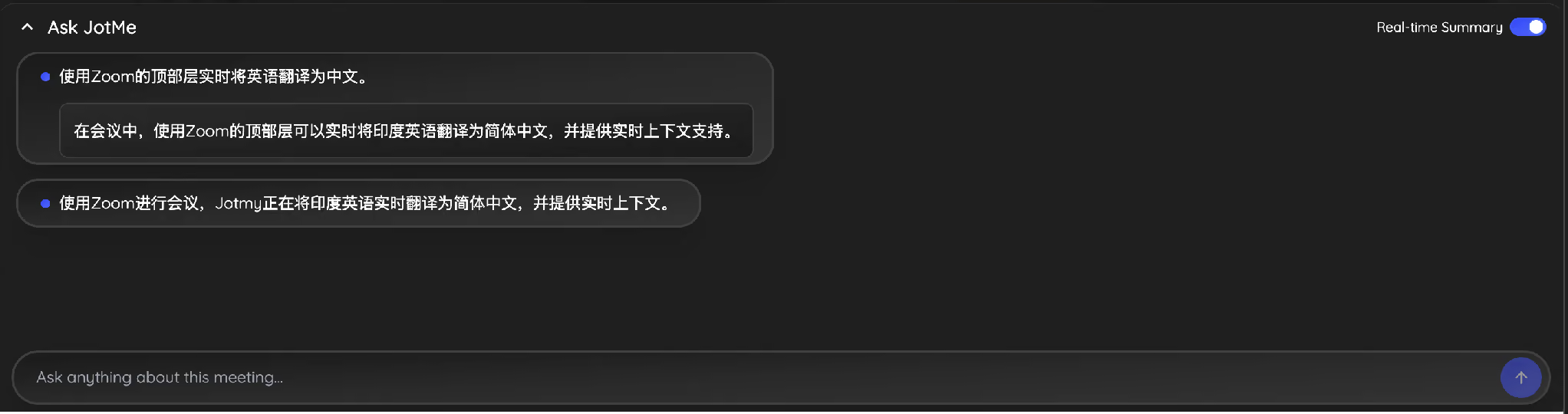
Ask JotMe answers questions about the call as it happens, in the same language. Here, it confirmed the setup works on Zoom and described what it translates.
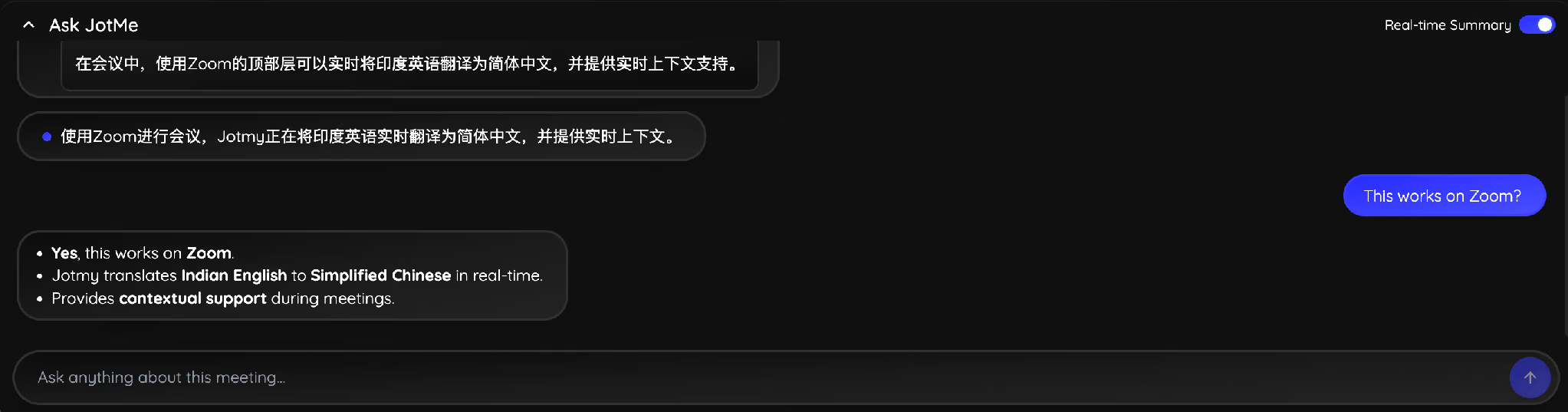
You can set this up on any Zoom account through JotMe for Zoom, and the same live translation runs across Google Meet and Microsoft Teams. For assigned interpreter channels and spoken output, see our guide to Zoom meeting translation.
How Do You Host and Record a Zoom Meeting With Multilingual Subtitles
You host and record a Zoom meeting with multilingual subtitles in four steps, and the flow takes about two minutes before anyone speaks.
Step 1: Schedule and start the meeting from the Zoom app, then invite your participants as usual.
Step 2: Click Show captions in the toolbar so anyone relying on same-language captions has them from the first minute.
Step 3: Open JotMe, set the spoken language and the language you want to read, and start the session. Zoom keeps running behind it.
Step 4: Click Record in the Zoom toolbar to capture the call. JotMe keeps its own bilingual transcript in parallel, so the record survives even when host settings block caption saving.
For teams that need the audio and the searchable text together, our meeting recording tool stores the session alongside the translated transcript.
What Do You Get After a Zoom Call With Multi-Language Subtitles
After a Zoom call with multi-language subtitles, JotMe saves a bilingual transcript, AI meeting notes, and a searchable chat history. The transcript keeps both languages side by side, so anyone can verify a line without replaying the recording.
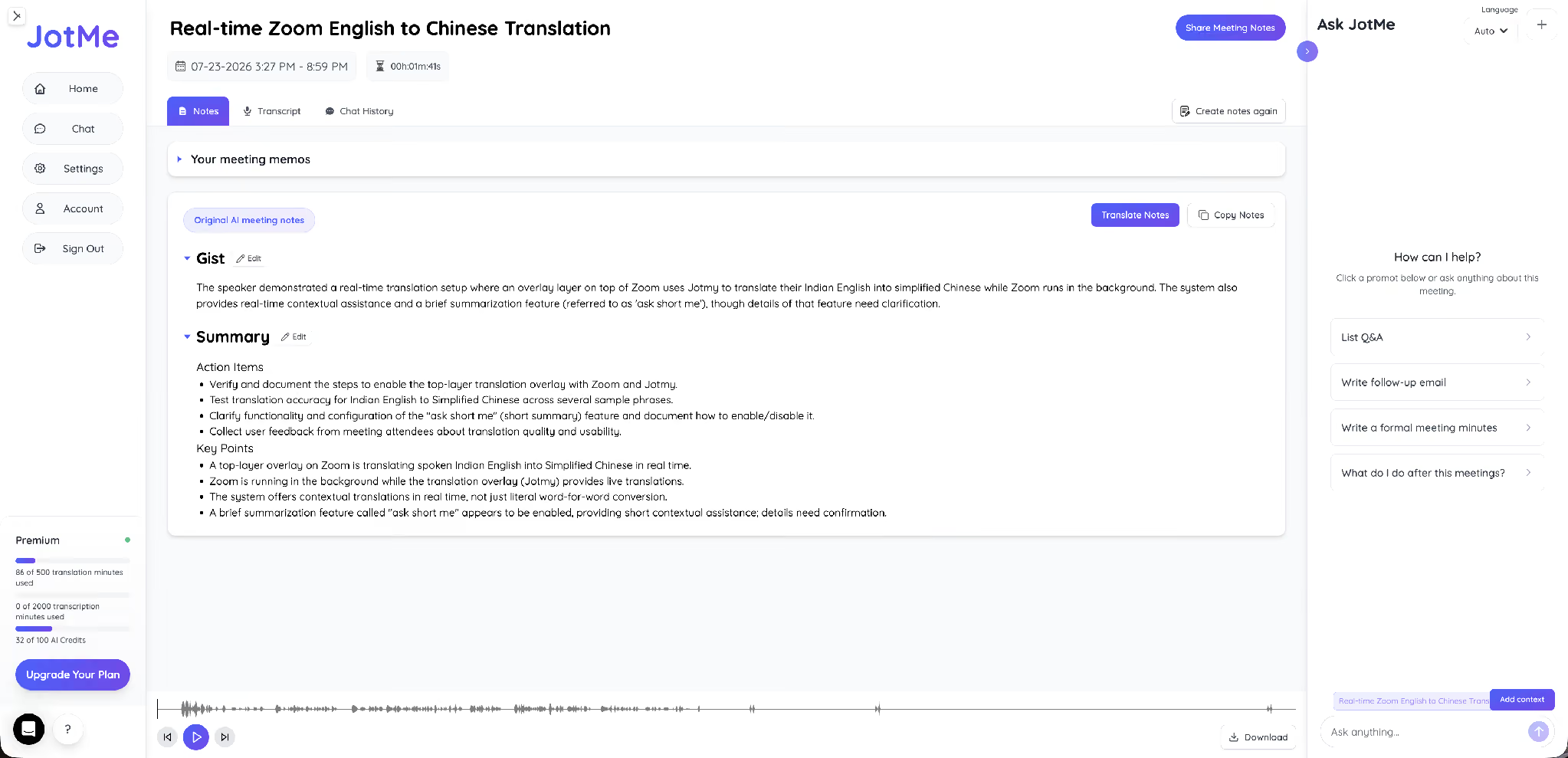
The AI meeting notes turn the call into a Gist, a Summary, Action Items, and Key Points. The notes from this session captured the setup being demonstrated and the follow-ups it created.
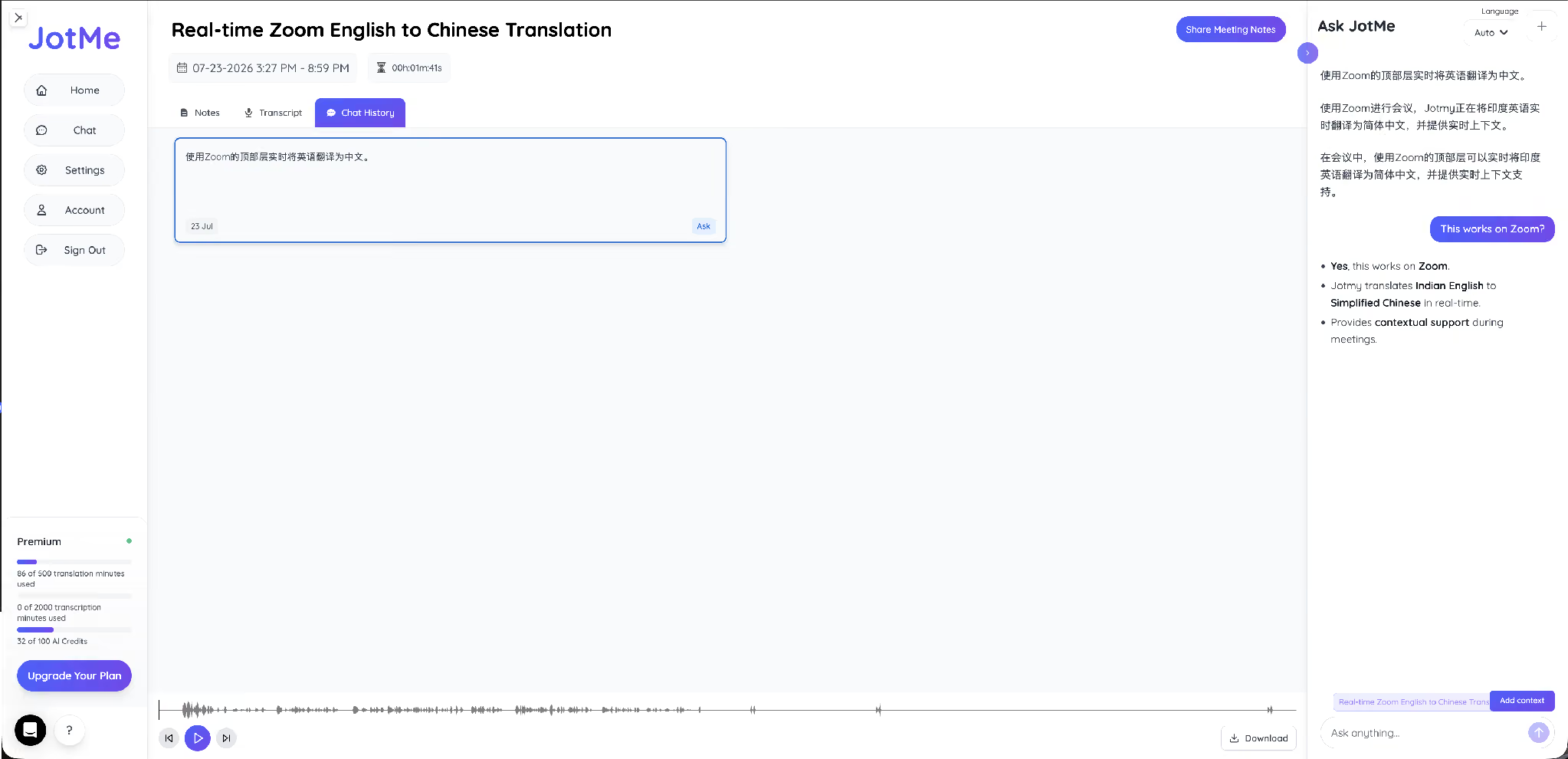
The chat history keeps every question you asked during the call and the answer JotMe gave, in the language of the call.
Teams weighing the built-in assistant against this workflow can read our comparison of Zoom AI Companion against JotMe.
Which Setup Gives You Multi-Language Subtitles on Your Next Zoom Call
The choice comes down to who controls the call. When you host every meeting, your company already pays for Business Plus or an Enterprise tier, and your languages fall inside the 36 that Zoom translates, the built-in captions handle the job without anything extra. That setup covers a single organization running its own calls in a handful of well-supported languages.
The moment you join calls you do not host, work across languages Zoom leaves out, or need a saved bilingual record the host cannot switch off, running JotMe beside Zoom removes every one of those dependencies. It covers 200+ languages, joins nothing to the participant list, and starts free before moving to $10 per user per month. Set it up on JotMe for Zoom and read your next call in the language you think in.
FAQs
Does Zoom have closed captioning on the free plan?
Zoom automated captions reach free accounts when the account admin keeps the setting on, and Zoom enables it by default for paid accounts. Zoom translated captions never reach the free plan, because they require the host to hold Business Plus, an Enterprise tier, or the Translated Captions add-on.
How many languages do Zoom captions support?
Zoom automated captions support 49 languages. Zoom translated captions support 36 source languages, with Greek, Norwegian, and Welsh available as target languages only.
Can participants turn on subtitles on Zoom meetings themselves?
Participants turn on captions themselves in most cases. Admins can restrict enablement to the host and co-host, and once that setting applies, participants request captions from the host. Translation always depends on the host’s plan and the language pairs the host allows.
How much do Zoom translated captions cost?
Zoom translated captions come with Business Plus and the Enterprise tiers, or as a paid add-on on other paid plans. Zoom Pro at $12.03 per user per month and Business at $15.58 per user per month leave them out.
Can I get subtitles in more than two languages on the same Zoom call?
Yes. Each participant picks their own caption language independently, so several people read several languages at once. JotMe extends the same idea across 200+ languages without the host holding a qualifying plan.
Can I save the subtitles after the Zoom call ends?
Saving depends on host settings, and hosts can switch off the option that lets participants save captions or transcripts. JotMe saves a bilingual transcript, AI meeting summary, and notes to your own account, so the record stays with you.
Last updated on
July 29, 2026
Follow us on social media:
![JotMe — Is Google Translate Accurate? [2026 Test]](/_webflow-assets/0d0512afc7b037d74dff536f22fed08f.avif)