



Tips
How to Translate Subtitles to English for YouTube, Netflix, and More

Viraj Mahajan
July 26, 2026
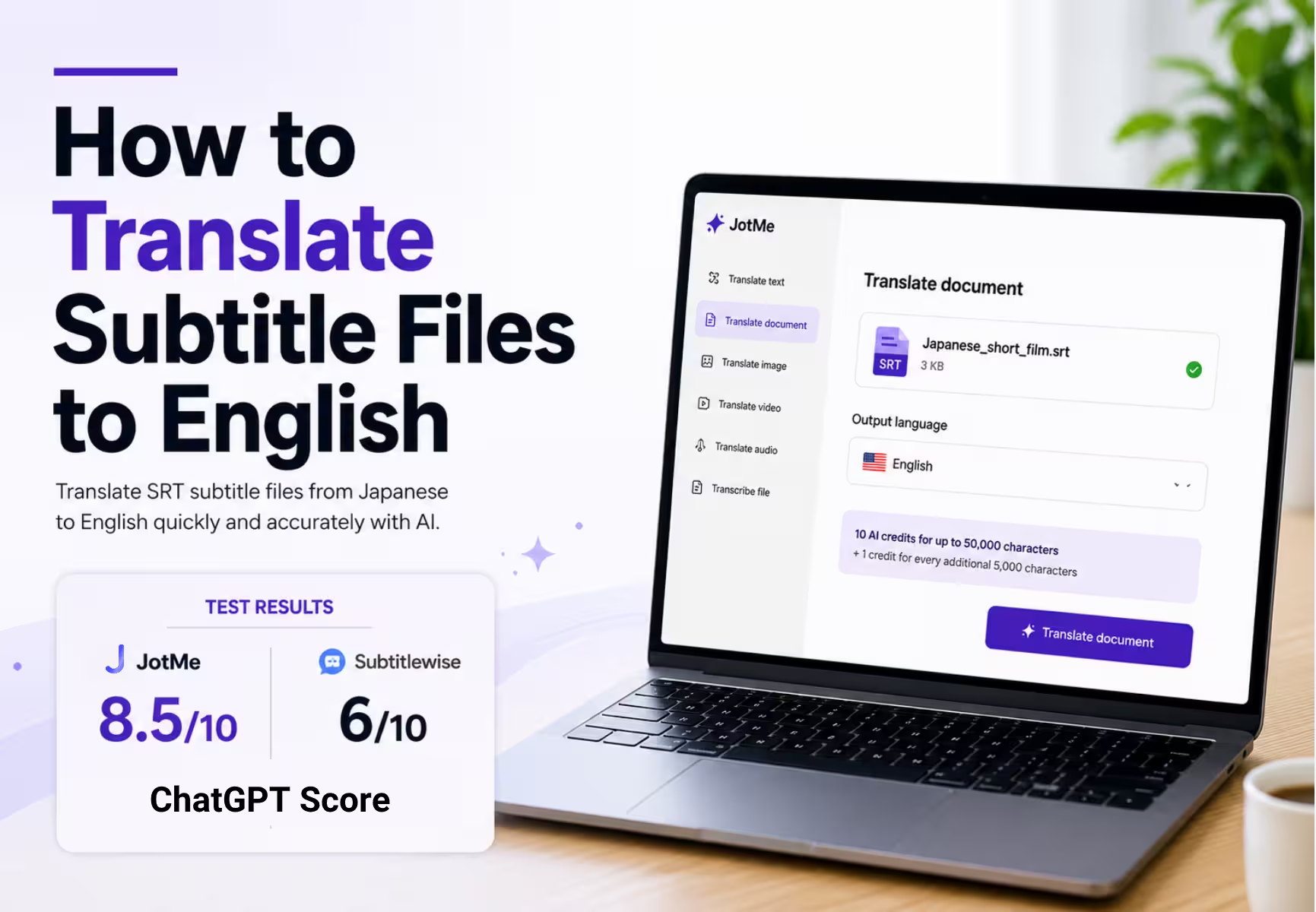
You translate subtitles to English by uploading the subtitle file to JotMe, selecting Translate document, and choosing English as the output. JotMe reads the whole file for context and converts caption files like SRT into different languages while keeping the exact timing, so the subtitles stay in sync with the video and read the way a native speaker would write them.
Plenty of Korean and Chinese films only ship with subtitles in the original language, and the subtitle file you find online sits in that language too. A good tool to translate subtitle files turns that language into English so you can stream the movie without fighting the language. Students and researchers hit the same wall with foreign lecture recordings, recorded interviews, and conference talks. This guide shows how to translate subtitle files step by step, runs a real accuracy test against another online subtitle translator, and covers formats, Netflix captions, and pricing.
Key Takeaways
- You translate subtitle files in JotMe through the Translate document tab, which reads the whole file and keeps the original timecodes intact.
- JotMe currently handles SRT, the most widely supported caption format, with more subtitle formats on the way.
- In a ChatGPT review of a Japanese short film, JotMe scored 8.5 out of 10 against 6 out of 10 for Subtitlewise.
- A subtitle file up to 50,000 characters costs 10 AI credits, and JotMe saves no file to a server, so unreleased footage stays private.
Can JotMe Translate Subtitle Files to English?
Yes, JotMe is an online subtitle translator that turns your caption file into English and 200+ other languages while keeping every timecode in place. To translate subtitle files, you upload one under Translate document, pick a language, and JotMe returns a translated subtitle file ready to load into your player.
The point of any tool that can translate subtitle files is meaning that survives the scene, not words swapped one at a time. JotMe reads the full file first, so a joke, a threat, or a technical term lands the way the writer meant it. It works as an AI-powered platform supporting more than 200+ languages for fast subtitle translations, and it can translate your SRT subtitle files into any language supported without a fixed source or target. You quickly translate subtitle files from one language to another, and JotMe keeps the timing frame-for-frame so the result stays synced.
How to Translate Subtitles to English With JotMe: Step-by-Step
You translate a subtitle file in 6 steps, and a full film track finishes in under 2 minutes. The screenshots below follow one real Japanese short-film SRT from upload to download.
Step 1: Open JotMe and select Translate document
Open the translate bar on your JotMe home screen and click Translate document. The supported list shows SRT alongside the other document formats.
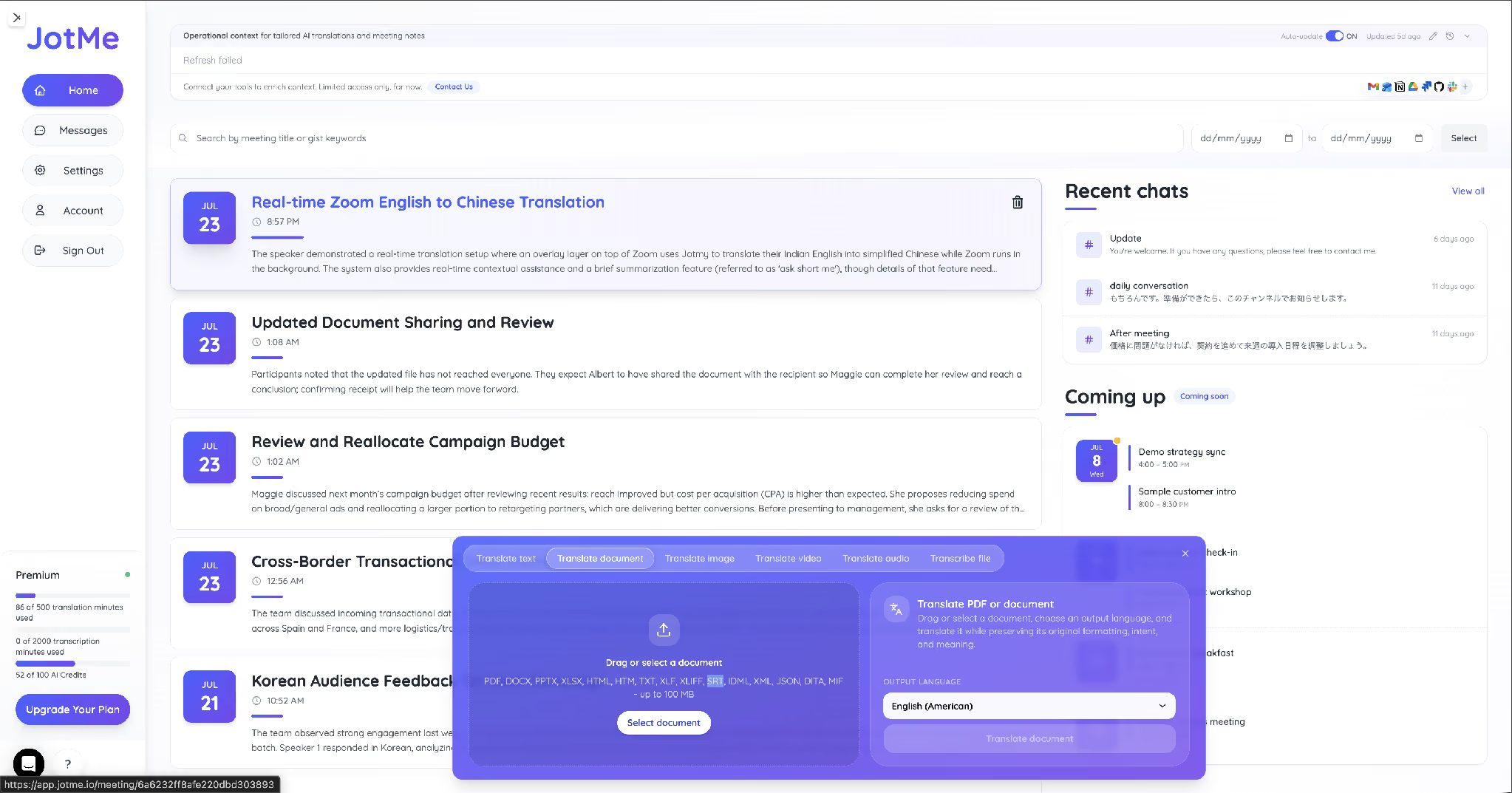
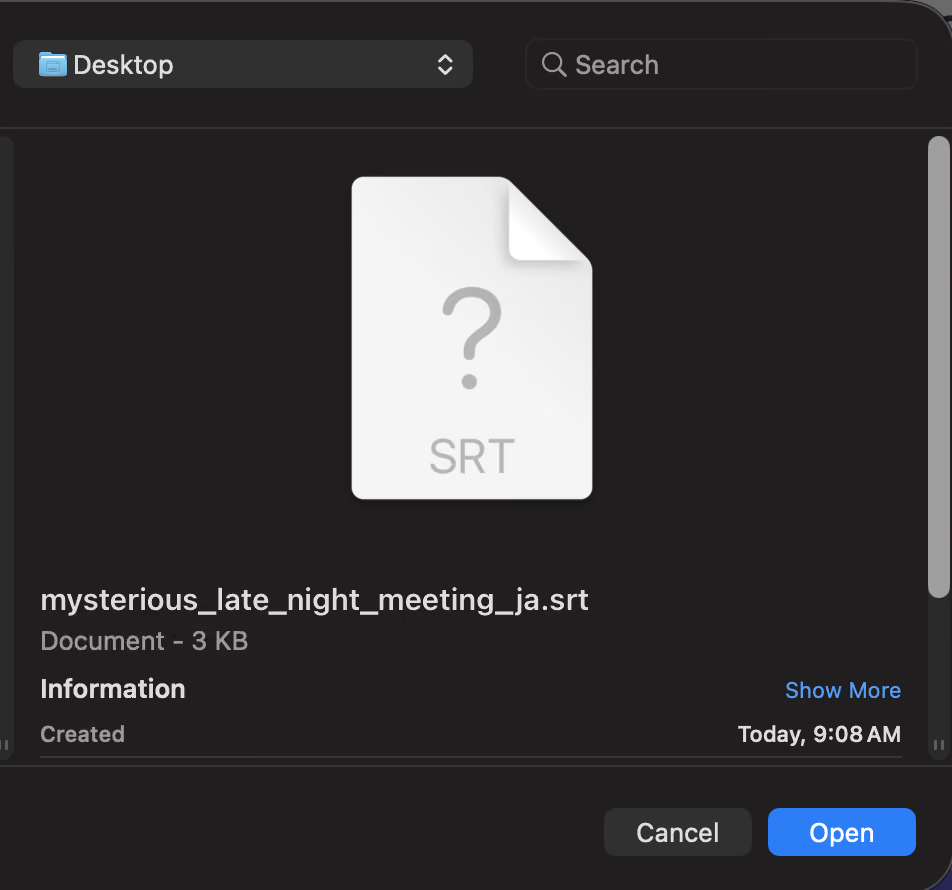
Step 2: Select your SRT subtitle file
Click Select document and choose your subtitle file. Here it is a 3 KB Japanese short-film track saved as an SRT.
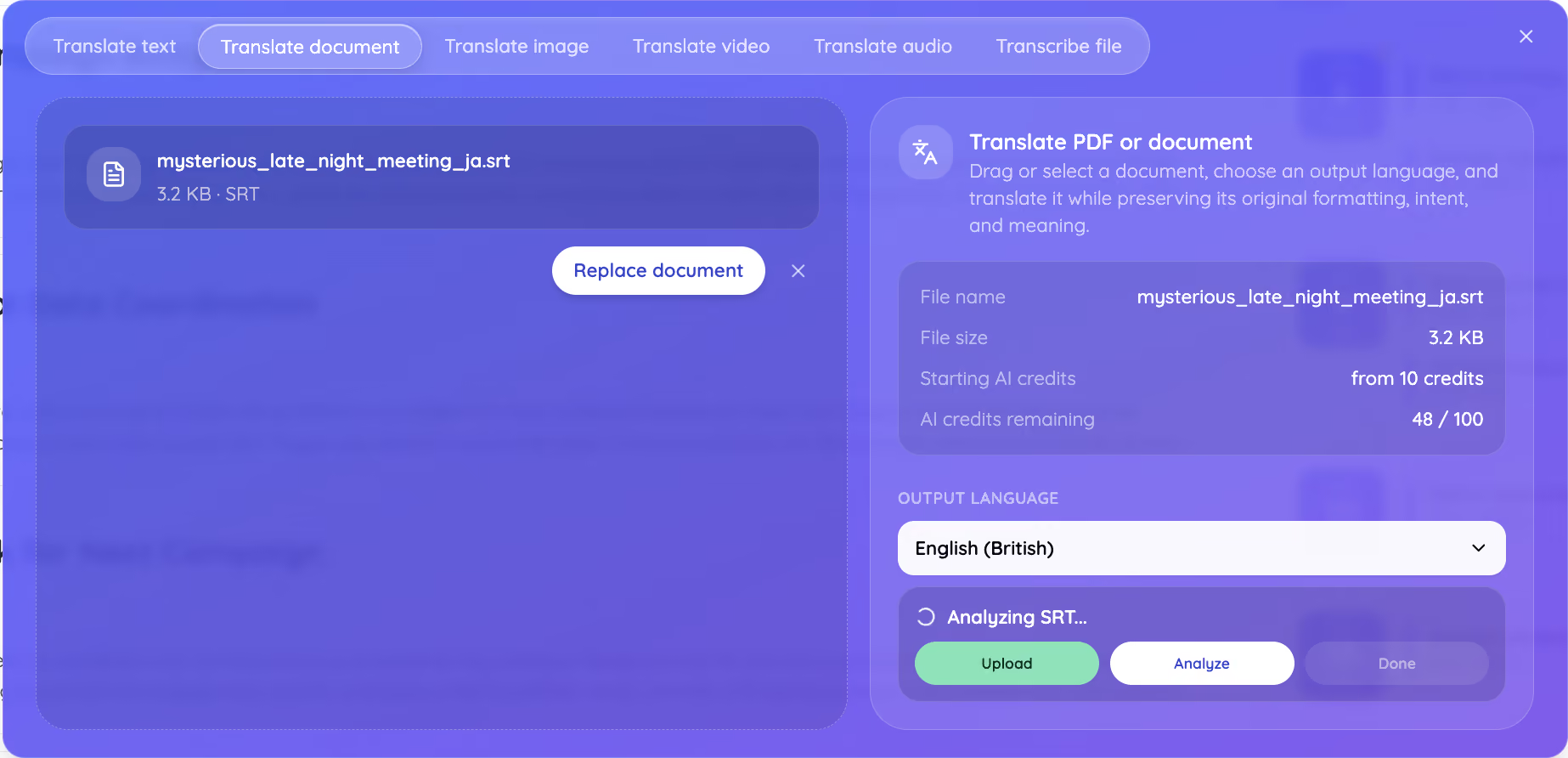
Step 3: Let JotMe analyze the subtitle file
JotMe uploads the file and reads it before translating. This analysis is what lets it translate accurate and synchronized subtitles to your videos, because it maps the dialogue and the timing across the whole file first.
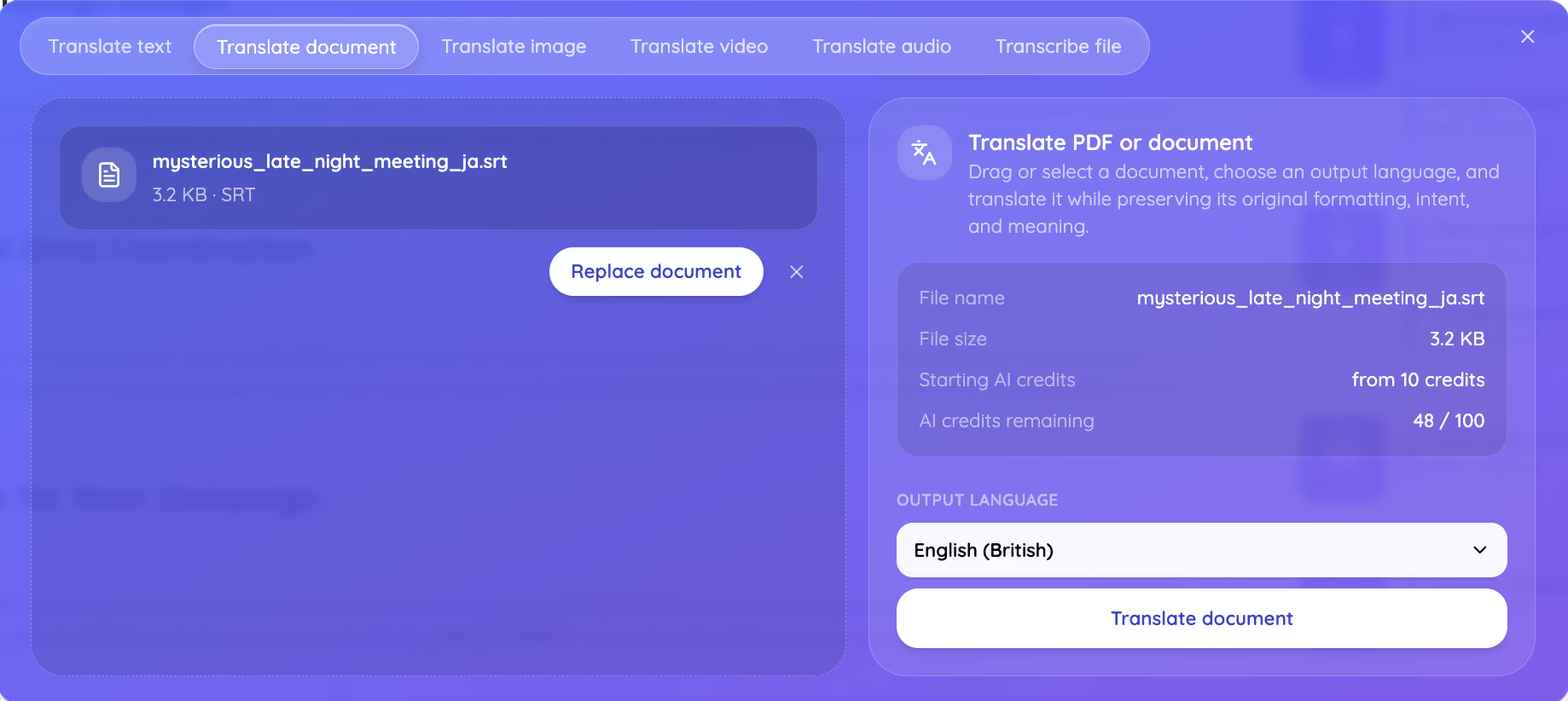
Step 4: Choose your output language
Open the Output language menu and pick English, or any of the 200+ languages. To translate a Korean film for an English audience, you would pick English here. To prepare a talk for a Seoul team, you would follow the same English to Korean subtitle translation guidelines and pick Korean instead.
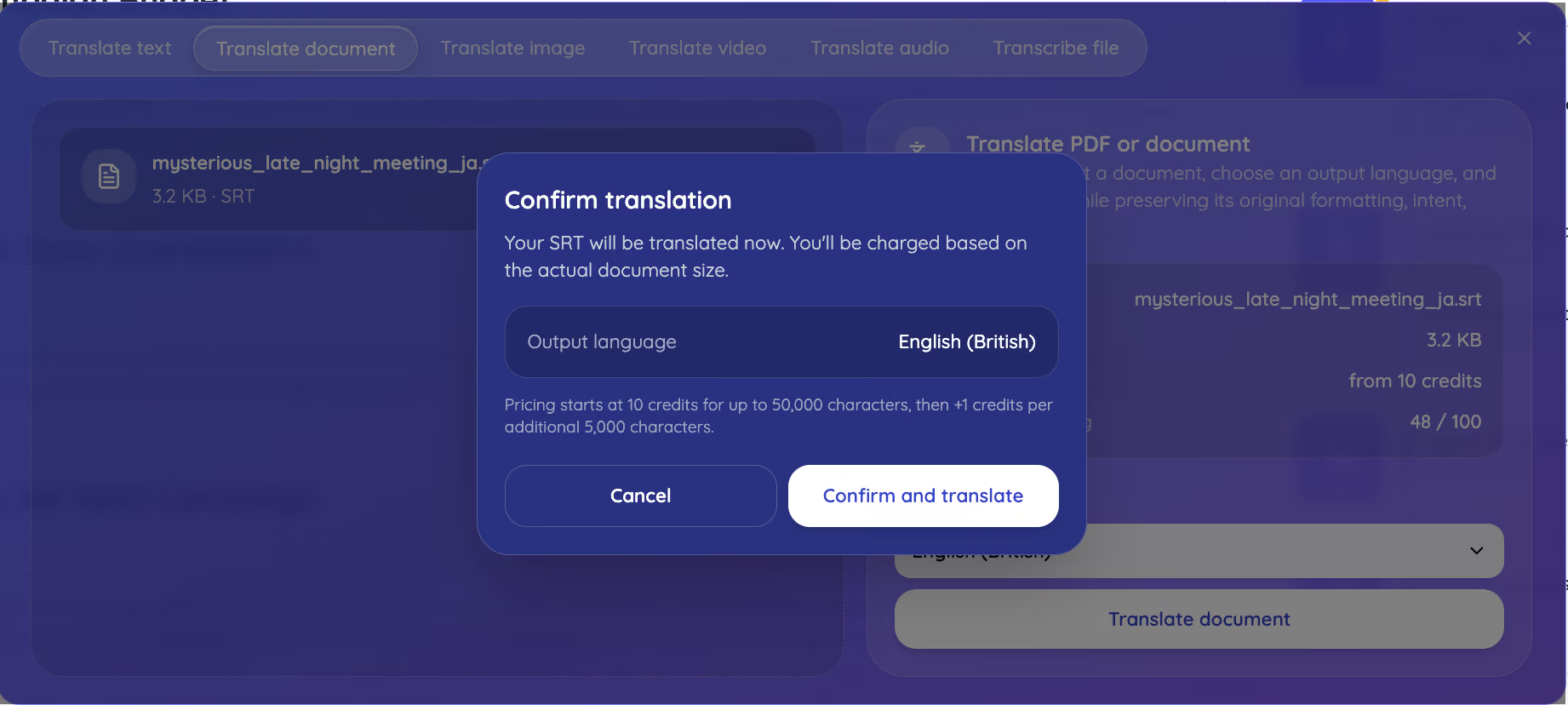
Step 5: Confirm the translation
Click Translate document, and JotMe shows a confirmation with your language and the pricing rule, which starts at 10 credits for up to 50,000 characters. Click Confirm and translate.
Step 6: Download your translated subtitles
JotMe returns a translated SRT with the timecodes untouched. You download the translated subtitle file and load it straight into YouTube, VLC, or your editor, and the subtitles line up with the video exactly as before.
Subtitlewise vs JotMe: Which Online Subtitle Translator Is More Accurate?
JotMe produced the more accurate subtitles of the two, and ChatGPT scored it 8.5 out of 10 against 6 out of 10 for Subtitlewise on the same Japanese short film. We ran the identical SRT through both video subtitle translator tools, then asked ChatGPT to grade each output, which takes our own opinion out of the result.
Subtitlewise is a free online subtitle translator, and its useful feature is an in-browser editor that lets you fix lines before download.
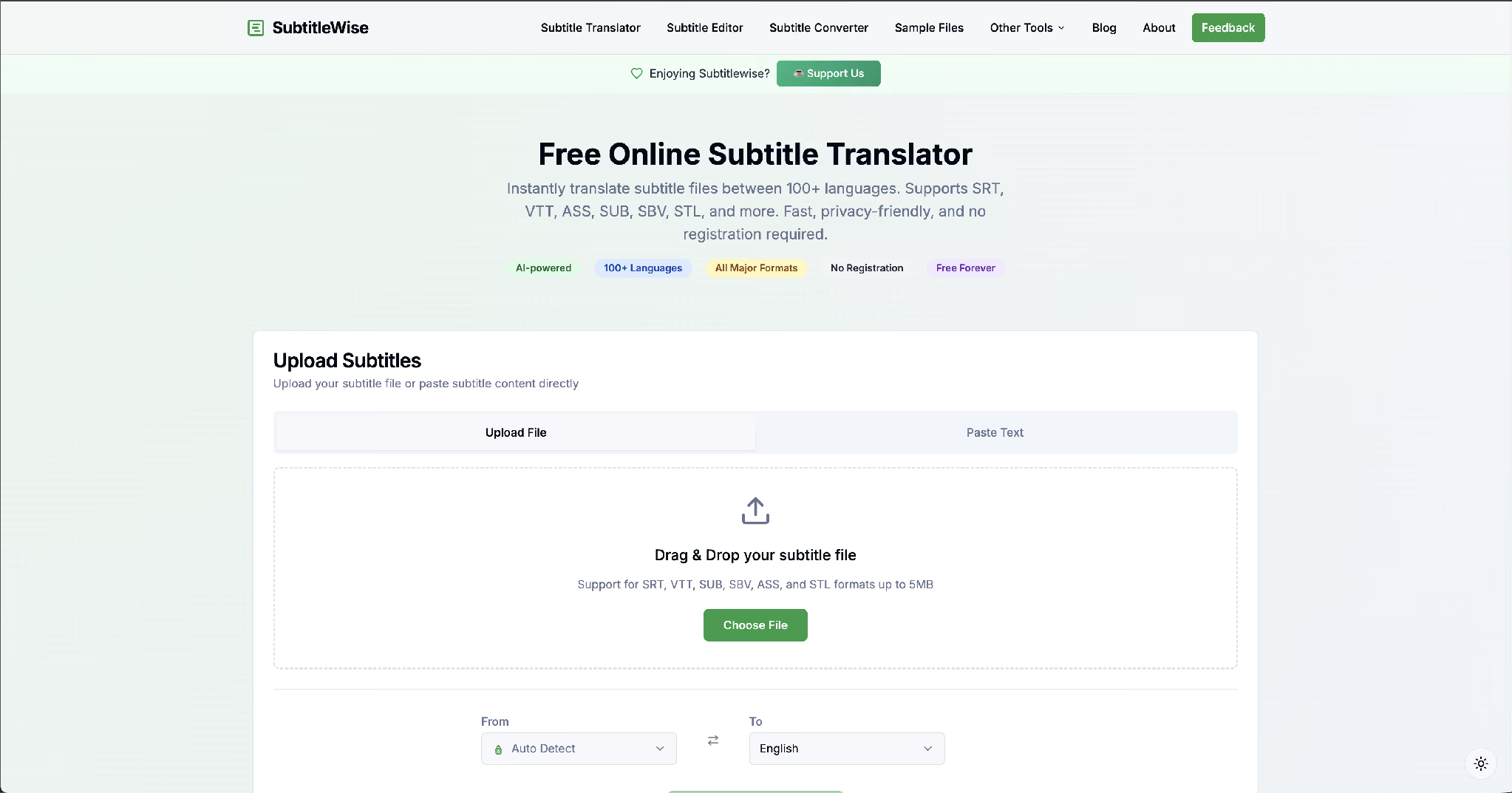
We uploaded the Japanese SRT, set the direction to Japanese to English, and ran it.
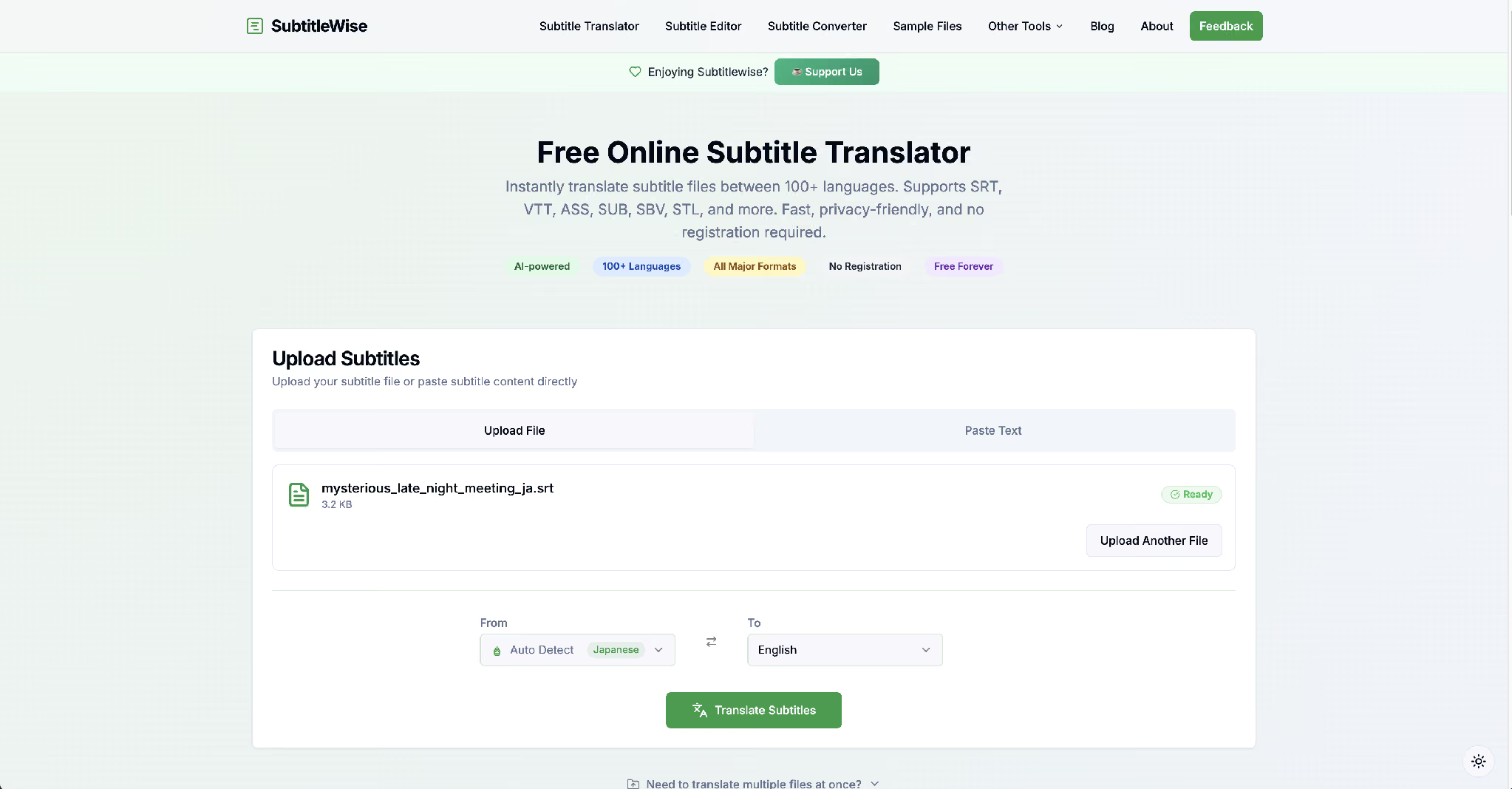
Subtitlewise returned all 41 lines with the original and the translation side by side, ready to edit.
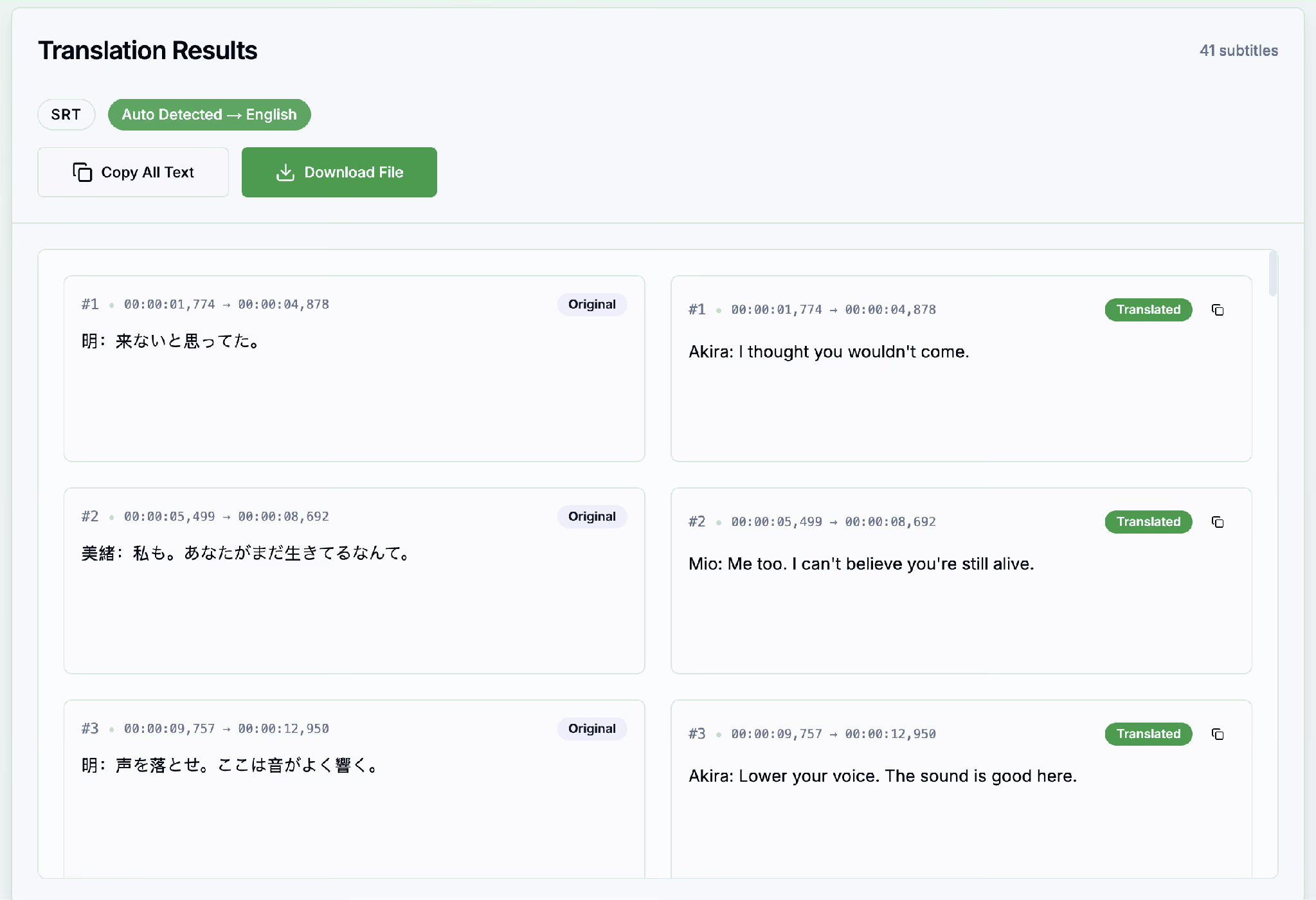
The output read cleanly, but the meaning slipped on the lines that carry the plot. Here are three, with the Japanese original, the Subtitlewise version, and the JotMe version.
Subtitlewise: “I changed trains three times. I was also followed.”
JotMe: “I changed trains three times. I shook off the tail.”
The Japanese says Mio lost the person tailing her. Subtitlewise reversed it into "I was also followed," which flips the meaning of the scene. JotMe kept it right.
Subtitlewise: “Should I call you to the abandoned station at 2am?”
JotMe: “And you called me out to an abandoned station at two in the morning?”
Subtitlewise reversed who called whom. JotMe kept Mio complaining that Akira dragged her out at 2 in the morning, which is the point of the line.
Subtitlewise: “Lower your voice. The sound is good here.”
JotMe: “Keep your voice down. Sound carries well here.”
The line explains why Akira wants quiet: sound echoes in the abandoned station. Subtitlewise turned it into "the sound is good here," which loses the logic. JotMe kept it.
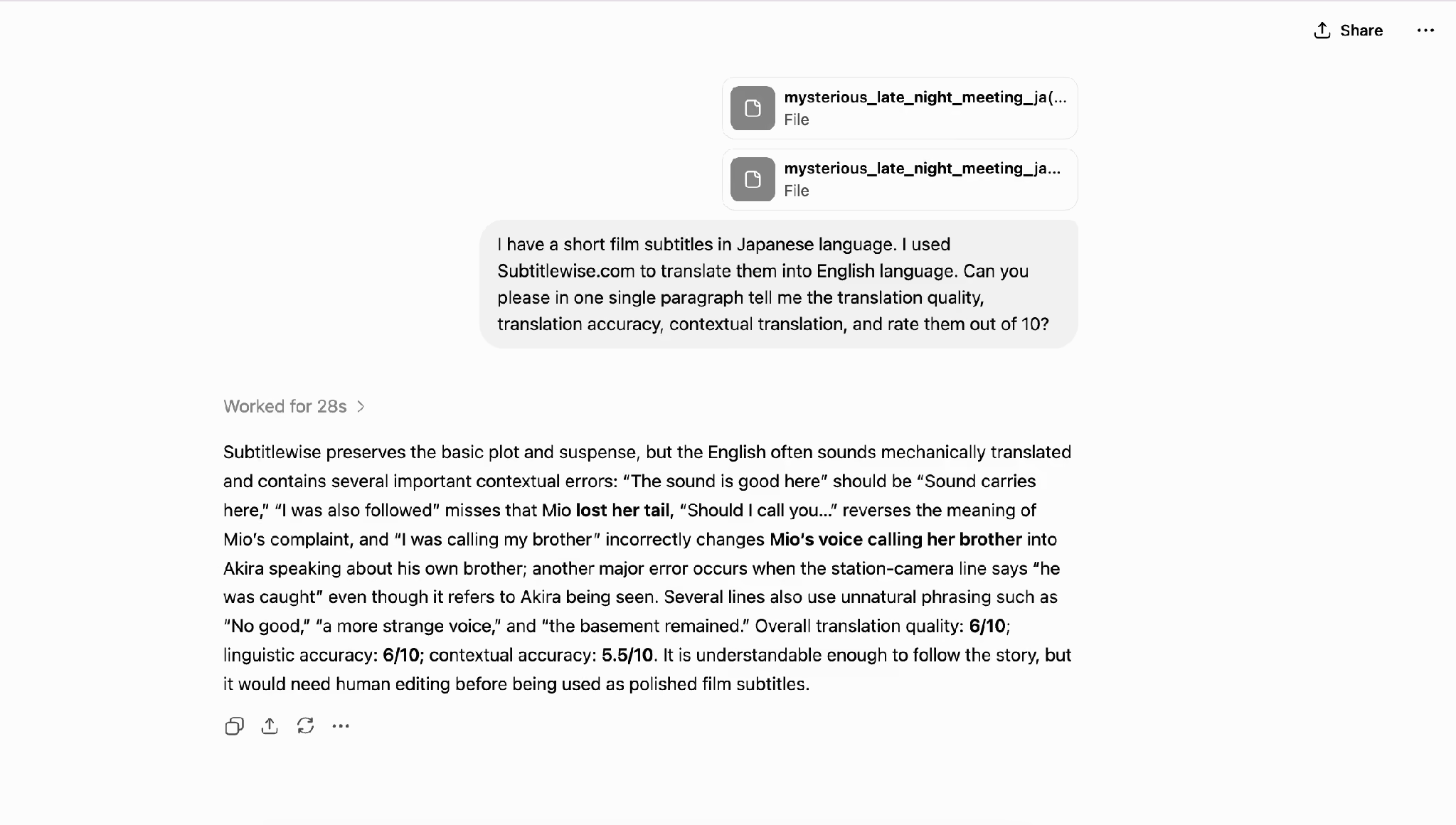
We then asked ChatGPT to score both. It rated Subtitlewise 6 out of 10 for quality and 5.5 out of 10 for contextual accuracy, noting the reversed meanings and the mechanical phrasing.
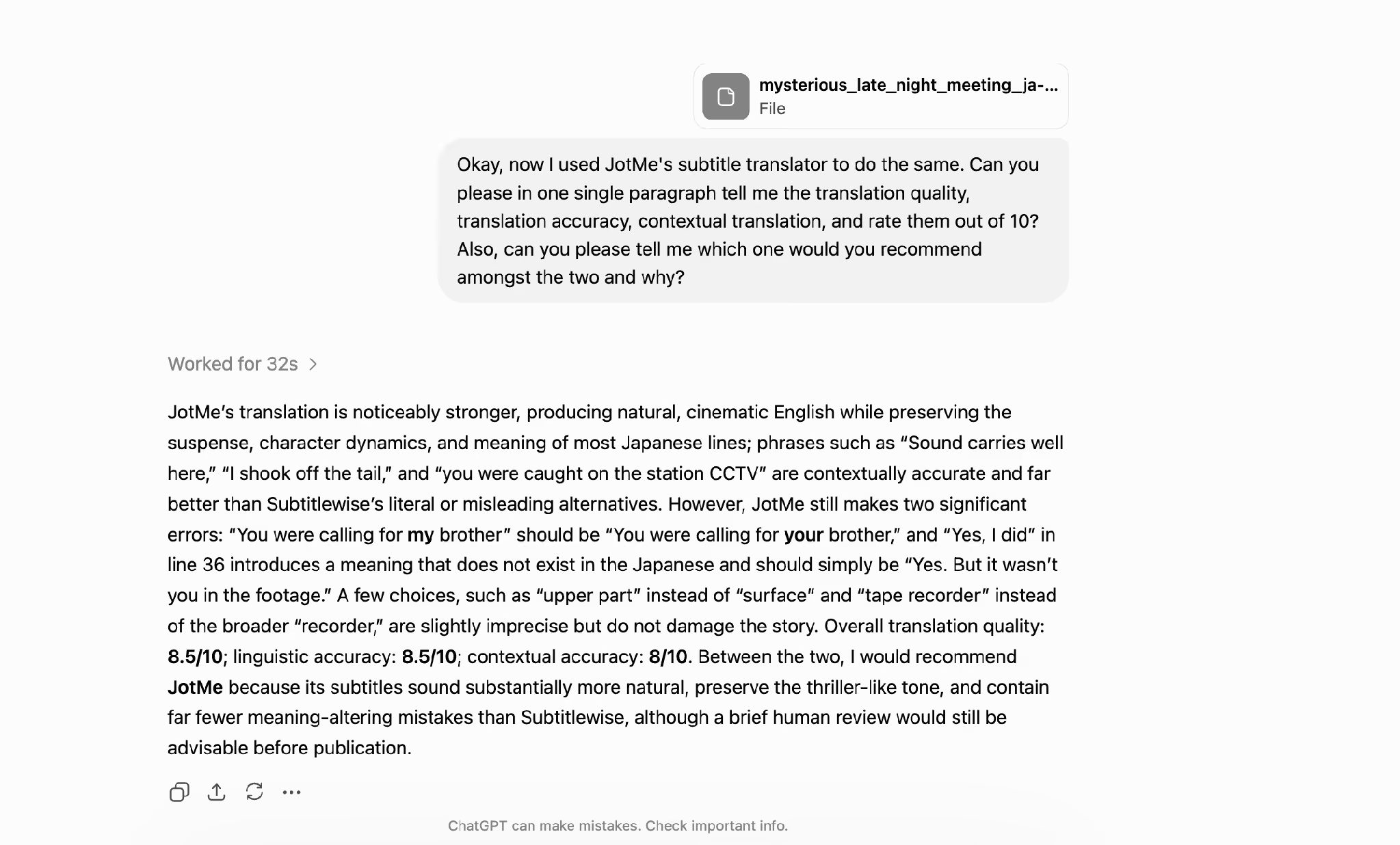
It rated the JotMe version 8.5 out of 10 for quality and 8 out of 10 for contextual accuracy, calling the English natural and cinematic and the suspense intact. It flagged that JotMe still made a couple of minor calls a human would refine, such as one "my brother" that should read "your brother," which is why the score is 8.5 rather than 10, and it recommended JotMe overall.
What Are the Different Subtitle Formats?
The main subtitle formats are SRT, WebVTT, ASS or SSA, and SCC, and they differ mostly in how much styling and timing precision they carry. SRT is the plainest and most compatible, and the others add web positioning, rich styling, or broadcast timing on top.
For most streaming and study use, SRT is the format you meet, which is why JotMe starts there. If your file arrives as one of the others, you can convert it to SRT in a free subtitle tool first, then translate it.
What Should You Look for in a Subtitle Downloader?
A good subtitle downloader gives you the right file in the right format, matched to the exact cut of the video you are watching. The wrong version drifts out of sync within a minute, so the details below matter more than they look.
- Correct timing for your specific video version, since a different release shifts every line
- The format your player accepts, usually SRT or WebVTT
- The right language track, and ideally a version marked for hearing accuracy rather than auto-generated guesswork
- Clean encoding in UTF-8, so accented and non-Latin characters do not turn into symbols
- A single subtitle stream per file, not two languages stacked into one
- No bundled software or forced sign-up, which is common on lower-quality sites
- A file you then run through a subtitle translator if the only track you find is in the wrong language
How Do You Turn Off Netflix Subtitles?
You turn off Netflix subtitles from the Audio and Subtitles menu while the video is playing, then select Off under Subtitles. The menu shows as a dialog-box or gear icon, and the way you reach it changes slightly by device.
- Smart TVs and streaming devices: while the video plays, press the up or down arrow on your remote to open the playback menu, then select the Audio and Subtitles or Other icon and choose Off.
- Mobile and tablets on iOS or Android: tap the screen while the video plays, tap the Audio and Subtitles icon, and select Off.
- Computers and web browsers: hover over the playing video, click the dialog icon in the bottom-right corner, and click Off.
Turning Netflix subtitles off is easy. Getting the language you actually want is the harder part, and for foreign titles a real-time subtitle translation on Netflix setup does more than the built-in tracks allow.
How Does JotMe Keep Technical Terms Right in a Translated Subtitle?
JotMe reads the full subtitle file before translating, so specialist terms keep their real meaning instead of turning literal. The analysis step in the how-to is what makes this work, and it matters far beyond movies.
- Engineering talks and demos: part names, tolerances, and process terms stay consistent from the first slide to the last.
- Podcasts: names, running jokes, and callbacks hold across a long episode rather than resetting each line.
- Interviews: who says what stays clear, and the tone of a pointed answer survives the translation.
- Webinars: product terms and figures read the same for every language audience watching the recording.
JotMe also draws on context and terminology from your earlier work, so the vocabulary your channel or lab already uses carries into the next translate subtitle job. The result reads as though a native speaker wrote the captions first, rather than as a translation of the original. JotMe saves no file to a server either, so an unreleased film, a client interview, or unpublished research footage stays yours through the whole process.
How Many AI Credits Does Subtitle Translation Cost?
A subtitle file up to 50,000 characters costs 10 AI credits, and every additional 5,000 characters adds 1 credit. JotMe bills on the characters inside the file, and subtitle files are small, so a full short film usually lands at the base 10 credits.
The free tier carries 5 AI credits, which suits a quick test, and creators who translate subtitle tracks regularly move to Pro at $10 per user per month for 20 credits or Premium at $15 for 50.
Can You Auto Translate a Video and Add Subtitles in Real Time?
Yes. Beyond translating a saved file, JotMe can auto translate videos and add subtitles online in one click during a live stream or call. You point our live translation tool at the audio, and it captions and translates as people speak.
For a stream, you copy a translation URL into OBS as a browser source and overlay live subtitles on your camera, which this short setup video walks through end to end. Our guides to live AI subtitle translators for videos and AI live translation sharing cover the wider setup for webinars and multilingual audiences.
Which Subtitle Translator Should You Use for Your Next Film?
The choice comes down to what happens after the download. When you just need to follow a foreign film for yourself, most free tools get you close enough, and a rough line here or there does not spoil the evening. For a quick watch, reach for whatever is fastest and free.
The moment the subtitles go in front of an audience, a class, or a client, accuracy starts to matter, and the test above shows the gap: the same film scored 6 out of 10 from Subtitlewise and 8.5 out of 10 from JotMe, judged by a neutral tool. JotMe reads the whole file, keeps the timing frame-for-frame, holds the meaning across the scene, and saves nothing to a server. Open the live translation tool or upload your SRT and translate subtitle files on your next project to see the difference against your current setup.
FAQs
Which subtitle formats can I translate with JotMe?
JotMe currently translates SRT files, the caption format that works across YouTube, VLC, Premiere, and most players. Support for more formats like WebVTT and ASS is on the way, so the same contextual translation will soon cover web and styled captions too.
How accurate are the AI translations?
JotMe reads the whole file for context before it translates, so meaning and tone hold across a scene rather than breaking line by line. In a ChatGPT review of a Japanese short film, it scored 8.5 out of 10 for quality, and for a public release a quick human pass on names and idioms still helps.
Can I translate between any two languages?
Yes. JotMe covers 200+ languages and 39,000+ language pairs in any direction, so Korean to English, Japanese to Spanish, or English to Arabic all run from the same screen with no fixed source or target.
Is there a file size limit for subtitle translation?
Yes. The Translate document tab accepts files up to 100 MB. Subtitle files are small, often a few kilobytes, so a full film track sits far below the limit and translates in one pass.
Is JotMe safe for content creators?
Yes. JotMe saves no file to a server, so an unreleased film, a client’s footage, or a private interview stays yours. The subtitle gets translated and returned without being stored anywhere.
Last updated on
July 30, 2026
Follow us on social media:
![JotMe — Is Google Translate Accurate? [2026 Test]](/_webflow-assets/0d0512afc7b037d74dff536f22fed08f.avif)