



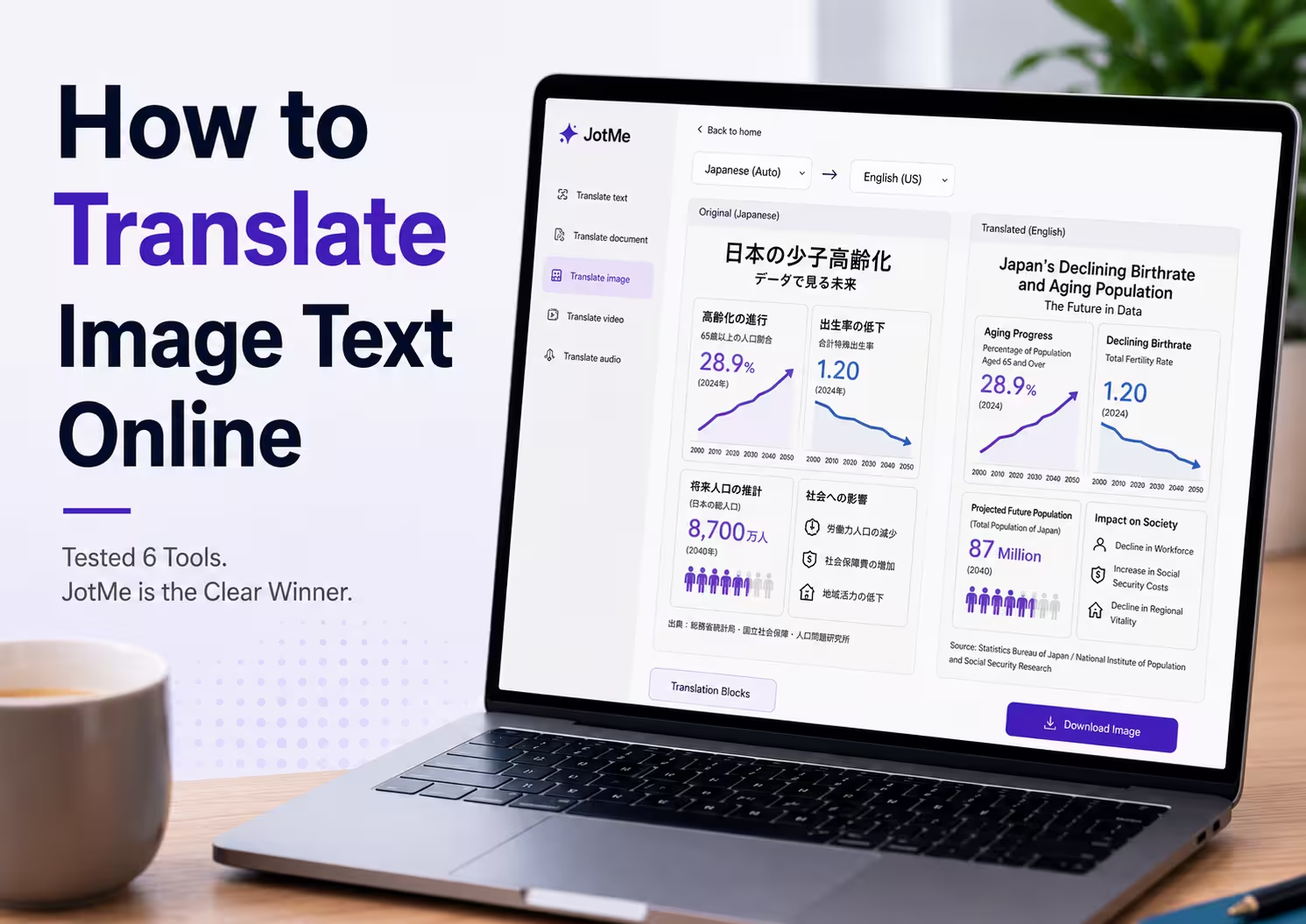
You translate image text by uploading the picture to JotMe, selecting Translate image, and choosing an output language. JotMe reads the text inside the image, keeps the original layout in place, and translates it into 200+ languages, so the result reads as though a native speaker designed the image first. We ran the same Japanese infographic through 6 image translators, and ChatGPT named JotMe the clear winner.
Most people reach for a free image translator, upload one picture, and get a result where the layout has shifted and the meaning slid with it. Tools like Google Translate image, Yandex, and others handle the words, but few of them keep the design and the context together. That gap matters most for exam papers, contracts, infographics, and science projects, where a moved label or a literal term changes what the image says. This guide shows how to translate an image step by step, then tests 6 tools that translate image text on one file so you can see which one to trust the next time you translate image text.
Key Takeaways
- Tools Covered: We tested Imgocr, Google Translate, Yandex, ImageToText, Canva, and JotMe on the same Japanese infographic
- The Result: ChatGPT reviewed every output and named JotMe the clear winner for accuracy and preserved layout
- Layout and Context: JotMe reads the whole image for context and keeps the original layout, so the meaning survives the translation
- Cost and Privacy: Each image translation costs 5 AI credits, and JotMe saves no image to a server
Can JotMe Translate Image Text in Any Language?
Yes, JotMe is an AI image translator for 200+ languages that reads the text inside a picture and returns it translated with the layout intact, so you translate image text without losing the design. As an OCR image translator, it detects the characters in the image first, then translates them in context, which is how it keeps a chart label attached to the right slice and a heading above the right section.
You reach it from the Translate image tab, and it accepts PNG, JPG, WEBP, and GIF files. JotMe auto detects the language and translates pictures without you setting a source, so you translate image text accurately with an online image translator whether the picture is Japanese, Korean, or Arabic. You can also translate text from images and photos online with the AI-powered desktop app when you work offline from the browser.
How to Translate an Image With JotMe: Step-by-Step
You translate an image in 6 steps, and a dense infographic finishes in under a minute. The flow to translate image text is the same for a chart, a poster, or a screenshot. The screenshots below follow one real Japanese infographic from upload to result.
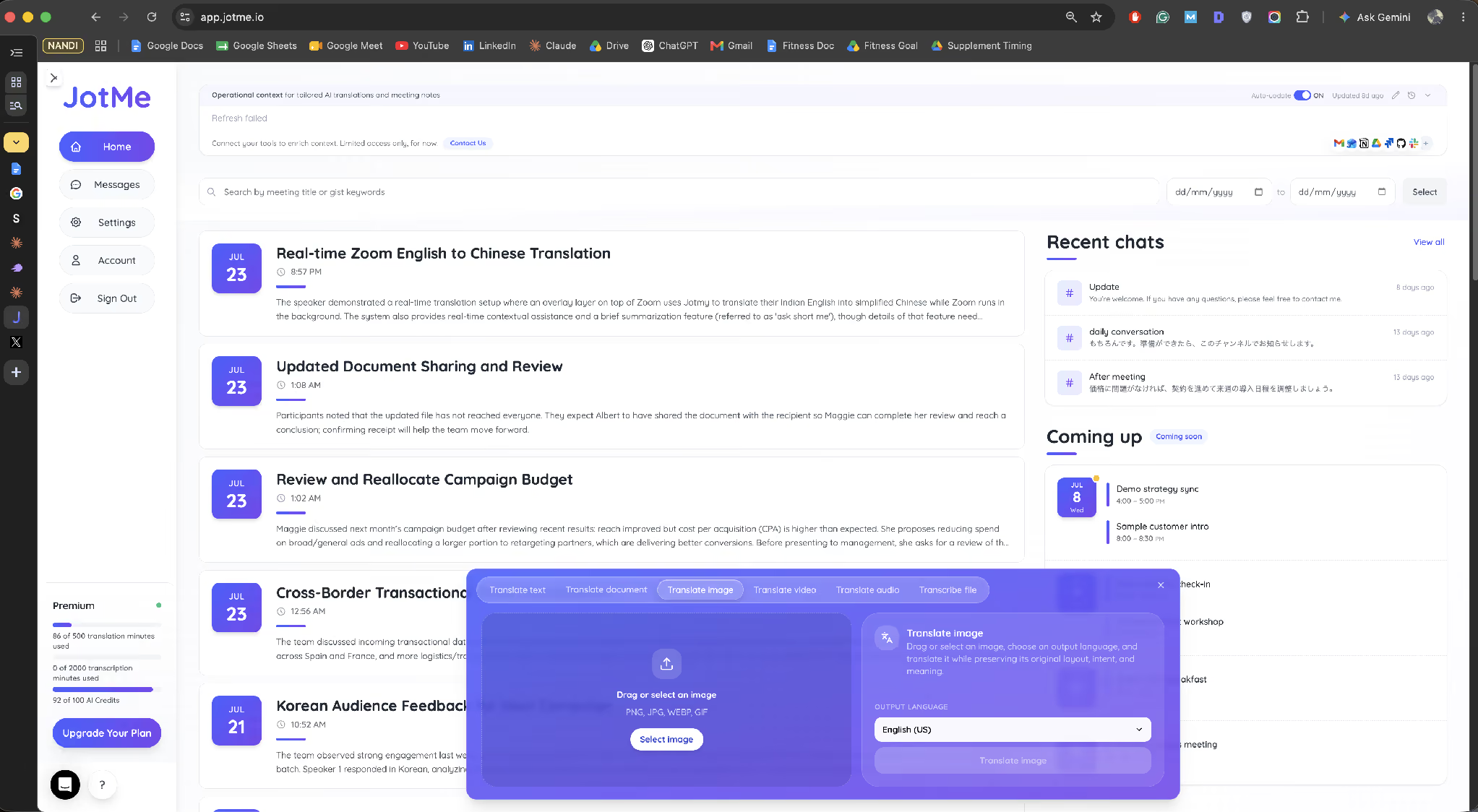
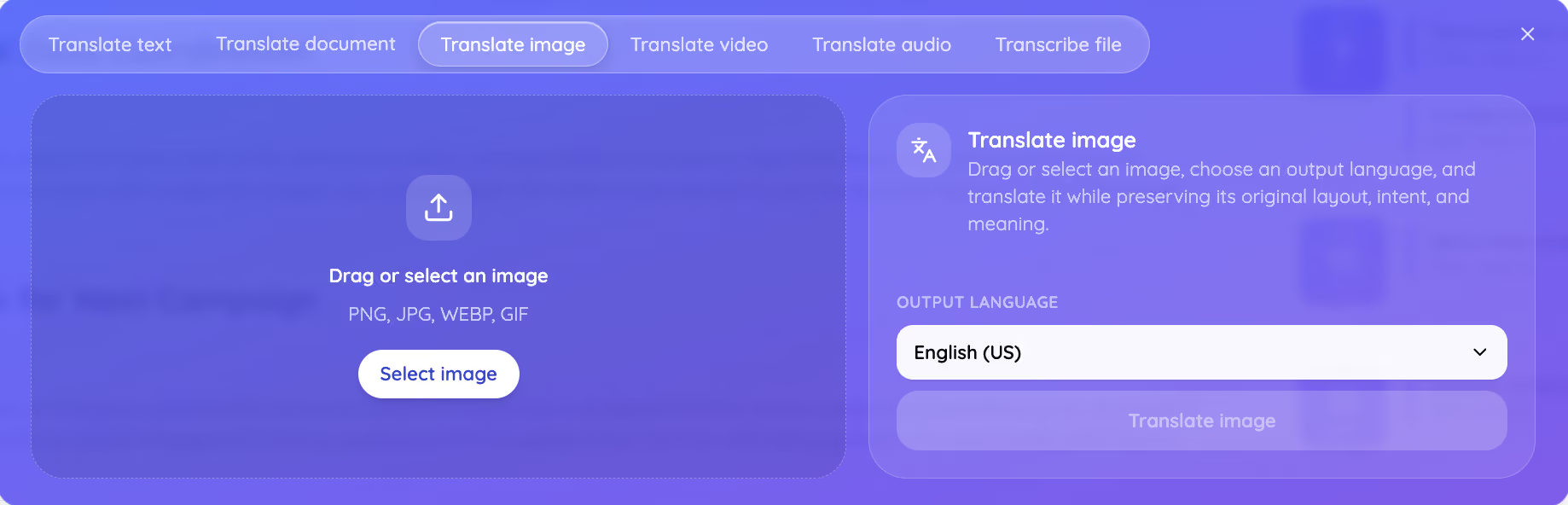
Step 1: Open JotMe and Select Translate Image
Open the translate bar on your JotMe home screen and click Translate image. The tab shows the supported picture formats and the output language.
Step 2: Upload Your Image
Drag your picture into the panel or click Select image. JotMe accepts PNG, JPG, WEBP, and GIF, and it shows the file name, the size, and the 5-credit cost before anything runs.
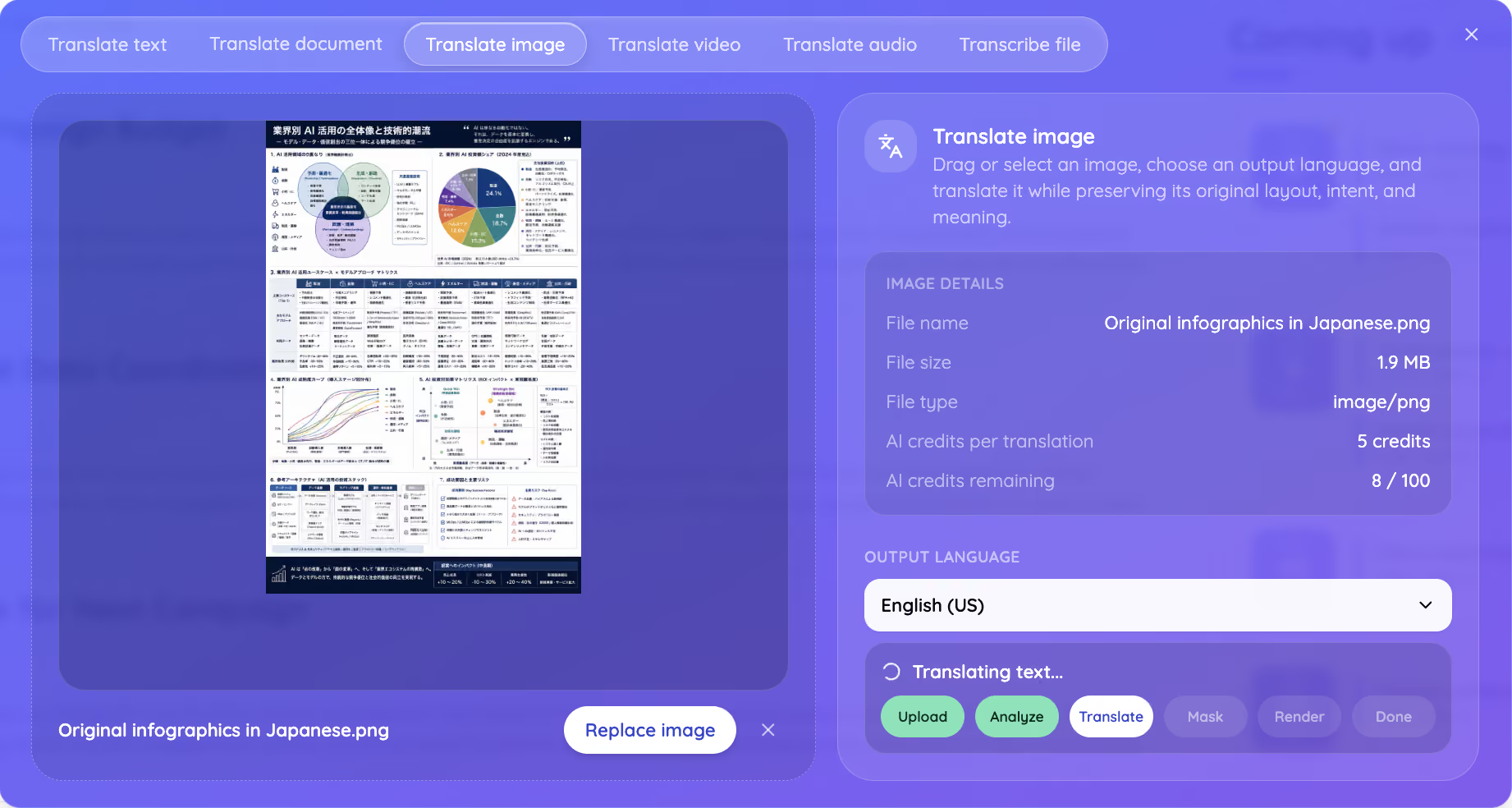
Step 3: Choose Your Language and Translate
Pick your output language, here English (US), and start the translation. JotMe reads the text in the image and begins translating it in context.
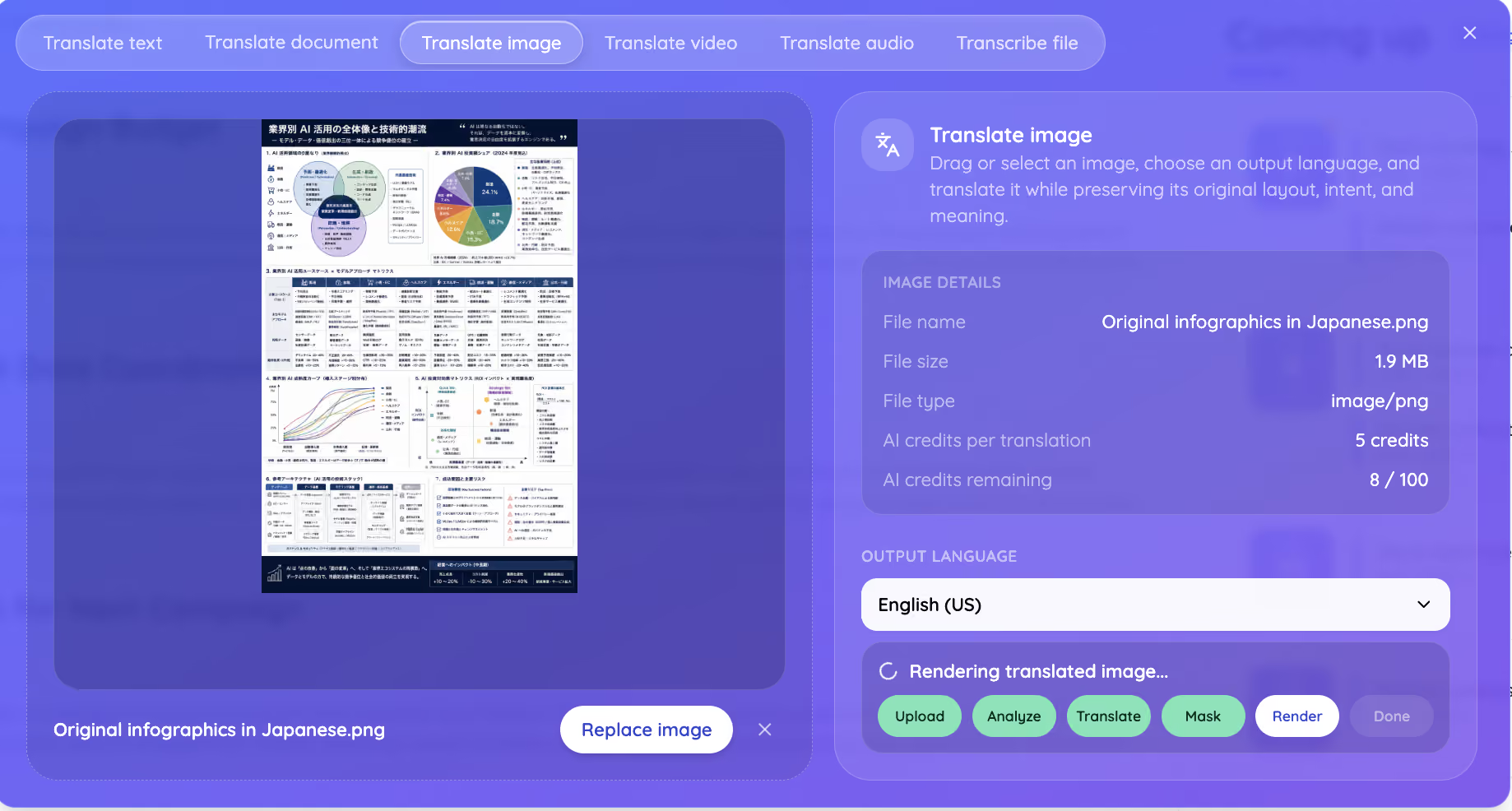
Step 4: Let JotMe Render the Translated Image
JotMe rebuilds the picture with the translated text in place of the original, keeping the layout, the colors, and the charts where they were. This render step is what separates a real result that keeps the design from a plain text dump, and it is why people translate image files here rather than copy-pasting text.
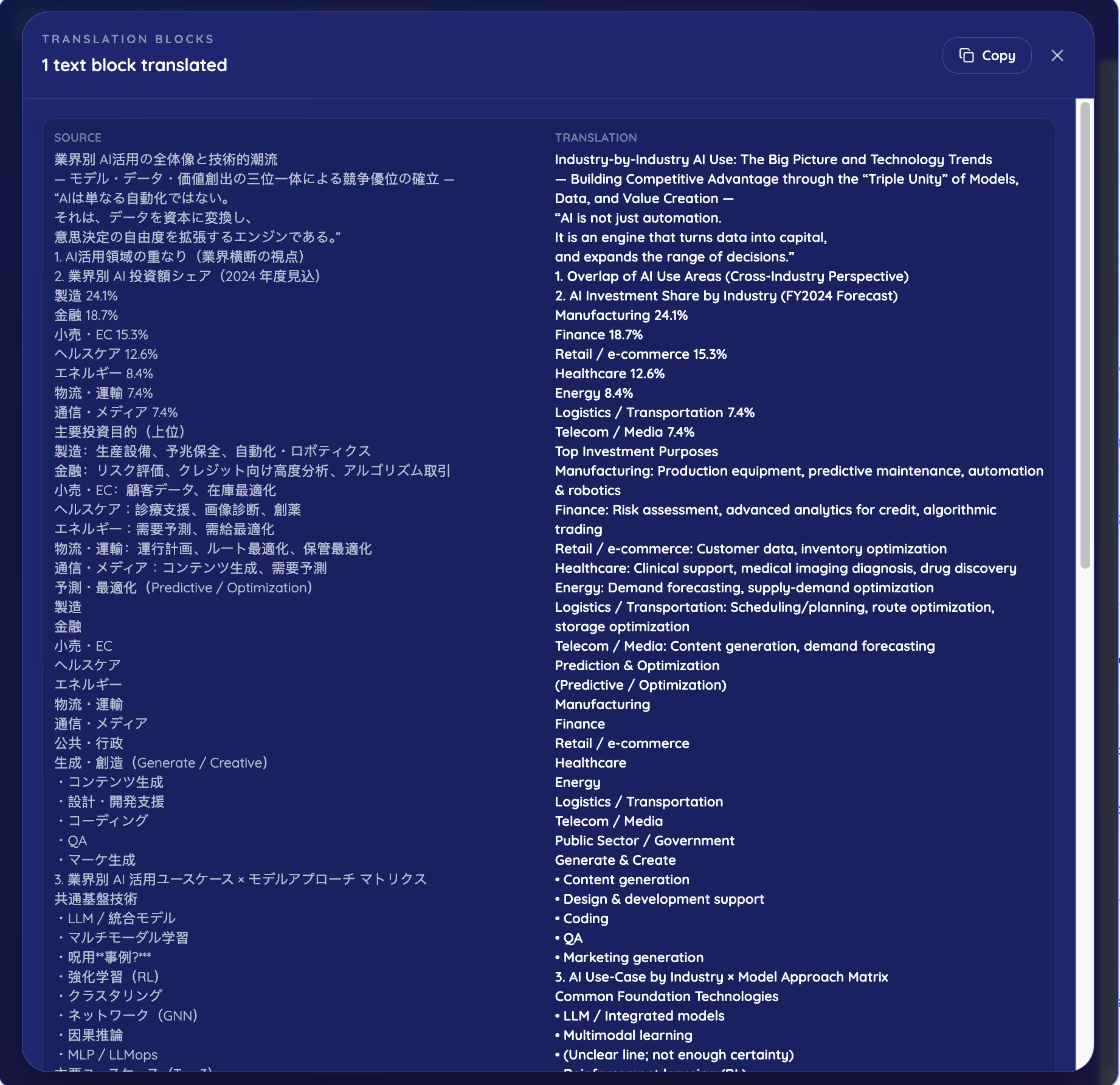
Step 5: Review the Translation Blocks
JotMe shows a Translation Blocks view that pairs each source line with its translation, so you can check the wording line by line. Of every tool we tested, only JotMe gave this word-by-word Translation Blocks view.
Step 6: Download Your Translated Image
Download the finished picture and use it straight away, and repeat the same flow whenever you translate image files next. The translated infographic keeps the original design, so it drops into a slide, a report, or a post without a redesign.
How We Tested Image Translator Comparison
We ran every tool in this comparison on the same source image, the Japanese infographic shown in the article, under the same conditions on July 28, 2026. Each tool received the identical file, and we reported what each one returned without editing the outputs. Software updates often, so a tool that shifted a font or misread the language here may behave differently after a later version, and you should check the current tool before relying on any single result.
This article names other products only to identify them and to compare specific, factual outcomes. Truthful comparative advertising that names competitors is permitted in the United States under the Lanham Act, 15 U.S.C. 1125, and under the Federal Trade Commission Statement of Policy Regarding Comparative Advertising, codified at 16 CFR 14.15, as long as the claims stay truthful and non-deceptive. All third-party names and marks belong to their respective owners and appear here for identification only.
How Do the Top Image Translators Compare? (We Tested 6 Tools)
JotMe produced the most usable result of the 6 image translators, keeping both the wording and the layout, and ChatGPT named it the clear winner after reviewing every output. We started with one dense Japanese infographic and ran it through each tool, and here is what happened.
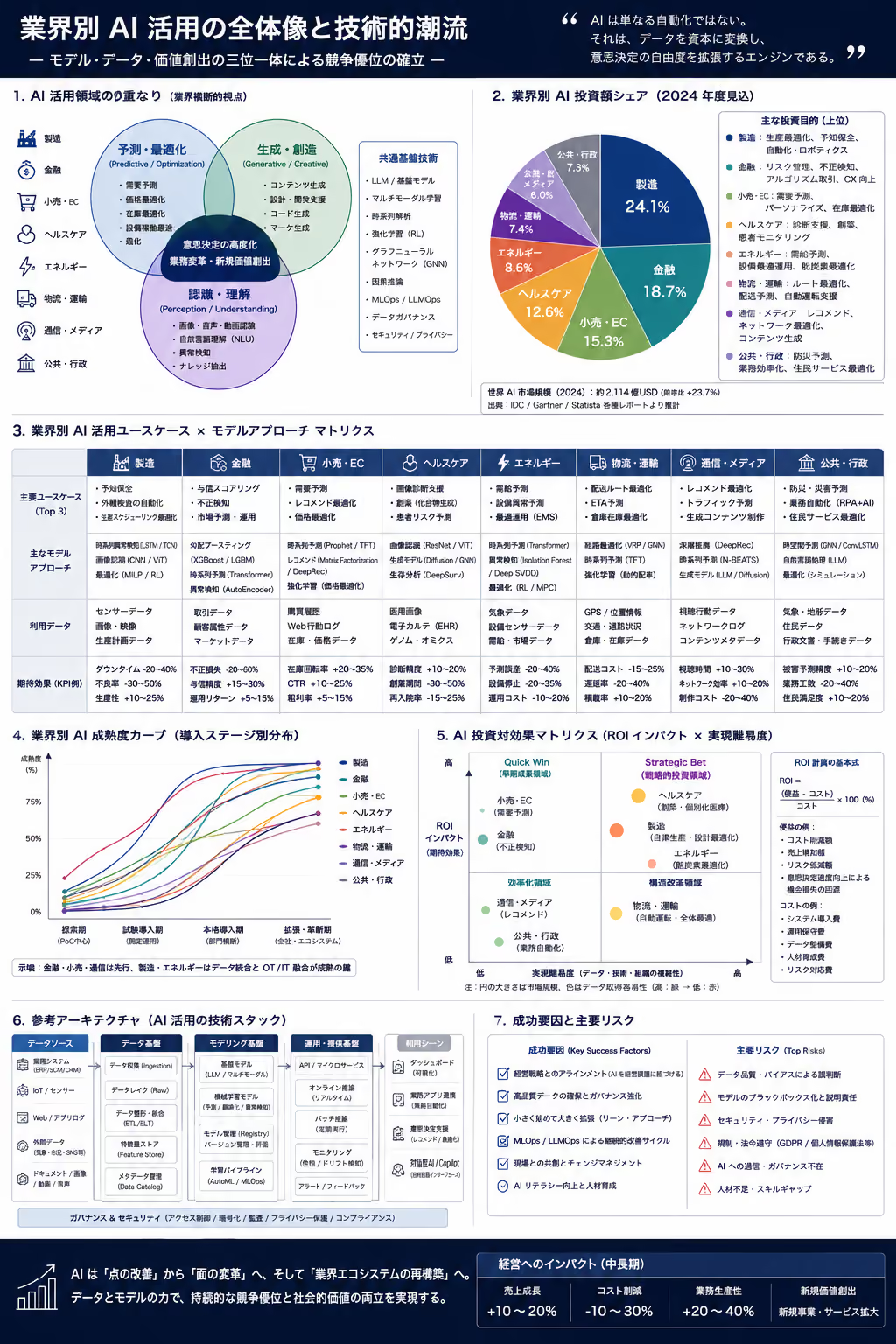
Imgocr: Ads, Pop-Ups, and a Two-Step Workaround
Imgocr filled the screen with ads and pop-ups and took a long time to work. It did not translate the image directly as it claims. It extracted the text first, then translated that text separately, which defeats the point of an image translator.
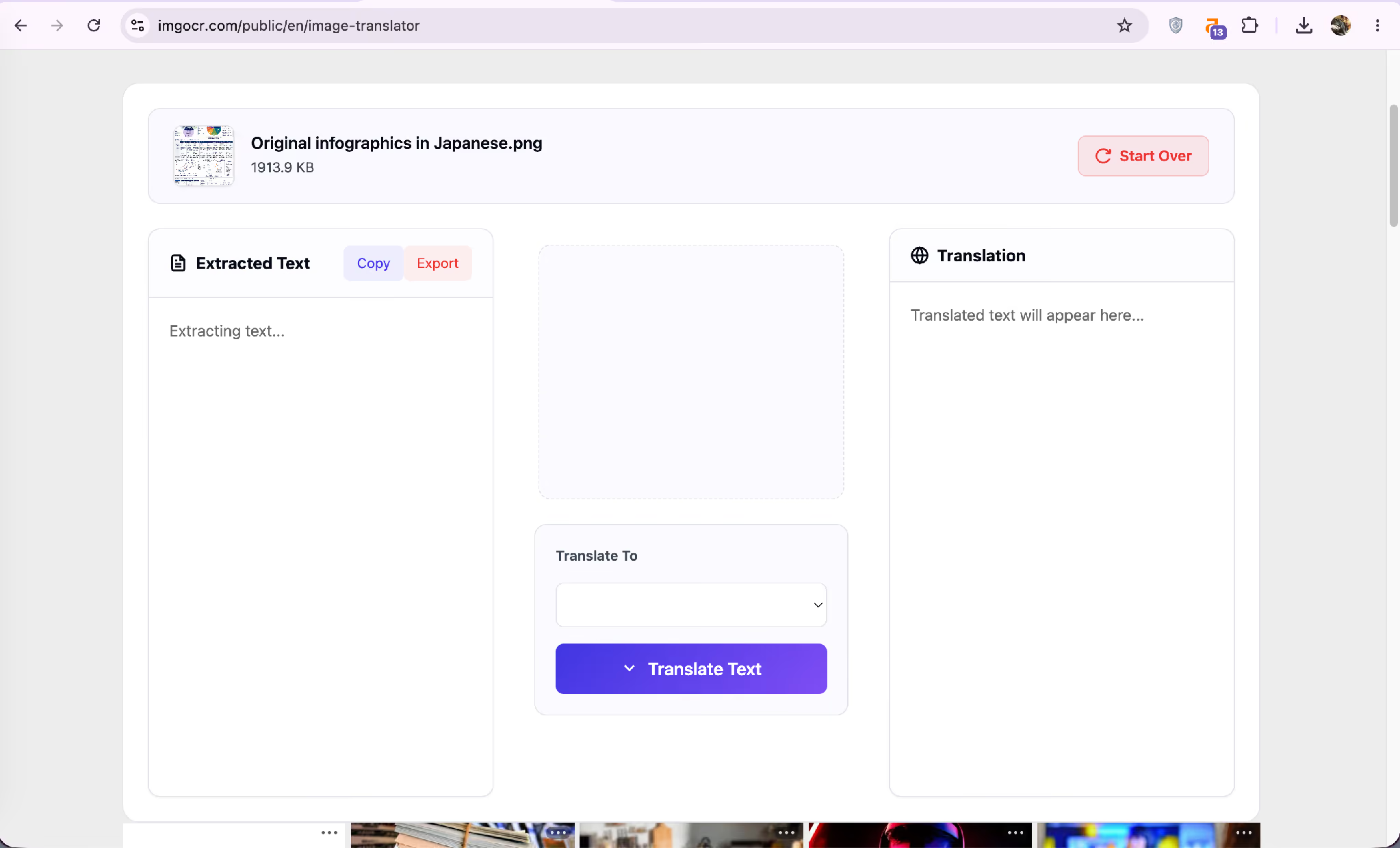
Google Translate: Accurate Text, Mismatched Fonts
Google Translate did a strong job on the words, and the translation reads accurately. The layout held together, but the fonts shifted and the type looked mismatched against the original design, so the result reads as a translation rather than a native image.
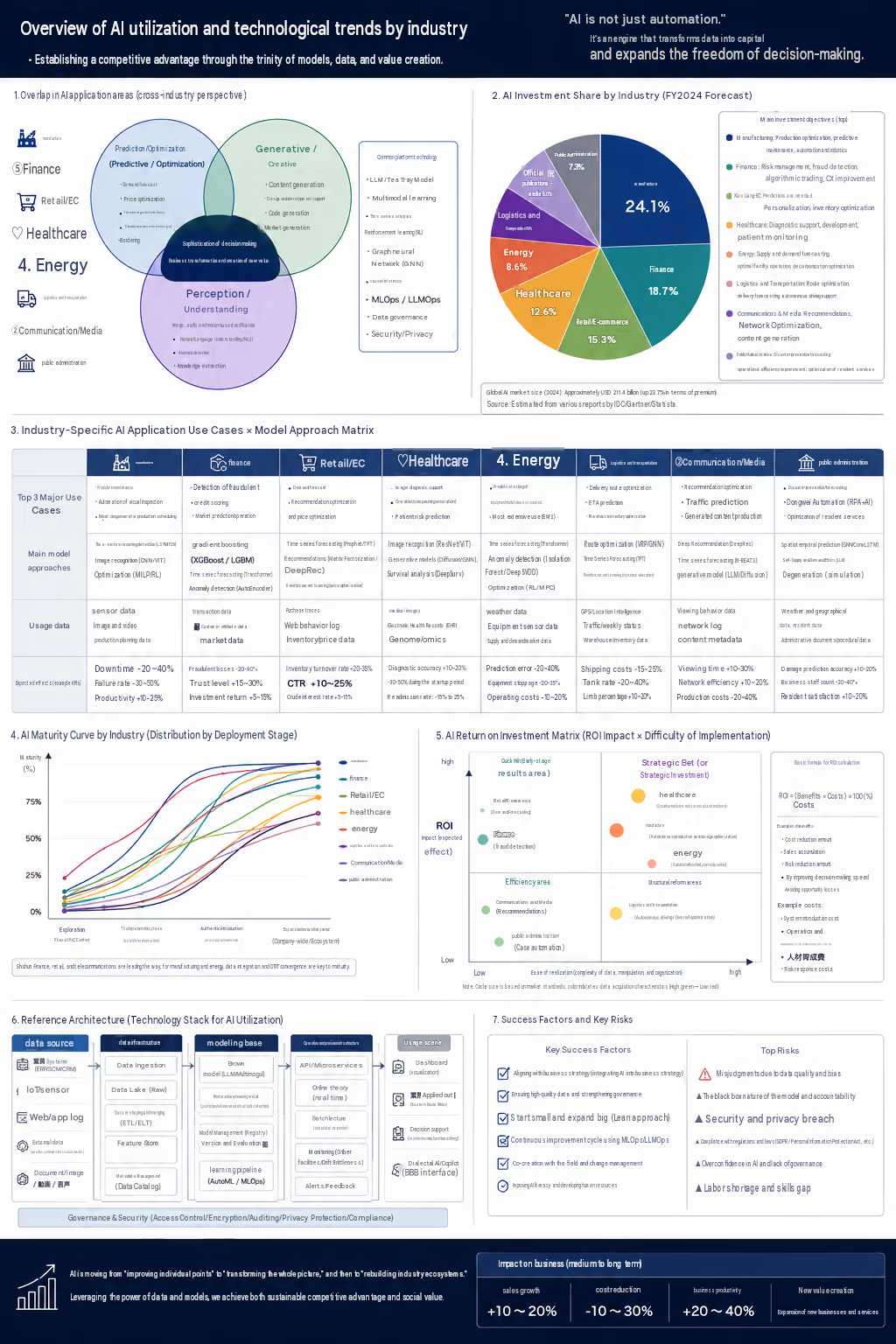
Yandex: Detected the Wrong Language Entirely
Yandex misread the source. Although the text was Japanese, it detected Chinese, then output the translation in Russian, which left the image in a language nobody on the file asked for. Accurate translation starts with reading the right language, and this is where a contextual image translator matters.
ImageToText: A False File-Size Limit
ImageToText rejected the upload with a file-size error, saying only 10 MB is allowed, even though the image was 2 MB. The site also carried heavy ads. The translation never ran, so there was no output to judge.
Canva: Asks You to Type the Text Yourself
Canva lists an image translator, but on upload it asked us to add the text manually. That means typing the text in one language for Canva to translate into another, which is not translating the text already inside the picture.
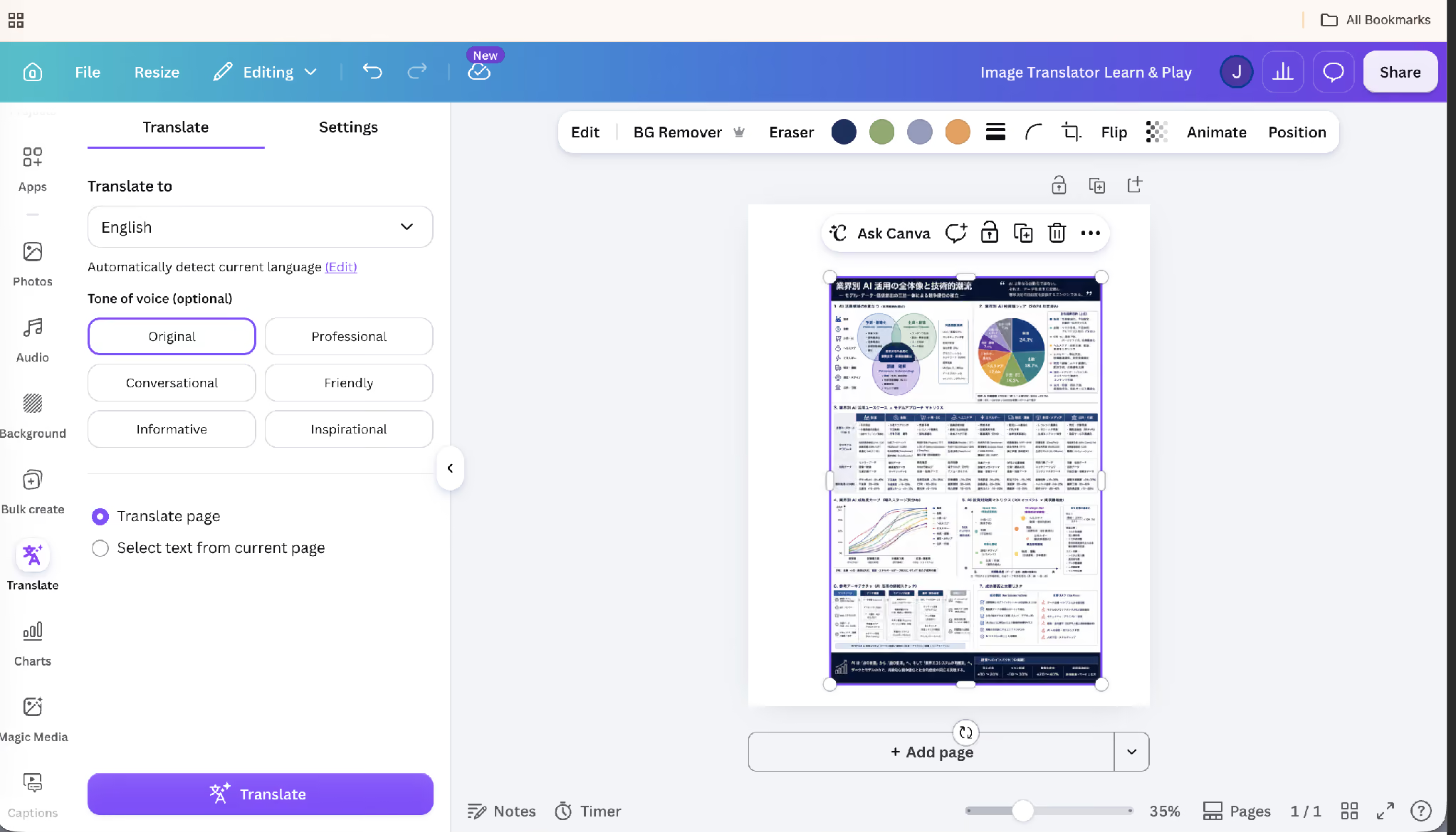
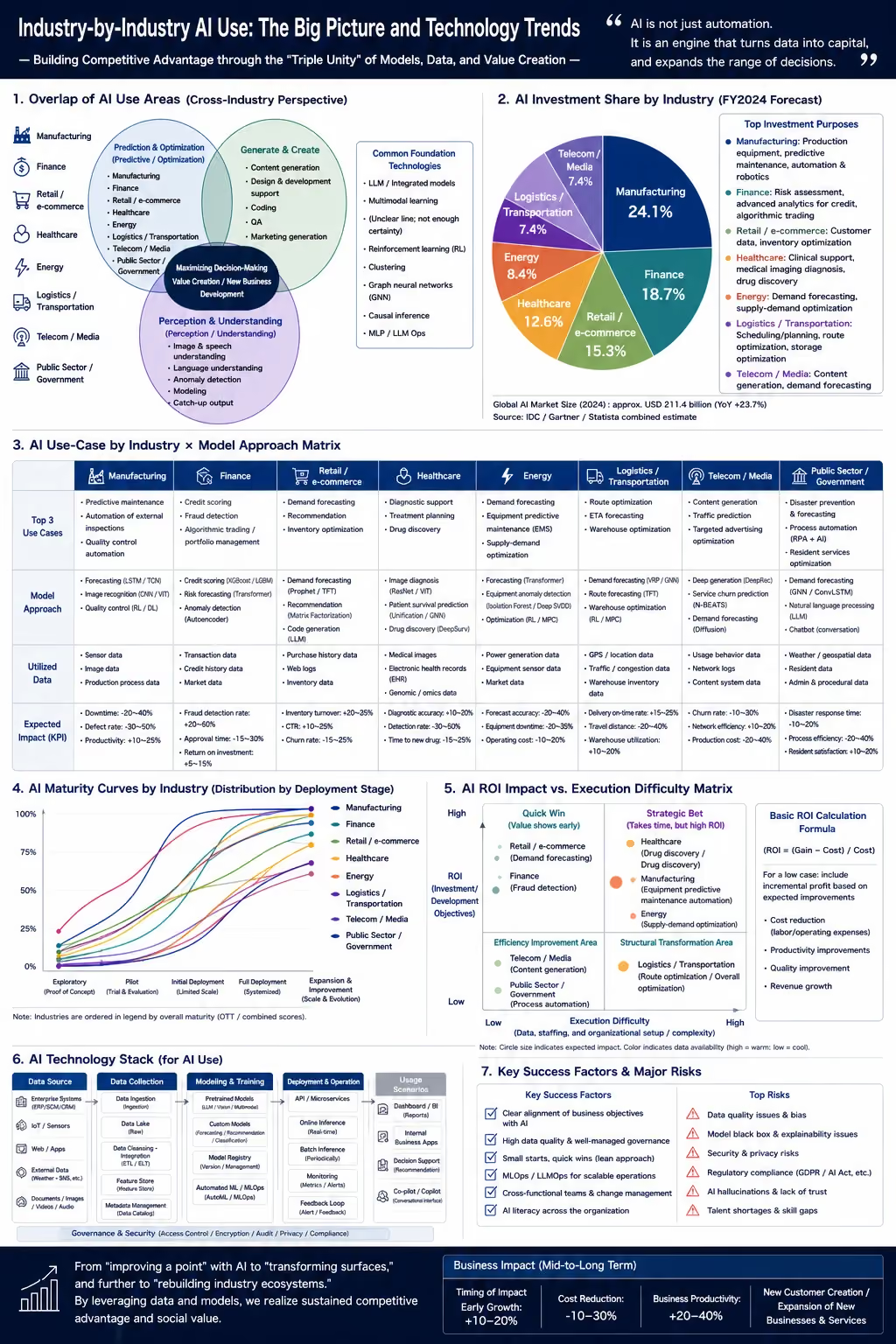
JotMe: Layout Preserved, Context Intact
JotMe read the Japanese, translated it in context, and rebuilt the infographic in English with the charts, colors, and structure in place. The result reads like an English original rather than a translated file.
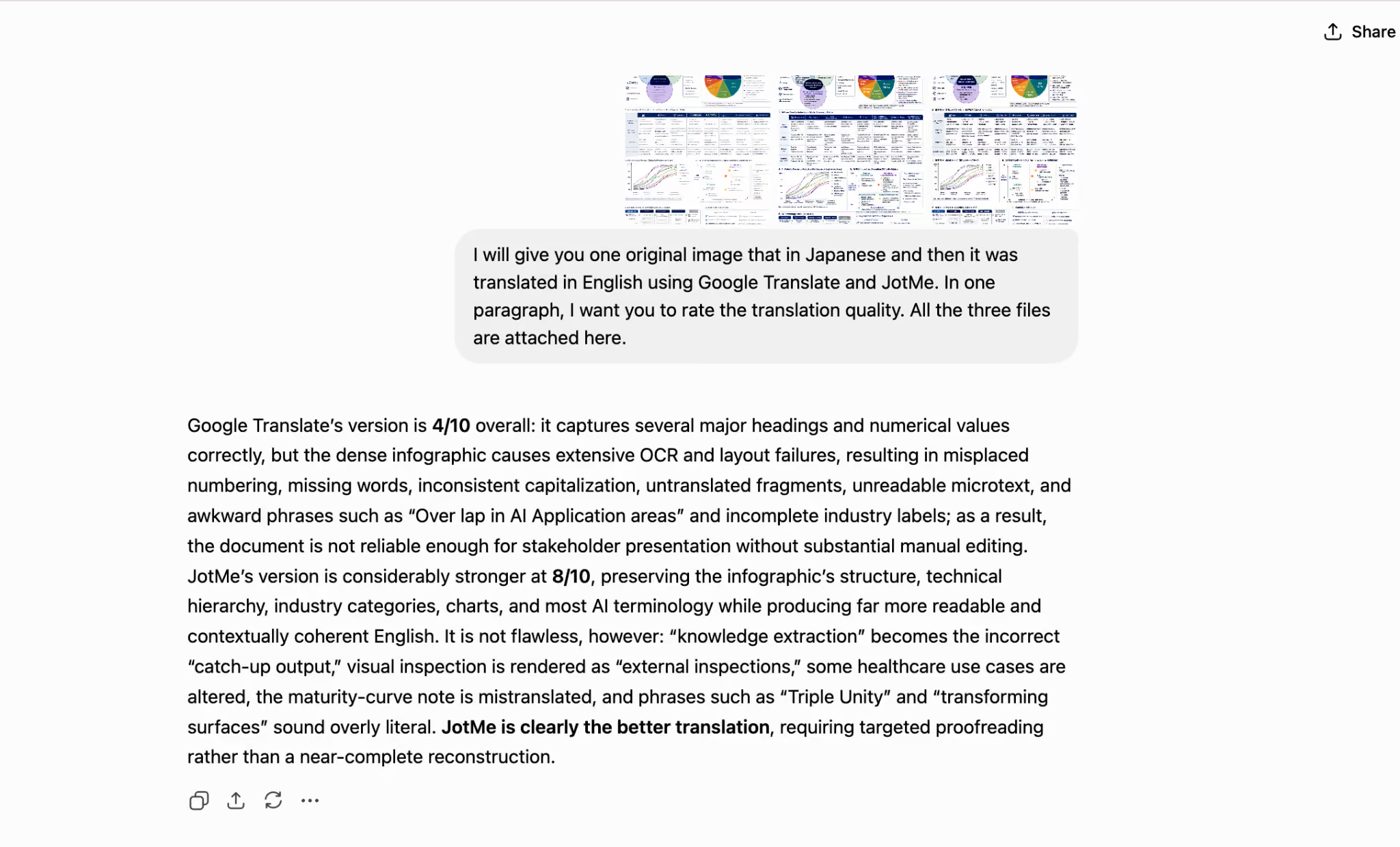
We took every output to ChatGPT and asked it to compare Google Image Translator and JotMe on this translation. It analyzed all the images and named JotMe the clear winner for keeping the meaning and the design together.
How Does JotMe Keep Technical Terms Right in a Translated Image?
JotMe reads the whole image for context before it translates, so specialist terms keep their real meaning instead of turning literal. The render step in the how-to is where this shows, and it matters across fields where one wrong word changes the result.
- Engineering: Part names, tolerances, and process labels stay consistent across a diagram rather than drifting term by term
- Science: Method steps and unit conventions hold their meaning from the figure to the caption
- Biology: Terms like nucleotide and monosaccharide keep their scientific form instead of becoming descriptions
- Chemistry: Compound names and reaction terms carry their exact sense across the image
- Legal Contracts: Clause language and defined terms read in their official register, not the everyday one
- Maths: Notation, variable names, and formula labels stay precise so the logic survives
JotMe also draws on context and terminology from your earlier work, so the vocabulary your team already uses carries into the next translated image. It saves no image to a server either, which keeps exam papers, contracts, infographics, and unpublished science projects private through the whole process.
How Many AI Credits Does Image Translation Cost?
Each time you translate image text, JotMe charges 5 AI credits, and the rate is flat regardless of the image size. JotMe shows the cost before you run it, so nothing gets charged without you seeing the number first.
The free plan carries 5 credits, enough for one image translation to test the output. For everyday text that needs no picture, our free language translator guide covers the no-cost options, and our best live translation roundup covers the meeting side of the same toolkit.
Which Image Translator Should You Use for Your Next File?
The choice comes down to what the image is for. When you only need to understand a foreign picture for yourself, a quick free tool gets you the gist, and a shifted font or a stray label does not matter much. For a menu photo or a sign, reach for whatever is fastest.
The moment the translated image goes into a slide, a paper, a contract, or a post, the layout and the terminology start to matter, and the test above shows the gap: most tools broke the design or misread the language, while JotMe kept both intact and won the ChatGPT review. Open app.jotme.io or the JotMe web translator and translate an image on your next file to see the difference against your current setup. For live foreign-language calls, our Japanese to English live translation tool covers the spoken side of the same work.
FAQs
How Do You Translate an Image?
You translate an image by uploading it to an image translator, choosing an output language, and letting the tool read and translate the text inside the picture. With JotMe, you open Translate image, upload the file, pick a language, and download the translated picture with the layout kept in place.
How Do You Translate Text on an Image?
You translate text on an image with an OCR image translator that detects the characters first, then translates them. JotMe reads the text in the picture, translates it in context, and rebuilds the image so the translated text sits exactly where the original did.
Can ChatGPT Translate Images?
ChatGPT can read and translate the text inside an image, but it returns the translation as plain text rather than rebuilding the picture. For a translated image that keeps the original design and layout, an image translator like JotMe is the better fit.
How Can You Translate Text From an Image Online?
You translate text from an image online by uploading the picture to a browser tool and choosing your language. JotMe App runs in the browser with no login and no installation, reads the text, and translates it into 200+ languages while keeping the layout.
How Do You Translate a Photo on Google Translate?
You open translate.google.com, select the Images tab, upload your photo, and choose the target language. Google Translate handles the words well, though the fonts and layout can shift, which is why a layout-preserving tool suits designed images better.
Which Is the Best Image Translator for Instagram?
For Instagram posts and stories where text sits inside the graphic, the best image translator is one that keeps the design while translating, so the post still looks native. JotMe reads the text in a screenshot or a graphic and returns it translated with the layout intact.
Last updated on
August 10, 2026
Follow us on social media:
![JotMe — Is Google Translate Accurate? [2026 Test]](/_webflow-assets/0d0512afc7b037d74dff536f22fed08f.avif)