Tips
How to Connect Google Calendar for Bot-Free Remote Meeting & Event

Viraj Mahajan
September 1, 2026
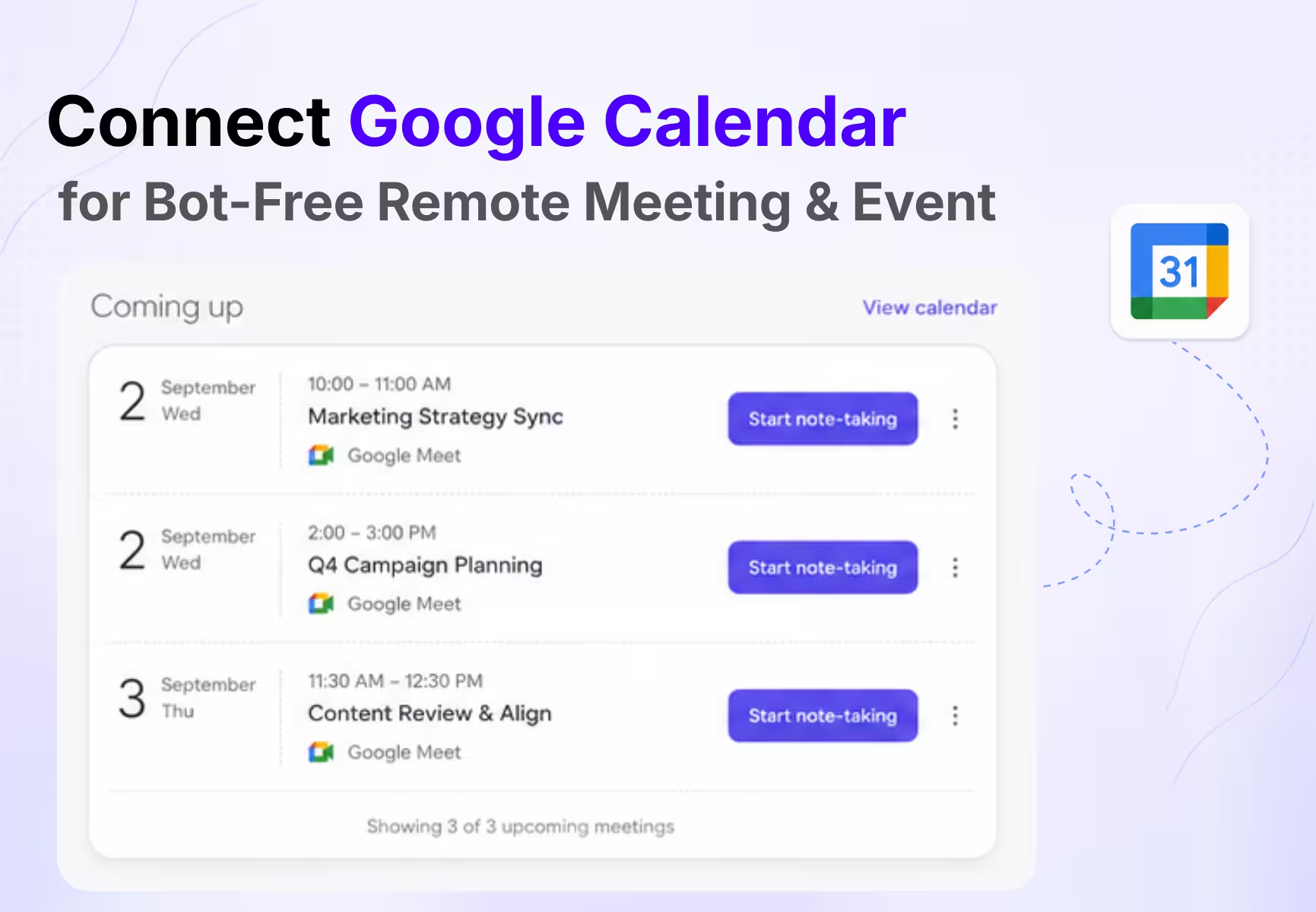
To connect Google Calendar to an AI meeting note taker in JotMe Desktop, open Home, select Link calendar in the Coming up panel, choose your Google account in the browser, review the requested access, and approve the connection. Return to JotMe and confirm that the panel displays the connected Google account and your upcoming events.
The connection does not start recording your meetings. It gives JotMe the event information needed to place scheduled meetings on Home, prepare the correct note-taking workspace, and keep each event's language and audio settings attached to that event. You still decide when note-taking, transcription, or live translation begins.
This distinction matters because AI meeting note takers use calendars in different ways. Some send a bot to every matching meeting automatically. JotMe uses Google Calendar as an event and context layer, while the desktop app captures audio from your device only after you start the session. The result is a calendar-aware workflow without an AI participant appearing in the call.
This guide explains the complete connection process, what JotMe reads from Google Calendar, how to start AI meeting notes from an event, how event-specific settings work, and what to check when events do not appear.
Quick answer: In JotMe Desktop, go to Home > Coming up > Link calendar, authorize your Google account in the browser, and return to the app. Your scheduled events will appear under Coming up, but JotMe will not record or join anything until you select Start note-taking or Start live translation.
Can You Connect Google Calendar to an AI Meeting Note Taker
Yes, you can connect Google Calendar to an AI meeting note taker, allowing scheduled events to appear inside the note-taking app, so you do not have to create a separate meeting entry or rename an anonymous recording afterwards.
In JotMe Desktop, the calendar connection supports five practical actions:
- View today's upcoming meetings and events from Home.
- Open an event before it begins and prepare an agenda or private notes.
- Start note-taking or live translation with the event title and attendees already attached.
- Save different language, microphone, audio, and quality settings for different events.
- Return to the completed recording with the correct event name, notes, transcript, and audio in one place.
JotMe currently connects to Google Calendar only. Its desktop calendar documentation states that the calendar integration reads events but does not create or edit them. Outlook, Apple Calendar, and other calendar providers are not part of the documented desktop connection at the time of writing.
The calendar is therefore not replacing Google Calendar. It is giving the AI meeting note taker enough event context to make the note-taking workflow easier to start and easier to organize afterwards.
How Do You Connect Google Calendar to JotMe Desktop
The initial connection takes place in JotMe Desktop and finishes in your browser. Keep both the app and browser open until the authorization is complete.
Step 1: Install JotMe Desktop and sign in
Install the current JotMe Desktop app for macOS or Windows and sign in to your JotMe account. If the app is already installed, open Settings and confirm that the displayed version is current. An older build can cause features to be missing or stop refreshing correctly.
You do not need to sign in to JotMe with the same email address you use for Google Calendar. Your JotMe account and Google account remain separate. The authorization step creates the calendar connection between them.
Step 2: Open Home and find the Coming up panel
Select Home from the left sidebar. The Coming up panel appears near the top of the dashboard. Before a calendar is connected, it displays Link your calendar, the message Connect Google Calendar to see upcoming meetings, and a Link calendar button.
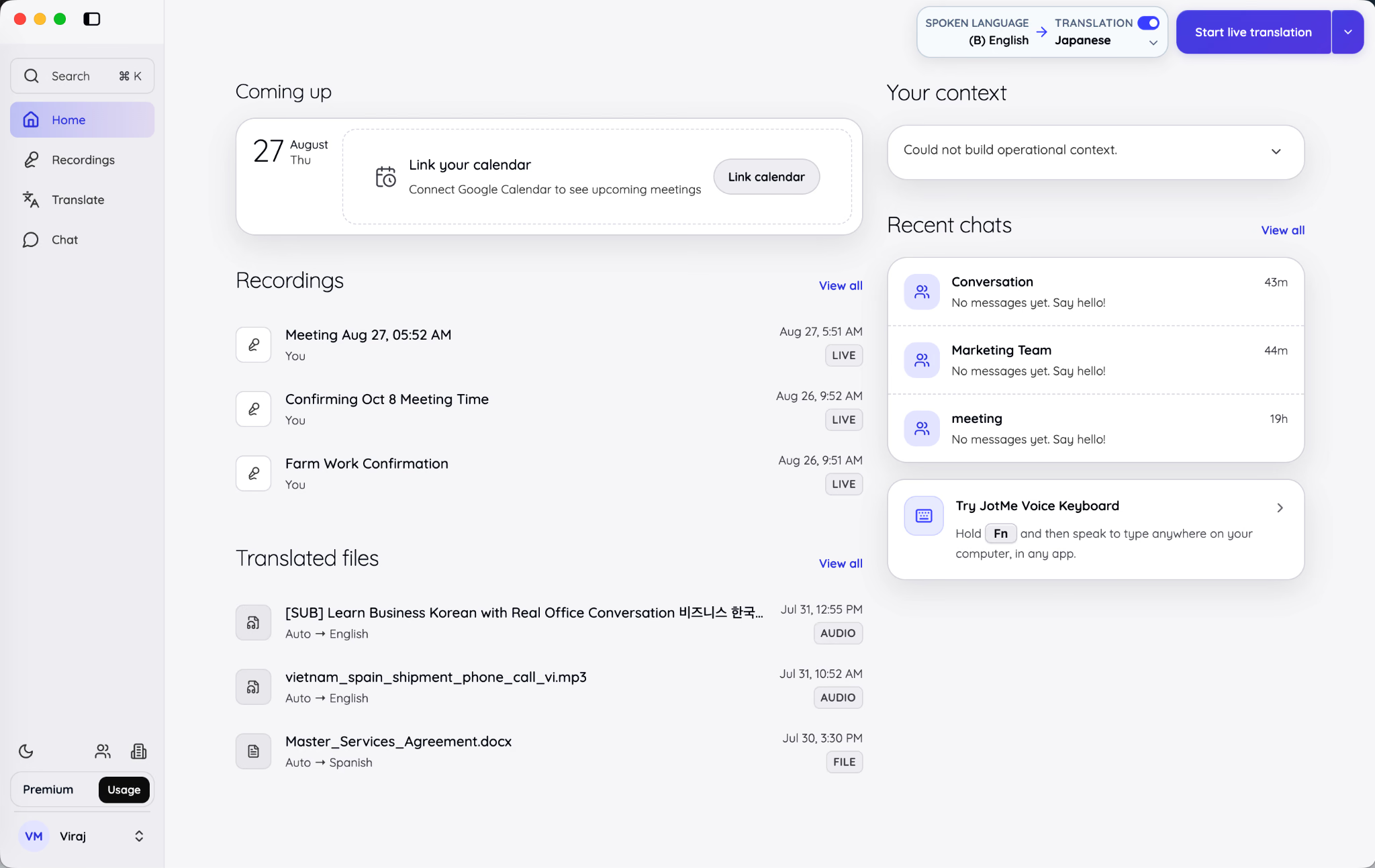
Select Link calendar and JotMe opens Google's authorization flow in your default browser. While the browser step is incomplete, the Coming up panel may display Waiting for Google.
Step 3: Choose the correct Google account
Google will ask you to select an account. If several personal or work accounts are already signed in to the browser, check the email address carefully before continuing.
Choose the account whose events you want JotMe to display. Connecting the wrong account is one of the most common reasons a calendar appears connected while the expected meetings remain missing.
Multiple-account check: If your company meetings are scheduled on a work Google Workspace account, do not approve the connection with a personal Gmail account merely because it appears first in the account picker.
Step 4: Review the requested access
Read the Google consent screen before approving the connection. Google explains that linked apps only receive the account information and additional data access shown on the consent screen, and that Google does not share your account password with the connected app.
Select Allow only after confirming that you recognize JotMe and understand the requested calendar access. Google recommends reviewing the privacy policy and security disclosures of any non-Google app before allowing access to account data.
Step 5: Return to JotMe and confirm the account
After approval, return to JotMe Desktop. The Coming up panel should refresh automatically. Its label will identify the source account in a format such as Google Calendar - you@company.com.
That account label is more than a confirmation message. It helps you identify which Google account JotMe is reading when the browser contains several signed-in accounts.
Step 6: Confirm that upcoming events appear
The panel should now list today's events with their start and end times. Use the previous and next controls to move to another day, or select refresh when a recently added or changed event has not appeared yet.
If the day is empty, JotMe displays No events today and confirms that the calendar is connected and current. An empty event list does not automatically mean the connection failed.
How Do You Start AI Meeting Notes From a Google Calendar Event
Once Google Calendar is connected, you can start from the scheduled event instead of opening an untitled live session. This allows the event title, time, attendees, and saved settings to travel into the meeting record.
Open the event before the meeting
Select the calendar event itself to open its Notes workspace without recording anything. This is useful when you want to prepare an agenda, questions, or reminders before the call begins.
Anything you type under My notes remains saved as a draft against that event. When you return later and start note-taking, the draft stays with the meeting. JotMe can use your writing as context when it generates separate AI meeting notes after the session, but it does not overwrite your original notes.
Choose note-taking or live translation
The first upcoming event for the current day has a split start button. The main part starts the mode displayed on the button. The chevron lets you switch between Start note-taking and Start live translation.
Use Start note-taking when you want a transcript and AI meeting notes in the spoken language, without live translated output. Use Start live translation when participants or the host need translated speech or text during the meeting.
The broader action menu in the upper-right corner also separates live transcription and translation, voice-to-voice translation, live sharing, file upload, and meeting-notes language controls.
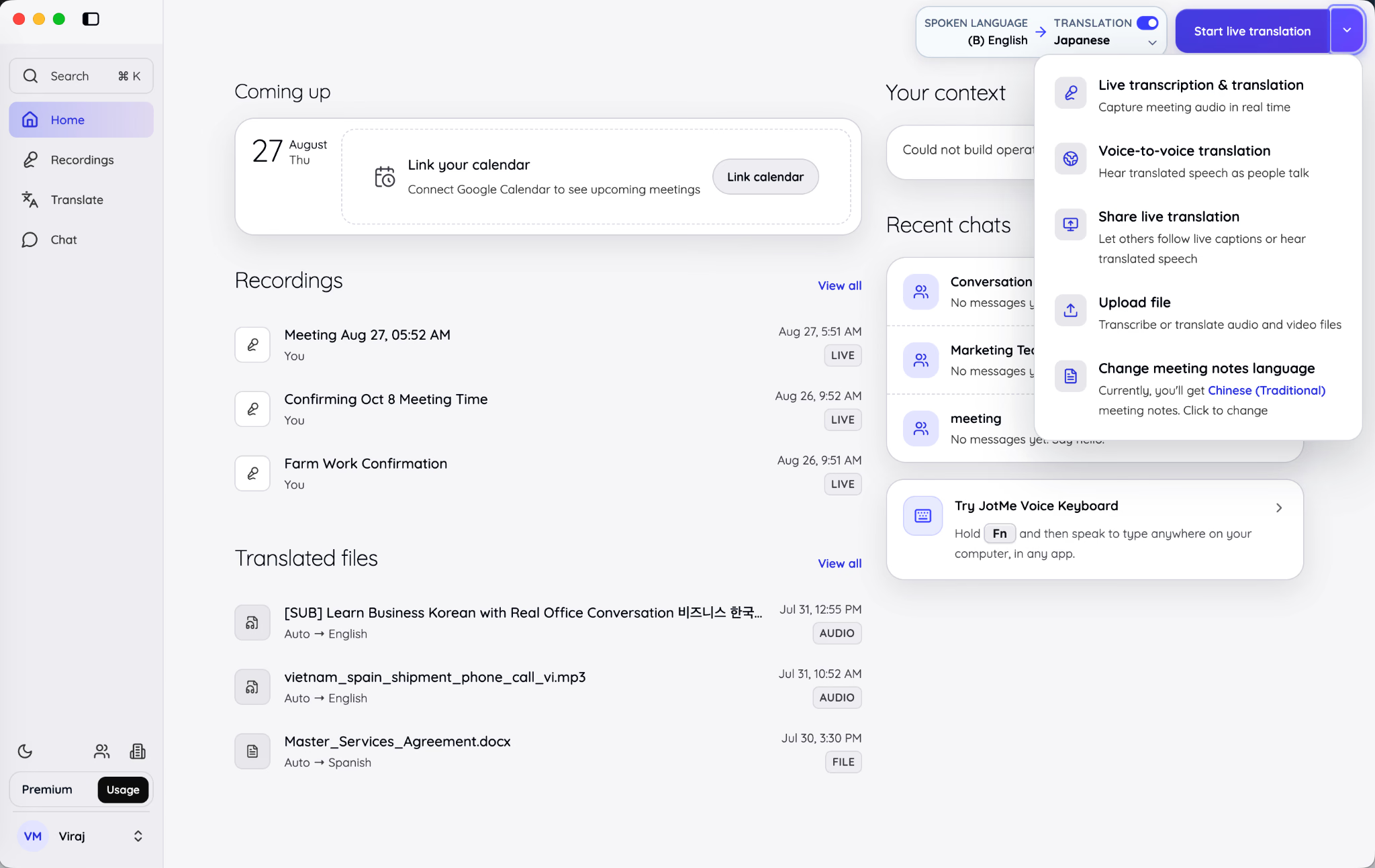
Starting from the calendar event is preferable when the event is already scheduled because it keeps the recording attached to the correct name and attendee list. The global start menu remains useful for spontaneous calls, interviews, or in-person conversations that do not have a calendar entry.
Configure the event before starting
Select the gear beside the event to prepare its live-session settings. Depending on the selected workflow, you can configure:
- The spoken language JotMe should transcribe.
- A translation language when live translation is required.
- The Online or In-person environment for speaker labelling.
- The microphone and meeting-audio capture device.
- Translation and transcription quality.
- Automatic quality adjustment and real-time memory.
- Voice-to-voice routing and live-translation sharing.
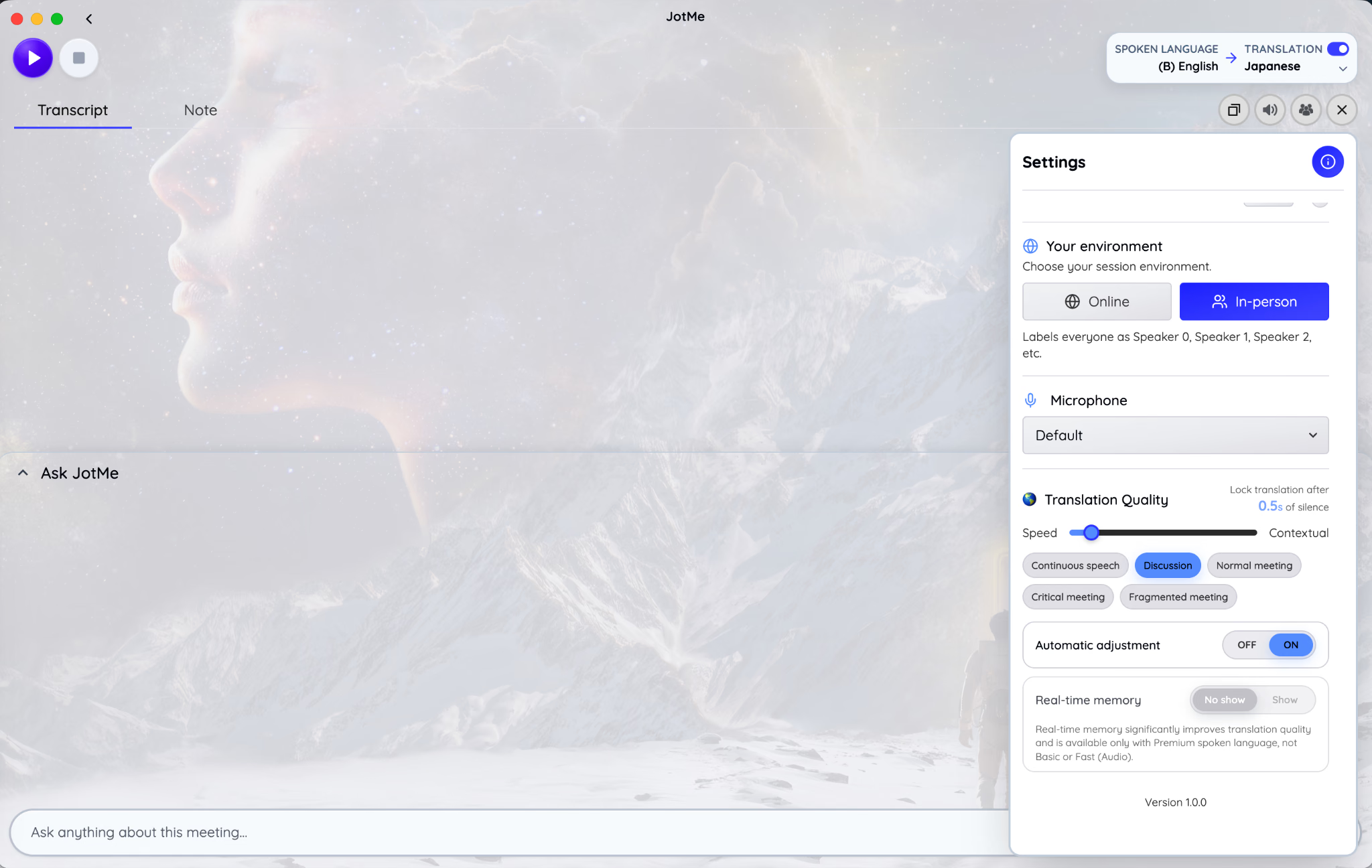
Run a short audio test before an important meeting. If JotMe can hear your microphone but not the other participants, check computer-audio permission and the meeting-audio capture device. If it hears nobody, verify the microphone, operating-system permission, and input selection.
Start the meeting manually
Select the main portion of the event's start button when you are ready. Note-taking opens the live workspace on the Note view, while live translation opens it on the Transcript view.
JotMe does not begin merely because the calendar event reaches its start time. It also does not start recording when you click Join meeting & open JotMe from a notification. That action opens the meeting and app, after which you still decide whether to capture the conversation.
Stop the session to generate AI meeting notes
Select Stop when the meeting ends. Stopping the recording starts the post-meeting processing. If AI meeting notes are enabled, JotMe combines the transcript with your writing under My notes and creates a separate Enhanced view.
According to JotMe's note-taking documentation, the generated result can organize the meeting into a gist, summary, key points, action items, and other points. Your original notes remain unchanged.
What Information Does JotMe Read From Google Calendar
JotMe uses the calendar event to identify and organize the session. The documented event context includes the following information:
The connection reads events. It does not let JotMe create, reschedule, rename, or delete a Google Calendar event. If an event needs to change, edit it in Google Calendar and refresh JotMe afterwards.
Calendar access also does not equal recording consent. Event metadata tells JotMe what the meeting is. Audio capture begins through a separate action in the desktop app.
Does an AI Meeting Note Taker Automatically Join Calendar Meetings
That depends on the note taker. Some AI meeting assistants use calendar access to send a visible recording bot into scheduled Google Meet, Zoom, or Microsoft Teams calls. Their automation settings can determine whether the bot joins every meeting, only meetings you organize, or selected events.
JotMe follows a different workflow. It captures microphone and computer audio from the desktop app and does not add a bot to the participant list. Connecting Google Calendar does not change that architecture.
With JotMe, the calendar can show the event and prepare its settings, but it does not:
- Join the meeting as a participant.
- Start recording at the event time.
- Create or edit the calendar event.
- Record simply because you opened the meeting link.
- Capture audio after you disconnect from the calendar.
This manual start is useful when a calendar contains tentative holds, personal appointments, focus blocks, or meetings that should not be recorded. The event can remain visible without becoming an automatic recording instruction.
How Does JotMe Remember Settings for Each Calendar Event
JotMe stores a local profile against the event's Google Calendar ID. Reopen the same event on the same computer, and its saved setup returns. Open a different event, and it can use a different configuration.
Event-specific settings can include:
- Spoken and translated languages.
- Translation mode and quality.
- Automatic adjustment and real-time memory.
- Microphone and meeting-audio capture devices.
- AI audio output and voice-to-voice routing.
- Live-translation sharing choices.
This makes the calendar connection useful for people whose meetings do not all look alike. A weekly English project review may need transcription only. A Japanese supplier call may need English-to-Japanese live translation. An in-person interview may use a room microphone and in-person speaker labels.
JotMe's current documentation states that the desktop app keeps profiles for the 100 most recently used events on that computer. Window preferences such as pinning, text size, background opacity, and theme stay global because they describe the app window rather than a particular meeting.
How Do You Configure AI Meeting Notes Before a Calendar Meeting
Open your profile menu, select Settings, and use the AI meeting notes controls under General. The desktop app provides three saving choices:
- Generate AI meeting notes: Store the transcript and generate AI meeting notes after the session.
- Do not generate AI meeting notes: Store the transcript without generating Enhanced notes.
- Do not store anything: Do not retain meeting notes or a transcript after the live session.
When AI meeting notes are enabled, choose their output language. The notes language can differ from both the spoken language and the live translation language. For example, a Japanese meeting translated live into English could produce final AI meeting notes in Spanish for a separate stakeholder.
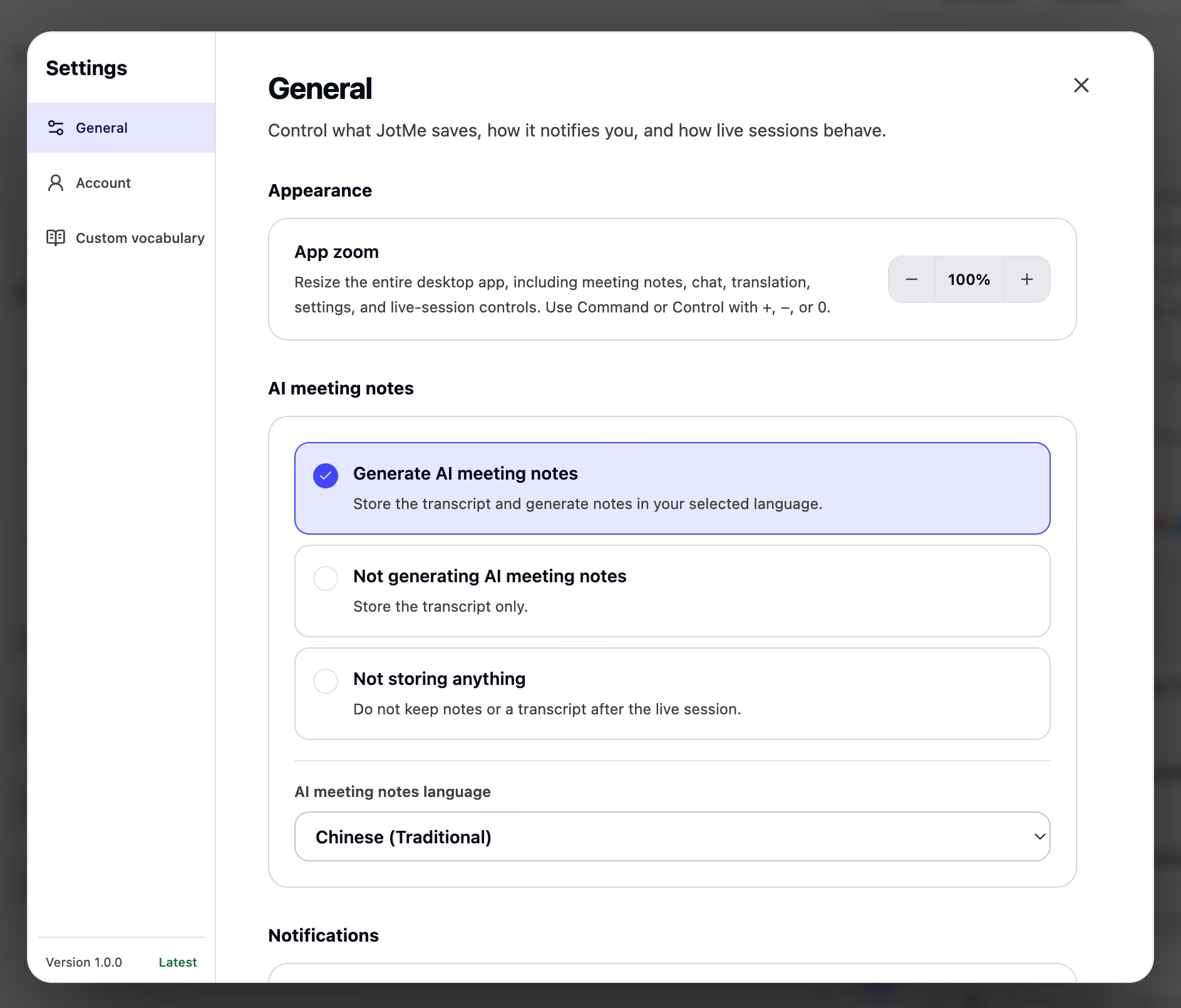
Review this setting before the meeting rather than after it. If Do not store anything is selected, the post-meeting record you expected will not be available. If the discussion is sensitive, choose the storage option required by your organization's policy and tell participants what will be recorded or transcribed.
Where Do You Find the AI Meeting Notes After the Meeting
Open Recordings and select the saved event. The meeting record keeps several related outputs in one workspace:
- My notes contains the writing you entered yourself.
- Enhanced contains the AI meeting notes generated after the session.
- Transcript contains the detailed conversation with speaker labels and timestamps.
- The audio player lets you return to the original recording.
- Ask JotMe lets you ask questions about that specific meeting.
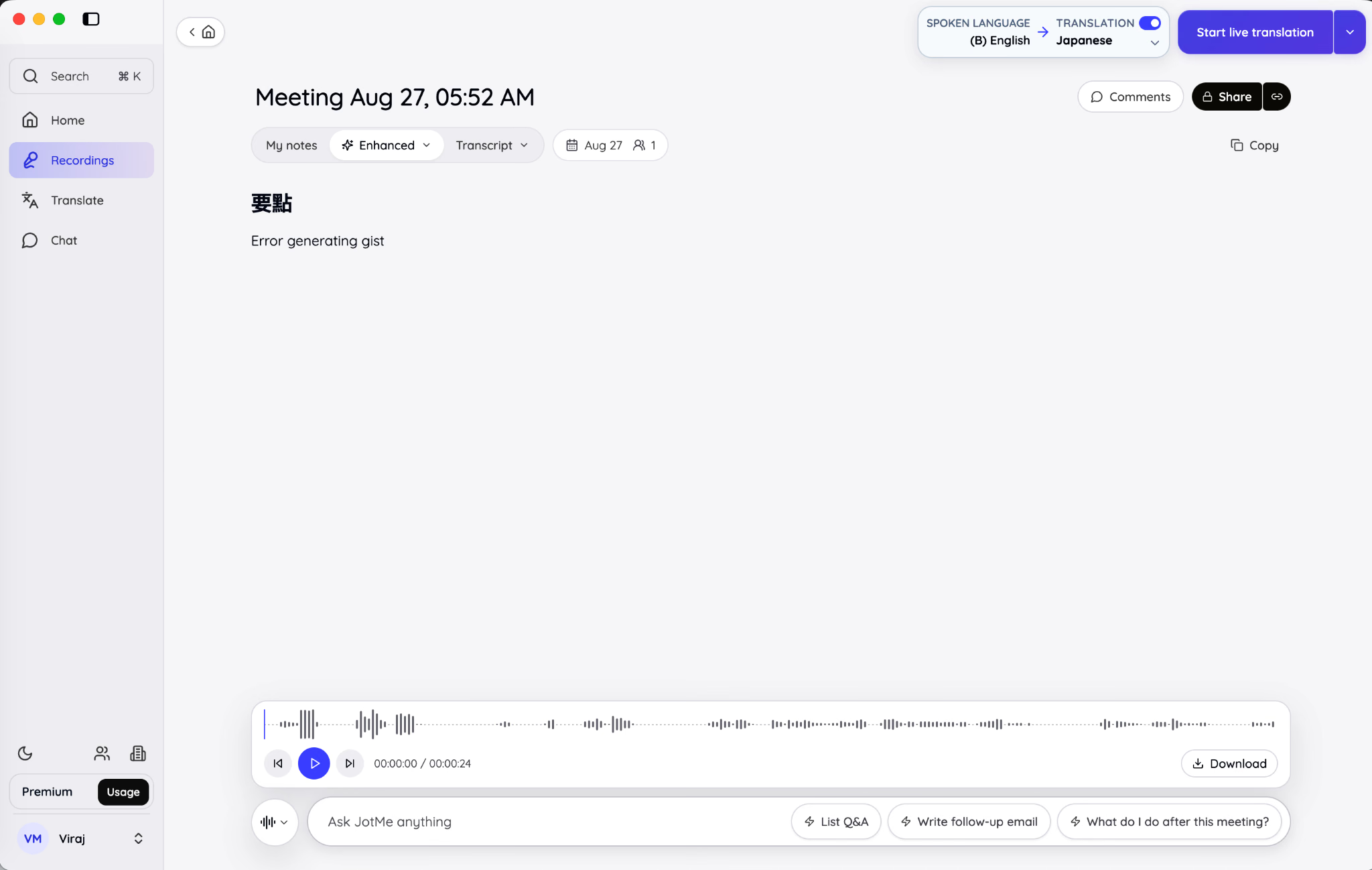
Use Enhanced notes for a fast review of decisions and action items. Use the transcript when exact wording, surrounding context, or speaker attribution matters. AI-generated notes should be checked before they are sent to clients, assigned as formal actions, or treated as an official record.
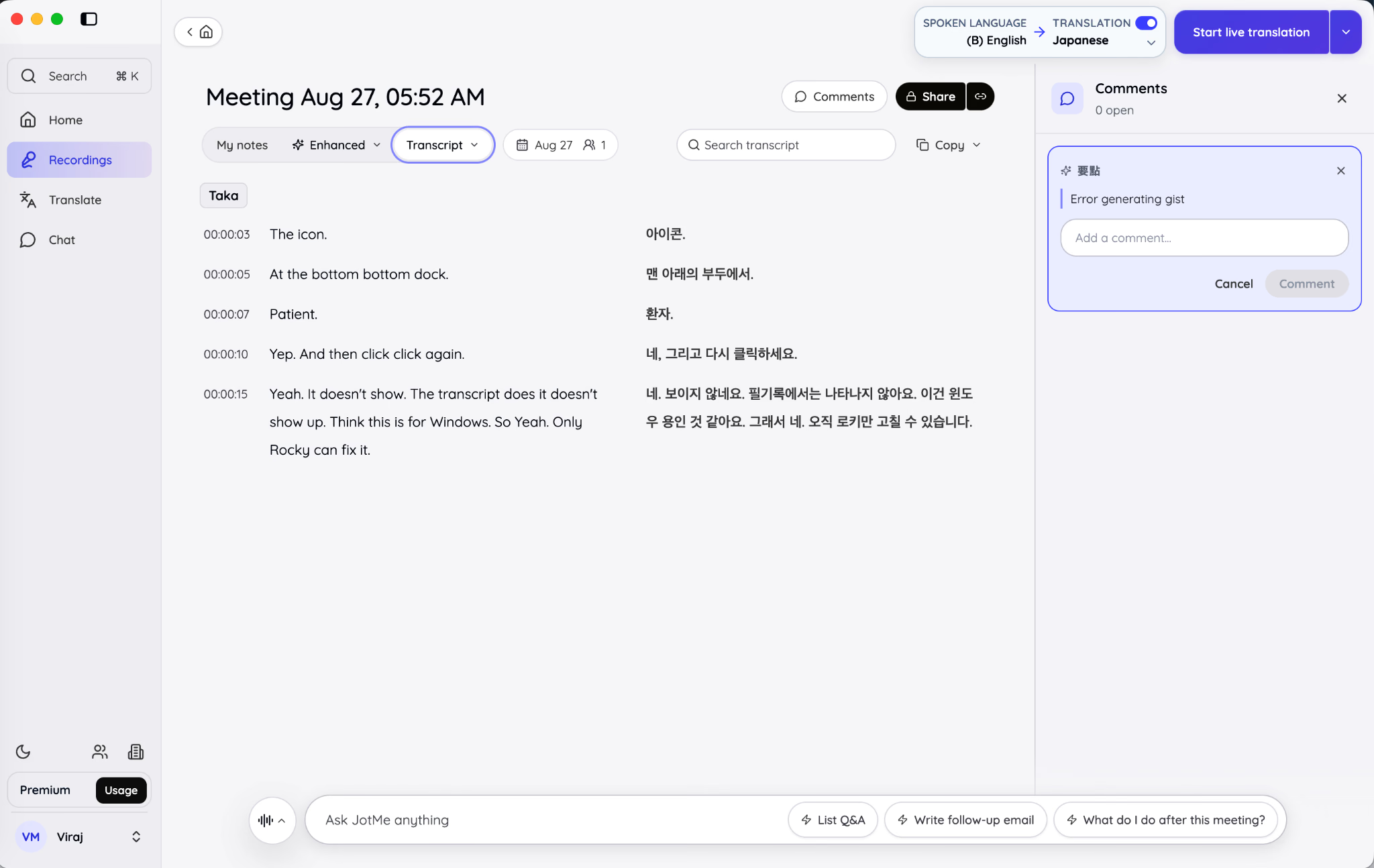
The calendar event gives the output a reliable starting identity, but it does not guarantee that every name, number, or decision in the generated notes is correct. Audio quality, speaker overlap, specialist vocabulary, and ambiguous phrasing can still affect the transcript and summary.
Why Is Google Calendar Not Connecting to the AI Meeting Note Taker
Most Google Calendar connection problems fall into one of the following categories:
The panel stays on Waiting for Google
Return to the browser and finish the authorization. Check whether the Google consent screen opened behind another window or in a different browser profile. Keep JotMe open until the browser step completes.
If you cancelled or closed the consent screen, select Link calendar again and restart the authorization.
The wrong Google Calendar is connected
Read the account label in the Coming up panel. If it displays the wrong email address, disconnect it and repeat the process with the correct account.
When the browser automatically selects a personal account, sign out of that browser profile or use the account picker to choose the work account where the events are scheduled.
The calendar is connected, but no meetings appear
First, confirm that the event exists on the connected Google account and falls on the day currently displayed in JotMe. Move to the next or previous day if necessary, then use refresh.
A healthy but empty calendar displays No events today. Events without a title appear as Untitled event, so a blank name should not cause the row to disappear.
Google authorization expired
When authorization expires, JotMe changes the panel to Reconnect Google Calendar and stops refreshing events. Select the reconnect action and approve access again. Previously recorded meetings, notes, and transcripts remain unaffected.
A Google Workspace administrator blocks the connection
Work and school Google accounts can restrict access to non-Google applications. If Google reports that the app is blocked or needs administrator approval, contact the Google Workspace administrator responsible for third-party app access.
Do not bypass an organizational restriction by connecting a personal calendar that lacks the work events. The connection may succeed technically while remaining useless for the meetings you need.
Events or settings do not refresh correctly
Use the calendar refresh control, then restart JotMe if the panel remains stale. Check the installed version under Settings and update the app if it is behind the current release.
Event-specific settings are stored on the same computer. If you open JotMe on another device, do not assume that the local microphone, audio routing, or quality profile will be identical.
How Do You Disconnect Google Calendar From an AI Meeting Note Taker
Use Disconnect in the Coming up calendar panel. JotMe asks you to confirm before it removes the connection. Upcoming events will stop appearing, but recordings and notes already created in JotMe are not deleted.
You can also review or revoke connected-app access from your Google Account's linked apps page. Google states that removing a linked app revokes the access previously granted, although it does not automatically erase information the app already received. Review JotMe's own account and data controls separately if you want to manage stored recordings, transcripts, or notes.
Disconnect the calendar when:
- You connected the wrong Google account.
- You no longer want scheduled events displayed in JotMe.
- You are changing jobs or leaving a Google Workspace domain.
- A company security review requires calendar access to be removed.
- You want to restart authorization after a persistent sync issue.
Is It Safe to Connect Google Calendar to an AI Meeting Note Taker
Connecting a calendar always deserves a permission review because meeting titles, times, and attendee lists can contain sensitive business information. Approve only a note taker you trust, read the access requested on Google's consent screen, and check the provider's privacy and retention policies.
Google says it does not share your Google Account password with linked apps. It also lets you review what data an app can access and revoke that access later. JotMe's documented calendar workflow is read-only for events, meaning it does not create or edit entries in Google Calendar.
The calendar connection and the recording decision are separate. Even when calendar access is appropriate, inform participants before recording, transcribing, or processing their conversation, and follow the consent requirements that apply to the meeting's participants and location.
Frequently Asked Questions
Can I connect more than one Google Calendar to JotMe?
JotMe currently supports one Google Calendar account at a time. The Coming up panel shows which Google account is connected, so if you need to use a different account, you’ll need to disconnect the current one and connect the other account.
Does JotMe automatically record every Google Calendar meeting?
Adding your Google Calendar doesn’t mean JotMe will automatically record your meetings. JotMe uses your calendar to show upcoming events and prepare the meeting workspace, but recording or live translation only starts when you choose the relevant option for that meeting.
Can I connect Outlook Calendar or Apple Calendar?
JotMe’s current Desktop calendar integration is designed for Google Calendar. Outlook Calendar and Apple Calendar aren’t supported through this calendar workflow.
Does JotMe edit my Google Calendar events?
JotMe only reads your calendar information to display upcoming meetings and their details. It doesn’t create, edit, reschedule, or delete events in Google Calendar.
Can I prepare notes before a scheduled meeting?
Yes, JotMe lets you open the Notes workspace for a scheduled event before the meeting begins. You can add notes in advance, and they’ll remain saved as a draft for that event.
What happens if I disconnect Google Calendar?
Disconnecting your calendar stops JotMe from receiving updates about your upcoming events. Your existing recordings, transcripts, and saved notes aren’t removed just because you disconnect the calendar.
Why does my connected calendar show no events?
A blank calendar doesn’t necessarily mean something is wrong with the connection. First, check that the correct Google account is connected and that you’re viewing the right date. If there are no meetings scheduled for that day, JotMe will simply show no events. Refreshing the calendar can also help if a recently added event isn’t appearing yet.
Do meeting attendees need to install JotMe?
No, meeting attendees don’t need to install JotMe when you’re using JotMe Desktop to capture the meeting. If you share JotMe’s live translation experience through a browser link or QR code, attendees can access it directly from a supported browser.
Last updated on
September 9, 2026
Follow us on social media:
![JotMe — Is Google Translate Accurate? [2026 Test]](/_webflow-assets/0d0512afc7b037d74dff536f22fed08f.avif)