







Resources
Apple Live Translation: Translate Meeting On Mac in Real Time

Narmada Kajla
July 6, 2026

Apple Live Translation for Mac lives inside three apps only: Messages, FaceTime, and Phone. It never touches Zoom, Teams, or Google Meet, and it skips every Intel Mac completely, since Apple Intelligence needs Apple Silicon. That leaves most real business meetings without translation. JotMe closes that gap. It captures your meeting audio directly, translates 200+ languages in real time, and runs on both Intel and Apple Silicon Macs, so a multilingual call stops turning into hours of follow-up email.
Here is exactly where Apple's feature stops, and how to cover the rest on your Mac.
What is Live Translation for Mac?
Live translation for Mac is the real-time conversion of speech or text during a call or chat on a MacBook or iMac, and it appears as captions, a bilingual transcript, or spoken audio. Apple offers a limited version inside its own Messages, FaceTime, and Phone apps. Meeting tools like JotMe extend it to Zoom, Teams, and Google Meet and add a transcript and notes.
Does Apple Have a Live Translation App for Mac?
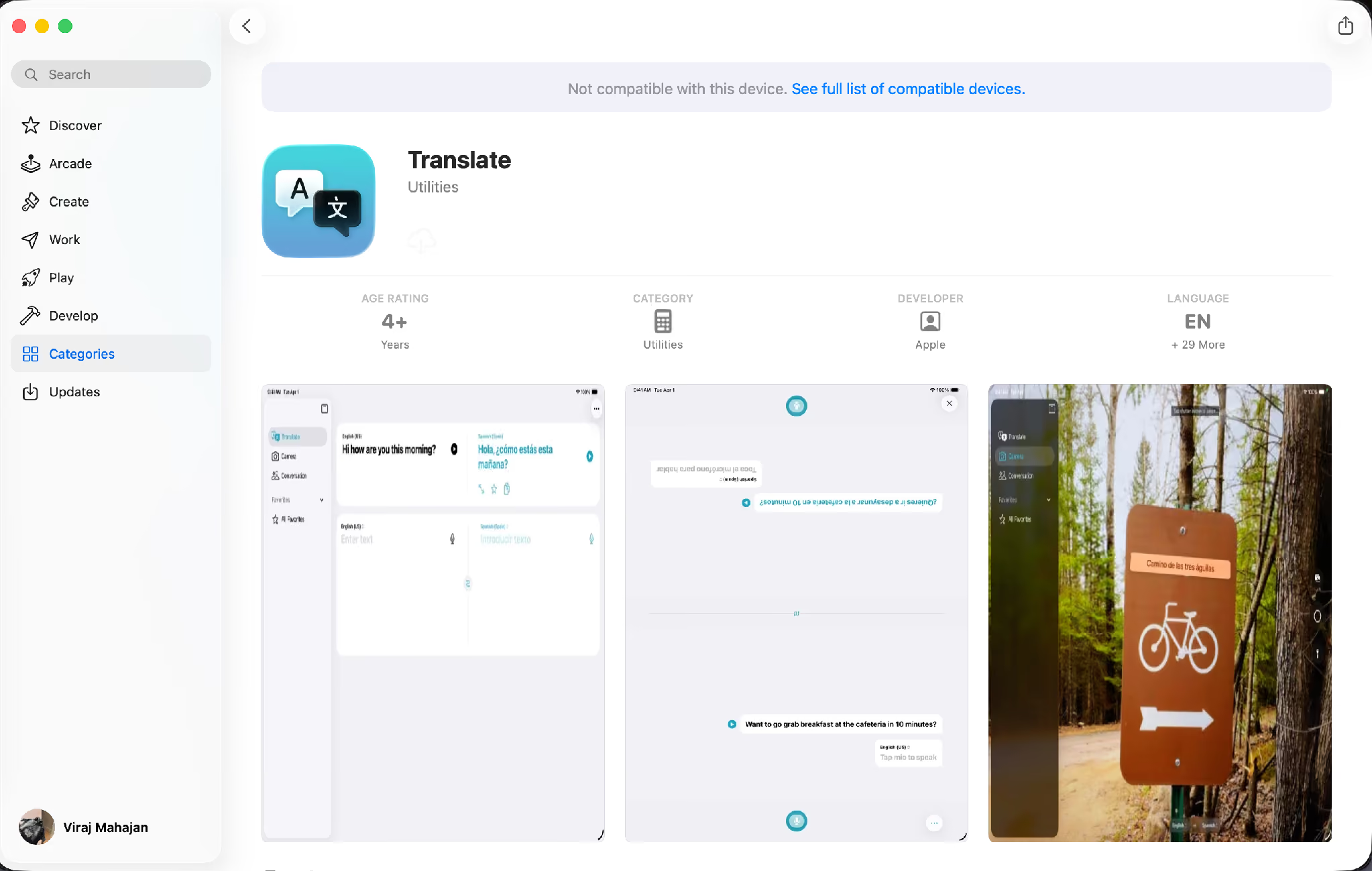
No, Apple's Translate app installs on iPhone and iPad only. Open the Mac App Store and search "translate," and Apple's own Translate app shows up labeled not compatible with this device.
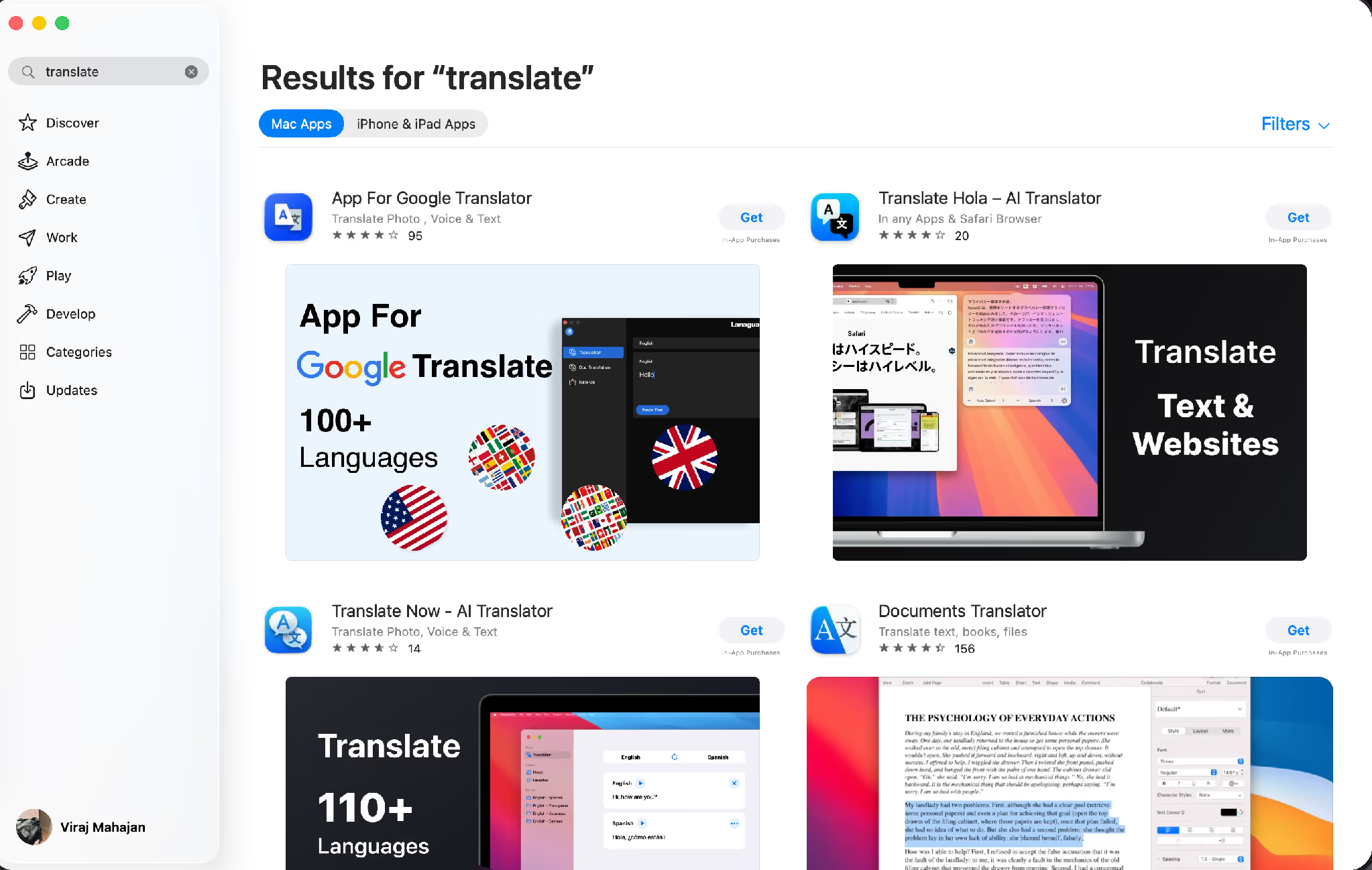
That does not leave your Mac helpless. Apple does run live translation on a Mac; it just hides inside 3 of its own apps instead of a separate download that you can point at a Zoom call. On a Mac with Apple Intelligence and macOS Tahoe 26, Apple Live Translation shows up in Messages, FaceTime, and Phone. Messages quietly translate incoming texts into your language. FaceTime gives translated captions over a video call. The Phone app reads spoken translation aloud as each person talks. Apple lays all of this out on its support page for translating messages and calls on a Mac.
Move from a family chat to a work call, and 2 catches change everything. Apple Intelligence runs only on Apple Silicon Macs, so an Intel MacBook gets none of this. FaceTime and iPhone translation only cover conversations between 2 people in a short list of languages: English, French, German, Portuguese (Brazil), and Spanish. A 5-person supplier call in Spanish to English on Zoom falls outside every one of Apple's built-in features.
One more Apple detail trips people up. Live translation with AirPods, the trick that translates a face-to-face chat through your earbuds, runs on an iPhone with Apple Intelligence, which Apple spells out on its AirPods Live Translation support page. Plugging your AirPods into a MacBook adds nothing to a Mac call. For a meeting on your computer, the translation has to come from software running on the computer itself.
What Apple’s Live Translation Does and Doesn’t Do on a Mac
The takeaway for a working Mac is simple: a real business meeting needs a third-party app, and the only question left is which kind.
How Do You Get Live Translation on a Mac Right Now?
You have 3 honest options, and they are not interchangeable. There is Apple's built-in feature, a general Mac translation app from the store, and a tool built for meetings like JotMe. Each one is good at a different job, and the table below lines them up against what a live call demands.
Comparing 3 ways to get live translation on a Mac:
Apple's built-in feature works well for a FaceTime catch-up with family in a language it supports. It stops the moment your call moves to Zoom or Teams, which is where most work happens. A general Mac translator app handles a menu, a webpage, or a short paragraph, and almost all of them require you to copy text in and out by hand, which falls apart the second a real conversation picks up speed. A meeting app listens to the call itself, translates while people are still talking, and hands you a record you can use afterward.
What Should You Look For in a Mac Live Translation App?
Not every translation app is built for live meeting recording. Some only translate text that you paste manually, while others work in real time but miss important details like speaker labels or meeting notes.
If you're comparing tools for multilingual meetings on Mac, these are the features that matter most.
1. Real-time translation, not manual translation
A best continuous live translation app should translate conversations as people speak. If you have to copy and paste text into another window, the conversation has already moved on.
Look for Apple voice translation tools that provide live captions with minimal delay so you can respond naturally during meetings.
2. Support for Zoom, Teams, and Google Meet
Apple Live Translation only works inside Apple's own apps. Most business conversations happen on Zoom, Microsoft Teams, or Google Meet, so your translation tool should work seamlessly with the platforms you already use.
3. System audio capture
Many Mac translation apps only listen to your microphone. That means they may miss the other participants completely.
A better solution captures your Mac's system audio, allowing it to translate everyone in the meeting instead of just your own voice.
4. Context-aware translation
Accurate translation is not just about replacing one word with another. Business meetings include technical terms, numbers, product names, and cultural expressions that can easily lose their meaning.
Look for AI that understands the context of a conversation instead of translating every sentence literally.
5. AI meeting notes and searchable transcripts
Best AI translation tool helps during the meeting, but transcripts, summaries, and action items help after it ends.
The best tools automatically generate AI meeting notes so you don't have to review the entire recording or take notes while listening.
6. Compatibility with every Mac
Not everyone has the latest MacBook.
Choose AI interpreter apps that supports both Intel Macs and Apple Silicon (M1, M2, M3, and newer), so your entire team can use the same workflow.
7. Privacy and enterprise security
Meetings often include customer information, financial discussions, and confidential business plans.
Before choosing the top translation service, check whether it provides enterprise-grade security, transparent privacy policies, and compliance standards that meet your organization's requirements.
Which Apple Live Translation Features Matter the Most?
If you had to prioritize only three things, choose real-time translation, system audio capture, and context-aware AI.
These three capabilities determine whether you can actually follow a multilingual conversation without interrupting the speaker or asking them to repeat themselves. Everything else, including transcripts, summaries, and AI meeting notes, improves productivity after the meeting ends.
JotMe combines these capabilities in one Mac live translation app. It captures meeting audio directly from platforms like Webex, Zoom, Microsoft Teams, and Google Meet, translates conversations in real time across more than 200 languages, and automatically generates multilingual transcripts, AI summaries, and meeting notes. Instead of switching between multiple tools, you get translation during the meeting and documentation afterward.
How Do You Run JotMe During a Live Business Call on Your Mac?
JotMe runs as a desktop app on your Mac, listens to whatever meeting app you already live in, and translates the call as it happens. When you hang up, it hands you a transcript, a running summary, and clean notes. Here is what that looks like on an actual MacBook, screen by screen.
Contextual Live Mac Translation
Most Apple live translation app swaps word for word, and that breaks the moment someone uses an idiom, jumps between topics, or states a number under pressure. JotMe runs on agentic AI: models that track everything already said in the call, including the speakers, the topic, and prior sentences, before choosing how to translate the next line.
A throwaway phrase like "let's table this" gets read for what the speaker meant, not converted literally into something that could flip the meaning entirely. That distinction is what lets both sides hang up with the same understanding instead of a follow-up thread that swallows the afternoon.
Here is how JotMe handled contextual English to Japanese translation well:
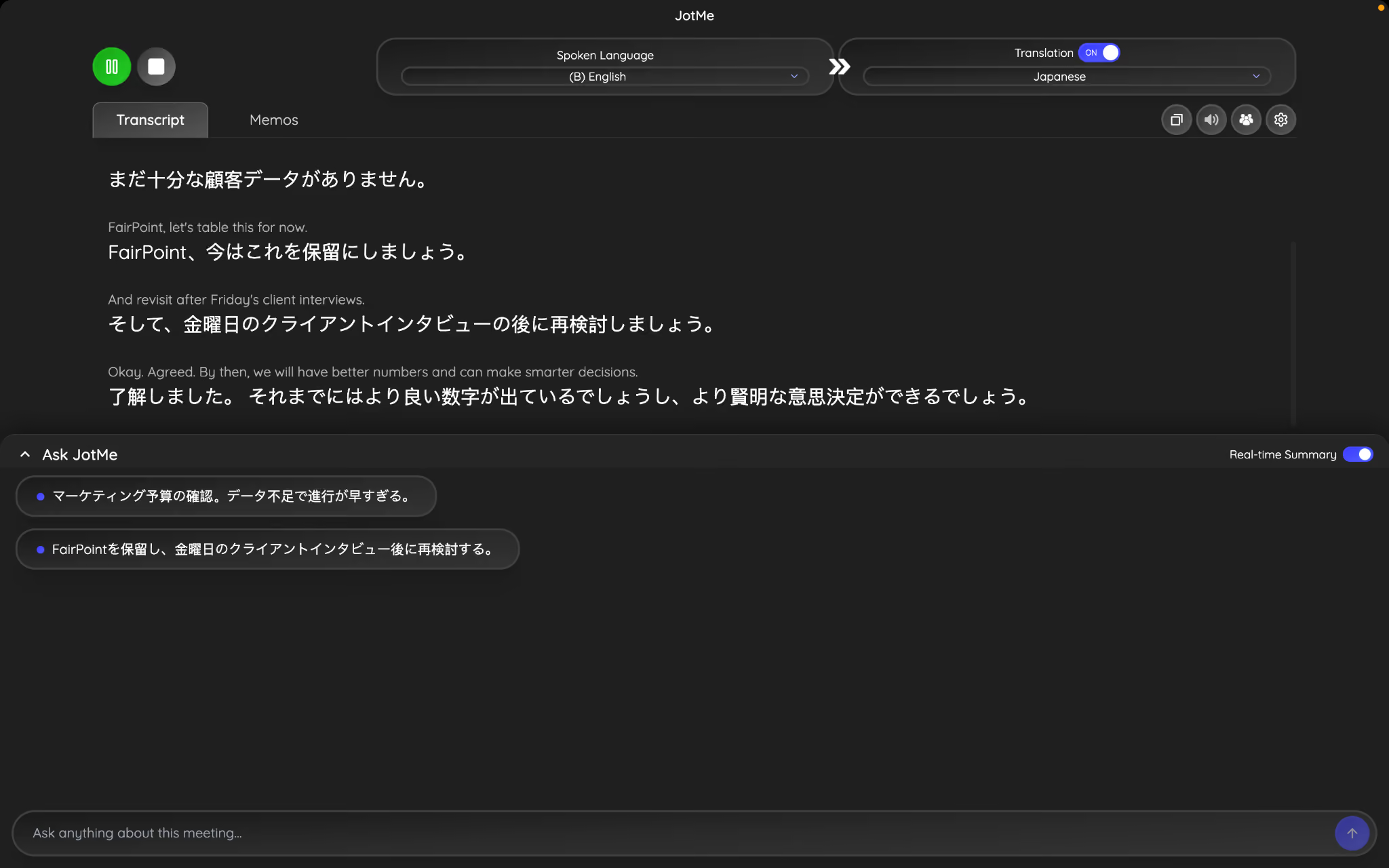
Original (English):
"Let's table this for now and revisit it after Friday's client interviews."
JotMe's contextual translation (Japanese):
Translation: "Let's put this on hold for now."
Why it matters:
Instead of translating "table this" literally, JotMe recognized it as a business idiom meaning to postpone or put the discussion on hold. It used the surrounding conversation to preserve the speaker's intent, resulting in a translation that sounds natural and accurately conveys the meaning.
The Live Translation
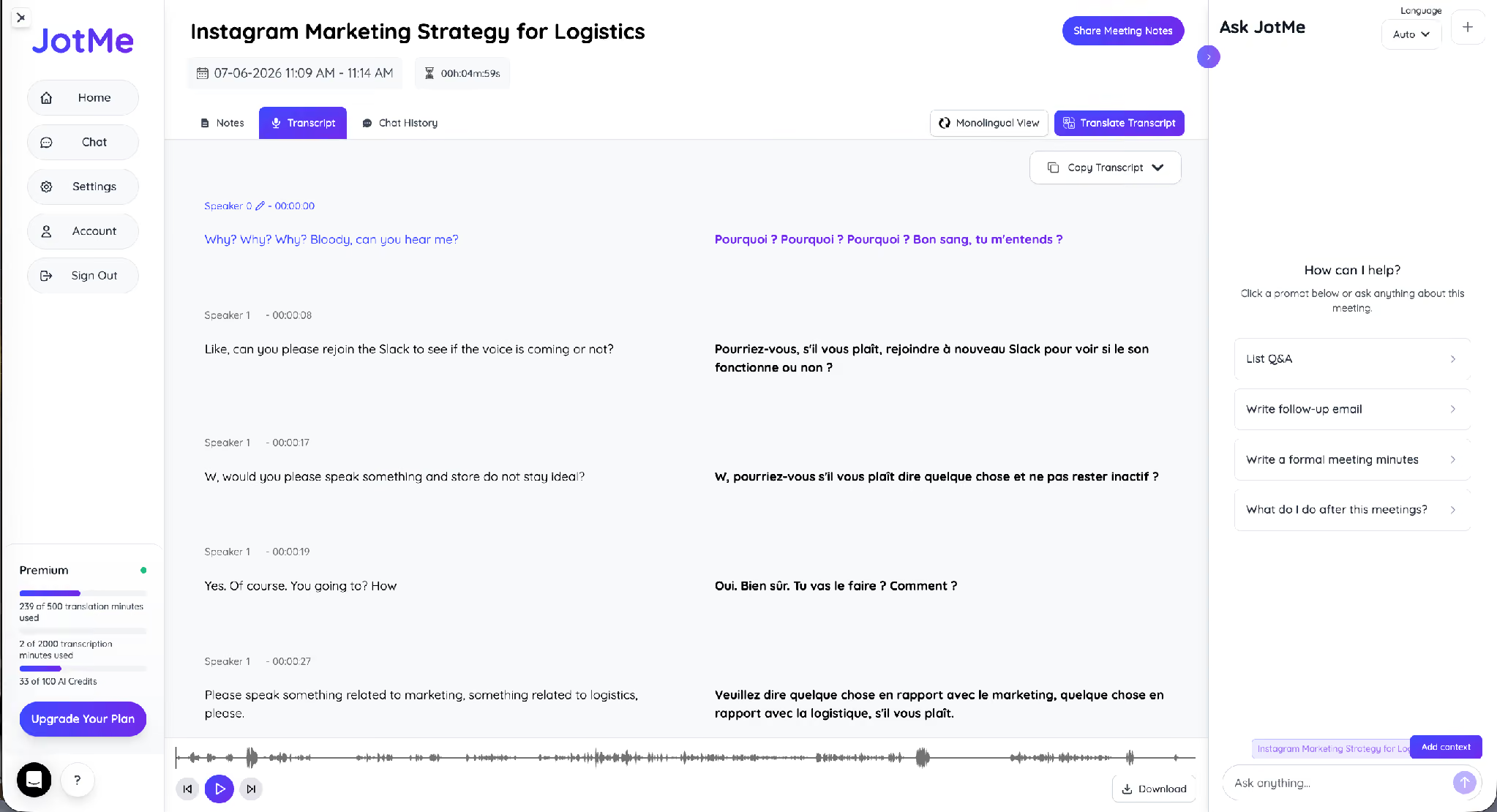
JotMe reads the spoken language, turns it into the language you picked, and stacks both side by side as each person speaks. On a recent test call, JotMe carried English into French line by line, labeled every speaker, and kept both languages lined up in one transcript. A toggle up top lets you switch the output language mid-call, so you can adjust it the second a new person joins.
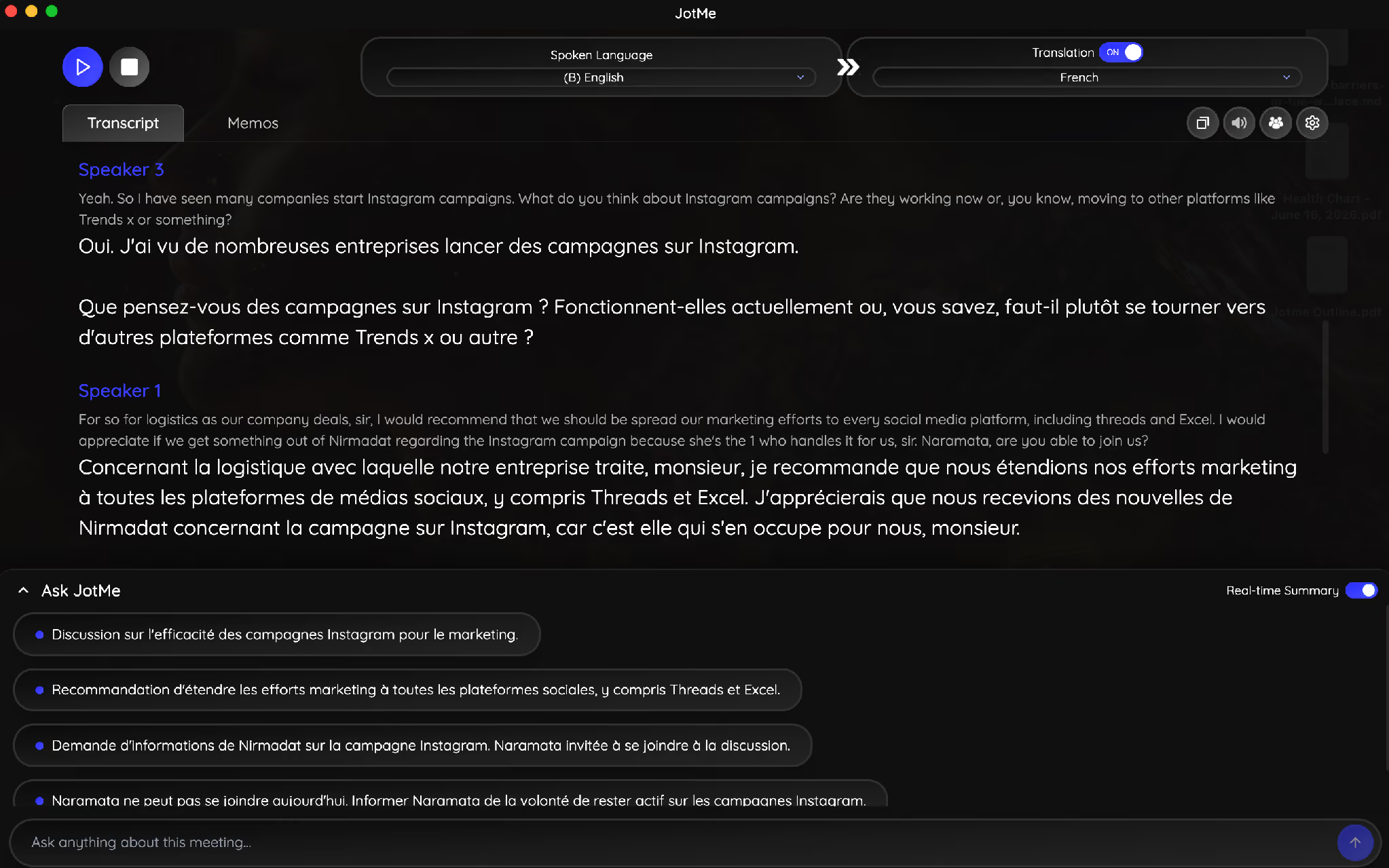
You can flip between the bilingual view and a single-language view whenever you want, then copy or download the whole transcript once the call wraps.
A Real Time Summary and Ask JotMe
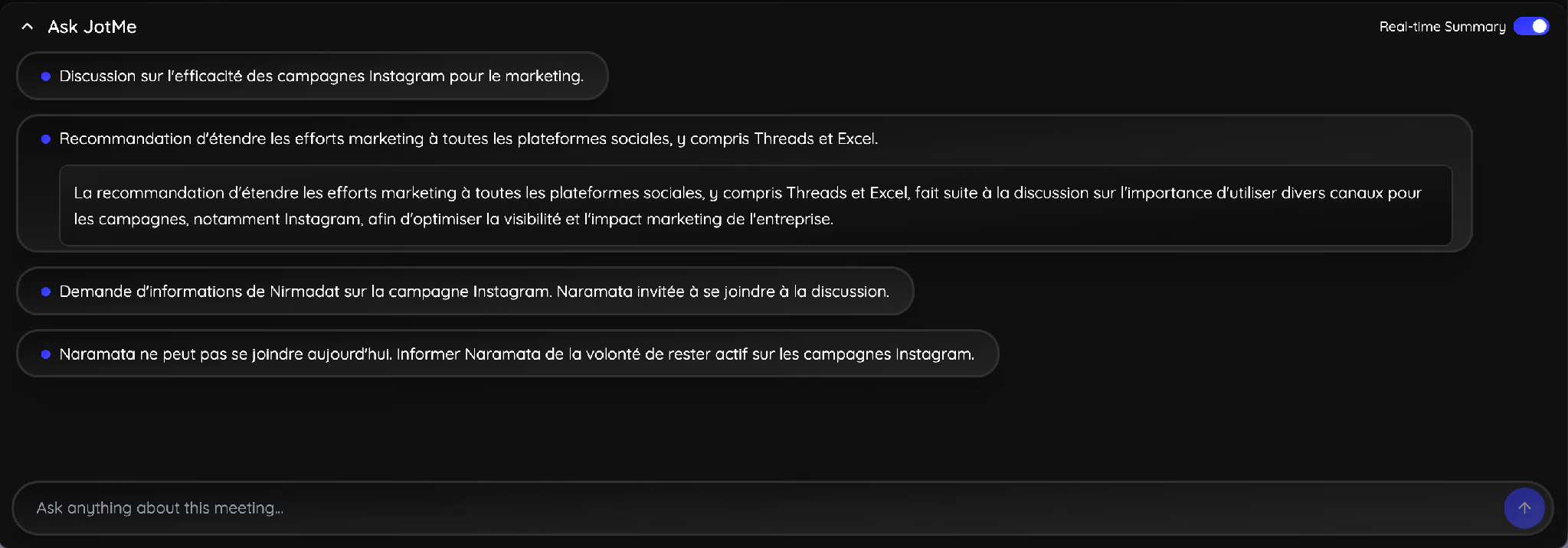
As your meeting progresses, JotMe continuously builds a live summary, so you don't have to wait until the call ends to understand the discussion. If you join late, you can review the summary in seconds instead of asking teammates to repeat what you have missed.
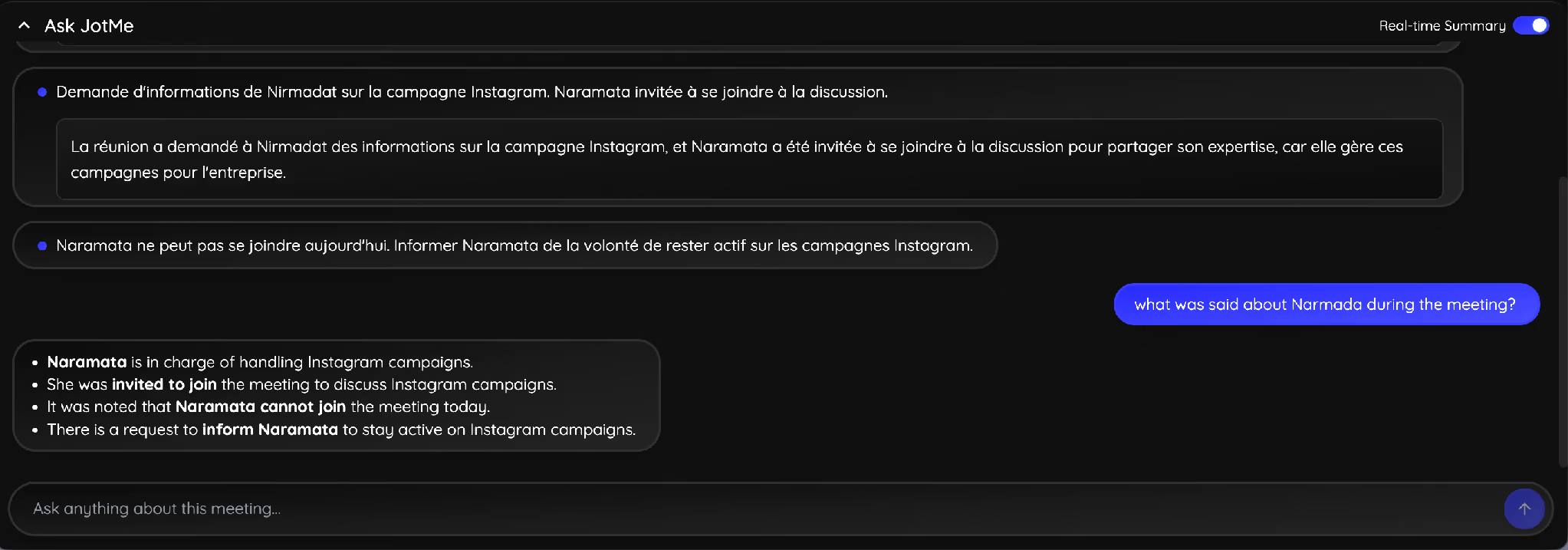
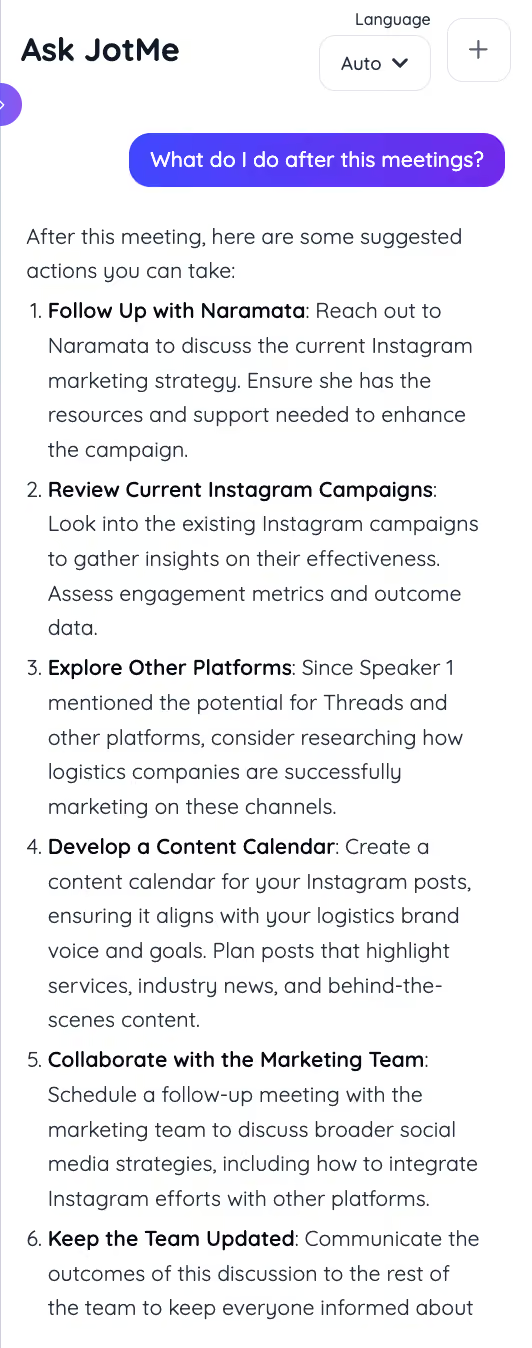
Need to find a specific decision or action item? Ask JotMe a question in plain English, such as "What was said about Narmada during the meeting?" It searches the meeting transcript, understands the context, and gives you the relevant answer instantly. That means no scrolling through pages of transcript or replaying the recording to find one detail.
AI Meeting Notes
The meeting may be over, but the work usually isn't. Someone still has to organize the discussion, write meeting notes, assign action items, and send a follow-up email.
JotMe automates that process. As soon as the meeting ends, it generates a structured summary with key decisions, action items, and speaker-specific responsibilities, so your team can move straight to execution instead of spending time documenting what happened.
If your team works across different countries, JotMe’s AI meeting notes translator can translate notes in 21 languages, making it easy for every stakeholder to review the discussion in their preferred language.
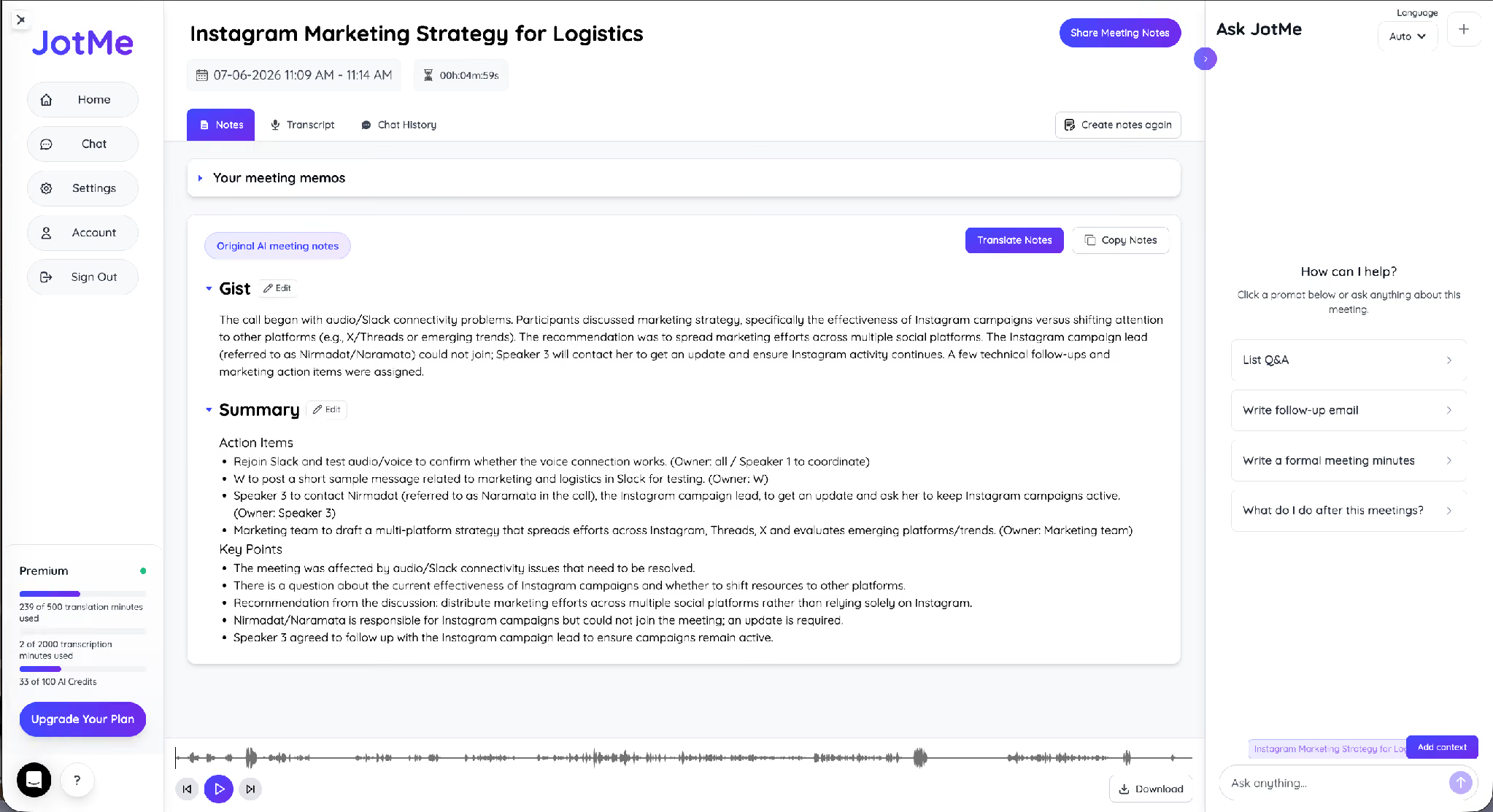
You can also ask JotMe to draft follow-up emails, meeting minutes, or answer questions about the conversation without rereading the entire transcript.
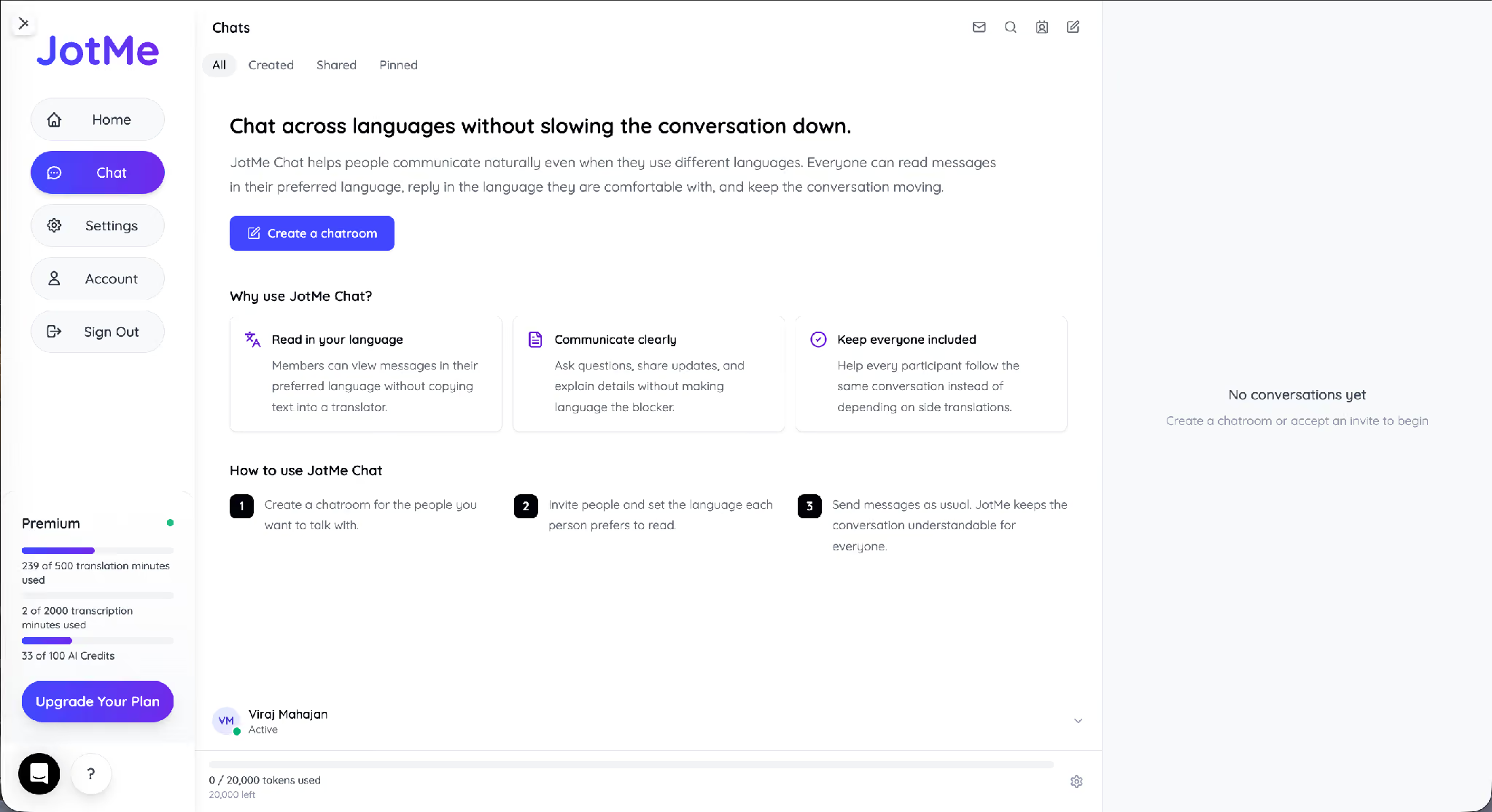
JotMe Chat for Everything Between Meetings
The language gap does not close when the call does. JotMe Chat lets each person read messages in their own language and reply in the one they are comfortable with, so the follow-up thread keeps moving without anyone detouring through a separate translator.
What JotMe Does During a Live Mac Meeting
JotMe supports 200+ languages and works across Zoom, Google Meet, Microsoft Teams, Webex, Slack, Discord, and WhatsApp, with 1,700+ organizations and 300,000 users leaning on it for cross-border calls.
How Do You Install JotMe on an Intel or Apple Silicon Mac?
Setup runs about a minute. Grab the download that matches your chip, install it, and open it before your next call.
Intel or Apple Silicon: which one do you download?
Check your chip first, under the Apple menu, About This Mac. An older Intel MacBook takes the Intel build. An M-series machine, meaning M1, M2, M3, and up, takes the Apple Silicon build. JotMe ships a separate installer for each, so the app fits your hardware from the first launch.
JotMe for Mac Downloads
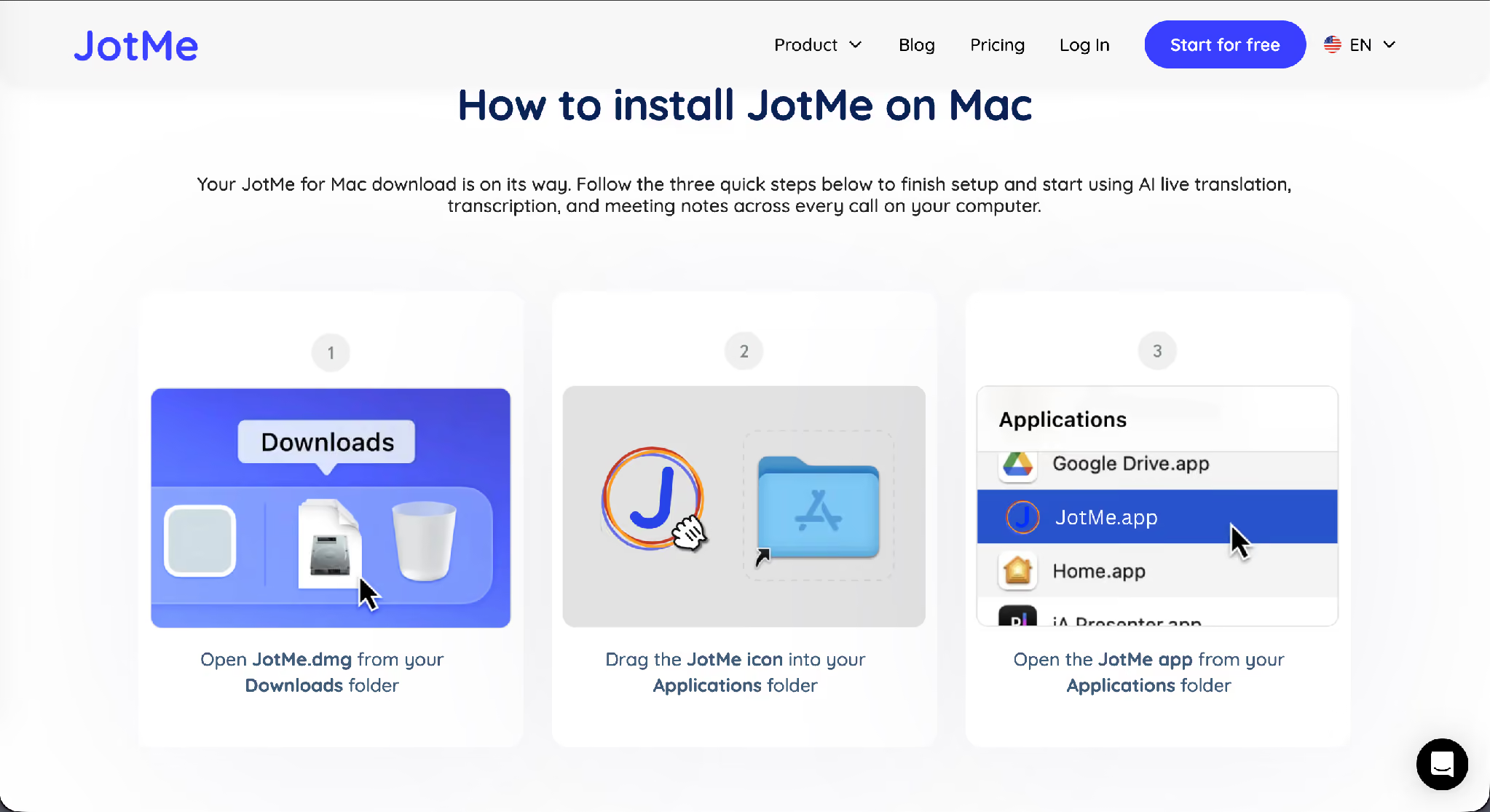
Three steps finish the install on either chip:
Step 1: Open JotMe.dmg from your Downloads folder.
Step 2: Drag the JotMe icon into your Applications folder.
Step 3: Open JotMe from Applications, sign in, and give it the audio permission so it can hear the meeting.
macOS asks for permission to use your microphone and to capture screen or system audio the first time you start a call, and granting it is what lets JotMe hear the other participant and not just you.
Who Needs Live Translation on a Mac?
Anyone running a multilingual meeting from a MacBook on Zoom, Teams, or Google Meet needs this, not just people making the occasional FaceTime call home. A supply chain manager on a weekly call with a Korean supplier, a salesperson closing a deal with an overseas buyer, an HR lead interviewing a candidate across a border: each one depends on both sides catching the same numbers and commitments the first time.
Booking a professional human interpreter for calls like these runs $125 to $250 an hour for simultaneous interpretation, before rush fees or prep time, and that is before you factor in the interpreter's own availability. JotMe's Pro plan starts at $10 a month per user and covers the same call without booking anyone in advance.
Apple Live Translation vs. JotMe on Mac: Which Should You Use?
Apple's feature and JotMe are not built for the same call. Apple covers a personal FaceTime chat or a two-person phone call, in five languages, on Apple Silicon Macs only. JotMe covers a business meeting on Zoom, Teams, or Google Meet, in 200+ languages, on any Mac.
Use Apple's built-in feature for a FaceTime call home. JotMe is designed for cross-cultural business communication on Zoom, Teams, or Google Meet, supporting 200+ languages with contextual AI that preserves meaning instead of translating word for word.
Which Live Translation for Mac Is Right for You
Apple hands Mac users a thin slice of live translation, locked inside its own apps and its own chips. For a meeting that matters, on Zoom or Teams or Google Meet, you want a tool that covers 200+ languages and runs on both Intel and M-series Macs. Download JotMe for your Mac and walk into your next multilingual call with the translation and the notes already handled. If you would rather size up every option first, compare all live translation tools in our main guide before you pick.
Frequently asked questions
Does Apple have a built-in live translation app for Mac?
No. Apple does not offer a standalone live translation app for Mac. Instead, Apple Live Translation is built into Messages, FaceTime, and Phone. It only works on Apple Silicon Macs that support Apple Intelligence and run macOS Tahoe 26 or later. It also doesn't translate meetings in apps like Zoom, Microsoft Teams, or Google Meet.
Can I use Apple's Translate app on a MacBook?
No, Apple's live translation app installs on iPhone and iPad, and the Mac App Store flags it as not compatible with this device on a Mac. For live translation inside a MacBook meeting, you reach for a third-party tool like JotMe.
Does JotMe work on Intel and Apple Silicon Macs?
Yes, JotMe ships 2 separate Mac builds, one for Intel and one for Apple Silicon (M1, M2, M3, and later). You choose the installer that matches your chip from the JotMe download pages.
Can JotMe translate the other person's voice in a Zoom or Teams call on a Mac?
Yes, JotMe captures the meeting audio on your Mac and translates each speaker in real time, so you can follow the other participant across Zoom, Google Meet, Microsoft Teams, Webex, and more.
How many languages does JotMe support on a Mac?
JotMe covers 200+ languages and 39,000+ language pairs for translation and transcription, and it produces AI meeting notes in 21 languages.
Is Apple's Live Translation good enough for business meetings?
It depends on how you use your Mac. If you only need live translation for personal conversations in Messages, FaceTime, or Phone, Apple's built-in feature may be enough. For multilingual business meetings on Zoom, Microsoft Teams, Google Meet, or other conferencing apps, you'll need a dedicated live translation tool that supports those platforms.
Does JotMe give me meeting notes after the call?
Yes, JotMe writes a Gist and a Summary with owner-tagged action items and key points the moment the call ends, and it produces those AI meeting notes in 21 languages you can copy, share, or turn into a follow-up email.
Last updated on
July 29, 2026
Follow us on social media: