





Tips
How to Record a Google Meet on a Free Account

Lovely Mangla
August 14, 2026
Native recording in Google Meet requires a paid Workspace tier, so a free or personal Gmail account has no Record button in the interface, no matter how the meeting is set up. Business Standard, Business Plus, Enterprise Standard and Plus, Enterprise Essentials, Education Plus, and Teaching and Learning Upgrade plans allow you to record your Google Meet meeting with the built-in feature.
For most freelancers, students, and small teams, the goal is not simply to save a recording. They need a reliable record of what was discussed, decided, and said during the call.
JotMe covers that gap directly. It runs alongside a free Google Meet account with no bot in the call and turns the conversation into a live transcript and translated notes as it happens, which solves the real reason most people go looking for how to record a Google Meet in the first place.
This guide covers who can record natively, the exact steps for eligible plans, and every real option for a free account, including where JotMe fits in as a multilingual translation tool.
Which Google Meet Plans Can Record
Google reserves native recording for specific paid editions, and this table is the fastest way to check where your account stands before you go looking for a recording button that isn't there.
Even on an eligible plan, only the meeting organizer and any co-hosts can start a recording by default. An admin can change the setting to allow any internal participant to start one, but external guests joining from outside the host's organization generally can't record a meeting, regardless of which plan they personally hold.
How to Record a Google Meet Natively
Here's exactly how to record a Google Meet natively with paid plan, step by step:
Step 1: Start or join your Google Meet call as the host or an approved co-host.
Step 2: Click Meeting tools in the bottom-right corner, then select Recording.
Step 3: Choose a caption language if you want captions attached to the file, then click Start recording, and confirm in the pop-up that appears.
Step 4: Let the meeting run as usual. Every participant sees a notification the moment recording starts, so nobody is caught off guard.
Step 5: When you're ready to stop, go back to Meeting tools > Recording > Stop recording, then confirm in the pop-up.
Google caps any single recording at 8 hours, after which it stops automatically, and it also stops on its own once everyone has left the call. If you're wondering how to record a Google Meet that runs long, plan to split it into separate sessions rather than relying on one continuous recording.
How to Record a Google Meet on a Free Account
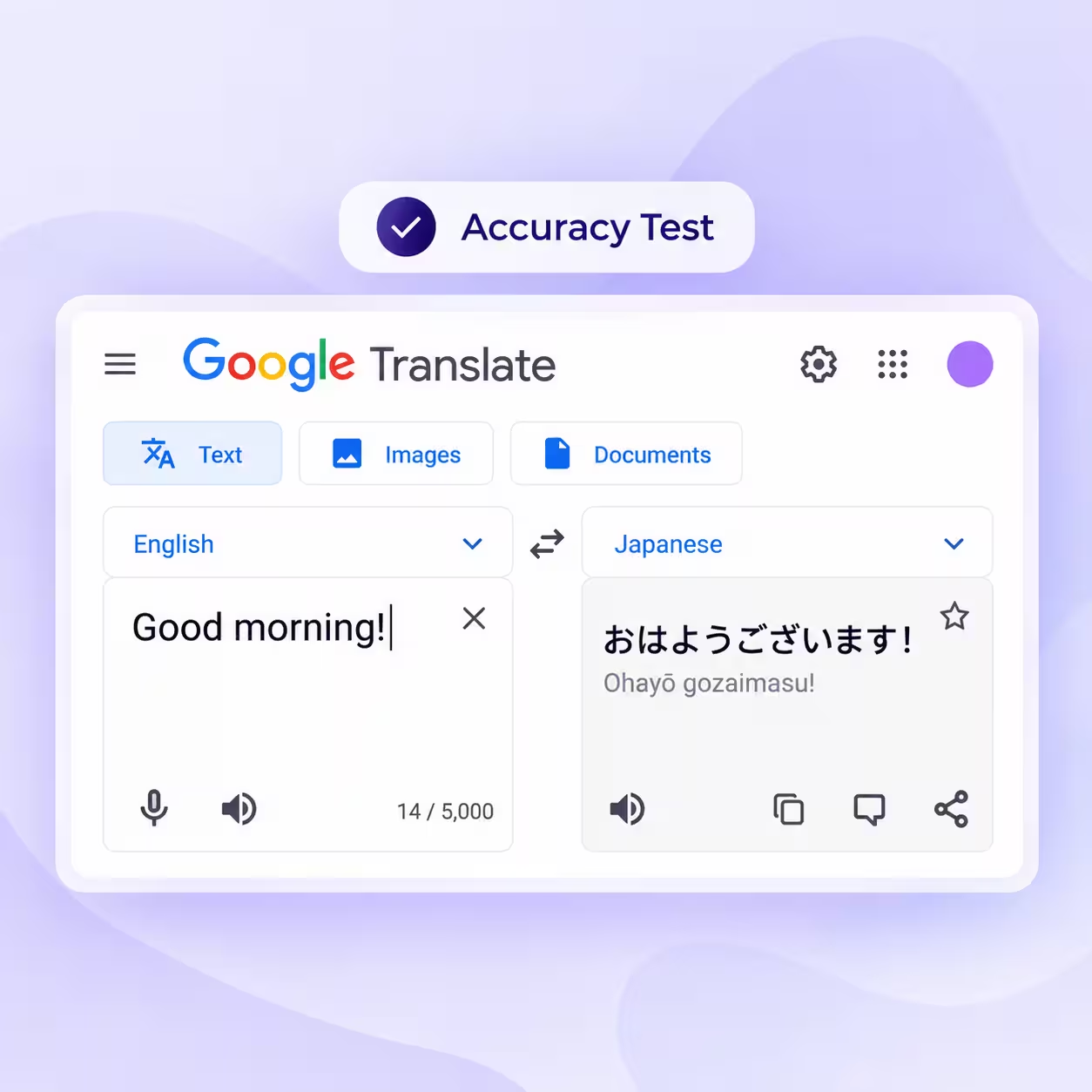
JotMe for Google Meet is useful if you have a free Google Meet account and want to keep track of what was said without adding a bot to the meeting. You can also use the Chrome extension to translate English to Japanese or other supported languages while the meeting is running. JotMe doesn't create a video recording, but it provides live translation and AI meeting notes after the call.
Step 1: Install the JotMe Chrome extension and open your Google Meet call. The extension will automatically detect the meeting and open its panel.
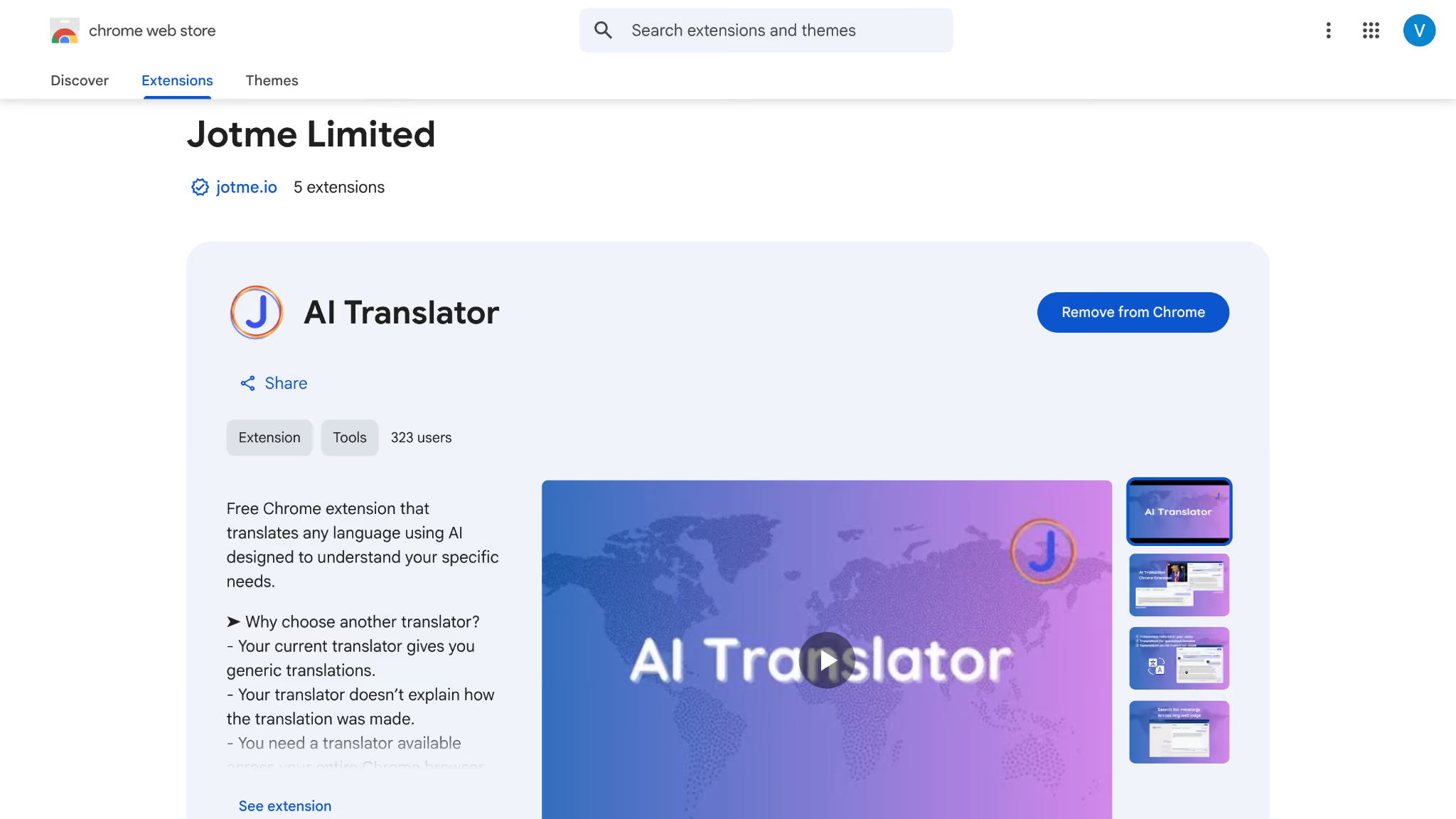
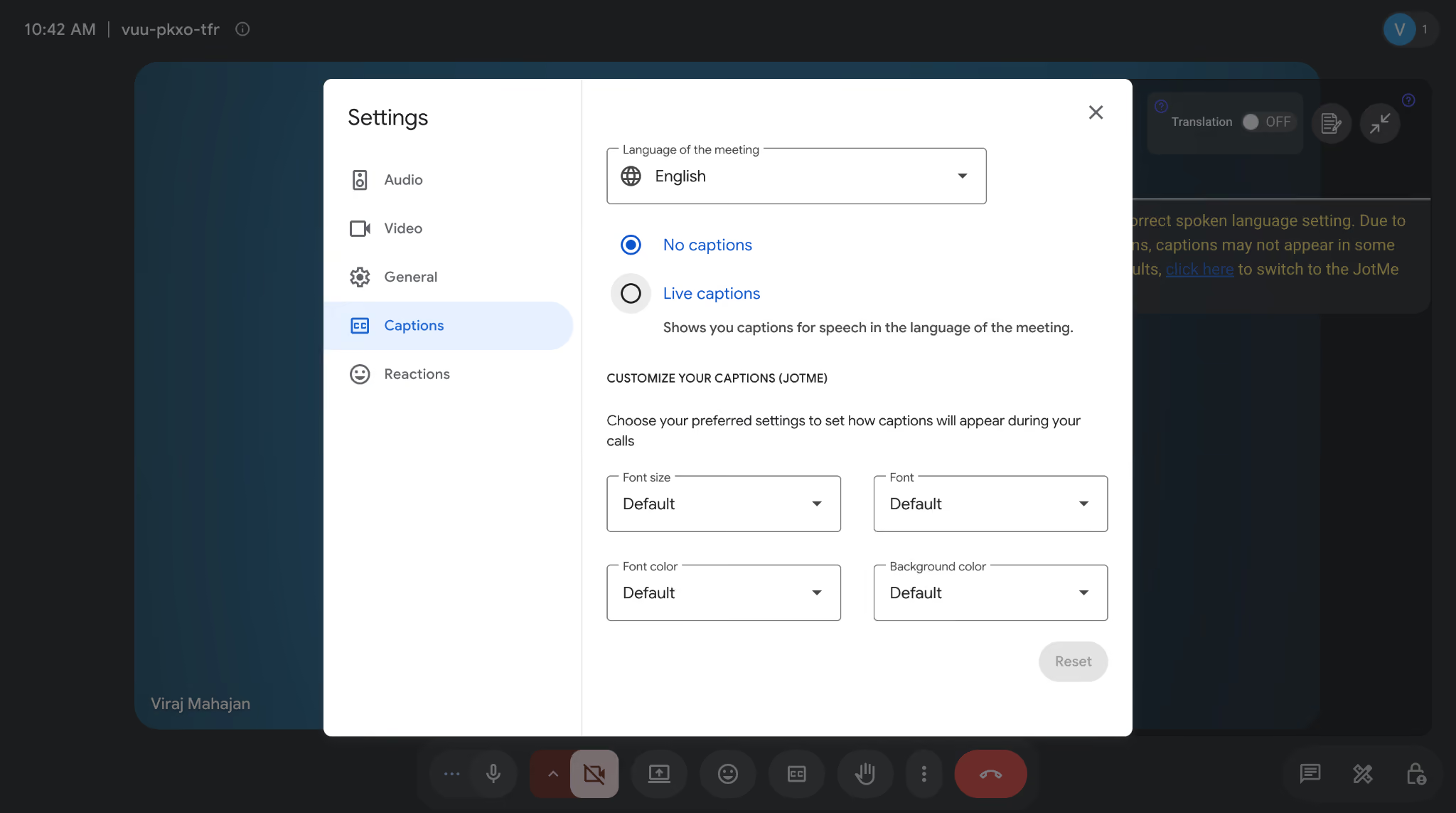
Step 2: Select the language being spoken and choose the language you want to translate into.
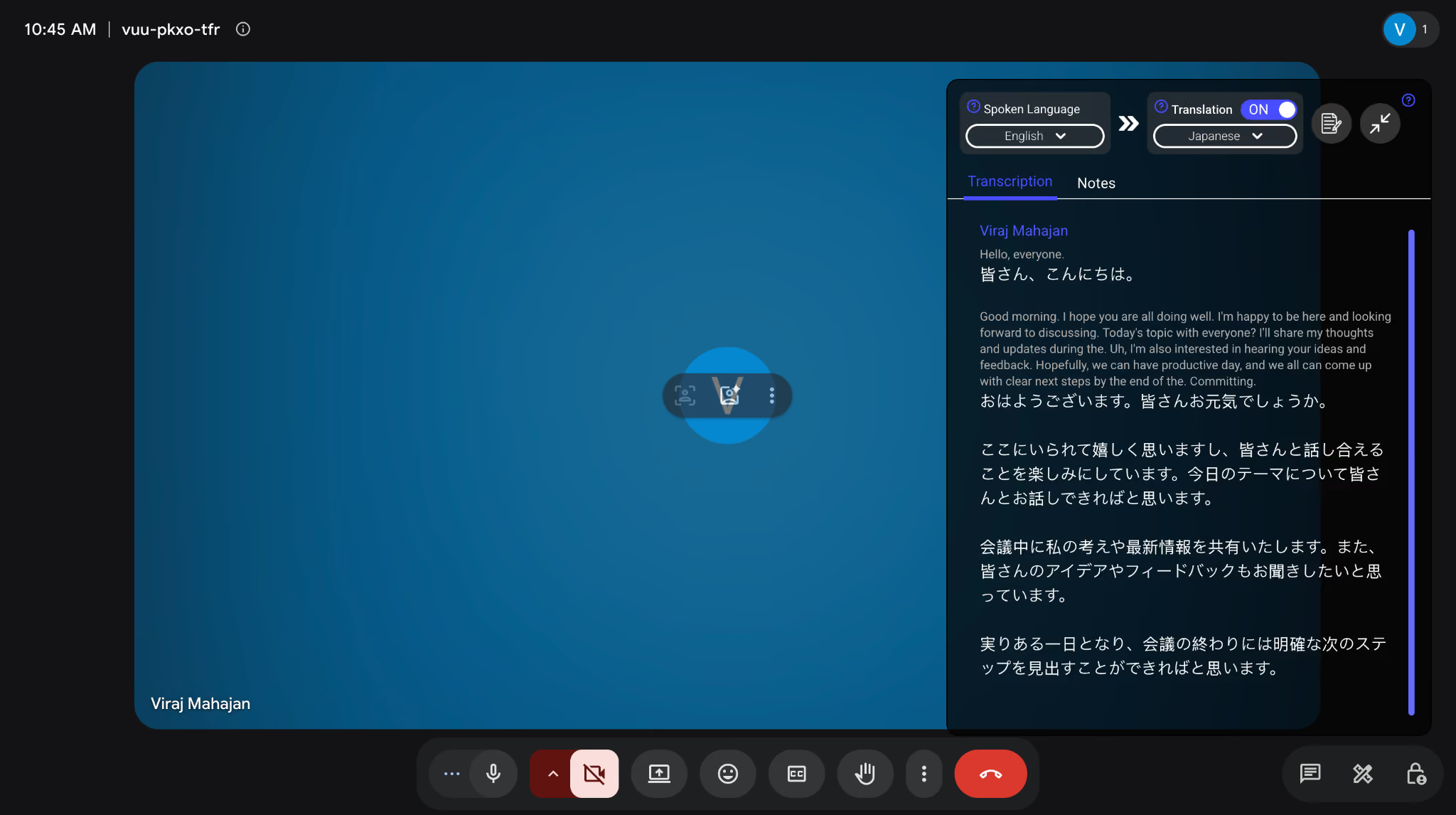
Step 3: Start speaking, and JotMe will show the original speech and its translation in the panel in real time.
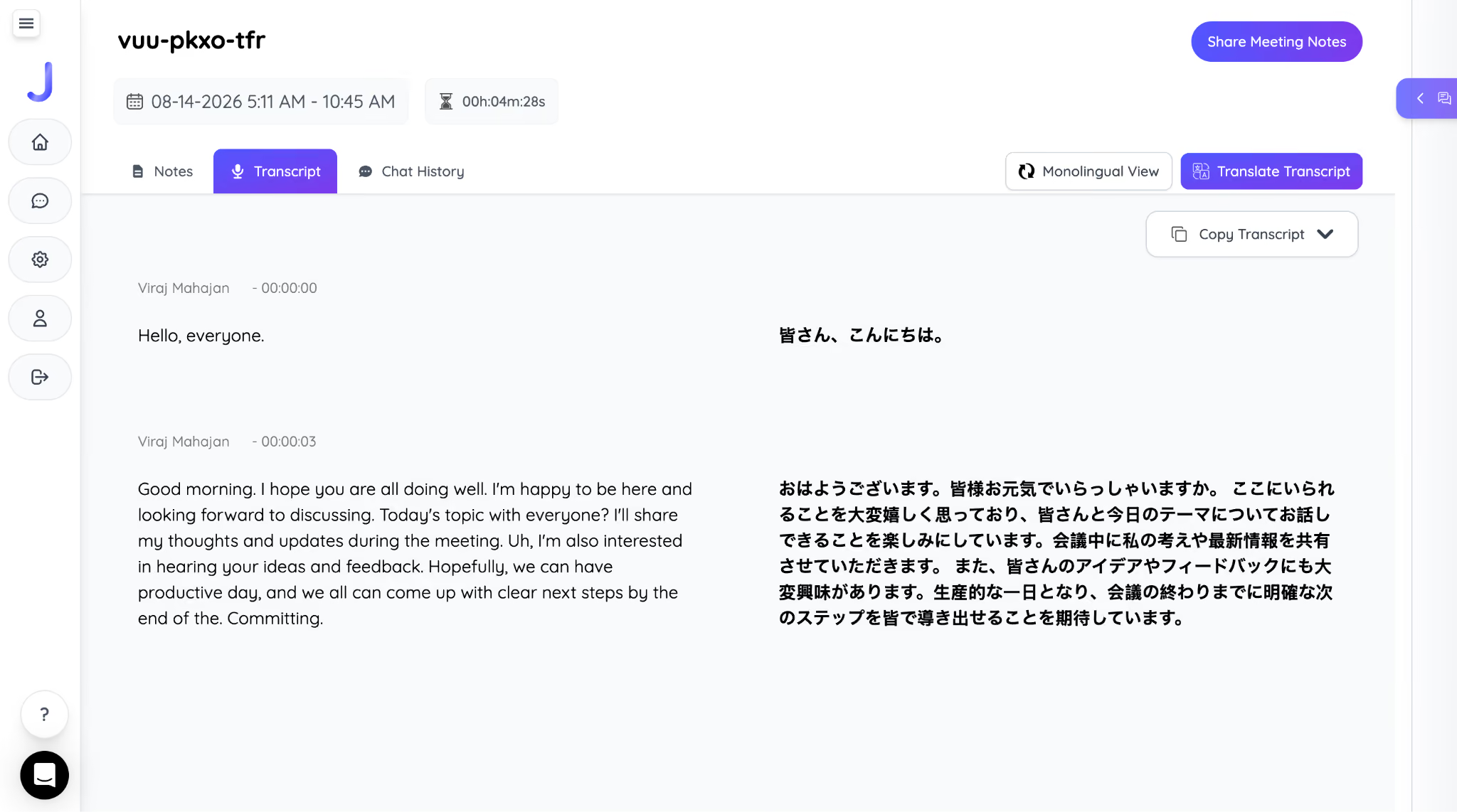
Step 4: After the meeting, open the transcript or Notes tab to review the bilingual transcript and AI-generated meeting notes.
Where Google Meet Recordings Are Saved
Google Meet recordings are saved automatically to the meeting organizer’s Google Drive. You’ll find them in the Google Meet folder, usually inside a folder created for that specific meeting. Older recordings may appear under Legacy Meet Recordings.
After processing is complete, the meeting organizer receives an email with a link to the recording. Processing can take several minutes, especially for longer meetings, and captions may take longer to become available.
To share a recording, open it in Google Drive and select Share. If you need a local copy, use Download when the option is available. Google changed the default download and copy permissions in 2026, so an administrator may need to allow viewers to download or copy Meet recordings.
How to Record Multilingual Google Meet for Offline Access
Recording a multilingual meeting and translating the file afterward sounds simple, but it loses accuracy exactly where it matters most. A live translation tool working from an already-recorded file has no conversational context to lean on, so product names, technical terms, and proper nouns get mangled far more often than they would in a live pass where the tool can follow the flow of the conversation as it happens.
Capturing a bilingual transcript live, rather than recording first and translating later, solves that. JotMe's Google Meet translation tool works this way, translating each line as it's spoken and keeping proper nouns and technical terms intact because it has the surrounding conversation for context.
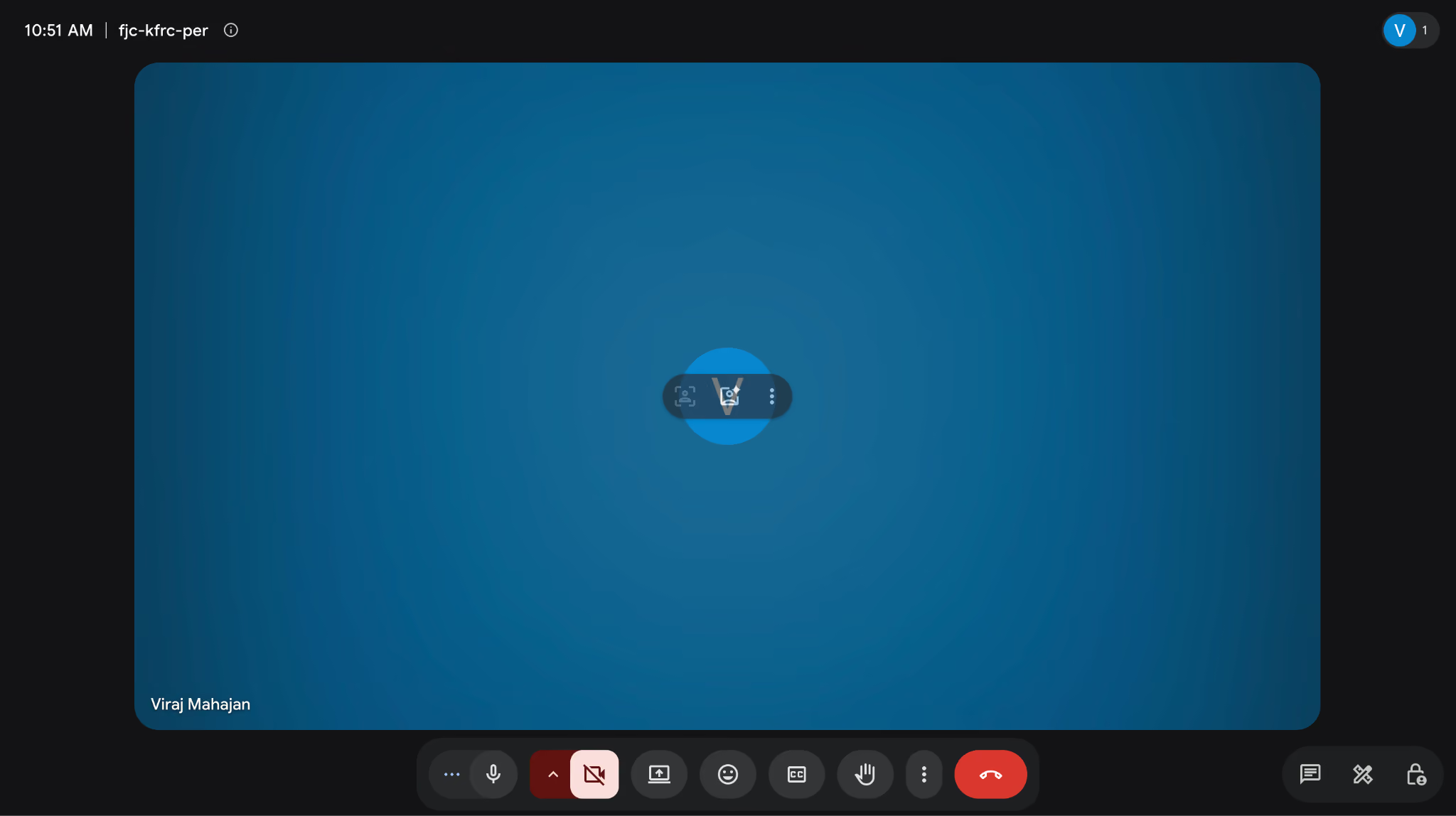
Step 1: Install the JotMe desktop app and open it before your Google Meet call starts.
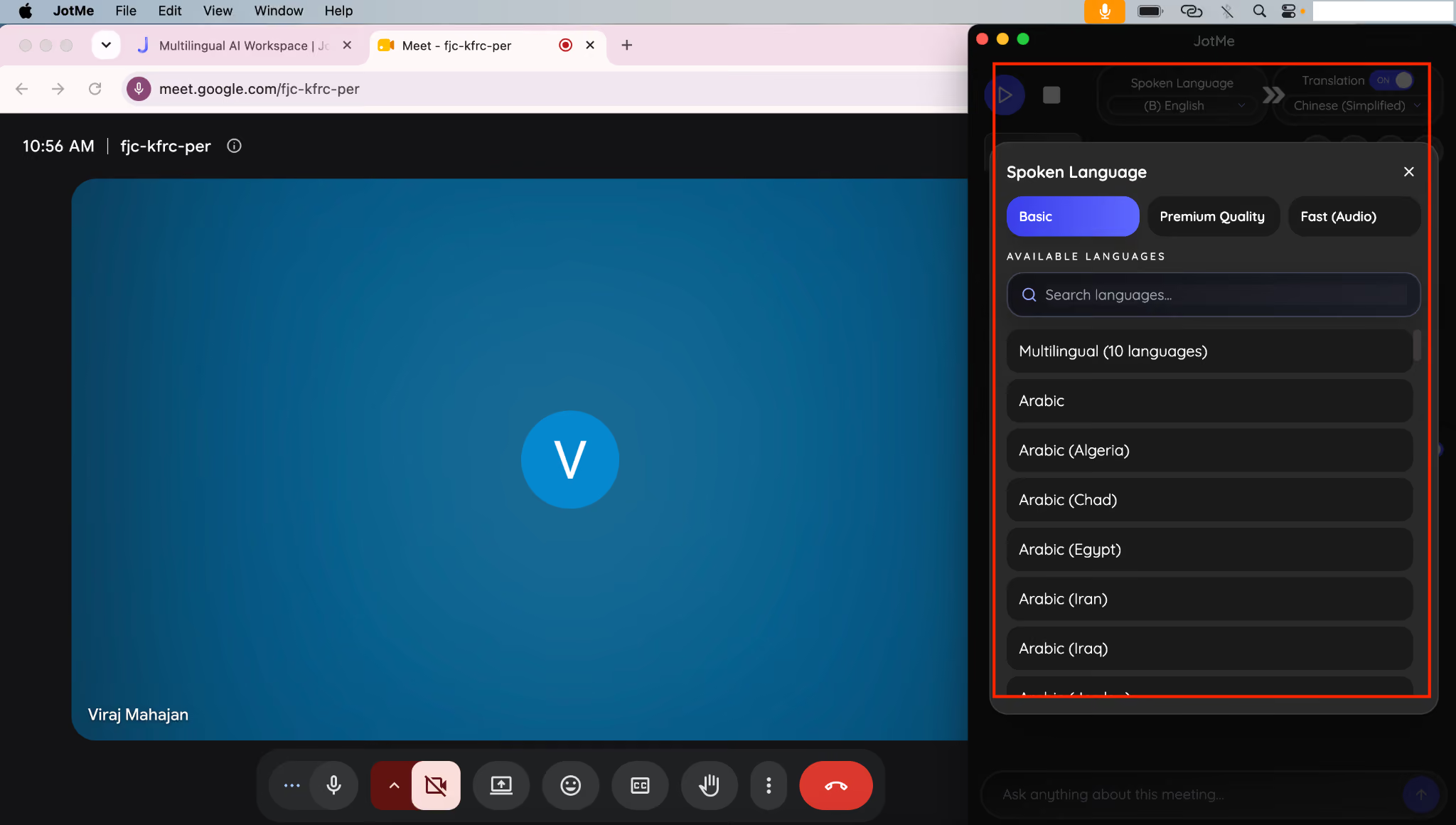
Step 2: Join your Meet call as usual, then set your spoken language and the language you want translated in JotMe's language bar.
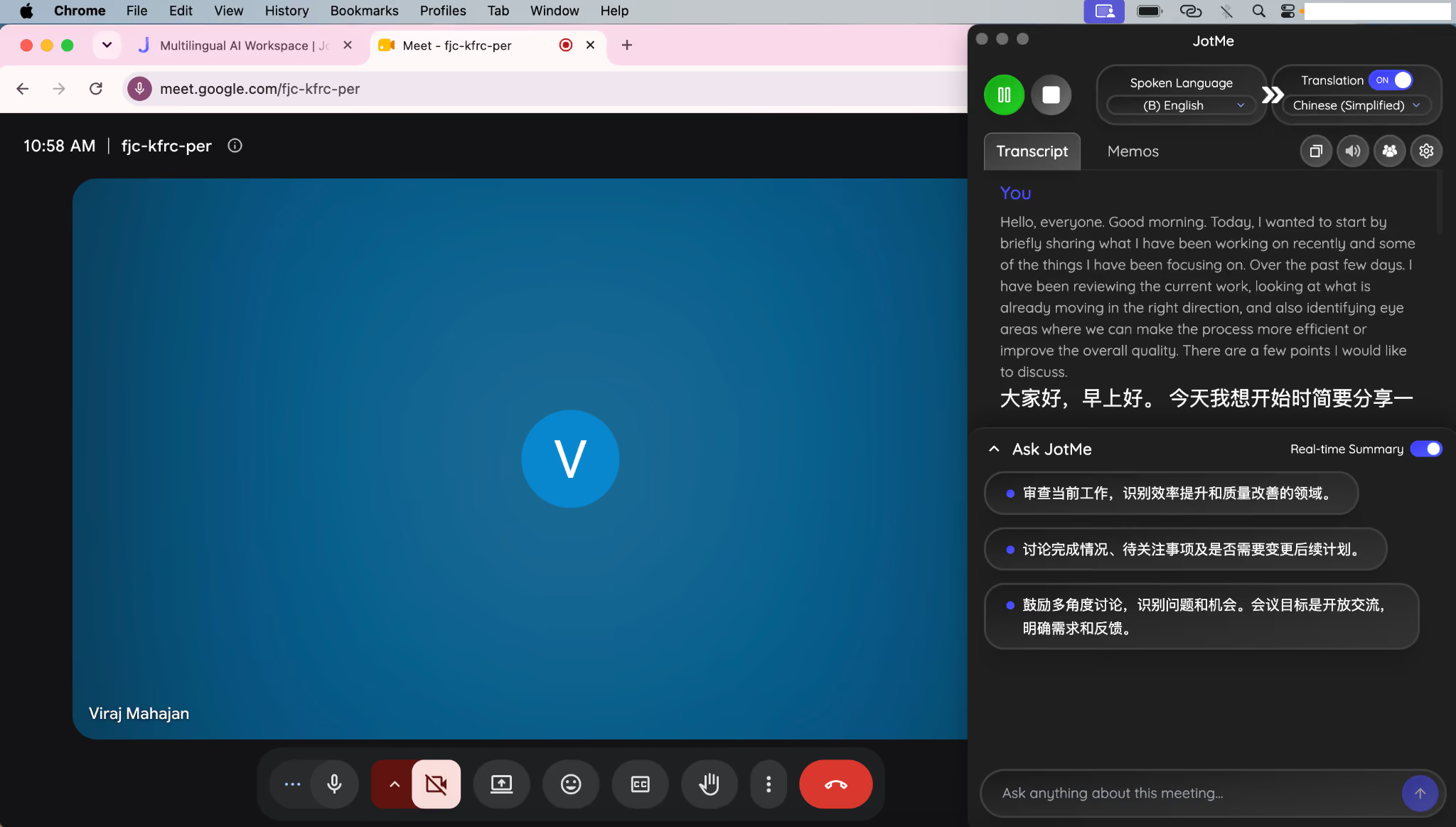
Step 3: JotMe lets the call run without adding a bot. Each statement appears in the transcript in both languages in real time.
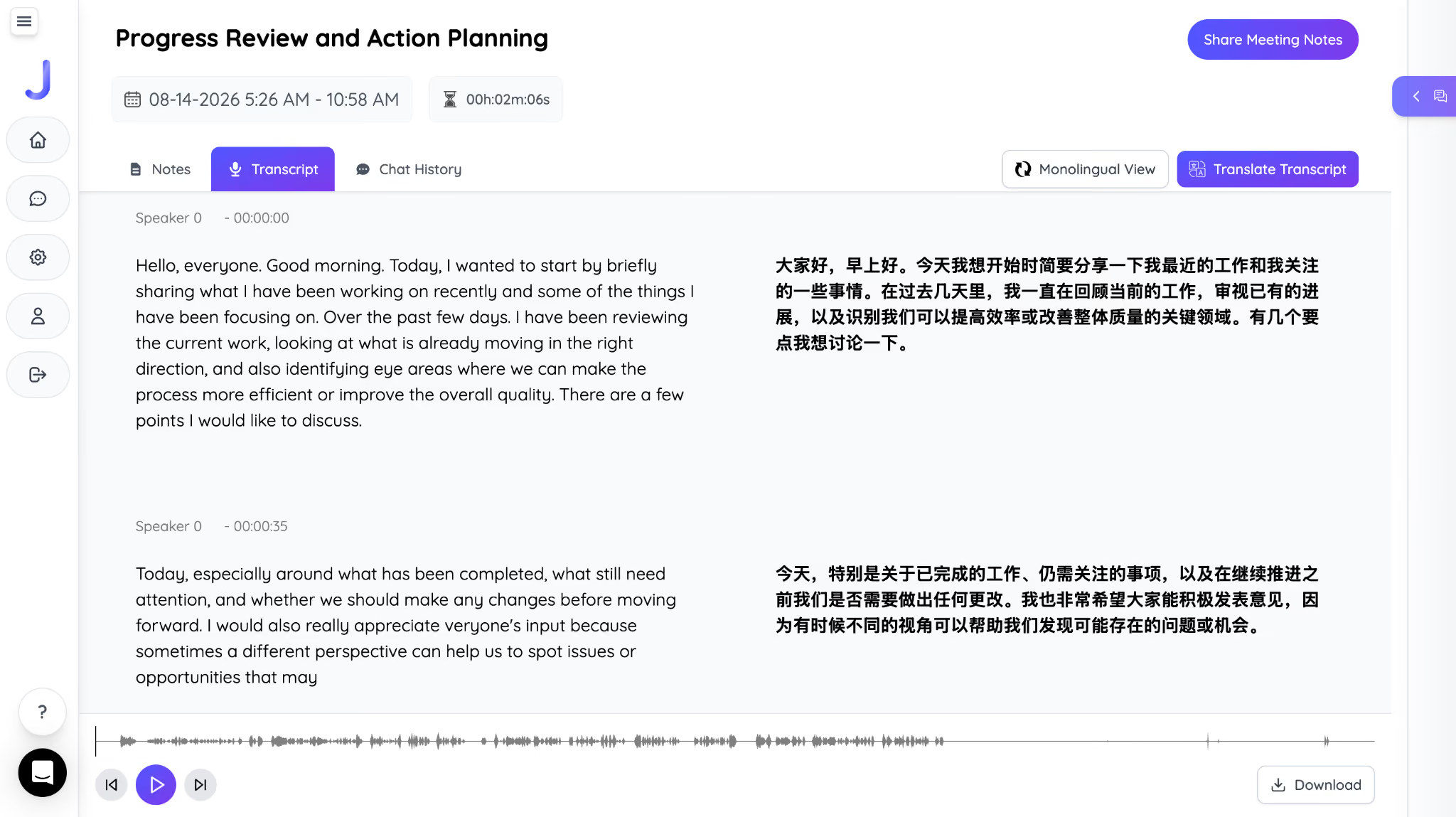
Step 4: Once the call ends, save or export the bilingual transcript for anyone who needs the offline record, in either language.
If you're deciding between the desktop app and the Chrome extension for a recurring call, the comparison of both routes breaks down which one fits which meeting type, and the broader guide to auto-translating Google Meet covers language coverage against Google's own native translation feature in more depth.
FAQs
Can you record a Google Meet without the host knowing?
Google's native feature makes this impossible by design. Every participant gets a notification the moment a recording starts, so nobody records a native Google Meet session silently. Screen recording done by a participant on their own device is a separate matter, and it isn't something Meet can detect or announce either way.
Does Google Meet notify participants when recording starts?
Yes, a notification appears for everyone in the call as soon as recording begins, and again when it stops. There's no way to disable that notification for a native recording.
How long does Google Meet recording processing take?
A short meeting is usually ready within several minutes of ending. Longer calls take longer to process, and captions in particular can trail the video by a few hours even after the recording itself is playable in Drive.
Can guests record a Google Meet they didn't organize?
Guests can record a Google Meet they didn't organize only if the host's organization allows it. By default, the organizer and any co-hosts can start a recording, and an admin can extend that to other internal participants. External guests joining from outside the host's own organization generally can't start a recording no matter what plan they're on personally.
Is there a time limit on Google Meet recordings?
Yes, Google Meet allows recordings of up to 8 hours per session. Google stops it automatically once that limit is hit, and it also stops on its own if everyone leaves the call before then.
Can you record a Google Meet on mobile?
Google's own recording feature works on a computer or an eligible Android device, but there's no native recording button inside the iOS app. iPhone and iPad users who want to record a Google Meet on mobile need to fall back on the device's built-in screen recorder instead.
Last updated on
August 24, 2026
Follow us on social media: