




Google Meet Transcript
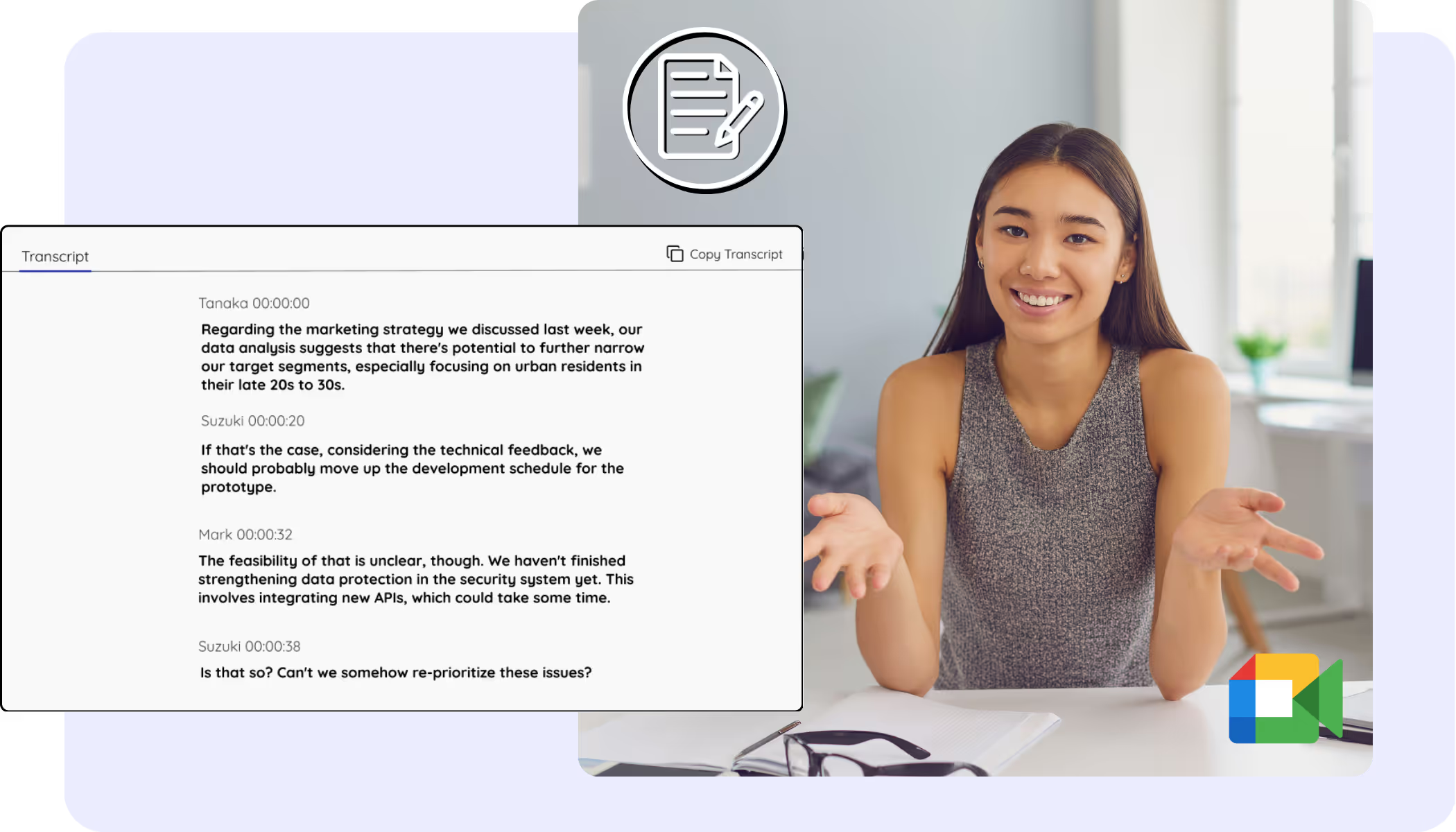
Every Google Meet becomes a clean, accurate transcript with speaker names, saved to your dashboard from live calls or recordings you upload. The Meet captions you always wanted to keep, search, and copy.
Free plan. No credit card required.
Pick your language, hit start, and speak. JotMe transcribes as you talk and improves accuracy as the conversation continues. Open the full demo.
Trusted by 2,000 teams and 500,000 professionals in 134 countries at



.avif)





.avif)


.avif)


.svg)
Rated 4.7/5


GDPR Compliant
.avif)
SOC 2 Type II (In Progress)
A complete, accurate transcript for every Google Meet
Everything you need to find, read, and share what was said.
.png)
Context-aware, ultra-accurate
Accurate because JotMe works in context: it weighs the speaker, your team's focus, the discussion so far, and your custom terms, so names, acronyms, and jargon land right in the transcript.

Speaker labels included
JotMe labels each speaker as they talk, so your Meet transcript with speaker names is easy to follow, and you can rename speakers afterward.

200+ languages, live or from a recording
Get transcripts for Meet meetings in 200+ spoken languages, from the live call or the Meet recording you upload afterward.
Your transcript is saved
Every transcript stays on your dashboard with speaker labels, ready whenever you need to check what was said.
No bot, no setup
JotMe captures Meet captions in your browser or audio on your computer. No bot joins the call, and there is nothing for anyone else to install or enable.
.png)
Custom dictionary and auto language detection
Improve accuracy with industry-specific terms and custom replacements. JotMe also detects the spoken language automatically, so you never set it by hand.
How to get the transcript of a Google Meet
Three steps, under a minute. No Meet settings, no bot invite, no host approval. Already have a recording? Upload it instead.
STEP 1
1. Add the Chrome extension, or upload your Meet recording
Add JotMe to Chrome or get the desktop app in about 30 seconds. Already have a recorded Meet? Upload it for the full transcript with speaker labels.

STEP 2
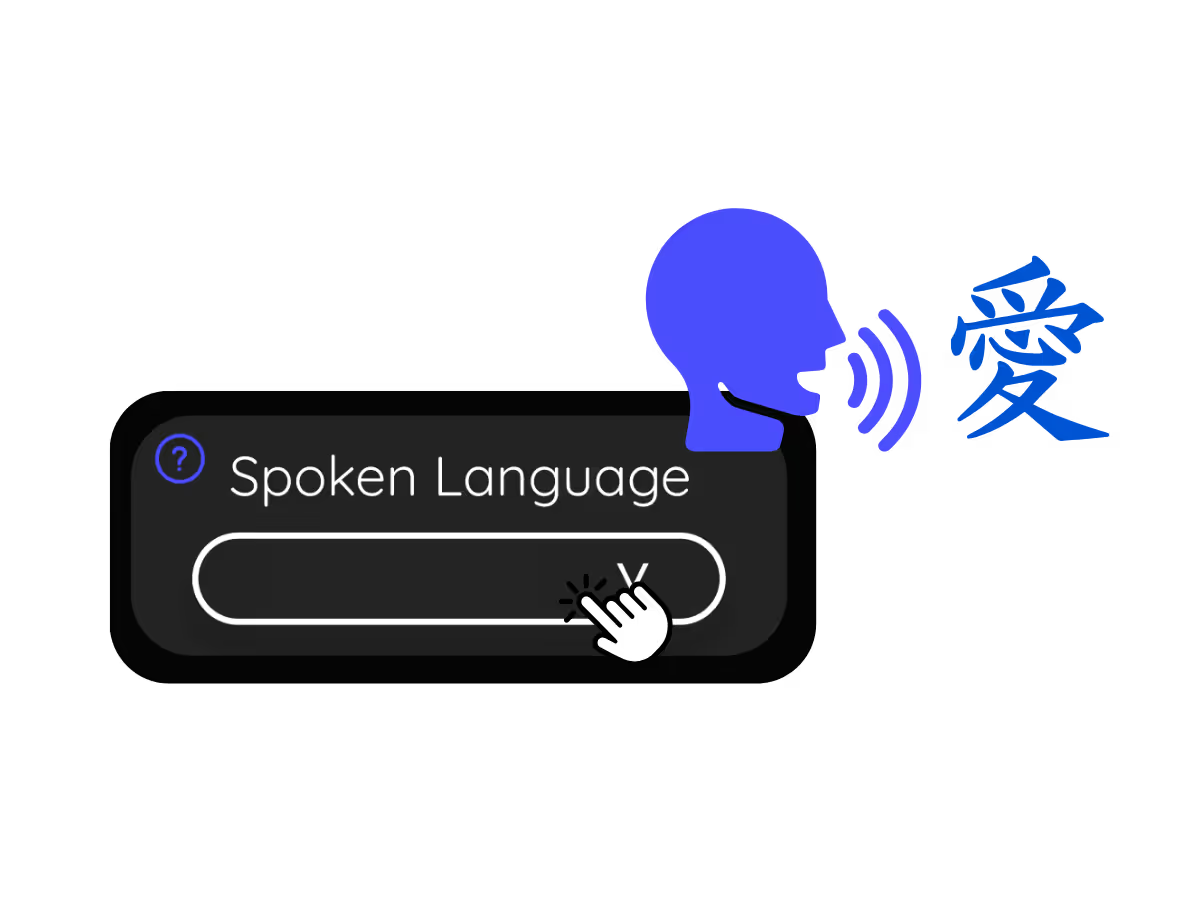
2. Set the spoken language
Choose the language being spoken in the meeting, for example Japanese. If people switch languages, pick multilingual mode.
STEP 3
3. Open your transcript
Your transcript is on the dashboard the moment the call ends, with speaker labels, search, editing, and copy or share one click away.
.avif)
What teams use Google Meet transcripts for
From daily standups to all-hands, JotMe keeps every attendee in the conversation.
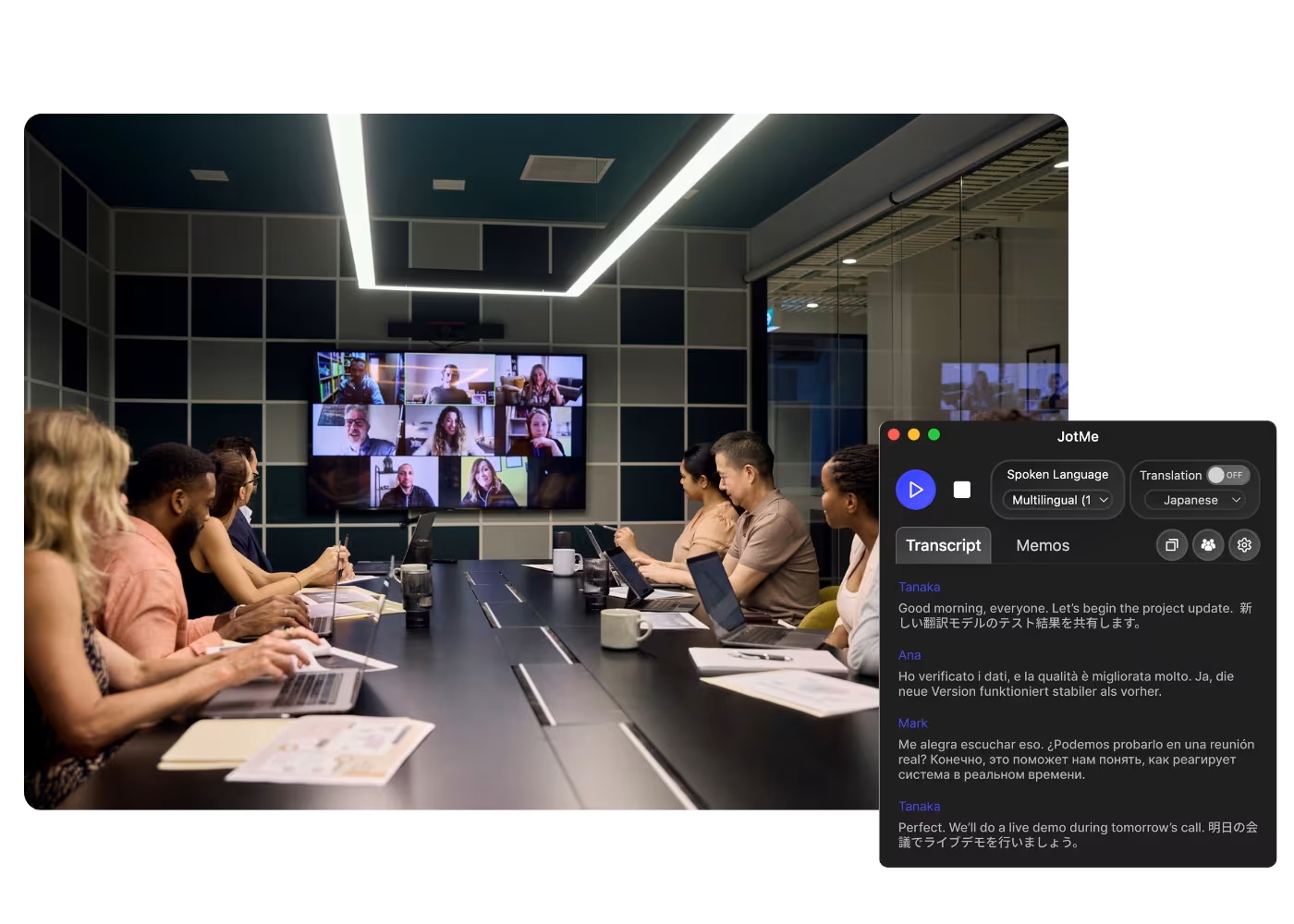
Global all-hands & team meetings
Every all-hands and team meeting archived as a searchable transcript.
.avif)
Sales & client calls
Pull exact quotes and commitments from client calls when you need them.
.avif)
Recorded Meet meetings
No time to run it live? Upload the recording to Audio to Text or Video to Text for the transcript of a Meet recording, with speaker labels, an accurate transcript, translation, and AI notes.
.avif)
Compliance & documentation
Keep a searchable record of what was agreed, with speaker labels, accessible anytime on your dashboard.
See it in action
Watch a Google Meet become a clean transcript with speaker labels, ready to search.
500,000+ professionals run meetings and events smoothly with JotMe
See how they’re seeing results with JotMe in bridging multilingual operational gaps.
Rated 4.7/5

Rated 4.7/5
"As my job involves translation and bridging cultures, I have found this tool as a game changer to my daily work."

Adams
Operations Specialist / Tiktok
"Japanese was once a mystery to me, but this product made it clear and accessible with contextual understanding."

Stamatis
Consultant / Deloitte
"JotMe streamlines our multilingual meetings, ensuring seamless collaboration in our fast-paced work environment."

Cesar
Program Manager / Amazon
"This bilingual feature streamlines note-taking at work, saving time and boosting efficiency in both languages."

Yusuke
Sales Manager / NTT
"Essential for non-fluent speakers; simplifies complex meetings with real-time translation and accurate transcriptions."

Jesse
Software Freelancer
"The translation we've needed for years – now a reality with JotMe!"

Elston
CEO & Founder / Tiny.host
"As my job involves translation and bridging cultures, I have found this tool as a game changer to my daily work."
Adams
Operations Specialist / Tiktok
"Japanese was once a mystery to me, but this product made it clear and accessible with contextual understanding."
Stamatis
Consultant / Deloitte
"JotMe streamlines our multilingual meetings, ensuring seamless collaboration in our fast-paced work environment."
Cesar
Program Manager / Amazon
"This bilingual feature streamlines note-taking at work, saving time and boosting efficiency in both languages."
Yusuke
Sales Manager / NTT
"Essential for non-fluent speakers; simplifies complex meetings with real-time translation and accurate transcriptions."
Jesse
Software Freelancer
"The translation we've needed for years – now a reality with JotMe!"
Elston
CEO & Founder / Tiny.host

Frequently asked questions
Everything you need to know about running meetings and events with JotMe.
How do I get a transcript of a Google Meet?
Run JotMe during the meeting, through the Chrome extension or desktop app, or upload the recording afterward. Either way you get a full transcript with speaker labels on your dashboard.
Can I save what the Google Meet captions said?
Yes, this is exactly what JotMe is for. It saves the captions as a transcript you can keep, search, and copy, so your Google Meet captions never vanish when the call ends.
Is the Google Meet transcript free?
Yes. JotMe's free plan includes transcription minutes, and no credit card is required. Upgrade when you need more.
How accurate is the transcript?
JotMe builds the transcript with five layers of context: your user profile, your operational context, real-time memory of the meeting, your custom terms, and the flow from previous speech, so names and terms stay accurate. Speaker labels keep it easy to follow.
Can I edit, search, and share the transcript?
Yes. On your dashboard you can edit speaker names and text, search the conversation, translate it, and copy or share it.
What languages are supported for Google Meet transcripts?
JotMe transcribes 200+ spoken languages on Meet, including Hindi, Hebrew, Tamil, and Bengali, which already have dedicated transcript pages. See the full list on the available languages page.
Can I translate the transcript?
Yes. Translate the transcript into your language on the dashboard, and get the AI notes and summary in the same language.
Heading
You can translate
Bulgarian
Catalan
Mandarin (Simplified
Mandarin (Traditional)
Cantonese (Traditional)
Czech, Danish
Dutch
English (US)
English (UK)
English (Australia)
English (New Zealand)
English (India)
Estonian, Finnis
French
French (Canada
German
German (Switzerland
Greek
Hindi
Hungarian
Indonesian
Italian
Japanese
Korean
Latvian
Lithuanian
Malay
Dutch (Flemish)
Norwegian
Polish
Portuguese
Portuguese (Brazil)
Portuguese (Portugal)
Romanian
Russian
Slovak
Spanish
Spanish (Latin America)
Swedish
Thai
Turkish
Ukrainian
Vietnamese

The transcript of every Google Meet, one click away
The full Google Meet transcript, with speaker names, saved and searchable on your dashboard after every meeting, from live calls or uploaded recordings. Yours to keep.