





Resources
Windows Live Translator: Translate Any Meeting in Real Time on a PC

Lovely Mangla
July 9, 2026
8
min read
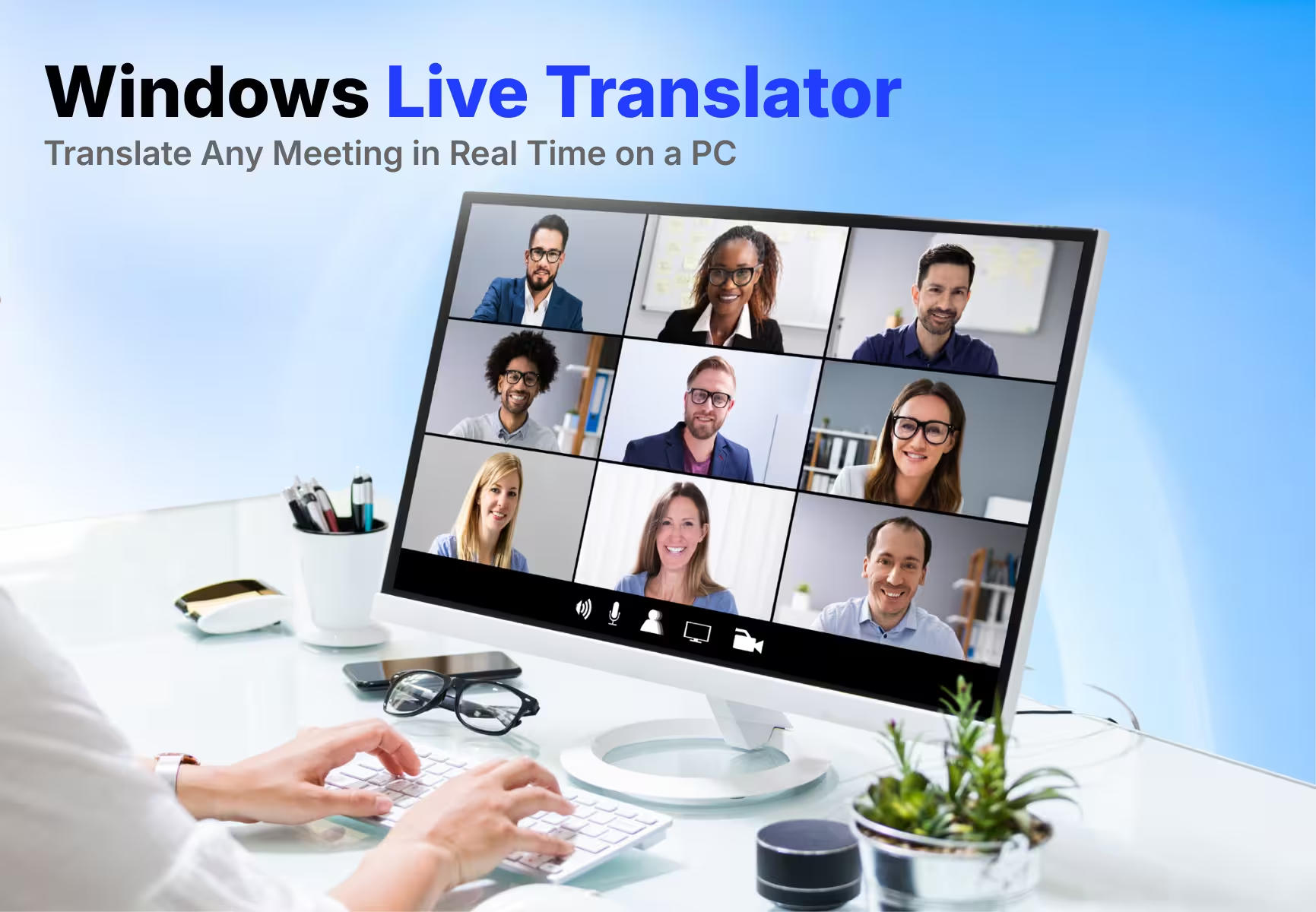
Windows Live Translator is built into Windows 11, but it only works on a Copilot+ PC. It translates audio from more than 40 languages, such as Japanese, French, and Chinese, into English and, for a subset, into simplified Chinese
However, Windows Live Translator only displays live captions, which may be enough for watching videos. If you need real-time captions for meetings and client calls along with a transcript, contextual translation, and AI meeting notes, you can use JotMe.
JotMe works on Windows PC, supports 200+ languages, and translates meetings across Zoom, Teams, Google Meet, and Webex. Let's see how Windows' built-in live translator compares, and where JotMe offers the features you need. But first, here is a quick overview to gain understanding:
What is a Windows Live Translator?
A Windows Live Translator is a tool that translates spoken conversations into another language in real time on a Windows PC. People typically use Windows Live Translator for multilingual meetings, presentations, interviews, and video calls.
If you search for "Windows Live Translator," you may also come across Microsoft's older translation service. Windows Live Translator was the original name of Microsoft's web-based translation service when it launched in 2007. It was later rebranded as Bing Translator, and its translation capabilities are now part of Microsoft Translator and related live captioning features across Windows and Microsoft apps.
One important distinction is that translation converts speech from one language to another, whereas interpretation conveys the speaker's meaning in real time. Modern AI meeting tools like JotMe often combine both to make multilingual conversations easier.
Does Windows 11 Have Built-in Live Translation?
Yes, Windows 11 has a built-in live translation feature, but it comes with some limitations. Windows 11's Live Captions feature can translate audio to text, and it's built into the operating system at no extra cost. However, this feature only works on a Copilot+ PC running Windows 11 version 24H2 or later, and the translated captions are currently available only in English (United States) and Simplified Chinese. Meanwhile, you can instantly use JotMe’s audio-to-text translation feature to translate any audio in 200+ languages and 39,000+ language pairs.
What Windows Live Captions Can and Cannot Do
Windows Live Captions provide real-time, on-device transcription for audio playing on your PC, including videos, video calls, and system sounds. The feature is useful for accessibility and privacy since audio is processed locally, but it has limitations, including restricted translation language support and reduced accuracy in noisy environments or when multiple people are speaking.
What Windows Live Captions can do:
- Caption any audio on your device, including YouTube, downloaded video, and calls in Zoom or Teams
- Caption an in-person conversation through your microphone
- Translate more than 40 languages into English, and 27 languages into Simplified Chinese, on a Copilot+ PC
- Let you resize, recolor, and reposition the caption bar anywhere on the screen
- Process everything on-device, so audio and captions never leave your PC or reach Microsoft's servers
What Windows Live Captions can't do:
- Run on Windows 10; Windows Live Captions needs Windows 11, version 22H2 or later, and translation needs version 24H2 or later
- Skip the internet entirely; you need a connection the first time you download the language files
- Tell speakers apart in a group conversation
- Translate into any output language besides English or Simplified Chinese
- Save your captions anywhere; there's no transcript to export or review afterward
Microsoft documents the full setup and language list on its Live Captions support page.
Why Does a Full Translation Need a Copilot+ PC
A full translation needs a Copilot+ PC because the feature runs on the device's built-in NPU (neural processing unit). Real-time, on-device translation is computationally intensive. Microsoft built Live Captions' translation feature to run on the NPU (neural processing unit) inside Copilot+ hardware, since a regular CPU or GPU would drain a laptop's battery quickly and make the fans run overtime. That's why the translation layer is locked to Copilot+ machines from Qualcomm, Intel, and AMD, and why an older PC won't get it, no matter how up-to-date Windows is.
Where the Native Feature Leaves Business Calls
Live Captions is genuinely useful for personal, single-speaker use. Windows Live Translator runs into real limits the moment you use it for work:
- No speaker labels, so you can't tell who said what in a multi-person call
- No saved transcript, so there's nothing to send around after the meeting
- Only two output languages (English and Simplified Chinese), which rule out most of the world's business conversations
- Hardware-gated, so most PCs currently used in offices can't run it at all
JotMe is designed for multilingual meeting translation, AI meeting notes, and saved transcripts. Instead of just showing live captions, JotMe translates multilingual conversations, identifies speakers, saves transcripts, and generates AI meeting notes you can review or share after the meeting.
How Do You Set Up Live Translation on a Windows PC
Setting up real-time meeting translation on Windows takes about a minute with JotMe, and it works on Intel, AMD, and Copilot+ machines.
Here is how to download and install JotMe for Windows
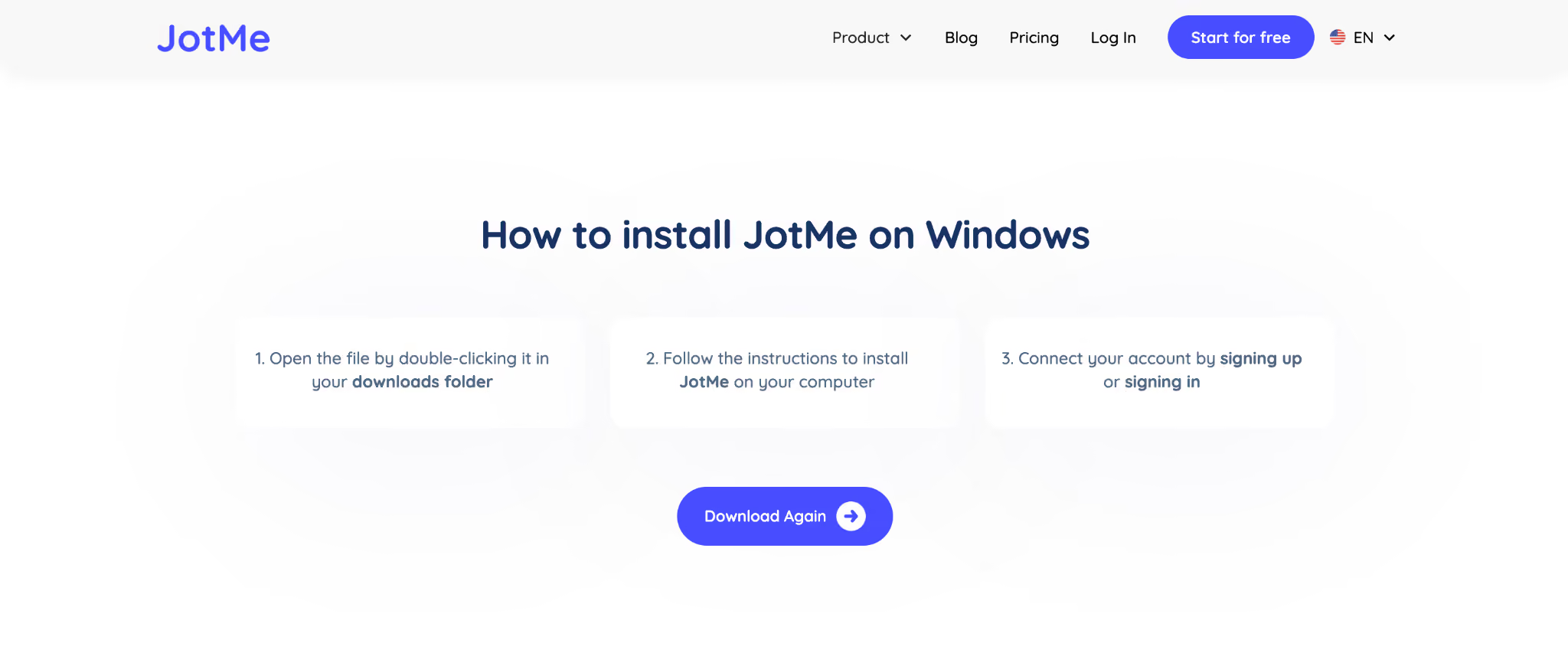
Step 1: Download the JotMe installer and open the setup file.
Step 2: Follow the installation prompts and sign in to your JotMe account.
Step 3: Join or start a meeting, choose your translation languages, and allow microphone and system audio access when prompted by Windows.
Windows requests microphone and system audio permissions the first time you use JotMe. Granting these permissions allows JotMe to capture meeting audio, provide real-time translation, and generate transcripts and AI meeting notes.
How Do You Translate a Microsoft Teams Call on Windows
Follow these simple steps to translate a Microsoft Teams call on Windows and also get voice-to-voice translation, without a complicated setup:
Step 1: Open Microsoft Teams to start the meeting, and keep JotMe open on the side.
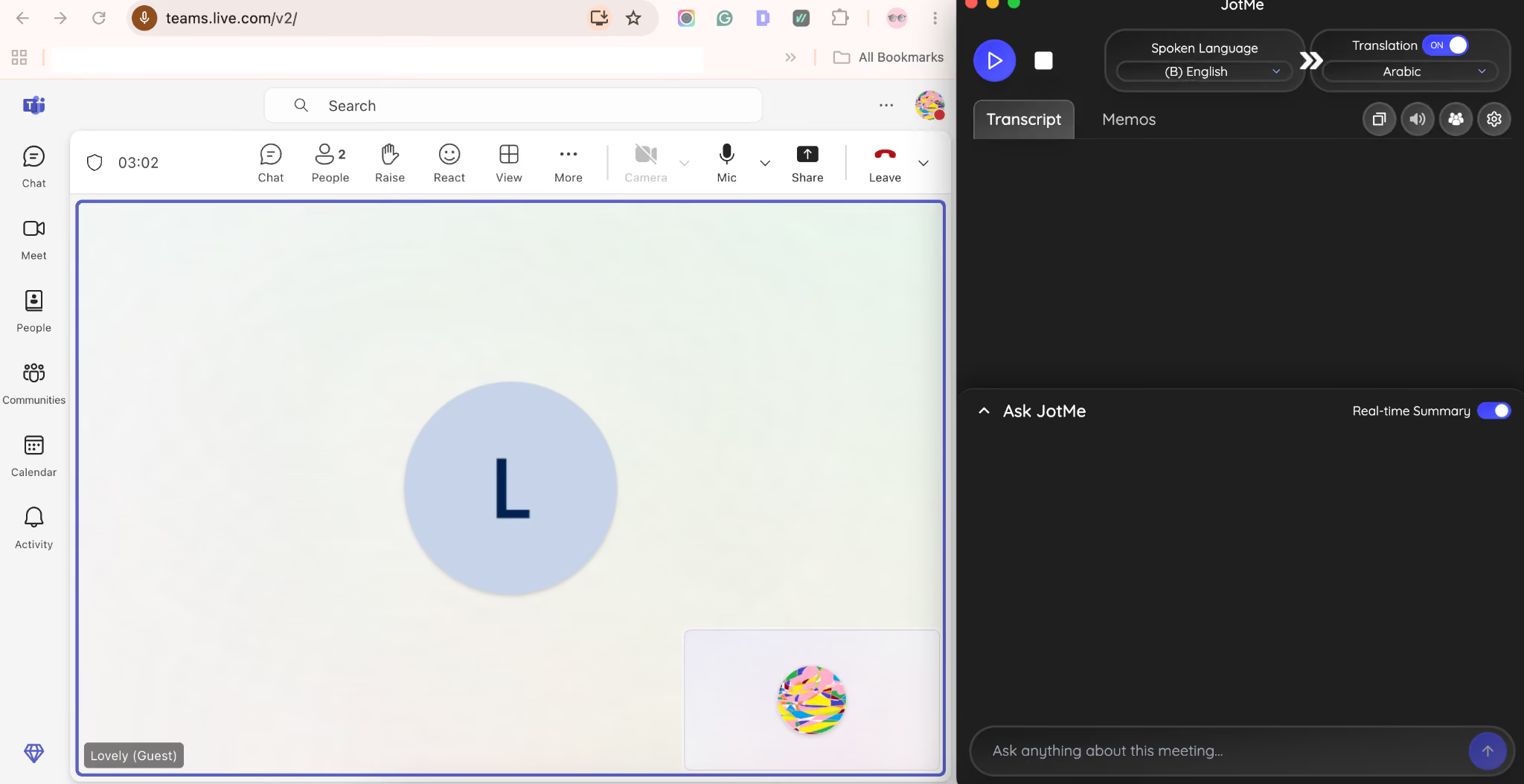
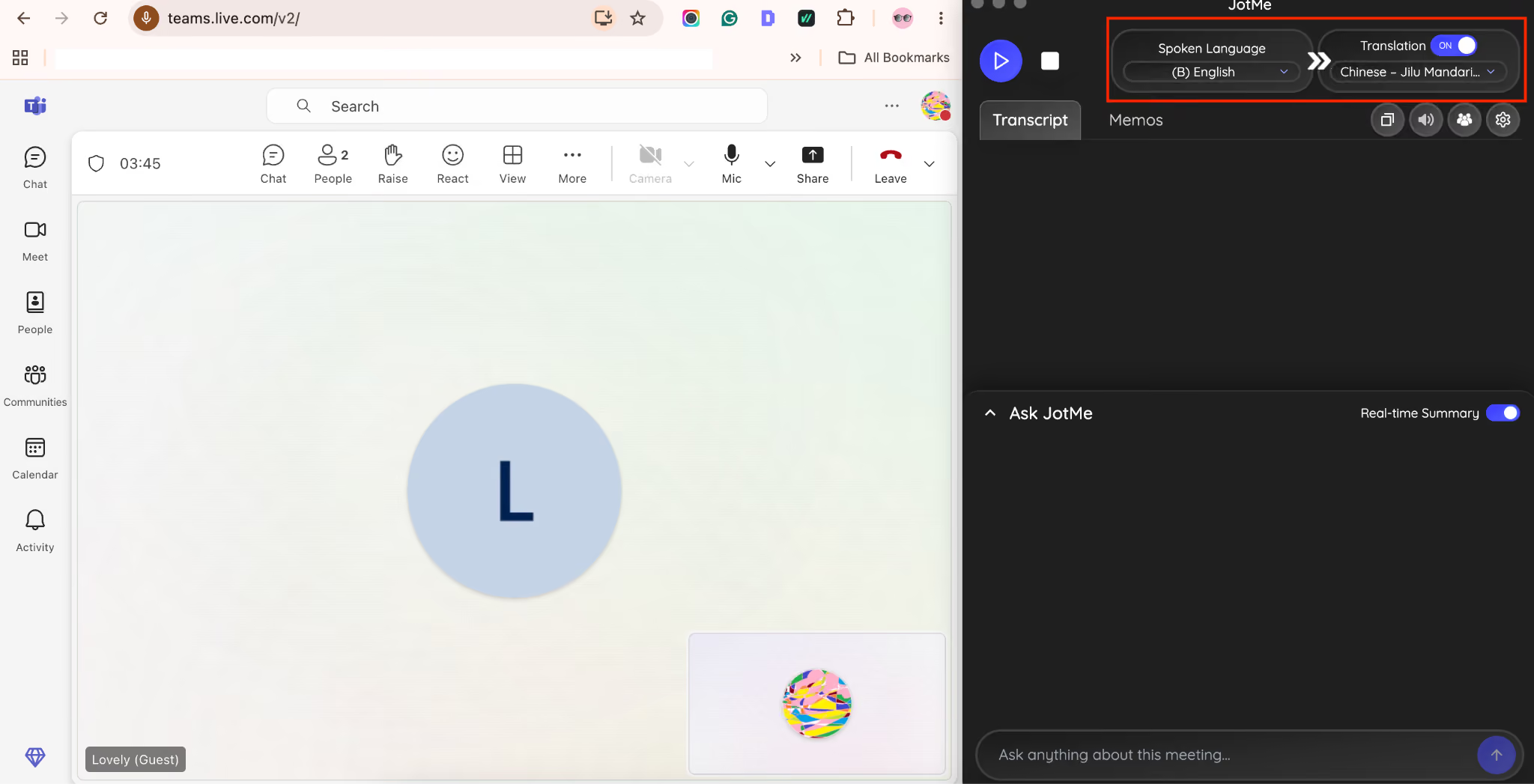
Step 2: Before everyone joins, choose the spoken language and the target language for real-time translation.
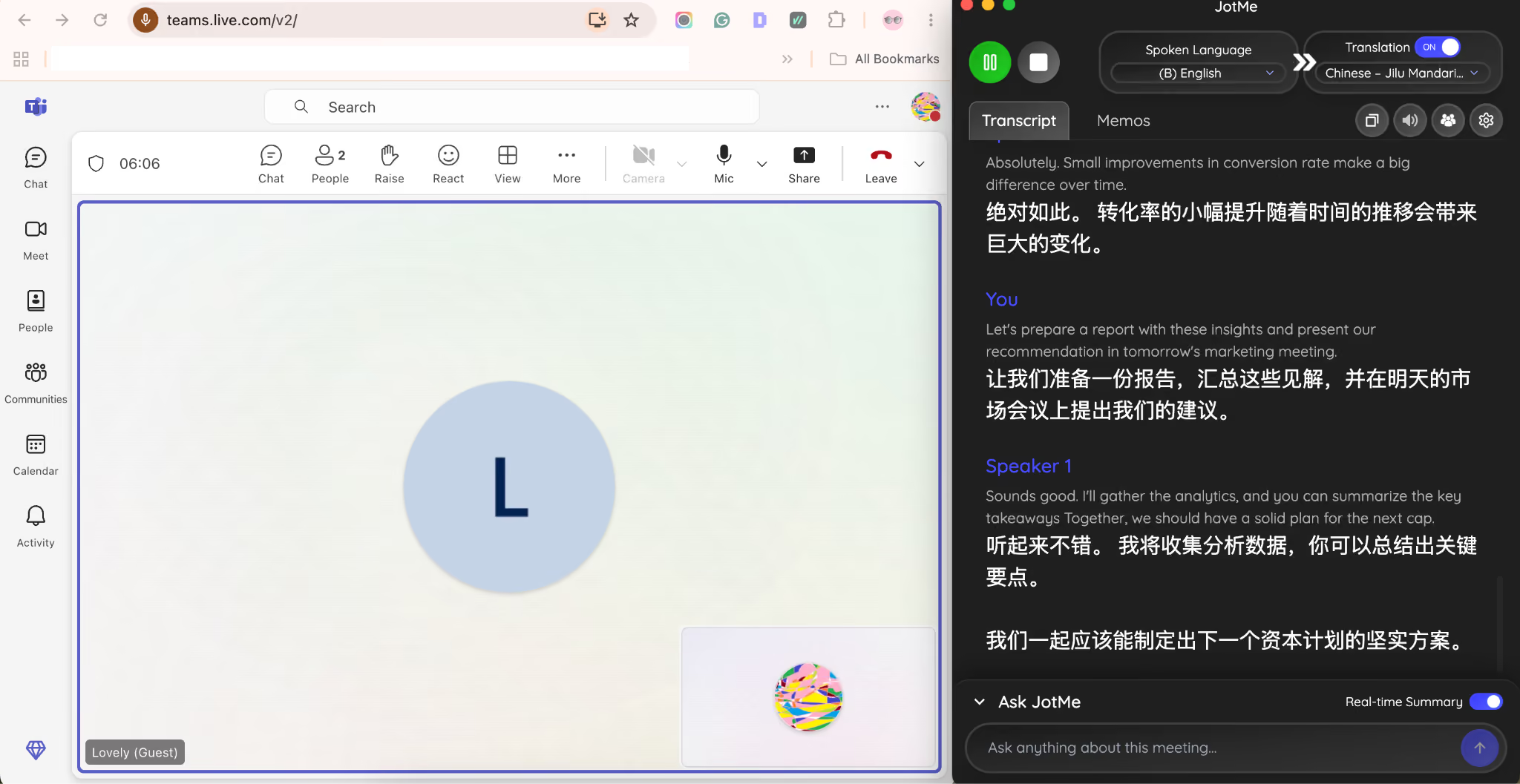
Step 3: Start the meeting and get real-time translation with a 1-2 second latency, and end the meeting without any misunderstandings, as JotMe provides contextual translation instead of word-for-word translation.
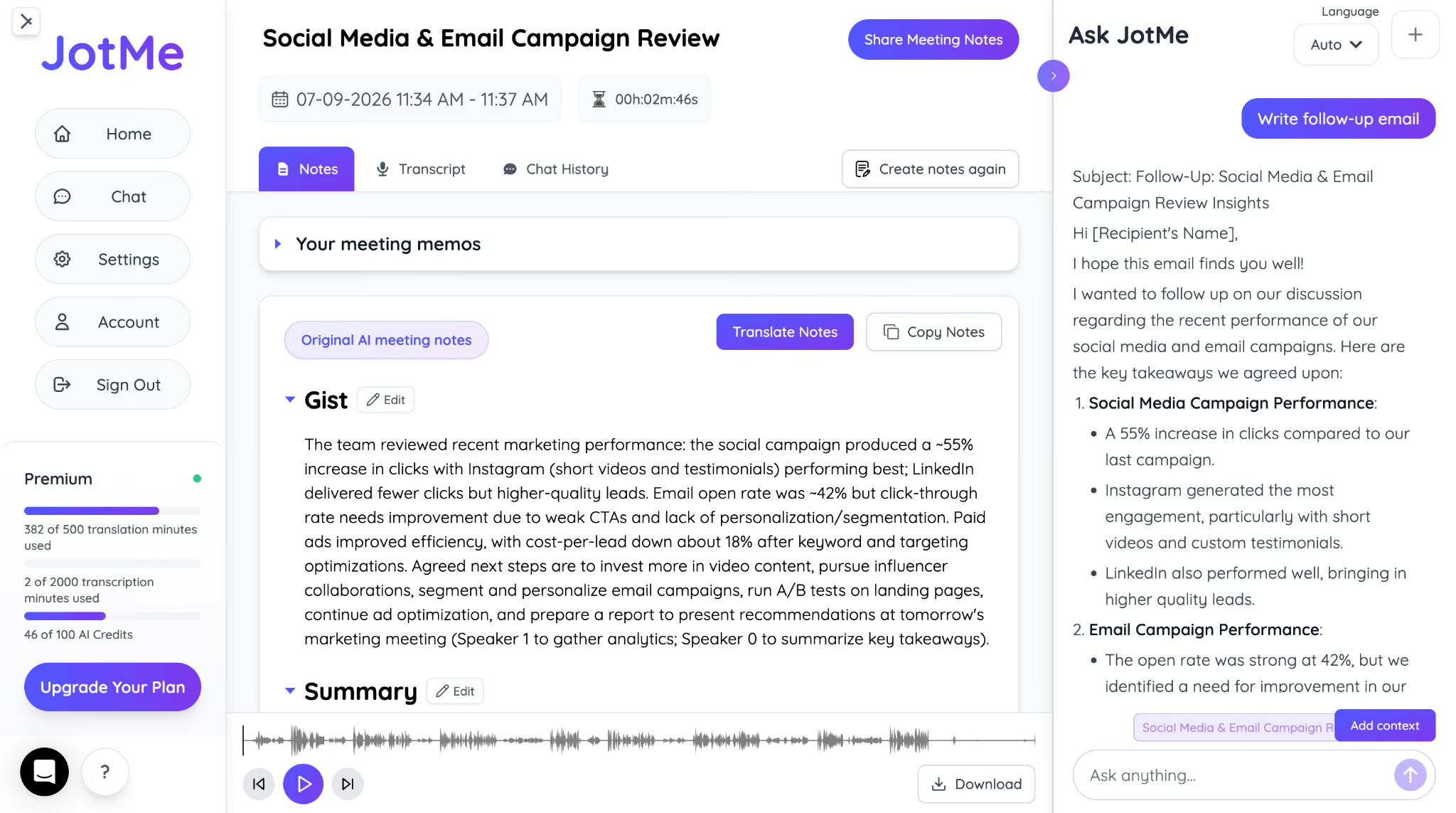
Step 4: Once the meeting ends, share the AI-generated meeting notes and transcript so everyone stays on the same page.
What Should You Look for in Windows Translation Software
When choosing the best live translation apps for Windows, look for software that delivers fast, accurate translations, understands context, works across popular meeting platforms, and provides transcripts and AI meeting notes. These features make conversations easier to follow and help you stay productive after the meeting ends.
Fast, Real-Time Translation
A desktop live translator should keep up with the conversation. If translations appear several seconds late, people move on before you've finished reading, making meetings harder to follow.
Contextual Translation
The best translation software understands the meaning behind a sentence instead of translating every word literally. That's especially important when people use idioms, technical terms, or industry-specific language.
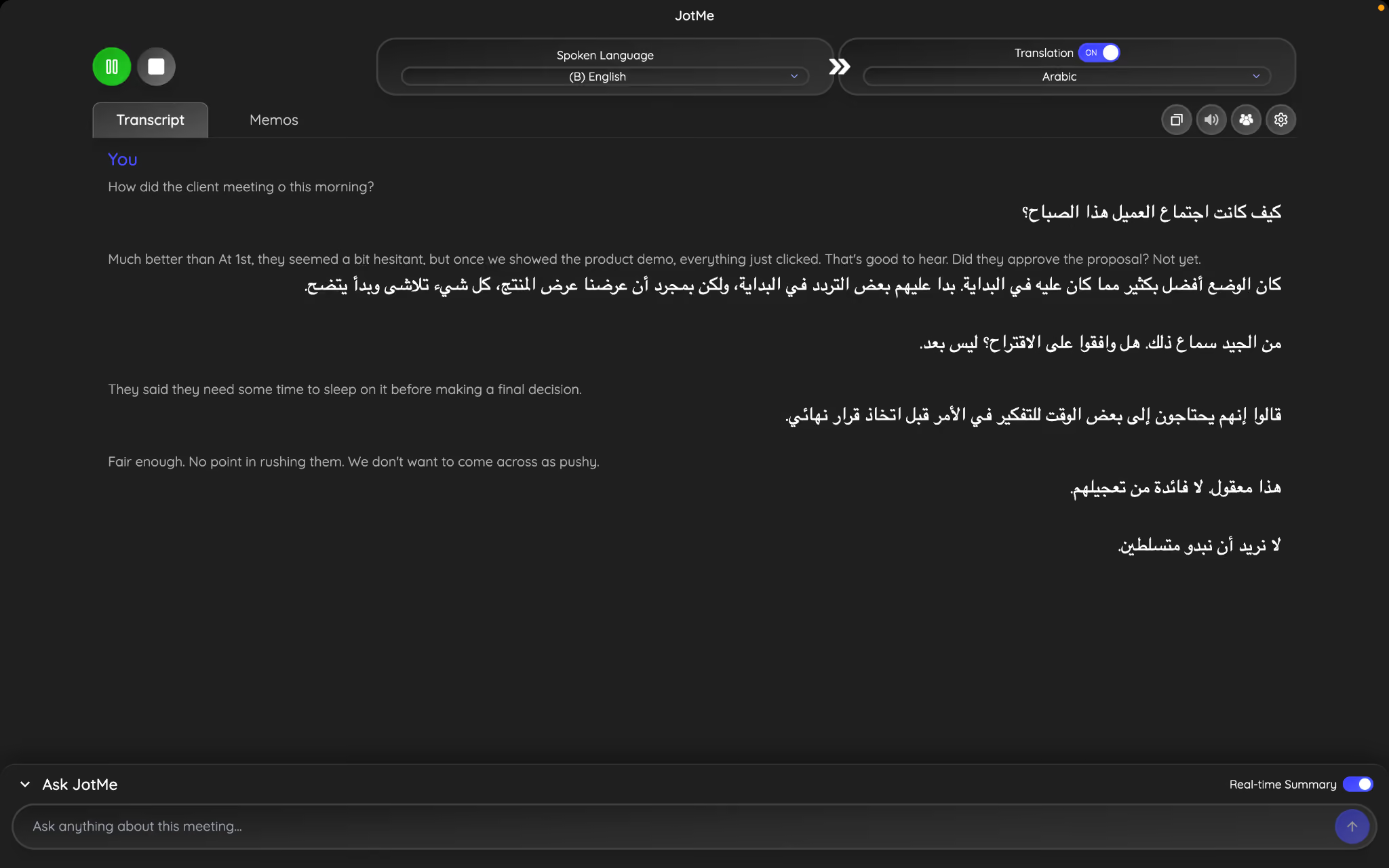
During testing, JotMe handled contextual translation surprisingly well. Instead of translating every word literally, it recognized the meaning behind common expressions and produced translations that sounded natural in the target language. This is especially useful when conversations include idioms, business phrases, or industry-specific terminology.
For example, when someone says, "They said they need some time to sleep on it before making a final decision." Rather than translating "sleep on it" word for word, JotMe correctly interpreted it as taking time to think before deciding and translated it into Arabic as:
The translation preserved the intended meaning, making it sound like something a native Arabic speaker would naturally say rather than a direct, literal translation.
Accurate Business Terminology
Numbers, product names, and technical terms should stay accurate. Whether you're speaking with clients, suppliers, or global teammates, even a small translation mistake can create unnecessary confusion.
Works Without a Meeting Bot
Some live translation software for Windows joins your meeting as a bot to capture audio. JotMe works differently. JotMe captures system audio directly, so you can use it across Zoom, Microsoft Teams, Google Meet, and Webex without adding another participant to the call.
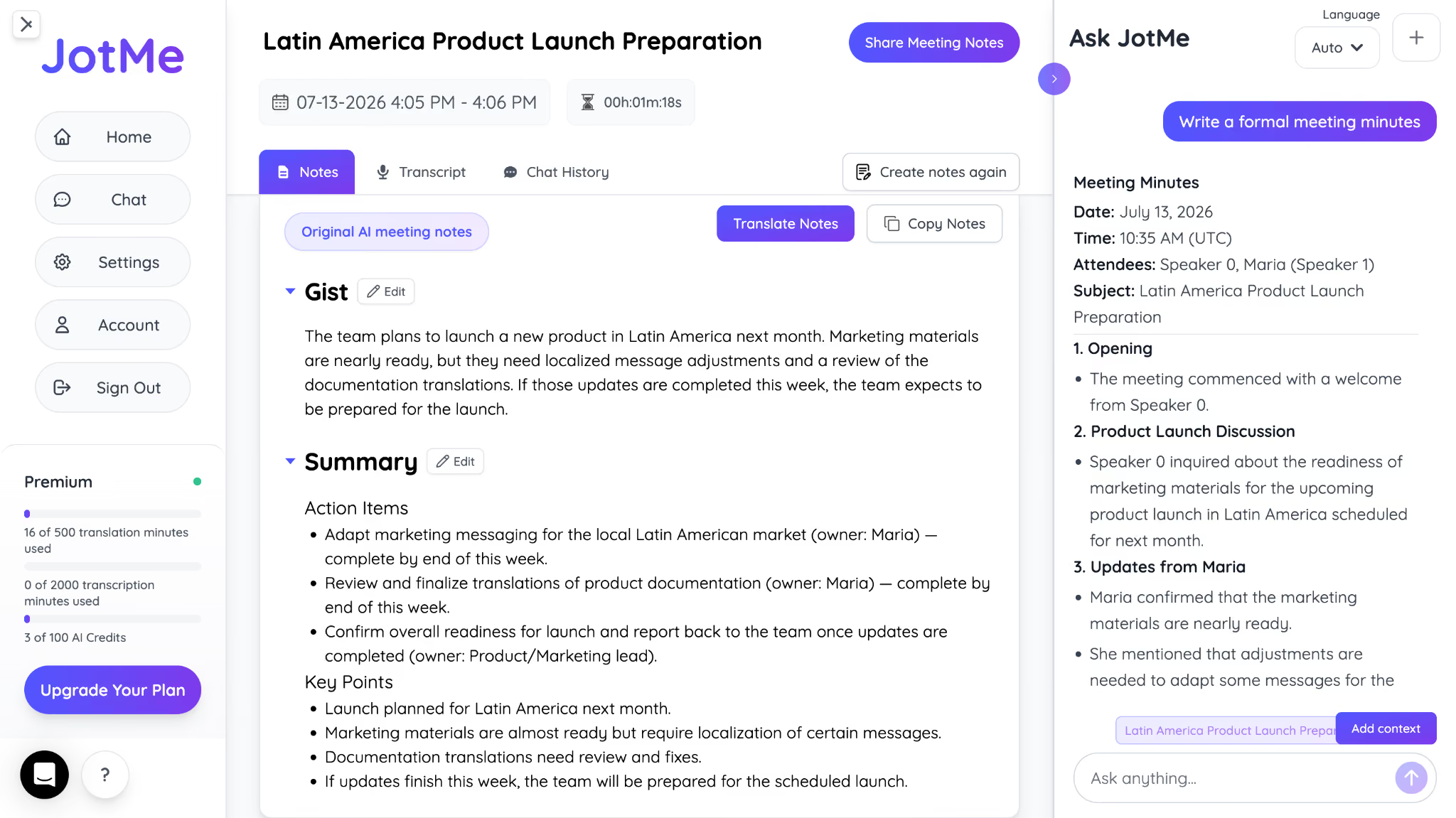
Transcripts and AI meeting notes
Translation is only part of the job. After the meeting, you'll probably want to review what was discussed or share notes with your team. JotMe automatically saves the transcript, identifies speakers, and generates AI meeting notes, so nothing gets lost once the call ends.
If you regularly work with people who speak different languages, these features make the difference between a basic Windows Live translator and a complete live translation app for Windows.
Interpretation vs. Word-for-Word Translation on a Live Call
When you're speaking with someone in another language, you don't want every word translated. You want your message understood.
Imagine you're presenting to a client in Spain and you say, "Let's circle back to this tomorrow." A word-for-word translation can make it sound like you're asking everyone to walk in a circle. What you actually mean is, "Let's discuss this again tomorrow."
Or say you're on a call with a supplier in China and you tell your team, "We're in the same boat." If the translator converts each word literally, the sentence makes little sense. A contextual translator understands you're saying everyone is facing the same situation.
The same happens with everyday business phrases like "I'll take care of it," "We're on the same page," or "Let's keep the ball rolling." Literal translations often miss the intended meaning, even when every word is technically correct.
This is especially important for cross-cultural business communication, where idioms, tone, and etiquette can vary as much as the language itself. Instead of translating one sentence at a time, JotMe looks at the conversation as a whole.
JotMe considers who is speaking, what has already been discussed, and the surrounding context before generating the translation. Here is how JotMe captured context:
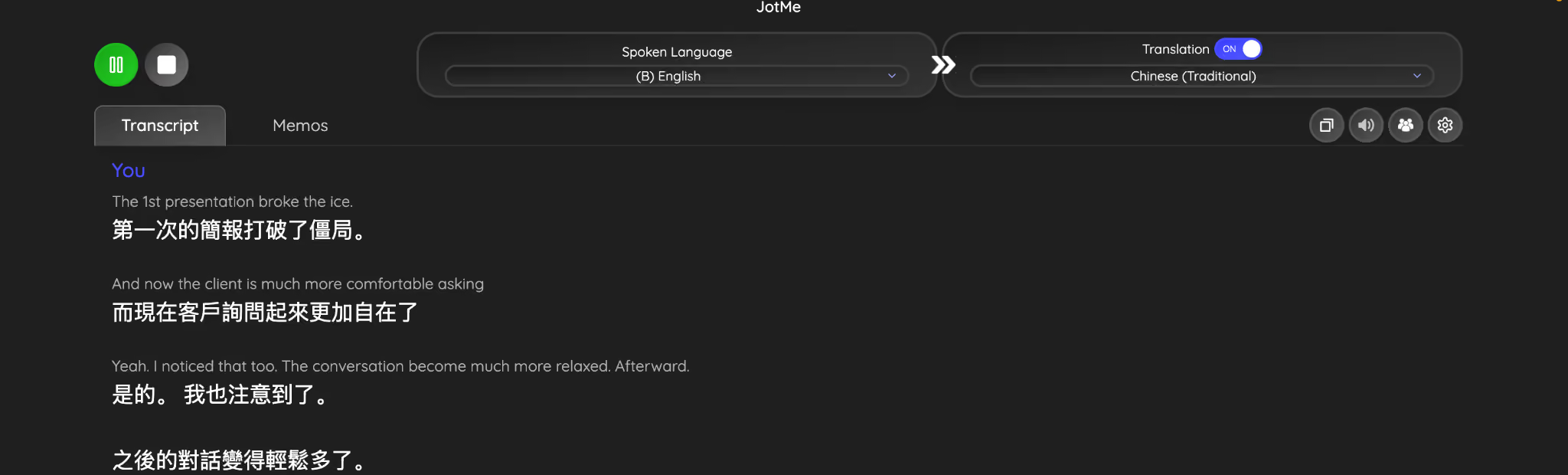
The result is a conversation that sounds natural, whether you're translating from English to Spanish, from Chinese to English, or from one of JotMe's 200+ supported languages.
Who Needs Live Translation on Windows
Anyone running a multilingual meeting on a Windows PC needs live translation. Most enterprise laptops run Windows, which means most cross-border business calls happen on hardware that Windows' own native translation doesn't fully support yet.
A language barrier in the workplace can slow projects, create misunderstandings, and make global collaboration more difficult. Live translation helps teams communicate clearly without relying on a human interpreter.
How Much Does a Windows Live Translator Cost
The answer depends on which Windows Live translator you choose.
If you use Windows Live Captions, the live caption feature itself is free. However, live translation is only available on Copilot+ PCs. If your current laptop uses an Intel or AMD processor, upgrading to compatible hardware can cost far more than the translation feature itself.
JotMe takes a different approach. It works on Intel, AMD, and Copilot+ Windows PCs, so you can start using live translation software for Windows without buying a new device. If you also switch between Windows and macOS, the same account works with live translation for Mac, making it easier to stay productive across devices.
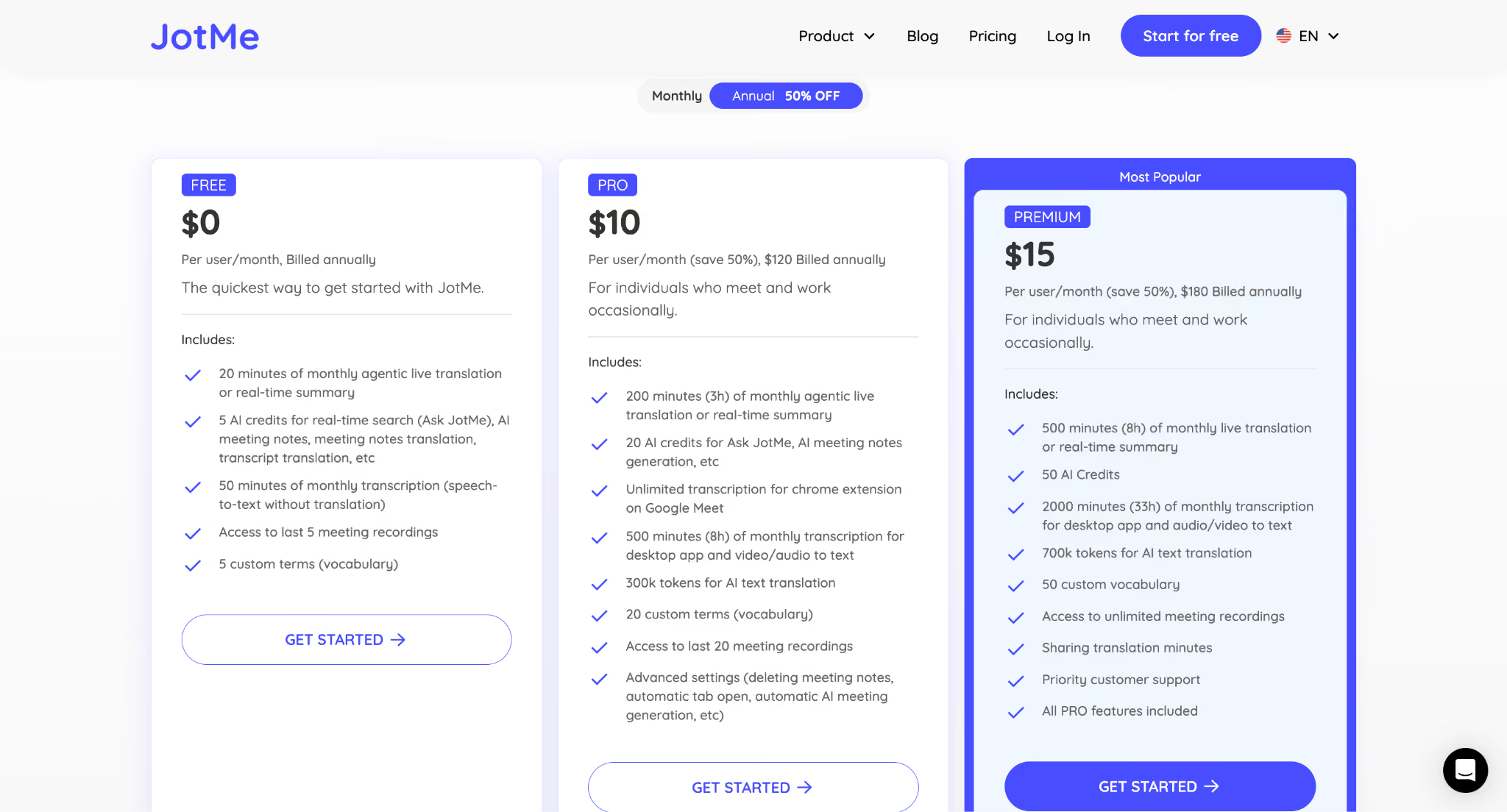
Here's what JotMe includes in different plans:
Which Windows Live Translator is Right for You
If you only need live captions while watching videos or listening to audio on a compatible Copilot+ PC, Windows' built-in translator may be enough. But if your day involves multilingual meetings, client calls, interviews, or sales conversations, you'll need more than captions.
A dedicated Windows Live Translator should help you overcome the language barrier in the workplace. It should understand context, support the languages your team actually speaks, and give everyone a transcript and AI meeting notes after the conversation ends.
JotMe brings all of that together in one platform. It delivers contextual live translation, speaker-labeled transcripts, and AI meeting notes across Zoom, Microsoft Teams, Google Meet, and Webex on any Windows PC.
Start with JotMe's free plan and see how much easier multilingual meetings become when everyone can follow the conversation in their own language.
FAQs
Can Windows Live Captions translate languages?
Yes, Windows Live Captions can translate spoken audio into text in real time, but only on supported Copilot+ PCs. The feature currently translates over 40 languages into English and supports translation into Simplified Chinese for a smaller set of languages. If you need translations in languages like Spanish, French, Arabic, Japanese, or Hindi, you'll need a dedicated translation solution like JotMe that supports 200+ languages.
Do I need a Copilot+ PC to translate live on Windows?
It depends on which tool you use. Microsoft's built-in Live Captions translation requires a Copilot+ PC because it relies on the device's neural processing unit (NPU). If you are using JotMe, you don't need Copilot+ hardware. JotMe works on Intel, AMD, and Copilot+ Windows PCs while providing live translation, transcripts, and AI meeting notes.
Can I translate a Teams meeting in real time on my PC?
Yes, you can translate Microsoft Teams meetings in real time using JotMe. The app captures meeting audio directly from your computer instead of joining the meeting as a bot. It supports contextual translation, identifies speakers, and automatically generates transcripts and AI meeting notes after the meeting ends.
Is there a free live translator for Windows?
Yes, Windows Live Captions is included with Windows 11 at no additional cost, but live translation requires a compatible Copilot+ PC. JotMe also offers a free plan that includes 20 minutes of live translation and 50 minutes of transcription each month, making it an option for Windows users without upgrading their hardware.
Does JotMe work on Windows without a bot in the meeting?
Yes, unlike many meeting assistants, JotMe doesn't join your meeting as a participant. Instead, JotMe captures your computer's system audio directly, allowing you to translate conversations across Microsoft Teams, Zoom, Google Meet, Webex, Slack Huddles, Discord, and other calling platforms without adding a bot.
Last updated on
July 29, 2026
Follow us on social media: