




Tips
How to get Real-Time Meeting Translation on Bitrix24

Viraj Mahajan
October 24, 2025
Quick Answer: To get real-time Bitrix24 meeting translation online, open JotMe on the side when you start a meeting on Bitrix24. Choose the spoken language and the translation language, and click the start button. You will get real-time translation, summary in bullet points, and AI insights.
Bitrix24 currently does not support real-time call translation, and integration with Zoom for online meetings is only accessible for premium users. So, for real-time Bitrix24 meeting translation online, JotMe can be the most reliable solution. JotMe does not require bot joining or calendar integration. Start Bitrix24 call, open JotMe on the side, choose spoken & translation language, click the start button, and get real-time translation with context.
This article will show a simple step-by-step guide for live Bitrix24 meeting translation and how JotMe improves your translation experience with AI insights, contextual translation, and more. First, let's understand where Bitrix24 lacks during live meetings.
Can Bitrix24 do Call Translation in Real-Time?
No, Bitrix24 cannot do call translation in real-time. It integrates with Zoom, but it is only accessible for premium users, which may seem costly at $61/month for small organizations. Also, its AI CoPilot feature for transcription and meeting summary is in its beta version, which has not yet been launched, to get the maximum out of your meeting without taking manual notes. Here are some limitations that make third-party tool integration necessary for real-time translation.
- Bitrix24 does not support live call translation for now.
- Bitrix24's Zoom integration for meetings and better communication with transcription is only available for subscribers.
- The CoPilot feature for after-meeting transcription and meeting notes is not live yet.
- Recording an online meeting is not possible on the web; you need a desktop app.
- It offers a note-taking feature, but you can add them manually, which may distract your attention from the meeting, and you may miss important points.
How to Use JotMe for Real-Time Bitrix24 Meeting Translation Online?
After starting a video or audio call with your team, open JotMe on the side to capture your word-for-word conversation and translate it into your desired language. Here is the step-by-step guide to get real-time Bitrix24 call translation online:
Step 1: Set up a Bitrix24 Account
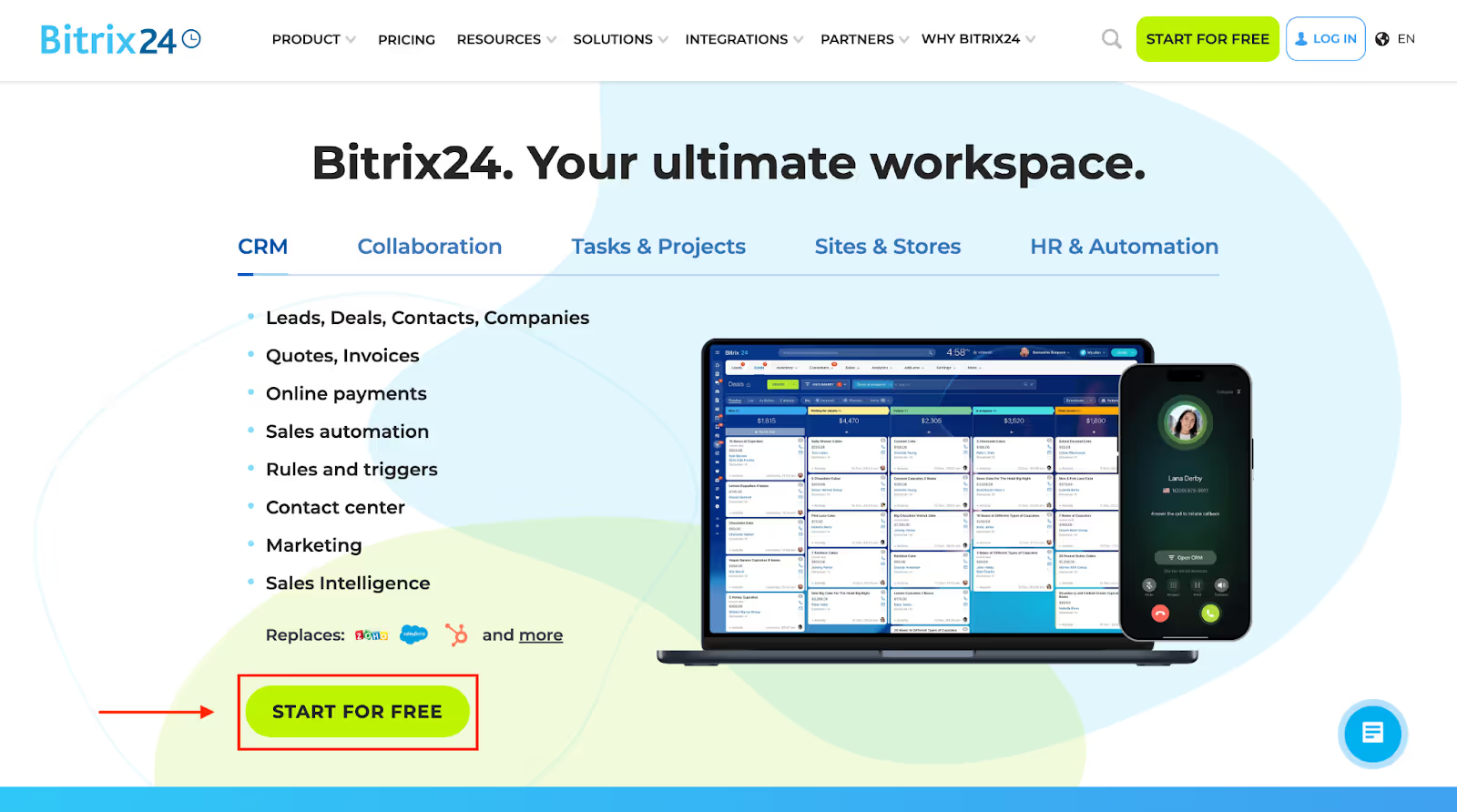
Visit the official website of Bitrix24 and click on "Start For Free." Complete the sign-up process, and you can access your dashboard.
Step 2: Invite Teammates for Call
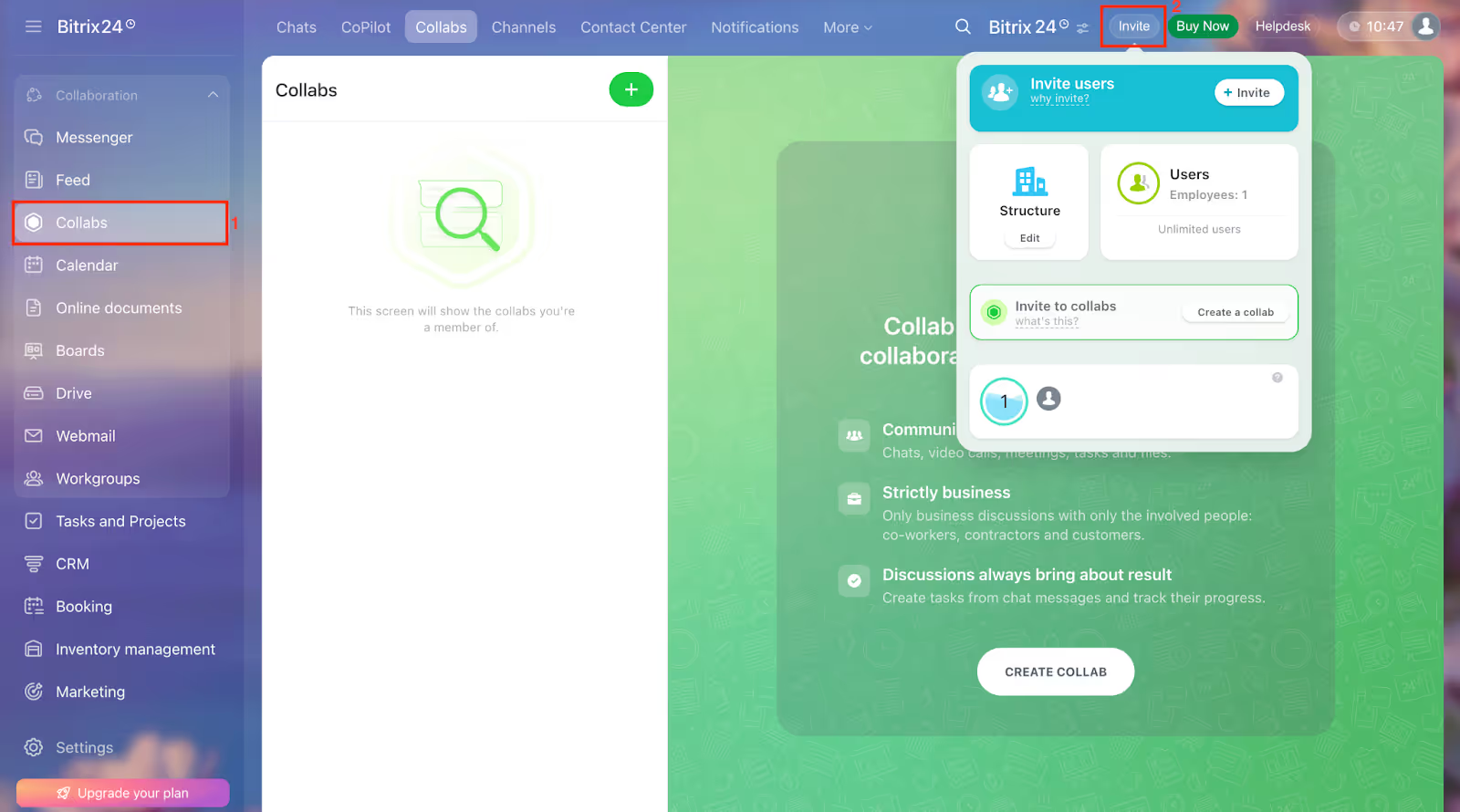
On the dashboard, click "Collabs" or simply click "Invite" from the upper menu. You can simply copy the invite link, share via email, or invite via message.
Step 3: Start the Call and Launch JotMe
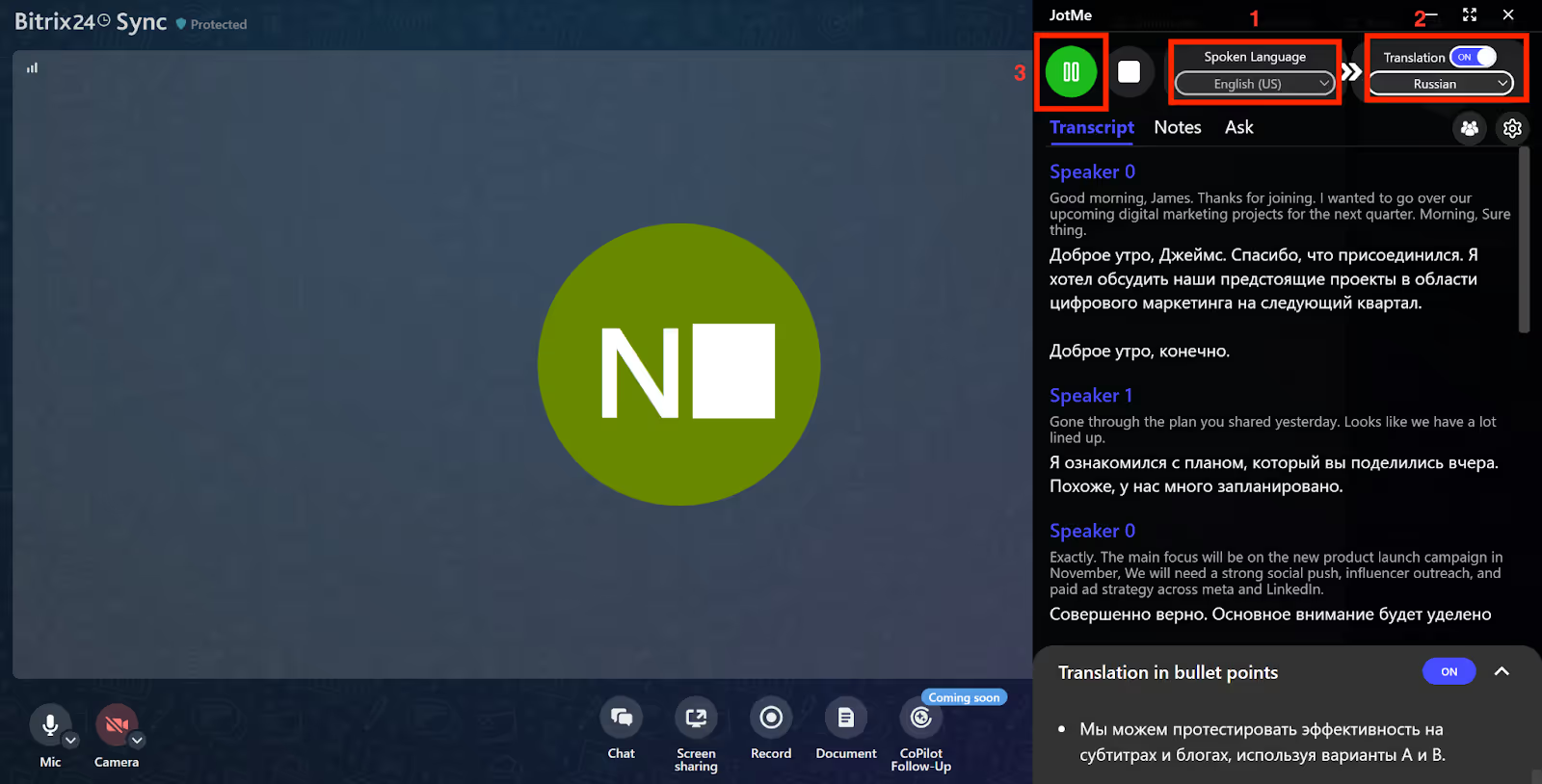
Start the video call, launch JotMe when you start a conversation, and open JotMe on the side. Choose the spoken language, the translation language, and click the "Start" button. You will see the real-time translation along with your conversation.
How JotMe Improves Your Bitrix24 Meeting Translation Experience?
JotMe can improve your Bitrix24 meeting translation experience by offering live multilingual translation with context, multilingual meeting transcription, quick meeting summary, and shareable meeting notes. Here are features of JotMe that add a better experience to your Bitrix24 calls with a meeting:
Contextual Translation
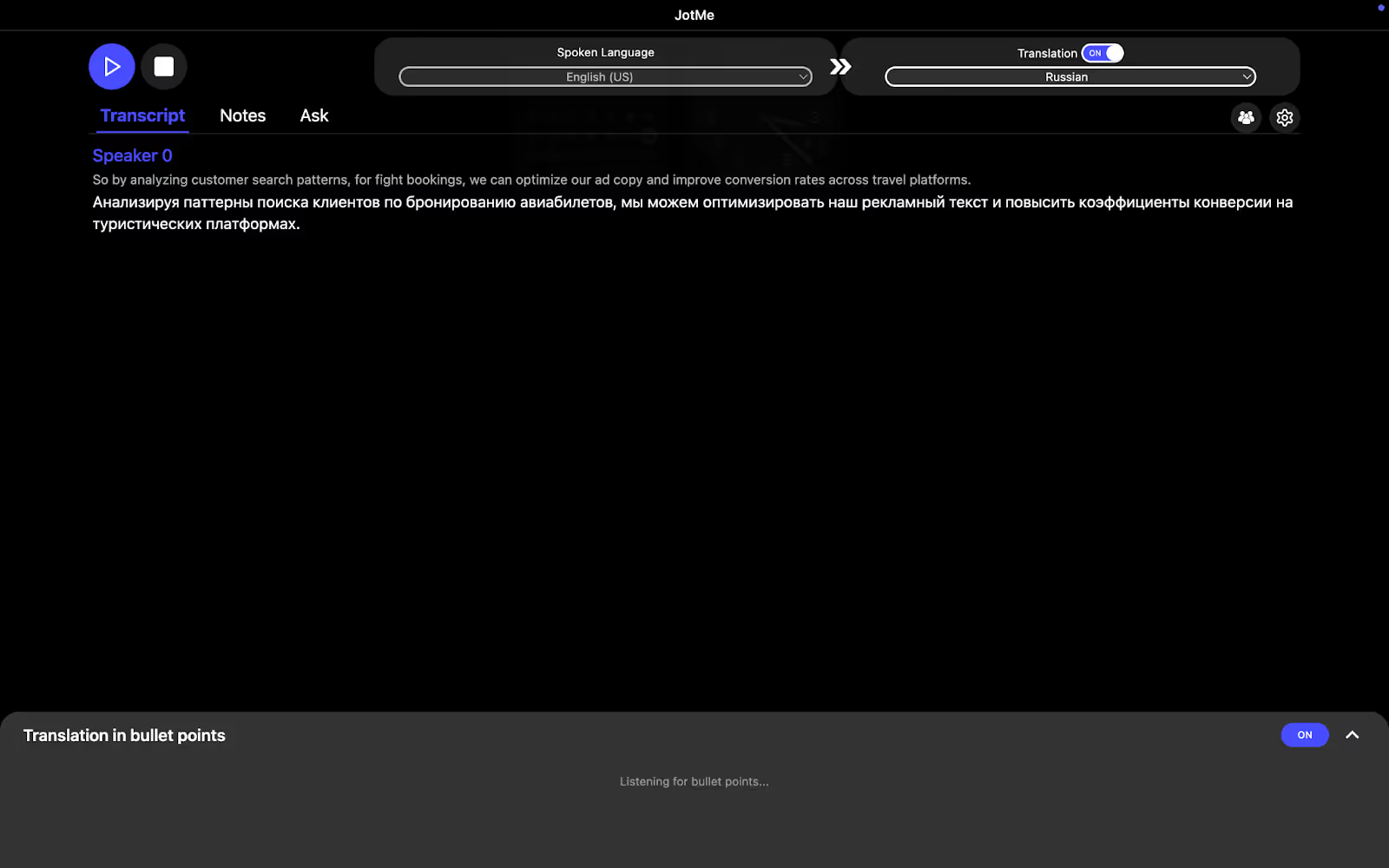
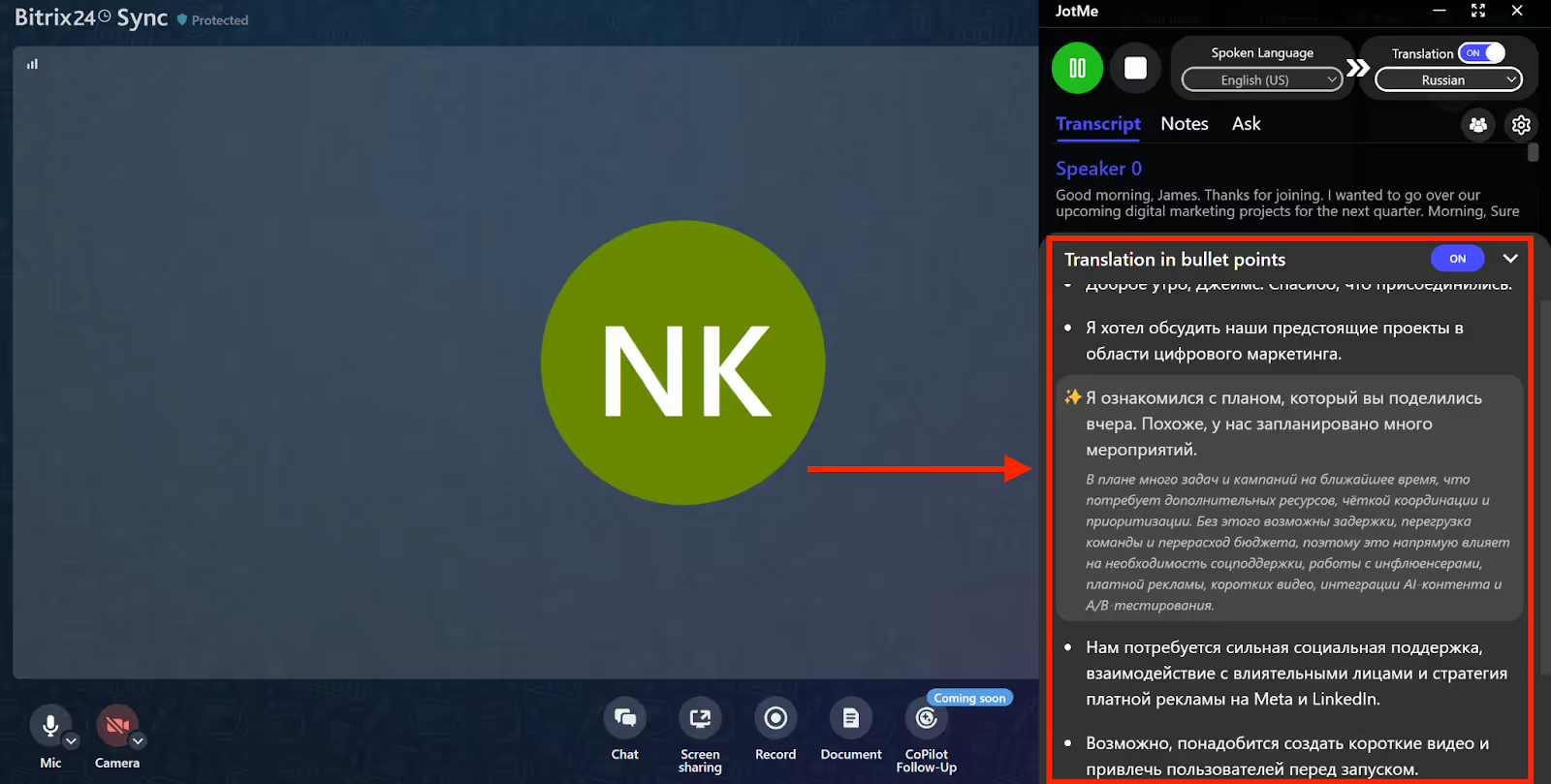
Unlike basic translators that swap words without understanding meaning, JotMe analyzes the conversation's tone, flow, and industry-specific terms to deliver natural live translations. If someone accidentally says "fight" instead of "flight" during your Bitrix24 call, JotMe catches the context and automatically corrects it and translates it as “airline.” This means you're never lost trying to decode awkward, literal translations that don't make sense.
Conversation in English:
“By analyzing customer search patterns for flight bookings, we can optimize our ad copy and improve conversion rates across travel platforms.”
JotMe contextual translation in Russian:
“Анализируя паттерны поиска клиентов по бронированию авиабилетов, мы можем оптимизировать наш рекламный текст и повысить коэффициенты конверсии на туристических платформах.”
AI Meeting Insights with Translation in Bullet Points
Long paragraphs of translated text can be overwhelming during fast-paced meetings. JotMe solves this by organizing live translation into easy-to-scan bullet points that highlight key discussion points. Didn't catch a technical term your teammate mentioned? Simply click on any bullet point, and JotMe instantly provides AI-powered explanations, like having Google at your fingertips without leaving the meeting.
Shareable Meeting Minutes
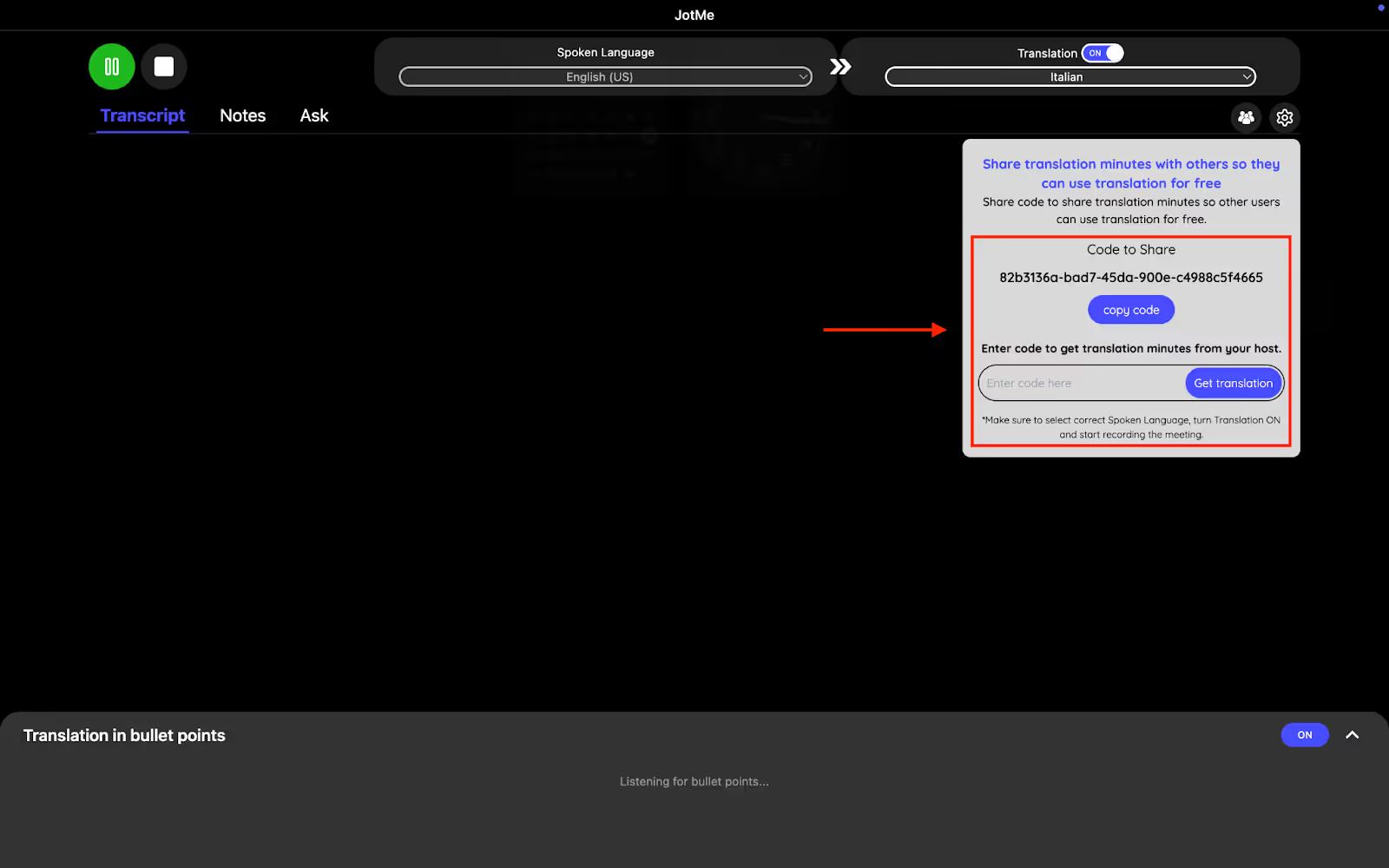
Not everyone on your Bitrix24 team needs a paid plan to benefit from JotMe. Once you start recording and translating, JotMe generates a unique share code. Anyone with this code can access real-time translations, meeting notes, transcripts, and summaries completely free. This makes collaboration effortless, ensuring everyone stays aligned regardless of their subscription status.
Meeting Notes Translation
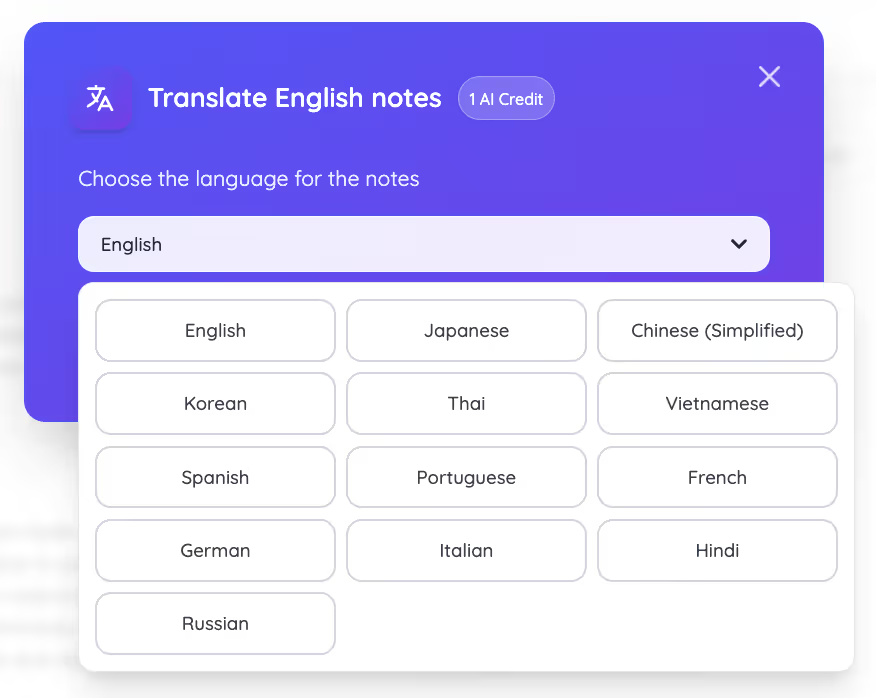
After your Bitrix24 call ends, JotMe’s AI meeting notes translator converts your meeting discussions into comprehensive notes in 13 languages, including English, Japanese, Chinese, Korean, Spanish, and more. You can translate these AI meeting notes into your preferred language, making it simple to share updates with global team members who speak different languages, all without manual rewriting.
Meeting Summary
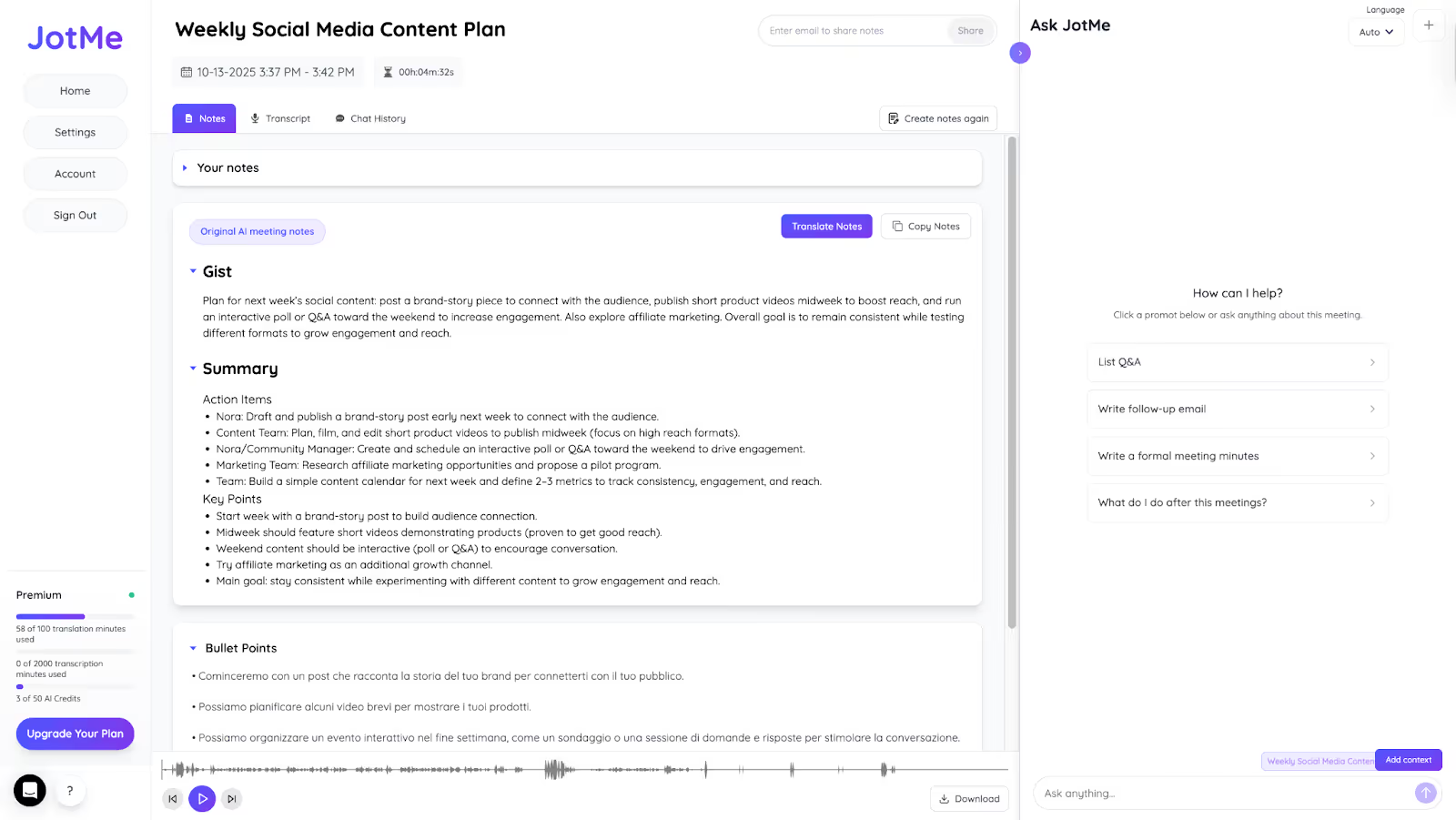
Meetings can get chaotic, especially multilingual ones. JotMe automatically summarizes your Bitrix24 conversations into three clear sections: Gist, Action Items, and Key Points. Instead of rewatching hour-long recordings to find what matters, you get organized AI meeting summaries that tell you exactly what was discussed, what needs to be done, and who's responsible, saving hours of follow-up time.
Conclusion
Getting real-time translation for Bitrix24 meetings is straightforward with JotMe. Since Bitrix24 lacks native live translation and limits Zoom integration to premium users, JotMe fills this gap. You get contextual translation that understands meaning, AI-powered insights in bullet points, shareable meeting minutes for your entire team, multilingual notes in 13 languages, and organized summaries with action items. Install JotMe today and experience seamless multilingual collaboration that keeps your global team connected and productive.
FAQs
How do I change the language in Bitrix24?
Bitrix24 does not support a live multilingual translation option. However, you can only change the language of the landing page to understand things in your own language. In the upper right corner, you see a globe icon; click that and choose a language.
Is Bitrix24 really free?
Yes, Bitrix24 offers a forever-free plan with unlimited users, including CRM, tasks, chat, video calls, and 5GB storage. You can upgrade later for advanced features, but the free version never expires.
Is Bitrix24 safe?
Yes. Bitrix24 uses SSL encryption, two-factor authentication, and daily backups. It's hosted on Amazon Web Services with HIPAA, GDPR, and ISO 27001 certifications. Your business data stays protected with enterprise-level security.
What is Bitrix24 used for?
Bitrix24 is an all-in-one business platform for CRM, project management, team communication, task tracking, document storage, and marketing campaigns. It replaces multiple tools, helping you manage daily operations from one central workspace.
How to use Bitrix24 project management?
Here is how to use Bitrix24 for project management:
- Go to the Tasks & Projects section and click "Create" to start a new project
- Add project name, team members, and set deadlines
- Create tasks within the project and assign them to specific people
- Add task details like checklists, attachments, and time estimates
- Choose your preferred view: Kanban boards for visual workflow, Gantt charts for timelines, or simple lists
- Drag tasks between columns as work progresses
- Track time spent on each task automatically
- Use built-in chat to discuss project details with your team directly
Last updated on
April 14, 2026
Follow us on social media:
![JotMe — Is Google Translate Accurate? [2026 Test]](/_webflow-assets/0d0512afc7b037d74dff536f22fed08f.avif)