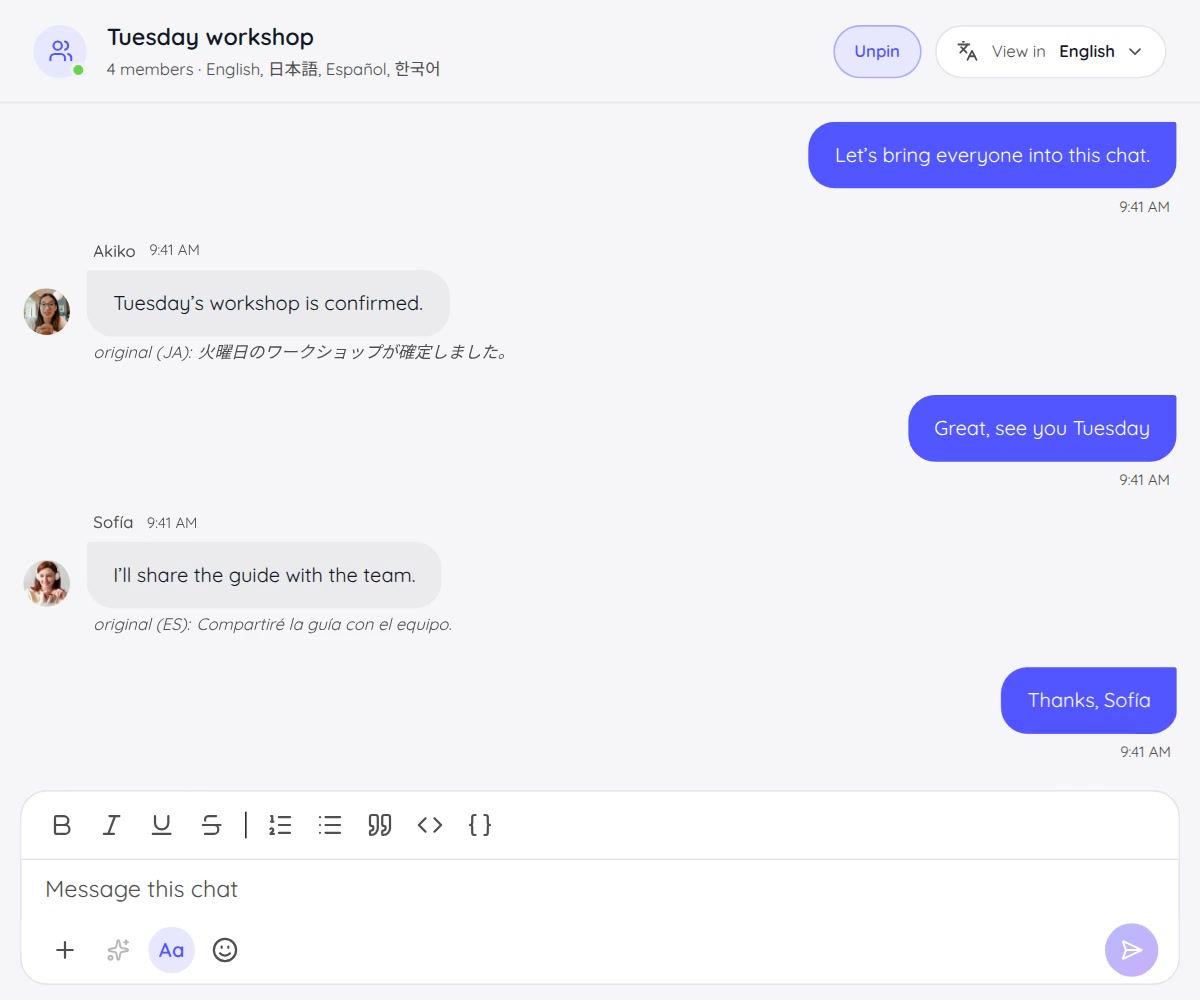








A multilingual conversation involves more than translating a sentence. People need to join the session, follow what is being said, hear a translated voice clearly, and use what they learn in their own work.
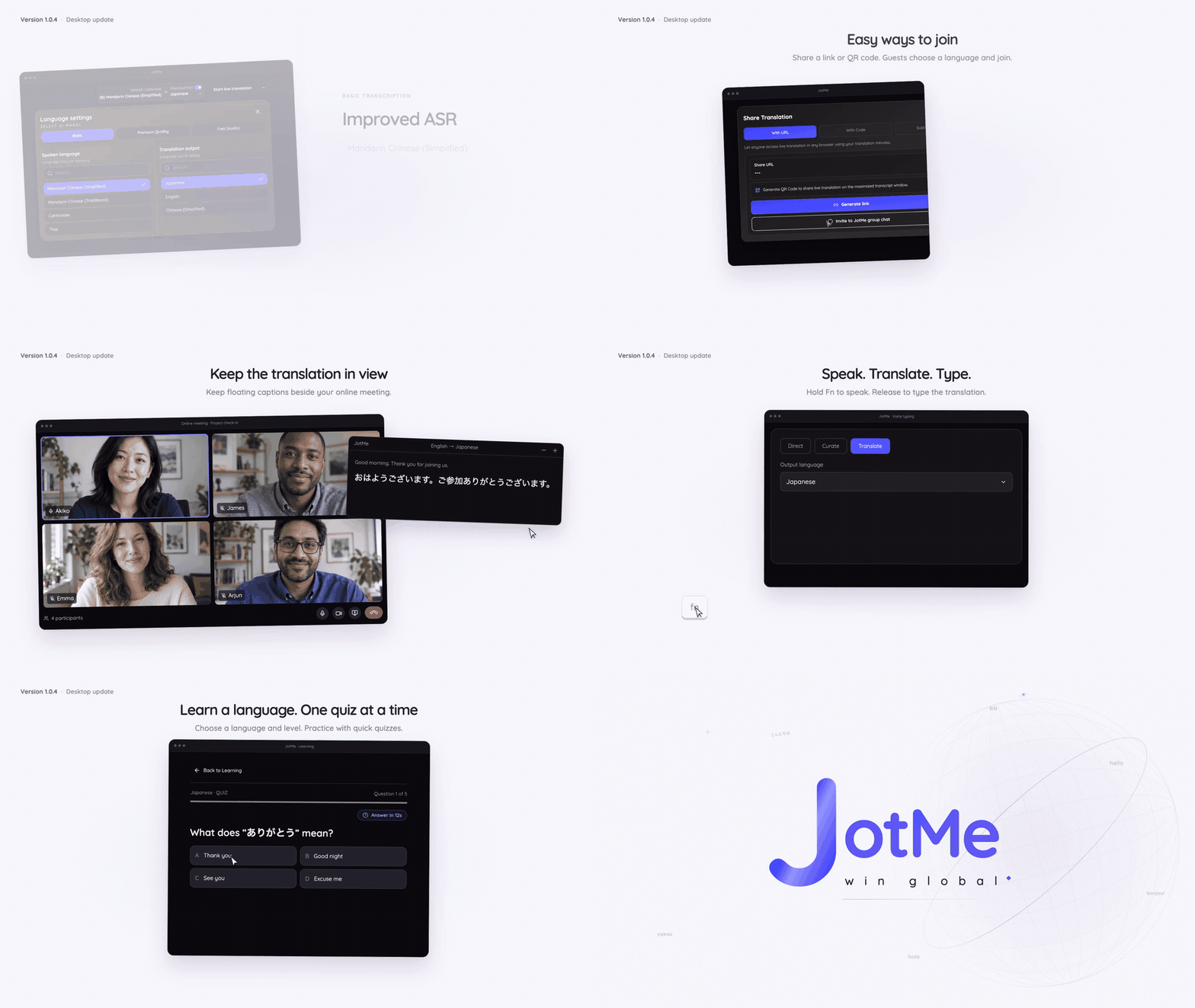
The latest JotMe desktop update brings those steps closer together: more spoken-language choices, simpler participant joining, floating translated captions, translated voice controls, translated voice typing, and language practice.
JotMe desktop v1.0.4 is available for Mac and Windows. Here is what you can do with the latest app, and where to find the setup guides.
More languages for Basic transcription
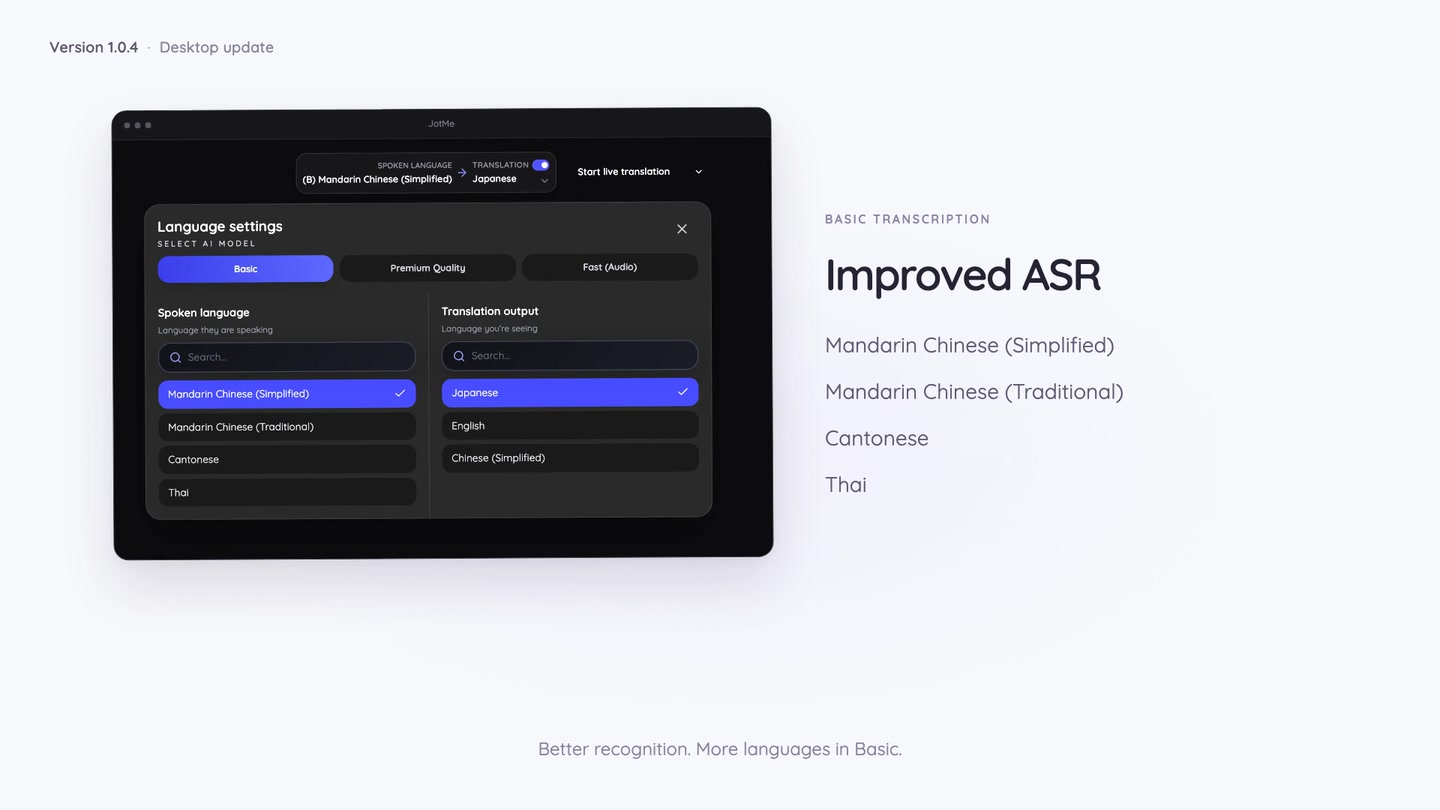
We have updated speech recognition in Basic for Mandarin Chinese (Simplified), Mandarin Chinese (Traditional), Cantonese, and Thai.
Basic transcription also adds ten spoken-language choices: Afrikaans, Armenian, Assamese, Georgian, Gujarati, Kazakh, Mongolian, Nepali, Pashto, and Punjabi.
When setting up live transcription or translation, choose the spoken language that matches the conversation. These additions belong to Basic transcription; voice-to-voice output has its own supported-language list.
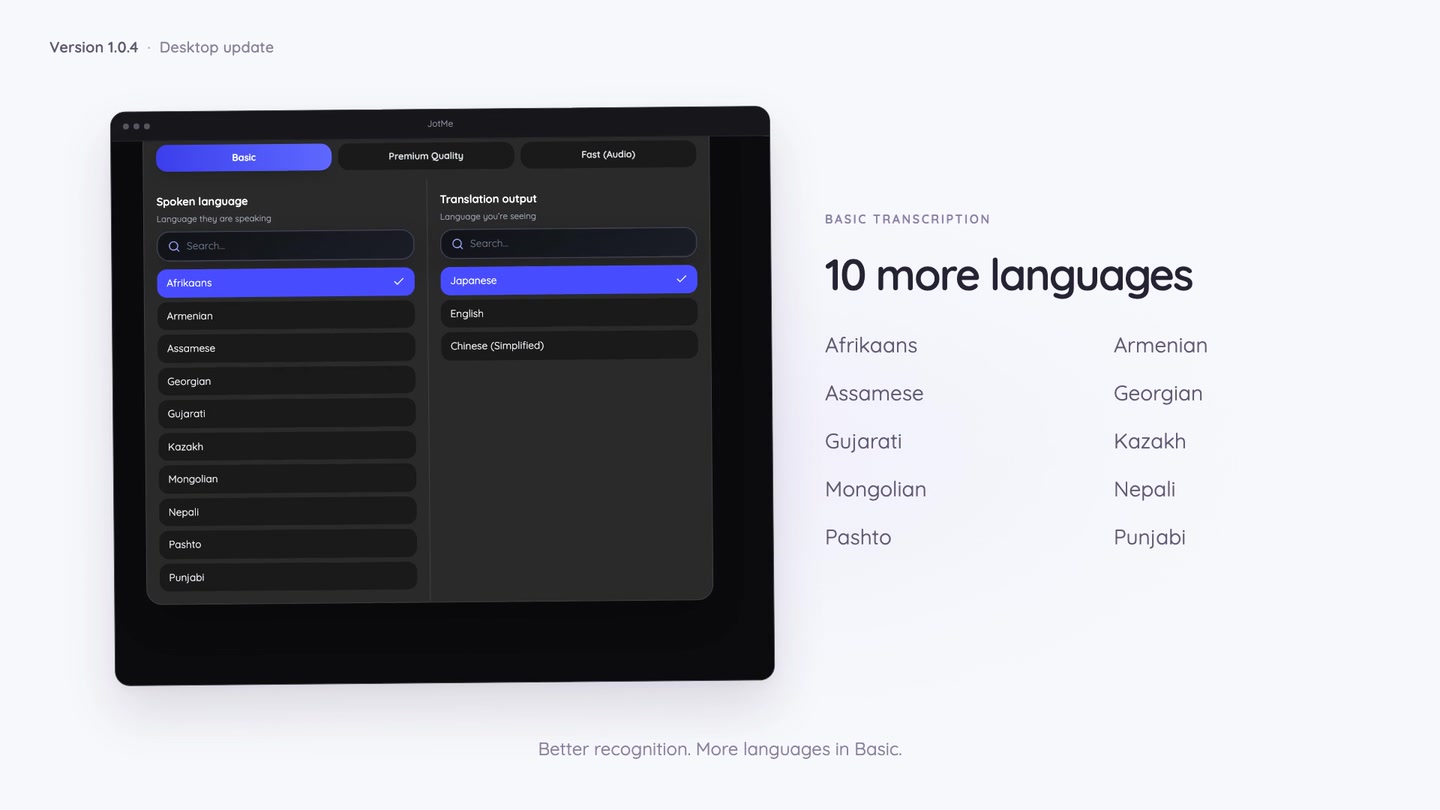
Check the complete language catalogue for the choices available in each feature, or follow the desktop transcription guide to set up your next session.
Simpler joining for participants
Joining a shared translation session should take as little preparation as possible, especially when your audience is opening the link on a phone or joining just before a meeting starts.
Hosts can configure the language choices offered on the join page. When language combinations are configured, participants can select a language button instead of filling out separate language menus. For Fast (Audio), they choose an output language while JotMe detects the spoken source.
Hosts can also turn off Require attendee email to let guests join without entering an email address. Participants can open a shared link or scan a QR code in their browser without creating a JotMe account.
The host decides whether email collection fits the session. Anonymous guests do not receive automatic post-session notes by email, and shared translation still uses the host’s minutes. Shared-language limits require Premium or above.
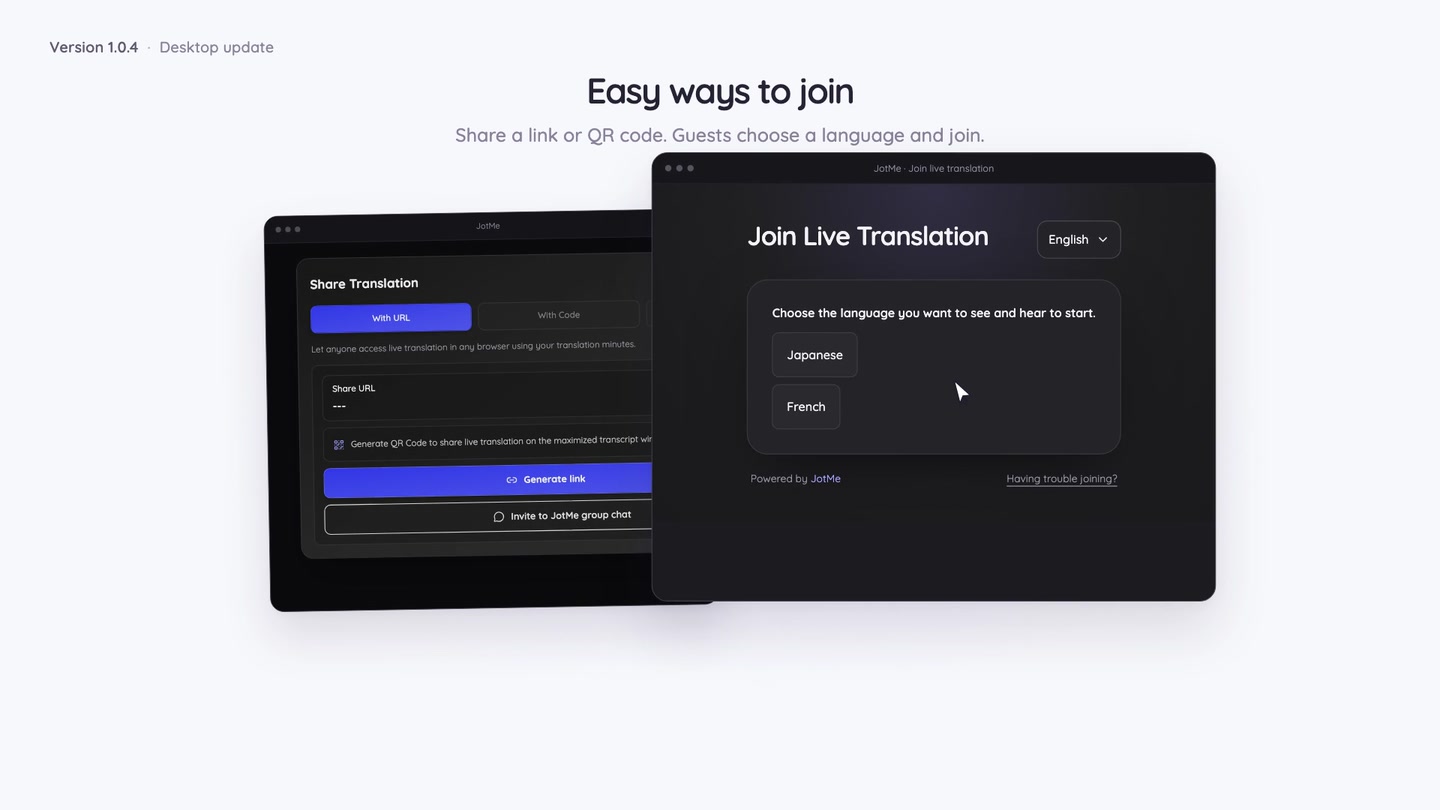
Follow the simpler joining guide for the settings, or see how to share translation with a URL.
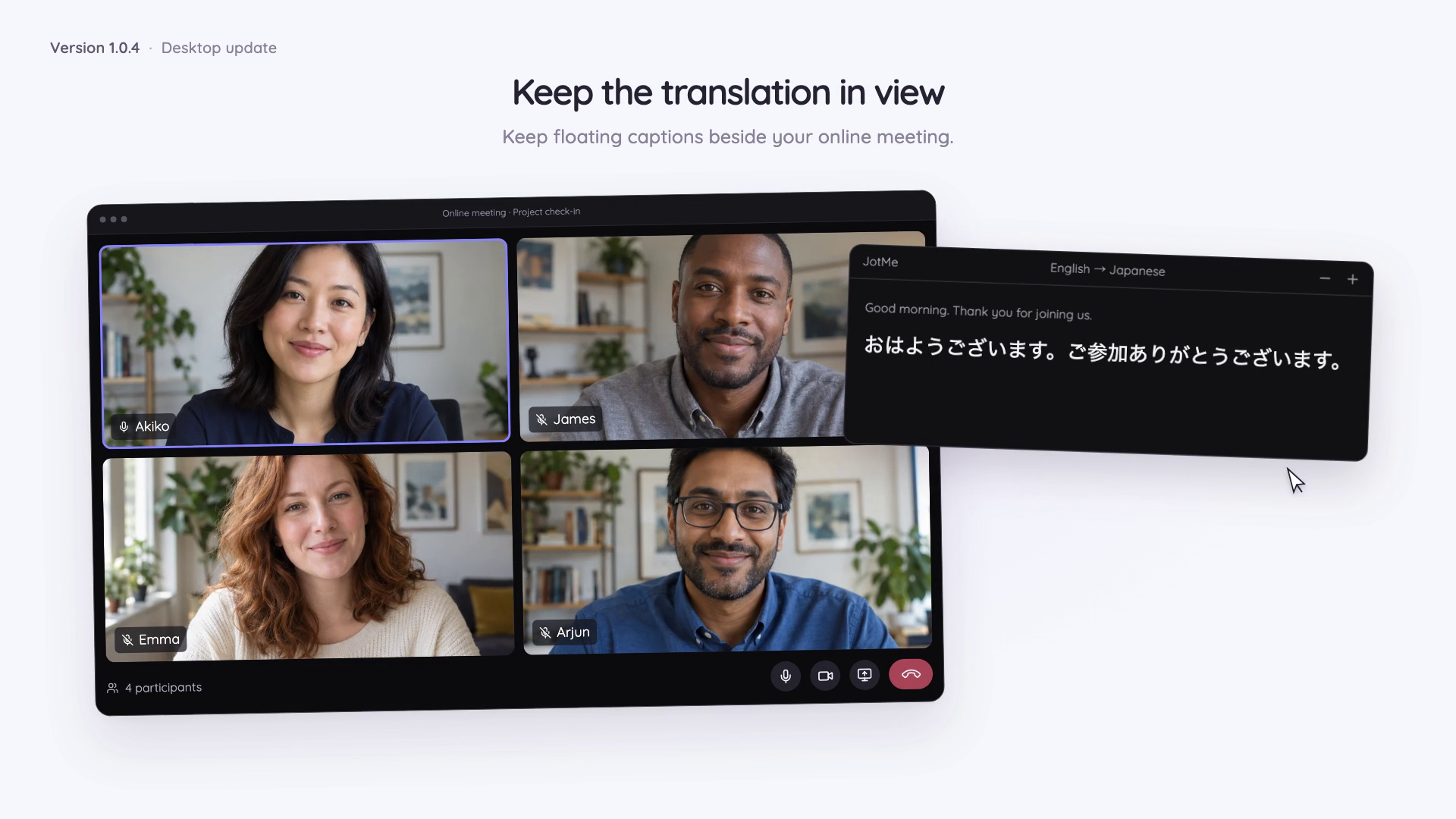
Floating translated captions over your other apps
A participant may need to watch a presentation, review a document, or stay in the meeting window while following the translation.
The shared translation page now offers Open floating view in supported browsers. It keeps translated captions in a small window above the participant’s other work. The window can be moved and resized.
Hover over the window, or focus its controls, to reveal the language direction and text-size controls. Original speech appears when the session’s display settings allow it. Moving away hides the controls to leave more room for translated captions.
Keep the main session tab open while using the floating view. Closing the small window returns you to the main page without ending the host’s session.
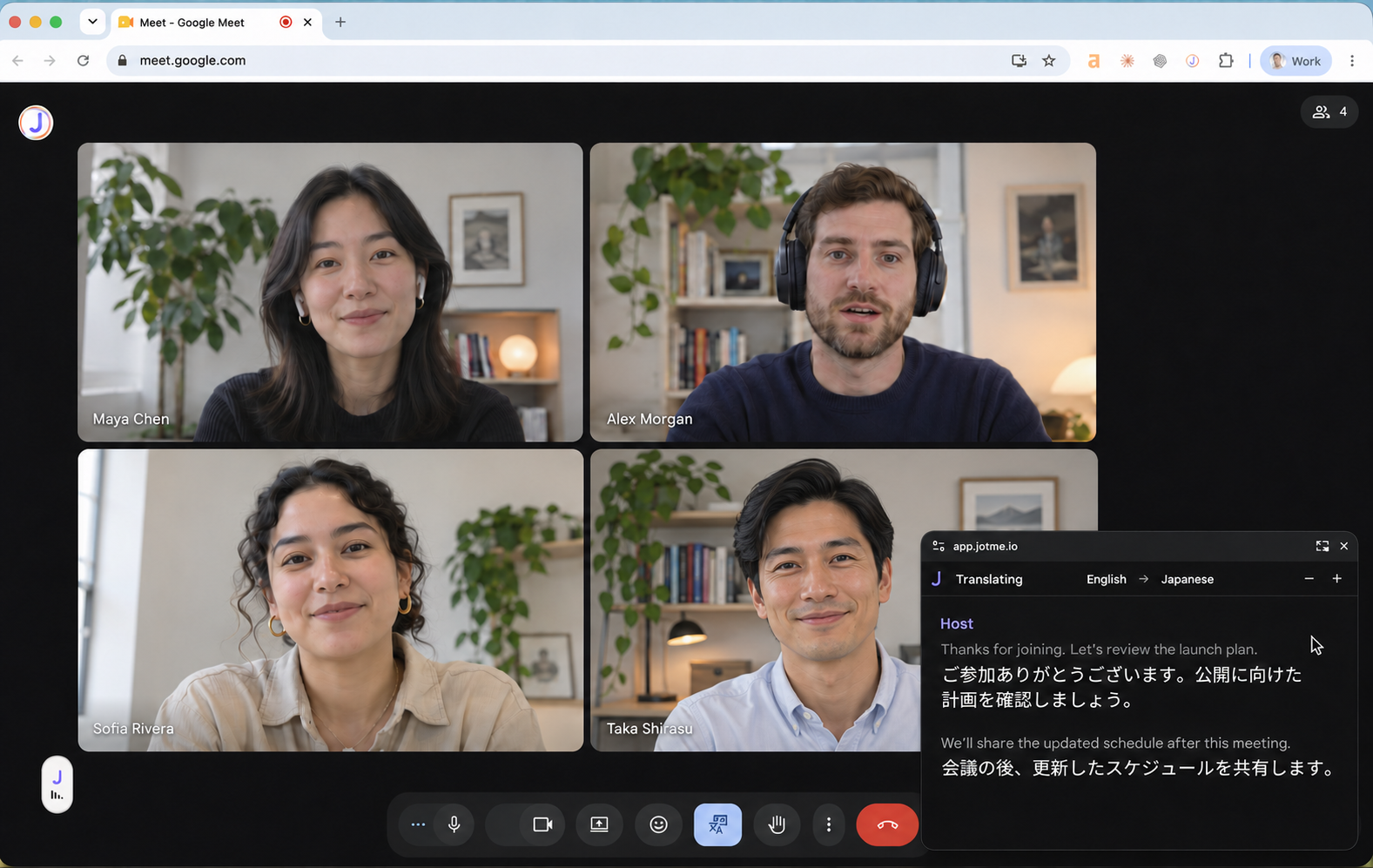
See the floating captions overview and the participant floating-window guide.
More control over translated voice
Translated voice volume can now be set up to 300%. In two-way online meetings, separate incoming and outgoing controls let you adjust what you hear and what the other side hears.
The default is 300% when you have not saved a volume preference. Existing saved settings stay the same. These controls affect translated speech; your original microphone and meeting audio keep their own settings.
You can also adjust the wait for voice playback. A shorter wait favors quicker responses, while more buffering can make playback smoother. This setting applies to two-way meeting translation and shared web listeners; it changes playback timing rather than translation accuracy.
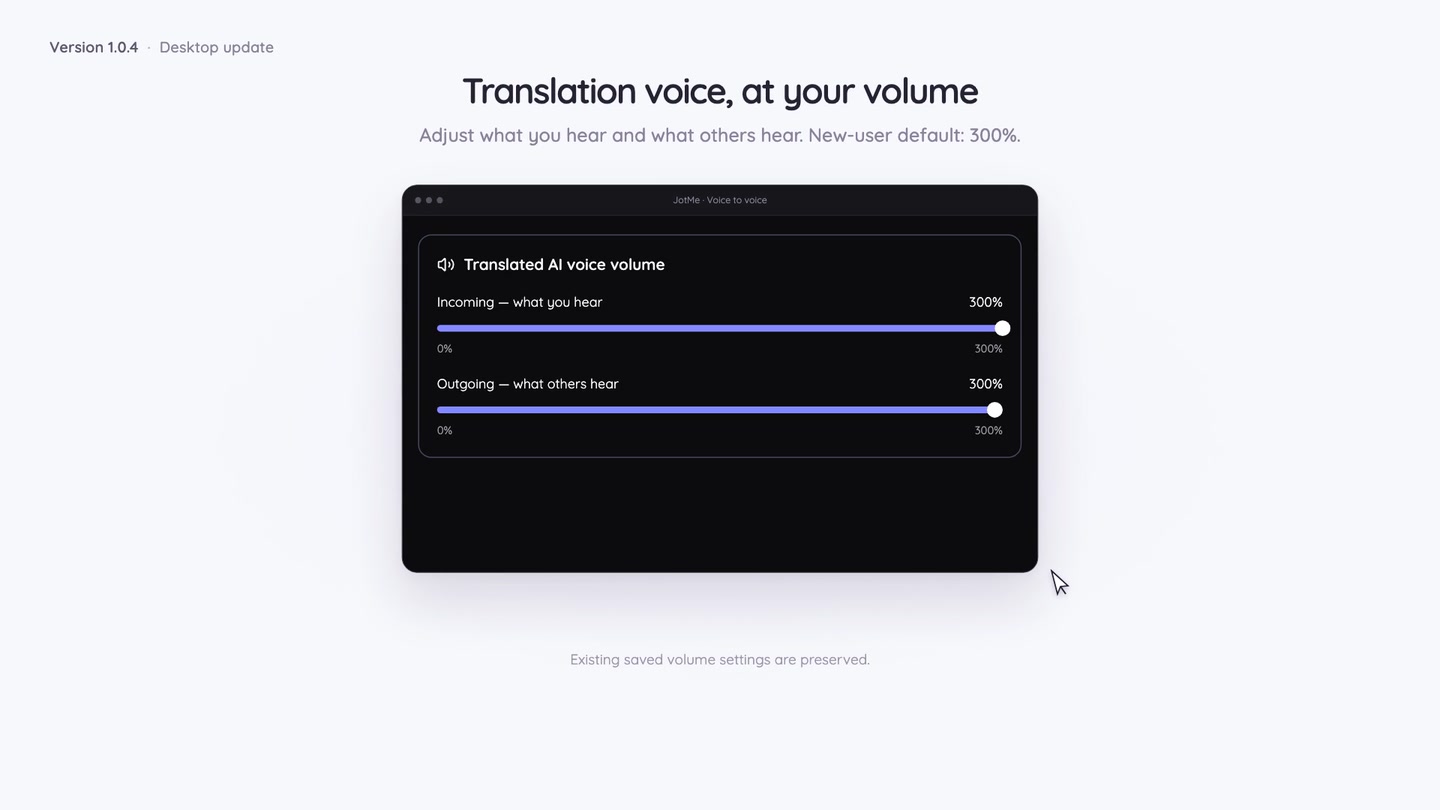
Follow the translated voice volume guide and the faster or smoother playback guide.
Speak in your language and type in another
Translated voice typing helps with the messages and documents around a meeting.
In Voice typing, select Translate and choose an output language. Place your cursor in the app where you want the text, hold Fn on macOS or Ctrl + Win on Windows, and speak. Release the shortcut to insert the translated text at your cursor.
For example, you can dictate a follow-up in your own language and insert the translation into an email or document. The output language is saved for your next dictation, and history lets you review the original wording.
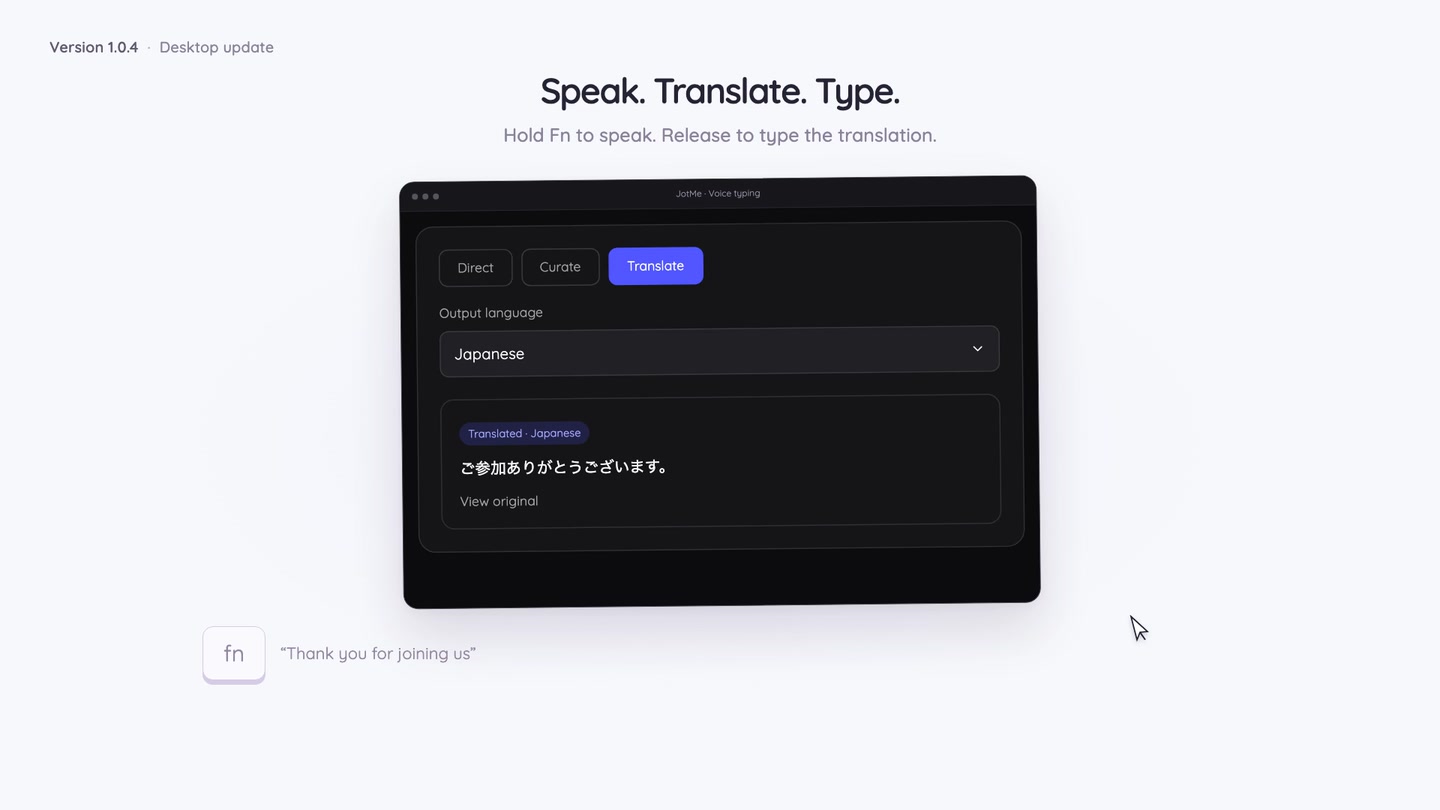
This feature creates written text. For spoken translated audio, use voice-to-voice translation. The translated voice typing guide covers the controls and required setup.
Language practice around your work
Open Learning in the desktop sidebar to practice a language with quizzes. Choose the language and difficulty, then optionally describe a topic from your work, such as a sales call, a presentation, or a conversation with a client.
Answer the questions, review the explanations, and revisit your quiz history to practice again. Creating new quizzes and requesting AI explanations uses your chat-token allowance; saved quizzes can be reused without generating a new set.
Optional learning reminders can turn selected browsing time into a quiz break. You choose the sites and timing, and can use quizzes without enabling browsing reminders.
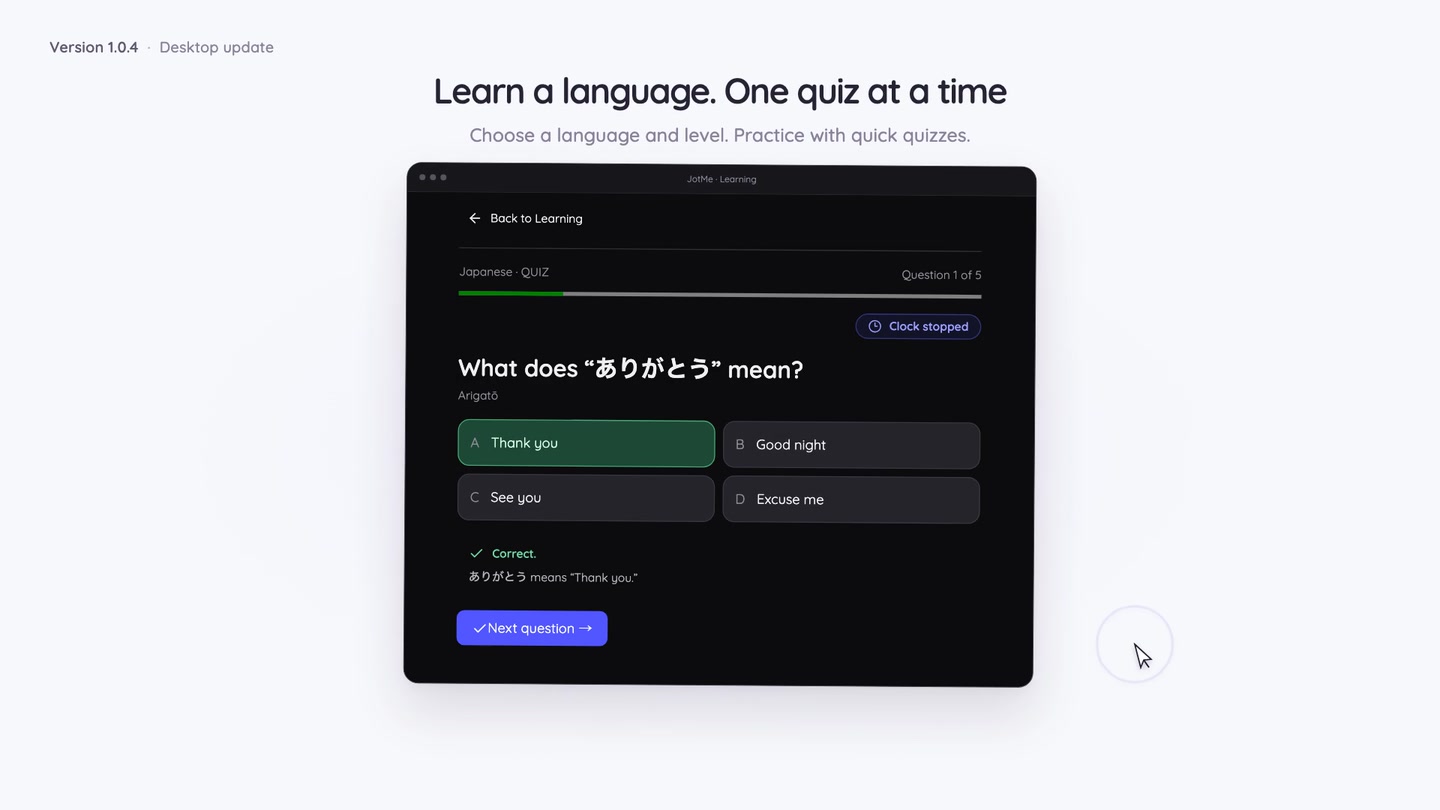
You can start using Learning today. We will share more about it soon. The language learning guide explains quizzes, progress, saved practice, and optional reminders.
Voice and caption fixes in v1.0.4
This release fixes missing translated captions for shared voice-to-voice participants and improves same-language voice and caption prevention on desktop and web.
When same-language output is off, JotMe tries to avoid repeating speech that already matches the listener’s selected language, while keeping the original captions. Very short or ambiguous speech may still pass through before there is enough evidence.
Recording navigation and the Learning leaderboard have also been improved. See the same-language output guide and the v1.0.4 release notes.
Try the update and join the discussion
Download JotMe Desktop for Mac or Windows, then try one workflow in your next conversation: a simpler join page, floating captions, translated voice, or a translated follow-up message.
You can find the release announcements on X and LinkedIn. Share what helps, and let us know what could work better for your meetings and everyday work.
For setup details, browse the updated JotMe documentation. Each feature guide above shows the current controls, language choices, and usage rules.
Last updated on
November 2, 2026
Follow us on social media: