





Tips
How to Record a FaceTime Call With Audio on iPhone and Mac

Narmada Kajla
August 8, 2026
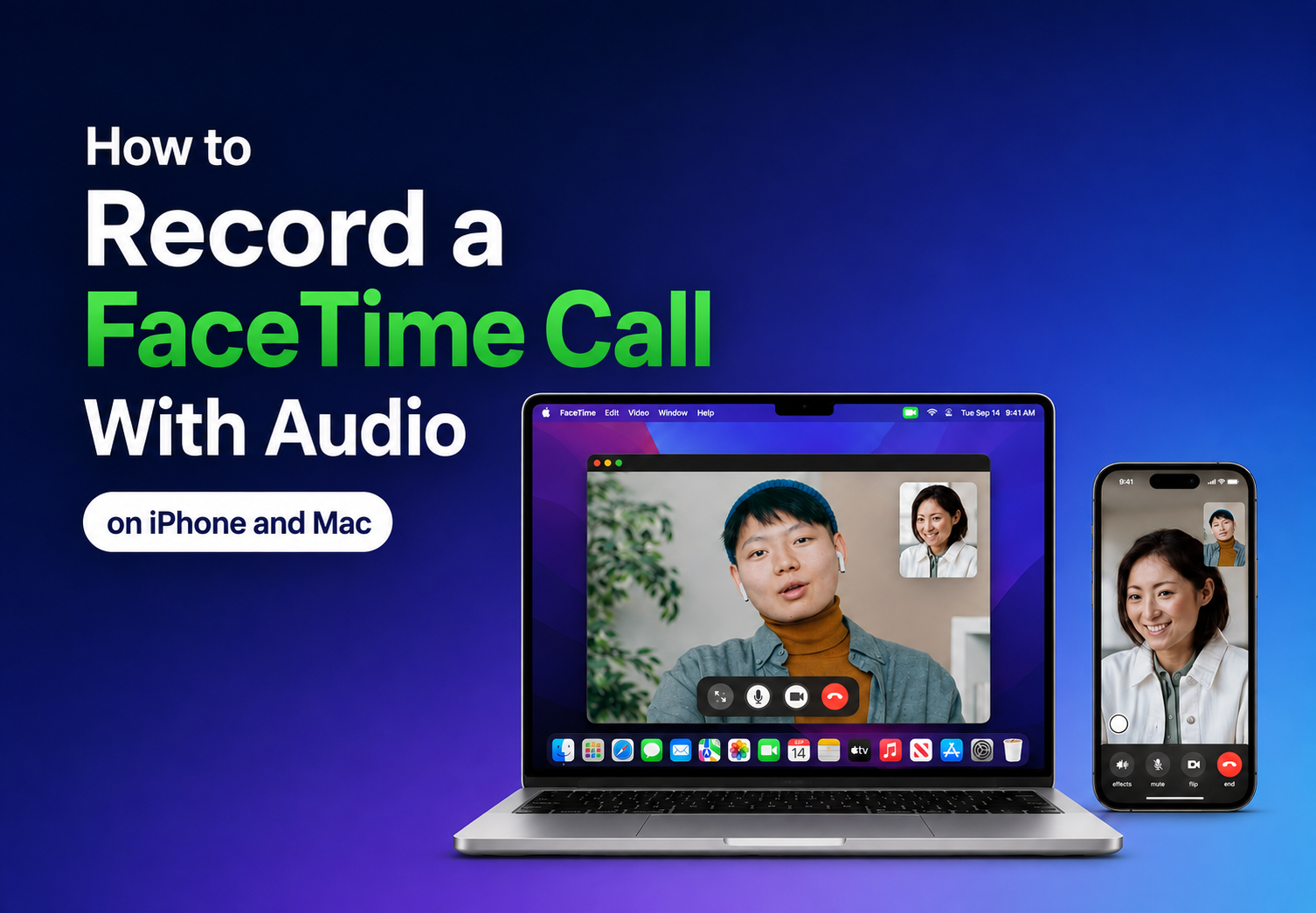
iOS Screen Recording captures FaceTime video just fine, but it mutes the other person's audio by design, since Apple's screen recorder only taps your microphone, not the call's decoded audio stream. Three routes get you a FaceTime recording with both sides of the audio intact: the speaker-plus-mic workaround on iPhone or iPad, Apple's own Call Recording feature for one-to-one FaceTime audio calls in supported regions, or a Mac running QuickTime with a virtual audio device.
If your FaceTime calls also cross a language barrier, JotMe solves that problem at the same time by capturing the call audio and translating it live in 200+ languages.
If you searched "how to record FaceTime call" hoping for a one-tap fix, the honest answer is that Apple doesn't offer one for video calls yet, and the section below explains exactly why.
Why Screen Recording a FaceTime Call Has No Sound
Your recording comes out with only your voice because iOS Screen Recording captures audio from your microphone input, not from the FaceTime app's audio output. When someone talks to you on FaceTime, iOS decodes their voice and plays it through your speaker or earpiece, but that decoded audio never gets routed back into anything Screen Recording can grab. Screen Recording listens to what's coming into your mic, not what's coming out of your speaker, so the caller's side of the conversation gets left out entirely, no matter how you configure the toggle.
This is the single most searched frustration with FaceTime recording, and Apple's own support documentation doesn't spell out why it happens. It's not a bug, and it's not a permissions issue you can fix in Settings. It's simply how Screen Recording was built: as a mic-plus-screen capture tool, not a system-audio capture tool. Every method below works around that limitation instead of trying to fix it directly.
How to Record a FaceTime Call on iPhone or iPad
Two paths work here, and which one you use depends on whether you're on a video call or a one-to-one audio call.
For video calls, or if Call Recording isn't available in your region: put the call on speaker and record with your mic on, so your phone's mic re-captures the caller's voice along with yours. Follow these steps to learn how to record a meeting on iPhone:
- Go to Settings > Control Center and add Screen Recording if it isn't already there.
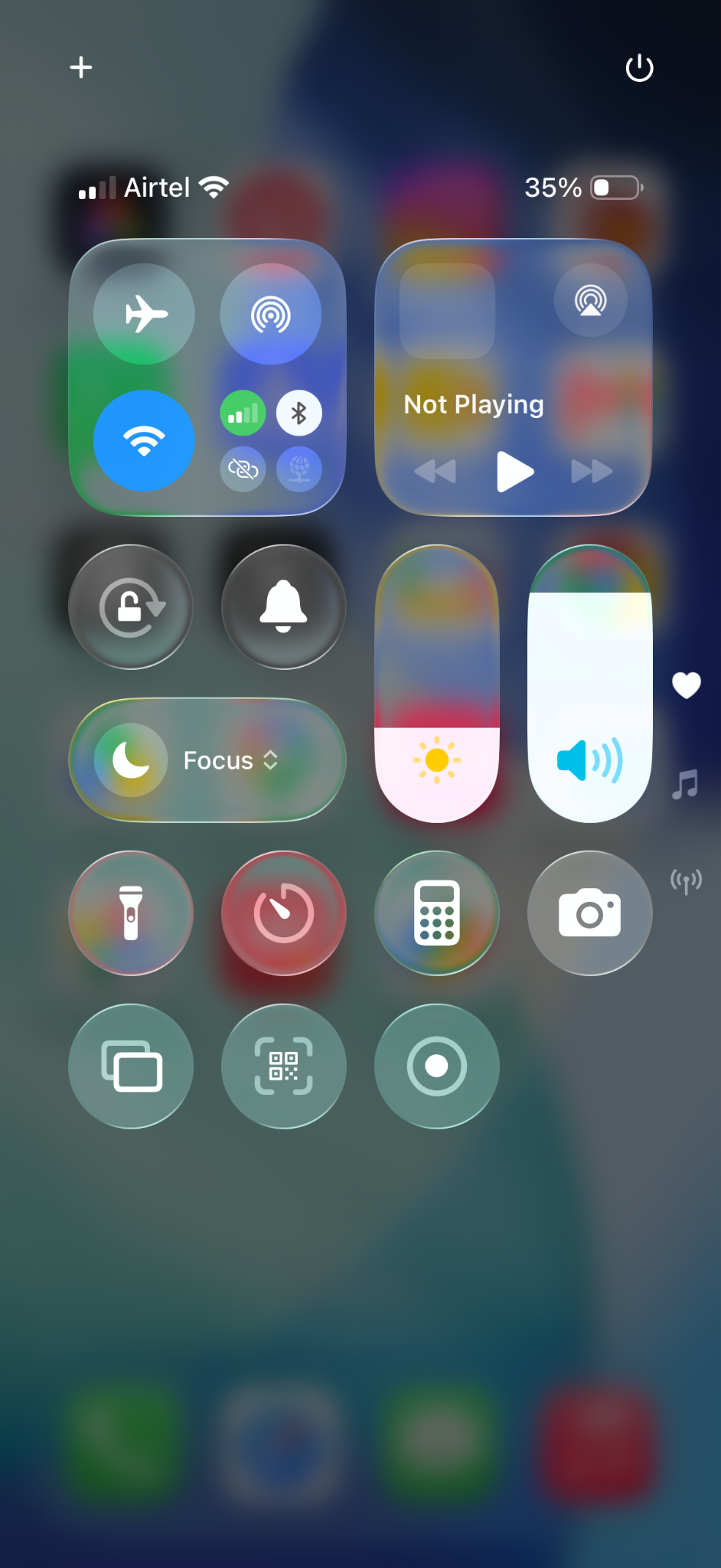
- Start your FaceTime call and tap the speaker icon to switch to the speaker phone.
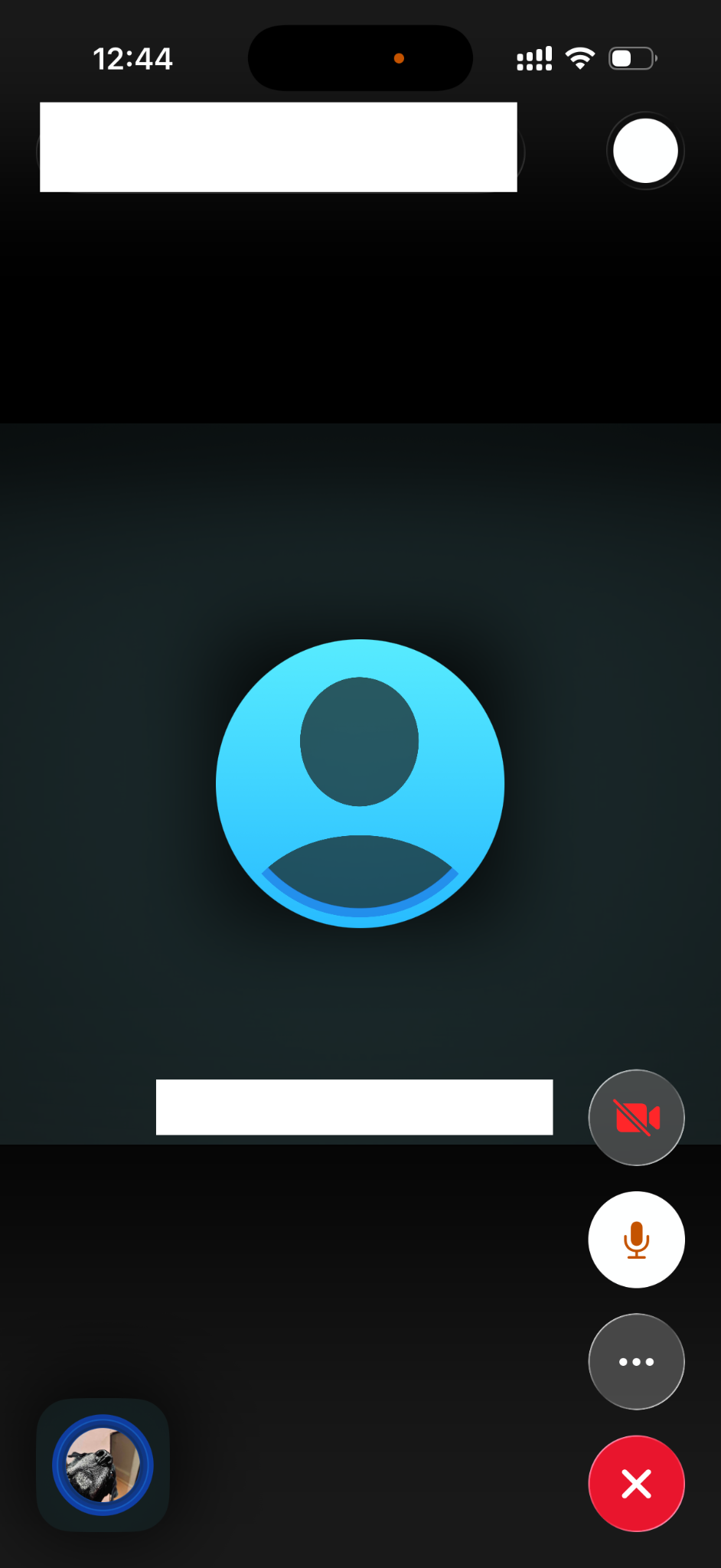
- Open Control Center, press and hold the Screen Recording icon, and turn the microphone on.
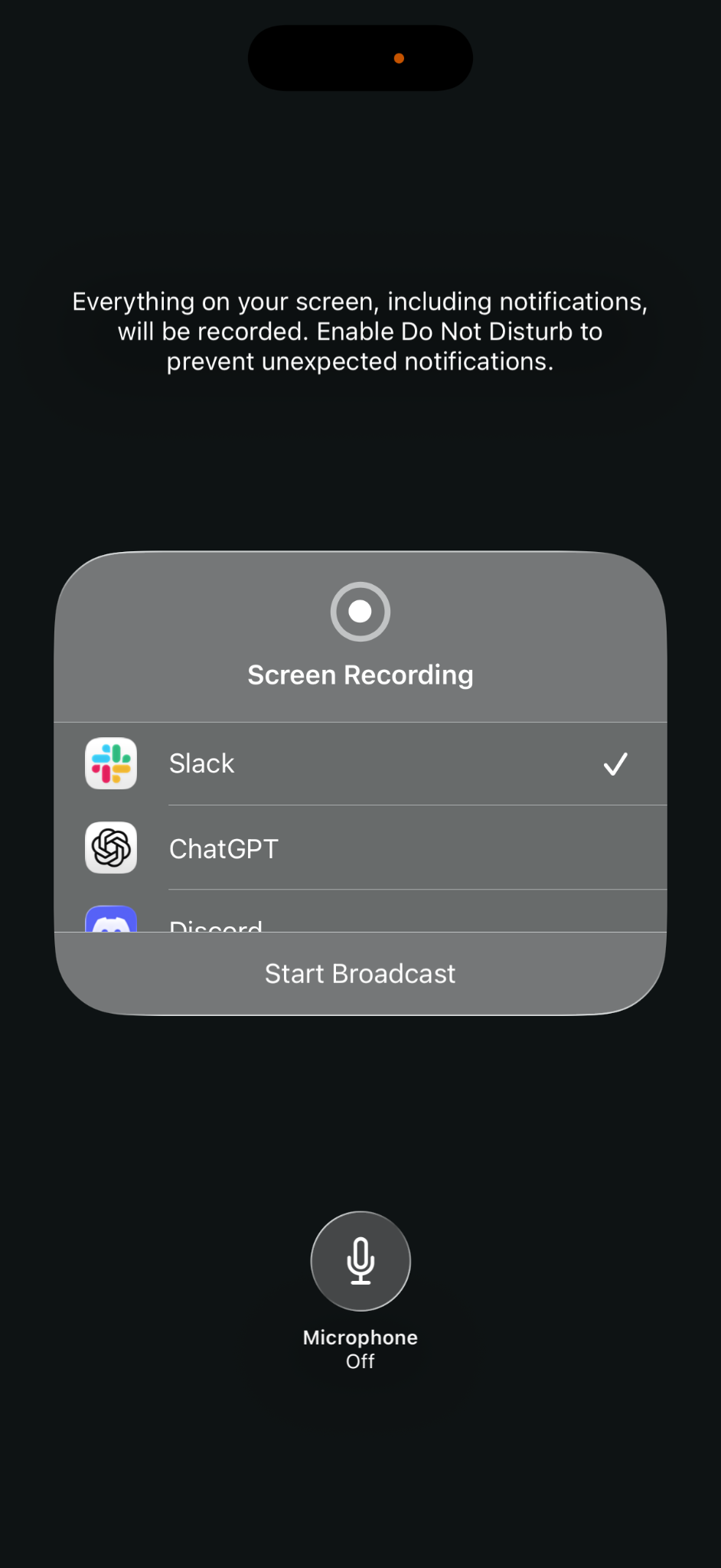
- Tap Start Recording and continue your call as normal.
- When you're finished, tap the red status bar and confirm Stop. The video saves to your Photos app.
What you end up with is a video file with both voices captured through your mic, which works but picks up a bit of room noise and echo since you're recording sound that's already left the speaker once.
For one-to-one FaceTime calls, Apple offers native Live Caption in supported regions and languages. It currently supports English (UK and US), French (France), German, Italian, Portuguese (Brazil), Spanish (Spain), Chinese (Simplified and Traditional), Japanese, and Korean. Availability varies by region, language, and device. Here is the step-by-step guide to enable FaceTime translation:
- During a one-to-one FaceTime audio call, tap the More (⋯) button.
- Tap Call Recording.
- A notification tone plays for both people on the call, letting the other person know the call is being recorded.
- Talk through the rest of your call as usual.
- End the call, and the recording, along with a transcript, saves automatically to the Notes app.
This method only works for one-on-one FaceTime Audio calls, not video calls, and Apple limits it to specific countries and languages. Check the iOS and iPadOS Feature Availability page for your region before assuming it will show up on your device. If you're trying to record a meeting on an iPhone that happens to run through FaceTime Audio, this built-in option is the cleanest route, since it hands you a transcript along with the recording. It's worth checking Settings first if this is your main reason to record FaceTime call audio for work, since Apple's native option beats any workaround when it applies to your call type and region.
How to Record a FaceTime Call on a Mac
FaceTime on Mac gives you a cleaner recording than the iPhone speaker workaround, but QuickTime's screen recorder has the same core limitation: on its own, it only captures your microphone, not FaceTime's system audio output. Follow these simple steps to learn how to record a FaceTime call on Mac:
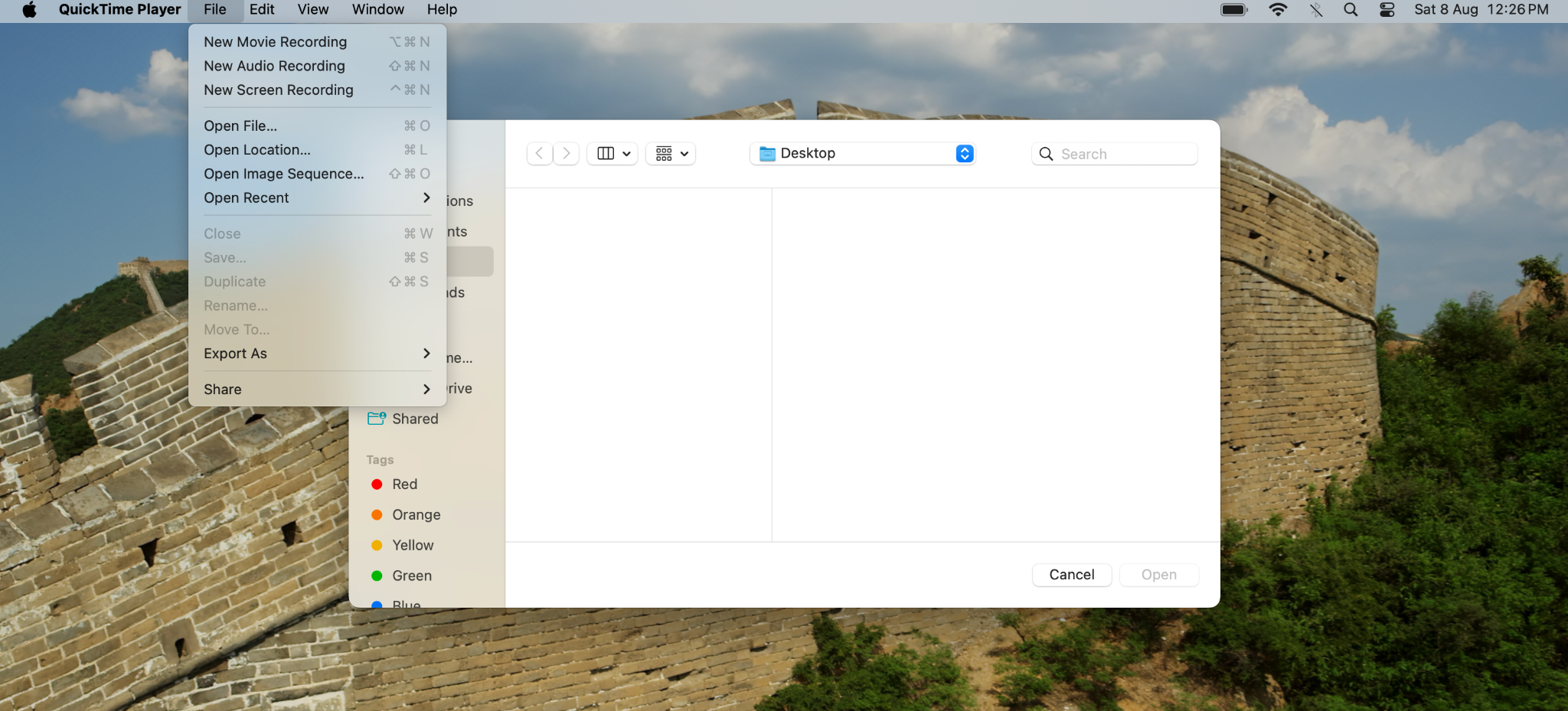
- Open QuickTime Player, then go to File > New Screen Recording.
- Click the small arrow next to the record button to choose your audio input.
- Select your Mac's built-in microphone, or a virtual audio device if you've set one up (see below).
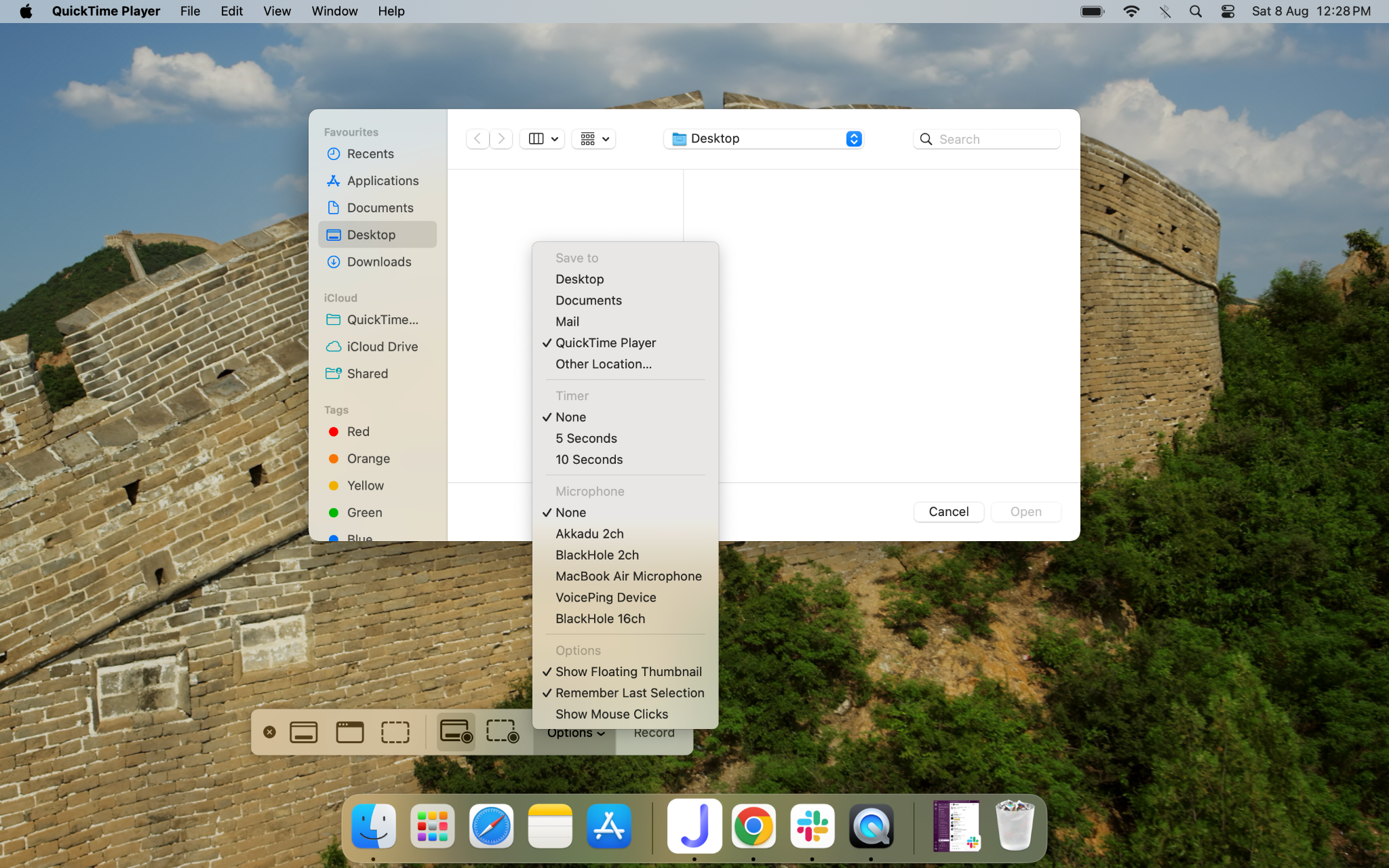
- Click record, then open FaceTime and start your call.
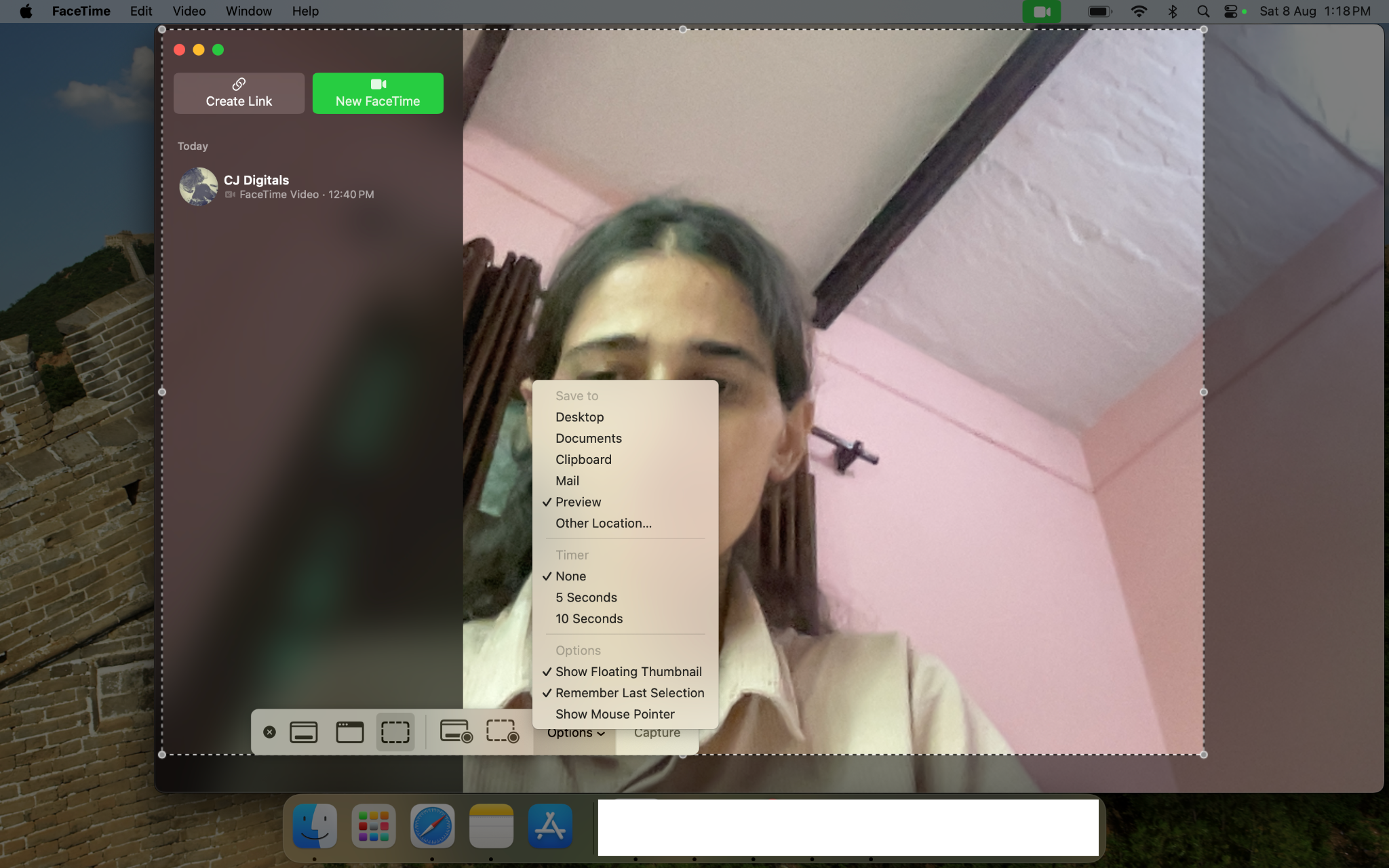
- When you're done, click the stop button in the menu bar, then File > Save.
To capture both sides of the call cleanly instead of re-recording sound through your speaker and mic, you need a virtual audio device. A virtual audio device works between your Mac's audio output and QuickTime's input, routing FaceTime's system audio directly into your recording instead of letting it play out loud first.
Without a virtual audio device, QuickTime only hears whatever your mic picks up, which means the caller's voice comes through faint and your own voice dominates the track. Tools like BlackHole or Loopback create this virtual routing, letting you combine FaceTime's system audio with your microphone into a single, clean recording. Once installed, you select the virtual device as your recording input in QuickTime instead of your built-in mic, and both sides of the call come through evenly.
Is It Legal to Record a FaceTime Call
Recording a FaceTime call is not automatically illegal, but the rules depend on where the people on the call are located. Some places allow recording if one person on the call consents, while others require everyone's consent.
For example, California requires consent from all parties for confidential communications, while Washington requires consent from all participants in a private communication.
Apple's built-in Call Recording feature helps by playing an audible notice to both participants when recording starts. Apple says this feature can also be used for FaceTime audio calls.
However, that notification does not apply to every recording method. If you use screen recording or another workaround, the other person may not receive any warning.
The safest approach is simple: tell the other person before you start recording and get their consent, especially if the call involves people in different states or countries. Recording laws can differ depending on where each participant is located.
Record a FaceTime Call Across 200+ Languages
Family calls and cross-border business calls on FaceTime run into two separate problems at once: the audio capture issue covered above, and the fact that a straight recording doesn't help much if you don't understand what was said. A screen recording of a call in a language you don't speak just gives you a file you'd need to get translated later, one way or another.
JotMe solves both problems together. JotMe’s Mac app captures your system audio directly, the same way a virtual audio device does for QuickTime, but instead of just saving a video file, it generates live translation and a transcript while the call happens. Open FaceTime on your Mac, run JotMe alongside it, set your spoken and translation languages, and start your call.
Take a look at the step guide below to learn how to record a FaceTime call:
Step 1: Open FaceTime and JotMe on the same Mac.
Step 2: In JotMe, set the language your caller speaks, or choose multilingual mode if the conversation switches between languages.
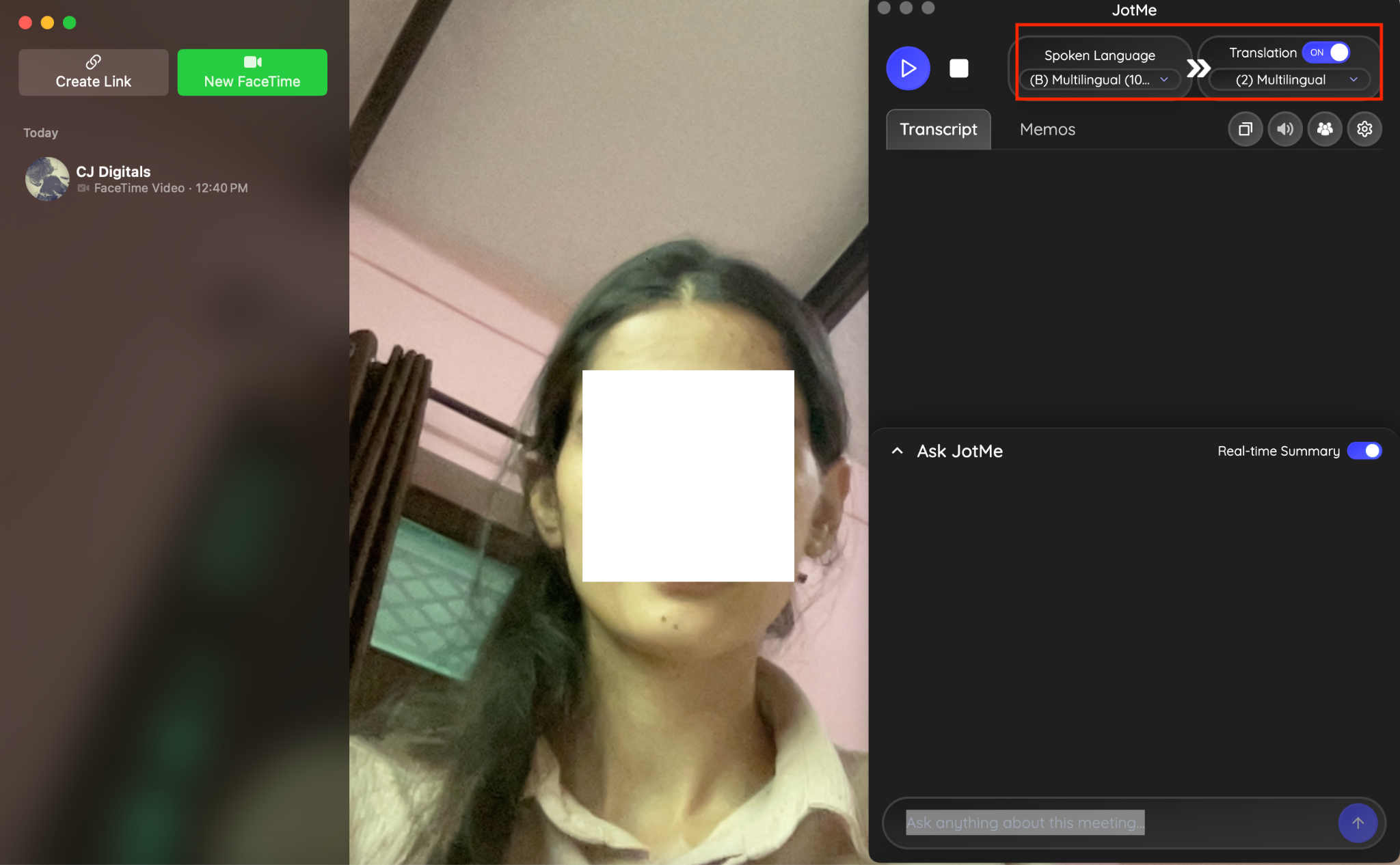
Step 3: Start your FaceTime call, then click Start in JotMe to begin live translation.
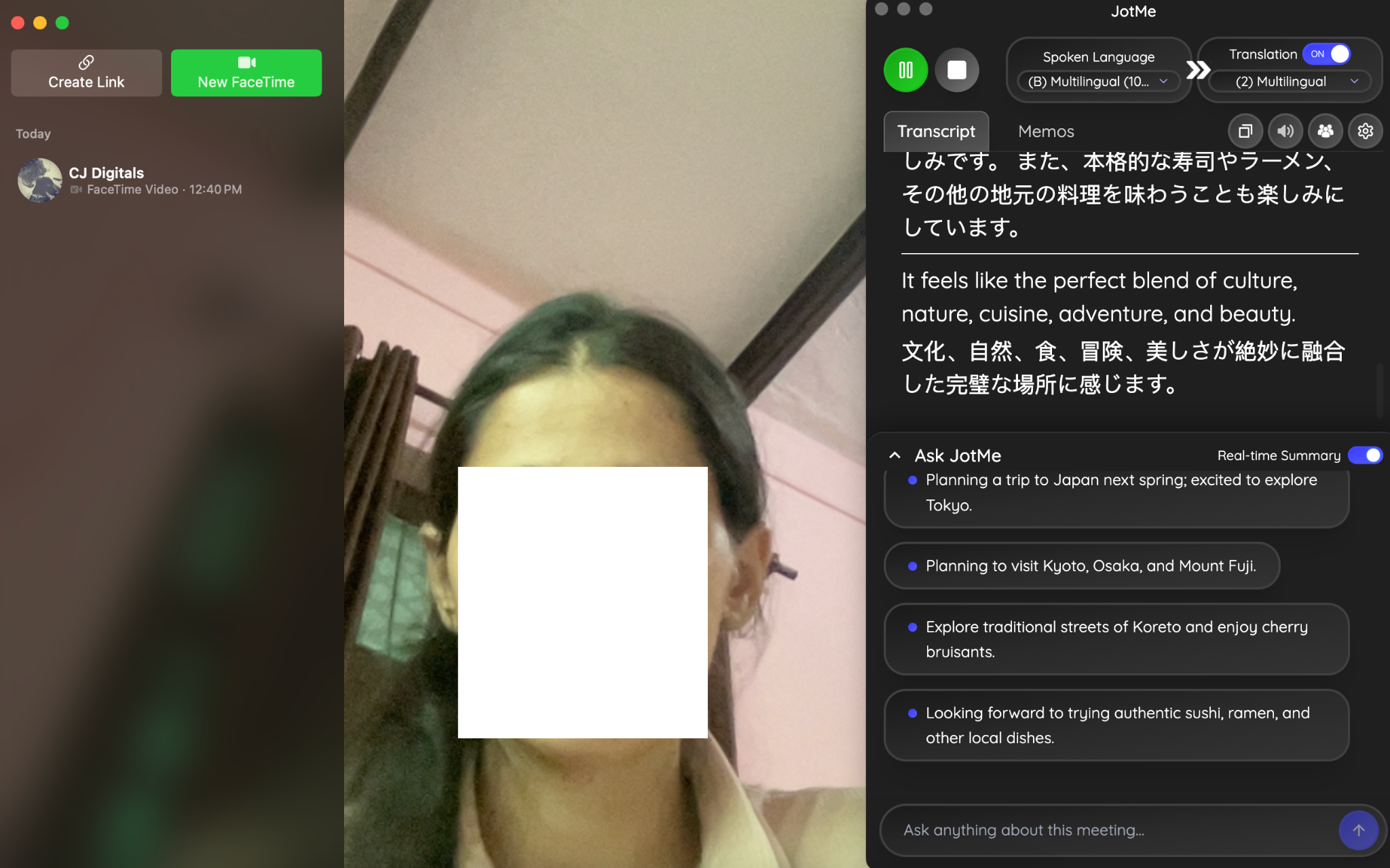
Step 4: Read accurate captions on your screen as the call happens, and find the full transcript saved to your JotMe dashboard once the call ends.
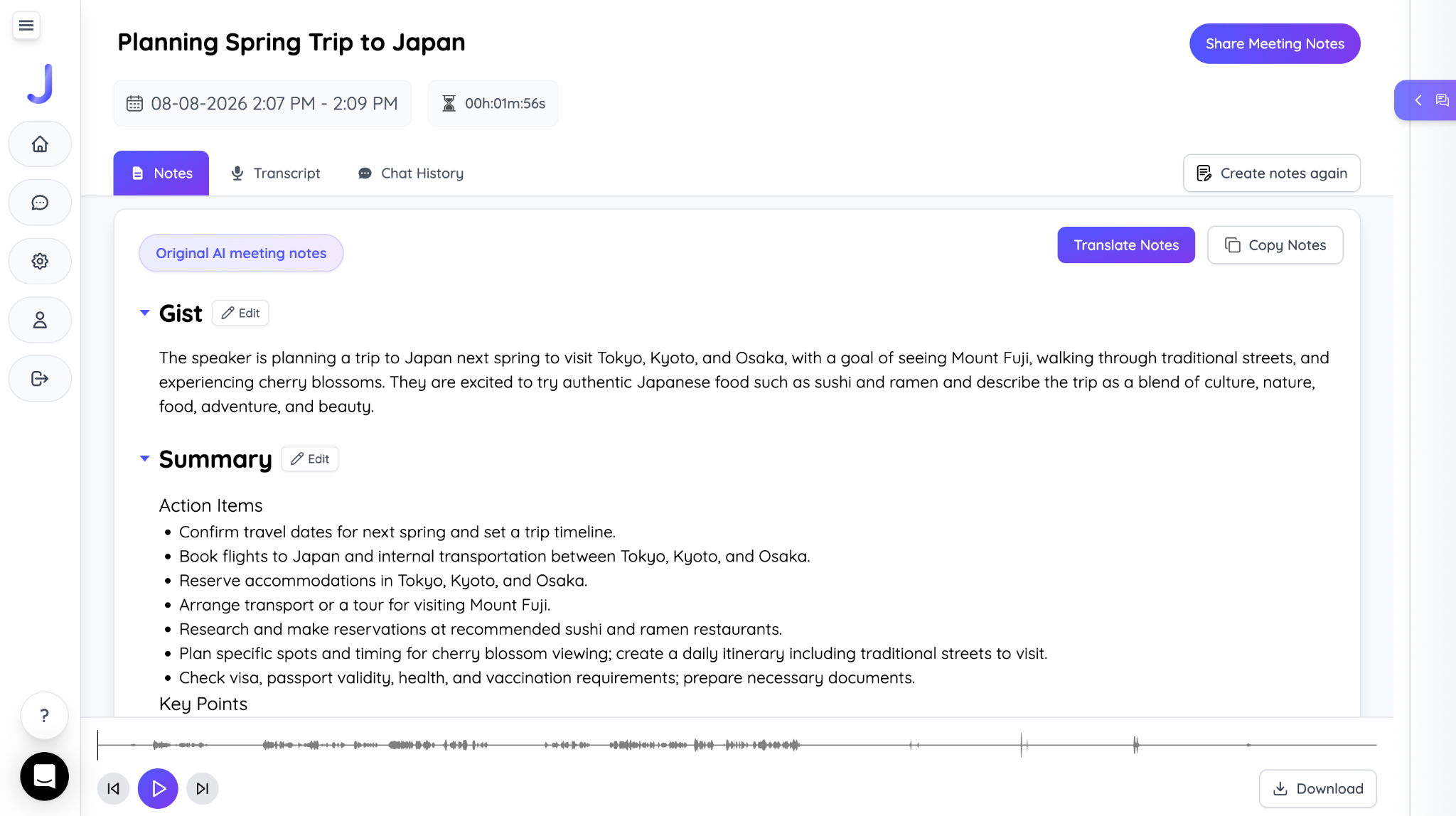
This is a genuinely useful setup for a weekly call with relatives who don't share your first language, or for a client conversation where FaceTime is simply the platform both sides already have installed. It also works well if you regularly record a meeting on iPhone or Mac with international colleagues, since the transcript and translation replace the need to review a video file after the fact.
JotMe captures the audio locally after FaceTime has already decoded it, so nothing about the call's encryption changes, and there's no bot joining and nothing for the other person to install.
The Best Way to Record a FaceTime Call
Recording a FaceTime call depends on what you need. For video calls on iPhone, the speaker-and-microphone workaround is the simplest option, while Mac users can get cleaner audio with a virtual audio device. For supported one-to-one FaceTime audio calls, Apple's built-in Call Recording is the most convenient choice.
If you also need to understand or translate conversations across languages, JotMe offers another practical option by capturing system audio and providing live translation and transcripts. Whichever method you choose, remember to check local recording laws and get consent when required before you record a FaceTime call.
FAQs
Does FaceTime notify the other person when you record?
It depends on the method. Apple's built-in Call Recording feature for one-to-one FaceTime audio calls plays an audible tone that both people can hear. Screen recording and Mac-based system audio capture send no notification at all, which means telling the other person yourself is the only way they'll know that you are recording the call.
Can you record FaceTime audio only, without video?
Yes, and it's actually the simpler case. For one-to-one FaceTime audio calls, Apple's native Call Recording feature captures audio directly with no screen recording involved, and saves a transcript to Notes automatically. For video calls, you'll still get a full video file even if all you wanted was the audio, since Screen Recording doesn't offer an audio-only mode.
Why is my FaceTime recording silent on the caller's side?
This happens when Screen Recording's microphone toggle is off, or when you're not in speaker mode during a video call. Since Screen Recording only captures your mic, if the caller's voice never physically reaches your microphone, whether through a speaker or a workaround like a virtual audio device, it won't show up in the recording at all.
Can you record a group FaceTime call?
Screen recording works the same way on a group call as it does on a one-to-one call, capturing whatever your mic picks up while on speaker. Apple's native Call Recording feature, however, is limited to one-to-one FaceTime audio calls and doesn't currently extend to group calls.
Does iOS 26 change how FaceTime recording works?
iOS 26 carries forward the Call Recording feature that Apple first introduced for one-to-one FaceTime audio calls, along with automatic transcription and summaries through Apple Intelligence in supported languages and regions. The core limitation for video calls hasn't changed: Screen Recording still only captures your mic, so recording a FaceTime video call with both sides of the audio still means using the speaker workaround or a Mac with a virtual audio device.
Can you record FaceTime on Android?
FaceTime is Apple-only software and doesn't run on Android devices at all. Android users can join a FaceTime call through a web link that an iPhone or Mac user sends them, and once inside the call, an Android phone's own screen recorder can capture the video along with whatever audio reaches its microphone, the same speaker-and-mic limitation that applies on iPhone.
Last updated on
August 12, 2026
Follow us on social media: