




Tips
How to Get English-to-Japanese Translation for Teams Meetings?

Viraj Mahajan
September 19, 2025
.avif)
Brief Answer: To get English-to-Japanese translation in real time in Teams meetings, use third-party translation tools, like JotMe. Simply toggle on the “Translation,” set the “Spoken Language” to English, and the “Translation” language to Japanese, and you’re good to go.
During my meetings with Japanese clients or colleagues, I struggle to understand what my Japanese clients or interviewees for an expert opinion article are saying. On top of that, most people’s preferred video conferencing platform happens to be either Teams or Zoom, so I’ve got to figure out how to make this process more efficient. MS Teams’ built-in live translation caption feature doesn’t help much either. It supports only 40 languages, and you need to pay extra for the Teams Premium or Microsoft 365 Copilot license to access it.
However, there are several third-party tools like JotMe that support 45 languages for real-time translation and also offer a free monthly plan. Additionally, you can also view the translation, meeting notes, and more in its dashboard after the meeting. This article provides a detailed, step-by-step guide to translating English to Japanese in real-time during your Teams meeting using JotMe and its additional features.
Follow these steps to translate English to Japanese in your Teams meetings in real time:
- Install the JotMe App: Visit JotMe’s official website to download and install it on your device.
- Join your MS Teams Meeting: Enter your Teams meetings and launch JotMe.
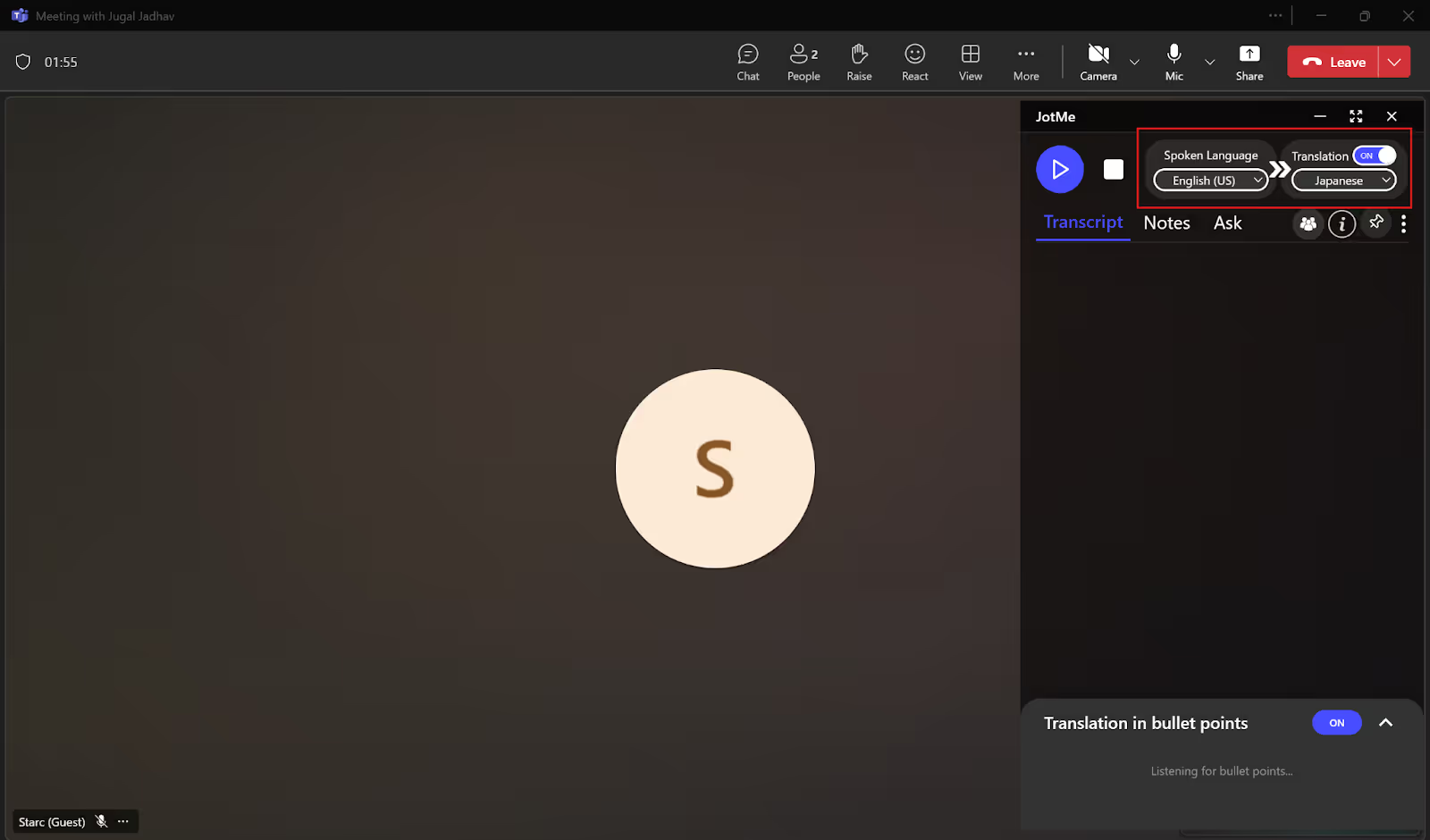
- Set the Languages in JotMe: In the JotMe app, toggle on the “Translation” button and set the “Spoken Language” to English and the “Translation” language to Japanese.
- Start the Live Translation: Just click on the “Play” button to begin the real-time translation.
Step 1: How to Install JotMe on Your Device?
Go to the official website of JotMe and click “Try for free” to download the setup on your Windows or Mac device. After downloading, run the setup and follow the instructions to install the JotMe app.

Step 2: How to Join Teams Meetings and Open JotMe?
Next, start or join your Teams meeting on the web browser or the Microsoft Teams desktop app. Then, open the JotMe app.
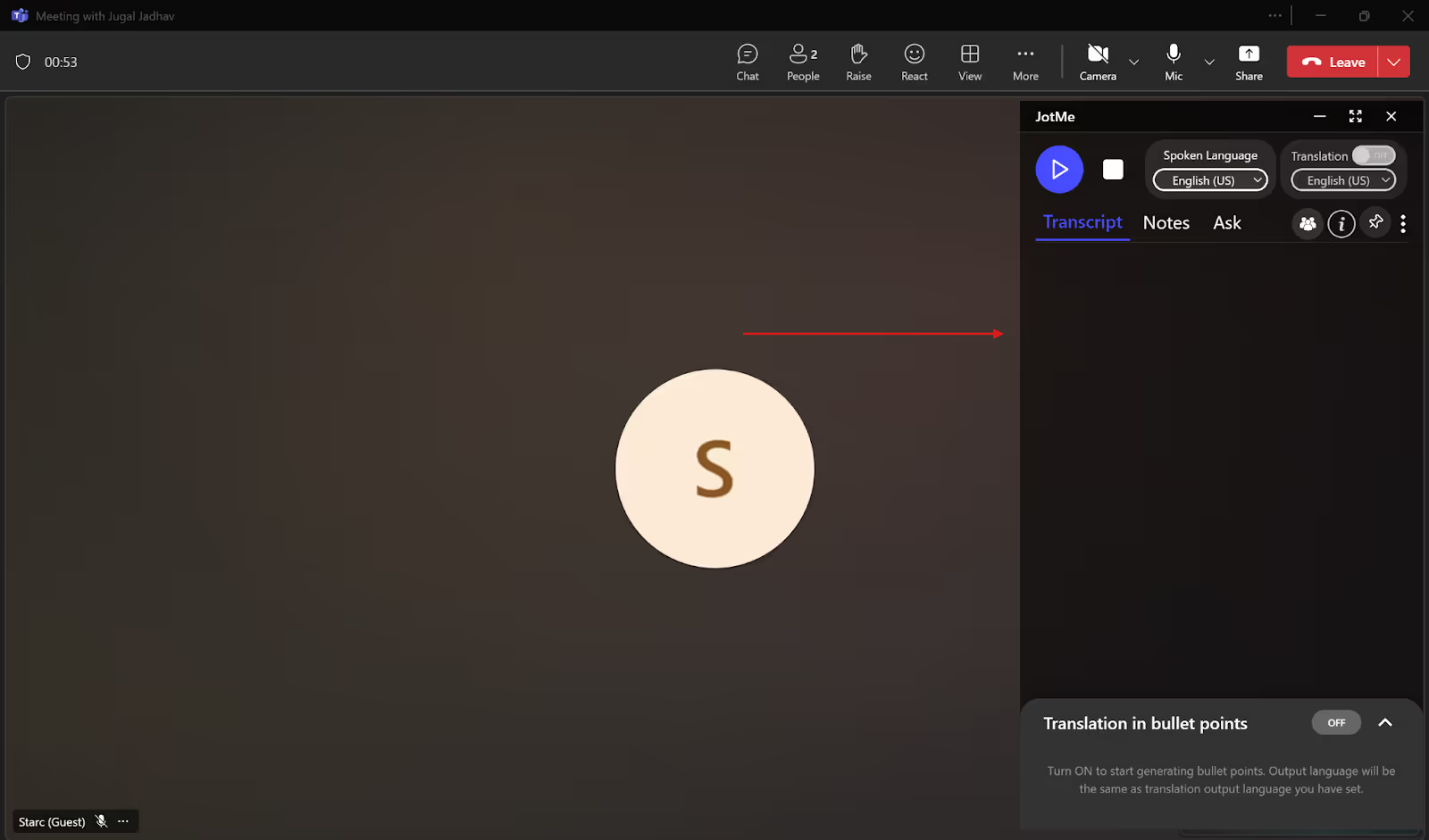
Step 3: How to Select the Languages for Translation?
In the JotMe window, turn on “Translation” on the top right if it’s not on already. Then, click on “Spoken Language” and select English from the drop-down menu, and select Japanese under the “Translation” language.
Step 4: How to Begin the Live Translation in JotMe?
Once the languages are set, you can begin the live translation by simply clicking on the “Play” button.
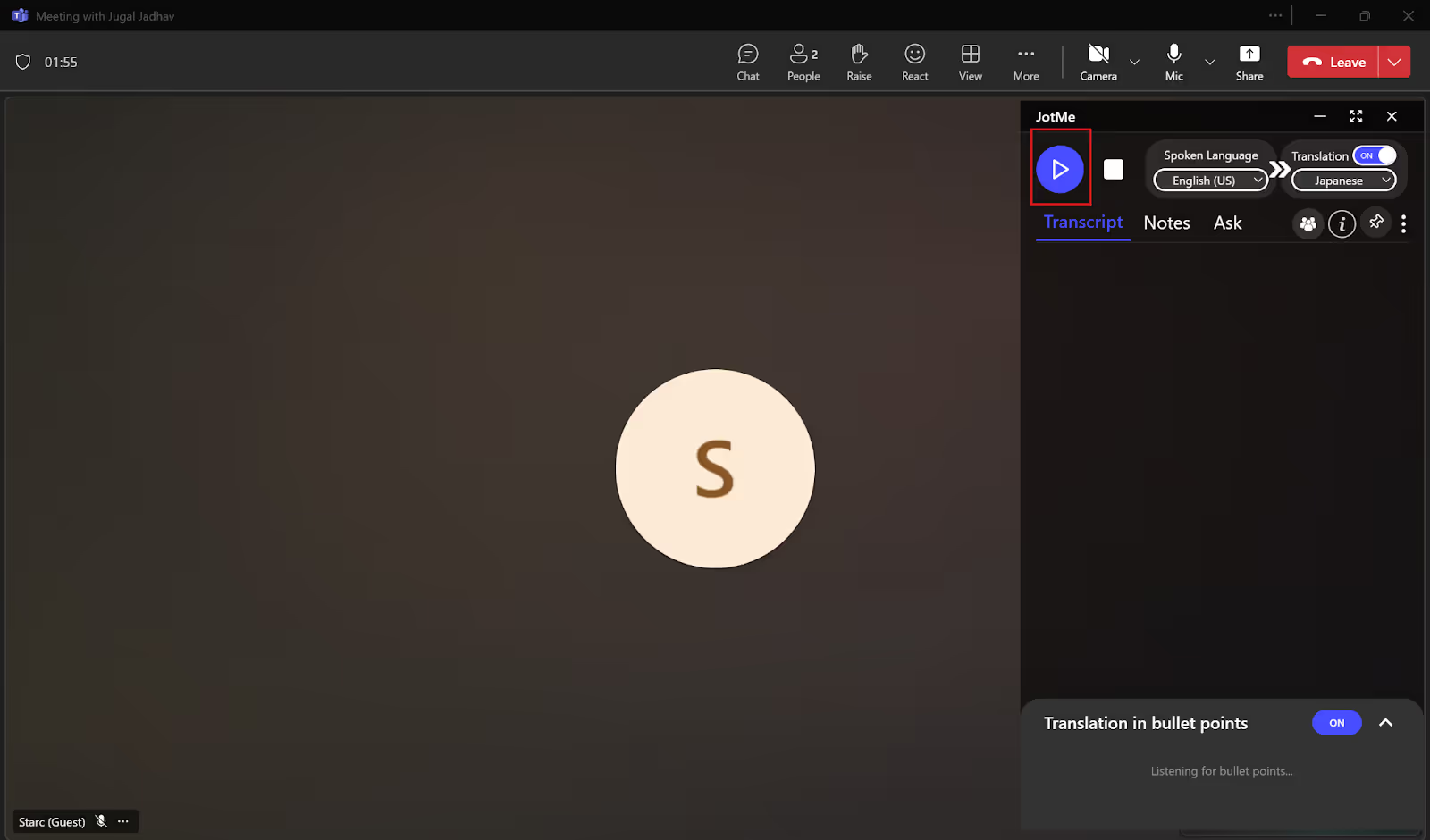
As soon as you click the “Play” button, JotMe will start the real-time translation in no time. JotMe will also save this translation in its dashboard, along with AI notes and summaries, for you to access anytime you want.
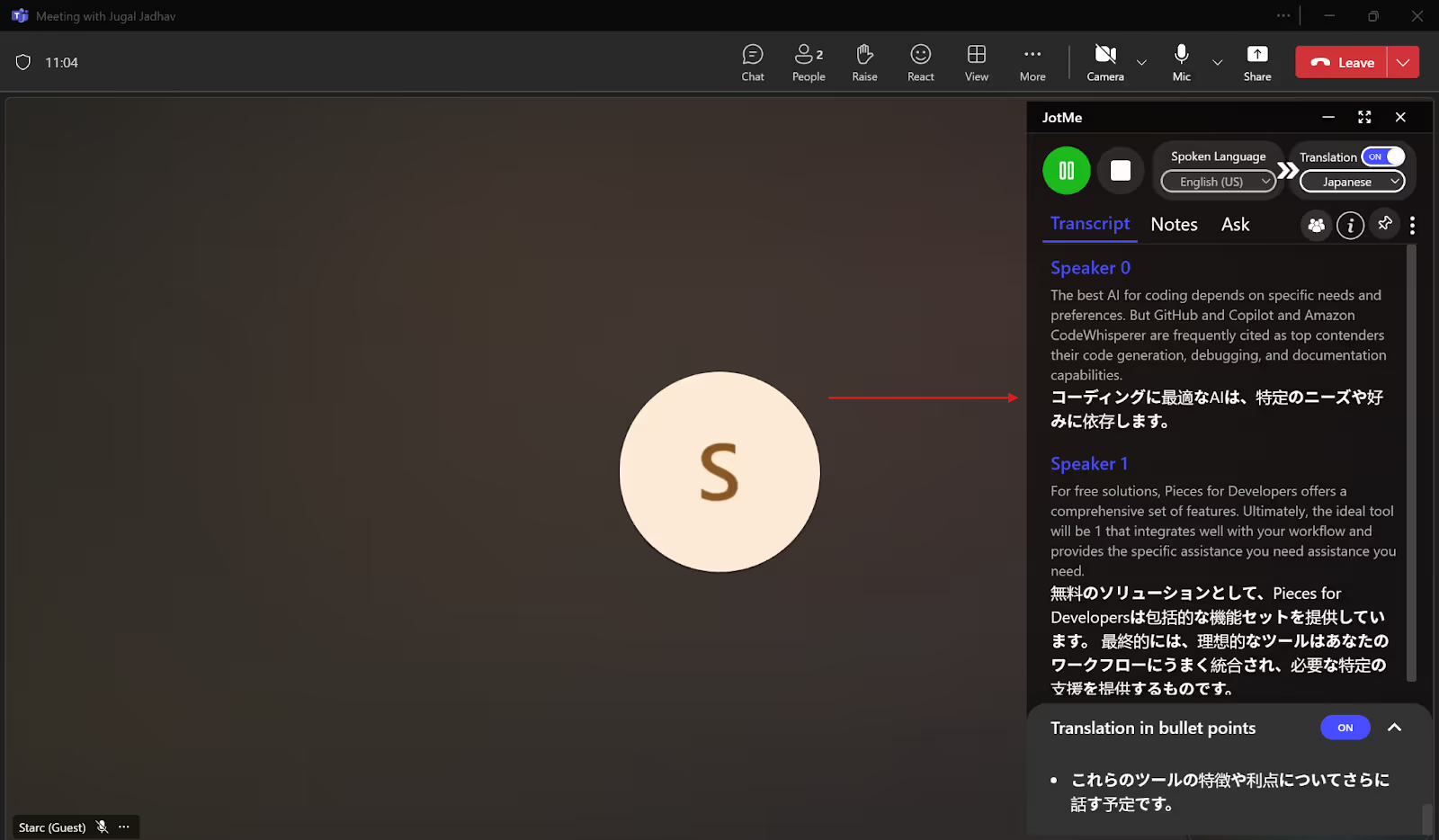
By default, the JotMe window displays the live translation on the right. If you wish to view the translation in the traditional caption system, you can resize the JotMe window to read the real-time translation at the bottom of your screen.
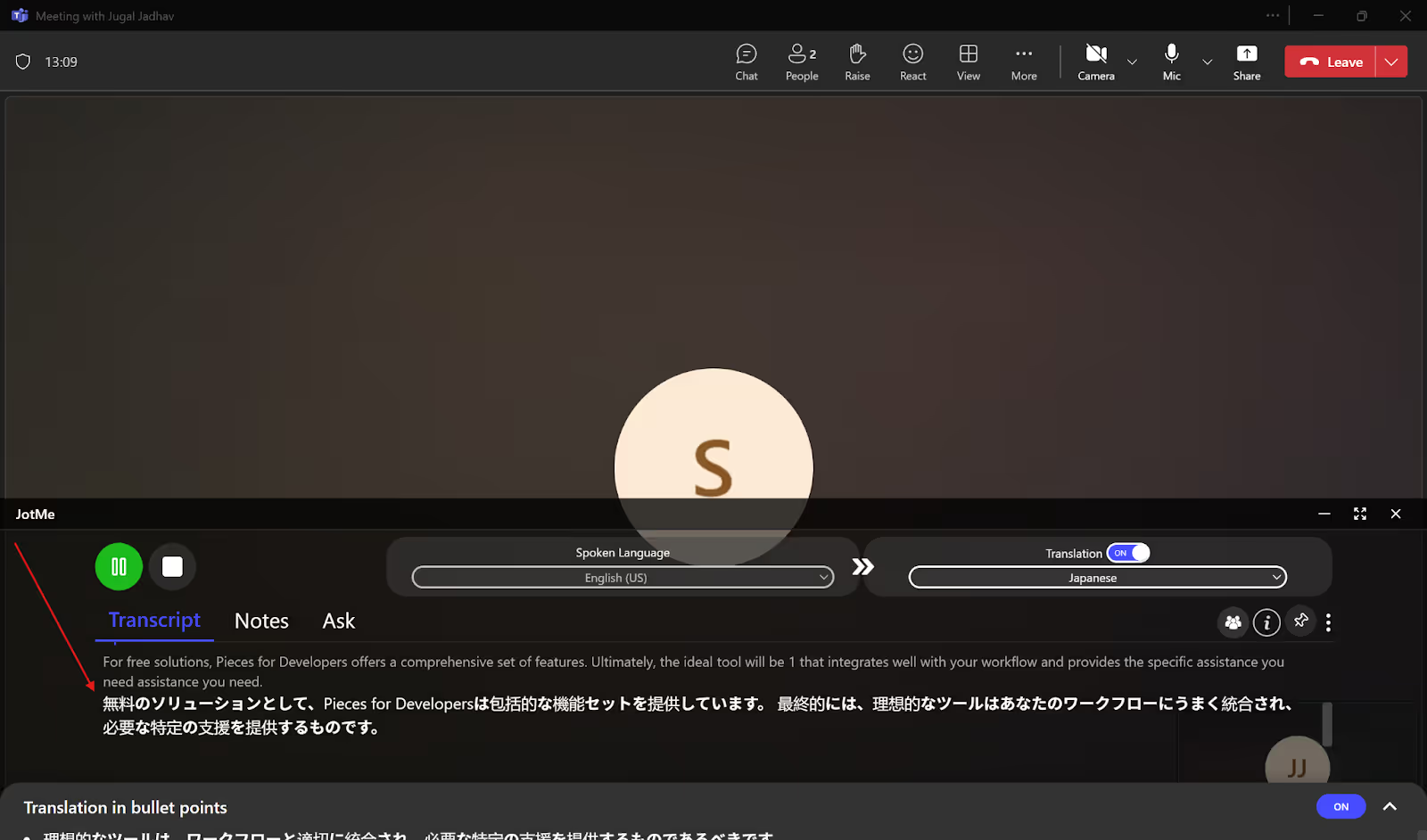
What are the Drawbacks of Teams’ Live Translated Captions Feature?
According to Calendly’s State of Meetings Report 2024, 78% of US workers spend three or more hours in meetings per week, including virtual meetings on platforms like MS Teams. This also includes multilingual meetings where live translation is necessary. With MS Teams' live translated captions feature, you can view the captions of the meeting in your desired language. If you want real-time human interpretation of your meetings, Teams also provides the option of getting an interpreter agent for speech-to-speech translation. But there are some setbacks:
- Supported Languages are Limited: With Teams, you can do the live translation of captions for a limited set of 40 languages, while JotMe offers contextual real-time translation in 45 languages.
- No Retention of Translated Captions: Teams does not save the translated captions; it only saves the transcript of the meeting. This means that you won’t have access to the translation of your Teams meeting after it ends. However, if you use a third-party tool like JotMe, you can get access to the translation even after your meeting ends. JotMe stores the entire translation of your Teams meeting and also generates AI meeting notes and summaries, which you can refer to whenever you need.
- Requires Teams Premium: The live translated captions feature is only available as part of Teams Premium ($10/month) or a Microsoft 365 Copilot license ($30/month). But with third-party live translation tools like JotMe, you can get the translation for free. Also, JotMe’s pricing plans are affordable, starting at just $9/month and offering 200 minutes of translation per month and other features.
How Does JotMe Efficiently Translate English to Japanese in Teams Meetings?
According to Microsoft’s Work Trend Index Annual Report, 90% of AI users reported that it helped them save time. This includes AI live translation tools like JotMe, which not only offer real-time translation in 45 languages but also save time by summarizing the entire meeting and providing AI-generated notes and summaries. Let’s look at JotMe’s other features in detail.
Contextual Translation
Traditional machine translation tools often deliver meaningless translations without understanding the context of the conversation. But JotMe goes a step ahead by using NLP and speech recognition to deliver contextual and accurate translation in real time that understands the nuance and technical words used in your Teams meetings.
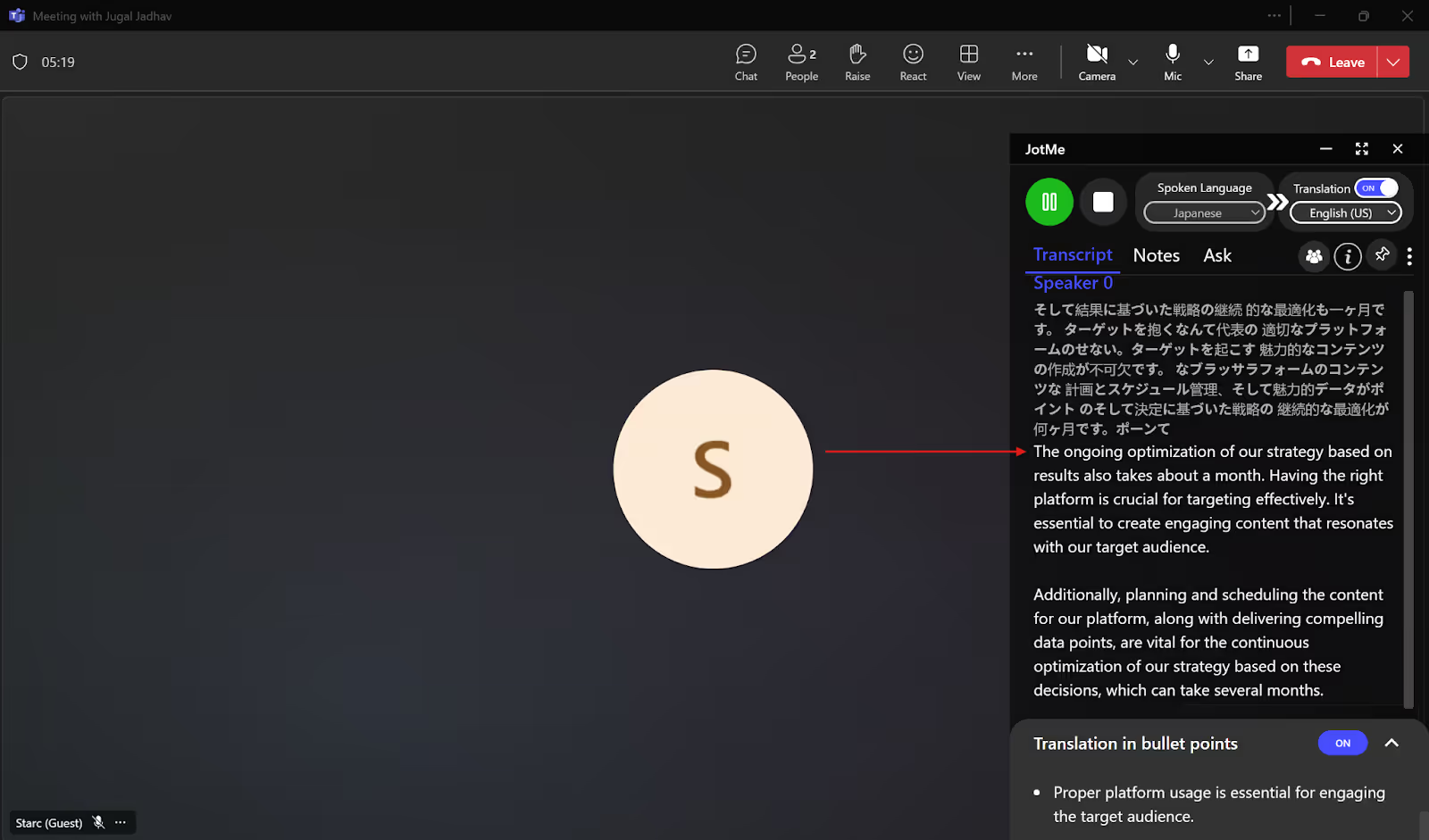
What if you mispronounce a word in your Teams meetings? In that case, JotMe automatically corrects the mispronounced word and generates the live translation without impacting the context of the conversation. Consider these statements explaining how to book a flight:
Speaker: To book a fight ticket, you'll need to choose a booking platform. Input your travel details like destinations, dates, number of pass. Select your preferred flight and keep the payment.
Here, the speaker mispronounced “flight” as “fight” and “complete” as “keep.” Yet JotMe understood the context of the conversation and automatically corrected the wrong words to give accurate translation. Here’s what it delivered:
To book your “flight” tickets, you need to choose a booking platform, enter your travel details such as destination, dates, and number of passengers, select your preferred flight and “complete” the payment.
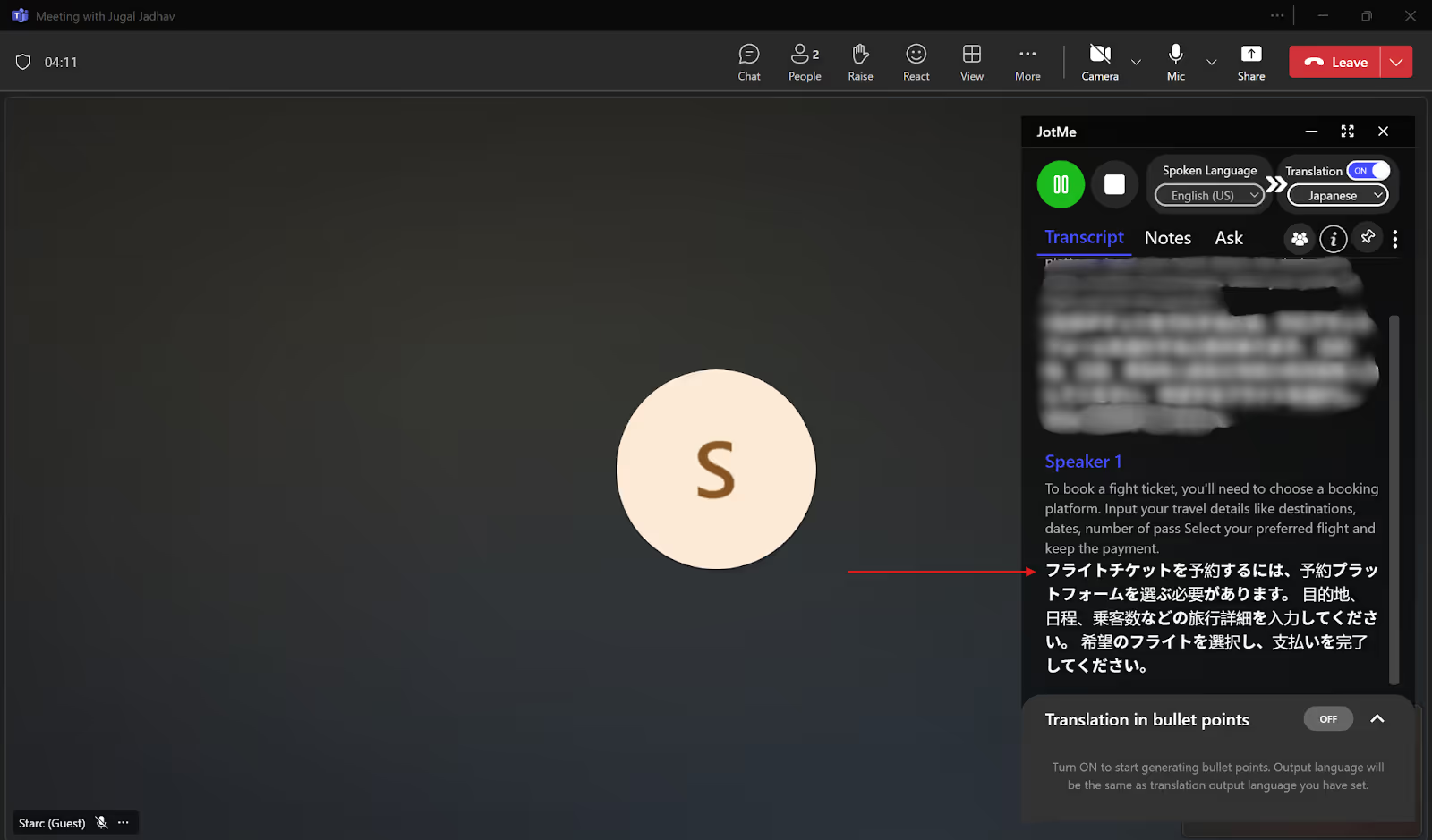
AI Insights and Bullet-Point Translation
Sometimes we feel stuck when we don’t understand a particular topic in a Teams meeting. For such situations, JotMe offers live AI insights into a topic with just one click. To get AI insights, you first need to turn on the translation in bullet points. These bullet points are basically the summaries or highlights of a long conversation in single sentences. Once you get the translation in bullet points, simply click on any of them that you don’t understand and JotMe will instantly give an AI answer to that question.
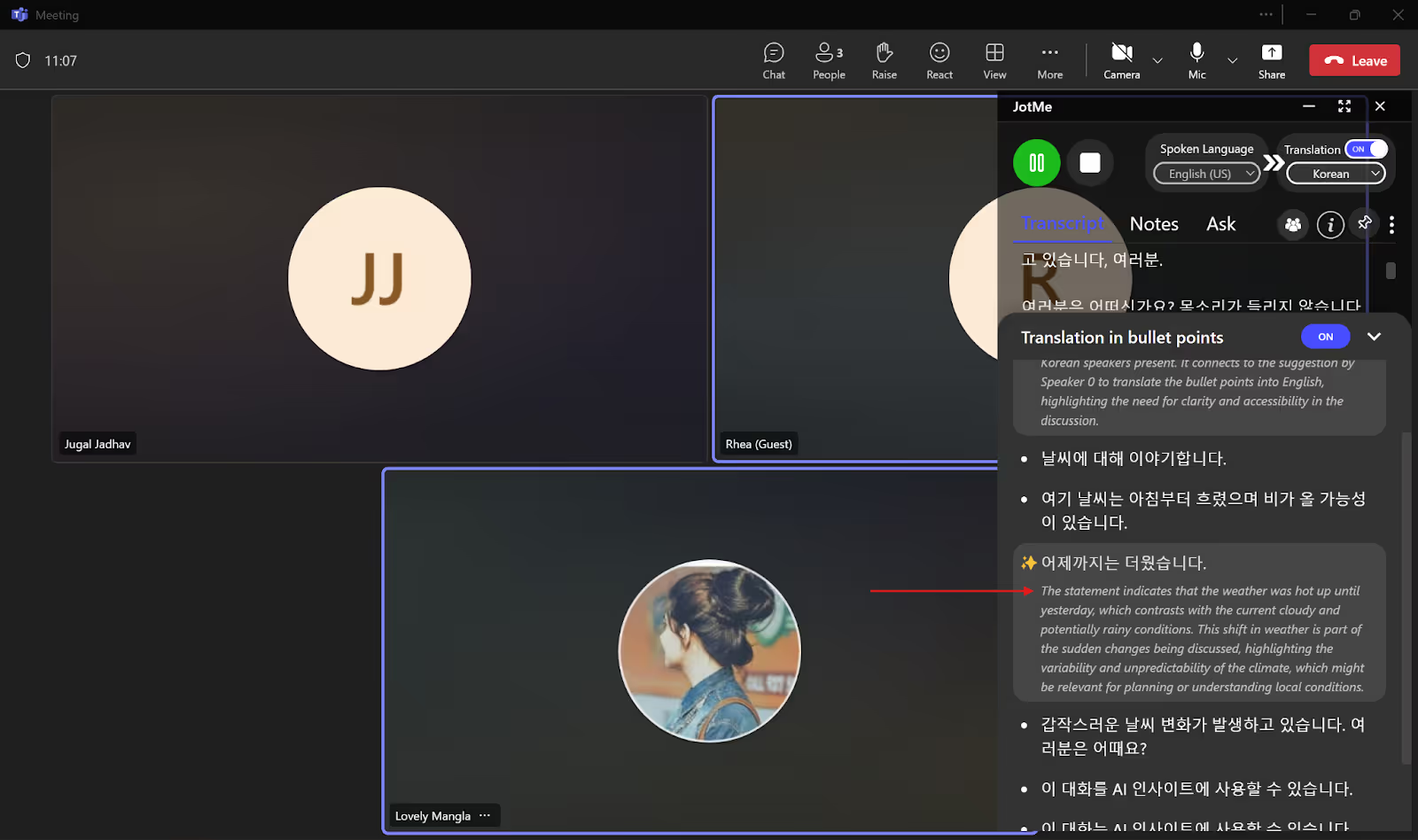
Shareable Translation Minutes
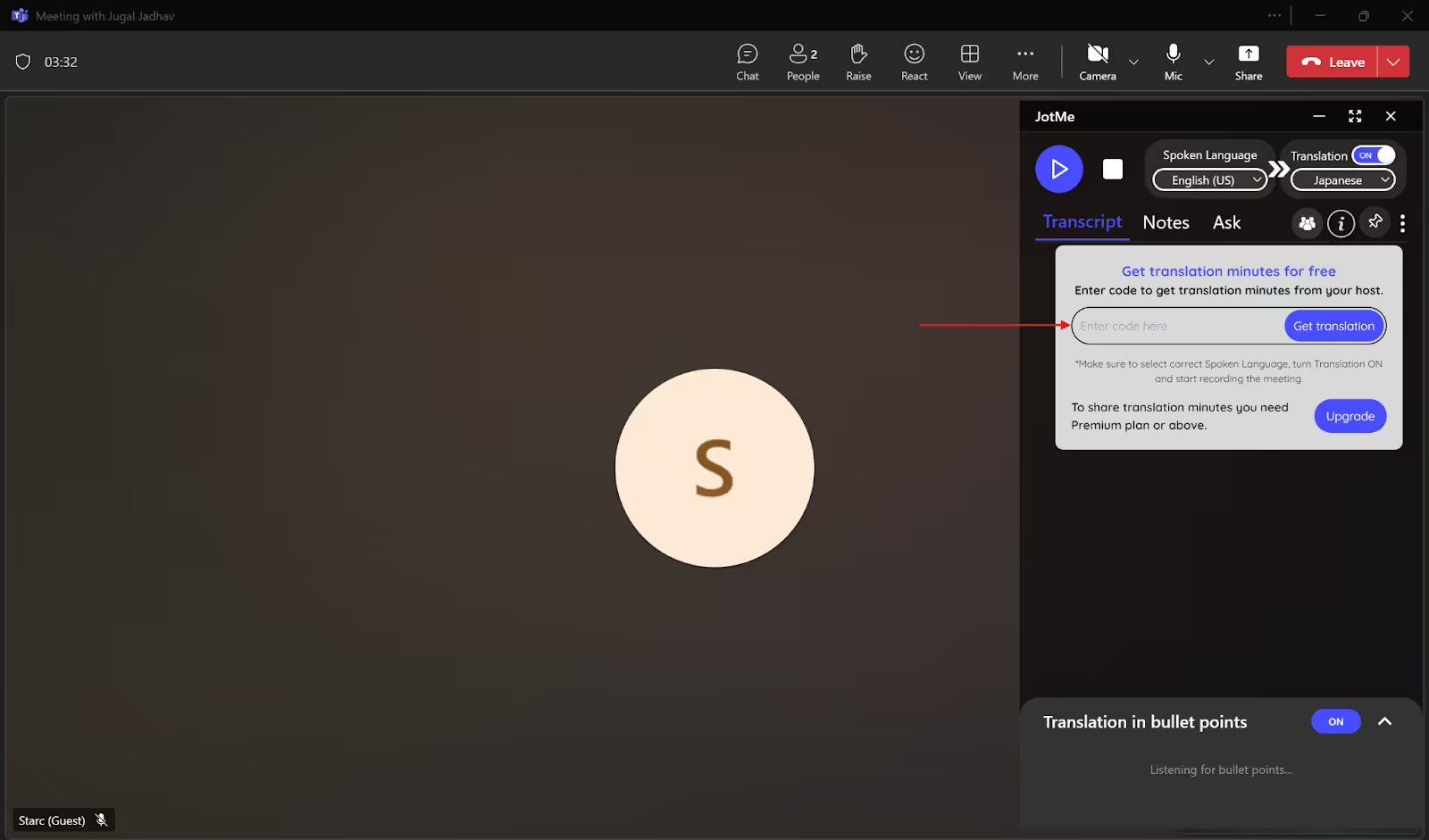
Do the participants in your Teams meetings not have a paid JotMe plan or are they out of translation minutes? Not a problem! As the host, you can share translation minutes from your account with other participants via a code. To generate the code, you simply need to start recording the meeting and turn on the translation. After the participants enter this code in the “Get Translation” box, they’ll receive the translation minutes. This will enable them to record, transcribe, and translate the meeting, and get AI notes and transcripts without having to buy a paid plan.
Post-Meeting Notes
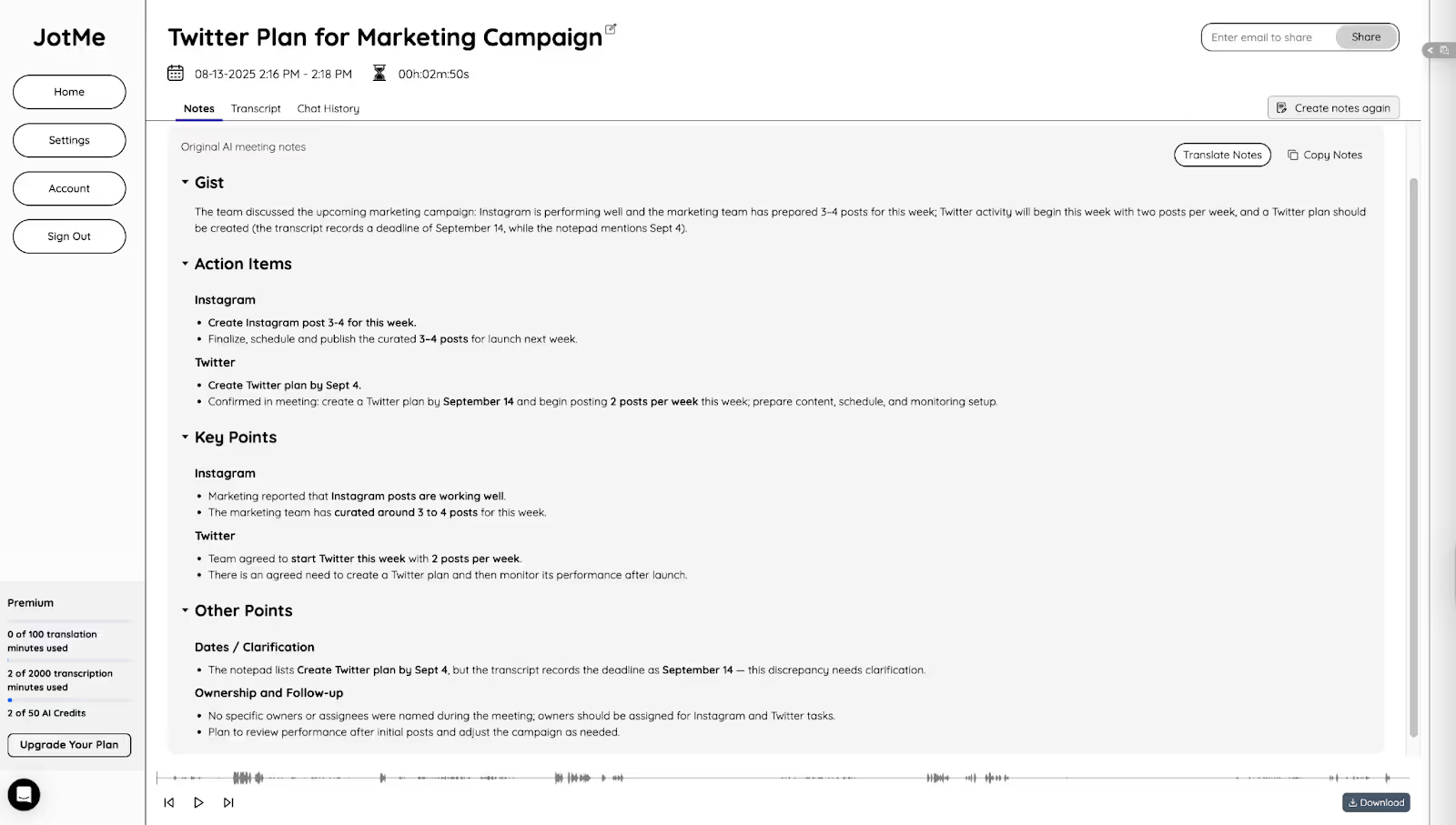
Once your Teams meeting ends, JotMe will provide AI-generated notes, summaries, and transcripts of the entire meeting in its dashboard.
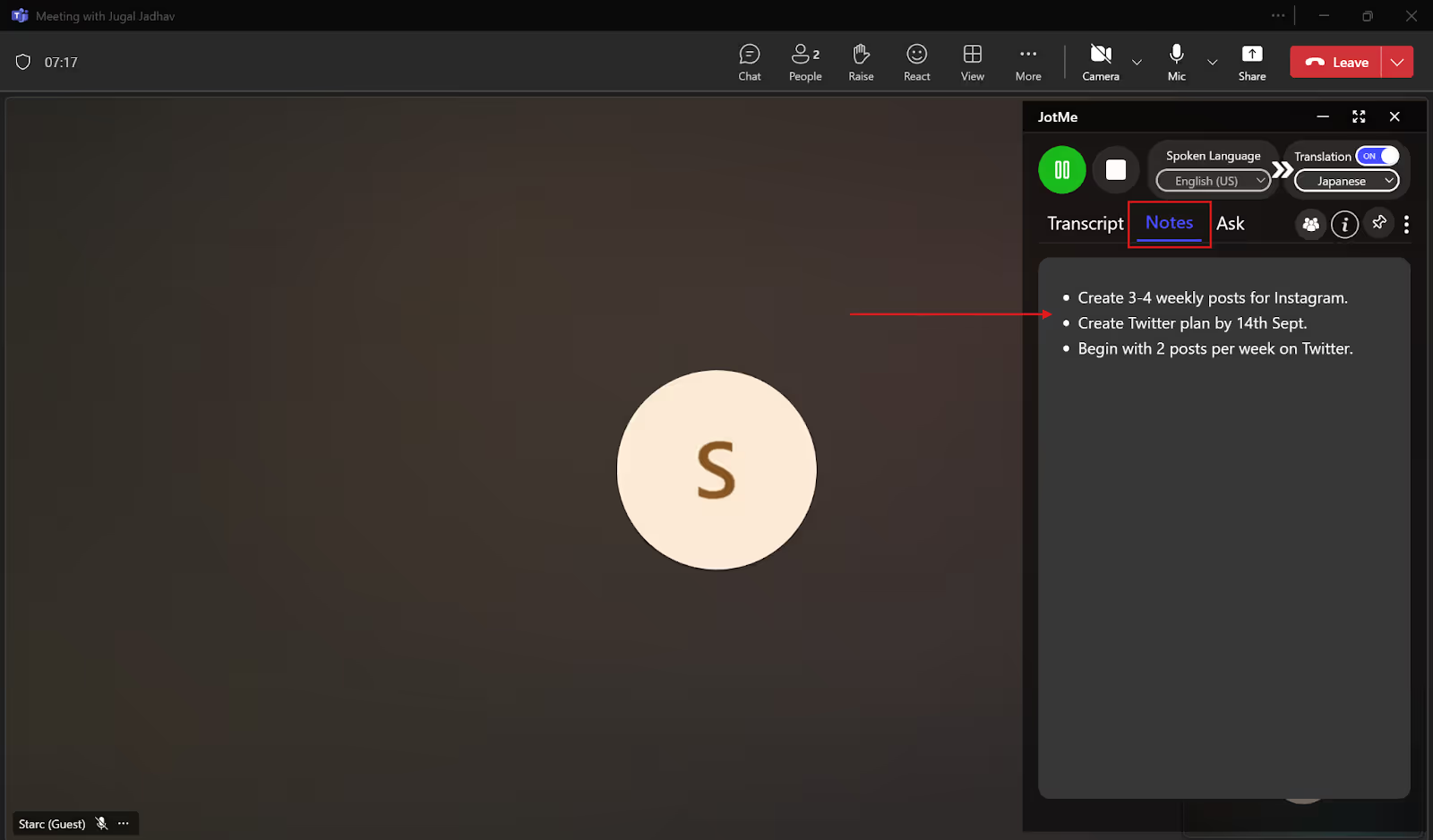
If you add your key points in the “Notes” section during the meeting, JotMe will generate AI notes and summaries based on those points.
The notes will contain the next action items and key points of your meeting. You can even translate the notes into your preferred language, including English, Japanese, Chinese, Spanish, Korean, and more.
Best Way to Translate English to Japanese in Teams Meetings
MS Teams’ built-in live translation and third-party tools, like JotMe, have made it easier to translate English to Japanese in Teams meetings in real time. However, apart from selecting the right tool, you need to follow some steps to ensure accurate translations. Consider the following things for better results:
- Internet Connectivity Should be Stable: If you don’t have a stable internet connection in your Teams meetings, the voice of the speaker will tend to break or lag. This will make it difficult for the live translation tool to capture the speech, and it will deliver inaccurate results. So, ensure a stable and reliable internet connection during your meetings.
- Speech Should Be Clear: Encourage the speaker in your Teams meeting to speak clearly at a normal speed and enunciate words clearly, especially technical ones, and sit in a background with minimal or no background noise. This will help the translation tool to easily understand the meeting’s audio without getting confused and deliver accurate real-time translation.
- Utilize Third-Party Tools: MS Teams’ built-in live translated captions feature covers only 40 languages. Plus, the cost of the Premium plan is on the higher side. So, explore the third-party tools like JotMe, which not only support 45 languages for translation but also offer a free plan.
JotMe takes the context, nuance, and technical terms into consideration and delivers accurate real-time translation accordingly. Not just that, JotMe also provides access to post-meeting notes, transcripts, and summaries, and also lets you translate the meeting notes into your preferred language.
Try JotMe for free today and see how effectively it translates English to Japanese in real-time during your Teams meetings.
FAQs
Can Teams do instant translation?
Yes, Teams can do instant translation, where you can view live captions translated into your preferred language. But this requires the Teams Premium plan. To do it for free, you can use third-party tools like JotMe that provide a free monthly plan where you can get real-time translation and transcription in 45 languages.
Which free app is best for translation?
JotMe is the best free app for translation. JotMe’s free plan offers 20 minutes of translation per month, along with AI credits for real-time answers, AI meeting notes, and more. Plus, you don’t have to provide your credit card details to access the free trial.
How to translate a Teams transcript?
To translate a Teams transcript, first start the live transcription. Go to “Record and transcribe” > “Show transcript” > “Language settings” > “Translate to.” From the drop-down list, select the language you want the translation in. But you need a Teams Premium plan for it. Alternatively, you can use a third-party tool like JotMe, which offers an easy setup and a free plan for real-time translation of Teams transcripts.
Are Teams transcripts available to everyone?
Teams transcripts can be available to everyone, depending on the permissions set by the host. The meeting organizer can customize who can access the transcripts. However, with third-party tools like JotMe, you can easily translate your Teams meeting transcripts without anyone’s permission. JotMe does the real-time transcription in the background without anyone knowing and even stores the meeting transcripts, notes, and summaries in its dashboard that you may access at any time.
Last updated on
April 14, 2026
Follow us on social media: