



Tips
How to Get Japanese-to-English Translations for Zoom Meetings

Viraj Mahajan
September 10, 2025

Brief Answer: To translate Japanese to English in Zoom meetings in real time, use live translation tools like JotMe. Just set the “Spoken Language” to Japanese and the “Translation” language to English, and watch as JotMe starts the translation in real time.
Do you fear missing out on what your Japanese client or teammate is saying in Zoom calls? We get it! Not knowing a foreign language that’s pivotal to your global communication can often lead to miscommunication and negatively impact your work. You can solve this by using live translation in your Zoom meetings.
Zoom does offer a translated captions feature, but it has some limitations, like inaccurate translations and restrictions in the healthcare and education sectors. Plus, it is not free, which can be a hassle because not all companies need a paid Zoom subscription.
However, there are a number of third-party tools, like JotMe, that overcome these limitations and provide contextual real-time translation in 45 languages. JotMe’s paid plan starts at just $9/month and offers 200 translation minutes and 500 transcription minutes per month, 20 AI credits for real-time answers, AI notes, summaries, post-meeting transcripts, and more.
Here’s a step-by-step overview of how you can translate Japanese to English in a Zoom meeting:
- Download JotMe: Visit JotMe’s official website to download its setup and install it on your device.
- Join your Zoom Meeting: Start or join your Zoom meeting and open JotMe.
- Select the Languages: Set the “Spoken Language” to Japanese and the “Translation” language to English in JotMe.
- Begin the Live Translation: Simply click on the “Play” button to start the live translation.
Step 1: How to Download JotMe?
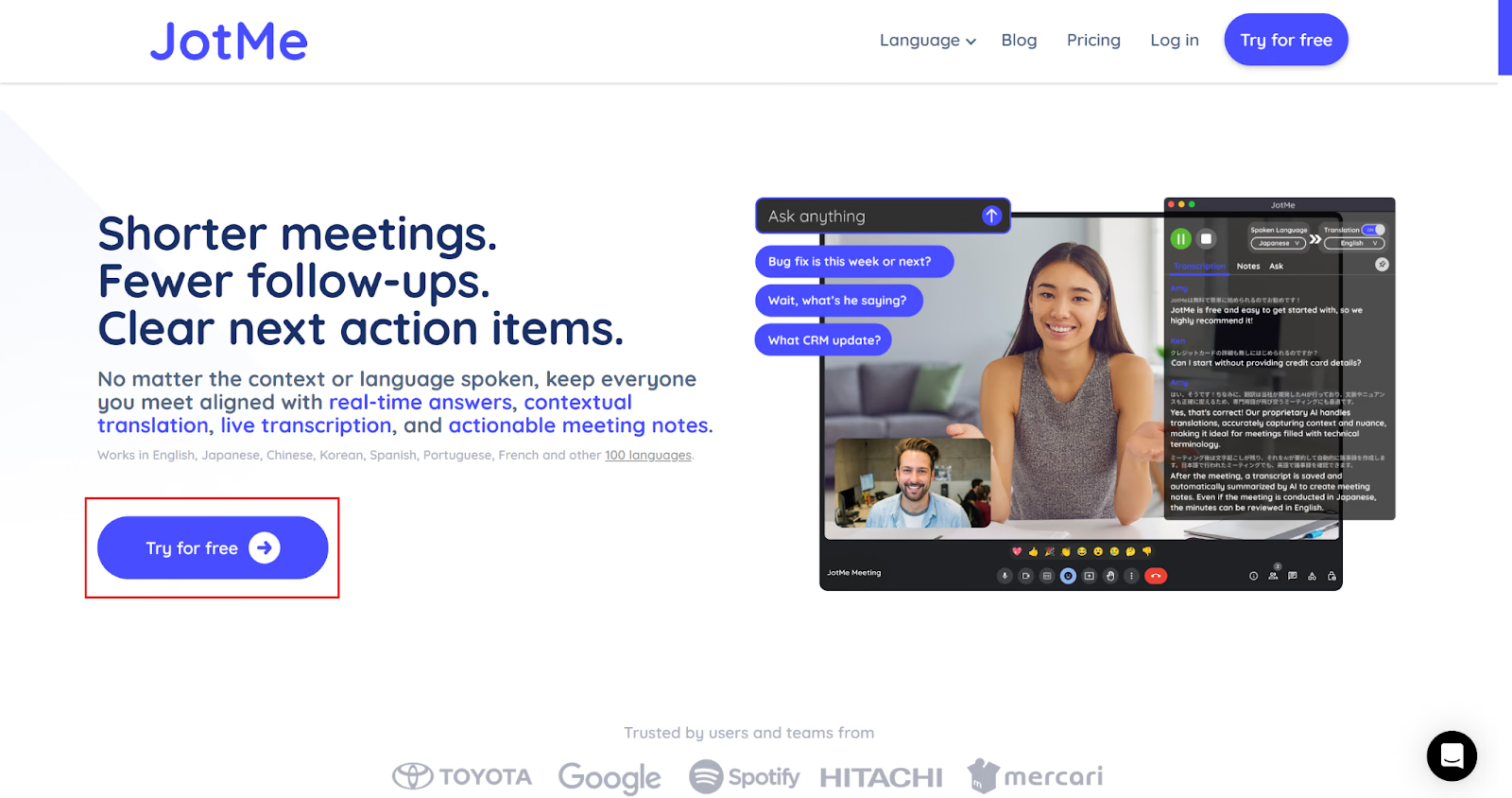
Download the JotMe setup from its official website by clicking on the “Try for free” button. Once downloaded, run the setup and install JotMe on your Mac or Windows device.
Step 2: How to Join a Zoom Meeting & Launch JotMe?
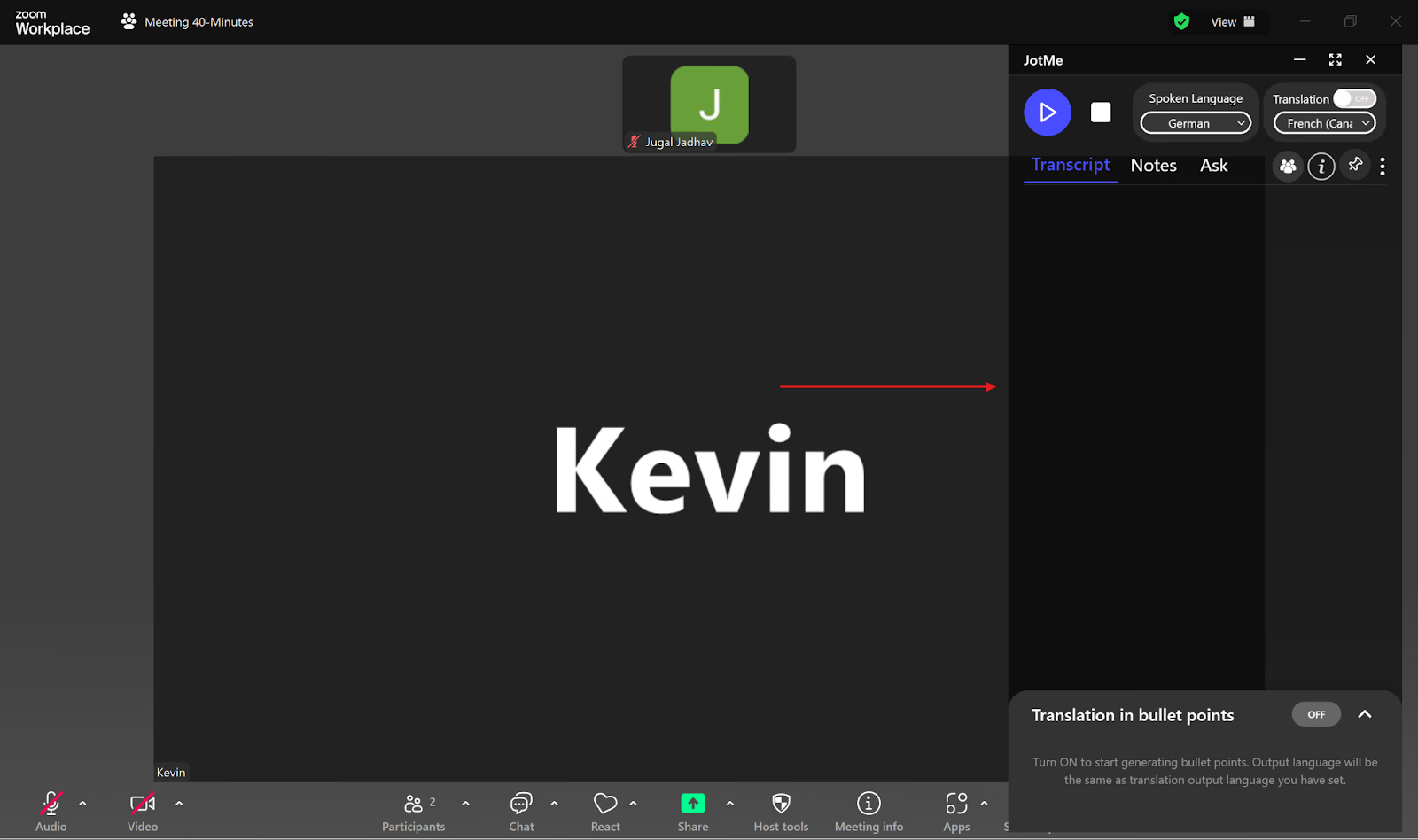
Once you install JotMe, start or join your Zoom meeting from the Zoom Workplace desktop app or on the browser. Then, launch the JotMe app; it will open on the right. You can also adjust its window size as required.
Step 3: How to Select the Languages in JotMe?
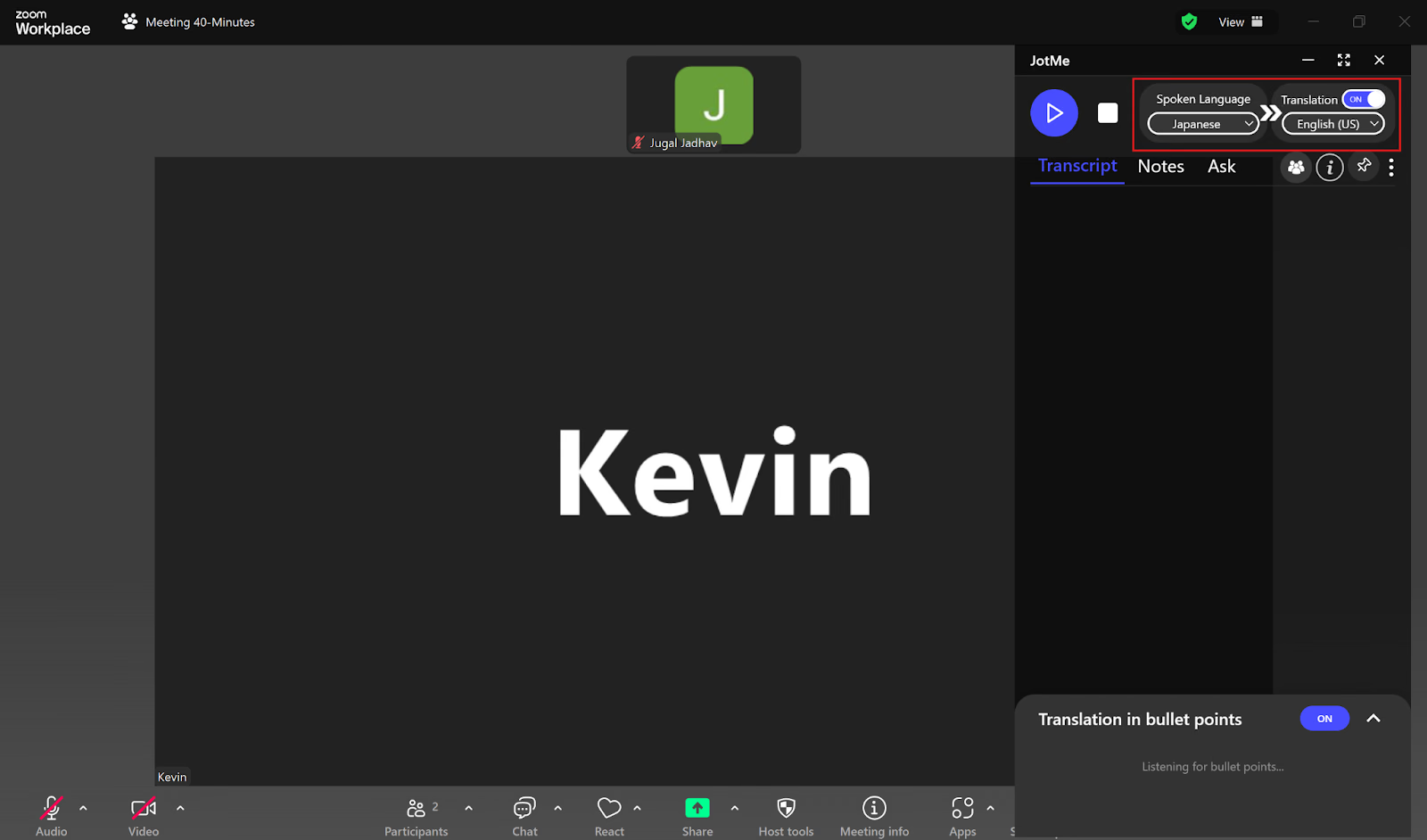
Now that you have launched JotMe, toggle on the “Translation” button on the top right of the JotMe window if it’s off. Next, set the “Spoken Language” to Japanese and the “Translation” language to English.
Step 4: How to Begin the Live Translation?
Once you’ve selected the languages, just click on the “Play” button to begin the live translation as you speak.
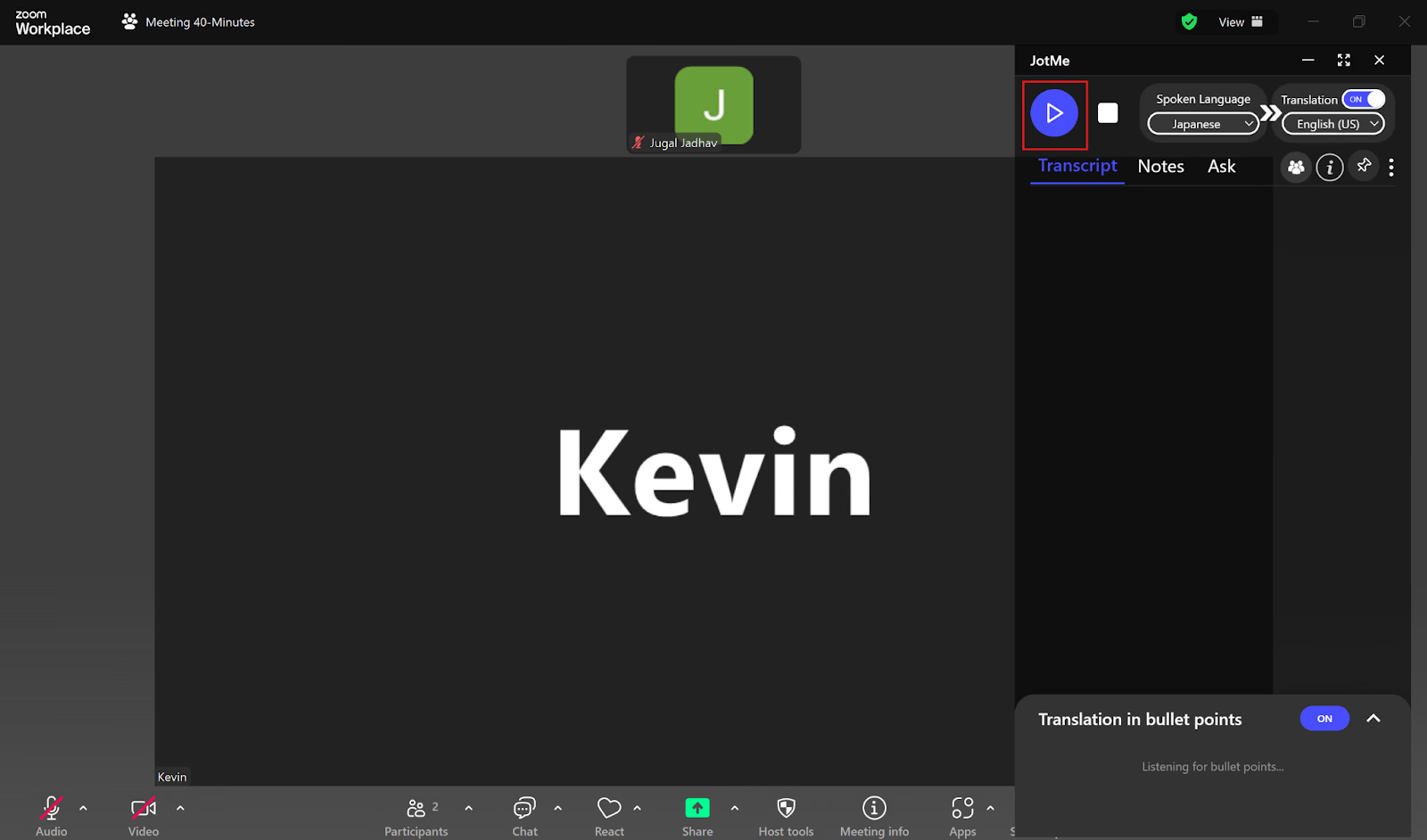
JotMe will instantly start the live translation from Japanese to English on clicking the “Play” button. You can also view this translation and get AI notes of the meeting once it’s over.
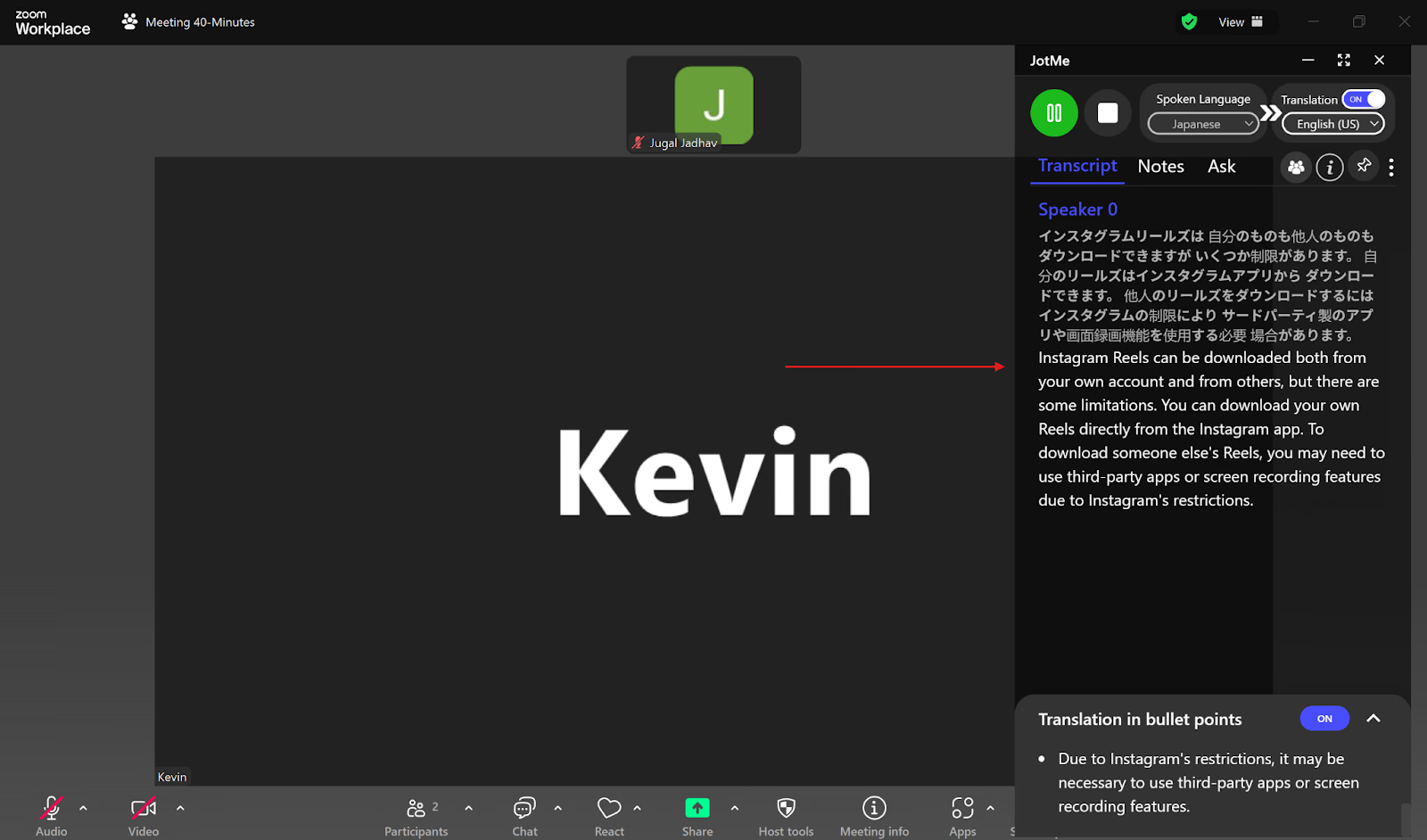
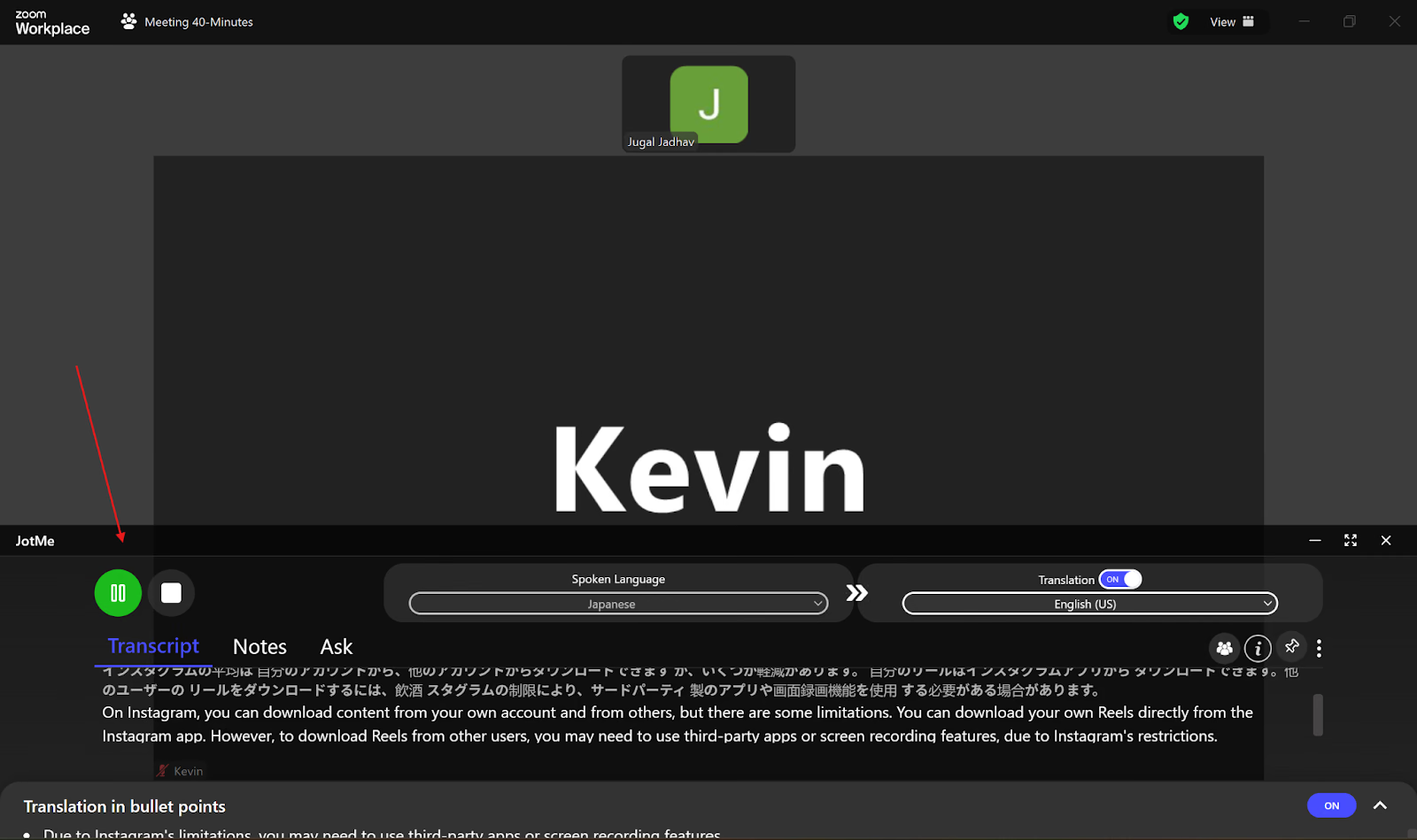
If you prefer standard caption formats, you can even resize the JotMe app to display translation at the bottom of your screen.
How to Use Zoom’s Built-in Translated Captions Feature?
According to Grammarly’s 2024 State of Business Communication Report, 58% of workers reported higher work satisfaction due to effective communication. This includes global Zoom meetings conducted in multiple languages.
Zoom offers a translated captions feature that can translate the speech in a meeting to real-time captions in another language. Zoom also allows language interpretation in your meeting or webinar, where the host can designate up to 20 participants as language interpreters. However, it has some limitations:
- Inaccurate Translations: Zoom’s translated captions may not be accurate at times, especially when translating from other languages to English. However, JotMe uses natural language processing that thoroughly understands the context and nuance of the sentences and delivers accurate real-time translation in 45 languages.
- Paid Plan Required: Zoom’s translated captions feature comes only with its paid plan, meaning you cannot use it for free. However, several third-party tools, like JotMe, offer a free monthly plan with 20 minutes of translation and 50 minutes of transcription in real time.
- No Dialect Support: Zoom does not support dialects of a language for translation, like translating between French (France) and French (Canada). But JotMe wins this over by providing translation between dialects, such as German (Germany) and German (Switzerland), Portuguese (Portugal) and Portuguese (Brazil), etc.
- Restrictions for Regulated Industry: If you work in a regulated industry like healthcare or higher education and use Zoom for multilingual meetings, you may not have access to its translated captions feature. Don’t worry, you can still get live translated captions in your Zoom meetings using third-party tools like JotMe. JotMe offers live translation and transcription in 45 languages, along with several other in-meeting and post-meeting features.
How Does JotMe Offer Accurate Japanese-to-English Translation for Zoom Meetings?
According to the Global Collaboration Workplace Report by Zoom, 52% of remote leaders spend three or more hours a day collaborating with their colleagues in a virtual meeting. This includes meetings that require live captioning or translation into a different language.
Even with Zoom’s paid plan, using its built-in translated captions feature may result in inaccuracies. JotMe overcomes this by providing various features like contextual translation, translation in bullet points, live AI insights, AI meeting notes, and more. Let’s explore them in detail.
Contextual Translation
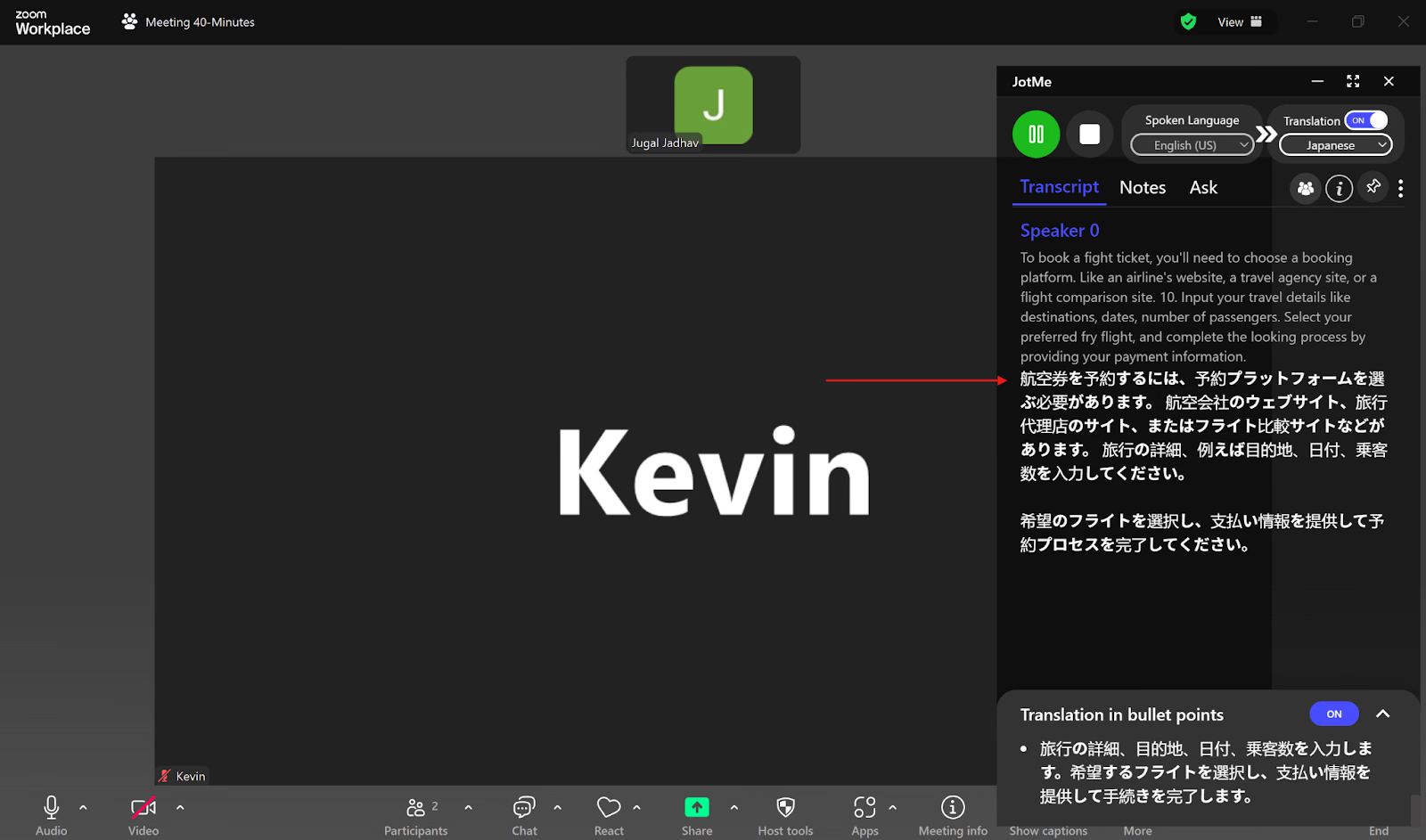
Have you tried the traditional translators and found that they often deliver inaccurate and meaningless translations? This is because they do word-for-word translations that miss the context and nuance of the conversation. But JotMe goes a step forward by using NLP and speech recognition that understand the context, tone, and flow of the sentences, and industry-specific terms to provide accurate and contextual real-time translation in 45 languages.
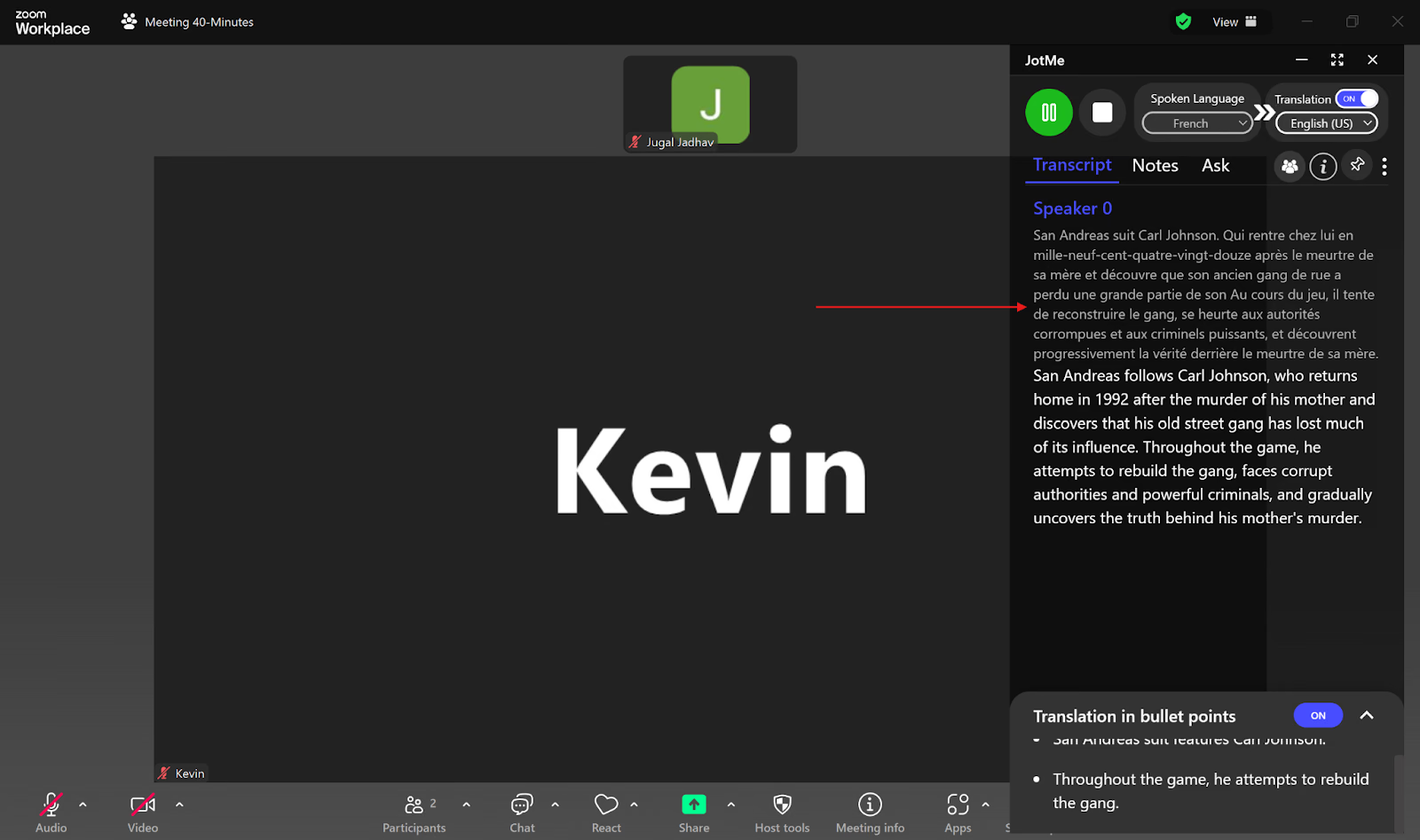
Other than contextual translation, JotMe also autocorrects misspelled words. For example, in one of your Zoom calls discussing flight bookings, the speaker accidentally mispronounced “flight” as “fight” and “booking” as “looking,” but JotMe corrected them automatically and gave the rectified translation.
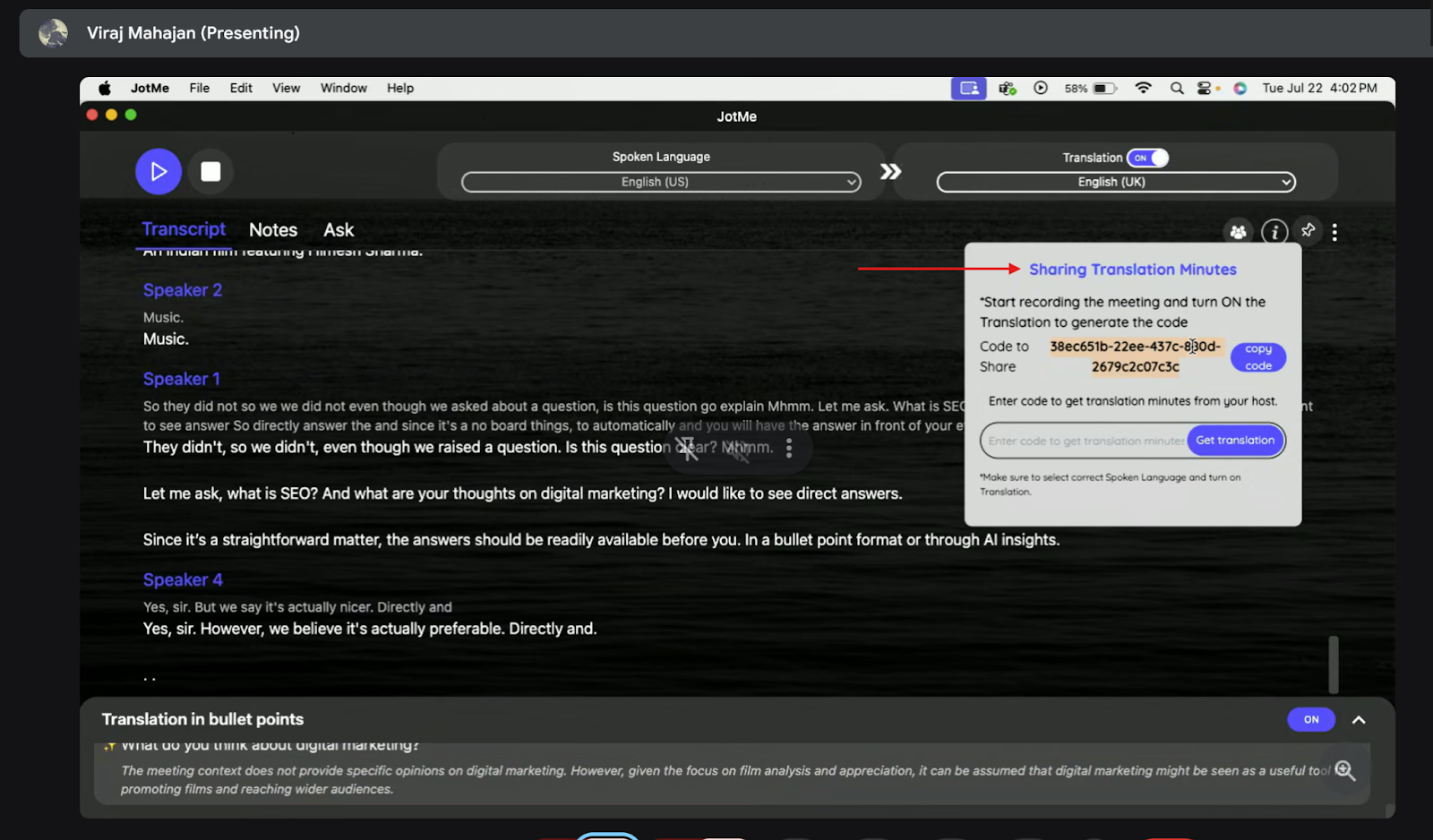
Sharing Translation Minutes
Suppose the participants in your Zoom meetings don’t have a paid JotMe plan and have run out of translation minutes. As the host, you can help them translate the meeting by sharing translation minutes from your account. All you have to do is start recording and translating the meeting to generate a code. Once you share this code with your participants, they will receive the translation minutes, which will enable them to record, translate, and transcribe the meeting in real time. Along with this, they will also get access to the meeting notes and transcripts immediately after your Zoom meetings.
Translation in Bullet Points and AI Insights
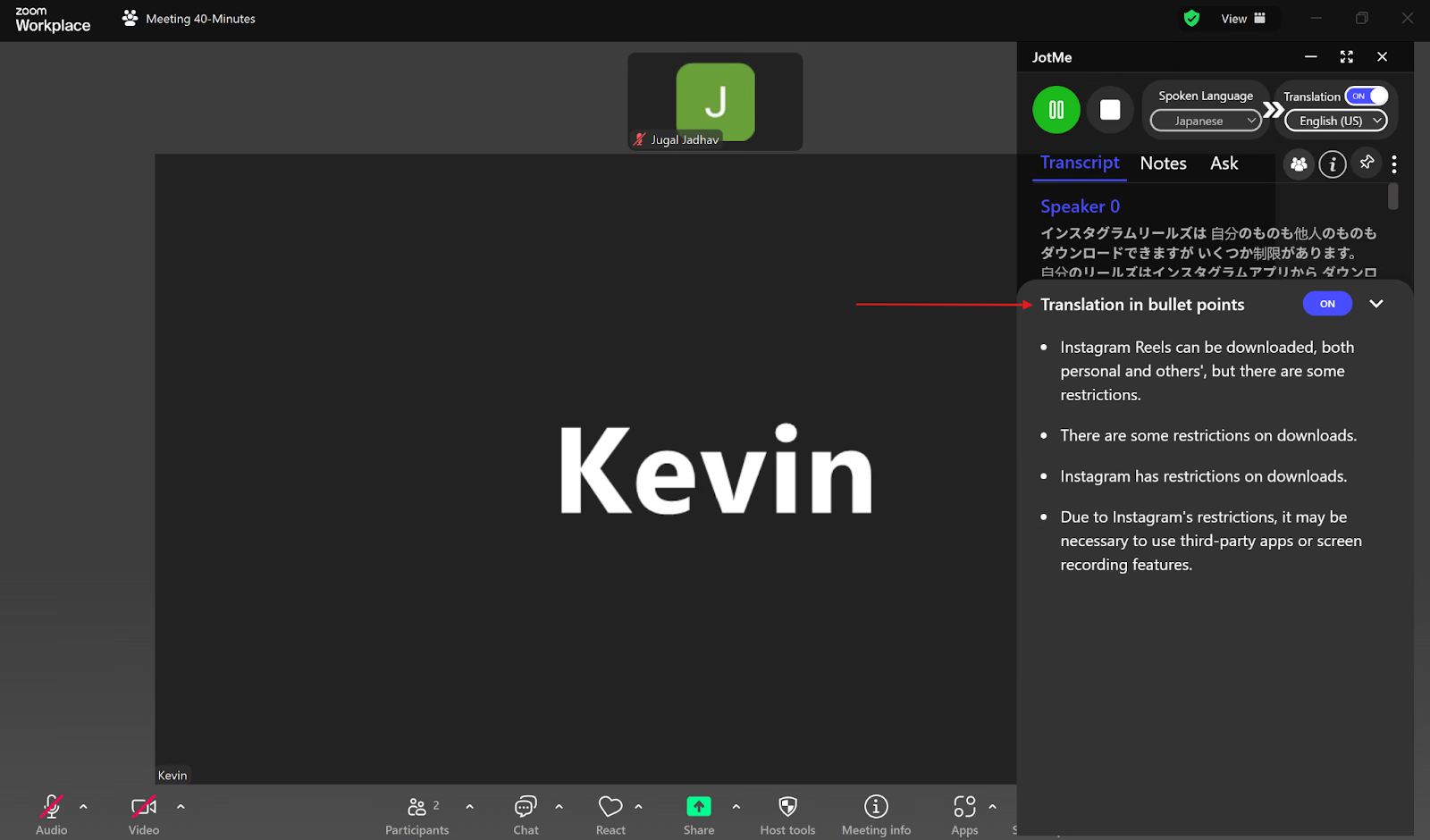
Sometimes, it can be challenging to look up a particular point in the lengthy translation provided. To help with this, JotMe summarizes the entire translation in bullet points in the same translation output language that you’ve selected. These bullet points highlight the important points of the meeting in short sentences, so you can refer to them instead of having to read the whole conversation. Furthermore, if you don’t understand any of the points, you can simply click them, and JotMe will instantly provide AI insights into that particular topic. This way, you can keep the conversation going instead of getting stuck in the middle of your Zoom meeting.
AI Meeting Notes
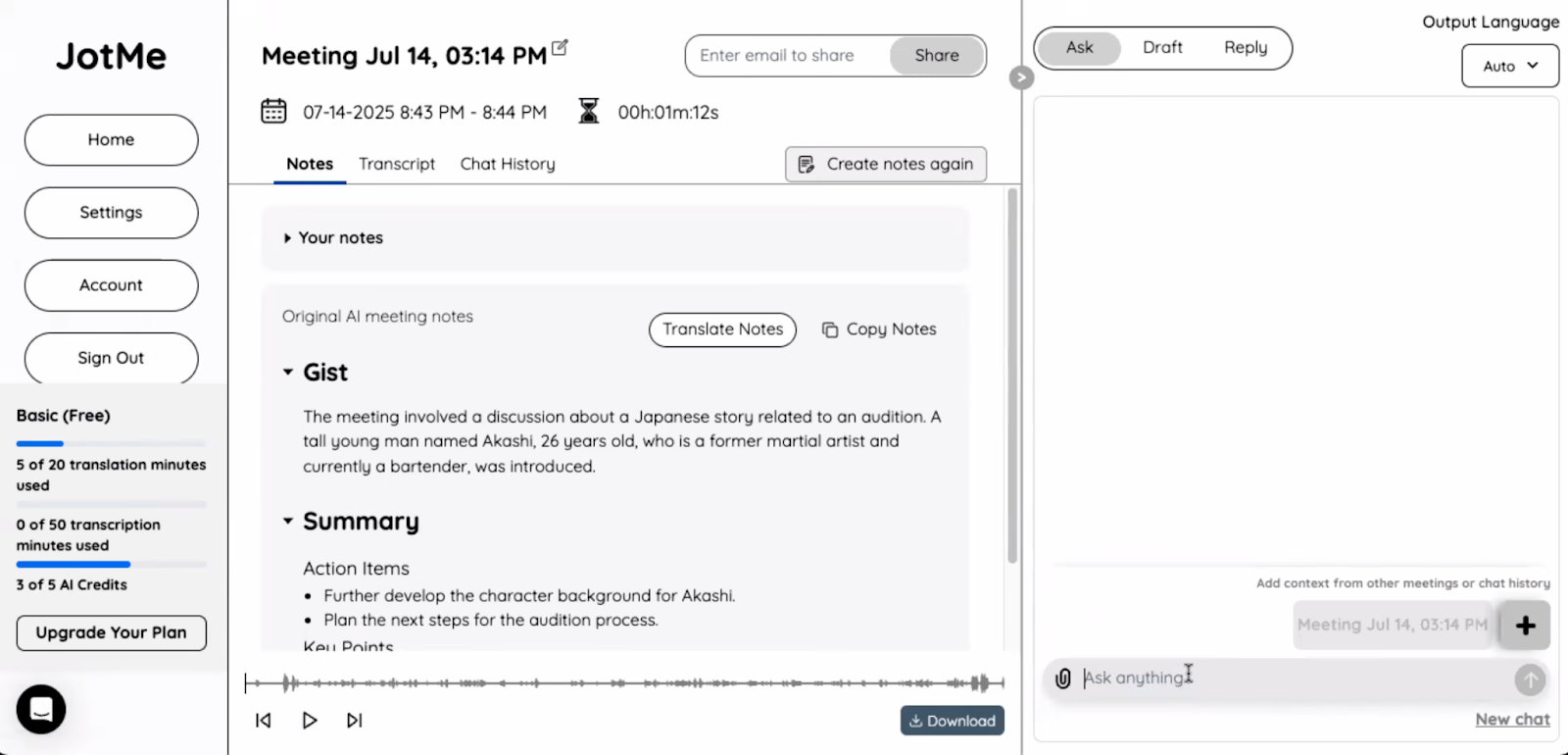
If you don’t want to juggle between taking manual notes while also trying to understand the speaker’s language and the conversation, let JotMe help you with it. JotMe will take notes of your Zoom meeting and even provide an AI summary of what was discussed once the meeting is over. This way, you can stay focused on the meeting without worrying about taking manual notes. If you want JotMe to create notes based on your takeaways, you can add them in the “Notes” section during the meeting, and it will create AI notes and summaries highlighting your points.
Best Tool for Japanese-to-English Translations for Zoom
Japanese-to-English translation in Zoom meetings should be easy. Still, the translated captions feature has several limitations, including inaccuracy, lack of dialect support, restrictions in regulated industries, and the need for a paid plan. However, there are several third-party tools, like JotMe, that offer real-time translation for free.
JotMe provides contextual and accurate real-time translation for your Zoom meetings in 45 languages. JotMe is great for meetings where your host does not like to invite a bot to the meeting. JotMe does all the work in the background; it captures audio directly from your system and does the translation without anyone knowing. Apart from this, JotMe offers several other features like live AI insights, shareable translation minutes, AI meeting notes and summaries, and more.
Try JotMe today for free and communicate effectively with your Japanese client or teammate without language barriers.
FAQs
How do I enable live translation on Zoom?
To enable live translation on Zoom, you have to buy a paid plan first. Then, in the navigation menu of the Zoom web portal, go to “Settings” and click the “Meeting” tab. Under the “In Meeting (Advanced)” option, toggle on “Translated captions.” However, if you want the live translation for free, use third-party tools like JotMe. JotMe offers contextual real-time translation in 45 languages, along with AI insights, bullet-point translation, AI meeting notes, and more.
Does Zoom offer translation services?
Yes, Zoom offers a live translation captions feature, but it only comes with the paid plan. However, tools like JotMe offer a free monthly plan with 20 translation and 50 transcription minutes and 5 AI credits for live insights, meeting notes, etc.
Does Zoom do simultaneous translation?
No, Zoom doesn’t do simultaneous translation. But third-party live translation tools, like JotMe, can transcribe up to 10 languages simultaneously in real time, including Japanese, English, German, Italian, Russian, and more, and even offer post-meeting transcripts to refer to when needed.
How to automatically transcribe on Zoom?
To automatically transcribe on Zoom, go to “Settings” > “Meeting” tab > “In Meeting (Advanced)” > “Automated captions.” However, Zoom’s automated captions may not be accurate. If you want an accurate and contextual transcription of your Zoom meetings, use JotMe. JotMe uses NLP and speech recognition to offer accurate live transcription and translation in 45 languages.
Last updated on
April 14, 2026
Follow us on social media:
![JotMe — Is Google Translate Accurate? [2026 Test]](/_webflow-assets/0d0512afc7b037d74dff536f22fed08f.avif)