Guides
10+ Best iOS Apps for Business Professionals [Tried & Tested]

Viraj Mahajan
February 14, 2026
If you’re a business professional using an iPhone, your biggest problem isn’t a lack of apps; it’s choosing the best iOS app that actually works in real situations. From talking to international clients, managing remote teams, joining meetings on the move, to keeping tasks and files accessible, most iOS apps solve one problem but slow you down elsewhere.
The answer is not one “do-everything” app, but the right iOS apps mapped to real business use cases we encounter day to day, like JotMe’s mobile app for live multilingual conversations, Slack for team communication, Zoom for client meetings, and Notion for documentation.
This list cuts straight to that, focusing only on tools that perform well on iOS when you’re traveling, working across languages, or managing work between meetings.
Quick TL;DR
- JotMe’s iOS mobile app is best for real-time, context-aware multilingual conversations on iPhone, helping you speak naturally and follow detailed discussions in 45+ languages during travel, client meetings, or cross-cultural negotiation.
- Slack is an ideal choice for fast, organized internal team chat on iOS, keeping conversations, threads, and workstreams structured so you spend less time in email and more time moving projects forward.
- Microsoft Teams is great for enterprise-scale collaboration on iPhone, combining chat, voice calls, files, and meetings in one app; especially when your company runs on Microsoft 365.
- Zoom is best for reliable, high-quality video meetings with external clients, letting business professionals join or host webinars and discussions directly from their iPhones.
- Google Meet is ideal for quick video calls inside the Google ecosystem, offering seamless meeting access from Gmail or Calendar without switching between apps on iOS.
- Notion is great for centralized documentation and team knowledge bases, letting iOS users create, organize, and collaborate on docs and processes from anywhere.
- Microsoft OneNote is ideal for simple, structured note-taking across devices, letting you easily organize notebooks for meetings and reference material right on your iPhone.
- Todoist is best for personal productivity and daily task management, helping you capture, prioritize, and track tasks and to-dos on the go without complexity.
- Trello is a great choice for visual project tracking and lightweight workflows, with boards and cards that make project progress easy to see and update from your iPhone.
- Calendly is great for automated meeting scheduling on iOS, eliminating back-and-forth by letting invitees book times directly in your calendar.
- Google Drive is best for accessing files and collaborating in real time on the go, letting you store, share, and edit documents from your iPhone with teammates.
To make it easier to choose the right tool quickly, the table below maps each app to the exact business situations where it performs best on the iPhone.
Best iOS Apps for Multilingual Real-Time Translation
JotMe’s iOS mobile app is built for translating live, two-way conversations on iPhone without interrupting the flow. Whether speaking with clients while traveling, conducting face-to-face discussions, or navigating multilingual meetings on the go, JotMe’s mobile app keeps conversations continuous, making it far more practical for real iOS business use than generic translation apps.
JotMe’s iPhone App: Best for Live Translation in 45 Languages
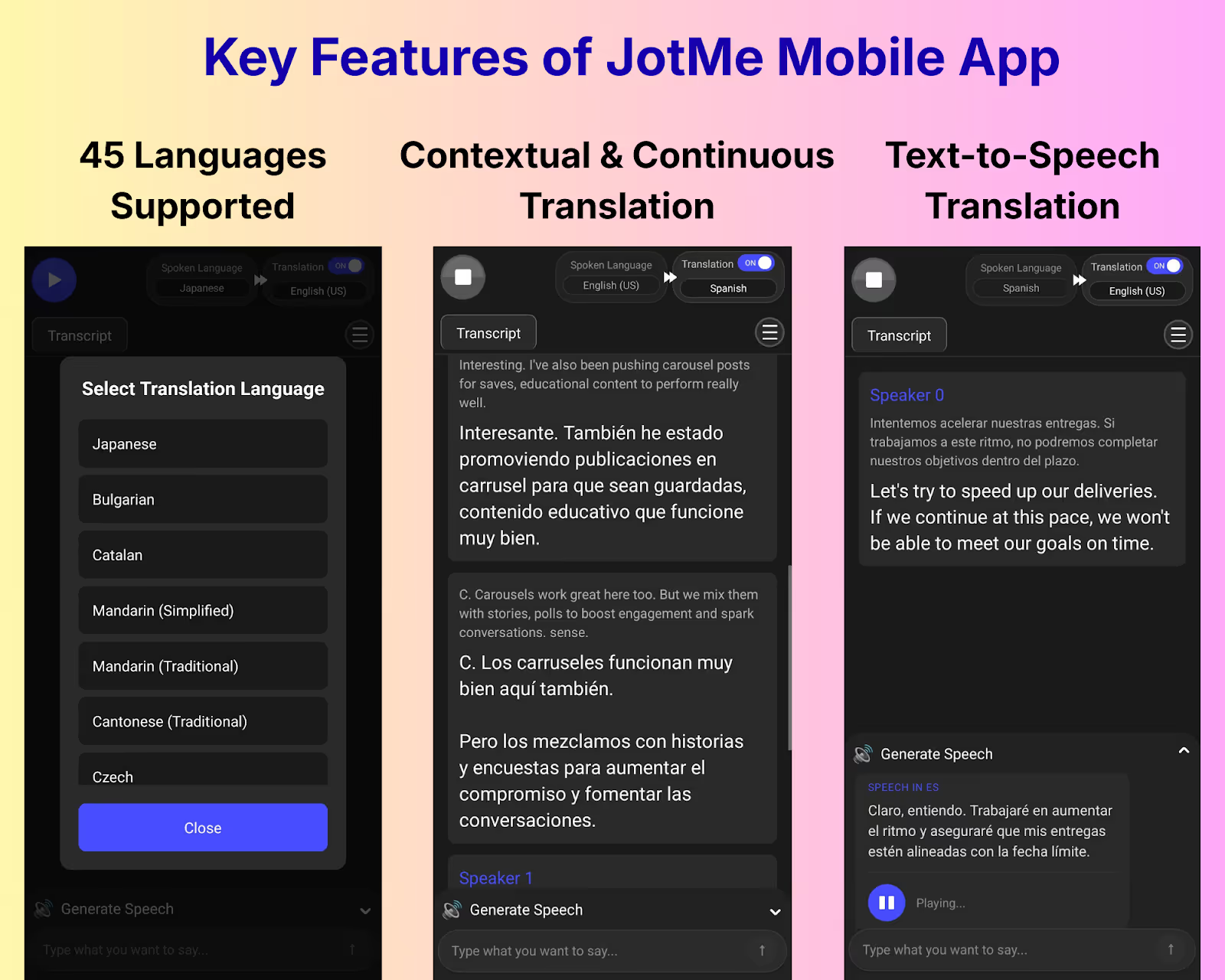
We used the JotMe iOS mobile app during a same-day client visit abroad, starting with casual coordination at the airport, then a cab discussion, and finally a short on-site business conversation. On iOS, we opened the JotMe iOS mobile app once and let it run. Translations appeared instantly and were spoken out loud, so no one had to pause or read the screen, even as the conversation shifted topics.
What performed consistently in our testing was how the JotMe iOS mobile app handled the trade-off between speed and accuracy. During quick exchanges, such as directions or timing, we kept the Translation Quality on fast. When the discussion moved to delivery timelines and responsibilities, we switched to Contextual for more accurate, nuance-aware output. In JotMe, there is a smart AI adjustment that automatically adjusts from fast to contextual and vice versa, depending on the conversation flow.
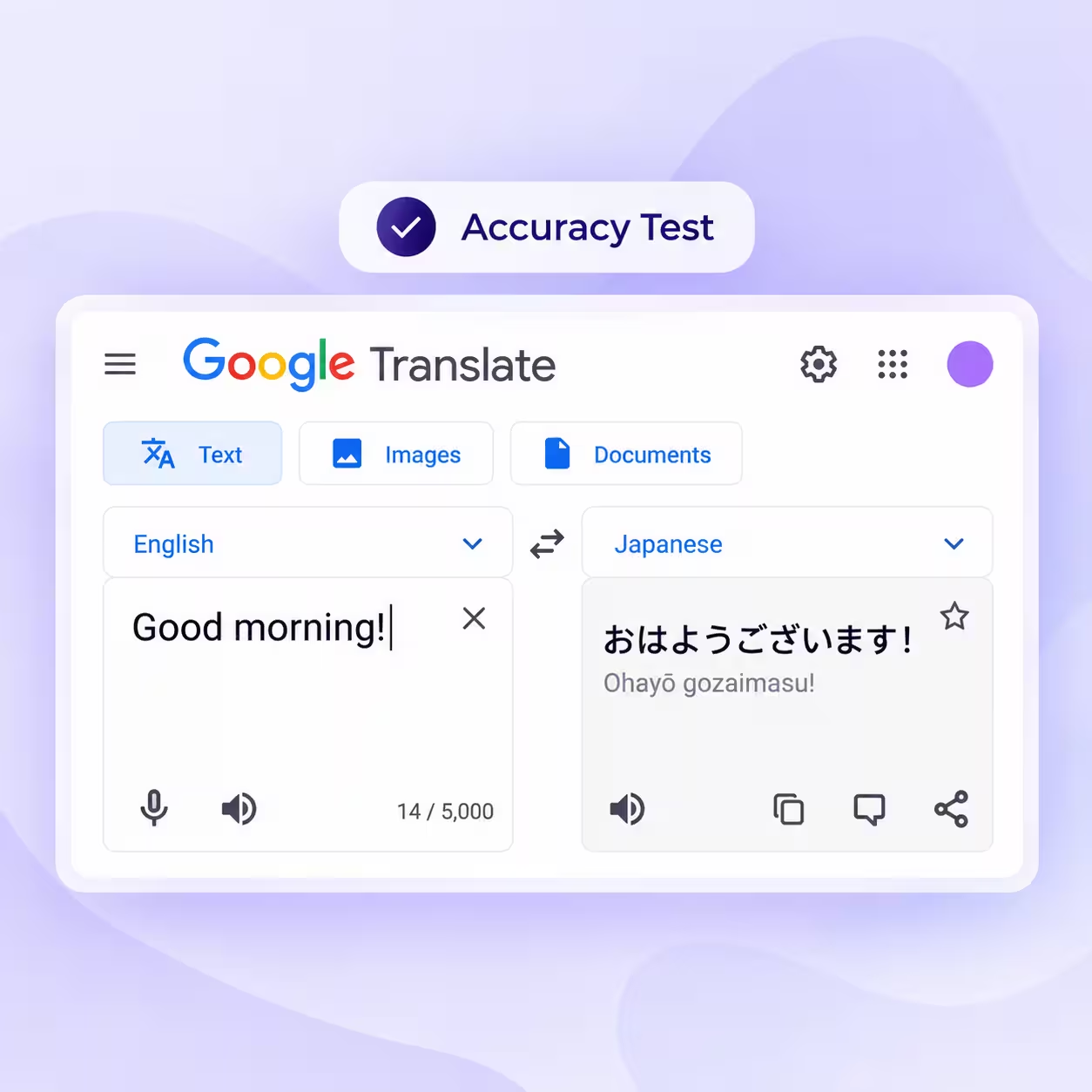
We also tested Google Translate in similar situations, but it often translated sentence by sentence, losing tone and forcing us to repeat or rephrase, especially in business or technical conversations. For professionals looking for a more reliable Google Translate alternative, JotMe’s iPhone app handled those moments better because it followed context across the entire exchange instead of breaking the conversation into fragments.
When conversations need to be reviewed or expanded after the meeting, the JotMe desktop app adds more control with features like multilingual transcripts, deeper context handling, and AI-powered features, making it useful beyond real-time mobile use.
JotMe’s Mobile App Pros
- Continuous, context-aware live translation
- Spoken output for natural back-and-forth
- Adjustable accuracy control (Fast vs Contextual)
JotMe’s Mobile App Cons
- Requires an active internet connection (no offline mode yet)
- The free plan is limited, so extended use requires a paid plan
When to Use: Use JotMe’s iOS mobile app during international travel, client site visits, factory walkthroughs, and informal pre-meeting discussions where conversations move fast, and accuracy matters more than literal translation.
JotMe’s Mobile App FAQs
Which iOS app is best for live translation?
JotMe is one of the best iOS apps for live translation. It delivers continuous, context-aware, two-way multilingual conversations in 45+ languages, with spoken output and adjustable accuracy, making it ideal for client meetings, travel, and cross-border business discussions.
Can JotMe’s mobile app handle technical or business-specific language?
Yes. JotMe’s iOS mobile app performs well in conversations that include business and operational language, such as timelines, responsibilities, deliverables, and planning discussions. Unlike generic translators that treat each sentence in isolation, JotMe maintains context across the exchange, which helps preserve meaning when terms are referenced repeatedly or implied rather than restated.
Is JotMe’s iOS mobile app suitable for spontaneous, unscripted conversations?
Yes. JotMe’s iOS mobile app is designed for natural, unscripted conversations where people interrupt, change topics, or speak informally. Because translation runs continuously in the background, users do not need to pause, press buttons, or restart sentences, making it practical for real-world discussions rather than scripted dialogue.
Does JotMe’s iOS mobile app support multilingual conversations with more than 2 languages?
Yes. JotMe’s iOS mobile app can translate up to 10 spoken languages into a single preferred output language during a live conversation. This makes JotMe’s mobile app useful in group settings where participants speak different languages but need to follow the discussion in one common language without stopping the flow.
Best iOS Apps for Group Chat
Slack and Microsoft Teams are the two most widely used iOS apps for group chat, but they solve very different communication problems on iPhone. Slack is built for fast, informal team conversations, while Microsoft Teams is designed for structured organization-wide collaboration tied to work systems.
Slack: Ideal for Fast-Moving Internal Team Communication
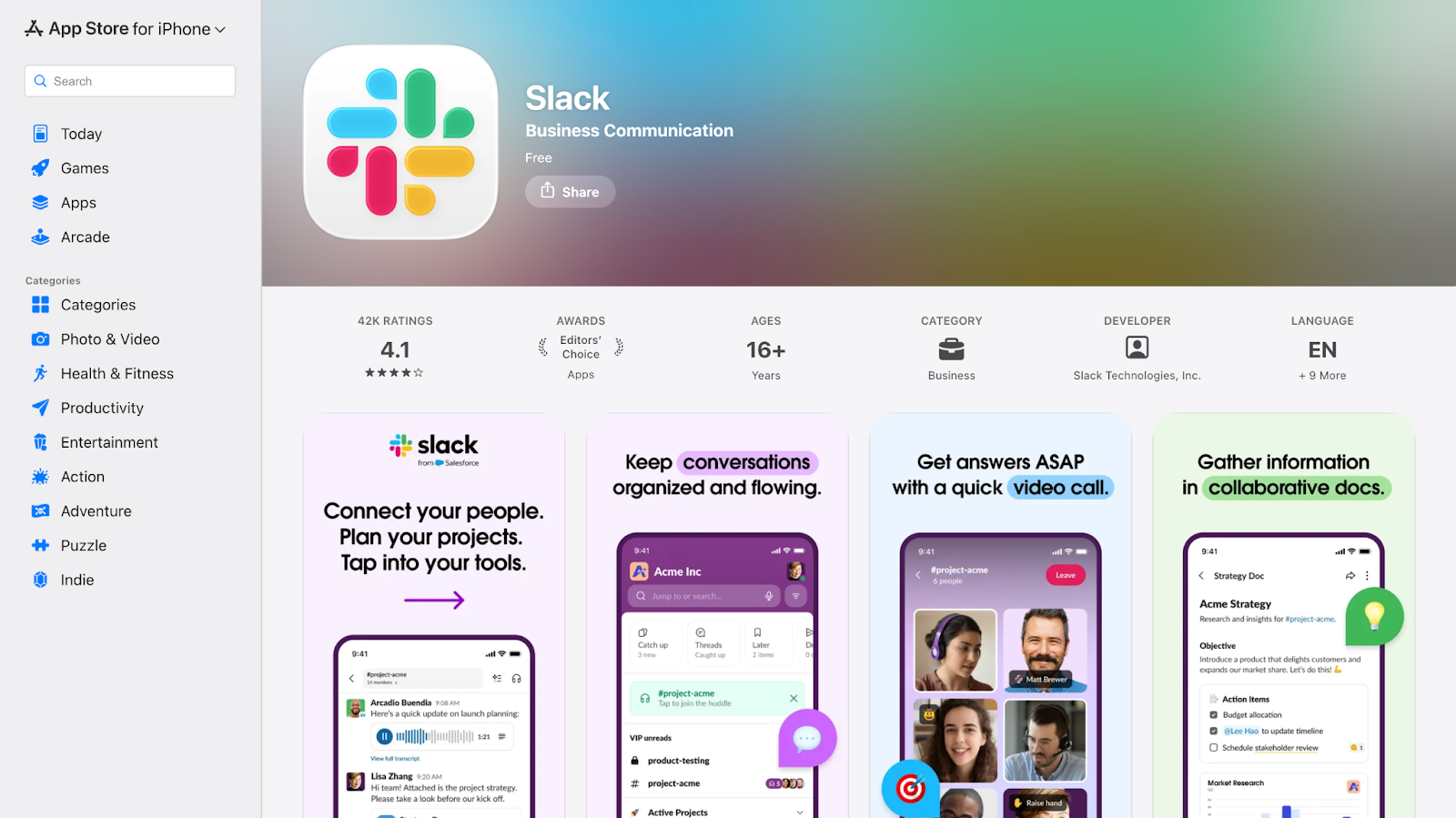
On iPhone, Slack feels like your team’s digital HQ; everything from quick team questions to cross-department stuff lives in one place. We often use Slack on iOS when we’re away from the desk and need to thread conversations, tag teammates, respond instantly without switching apps, or even update status with funny emojis to signal “sleepy 😴” or “heads-down busy🧑💻.” Slack’s channels and workflow automations make it great for teams that juggle tasks, alerts, and collaboration across tools we already use.
Slack Pros
- Intuitive, lightweight chat that feels native on iOS
- Massive third-party integrations (2000+ apps) for workflows
- Customizable notifications help manage focus
Slack Cons
- Video/audio calls are basic compared to standalone apps
- It can get pricey as your team grows
- “Always-on” chat can lead to notification fatigue if not configured
When to use Slack: Use Slack on your iPhone for quick, real-time conversations with teammates, external collaborators, or freelancers, especially if your workflow depends on tools like Google Drive, Asana, GitHub, or CRM apps.
Slack FAQs
Does Slack work well for external collaboration?
Yes, features like Slack Connect let you chat securely with partners and vendors without leaving your workspace.
Can Slack replace email for team communication?
In many cases, yes. Slack’s channels and threads make it easier to find and follow context than scrolling email chains.
How does Slack handle notifications on iOS?
Slack on iOS uses push notifications that can be customized by channel mention type and keywords. You can mute channels, set Do Not Disturb schedules, and control alert frequency to stay informed without constant interruptions.
Microsoft Teams: Ideal for Enterprise Collaboration
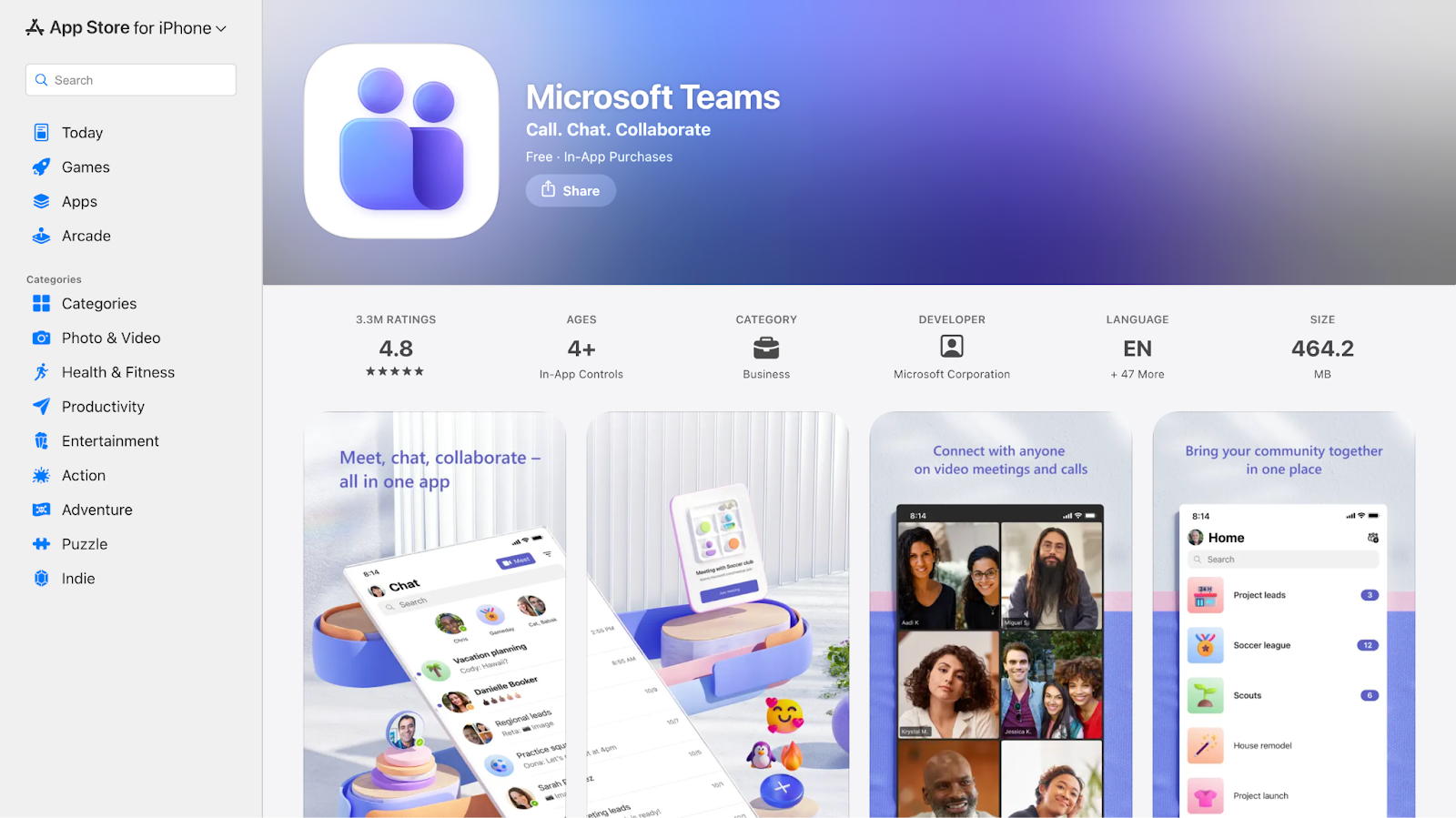
Microsoft Teams on iPhone is built for structured business communication, blending chat with meetings, file access, and Office tools without jumping between apps. When our team is actively working inside Microsoft 365, such as editing a Word doc, reviewing a PowerPoint, or joining an impromptu voice call, Teams feels like one unified mobile hub rather than a messaging app with add-ons. We also rely on Microsoft Teams to revisit conversations through meeting chats and shared AI meeting notes, which helps keep context and decisions accessible after the call ends.
Microsoft Teams Pros
- Deep integration with Word, Excel, SharePoint, and OneDrive
- Enterprise-grade security and compliance built into the platform
- Advanced meeting and chat features inside the same app
Microsoft Teams Cons
- Interface can feel cluttered or heavy compared to simpler chat apps
- Limited third-party integrations outside the Microsoft ecosystem
- It can be overwhelming for teams that are not already in Microsoft 365
When to use Microsoft Teams: Use Teams on your iPhone when you’re embedded in Microsoft 365 workflows that need tight file and calendar integration or work in a regulated environment where security and compliance matter.
Microsoft Teams FAQs
Can Teams replace separate video conferencing apps?
Yes. Teams’ video and meeting tools are generally stronger and more seamless than basic group chat apps on iOS.
Is Teams good for small, non-Microsoft Teams?
Microsoft Teams works, but you’ll get more value if your team already uses Microsoft 365 services.
Does the mobile app support shared file editing?
Yes, you can open and edit shared Word, Excel, or PowerPoint files directly inside the Teams iOS app.
Best iOS Apps for Online Meetings
Zoom and Google Meet are the most commonly used iOS apps for online meetings, but they support different meeting styles on iPhone. Zoom is optimized for large external calls and webinars, while Google Meet is designed for lightweight, fast-moving meetings within existing work ecosystems.
This evolution toward smarter, more interactive meetings isn’t accidental. According to the Global Business Travel’s GBT 2025 Global Meetings & Events Forecast, 50% of meeting professionals are embracing AI software and mobile apps to enhance attendee engagement, signaling a broader shift toward technology-driven meeting experiences.
Zoom: Ideal for External Meetings and Webinars
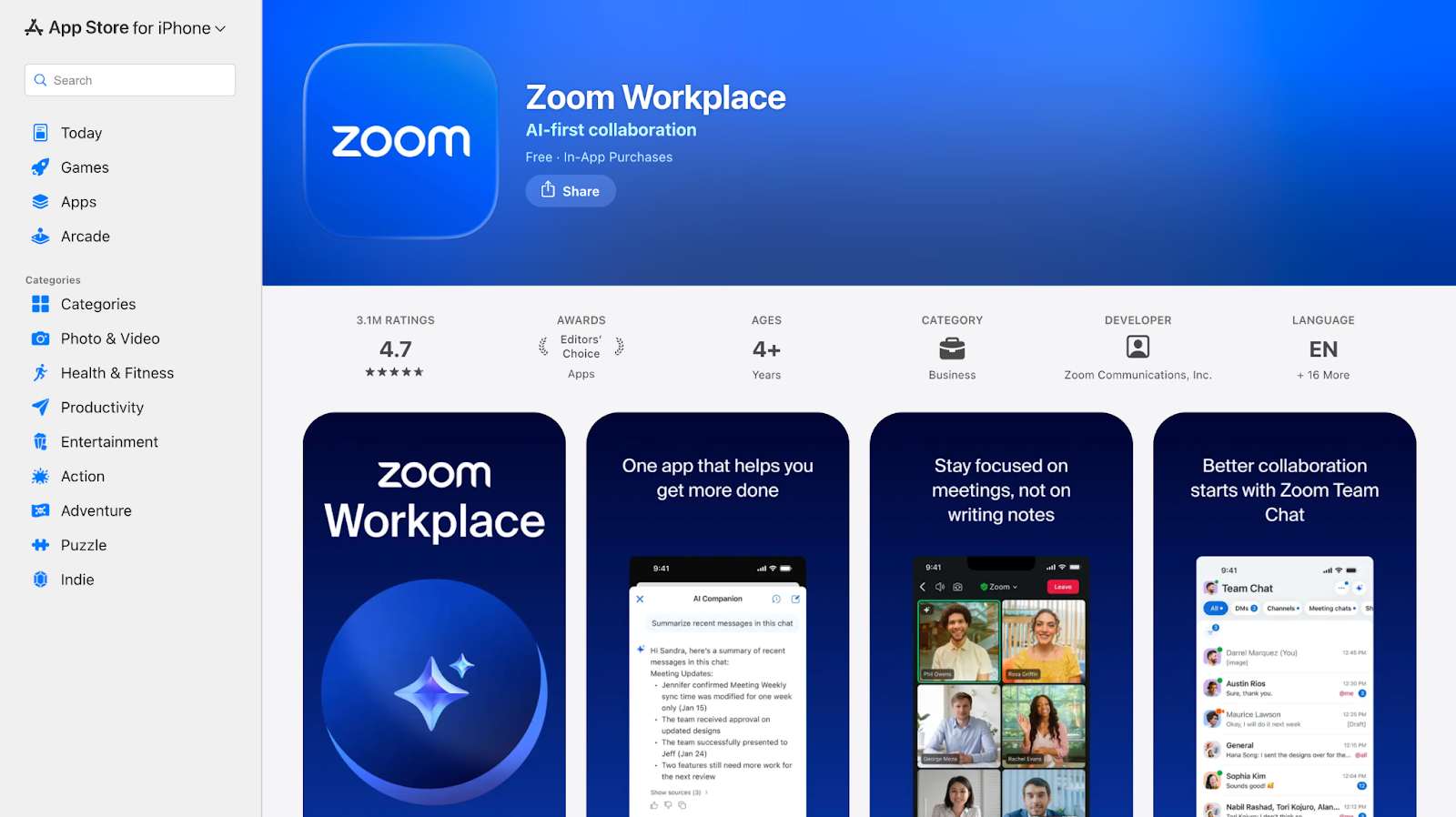
Zoom works best on iOS when meetings involve clients, partners, or large groups where reliability matters more than anything else. We’ve used Zoom on iPhone while traveling, switching networks, and joining webinars without losing call quality or audio or video control. For global meetings, Zoom translation features like live captions and language support also help follow conversations with international participants directly from the mobile app.
Zoom Pros
- Stable video and audio performance even on variable mobile networks
- Strong host controls on iOS for muting screen sharing and managing participants
- Useful live captions and Zoom translation support for cross-border meetings
Zoom Cons
- High battery consumption during long calls on the iPhone
- Advanced features feel restricted without a paid plan
- Chat and controls can feel cluttered on smaller screens
When to use Zoom: Use Zoom when joining external client meetings, investor calls, webinars, or international discussions where call stability and participant control are critical on iOS.
Zoom FAQs
Which iOS apps work best while traveling?
While traveling, Zoom performs reliably on changing networks, JotMe’s iOS mobile app enables smooth multilingual conversations, Slack keeps teams connected, Google Drive provides instant file access, and Calendly simplifies scheduling across time zones without email back-and-forth.
Is Zoom reliable for client and stakeholder meetings on an iPhone?
Yes. Zoom is one of the most stable options for external meetings on iOS, especially when joining client calls, vendor discussions, or interviews. Video quality, screen sharing, and audio controls remain consistent even on mobile networks.
How well does Zoom handle meetings when you’re traveling or switching networks?
Zoom adapts well to changing connectivity on iPhone. If the network drops or switches between Wi-Fi and mobile data, meetings usually reconnect quickly without ending the session, which is useful when joining calls on the move.
Can Zoom on iPhone support structured business meetings, not just quick calls?
Yes. Features like scheduled meetings, waiting rooms, host controls, and screen sharing make Zoom suitable for formal presentations, demos, and multi-participant discussions, even when you’re joining from an iPhone.
Google Meet: Ideal for Quick Meetings Within Google Workspace
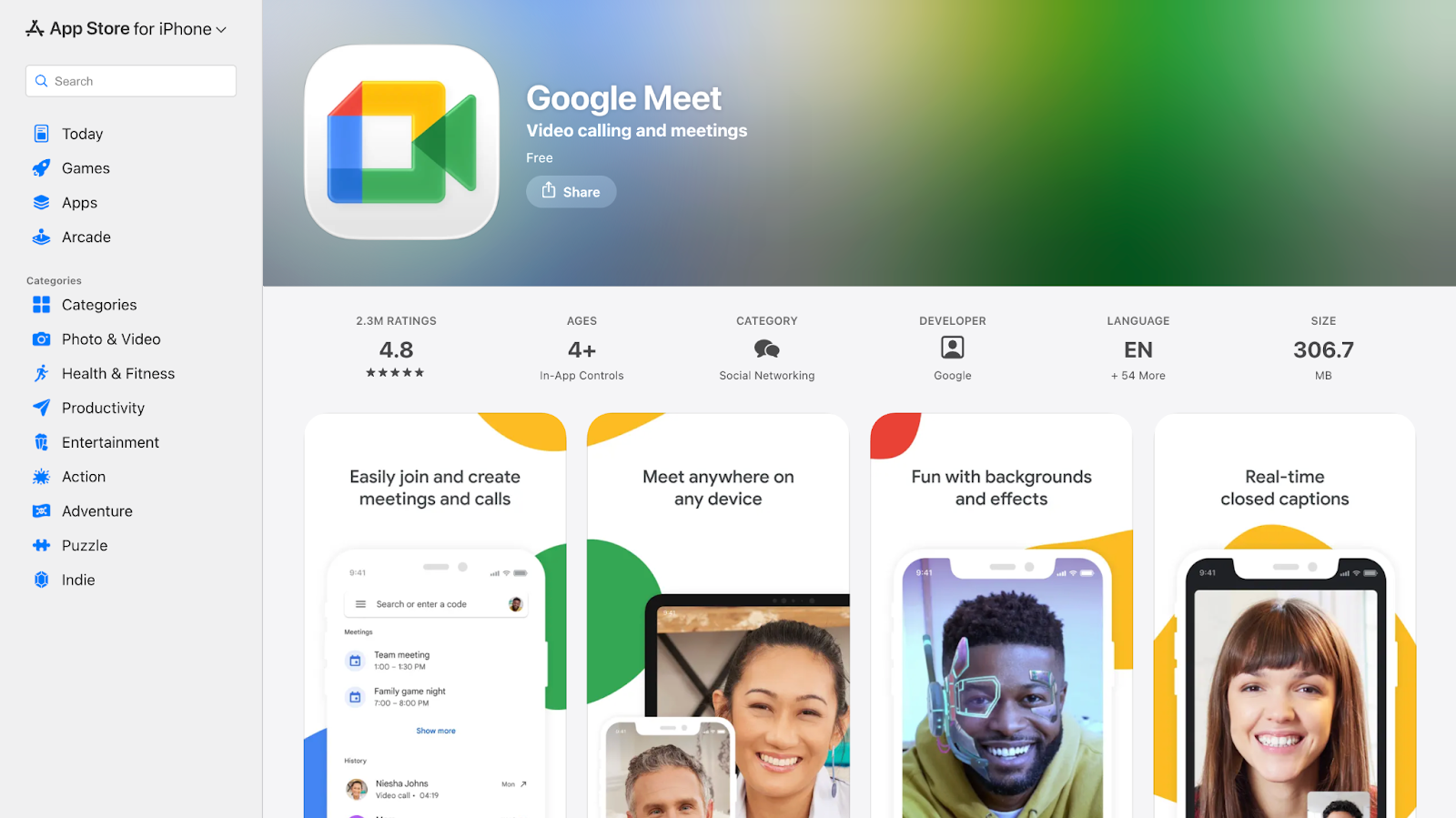
Google Meet fits naturally into an iOS workflow if your work already lives inside Google Workspace. We often use Google Meet for short internal meetings when switching between Gmail, Calendar, and Docs on an iPhone. After calls, access to a Google Meet transcript makes it easier to revisit decisions or missed points without needing separate notes, which is especially useful when meetings are joined on the go.
Google Meet Pros
- Seamless integration with Gmail, Calendar, and Google Docs on iOS
- Lightweight app that performs well for quick, unplanned meetings
- Google Meet transcript support helps with post-meeting clarity
Google Meet Cons
- Limited advanced controls compared to Zoom
- Fewer customization options for large or formal meetings
- Performance can dip on weaker networks during video calls
When to use Google Meet: Use Google Meet for fast internal check-ins, team syncs, or Workspace-centric discussions where speed and post-meeting reference matter more than advanced controls.
Google Meet FAQs
Does Google Meet offer transcripts on iPhone?
Google Meet can transcribe meetings and save the transcript for later reference through features tied to Google Workspace. On supported plans, the transcript is linked to the calendar event or stored in Google Drive, so you can revisit what was said after the call.
Can I get a record of meeting notes from a Google Meet call?
Yes. Google Meet’s integration with Workspace can automatically attach transcripts to the meeting’s Google Calendar event or Google Drive folder, giving you a text record of the discussion you can review or share. This is especially useful if you join from an iPhone and want a follow-up reference.
What are the common issues Google Meet iOS users face, and how can they fix them?
Some iPhone users experience join or permission issues (like mic or camera access). Making sure Google Meet has proper permissions in iOS Settings for camera and mic usually resolves these problems, and keeping the app updated helps with stability.
Best iOS Apps for Notes & Documentation
Notion and Microsoft OneNote are two of the most widely used iOS apps for notes and documentation, but they solve very different problems on iPhone. Notion is built for structured, long-term documentation, while Microsoft OneNote shines when information needs to be captured quickly and retrieved later during busy workdays.
Notion: Ideal for All-in-One Documentation
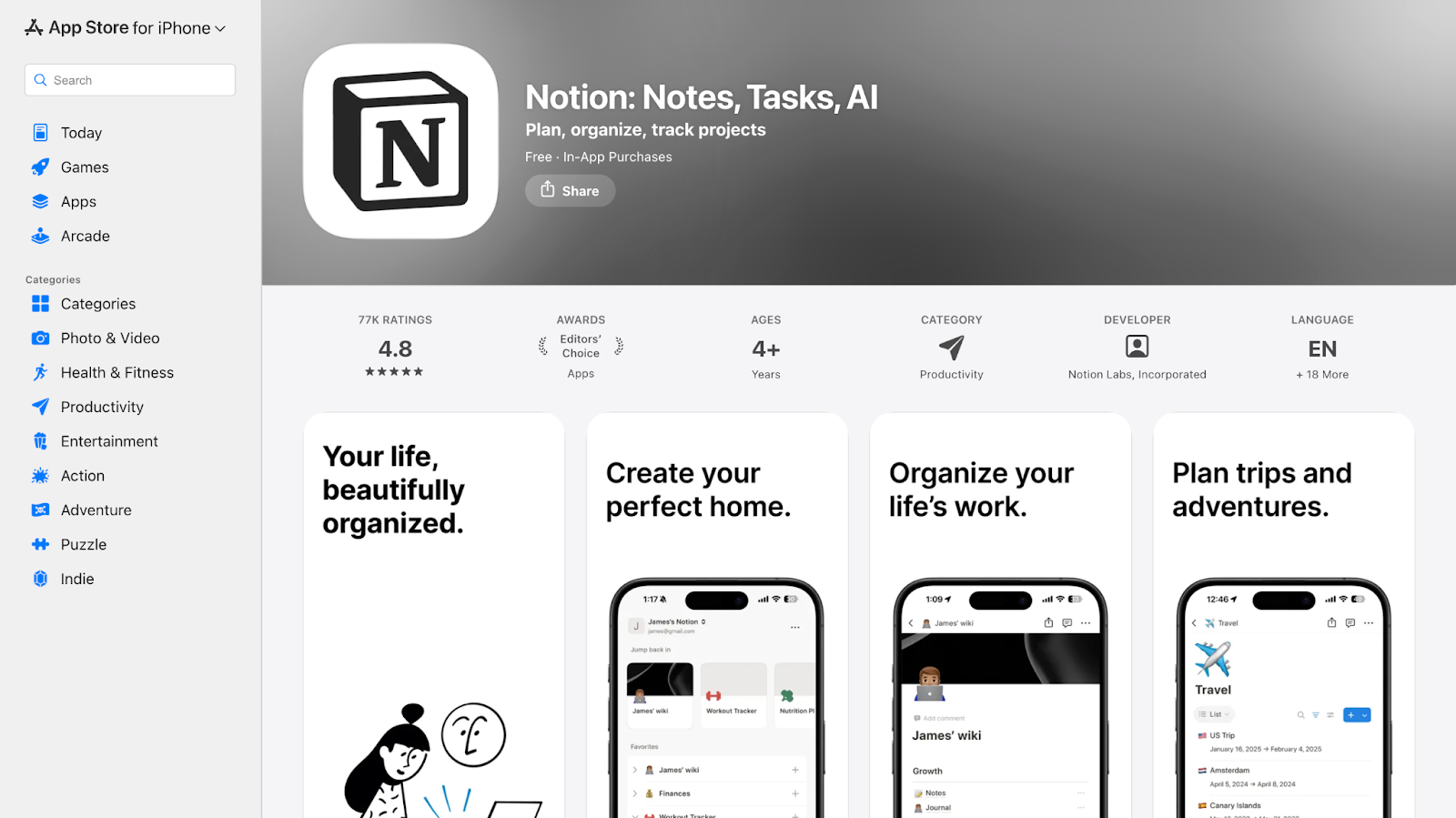
When we need to capture and organize complex projects on the go, Notion on the iPhone becomes our living workspace. We use Notion to build living playbooks, meeting documentation linked with tasks, and collaborative knowledge bases that stay in sync with desktop and web.
On iOS, Notion’s databases and templated pages let us create structured content such as project briefs, SOPs, and shared agendas without losing continuity when switching between apps.
Notion Pros
- Powerful combination of notes, documents, databases, and task links in one place
- Real-time collaboration and team editing from iPhone feels seamless
- Templates and AI help speed up content creation
Notion Cons
- Editors are complex and require learning before mastery
- Heavy pages can be slow to load on older iPhones
- Not ideal for quick, ephemeral note-taking
When to use Notion: Use Notion on iPhone when you need project-level documentation, structured knowledge bases shared across teams, or cross-linked content that connects notes with tasks and objectives.
Notion FAQs
Are iOS apps good enough for business work without a laptop?
Yes, iOS apps are good enough for core business execution like meetings, messaging, scheduling, task tracking, and file access. However, detailed setup, complex configuration, and long-form work are generally more efficient on a desktop.
How does Notion help teams stay aligned?
Notion lets you build shared dashboards, structured docs, and linked workflows so teams know exactly where decisions and tasks live.
Can I capture meeting action items on iOS?
Yes, you can type or dictate notes, assign tasks, tag teammates, and sync everything automatically from your iPhone.
Is Notion good for solo work as well as teams?
Notion works well for individuals who need structure, but its value multiplies when teams use it to organize shared knowledge.
Microsoft OneNote: Ideal for Structured Note-Taking
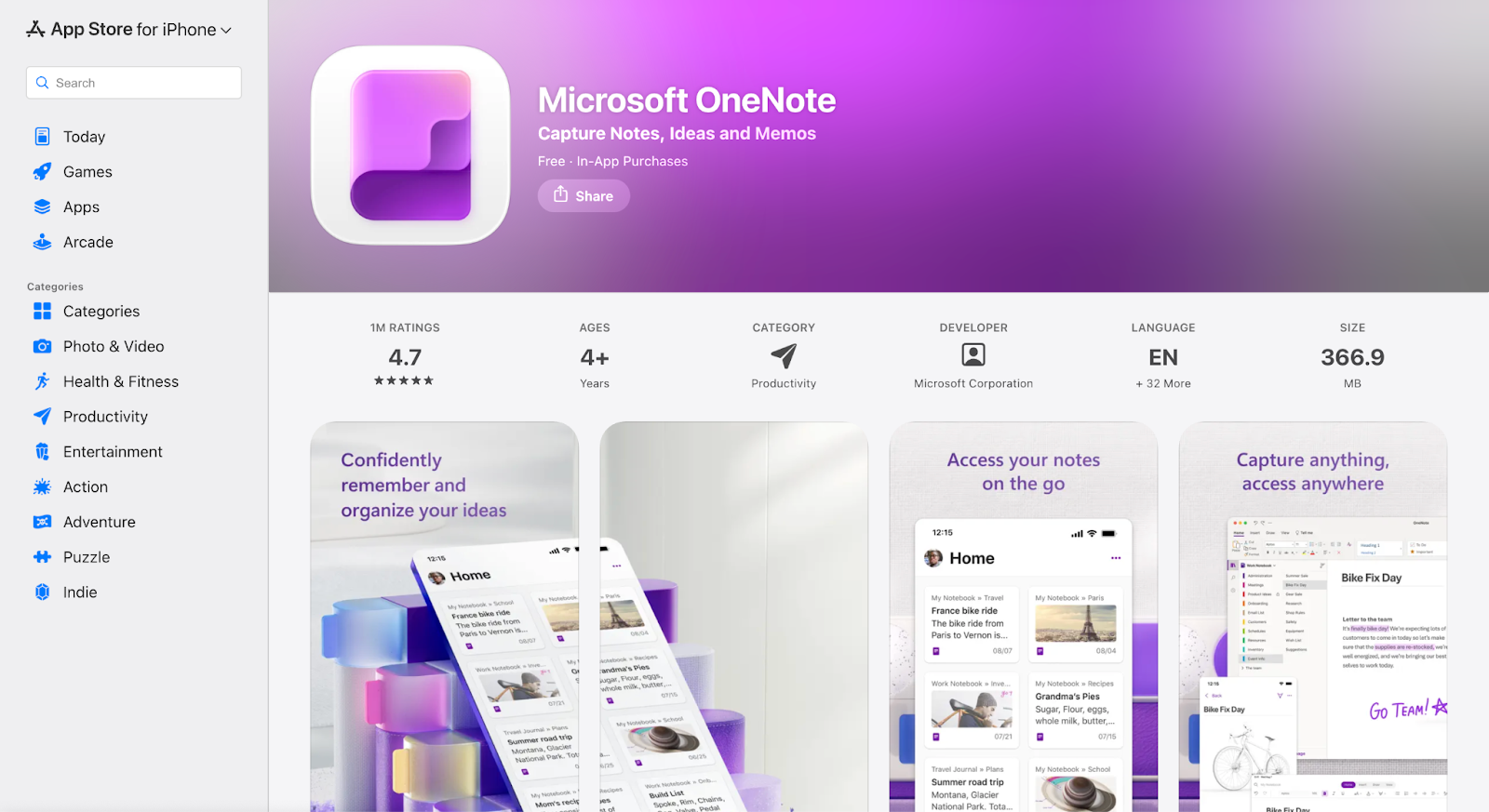
On the iPhone, we end up using OneNote when information comes from everywhere at once. A quick client call ends, someone sketches a flow on a whiteboard, a Slack screenshot needs context, and none of it fits neatly into a structured doc. OneNote handles this chaos well. We can drop photos, voice notes, handwritten scribbles, and text into the same page, then rely on search later to pull it back when it actually matters.
Microsoft OneNote Pros
- Easy multi-format capture (typed text, photos, audio, handwritten sketches)
- Robust offline access with OneDrive sync afterward
- Free and familiar, especially for Microsoft ecosystem users
Microsoft OneNote Cons
- Not designed as a structured database or project workspace
- Mobile UI can feel less intuitive for long-form docs
- Sync glitches reported by some users on less stable networks
When to use: Use OneNote on iPhone when you need quick, free-form notes, visual capture (like snapping whiteboards), or recording ideas and memos you want to search later without building structured workflows.
Microsoft OneNote FAQs
Can OneNote search handwritten notes?
Yes. OneNote’s search can find typed text and OCR-scanned handwriting from images you add on iPhone.
Does OneNote keep note formatting across devices?
Generally, yes, but complex formatting can appear differently on iPhone vs. desktop.
Can I share OneNote pages with others?
Yes, you can share specific notebooks or pages via links, and collaborators can view or edit depending on permissions.
Best iOS Apps for Task & Project Management
Todoist and Trello are some of the best iOS apps for task and project management. Todoist focuses on personal execution, while Trello prioritizes shared progress and visibility.
Todoist: Ideal for Personal Productivity and Task Tracking
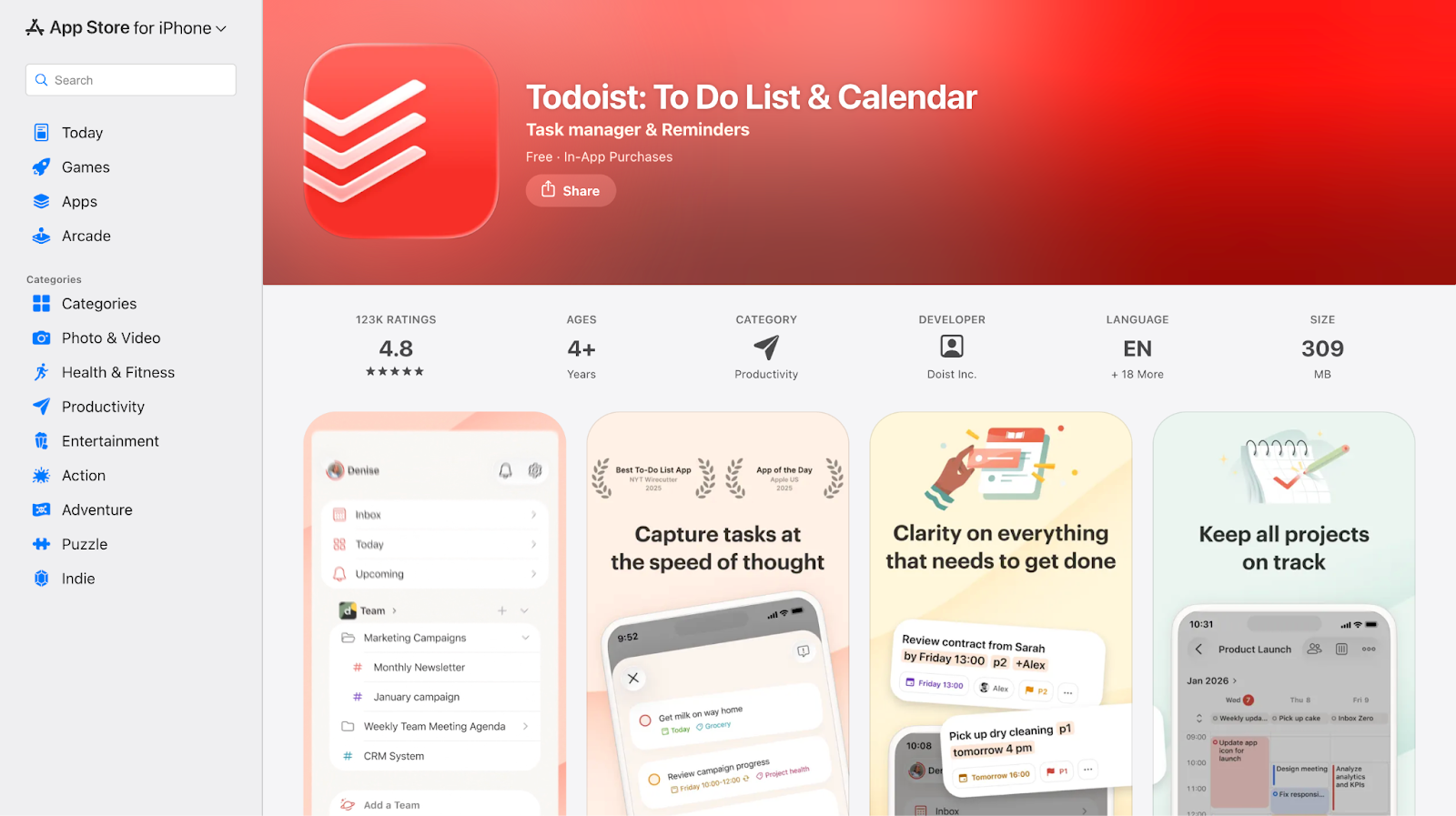
Todoist works well on iPhone when tasks originate from conversations, meetings, and quick decisions rather than formal project plans. We rely on Todoist to capture follow-ups immediately after calls, add deadlines using natural language, and let the Today view surface what actually needs attention. The iOS app feels lightweight and responsive, which matters when tasks are added in short bursts via typing or voice dictation.
Todoist Pros
- Fast task capture with natural language optimized for iOS typing and dictation
- Clean Today and Upcoming views that reduce cognitive load on mobile
- Reliable reminders and recurring tasks that work well across time zones
Todoist Cons
- Limited visual context for complex, multi-stage projects
- Team collaboration is functional but not deeply visual or process-driven
- Reporting and workload views are minimal on mobile.
When to use Todoist: Use Todoist on iPhone when your priority is staying personally organized across meetings, travel days, and shifting priorities, especially if tasks originate from conversations rather than formal project plans.
Todoist FAQs
Can Todoist handle a busy workday on iPhone without becoming overwhelming?
Yes. Todoist is designed to reduce overload on iOS by surfacing only what needs attention through the Today and Upcoming views. Instead of managing long lists, professionals rely on these filtered views to focus on immediate priorities, which works well during back-to-back meetings or travel-heavy days.
Is Todoist suitable for team collaboration or mainly for personal task management?
Todoist works best on iPhone as a personal task manager, even when tasks come from shared work. While teams can collaborate using shared projects, most professionals use Todoist to track their own responsibilities and follow-ups rather than manage full team workflows.
How does Todoist fit into a multi-tool work setup on iOS?
Todoist fits naturally into an iOS workflow where tasks originate from emails, meetings, and conversations across apps. Professionals often use Todoist as the final stop for action items, capturing tasks quickly and trusting reminders to prompt execution without revisiting the source app.
Trello: Ideal for Visual Project Management
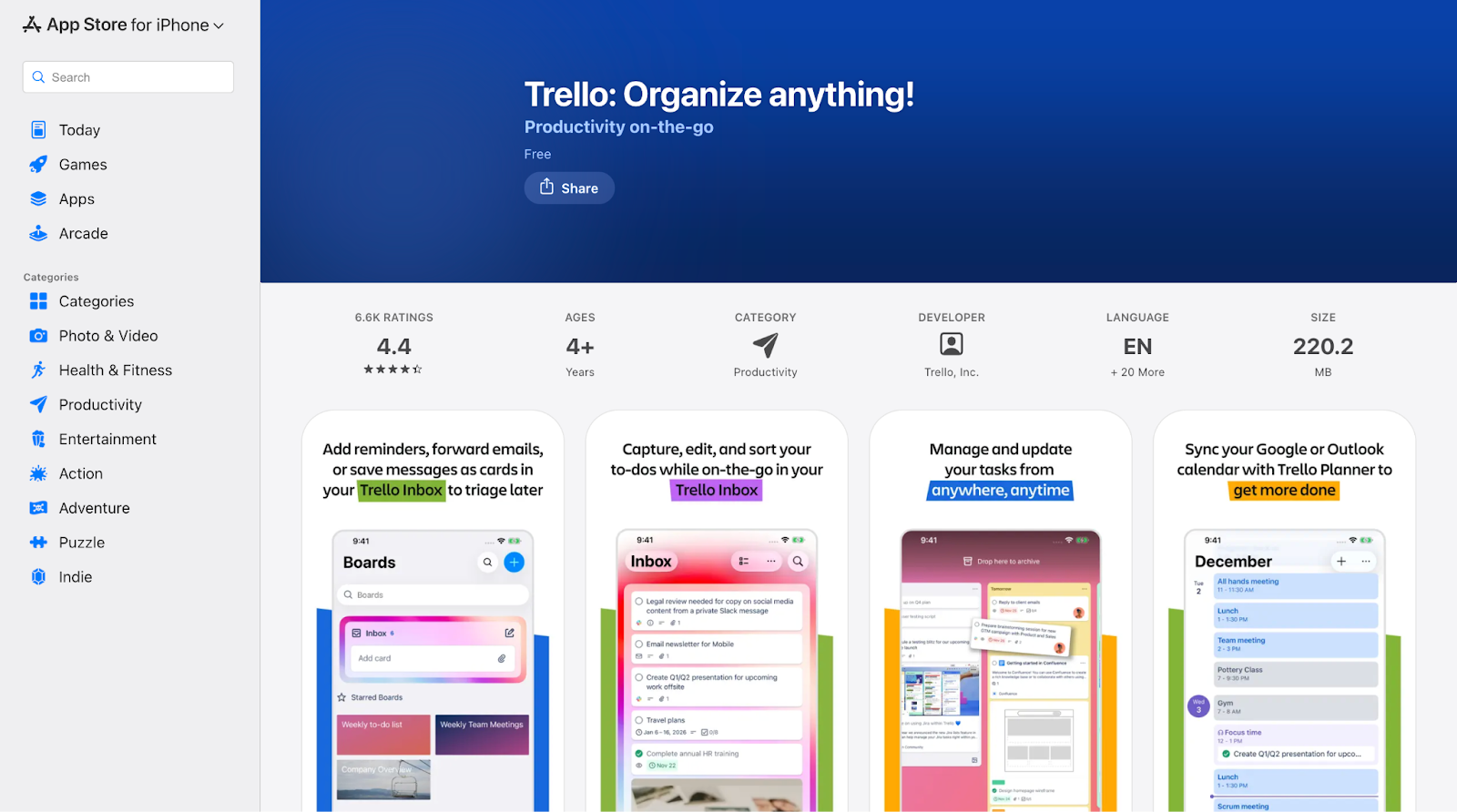
On iPhone, Trello becomes the place we check when a project is already in motion and decisions are happening fast. We open the app to see which tasks are stuck in review, which cards need approvals, and what moved forward since the last meeting. During a call, we update card status, attach screenshots from iOS, and leave comments instead of sending follow-up messages that get lost in chat.
Trello works especially well for shared initiatives like marketing launches, client onboarding flows, or sprint tracking, where everyone needs the same view of progress without opening a laptop.
Trello Pros
- Visual boards that clearly show project status on iPhone
- Strong integrations with Slack, email, and calendars
- Automation and templates reduce manual coordination
Trello Cons
- Boards can become cluttered if not actively maintained
- Slower for quick task capture compared to Todoist
- Advanced views and controls are locked behind paid plans
When to use: Use Trello when managing collaborative projects, campaign workflows, product launches, and remote team coordination where visibility matters more than speed of capture.
Trello FAQs
Can Trello be used effectively on an iPhone without relying on a desktop?
Yes, Trello works well on iPhone for day-to-day project tracking and updates. Business professionals often use the iOS app to check progress, move cards between stages, leave comments, and upload files or screenshots while away from their desks. While a complex board setup is easier on a desktop, ongoing project management translates well to mobile.
Is Trello better for projects or daily task management on iOS?
Trello is better suited for managing projects rather than personal daily to-do lists on an iPhone. It excels when tasks move through stages like planned, in progress, review, and done, and when multiple people need visibility into that movement.
How does Trello help teams stay aligned when working remotely on iOS?
Trello keeps remote teams aligned by giving everyone a shared visual view of work progress. On iPhone, team members can quickly see what is blocked, what needs attention, and what has moved forward, without digging through messages or emails. This reduces follow-ups and keeps conversations tied directly to the work.
Best iOS App for Scheduling & File Access
Calendly and Google Drive are among the best iOS apps for file access and scheduling when workdays are split between meetings, files, and constant context switching. Together, they help business professionals book time faster and access shared documents instantly without relying on a desktop.
Calendly: Great for Automated Meeting Scheduling
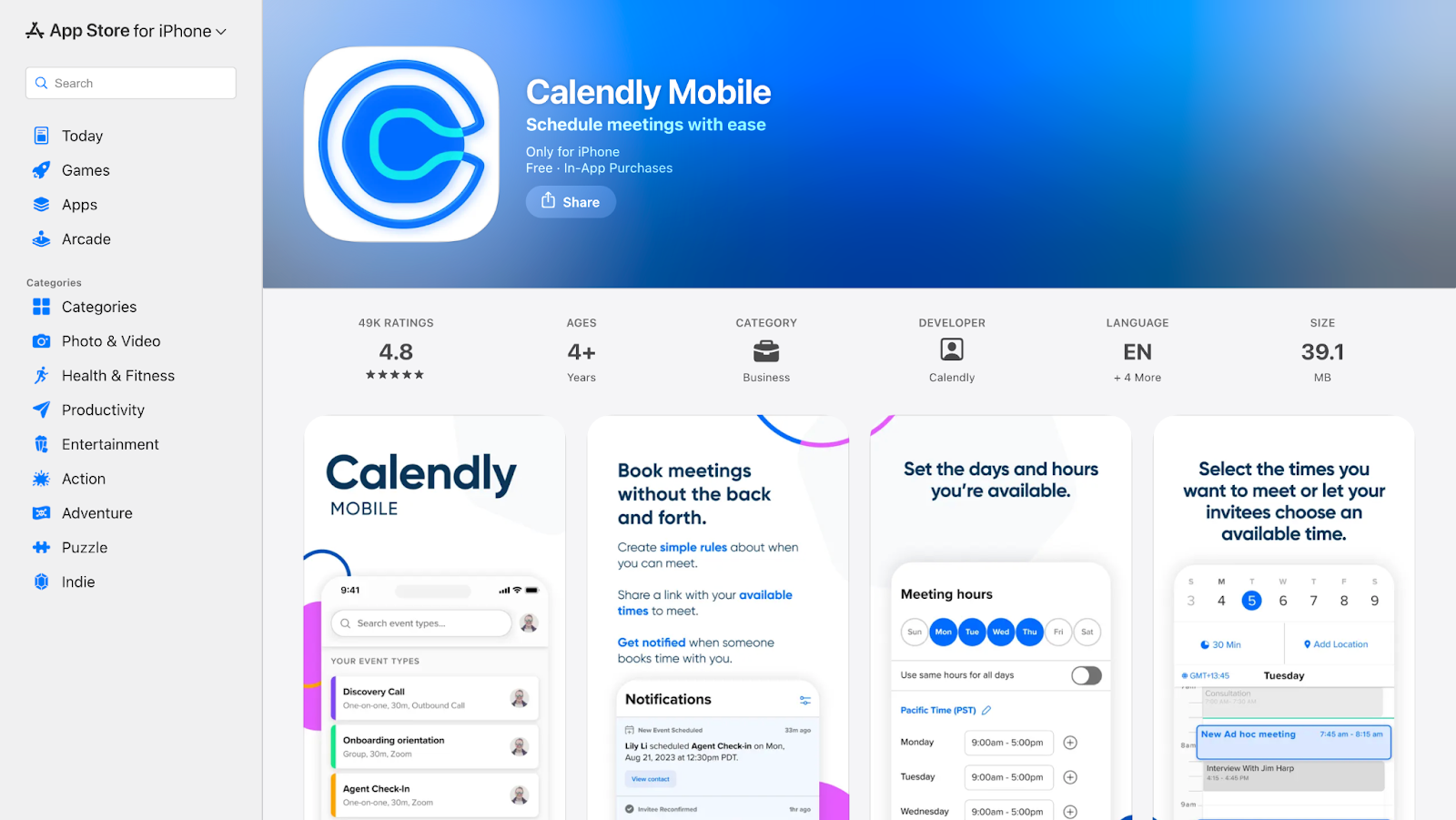
On iPhone, Calendly is most useful when your day is fragmented, and meetings come from outside your organization. Instead of replying to emails while switching between Mail and Calendar, we rely on Calendly links that let clients or partners choose a time themselves. Once a slot is booked, it lands on the iPhone calendar instantly, along with reminders, video links, and buffer times that protect focus between meetings. This makes Calendly less about scheduling and more about protecting time on mobile-first workdays.
Calendly Pros
- Eliminates email back-and-forth by allowing invitees to book directly from a link, which is especially practical when working from an iPhone
- Syncs reliably with Google and Outlook calendars, so availability stays accurate even when updates are made on mobile.
- Automated reminders and confirmations reduce missed meetings without manual follow-ups.
Calendly Cons
- Advanced workflows like multiple event types or routing forms require paid plans
- Branding and customization feel limited on the free tier
- Not designed for internal scheduling where shared calendars already exist
When to use: Use Calendly when meetings involve external stakeholders, different time zones, or frequent rescheduling, and when scheduling needs to happen quickly from a phone rather than a desktop.
Calendly FAQs
Does Calendly automatically add meetings to my iPhone calendar?
Yes. Once someone books a time, the event syncs with your connected calendar and appears on your iPhone, including all details such as meeting links and participant information.
Is the iPhone app sufficient for day-to-day business use, or is a desktop still required?
The iPhone app works well for handling core tasks on the go, such as joining meetings, responding quickly, or checking updates. For more detailed setup or long-form work, desktop access is still more efficient, making mobile best for execution rather than configuration.
Is Calendly useful if I already use Google Calendar?
Yes, because Calendly controls how others book time with you. Google Calendar shows availability, but Calendly enforces booking rules and prevents scheduling conflicts.
Google Drive: Best for Cloud File Storage and Collaboration
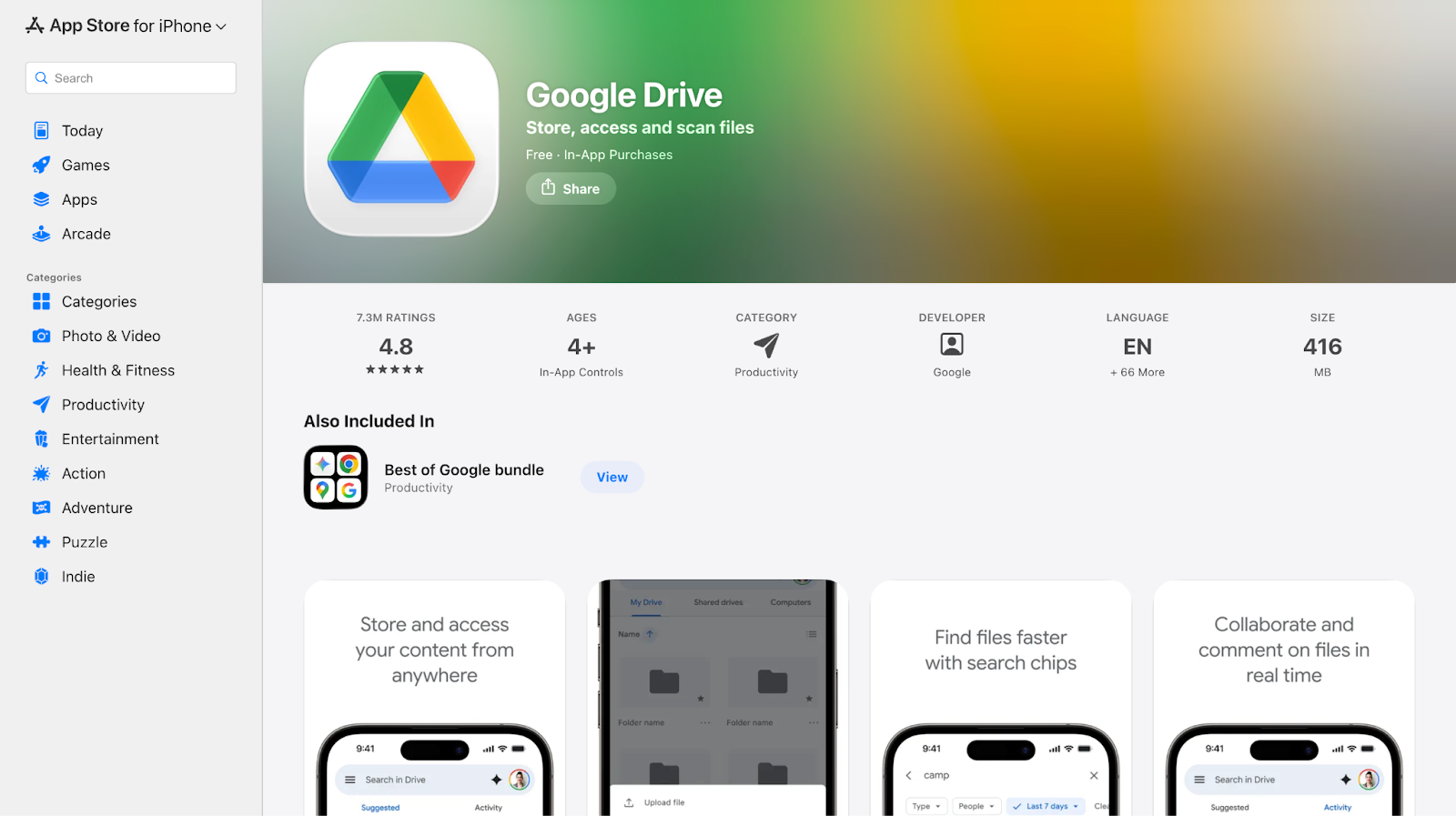
Google Drive on iPhone becomes essential when files need to move as fast as conversations. We use Google Drive when opening shared documents from Slack or Gmail, reviewing files during commutes, or sending quick access links without downloading attachments. Instead of treating storage as an archive, Drive behaves like a live workspace where files stay up to date, searchable, and accessible even when switching between devices throughout the day.
Google Drive Pros
- Makes shared documents instantly accessible on iPhone without manual transfers or attachments
- Real-time collaboration ensures changes are visible immediately, reducing version confusion
- Fine-grained permission controls allow secure sharing directly from mobile
Google Drive Cons
- Free storage fills quickly when working with media-heavy files
- Managing deeply nested folders on an iPhone requires deliberate organization
- Offline access is limited unless files are manually marked for availability
When to use: Use Google Drive when files are shared across teams or clients and need to be accessed, reviewed, or updated quickly from a phone without worrying about versions.
Google Drive FAQs
Can I edit files directly in Google Drive on iPhone?
Yes. Documents, spreadsheets, and presentations open in their respective apps and sync changes automatically for all collaborators.
How secure is Google Drive for business files?
Drive uses encryption and permission-based access controls, but security also depends on how users manage sharing settings.
What happens if I lose internet access?
You can still access files that were marked for offline use, but other documents will require connectivity to open or sync.
Choose the Right iOS Apps to Work Faster and Smarter
Choosing the best iOS app is not about installing the most popular tools. It is about picking apps that hold up when you are switching locations, juggling meetings, managing conversations, and making decisions from your iPhone. The apps on this list work well on iOS because they reduce friction rather than adding steps.
What matters most for business professionals on iPhone:
- Tools that work reliably on mobile networks and small screens
- Apps that fit real workflows like travel, client calls, and between-meeting work
- Clear separation between tasks, communication, meetings, and documentation
There is no single app that does everything well. The smartest setup is a focused stack, for example, using Slack for team chat, Zoom or Google Meet for meetings, Notion or OneNote for documentation, and Todoist or Trello for execution.
If multilingual communication is part of your work, JotMe stands out as one of the best iOS apps for real-time, context-aware conversations. One practical advantage professionals notice is its accuracy in noisy rooms, whether that means a busy conference hall, a café meeting, or a crowded client site. Instead of breaking conversations into fragmented translations, it maintains continuity so discussions feel natural rather than mechanical.
Try JotMe’s iOS mobile app to communicate globally and keep business conversations moving naturally, wherever work takes you.
Last updated on
July 29, 2026
Follow us on social media: