





Conseils
ChatGPT peut-il transcrire de l'audio ? Testé sur les 3 méthodes

Taka Shirasu
May 4, 2026
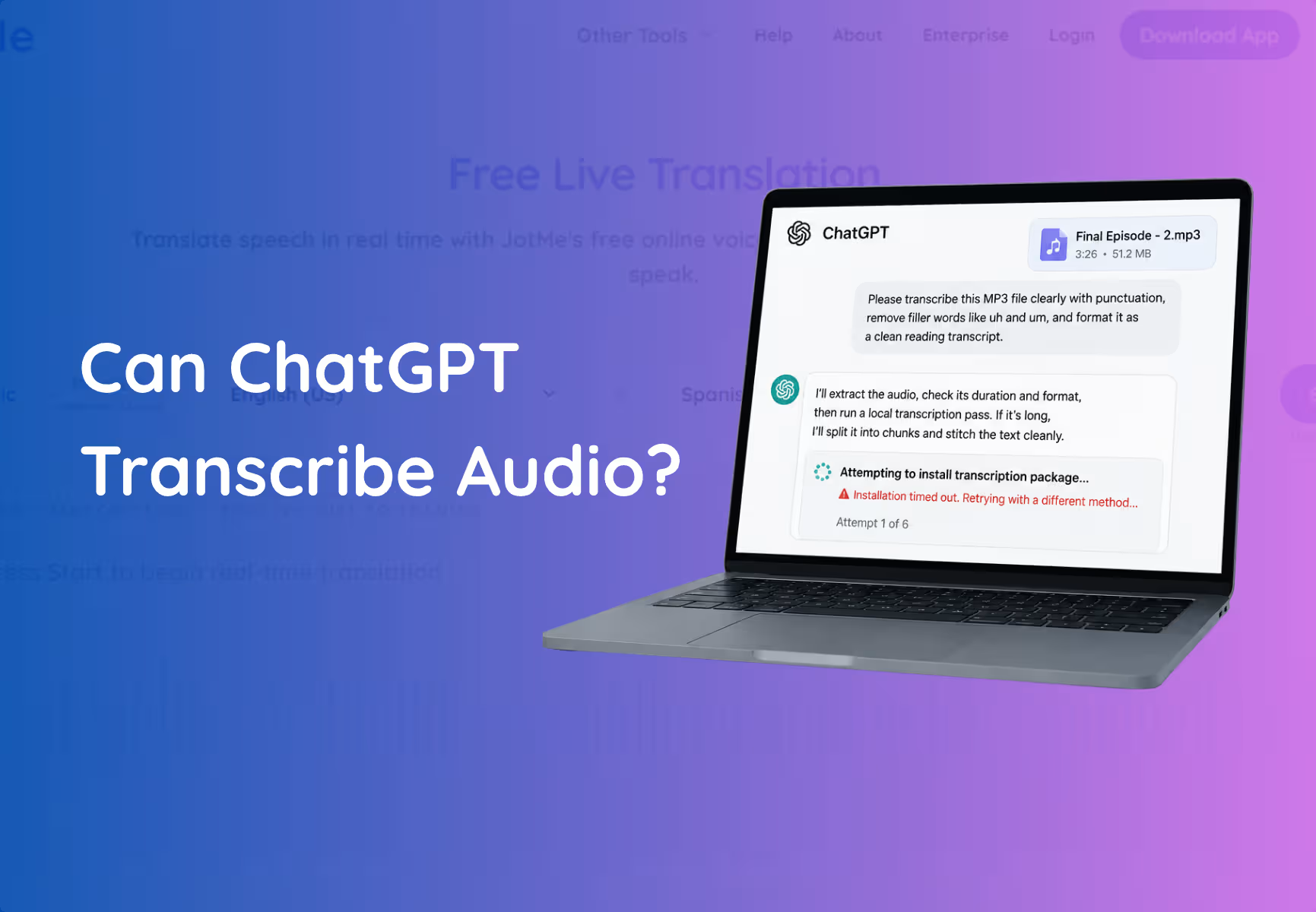
ChatGPT peut-il transcrire de l'audio ? La réponse est oui. En 2026, ChatGPT transcrit de l'audio de 3 façons : la dictée vocale, l'upload de fichiers audio et le mode Enregistrement de l'application de bureau macOS. La méthode disponible dépend de votre offre ChatGPT, de votre appareil et du type de transcription dont vous avez besoin.
Nous avons testé ces méthodes pour comprendre comment ChatGPT gère de vrais fichiers audio, de la parole en direct et des conversations enregistrées. Les résultats montrent là où ChatGPT fonctionne bien et là où l'on a besoin d'un outil de transcription dédié.
ChatGPT donne ses meilleurs résultats sur des enregistrements courts et clairs, avec un seul interlocuteur et une seule langue. Les personnes qui ont besoin d'identification des locuteurs, d'horodatages, de longues transcriptions de réunion ou de conversations multilingues auront sans doute besoin d'un outil de transcription spécialisé comme JotMe.
Ce guide explique comment fonctionne chaque méthode de transcription de ChatGPT, quelles limites connaître et à partir de quand un autre outil devient plus pertinent.
À retenir
- ChatGPT peut transcrire de l'audio, mais les meilleurs résultats viennent d'enregistrements courts et clairs, avec un seul interlocuteur et une seule langue. Les enregistrements plus complexes peuvent exiger des étapes supplémentaires ou des corrections manuelles.
- ChatGPT propose trois méthodes de transcription : la dictée vocale, l'upload de fichiers audio et le mode Enregistrement, mais chacune a ses limites selon l'appareil, le type de fichier et le besoin de transcription.
- Transcrire de l'audio réel demande plus qu'une simple conversion voix-texte : des fonctions comme l'identification des locuteurs, les horodatages, les traductions et les transcriptions structurées sont des points où ChatGPT peut demander du travail supplémentaire.
- L'audio multilingue et les changements de langue peuvent réduire la précision : nos tests ont montré que ChatGPT peinait avec le contexte chinois et espagnol, tandis que JotMe gérait la transcription multilingue, la traduction et le changement de langue de façon plus régulière.
- JotMe convient mieux aux workflows de transcription professionnelle, avec 200+ langues, 39 000+ paires de langues, l'identification des locuteurs, les horodatages et une traduction en direct intégrée pour les réunions, les entretiens et les équipes internationales.
Comment ChatGPT transcrit de l'audio en 2026 : les 3 méthodes
ChatGPT peut convertir la parole en texte de 3 façons. Chaque méthode fonctionne différemment et s'adresse à un type d'utilisateur différent.
Un étudiant qui enregistre un cours, un professionnel qui relit une réunion et un créateur qui transforme un entretien en texte ont chacun besoin d'un workflow de transcription différent.
Voici les 3 façons de vérifier si ChatGPT peut transcrire de l'audio, ou non :
Méthode 1 : la dictée vocale
La dictée vocale de ChatGPT utilise le microphone de votre appareil pour capter la parole et la convertir en texte directement dans la fenêtre de conversation.
Cette méthode fonctionne bien quand vous voulez poser une question à ChatGPT sans taper. Vous pouvez exposer une idée, décrire une tâche ou créer des notes rapides à la voix.
La dictée vocale est faite pour l'interaction en temps réel. Elle ne remplace pas un vrai workflow de transcription pour de longs enregistrements, car elle capte la parole pendant la conversation au lieu de traiter un fichier audio existant.
Si vous avez besoin de voix-texte en direct pour de courtes conversations, cette méthode convient à une saisie rapide.
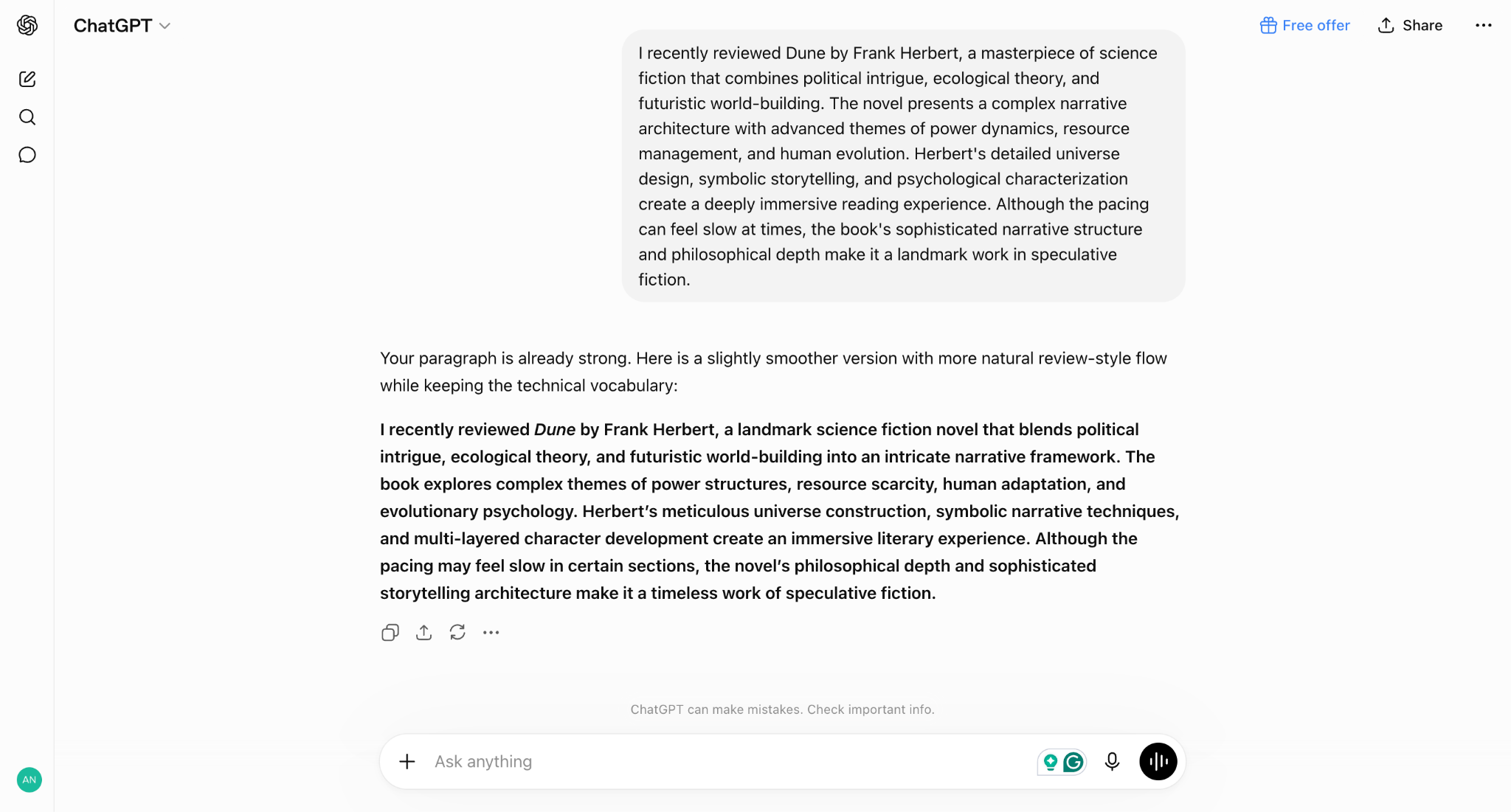
Méthode 2 : l'upload de fichier audio
ChatGPT peut transcrire des fichiers audio lorsque vous importez des enregistrements pris en charge dans une conversation.
La méthode d'upload de fichier audio convient mieux aux personnes qui disposent déjà d'un fichier audio, comme l'enregistrement d'un podcast, un entretien, un cours ou l'enregistrement d'une réunion.
Une fois le fichier importé, ChatGPT traite l'audio et génère un texte que vous pouvez relire, résumer ou analyser.
Les fonctions d'upload disponibles dépendent de votre offre ChatGPT. OpenAI ajuste ces limites au fil du temps ; vérifiez donc les règles d'upload les plus récentes avant de traiter de gros enregistrements.
Cette méthode d'audio en texte fonctionne bien quand vous avez besoin de plus qu'une simple transcription. Vous pouvez demander à ChatGPT de résumer l'enregistrement, d'en extraire des actions à mener, de créer des notes ou d'analyser des passages précis de la conversation.
Méthode 3 : le mode Enregistrement
Le mode Enregistrement de ChatGPT permet de capturer des conversations directement via l'application de bureau macOS.
Cette fonction aide à enregistrer des réunions, des sessions de brainstorming et des discussions sans importer manuellement un fichier audio. Le mode Enregistrement crée des notes structurées à partir de la conversation.
La transcription de ChatGPT s'appuie sur des modèles de reconnaissance vocale IA
OpenAI utilise désormais les modèles gpt-4o-transcribe et gpt-4o-mini-transcribe aux côtés de l'ancien modèle whisper-1 sur son API de reconnaissance vocale (Speech-to-Text). OpenAI indique que son modèle de dictée ChatGPT mis à jour affiche un taux d'erreur sur les mots au moins 10 % plus bas sur ses langues les mieux testées par rapport au modèle de production précédent.
Aucune des 3 méthodes ci-dessus ne donne au lecteur lambda un moyen en un clic de déposer un MP3 existant dans la fenêtre de conversation classique de ChatGPT pour récupérer une transcription. C'est précisément l'écueil qu'a rencontré notre test ci-dessous.
Quelle méthode de transcription audio ChatGPT choisir
La bonne méthode dépend de ce que vous attendez de votre audio :
- Utilisez la dictée vocale quand vous voulez une saisie vocale rapide.
- Utilisez l'upload de fichier audio quand vous avez déjà un enregistrement et qu'il vous faut une transcription ou une analyse.
- Utilisez le mode Enregistrement quand vous voulez que ChatGPT capture et organise une conversation dans l'application macOS.
La transcription de ChatGPT fonctionne bien pour de nombreuses tâches du quotidien, mais chaque méthode a ses limites. La section suivante montre ce qui s'est passé quand nous avons testé chaque approche avec de vrais fichiers audio.
Ce qui s'est passé quand nous avons testé la transcription de ChatGPT
Nous avons mené deux tests inédits le 6 août 2026 : demander à ChatGPT de transcrire un fichier audio importé, et utiliser la dictée intégrée de ChatGPT pour capturer un enregistrement en chinois. Les deux ont techniquement produit un résultat, mais aucun n'a donné quelque chose d'exploitable pour un lecteur non averti sans travail supplémentaire.
Méthodologie : testé le 6 août 2026, sur ChatGPT Work (mode agentique avec accès terminal, modèle 5.6 Sol Max) pour le test d'upload, et sur la dictée vocale intégrée de ChatGPT dans l'application de bureau macOS pour le test d'enregistrement. Fichiers : deux enregistrements courts, d'environ 44 secondes et 24 secondes, dont un contenant de l'audio en chinois.
Le test d'upload
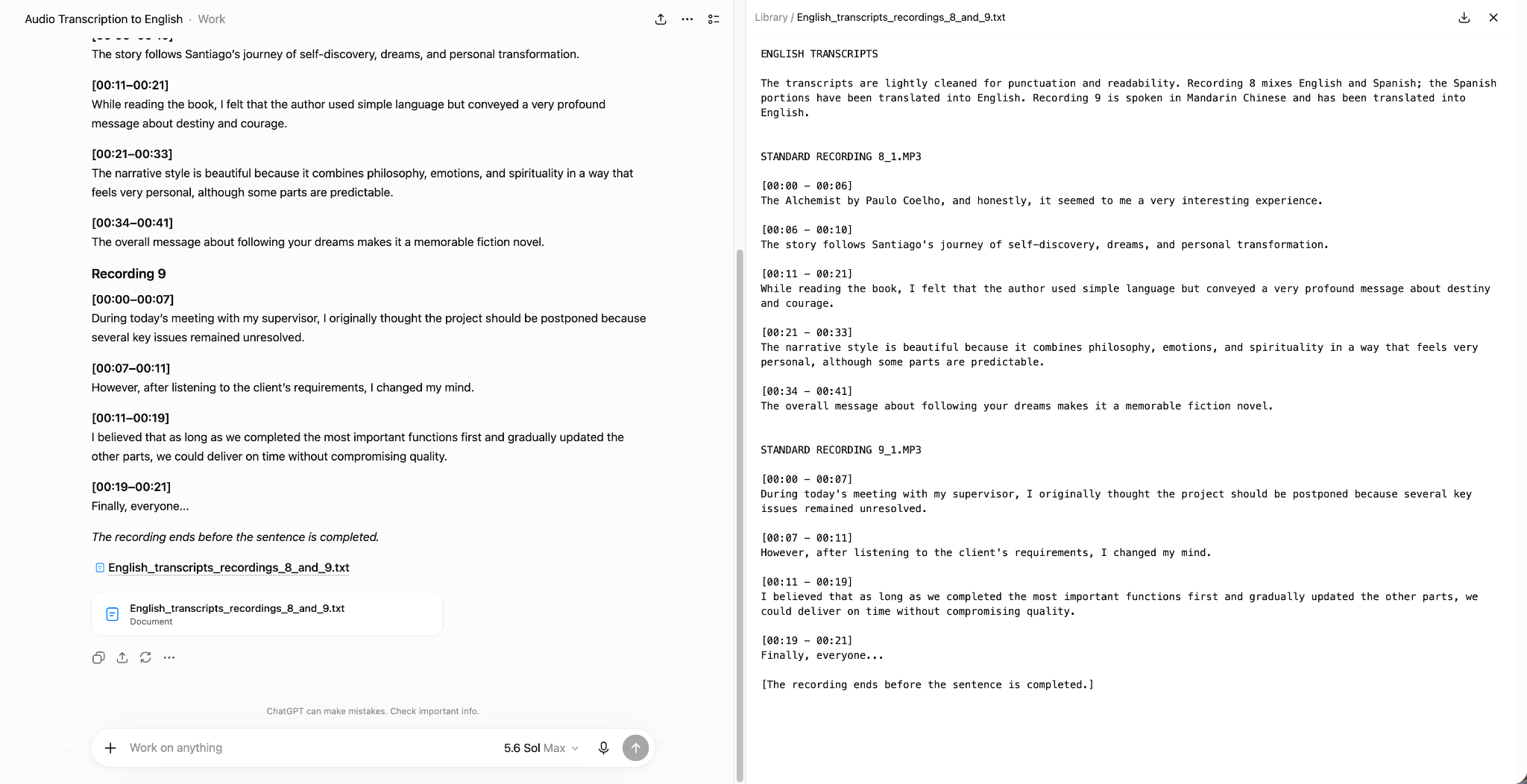
Si vous voulez savoir si ChatGPT peut transcrire de l'audio, importer un fichier et le lui demander directement est le test grandeur nature que la plupart des utilisateurs tenteraient en premier. Nous avons importé deux fichiers audio dans ChatGPT et demandé une transcription en anglais. Sur la version web, ChatGPT a mis 19 minutes et 58 secondes à traiter les deux fichiers et a bien généré un texte en anglais.
Le résultat comportait cependant des problèmes de précision. Au lieu de garder les deux enregistrements séparés, ChatGPT a mélangé le contenu des deux fichiers audio et n'a pas su préserver le sens central des conversations. Les fichiers ont été traités sur le plan technique, mais la transcription finale a exigé de sérieuses corrections avant utilisation.
Derrière ce plan, ChatGPT a décidé d'installer un modèle local de reconnaissance vocale plutôt que d'utiliser un outil de transcription intégré, car un tel outil n'existe pas dans l'interface de conversation elle-même. La première tentative d'installation a échoué immédiatement avec une erreur « externally-managed-environment », un problème de configuration Python courant qu'un lecteur non technique ne saurait pas résoudre seul.
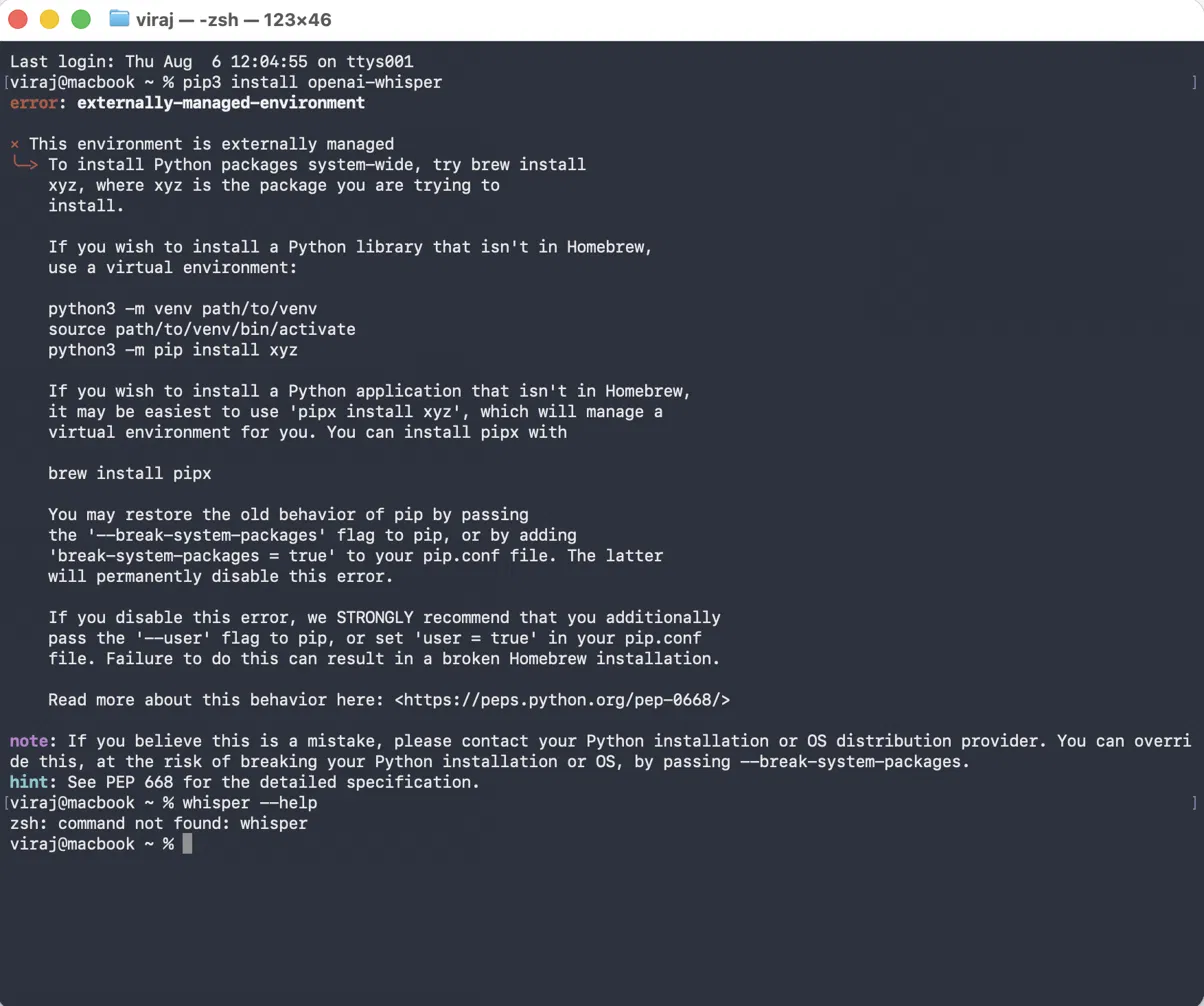
Résoudre cette erreur impliquait de créer un environnement virtuel, d'y réinstaller le paquet, puis de réessayer. Pour un lecteur sans expérience de Python, dépanner cette seule étape prend concrètement 30 à 50 minutes, bien avant qu'un seul mot ne soit transcrit.
Une fois l'environnement corrigé, ChatGPT a téléchargé le modèle Whisper medium, un fichier de 1,42 Go, à environ 20 Mo par seconde. Le téléchargement à lui seul a pris plusieurs minutes.
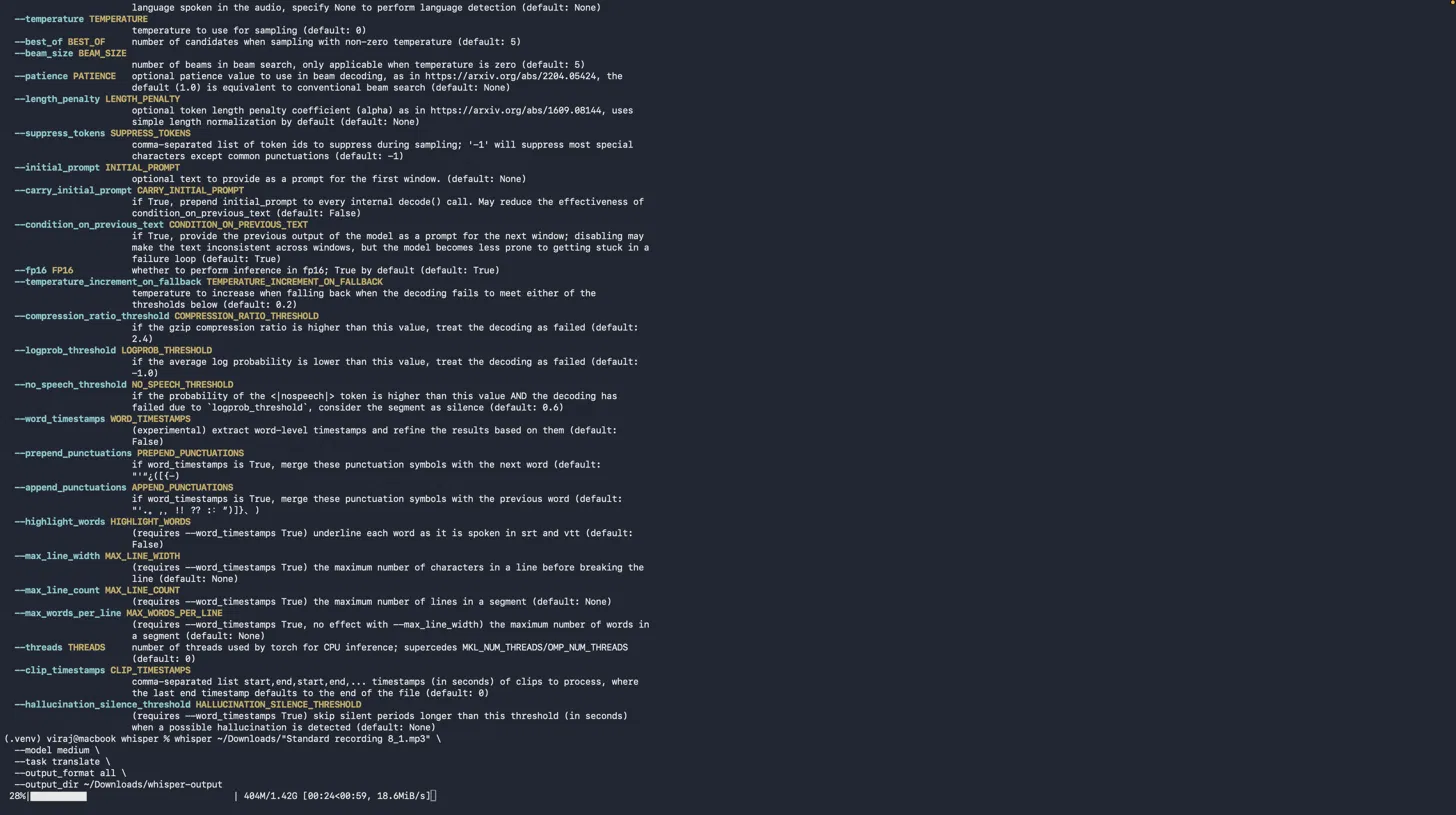
Une fois le téléchargement terminé, le traitement des deux fichiers courts a demandé encore 5 à 6 minutes. Le résultat n'était pas une transcription unique et propre, mais cinq fichiers distincts : JSON, SRT, TSV, TXT et VTT — le lecteur doit donc encore savoir lequel ouvrir.

Le résultat : une transcription est possible, mais seulement après une procédure d'installation plus proche de l'installation d'un logiciel de développement que de l'upload d'un fichier. Pour un lecteur qui veut du voix-texte dans les cinq minutes, ce n'est pas une option viable.
Le test de dictée
Nous avons ensuite testé la fonction de dictée vocale de ChatGPT sur macOS, avec un clip audio en chinois joué à voix haute près du microphone intégré.
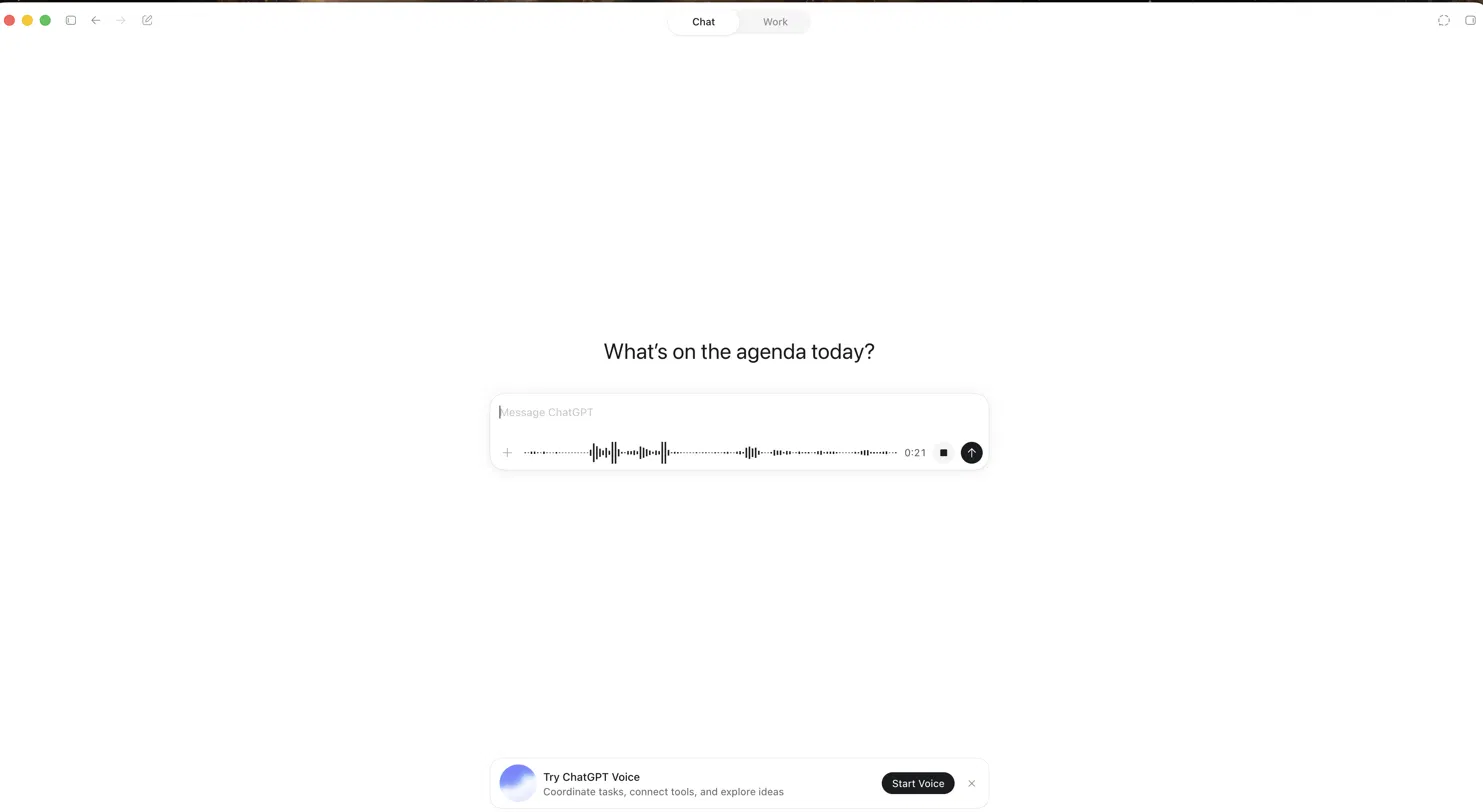
Un détail compte ici pour quiconque refait ce test. La dictée transcrit dans la langue qu'elle entend quand vous parlez simplement ou jouez de l'audio dans le micro. Obtenir une traduction vers une autre langue suppose de le dire à ChatGPT à l'avance, avant de commencer à parler, et non après.
Même avec cette consigne donnée en amont, notre test ne s'est pas déroulé comme prévu. L'audio en chinois a été joué dans le microphone, et ChatGPT n'a renvoyé que « Yeah. Yeah. » comme transcription et traduction, passant totalement à côté de la parole chinoise.
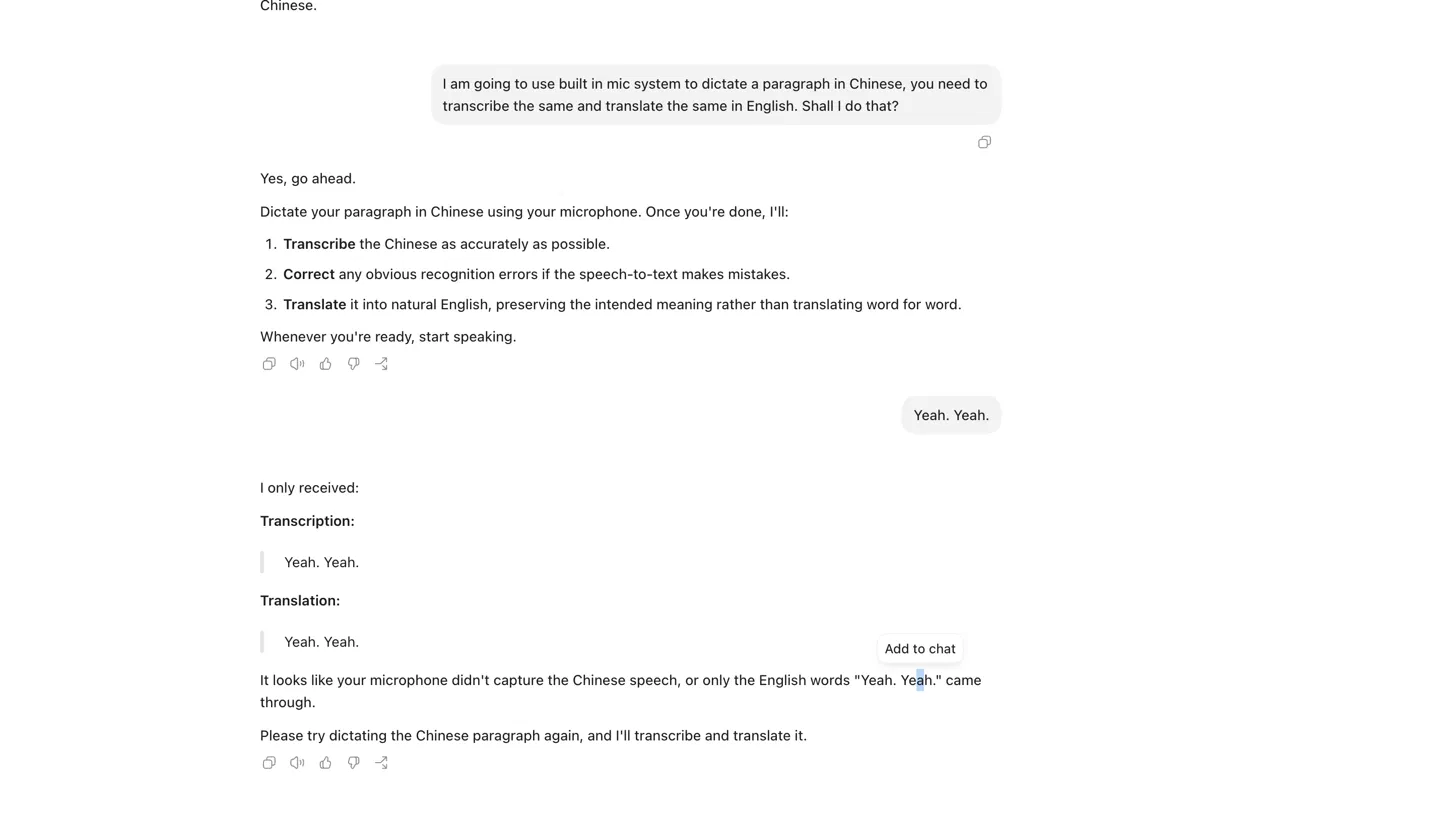
Le résultat : la dictée fonctionne raisonnablement bien pour de la parole anglaise dictée directement dans le micro. Pour un enregistrement en langue étrangère rejoué plutôt que dicté en direct, elle peut ne pas capter l'audio du tout, sans message d'erreur pour l'expliquer. Un lecteur qui compte sur cette méthode pour une note vocale multilingue risque de perdre le contenu sans le moindre avertissement.
Entre les deux tests, la tendance se confirme. ChatGPT sait produire une transcription et sait dicter de la parole. Y parvenir de façon fiable, sur un vrai fichier, dans une langue autre que l'anglais, voilà où les deux chemins deviennent coûteux ou imprévisibles pour quiconque n'est pas à l'aise avec le dépannage Python ou la vérification de chaque résultat de dictée.
Là où la transcription de ChatGPT montre ses limites
ChatGPT transcrit bien l'audio pour beaucoup de tâches du quotidien, mais chaque méthode de transcription a ses limites. Ces limites pèsent surtout lorsque vous travaillez sur des réunions, des entretiens, des podcasts, des enregistrements de recherche ou des conversations multilingues.
Voici les situations où ChatGPT commence à décrocher :
Chacun de ces points est une situation où ChatGPT cesse d'être le bon outil pour la tâche, et non la preuve que la technologie sous-jacente échoue. Un lecteur qui transcrit un mémo vocal de cinq minutes en anglais n'en rencontrera probablement aucun.
Ce qui se passe avec l'audio non anglophone et multilingue
ChatGPT peut transcrire de l'audio multilingue, mais nos tests ont montré que la précision chute quand les interlocuteurs passent d'une langue à l'autre dans le même enregistrement. Le traitement est aussi devenu plus lent sur notre fichier de test multilingue que sur un enregistrement monolingue. Nous avons ensuite testé le même fichier avec JotMe. Il a géré correctement les changements de langue, reconnu les locuteurs de façon plus régulière et produit la transcription en moins de 60 secondes.
Après avoir testé les trois scénarios, nous avons constaté que ChatGPT fonctionne bien pour des enregistrements simples dans une seule langue. L'expérience change lorsque les conversations mêlent plusieurs langues, des accents régionaux ou de fréquents changements de langue.
ChatGPT peine avec l'alternance des langues
Quand les interlocuteurs passent d'une langue à l'autre au cours de la même conversation, ChatGPT peut perdre le contexte et mélanger des mots des deux langues. Ce problème apparaît le plus souvent dans les appels clients, les entretiens et les conversations familiales, où les gens passent naturellement d'une langue à l'autre.
Comme le montrent les résultats de notre test dans la section Les accents régionaux réduisent la précision ci-dessous, ChatGPT a eu du mal à capter certaines parties d'un enregistrement de réunion multilingue, notamment sur la parole espagnole, produisant des formulations incorrectes et des incohérences grammaticales. À l'inverse, l'audio-en-texte de JotMe a géré le même enregistrement plus régulièrement, en repérant les changements de langue pendant la transcription et en maintenant le bon contexte, au lieu de traiter tout l'enregistrement comme une seule langue.
Cette capacité à reconnaître les changements de langue et à s'y adapter rend JotMe plus fiable pour les conversations réelles où les interlocuteurs passent souvent d'une langue à l'autre au sein d'une même discussion.
La traduction demande une étape supplémentaire
ChatGPT crée d'abord une transcription dans la langue d'origine. Il faut ensuite une autre invite pour traduire cette transcription en anglais ou dans une autre langue.
Autrement dit, chaque enregistrement non anglophone exige une étape supplémentaire avant de pouvoir le lire ou le partager.
Pendant notre test, nous avons importé le même enregistrement dans JotMe. Il a combiné transcription et traduction en un seul workflow, ce qui a réduit la part de travail manuel.
Les accents régionaux réduisent la précision
Pour tester la façon dont les deux outils géraient les conversations multilingues, j'ai importé le même fichier audio contenant de la parole anglaise et espagnole dans ChatGPT et dans JotMe. L'enregistrement comportait aussi un changement de langue naturel et un locuteur espagnol avec un accent régional.
ChatGPT a bien identifié que le locuteur parlait espagnol, mais certaines parties de la transcription étaient inexactes. Dans un passage, il a produit :
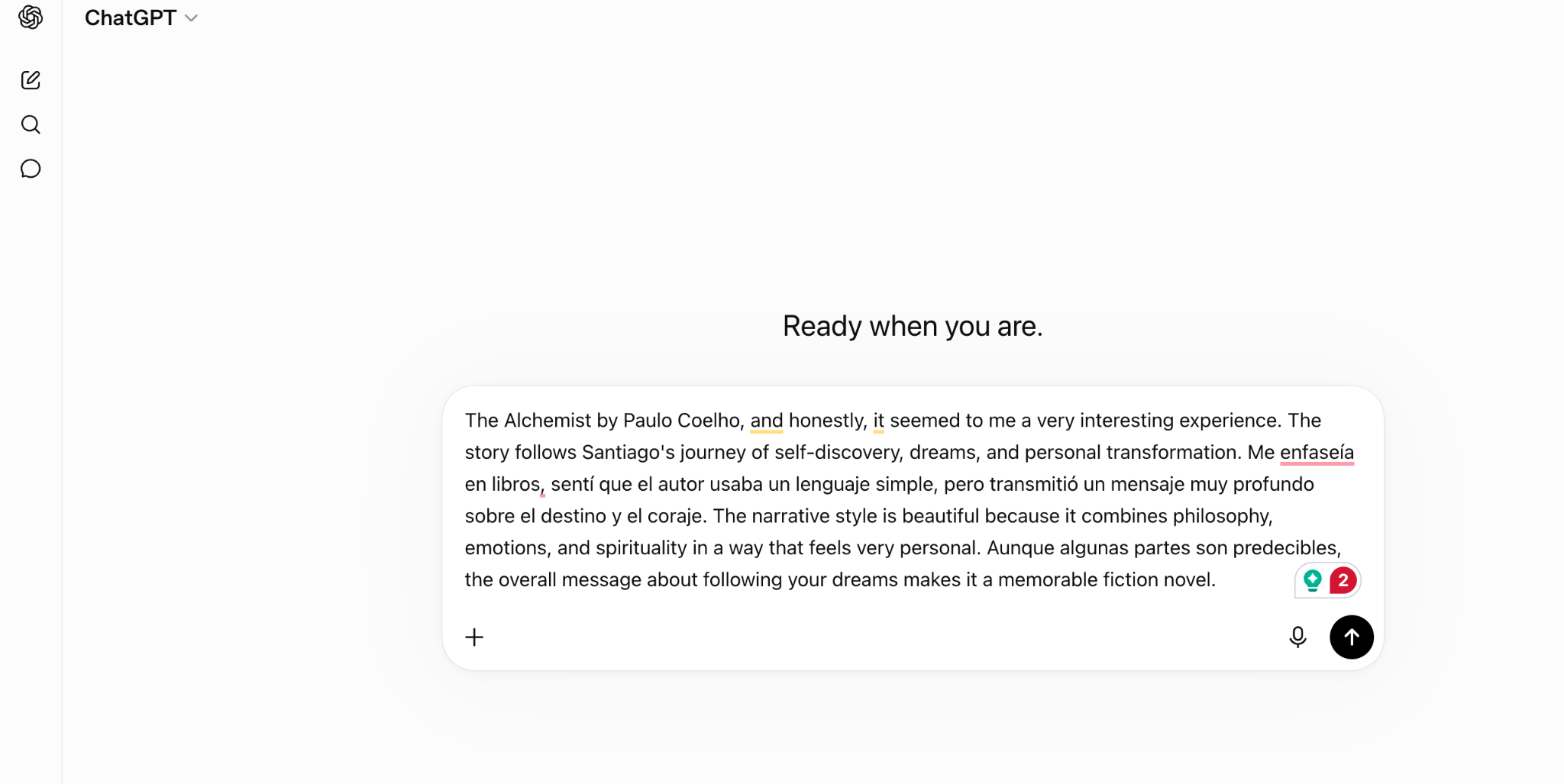
En comparaison, JotMe a transcrit fidèlement le même passage, alors même que le locuteur passait naturellement de l'anglais à l'espagnol tout au long de l'enregistrement.
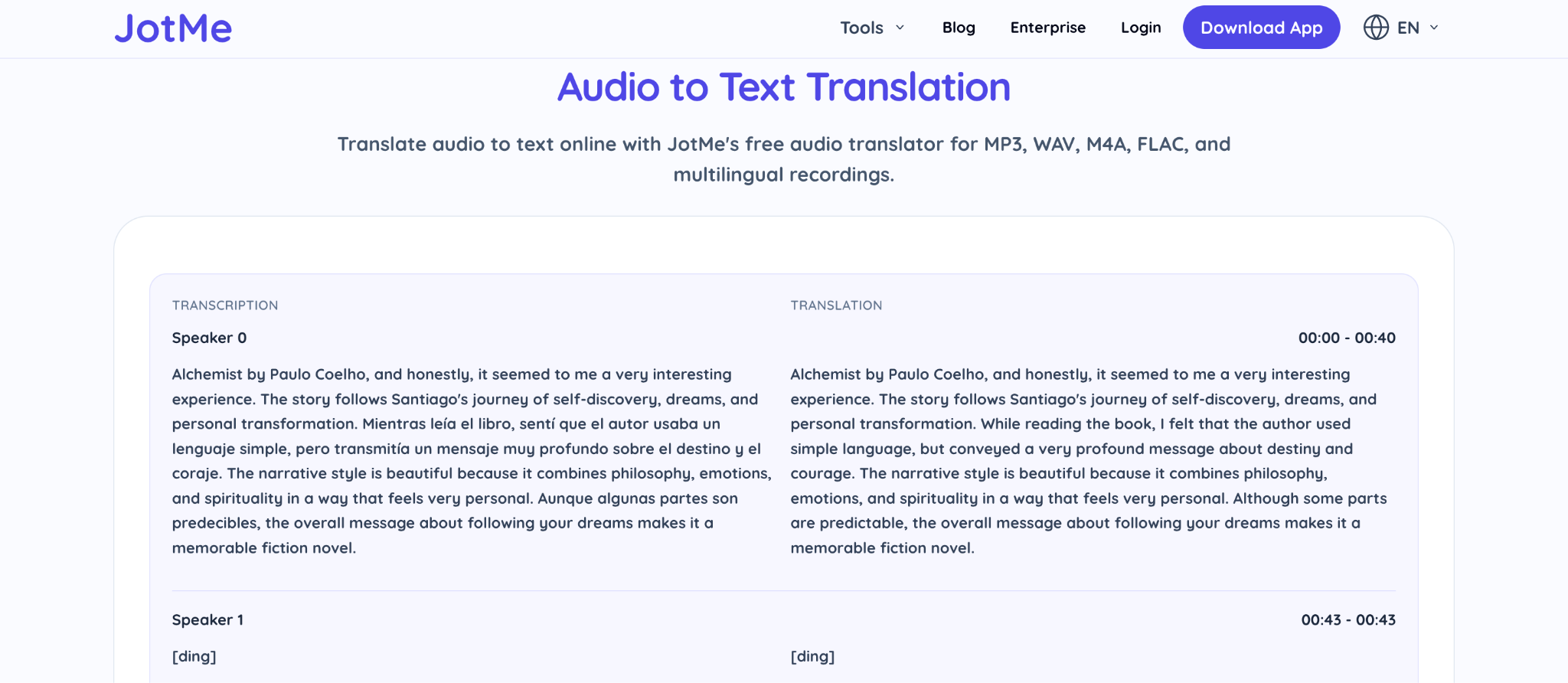
Lors de nos tests, JotMe a géré de façon constante les changements rapides de langue sans perdre le contexte. Il prend aussi en charge de nombreux dialectes régionaux de l'espagnol et de l'anglais, dont l'espagnol (Argentine), l'espagnol (Chili), l'espagnol (Bolivie), l'espagnol (Colombie), l'espagnol (Costa Rica), l'espagnol (Cuba), l'espagnol (République dominicaine) et bien d'autres. Cette large prise en charge des dialectes l'a aidé à produire une transcription plus naturelle et grammaticalement correcte pour les conversations multilingues.
La couverture linguistique compte
ChatGPT prend en charge 50+ langues, mais la qualité de transcription peut varier selon la langue, l'accent et le niveau de contexte nécessaire. Lors de nos tests, l'anglais et le hindi ont globalement donné de meilleurs résultats, tandis que des langues comme le chinois, le japonais, l'espagnol et les dialectes régionaux ont présenté davantage d'incohérences.
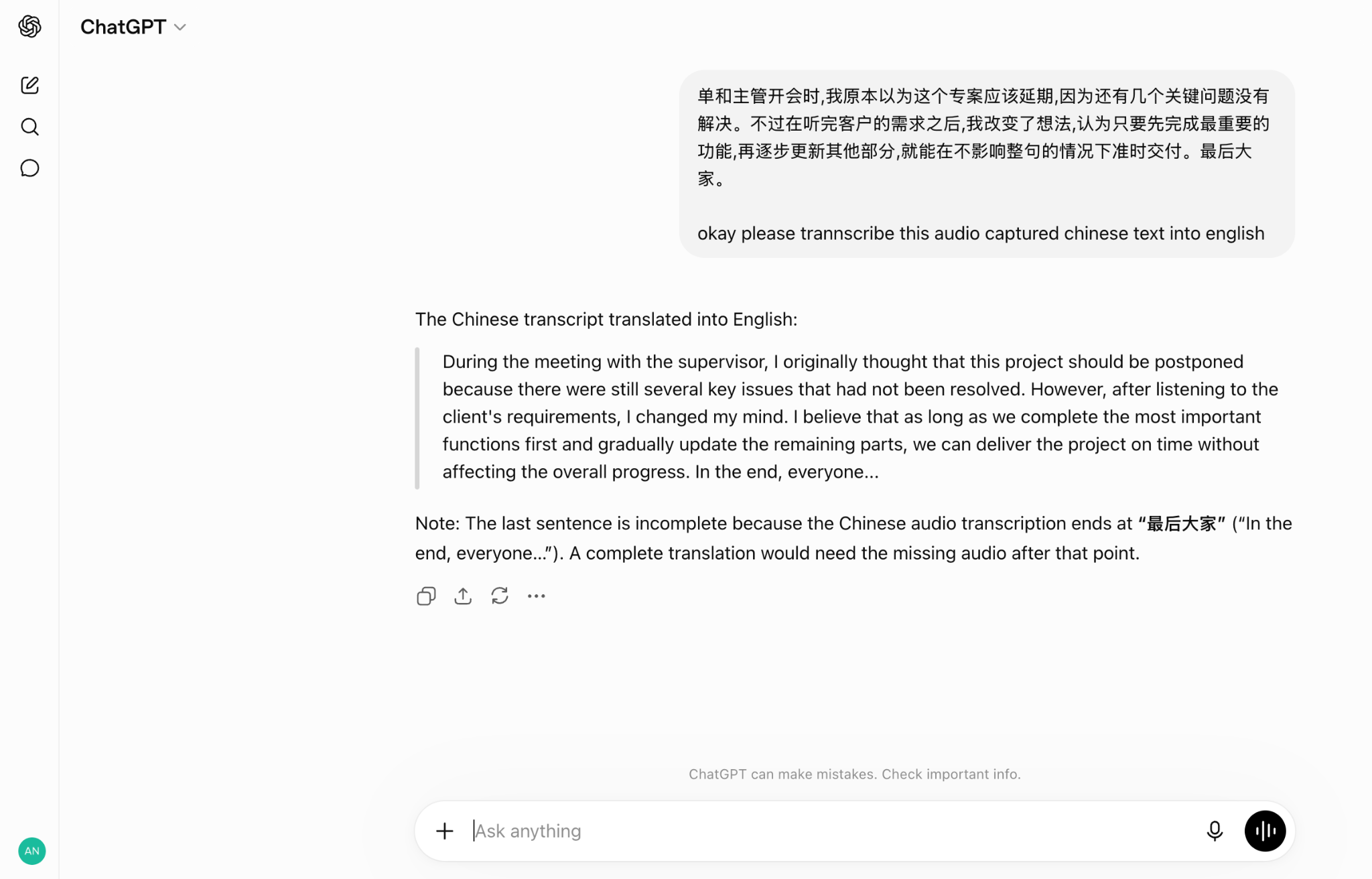
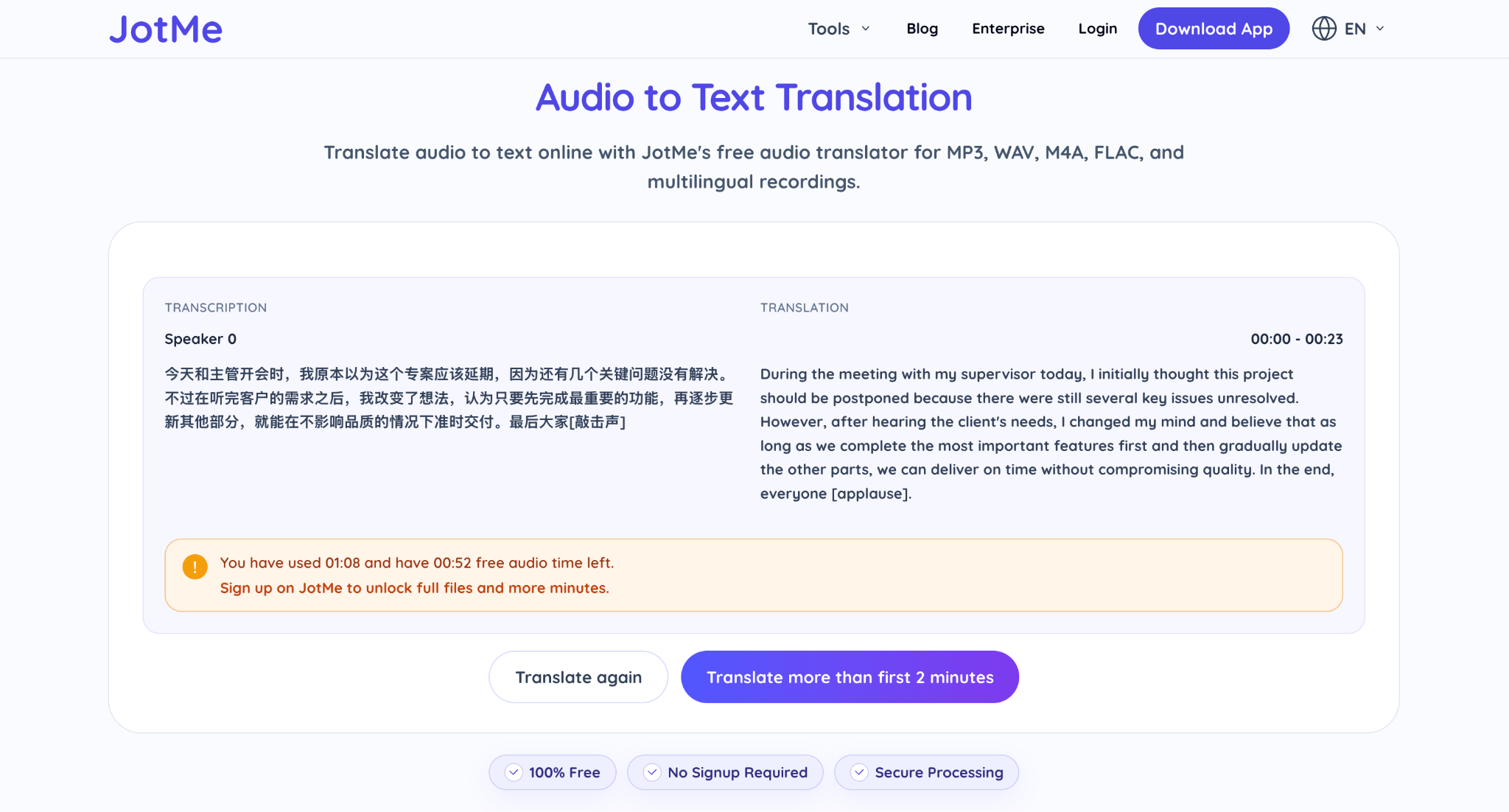
Pour comparer la précision de la transcription en chinois, j'ai importé le même fichier audio en chinois dans ChatGPT et dans JotMe, et j'ai demandé à JotMe de transcrire l'enregistrement en anglais. JotMe a su comprendre fidèlement la parole chinoise, préserver le sens d'origine et la traduire en anglais naturel tout en maintenant le contexte de la conversation.
Transcription chinoise de JotMe :
Transcription chinoise de ChatGPT :
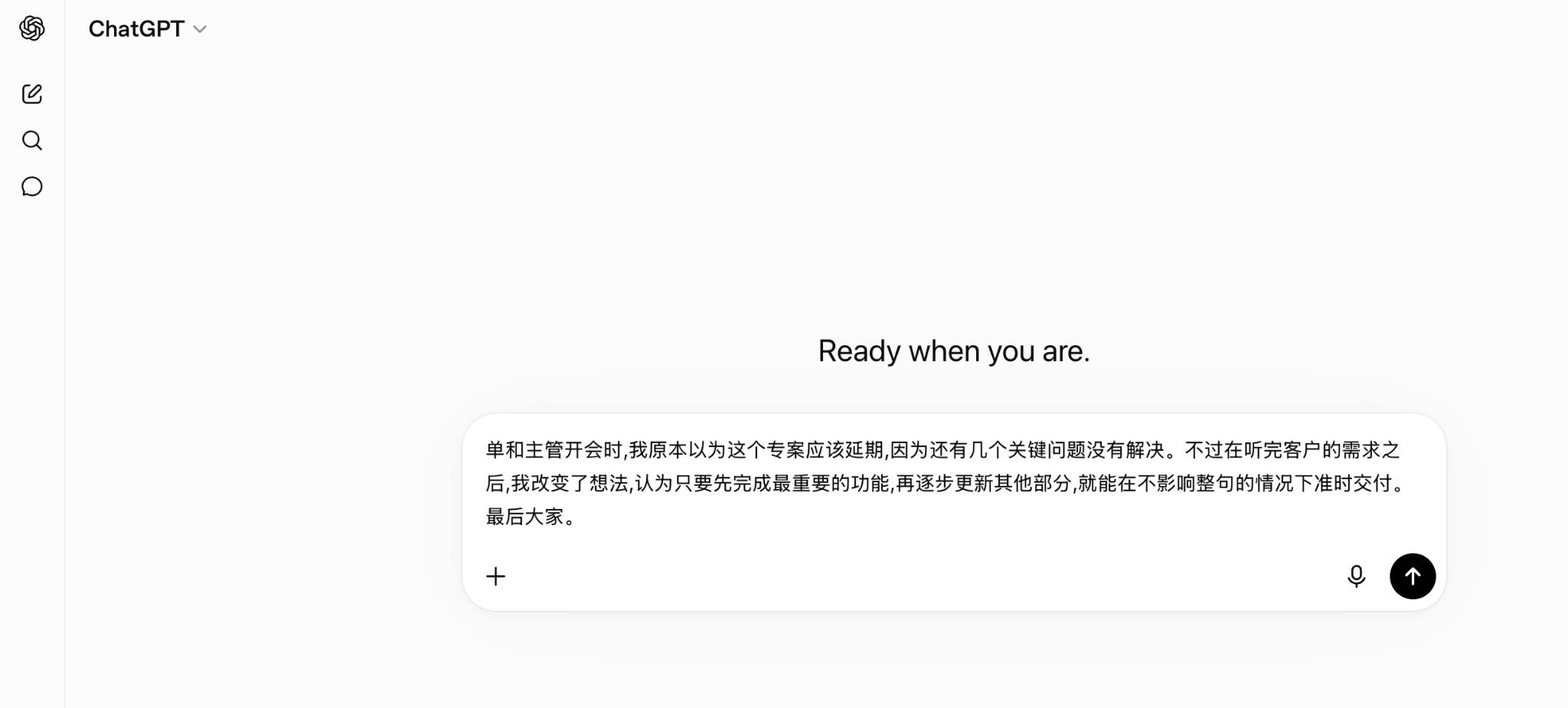
JotMe, de son côté, a préservé le sens voulu et a mieux géré la demande de transcription du chinois vers l'anglais, même en cas de changement de langue. Avec la prise en charge de plus de 200 langues et 39 000+ paires de langues, JotMe convient mieux aux organisations qui gèrent régulièrement des réunions multilingues et des équipes internationales.
Quand un outil de transcription dédié a plus de sens
ChatGPT peut transcrire des fichiers audio lorsque vous voulez une version texte rapide d'un enregistrement. Pour des fichiers courts, avec un audio clair et un seul interlocuteur, il gère bien les tâches de transcription de base.
Le workflow se complique quand vous avez besoin de fonctions autour de la transcription elle-même, comme l'identification des locuteurs, les horodatages, les traductions ou un moyen simple de relire et de copier le texte final.
C'est là qu'un outil de transcription audio dédié comme JotMe prend tout son sens.
JotMe se concentre sur la conversion de fichiers audio et vidéo en transcriptions structurées. Il ajoute des fonctions dont beaucoup d'utilisateurs ont besoin après la transcription, dont l'identification des locuteurs, les horodatages, la transcription multilingue et la traduction côte à côte.
ChatGPT vs. JotMe pour la transcription audio
La principale différence tient à ce qui se passe une fois l'audio transformé en texte.
Avec ChatGPT, vous pouvez importer un fichier audio, recevoir une transcription et poser des questions de suivi sur le contenu. Si vous voulez des noms de locuteurs, des horodatages ou du texte traduit, vous aurez peut-être besoin d'étapes supplémentaires pour organiser la transcription.
Avec JotMe, le workflow de transcription audio intègre ces fonctions dès le départ. La transcription comprend l'identification des locuteurs et les horodatages, et vous pouvez copier directement le texte généré pour l'éditer, le partager ou l'analyser.
Si vous voulez apprendre comment convertir de l'audio en texte avec JotMe, étape par étape, suivez notre guide détaillé pour importer votre fichier, générer une transcription et transformer votre audio en texte structuré.
L'identification des locuteurs facilite la relecture des enregistrements à plusieurs
Une transcription de base montre les mots prononcés dans un fichier audio. Une transcription utile montre aussi qui a dit chaque ligne. Cette différence compte pour les entretiens, les podcasts, les enregistrements de recherche, les conversations avec des clients et les discussions de groupe.
ChatGPT peut regrouper plusieurs locuteurs en un seul bloc de texte, ce qui oblige souvent les utilisateurs à identifier les locuteurs à la main.
JotMe ajoute automatiquement l'identification des locuteurs, ce qui rend les longues conversations plus faciles à suivre et à relire.
La transcription d'audio multilingue demande plus qu'une conversion de texte
Transcrire de l'audio multilingue pose des difficultés supplémentaires, car l'outil doit reconnaître différentes langues, gérer le changement de langue et préserver le sens de la conversation.
ChatGPT peut traiter de nombreuses langues, mais les enregistrements à langues mêlées peuvent exiger des invites supplémentaires et des corrections manuelles.
JotMe prend en charge plus de 200 langues et 39 000+ paires de langues. Il peut transcrire de l'audio multilingue et fournir des traductions au sein du même workflow, ce qui aide les personnes qui travaillent avec des enregistrements internationaux.
La confidentialité compte quand on importe des fichiers audio
Les enregistrements audio peuvent contenir des conversations privées, des informations sur des clients, des entretiens ou des discussions internes.
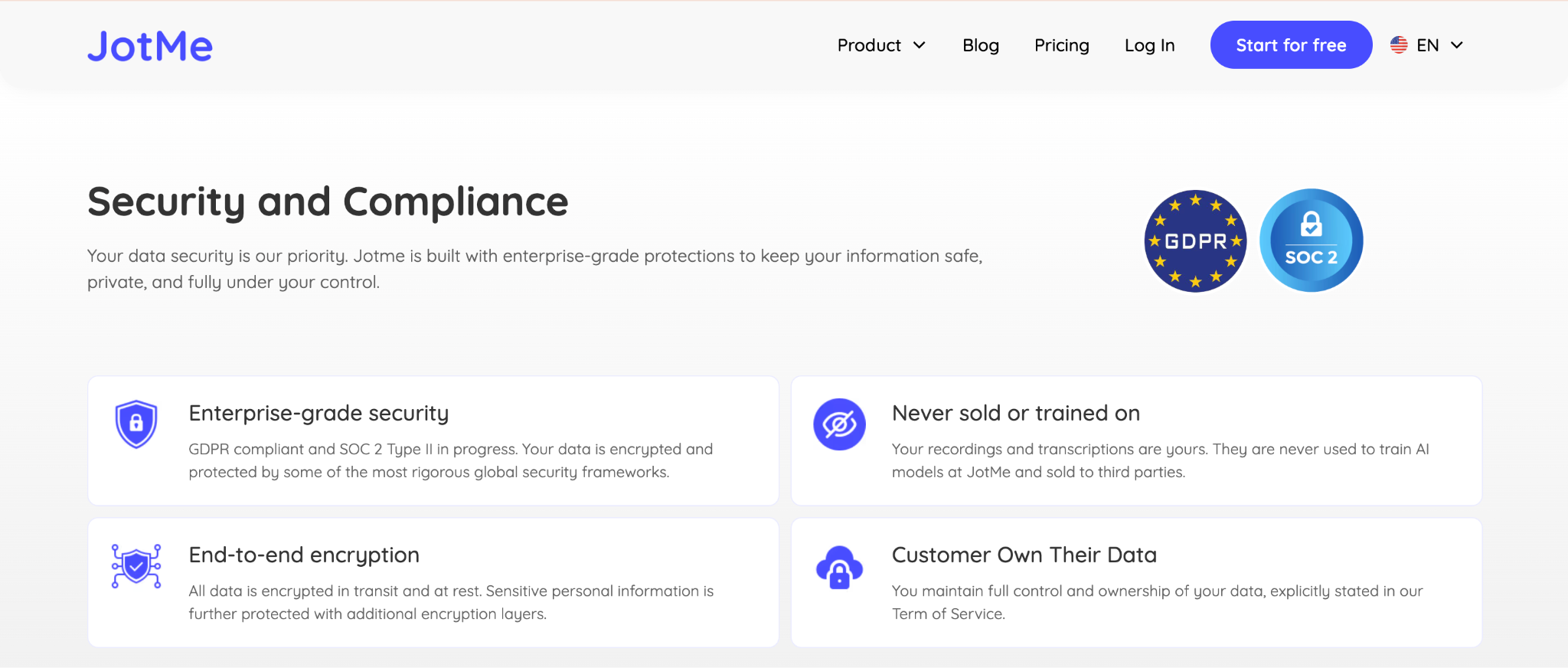
JotMe utilise le chiffrement pour protéger les données des utilisateurs et suit des normes de confidentialité telles que la conformité au RGPD. Vous devriez toujours consulter les politiques de confidentialité d'un outil avant d'importer des enregistrements sensibles.
Si vous avez besoin d'une transcription rapide à partir d'un court fichier audio, ChatGPT peut s'en charger.
Si vos enregistrements exigent l'identification des locuteurs, des horodatages, une transcription multilingue ou une transcription que vous pouvez copier et utiliser immédiatement, un outil de transcription audio dédié comme JotMe offre un workflow plus complet.
ChatGPT est-il le bon outil pour la transcription audio
ChatGPT peut transcrire efficacement des fichiers audio quand les enregistrements sont courts, clairs et dans une seule langue. Il est efficace pour les transcriptions rapides, les résumés et l'analyse par IA.
En revanche, les longs enregistrements, les conversations multilingues, les accents marqués et les besoins de traduction demandent souvent des étapes supplémentaires. Pour les personnes qui ont besoin de transcriptions précises avec identification des locuteurs, horodatages et traduction intégrée, un outil de transcription dédié comme JotMe offre un workflow plus complet.
Choisissez ChatGPT pour une assistance IA rapide. Choisissez JotMe quand vous avez besoin d'une transcription audio fiable pour des réunions, des entretiens et du contenu multilingue.
Vous voulez convertir votre audio en transcriptions précises ? Traduisez votre audio en texte avec JotMe pour un workflow de transcription plus rapide et structuré.
FAQ
ChatGPT peut-il transcrire des fichiers MP3 ?
Oui, ChatGPT peut transcrire les fichiers audio pris en charge, y compris les fichiers MP3, quand la fonction est disponible sur votre offre. Vous pouvez importer l'enregistrement, générer une transcription et demander à ChatGPT de résumer, d'analyser ou de reformuler le texte converti.
ChatGPT prend-il en charge la conversion audio-texte pour les longs enregistrements ?
ChatGPT peut convertir l'audio en texte, mais les longs enregistrements peuvent nécessiter un découpage des fichiers selon les limites d'upload et votre offre. Les personnes qui travaillent sur de longs entretiens, cours ou podcasts auront peut-être besoin d'un outil de transcription dédié pour un workflow plus fluide.
ChatGPT peut-il traduire un fichier audio tout en le transcrivant ?
ChatGPT peut aider à traduire une transcription audio, mais le workflow exige en général de transcrire d'abord, puis de traduire ensuite. Les personnes qui traitent souvent des fichiers audio multilingues préféreront peut-être des outils qui combinent transcription audio et traduction en une seule étape.
Quelle est la précision de la transcription audio de ChatGPT ?
La précision de la transcription audio de ChatGPT dépend de la qualité de l'audio, de la clarté du locuteur, du bruit de fond, des accents et de la langue. Les enregistrements clairs avec un seul interlocuteur donnent généralement de meilleurs résultats, tandis que les conversations qui se chevauchent et le vocabulaire technique peuvent réduire la précision de la transcription.
ChatGPT peut-il transcrire de l'audio dans différentes langues ?
Oui, ChatGPT peut transcrire de l'audio dans plusieurs langues. La précision peut toutefois varier selon la langue, l'accent et la qualité de l'enregistrement. Les enregistrements multilingues, avec des locuteurs qui passent d'une langue à l'autre, peuvent demander une relecture supplémentaire après la transcription.
ChatGPT crée-t-il des horodatages dans les transcriptions audio ?
ChatGPT ne fournit pas automatiquement des horodatages détaillés pour chaque transcription. Les personnes qui ont besoin d'horodatages pour des podcasts, des sous-titres, des entretiens ou des enregistrements de recherche auront peut-être besoin d'un outil de transcription conçu spécifiquement pour la conversion audio-texte horodatée.
ChatGPT peut-il identifier les différents locuteurs dans un fichier audio ?
ChatGPT n'identifie pas de façon fiable chaque locuteur dans les transcriptions audio. Les enregistrements à plusieurs personnes peuvent apparaître comme un seul bloc de texte, ce qui rend les fonctions dédiées d'identification des locuteurs utiles pour les entretiens, les discussions et les conversations de groupe.
Last updated on
August 20, 2026
Follow us on social media: